Status Indicator
184
A visual marker communicating availability, health, state, or progress status.
.webp)
A status indicator communicates the current condition of an object, process, or service. In a SaaS interface, it helps someone decide whether information is ready to use, an operation needs attention, or a change has taken effect. It may appear as a labeled badge, a saved-state message, a step marker, or a compact piece of metadata. The useful information is the state and its consequences, not the colored shape itself.
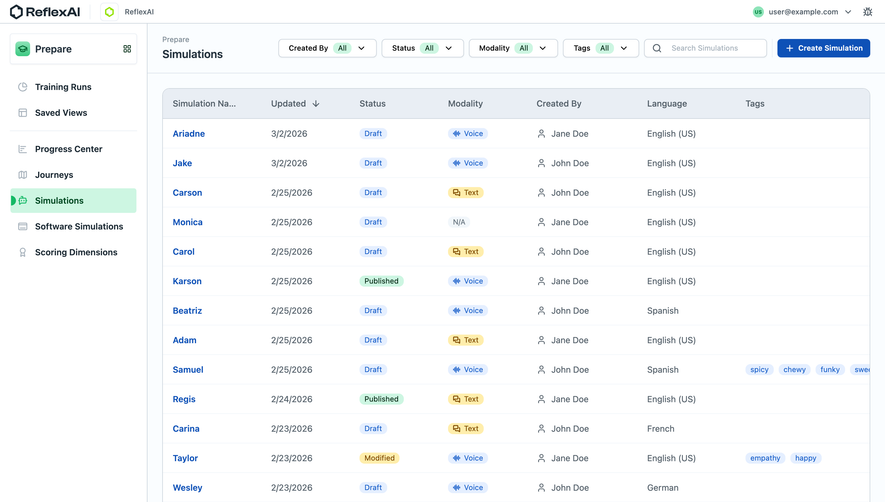
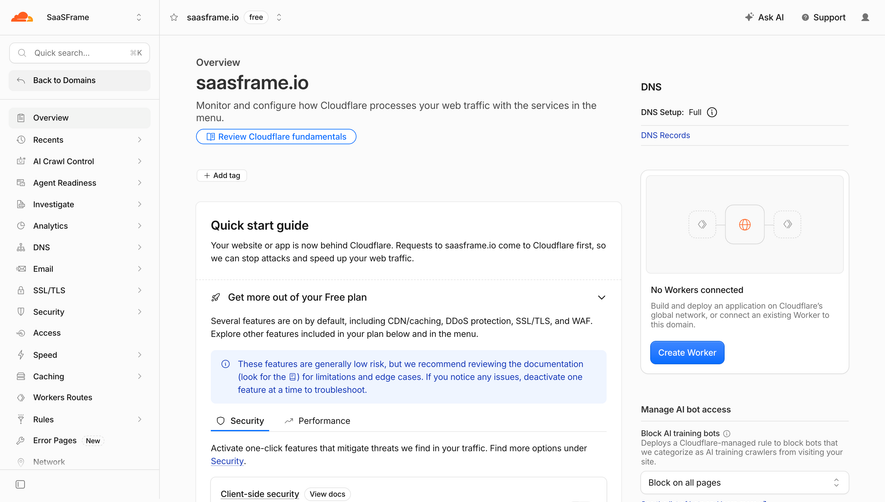
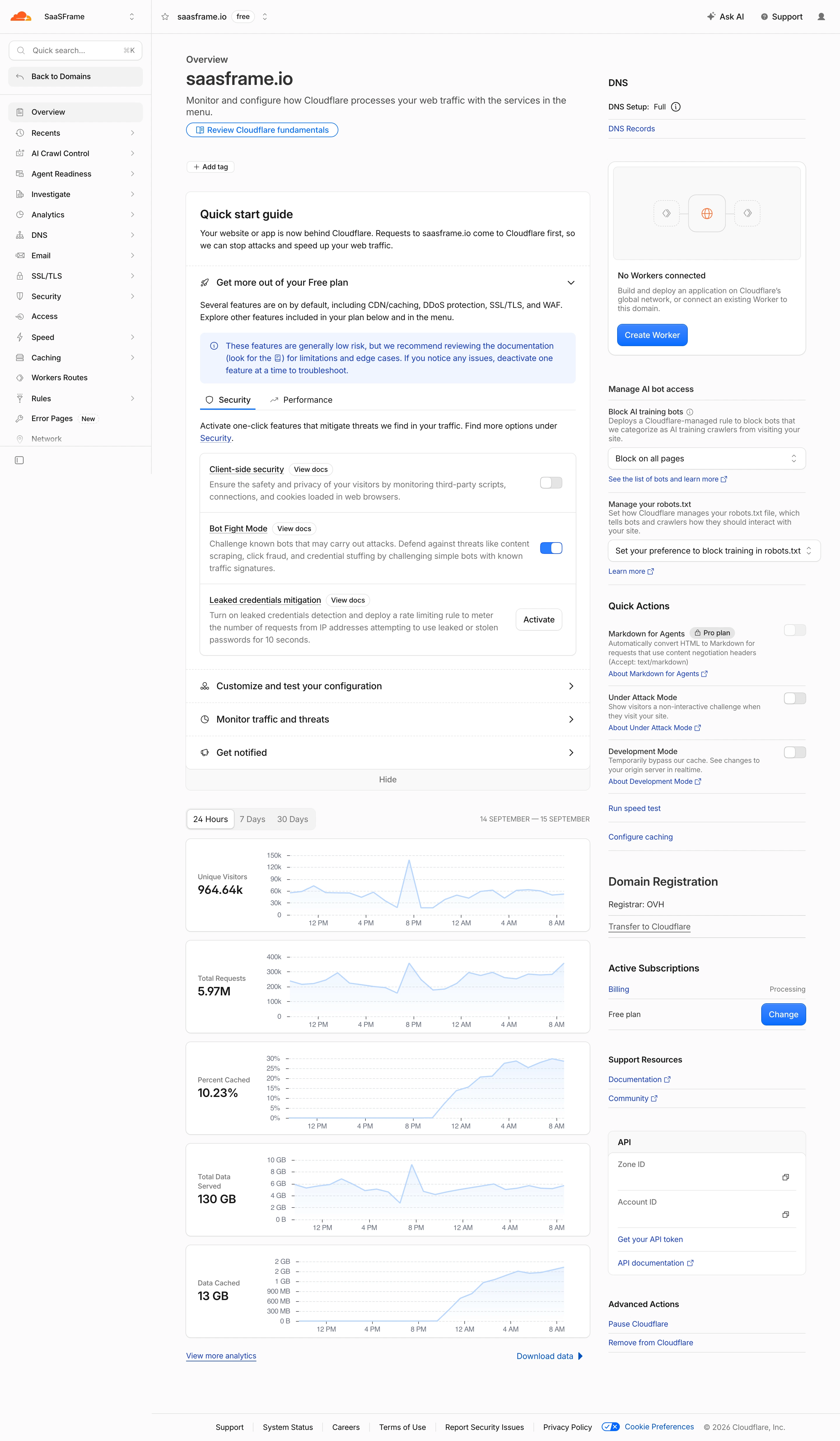
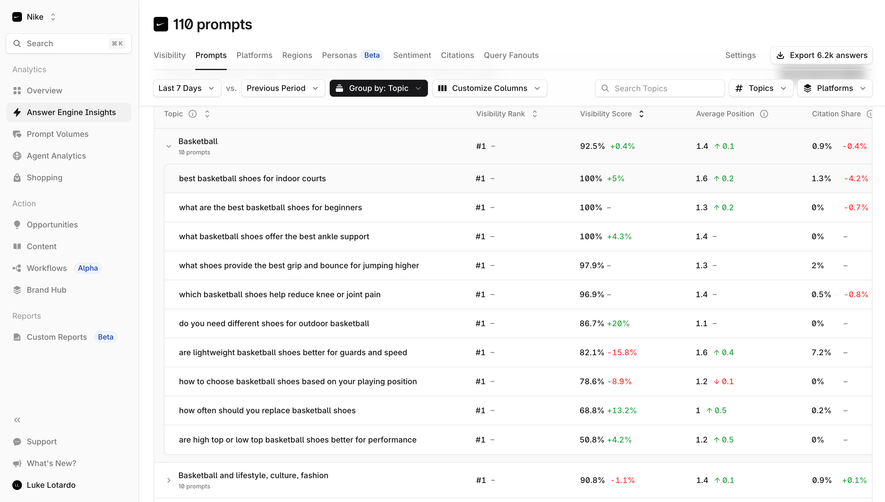
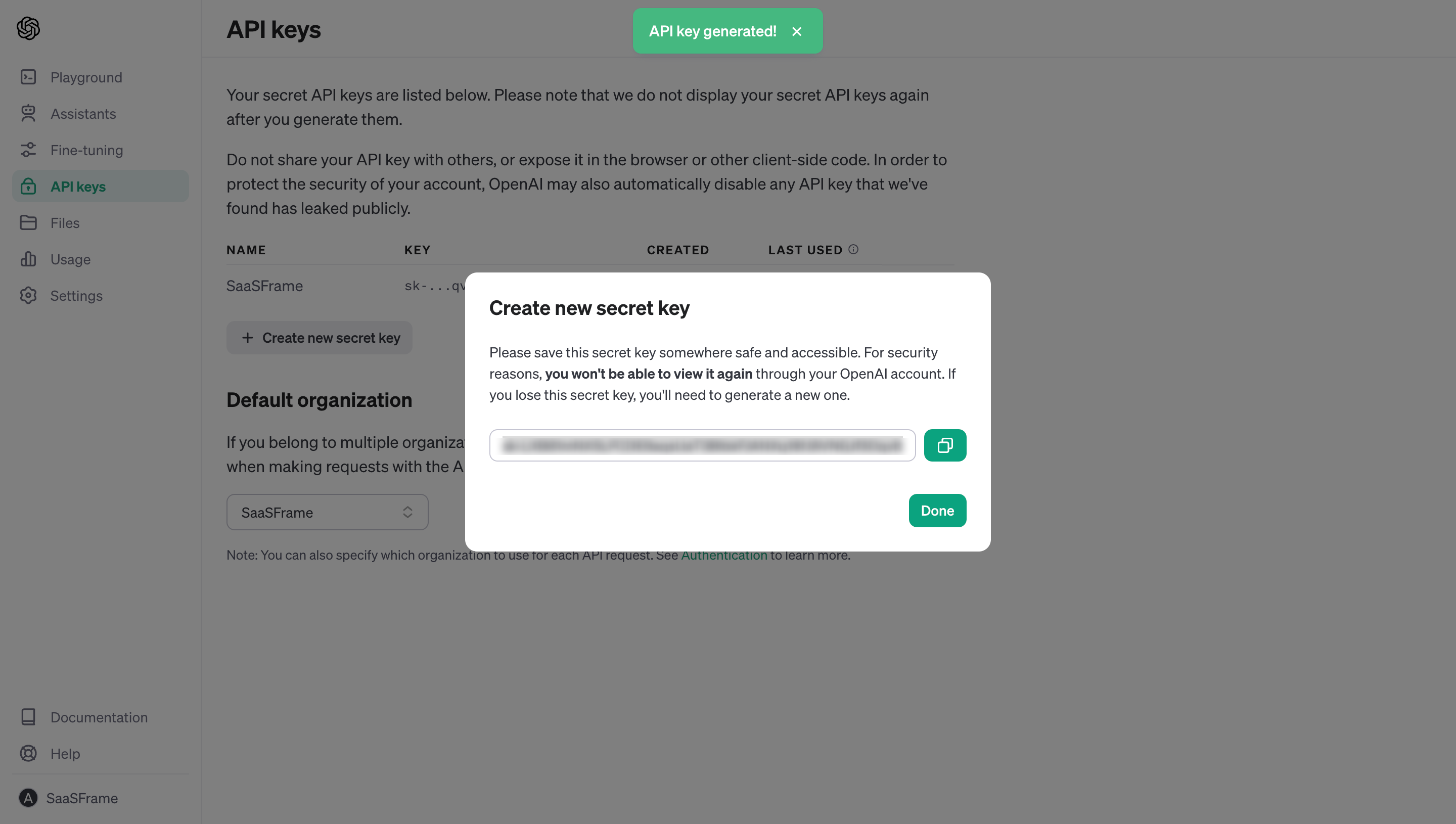
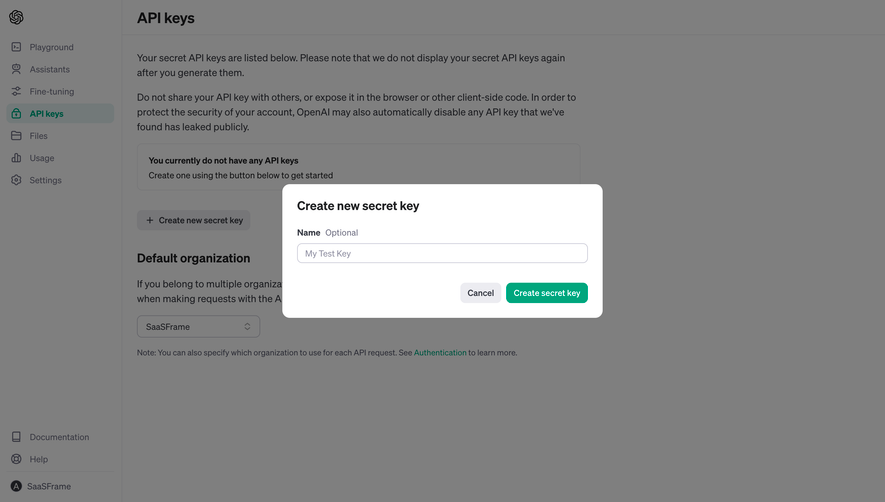
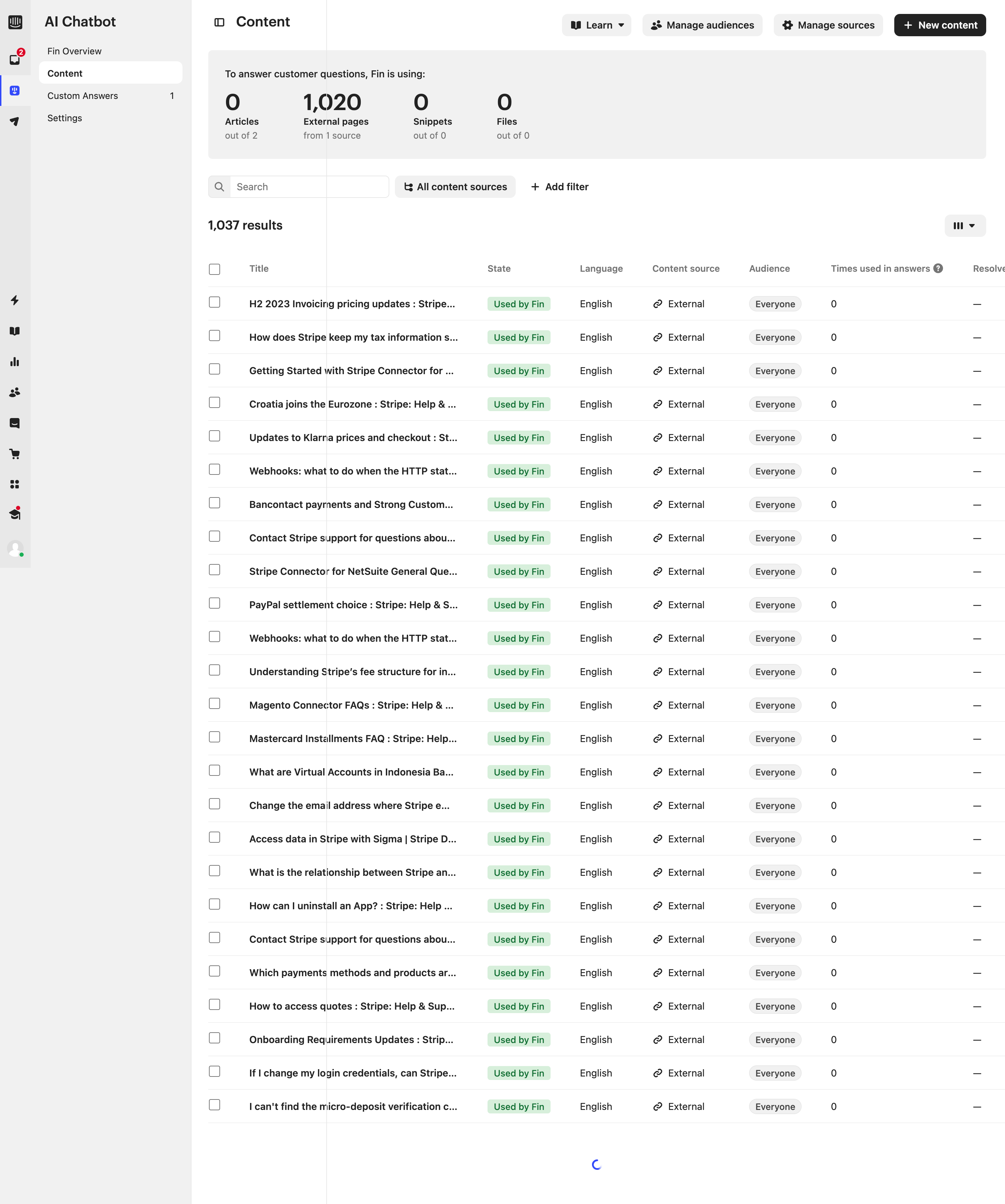
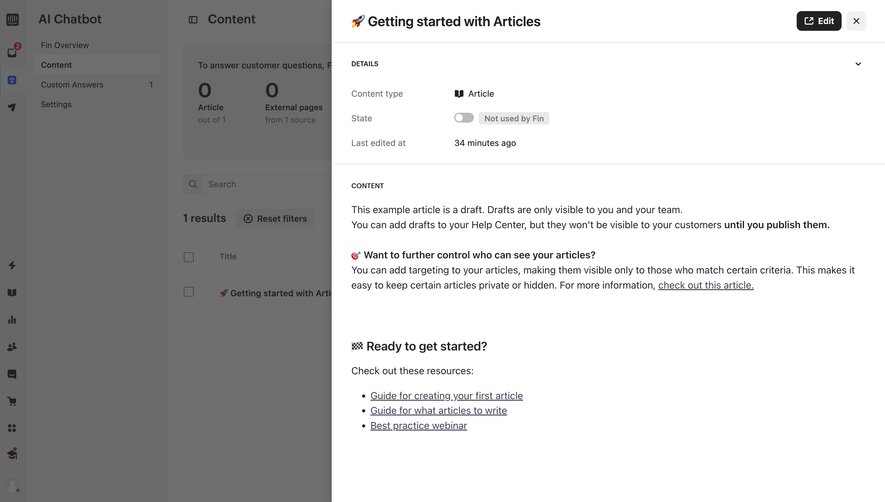
Lightdash, Profound, and Cloudflare illustrate three different problems: deciding whether a metric is trustworthy, separating document state from workflow completion, and understanding infrastructure configuration. These screenshots show visible states at one moment. They do not establish how frequently states update, whether changes are announced accessibly, or what happens after a control is selected.
Start with an explicit subject. Is the indicator describing the document, its latest save, a background job, a connection, or an approval decision? A generic “Complete” label becomes misleading when several processes coexist. A report can finish generating while its data source is disconnected. A document can be saved while it remains unpublished.
Map the state model before drawing badges. Identify the initial state, intermediate states, successful outcomes, recoverable failures, and states requiring another person's action. Some states form a sequence; others are independent properties. Do not force every property into a single traffic-light scale merely because that makes the design system simpler.
For a content tool, “Draft,” “Saved,” and “Workflow completed” can all be true at once. For an integration, “Connected” and “Last sync failed” may also coexist. Presenting both facts helps the user choose the next action; compressing them into one green dot removes the distinction that matters.
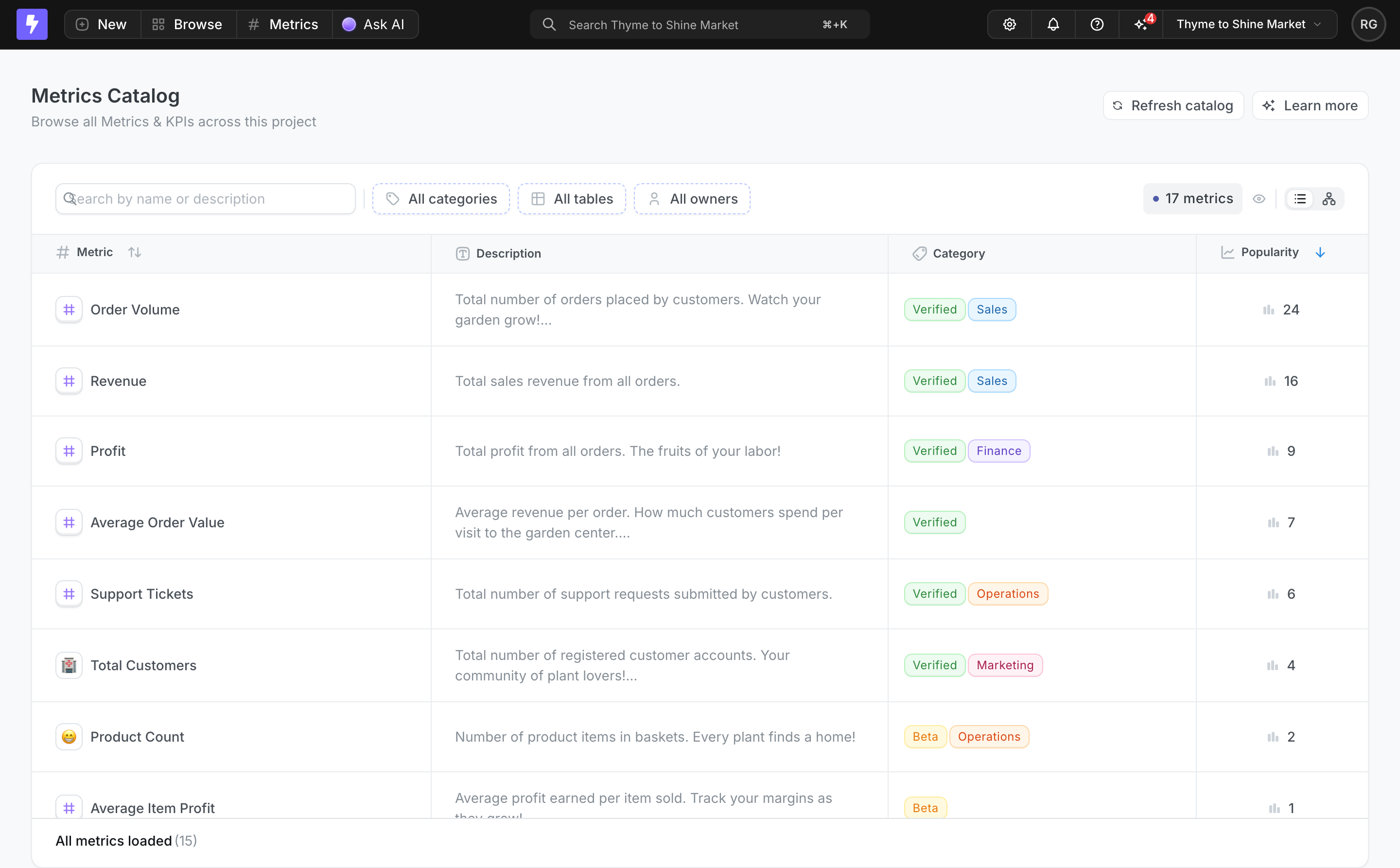
Lightdash's metrics catalog places “Verified” and “Beta” labels alongside category tags such as Sales, Finance, and Operations. The shared row layout lets people compare metrics while preserving the distinction between a metric's subject and its maturity or verification state.
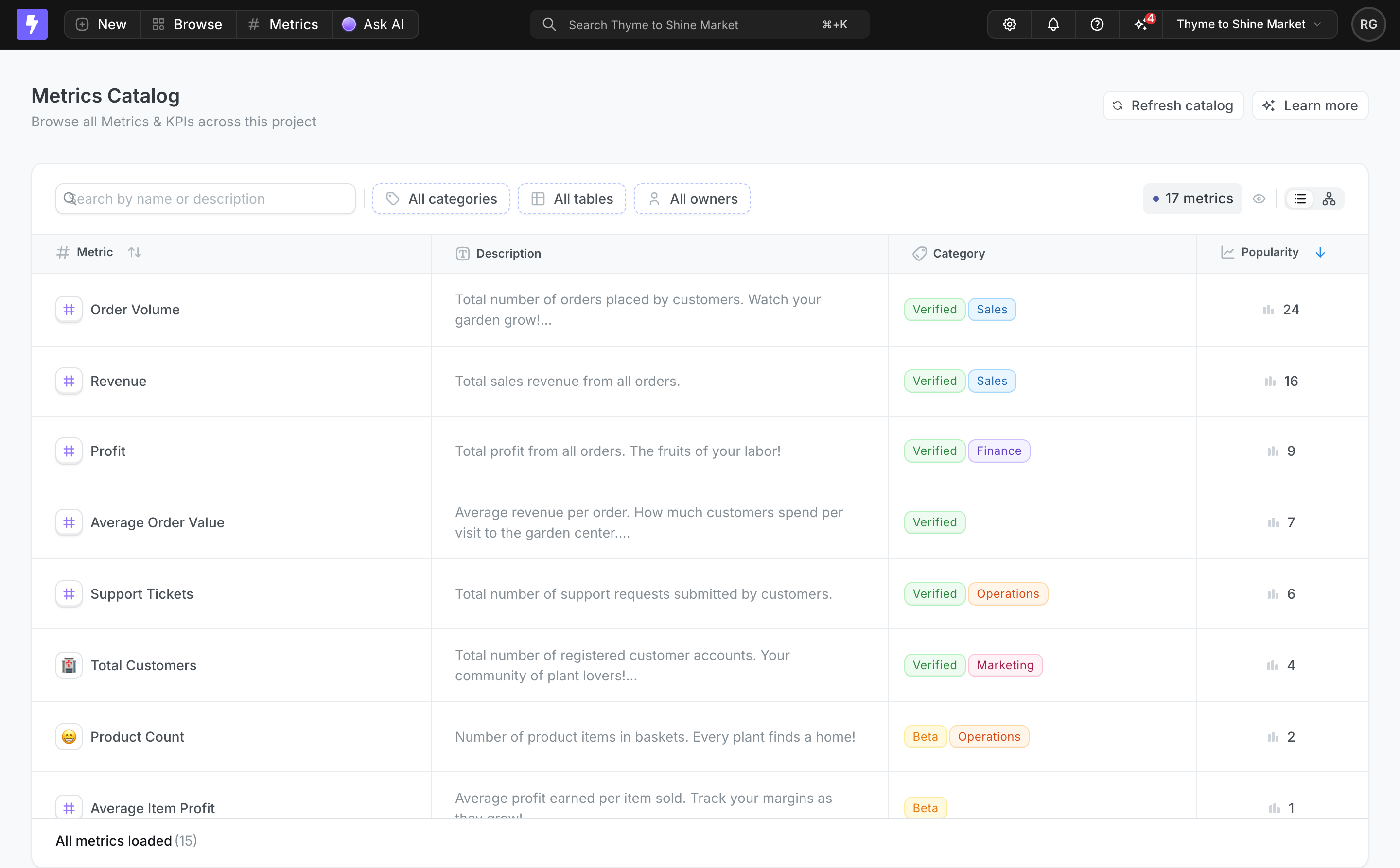
The practical lesson is to establish a visual and semantic distinction between classification and status. “Finance” describes where an item belongs; “Verified” makes a claim about review or trust. If every label has the same emphasis, users may mistake an ordinary category for an endorsement.
Define what verification actually means in your product. It might represent owner review, an automated validation, or approval under an internal policy. Provide an explanation or detail view when that meaning affects decisions. Do not imply that a verified metric is always fresh, correct for every use, or approved for every audience.
For an unverified or beta item, explain whether it can still be used and what caution is appropriate. Blocking access, warning before use, and simply marking maturity are different policies. The screenshot demonstrates the labels, not Lightdash's underlying review policy; use it as a reference for presentation rather than an assumed governance model.
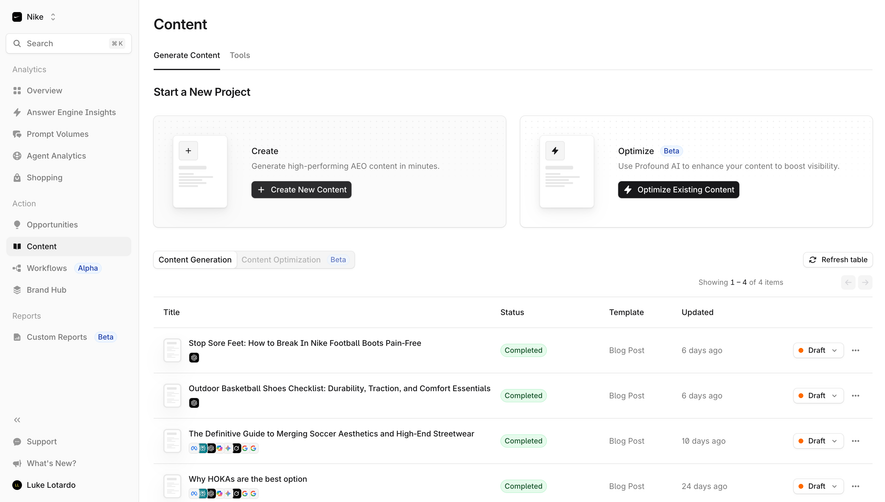
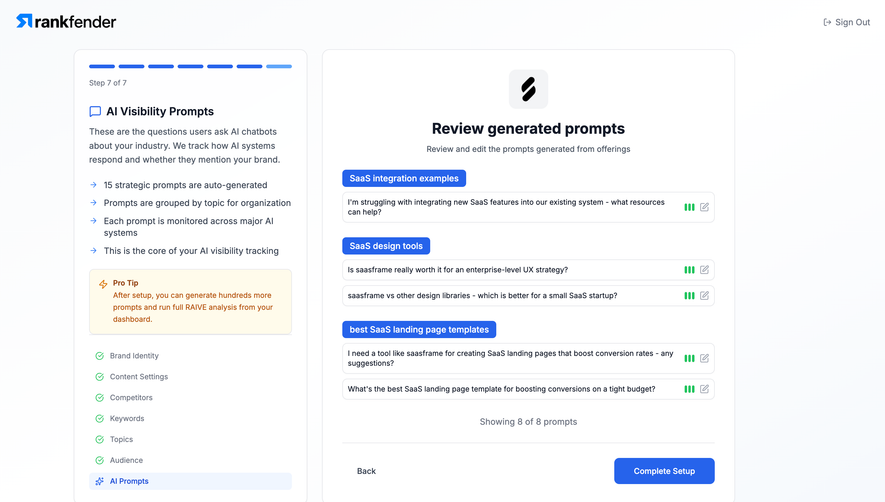
Profound's content brief shows a green “Document saved” message in the header, an orange “Draft” control, and a workflow panel at 100% with nine of nine steps completed. The main area still offers “Create Final Draft.” Several reassuring signals coexist without describing the same outcome.
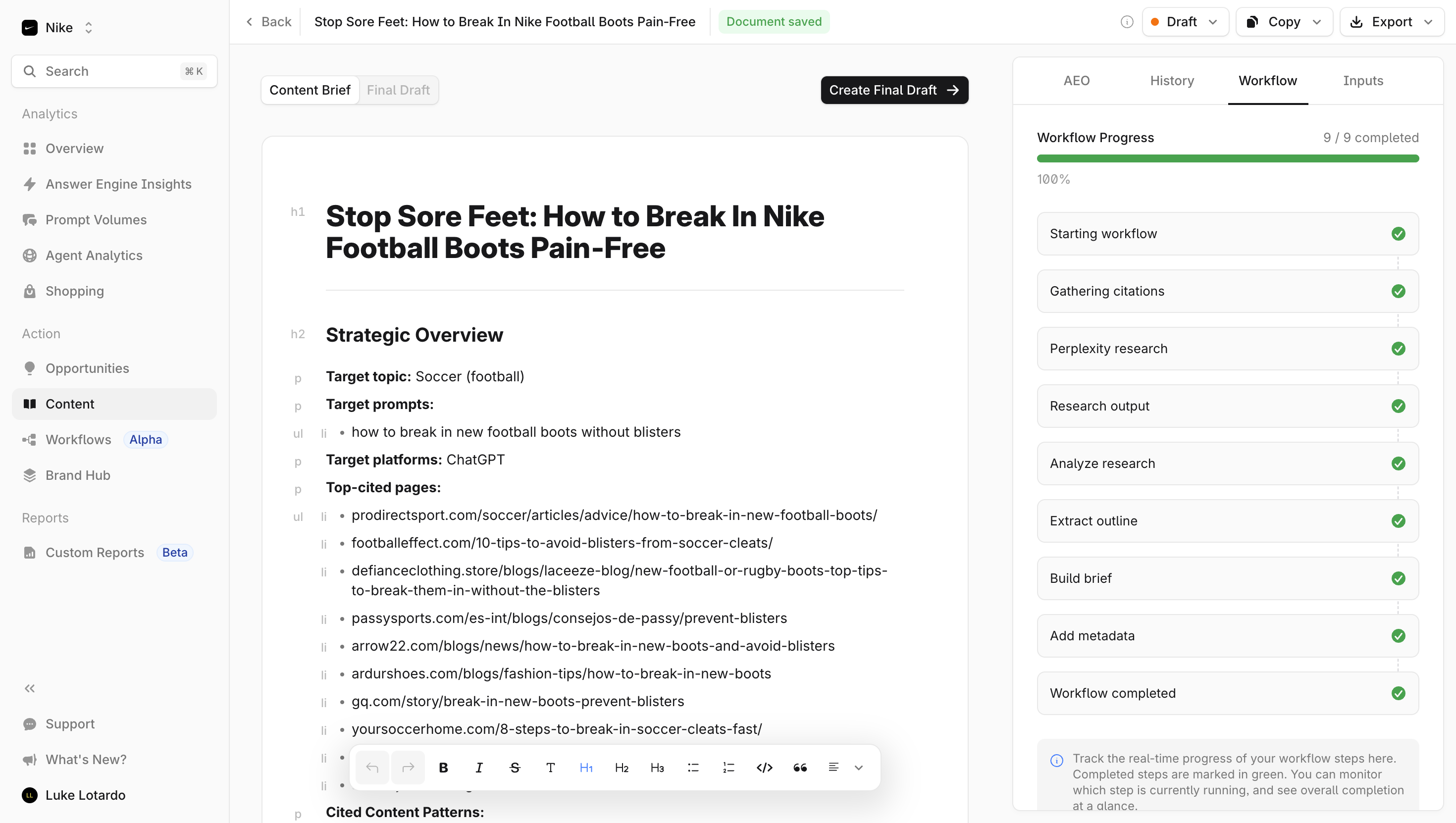
This separation is useful in any system where background processing prepares work for a human. A completed generation job should not silently imply that a report is approved or a campaign is published. Name the completed process and keep the remaining action visible.
A saved-state message has a narrower responsibility: it reassures people that their changes have been persisted. If saving is delayed or fails, the interface should distinguish unsaved changes from the lifecycle state of the document. Otherwise a permanent “Draft” badge can leave users unsure whether they can safely close the tab.
When a workflow completes, describe what is now available. “Brief ready to review” can be more useful than “Done” when review is the next task. Keep the terminology consistent between the compact header indicator, the workflow detail, and the action that advances the object.
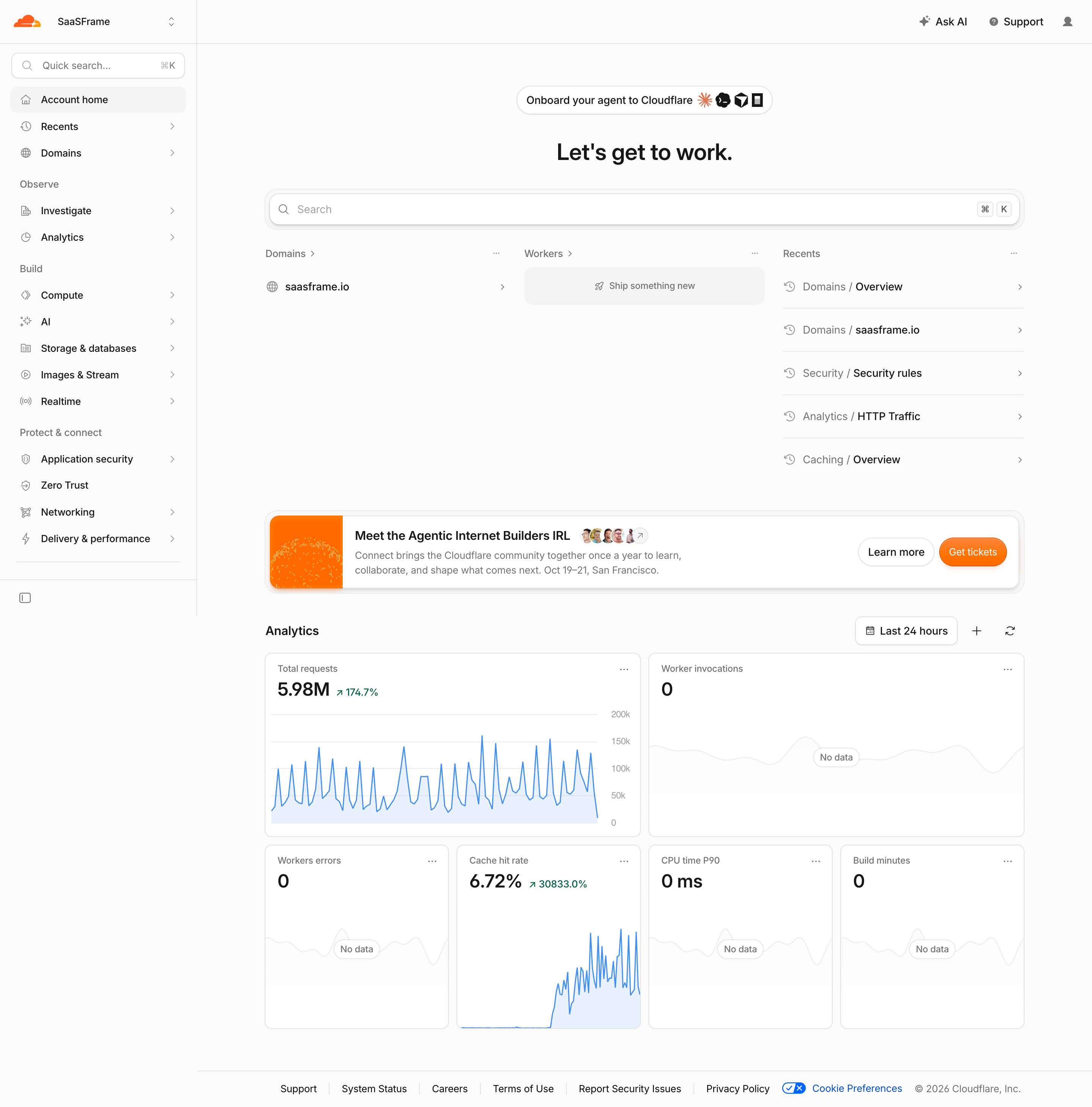
Cloudflare's domain overview combines configuration controls, a DNS setup label, and subscription information. The capture includes “DNS Setup: Full,” several on/off controls, and an active-subscriptions area with “Processing.” These are different kinds of state distributed through one administrative page.
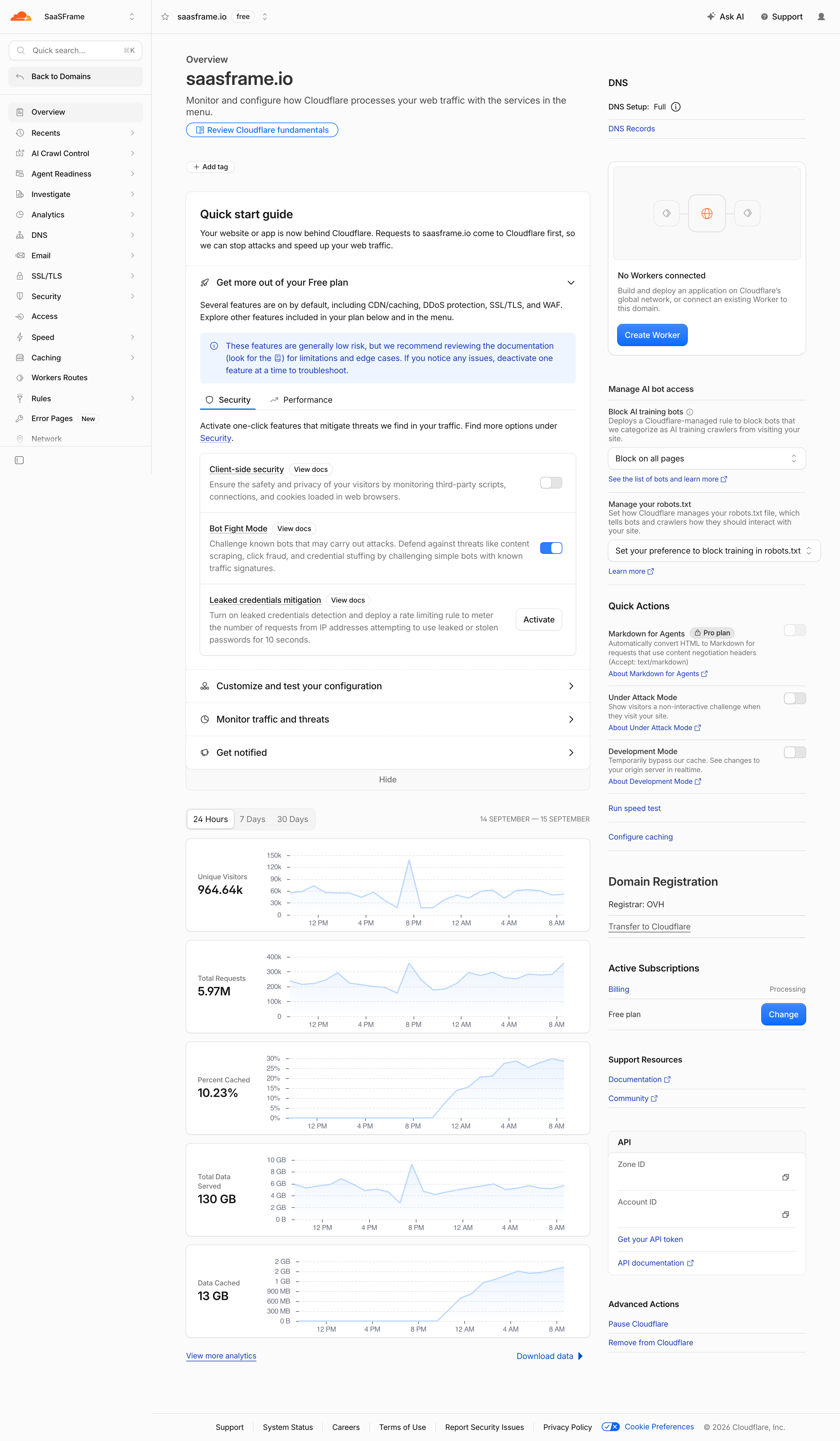
A setting control expresses a configuration choice; an operational indicator describes what the system is doing. Those values may temporarily differ after a change. If applying a setting takes time, show the requested configuration and the application state explicitly rather than making the toggle carry both meanings.
Place transitional information near the affected setting or subscription. A global spinner tells the user that something is happening but may not identify which resource is waiting. Include the object name when several changes can be in progress at once.
The screenshot cannot demonstrate propagation or persistence behavior. In your own implementation, test a delayed application, a rejected change, and a reload during processing. The final state should remain understandable even if the person never saw the original confirmation.
“Pending” often hides the most important information: pending what, and waiting on whom? Distinguish queued processing, administrator review, an external response, and a missing user action. A short label can remain compact while a nearby explanation gives the reason.
Use the vocabulary of the task. An invoice may be overdue; an import may be partially completed; an invitation may have expired. Reusing “Warning” for all three makes the interface consistent at the cost of understanding. Reserve broader severity language for situations where severity itself is the decision users need to make.
Pair a state with an action only when that action is useful and permitted. A failed sync may offer retry, connection settings, or error details. An approval waiting on another team may offer a way to inspect the request rather than an unavailable approval button. Avoid turning every status badge into a control without a clear affordance.
Unknown, unavailable, and offline are not interchangeable. An offline resource may have a confirmed connectivity problem; an unavailable status may mean the application cannot currently retrieve information. If the last observation is old, present it as the last known state rather than a current guarantee.
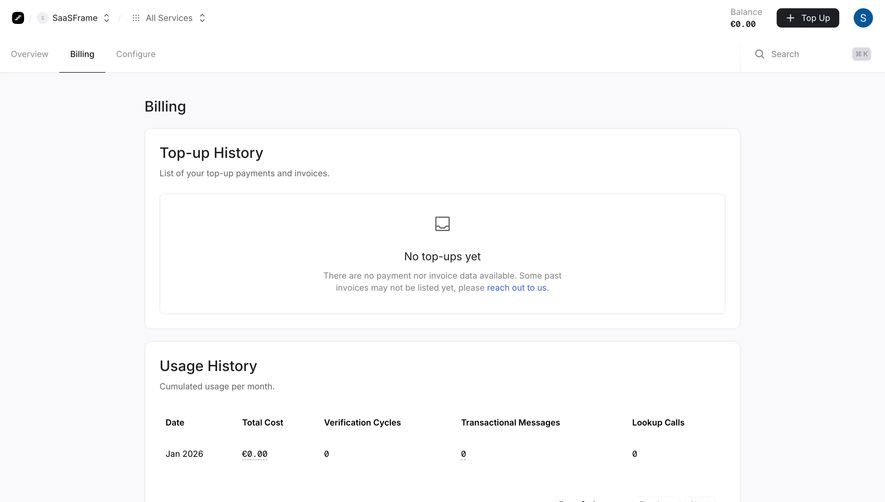
Time matters when people use indicators to operate systems. A connection labeled healthy at yesterday's check may be unsafe to treat as healthy now. Show a last-check time or a freshness explanation when the age of the observation can change the user's decision. Prefer a clear timestamp to a vague “recently” in contexts that require coordination.
When status retrieval fails, preserve useful prior information while making its age and uncertainty visible. Replacing everything with an error can remove context; keeping an unqualified green badge can mislead. Design this state intentionally instead of inheriting it from the loading component.
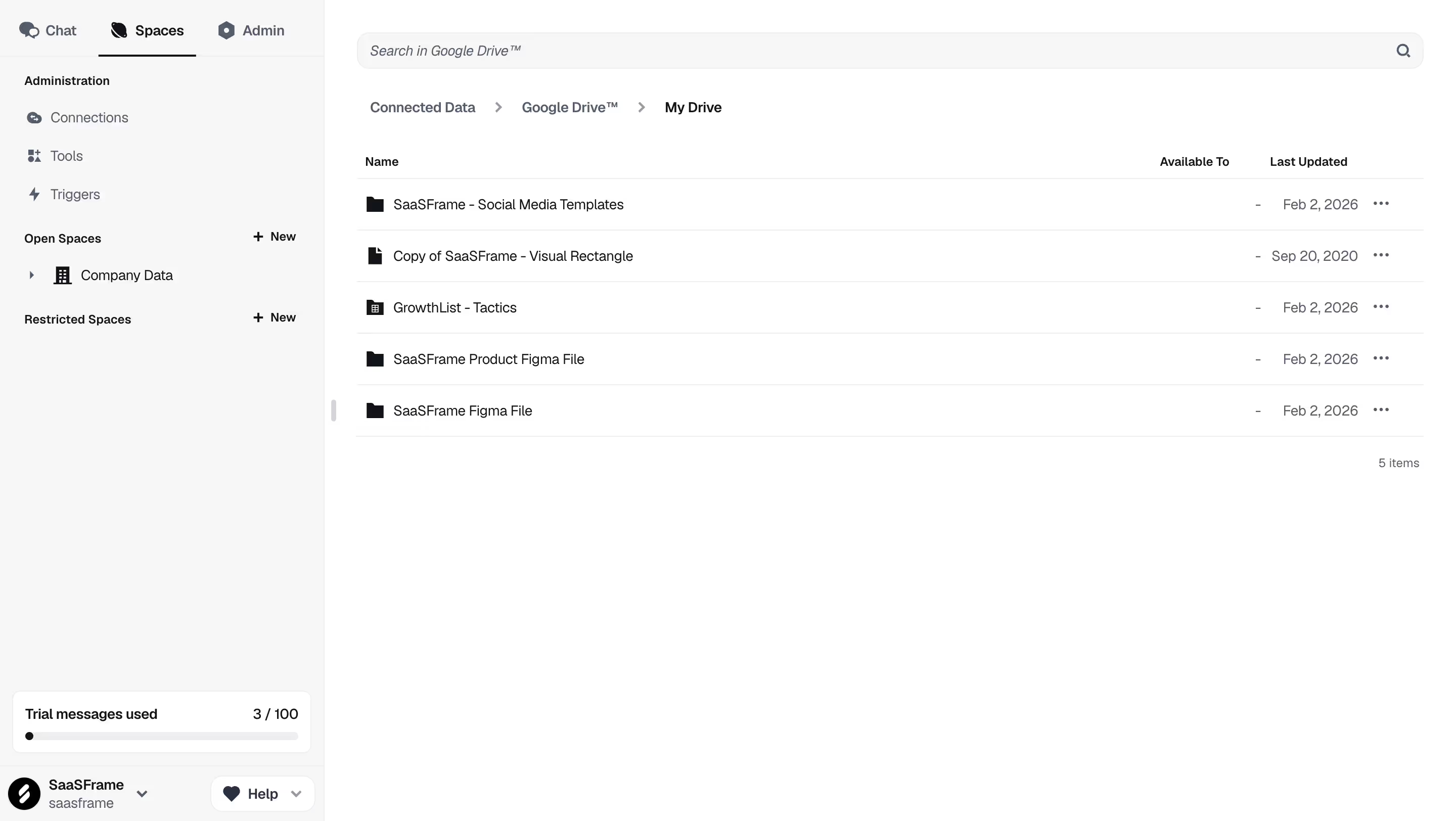
A batch operation can complete without every item succeeding. An import with ninety accepted records and ten rejected records should not produce only a green “Complete” indicator. Describe the outcome, expose the rejected items, and help users correct them without repeating successful work unnecessarily.
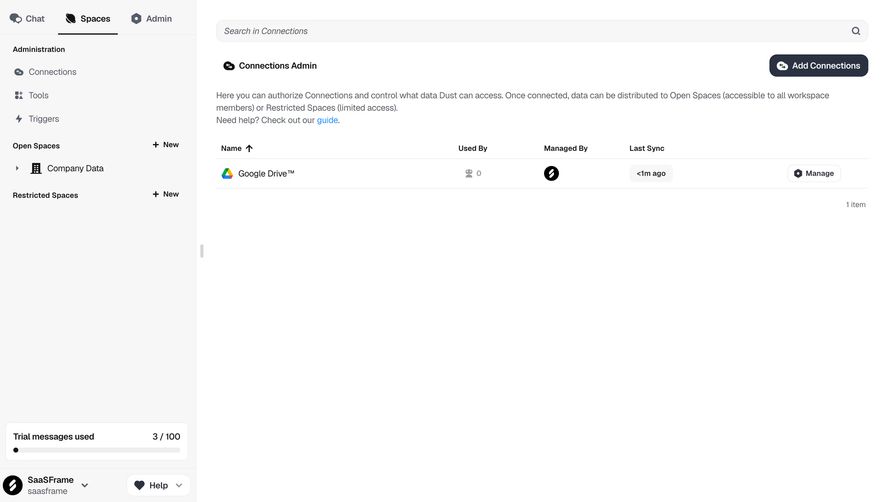
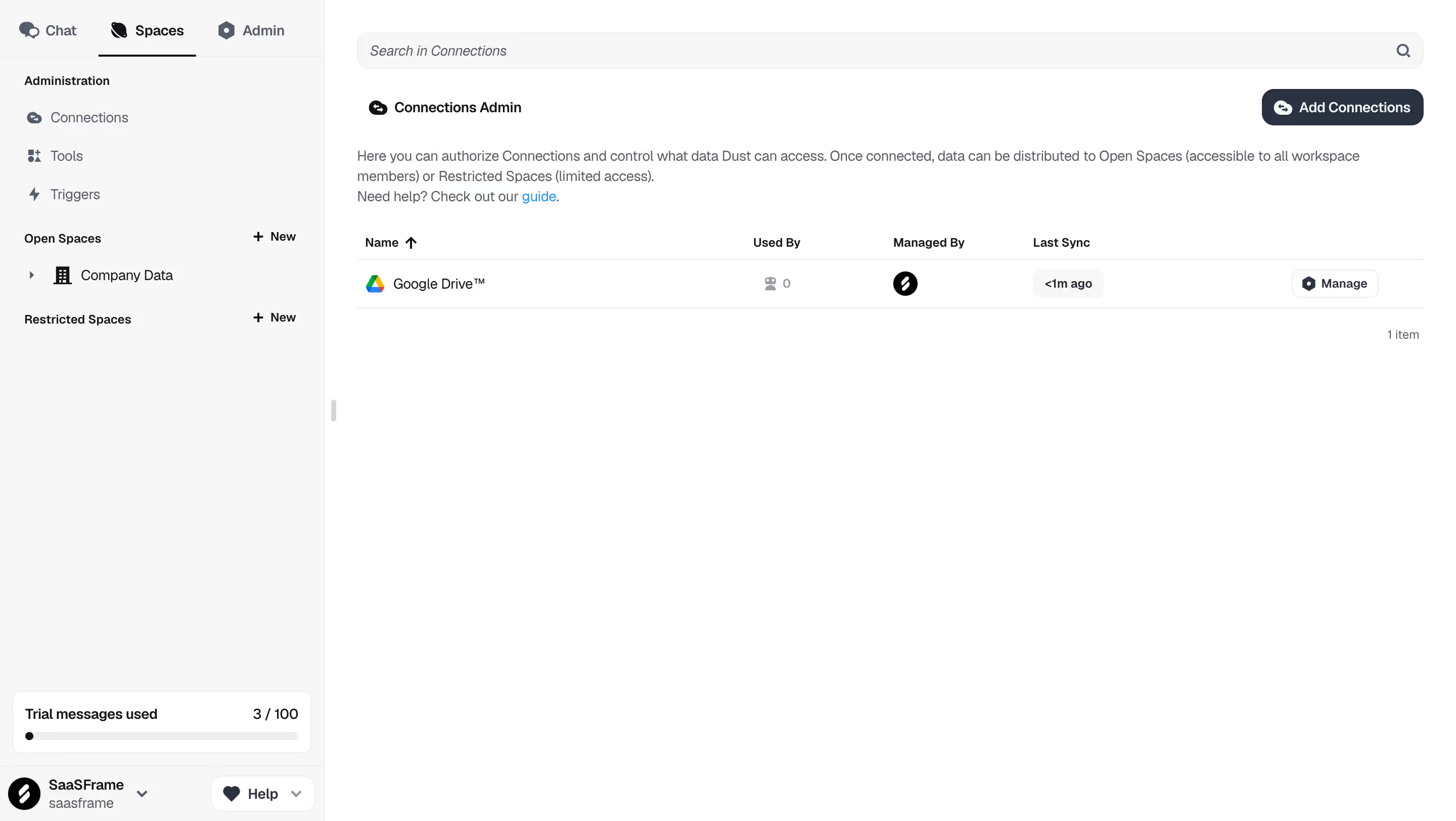
Aggregate status needs a rule. Does the workspace badge report the worst condition, the number of affected resources, or the health of a particular service? Define that rule so the detail view explains the summary. A parent can be active while one child is disabled; the interface should not make those facts appear contradictory.
For long lists, combine scanability with detail. A concise state in each row supports comparison, while a detail view can explain ownership, timestamps, and errors. Keep the object name visible when opening that detail so users know which resource they are investigating.
Use a readable state label wherever the meaning matters. Color and icon shape can reinforce recognition, but a green dot alone does not explain whether an item is online, approved, saved, or selected. Make the accessible name describe the same state that sighted users see.
Review text and indicator contrast against the actual backgrounds, including selected rows, dark themes, and disabled surfaces. Small pale badges can lose their meaning precisely where dense tables need them most. Test long labels and translated text rather than sizing every badge around the shortest English word.
Dynamic status messages also need appropriate treatment for assistive technology. W3C's status-message guidance addresses updates about results, waiting, progress, or errors that occur without taking focus. Decide which changes warrant an announcement and test that behavior; do not make every decorative or persistent badge a live announcement.
Frequent updates can reduce confidence when states change faster than people can interpret them. Keep rendering stable while a new observation arrives, and distinguish an update in progress from a confirmed change. Do not erase the object label or rearrange rows whenever a background check runs.
When users initiate an action, acknowledge it immediately with an honest transitional state. Confirm success only when the relevant operation has completed. If an optimistic update is appropriate, define what happens when it is rejected and explain the correction clearly.
Test interruptions such as navigation away, reconnecting after a network failure, and several people modifying the same object. A polished success badge is insufficient if the application later restores an older state without explanation.
A badge is a visual container. A status indicator communicates an object's condition. Badges can also show categories or counts, so their appearance alone does not establish that they represent a state.
A consistent color vocabulary can help scanning, but the label must carry the meaning. Saved, approved, connected, and completed are distinct outcomes and may need to appear together.
Keep object states available when users need them later. A temporary confirmation can disappear if the lasting outcome remains clear elsewhere; important failures or unresolved actions need a discoverable persistent location.
It describes completion of the measured process. Review, approval, publication, or downstream processing may still remain. Name the completed process and expose the next step.
Compare Progress Indicator for work moving toward completion, Loading Indicator for waiting, Error State for recovery, and Badge for compact label presentation. Use the gallery to compare how interfaces place state beside the relevant object, then test the transitions that a screenshot cannot show.
For dynamic feedback accessibility, consult W3C's guidance on status messages.