 SaaSFrame
💌 Invite Team Members
Accelerate virality and collaboration with effective SaaS Invite Team Member UI designs. Discover multi-email inputs, role selection dropdowns, and referral link sharing patterns that make growing a workspace simple.



Index of all 103 Invite Team Members examples
- Prelude Invite Team Members
- Visitors Invite Team Members
- Pitch Invite Team Members
- Superlist Invite Team Members
- Wiza Invite Team Members
- FlowMapp Invite Team Members
- FlowMapp Invite Team Members
- Audienceful Invite Team Members
- Frame Invite Team Members
- Sandhill Markets Invite a Friend
- Sellx Invite Team Members
- Plausible Analytics Invite Team Members
- Loops Invite Team Members
- Zeda.io Invite Team Members
- Zeda.io Invite Team Members
- Zeda.io Invite Team Members
- Zeda.io Invite Team Members
- Cake Equity Invite Team Members
- Arc Invite Team Members
- Arc Invite Team Members
- Popwork Invite Team Members
- Popwork Invite Team Members
- Popwork Invite Team Members
- Popwork Invite Team Members
- Conduktor Invite Team Members
- Current Invite Team Members
- WorkOS Account Setup
- Dokably Invite Team Members
- Formcarry Invite Team Members
- Cohere Invite Team Members
- Height Invite Team Members
- Height Invite Team Members
- Threads Invite Team Members
- Better Stack etter Uptime Invite Team Members
- Café Invite Team Members
- Help Kit Invite Team Members
- Help Kit Invite Team Members
- Help Kit Invite Team Members
- Help Kit Invite Team Members
- Campsite Invite Team Members
- Campsite Invite Team Members
- Campsite Invite Team Members
- June Invite Team Members
- Butter User Onboarding
- Fernand Invite Team Members
- Crew Invite Team Members
- Crew Invite Team Members
- Reveal Dashboard
- Slite Invite Team Members
- Pitch Invite Team Members
- Asana Invite Team Members
- Whimsical Invite Team Members
- Supernotes Invite Team Members
- Abstract Invite Team Members
- Miro Invite Team Members
- Payfit Invite Team Members
- Melio Invite Team Members
- Payfit Invite Team Members
- Abstract Invite Team Members
- Basecamp Sign Up Flow
- Guru Invite Team Members
- Air Sign Up Flow
- Payfit Invite Team Members
- Monday Invite Team Members
- Help Scout Invite Team Members
- Payfit Invite Team Members
- Matter Invite Team Members
- Abstract Invite Team Members
- ProductBoard Invite Team Members
- Payfit Invite Team Members
- Payfit Invite Team Members
- Shortcut Invite Team Members
- Payfit Invite Team Members
- Whimsical Invite Team Members
- Payfit Invite Team Members
- Payfit Invite Team Members
- Payfit Invite Team Members
- Whimsical Invite Team Members
- ProductBoard Invite Team Members
- Help Scout Invite Team Members
- Sprout Social Invite Team Members
- Help Scout Invite Team Members
- Shortcut Invite Team Members
- Payfit Invite Team Members
- Monday Invite Team Members
- Arcade Invite Team Members
- Shortcut Invite Team Members
- Payfit Invite Team Members
- Deel Invite Team Members
- Mixpanel Invite Team Members
- Monday Invite Team Members
- Melio Invite Team Members
- Help Scout Invite Team Members
- Whimsical Invite Team Members
- Miro Invite Team Members
- Guru Invite Team Members
- ProductBoard Invite Team Members
- Abstract Invite Team Members
- Sprout Social Invite Team Members
- Segment Invite Team Members
💌 Invite Team Members: design guide
A SaaS team invitation flow establishes who will join a workspace and what they will be allowed to do. A useful interface makes the destination, role, delivery method, and any seat implication clear before the invitation is sent.
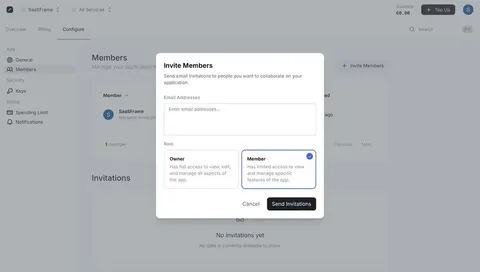
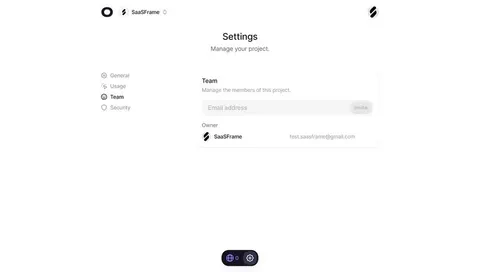
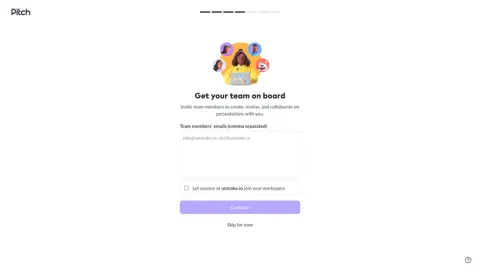
The SaaSFrame references show role selection, an initial team setup entry, and a compact invitation dialog. They demonstrate visible decisions, not proof that an invitation was accepted or that access was successfully granted.
Identify the workspace receiving the member
An invitation needs a destination. Show the team or organization name where users make the decision, particularly when an administrator belongs to several workspaces.
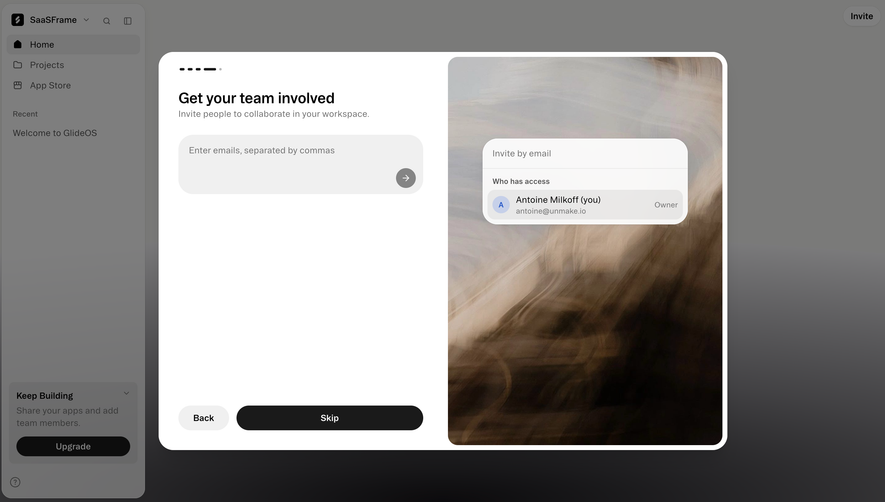
Keep workspace creation separate from inviting someone into an existing space. The initial setup may require a team name and ownership decision before a member can be invited.
Use language that explains the relationship. Joining a workspace, receiving a document link, and being referred to the product should not share an ambiguous generic invite action.
Explain roles before selecting them
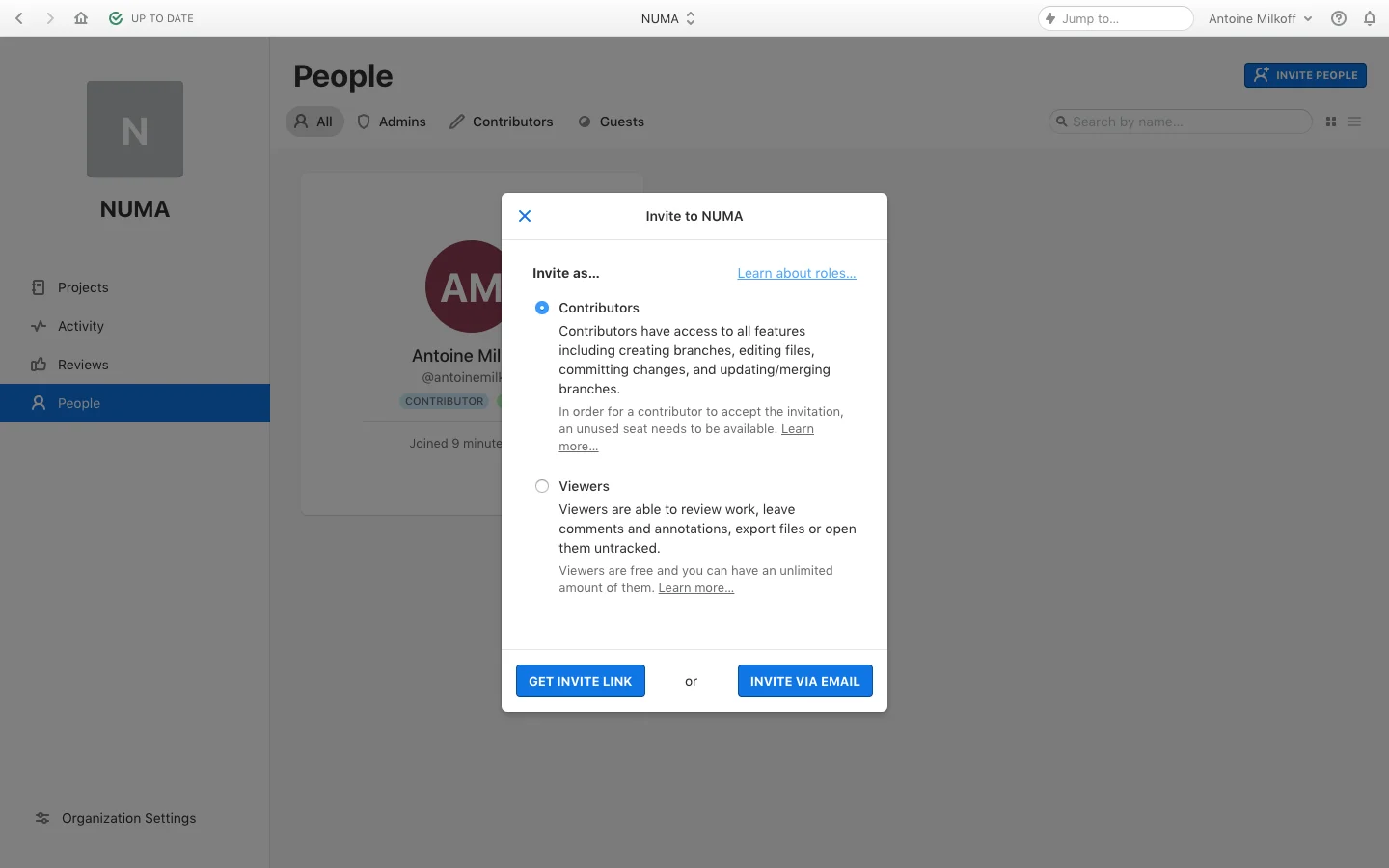
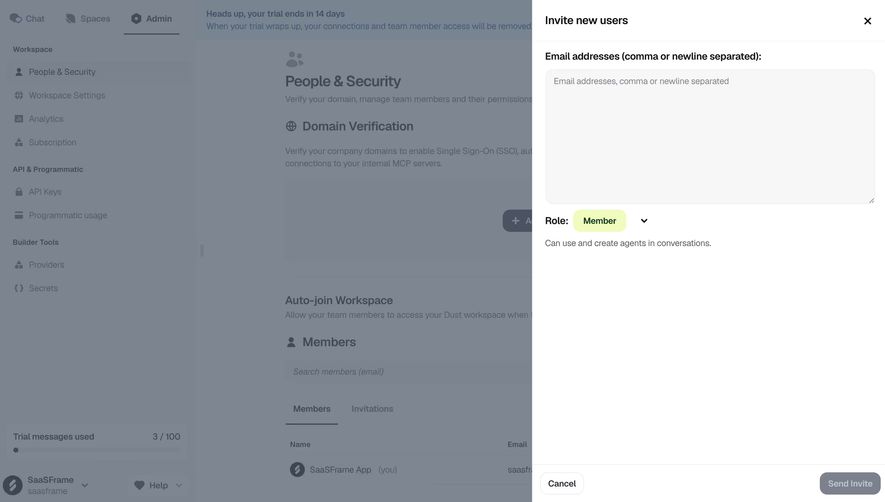
The Abstract invitation reference distinguishes contributor and viewer roles through explanatory text. The captured dialog also describes different seat implications and offers a link route or email invitation.
This helps the inviter choose based on responsibility rather than guessing from a short role name. Keep role descriptions close to selection, and make consequential billing or capacity information visible before sending.
The captured seat model is historical. Use your product's current rules rather than presenting those details as a universal distinction between contributors and viewers.
Pair the recipient with the access decision
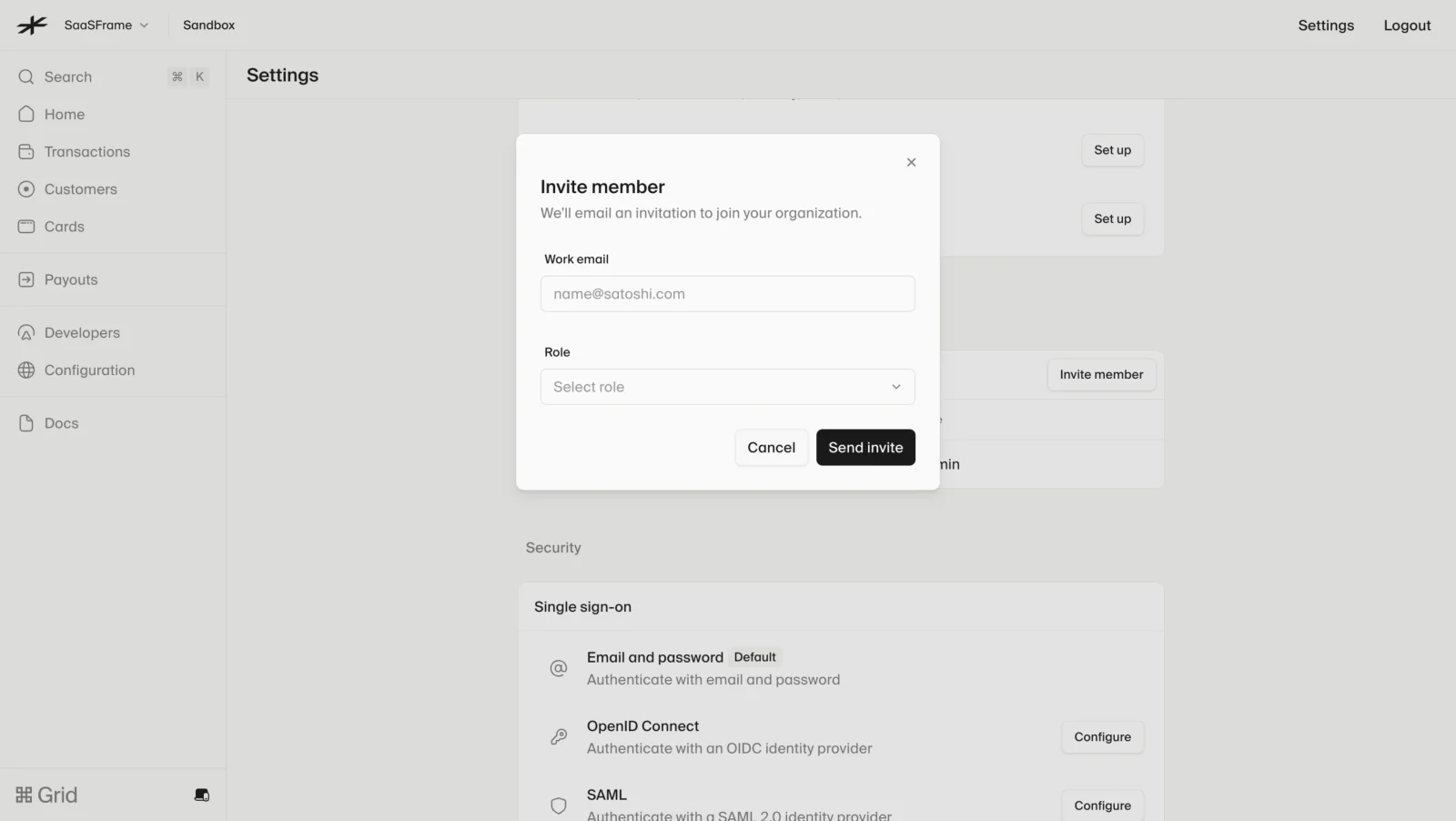
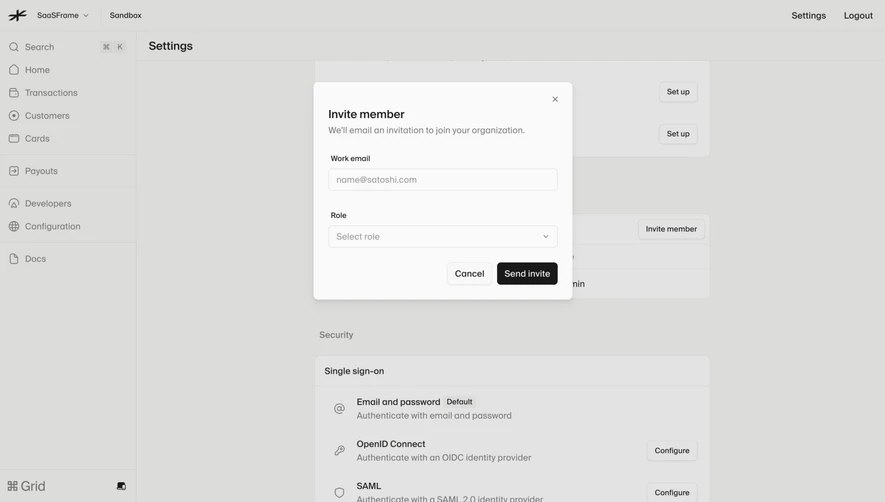
The Lightspark dialog asks for a work email and a role, then provides cancel and send-invite actions. The modal appears over organization settings, reinforcing the administrative context.
A compact form works when the destination and roles are already clear. If role names need explanation, provide it at selection without forcing users to abandon the dialog.
Treat the recipient address as consequential information. Support review and correction before sending, and show validation that identifies the actual problem rather than a generic failure.
Establish the team before the invitation
The Deel reference in this category presents a team setup entry and a create-team action. It demonstrates the prerequisite surface rather than a completed invitation dialog.
That distinction helps organize onboarding: some products ask users to create the shared space before inviting collaborators, while others create it during account setup. Make the prerequisite understandable and avoid claiming that creating a team sends invitations automatically.
After setup, provide a clear route into member management so inviting a first colleague does not require discovering a separate administration system.
Distinguish link sharing from direct email
A link can be convenient for several recipients, but its access model needs explanation. State whether anyone with the link can request or obtain membership, which role applies, and how the link can be invalidated under the actual system.
Direct email can identify a particular recipient and support a clearer pending list. Its action should communicate that a message will be sent, not that membership is already active.
If both methods are available, explain why a user might choose each. Avoid making the link option appear safer or narrower than its real scope.
Show pending invitations as pending
Sent, accepted, expired, and revoked invitations represent different states. Use those distinctions in member management so administrators can understand outstanding access requests.
A success message after sending should confirm the send or accepted request, whichever the product can establish. It should not label the recipient as an active member before acceptance.
Resend controls need clear feedback and sensible handling of duplicates. Revoking a pending invitation should also have a distinguishable result from removing an active member.
Handle capacity and permission constraints
When an invitation requires a paid seat or exceeds a limit, explain the requirement before submission. Give administrators a route to resolve capacity without losing the recipient and role they entered where appropriate.
A user without invitation permission should understand which role can perform the task. Avoid an apparently active form that inevitably fails because of a known restriction.
Consider multiple invitations with mixed results. Report successful and unsuccessful recipients separately so one invalid address does not make the entire batch ambiguous.
Review the recipient's experience
The invitation email and acceptance screen should name the organization, inviter where appropriate, and expected role. The sender's dialog and recipient's experience should describe the same access relationship.
Existing-account and new-account recipients may follow different routes. Preserve the invitation context through authentication instead of making people rediscover the workspace afterward.
An expired or revoked invitation needs a useful next step. Explain the state and how to request a replacement without implying that access was granted.
Test the entire membership transition
Review recipient correction, role selection, missing permissions, seat limits, duplicate invites, acceptance, and expiry. Verify the member's actual resulting access rather than checking only the send button.
Check keyboard focus and role-description accessibility in compact dialogs. A short modal still needs clear labels and understandable errors.
Use SaaSFrame's invitation references to compare role explanation and delivery choices. Design around the transition from prospective collaborator to a member with a defined responsibility.
Team invitation questions
Does sending an invitation create an active member?
Not necessarily. Reflect the actual lifecycle and keep a pending invitation distinct from accepted membership.
Where should seat information appear?
Place consequential capacity or billing information beside the role or before the final send action. It affects the invitation decision.
Should email and link invitations share a form?
They can share a surface when their access scope and purpose are explained. Do not present different access models as interchangeable delivery buttons.