Video Player
Engage visitors with optimized SaaS Video Player patterns. From 'Autoplay' hero loops to detailed product walkthroughs, see how to frame video content for maximum impact.
Website sections 26





Product screens 22

Index of all 22 Video Player examples
- Composal Test Run Recording
- Composal Discovery Run Agents
- Hotjar Recording Player
- Campsite User Onboarding: Figma Plugin
- Campsite User Onboarding: Sample Post Created
- Campsite User Onboarding: Create A Project
- Vowel Sign Up Flow: Getting Started Checklist
- Hey Sign Up Flow: 2FA Setup
- Monday User Onboarding: Welcome Video
- Reply User Onboarding: Chrome Extension Video
- VideoAsk Sign Up Flow: Use Case
- Reply User Onboarding: Cloud Calls Video
- Reply User Onboarding: Multichannel Sequences Video
- VideoAsk Sign Up Flow: Team Size
- VideoAsk Sign Up Flow: Referral Source
- Pitch Product Tour: Intro Video (2020)
- VideoAsk User Onboarding: Intro Video
- Miro Product Video
- Guru Product Video
Video Player: design guide
A video player lets users play, pause, seek and understand playback of product videos, recordings or tutorials. Decide whether people are watching, learning or investigating, make the first frame say what they will see, keep controls and time states reliable and add speed, chapters or captions when the task needs them.
In the libraryas of November 2026
- Examples
- 48
- SaaS products
- 32
- Last added
- Nov 2026
Most common inLanding Page 8User Onboarding 8Account Setup 5Product Video 5Careers Page 4
A video player gives users control over moving content: starting, pausing, navigating, and understanding the current playback state. In SaaS products, it can present onboarding, demonstrations, training, customer stories, or recorded activity. The same basic controls can serve very different tasks depending on the context.
The design problem is deciding what the viewer needs to accomplish. Watching a short explanation is different from inspecting a recording for a particular event. A useful player makes the content's purpose clear and exposes controls appropriate to that task without hiding essential functionality.
Are users watching, learning or investigating?
A marketing video may help explain a product. A training recording may need repeatable navigation and a transcript. An analytical replay may need timestamps, event markers, and adjacent recordings. Start with that task before selecting a generic player treatment.
The surrounding page matters. A player embedded in an article should support the article's argument. A player inside an analysis workspace needs enough context to identify the recording and interpret its timeline. The frame is part of the experience, not an interchangeable decoration.
Distinguish ordinary media playback from other time-based content. A session replay may reconstruct interface activity rather than play a conventional video file. It can still use familiar transport controls, but the underlying meaning and additional inspection tools deserve their own treatment.
Hotjar's recording player connects playback with evidence navigation
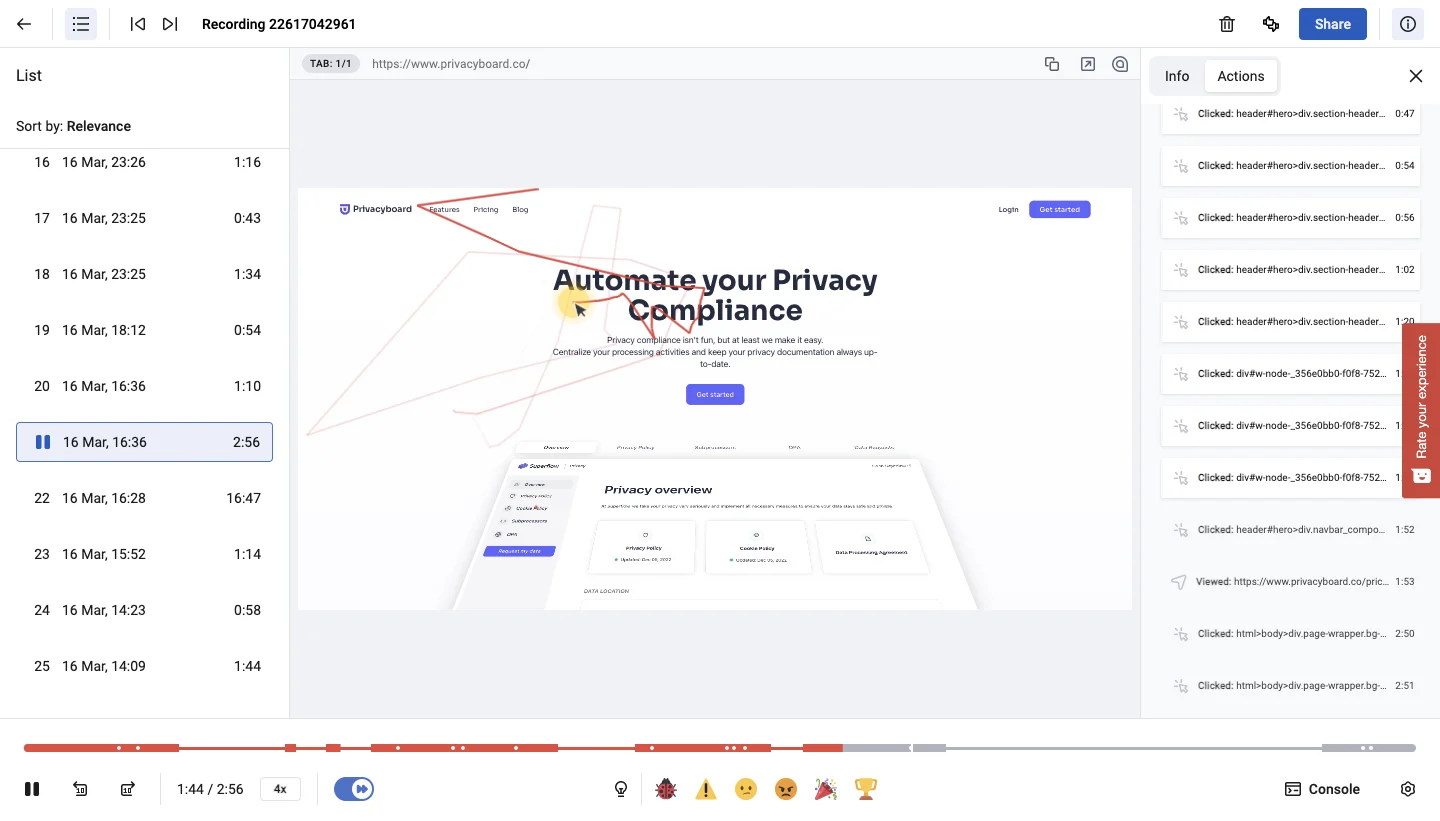
The Hotjar screenshot shows a selected recording in a central playback area. A list of recordings with dates and durations sits on the left. A timestamped Actions panel sits on the right. Along the bottom are a timeline, playback controls, a current-time and duration display, and a speed value shown as 4x.
The arrangement supports investigation. The list helps move between recordings; the action panel provides time-linked context; the transport controls govern the central replay. These surfaces complement one another rather than treating the content as a passive video.
The timeline includes colored segments and markers. The screenshot does not explain the meaning of every marker, so it would be misleading to assign specific event types to them without verification. The visible lesson is that analytical playback can use temporal cues to help users find relevant moments.
The selected recording also has a clear identifier in the header. This matters when users share findings or compare sessions. A playback surface should not lose its identity when opened from a collection, particularly when several similar recordings are available.
Lightdash uses a restrained video entry point inside editorial content
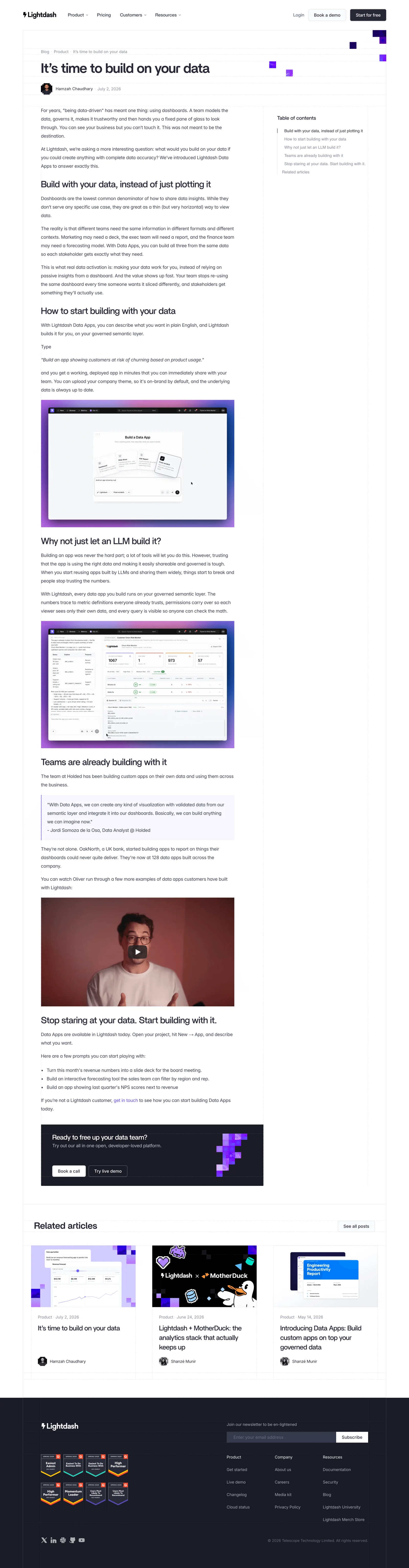
The Lightdash article screenshot includes a video thumbnail showing a person with a central play control. It appears within the article after explanatory content and before a closing section. The surrounding page contains ordinary headings, illustrations, and a related-articles area.
Here, the video is one supporting medium within a reading task. A simple initial play affordance keeps the article's hierarchy clear. The user can decide whether to engage with the media without a large analytical toolbar dominating the page.
The capture shows the pre-play surface, not the expanded controls or playback behavior. It does not prove whether the media opens inline, in another layer, or with captions available. Those details must be checked in the actual implementation before making claims about them.
Compare the two contexts rather than copying the same control density. Hotjar needs tools for reviewing evidence over time. An article needs a clear media entry point and dependable playback without interrupting reading. The content's job determines the player's surrounding interface.
Make the first frame communicate what the viewer will receive
A poster image should identify the subject rather than merely provide decoration. A product demonstration can show the relevant interface; an interview can identify the speaker. Pair the player with a concise title or description when the image alone is ambiguous.
A visible play control needs a practical target and a recognizable action. Avoid placing it over a region that looks like an unrelated page control. If the player is a preview of another destination, communicate that route rather than promising immediate playback.
Provide duration when it helps the decision to watch. A user considering a training session may need to know whether it takes a few minutes or much longer. If duration is unavailable before loading, do not present an invented estimate as a precise media property.
Consider the content before playback starts. A blank rectangle or indefinite loading spinner gives users little reason to wait. An informative poster and a useful loading state can preserve orientation while the media becomes available.
Keep play, pause, seeking, and timing states trustworthy
The transport controls should reflect the actual playback state. A play icon that remains visible while content is running can make the interface confusing. Current time and duration should remain coherent with the timeline and the content shown.
Seeking needs feedback. Users should understand where they are moving and whether the player is waiting for data. If the interface supports previews or precise timestamp entry, keep those values consistent with the same timeline.
Do not conflate paused and loading states. A viewer can intentionally pause, while buffering is a system condition. Use distinguishable feedback so that the person knows whether to press play, wait, or retry.
At the end, provide a sensible state. Replaying, continuing to another lesson, or returning to the surrounding task may be appropriate. Avoid unexpectedly launching unrelated content simply because the current recording has finished.
Add advanced controls only when they support the task
Playback speed can help with review and learning, as the visible 4x setting in Hotjar illustrates. The control should show the active value and offer understandable choices. It should not silently persist a speed that makes a different kind of content difficult to follow.
Chapters or timestamped sections can help people revisit important parts of long material. Their labels should describe meaningful content. A long list of vague chapter names can become another navigation problem rather than a useful shortcut.
For analytical playback, event navigation can complement the timeline. Define whether clicking an event moves playback and how the selected moment is represented. The user should understand the relationship between the event list and the central content.
Volume and audio controls belong where audio is part of the content. A replay without audio may need a different treatment from a narrated recording. Expose relevant functionality instead of showing controls that cannot meaningfully affect the experience.
Make captions, transcripts, and controls part of the design
For spoken or otherwise information-bearing audio, provide appropriate access to the content through captions or another suitable alternative. Review accuracy and synchronization rather than treating the existence of a caption toggle as the complete solution.
A transcript can support finding a concept, quoting a relevant passage, or learning without playing the recording. If it has timestamp links, verify that they move to the correct moment. A text alternative should represent the useful information, not merely summarize that a video exists.
Keyboard users need to reach and operate controls, understand their state, and leave any expanded view. Focus indicators should remain visible over the media surface. Avoid hiding controls in a way that makes them unavailable without a pointer.
Test screen-reader names for icon buttons and values for time or speed controls. A visually familiar symbol still needs an understandable meaning in the implementation. Accessibility belongs to the player and its surrounding workflow together.
Define fullscreen, resizing, and overlays coherently
Expanded playback should preserve the content identity and available controls. Decide whether supporting panels remain available when the player grows. In an analytical tool, losing the event list may change the task more than it would in an ordinary video.
On narrow screens, prioritize controls without making essential actions inaccessible. A compact menu can contain secondary options, while transport controls remain readily available. Test touch use and the return from expanded playback to the page.
Overlay controls need to remain legible against changing frames. A treatment that looks clear on the poster may become hard to see during bright or visually busy content. Evaluate controls throughout playback rather than only in the initial state.
If a modal contains the player, define closing and focus return. Users should be able to resume the surrounding task without losing their location. Do not leave audio running unexpectedly after the visible playback surface has closed.
Control loading and autoplay according to user intent
Media can be expensive relative to the surrounding page. Decide what needs to load before the user chooses to watch. A poster and an explicit play action can support a lightweight initial experience when immediate playback is unnecessary.
Verify actual asset requests. A player hidden inside a modal or an inactive tab can still load resources depending on the implementation. Visual invisibility does not prove that bandwidth is preserved. Inspect the network behavior in the real page.
Autoplay needs a clear product reason and reliable behavior in supported environments. Avoid making essential information depend on autoplay succeeding. Users should have a visible route to start the content and understand its audio state.
If multiple players share a page, define whether starting one pauses another. Competing audio or simultaneous motion can make the page difficult to use. The playback policy should follow the intended task and remain consistent.
Recover from unavailable media without ending the whole task
Loading failures, removed recordings, and access restrictions are different conditions. Explain the observed problem and offer a relevant next step. A retry may suit a temporary loading issue; an access route or alternate resource may suit other states.
Keep useful surrounding content available when possible. An article should not become unreadable because its video fails. A training page can still expose its title, transcript, or navigation. An analytical recording view should preserve enough identity to understand which session is unavailable.
For private recordings, apply the product's access rules to sharing and playback. A visible share control does not imply that anyone receiving the link can view the content. Make the intended audience and available route understandable.
Evaluate completion of the viewing task
Playback starts and watch time describe behavior, but they do not establish whether users learned or found what they needed. Test locating a moment, understanding a demonstration, revisiting a section, and returning to the parent page.
Include seeking while loading, changing speed, using captions, entering and leaving expanded playback, and encountering a failure. For analytical tools, test movement between the recording list, timeline, and event panel. These journeys expose coordination problems that a simple play test misses.
- Define the viewing or inspection task.
- Give the player an identifiable poster and context.
- Keep transport and loading states distinct.
- Add task-relevant temporal navigation.
- Provide usable captions, alternatives, and keyboard controls.
- Verify loading, autoplay, and multiple-player behavior.
- Test failures and return navigation.
Frequently asked questions about video players
Should every player offer speed controls?
They are useful for learning and review when changing speed serves the task. A short marketing clip may need less control density, while analytical replay may benefit from more.
Is a session replay the same as a video?
Not necessarily. It can reconstruct activity through a different underlying representation. Familiar playback controls can still help, but event navigation and analytical context may require additional design.
Should embedded videos load before users press play?
Load what the task requires and verify the implementation's actual behavior. A useful poster can support initial context while detailed media loading waits for viewing intent.
Browse video player examples on SaaSFrame to compare editorial embeds, replay workspaces, transport controls, and contextual playback design.