Sidebar Navigation
379
Persistent vertical navigation for moving between the main areas of a product.
.webp)
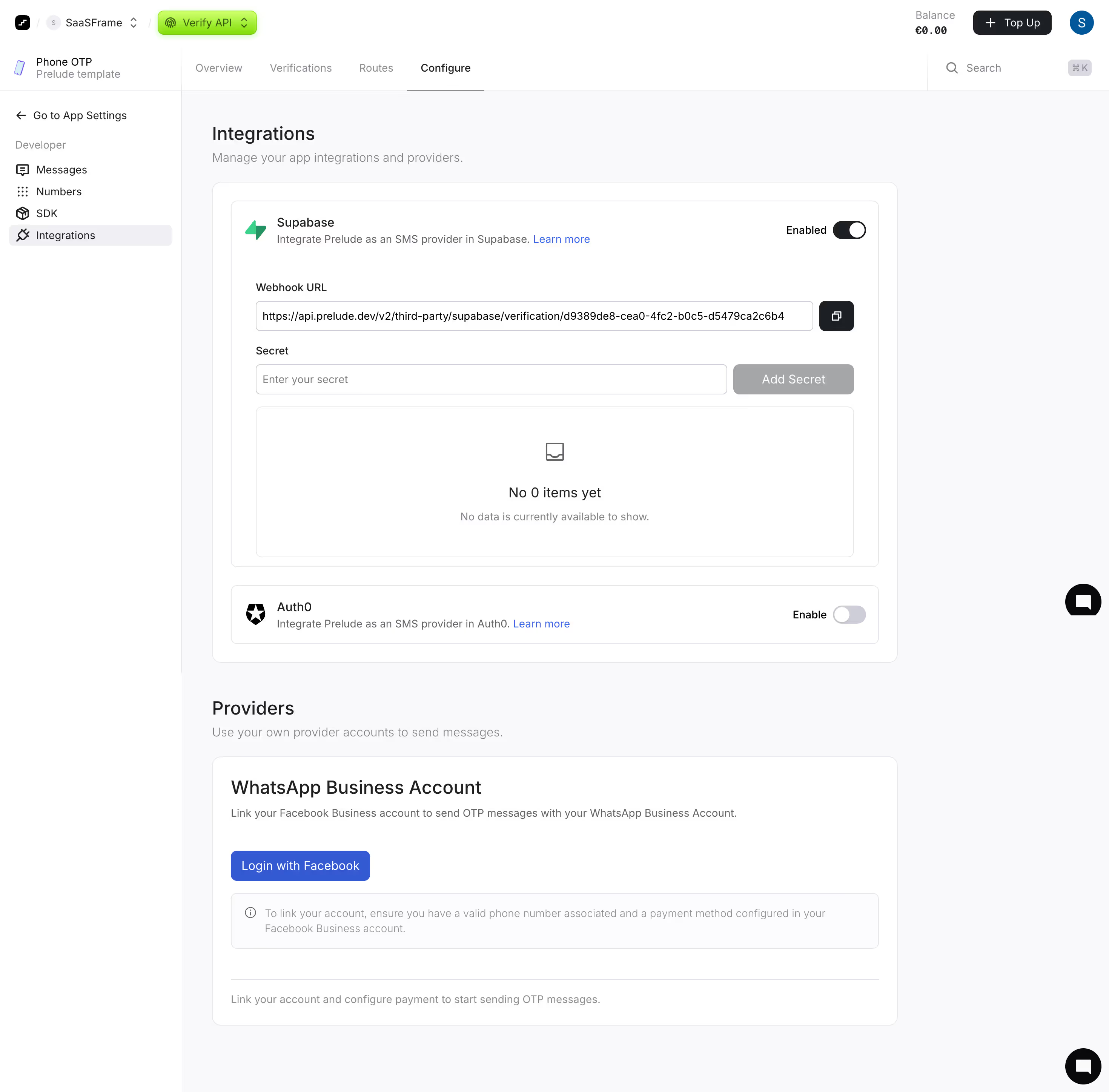
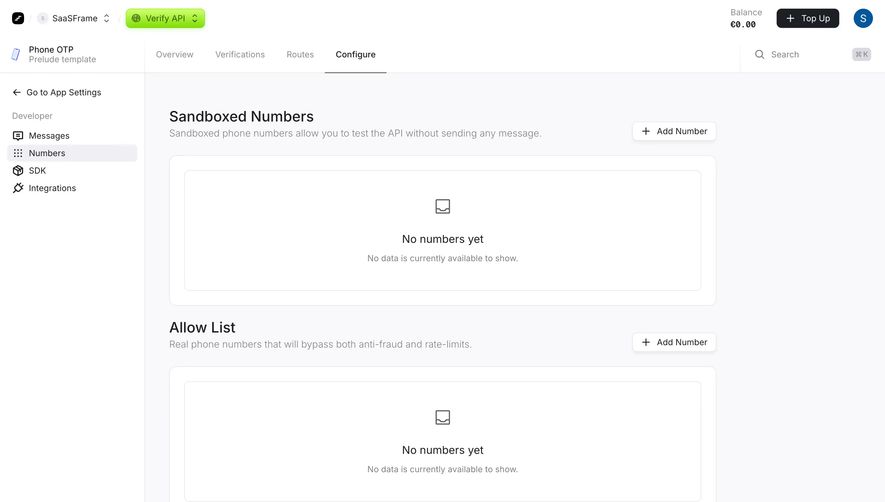
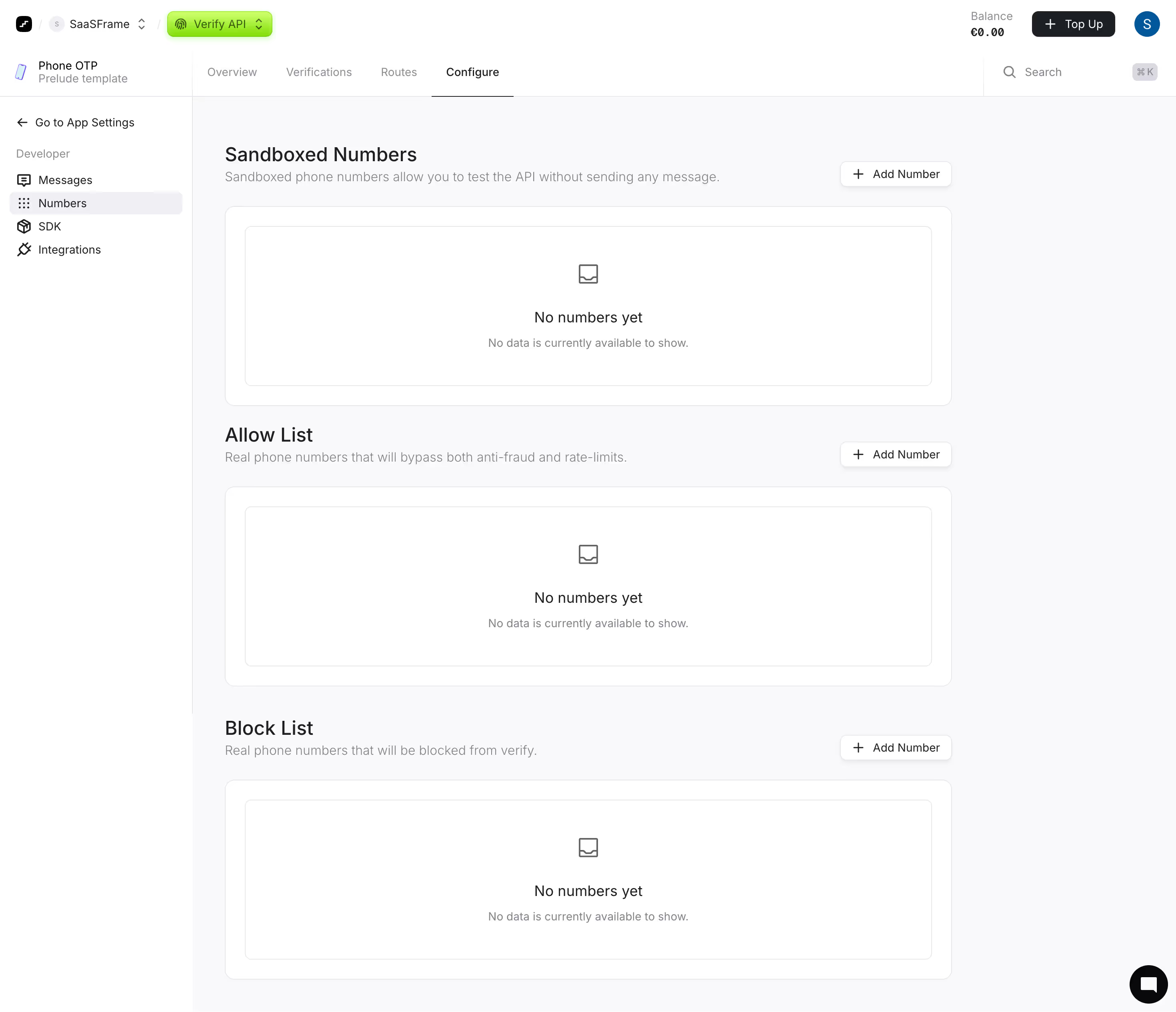
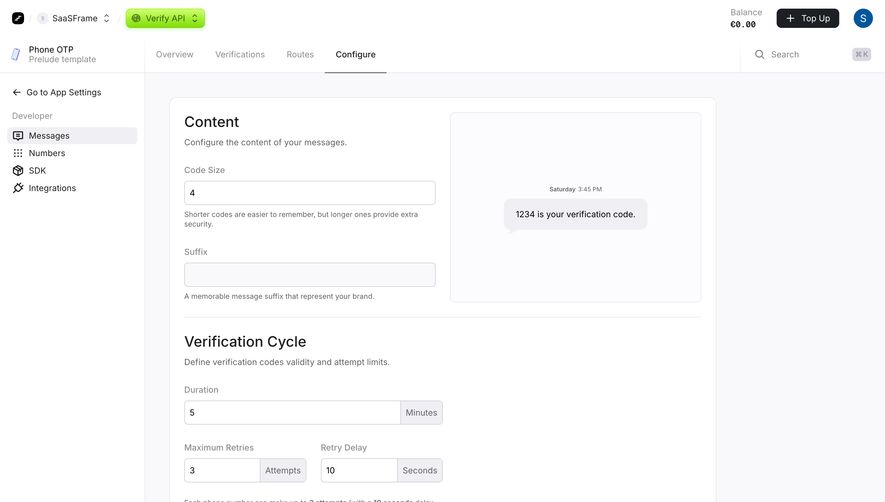
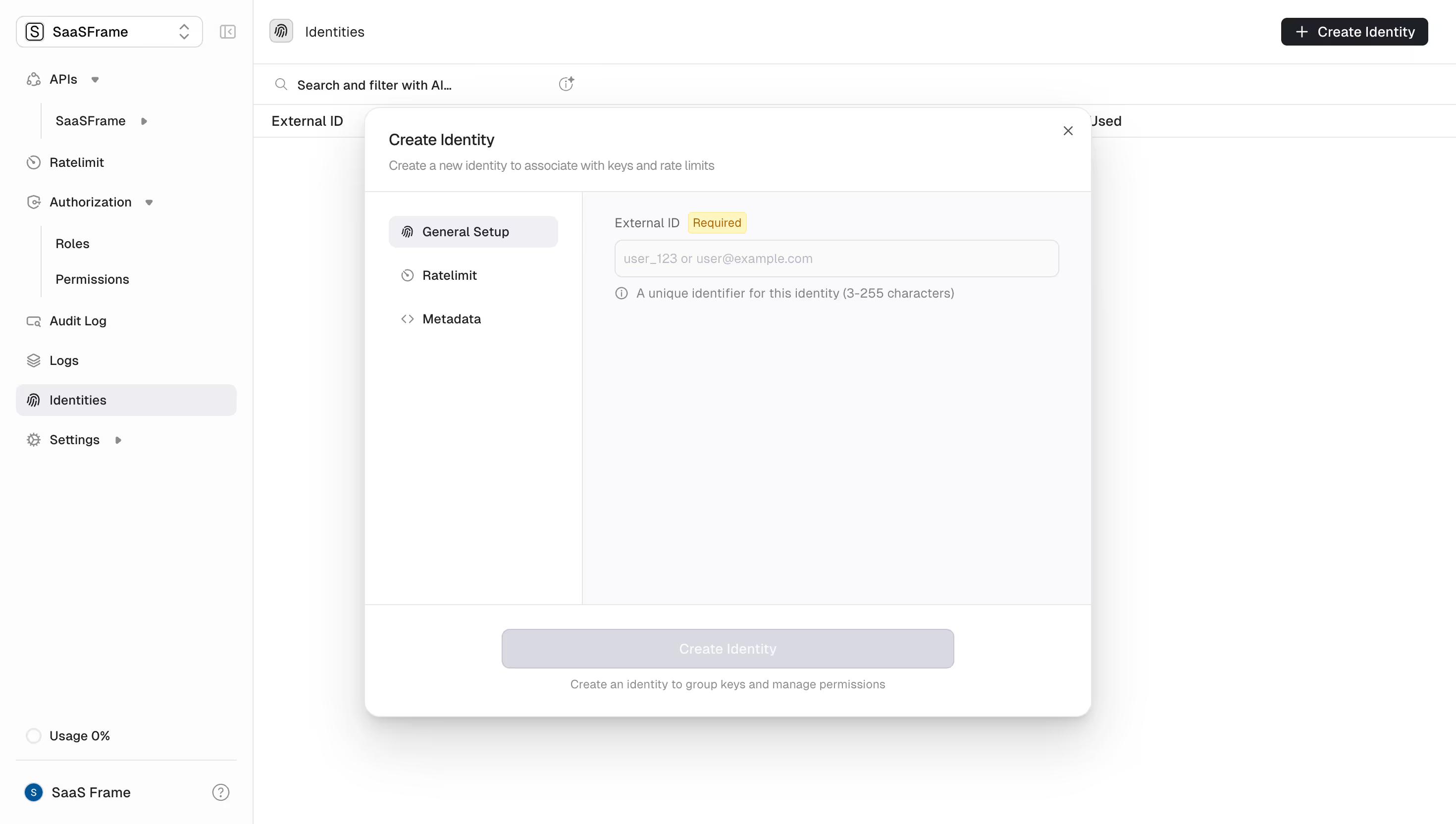
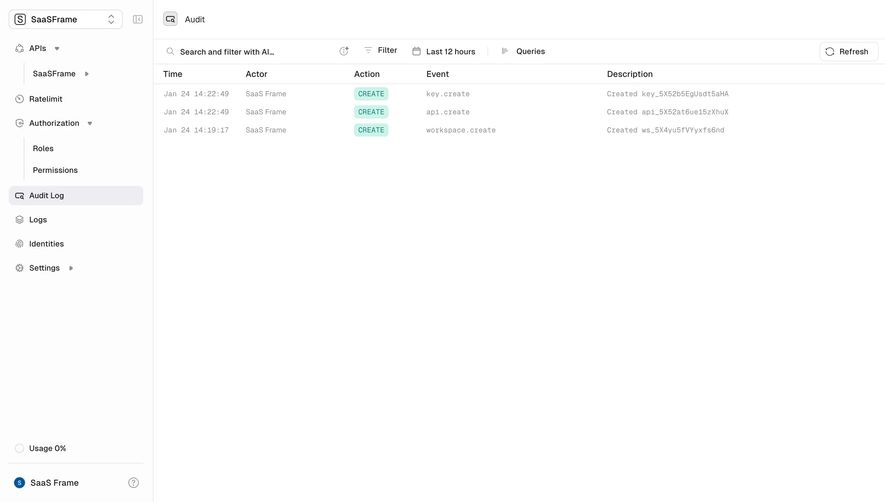
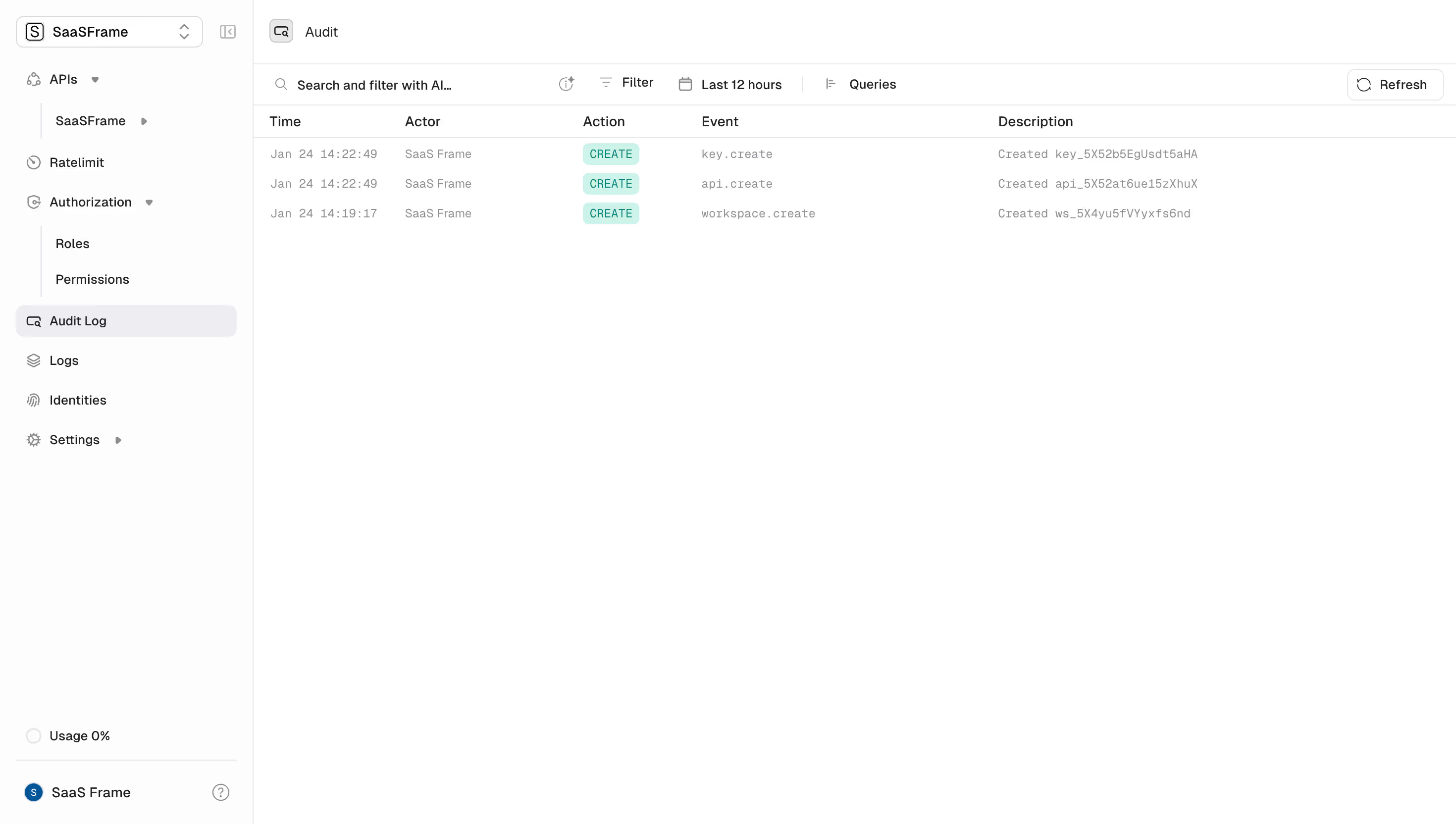
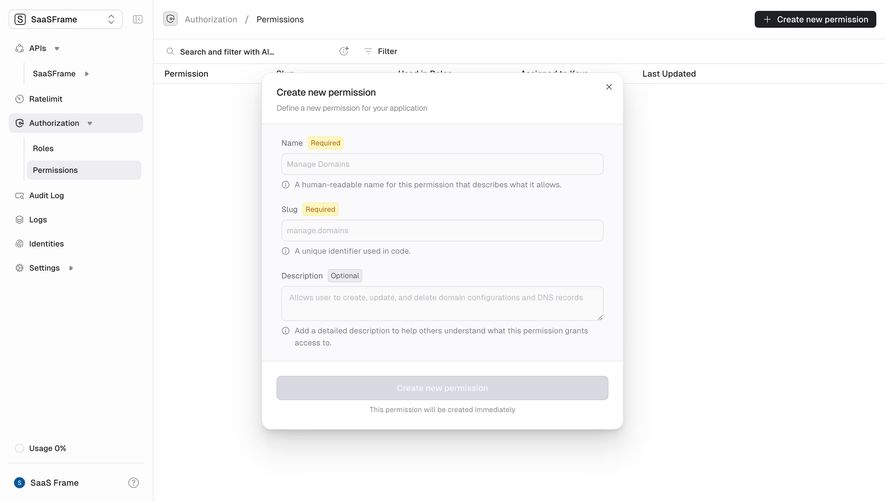
Sidebar navigation provides persistent access to the main areas of a SaaS product. It can organize destinations, expose hierarchy, and keep account or workspace context visible while the person works. Its purpose is orientation: helping people understand where they are, what else is available, and which environment a destination belongs to.
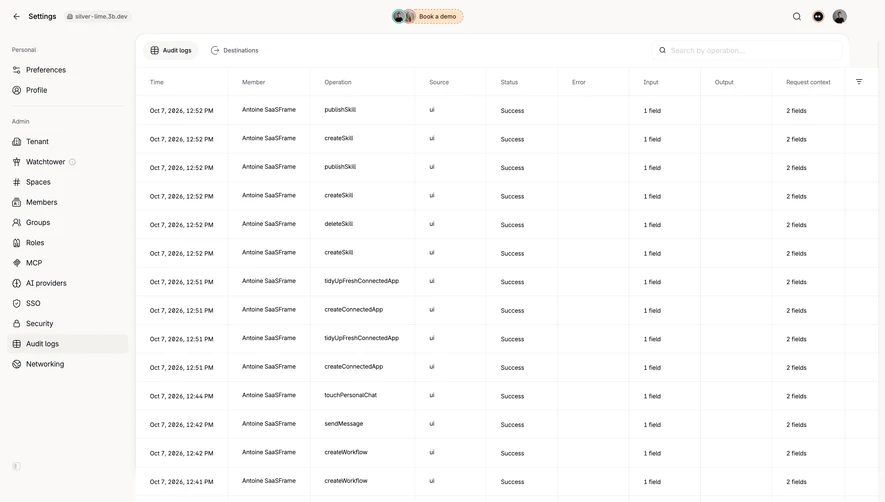
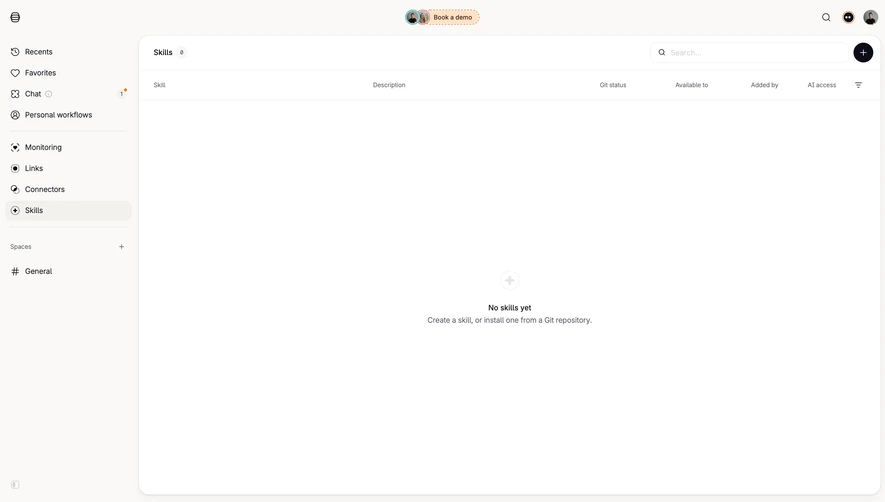
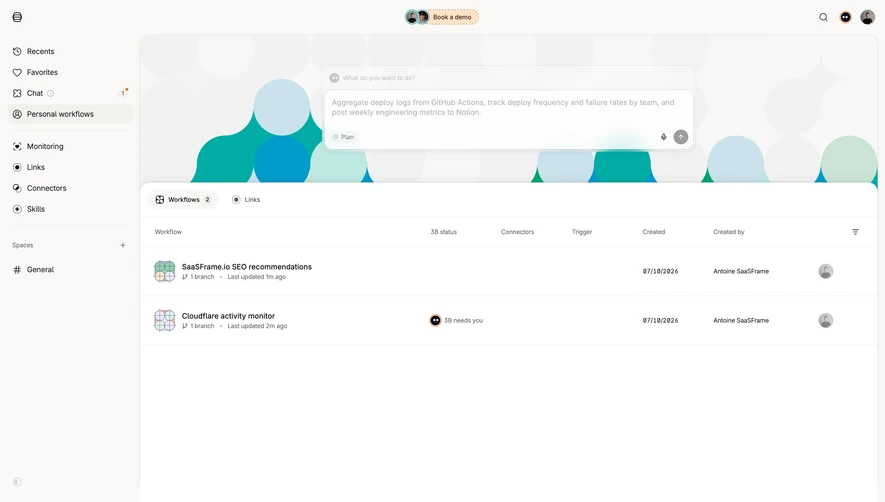
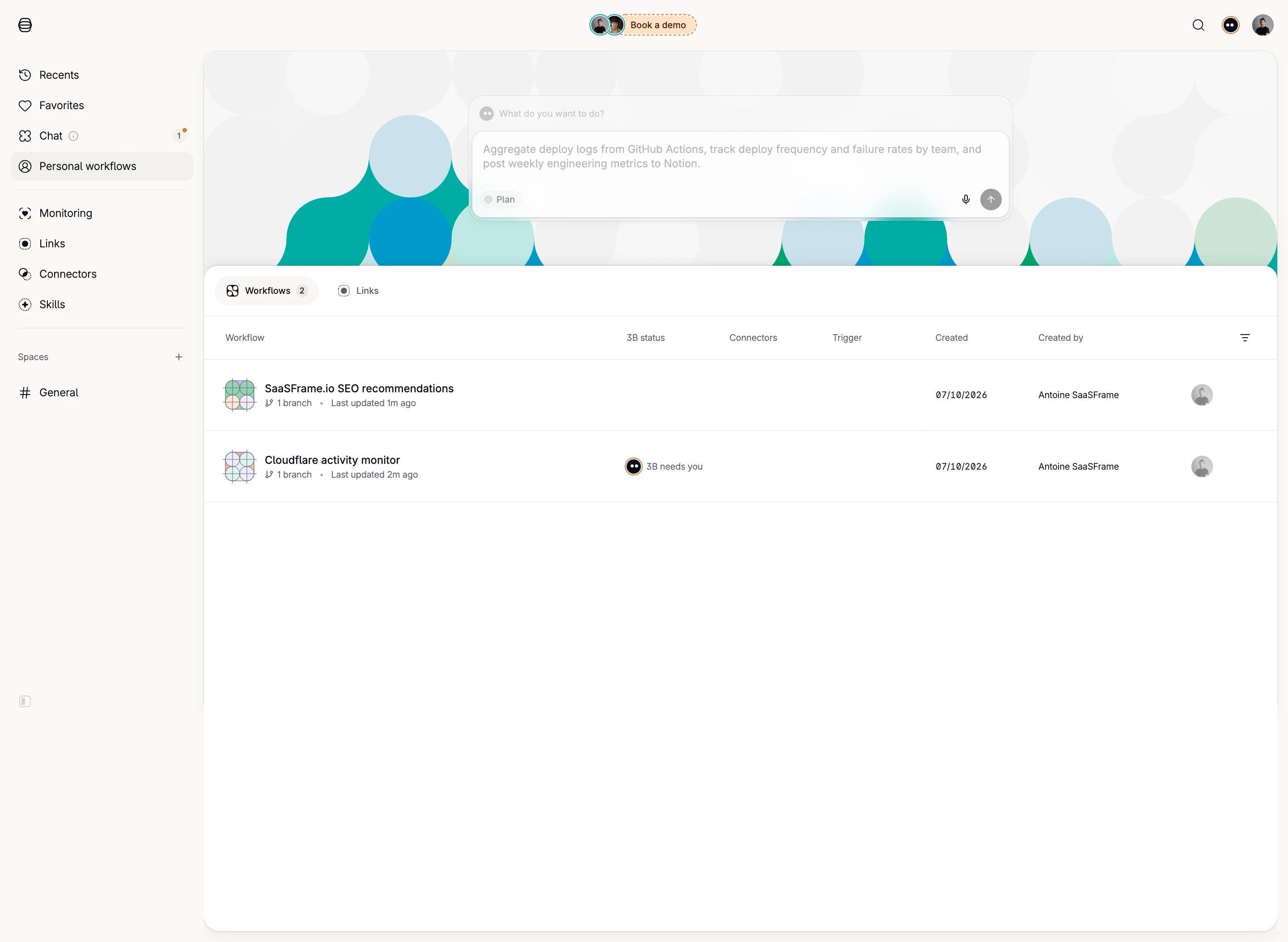
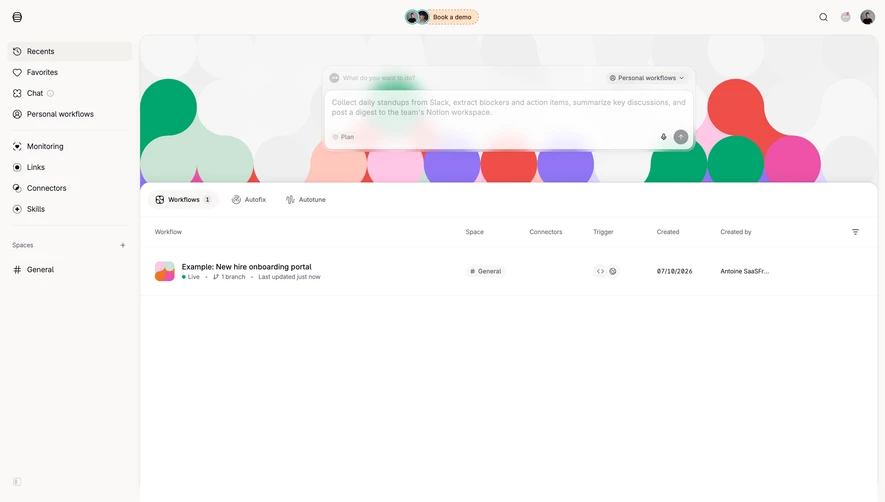
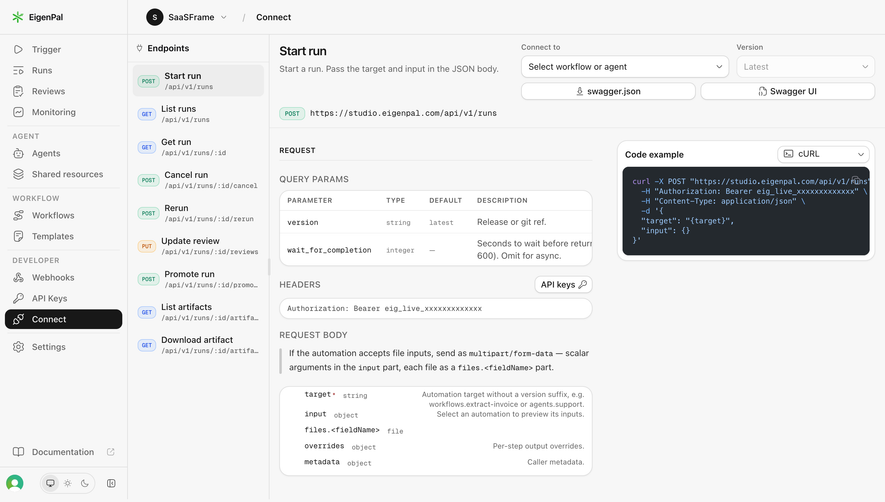
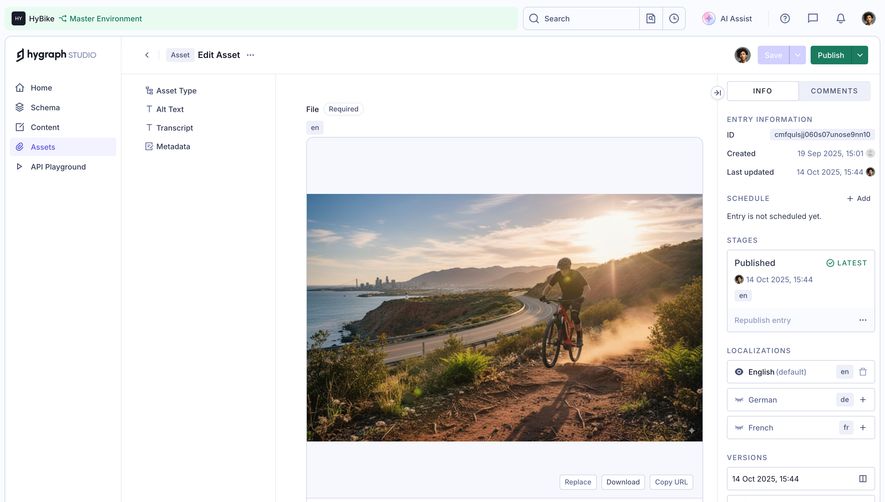
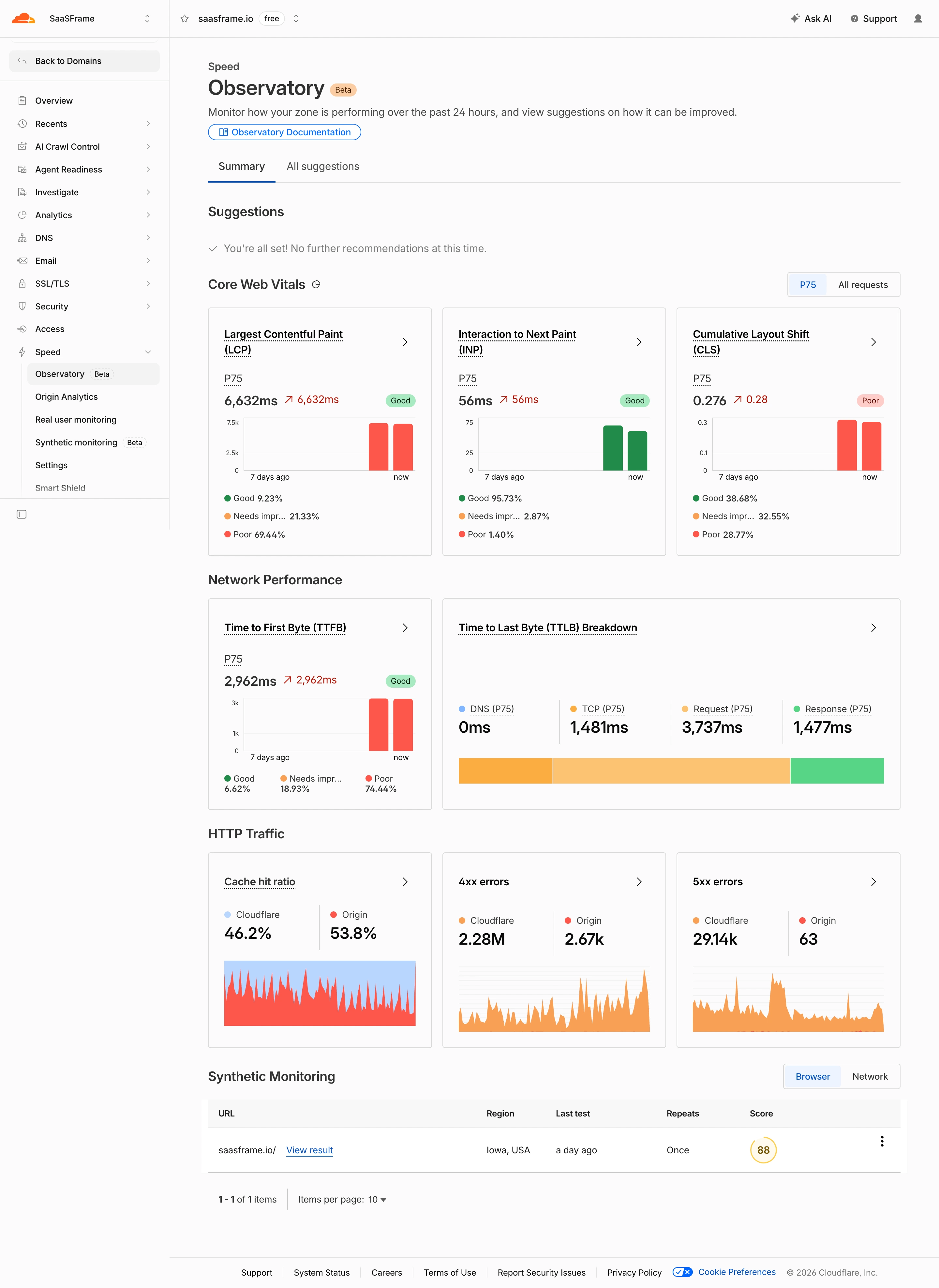
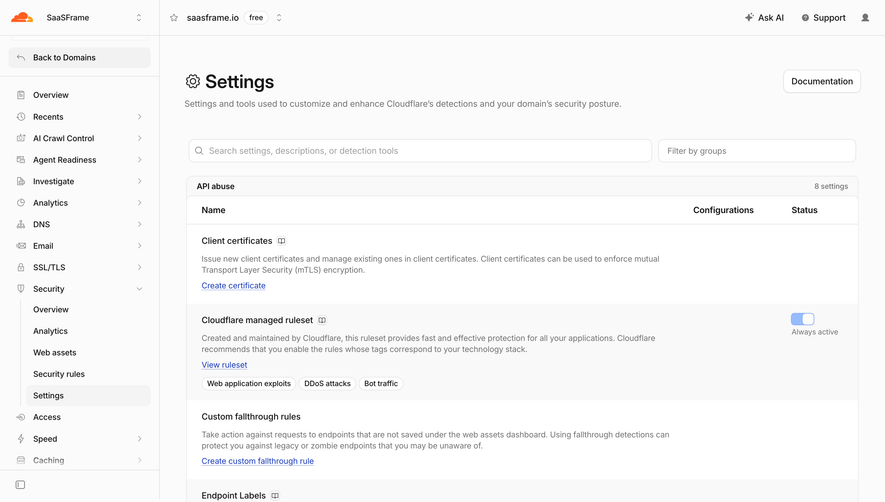
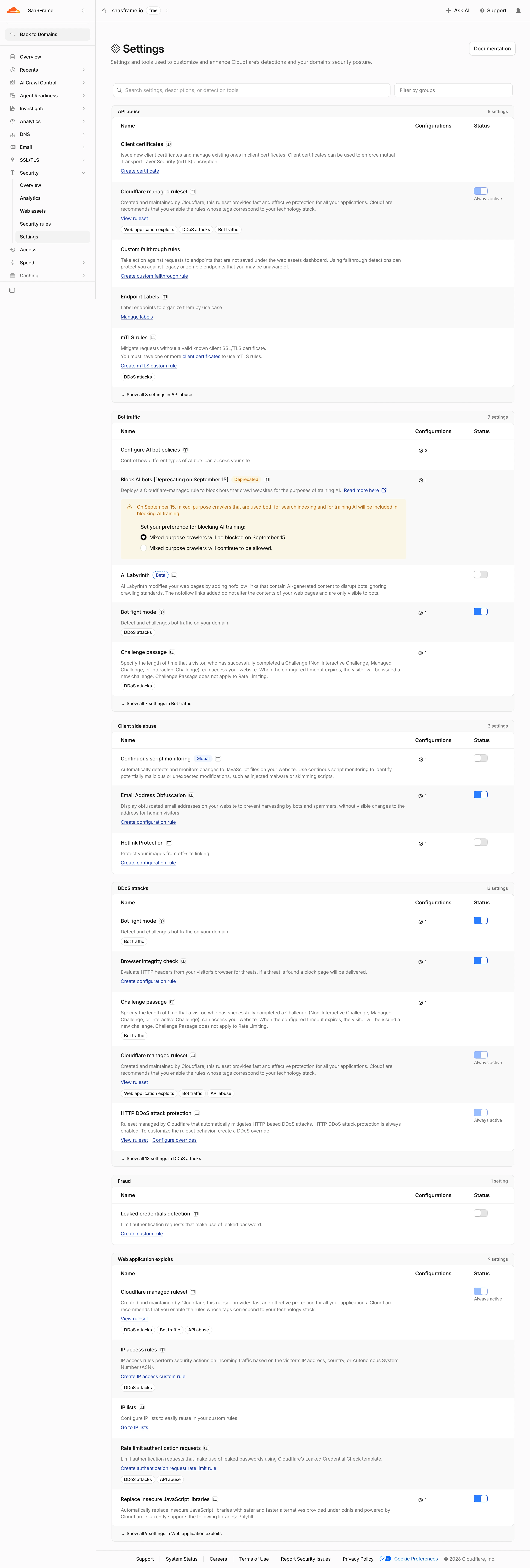
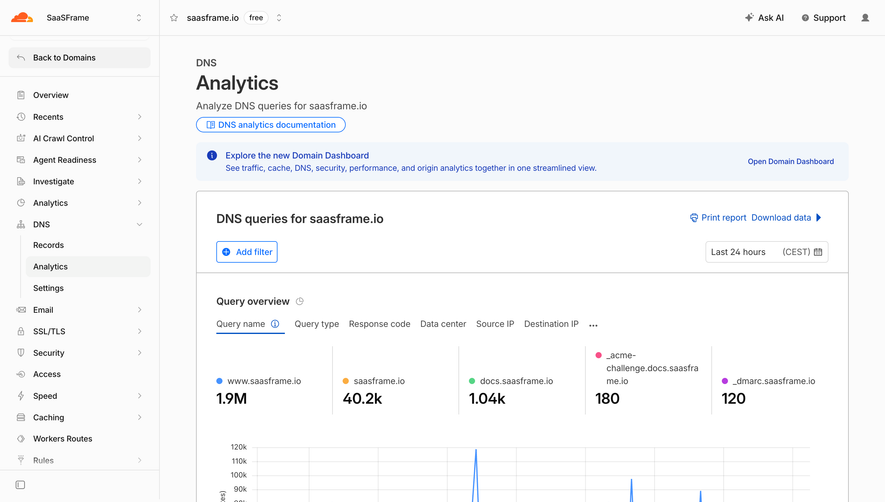
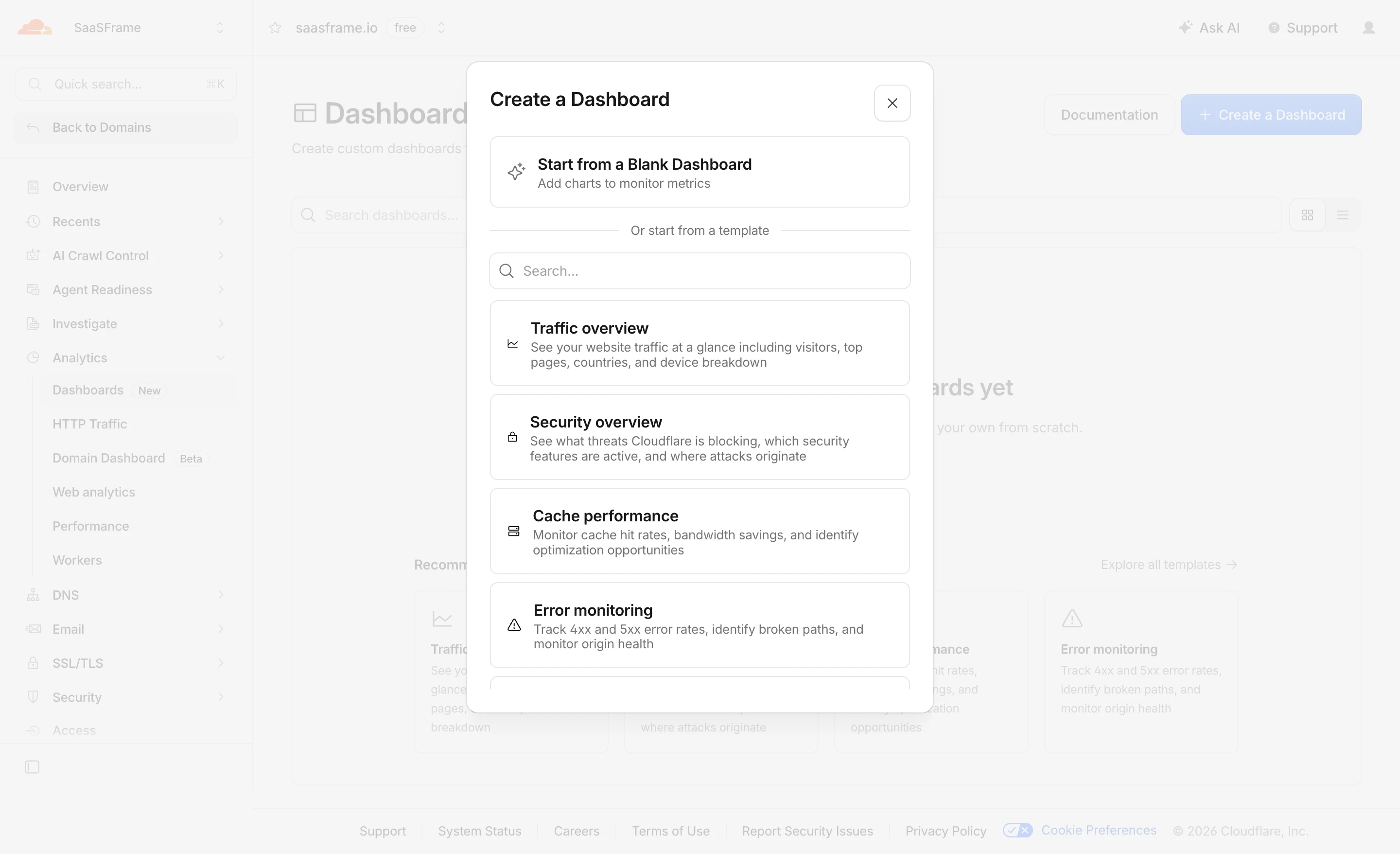
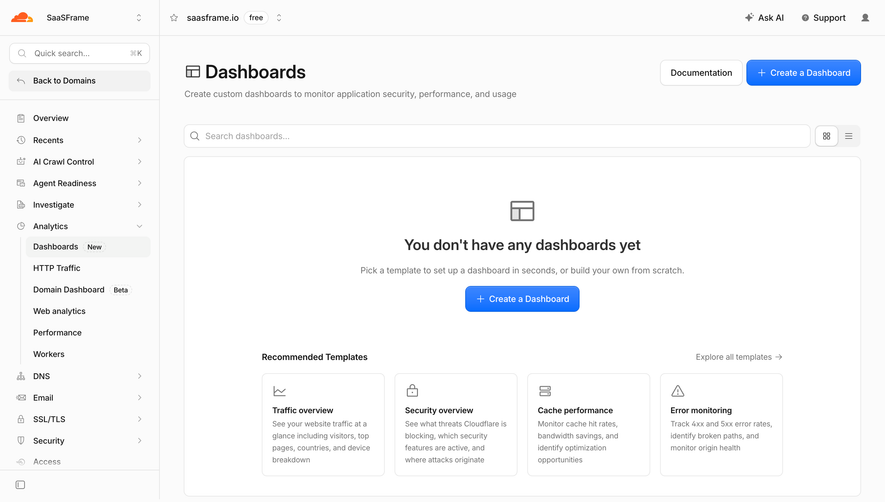
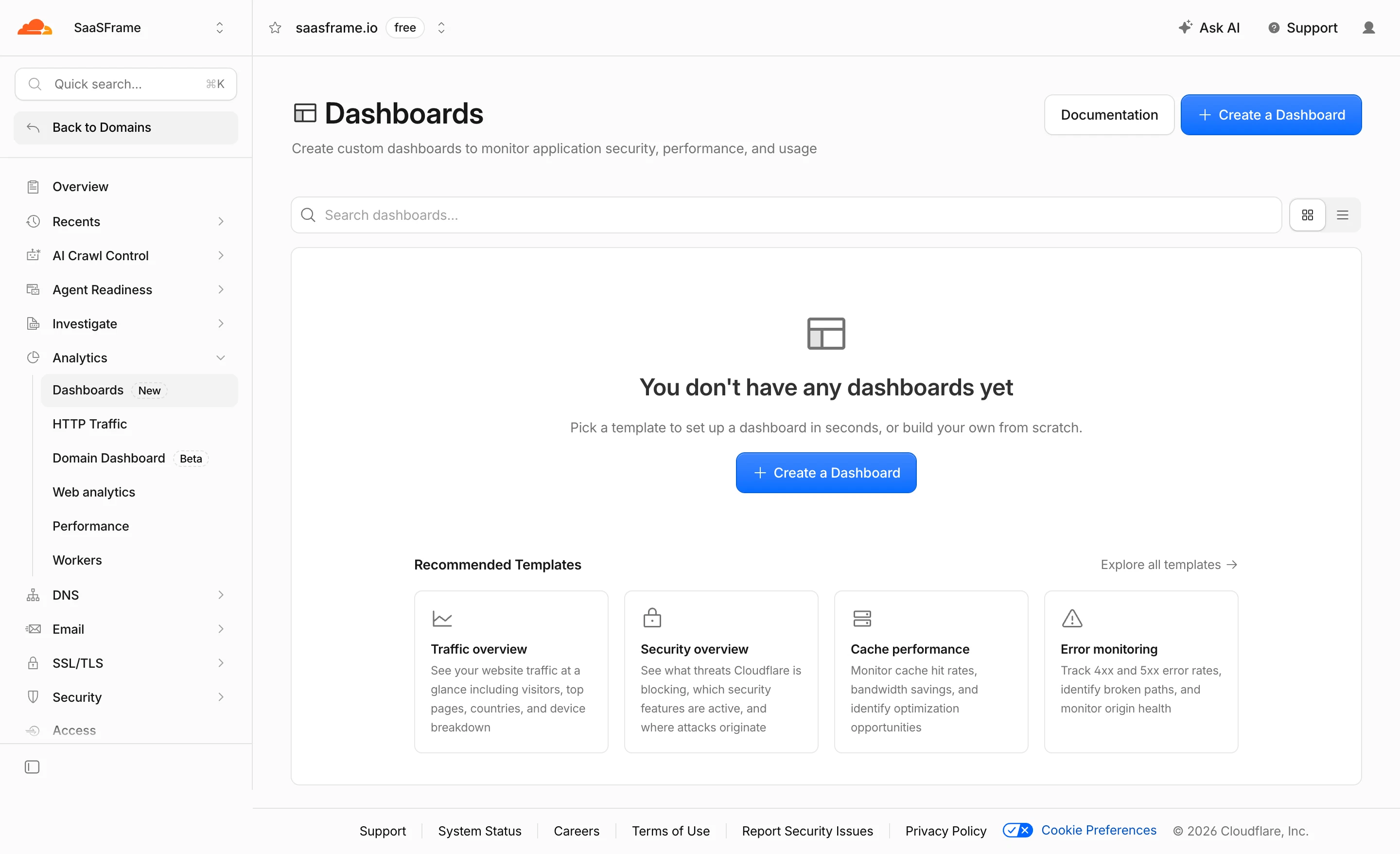
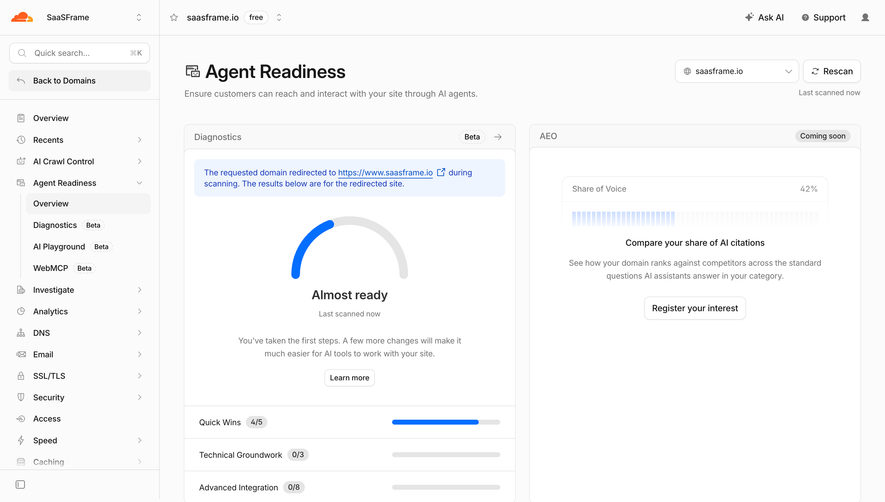
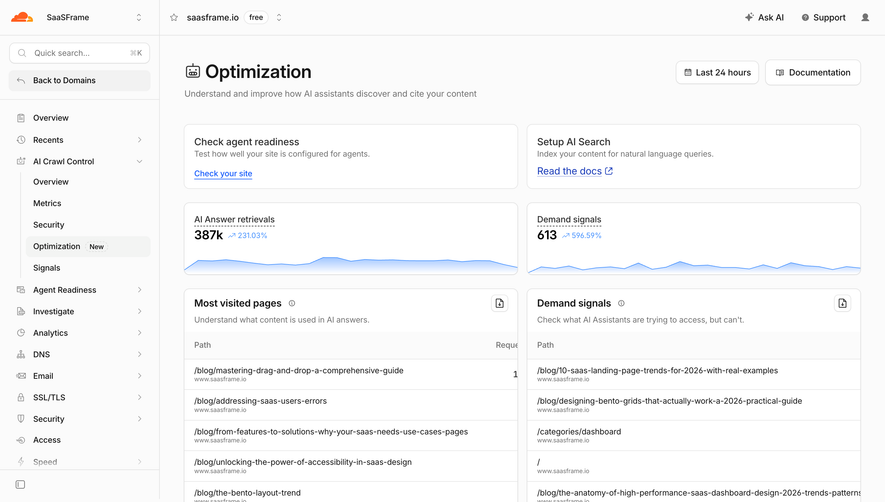
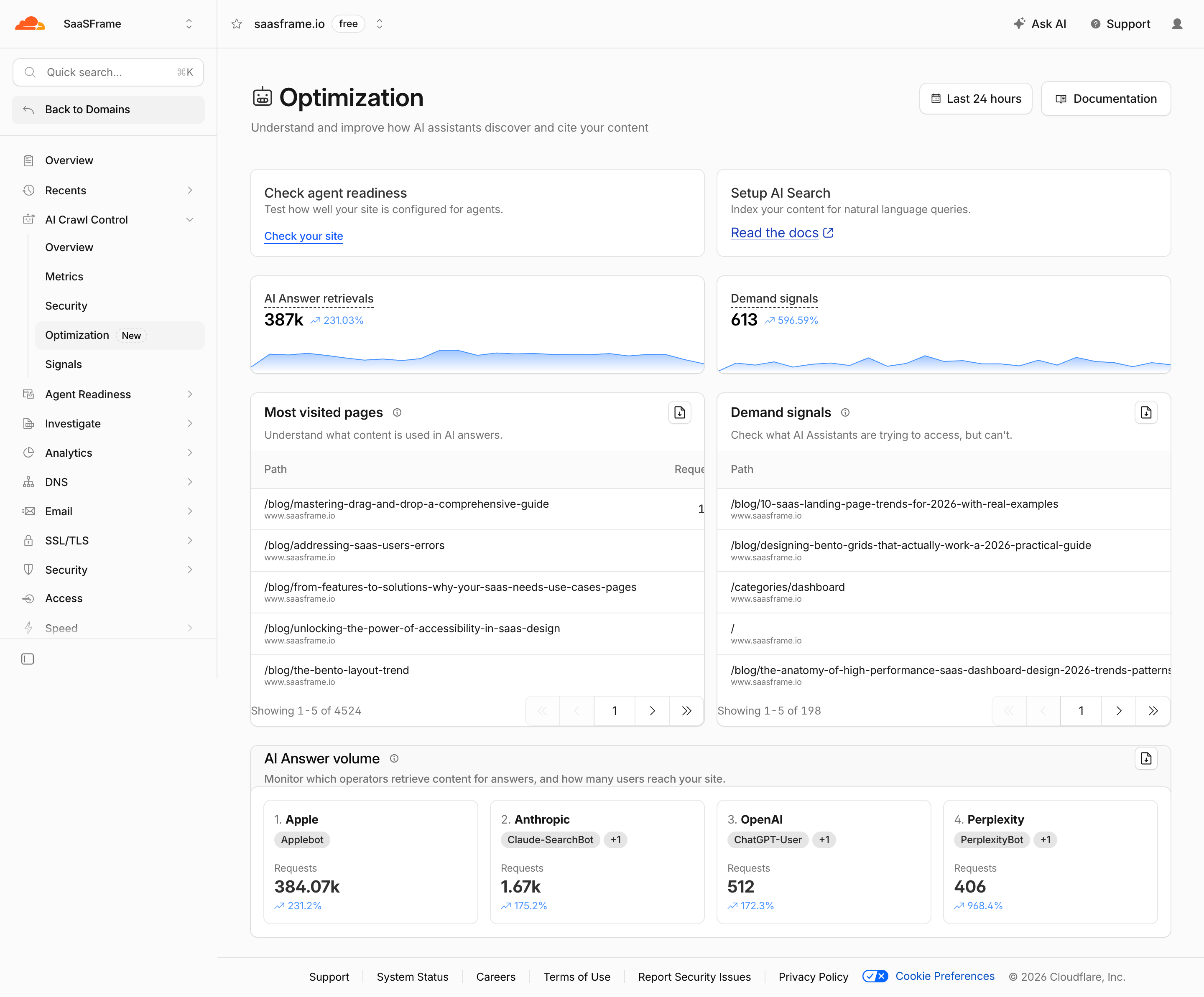
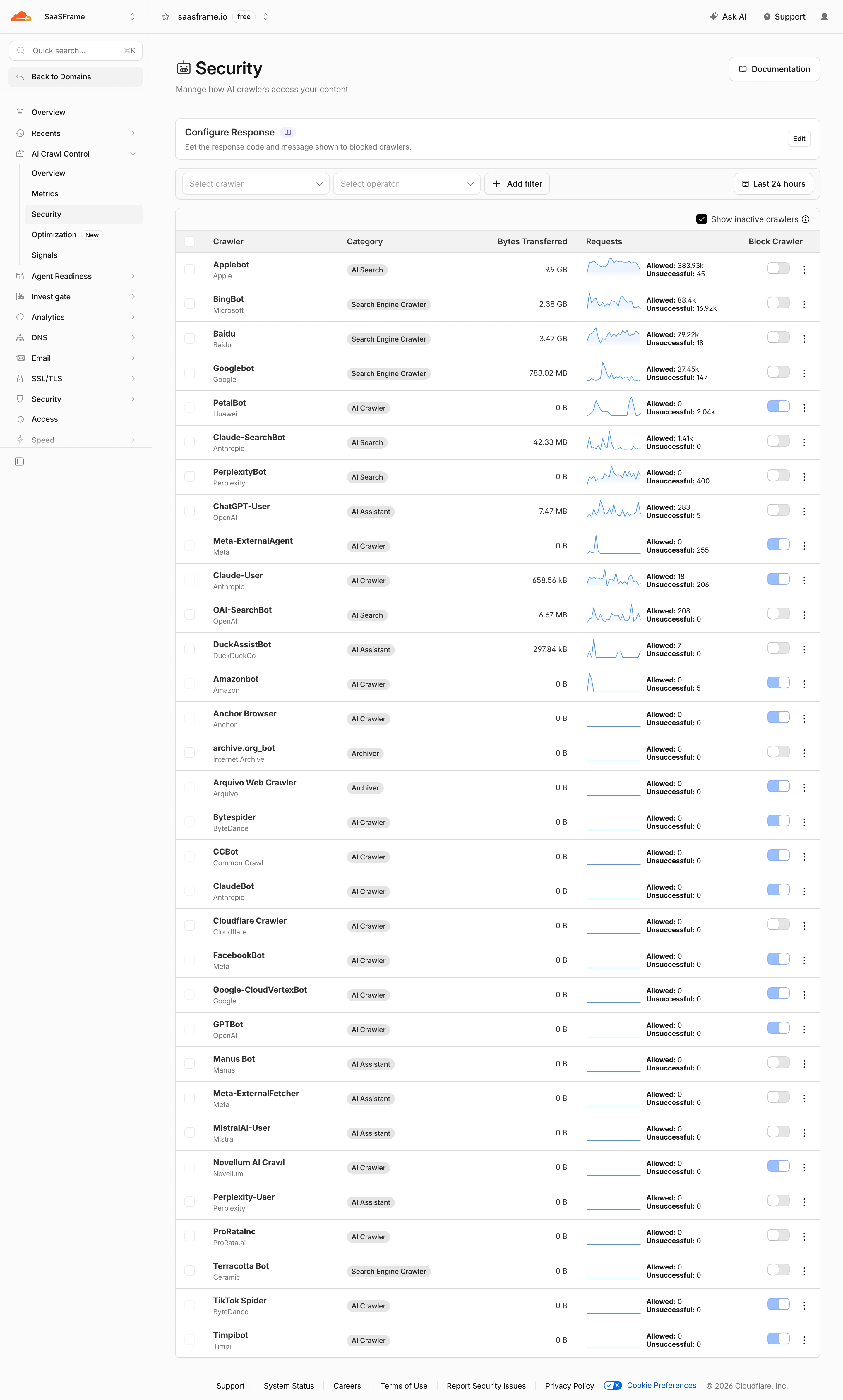
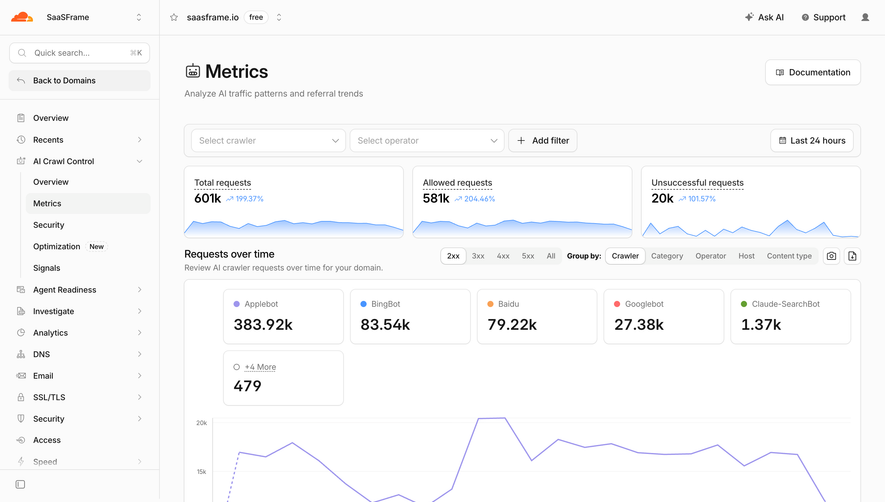
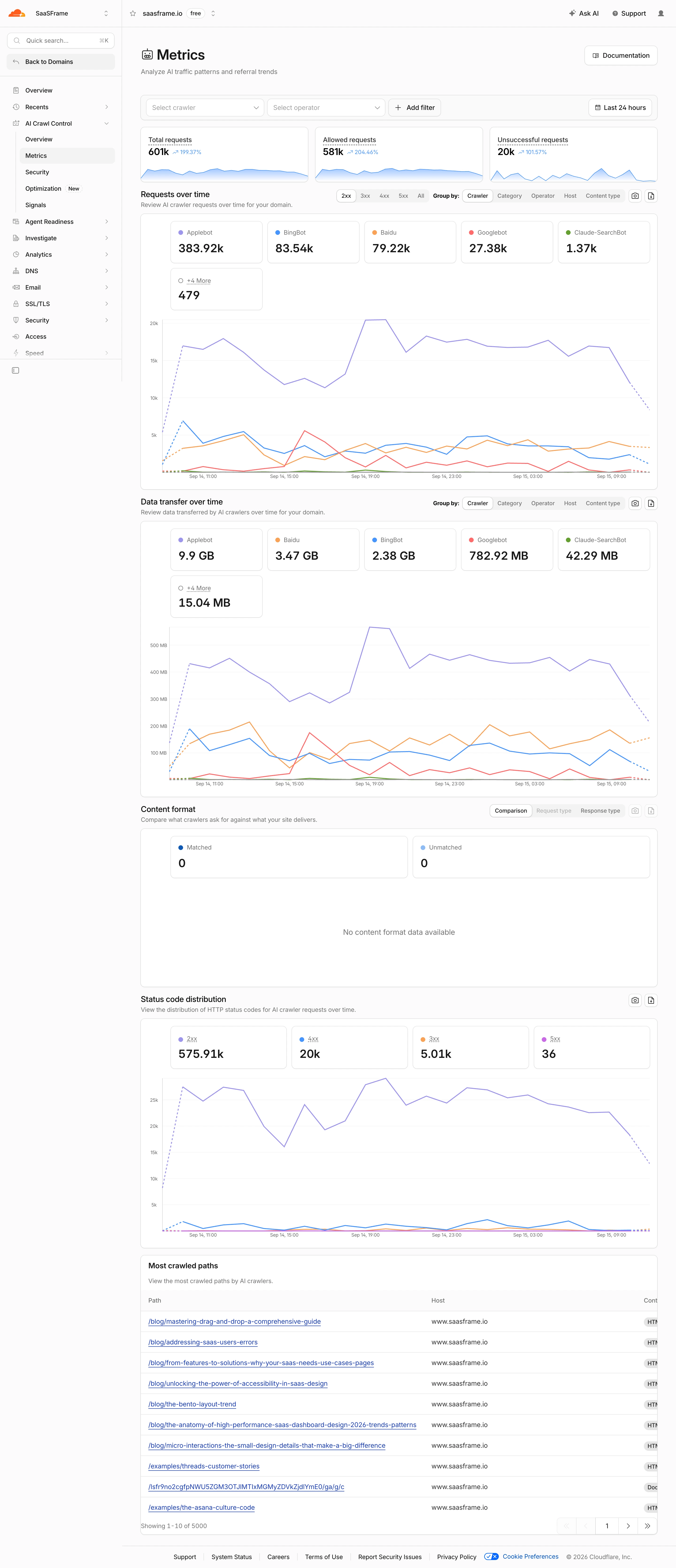
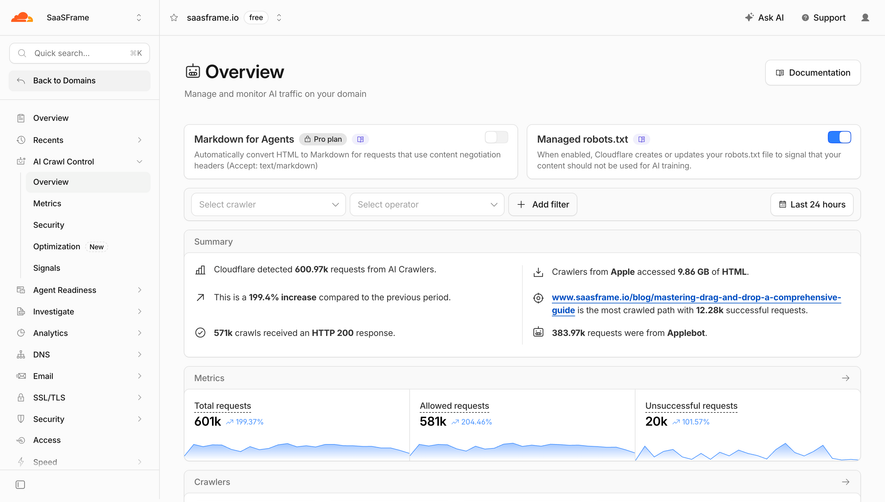
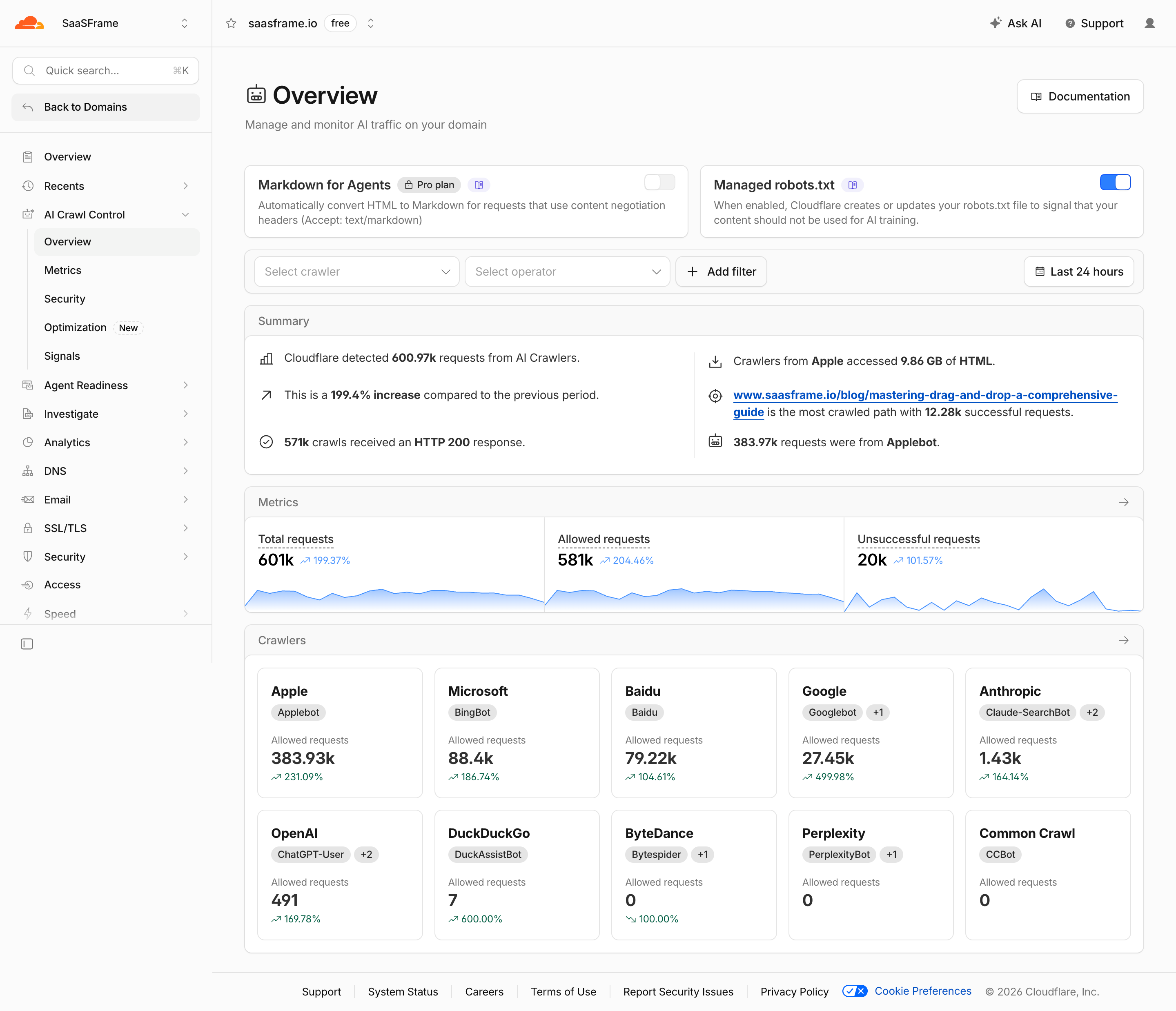
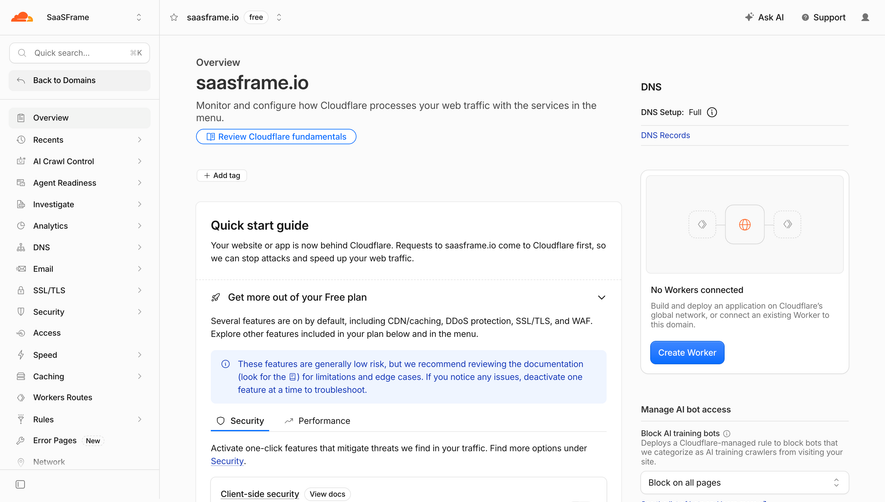
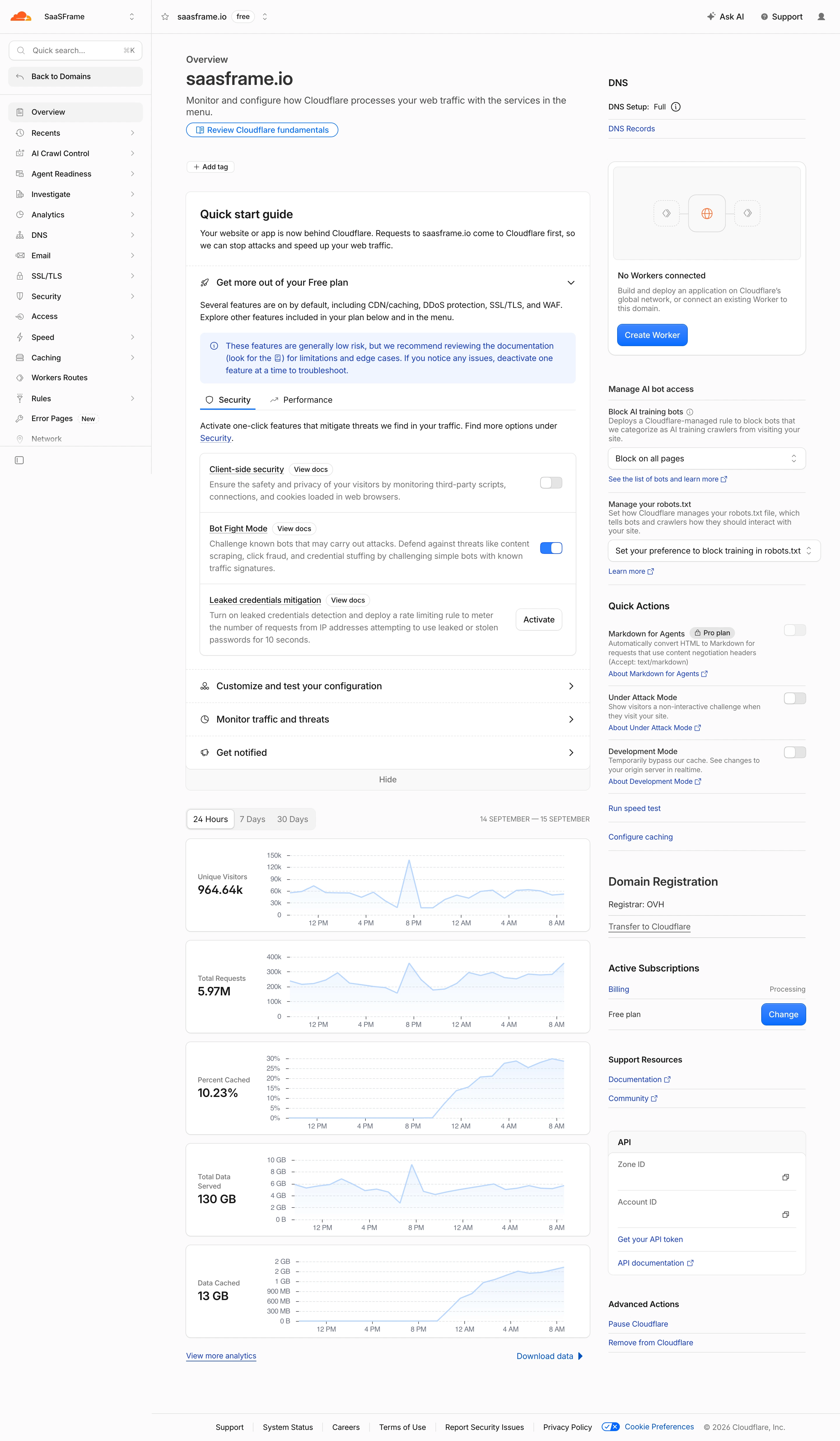
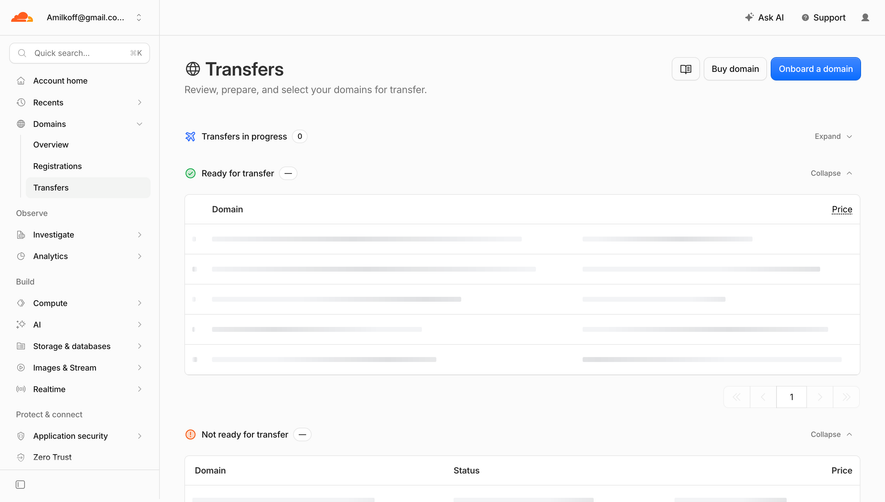
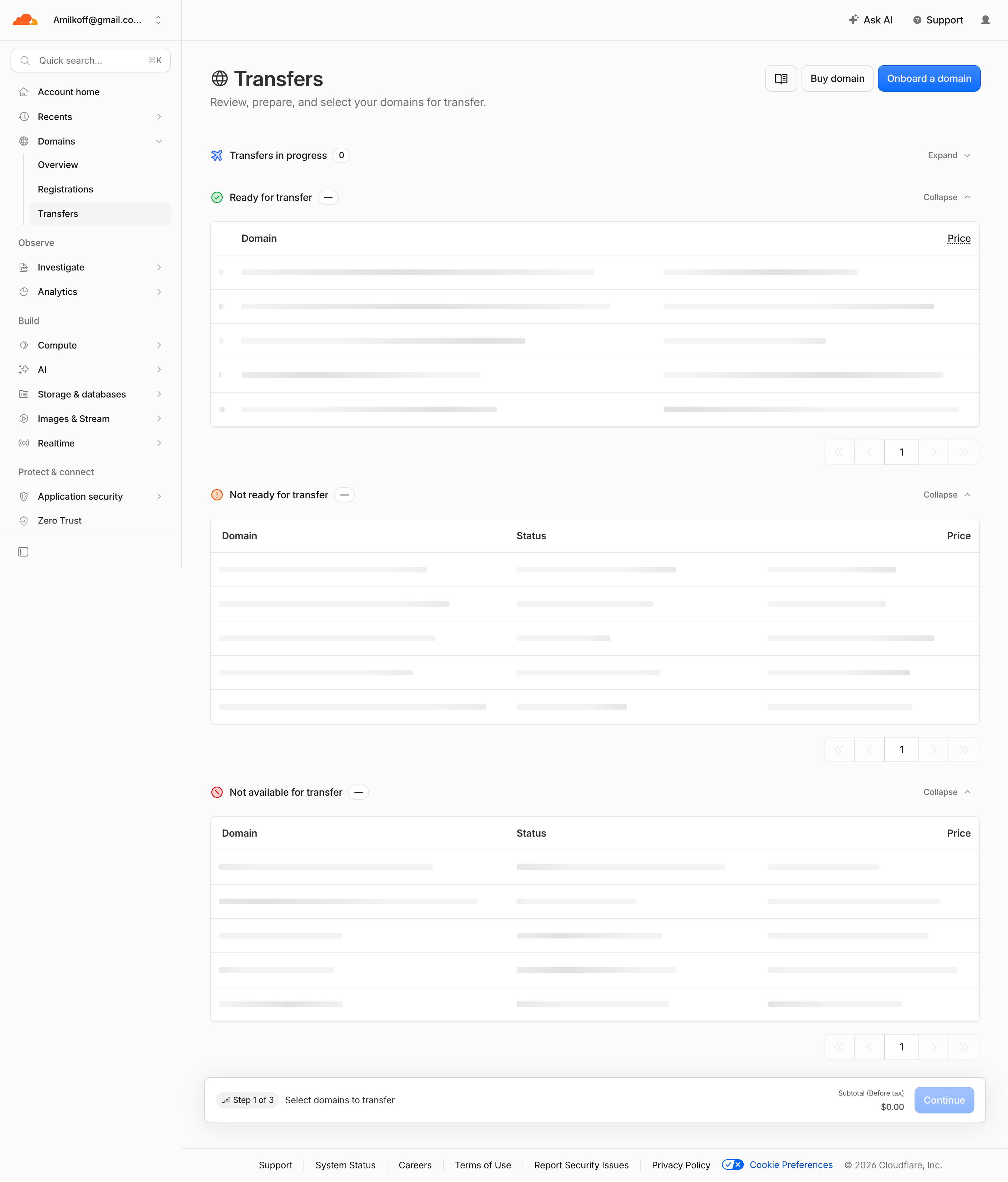
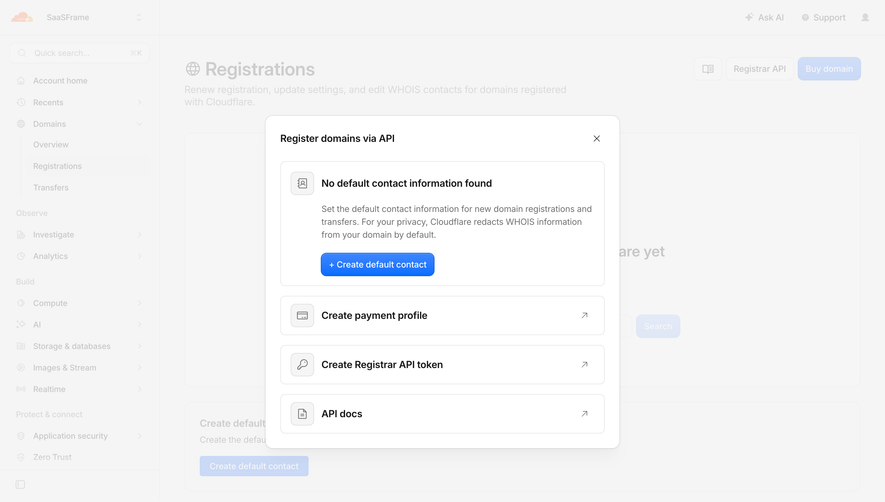
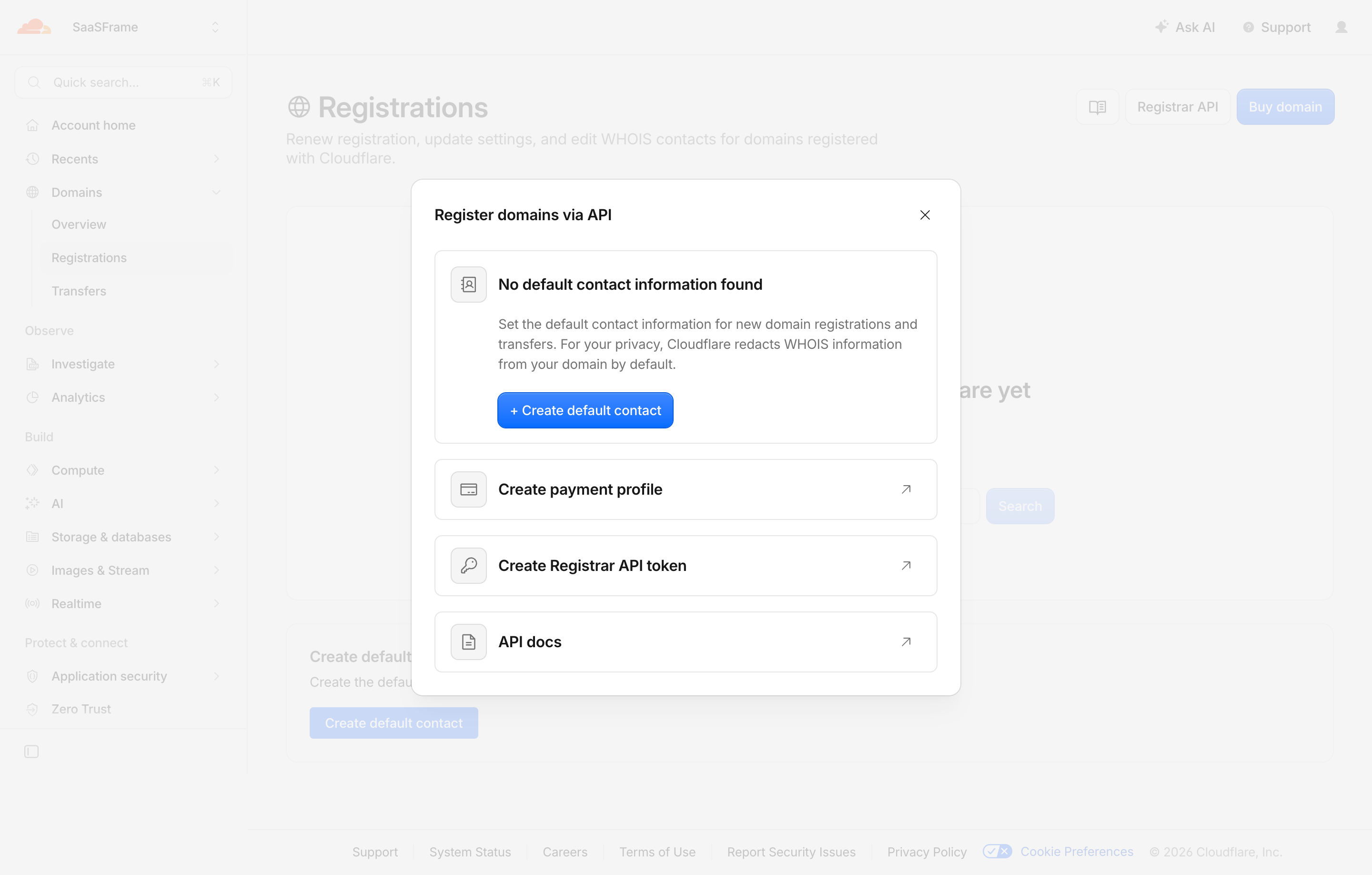
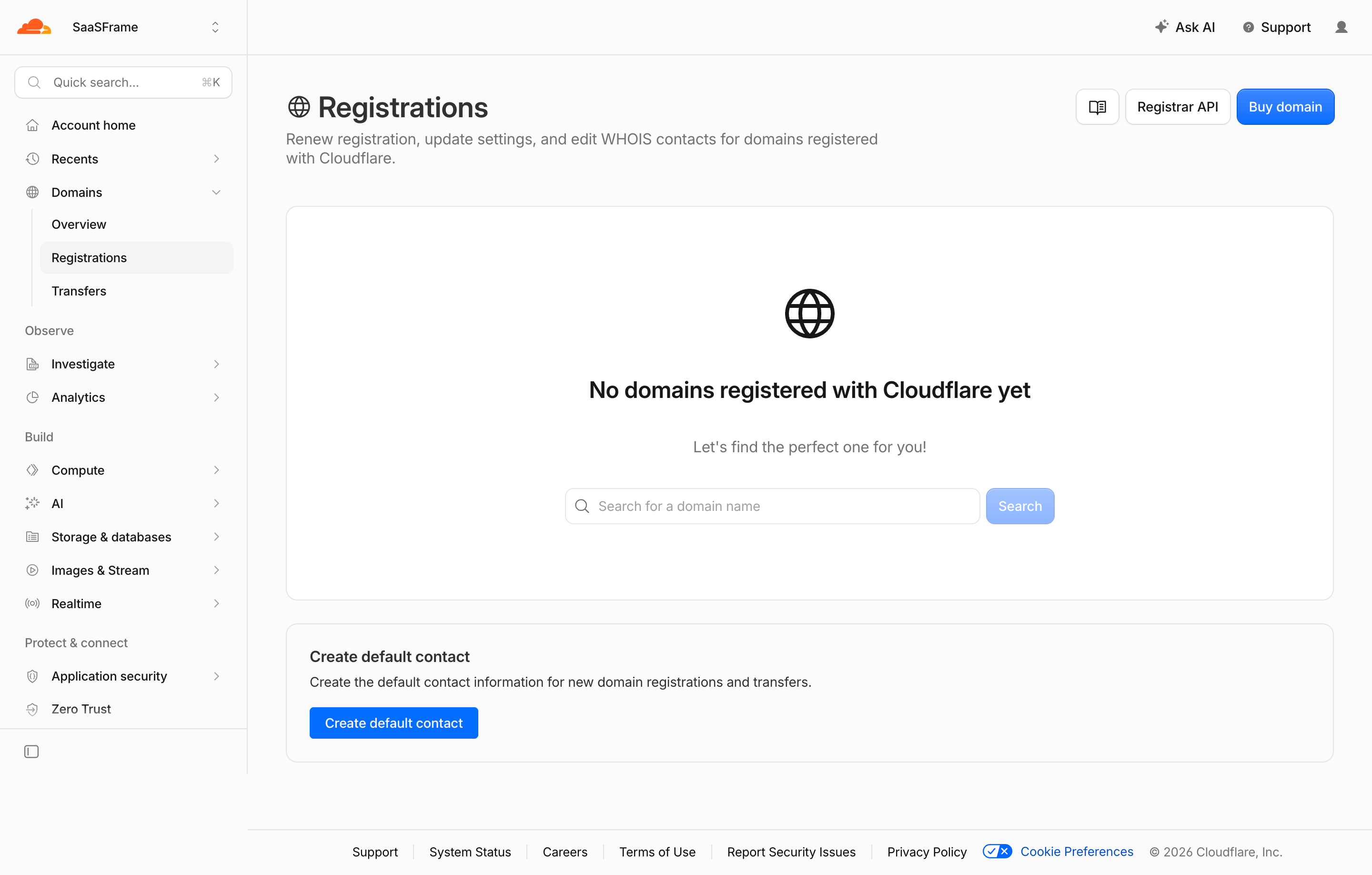
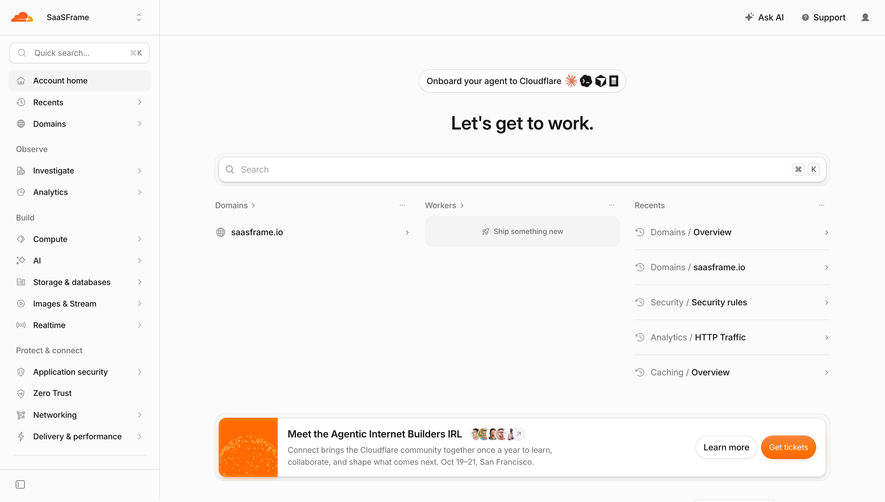
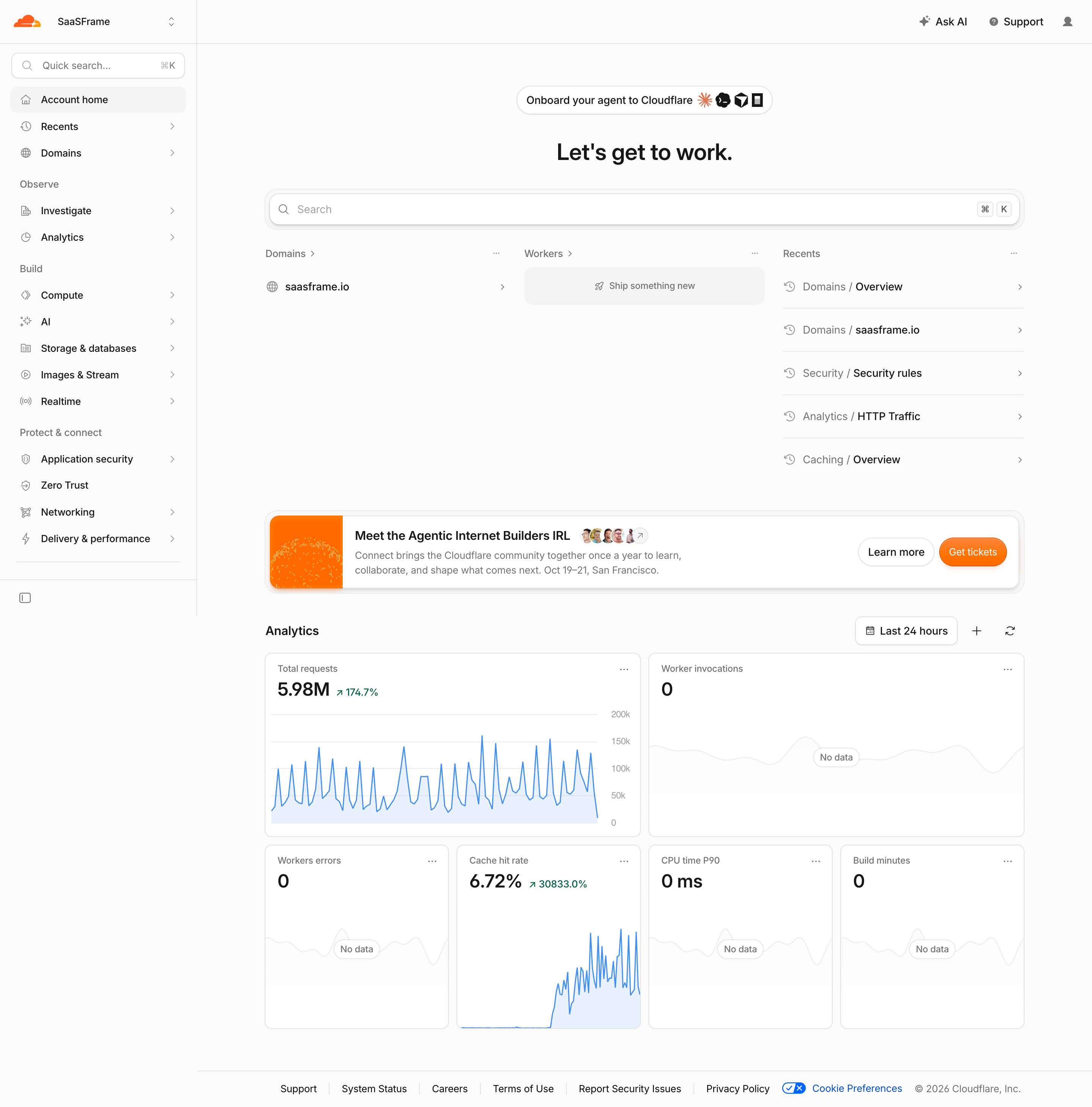
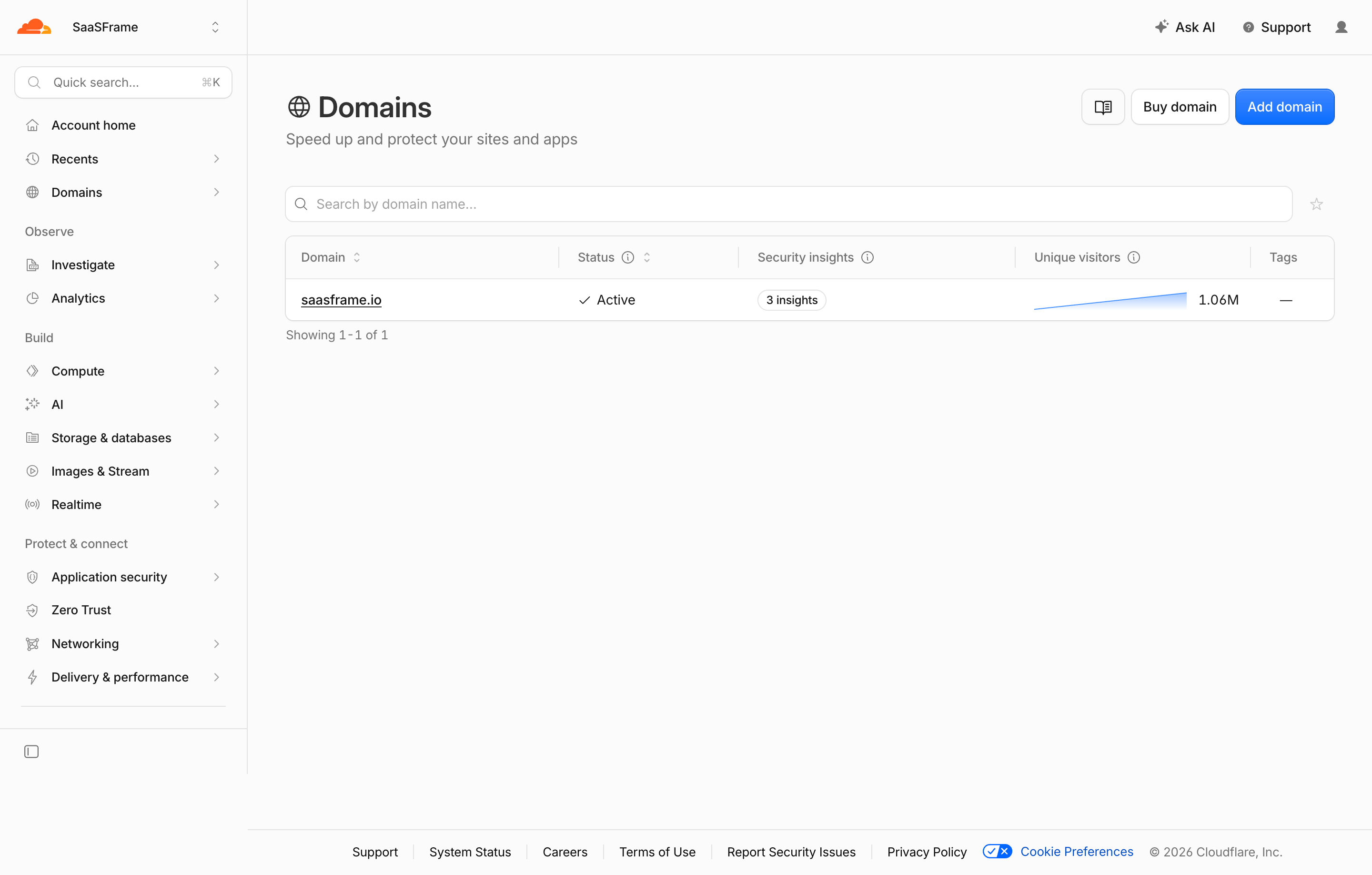
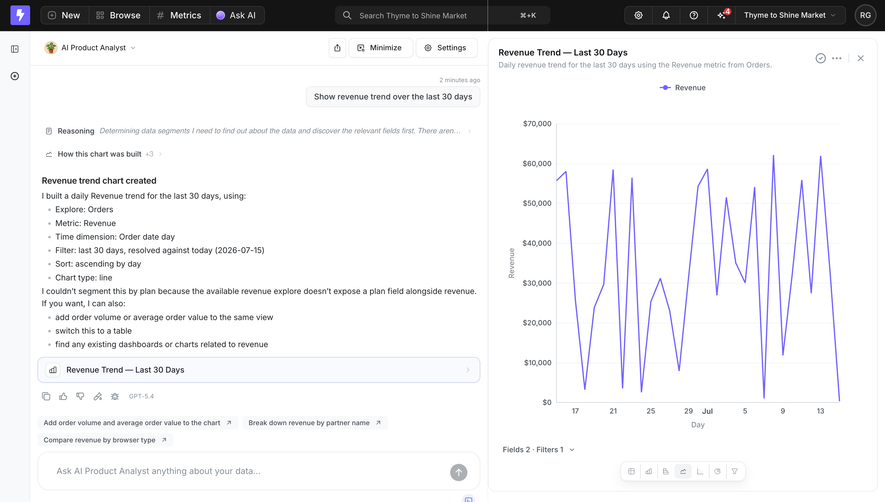
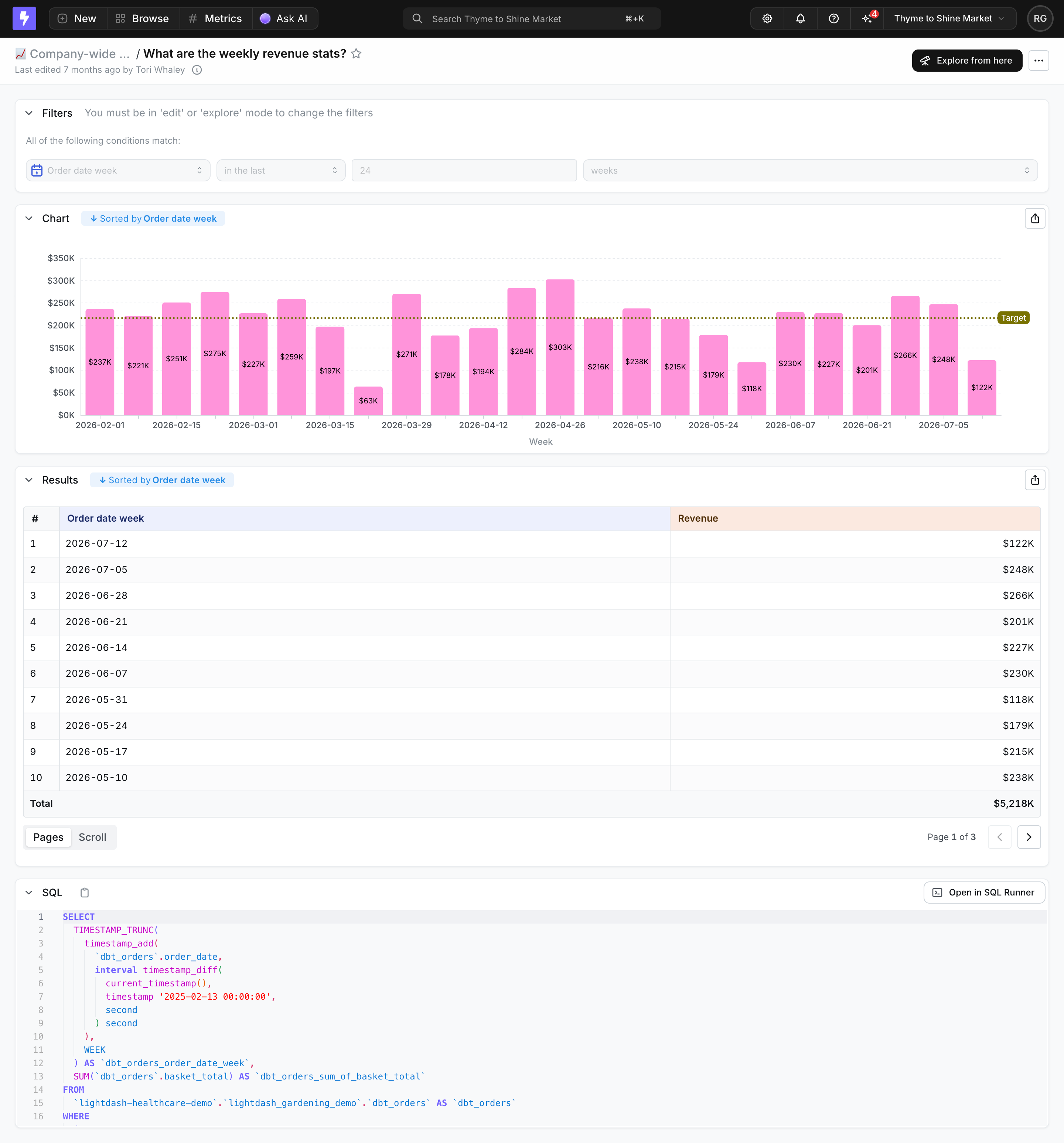
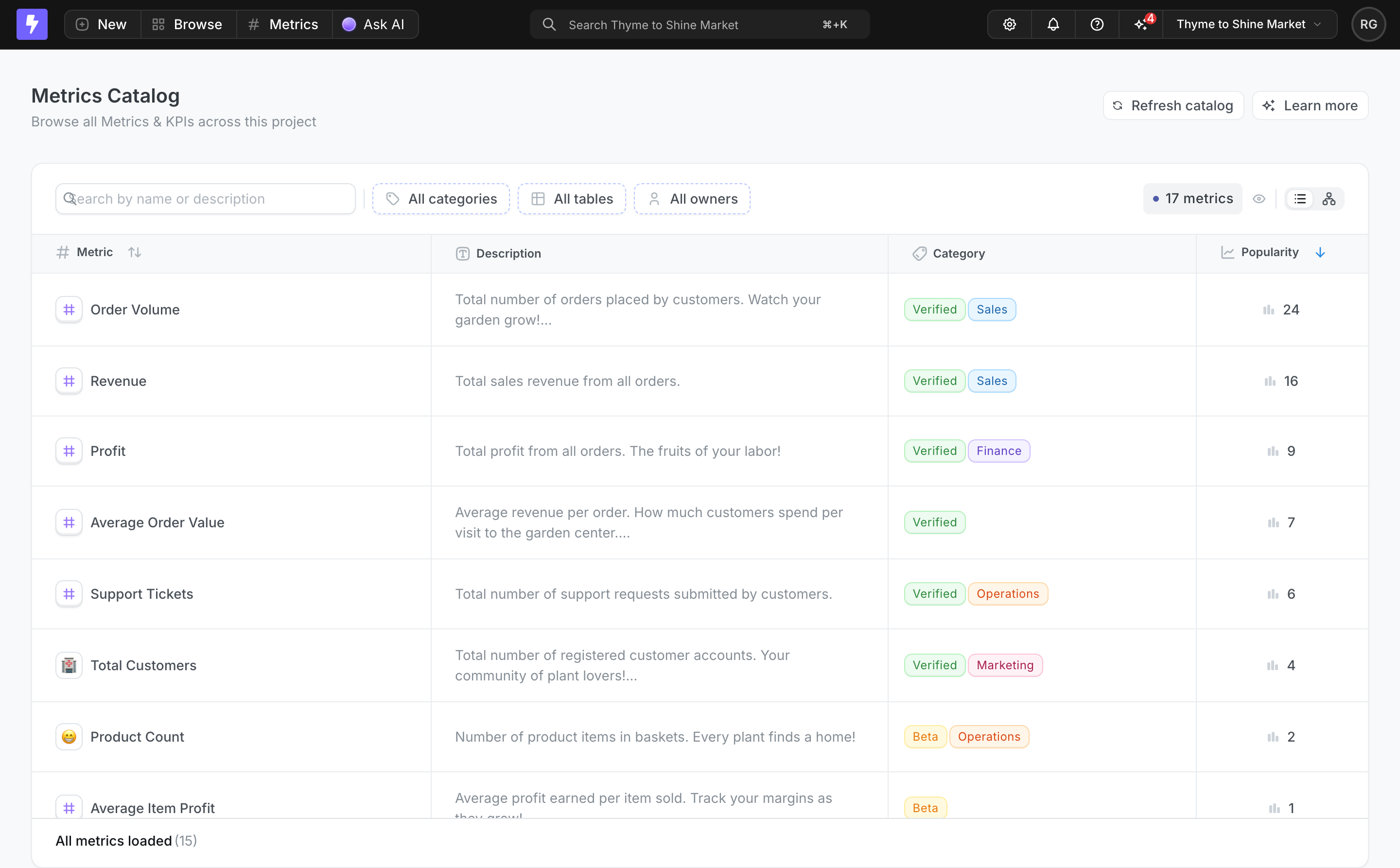
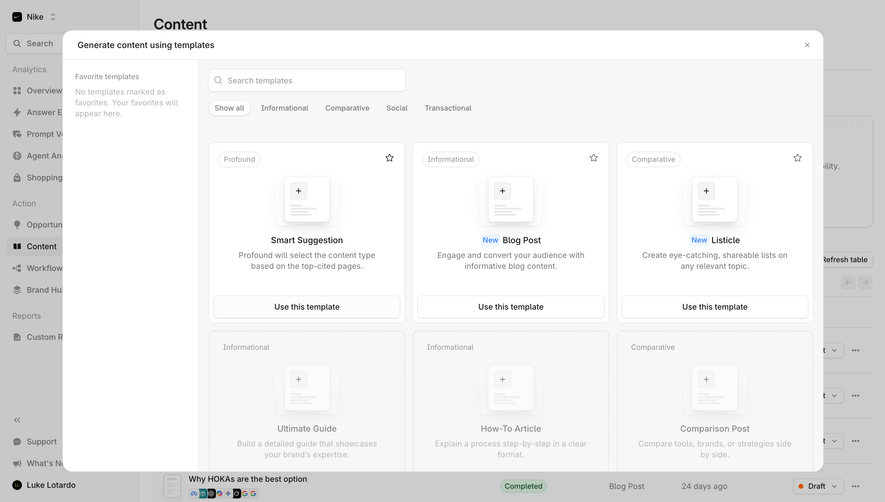
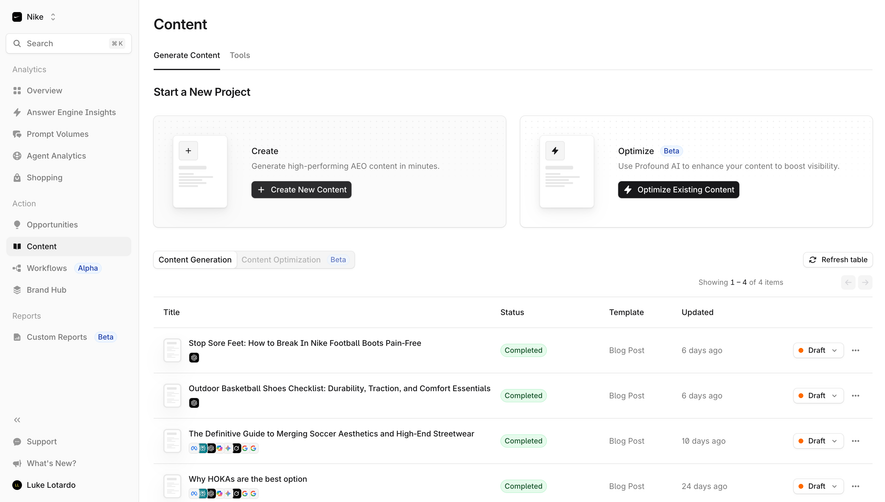
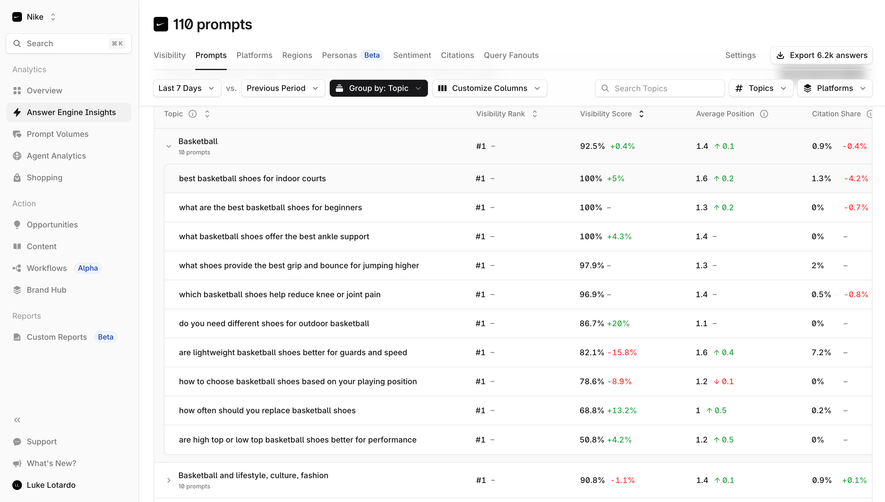
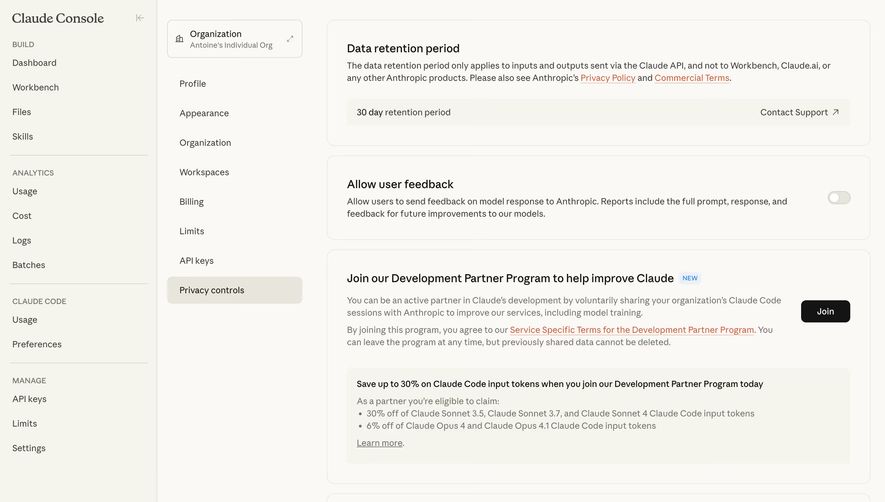
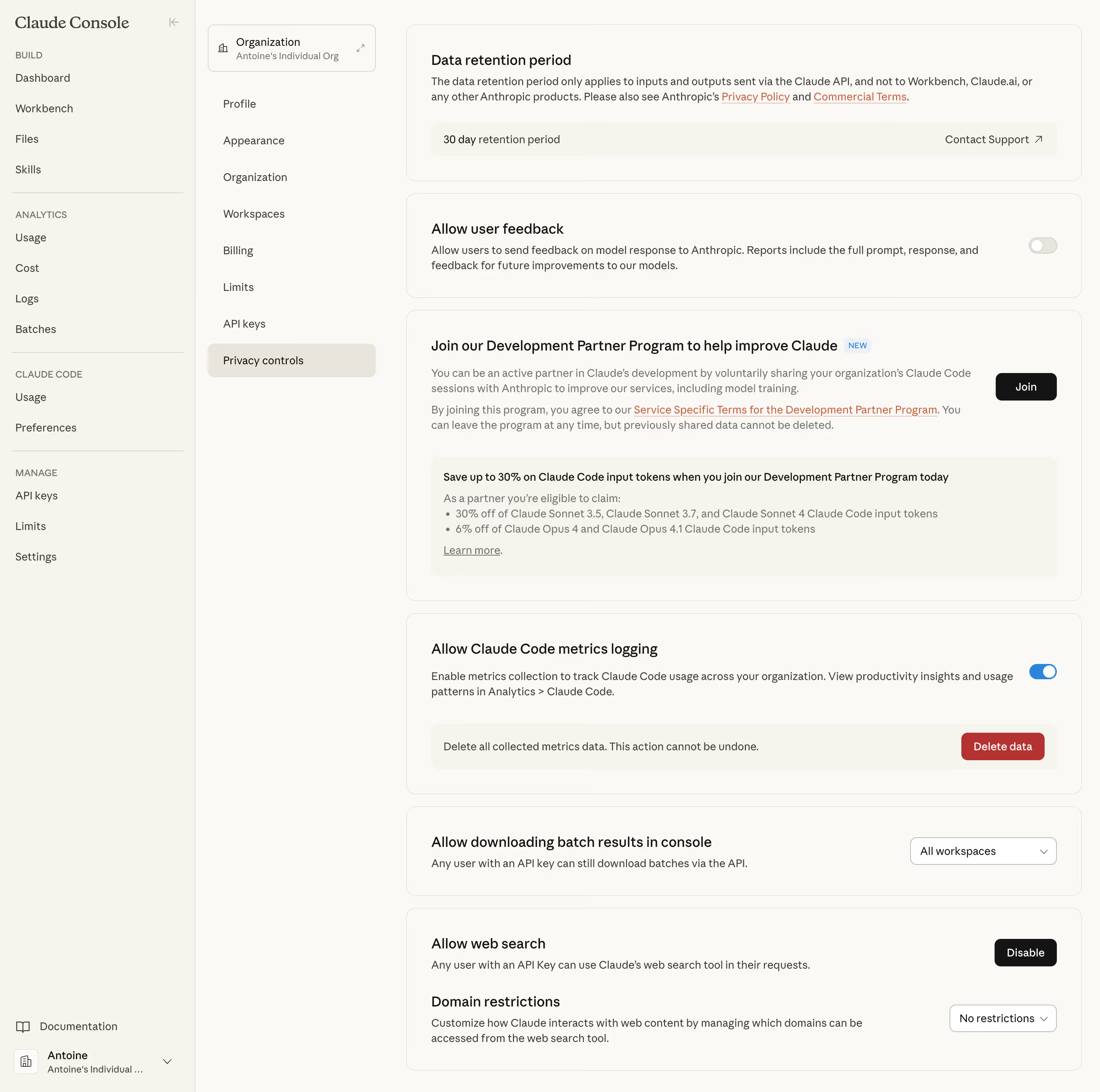
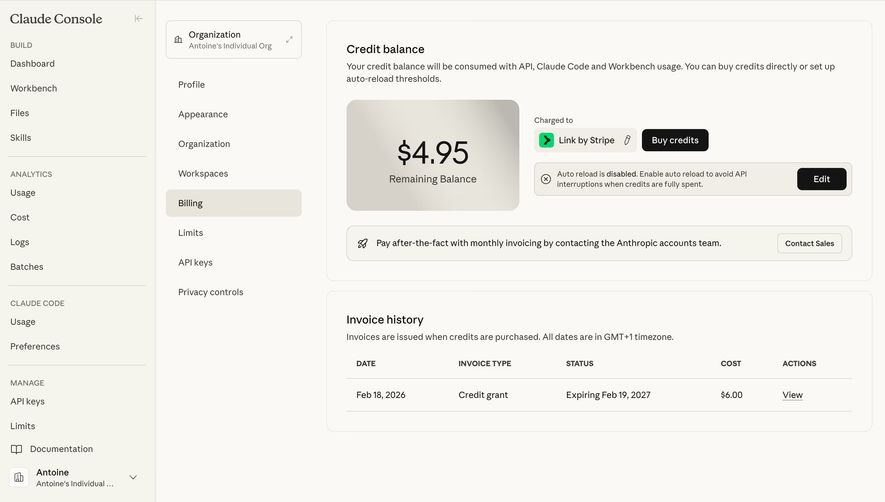
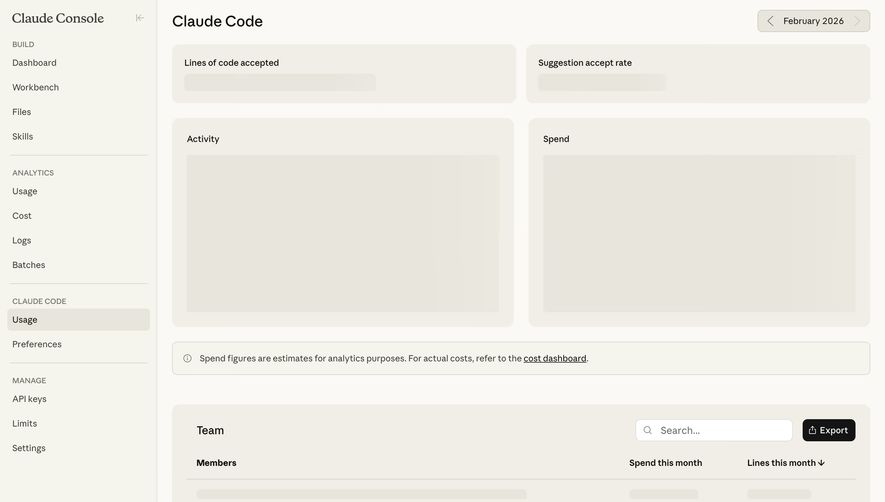
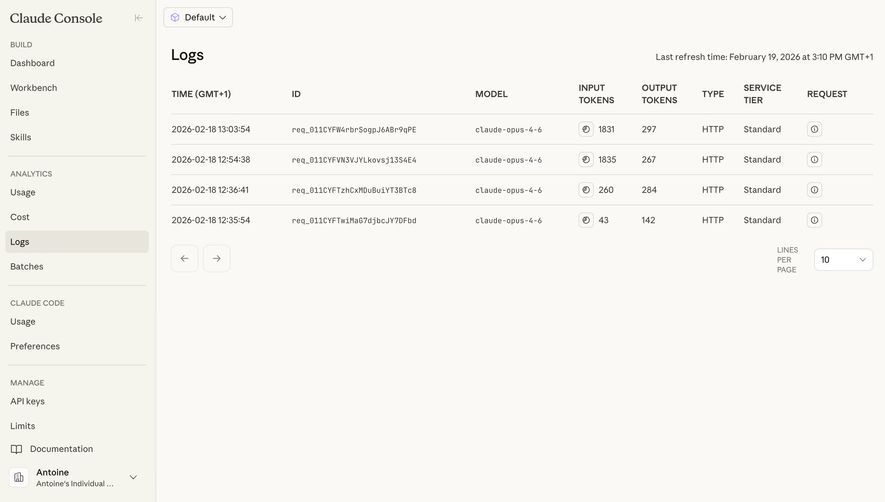
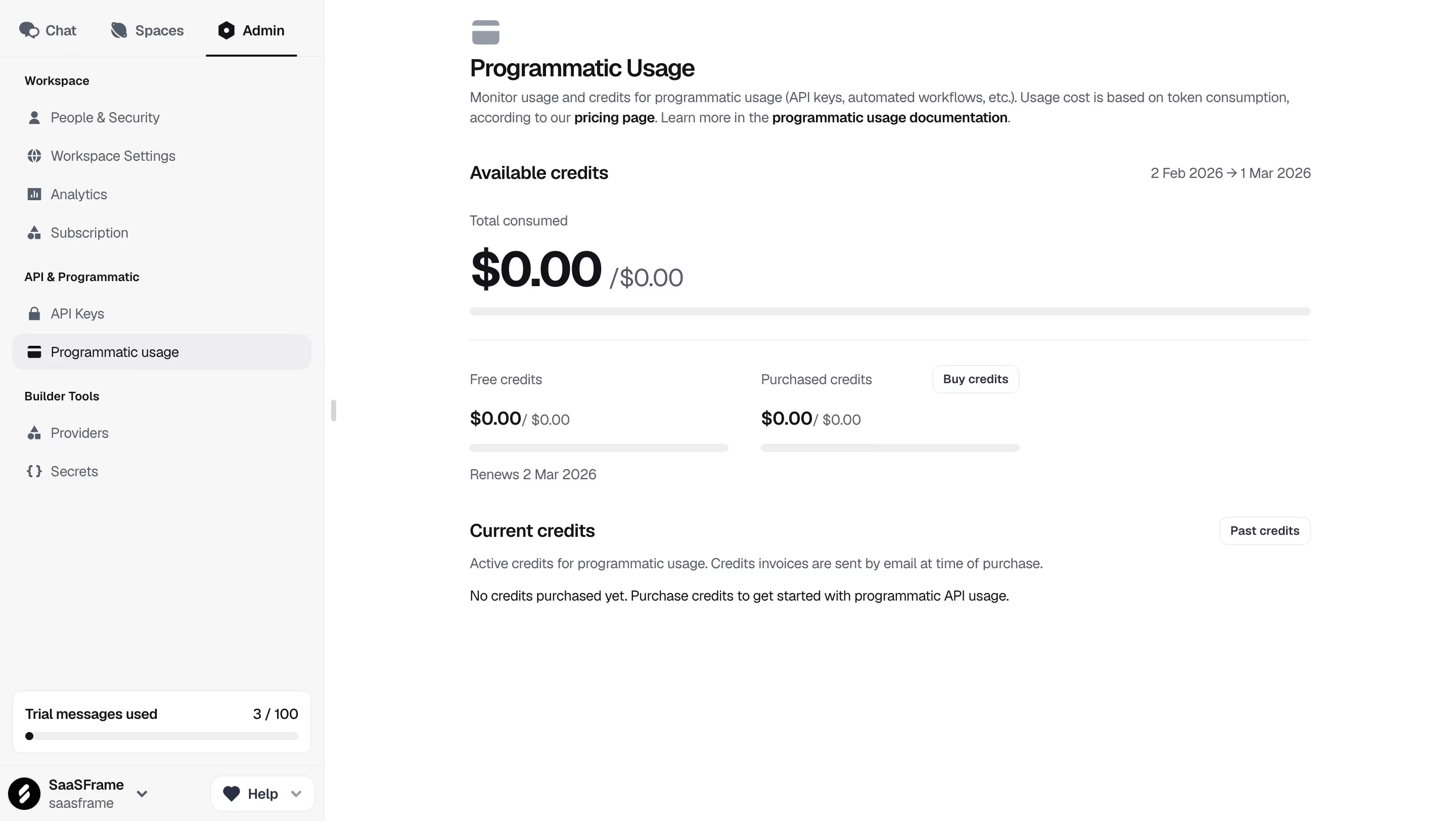
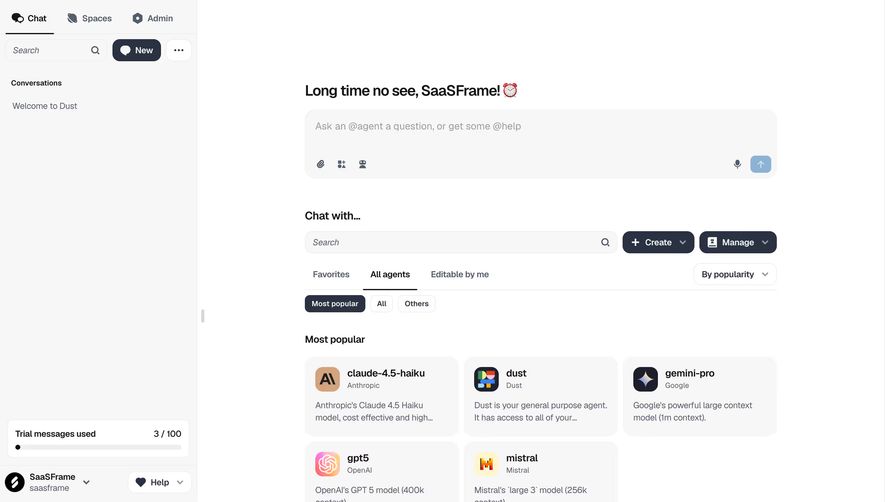
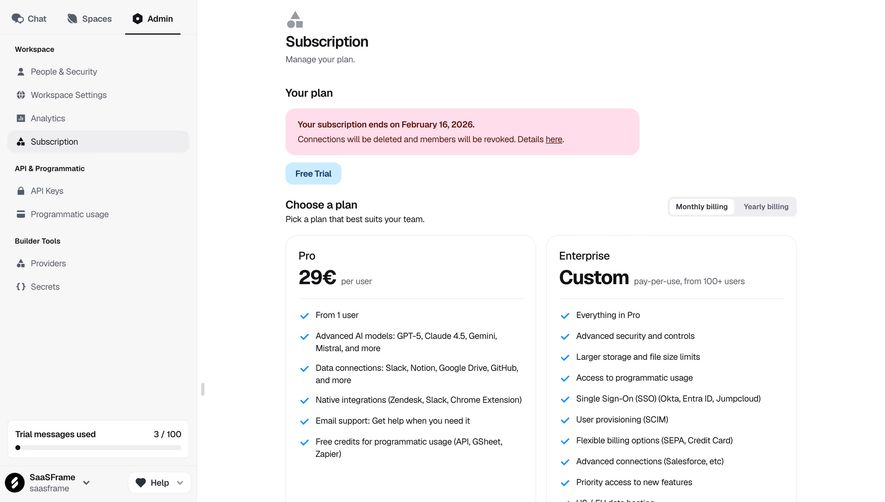
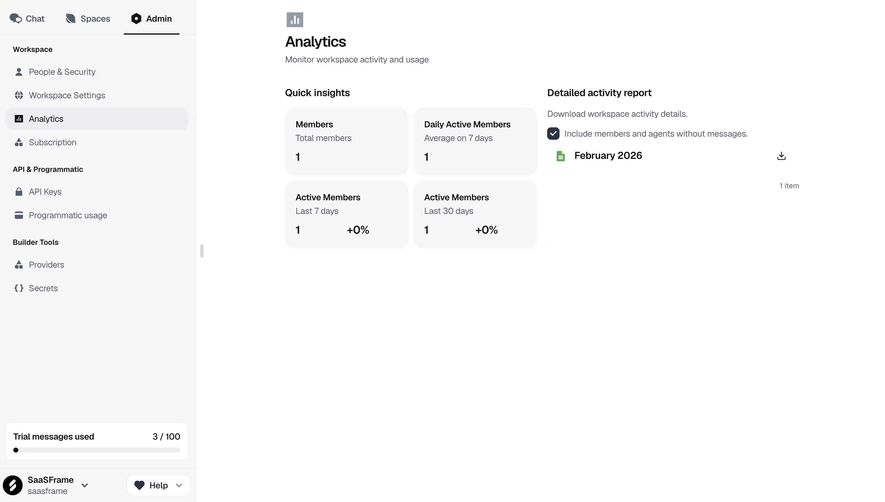
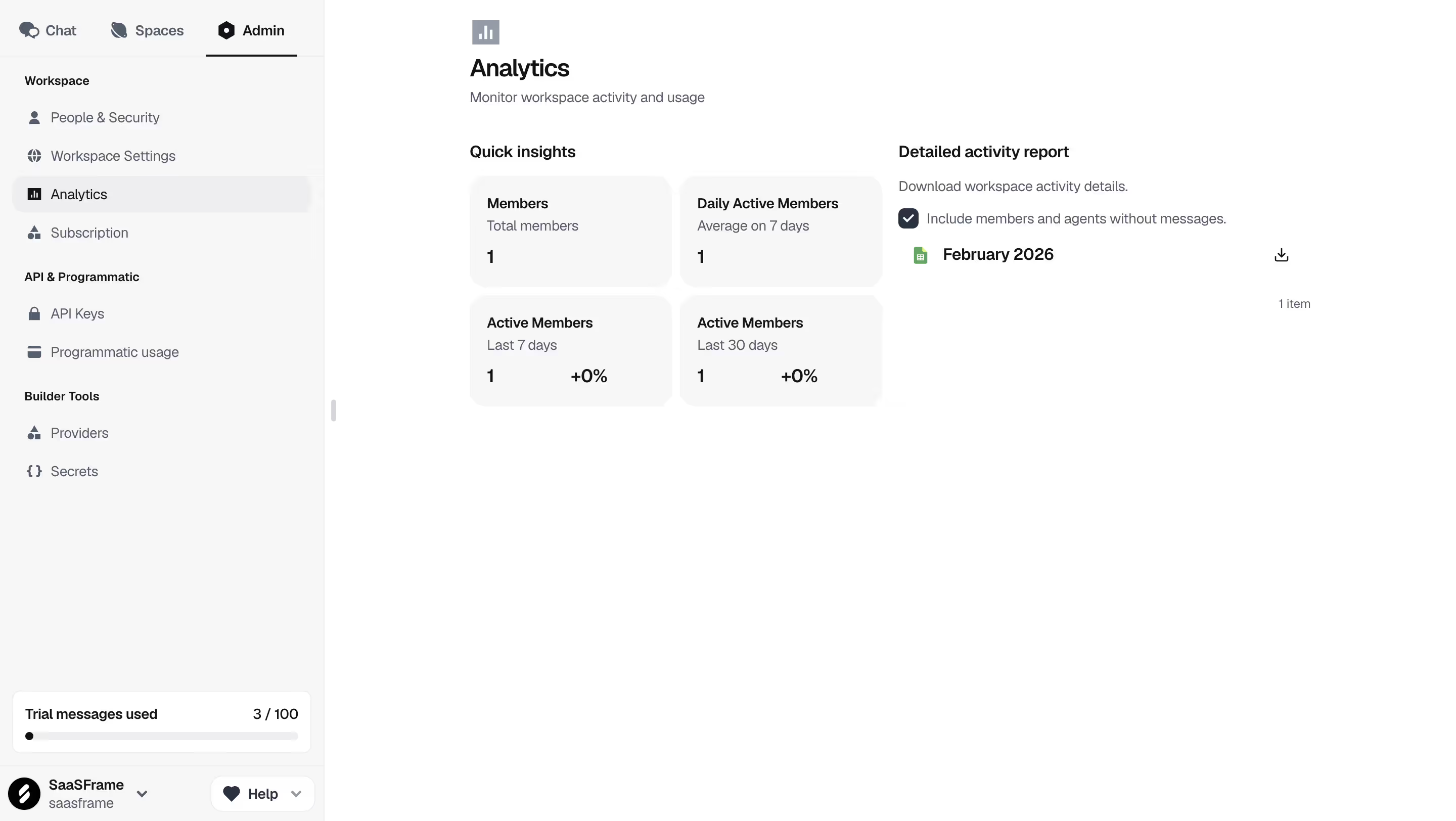
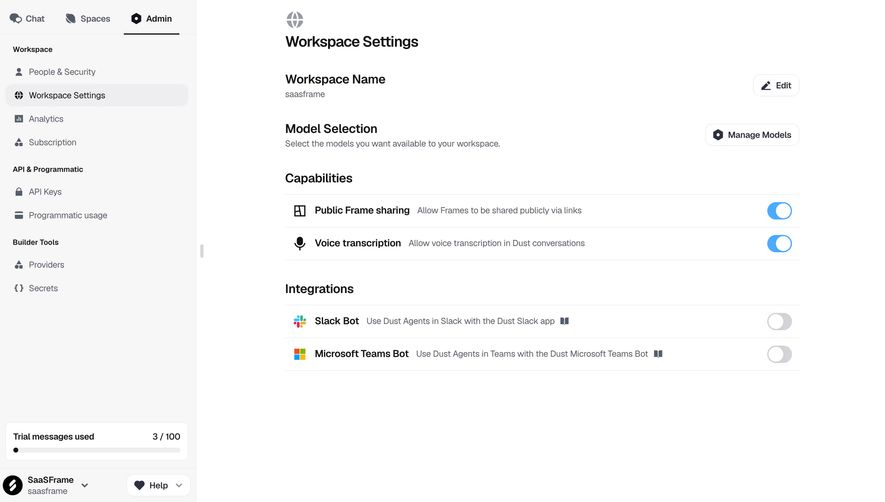
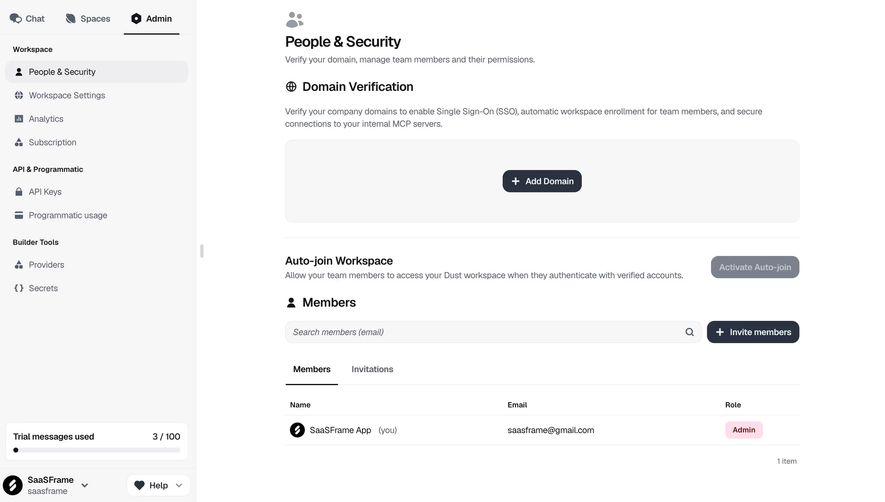
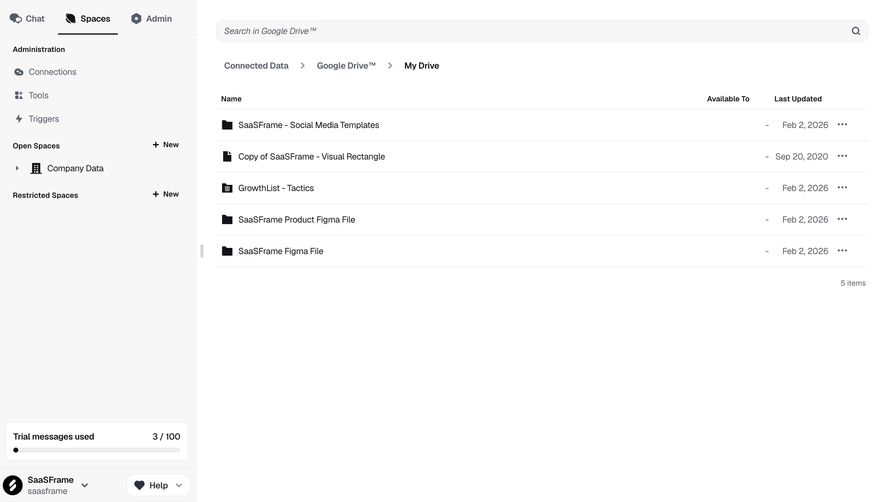
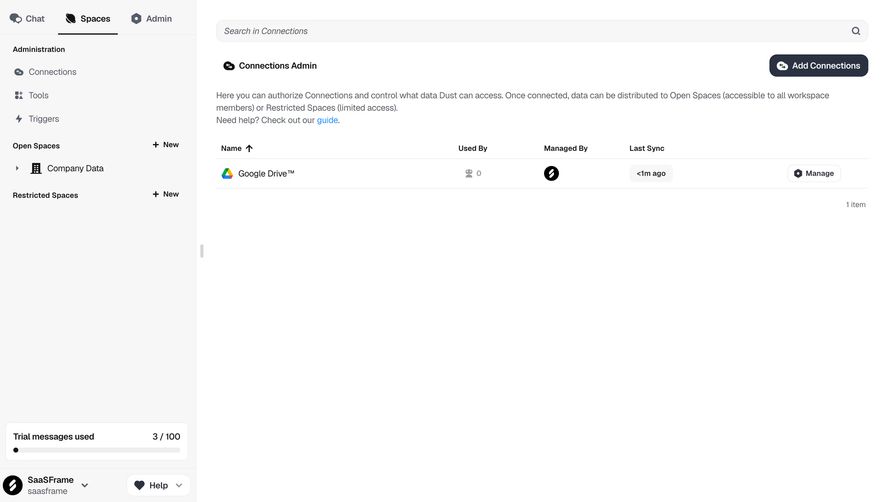
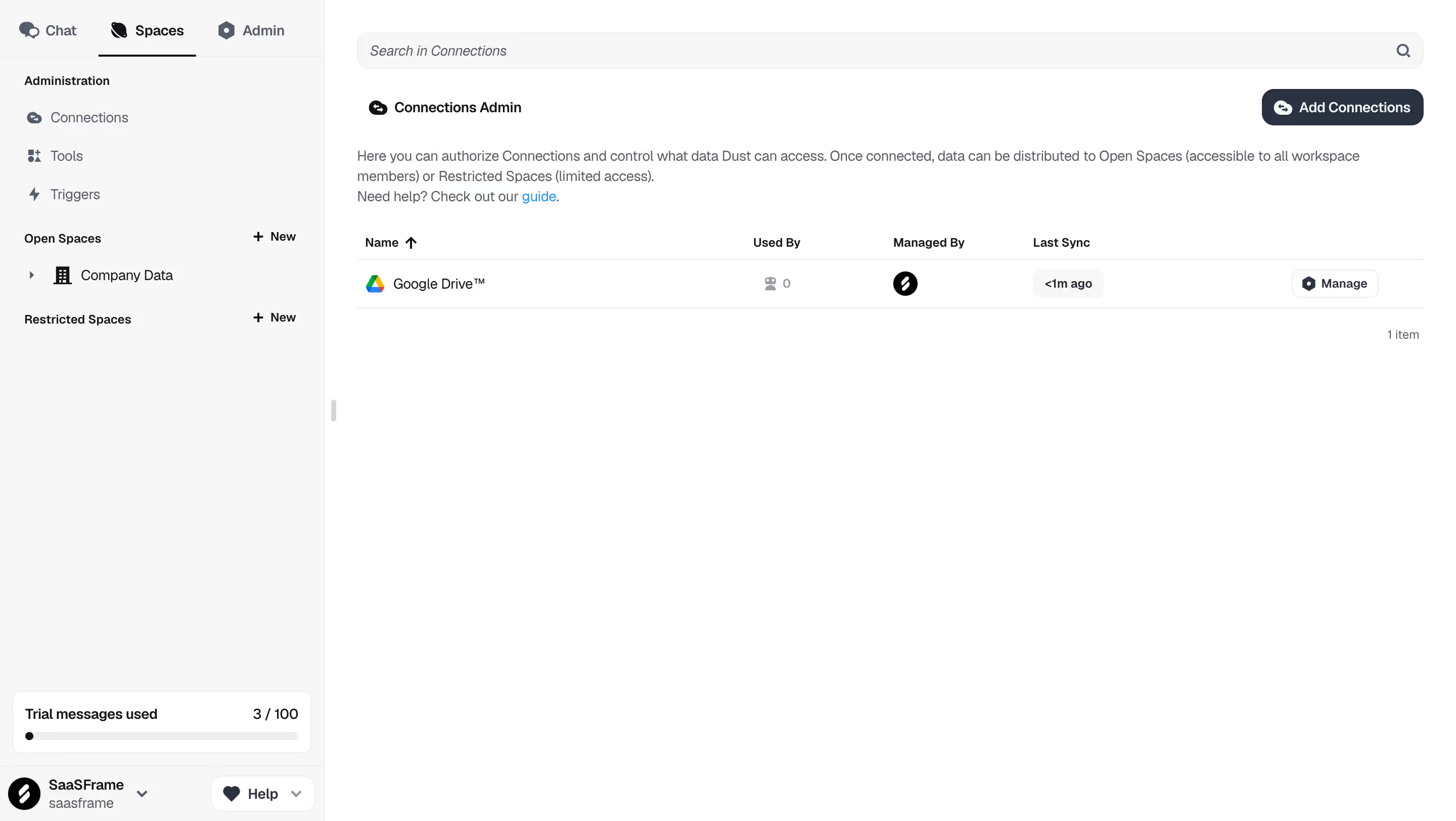
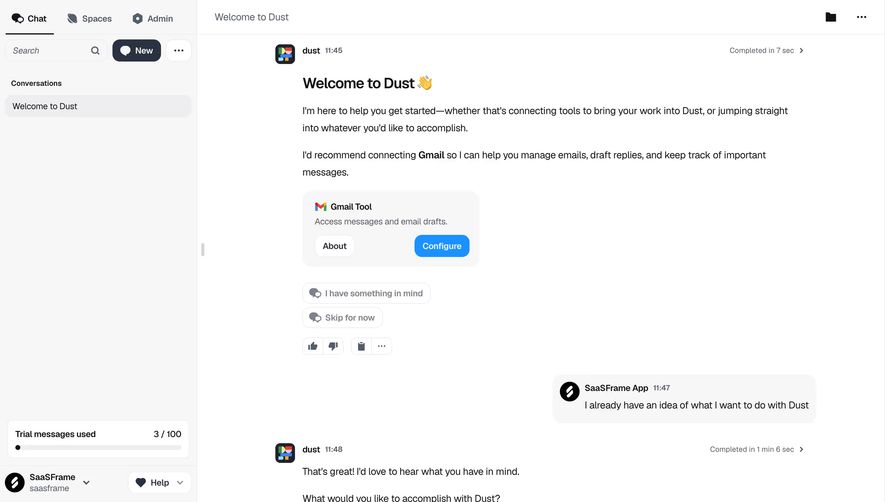
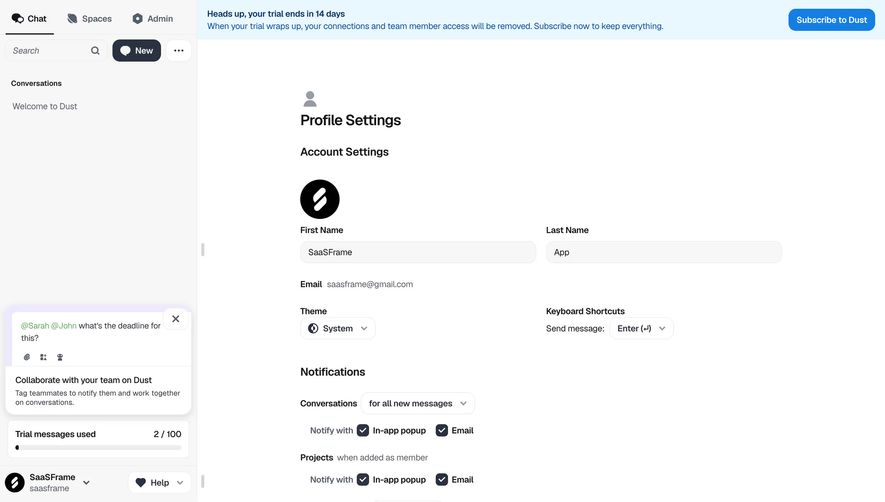
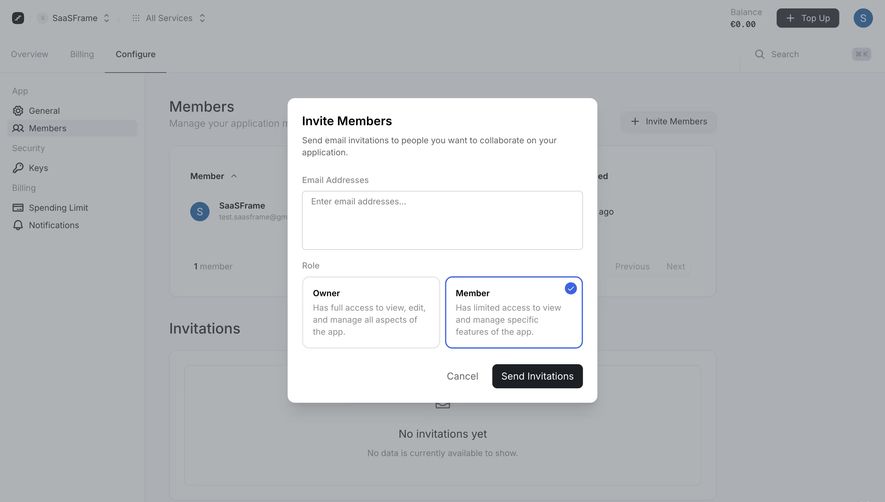
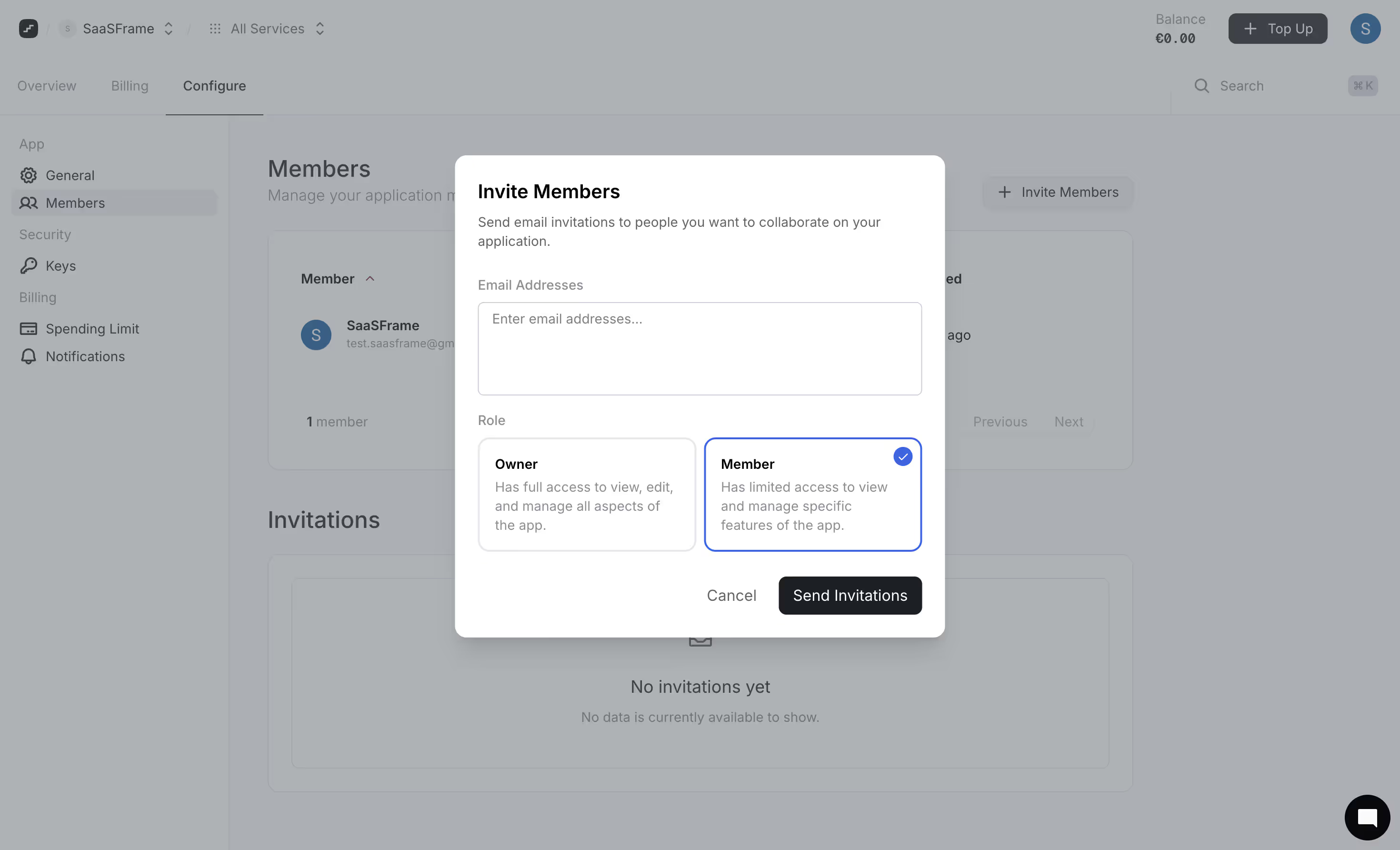
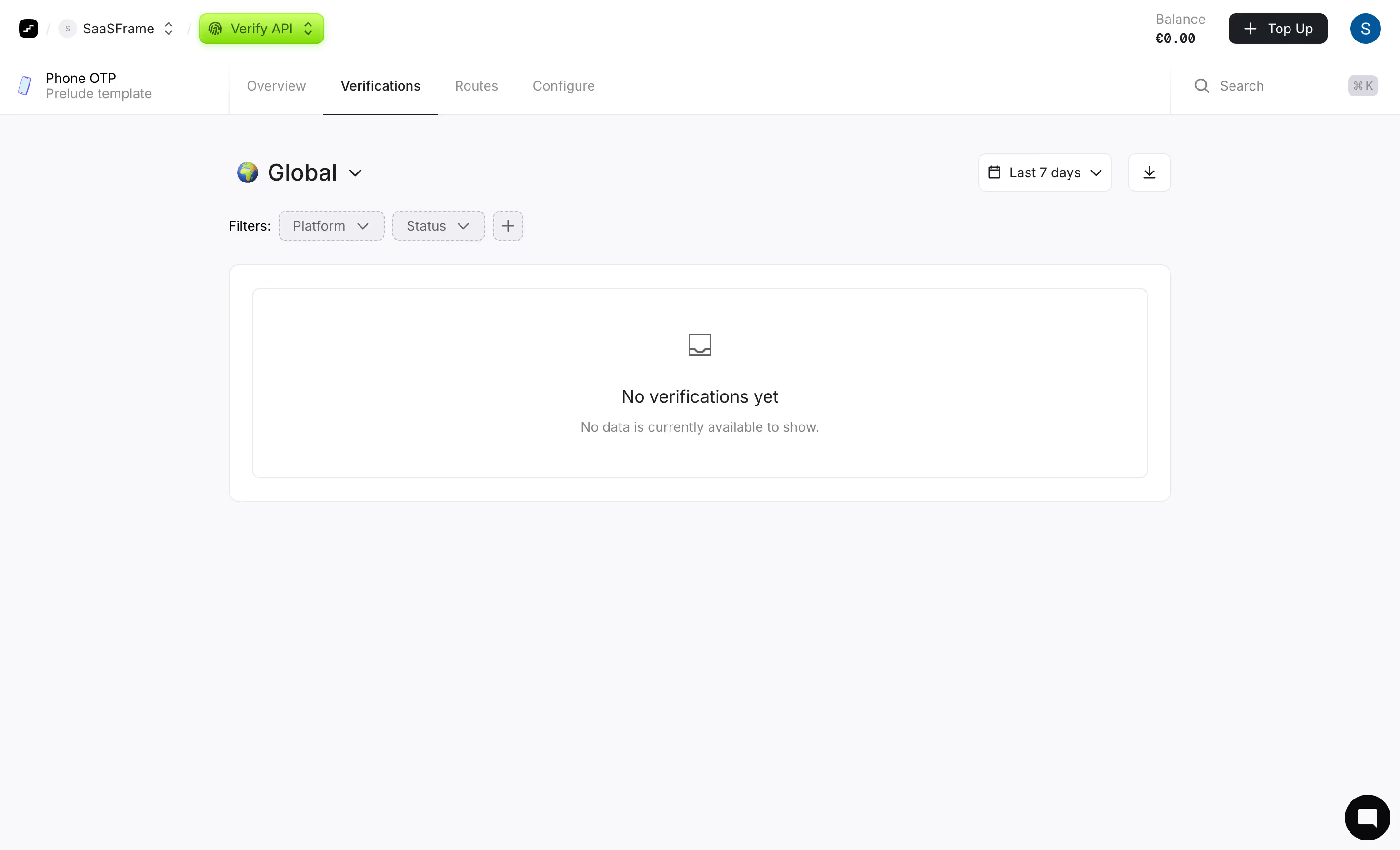
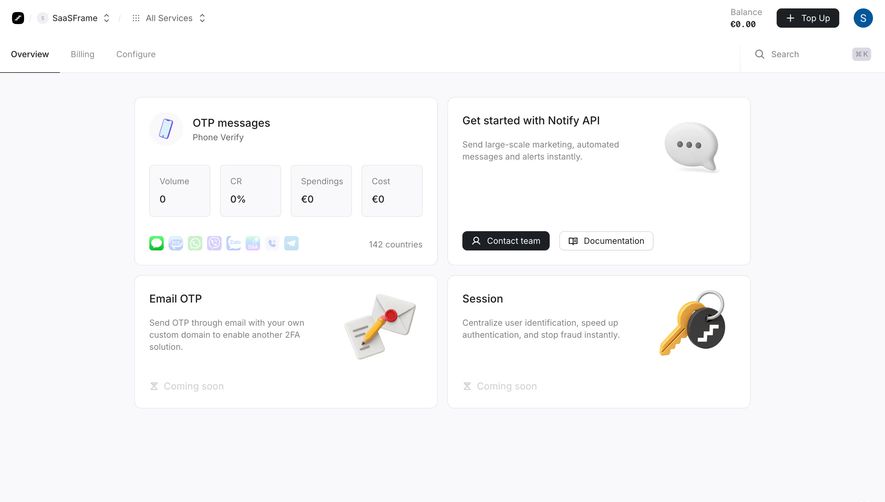
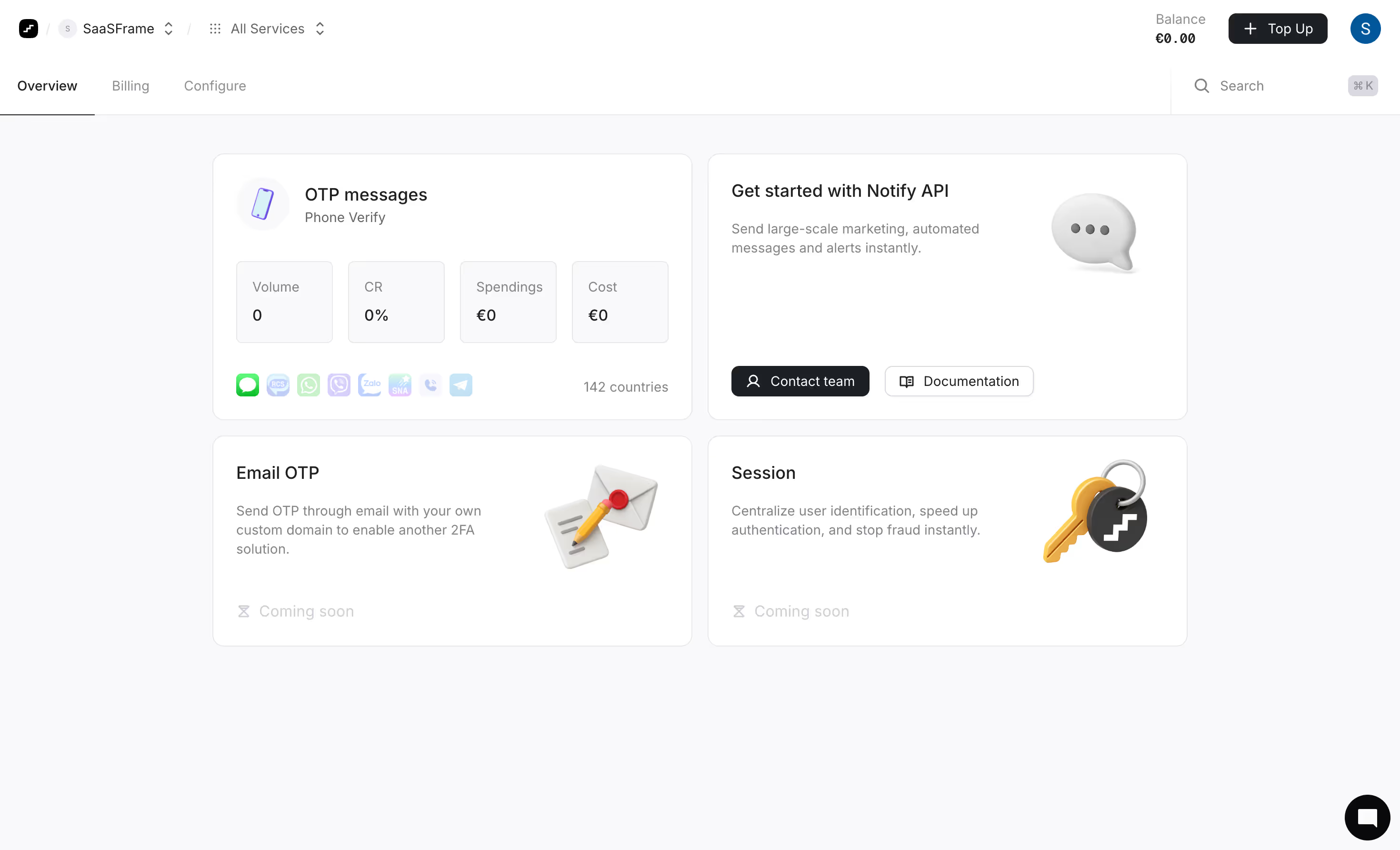
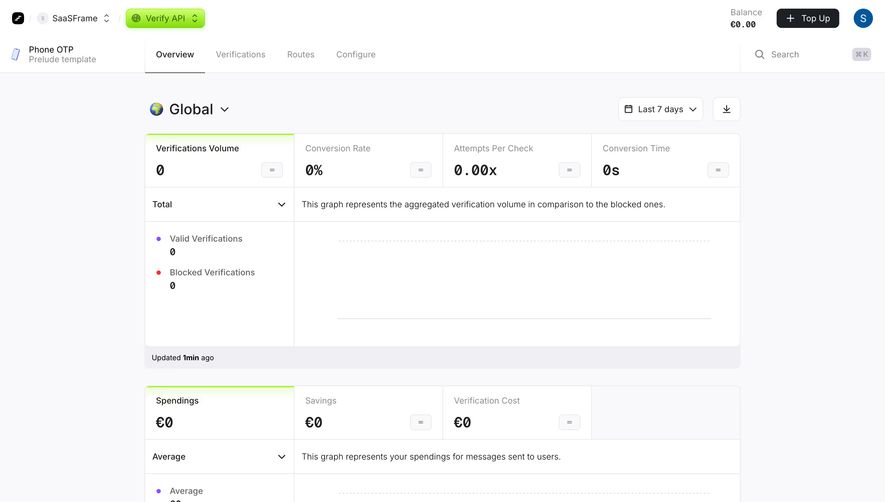
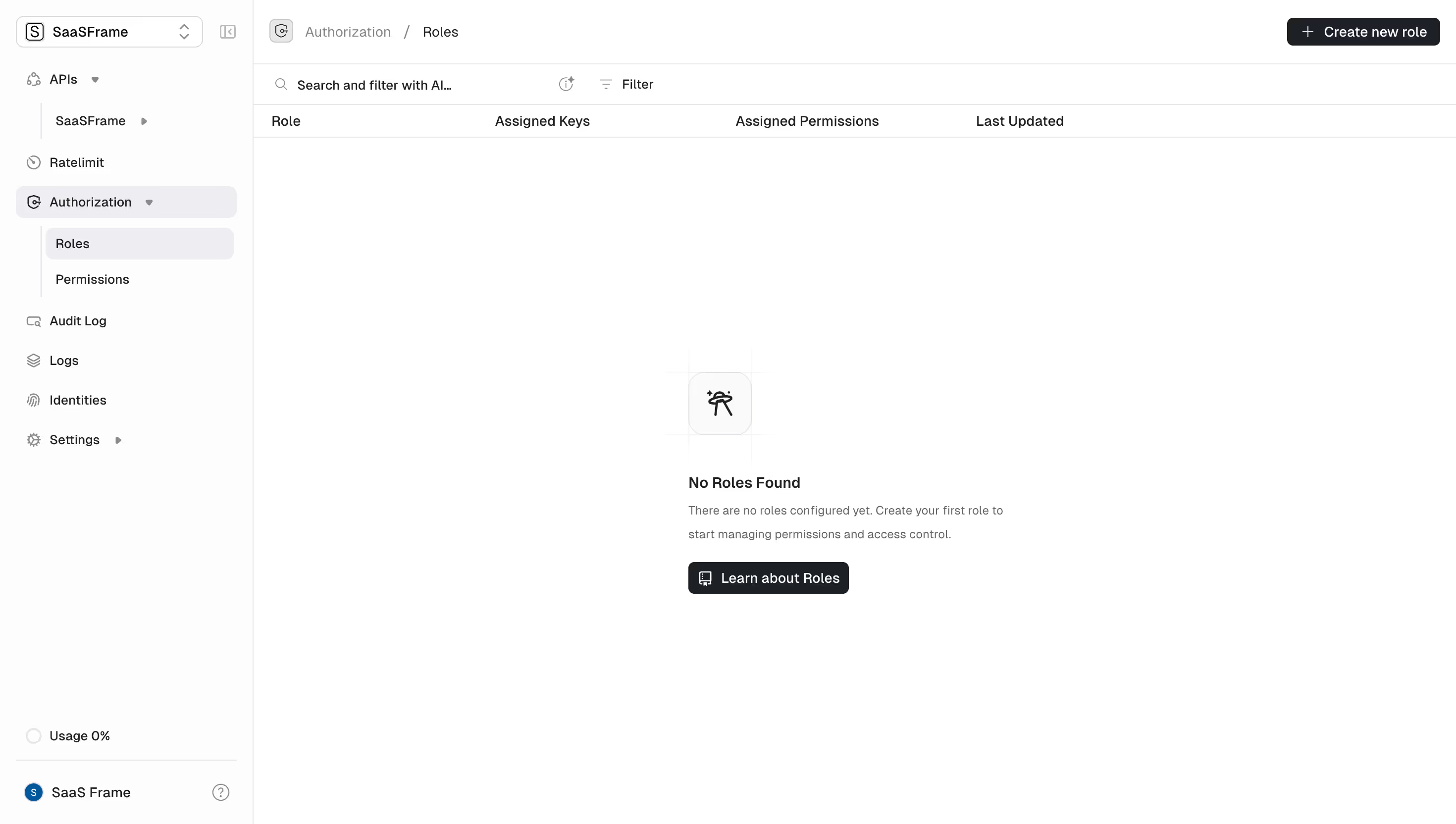
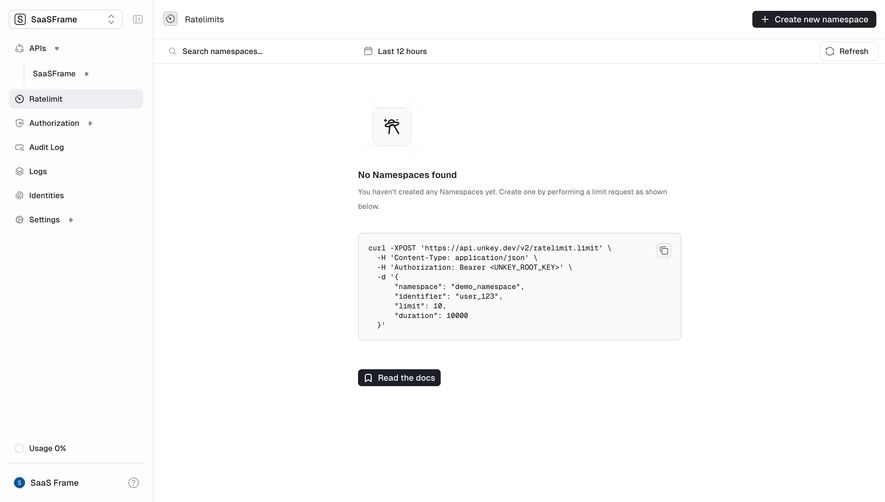
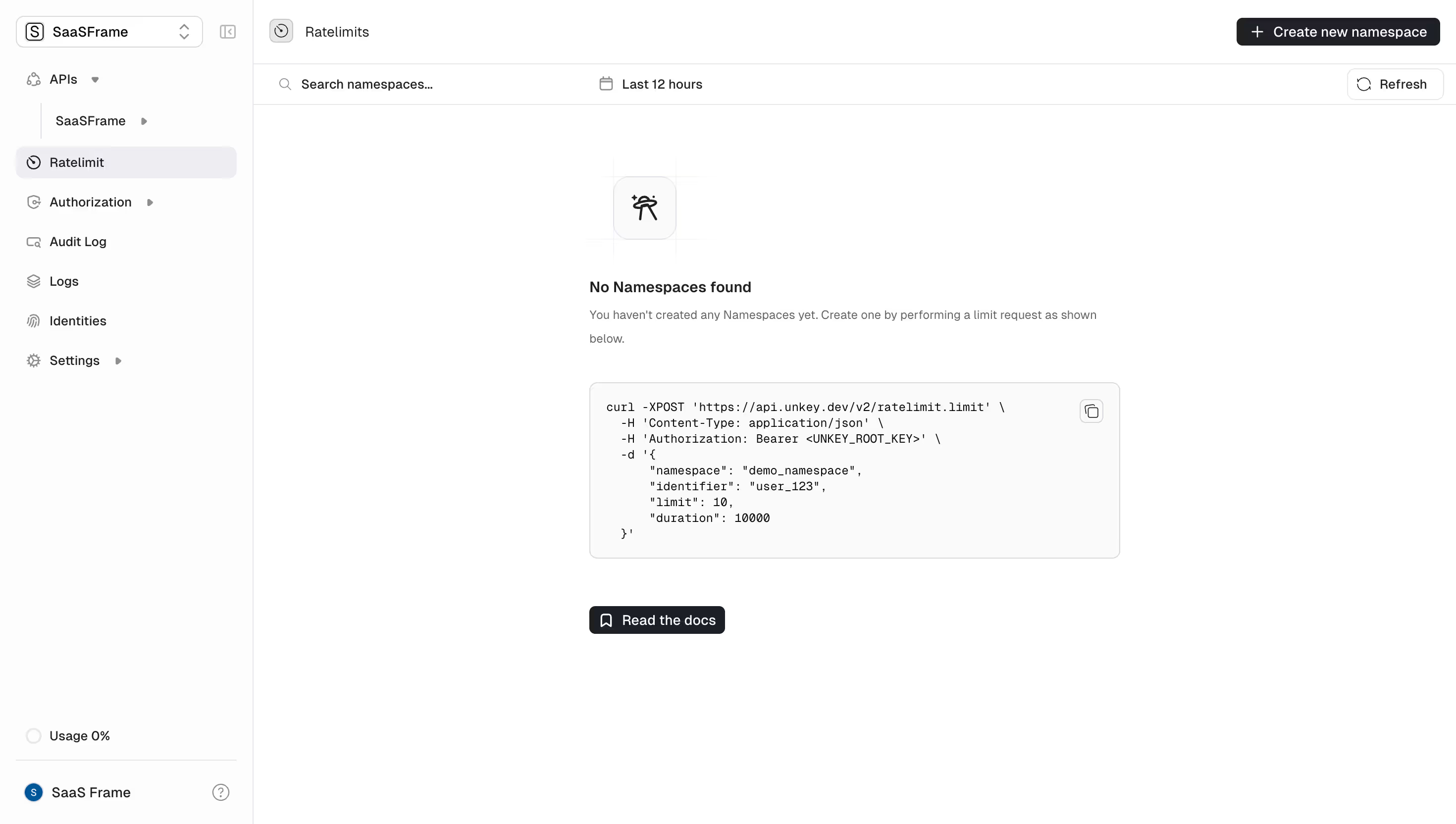
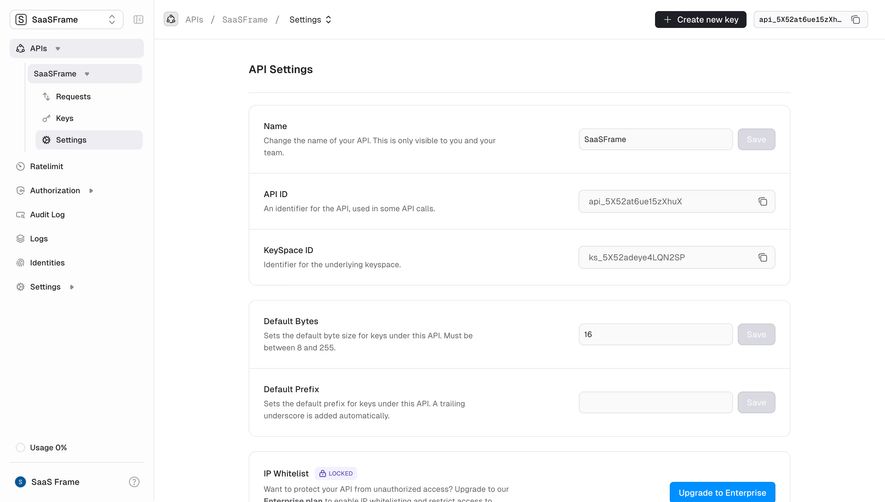
Cloudflare’s domain navigation, Claude Console’s grouped destinations, and Dust’s space-oriented sidebar show three organizational models. The captures reveal visible structure and selected states, not measured usability or unobserved menu behavior. Compare them according to the scope and tasks they support rather than treating one arrangement as a universal template.
A sidebar needs a coherent explanation for its groups. Feature areas, resource types, work phases, and permission scopes can each provide that structure. Mixing them without clear boundaries makes people memorize labels instead of understanding the product.
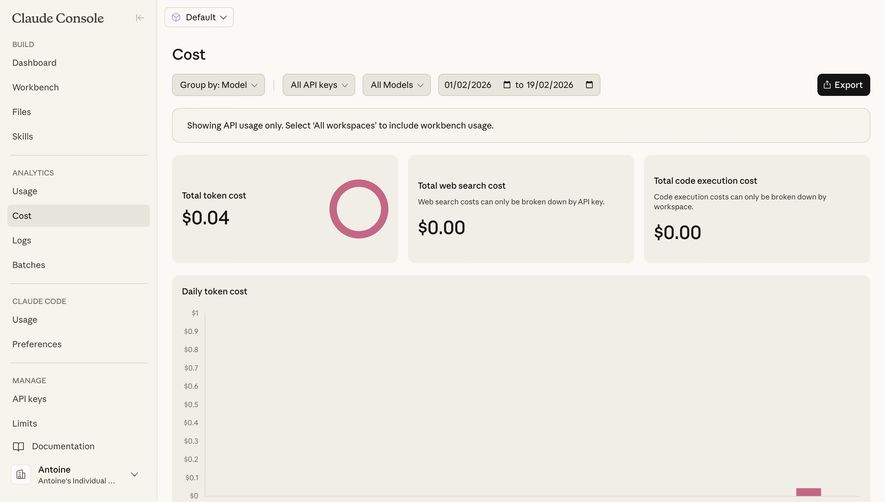
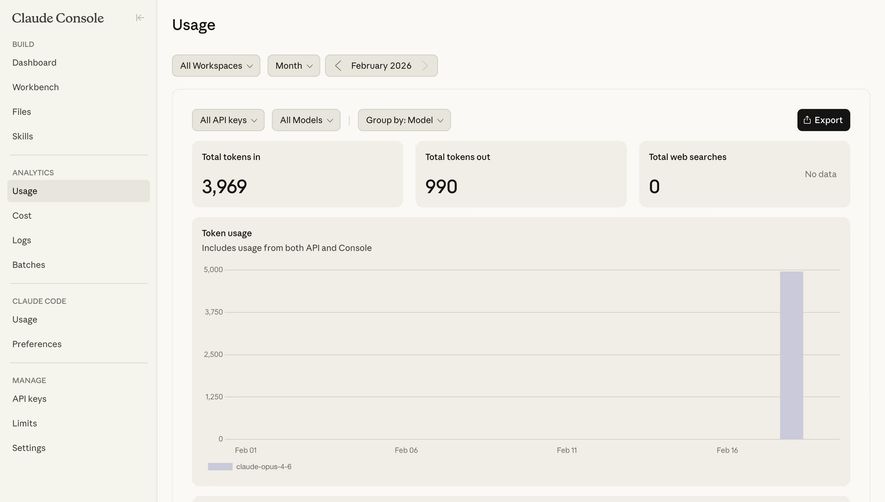
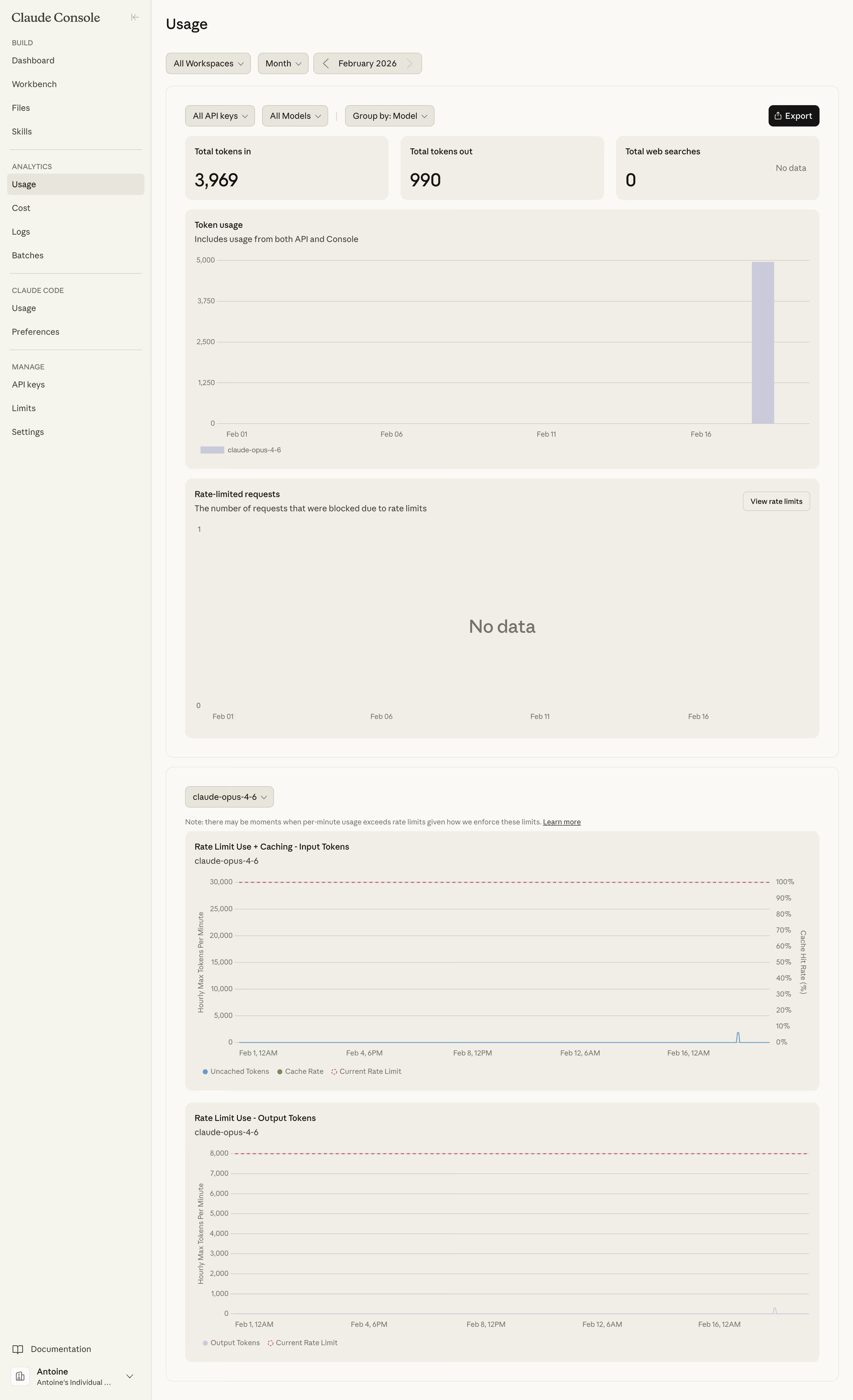
Claude Console’s capture groups destinations under Build, Analytics, and Claude Code. Logs appears selected within Analytics. The headings provide an interpretation of the links rather than presenting one undifferentiated list.

Use the smallest number of meaningful groups. A group with one destination can be useful if it marks an important scope, but many one-item groups can add more visual work than clarity. Test the names against realistic tasks, not only a tidy sitemap.
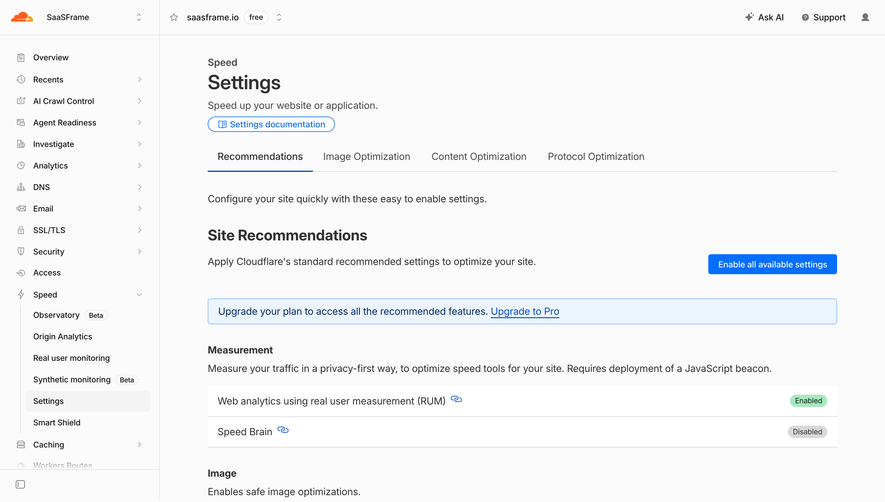
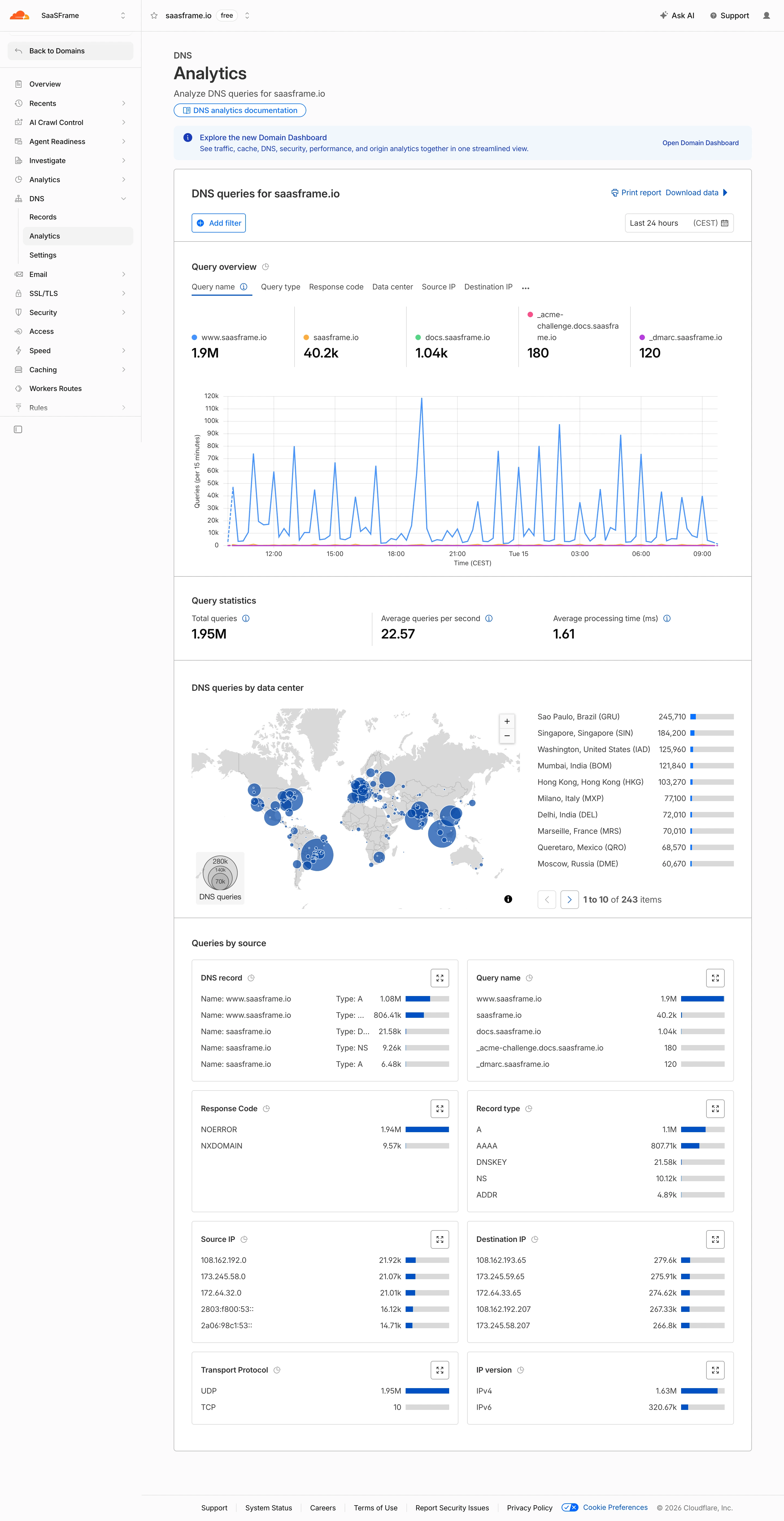
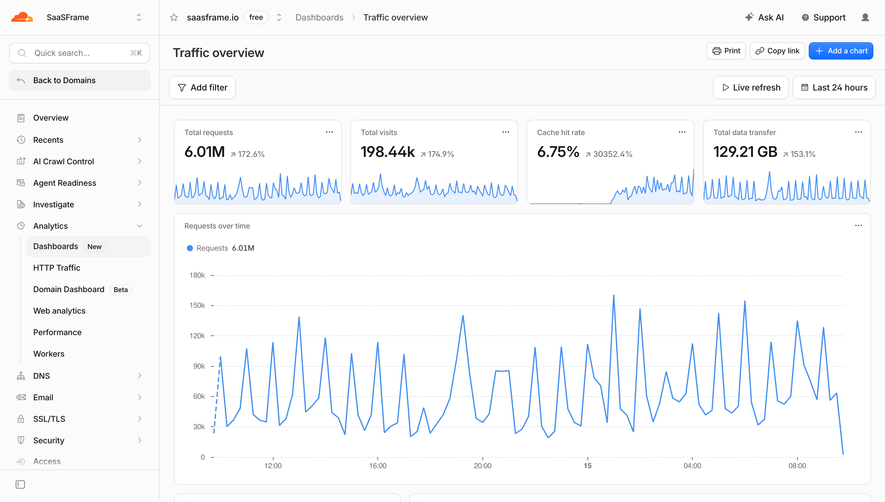
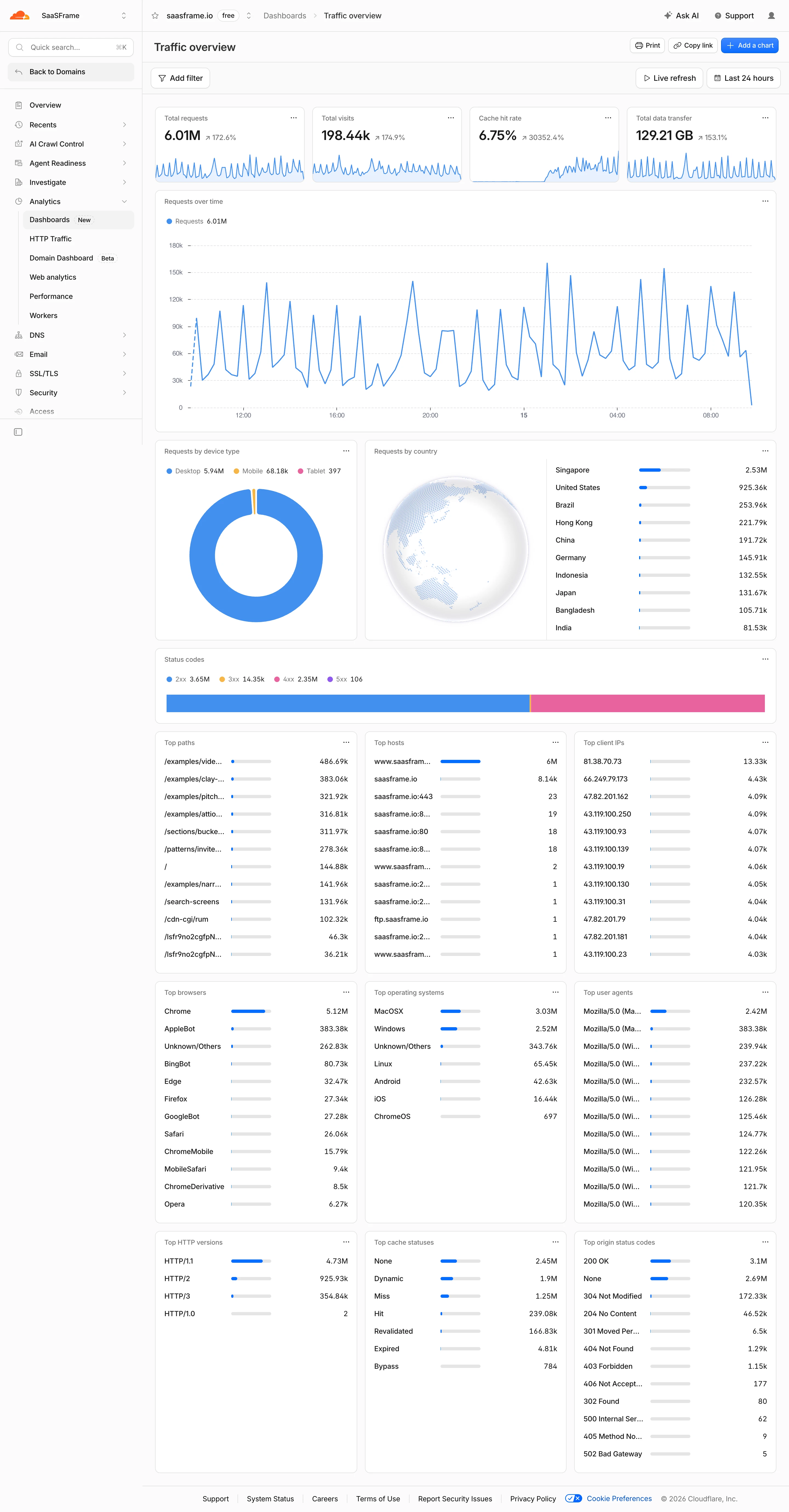
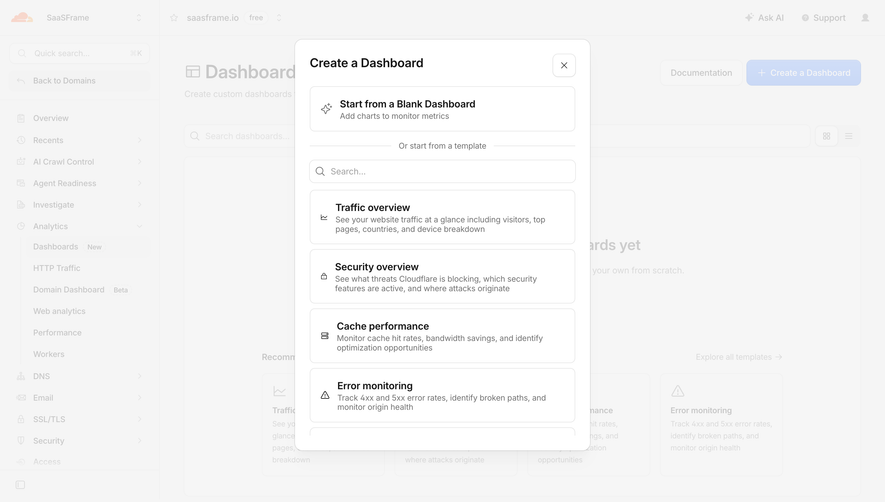
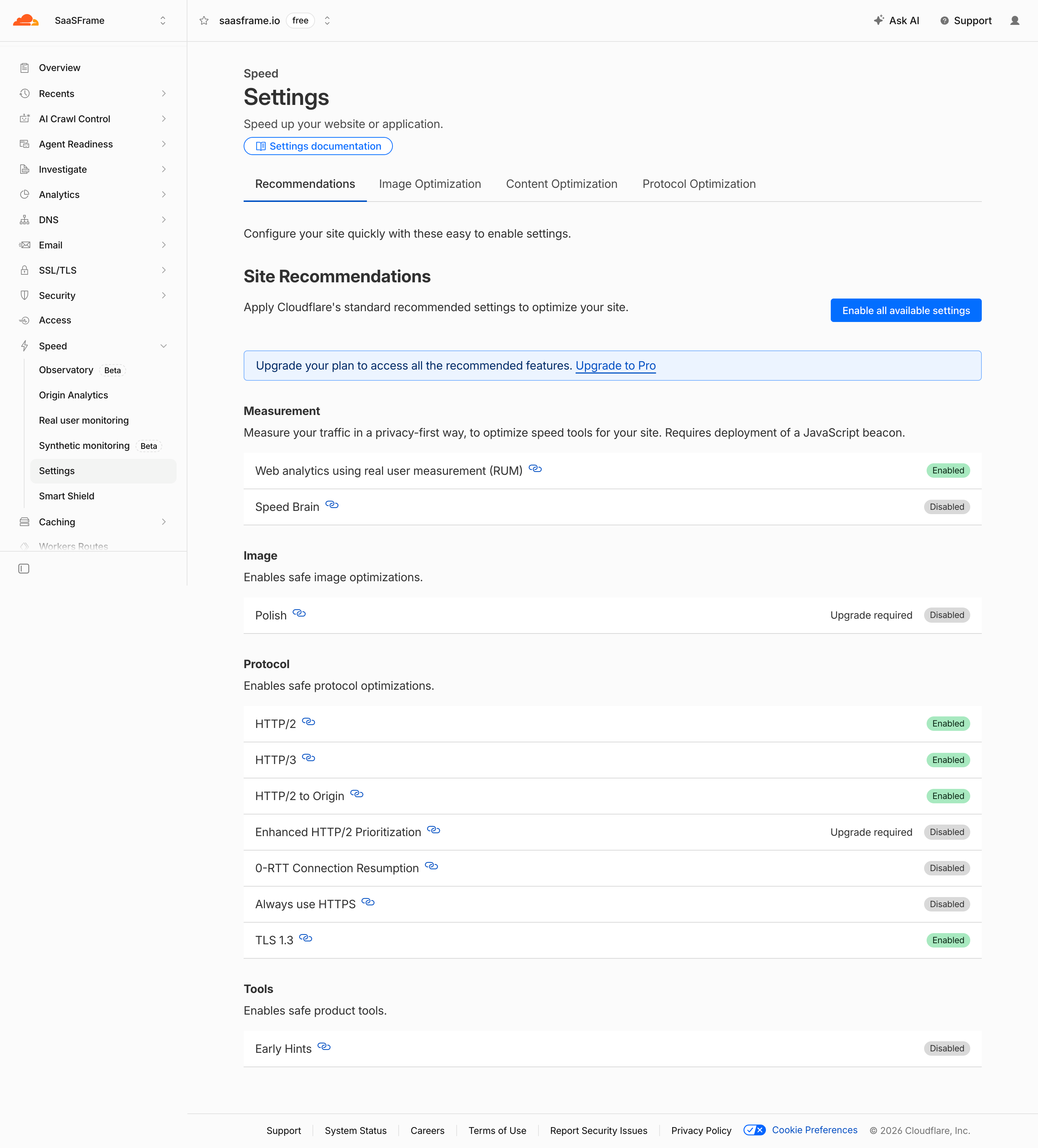
Cloudflare’s captured dashboard shows the account name in the upper sidebar and the domain in the main header. The destinations below apply to the selected domain. This separates the organizational context from the resource being administered.
A sidebar in a multi-workspace product should make its scope understandable. The same label, such as Settings, can refer to a person, workspace, project, or resource. Show enough context to prevent a valid action in the wrong environment.
After switching scope, refresh navigation and selected states consistently. Do not leave a destination highlighted merely because it occupied the same position in the previous workspace. If a route is unavailable in the new context, provide an understandable landing state.
A selected navigation item answers where the person is. Hover suggests a possible pointer action. Keyboard focus identifies the control currently being operated. These states can overlap, but they have different meanings.
Cloudflare highlights Settings within an expanded Speed group. Claude highlights Logs. In each capture, the selected row remains visibly distinct from surrounding destinations. A current-location treatment should remain useful after the pointer moves away.
Keep accessible current-page information as well as visual styling. A color change alone may be insufficient. Test focus visibility on both selected and unselected links so a person can distinguish the present location from the next destination being considered.
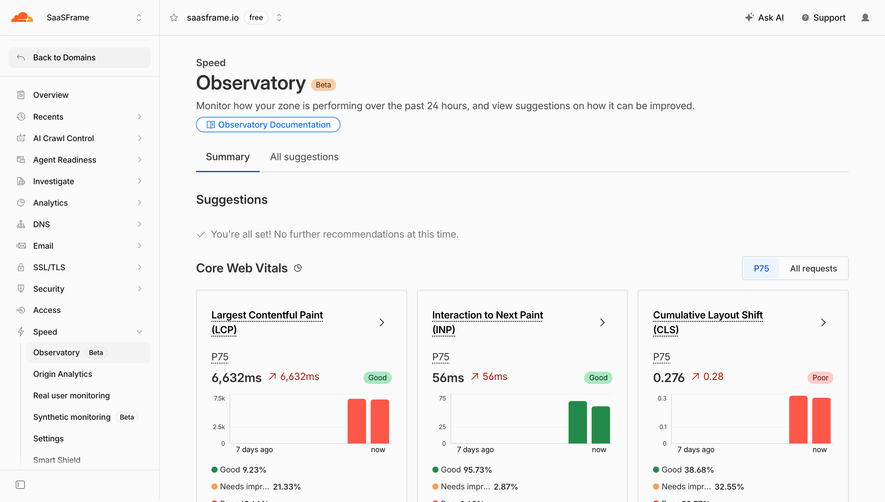
Cloudflare places Observatory, Origin Analytics, Real user monitoring, Synthetic monitoring, Settings, and Smart Shield beneath Speed. The expanded group communicates that these destinations belong to one broader area.
Limit hierarchy to levels that help people find their way. Deep navigation consumes width and can hide familiar destinations behind repeated expansion. If several levels are essential, consider local navigation or a separate hierarchical explorer for the deeper task.
Define whether activating a parent expands the group, navigates to an overview, or offers separate targets for both. Use a consistent interaction. A parent should not sometimes navigate and sometimes expand without an understandable distinction.
A persistent sidebar can identify the main feature area while tabs inside the page organize its local views. Cloudflare’s Settings capture uses a sidebar destination plus tabs for Recommendations, Image Optimization, Content Optimization, and Protocol Optimization.
Give each navigation layer a clear job. The sidebar should not duplicate every tab merely to make all routes visible at once. Likewise, local tabs should not unexpectedly switch the account or leave the current resource without context.
Use headings and spacing to reinforce the relationship. Someone arriving through a direct link should understand the page even if they did not navigate through the parent group first.
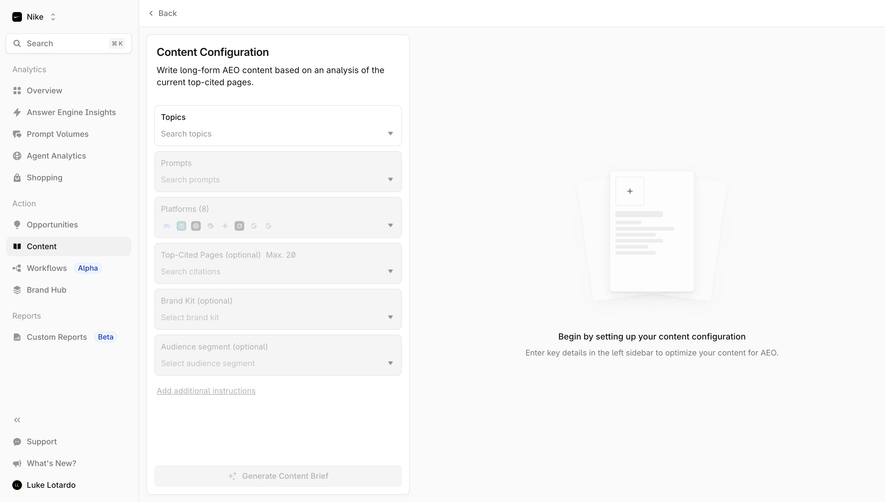
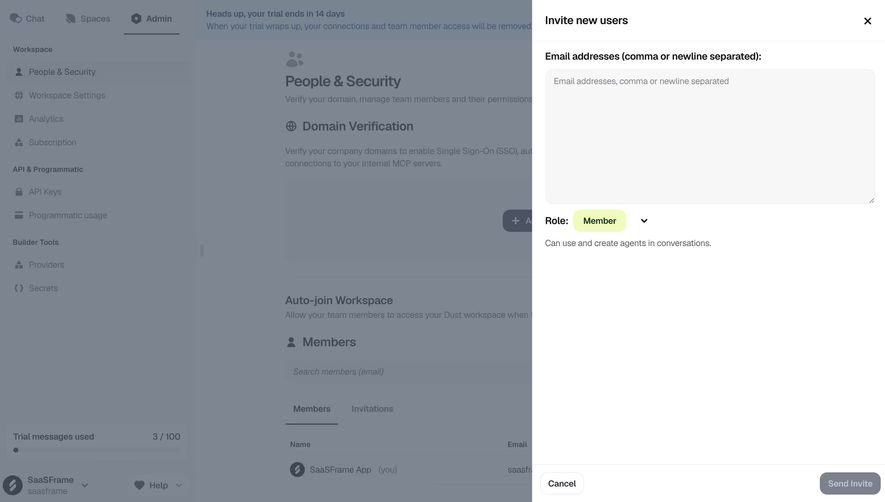
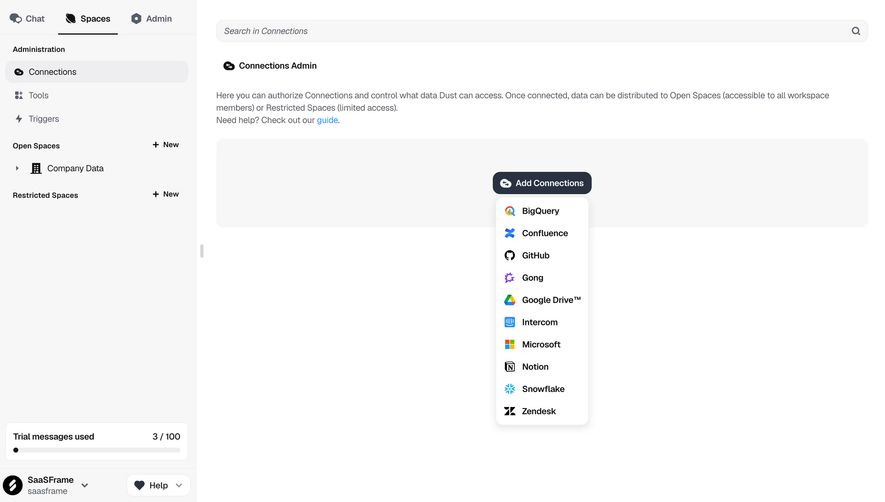
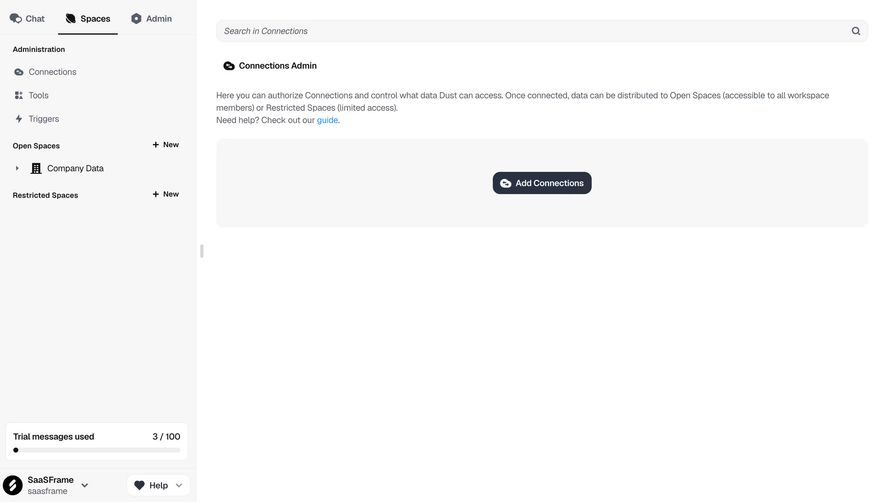
Dust’s sidebar includes navigation under Administration and space groups labeled Open Spaces and Restricted Spaces. A New action sits beside each space-group heading. This places resource creation near the relevant collection while keeping it distinct from existing destinations.
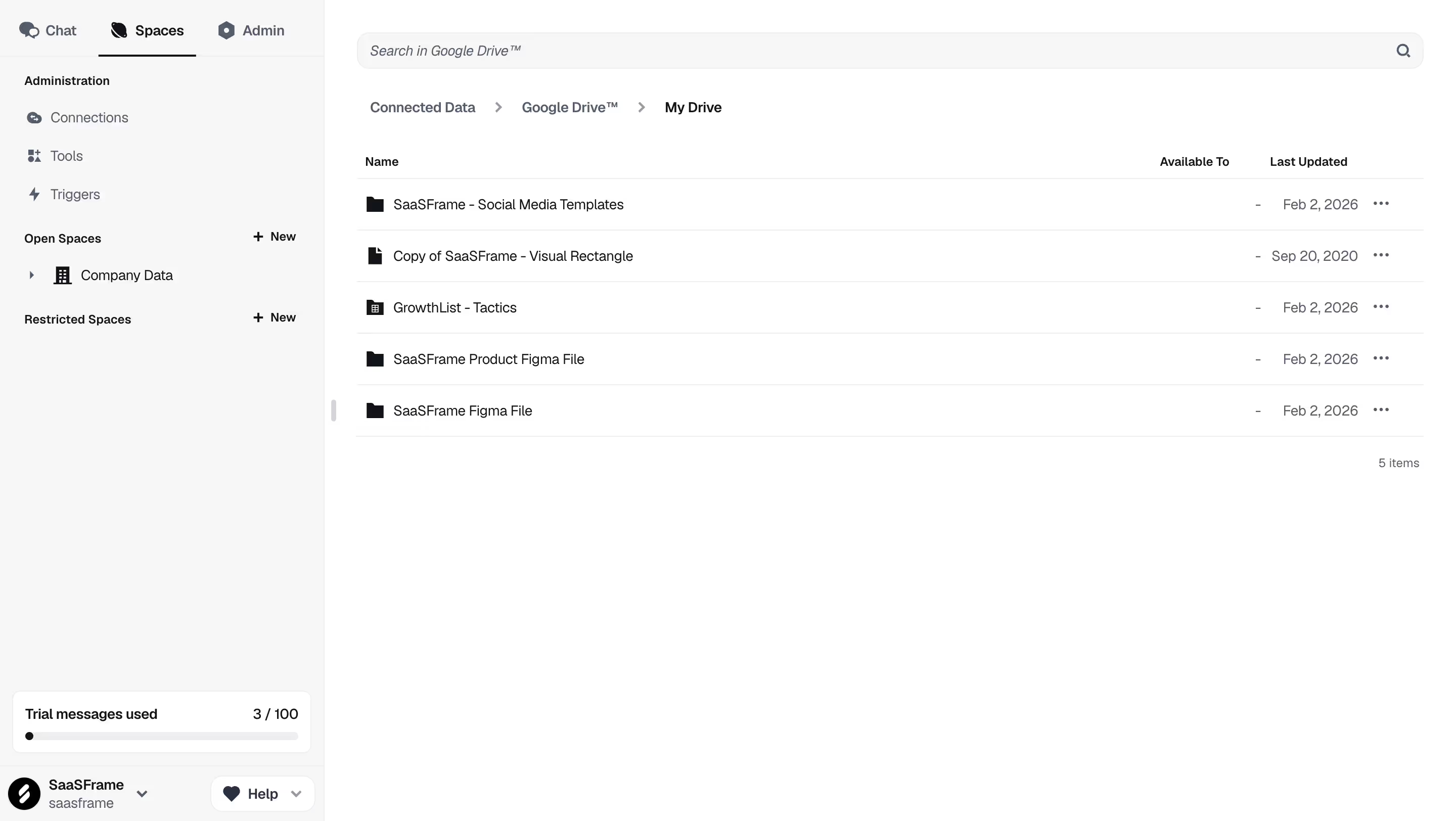
A creation action initiates a task; a destination opens an existing area. Give them suitable labels and control semantics. A prominent plus icon needs a name that identifies what will be created and where.
Do not overload a navigation row with hidden management actions that compete with opening it. If a space also has rename or delete controls, make their targets and focus behavior clear. The person should not accidentally start a destructive operation while trying to navigate.
A sidebar occupies horizontal room on every page. That cost can be justified when people frequently move among its destinations or need context while working. In a dense editor or narrow layout, a collapsible state may be helpful.
If the sidebar collapses to icons, provide recognizable names through accessible labeling and an appropriate reveal mechanism. Icons alone are often ambiguous, particularly for product-specific areas. Do not require people to learn a private icon vocabulary before they can navigate.
Preserve the current context in the collapsed presentation. The selected state and scope should remain understandable. A compact rail can save width while still providing a route to the full navigation when needed.
A product with many destinations can produce a sidebar longer than the viewport. Keep the scrolling model clear and avoid trapping important links below a fixed account area. A person should be able to reach every permitted destination with the keyboard.
Consider whether recently used resources, pinned destinations, or a navigation search help realistic tasks. Those additions should supplement a coherent structure rather than compensate for unrecognizable group names.
If people can customize pins, distinguish a personal shortcut from the underlying product navigation. Removing a shortcut should not look like deleting the resource. Shared and personal navigation configuration can also require different explanations.
Navigation can vary by role, subscription, or resource state. Decide whether a destination should be hidden or shown with an explanation according to the product’s actual access model. Neither choice is universally appropriate.
A visible locked destination may help someone discover a relevant capability, but it should explain the restriction and supported next step. A plan limit is different from missing permissions. Avoid sending every blocked route to an upgrade page.
When access changes during a session, update both the sidebar and the current page appropriately. A destination should not remain actionable if it consistently leads to an unexplained failure. Preserve useful context without exposing restricted information.
Badges can identify new capabilities, pending work, or record counts. Cloudflare’s captured nested items include Beta markers. These qualify a destination differently from a notification count or an unread indicator.
Use badges selectively so they do not compete with every label. A number needs a meaning: unread messages, open tasks, total records, and errors are different quantities. Explain the distinction where people might act on it.
Do not let a badge become the only indication of an urgent operational state. Important failures need an appropriate contextual route and explanation. A tiny colored dot in navigation may be easy to overlook.
People can arrive through bookmarks, search results, notifications, or shared URLs. The sidebar should establish the current destination without requiring the normal navigation sequence. Expand the relevant parent or provide another clear orientation cue.
Support browser Back and Forward according to the route model. A person returning to a page should not encounter an unrelated highlighted item because the sidebar state was kept only in transient component memory.
If the current resource has no explicit sidebar row, use local context such as a heading or path. Avoid selecting a misleading parent merely to fill the selected state. The navigation should represent the actual relationship.
A desktop sidebar often becomes a drawer or menu on mobile. Preserve its grouping and names so people do not need to relearn the product at a different width. Keep scope switching understandable in that presentation.
Manage focus and dismissal when a drawer opens. After choosing a destination, close the overlay where appropriate and make the new page context clear. Do not leave the content covered by a stale navigation panel.
Test long names, nested groups, and keyboard or assistive-technology operation. A mobile menu that contains all destinations but cannot be scrolled or dismissed reliably does not preserve the desktop functionality.
A list of links with optional disclosure groups can serve many sidebars. It does not automatically need the interaction model of an application menu or a tree widget. Use semantics that match what the controls do.
Provide a recognizable navigation landmark, meaningful link names, and current-location state. Expansion buttons need their expanded or collapsed state available to assistive technology. Keep focus order aligned with the visible structure.
For keyboard-heavy applications, additional shortcuts can be helpful when discoverable and compatible with the broader interface. They should supplement ordinary navigation rather than replace a route usable by people who do not know the shortcut.
Only when the compact presentation remains understandable and names are available. Product-specific icons often need visible labels in the expanded state.
Use the depth needed to explain meaningful relationships. If navigation becomes difficult to scan, move deeper structure into an appropriate local explorer.
No. Many sidebars are ordinary navigation links with disclosure groups. Choose semantics according to the actual interaction.
Explore Top Navigation for horizontal destinations, Tree View for hierarchical exploration, Workspace Switcher for scope changes, and Breadcrumbs for local paths.
Compare the gallery according to orientation, scope, and task switching. For accessible navigation structure, consult W3C’s menu structure guidance.