Top Navigation
1
Persistent horizontal product navigation containing destinations, utilities, or account actions.
.webp)
Top navigation is the horizontal area that helps people move between major product destinations, identify their current context, and reach utilities available across screens. In a SaaS application, this area often has to accommodate navigation links, search, creation actions, workspace selection, support, notifications, and account access. The design challenge is deciding which of these deserves persistent visibility and which belongs closer to the task.
A useful SaaS top navigation bar answers three questions quickly: where can I go, what context am I working in, and which controls are available everywhere? It should remain understandable when the product grows, a user changes organizations, or the available width shrinks. This guide analyzes captured interfaces from Lightdash, Dust, and Cloudflare to explain different ways of distributing that responsibility. The screenshots document visible layouts at capture time; they do not establish current product behavior or reveal what happens after every click.
Start by separating destinations, actions, and context. A destination takes someone to an area such as reports or settings. An action initiates work, such as creating a report. A context control changes the organization, project, or resource within which work happens. These can share a header, but they should not become an undifferentiated row of equally emphasized buttons.
A product with a few stable sections may use top navigation as its primary structure. A complex administration product may reserve the header for resource context and utilities while a sidebar carries the destination hierarchy. A workspace application may place a small horizontal mode selector above a vertical navigation panel. Each arrangement can work when the relationship between the areas is explicit.
Before drawing the bar, map a few common tasks: opening existing work, creating something new, changing workspace, and finding help. Identify which steps genuinely need access from most screens. Putting every frequently requested feature into the header can make the most common tasks harder to recognize. Frequency, scope, and consequence matter more than a stakeholder's desire for a permanent button.
The captured Lightdash Metrics Catalog has a dark header with New, Browse, Metrics, and Ask AI on the left. A large central search field names the workspace, Thyme to Shine Market, and displays a keyboard shortcut. The right side groups several utility icons, a workspace control, and an avatar. Below that header, the catalog has its own search field, filters, view controls, and refresh action.
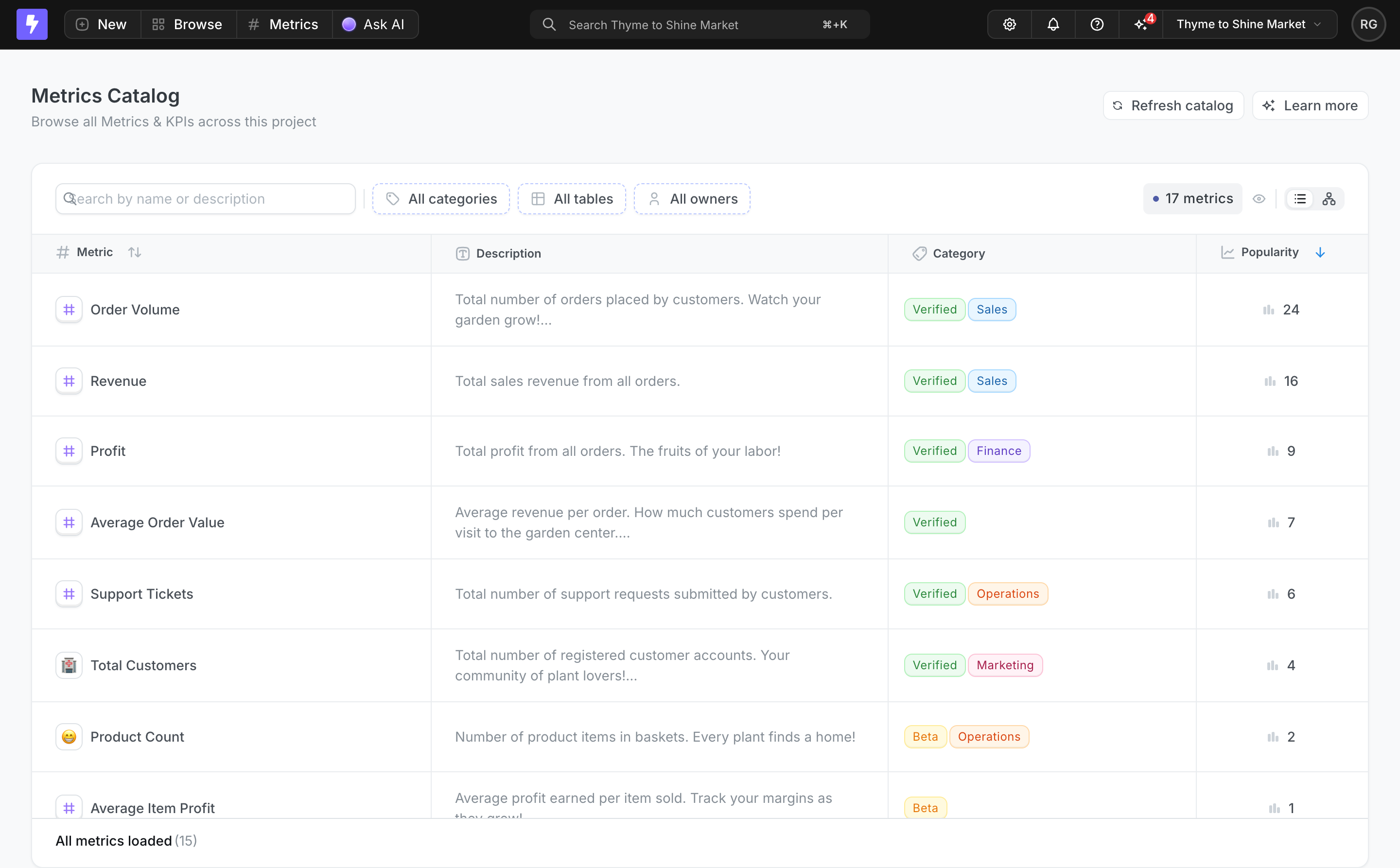
The interesting decision is the separation of search scopes. The upper search names the workspace; the catalog search describes finding metrics by name or description. That distinction helps a person predict the kind of results each field is intended to return. A vague Search label in both places would leave more interpretation to the user. When your application needs both global and local search, make their scope visible before a query is entered.
This is also a density tradeoff. The header exposes many capabilities, and New is an action among controls that suggest product areas. A design review should ask whether users can distinguish those roles, whether each icon has an understandable label when accessed, and how the same information fits at narrower widths. The screenshot demonstrates grouping and placement, not that every control is equally easy to discover.
In the Dust connected-data capture, Chat, Spaces, and Admin sit across the top of the left navigation area. Spaces is visibly emphasized with an underline. Below, the sidebar provides Administration, Open Spaces, and Restricted Spaces groups. The main content has a Google Drive search field and a breadcrumb identifying Connected Data, Google Drive, and My Drive.
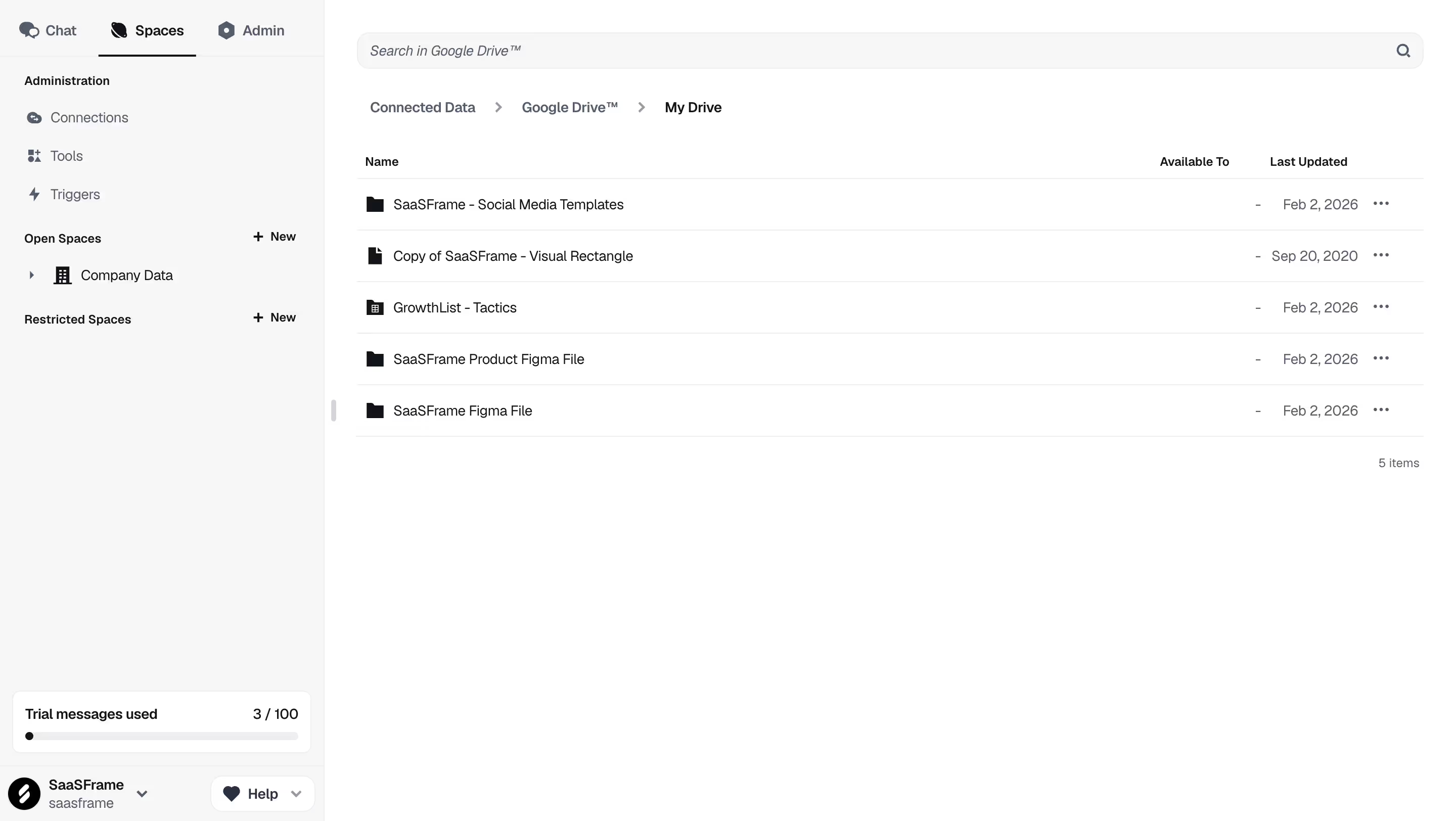
This is a horizontal selector inside the navigation panel rather than a full-width header. Its value as a reference is the distribution of hierarchy: three prominent modes at the top, more detailed destinations beneath, and the current data location in the content area. The workspace control appears at the bottom of the sidebar, so workspace identity does not compete with every top-level destination.
For a product divided into distinct modes, this arrangement can keep the broad choice visible without forcing its entire hierarchy into one row. The risk is that changing mode may alter the sidebar substantially. Your design should make that change predictable and preserve enough context for someone to return to their work. Do not use the same visual treatment for mode selection and a temporary filter if their effects are very different.
The Cloudflare Speed Settings screenshot uses its upper area differently. The account name sits above the sidebar, while the content-side header names the domain saasframe.io and shows a free-plan badge. Ask AI, Support, and a profile icon appear toward the right. The destination hierarchy remains in the left sidebar, with Speed expanded and Settings selected. A separate row inside the page switches among Recommendations, Image Optimization, Content Optimization, and Protocol Optimization.
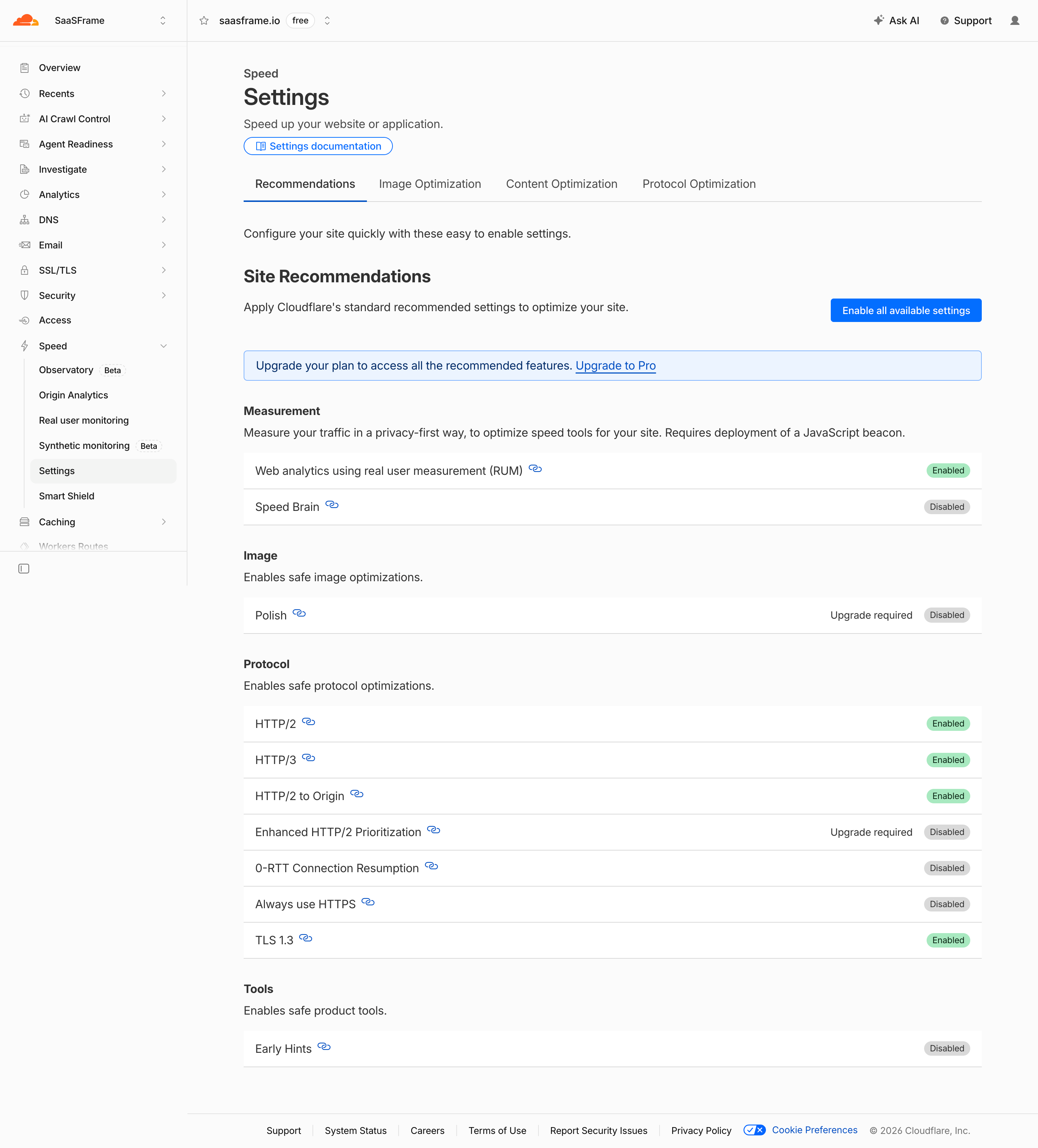
For administration software, knowing the target of a change can be more consequential than seeing another destination link. A resource label near persistent utilities helps keep that target in view. The screenshot also shows why every horizontal row should not be described as primary navigation: the optimization tabs belong to this settings page, whereas the domain context and support controls sit above it.
When adapting this approach, test what happens after a resource change. A team should define whether the current section remains selected, whether filters persist, and where the user lands if the new resource lacks that capability. A visible domain name supports orientation, but it does not itself prove that the product prevents actions against the wrong resource.
The header should contain controls whose meaning stays broadly stable. A local refresh command, a table filter, or an action affecting a selected row usually benefits from proximity to its target. In Lightdash, Refresh catalog belongs below the product header. In Cloudflare, Enable all available settings sits within the recommendations content. These placements make scope easier to infer.
A global creation control needs more care. If New offers several object types, show the chosen type and target workspace before submission. If its meaning changes by section, use a specific visible label or make that context explicit. A persistent action that silently changes meaning can be fast for experts and confusing for occasional users.
Also distinguish an account menu from a workspace or resource switcher. They may sit close together, but personal preferences, organization settings, and the current work context have different consequences. See Workspace Switcher for the contextual change and User Profile for personal identity. Avoid making an avatar the only clue for several unrelated navigation jobs.
Users often arrive through a shared URL, search result, notification, or browser history. They may bypass the home screen entirely. The selected top-level area, resource identity, page heading, and any breadcrumb should agree about where they have landed. A generic header with no current state forces the content to carry all of that explanation.
Choose a clear rule for selection. A parent destination can remain active while users explore its descendants, but avoid simultaneously emphasizing several unrelated destinations. In Dust, the underline identifies Spaces while the breadcrumb identifies the connected-data location. That division is more informative than attempting to highlight every ancestor in the same row.
Long names need deliberate treatment. If a workspace label is truncated, provide a way to read the full name and enough distinguishing information for similar organizations. Keep the visible context consistent with search scope and creation defaults. These are product rules to test; a static capture cannot establish whether they remain synchronized during navigation.
A crowded desktop header rarely becomes a good small-screen header by shrinking text. Decide which elements remain visible, which move into a clearly labeled menu, and which become available through another route. Preserve the names and order of destinations so people can recognize the same structure across sizes.
Prioritize current context and the actions needed for the immediate task. A global search field might become a search button, while less frequent utilities move into an overflow menu. If you hide destinations, make the menu entry visible and ensure the active destination is still identifiable after selection. Do not rely on a hamburger icon, an avatar, and several unlabeled glyphs to communicate the entire product structure.
Test long translated labels, browser zoom, large text, and workspaces with lengthy names. Check whether a sticky header obscures content or consumes too much usable height. None of the selected desktop captures demonstrates a mobile implementation; these are adaptation decisions to validate rather than behaviors attributed to the examples.
Use controls that match the interaction: links for destinations, buttons for actions, and an appropriate expanded state for controls that reveal additional choices. Give icon-only utilities meaningful accessible names and visible focus treatment. A shortcut can supplement access to search, but people must also be able to reach it without remembering a key combination.
W3C's menu structure guidance explains semantic navigation regions, distinguishable labels, and communicating the current item. Use that guidance when defining the navigation structure rather than choosing semantics solely from a horizontal visual layout.
Review the keyboard path through the entire header. When a popup closes, return focus to a sensible control. Separate repeated navigation regions with useful labels. Test whether a screen reader user can identify the active destination and understand the scope of search or workspace selection. The screenshots illustrate visual composition and cannot establish accessibility compliance.
In usability sessions, ask people to find an existing item, create a new one in a named workspace, locate help, and explain which resource a settings change would affect. Repeated wrong turns reveal ambiguous hierarchy better than asking whether the header looks organized. Review these tasks again when adding a major destination: a bar that works with four areas may need a different structure as the product expands.
Top navigation suits a compact set of stable destinations. A sidebar gives more room for nested areas, long labels, and expanded groups. Many products combine them: the header handles broad modes or context, while the sidebar carries detailed destinations. Compare the hierarchy before choosing an orientation.
Top navigation commonly connects major product areas or persistent utilities. Tabs usually switch views within a more specific context. Position alone does not determine the pattern. Cloudflare's optimization tabs belong to the Speed Settings content, whereas the header identifies the domain and offers broader utilities.
Place it there when finding content across the product is a recurring task and its scope is understandable. A specialized application may need contextual search more prominently. If both exist, label their scopes and avoid making users guess which results each field can return.
There is no useful universal number. Evaluate label length, grouping, utility controls, available width, and task frequency. If meaningful labels no longer fit or people confuse destinations with actions, reconsider the hierarchy rather than simply reducing the font size.
Yes, when each has a clear responsibility. Dust separates broad modes from deeper spaces, while Cloudflare separates resource context from section destinations. Explore Sidebar Navigation alongside these captures to compare how each area contributes to orientation.
Use the SaaSFrame captures to compare navigation responsibilities rather than copy a header in isolation. The strongest decision is often what to keep out of the top bar, allowing persistent context and common routes to remain readable as the rest of the application grows.