Filter
144
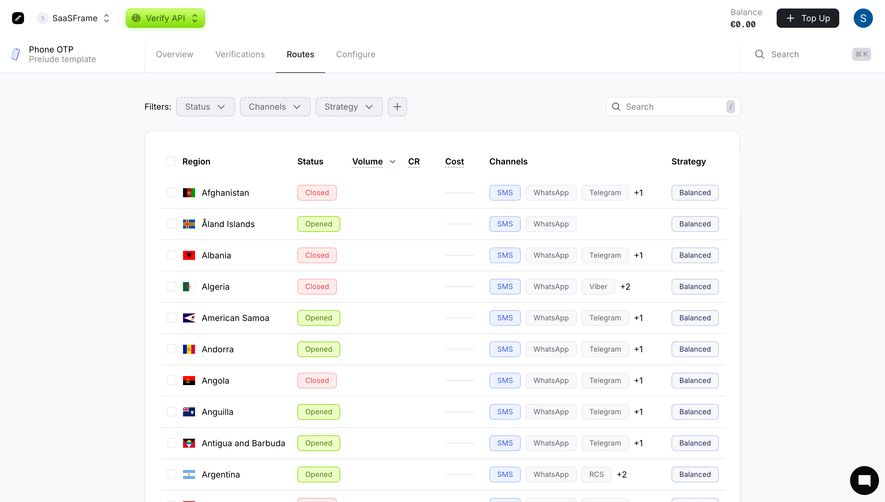
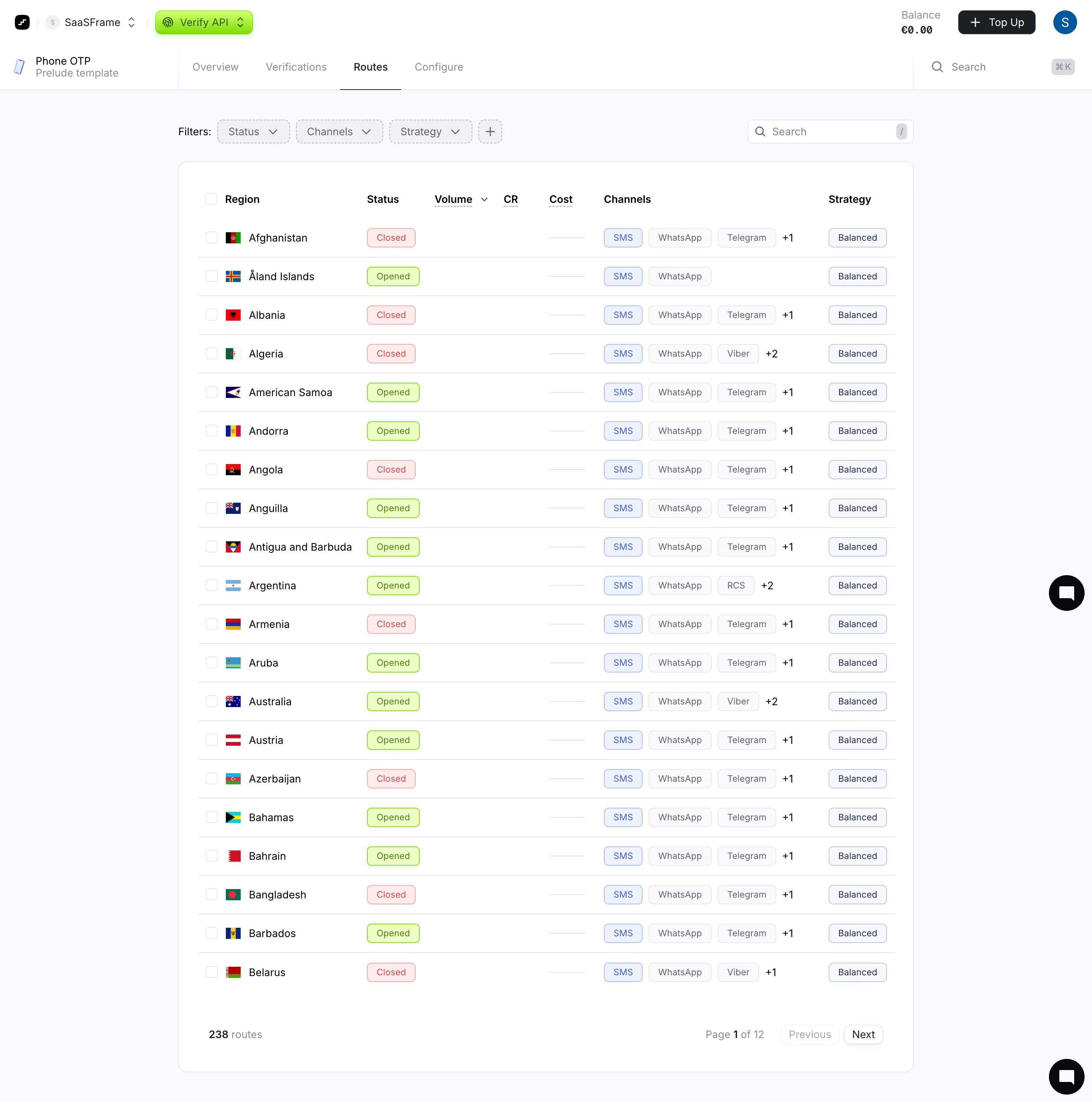
Controls that narrow a dataset, list, gallery, or search result by selected criteria.
.webp)
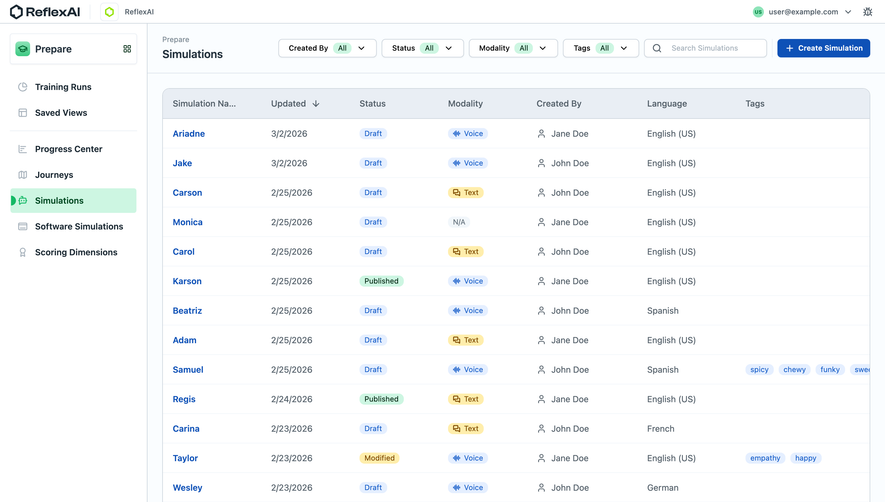
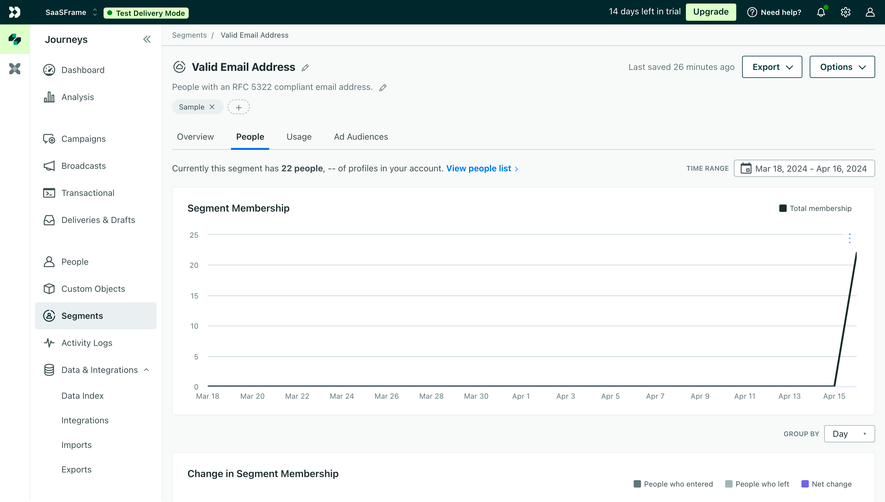
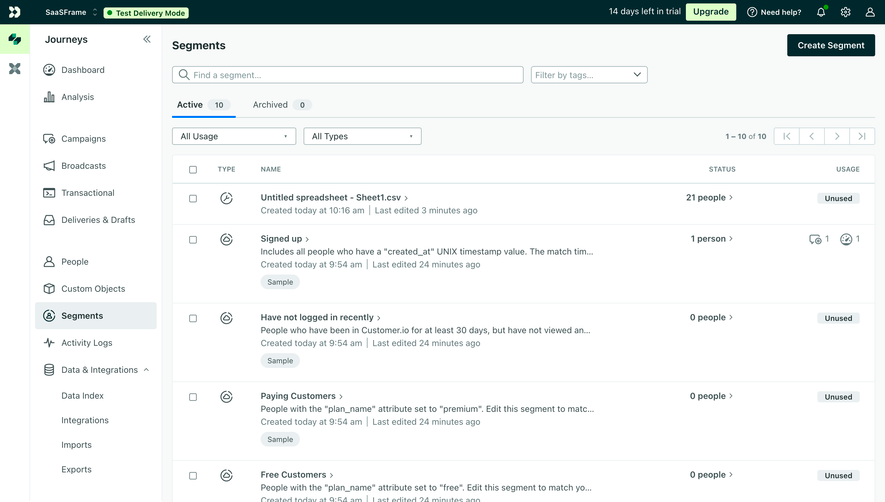
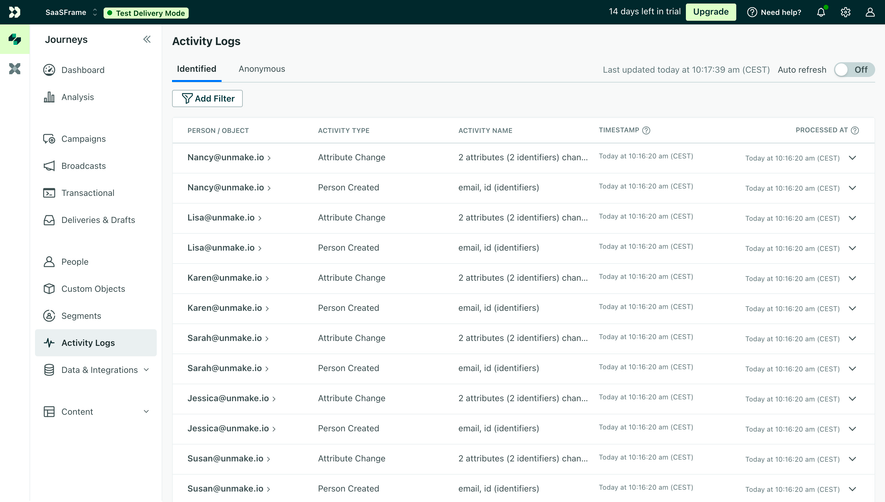
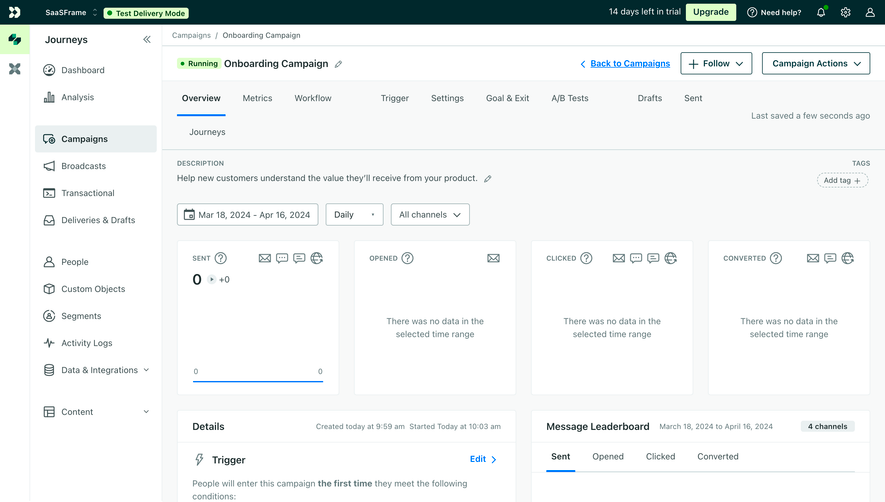
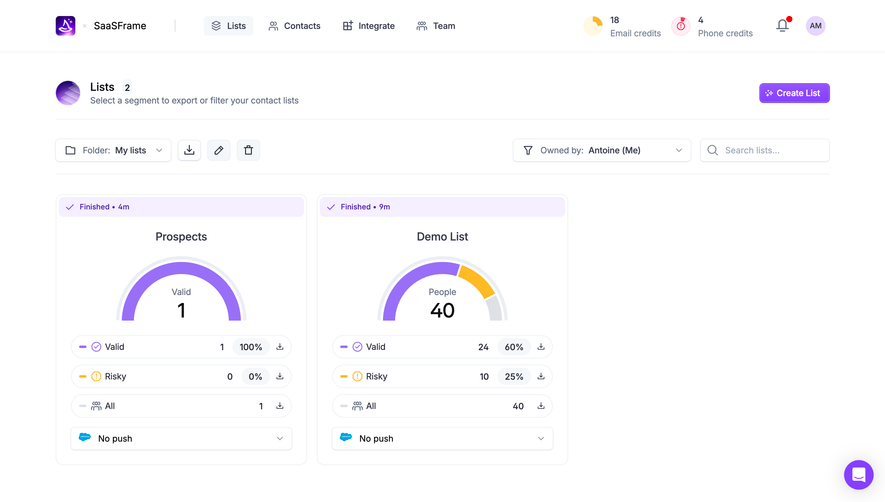
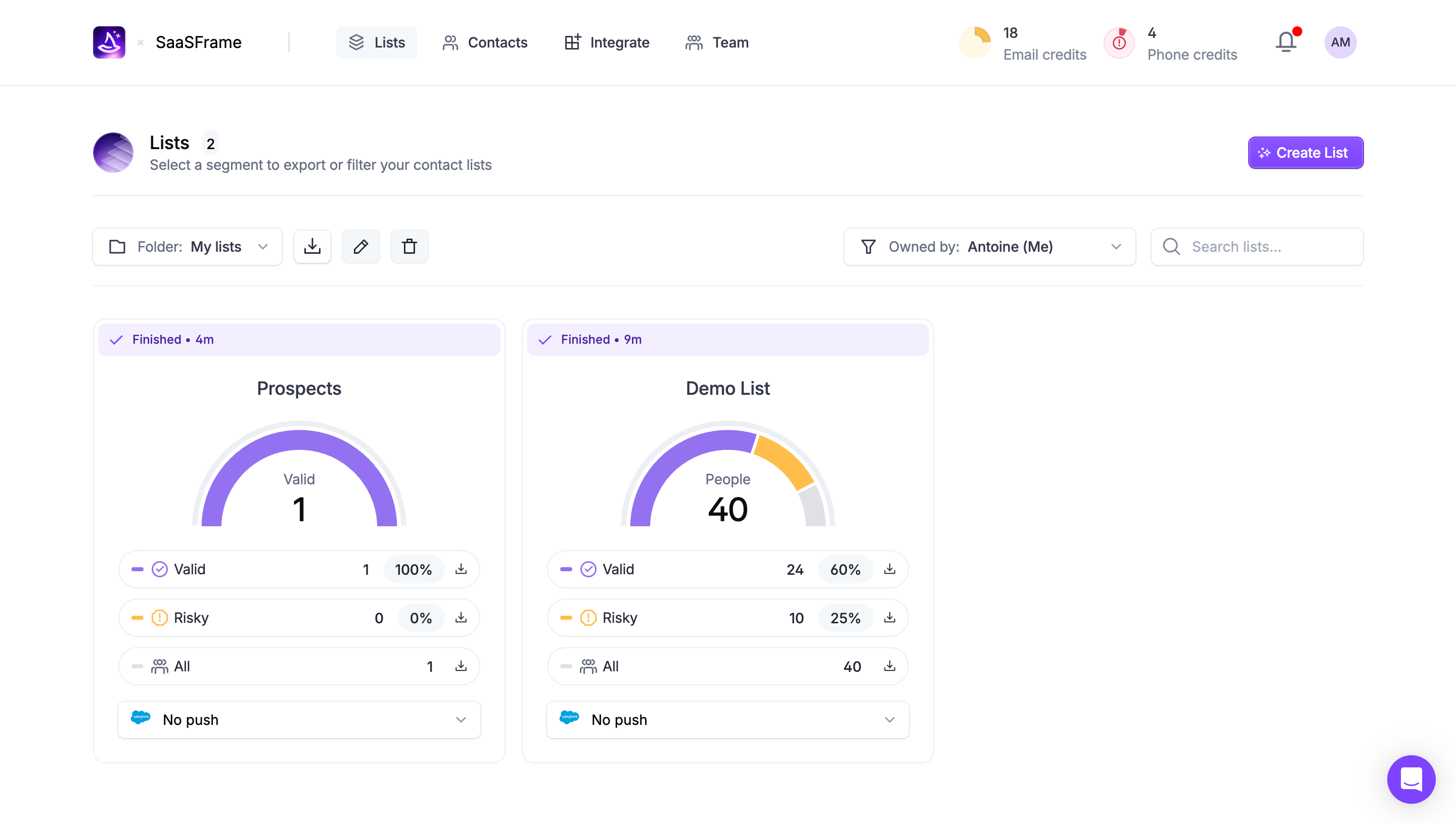
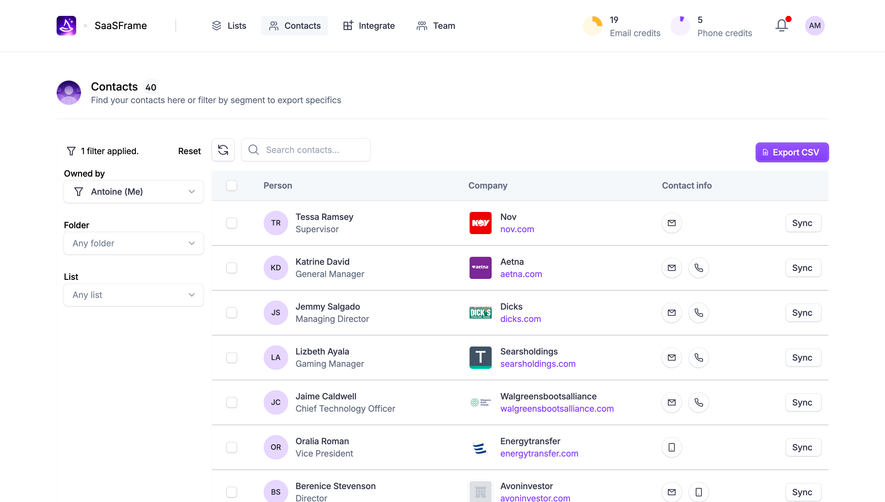
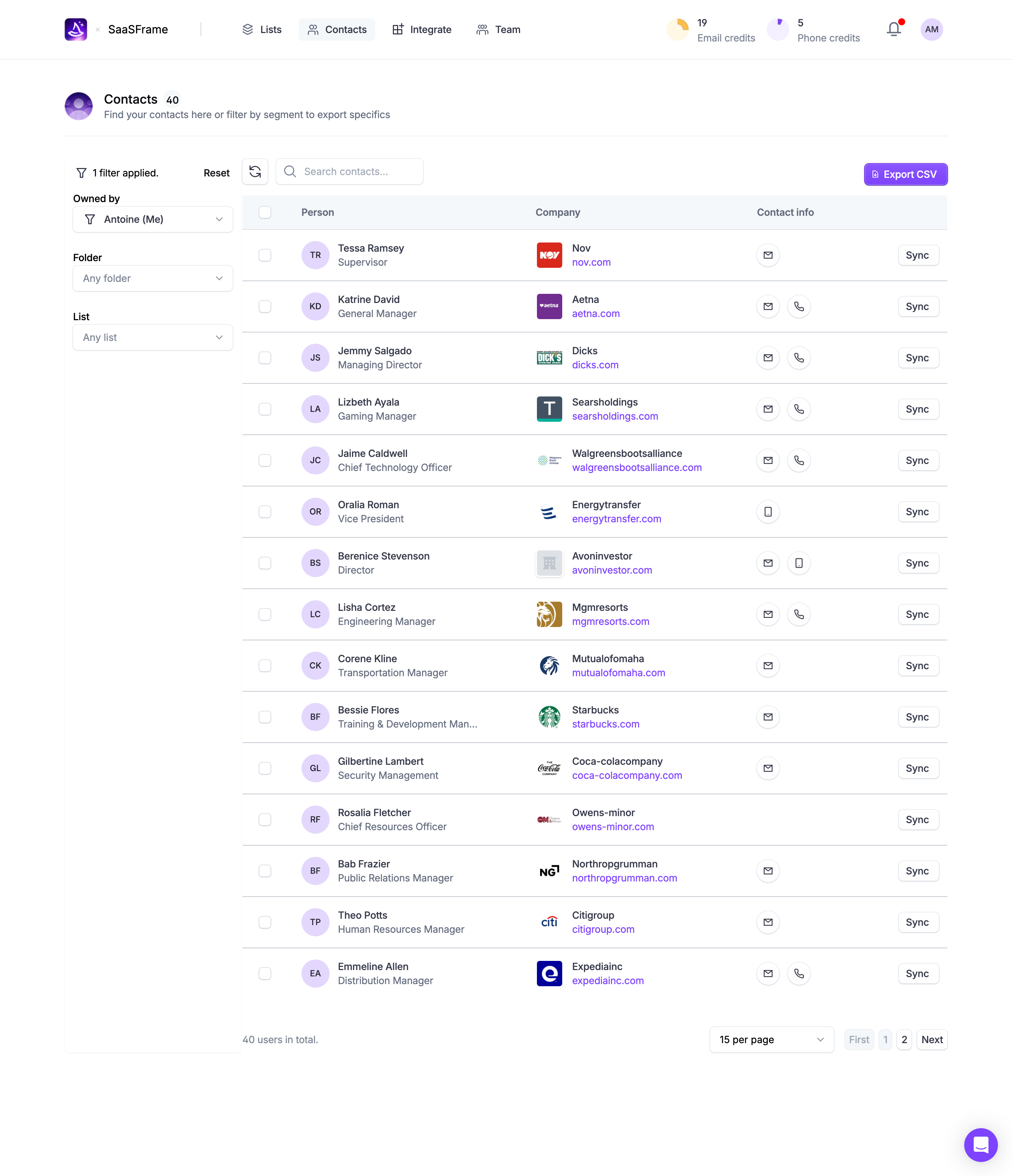
A filter narrows a collection or dataset according to explicit conditions. It helps SaaS users isolate relevant records, investigate a segment, or compare a meaningful subset without changing the underlying information. A successful filtering interface makes three things understandable: which conditions are active, what those conditions apply to, and how to return to a broader view.
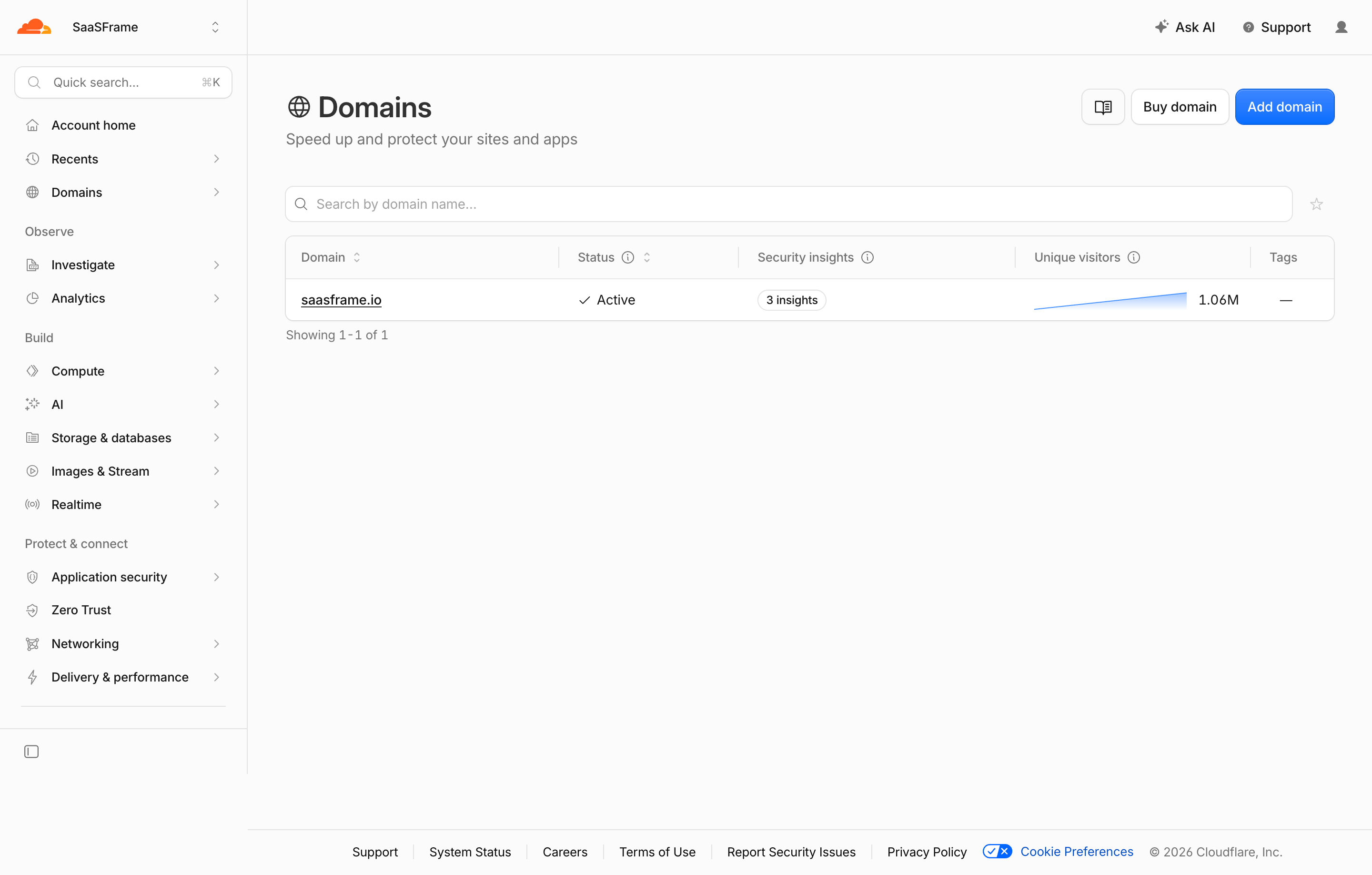
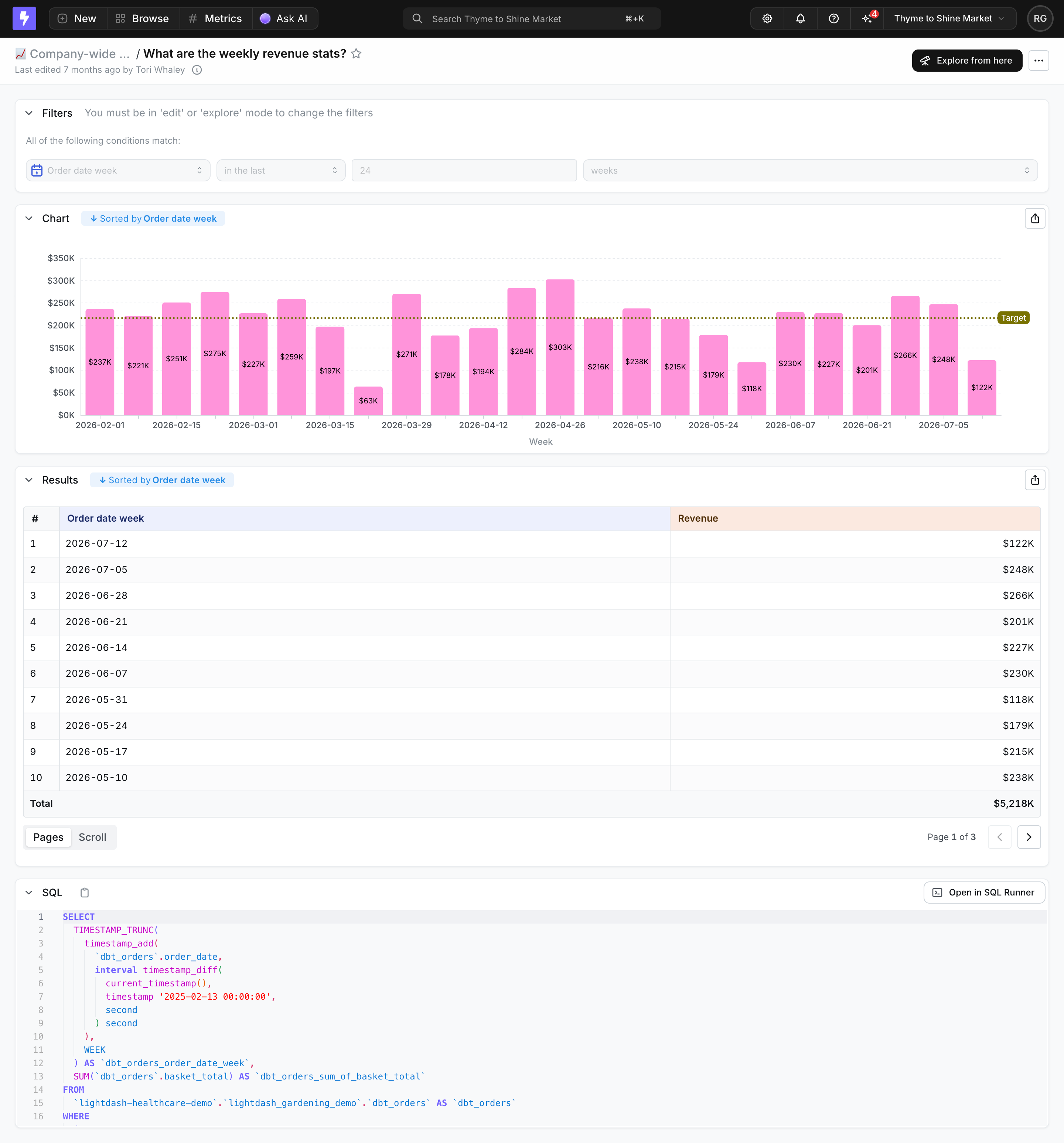
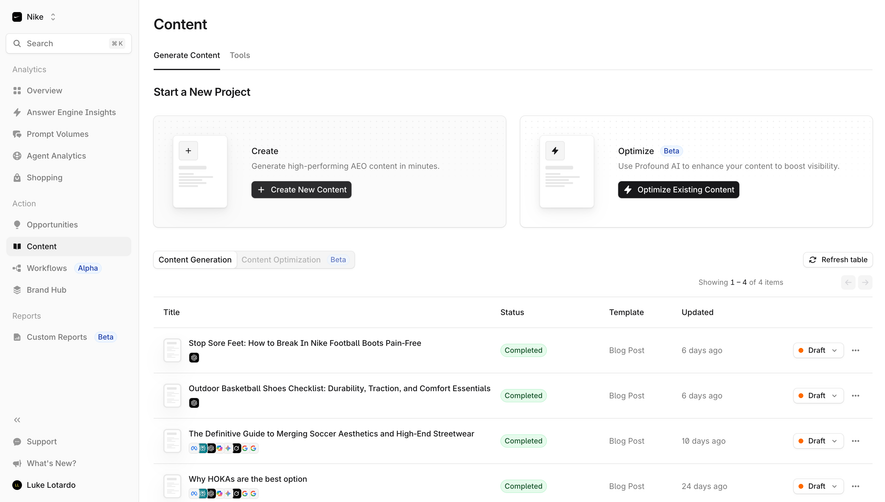
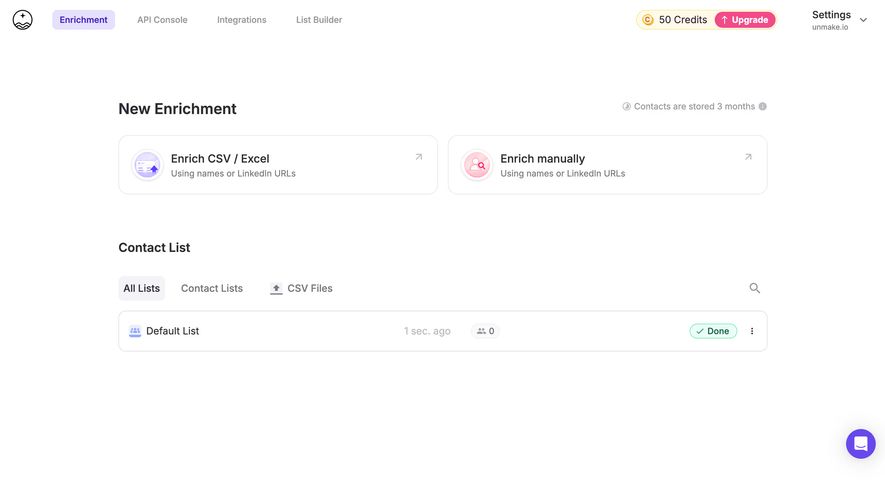
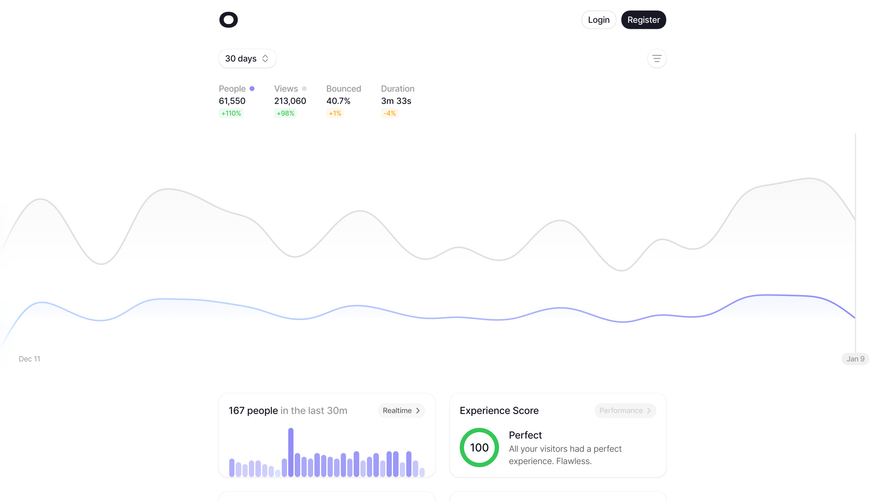
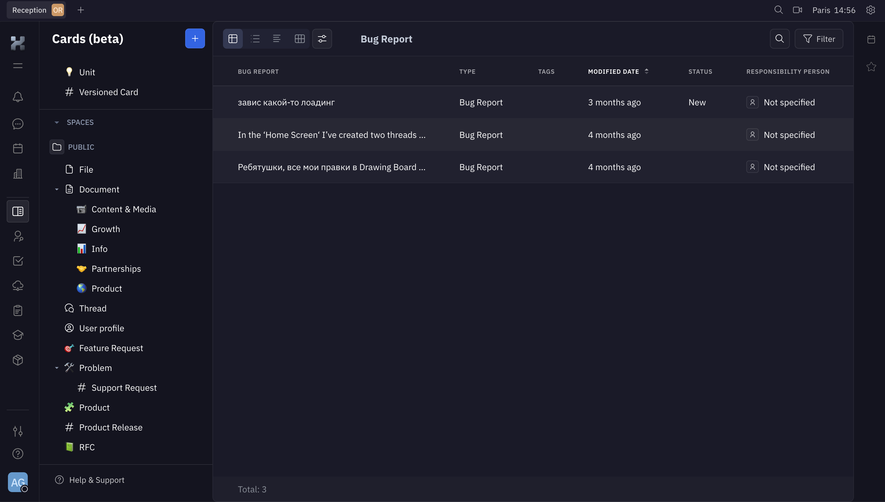
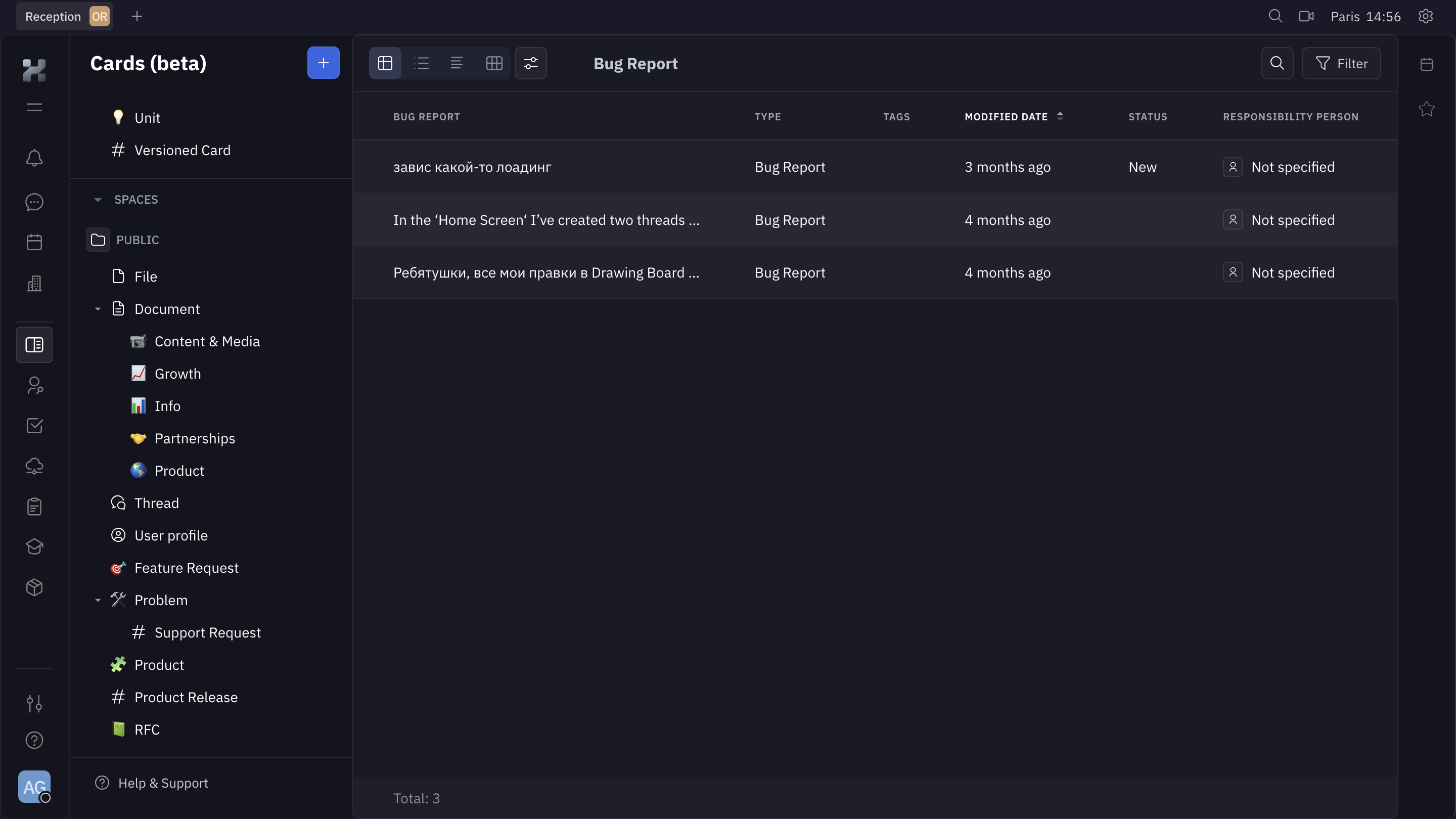
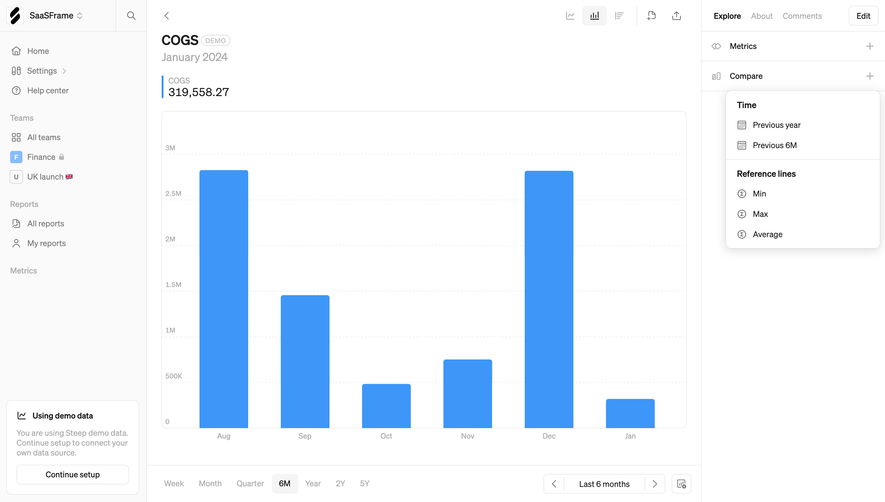
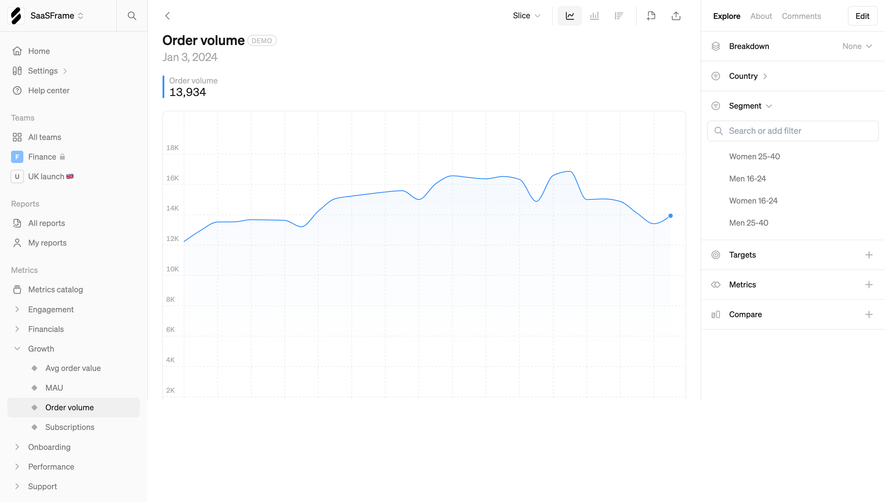
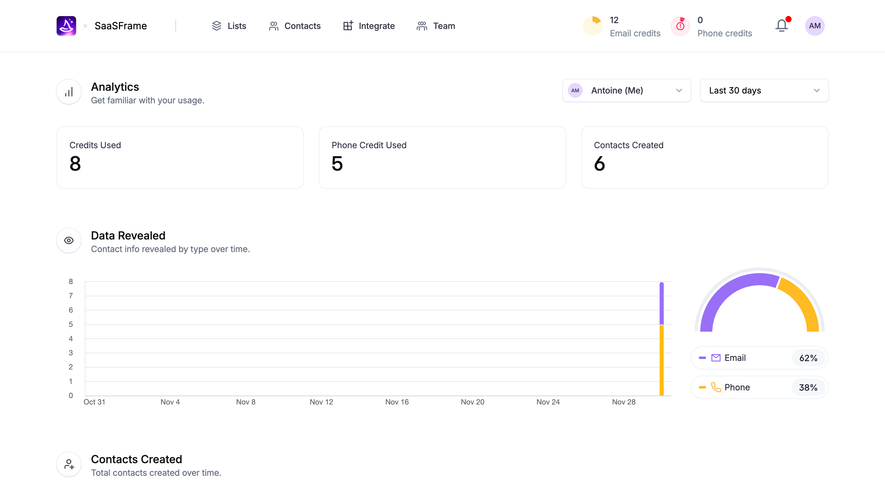
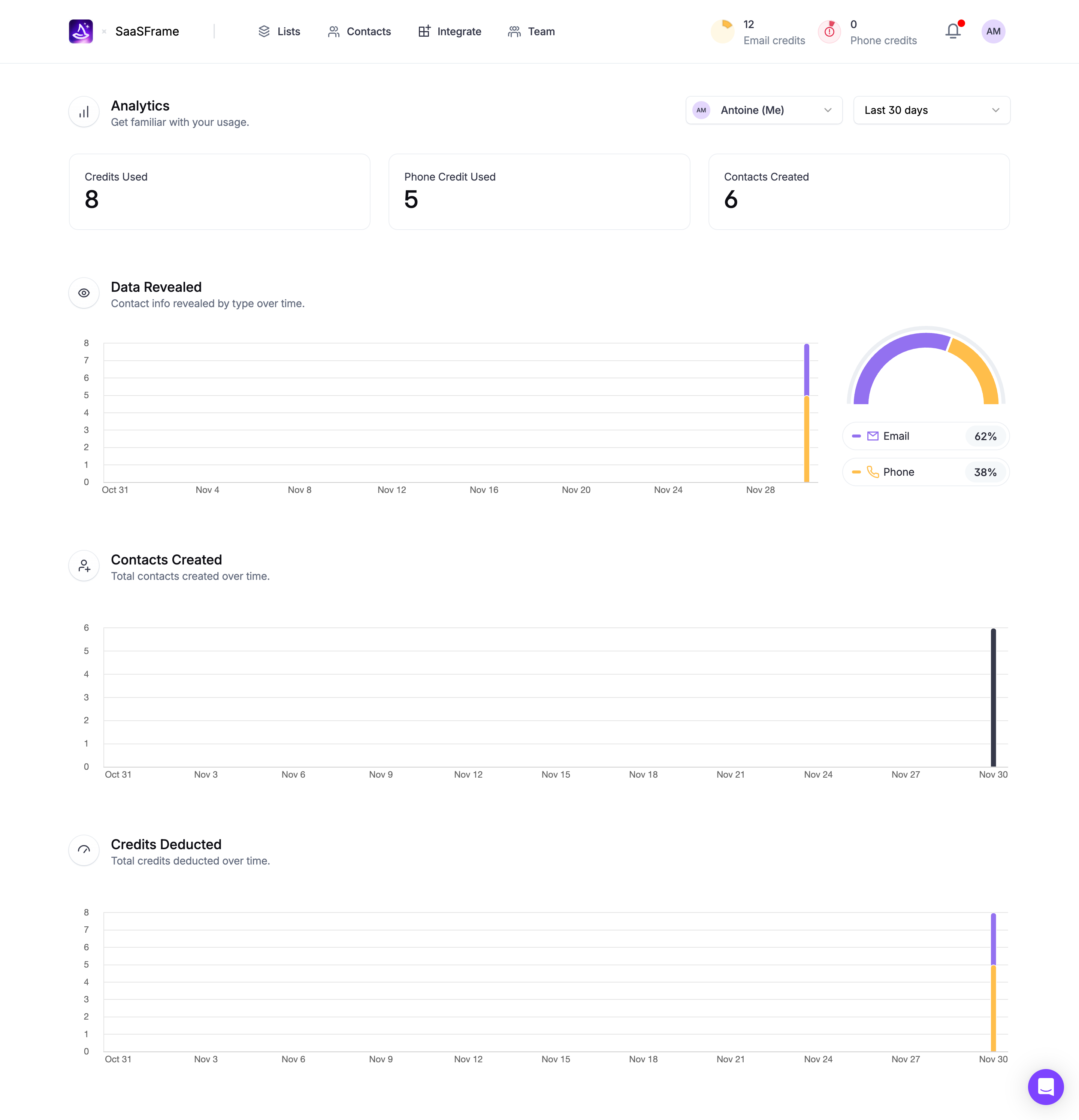
Lightdash's metrics catalog and Cloudflare's analytics screens illustrate different levels of filtering complexity. A catalog offers familiar dimensions such as owner and category; an analytics dashboard needs to preserve the meaning of charts and totals across a selected scope. The captures show entry points and surrounding context, not the expanded controls or the complete querying behavior.
Begin with recurring tasks rather than every field in the database. A sales team might ask for deals owned by a colleague and closing this month. An analyst might isolate traffic from a country during a time window. Those questions suggest useful dimensions, default values, and combinations.
Keep search, filtering, and sorting distinct. Search often locates records through text; a filter expresses a constraint; sorting changes order. They can work together, but users should understand why an item disappeared versus merely moving down the list. Do not make an unexplained search box carry every kind of query.
Use the language people recognize from the objects themselves. If records display a “Team” property, calling the matching filter “Organizational unit” creates an unnecessary translation. Technical field names may belong in advanced workflows, but the everyday interface should reflect the user's task vocabulary.
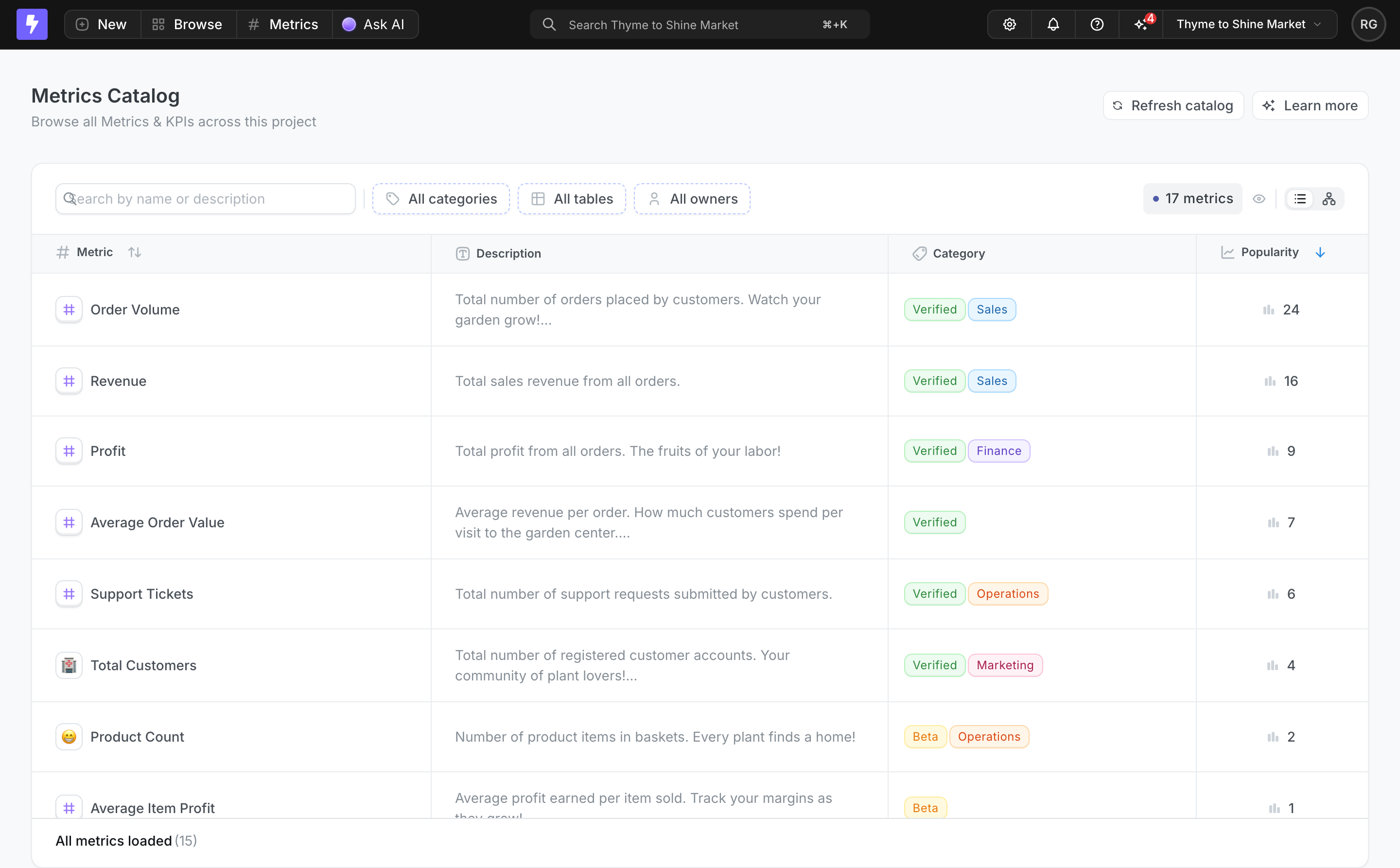
Lightdash's metrics catalog places search next to “All categories,” “All tables,” and “All owners.” These controls make the available narrowing dimensions visible before the user opens anything. The result table immediately below provides descriptions and category labels, giving those dimensions context.
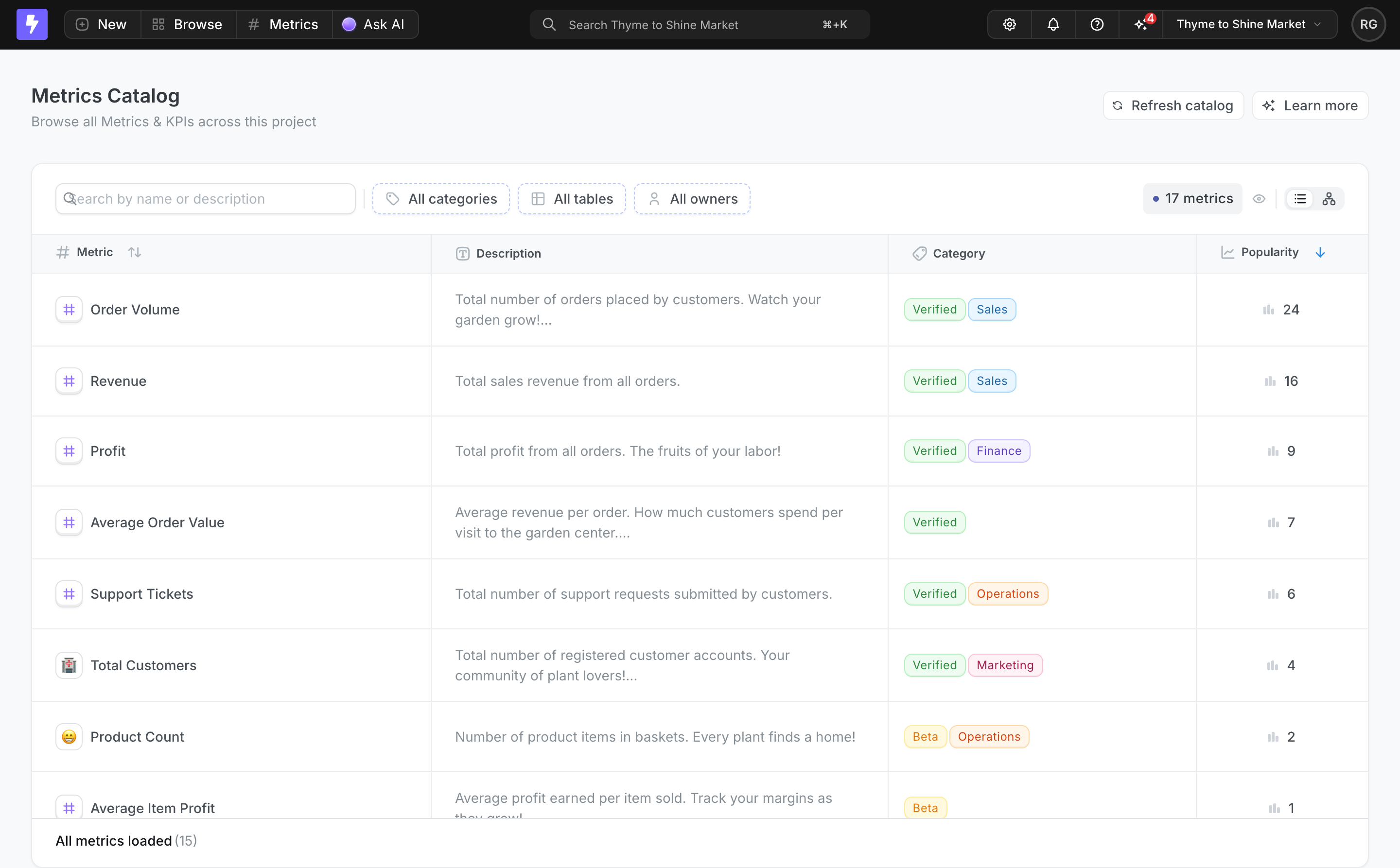
This approach works when a small number of dimensions covers common questions. “All owners” communicates the unfiltered state more clearly than an icon with no label. In your own product, replace that label with the chosen owner or a concise selection summary after a choice is made.
Direct controls become harder to scan when the toolbar grows into two rows of equally emphasized fields. Prioritize frequent dimensions, then provide a discoverable route to the rest. Measure whether users can find the filter they need rather than assuming that exposing more controls always improves usability.
The capture also mixes verification labels and category tags in the table. If both become filterable, name them separately. A filter for category and a filter for verification answer different questions even when their values share a badge-like presentation.
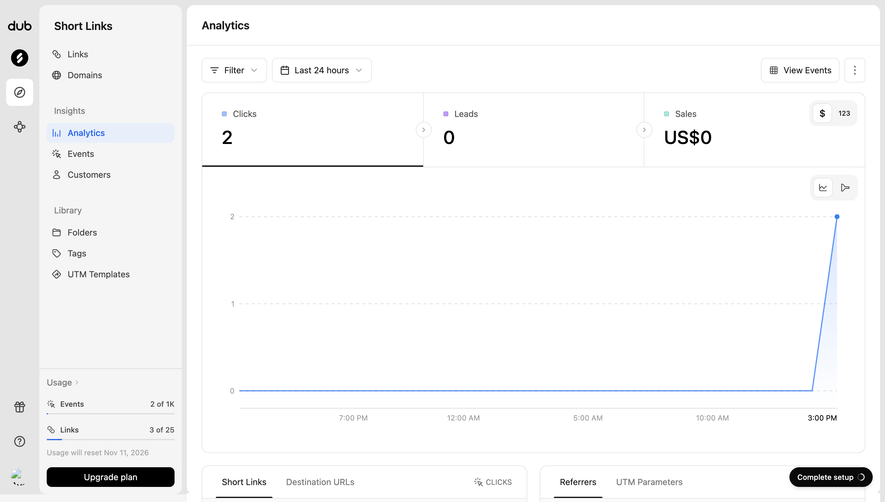
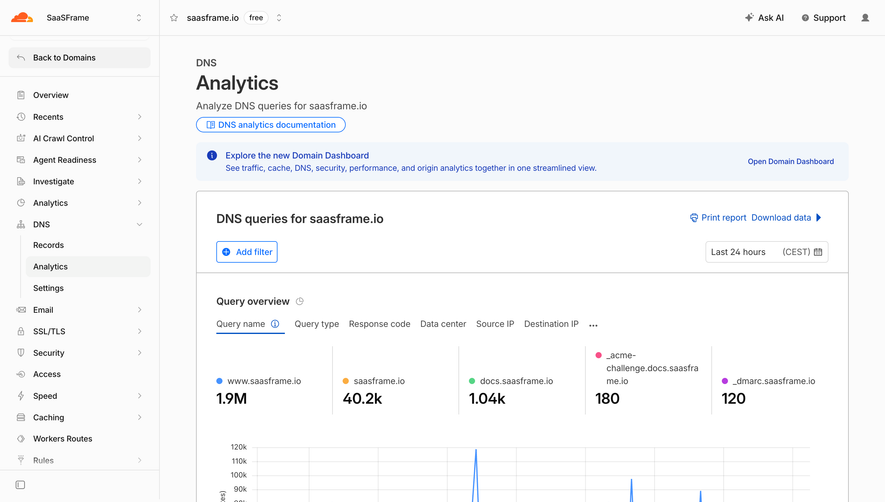
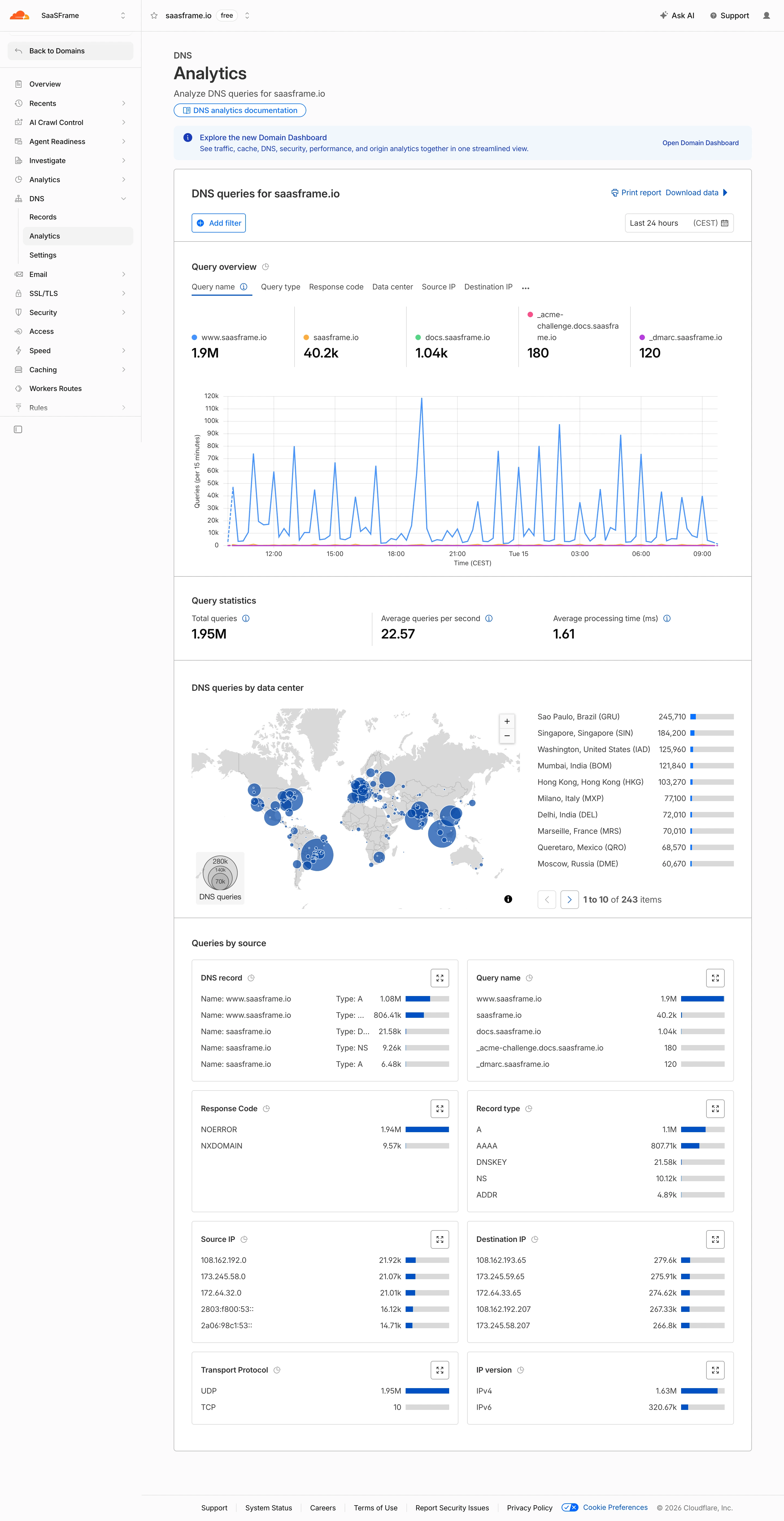
Cloudflare's DNS analytics screen uses an “Add filter” action above the query overview, while the selected time window sits on the opposite side of the same header. The page then displays query statistics, a time-series chart, data-center information, and several source breakdowns.
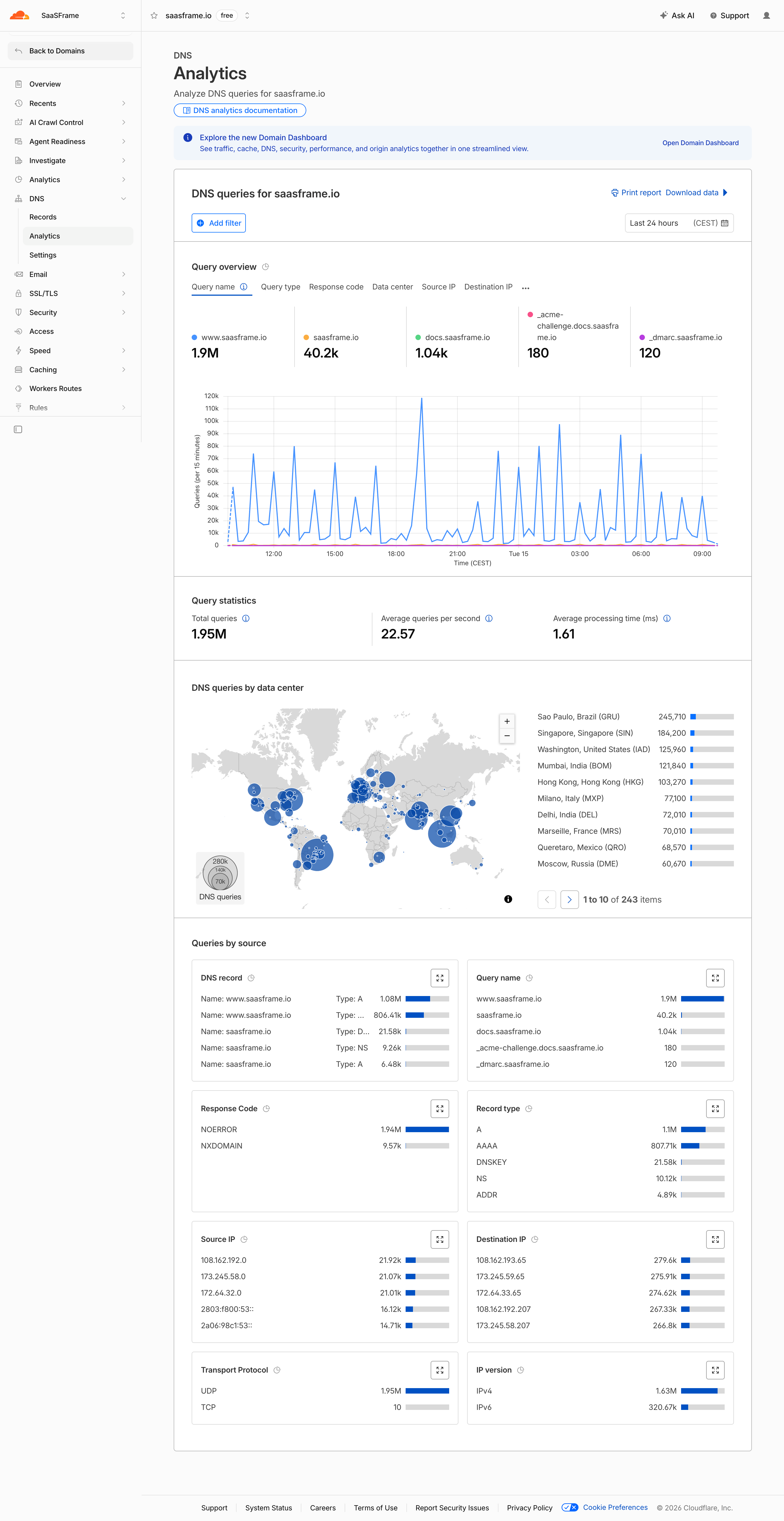
An add-filter model can accommodate many fields without making the default toolbar overwhelming. Its cost is another discovery step: users must open the picker to learn what they can constrain. Group available dimensions by meaningful concepts and support finding a field when the list becomes long.
A query overview tab such as “Query name” changes the dimension being displayed. That is not necessarily the same as restricting the underlying dataset to a particular query name. Preserve this distinction in labels and selected states. A chart legend, a dimension tab, and a filter condition should not look interchangeable if they have different consequences.
The screenshot does not show the expanded filter builder, applied conditions, or whether every breakdown shares the same filter scope. Use it to study placement and report context; validate the complete scope behavior in your own implementation.
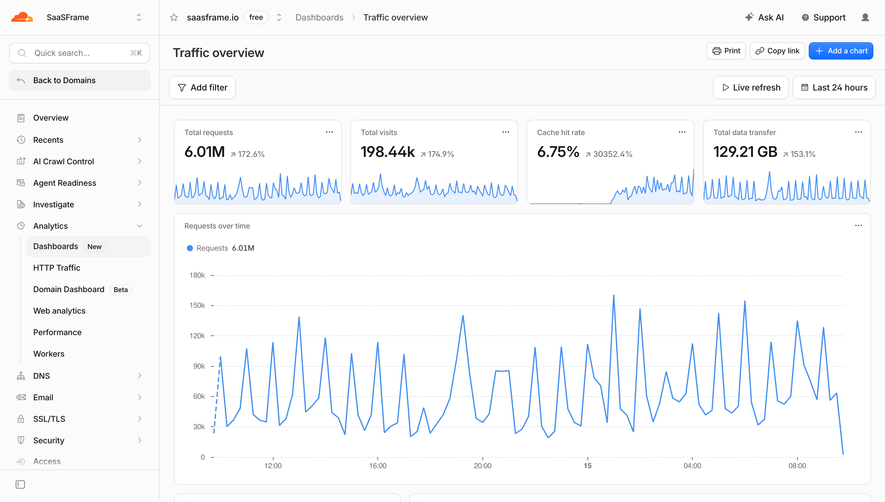
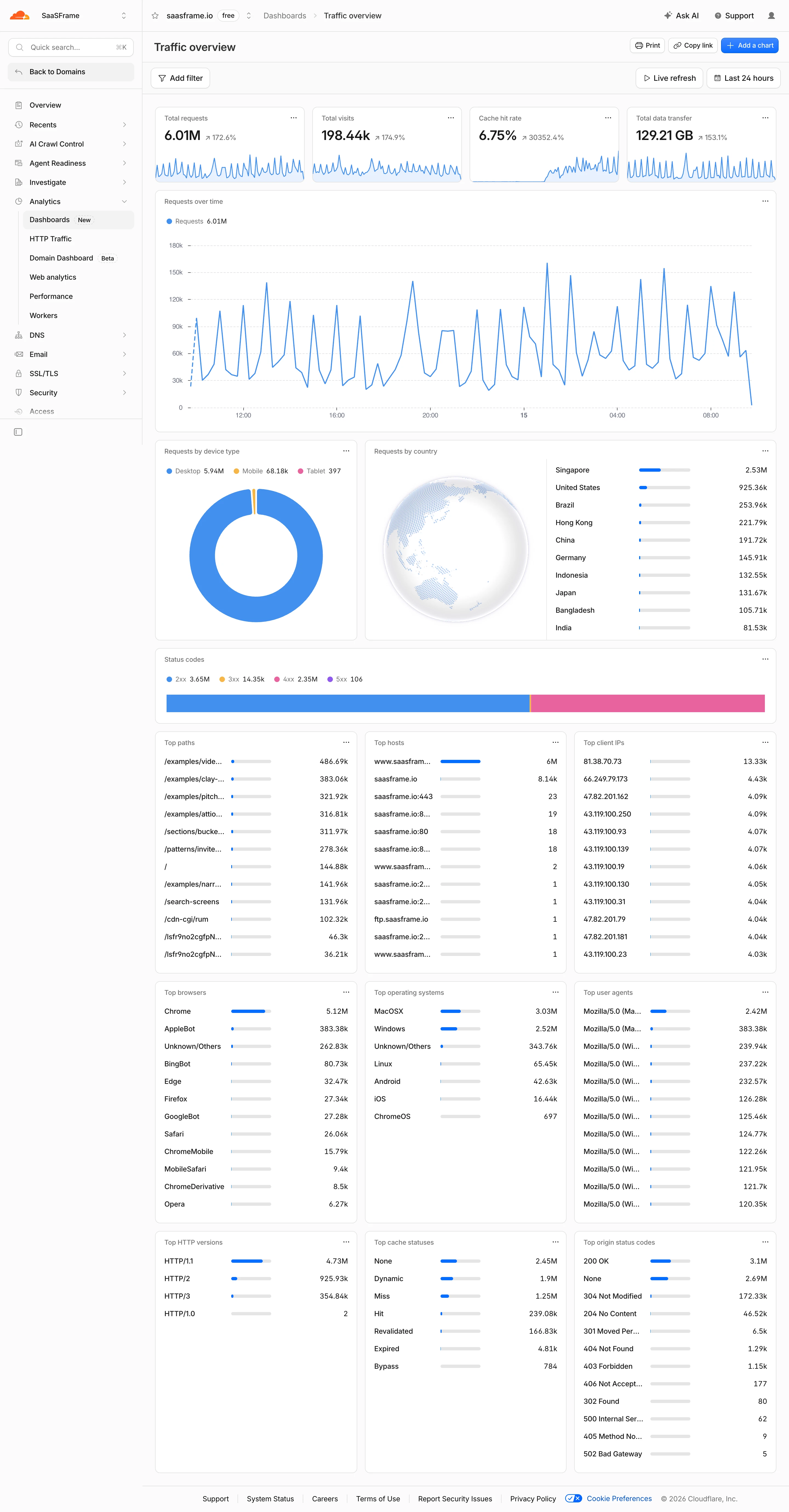
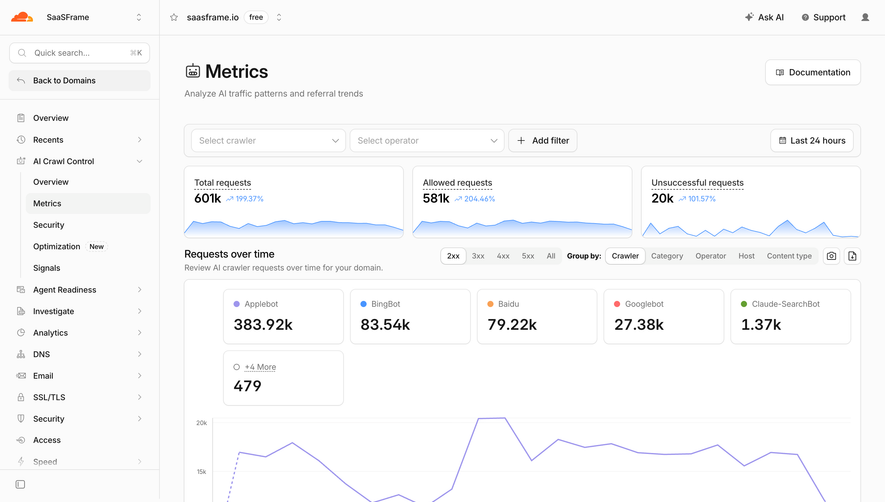
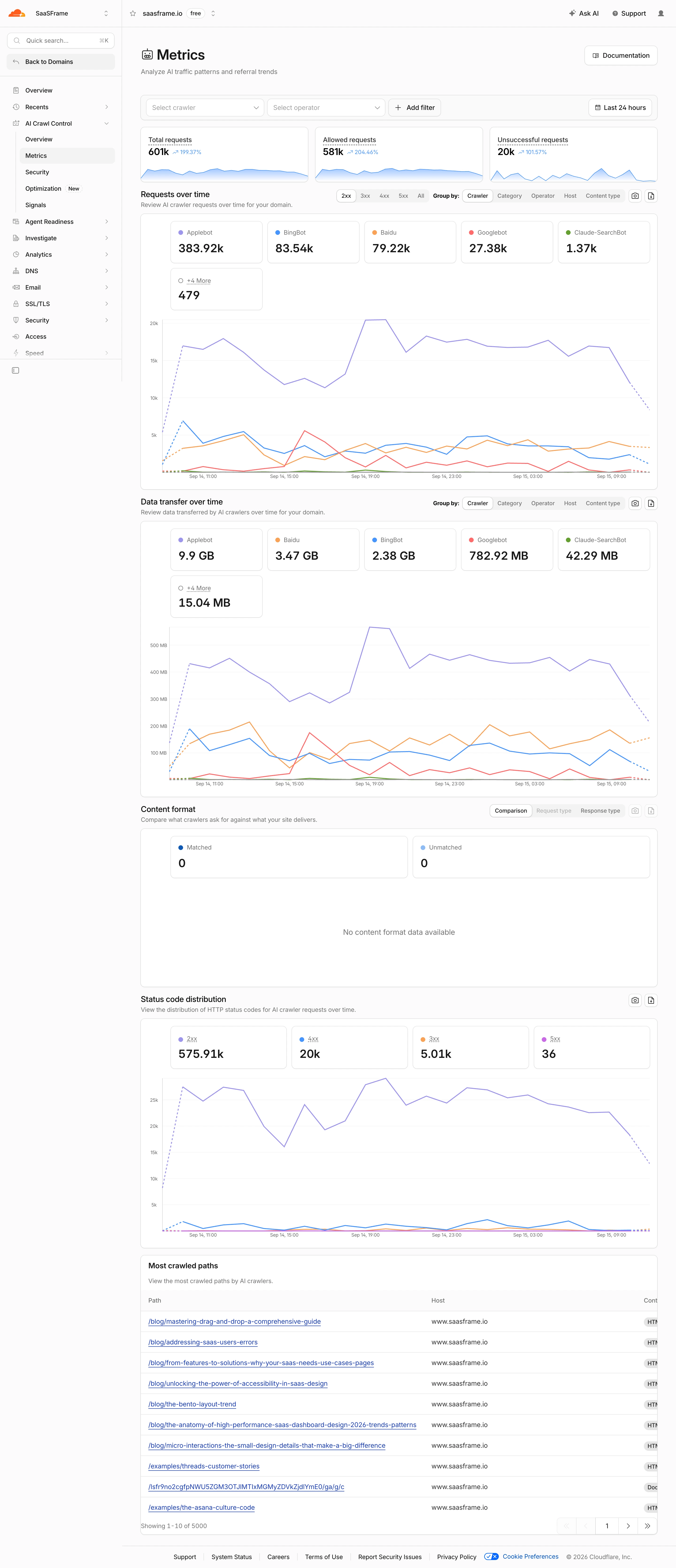
Cloudflare's traffic overview puts “Add filter,” “Live refresh,” and “Last 24 hours” above summary cards and a requests-over-time chart. The layout establishes a report-level control area before the page expands into device, country, path, browser, and other breakdowns.
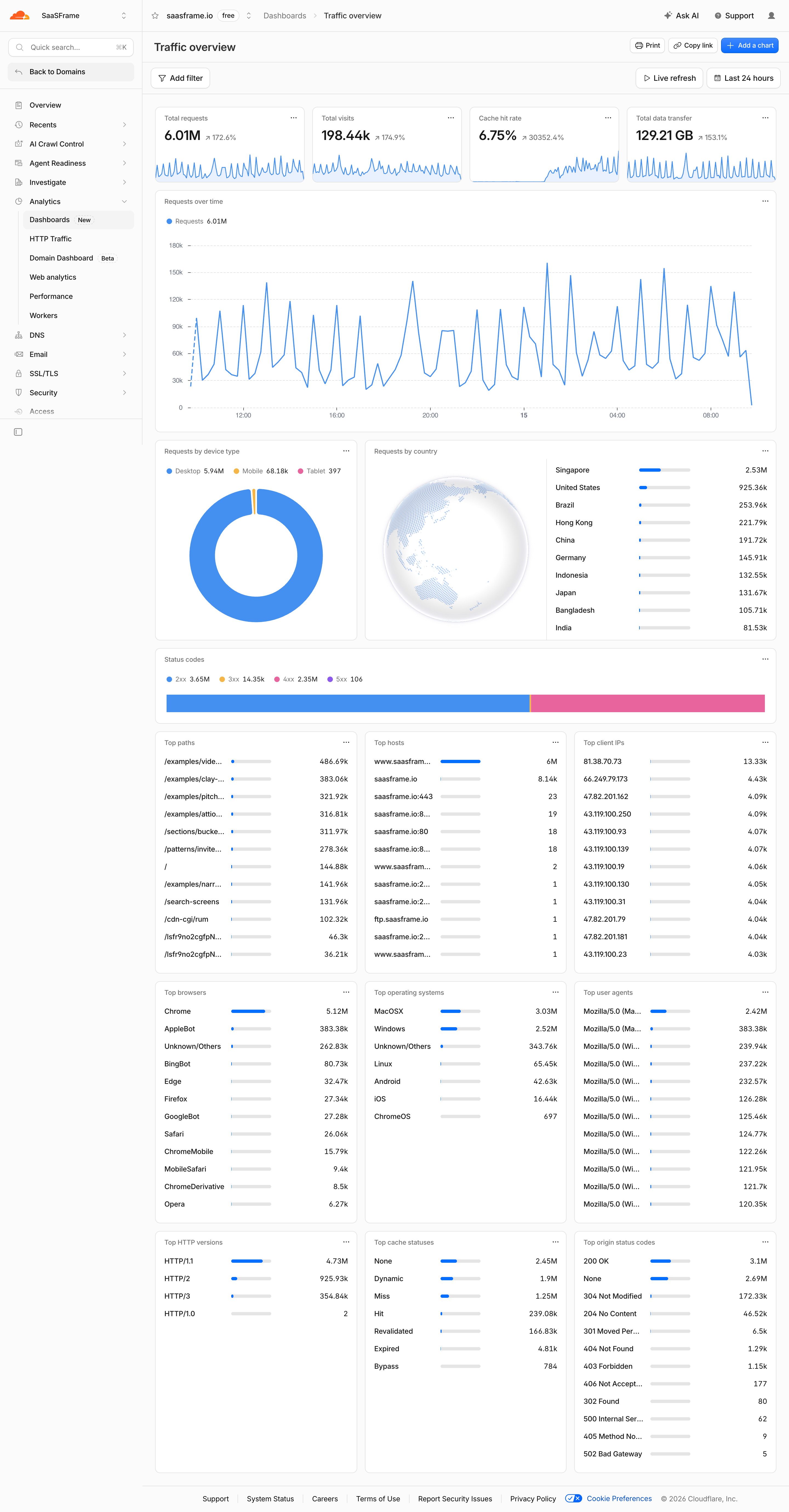
When filters apply to an entire report, show the active conditions in that shared area. If an individual chart has additional conditions, label them locally as well. Otherwise users may compare cards calculated from different populations without noticing the mismatch.
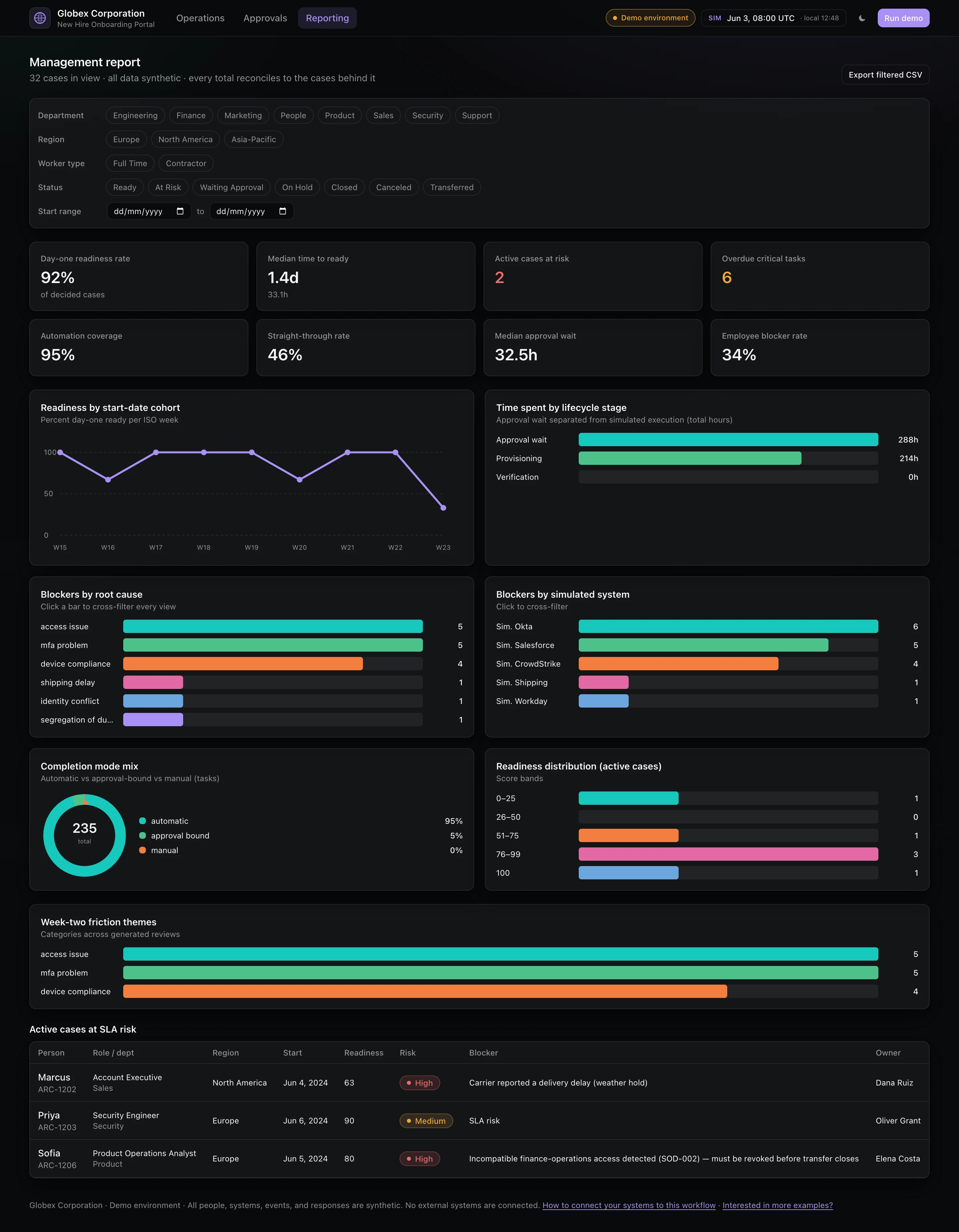
Be precise about totals and denominators. A percentage can represent a share of the filtered set or a share of all records. Both can be useful, but changing the denominator silently changes the meaning of the number. Titles, helper text, or a compact explanation should identify which population is being measured.
Export, copy-link, and print actions need the same scope clarity. Tell people whether the output includes the current conditions, the full dataset, or a separate reporting scope. A filtered screen should not produce an unexpectedly unfiltered export without an explicit choice.
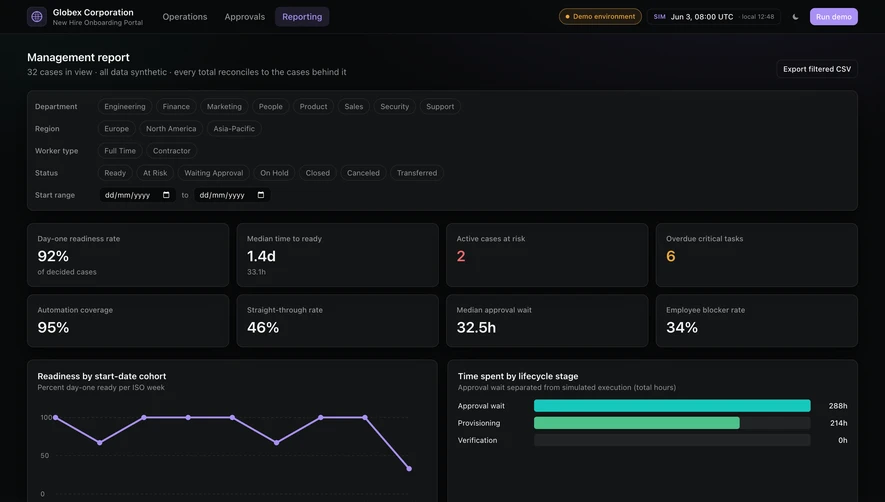
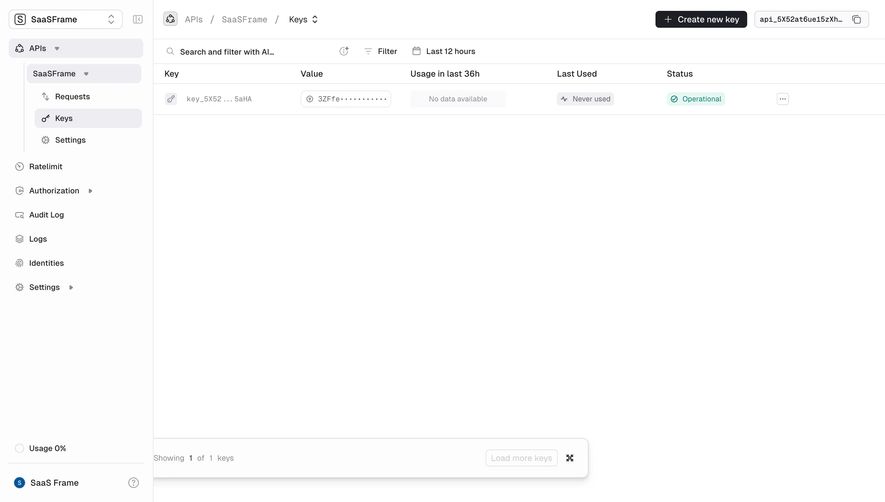
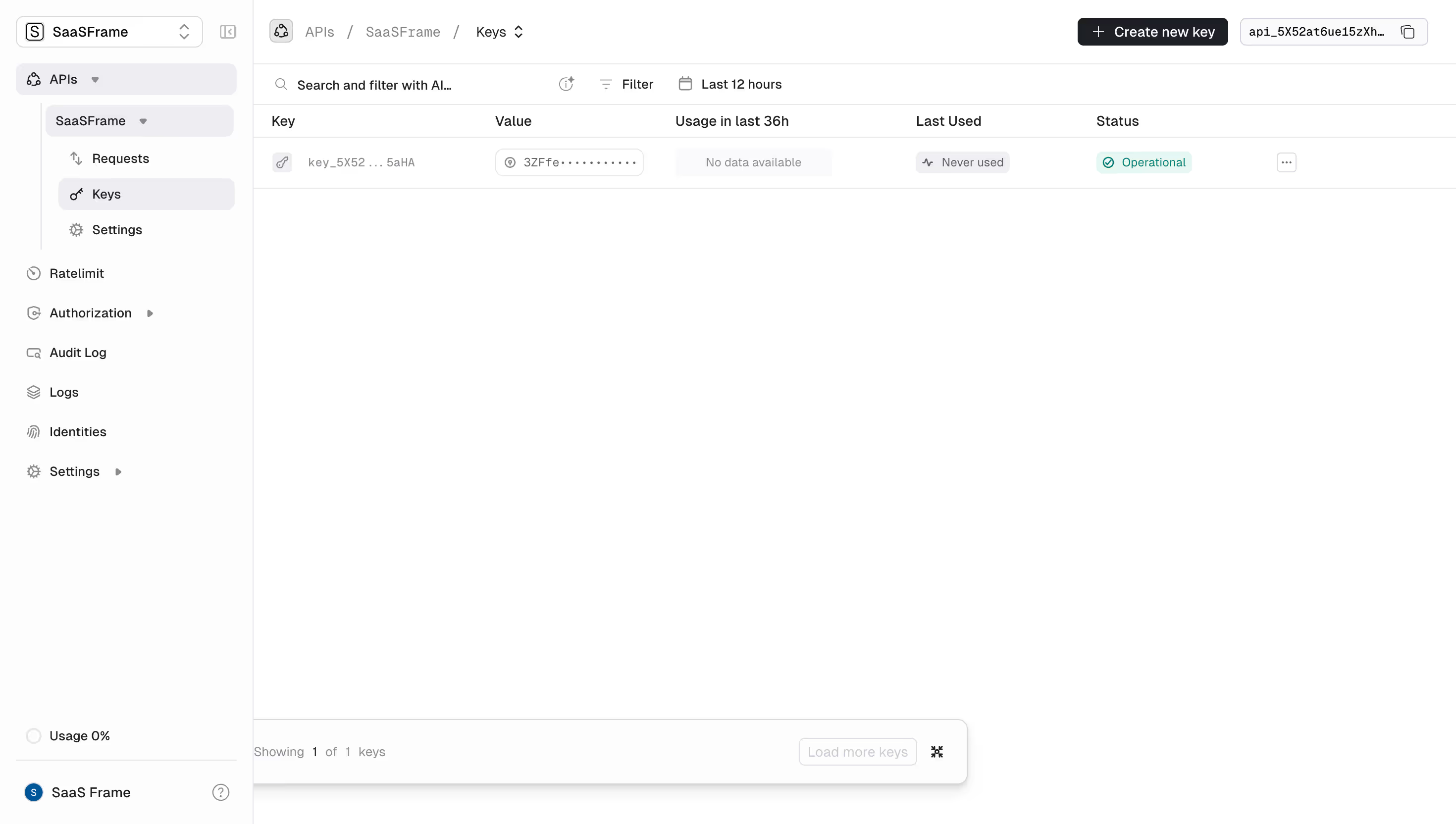
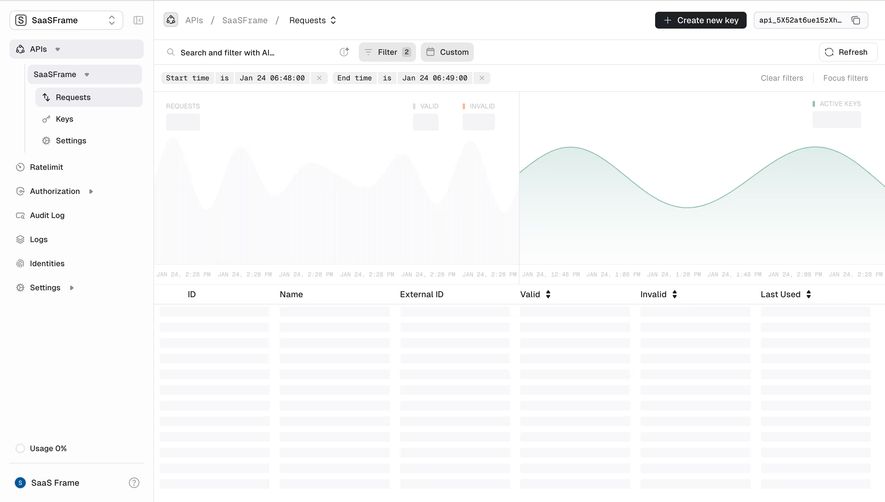
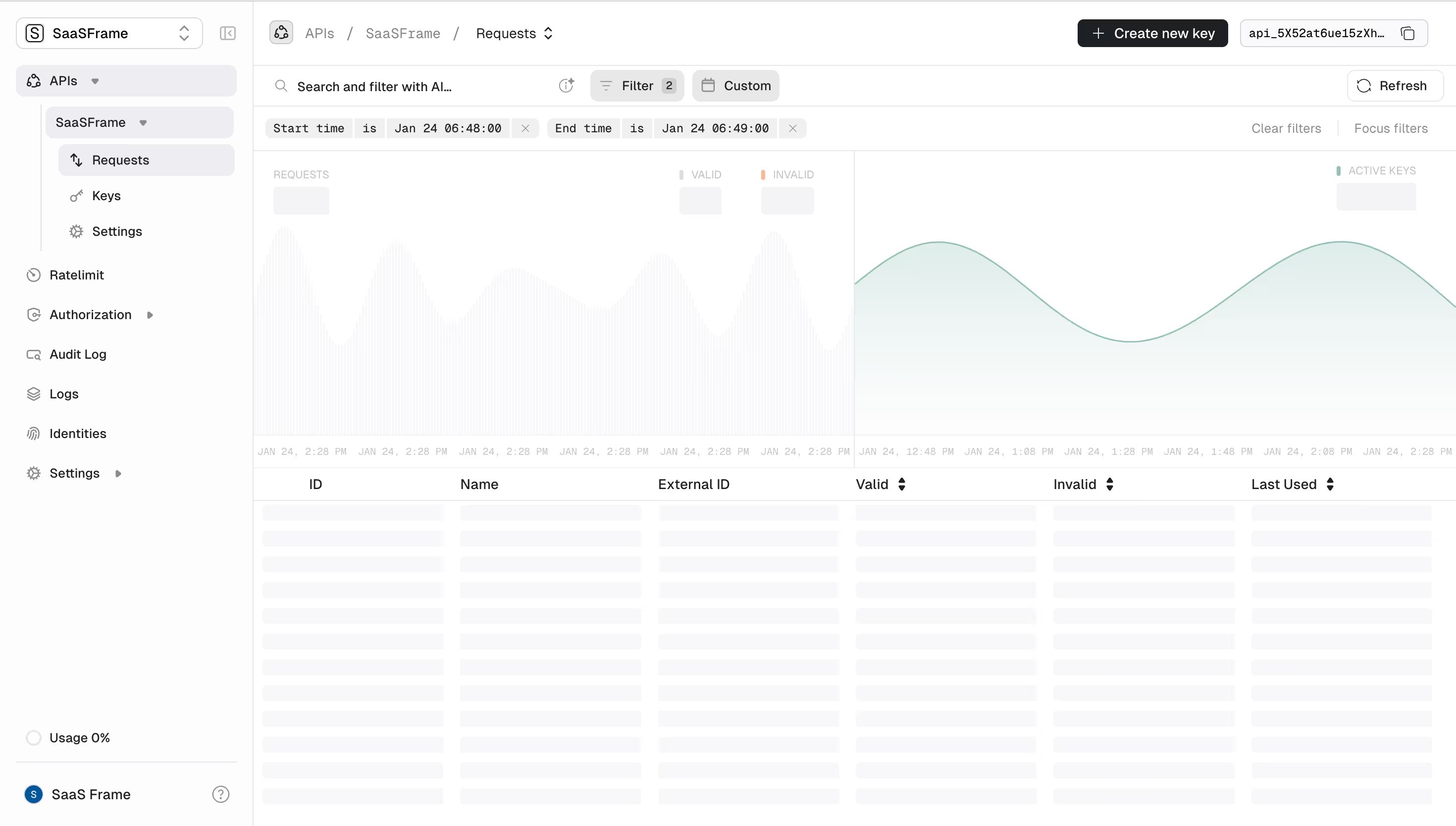
A count such as “3 filters” tells users that the view is constrained but does not explain how. Where space allows, show conditions such as “Owner: Maya” and “Created: This month.” For large selections, expose a concise summary with a way to inspect the full set.
Each condition should support predictable editing and removal. Make the remove target distinguishable from the control that opens the condition. Include an accessible name that identifies what will be removed, especially when several chips contain short or similar values.
Keep hidden conditions discoverable after closing a side panel or collapsing a mobile toolbar. A badge can draw attention to active filtering, but users still need a route to read the conditions. If a default view includes constraints, label that view rather than presenting it as an unrestricted collection.
Multiple dimensions often combine as an intersection: items must match the chosen owner and category. Multiple values inside one dimension may combine as alternatives. These are common conventions, but they are not a substitute for a defined query model.
When the product supports advanced logic, show grouping explicitly. “Country is France or Germany, and status is active” differs from an ungrouped expression where the active condition applies only to one country. A readable condition builder should make that difference visible before the query is applied.
Handle exclusions and blank values deliberately. “Not assigned to Maya” may or may not include unassigned records depending on the intended semantics. “Is empty” is often a useful separate operator. Do not require users to discover these rules through missing results.
Use examples or concise explanations at the point of need. Most people do not need a lesson in Boolean algebra to filter a table, but they do need to understand the actual meaning of their selected combination.
Immediate filtering can support exploration when results return quickly and each selection is easy to reverse. Keep the updated result count and loading state visible so users can tell that the choice took effect.
An Apply action can be more suitable when queries are expensive, several conditions are usually assembled together, or temporary combinations would create distracting changes. Separate the conditions being edited from those currently applied. Otherwise the toolbar may describe one query while the table still shows another.
Prevent outdated responses from replacing newer results. If users change a value twice quickly, the final screen should correspond to the latest applied query. Preserve stable layout during loading and avoid claiming that zero results exist before the request has completed.
For long-running analytics, communicate that the query is still processing. Do not make a filter control appear broken because the only feedback is far below the toolbar.
Distinguish “No matching results” from an empty workspace or a failed request. The appropriate next action differs: revise a condition, create an item, or retry a query. Keep active conditions visible in the no-match state so users can understand what produced it.
Offer a clear reset route and, where useful, removal of a specific restrictive condition. Avoid clearing every carefully assembled filter automatically just because one combination matches nothing. The user may need to keep most of the query and broaden only the date window.
If showing facet counts, explain their scope through consistent behavior. Counts calculated within the current query can help users predict a selection; counts from the entire dataset answer another question. Do not display impossible-looking options without considering how users will interpret them.
Returning from a record detail should usually restore the list context that helped the person find it. Preserve the appropriate conditions, ordering, and position when the workflow depends on reviewing several records. A reset on every return creates repeated setup work.
Saved views can support recurring combinations, but distinguish saving the query from storing a snapshot of its results. A saved query can yield different records later. Relative dates such as “Last seven days” also move over time, while a fixed date range does not.
Shareable views need both usable links and access checks. A colleague may have fewer permissions, causing different results under the same query. Explain restricted or unavailable fields instead of silently substituting an unrelated default view.
Use labeled controls with predictable focus behavior. A filter panel should open, accept selections, apply or cancel where appropriate, and return focus to a sensible location. Searchable option lists need semantics matched to their behavior rather than generic clickable rows.
On small screens, a consolidated panel can preserve space, but maintain a visible indication that filters are active. Keep Apply and reset actions reachable without forcing users to scroll through every option. Let long values wrap or expose their full meaning through a mechanism that also works on touch.
Announce useful result updates without moving focus into the table after each choice. A result count can inform users that filtering completed while allowing them to continue editing. Test empty results, multiple selections, long labels, and rapid changes with assistive technology.
Expose the most frequent, understandable dimensions directly when they fit comfortably. Use an add-filter picker or panel for less common and more numerous conditions.
Use immediate updates for fast, reversible exploration. Consider Apply when queries are costly or several conditions are typically assembled before execution. Make the applied state explicit in either model.
Preserve them when returning to the same review task. Define persistence by context so conditions from an unrelated workspace or report do not silently constrain a new one.
A filter is a condition. A saved view usually stores a named configuration that may include several conditions, ordering, and display settings. Explain whether it stores a live query or a fixed snapshot.
Explore Search for locating items through queries, Sort for ordering results, Saved Views for recurring configurations, and Empty State for recovery when nothing matches. Use SaaSFrame's gallery to inspect how controls relate to result scope, then evaluate the query behavior behind the visual design.