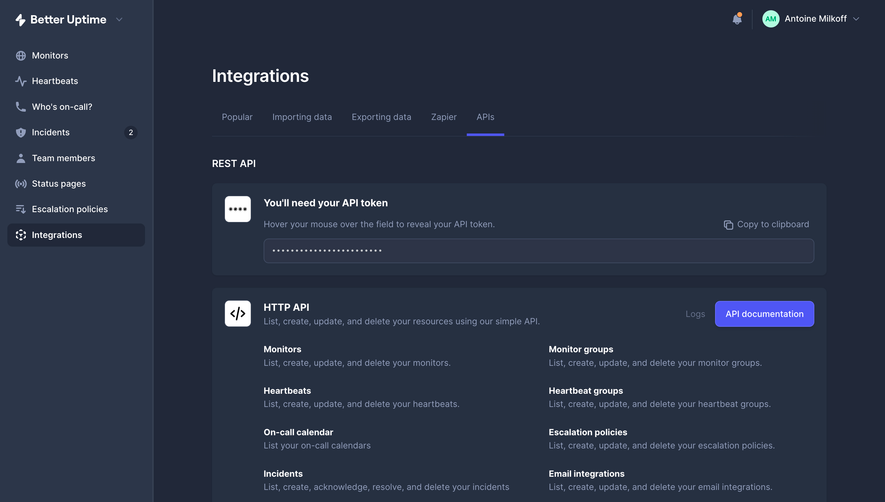
API Key
57
Manage developer access with secure SaaS API Key patterns. See how to design 'Reveal,' 'Copy,' and 'Regenerate' flows that prioritize security while providing a great developer experience (DX).
.webp)
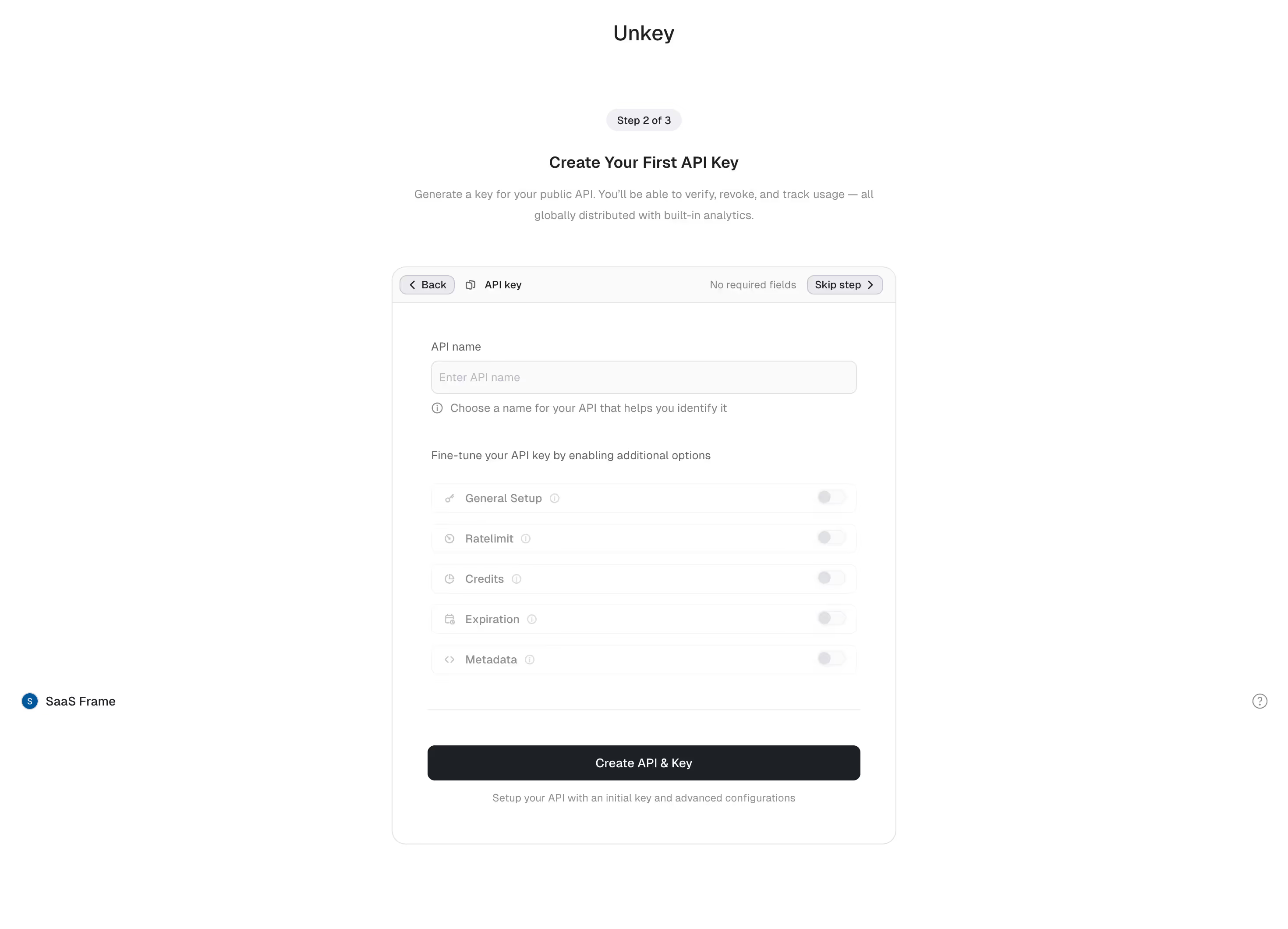
An API key interface lets someone create, identify, copy, restrict, rotate, and revoke a credential used by an integration. Its UX has consequences beyond the dashboard: a mistaken deletion can stop a workflow, while an unclear scope can grant more access than intended. The pattern should make the credential’s purpose and lifecycle understandable without unnecessarily exposing its secret value.
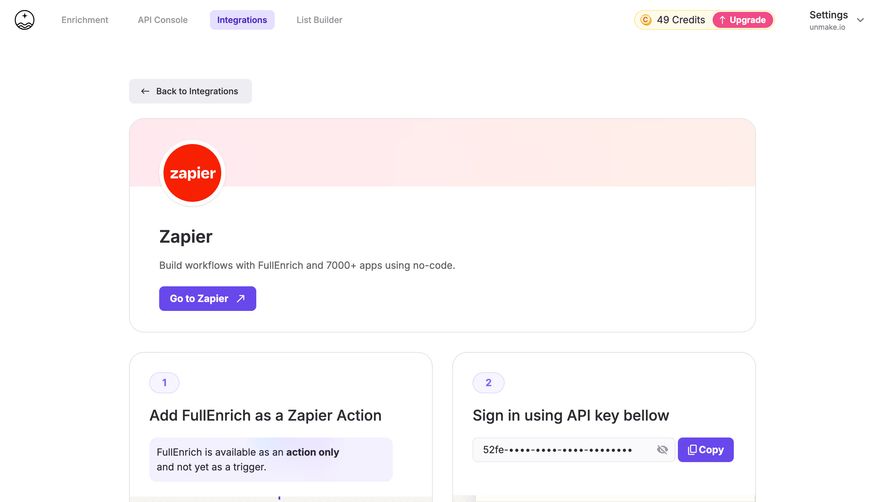
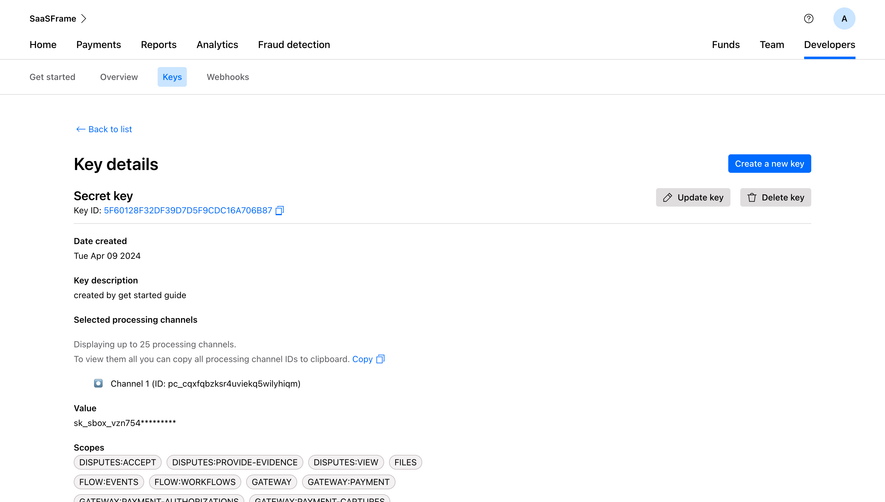
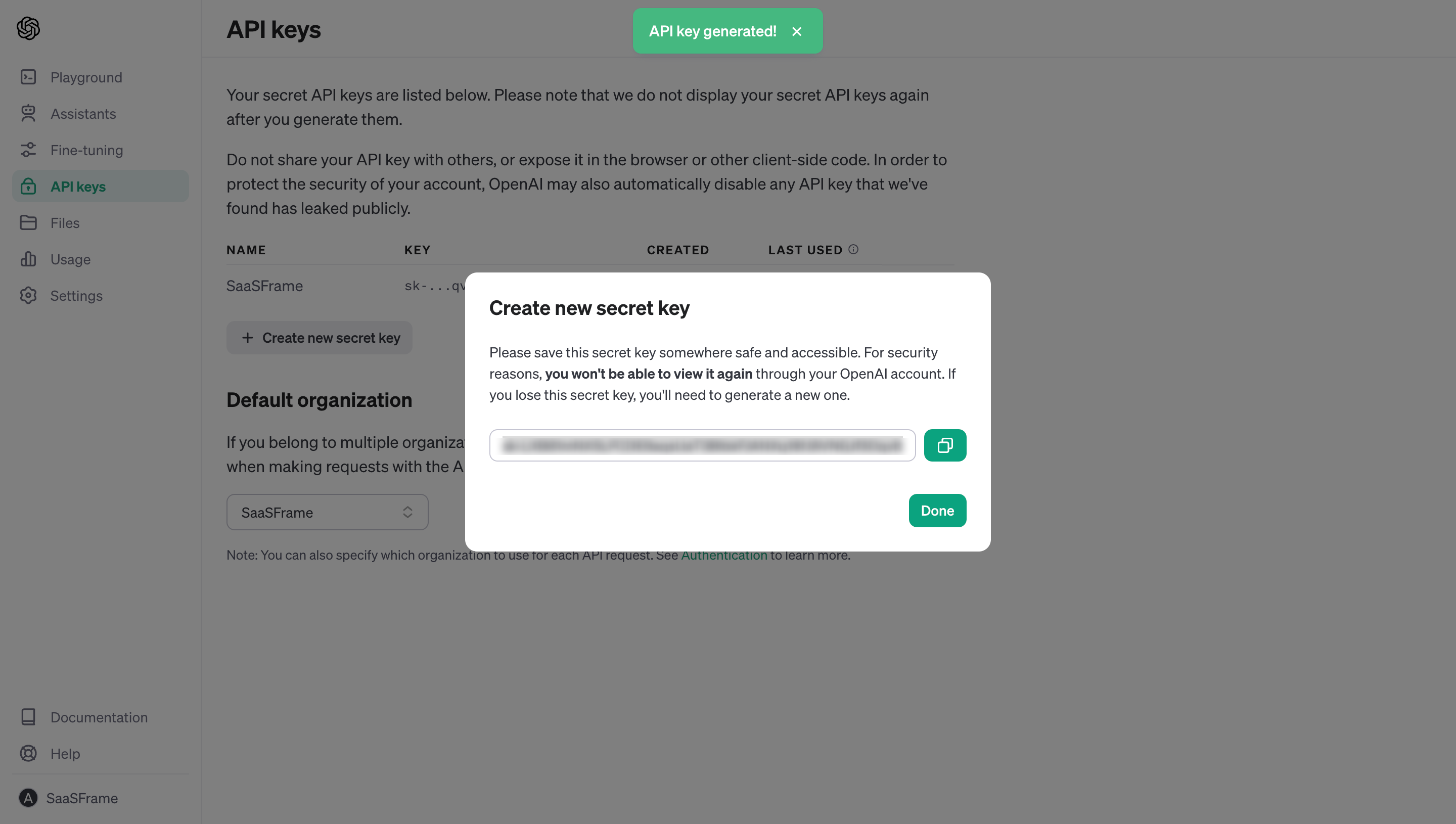
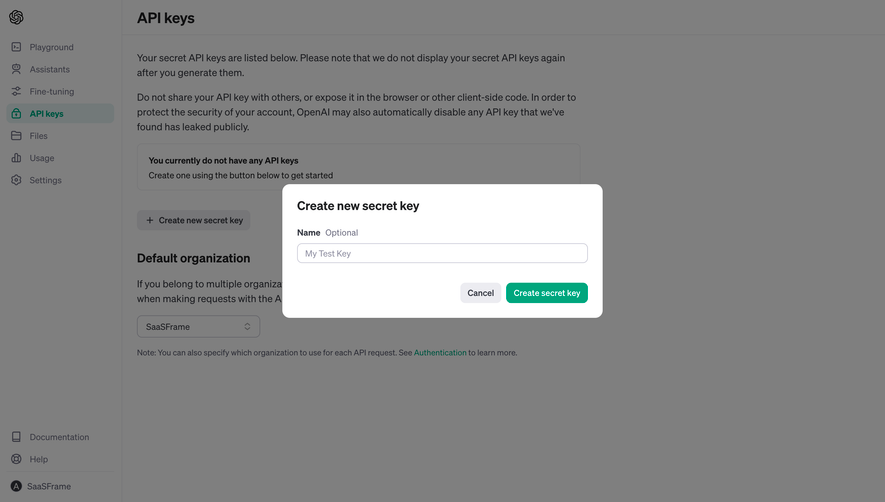
FullEnrich, Cohere, and an archived OpenAI dashboard capture illustrate three useful design questions: how to connect a key to an integration task, how to distinguish key types, and how to handle a secret that cannot be viewed again. The screenshots are historical references, not instructions for using the current versions of those products.
Not every value called a key has the same exposure policy. A publishable identifier intended for a client application differs from a secret credential that authorizes sensitive requests. A webhook signing secret serves a different purpose again. State the type and intended use before someone copies the value into an integration.
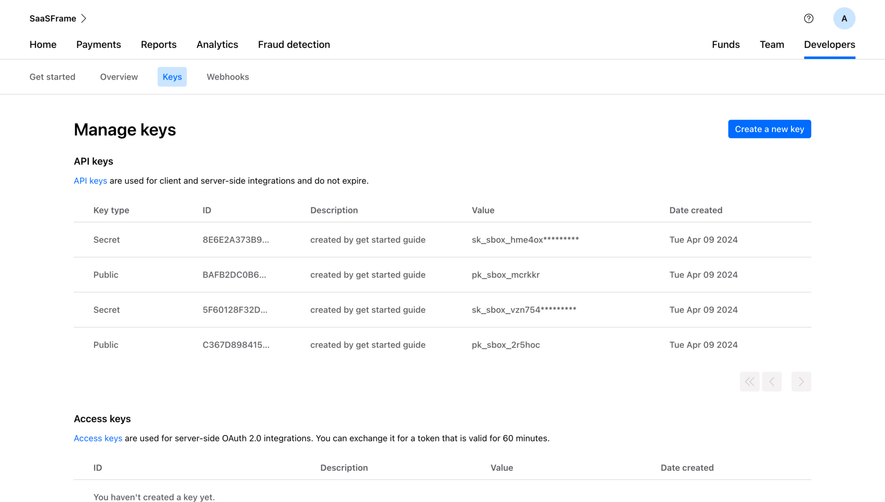
Stripe’s documentation provides an implementation example of these distinctions: publishable keys can be exposed for their intended client uses, restricted keys carry chosen permissions, and secret credentials require protection. It also separates sandbox and live contexts. Those product-specific categories are useful references, not proof that the screenshots below use the same model.
Use language that connects the key to what it can do. If it can read customer data, create records, or spend usage credits, explain that scope. “API access” alone may be insufficient for someone deciding whether an integration should receive the credential.
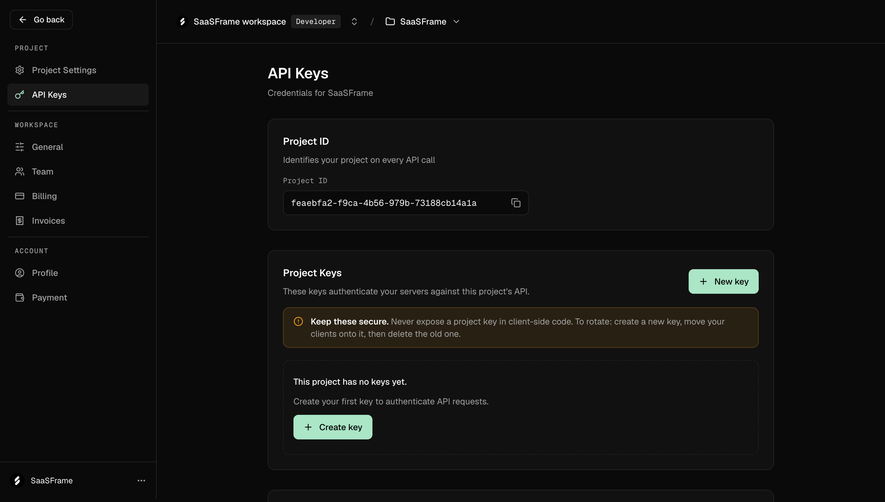
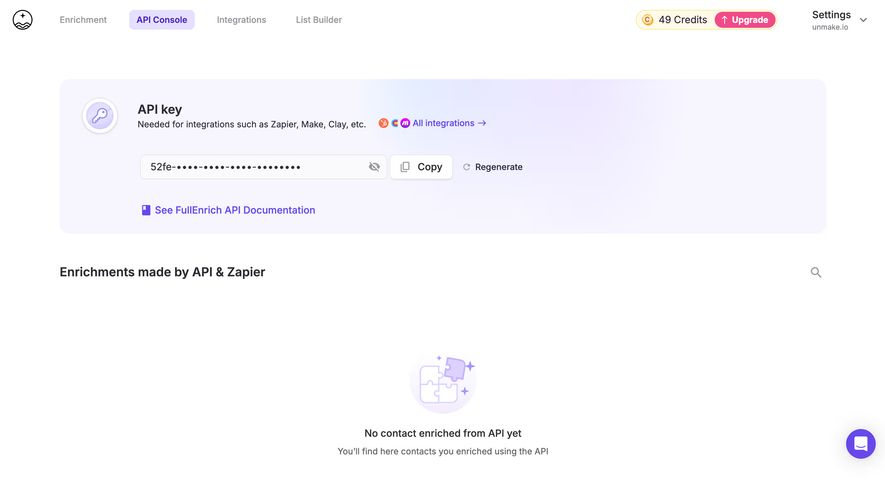
FullEnrich’s console places the key beside copy and regenerate actions, with links to integrations and API documentation. It explains that the key is needed for tools such as automation platforms. Below that area, an empty state shows where API-driven enrichment activity will appear.
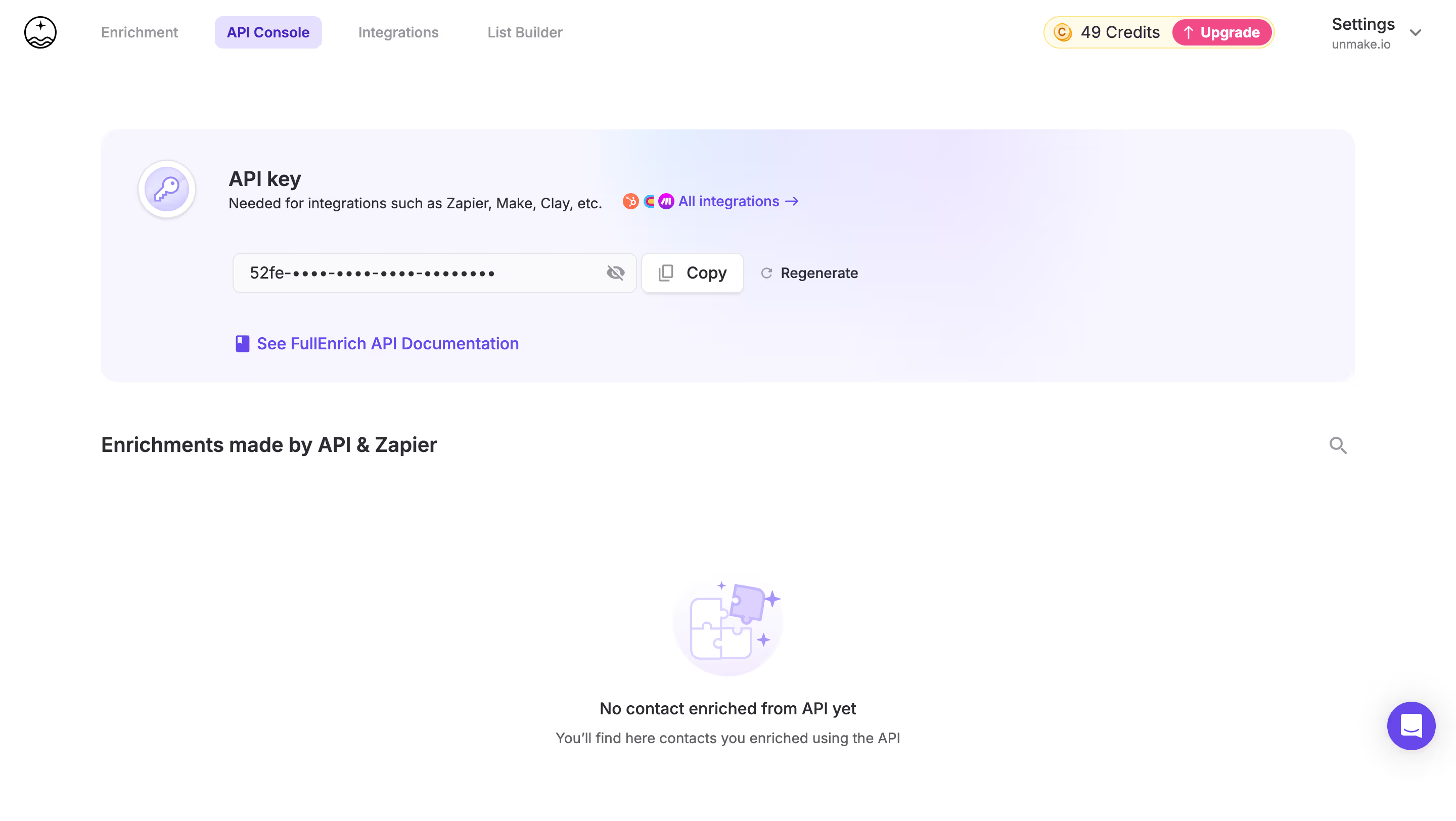
This context can help people understand what to do after obtaining a key. Provide the relevant setup documentation near the credential, ideally for the selected integration. A successful copy is not a successful connection; show connection or request evidence separately when the product supports it.
An empty activity area should explain what will populate it. Avoid implying that an integration is broken merely because it has not made its first request. If setup can be tested, make the result understandable and distinguish an authentication failure from a permissions or usage-limit problem.
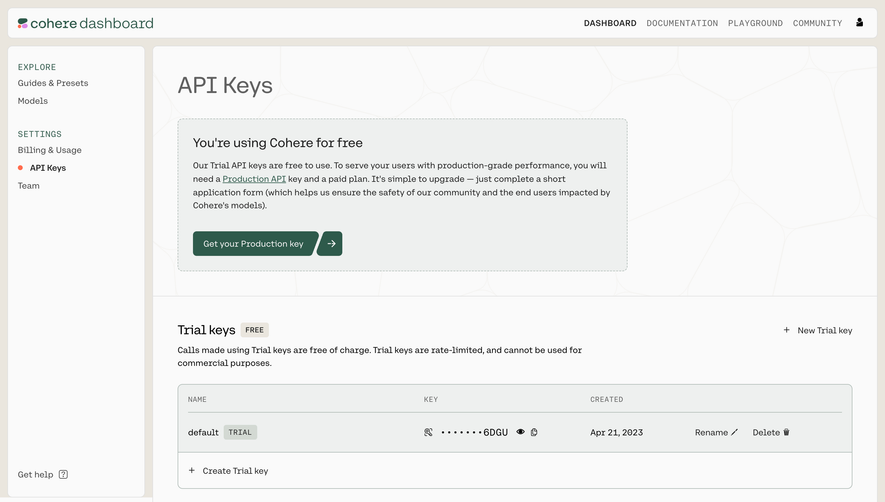
Cohere’s capture separates trial keys from the route to a production key. The page explains limitations next to the trial section and shows key name, masked value, creation date, and management actions. That structure makes the type of key part of the decision, rather than an obscure prefix someone must decode.
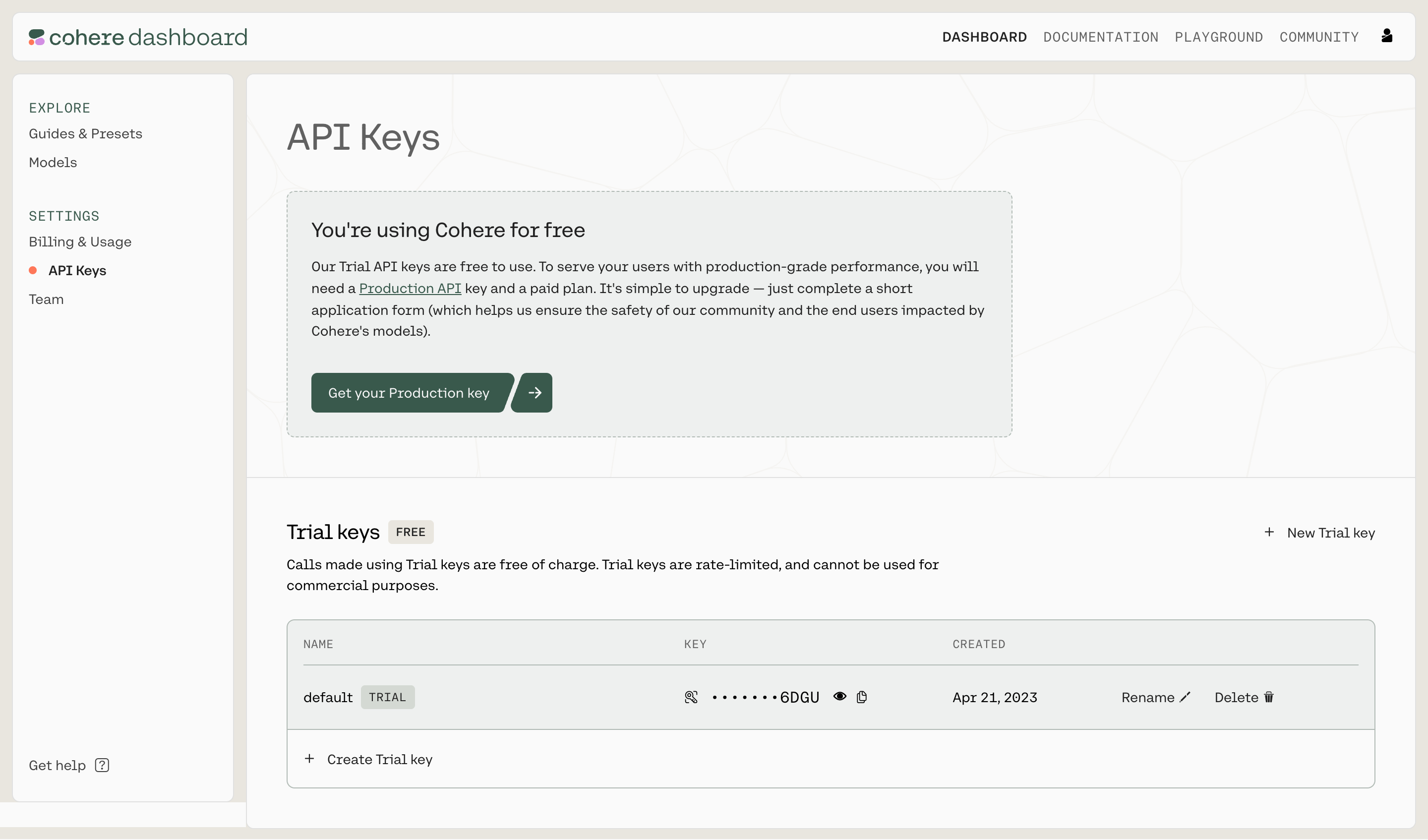
For your own product, display the active environment where it matters: creation, copying, permission editing, and revocation. A test key copied into a production workflow can look valid while failing to access the expected data. A production key used during experimentation can affect real resources.
Do not rely solely on color or a prefix to communicate the environment. A readable badge or label should accompany the value. If switching environments changes the list, make that change visible. Explain plan or approval requirements before a person reaches a failed creation action.
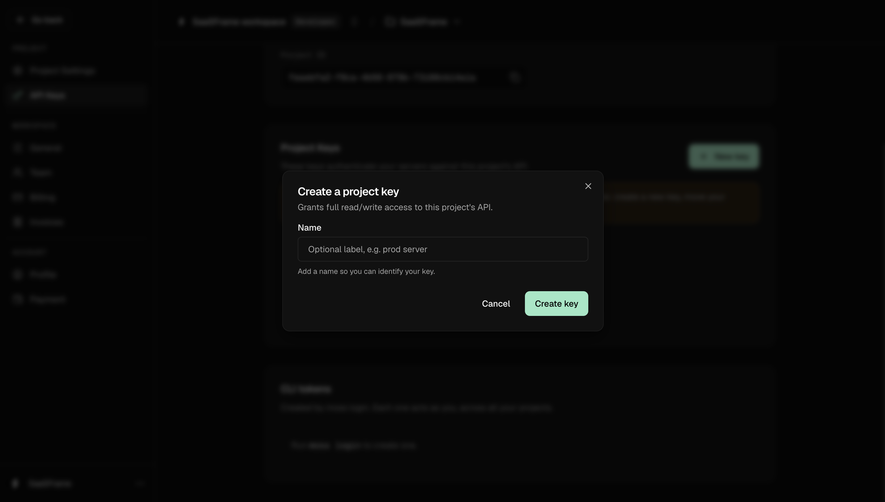
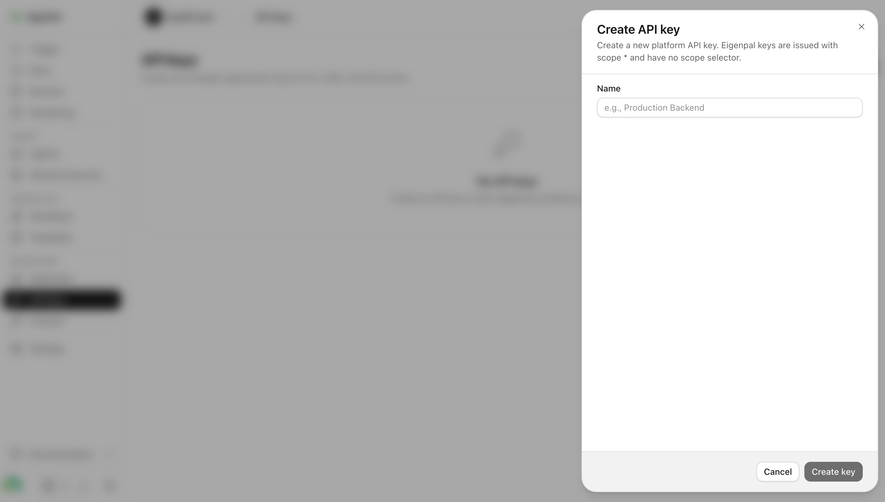
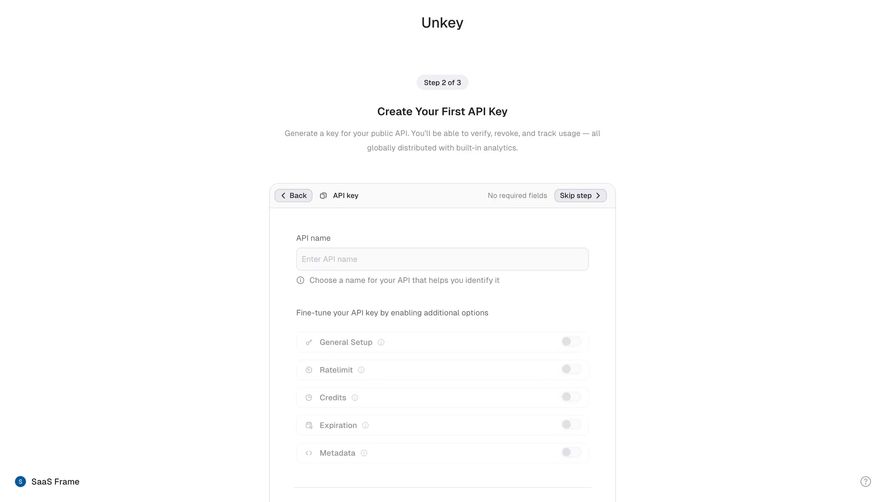
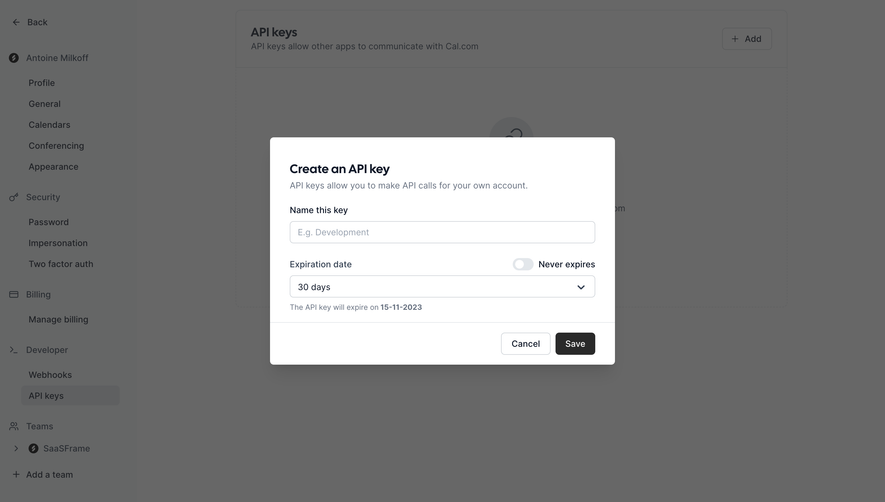
A name helps identify what depends on the key later. Suggest the integration or purpose as the naming model, such as a staging import or a reporting service, rather than encouraging a collection of indistinguishable default keys. Avoid putting sensitive values into the name.
Where permissions are configurable, describe them in terms of resources and actions. A list of technical scope strings may need supporting explanations. Make broad access visibly different from a limited role, and provide sensible starting choices according to the product’s authorization model.
Ownership and scope should also be clear. A personal key, service-account key, and workspace key can have different continuity when a teammate leaves. Identify the organization or project that will be affected before creation. The screenshots do not establish their products’ ownership models, so those behaviors should not be inferred from the page layout.
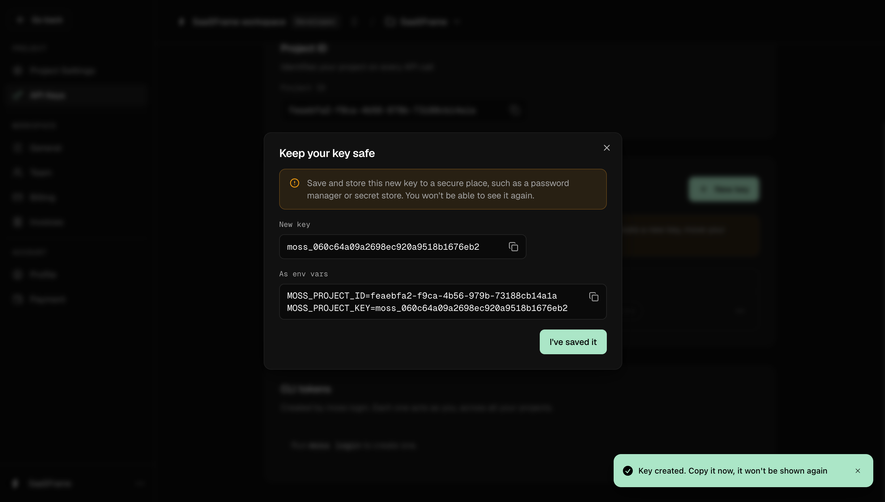
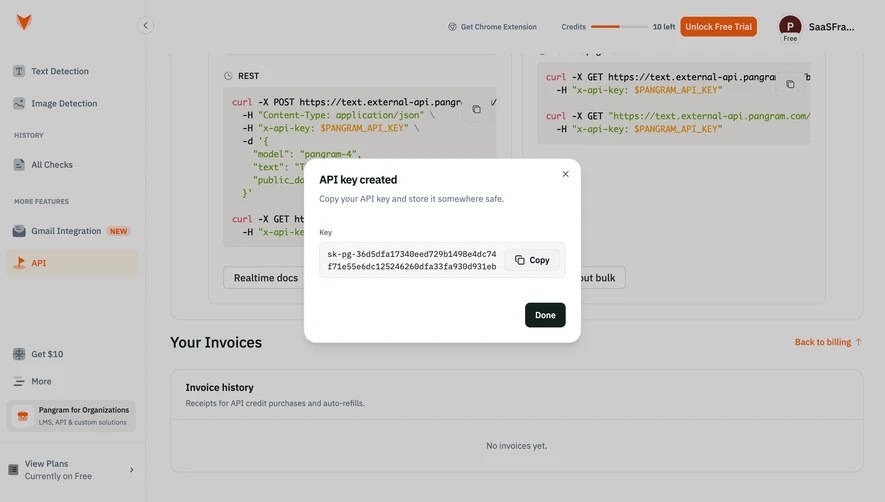
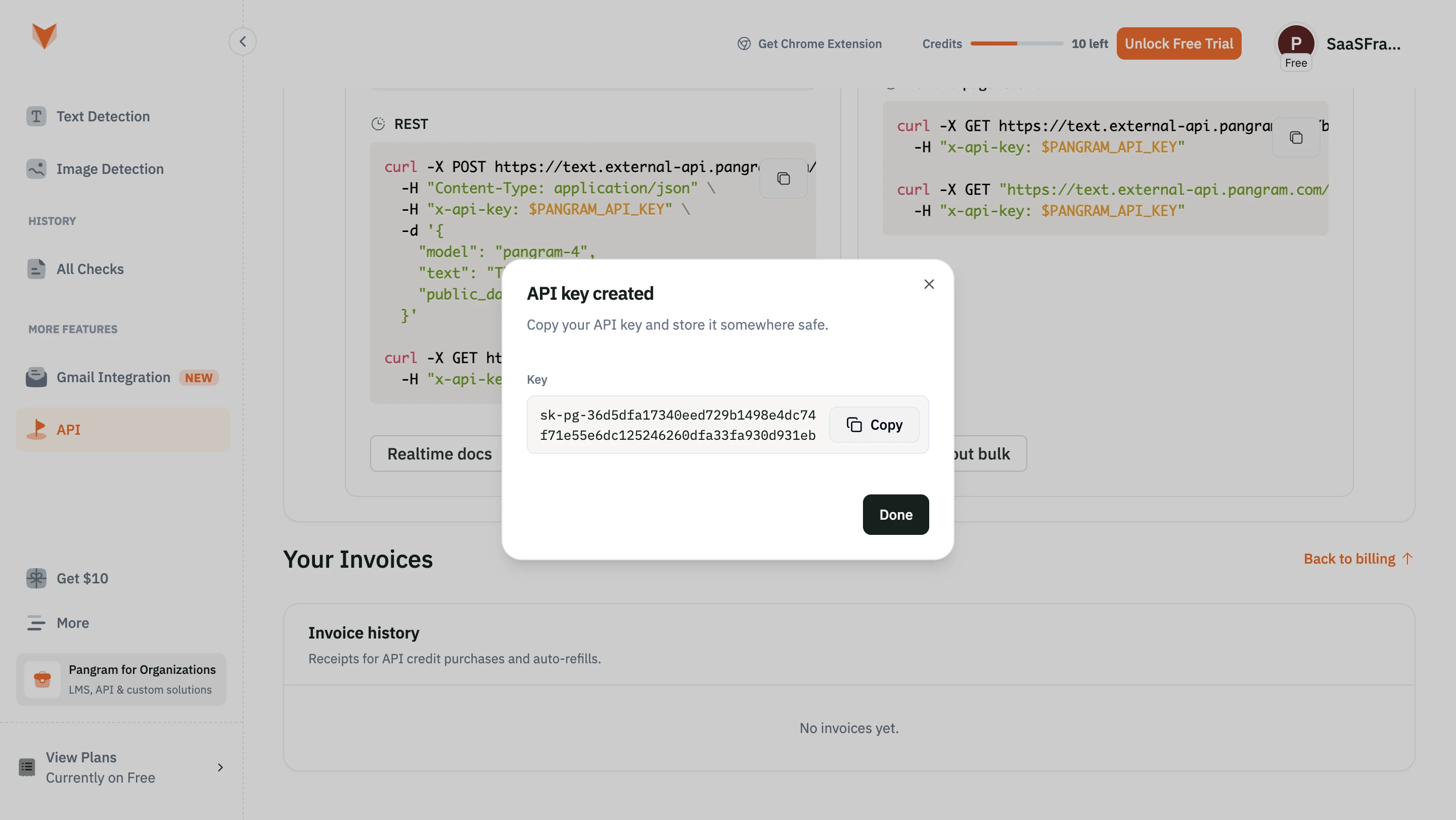
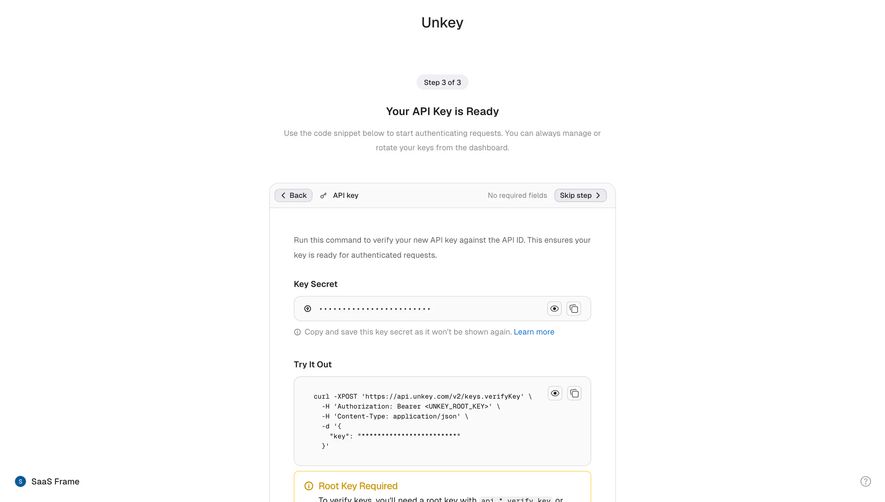
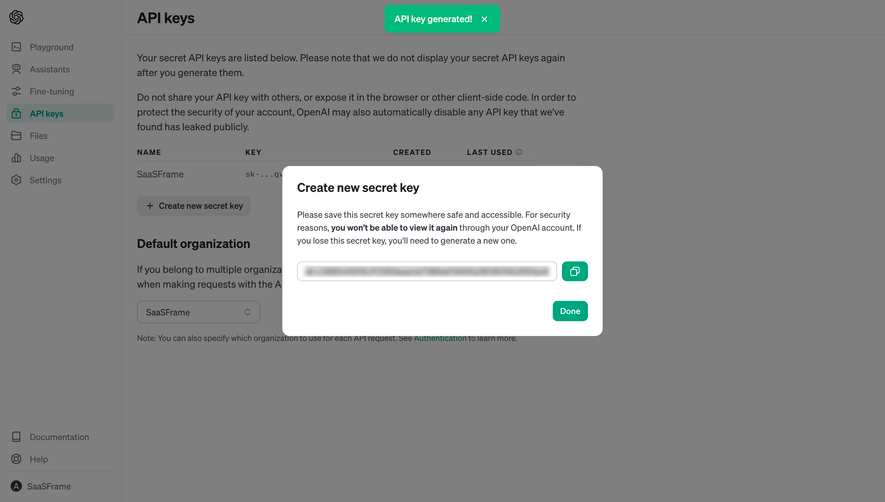
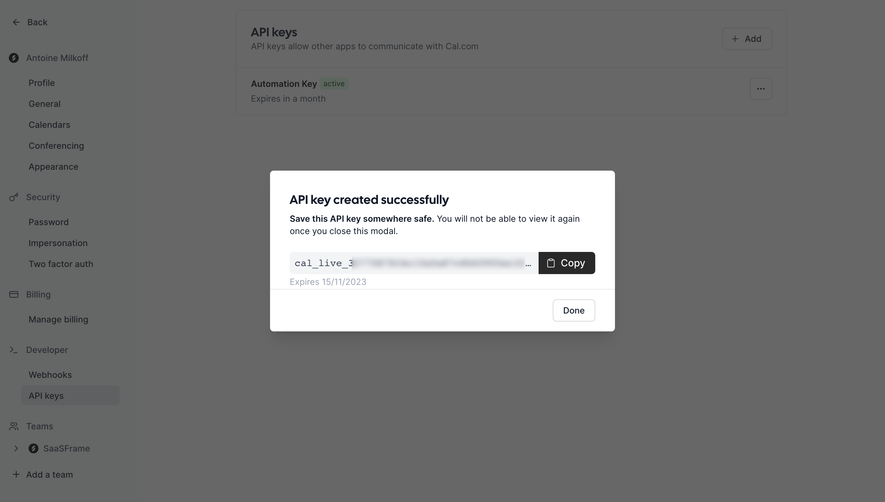
The archived OpenAI capture shows a newly generated secret in a modal. Its instructions say the value cannot be viewed again and explain that a new key is needed if it is lost. A copy control sits beside the value, with a separate action to finish.
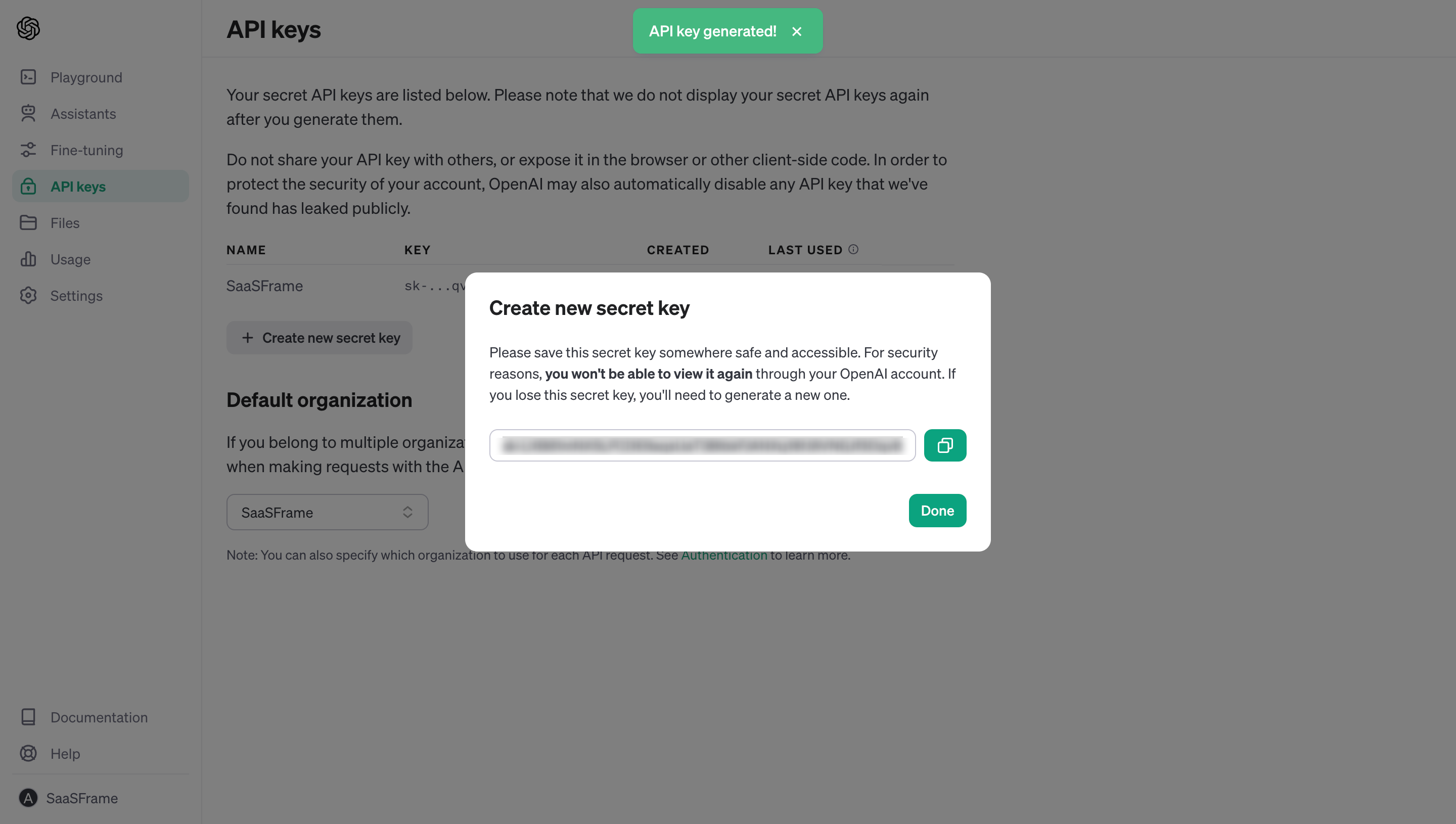
If your product uses one-time disclosure, communicate it before closing the handoff. A person should not learn the rule only after the value disappears. Keep the copy action obvious and provide perceivable confirmation that copying succeeded, without repeating the secret in the notification.
Give appropriate storage guidance near the action. Avoid encouraging the person to paste the secret into an ordinary note, shared chat, or source repository. For an implementation reference, OWASP’s secrets-management guidance covers controlled access, secure storage, rotation, and auditing. Translate the relevant decisions into concise instructions rather than putting an entire security manual in the modal.
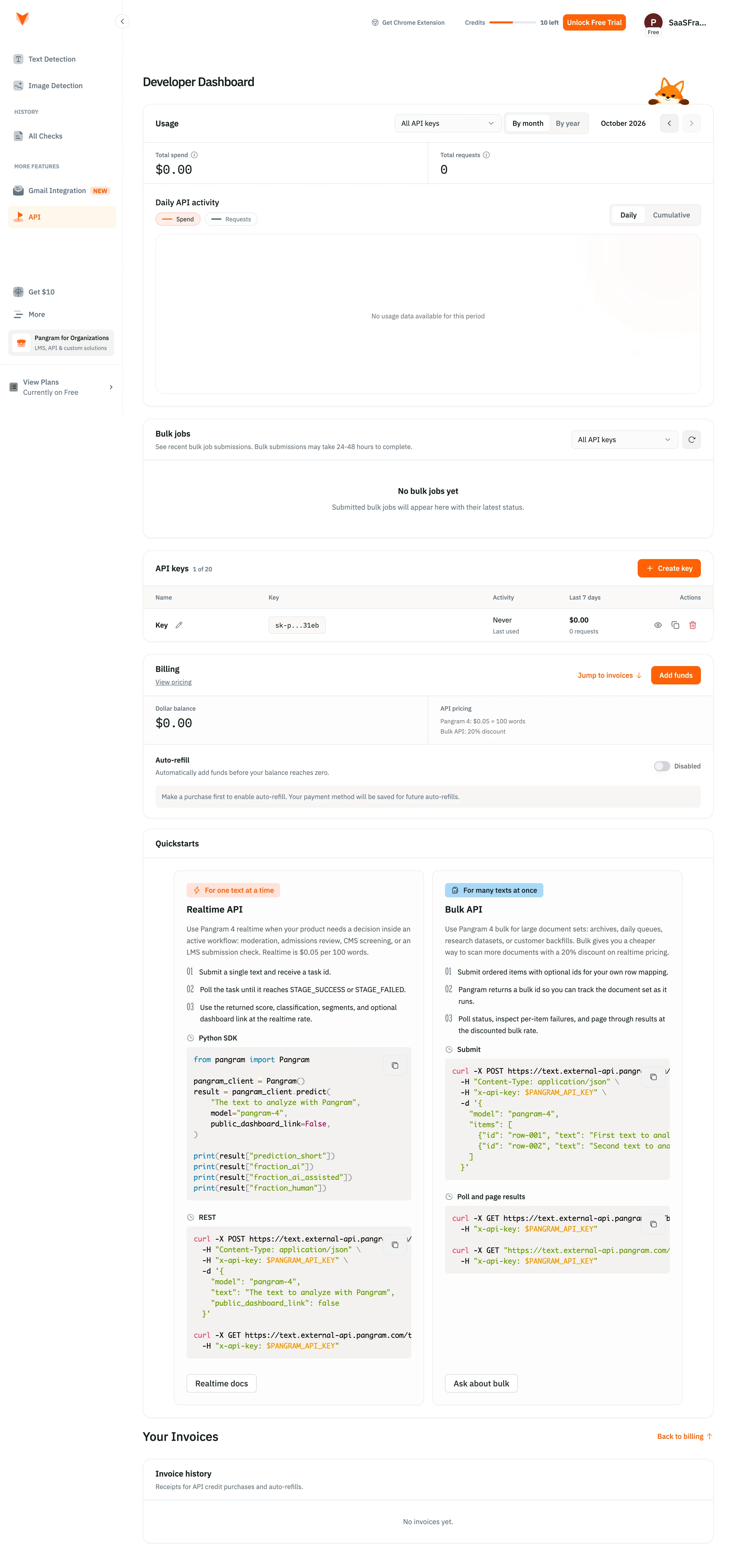
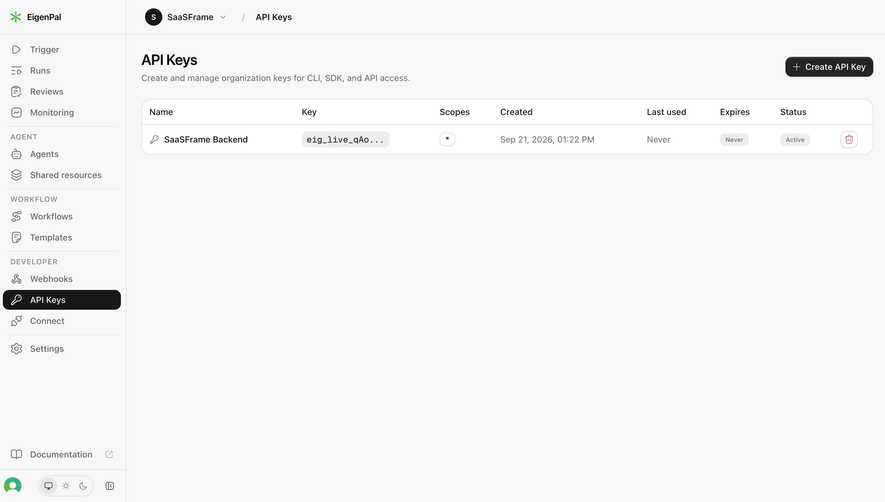
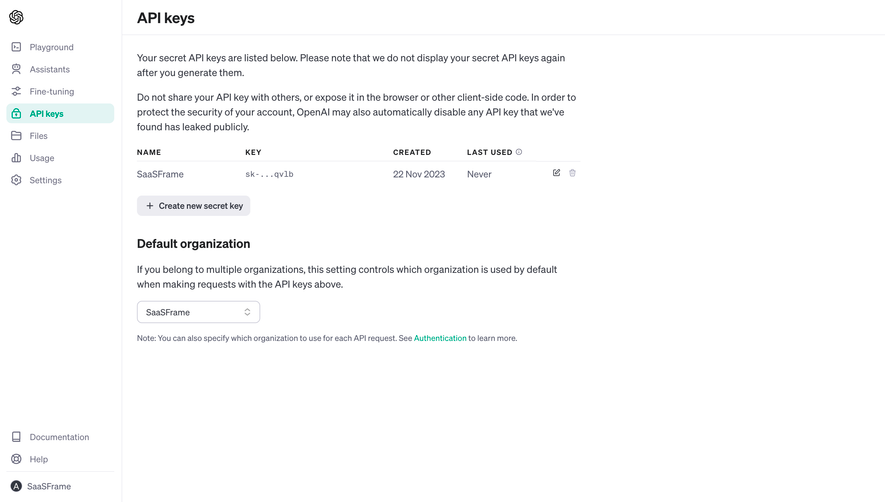
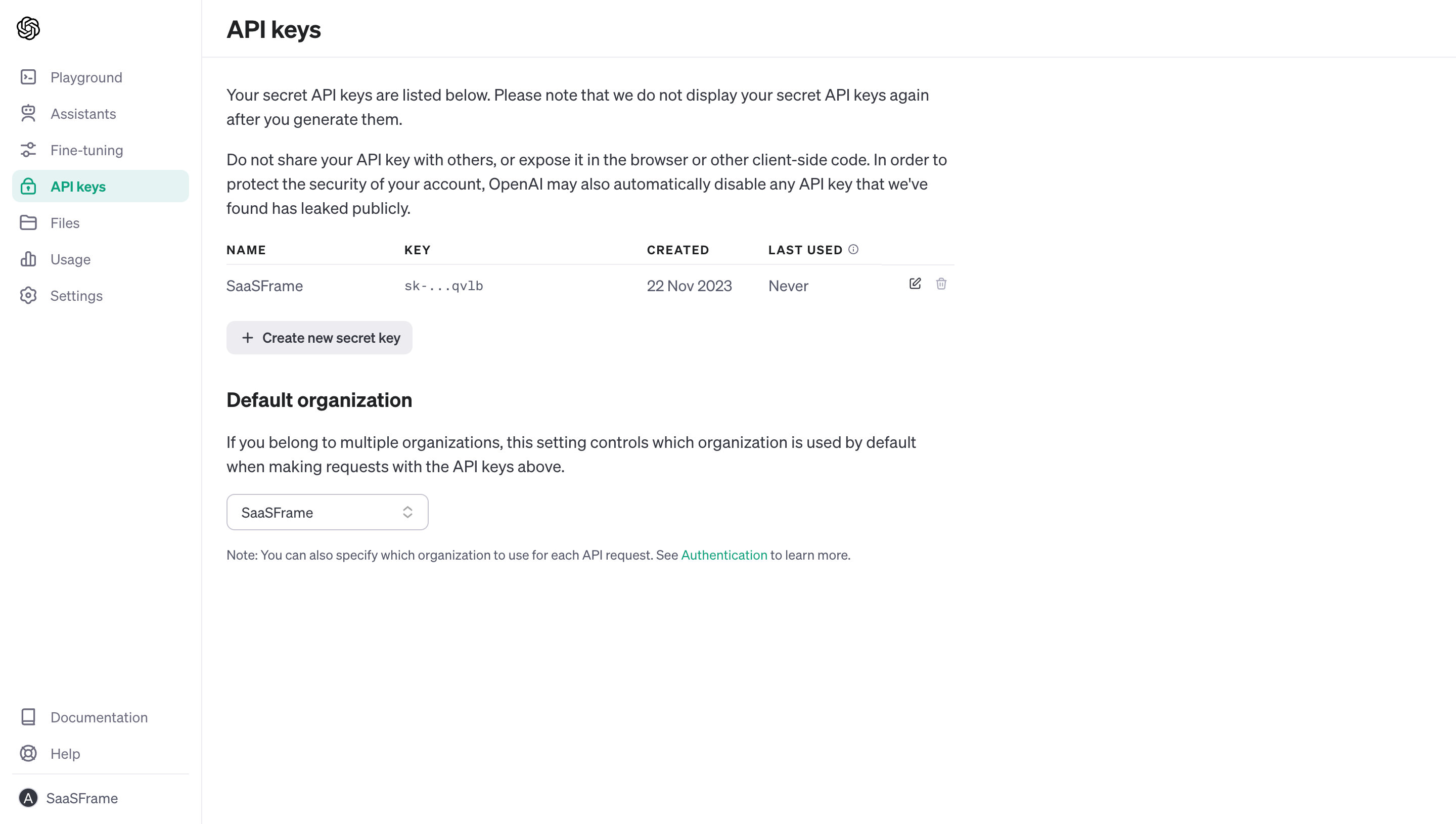
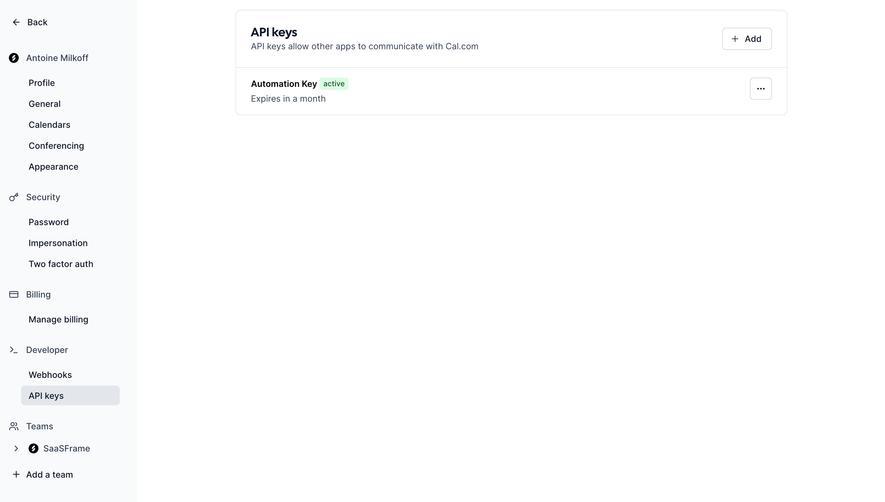
A list can show a limited prefix or suffix for recognition while keeping the full secret concealed. Pair that identifier with a name, environment, status, creation date, and available last-use information. The amount shown should follow the credential design and security policy.
FullEnrich and Cohere visibly use masking with adjacent controls, while the OpenAI capture illustrates a one-time display model. These are different disclosure decisions. Choose the behavior your system actually supports and make it clear whether reveal is possible later.
Visibility and copy controls need accessible names and predictable behavior. Do not expose the full secret in a tooltip, status message, analytics event, or screenshot-friendly success panel. The list should help people recognize a key without creating unnecessary opportunities to leak it.
“Regenerate” can mean replacing an existing credential immediately, creating a new credential alongside it, or starting a managed rotation. Those outcomes affect integrations differently. FullEnrich’s visible regenerate action raises the right review question, but the screenshot does not establish which behavior occurs.
State whether the old key stops working, whether a transition period exists, and which integrations must be updated. If uninterrupted replacement is supported, guide the person through creating the replacement, updating consumers, confirming use, and retiring the old credential. If the old key is believed compromised, the appropriate response may require immediate revocation instead.
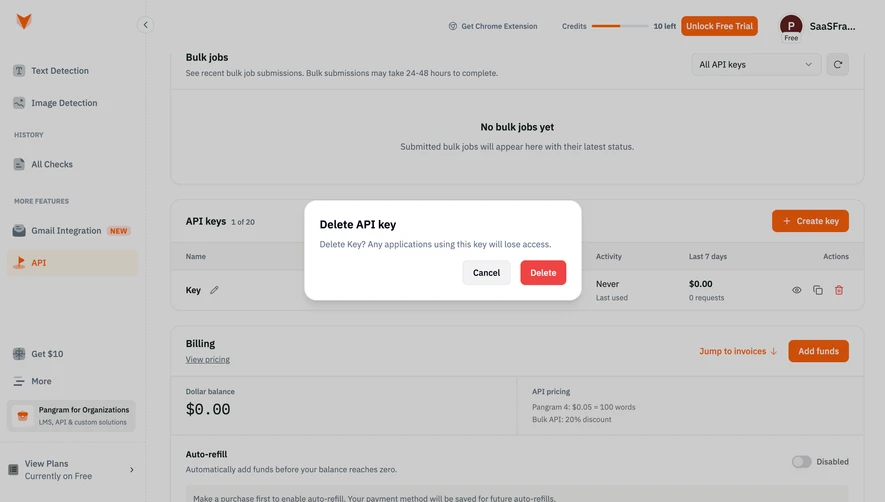
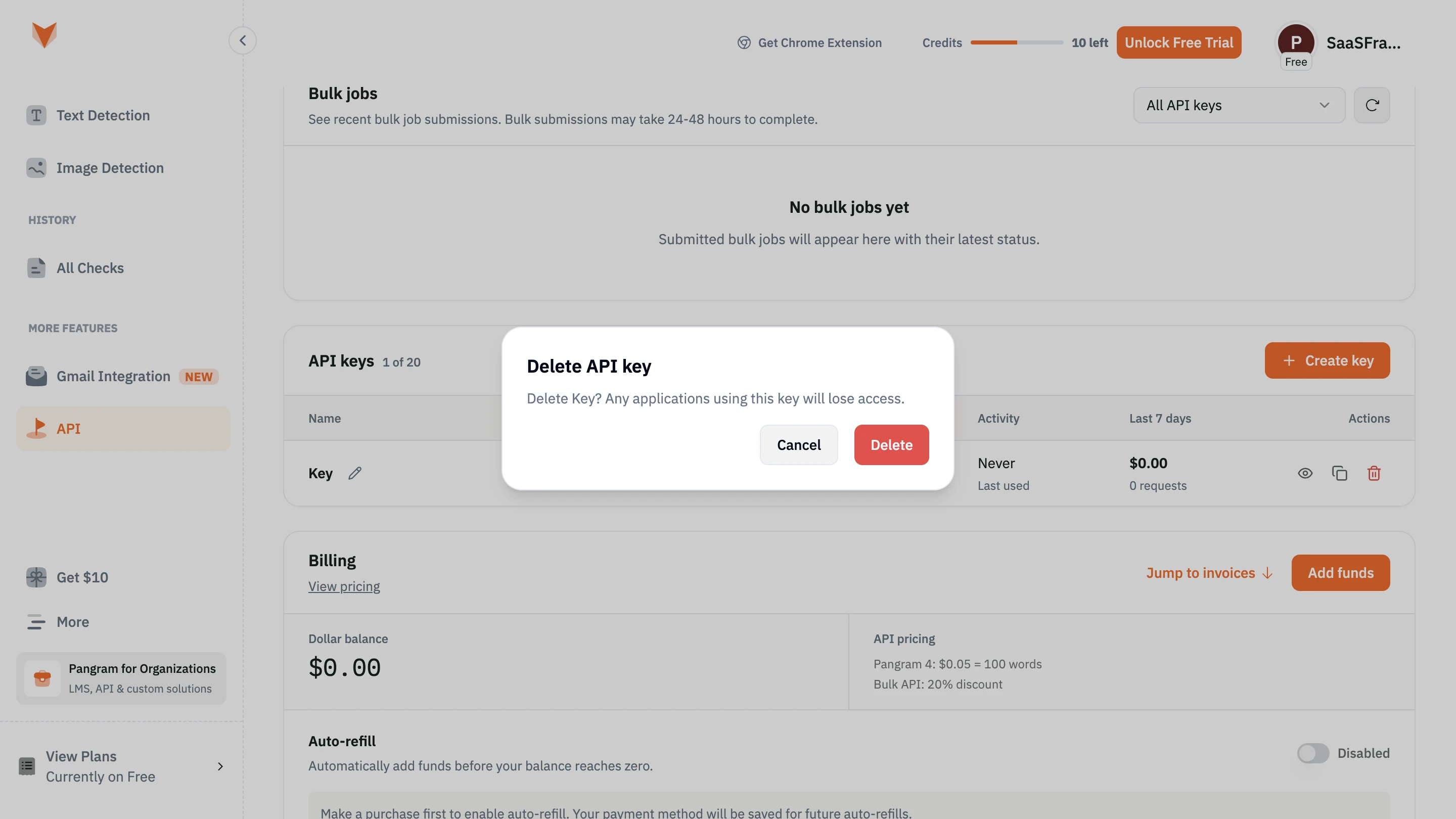
Revocation or deletion should identify the affected key and explain the operational consequence. A generic “Are you sure?” is less helpful than knowing that requests using that credential will fail. Do not claim a revoked key can be restored unless the implementation supports restoration.
Last-used data can help distinguish an active integration from a forgotten credential. Explain what the timestamp measures and whether it can be delayed. “Never used” should not automatically imply that deletion is harmless: the key may be newly issued or reserved for an infrequent workflow.
Show status separately from usage. Active, expired, revoked, and pending states answer whether the credential can authorize requests; activity answers whether it has been used. Do not collapse both into a single green dot without a label.
Administrative history can make key creation, permission changes, and revocation easier to investigate. Keep the key’s secret out of that history. The useful evidence is who performed the action, which credential was affected, and when the change occurred.
Creation can fail because of permissions or a key limit. Copy can fail because of browser clipboard restrictions. A request can fail because the key is invalid, expired, in the wrong environment, or lacks a required permission. These failures need different next steps.
If copying fails, offer the supported alternative without declaring that the integration is broken. If revocation fails, keep the credential visibly active and provide retry guidance. An optimistic disappearing row should not be the only confirmation of an action that matters to account access.
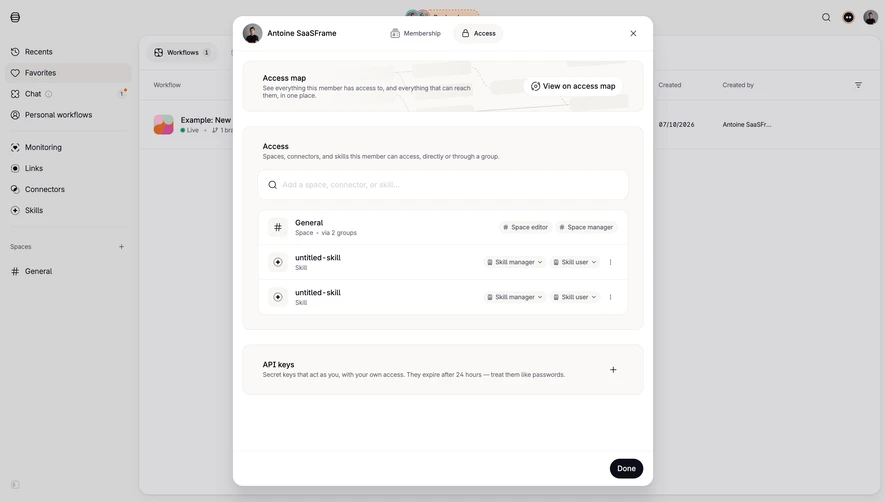
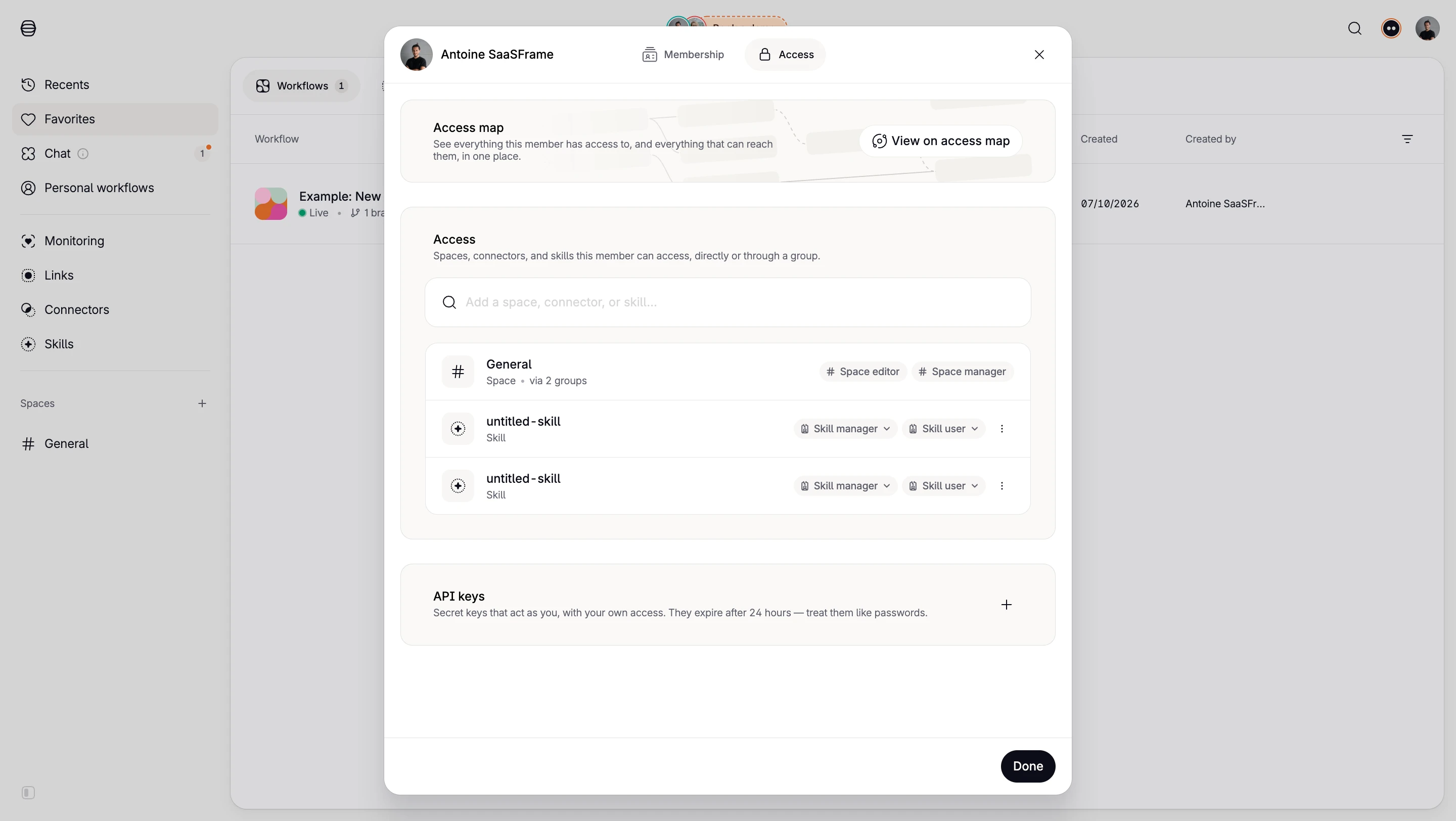
Handle narrow screens and long names without making destructive controls easy to confuse with copying. Keyboard and screen-reader users should be able to identify which row each action affects. Avoid relying on an unlabeled eye, trash, or duplicate icon alone.
That depends on the credential’s storage and disclosure model. If it is displayed only once, say so during creation and provide a clear replacement route if it is lost.
No. A regeneration action may create a replacement, while revocation ends access through the old credential. Explain whether your replacement action also revokes the original and when that happens.
No. Copying only transfers the value. Authentication, permissions, environment, and successful requests need their own validation or activity evidence.
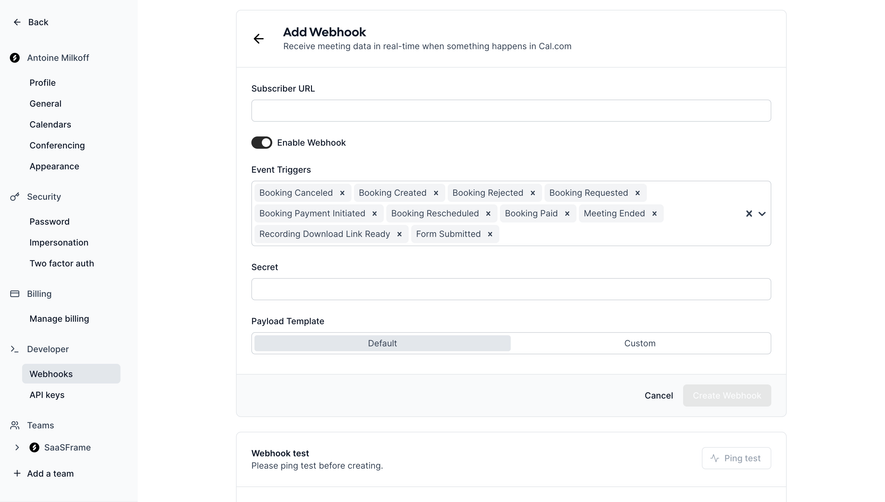
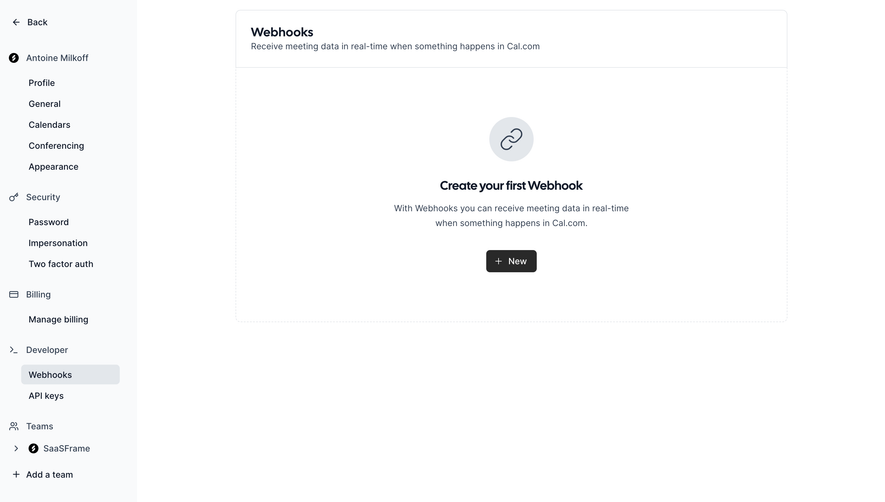
Compare Copy to Clipboard for transfer feedback, Confirmation Dialog for consequential actions, Webhooks for event delivery, and Audit Log for administrative history.
For implementation review, see Stripe’s API-key documentation and OWASP’s secrets-management guidance. Use the gallery to compare the entire credential lifecycle, not just the appearance of a masked value.