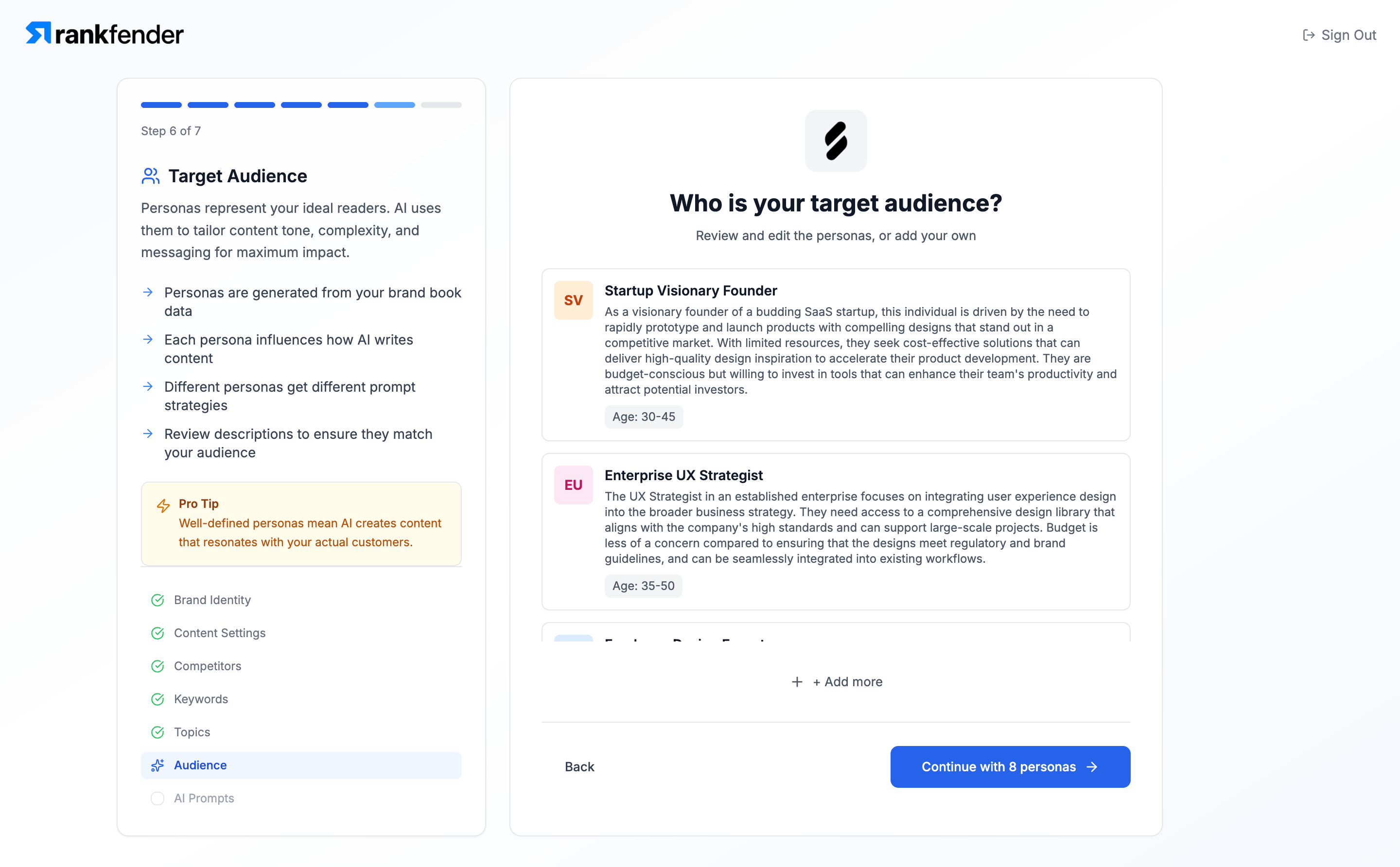
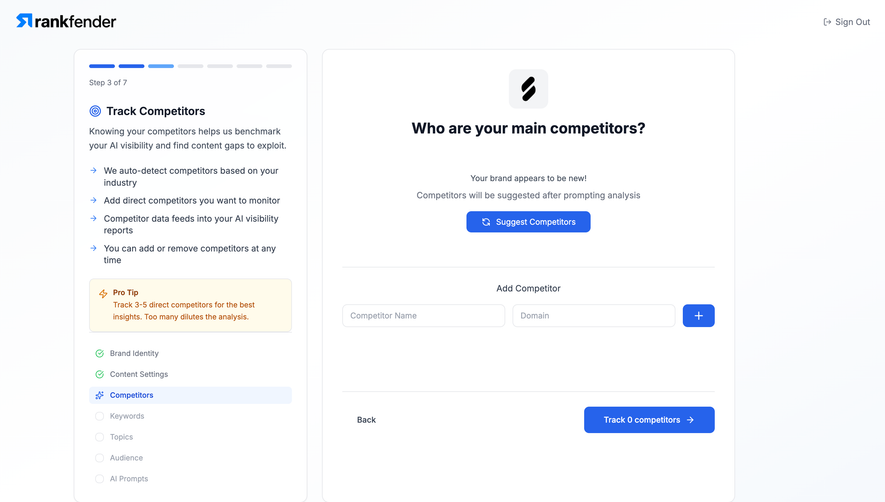
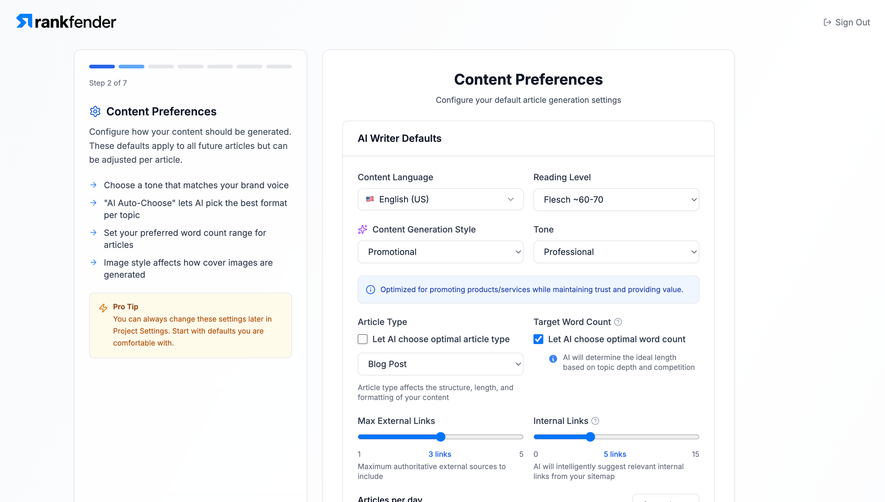
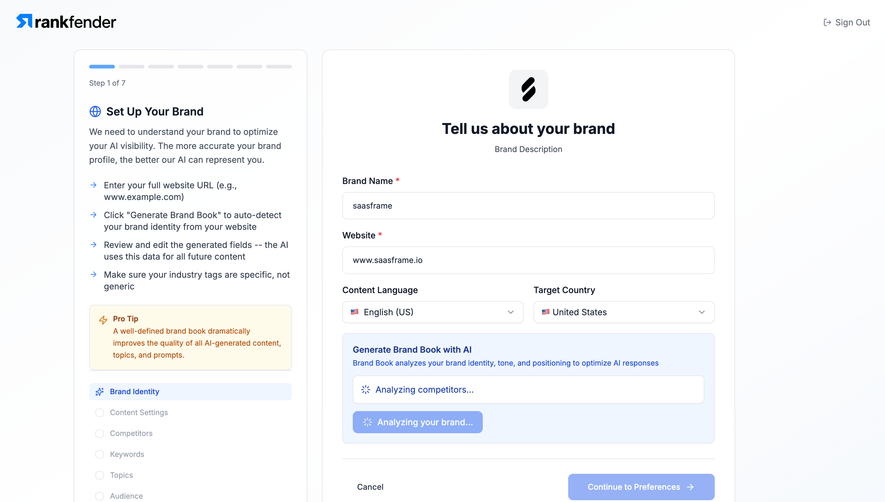
Stepper
123
A numbered or labeled sequence showing position and navigation within a multi-step process.
.webp)
A stepper is an interface element that represents the stages of a sequential task and identifies the user's current position. It can show completed, current, upcoming, optional, or blocked stages. In SaaS products, steppers commonly accompany account setup, imports, configuration, checkout, and review workflows.
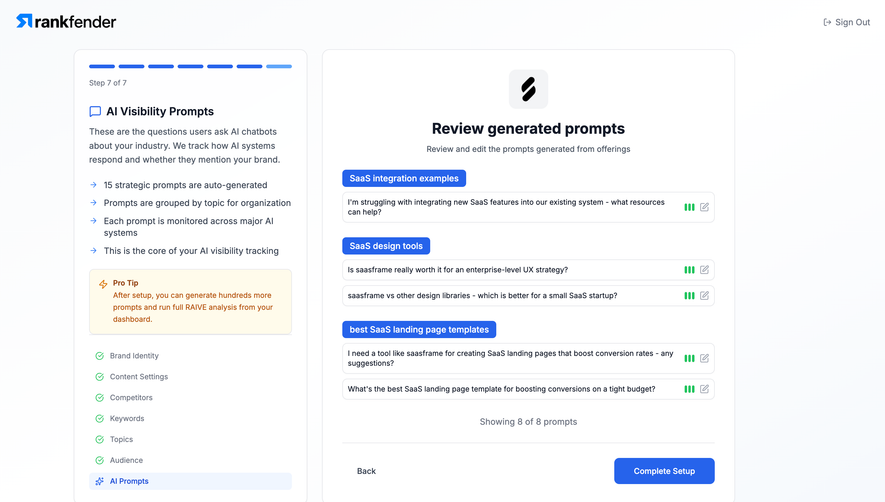
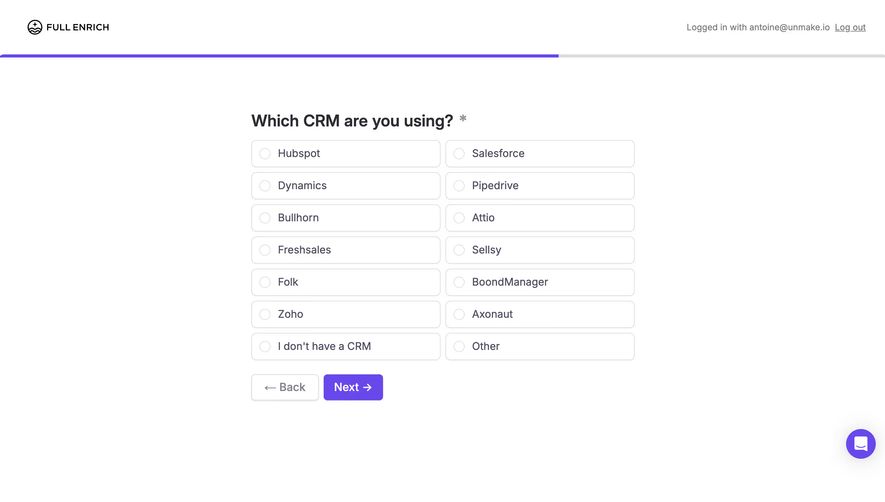
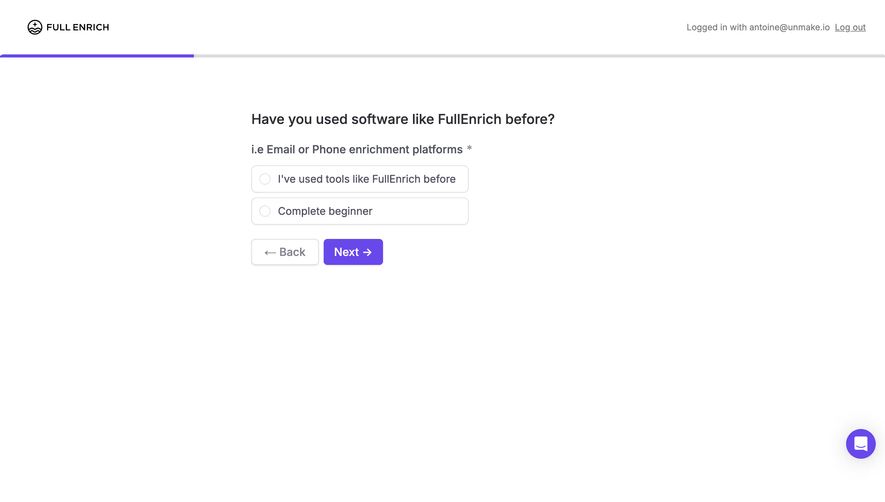
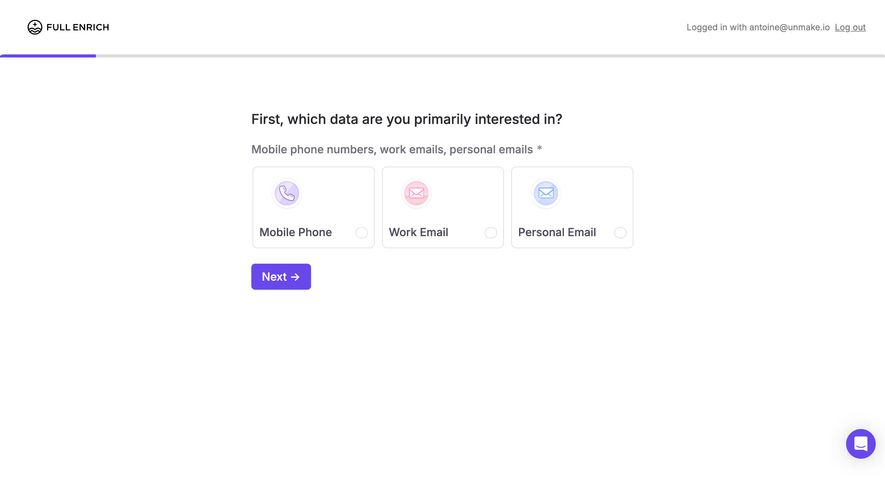
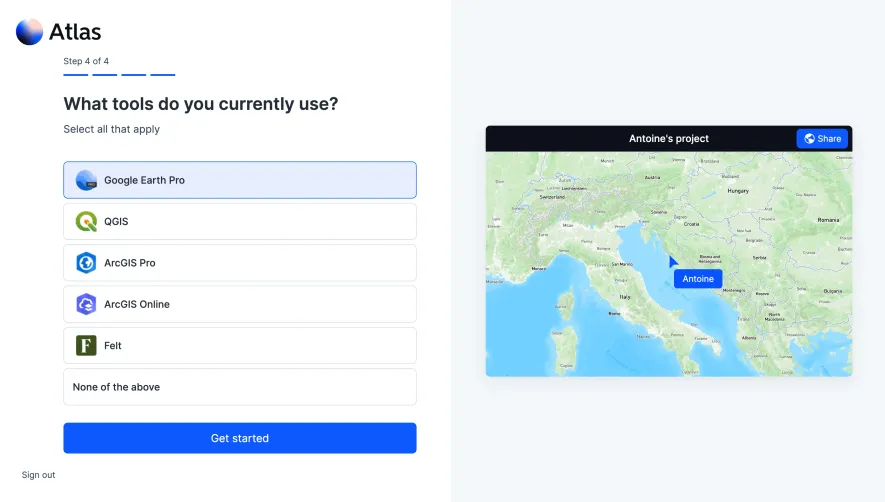
The stepper's job is orientation. It should help someone understand what has been done, what comes next, and whether they can revisit an earlier decision. It does not by itself make a long process easier or prove that work is saved. This guide analyzes a labeled account-setup stepper in Remote, a compact dot indicator in Remote's product tour, and an unlabeled progress bar in FullEnrich as a contrasting approach. These captured layouts illustrate different amounts of progress information; they do not establish current navigation or persistence behavior.
A Wizard organizes a task into successive screens. A stepper represents those stages. A progress bar summarizes advancement, often without naming the stages. An Onboarding Checklist organizes tasks that may be completed more flexibly. These patterns can coexist, but each makes a different promise.
Use a labeled stepper when the stage names help people prepare, recover their place, or understand dependencies. A compact dot indicator can suit a short explanatory tour where detailed stage labels would add little. A continuous bar may communicate overall movement, but it gives less information about what remains. Choose according to the decisions users need to make, not simply the available space.
Also distinguish step position from real effort. Being on the fourth stage does not mean most of the work is complete if that stage contains a long form. A step count describes the structure of the journey; a time estimate describes expected effort; a completion status describes validated work. Avoid treating them as interchangeable.
The captured Remote Complete Company Details screen places a vertical stepper in a blue left panel. Sign up, Basic Information, and Confirm email have checkmarks. Company details is shown as the current fourth stage with a numbered circle. The main content contains a company-information form and a Finish account setup button near the bottom. A Go back control appears above the form.

The labels explain why the user is now completing a company form rather than another personal-profile question. The earlier email-confirmation stage is visible as a separate prerequisite. That provides more orientation than an anonymous percentage would. The stage map also makes the last stage visible, while the final action describes completion rather than another generic continuation.
The screenshot's long form is an important counterpoint. Three checkmarks do not establish that the remaining work is short. The company-details stage asks for several kinds of information, including address and billing-related details. When designing a similar journey, review whether a stage is a coherent decision group or merely a large bucket of fields. If its effort is substantial, provide preparation guidance rather than relying on the stepper to imply that the user is nearly finished.
The capture shows a Go back control, but it does not prove that stage labels are clickable or that earlier values persist. A design team must define those behaviors explicitly. A checkmarked label can look like a return link even when it is only a status marker, so visual treatment should match the intended interaction.
A separate Remote employee-onboarding capture shows a modal explaining the document library. Four small dots appear beneath the text, with the third dot highlighted. Skip and Next sit in the footer. Another capture of the same tour highlights the fourth dot, presents an invitation to explore, and offers Go to personal details as the next destination.

This is a compact positional indicator rather than the same kind of labeled task stepper used for account setup. It communicates how many tour screens exist and which one is selected. The content is explanatory, and a Skip control is visible. That makes it a useful reference for a short introduction, where detailed stage names may be unnecessary.
Do not mistake viewing a tour screen for completing the activity it describes. Seeing information about a document library does not prove that a user uploaded a document. If your product needs actual task completion, represent that separately. For tour design, see Product Tour; for sequential task navigation, focus on the states and return paths of the stepper itself.
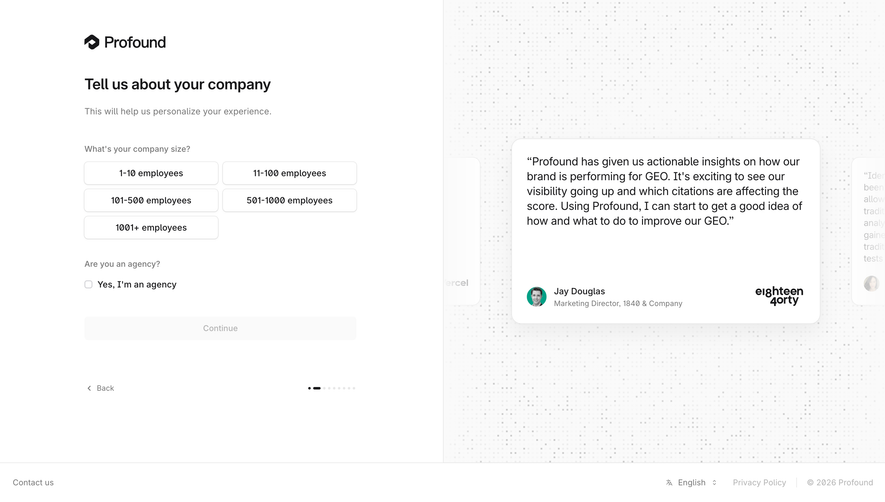
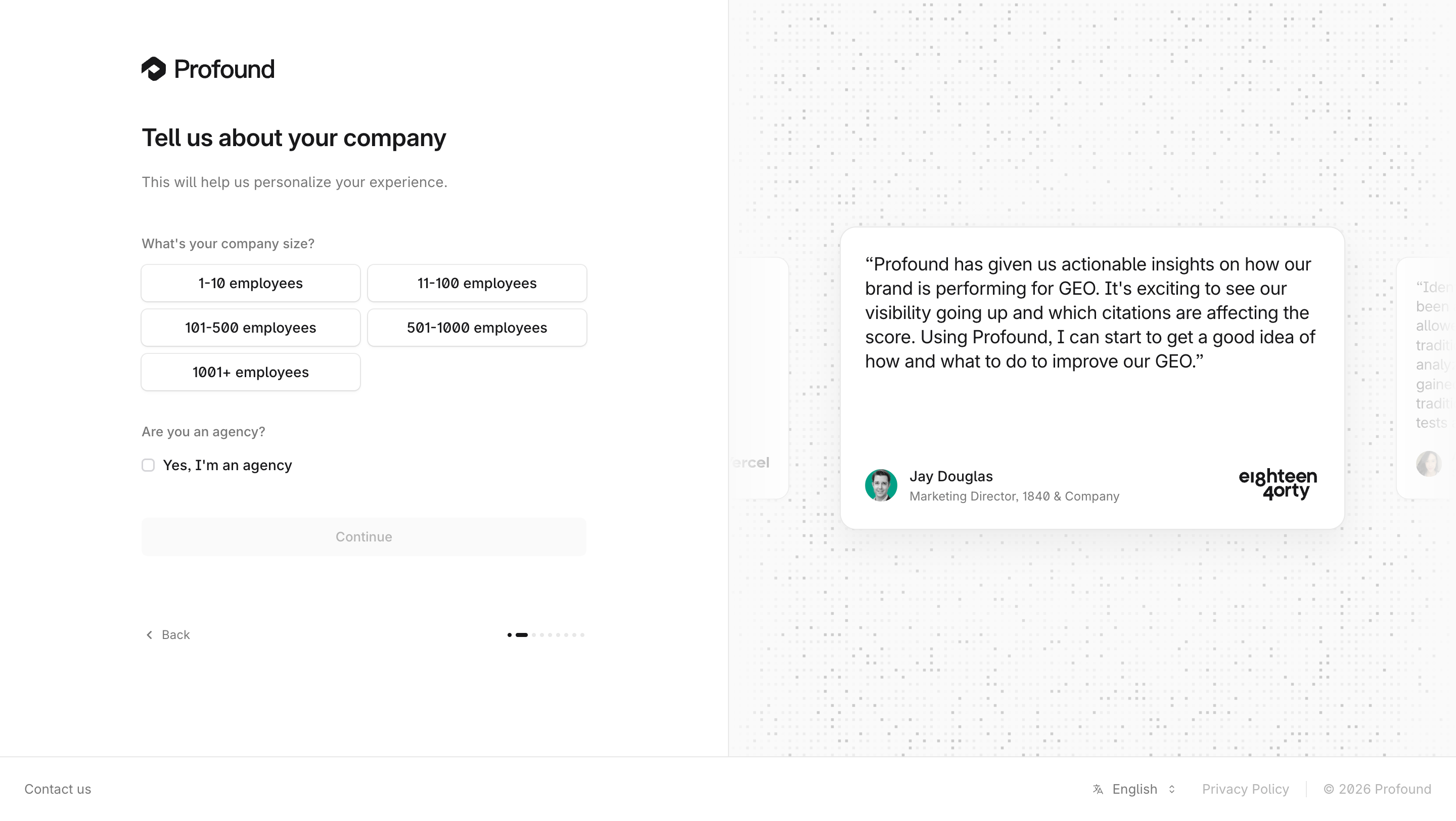
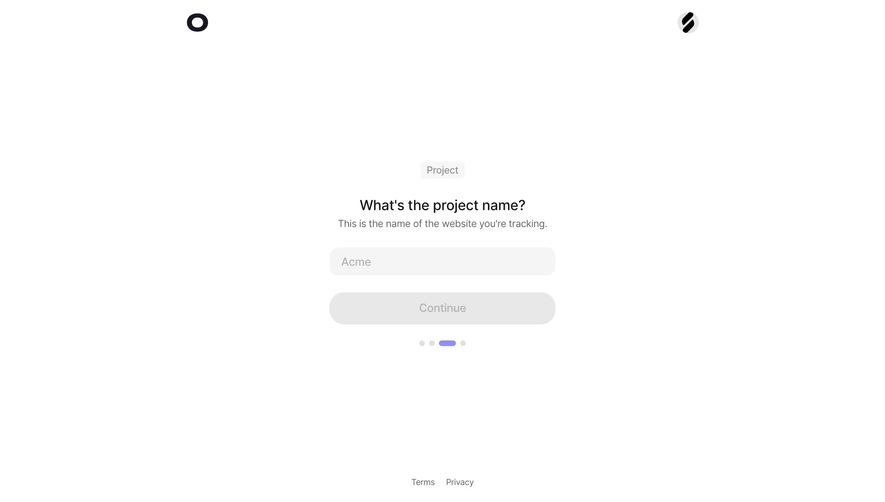
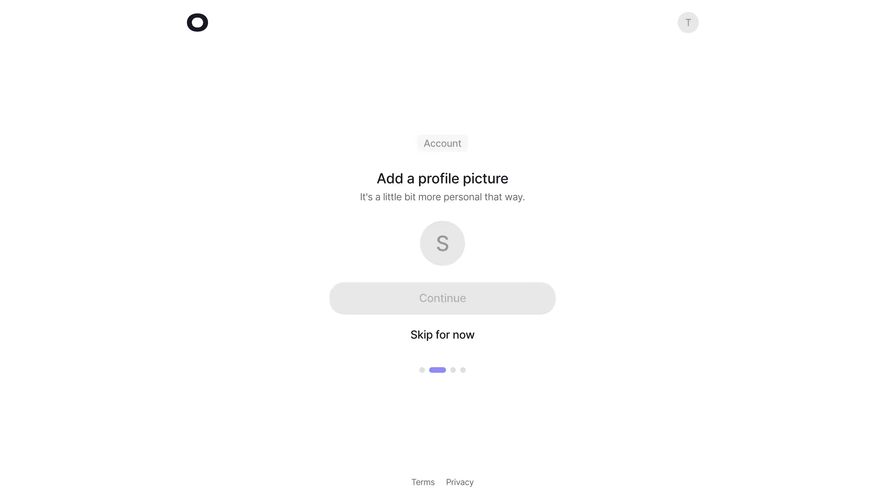
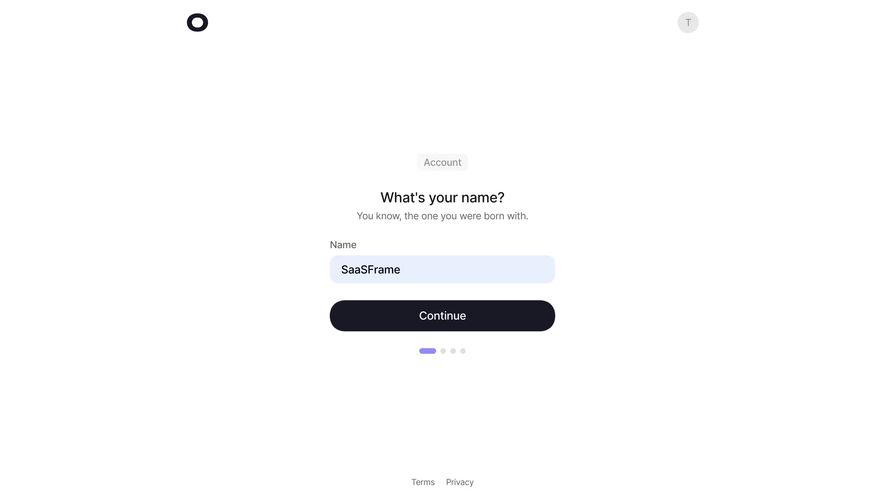
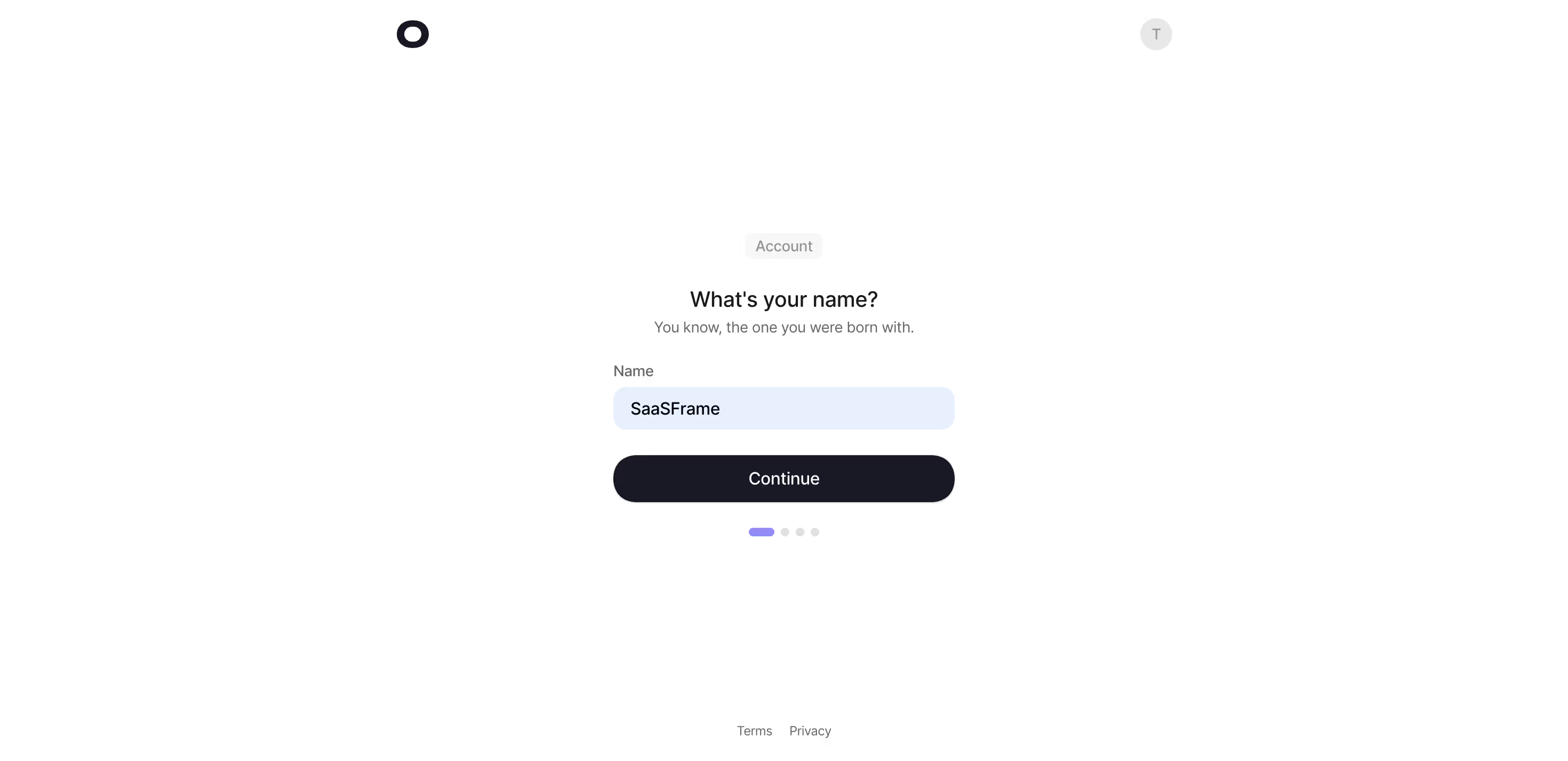
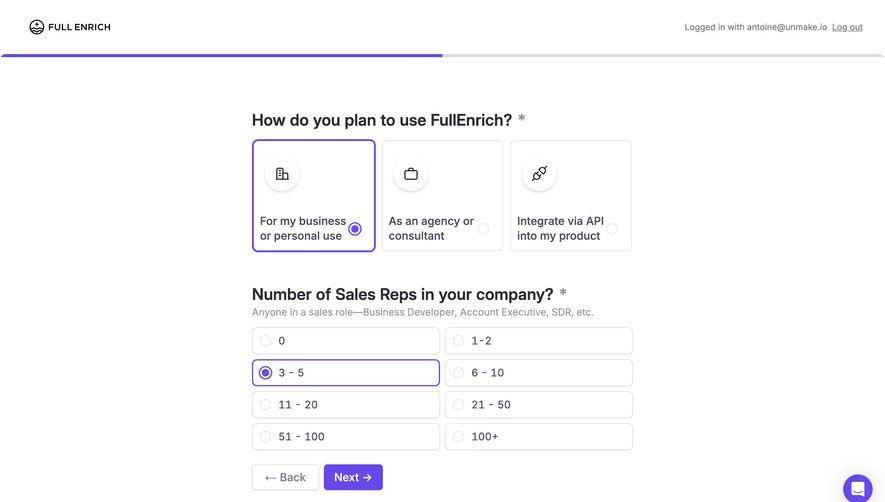
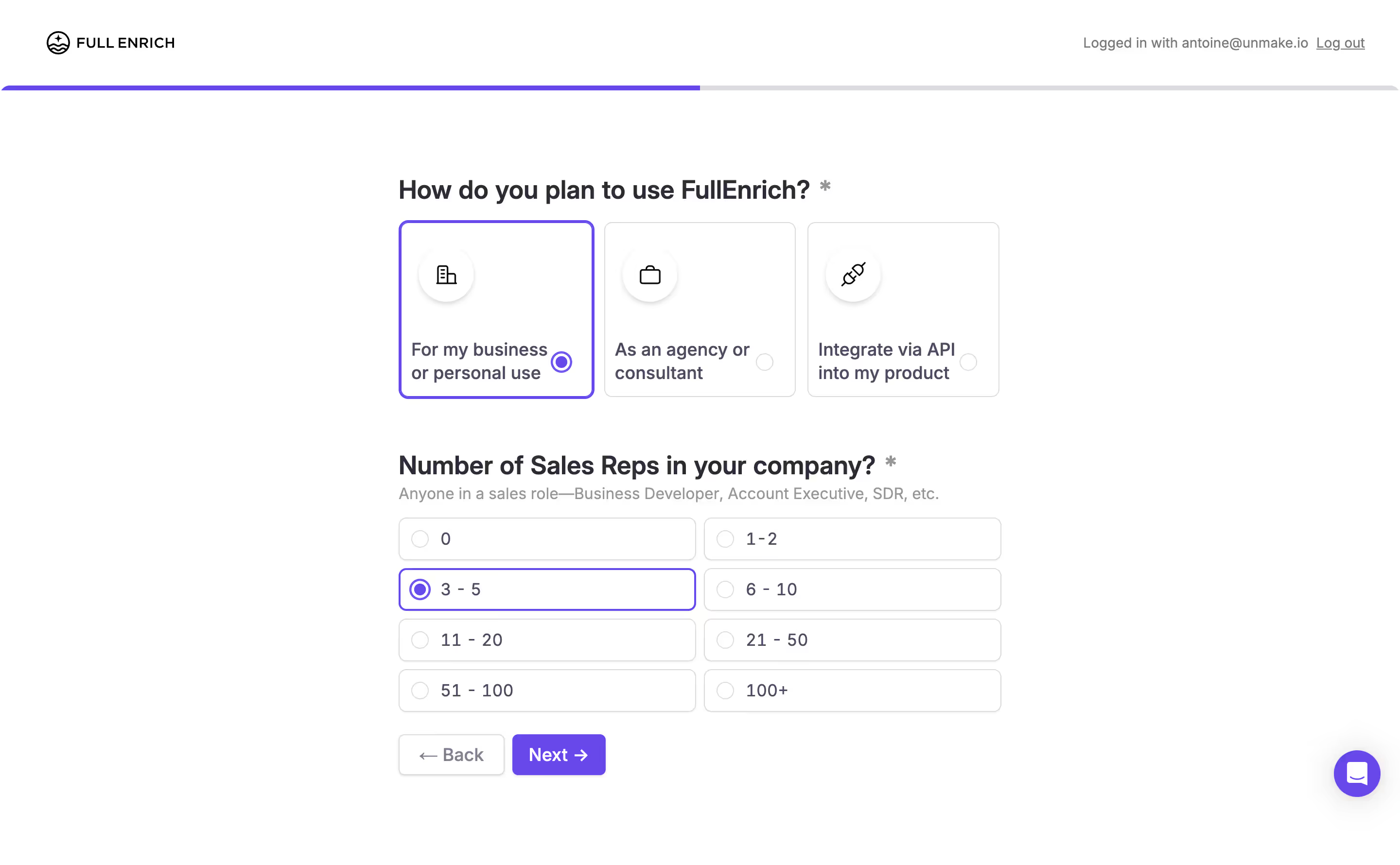
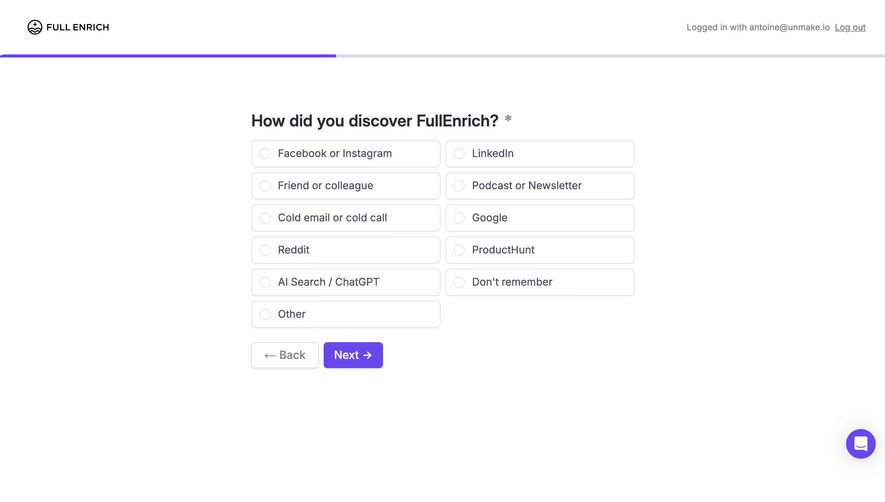
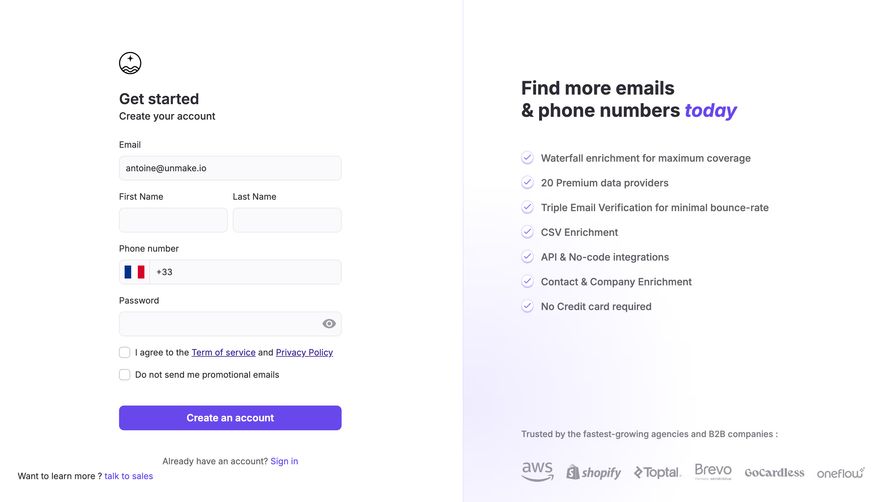
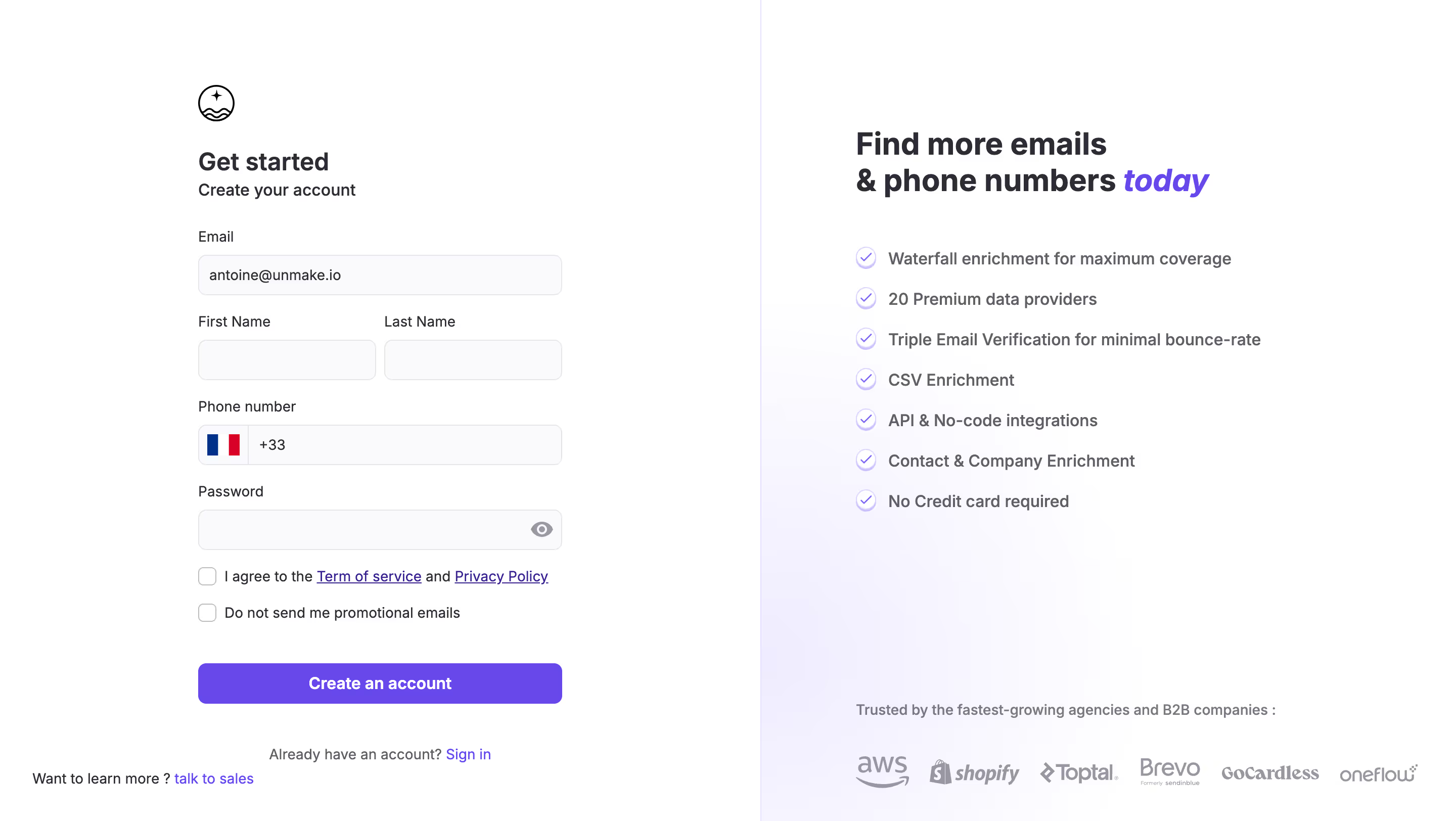
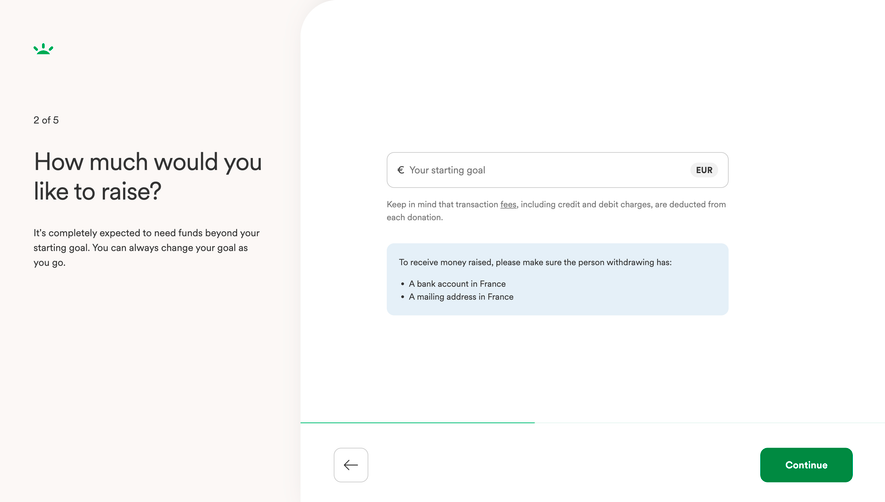
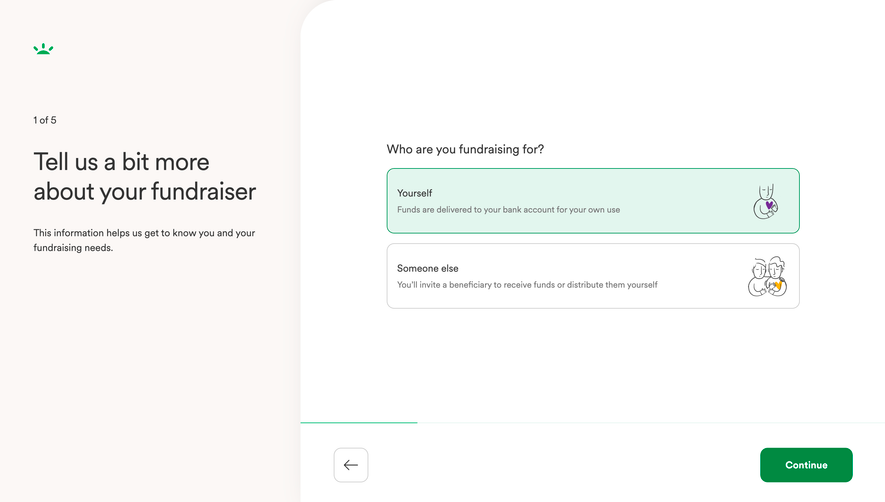
The captured FullEnrich onboarding question asks which CRM the user uses. A purple segment spans part of a thin horizontal track above the question, and Back and Next controls appear below the choices. Another capture asking how the user discovered FullEnrich has a shorter purple segment. Neither capture names the stages or displays an explicit step count.
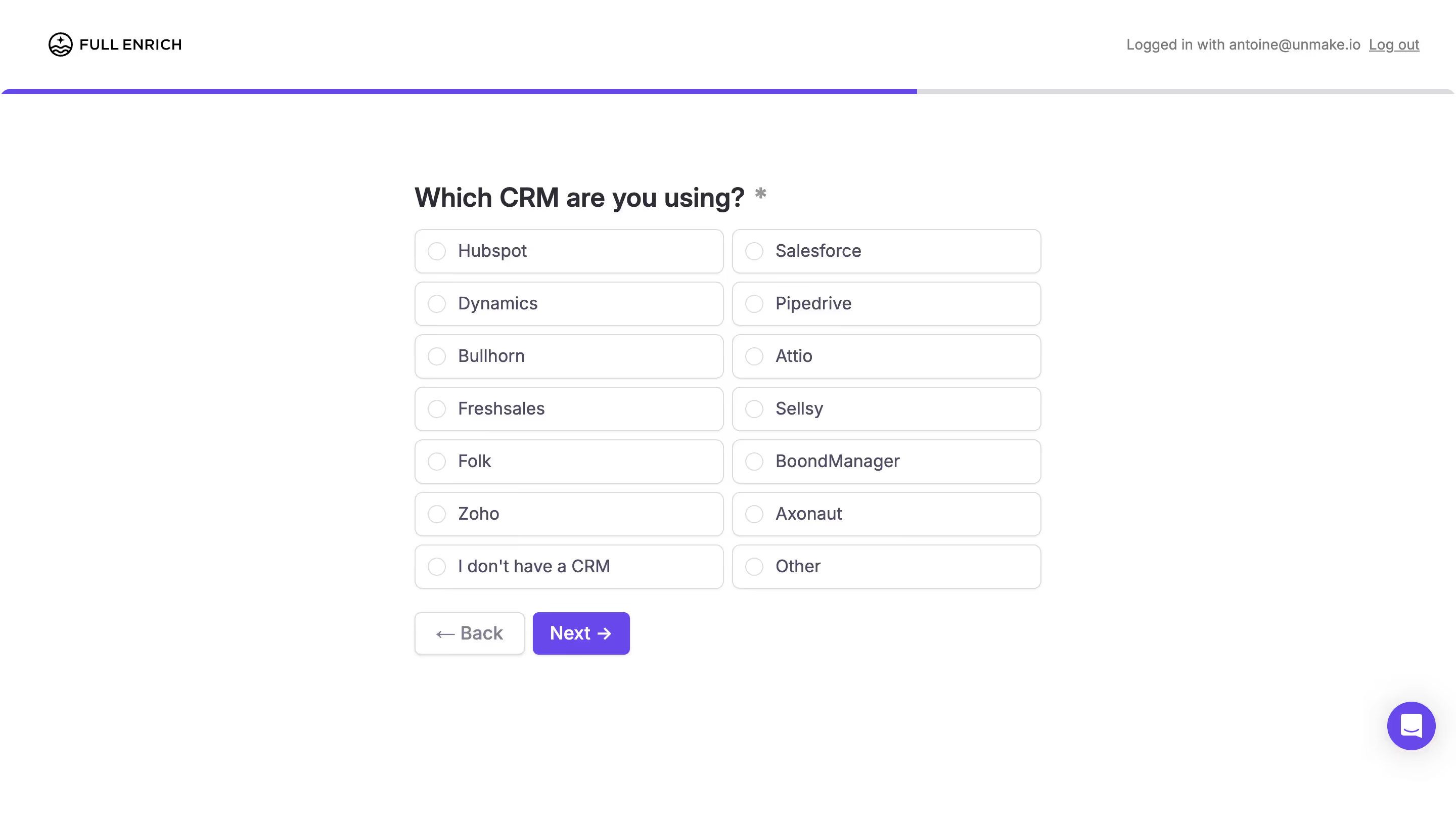
This contrast helps clarify the information cost of compactness. The bar communicates that the journey has advanced, while the current heading carries the meaning of the screen. A labeled stepper could add information about upcoming questions, but it would also consume more space and might overcomplicate a lightweight questionnaire.
The visible fill does not establish an exact percentage, denominator, or estimate of remaining time. Do not infer those properties from its length. If your product shows a numerical percentage, define what it measures and ensure it remains meaningful when optional or conditional stages appear.
Stage labels should summarize a coherent group of decisions or actions. Account, Data source, Mapping, and Review are more informative than Step one through Step four. Use familiar language and align each label with the heading on its screen. A mismatch forces users to infer whether they are in the right place.
Avoid labels that promise a broader outcome than the stage delivers. Connect data may imply a working connection, while a screen that only collects credentials has not established that outcome. If validation happens later, communicate that distinction. Likewise, a review stage should provide an actual summary and route to corrections rather than repeat the final form.
Test labels with users who have not seen the journey. Can they predict what information will be needed? Can they distinguish setup from verification? If every label needs a tooltip to make sense, revise the stages or wording before polishing the indicator.
A stepper needs more than inactive and active colors. Current identifies the screen being worked on. Complete should reflect a defined condition. Upcoming means not yet reached. Optional describes a requirement level, while skipped records a choice to move past a stage. Blocked indicates that a dependency prevents progress.
These states can overlap. A user can revisit a completed stage, making it both current and previously complete. An optional stage can be upcoming or skipped. Design the visual and textual treatment so users understand the combination rather than forcing every stage into one misleading icon.
Decide when completion is recorded. A click on Next may be insufficient if the server rejects the data or a background check is pending. Represent submitted, validating, and complete states according to actual behavior. A checkmark should not tell users that a dependency succeeded when it is still unresolved.
For an error, identify where correction is needed. Marking a stage as requiring attention can help users locate the problem, but the corresponding screen still needs specific field or task feedback. Do not make someone search a long form solely because the stepper turned red.
Returning to earlier work should preserve entered values where possible. If changes invalidate later stages, explain the consequence before silently discarding them. For example, choosing a different data source may require new mapping; changing a cosmetic label usually should not reset the entire journey.
Specify which stages are reachable directly. Completed stages may support revision, while future stages may remain unavailable until a dependency is satisfied. If stage markers are interactive, make that clear and provide accessible controls. If they are only descriptive, avoid styling them like links.
Conditional journeys need an honest map. A selected account type or import method may introduce different stages. Update labels and counts according to the applicable path, and make any change understandable. Avoid showing an apparently fixed denominator that expands unexpectedly after the user has nearly reached the end.
For long processes, consider stable high-level stages with detailed tasks inside them. That can preserve orientation across branches, but the label must still describe the work accurately. Explain significant extra requirements at the point they become relevant rather than hiding them behind a broad stage name.
A final screen can be a review, a submission, or a completed result. Give its action a name that fits the consequence: submit, create, import, or finish setup when appropriate. A generic Next at the end does not tell the user whether another stage follows or whether a persistent change will occur.
After submission, distinguish processing from success. An import may be accepted but still running; a configuration may be stored but not active. The stepper can show the stage being processed, while a result state explains the outcome. Do not fill every marker with a check simply because the last button was pressed.
Provide a useful handoff after completion. Identify the created resource or next task and preserve a route to inspect or revise the result. Remote's final tour capture offers a named destination, but viewing that tour does not establish that account setup or personal details are complete. Keep those outcomes separate in the product's state model.
For a journey users may leave, define what is saved and where they resume. A progress indicator should reflect persisted work when the user returns, rather than reconstructing an optimistic position from the last visible screen. If unsaved edits remain local, communicate that limitation.
Expose the sequence and current stage to assistive technology, and make meaningful state differences available beyond color. W3C's multi-page form guidance provides a reference for dividing longer forms and communicating progress. Keyboard users need a logical route through any interactive stage controls and into the current task.
On a narrow screen, a vertical stage map may become a compact current-stage summary or an expandable list. Preserve the stage name and position even when every label cannot remain visible. Test long translated labels, large text, and errors. A smaller presentation should not obscure which stages are complete or which can be revisited.
The screenshots do not establish saved drafts, keyboard behavior, or mobile layouts. Treat those as implementation checks. A visually clear stepper can still fail if focus lands unpredictably after navigation or if a returning user loses their entered information.
Test a straightforward completion, a validation error, an optional skip, a change to an earlier decision, and a return after leaving the process. Ask users to explain what remains and whether their work is saved. Those answers reveal whether the stage map supports orientation or merely adds decorative markers.
A stepper identifies discrete stages and their states. A progress bar summarizes advancement along a track and may not name stages. Remote's account setup provides stage labels; FullEnrich's captured questionnaire uses an unlabeled bar. Choose the information level users need.
Enable revisiting when it supports correction and the workflow can preserve consistent data. Explain any effects on later stages. If step markers are not interactive, use a separate backward control and avoid suggesting that labels are clickable.
It means the user has reached the last defined stage, not that little effort remains. Remote's company-details capture is the fourth stage but contains a substantial form. Communicate preparation needs or expected work separately when that distinction matters.
Identify their requirement level and distinguish skipping from successful completion. Keep the applicable path understandable, particularly when skipping changes what follows. A skipped stage should not receive the same success marker as validated required work unless its meaning is explicitly defined.
Dots can indicate position in a short tour, as Remote's product introduction illustrates. They provide less meaning than named stages and should not imply completed business tasks. Use labels when users need to prepare, revisit decisions, or understand dependencies.
Use the SaaSFrame captures to compare how much orientation each indicator provides. Then define the states behind the markers: reliable progress depends on completion rules, preserved work, and predictable navigation as much as on the visible sequence.