Rich Text Editor
24
A content editor with formatting controls for structured or styled text.
.webp)
A rich text editor lets users compose structured content with formatting such as headings, emphasis, lists, links, and embedded media. In SaaS products, it can be a small field inside a larger form or a full document workspace. Its purpose is to help people express meaning and produce usable content without requiring them to write markup.
The difficult decisions concern the relationship between the document, the current selection, and the controls that change it. Users need to know whether an action affects a word, a paragraph, a block, or the entire document. They also need confidence that their work is saved and that publishing is a separate, understandable step. This guide analyzes captured interfaces from Profound, Hygraph, and Intercom. The screenshots establish visible controls and content states; they do not demonstrate every editing interaction or prove current product capabilities.
Begin with what the content must represent. A short description may need links and emphasis but no arbitrary layouts. A knowledge-base article may need headings, nested lists, screenshots, and code. A collaborative report may combine text with structured charts. Adding every possible formatting option creates complexity without necessarily helping users produce better content.
Separate inline formatting from document structure. Bold and italic affect selected text; a heading defines a block's role; an image introduces a distinct content element. The interface should help users understand these differences, especially when a selection crosses several blocks. A heading is more than a larger font size, and a bulleted list is more than typed bullet characters.
Define the output requirements as well. Content may appear in a website, email, help center, or export. Not every destination supports the same layouts or embeds. An editor should either constrain the available structure or explain how unsupported content will be handled. A convincing editing canvas is not sufficient if the saved or published result changes unexpectedly.
The Profound Content Brief capture shows a document in the center, a workflow panel on the right, and a floating formatting toolbar near the bottom of the document area. The toolbar includes emphasis, heading levels, lists, code, quotation, and alignment controls. Small labels beside the document identify visible block types such as h1, h2, p, ul, and li. In the upper area, Document saved appears separately from a Draft status control and Copy and Export actions.
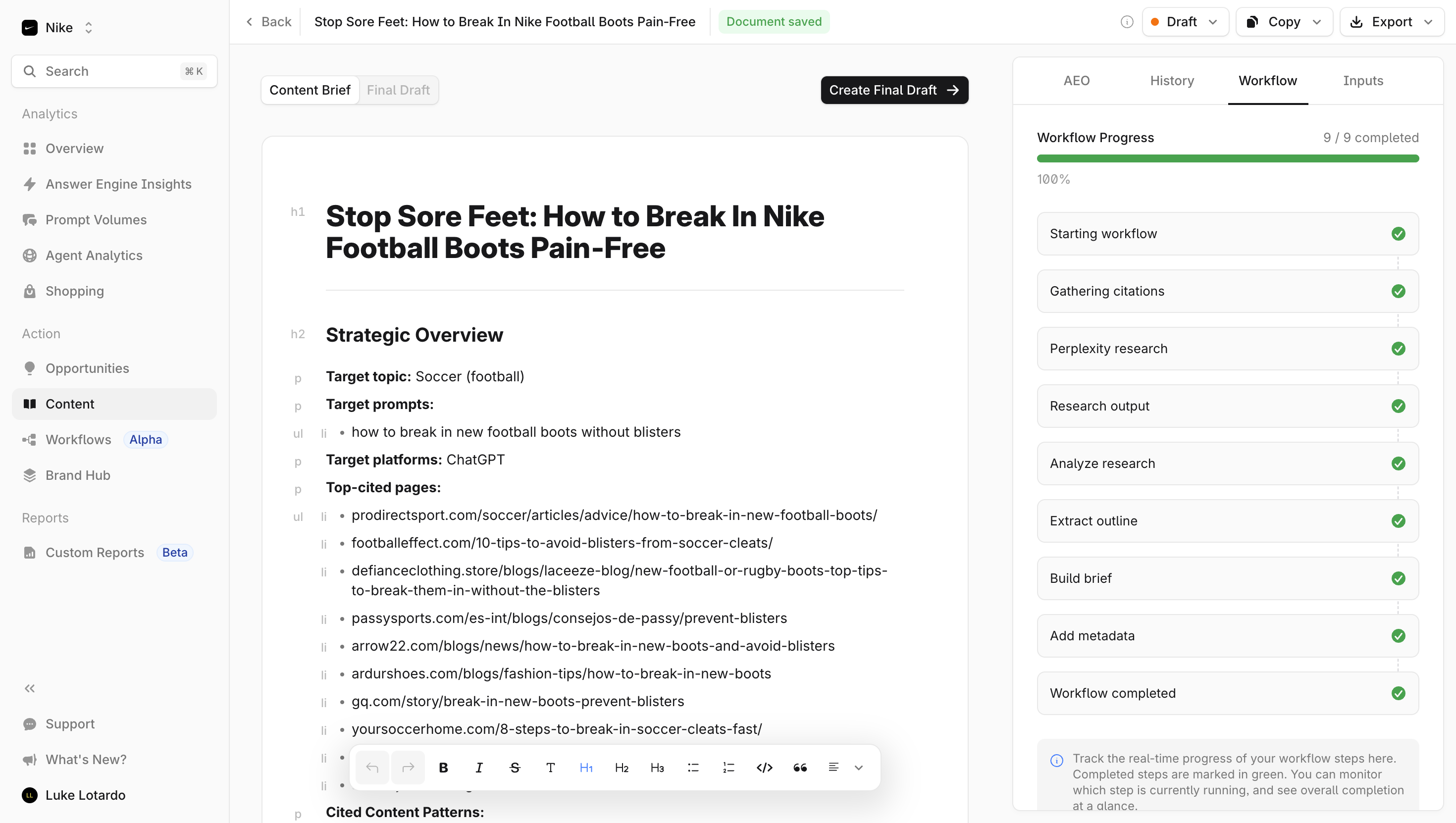
The distinction between saved and draft is important. Saved describes persistence; draft describes a workflow state. A document can be safely stored without being final, approved, or published. Showing those concepts independently helps users interpret the status of their work. Your implementation should also define saving, failed save, and reconnecting states, which this single capture does not demonstrate.
The visible block labels expose document structure directly. That may help an editorial or technical audience inspect hierarchy, but it also adds visual detail. Decide whether your users need that level of structural visibility all the time, on selection, or in a dedicated view. The toolbar's selected H1 control illustrates a visible formatting state, but the screenshot does not reveal how a selection was made or how mixed formatting is handled.
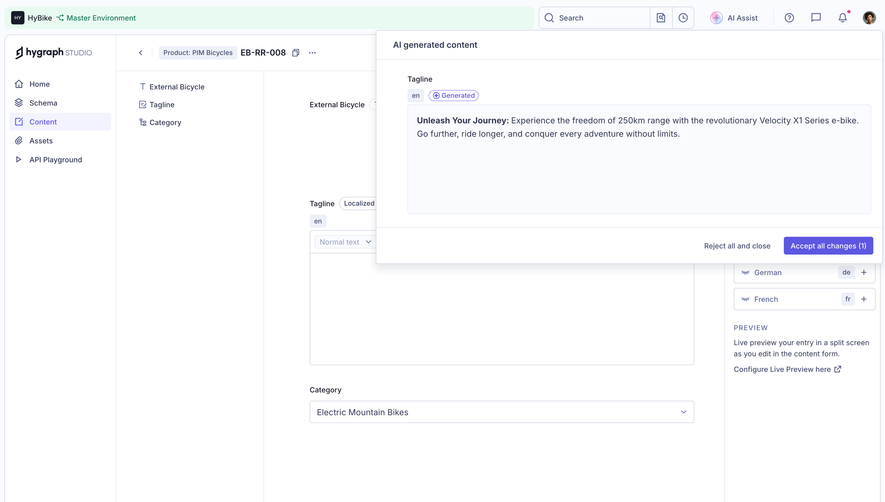
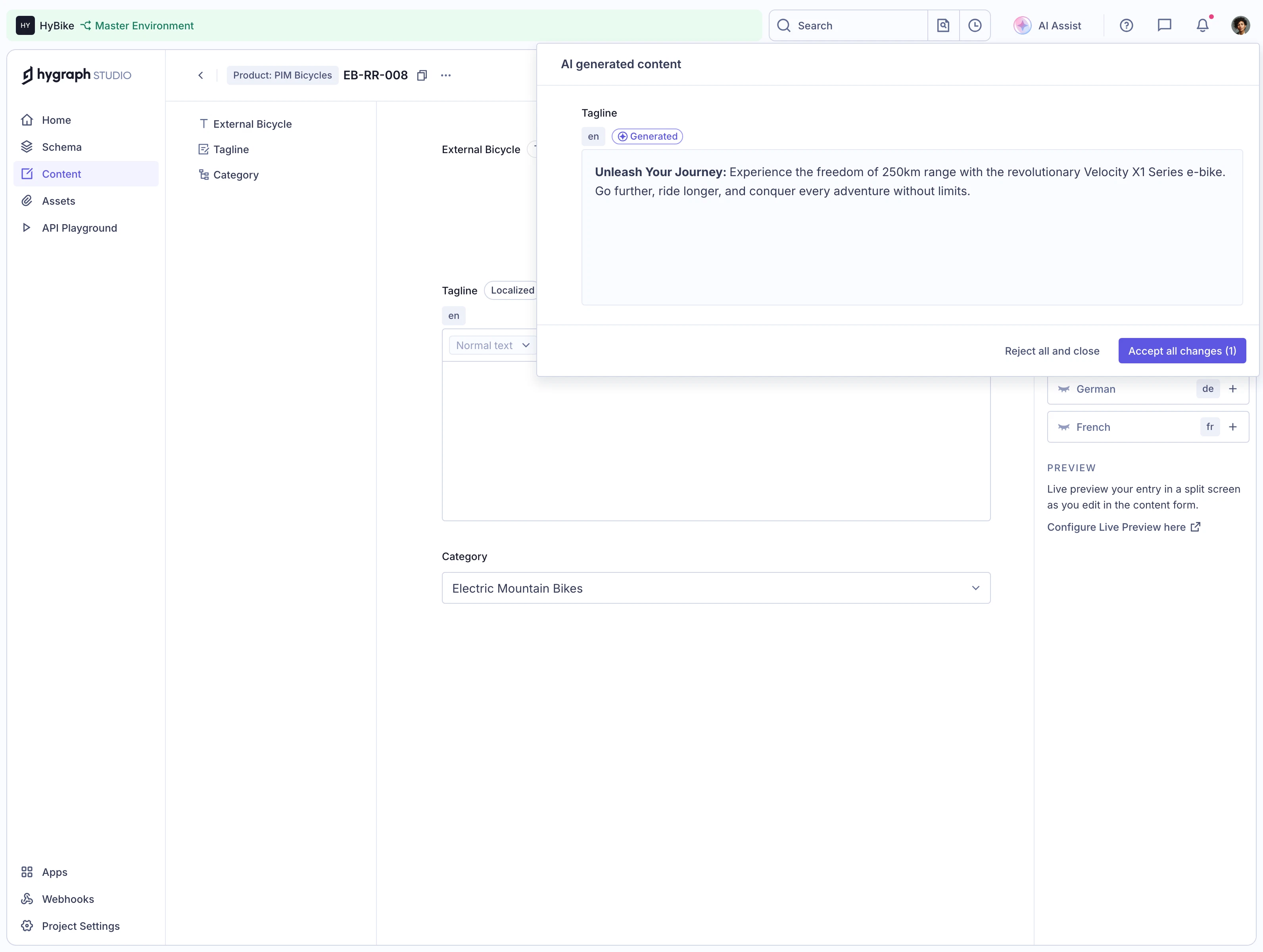
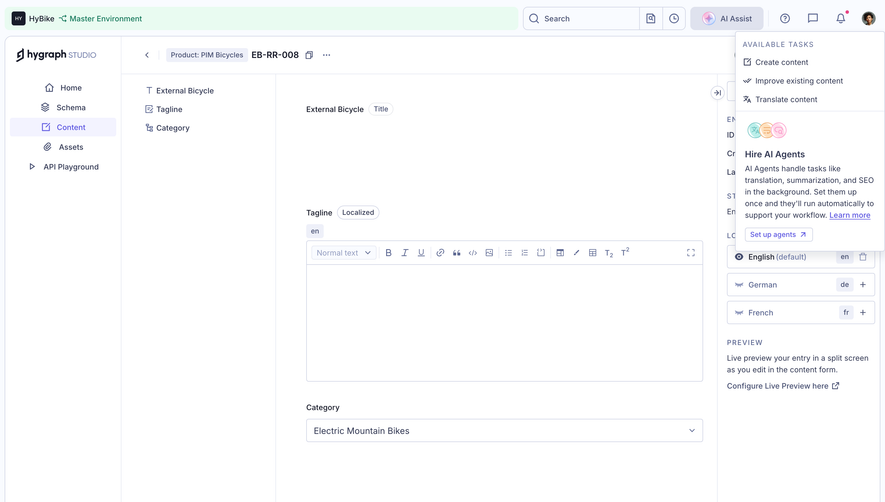
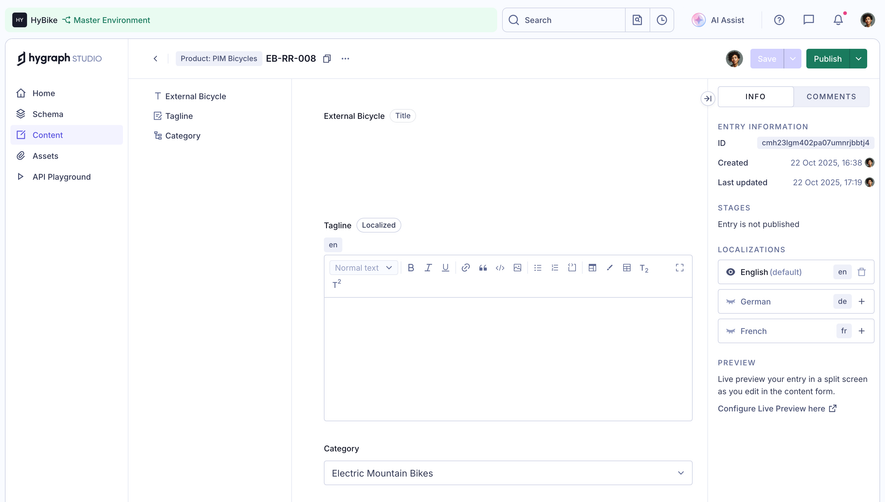
The SaaSFrame record labeled GraphCMS Blank rich text content editor visibly shows the Hygraph Studio interface. A localized Tagline field contains a blank rich text area with a persistent toolbar above it. The toolbar includes a Normal text selector, inline formatting, link, quote, code, image, list, table-related, and other controls. The English locale is shown beside the field, and language options appear in the right panel. Category is a separate field beneath the editor.
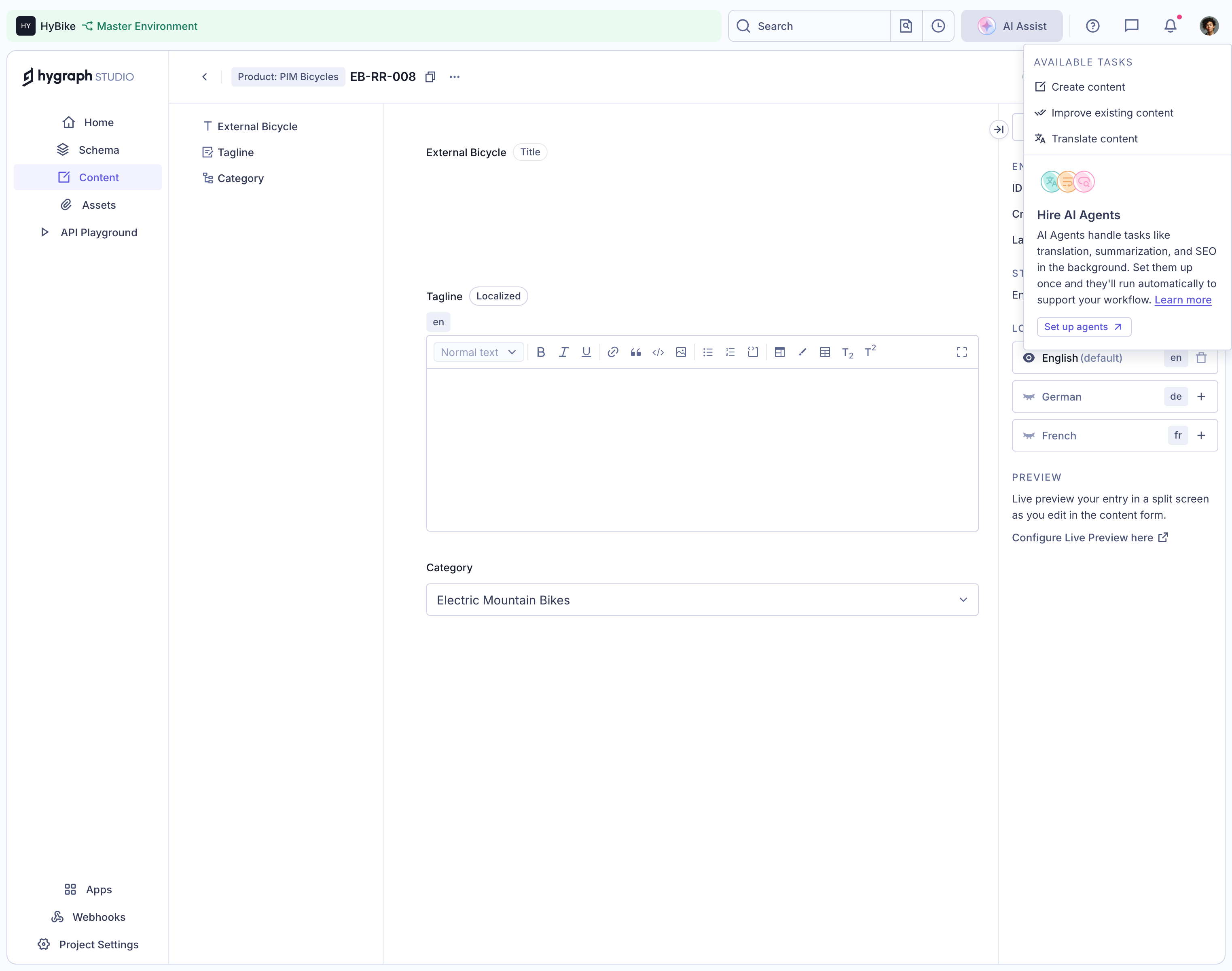
A field-based editor needs a clear boundary. Users should know which part of the entry they are editing and which language receives the change. Here, the field label and locale provide that orientation. For multilingual products, make the active language difficult to confuse with a preview language or a translation target.
A persistent toolbar makes available operations visible before there is any text to select. The tradeoff is density, especially inside a small field. If the content model permits many block types, group them in a way that reflects their purpose rather than displaying an unexplained sequence of icons. The screenshot includes an open AI Assist menu, but it does not establish that using those actions preserves formatting or changes only this field. Those consequences need clear scope in an implemented editor.
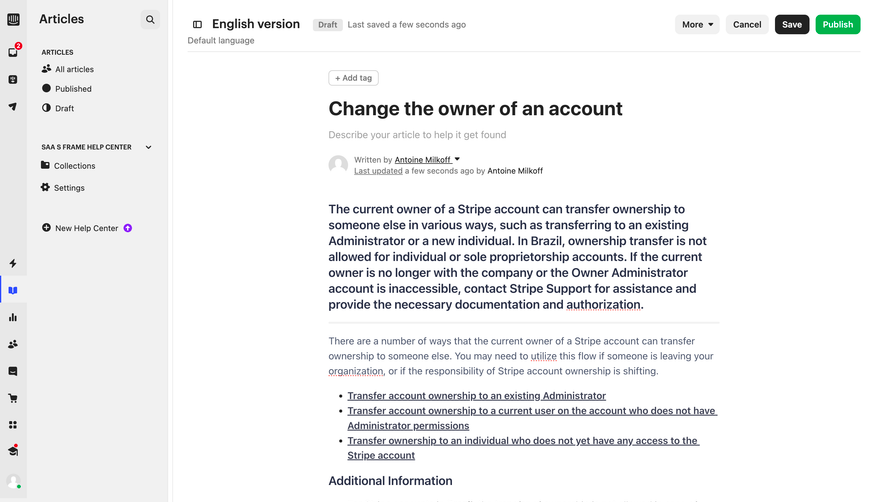
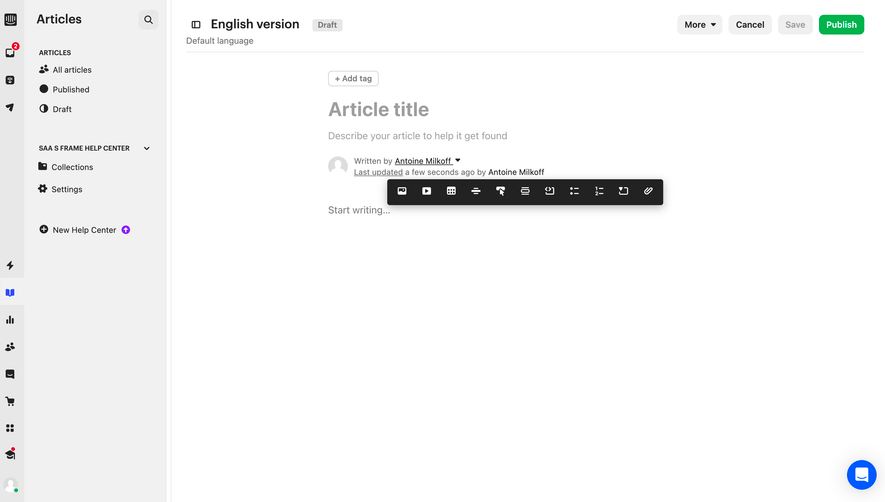
The captured Intercom Article Editor has a document title, description area, author information, and a formatted body containing paragraphs, links, and nested lists. The upper bar identifies an English version, shows Draft and a recent save message, and provides distinct Cancel, Save, and Publish controls. A compact dark toolbar appears near the lower portion of the content with media and block-related controls.
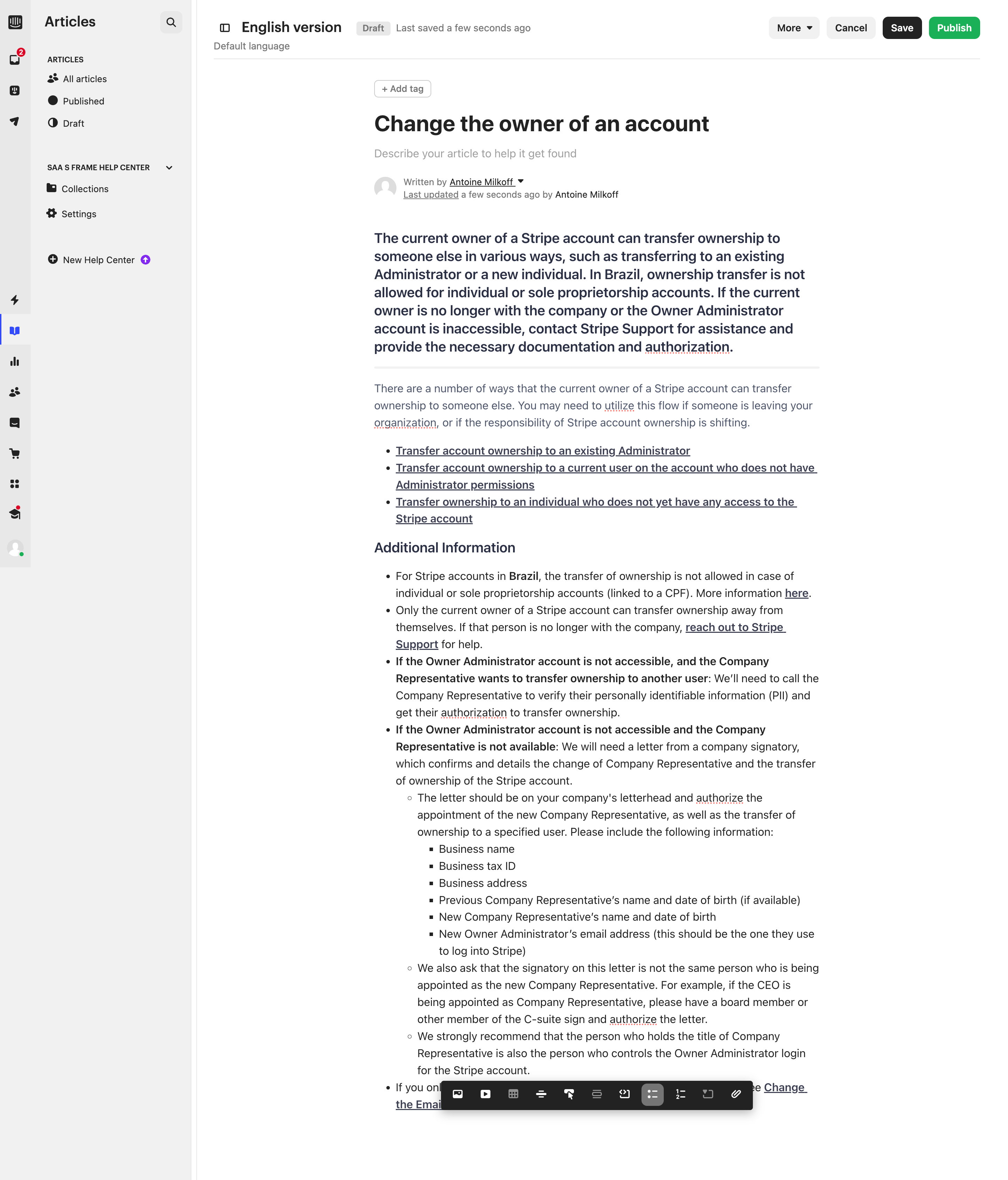
This is useful evidence for the boundary between authoring and release. Save and Publish are visibly different controls. A team adapting this arrangement should define what happens when a published article is edited: whether changes remain a draft, require another release, or appear immediately. The screenshot cannot answer that, and the presence of both buttons alone does not establish autosave behavior.
The long body also illustrates why content structure matters. Nested lists and links need to remain understandable after editing, copying, and publishing. A designer should review the document at realistic length rather than only with a title and one paragraph. The example's article text is incidental to this interface analysis and is not used as guidance about account ownership rules.
A toolbar can remain fixed, follow a text selection, or appear when a block receives focus. Each choice changes discoverability and writing space. Persistent controls are easy to locate but consume room. Contextual controls reduce clutter but may be hard to discover, especially for users who do not select text with a pointer.
Define the action target precisely. If a user applies bold without selecting text, does it affect subsequent typing? If they choose a heading with a caret inside a paragraph, does it convert the whole block? If they select text across a heading and a list, which operations remain available? Mixed states should be communicated rather than pretending the entire selection has one format.
Keep the selection stable when users open a link dialog or media picker. If focus moves away from the canvas, the editor still needs to apply the chosen operation to the intended content. Provide a way to cancel and return to writing without losing the selected range. These behaviors must be tested interactively; static toolbar placement cannot establish them.
Adding an image should not unexpectedly replace nearby headings or paragraphs. Converting a paragraph to a heading should preserve its text. Replacing a selected image should identify that image as the target. Treat these as different operations with distinct feedback, especially when the editor combines inline content and larger blocks.
For images, provide upload progress, meaningful alternative text, captions where appropriate, and controls for replacing or removing the asset. Make unsupported files and failed uploads recoverable without discarding the surrounding document. Show enough of the resulting block to confirm that the asset is inserted in the intended position.
For links, expose the destination in an editing surface and give users a straightforward route to change or remove it. A visually underlined phrase does not reveal whether the URL is correct. For embeds and tables, define limits and preview behavior so users do not mistake an incomplete configuration for a finished block.
Undo is especially valuable for structural operations. Test whether inserting media, splitting a list, moving a block, and changing a heading can be reversed coherently. An undo command that only restores part of a compound operation can leave users with a document they did not intend to create.
People often paste from documents, websites, chat tools, or another editor. The source may contain styles and structures your product does not support. Decide which semantic elements to preserve, which visual styling to discard, and how to handle unsupported blocks. Do not let arbitrary source formatting dominate the document's intended design.
Offer a clear route to paste plain text when formatting is unwanted. Preserve line breaks and list structure where the chosen mode supports them. Test headings, nested lists, links, tables, and content copied with images. A paste that looks acceptable at first glance can still introduce empty blocks or lose important link destinations.
Verify the round trip from editing to saving and back. The document should retain its supported structure after reload, not merely look right before the first save. Test export and publication separately when they use different representations. If a destination cannot preserve an element, explain the limitation before the user commits to it.
Saving indicators should distinguish unsaved edits, saving, saved, and failed persistence. Keep the feedback visible enough to reassure users without turning every keystroke into a distracting announcement. If manual saving is available alongside automatic saving, explain their relationship through consistent states.
A save failure should preserve local work and give a practical next step. If a session expires or a connection drops, communicate whether editing can continue and how recovery works. Do not display Saved when the content has only been stored temporarily in a local draft unless that limitation is clear.
In collaborative editors, define what users can infer from presence, comments, and changes. Another person's avatar does not by itself explain whether they are editing the same block. Resolve conflicts in a way that preserves authors' work, and make version restoration distinct from ordinary undo. These requirements go beyond what the selected captures establish.
Permission changes matter too. If an editor becomes read-only while someone is writing, explain the new state and preserve their unsaved contribution where possible. Link to Roles & Permissions when access rules are part of the authoring workflow.
Provide meaningful names and selected states for formatting controls, visible keyboard focus, and a logical route between the toolbar and the editing area. Make shortcuts available as a supplement rather than the only way to apply common formatting. A contextual toolbar must remain usable without relying on pointer hover.
Headings, lists, quotes, and links should preserve their meaning in the output, not just their visual appearance. W3C's heading guidance is a useful reference for expressing document hierarchy. The editor must help authors create that hierarchy and maintain it when content is transformed.
On touch devices, review text selection, toolbar reachability, long documents, and the software keyboard. Keep formatting controls from covering the selection they modify. Check zoom and large text, and ensure image actions do not require precise drag handles. The screenshots show desktop layouts and do not establish mobile or accessibility compliance.
Test a document with several heading levels, nested lists, a linked phrase, and an image with a caption. Move the caret between block types, paste from another tool, interrupt a save, and reopen the document. Observe whether users can predict each change and recover mistakes. The number of toolbar options is less informative than the reliability of these everyday operations.
Use rich text when structure or formatting helps readers understand the content, such as a help article, report, or detailed note. Plain text can be sufficient for a short value or operational message. Choose the supported structures according to the content's destination and purpose.
A persistent toolbar improves visibility, as in Hygraph's captured field. A contextual toolbar can preserve writing space, as illustrated by the floating controls in the other examples. Test discoverability, keyboard access, and selection stability rather than choosing on appearance alone.
Preserve supported semantic structure and remove styling that does not fit the product's content model. Provide a plain-text route and test the saved result. Unsupported media, tables, and embeds need predictable handling rather than silent conversion that users cannot inspect.
No. Persistence and release are different states. Profound shows Document saved alongside Draft, and Intercom shows separate Save and Publish controls. Your product should define and communicate exactly when an edit becomes visible to its audience.
A rich text editor modifies the content itself. A Prompt Input expresses a request to an AI system. A product can combine them, but users should be able to distinguish editing their document from requesting generated changes and accepting those changes.
Compare these SaaSFrame captures by content model, selection behavior, and publication boundary. A strong editor lets people write with confidence because the structure they create, the changes they make, and the saved result remain understandable.