Roles & Permissions
42
Interfaces for assigning roles and controlling member access rights.
.webp)
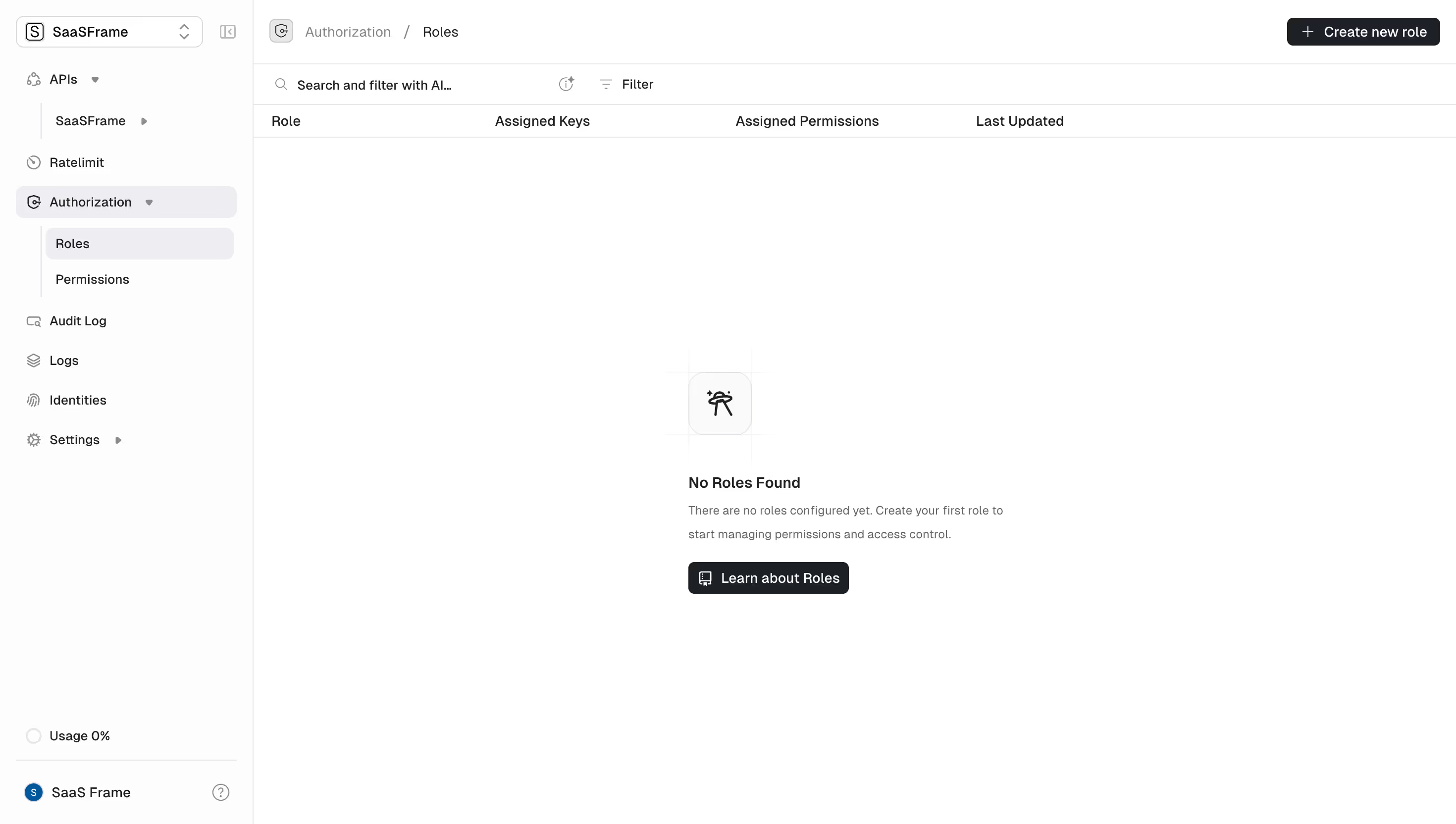
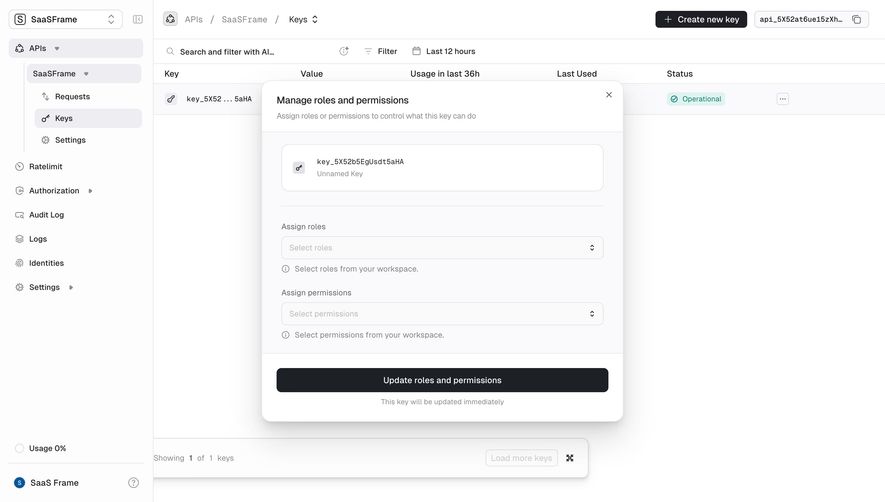
Roles and permissions UX helps an administrator decide who can access a SaaS workspace and what each person can do there. It includes role selection, resource scope, member lists, access changes, and explanations of restricted actions. The interface must translate the authorization model into decisions someone can make confidently.
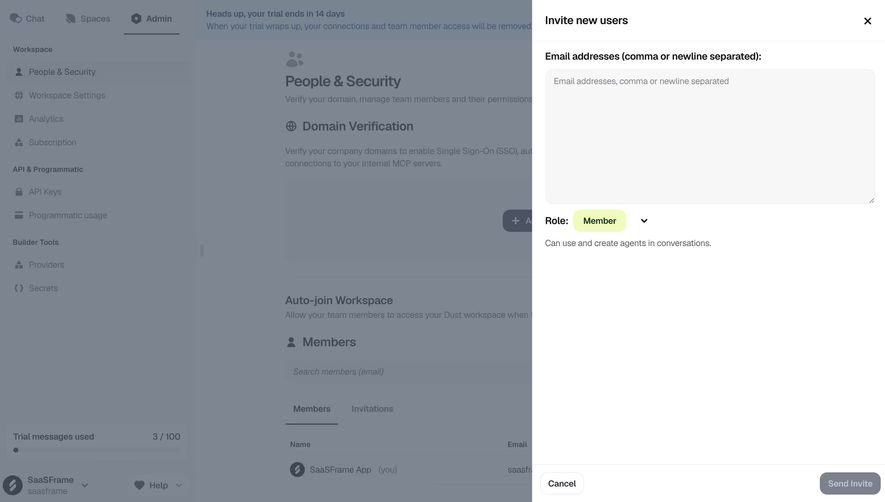
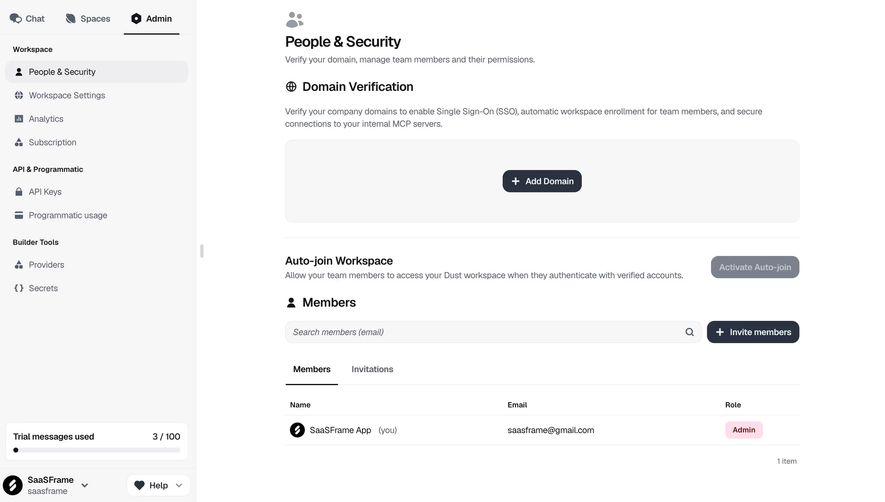
Dust and Prelude show role selection at invitation time and a member-management view. Their screenshots demonstrate visible labels and explanations, not whether the backend correctly enforces those permissions. This guide focuses on making access decisions understandable while keeping that distinction explicit.
A role bundles capabilities; a permission allows a particular action on a resource. A person may have a workspace role and separate permissions on a project or document. Before choosing dropdowns or cards, define those scopes and how they combine.
“Admin,” “Member,” and “Guest” are recognizable labels, but their meaning varies across products. An administrator may manage billing in one product and only content in another. Do not expect the role name to explain the policy without supporting information.
Write a small set of concrete questions the interface should answer: can this person view private data, edit shared work, invite colleagues, manage billing, or change access? Use the actual capabilities to distinguish roles rather than a vague hierarchy from basic to powerful.
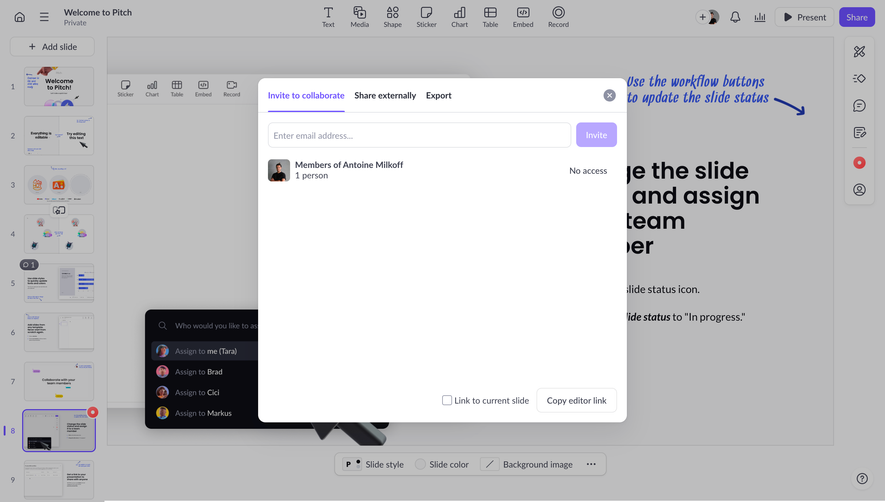
Dust’s invitation panel places a role selector below a multi-address field. The selected Member role has supporting text that explains agent use and creation in conversations. The explanation appears before the Send Invite action, so the access decision is part of the invitation task.

Use that proximity in your own design. A separate documentation page can provide detail, but the essential difference should not require leaving the task. If changing the selected role changes its summary, ensure the new explanation is perceivable and does not silently alter other choices.
A concise summary should describe what is distinctive, including important exclusions when they affect the decision. Avoid implying that a short description is a complete permission specification. Offer deeper detail for administrators who need to compare resource access or sensitive capabilities.
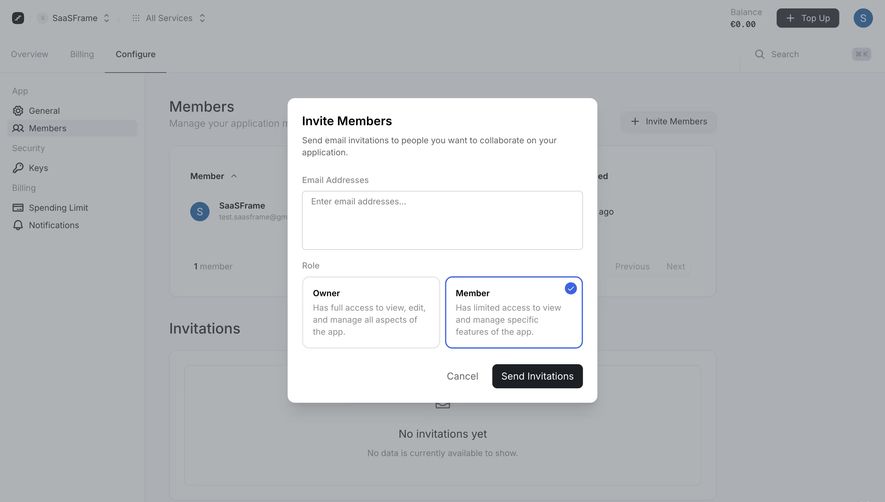
Prelude presents Owner and Member as two cards with descriptions. The Member card is visibly selected, using both a border treatment and a check mark. The Owner description indicates broader application control, while Member describes limited access.
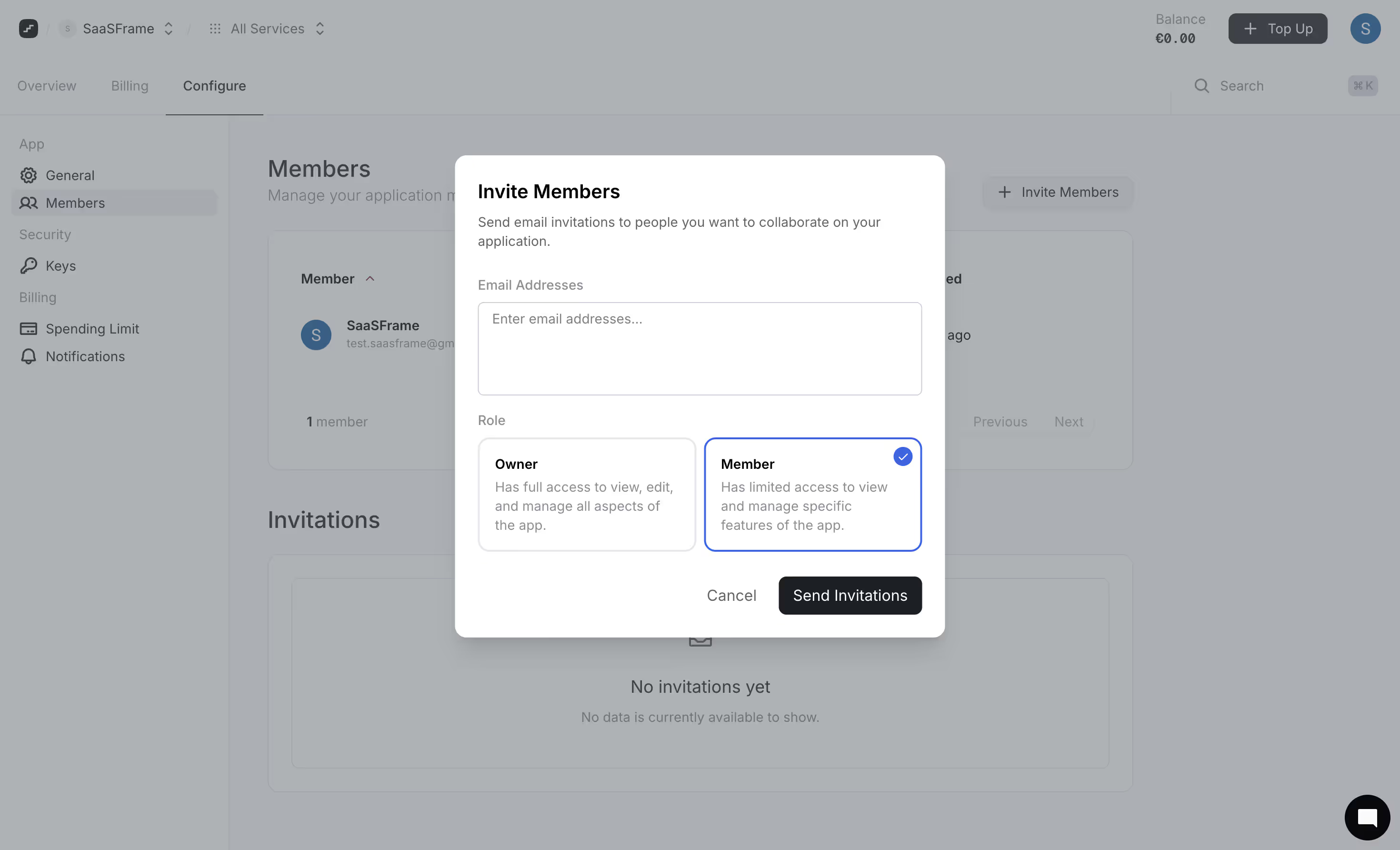
Cards can make a few meaningful choices easy to compare. A dropdown may suit a larger set or a compact repeating table, but needs a way to inspect differences. A large grid of nearly identical cards can become harder to scan than a well-labeled list.
Choose the default according to the intended task and least-privilege policy. A default should not grant broad administrative access merely because that role appears first. If several people share one role during a bulk invitation, make that shared scope explicit before submission.
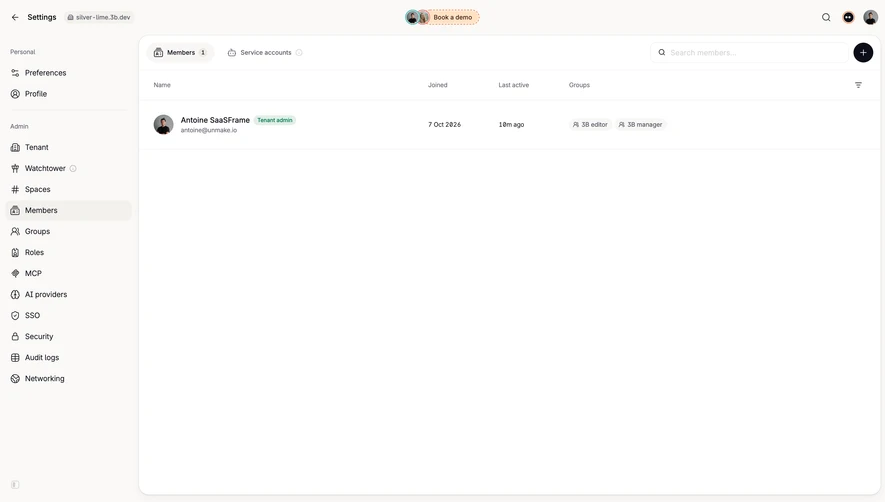
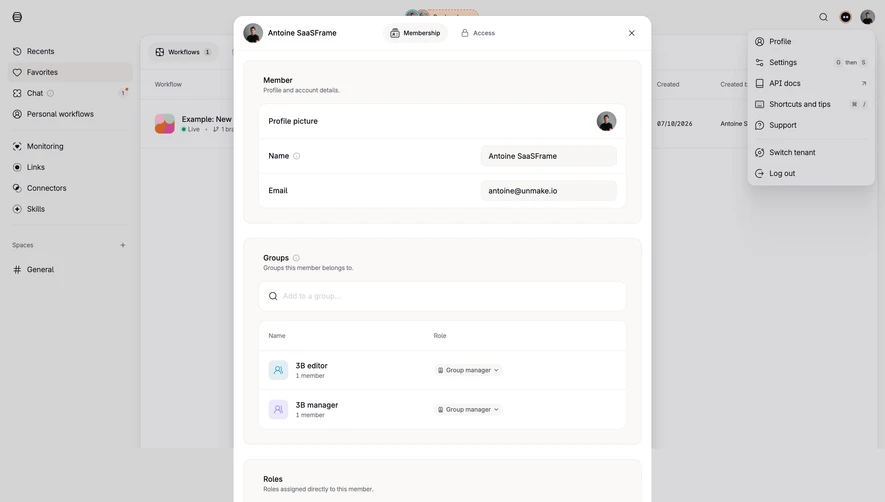
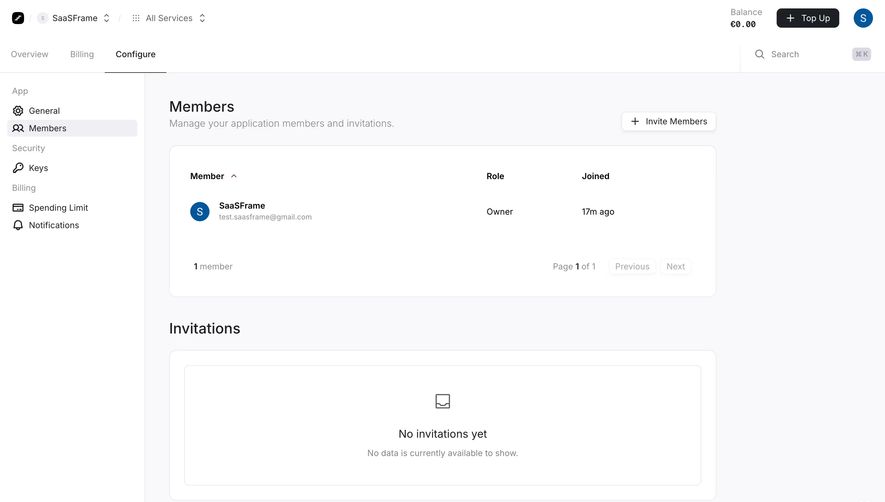
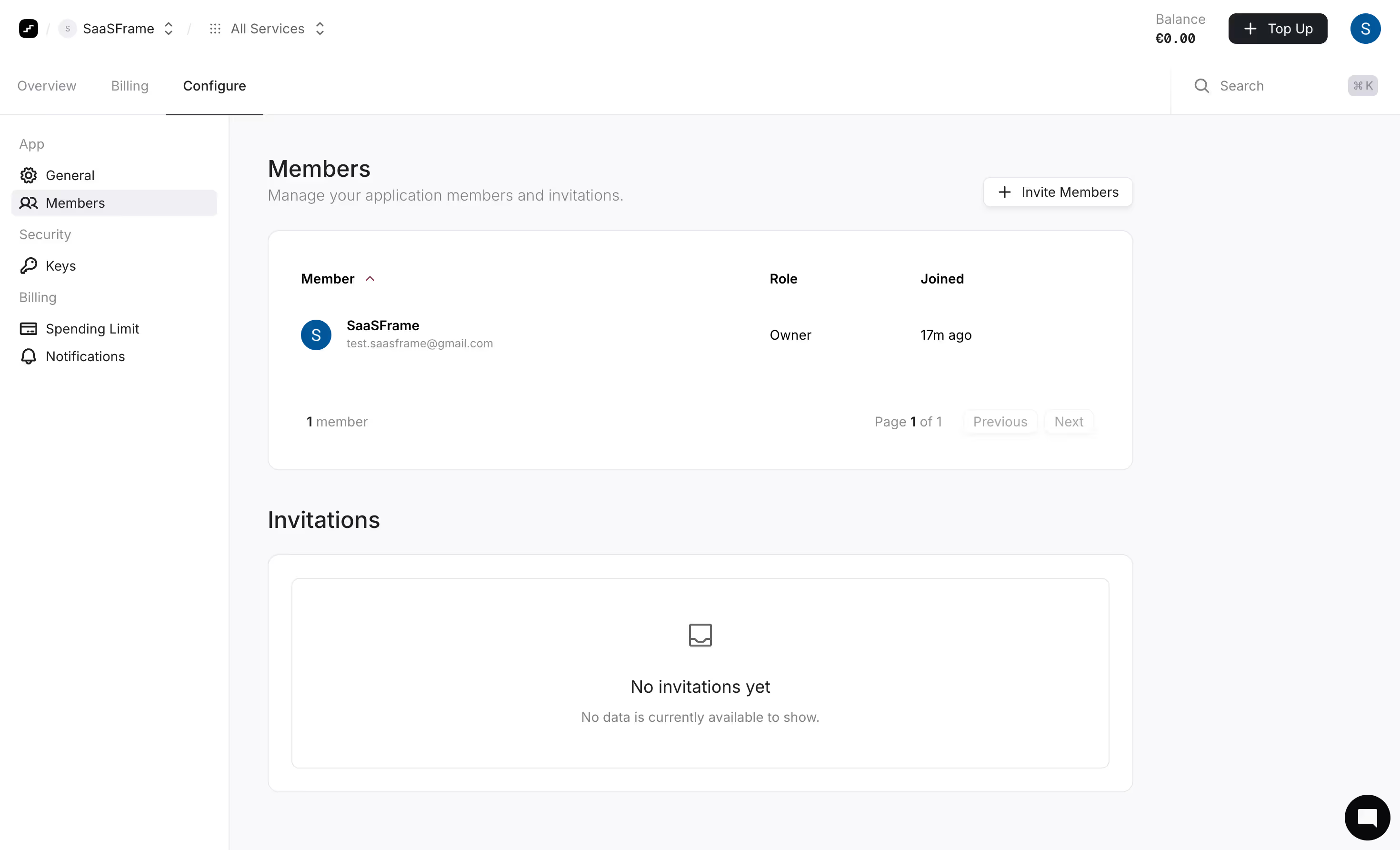
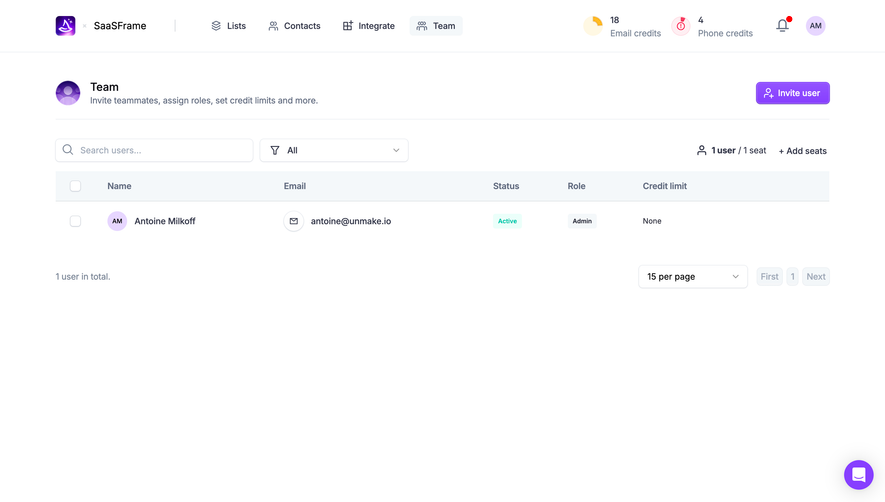
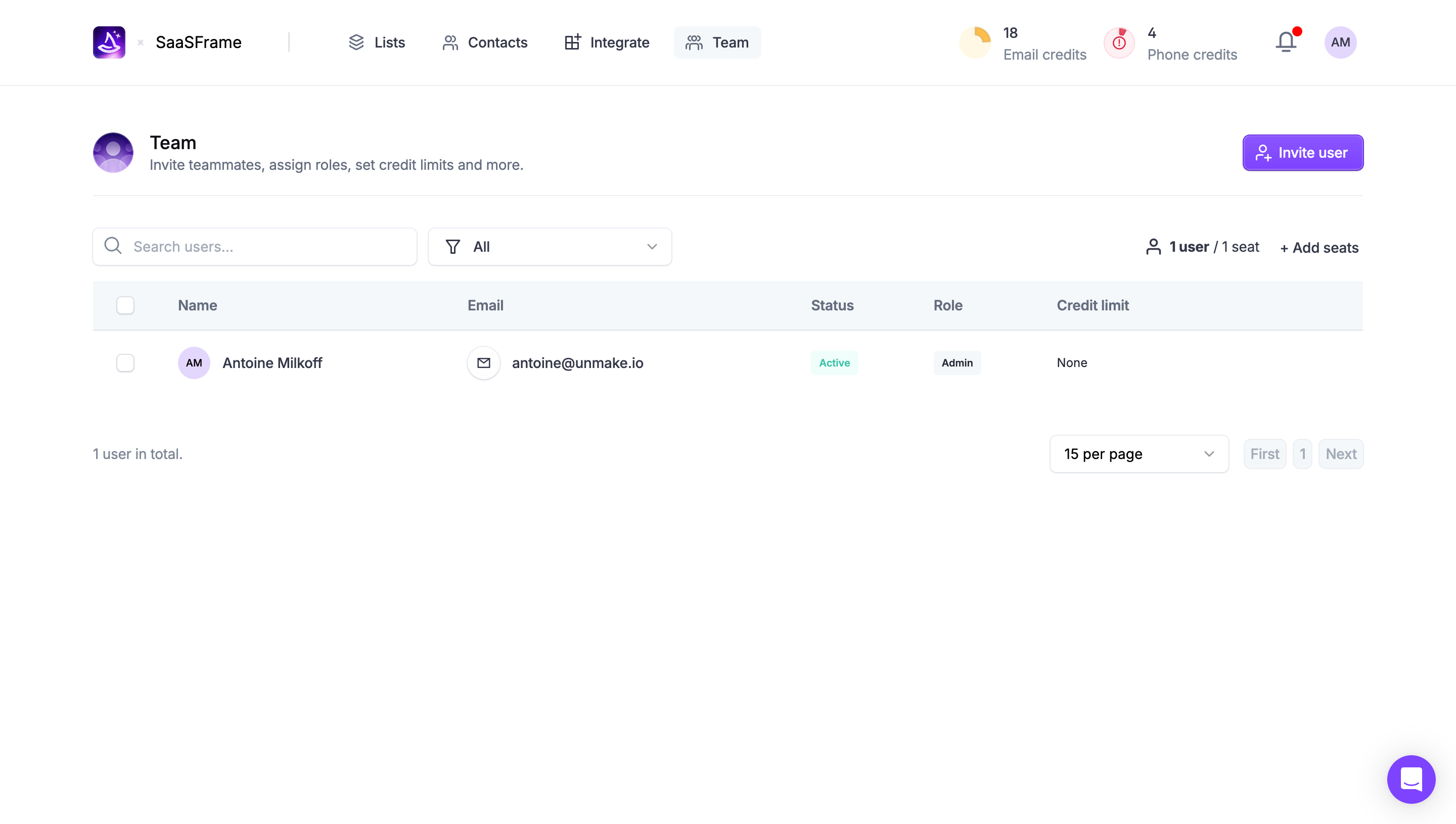
Dust’s management page separates Members and Invitations into tabs, and its member row includes a role badge. It also identifies the current person in the list. That organization keeps an established member distinct from someone who has only been invited.

An invited administrator is not yet the same as an active administrator. A suspended member may retain a recorded role while being unable to use it. A role badge alone cannot communicate those states. Show the status that affects the next action.
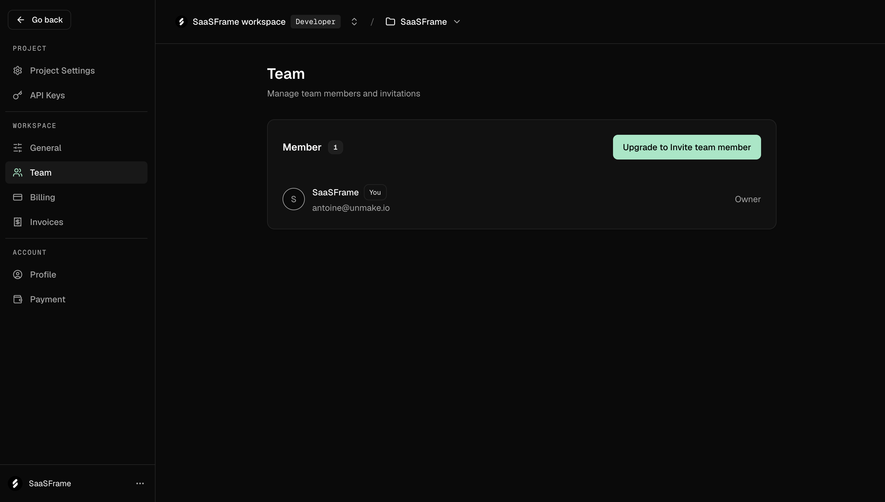
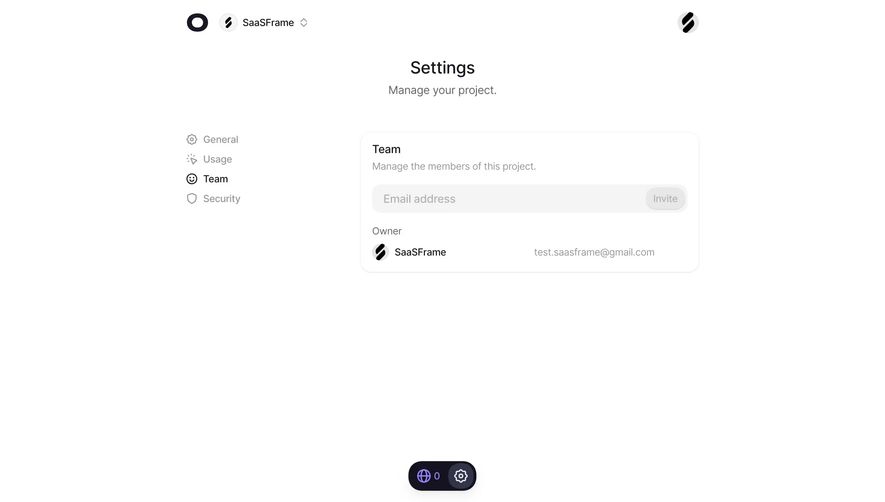
Include the identity cues needed to avoid editing the wrong person: name, address, and an appropriate avatar or identifier. Search and filtering become useful as the list grows. Do not hide the distinguishing email when names repeat.
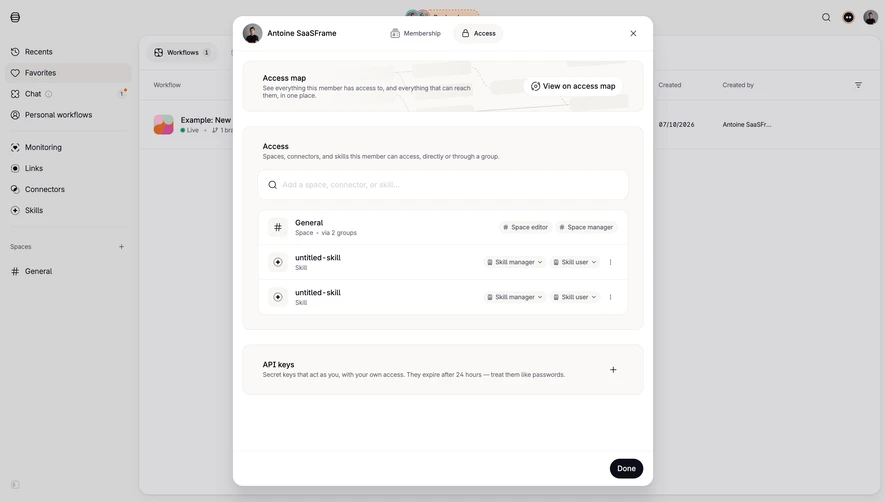
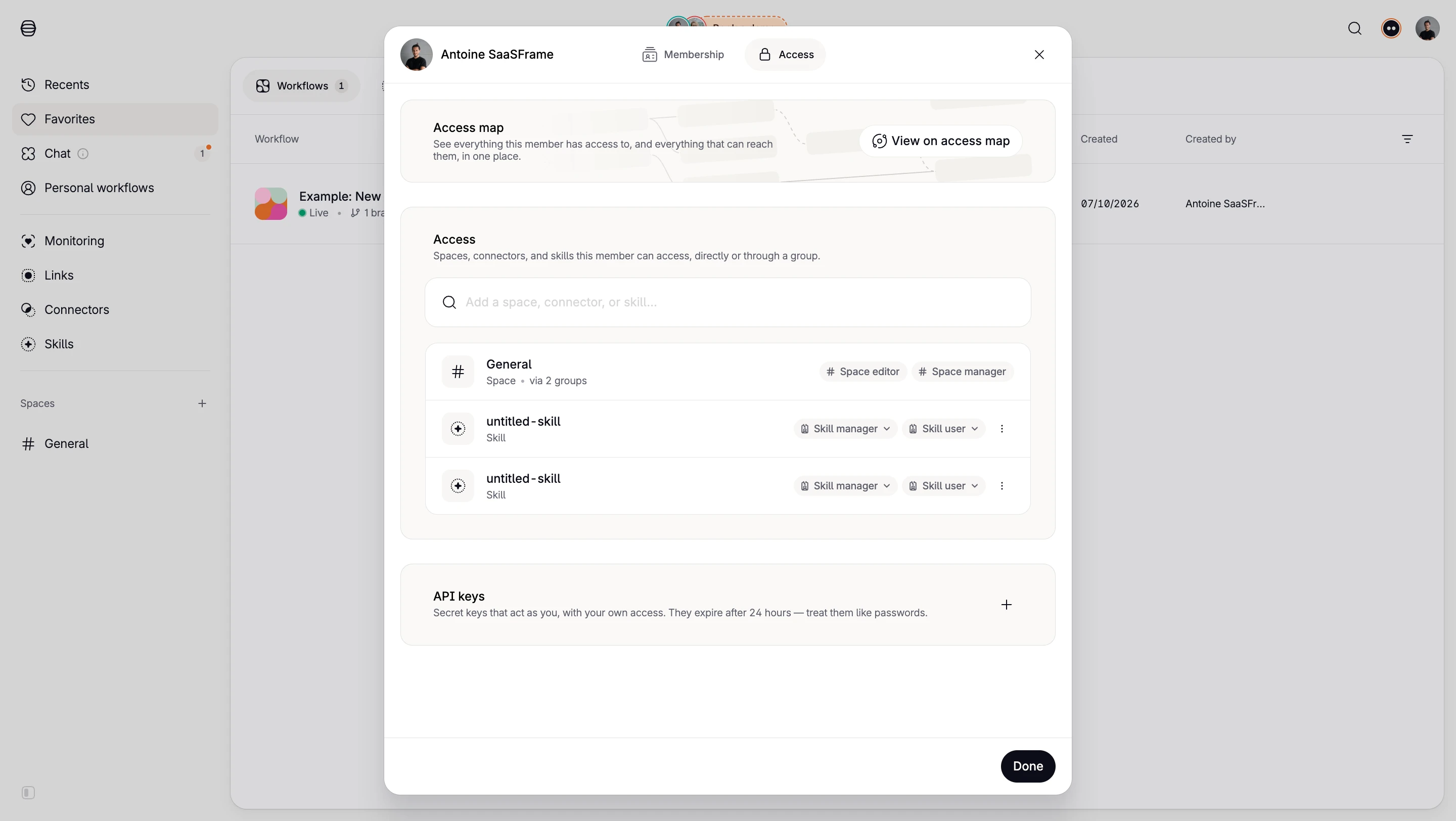
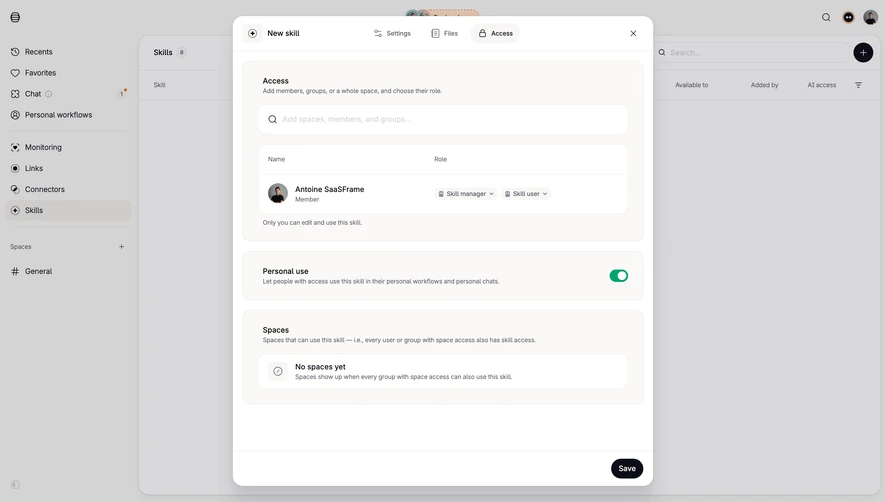
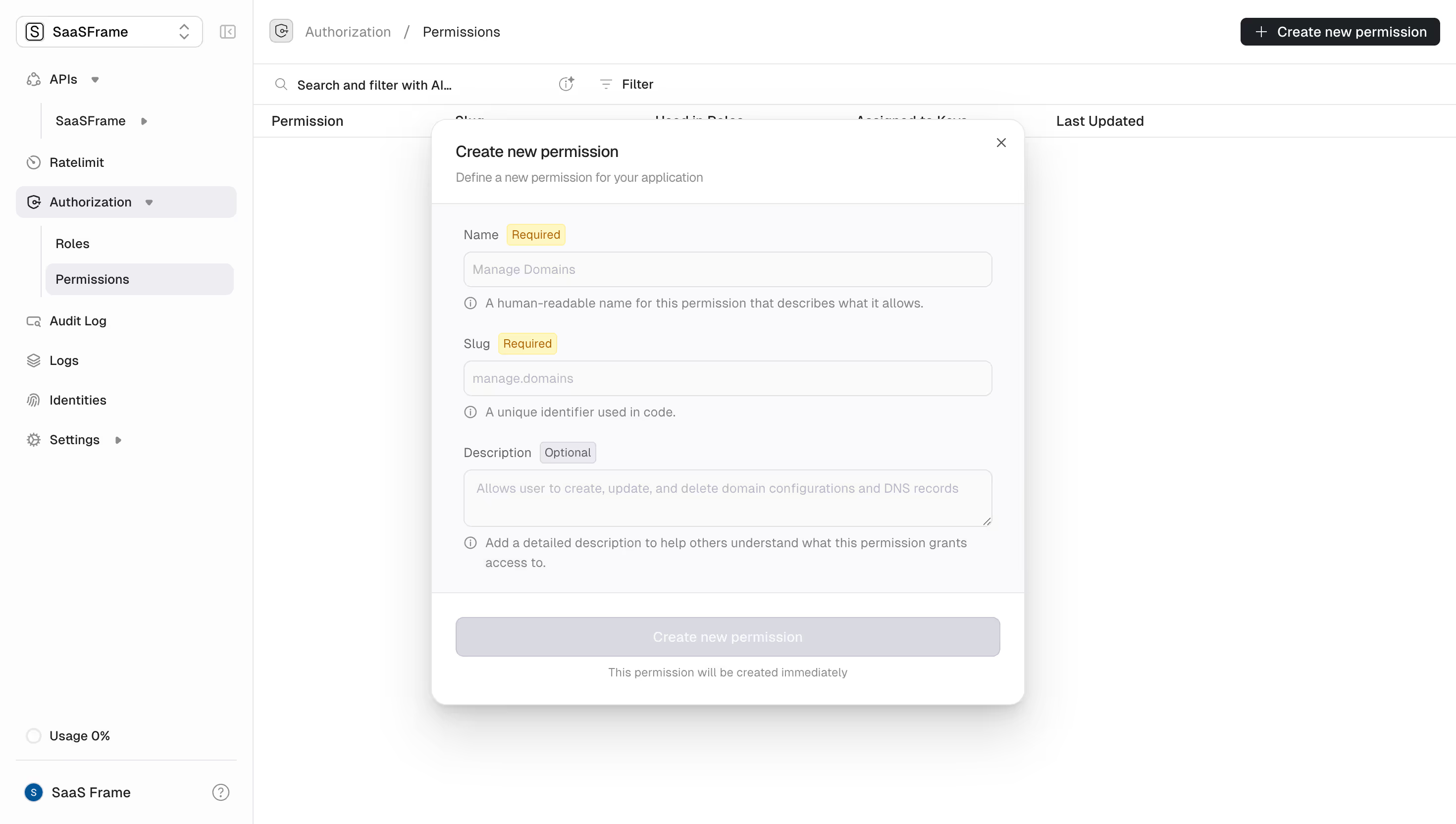
A role may apply to the whole workspace, one project, or a specific item. State that scope in the invitation, edit view, and confirmation. “Editor” without a resource boundary can leave an administrator unsure whether it grants access to one document or every document.
Inherited access also needs explanation. Someone may receive permissions through a group, organization policy, or parent resource. If the interface offers a local restriction that cannot override inherited access, explain that constraint instead of showing a control that appears effective.
Where multiple paths contribute access, a view of effective permissions can be more useful than showing only the local role. Distinguish what the person can do from where that ability comes from. The screenshots do not reveal inheritance behavior, so treat that as an implementation question for your own product.
Changing a role can remove editing ability, grant administrative control, or affect access to sensitive data. Show the changed scope and meaningful consequence near the action. A promotion to a powerful role may deserve a more explicit confirmation than a routine change between limited roles.
Downgrading a person and removing them are different decisions. Someone with reduced access may still view work; removal may end workspace membership. Label those actions separately, and explain the treatment of owned resources or assignments where relevant.
Handle the last owner or administrator according to the product’s policy. If ownership must be transferred before leaving or removing the account, explain the prerequisite and provide the allowed route. A disabled action without a reason makes a necessary safeguard look like a broken interface.
Hiding an action can simplify the interface, but it does not establish that the person cannot perform it. OWASP recommends denying access by default, checking authorization on every request, applying least privilege, and avoiding dependence on client-side checks. The server’s policy and the interface’s explanation must agree.
Review visible controls against actual capabilities. A member should not be invited to perform an action they cannot complete without any indication of the restriction. An administrator should not assume an access change succeeded merely because the role badge changed locally.
Test object-level access as well as broad roles. A person allowed to edit one project should not receive another project’s access through an overlooked URL or API request. These implementation checks cannot be established from a screenshot.
Some restricted actions can be omitted because they are irrelevant to the role. Others are important for understanding the product and may warrant an explanation or request route. The right treatment depends on whether discovering the capability helps the person complete their task.
If an action is disabled, state the reason and the available next step. “Ask a workspace administrator” is useful only when people can identify the appropriate contact or use a supported request flow. Do not turn every denied action into an upgrade prompt if the actual issue is authorization.
For a requested resource, distinguish lack of permission from absence where the disclosure policy allows it. Avoid revealing private resource names to people who are not authorized to know they exist. A helpful message still needs to respect the access model.
Bulk invitations and role updates reduce repeated work, but they can apply an unintended role to many people at once. Show the selected recipients and shared change before submission. If different roles are needed, allow grouping or per-recipient adjustment according to the task.
A bulk operation can succeed for some members and fail for others. Report the result at the affected identities, preserving failed entries for correction. Do not call the whole operation successful when an administrator still needs to resolve several failures.
When a role update fails, keep the previous role visible or clearly identify the pending state. A stale optimistic badge can cause later decisions to rely on access that was never granted. Prevent ambiguous repeated submissions while the update is in progress.
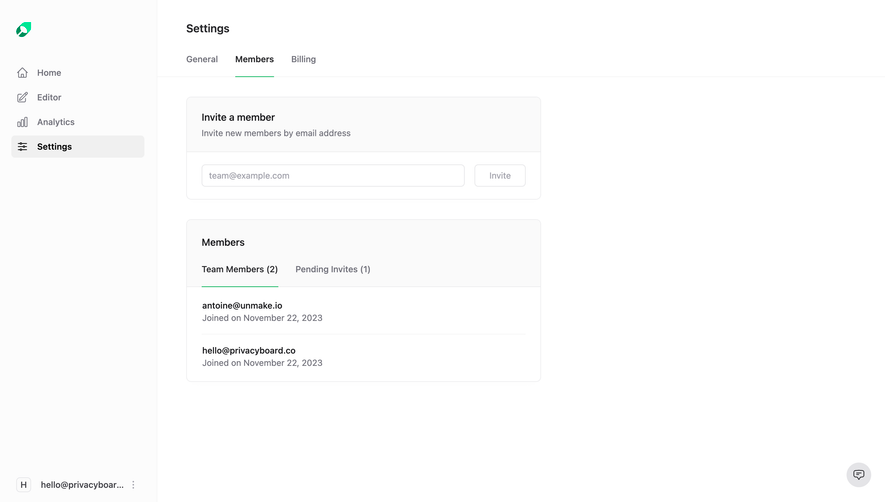
Teams change, projects end, and temporary collaborators leave. A member list should make access review feasible after the original invitation. Useful context may include role, membership status, resource scope, and relevant activity, according to the product’s data and privacy policies.
Record consequential permission changes in an appropriate audit history. Show the actor, affected person or resource, change, and time without exposing secret material. That history can help an administrator distinguish an intentional policy change from an unexpected one.
Review selectors, role cards, table actions, and confirmations with keyboard navigation and assistive technology. Selection must be perceivable beyond color. W3C’s form-label and notification guidance supports clear control names and meaningful feedback for access changes.
No. Role names are shorthand for a product-specific capability set. Explain the important abilities and scope where administrators choose them.
No. Authorization needs enforcement in the implementation. Interface visibility communicates and simplifies the policy; it does not replace it.
Match confirmation to consequence. Broad administrative access, ownership changes, and membership removal may need more explicit review than routine limited-role updates.
Explore Invite Team Members for the initial grant, Audit Log for review history, Confirmation Dialog for consequential changes, and Workspace Switcher for the context in which permissions apply.
For implementation review, consult OWASP’s authorization guidance. For accessible controls and feedback, see W3C’s form-label guidance and form notifications. Use the gallery to compare how products explain access decisions, then verify the policy those decisions actually enforce.