Invite Team Members
191
Accelerate growth with SaaS 'Invite Teammate' patterns. Explore multi-email fields, role assignments, and referral link patterns that make it easy for users to grow their workspace.

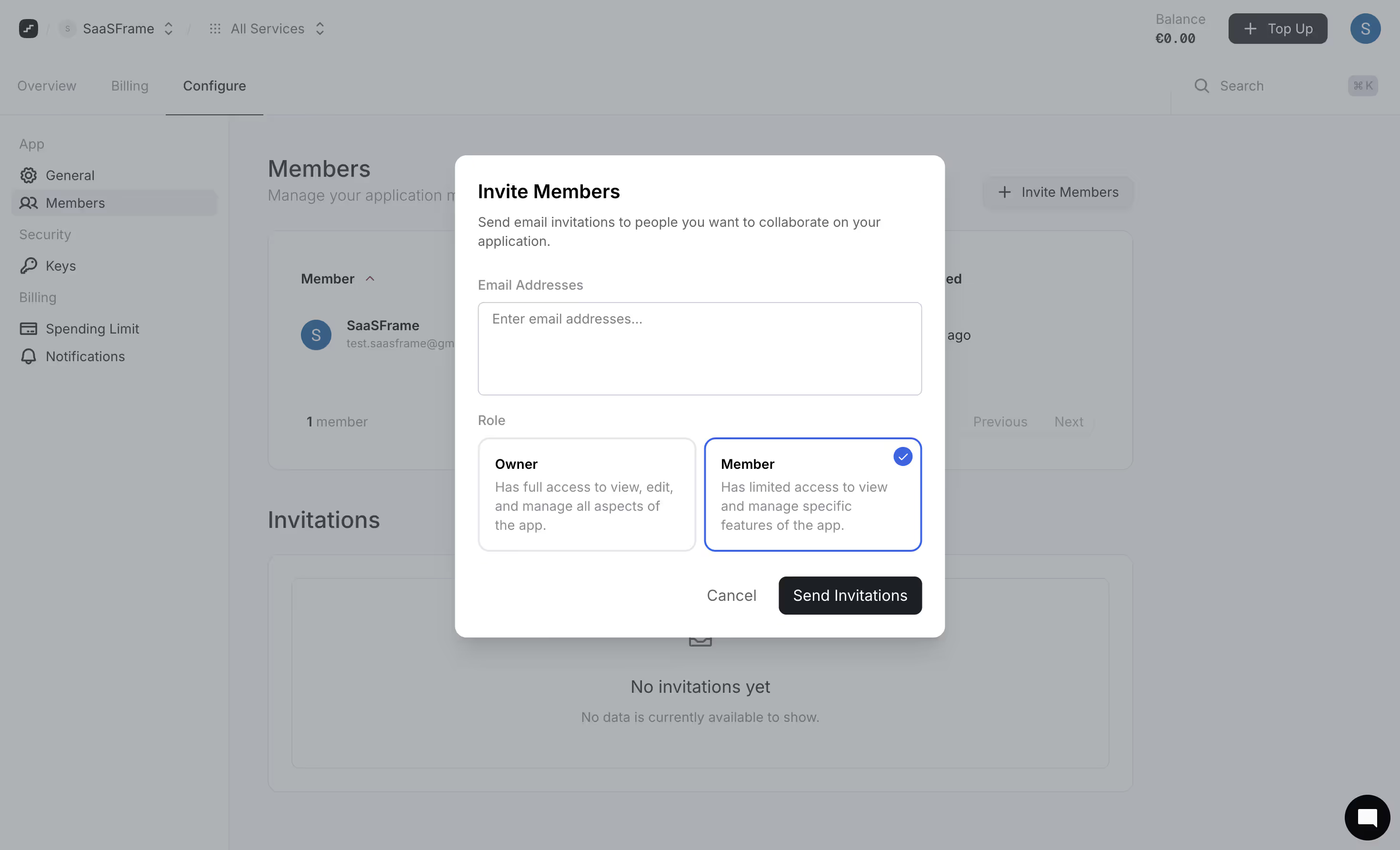
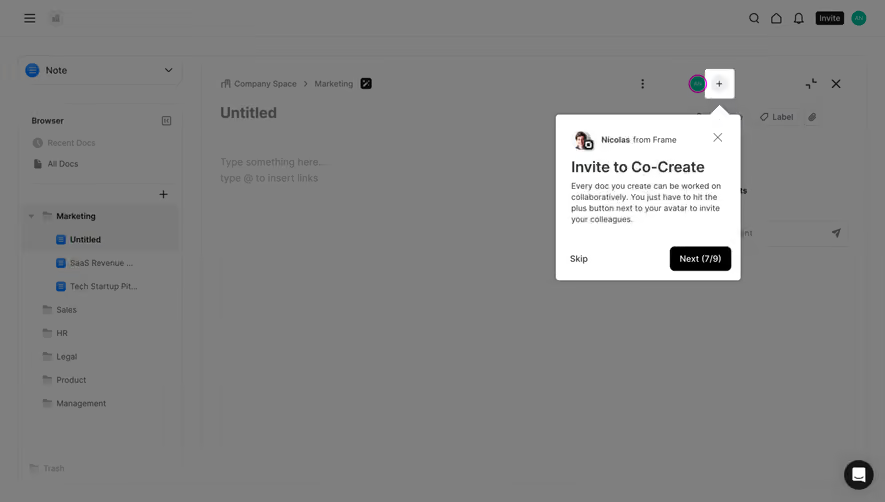
Inviting team members connects an existing SaaS workspace with the people who need to collaborate there. The flow includes choosing recipients, explaining access, sending or sharing an invitation, and helping the recipient join the correct team. A useful invitation interface supports collaboration without making the sender guess about permissions, delivery, or whether the person has actually joined.
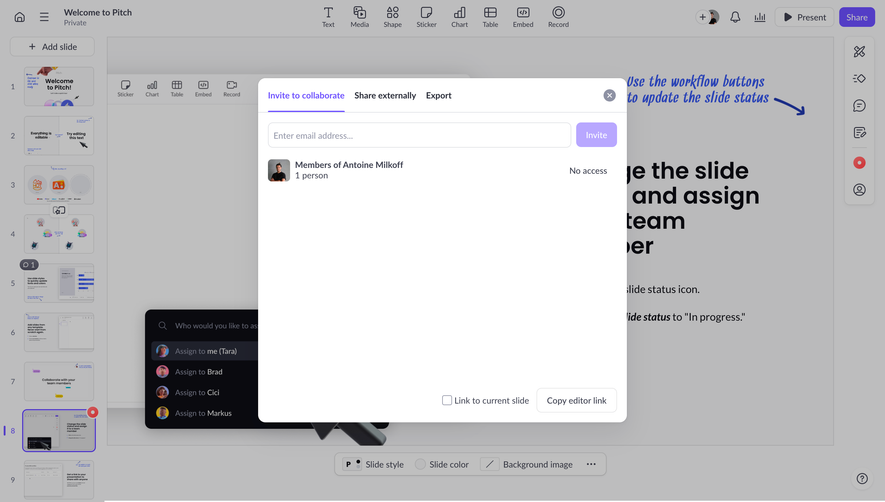
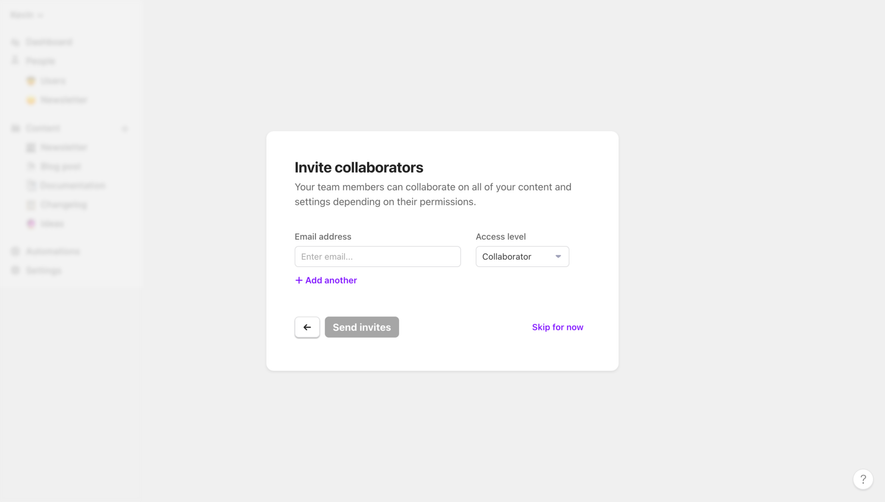
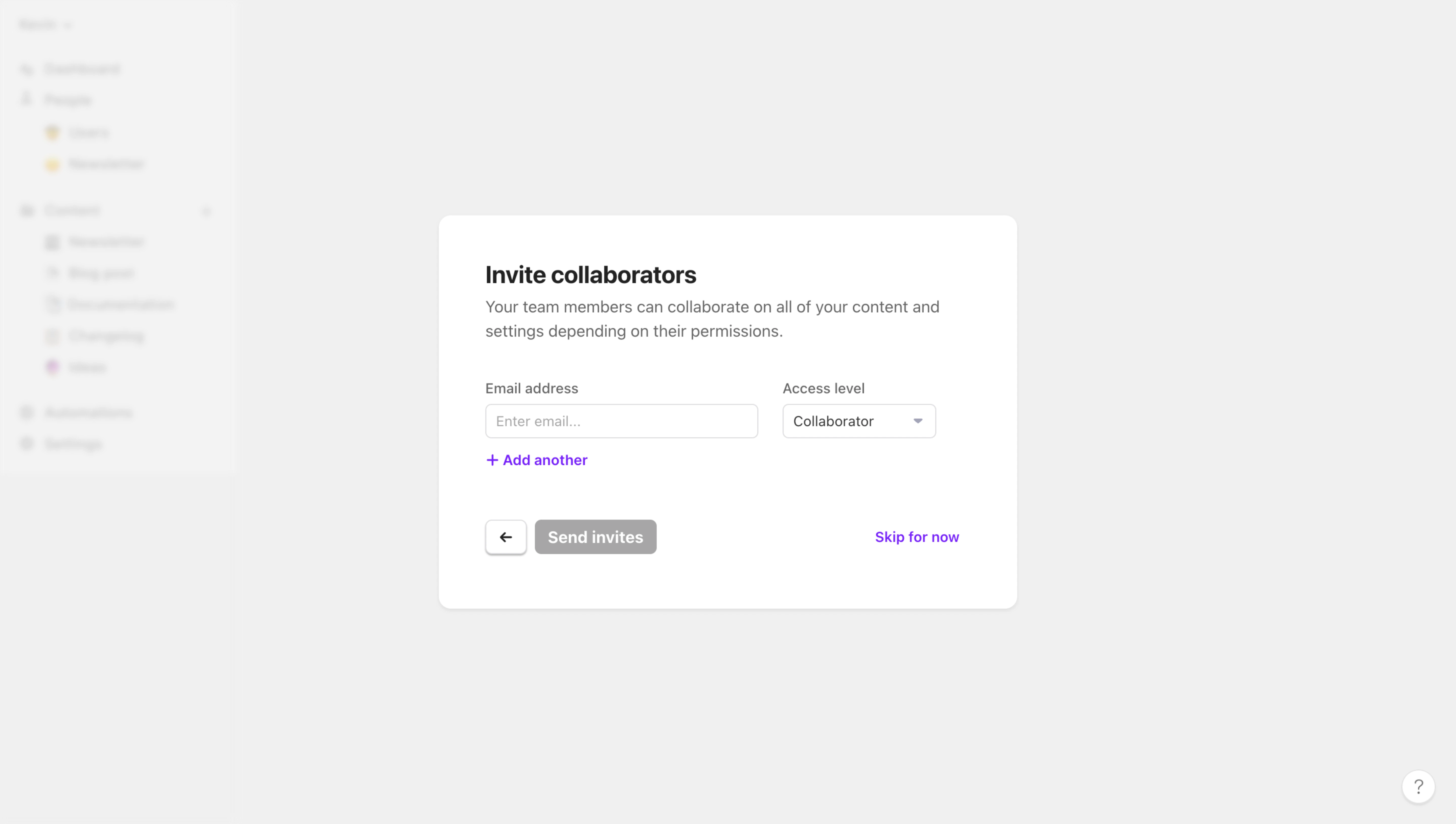
Slite, Abstract, and Arcade show different onboarding approaches: several invitation channels, repeated email fields with a link alternative, and a focused email step with a visible skip option. Their captures demonstrate initial invitation interfaces, not delivery performance or acceptance behavior.
Invite people when the shared task makes sense. A project handoff, first shared document, or initial workspace setup may create a clear reason. A generic demand to invite colleagues before seeing the product can ask for a social commitment before the person understands its value.
Explain what the invited people will be able to do and which workspace they will enter. Avoid presenting collaboration merely as completing an onboarding checklist. A sender needs to know whether they are inviting viewers, contributors, or administrators.
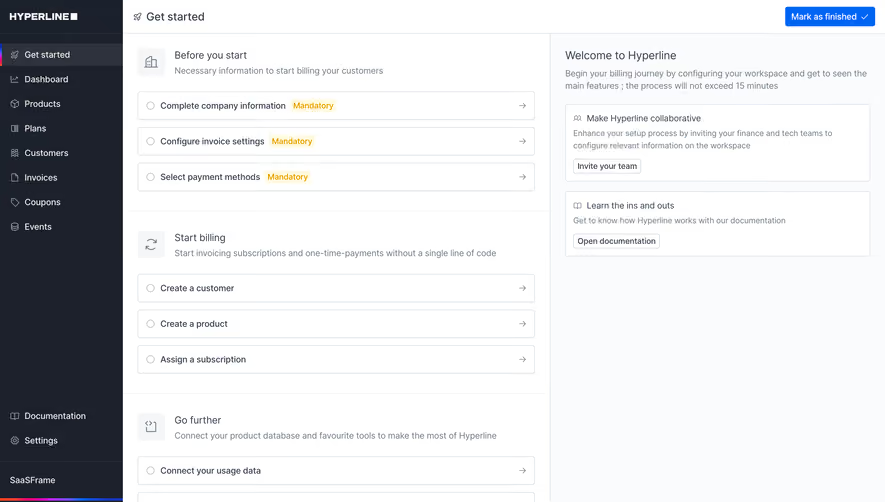
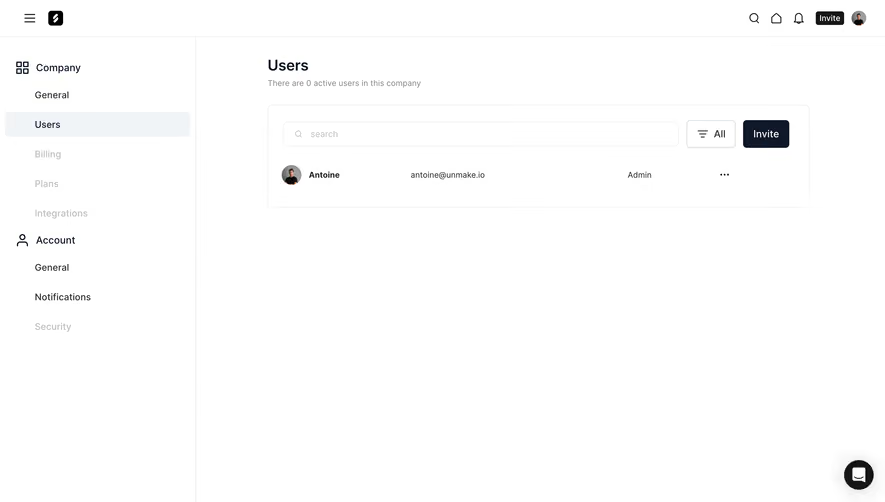
Make the route available later as well as during onboarding. The person creating an account may not yet know whom to invite, may lack permission to contact colleagues, or may want to configure the workspace first. Deferring an invitation should not make the feature difficult to find afterward.
Slite’s modal presents a shareable workspace link, contact-based options, and email entry. The contact area includes an explanation about authorization and handling of contacts. That layout acknowledges that senders may have different ways to identify collaborators.
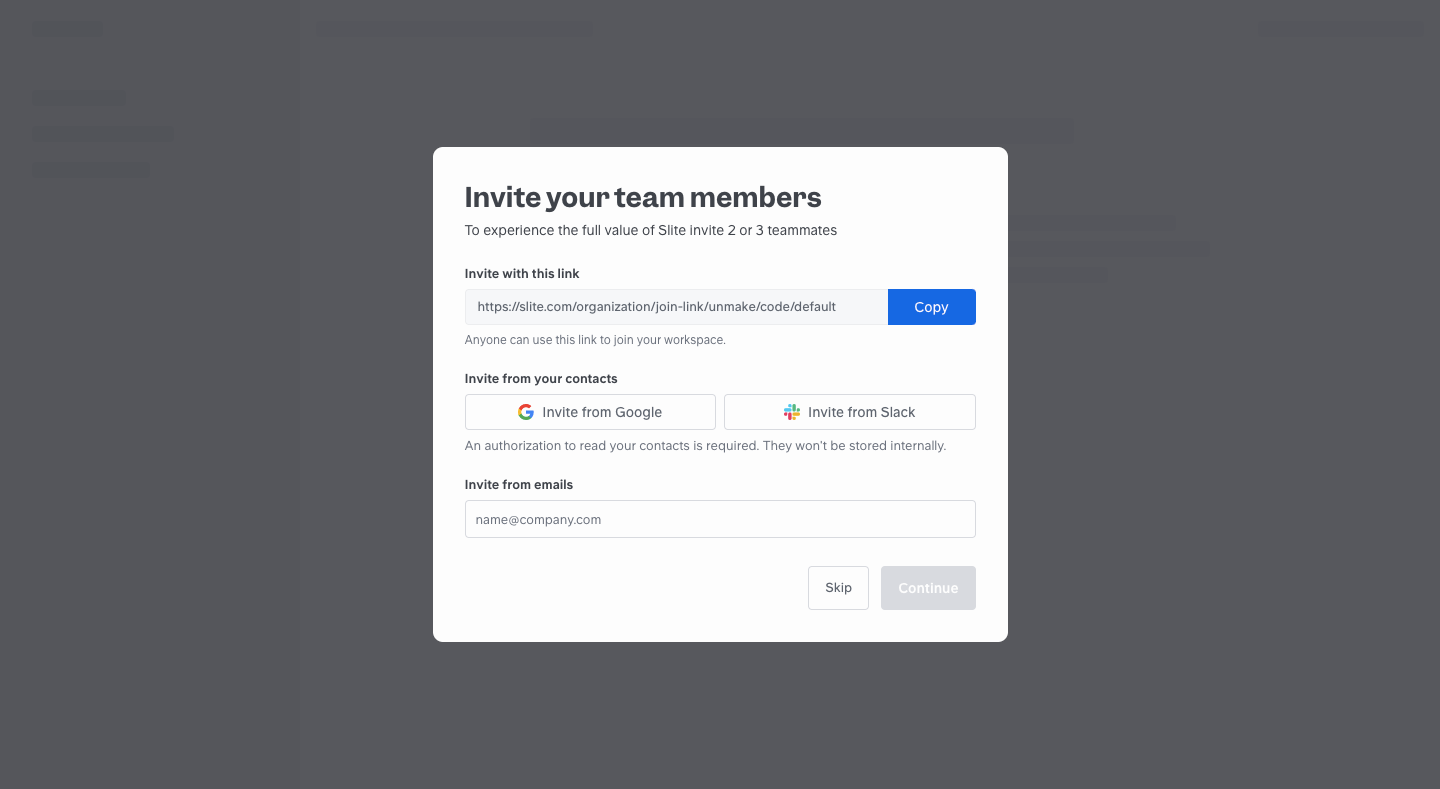
A link can be convenient for an established team channel. Named email invitations can provide more controlled recipient targeting. Contact import can reduce typing but introduces another authorization handoff. Choose the routes that suit the membership policy rather than treating every channel as universally beneficial.
If contact access is optional, preserve a manual route. Explain why the permission is requested and what the product will do with the data, using wording that matches the actual implementation. The screenshot’s statement is historical product copy, not independent verification of data handling.
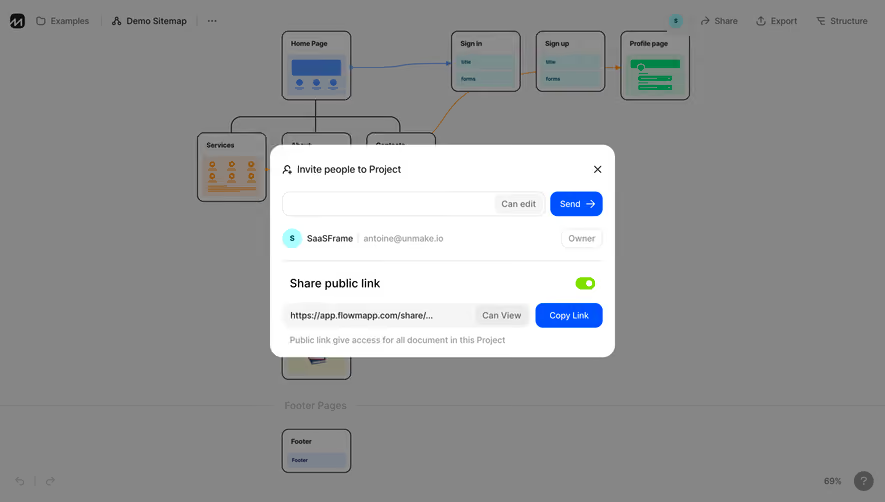
Slite’s captured link area explains that the link can be used to join the workspace. Abstract also offers a copyable invitation link alongside email fields. Both examples make link sharing an explicit alternative rather than hiding it inside an email workflow.
The convenience of a link depends on its access policy. State whether it is tied to a recipient, restricted by domain, time-limited, or reusable where those distinctions apply. Explain the role or scope it grants. A sender should not mistake an unrestricted workspace-joining link for a private invitation to one person.
Provide a supported way to revoke or replace a link when the product allows it. Copy confirmation should say that the link was copied, not that people were invited or joined. Those are separate events. Test how an expired or revoked link guides the recipient back to an appropriate request route.
Abstract shows several separate email fields and an action to add more. The surrounding copy identifies the design-collaboration context, while a shareable link sits below the email action. Separate fields can make a small list of recipients easy to review one at a time.
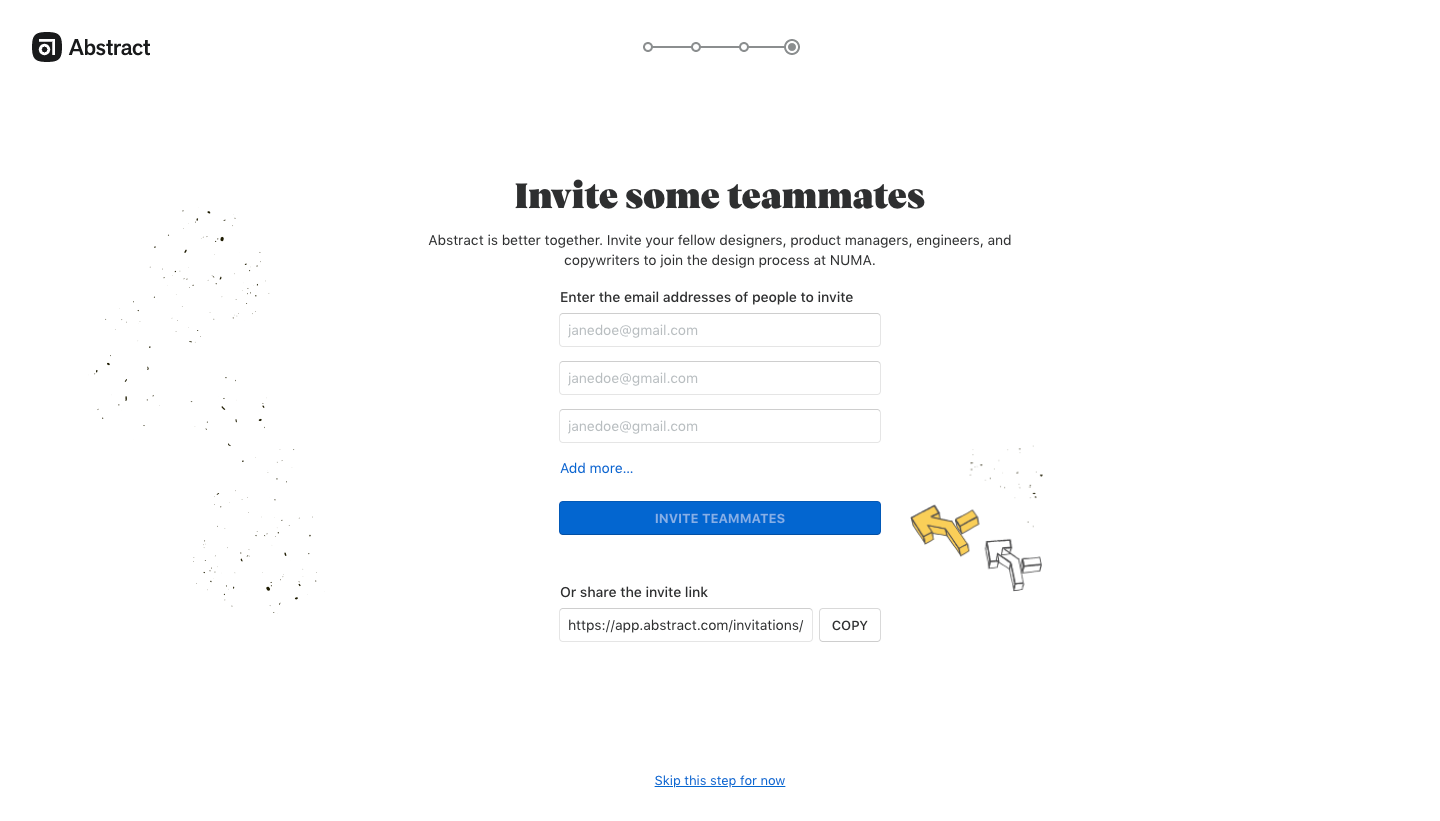
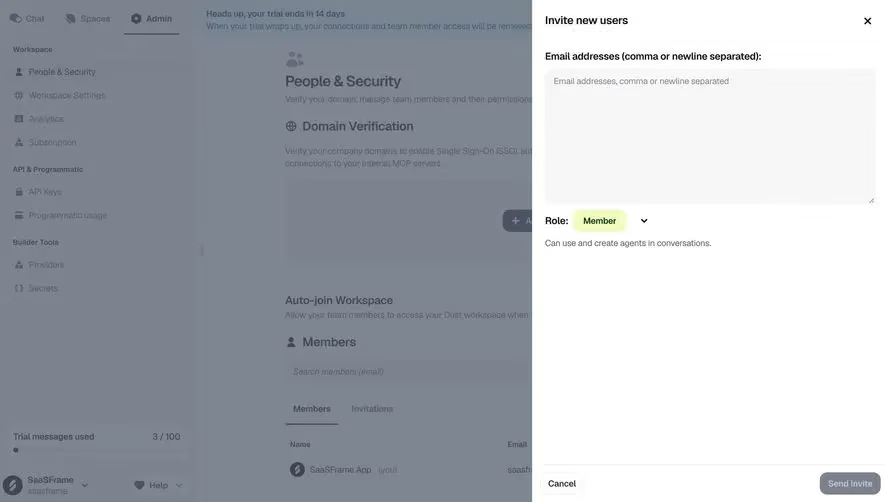
A bulk text area can suit larger lists, but needs clear delimiter instructions and per-address validation. A chip-based field can make individual entries visible after parsing. Choose the method according to realistic invitation volumes, not the empty form’s appearance.
Handle duplicates, malformed addresses, and people already associated with the workspace intentionally. Preserve valid recipients when one address needs correction. Avoid rejecting a whole group without identifying the entry that caused the problem.
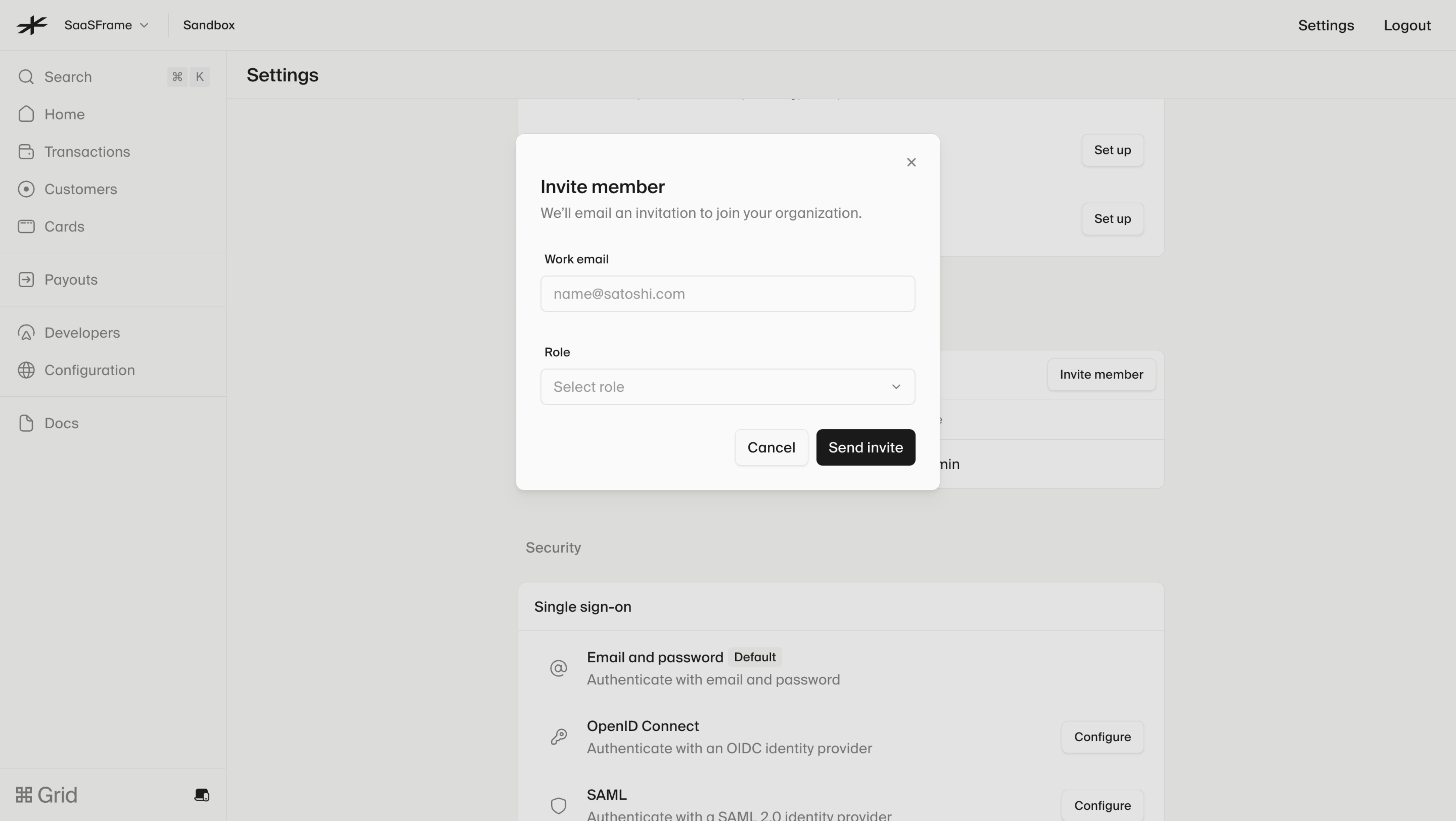
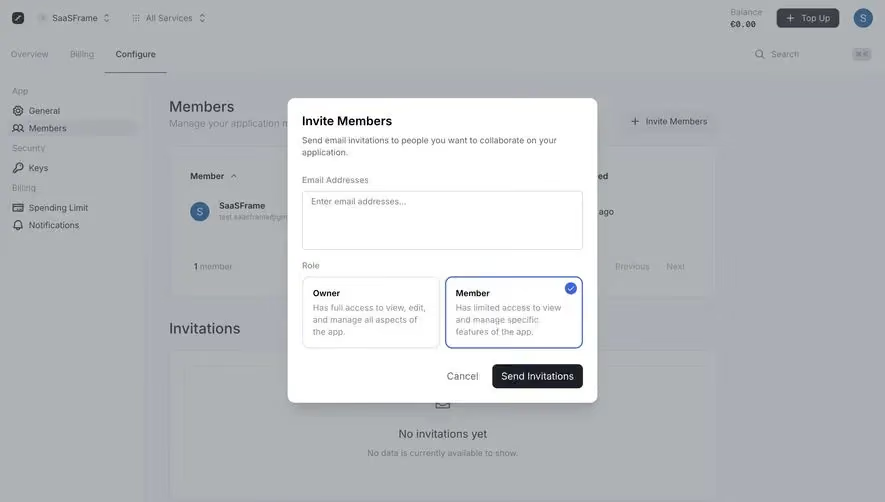
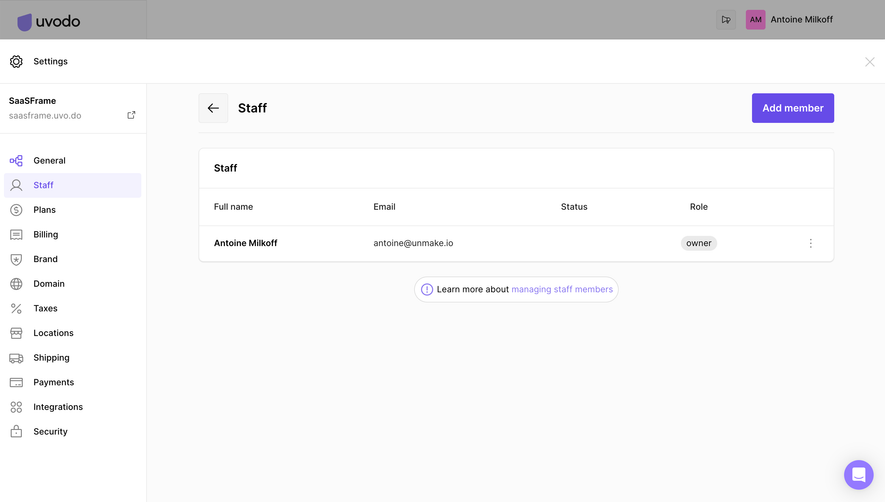
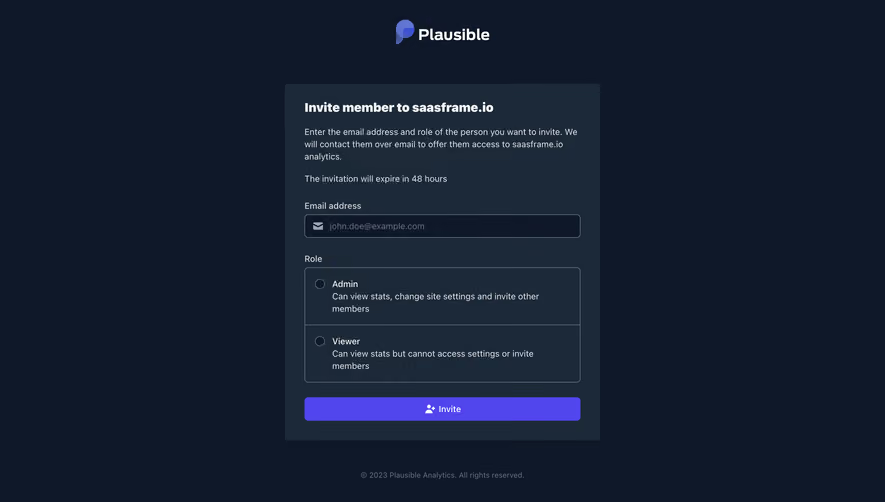
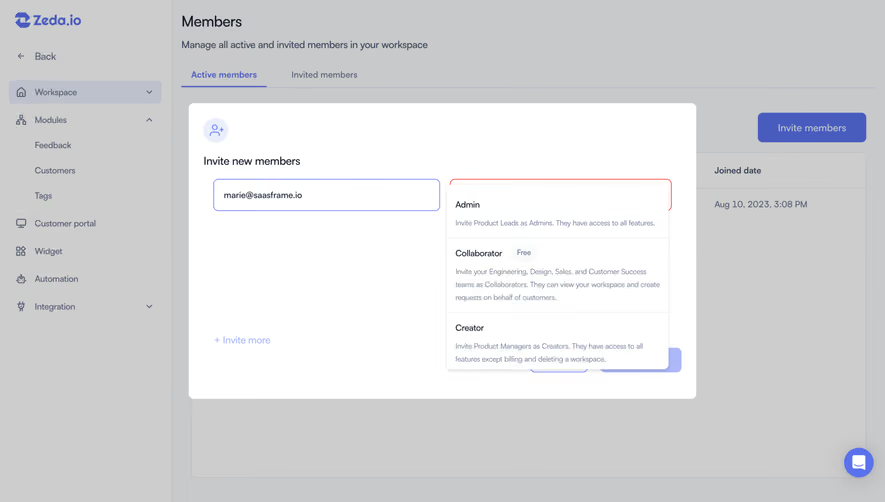
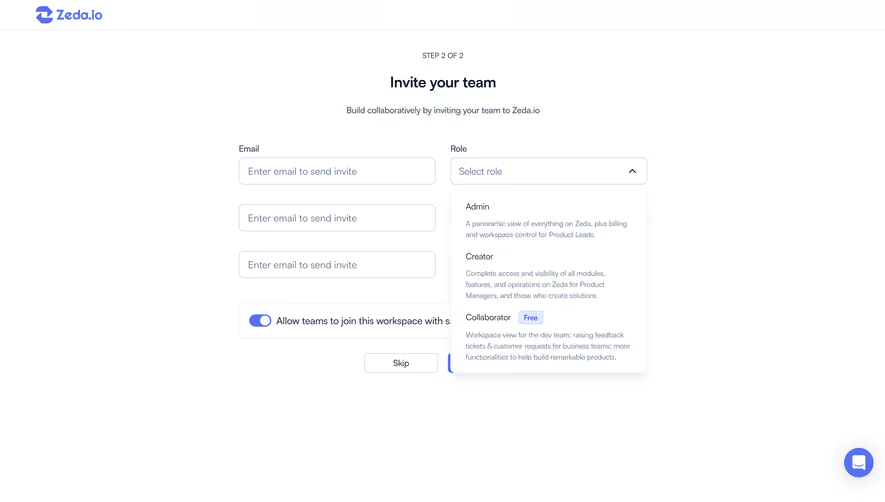
An invitation may grant workspace membership, access to a project, or a guest role on a specific item. Include the scope in the sender’s task. If the invitation defaults to a role, explain that role rather than requiring the sender to infer permissions from the word “teammate.”
For several recipients, make it clear whether one role applies to everyone. If people need different access, support the relevant per-person choice or separate groups. Avoid granting broad administrative capabilities merely to simplify a bulk form.
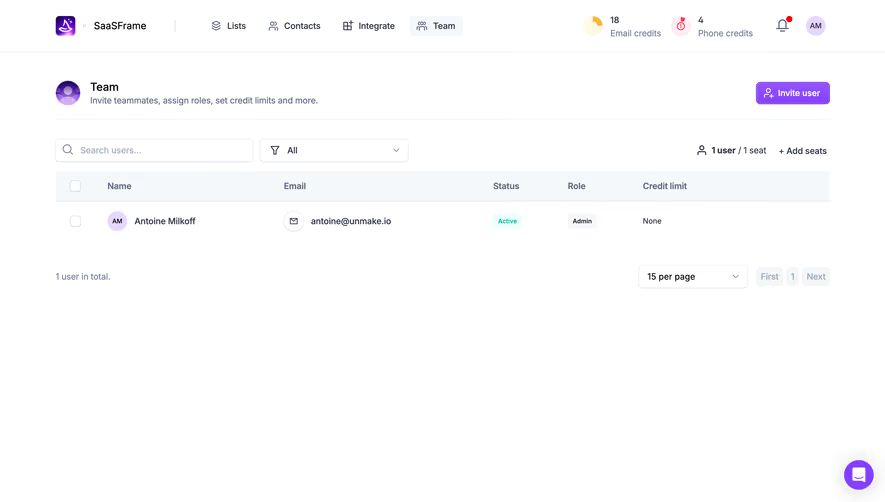
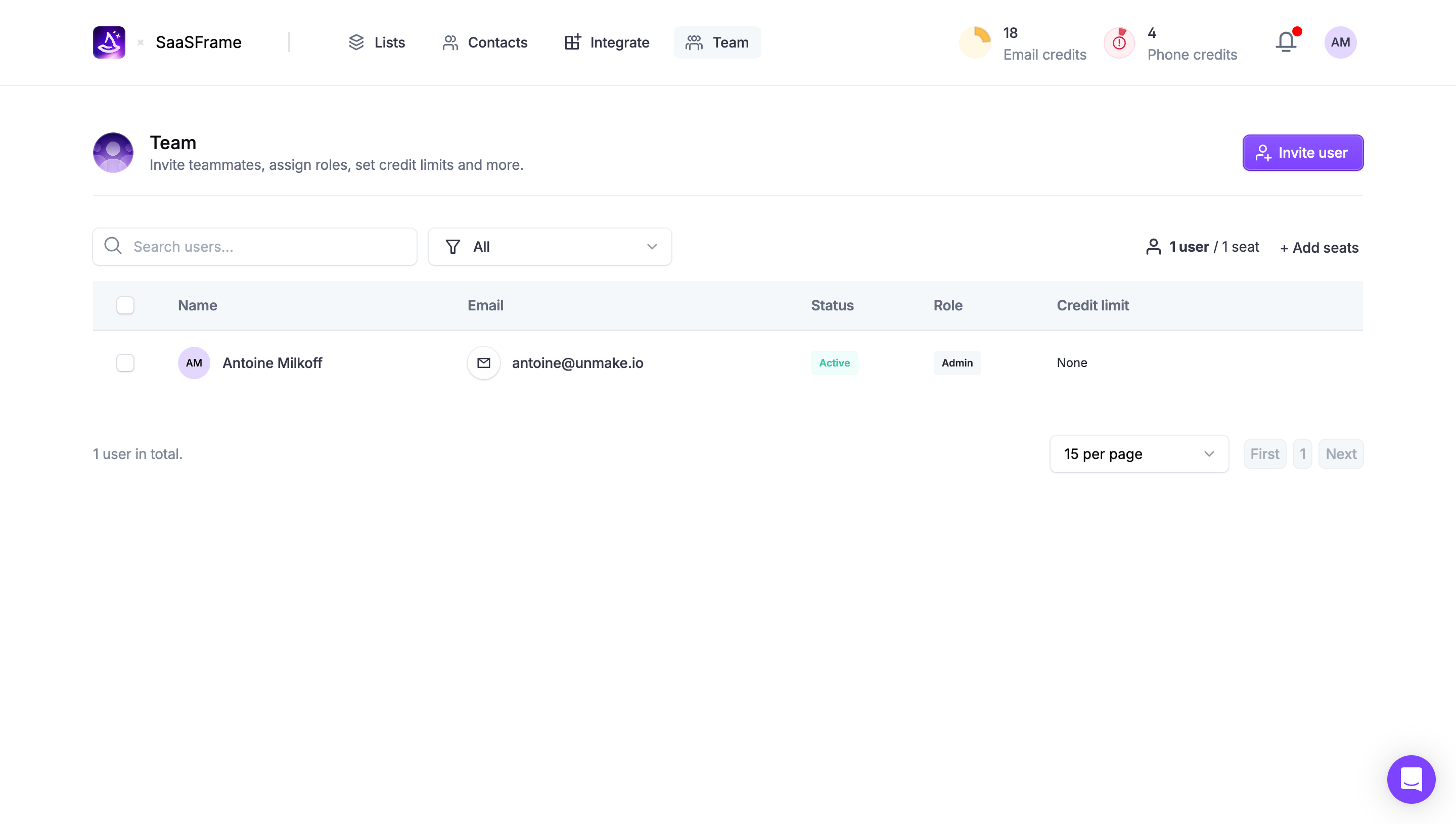
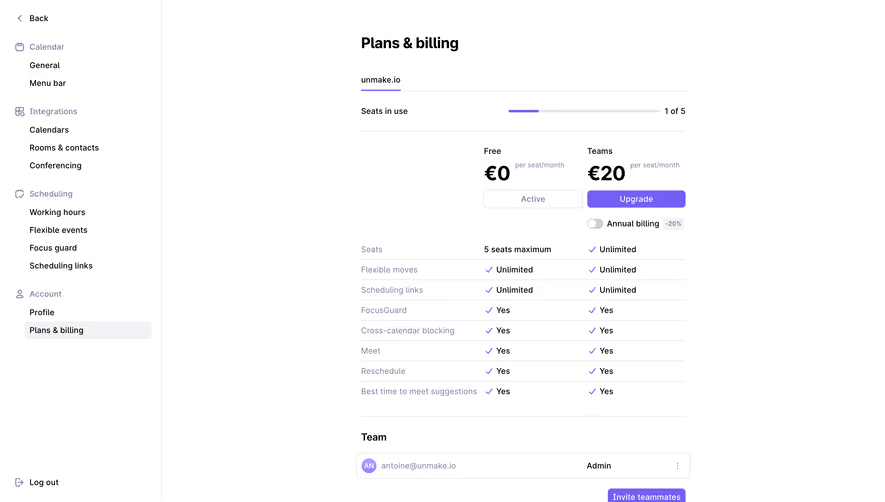
Billing can also affect the decision. Where inviting a person may consume a seat or change a charge, explain the relevant consequence before commitment, using the product’s actual subscription rules. Sending an invitation and accepting it may trigger different outcomes; do not describe them interchangeably.
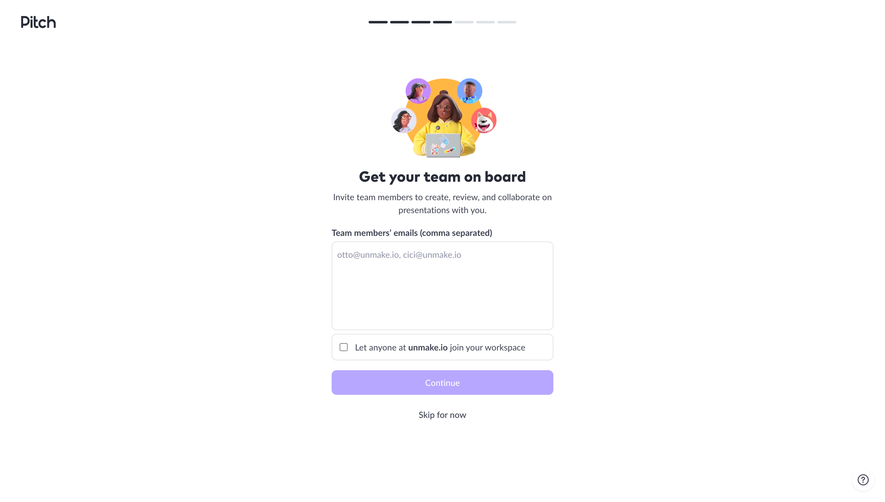
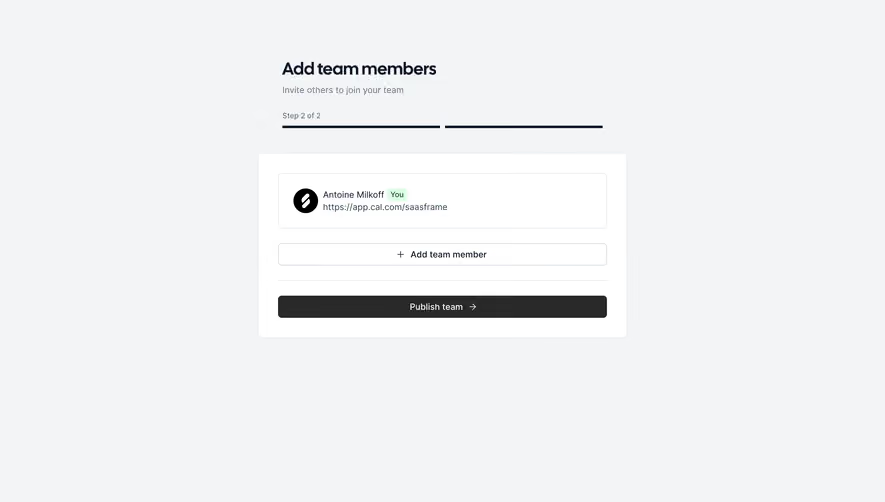
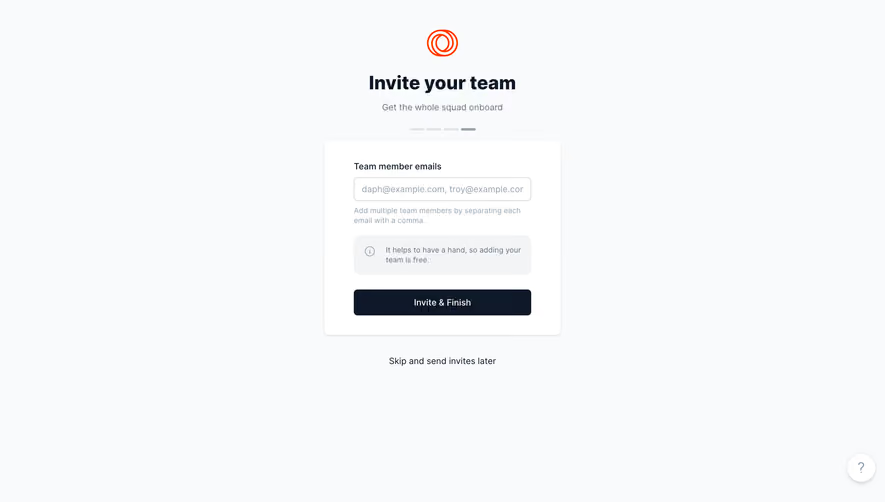
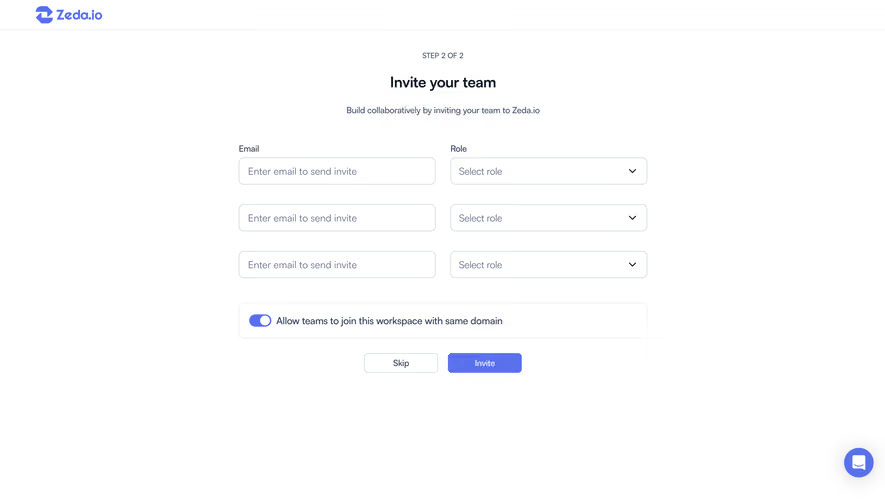
Arcade’s capture identifies the invitation as the second of three steps. It provides a primary action that both sends invitations and continues, plus a separate action for skipping. The progress information and the two choices clarify how the step relates to the remaining journey.
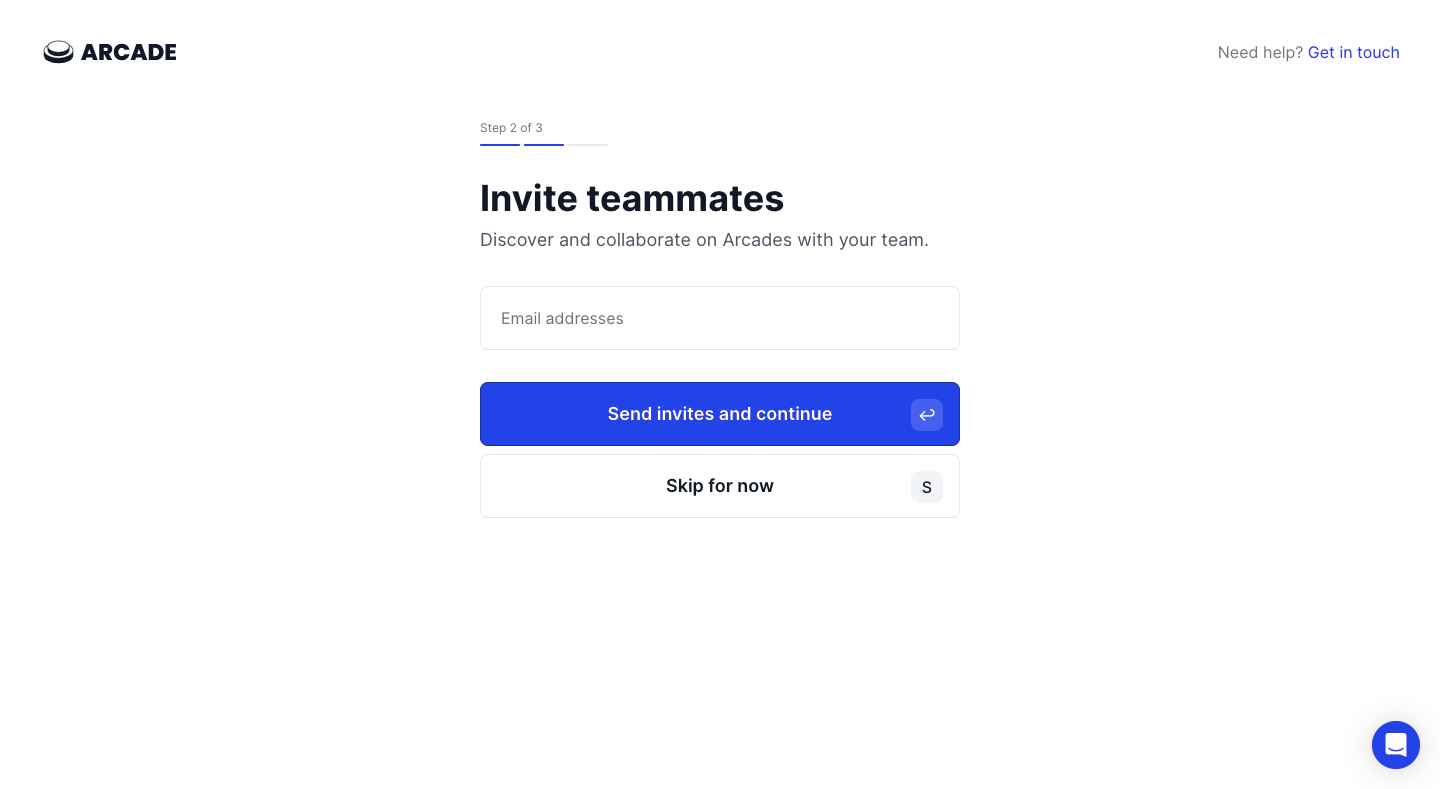
Use action wording that matches behavior. If sending moves the person onward, make that progression understandable. If the product sends without leaving the page, use feedback appropriate to that local action. Do not advance while hiding a failed delivery request.
A skip action should have a meaningful later route. If collaboration is required for a particular task, explain that requirement at the task rather than making every new user invite someone immediately. Distinguish a genuinely necessary participant from an optional growth-oriented onboarding prompt.
A successful invitation request means the product accepted the operation; it does not establish that the email arrived or the recipient joined. Use state labels that reflect the evidence available. Pending invitation, accepted membership, expired invitation, and revoked access are different states.
If a batch partly succeeds, identify which recipients still need attention. Keep failed addresses available for correction and retry. Avoid a single reassuring message that conceals unsuccessful entries.
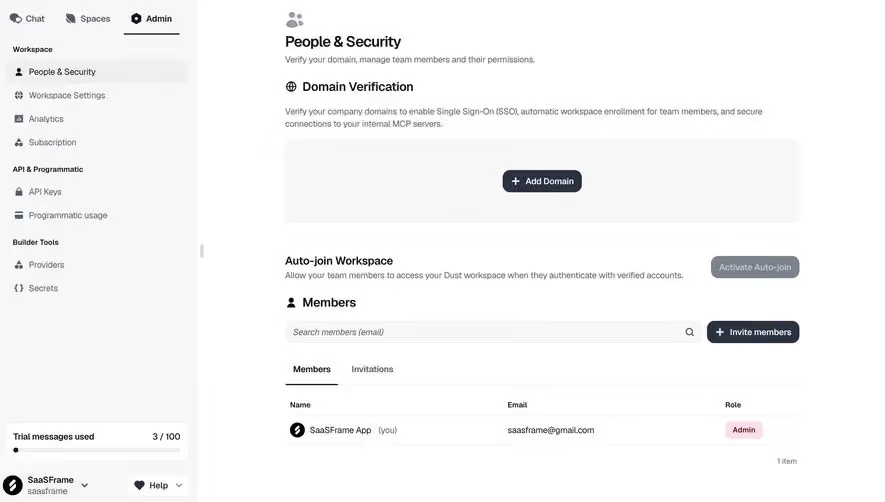
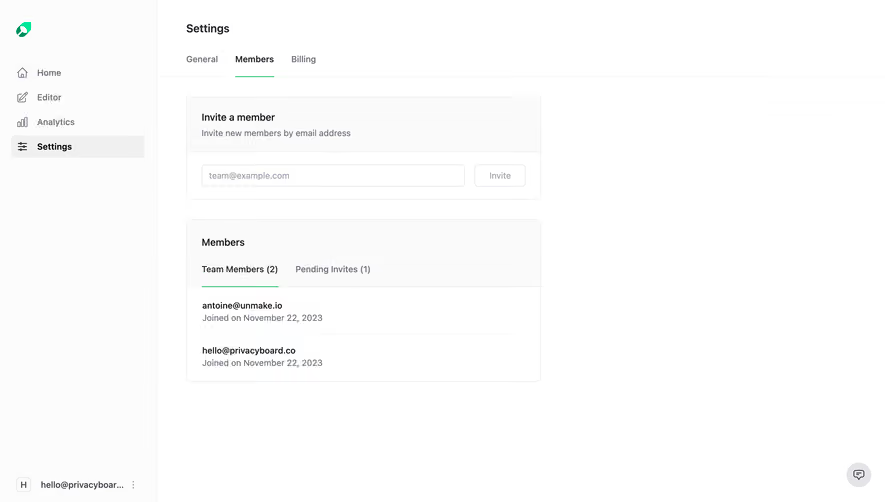
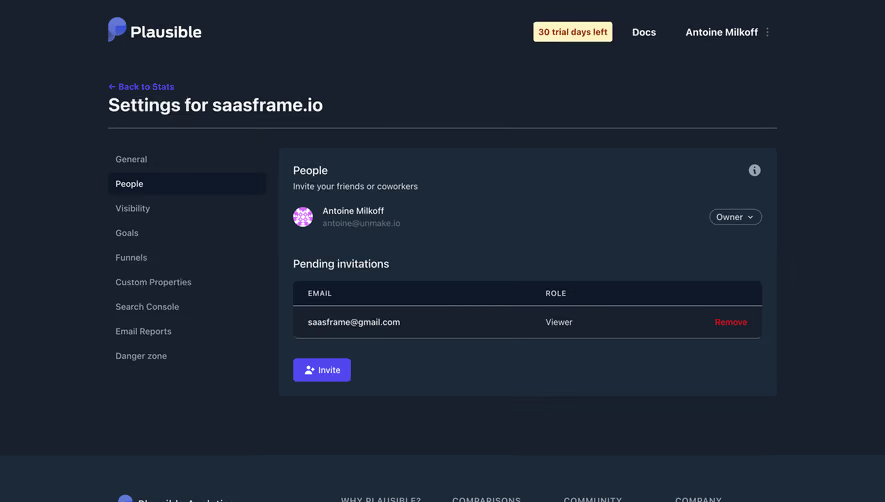
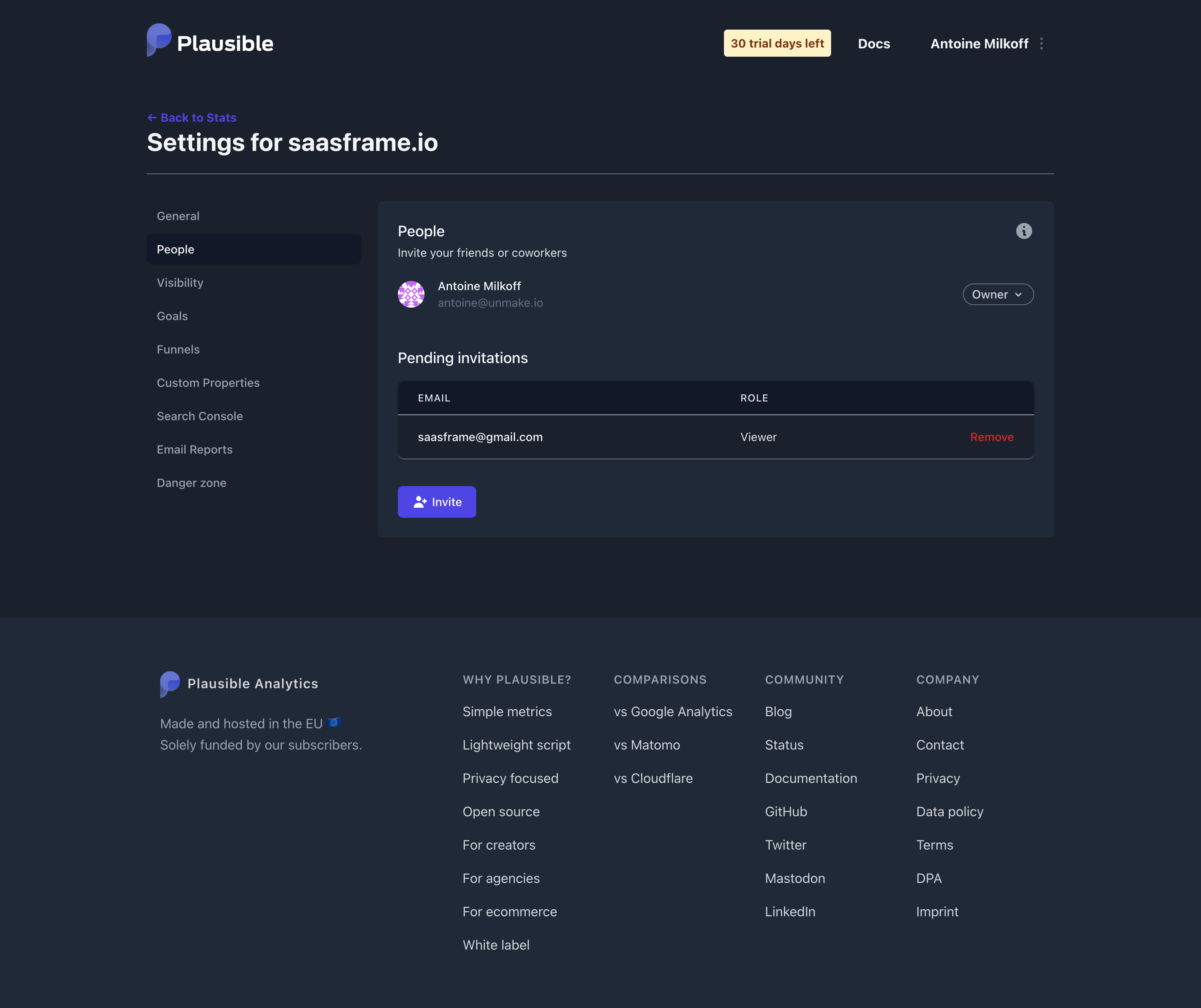
A pending-invitations view should offer the permitted management actions, such as resend or revoke, with clear scope. Resending should not create an uncontrolled set of conflicting links. Explain the newest-link rule if the implementation invalidates earlier invitations.
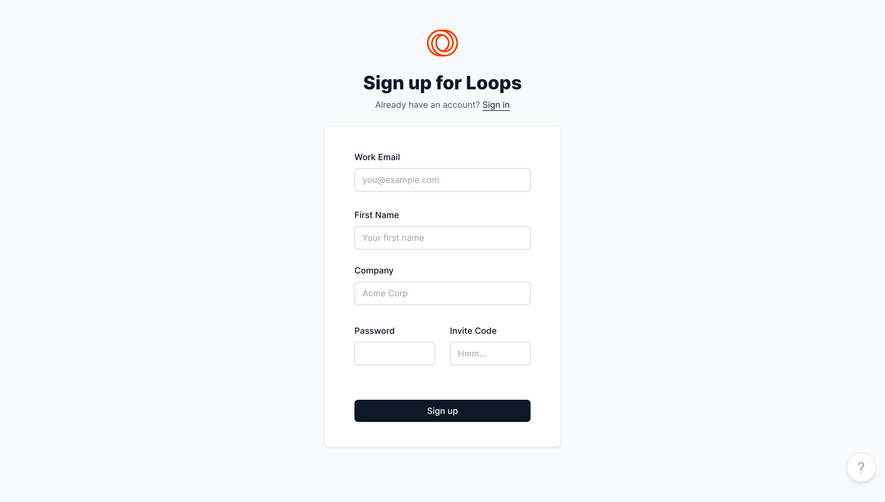
The recipient needs to recognize the product, workspace, and reason for the invitation. Show who invited them where appropriate and the access being offered. A generic signup page can lose the context that made the message trustworthy and relevant.
Handle existing accounts and different signed-in identities. Someone following a work invitation while signed into a personal account should be able to understand the mismatch and use the allowed correction route. Do not silently join the wrong identity or create a duplicate account.
Account creation, authentication, email verification, and workspace membership may occur at separate steps. Preserve the invitation through those steps and make the final membership result clear. A completed signup should not be called a successful join if access remains pending.
An invitation can expire, be revoked, refer to a deleted workspace, or already have been accepted. Provide a landing state that reflects the allowed next action. That might be signing in to an existing membership, requesting a new invitation, or contacting the workspace administrator.
Do not reveal private team information through an invalid invitation beyond what the access policy allows. A helpful recovery route can still avoid exposing membership lists or internal resource names to an unauthorized visitor.
Consider what the sender sees after the recipient completes the journey. The pending state should update to established membership when that is confirmed. If acceptance cannot be observed reliably, avoid pretending that a delivery or link click proves it.
Provide clear control labels, recipient-format instructions, and errors associated with the affected entries. W3C’s form guidance supports labels that identify purpose and notifications that help people correct problems. Do not rely on red borders alone to indicate an invalid address.
Test pasting several addresses, removing a chip, adding a new field, opening a contact picker, and dismissing the modal with keyboard and assistive technology. Focus should remain predictable as the recipient list changes.
On mobile, keep the role, scope, and final action visible without requiring the sender to remember information from far above. Long addresses need readable handling. A compact invitation form is only useful if the sender can review who will receive access before sending.
Only when the user’s immediate task genuinely requires another participant. Otherwise offer a way to continue and invite colleagues later.
They solve different tasks. A link can suit sharing in a team channel; named email invitations can make recipient targeting explicit. Choose according to access policy and team workflow.
No. Sending, delivery, and acceptance are distinct events. The interface should report only the state it can establish.
Explore Sign Up for new-account creation, Roles & Permissions for granted access, Share for link-based collaboration, and Onboarding Checklist for setup progression.
For accessible input and feedback, see W3C’s form labels and form notifications. Compare the gallery from both perspectives: the sender granting access and the recipient trying to join the right team.