Chat Feed
26
Design real-time communication with SaaS Chat Feed patterns. Discover how to handle message bubbles, timestamps, and read receipts for a familiar and efficient messaging experience.

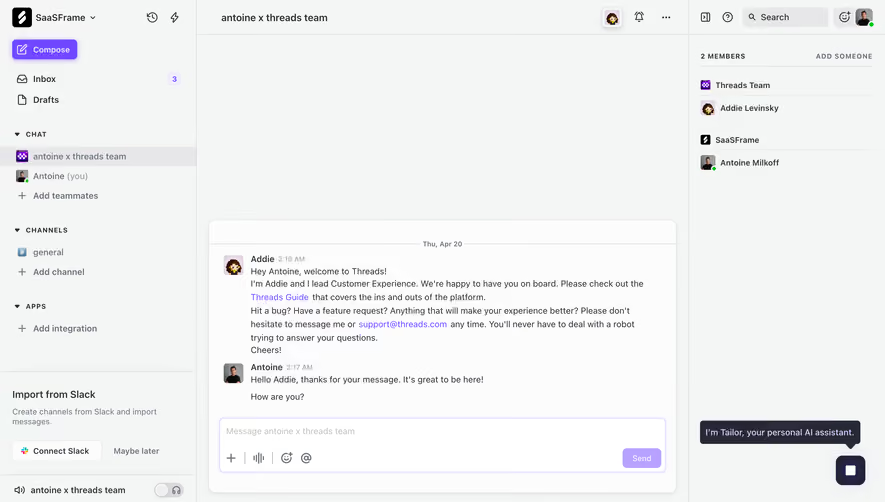
A chat feed presents an ongoing exchange in a sequence people can read, revisit, and continue. In a SaaS product, that sequence may include customer messages, team replies, internal notes, automated events, and attachments. The pattern's job is to preserve who said what, when it happened, and how the exchange relates to the work being done.
This is different from simply displaying text in bubbles. A support conversation carries responsibility, audience, status, and sometimes multiple communication channels. A team conversation may need replies, mentions, and shared files. The feed should reflect the actual relationship among participants and events instead of adopting familiar messaging conventions without examining their meaning.
Begin with the conversation model. Decide what counts as a message, which events belong in the timeline, how authors are identified, and what information users need before replying. A readable feed should support both quick orientation and careful review. Users should not have to open several unrelated panels to understand the latest exchange.
Plain's captured support conversation shows messages from a customer and a reply labeled You. Each message has an identity cue and time-and-channel metadata. The exchange moves from an upload question to a troubleshooting response and then a customer confirmation. This makes the sequence readable as a developing conversation rather than an undifferentiated text block.
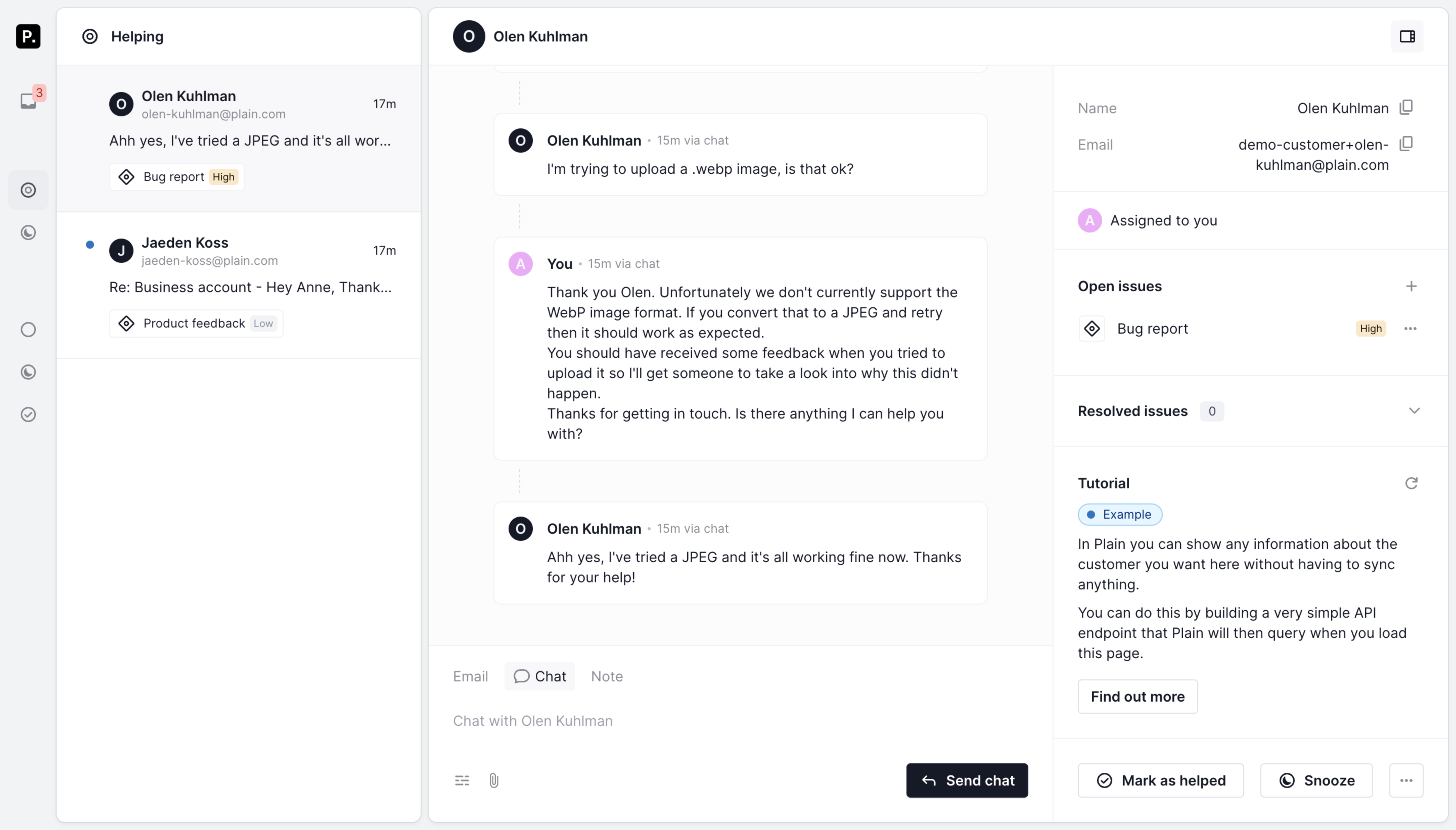
The message cards use a common alignment rather than relying entirely on left-versus-right positioning. Authorship is established through labels and avatars. That approach can work well in an operational interface where several participants may appear, provided the identity remains clear when users scan quickly or navigate with assistive technology.
Choose chronology deliberately. Most conversation feeds benefit from a stable order that matches the exchange. If events are inserted later, distinguish their actual event time from when they were received where the difference matters. Avoid presenting a delayed event as a new reply without explaining its relationship to the existing conversation.
Plain's capture places the message sequence centrally and customer information, assignment, and issue details in a right-hand panel. The selected conversation remains visible in the list on the left. This preserves a relationship among the queue, the exchange, and the surrounding operational context without inserting every property into the message stream.
Keep information in the feed when it helps interpret the exchange. A message's author and channel belong near the message. A customer's account properties may belong in a nearby context panel. An assignment change can be represented as an event when it matters to the history, but a large repeating profile block can interrupt reading without adding new information.
On narrow screens, these relationships need a deliberate sequence. A hidden context panel should remain reachable without losing the conversation's position or draft. The supplied screenshot is a desktop view, so responsive behavior cannot be inferred from it. Test how users move between messages and relevant account details on smaller displays.
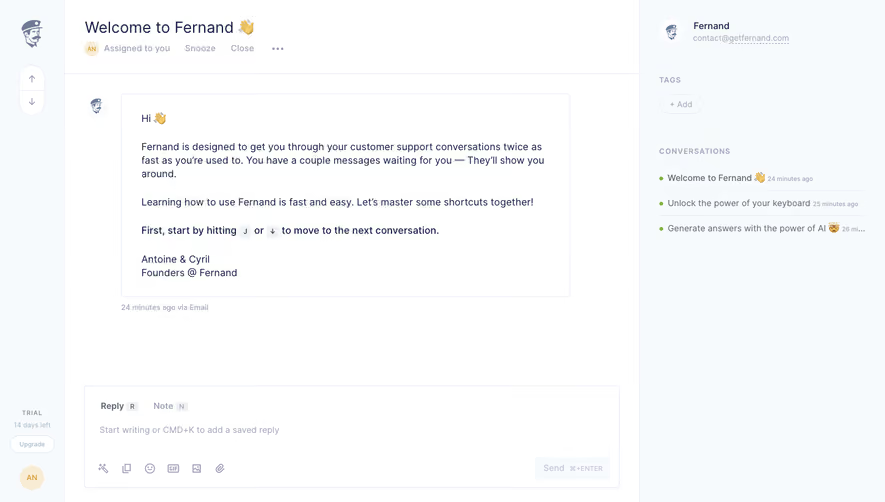
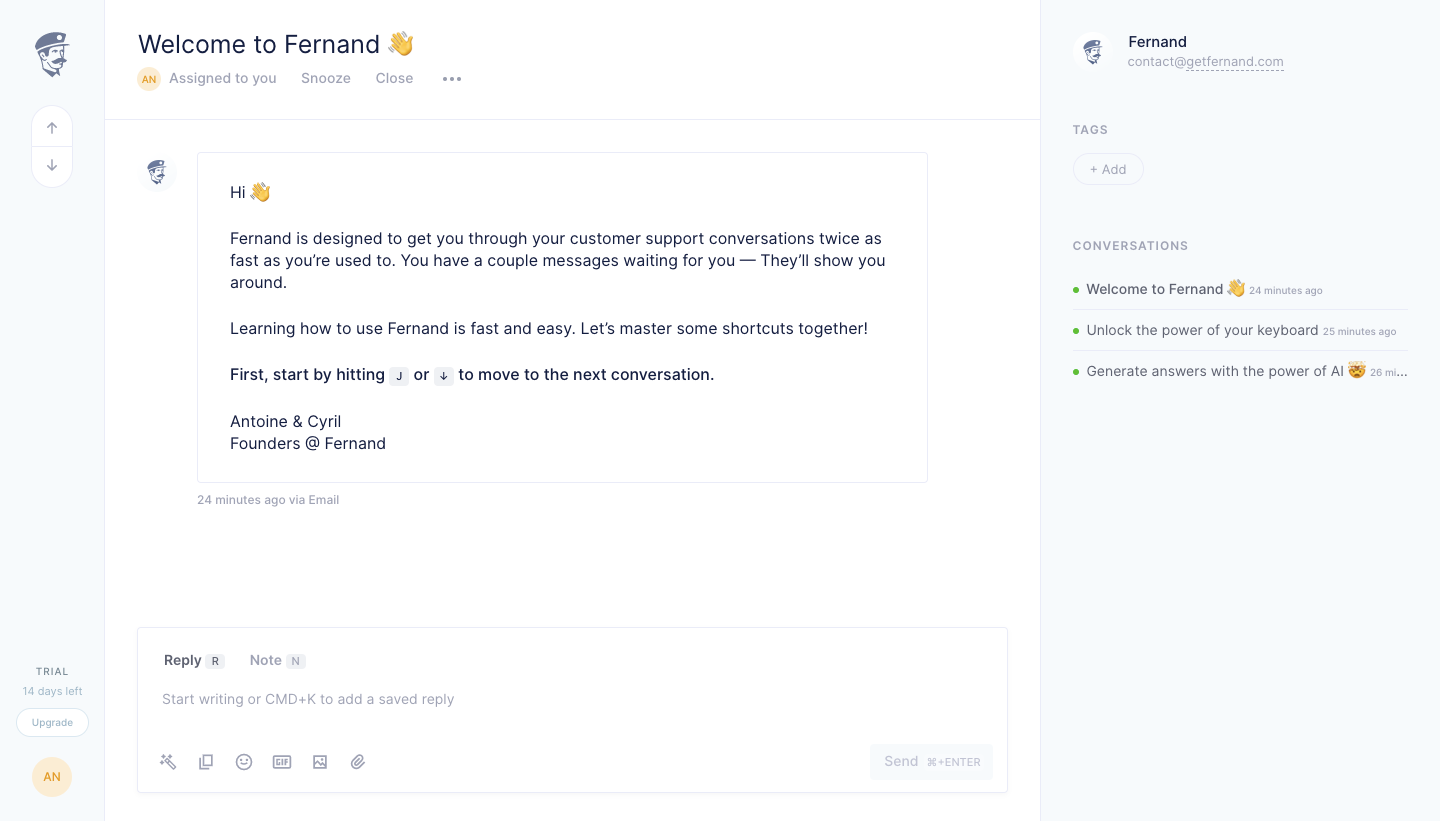
Fernand's captured conversation places Reply and Note choices in the composer below the feed. The visible message also identifies its delivery channel. This makes communication mode part of the surrounding workflow rather than leaving users to infer audience from a generic text box.
A feed containing internal notes should make those notes distinguishable from customer-facing replies. Use clear labels and a visual treatment that remains understandable without color alone. Automated events should likewise identify their source and purpose. A system-generated status change should not look like a human statement.
Define which events deserve space. Assignment changes, delivery failures, and reopening can be important in a support history. Repeated background updates may create noise. Group or summarize low-value activity carefully, while preserving access to details when users need an audit of what happened. The feed's main purpose is comprehension, not exposing every internal event equally.
The composer should identify the audience and channel of the next message. In Plain's capture, Email, Chat, and Note appear as distinct choices, with Chat selected and a Send chat action. This connects the action label to the communication mode. It reduces the ambiguity of a generic Send control in a multichannel support workflow.
When the user changes mode, preserve the draft appropriately and make any recipient change clear. An internal note becoming an external message is a meaningful transition. If attachments or formatting behave differently across channels, explain the relevant difference before submission rather than silently dropping content.
Keep the composer associated with the active conversation. Switching threads should not send a draft to a new recipient accidentally. Decide whether drafts are stored per thread, whether they are shared, and how concurrent edits are handled. The captures show visible mode controls, but not these behaviors; verify them in the implementation.
Writing, submitting, sending, delivered, and failed are distinct states when the product tracks them. Display only the states the system can support accurately. A message appearing in the feed does not necessarily mean that an external recipient received it. Users need to understand whether they are seeing a local draft, a pending request, or completed communication.
A failure should stay connected to the affected message. Preserve the text and provide a clear retry or correction route. Explain whether a retry could create a duplicate and handle repeated activation predictably. A generic banner far from the message can leave users unsure which part of the conversation failed.
Do not imply read status from identity or presence alone. An avatar near a conversation may identify a participant, not prove that they saw the latest reply. If the product provides read receipts, define their scope and limitations. Keep delivery, reading, and assignment concepts distinct so the feed does not overstate what is known.
New messages can arrive while someone is reading older content or writing a response. Avoid moving the viewport unexpectedly away from the material they are reviewing. A new-message indicator can acknowledge updates and offer a route to the latest content without forcing a scroll.
When users are already at the end of the conversation, maintaining the latest message in view may be appropriate. When they have intentionally scrolled upward, preserve their position. Define how images, attachments, and expanded content affect that position after loading. A feed that jumps while media resolves can make historical review frustrating.
Returning to a conversation also needs a rule. The product may open at the latest message, the first unread message, or the user's previous position. Choose according to the workflow and make important unread boundaries recognizable. Test long threads rather than relying on a short demonstration exchange.
Attachments need recognizable names, types, and states. A preview can help, but users should understand whether they are looking at a thumbnail, opening a full asset, or downloading a file. Preserve the association with the message and author. If an attachment is unavailable, explain the state without making the whole message unreadable.
Long messages may benefit from controlled expansion, especially when quoted email history repeats previous content. Keep meaningful new text visible and make collapsed sections identifiable. Avoid truncating the part that changes the message's meaning. Users should be able to inspect the complete content without losing their place in the conversation.
Review pasted formatting, links, lists, and multilingual content. A feed must handle more than the short paragraphs in a design example. Wide content should not force the entire page to scroll horizontally, and text enlargement should not overlap metadata or actions. Keep message-level controls reachable without covering the content they act on.
A chat feed needs a coherent reading order, identifiable authors, and usable controls. Decide how new content is announced so users receive meaningful updates without an overwhelming stream of interruptions. A long conversation should remain navigable, and the composer should have a clear accessible label and audience context.
Collaboration adds responsibility. Assignment, internal discussion, and the final external reply may involve different people. The feed should help users understand who is currently responsible and whether another teammate is working on a response. If the product tracks editing or typing, represent that state accurately and handle stale indicators.
Permissions apply to the conversation, its attachments, and its internal notes. Sharing a thread should not accidentally expose content intended for a smaller audience. Review account switching and changes in access while a conversation is open. These are implementation concerns that cannot be established from the captured layouts alone.
Test tasks that require reading beyond the last message. Ask users to identify what the customer already tried, find an internal note, explain the current issue, and send an appropriate response through the correct channel. Include new arrivals, failed sends, and long histories. These cases reveal whether the feed preserves context.
Evaluate successful responses and correction effort alongside time to reply. Faster communication is not helpful when users miss an earlier constraint or send internal content externally. Observe whether the interface makes responsibility and delivery state understandable without forcing people to inspect unrelated settings.
Use this checklist:
No. Cards, aligned blocks, or other structures can work when authorship and chronology are clear. Choose the presentation around the conversation's participants and content. A support workflow with notes and events may need more explicit labeling than a simple two-person messenger.
Only when that supports the user's current position. Preserve intentional review of older content and provide a clear new-message route. Define opening and unread behavior separately, then test long threads and delayed media loading.
Use an explicit audience label and a distinct treatment that remains understandable without color alone. Keep the composer mode equally clear. Users should recognize both existing internal content and the audience of their next contribution.
Browse the SaaSFrame chat feed examples to compare conversation structures, message metadata, and the controls that preserve context while replying.