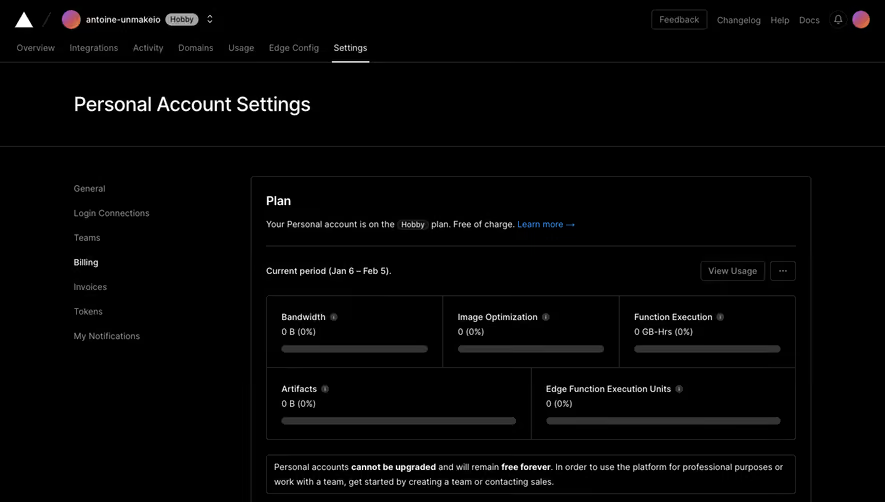
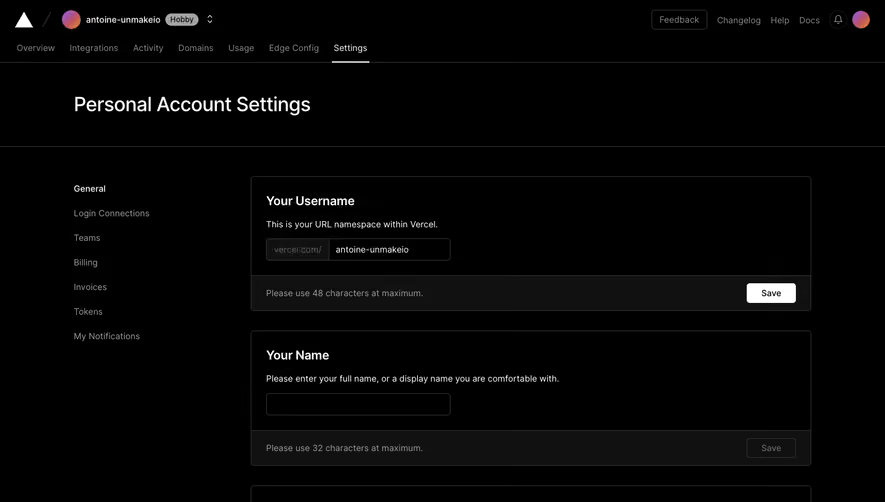
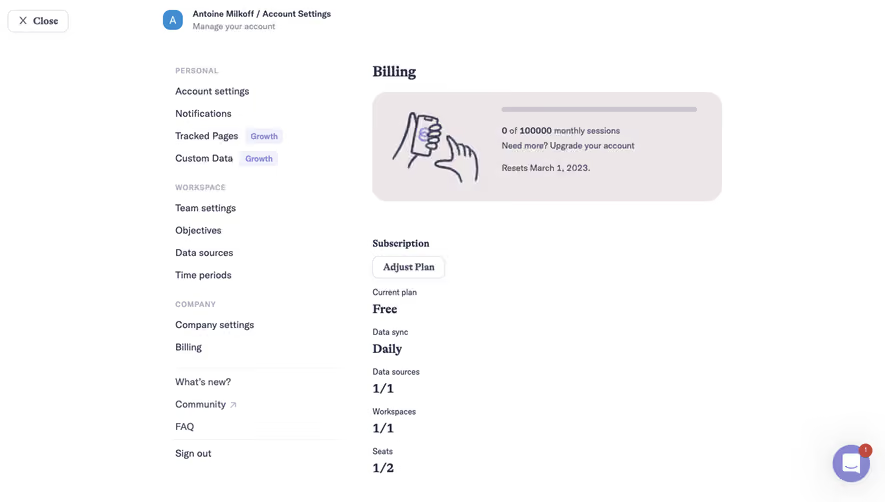
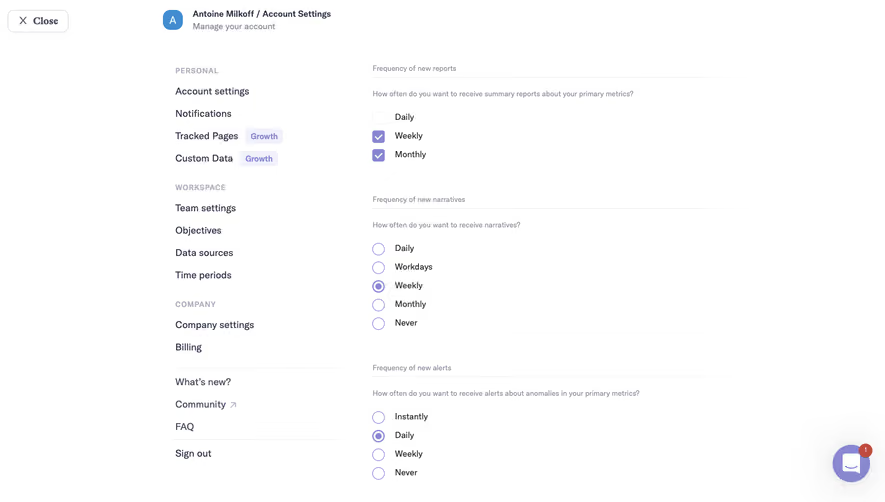
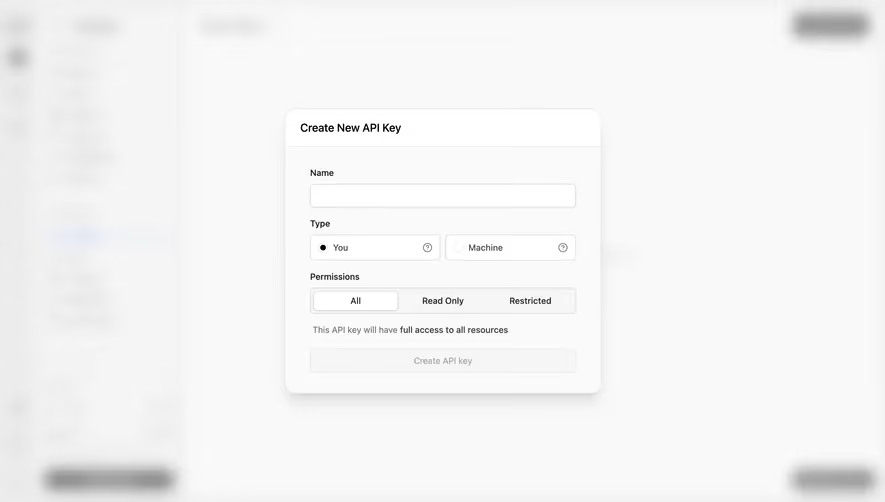
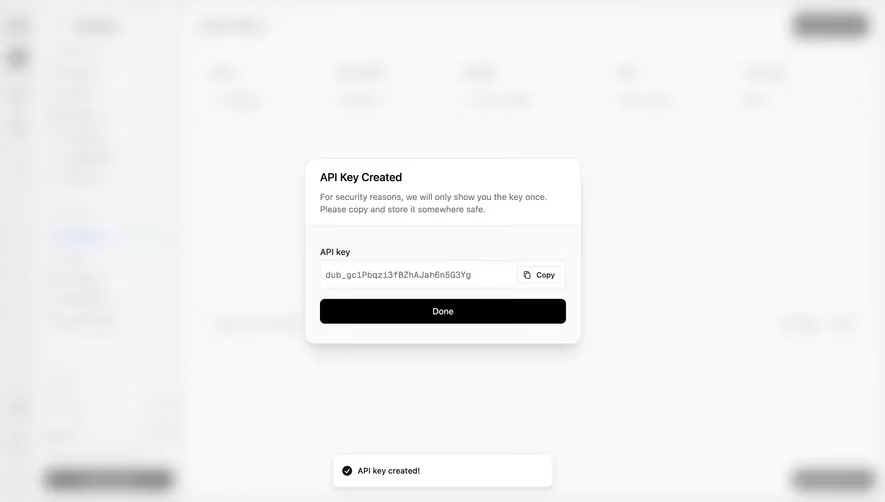
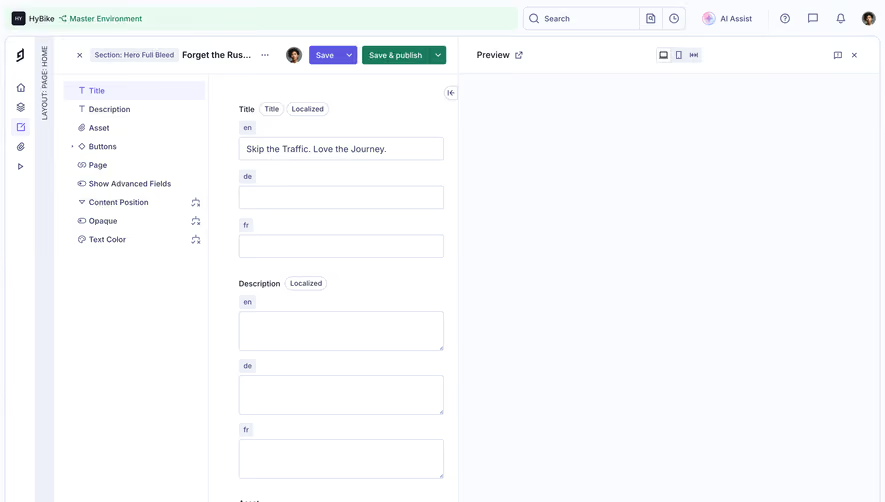
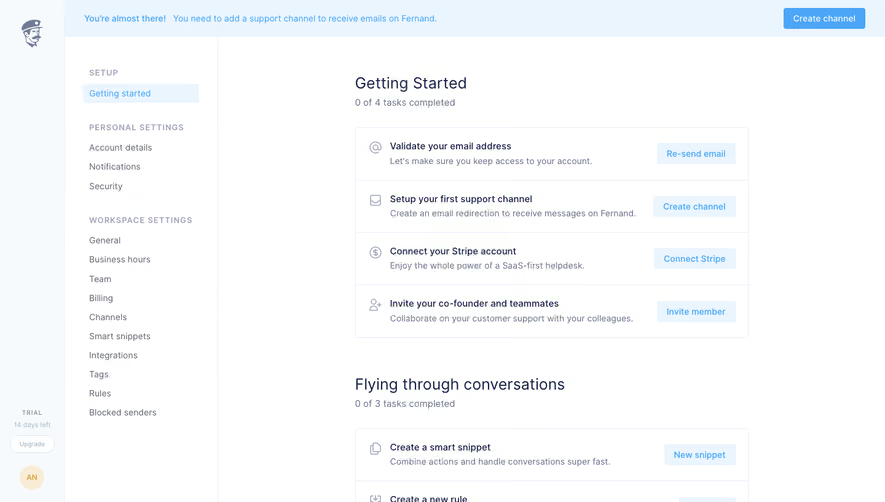
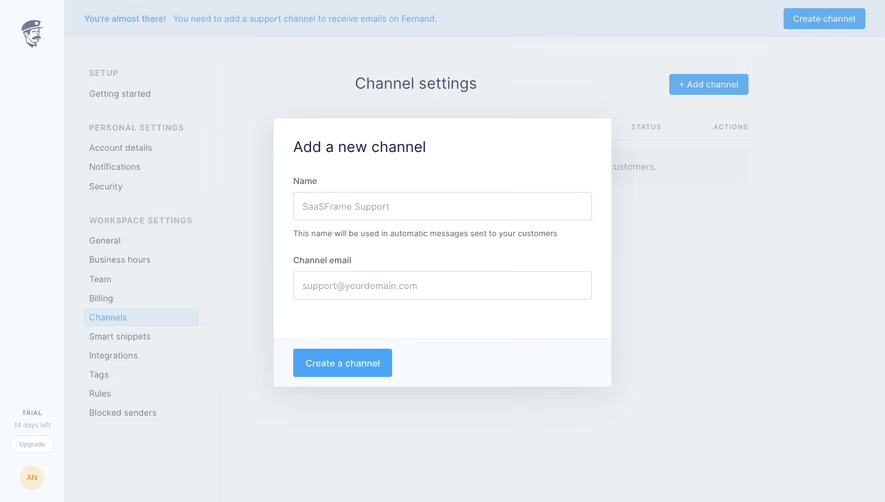
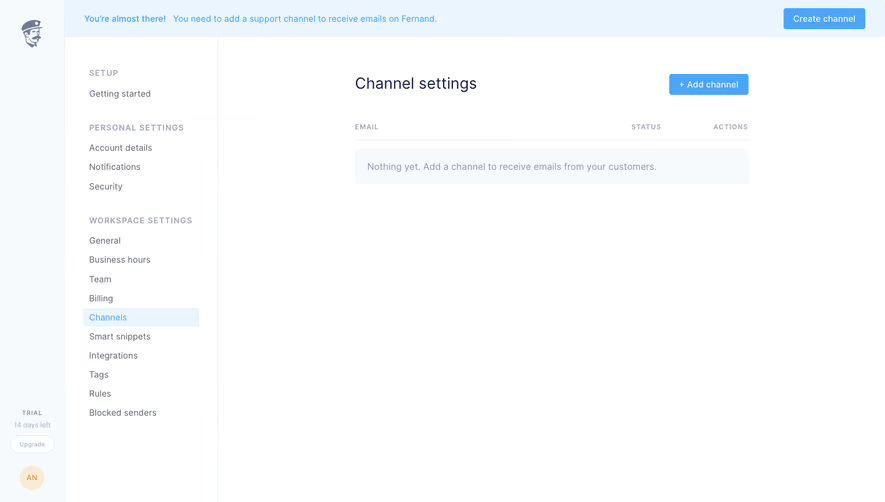
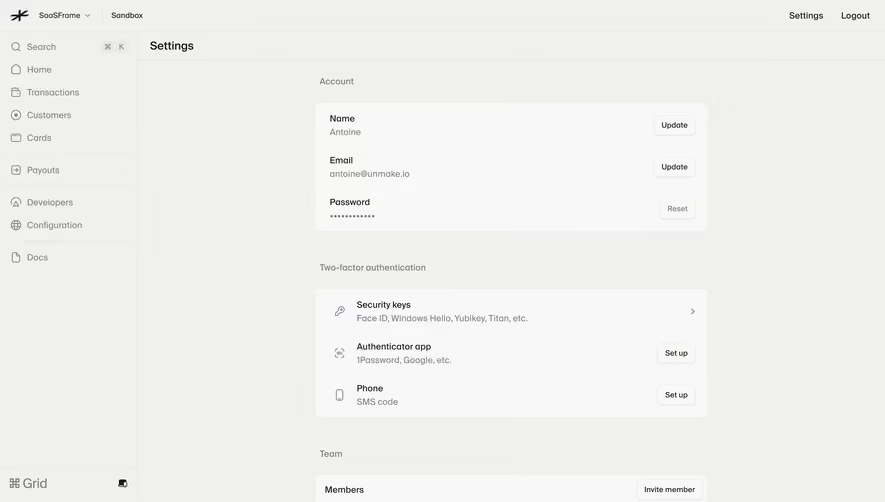
Organize complex preferences with intuitive SaaS Settings and Configuration UI layouts. From categorized sidebar navigation to toggle-heavy preference panels, discover how to make deep software settings easy to browse.
Browse 215 real SaaS Settings with modern UI patterns and conversion strategies.
We sell SaaSFrame licenses on Gumroad, a secured online selling platform for creators.
What about future updates and versions?
SaaSFrame gets updated all the time! Every new update and version will immediately be made available to all SaaSFrame users.
I didn't receive my licence key, what should I do?
The licence key required to create your SaaSFrame account is send by Gumroad once you made your purchase. If this email is blocked by your email client, send me an email at antoine[at]unmake[dot]io so I can resend the licence key.
Can you send me an invoice?
You can generate an invoice on Gumroad once you purchased SaaSFrame. You will find the link in the order confirmation email.
Can I get a refund?
If you're not satisfied, you can ask for a refund within 7 days. Just send me an email at antoine[at]unmake[dot]io
Settings Design Guide
SaaS settings turn a collection of preferences and administrative controls into decisions people can understand. A useful settings interface makes the affected scope, permission requirements, and save behavior clear before users change anything.
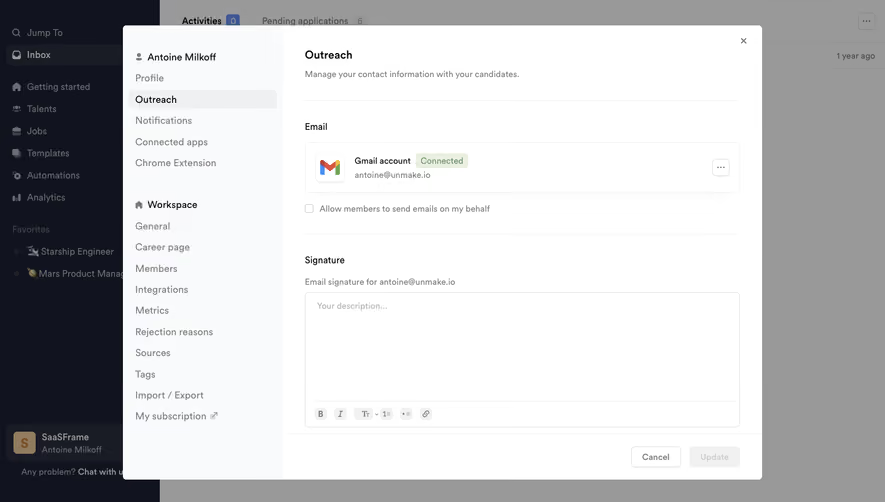
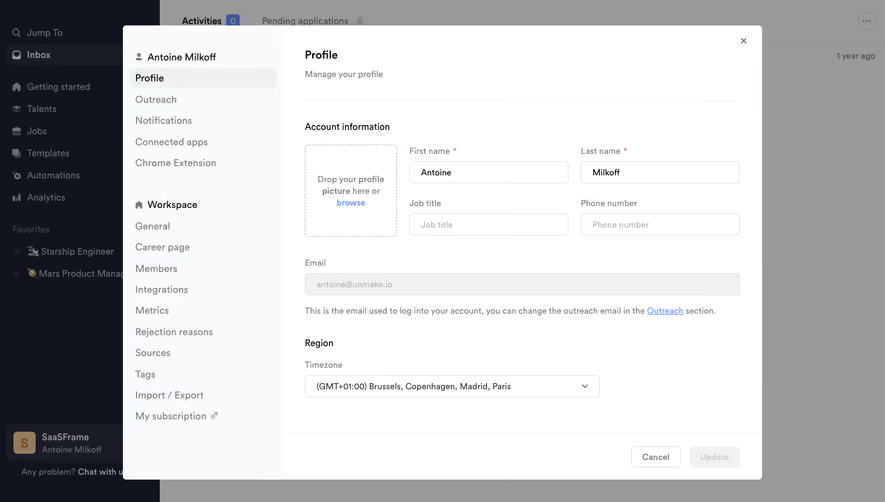
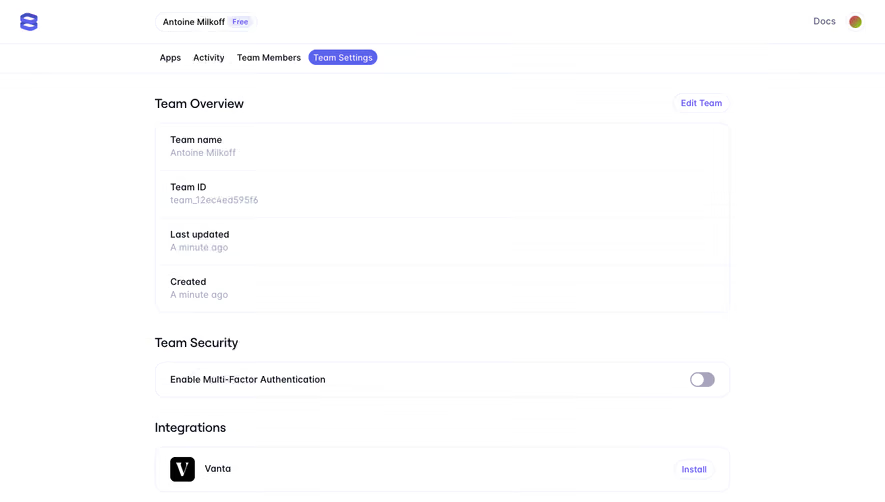
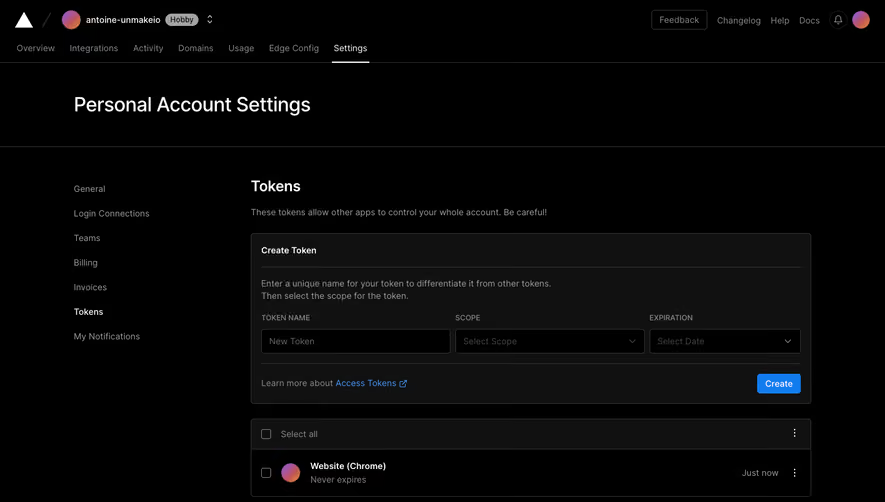
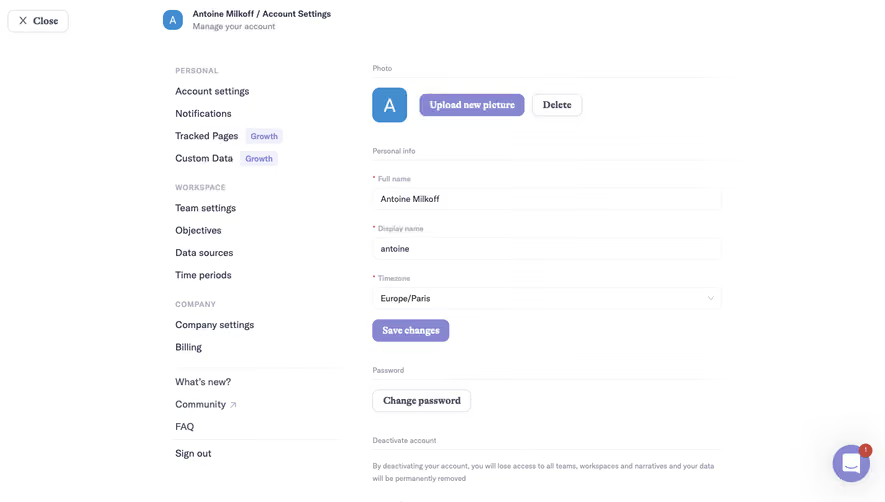
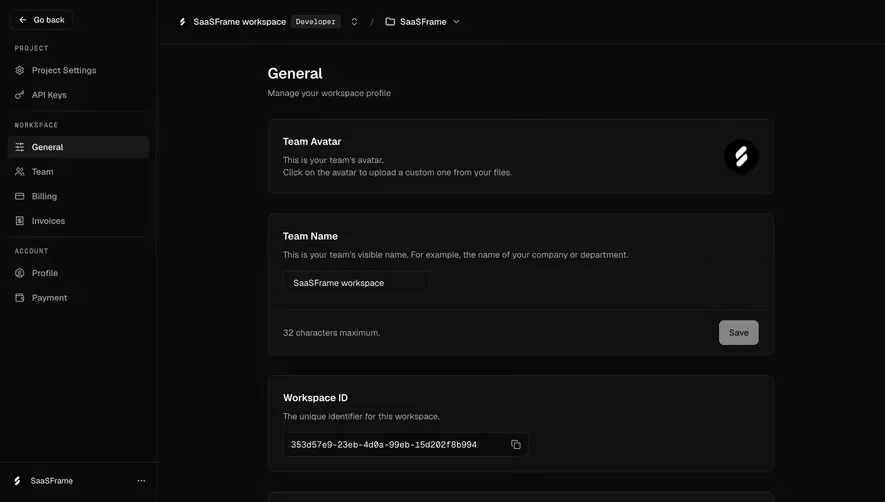
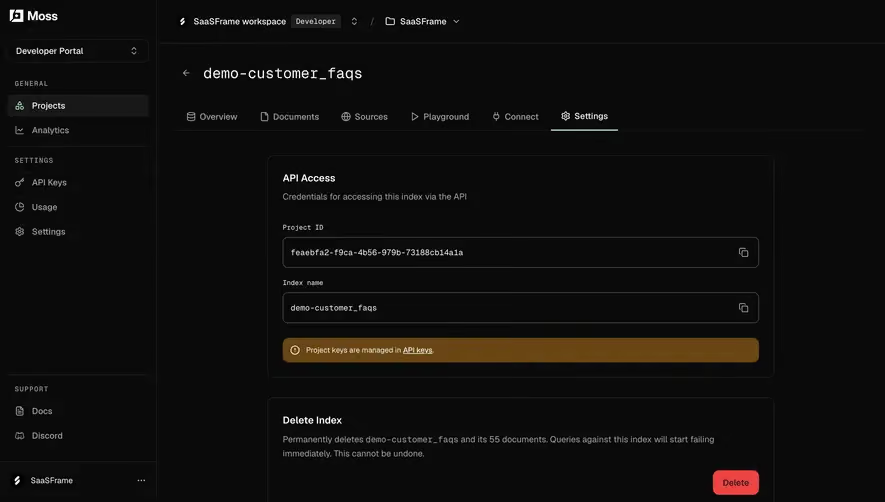
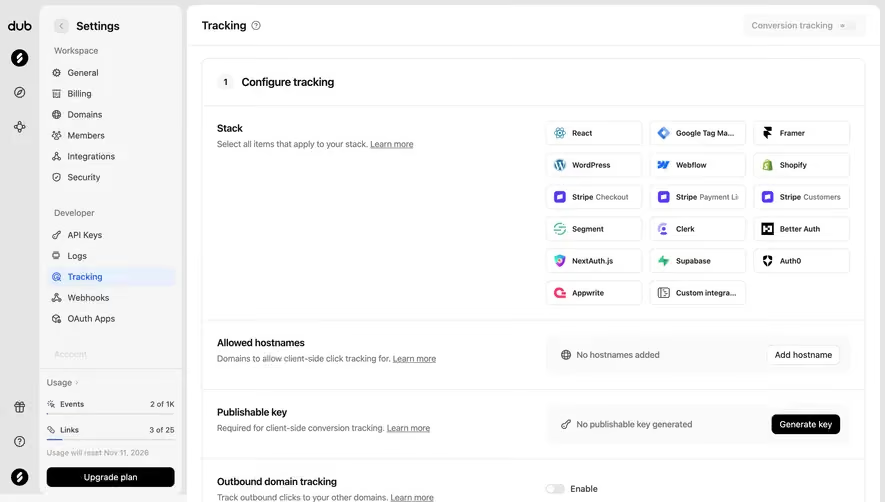
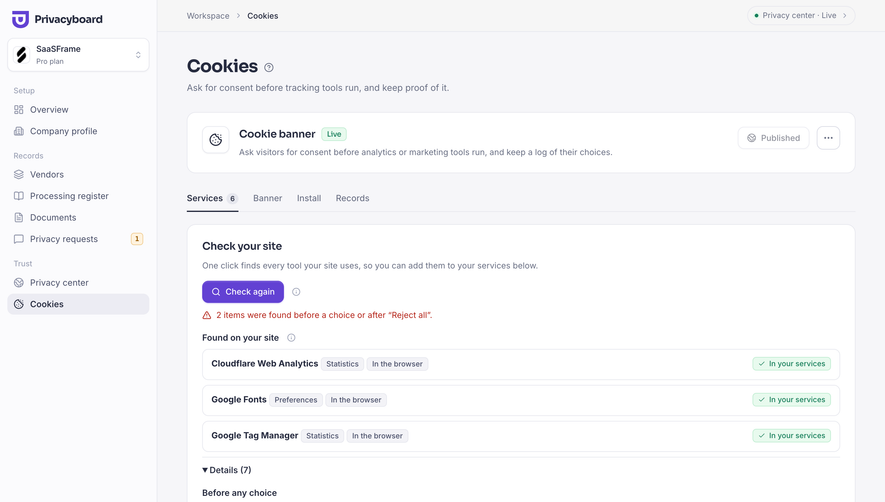
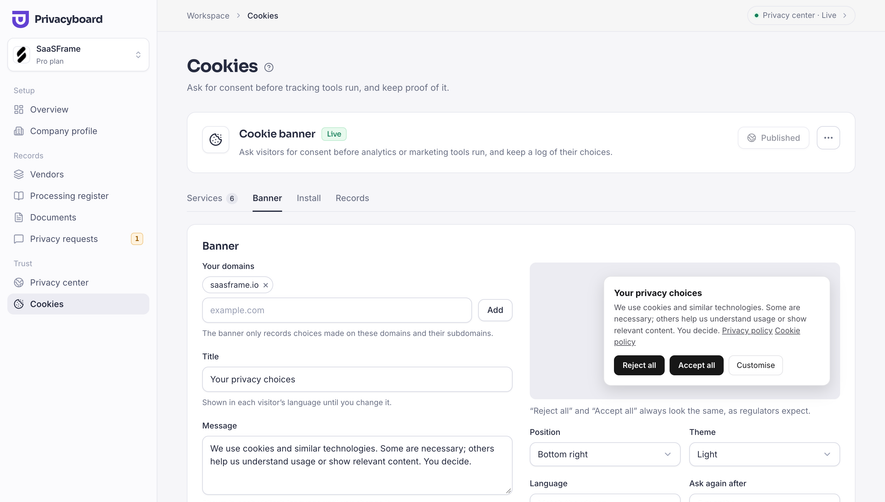
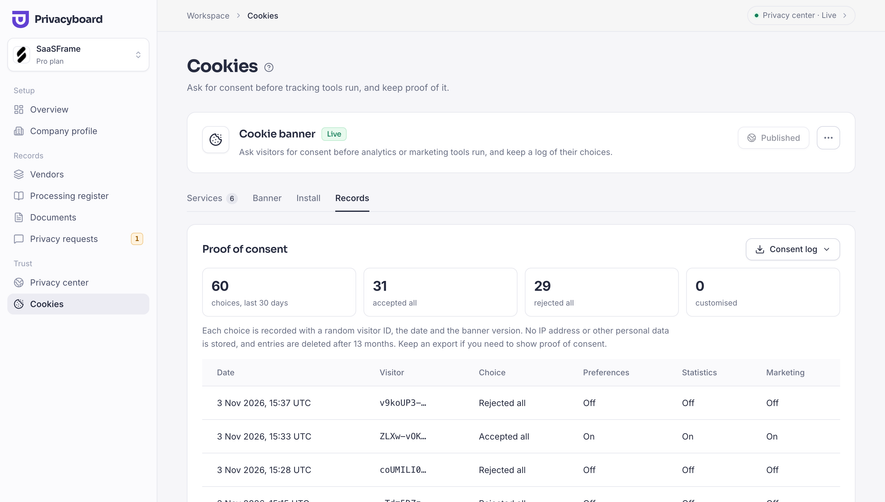
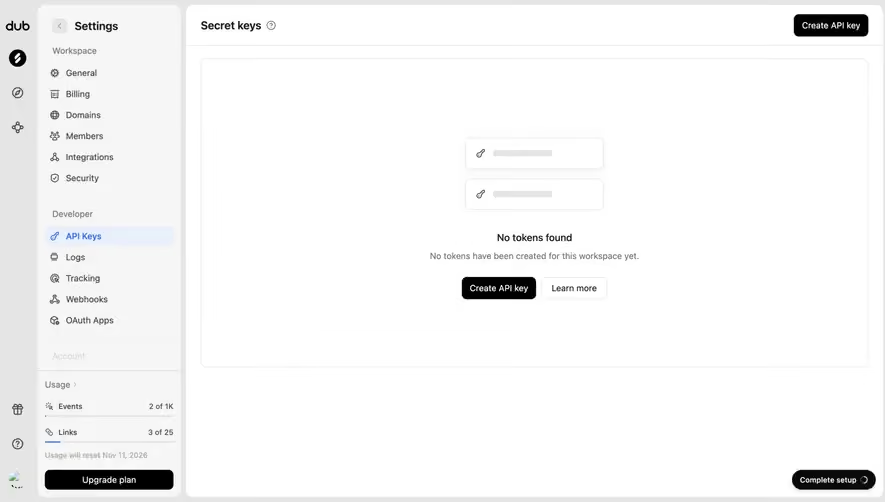
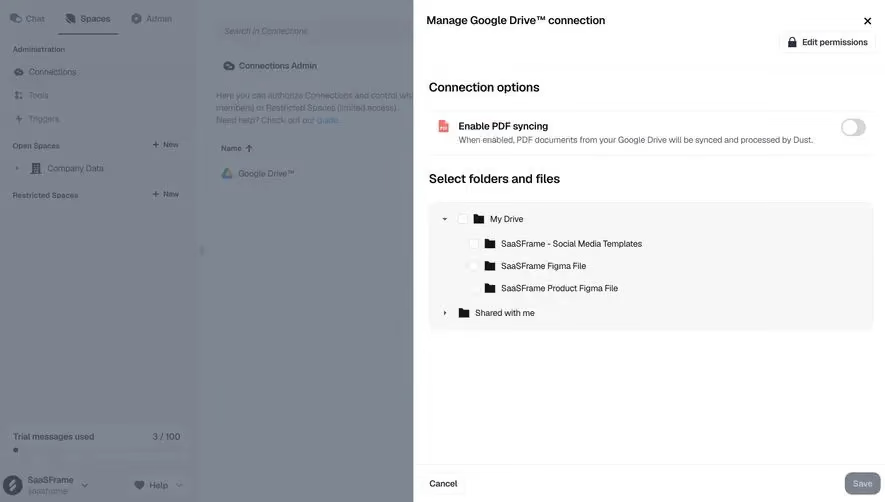
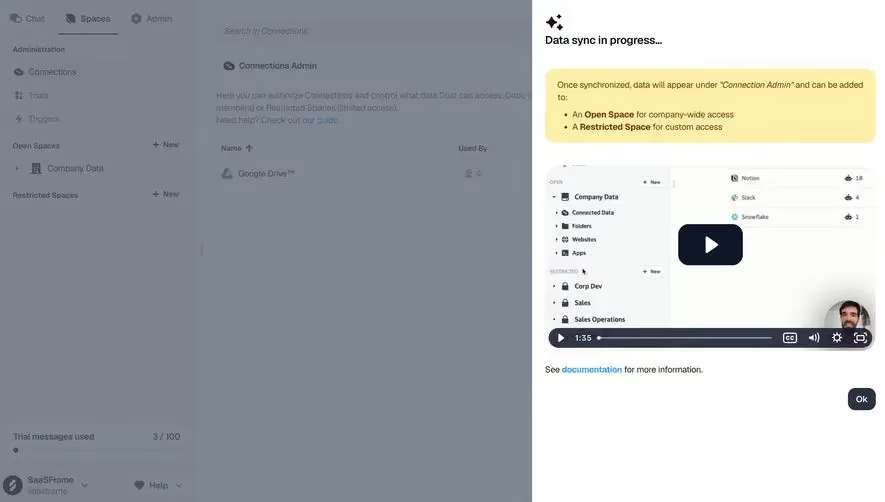
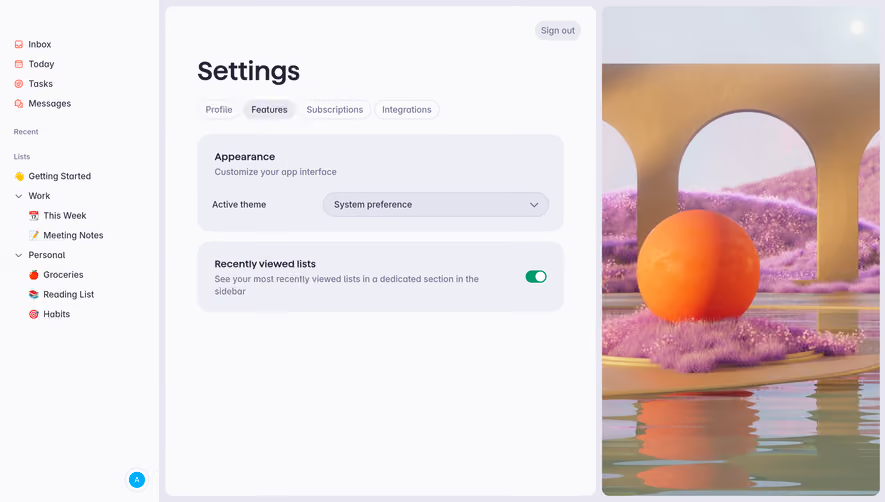
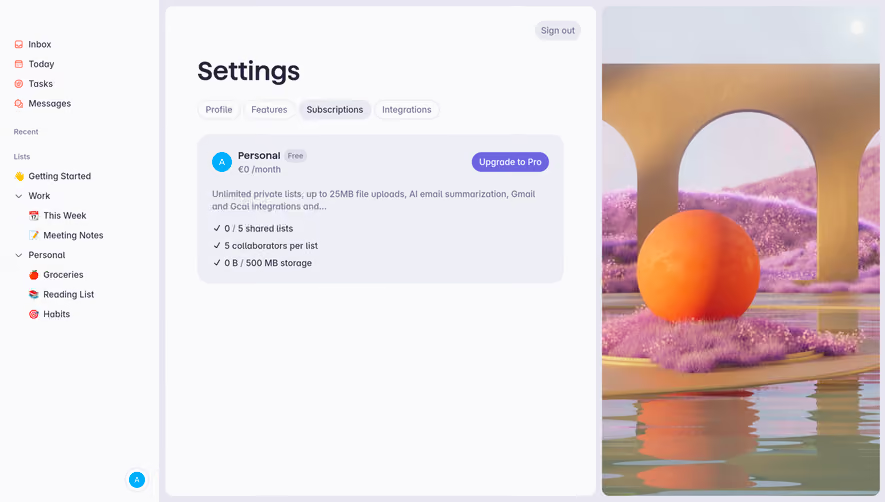
The SaaSFrame captures below show team privacy, personal preferences, and organizational authentication. Their differences explain why a settings page needs more than a tidy list of toggles.
Organize settings by responsibility
Personal, workspace, and organization settings may look similar but affect different people. Establish the scope through navigation, headings, and contextual explanation.
Group controls around tasks users recognize: profile, notifications, billing, team access, or security. Avoid grouping only by the internal service that stores a value.
Provide stable routes to common tasks. A user changing a notification preference should not need to inspect several broadly labeled administration tabs first.
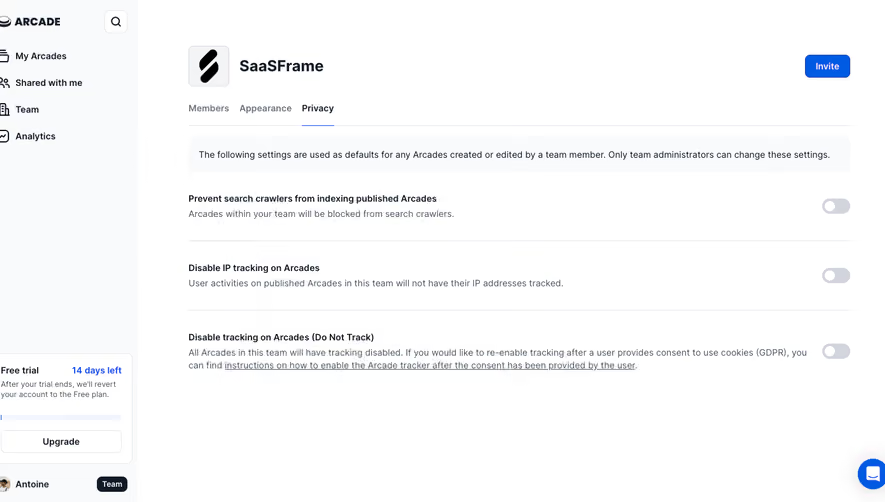
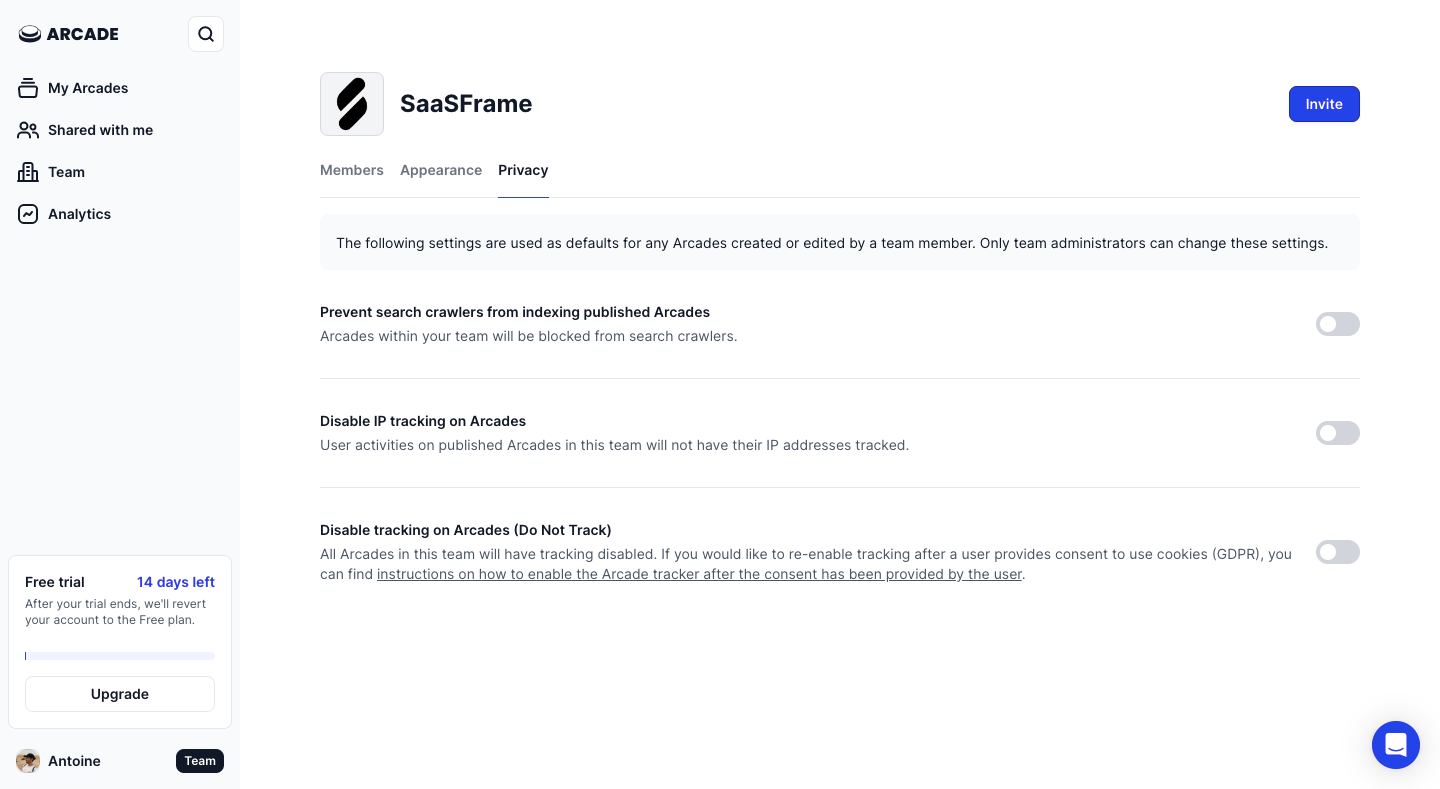
The Arcade team-privacy capture presents toggles for search indexing and tracking with supporting explanation. The page indicates team-level settings and includes role-related context.
A switch looks simple, but its scope can be substantial. Text beside the control should explain whether the value affects the current person, future content, all existing content, or a team default.
Where administrators control a shared policy, distinguish the policy from a personal preference. Users should understand whether they can change a setting themselves or need a team administrator.
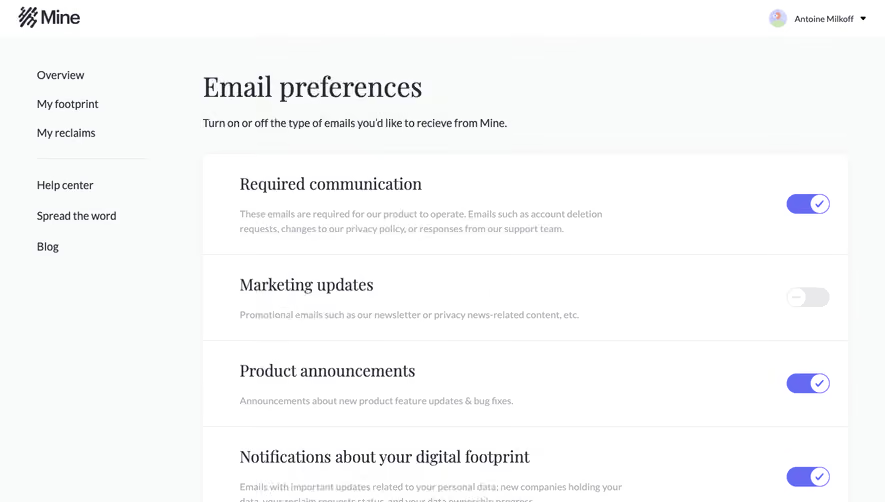
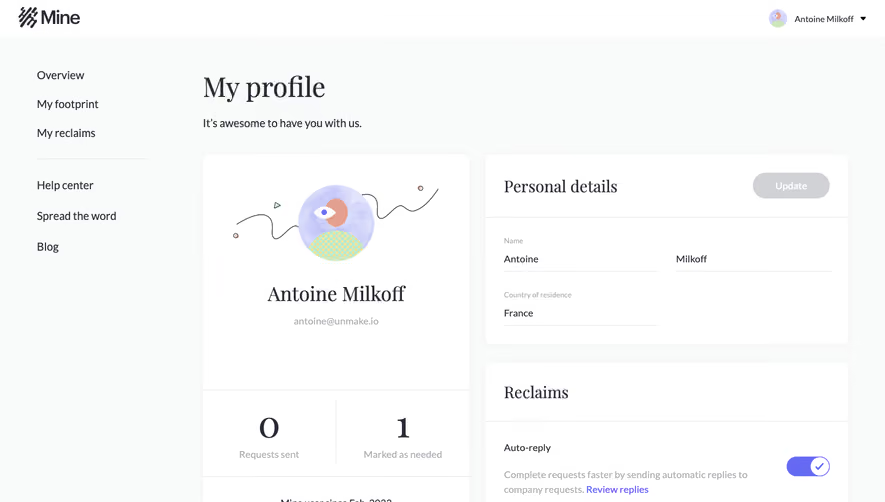
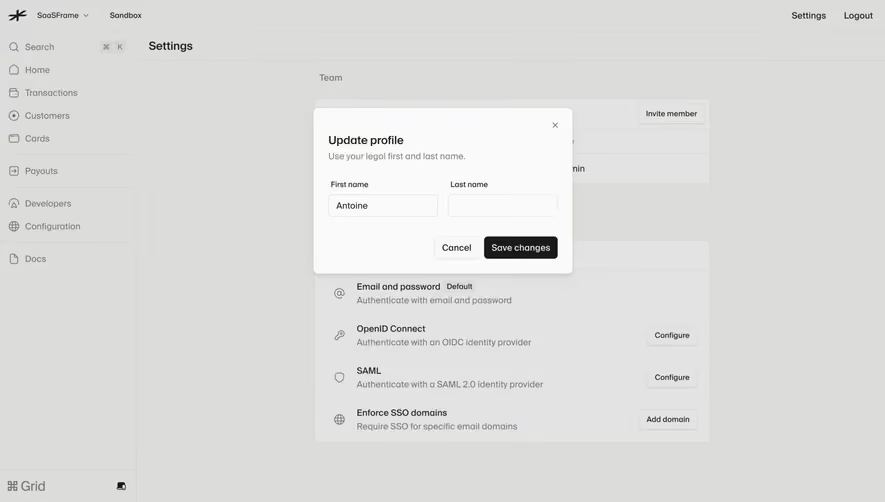
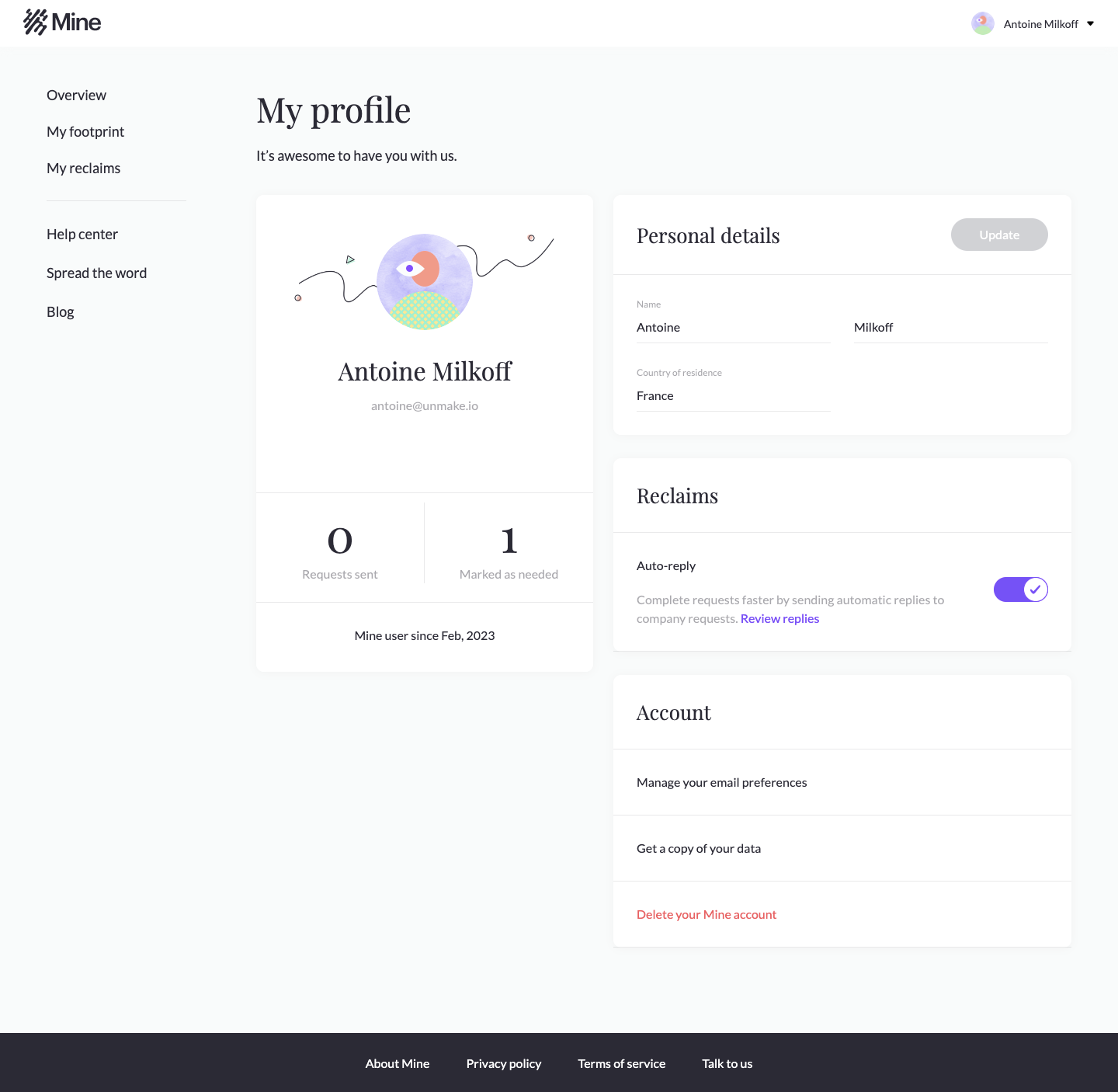
The Mine profile reference combines personal details with separate controls for automation, email preferences, data export, and account deletion. These tasks have different consequences even though they share the settings area.
Use sections and explicit actions to keep that distinction readable. Updating a name should not appear to submit an unrelated automation preference or request account deletion.
When several sections save independently, show the relevant save control and feedback within each section. If a page saves everything together, make that page-wide scope equally clear.
Make save behavior predictable
A toggle can save immediately, while a form may require submission. Mixed models can work when the interface communicates them consistently.
Provide visible feedback for pending changes, successful persistence, and failure. Do not leave users guessing whether a switch updated a stored preference or only changed the local screen.
Handle navigation away from unsaved changes according to the actual model. If the change is already saved, an unsaved-warning dialog is misleading; if it is pending, silent loss is equally confusing.
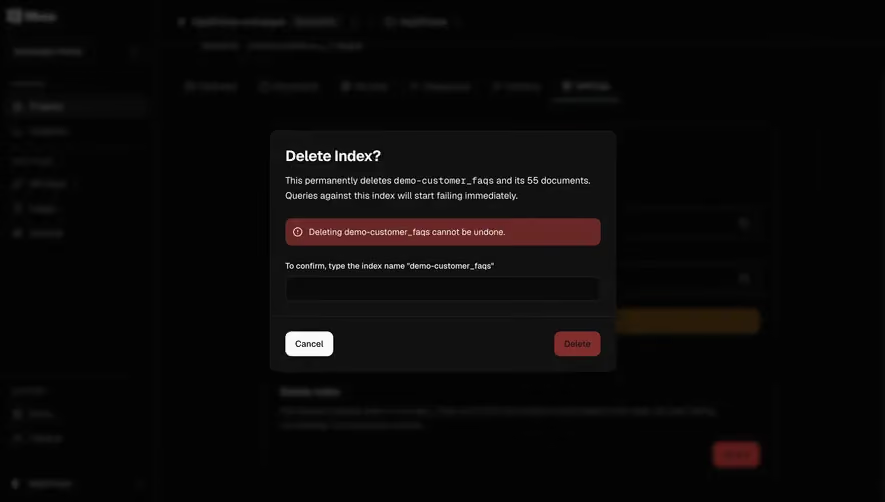
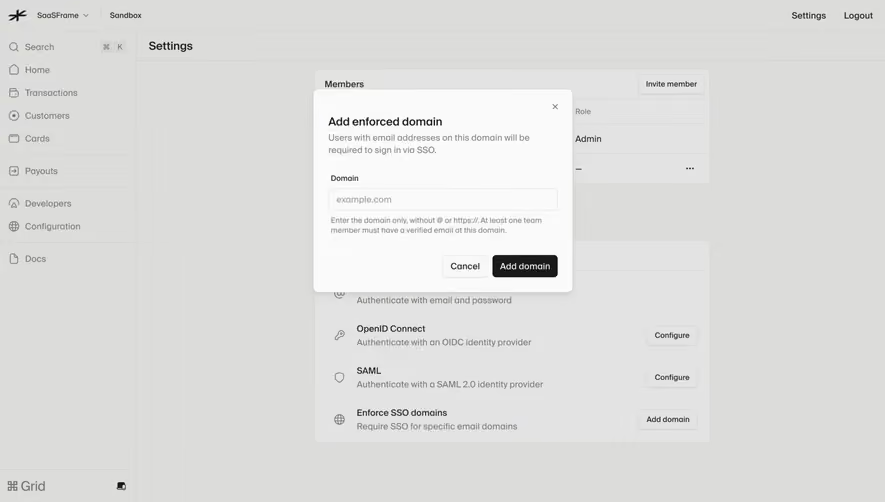
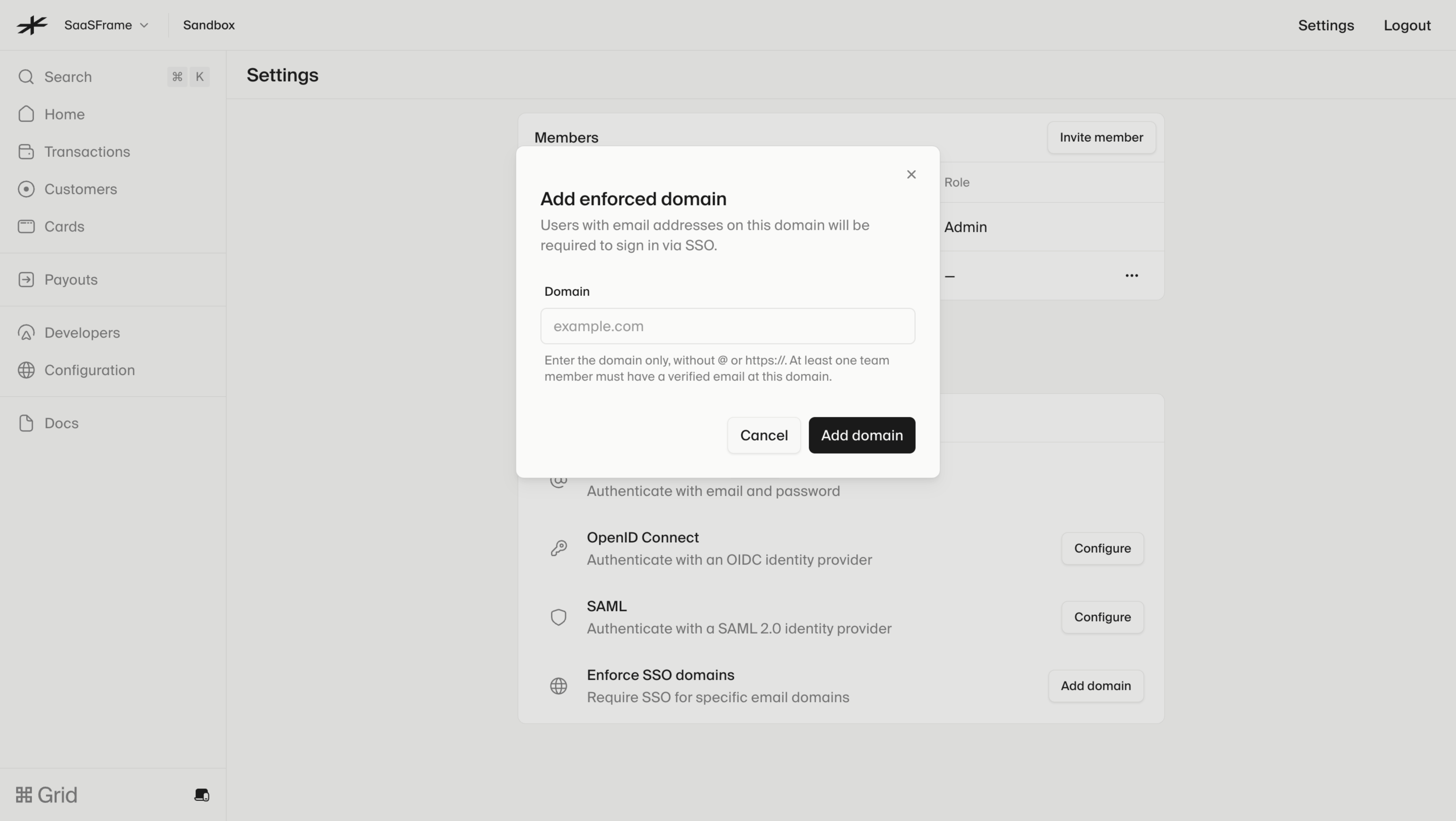
The Lightspark domain-enforcement dialog explains the domain format and a prerequisite involving a verified member. It appears over authentication settings and provides distinct cancel and add-domain actions.
This places preparation and input guidance at the decision point. An advanced control should explain the specific requirement users can resolve rather than sending them to a general documentation page with no direction.
Organization authentication also needs scope clarity. Explain whose access changes and when the policy takes effect using the product's real behavior. The capture demonstrates the dialog structure, not a guarantee about its implementation.
Keep permission-dependent controls understandable
A settings page may be visible to people who cannot edit every value. Make read-only states explain the required role or responsible administrator where appropriate.
Avoid showing an active-looking action that fails only after submission when the missing permission is already known. Conversely, hiding all evidence of a policy can make its effects impossible to understand.
Review role changes while a page is open. A user may begin editing with one permission state and submit after it changes. The result needs a clear explanation.
Use defaults as explicit decisions
Defaults should be understandable and appropriate to the scope. A team-wide default may influence new objects without overriding existing ones; a personal preference may apply immediately.
Explain inheritance where it matters. Users should be able to identify whether they are editing their own value, inheriting a workspace setting, or overriding an organization policy.
Reset actions need similarly precise language. Restoring a default is not always the same as clearing a field or removing an override.
Help users find consequential controls
Search can support a large settings area, but good grouping and direct labels remain necessary. Search results should identify the section and scope rather than displaying detached control names.
Keep high-impact operations visually distinct from ordinary preferences. Profile editing, access-policy changes, billing actions, and deletion should not share an indistinguishable generic save button.
If an action requires a separate confirmation, explain why through its consequences. Additional steps should support a decision rather than merely create friction.
Validate the settings lifecycle
Review initial values, edits, submission, failure, refreshed state, and permission changes. A locally successful interaction is incomplete if the value does not persist after reload.
Check labels, keyboard navigation, focus, and assistive-technology feedback. Toggle state and explanatory text must be available without relying on color or pointer interaction.
Explore SaaSFrame's settings references to compare scope and grouping. Use the examples to shape clear decisions around your own product's responsibilities.
Settings design questions
Should settings save automatically?
Either automatic or explicit saving can work. Make the chosen model visible and consistent, especially when several independent sections share a page.
How should personal and team settings differ?
Name the affected scope and organize controls around the responsible user or role. Explain inheritance when a personal value depends on shared policy.
What makes an advanced setting understandable?
Give the consequence, requirements, input guidance, and recovery route at the point of use. The control label alone is rarely enough.