Workspace Switcher
5
A control for changing the active team, project space, or workspace.
.webp)
A workspace switcher changes the organization, team environment, or shared data context in which someone is working. It should make the current context recognizable, help people choose the intended destination, and prevent actions from being applied to the wrong workspace. For consultants, administrators, and members of several teams, it is a recurring navigation task rather than an occasional settings action.
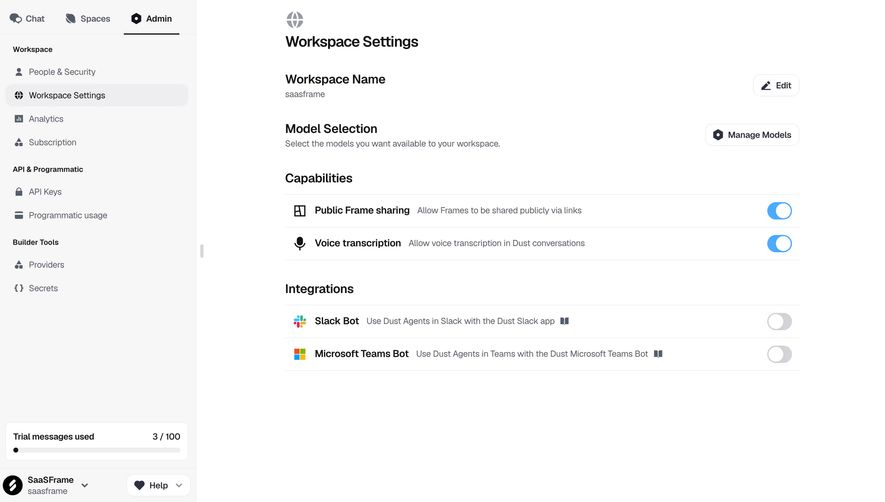
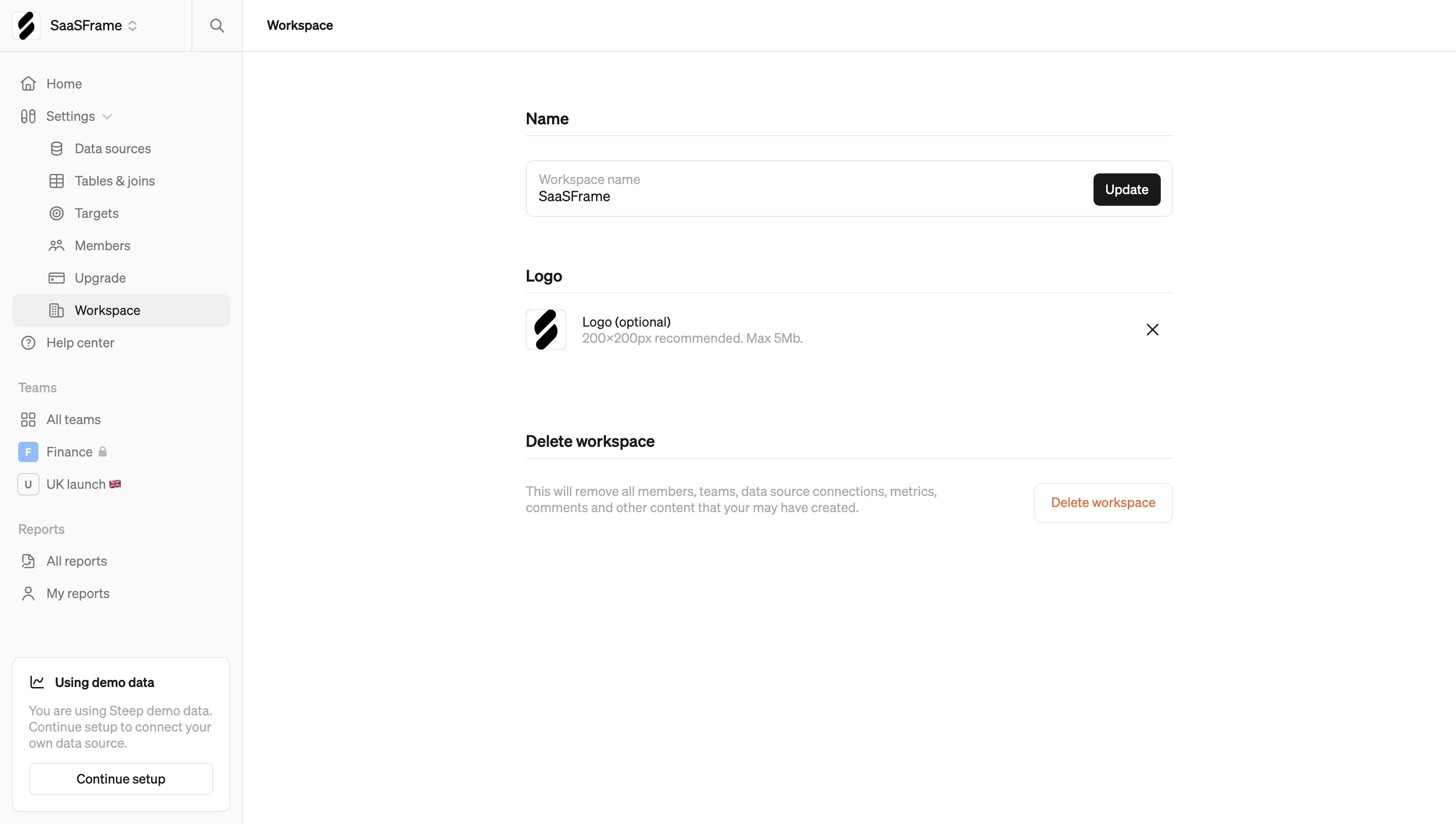
Dust, Steep, and Pitch show different ways to expose identity and workspace context in the application shell. These captures show the controls in their closed state and the surrounding pages; they do not reveal the contents or interactions of an expanded switcher. The guide distinguishes those visible cues from recommendations for the switching journey.
A workspace is typically a shared boundary for membership, resources, settings, or billing. An account identifies the person who is signed in. A project organizes work within an environment. Some products combine those concepts, but users need to understand which one a control changes.
If a switch changes the workspace while keeping the same identity, say so through the labels and resulting screen. If selecting a destination also changes the signed-in account, make that identity change visible. If projects share membership and billing, do not imply that changing projects moves the person into a separate organization.
Define the hierarchy before designing the menu. A person who sees both a company name and a personal name should be able to tell which controls shared data and which controls their profile. That distinction becomes especially important before inviting members, changing permissions, or updating a subscription.
Dust’s capture displays the workspace name and a secondary identifier at the bottom of the sidebar, alongside a chevron. Its main page is explicitly titled as workspace settings, and the content repeats the workspace name. Those cues provide orientation both globally and within the administrative task.

Persistent context helps people detect that they are in the wrong organization before acting. Avoid showing only a generic avatar when the product regularly supports several workspaces. A logo can aid recognition, but a readable name remains necessary when several organizations have similar marks or no uploaded image.
Place the trigger where people can reliably find it across the product. Top and bottom sidebar positions can both work; the important behavior is consistency. On mobile, keep the current context discoverable when the sidebar is collapsed rather than hiding it until after an action is completed.
Steep displays the workspace name and logo at the top left of its shell, with a chevron-style cue. Its settings page provides editable name and logo information. Those identity properties are not merely decorative: they are the information people may later use to recognize a destination.
A destination list should handle similar or duplicate names. A domain, organization identifier, environment label, or another appropriate secondary cue can help. Choose information that is recognizable and safe to disclose. Do not expect people to identify the right company from a random internal ID.
Support long names without hiding the distinguishing words. Truncation that leaves several destinations looking identical undermines the purpose of the list. Make the full name available through a usable mechanism on touch, keyboard, and assistive technology, not only a hover tooltip.
Pitch’s capture places the person’s name at the top of the sidebar while the main content concerns workspace members. The surrounding interface includes workspace-specific upgrade language and an invitation form with a role choice. This is an example of personal identity and shared-workspace administration appearing together.
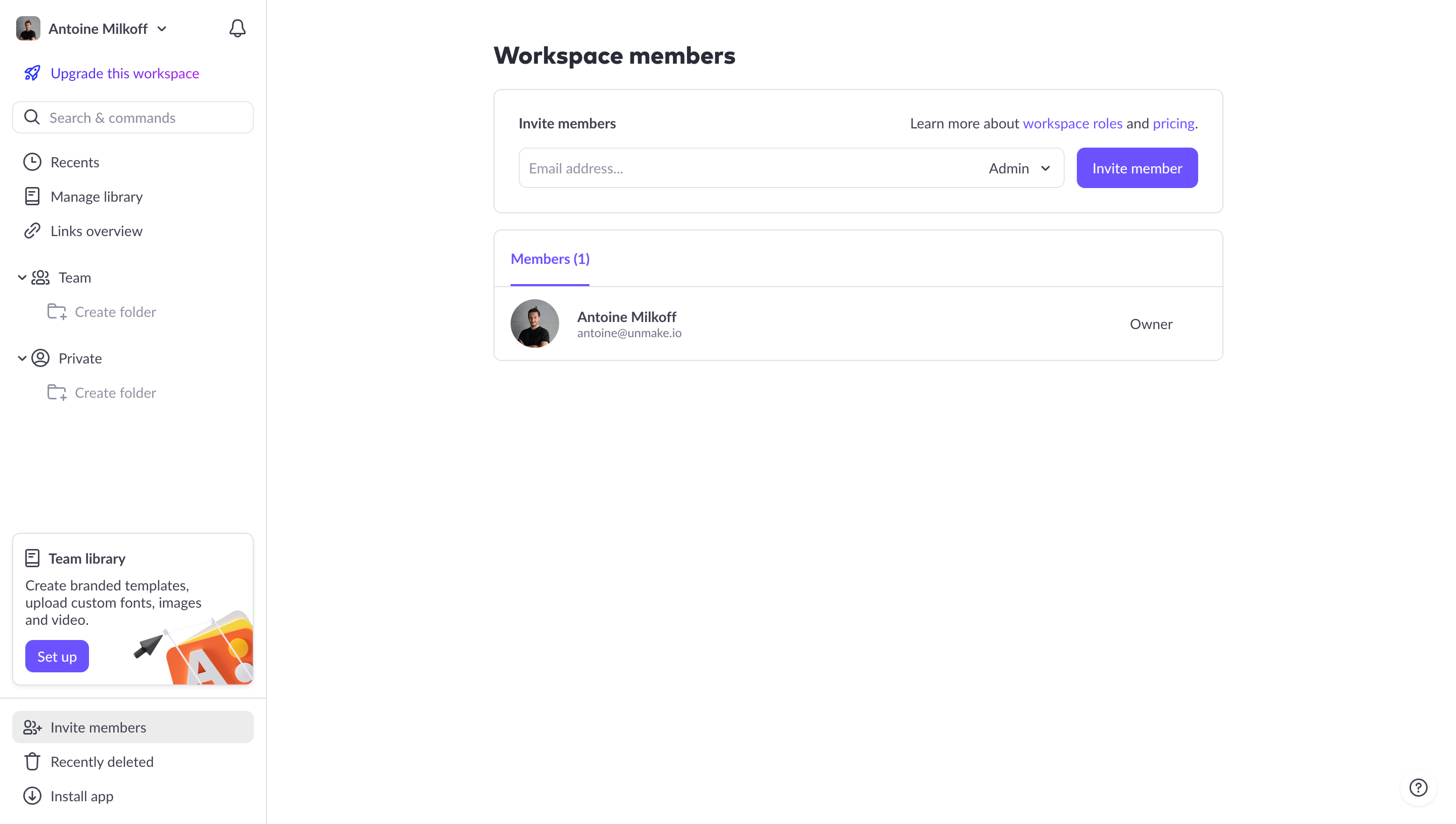
The screenshot does not tell us what Pitch’s personal-name control opens. For your own product, avoid making one ambiguous trigger carry both account switching and workspace switching without clear grouping. If both live in the same popover, label the groups and show the active identity as well as the selected workspace.
Administrative screens deserve extra orientation because mistakes can affect other people. An invite action should make its target workspace clear. A billing change should identify the subscription scope. A destructive action should name the workspace rather than relying on the user to remember the last selection.
A short list can be scanned directly. A person managing many client workspaces may need search. Introduce search when it solves an actual finding problem rather than adding an empty field to a two-item menu.
Show the current destination with a clear selected state. Keep the ordering understandable, whether alphabetical, recent, or user-defined. If recent ordering changes after every switch, consider how people will locate an infrequently used workspace. Avoid shifting positions unpredictably during keyboard navigation.
Search should use the names and secondary cues people know. Handle no matches with a correction route, not an unexplained empty panel. If the person belongs to no additional workspace, the switcher can still show the current context and appropriate creation or joining actions, subject to their permissions.
Switching among accessible workspaces is a navigation task. Creating a workspace or joining an organization is an access and setup task. Keep those actions visually and verbally distinct so someone does not accidentally start a new organization while looking for an existing one.
Explain what is required to join a missing workspace. An invitation, administrator approval, or another established route may be necessary. A search result should not suggest that any discovered organization is open to membership unless that is truly the product’s model.
When a workspace is listed but unavailable, provide an accurate reason and next step where policy allows. Access removed, invitation pending, organization sign-in required, and service unavailable are different states. Do not render all of them as an ordinary destination that fails only after selection.
Decide where a switch lands. Some products return to a workspace home; others retain the same area, such as reporting or settings, when an equivalent destination exists. Choose a predictable rule and test whether users understand it.
Do not preserve a document or object identifier blindly across workspace boundaries. A resource may not exist or may not be accessible in the new environment. Explain a fallback destination instead of showing a generic missing-page error.
Shared data should change coherently with the workspace. Cached lists, search results, notifications, usage information, and permission-sensitive actions need to reflect the selected context. The visual name change should not precede a period in which old-workspace data remains actionable without explanation.
A switch may leave an unsaved form, editor, or administrative change. Where drafts can be preserved safely, explain that behavior. Where they cannot, give the person a clear choice before discarding work. Do not warn on every switch if nothing would be lost.
Use a visible switching state when loading takes time. Prevent ambiguous repeated selections, and show a failure that leaves the active workspace clear. If the destination cannot load, the interface should not claim it is active while continuing to display the previous environment.
Consider multiple tabs. A workspace change in one tab may or may not change another tab, depending on the implementation. Make that policy deliberate, and avoid an unnoticed global change that turns a second tab’s pending action into an action on a different organization.
The trigger should have a meaningful accessible name and communicate its expanded state. The selected destination needs a perceivable indication beyond color. Keyboard users should be able to open the control, choose a destination, dismiss it, and understand where focus moves after navigation.
W3C’s menu-button pattern describes keyboard and state behavior when the implementation is genuinely a menu button. A searchable destination picker may need another appropriate interaction pattern. Choose semantics according to behavior rather than using a menu role solely because the panel looks like a dropdown.
Test the expanded control directly; a closed screenshot cannot demonstrate focus management, escape behavior, search accessibility, or selection announcements. Include narrow screens, long names, and a large membership list in that review.
No. A workspace switcher changes a shared context; an account switcher changes the signed-in identity. If a product combines them, group and label the choices clearly.
It can, but a consistent equivalent destination may preserve useful context. Define a fallback when the previous resource or area is unavailable in the new workspace.
When scanning the available destinations becomes difficult for the intended users. Test realistic membership counts rather than adding search solely for visual completeness.
Compare Account Switcher for identity changes, Sidebar Navigation for persistent context, Roles & Permissions for workspace access, and Invite Team Members for joining a shared environment.
For menu-based implementations, see W3C’s menu-button guidance. Use the gallery to inspect where products display active context, then evaluate the expanded control and destination behavior in your own implementation.