Search
189
A search input and results interaction used to find pages, records, commands, or other content.
.webp)
Search is an interface pattern for locating existing information through a query. In SaaS products, it can help users find records, documents, conversations, dashboards, settings, or other resources without navigating the entire hierarchy. A useful search experience makes its scope clear, returns distinguishable results, and supports recovery when the expected item is absent.
The design challenge extends beyond the input field. Users need to know what can be searched, how filters affect the result set, which item is the right one, and what happens when they select it. This guide analyzes captured search interfaces from Claude, Lightdash, and Attio. They illustrate an initial search surface, a grouped cross-type result list, and a record preview. The screenshots establish visible states, not ranking algorithms, matching rules, or current search performance.
Start with what the search covers. A workspace-wide search, a search within the current project, and a local table search serve different needs. Label the scope in a way users can understand before entering a query. If several search fields coexist, avoid identical vague labels that conceal different result sets.
Also distinguish finding content from initiating work. A command palette may mix destinations and actions. An AI composer may generate an answer or artifact. Search primarily locates existing information, even when the product adds related creation controls or assistance. See Prompt Input for the different expectations involved in asking a system to produce something.
For multi-workspace products, decide whether search remains inside the active organization or spans memberships. Make a result's context visible when ambiguity matters. A user should not have to open several identically named documents to discover that the desired one lives elsewhere.
The captured Claude Search Modal has an empty field labeled Search chats and projects. Below it, the list includes a project-like item with a folder icon and conversation items with chat icons. Several conversation rows show relative time labels such as Just now, Past hour, and Past month. The first item has a highlighted row and an enter-style symbol, and a close control is visible at the upper right.
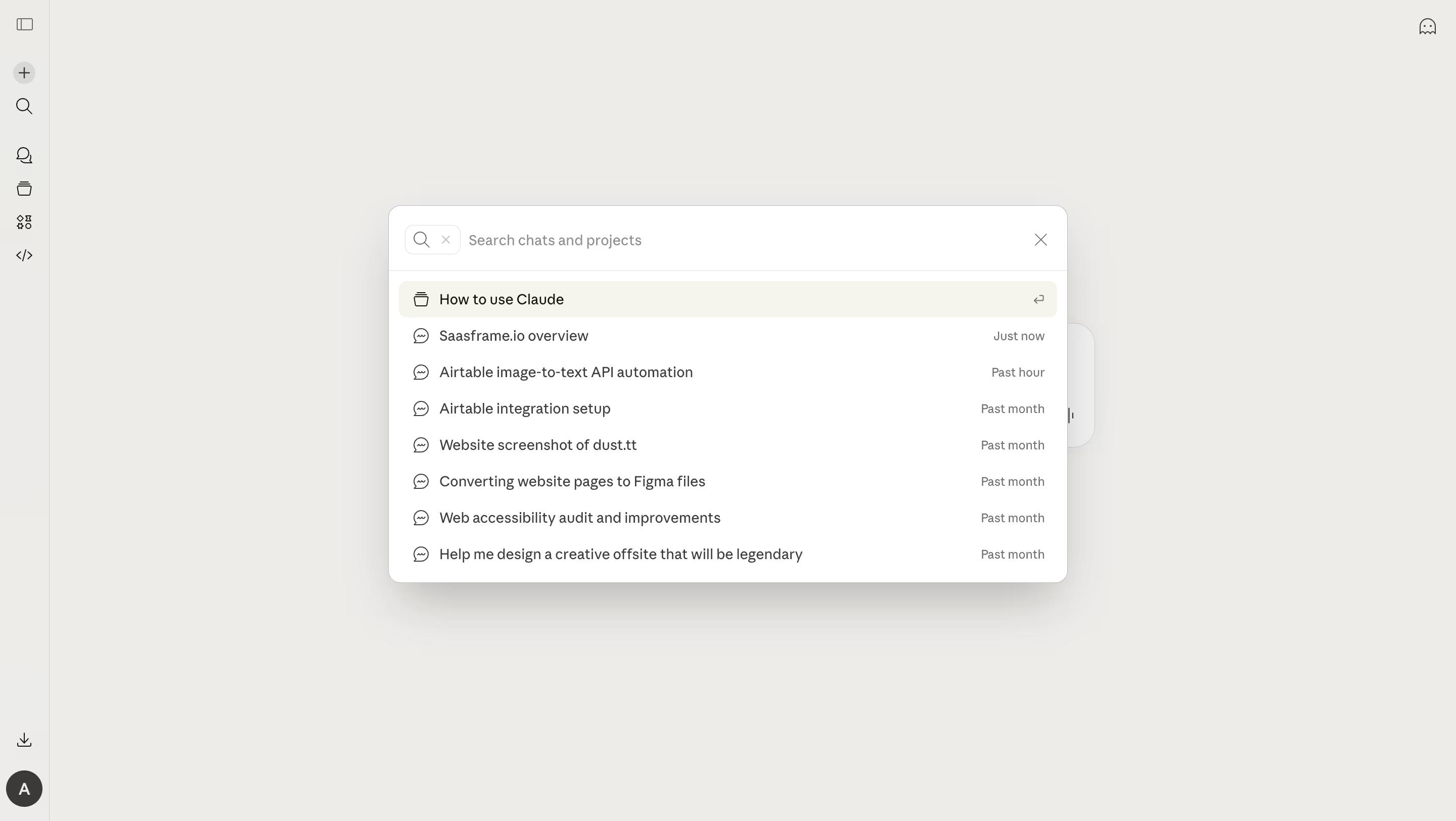
An initial list can help people return to recent work without remembering its exact name. The time labels and titles provide recognition cues. This is different from evidence of query matching: the field is empty in the capture, so the list should not be described as results for a particular search term.
The type icons help separate projects from conversations visually. If your product combines several object types, supplement icons with text where their meanings are not familiar. A compact list works when titles are distinguishable; similar names may require a project, owner, or content snippet. Do not overload every initial item with metadata that only becomes useful after a query.
The highlighted row and enter-style symbol suggest a selectable item, but the screenshot does not establish keyboard behavior. Validate whether users can move through items, select one, and close the surface predictably. Visible keyboard cues should reflect the implemented interaction.
The captured Lightdash Search Modal contains the query data. Item type, Date, and Created by controls appear directly beneath the query field. The result area is grouped into Dashboards, Fields, and Settings. Rows include names, icons, and supporting descriptions or scope labels such as Current project and Your settings.
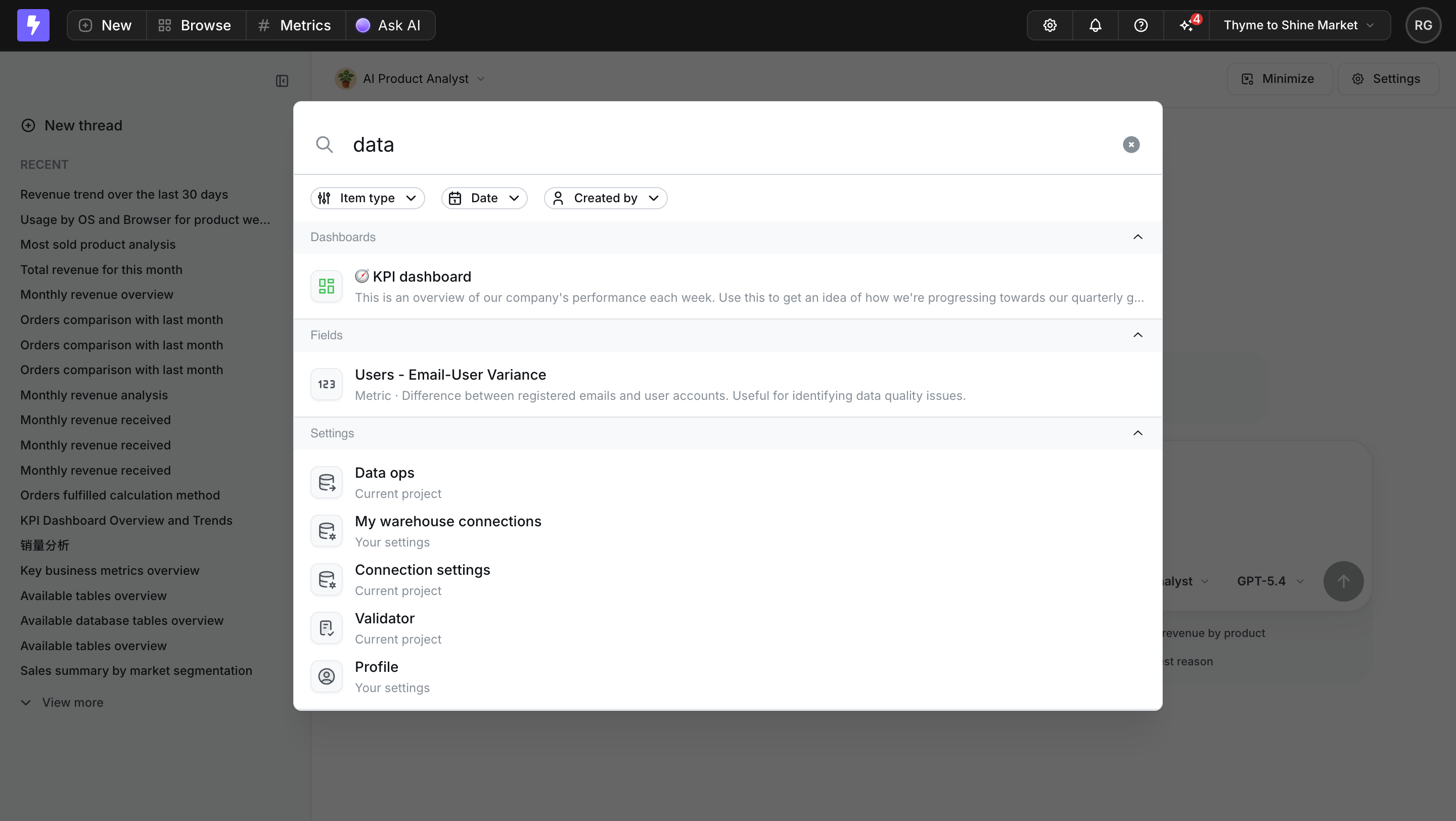
Grouping addresses a recognition problem: a dashboard, a metric field, and a settings destination may all be relevant to the same word but lead to different kinds of work. The headings help users interpret those differences before selection. Supporting text adds another layer, explaining what a field represents or whether a settings item belongs to the current project.
There is a ranking tradeoff to consider. Grouping by type can make scanning easier, but it may separate a highly relevant item from the top of the overall list. Decide how groups are ordered, how many items each initially shows, and whether the user can narrow to one type. The capture shows grouped rows and filters, not the ranking or expansion rules behind them.
Place refinement controls close enough to the query that users understand the active search state. If a filter persists from a previous search, show it explicitly. A hidden type or date constraint can make a valid item appear missing and undermine confidence in the entire system.
The Attio Search Results capture contains the query webflow in a surface over a companies table. A result for Krum. Web Design & Marketing appears on the left. The right pane previews that record with a description, website, category tags, location information, and an Open Record button. The left pane also offers separate actions to add the query as a company or as a person.
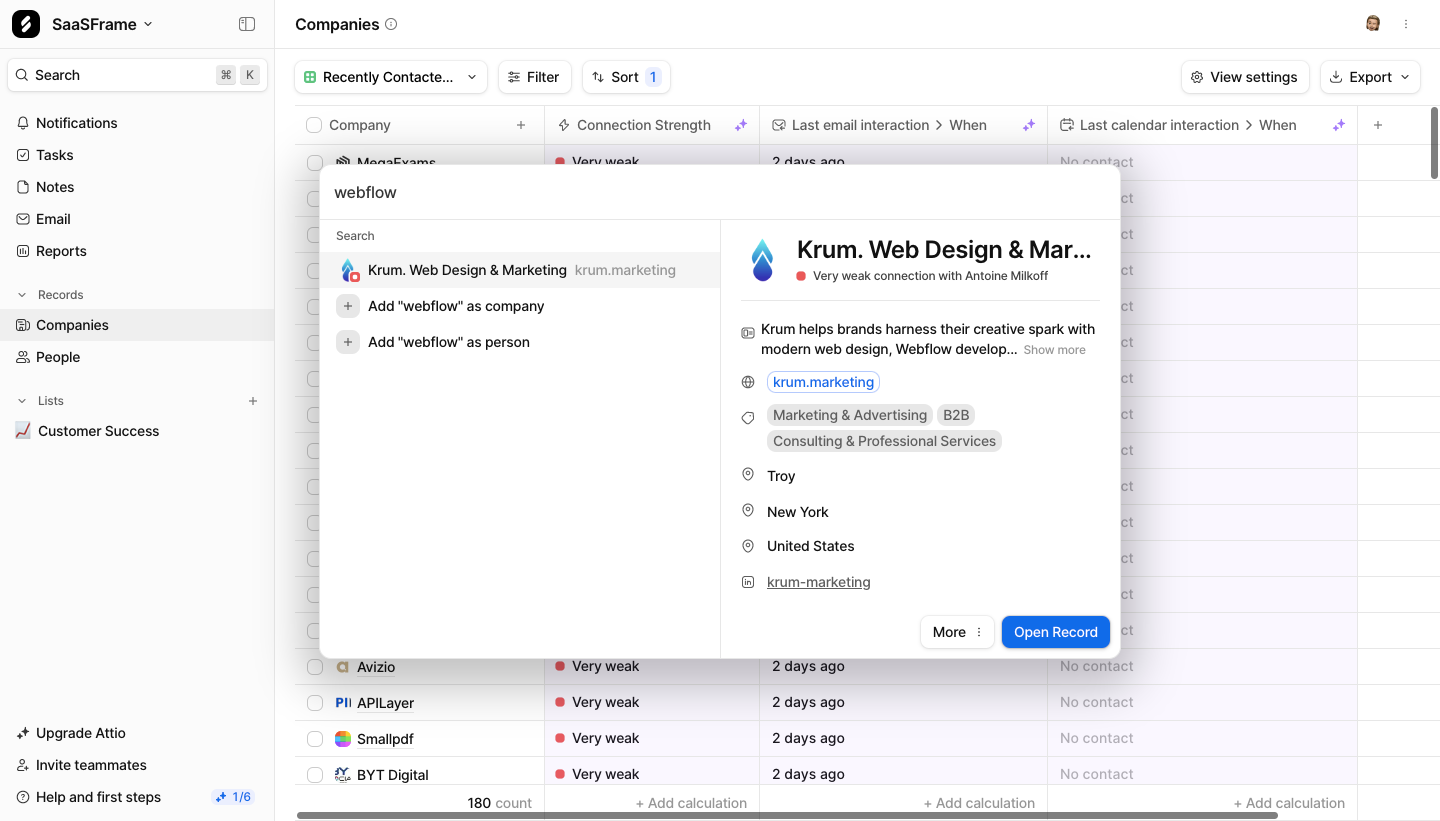
A preview helps when names alone are insufficient. A website, description, and location can distinguish similarly named companies without forcing the user to open and leave each record. The explicit Open Record action separates inspecting the preview from entering the full record. That boundary can be valuable in a dense workspace where navigation has a cost.
The query differs from the displayed company name, and the preview includes related wording. This illustrates why useful search may depend on more than an exact title match, but it does not establish Attio's matching algorithm. Avoid attributing semantic search, full-text indexing, or particular field coverage to a screenshot alone.
Creation controls are another deliberate boundary. Add as company and Add as person name different object types and remain distinguishable from the existing result. In your product, creating from search should still make the target type, workspace, and duplication risk understandable. Do not let pressing Enter unexpectedly create a record when users believe they are opening a match.
Each result needs enough information to answer Is this the item I meant? A document may need its parent project and a snippet. A person may need an email or company. A dashboard may need a description and owner. A settings destination may need the scope of the change.
Prefer metadata that distinguishes candidates over decorative detail. A long timestamp may be less helpful than a parent folder for one content type and essential for another. Use a consistent row structure within a type, while allowing different types to carry different identifying information.
Highlight matching text only when it helps explain why the result appears. Preserve readable titles and snippets, and do not imply that a highlighted word is the only matching signal if it is not. When a preview contains sensitive data, apply the same access rules as the full resource rather than treating search as a separate disclosure channel.
The result set is shaped by more than the typed query. Type filters, workspace scope, date restrictions, and ordering can all affect what appears. Show active constraints, make them removable, and explain unusual matching rules where they matter. Users should be able to broaden a search without rebuilding it from scratch.
Define whether updates happen as someone types or after explicit submission. Immediate results can support quick navigation, but changing lists need stable behavior and clear loading feedback. If a query is expensive or requires configuration, a deliberate Search action may fit better. Do not hide the rule behind inconsistent behavior across screens.
Ordering also needs a coherent purpose. Relevance helps users find the intended item, while recency helps recover recent work. A sort control should not imply a complete result set if only a subset has loaded. For ordering within a collection, compare Sort with the broader matching decisions of search.
If advanced syntax is supported, offer examples and error feedback without making it necessary for ordinary tasks. A person who enters plain language should not receive an opaque parser error when the product presents a simple search field.
An empty query, no matching results, a filtered empty set, and a failed search are different states. An empty query may show recent items or examples. No matches should preserve the query and suggest a useful adjustment. A filtered empty set should make the active constraints easy to remove. A service failure needs a retry route rather than a claim that nothing exists.
Do not imply that an absent result proves the item is absent from the product. The user may lack access, the index may be delayed, or the search may cover only a subset of content. Explain relevant scope or freshness limits without exposing unauthorized resources. If a newly created item takes time to become searchable, provide a direct route to it after creation.
When results are partial, say what has been searched and what remains unavailable. A timeout in one connected source should not silently masquerade as a complete cross-source search. Preserve useful results where possible and make the missing portion understandable.
Creation from an empty state can be helpful when the user knows the desired object does not exist. Keep the action explicit and distinguish it from broadening the search. Attio's captured add controls illustrate separate object-type choices, but their validation and duplicate detection are not visible.
A search session often involves comparing candidates. Preserve the query, active filters, selection, and scroll position when someone opens an item and returns. A preview can reduce that navigation, but it should not become the only way to inspect content that needs a full view.
For deep links, define whether the search state can be represented in a URL or otherwise restored. A person may need to share a result set rather than a single item. Keep that distinction clear: a saved query, a static selection, and a link to a record represent different promises about future results.
Workspace changes need particular care. If search stays open while the active organization changes, reset or relabel the scope coherently. Avoid showing results from the previous context beneath a new workspace name. See Workspace Switcher for the related orientation problem.
Give the query field a meaningful label and provide a predictable keyboard path through filters and results. If the interface offers arrow-key selection or Enter to open, expose the selected item clearly and ensure those keys do not trigger an unrelated action. A shortcut should supplement an accessible visible entry point.
Use the interaction model that fits the actual widget. W3C's combobox guidance can inform an input with a selectable suggestion popup, but not every search page or result list is a combobox. Avoid choosing semantics solely because the design contains a text field and dropdown-like surface.
Communicate loading, result updates, and errors without repeatedly interrupting input. Keep focus stable when results refresh, and provide a logical return point when a modal closes. Test similar names and long labels with screen readers, not only with visual scanning.
On small screens, a preview pane may become a separate view. Preserve the result context when returning, keep filters reachable, and avoid letting the software keyboard cover the selected item or submission control. The selected desktop screenshots do not establish mobile behavior or accessibility compliance.
Test an exact known title, a remembered fragment, two similarly named records, a restrictive filter, and a recently created item. Observe whether people find the intended object and understand why it appeared. More queries can indicate productive exploration or repeated failure; assess successful selection and avoidable reformulation alongside raw usage.
Choose according to the task and make the scope visible. Global search helps navigate across resources, while local search narrows the current collection. Products can support both if their labels and results make the difference understandable.
Recent or recognizable items can help users return to work quickly. Claude's captured initial surface shows projects and conversations with time cues. Other products may benefit from instructions or common searches. Keep the initial state distinct from query-matched results.
Use a preview when identifying the correct item requires more context than a row can provide. Attio's record preview shows descriptive information and a separate opening action. For simple, unique destinations, an additional pane may create unnecessary complexity.
Make each type recognizable through grouping, labels, and relevant metadata. Lightdash groups dashboards, fields, and settings in its capture. Decide how users can refine the types and how ranking works across the groups.
It can support a natural workflow when no suitable item exists, but the creation action must be explicit. Name the object type and preserve a route to inspect existing matches so a search attempt does not accidentally produce a duplicate.
Compare Claude's initial list, Lightdash's grouped results, and Attio's preview to decide how much information your users need at each stage. A strong search experience makes scope, matching context, and the next action understandable before asking people to commit to a result.