.webp)
What's new in SaaS design

Intercom
October 23, 2026
Intercom makes conversation snooze options configurable by team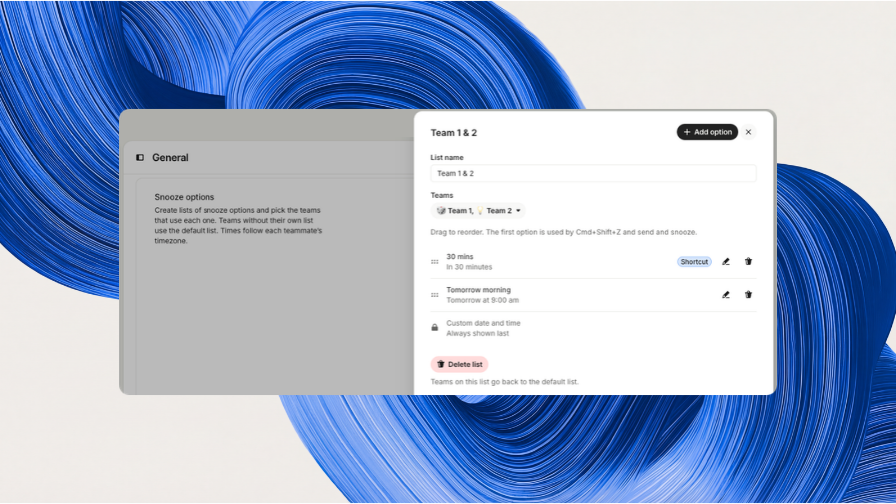
What changes
Admins can create custom snooze choices such as “In 2 hours,” group them into lists and assign a list to each team. Teammates see the choices for the conversation’s assigned team or a default list.
Why it's interesting
The snooze menu can reflect each team’s follow-up cadence, making the next action quicker and more predictable.

Webflow
October 23, 2026
Webflow lets designers prefill component slots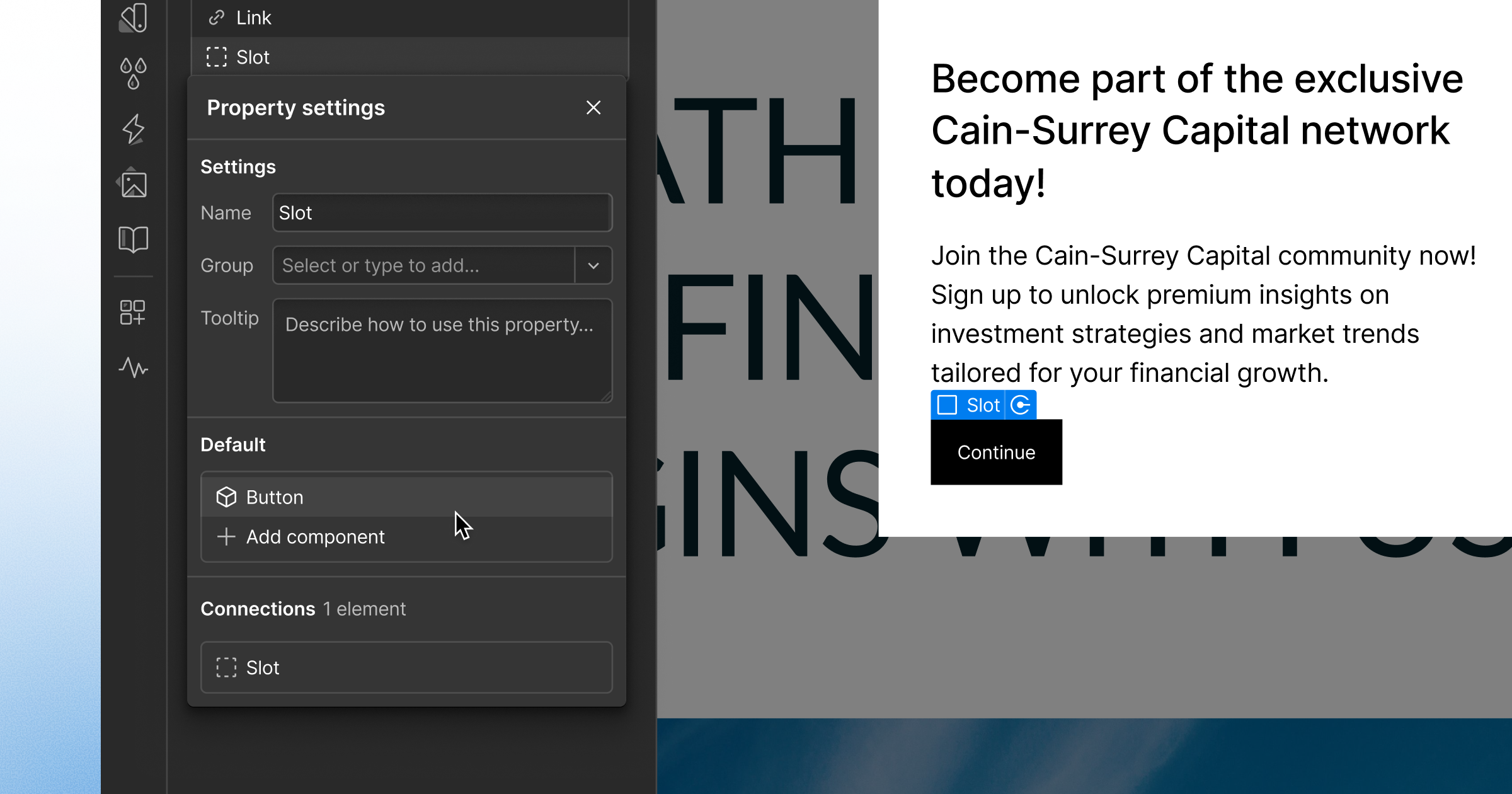
What changes
Designers can place a default component in a slot on the main component. New instances arrive populated, while editors can replace, clear or reset the slot; changes to the main default update instances still using it.
Why it's interesting
A visible default shows collaborators what belongs in a flexible slot and removes repetitive setup across page instances.

Profound
October 23, 2026
Profound visualizes context gaps and guides users to fill them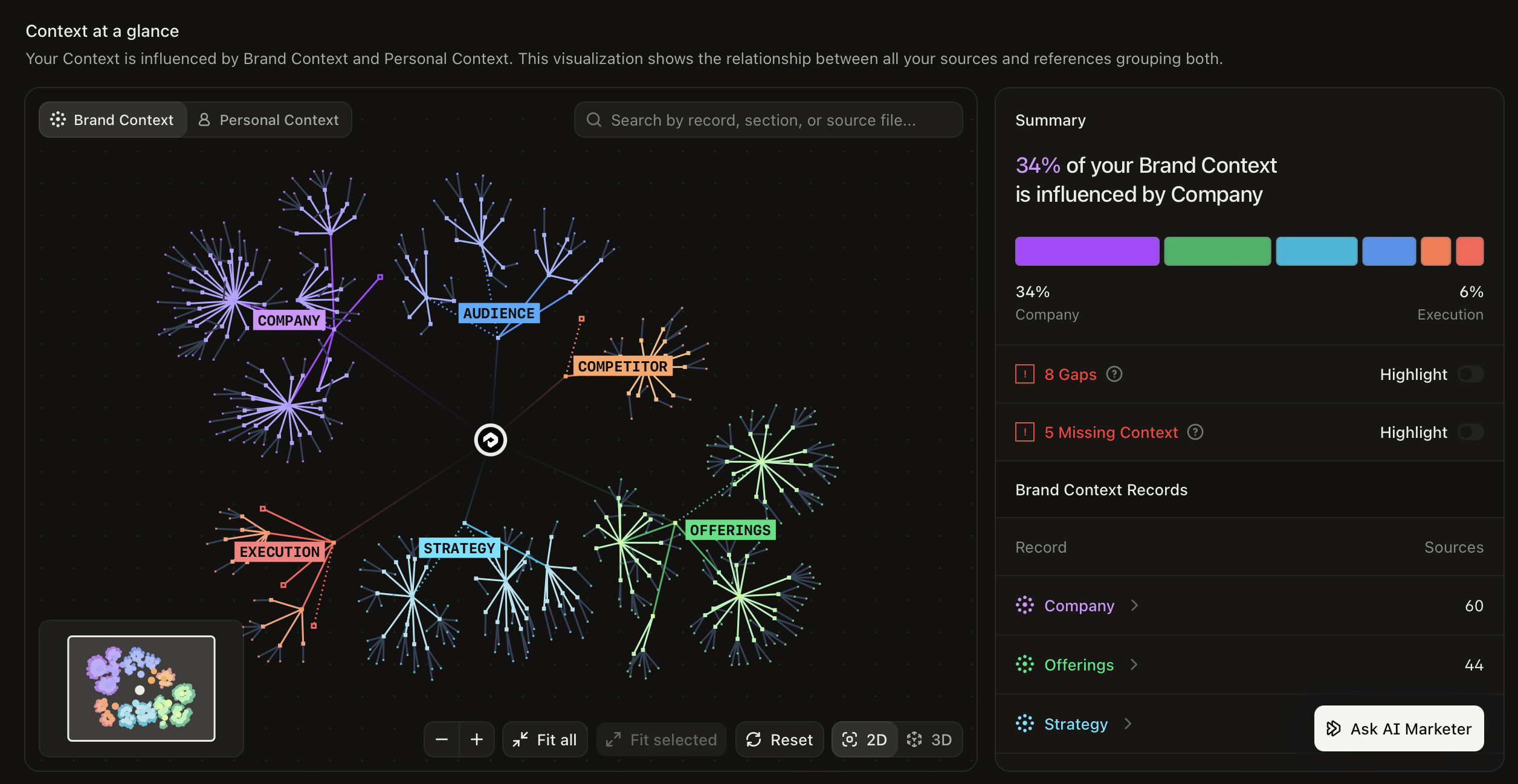
What changes
Context Manager has an Overview tab that visualizes brand and personal context. Highlight for Gaps or Missing Context reveals records that need work; “Fix gap” starts a one-question-at-a-time flow that applies each answer.
Why it's interesting
The interface turns an abstract context quality problem into visible, actionable gaps with a guided correction path.

Unkey
October 23, 2026
Unkey makes environment variables searchable across a workspace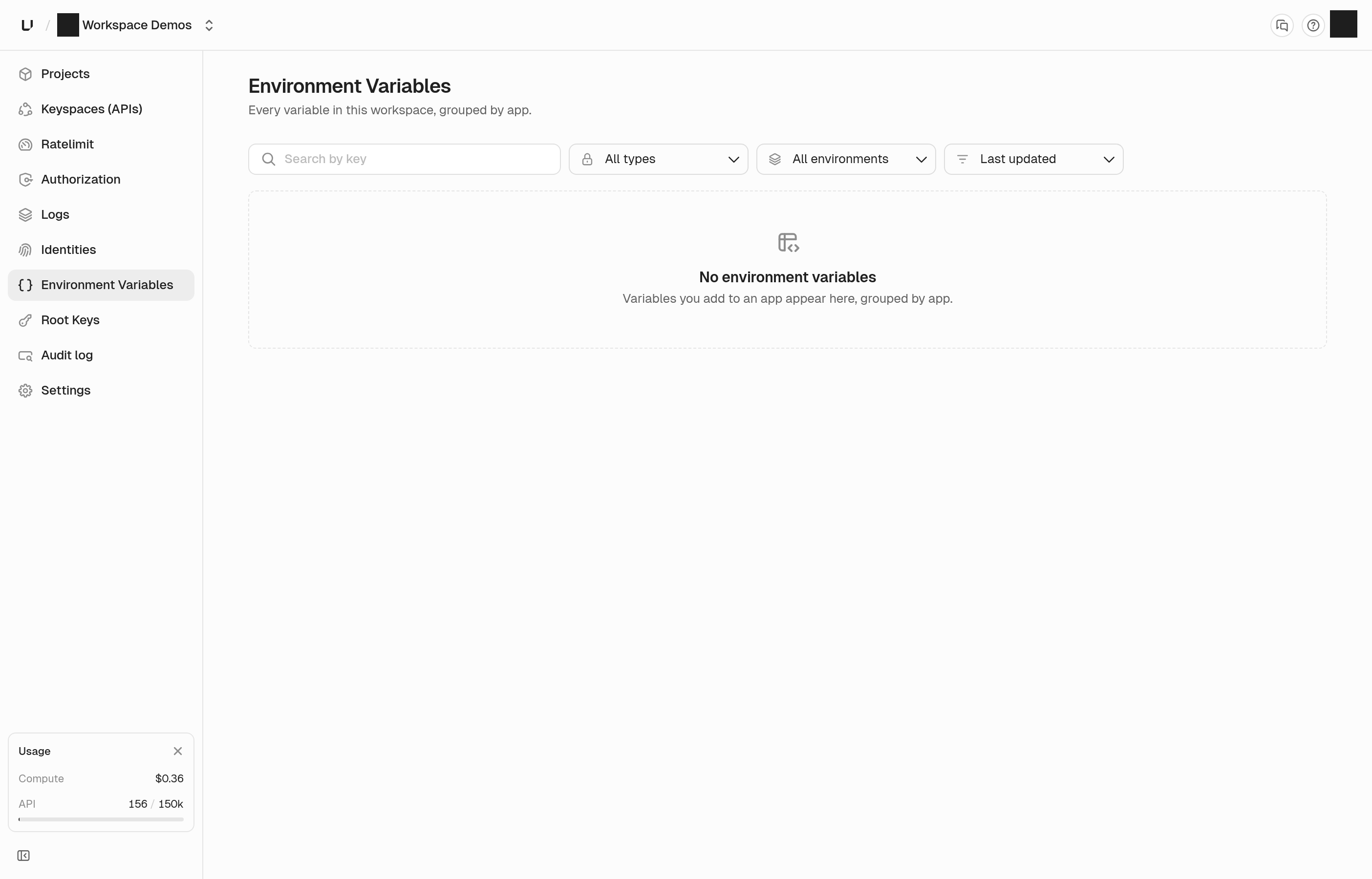
What changes
A new Environment Variables page in the dashboard sidebar groups keys by app. Users can search, filter by environment or sensitivity, and jump to the matching key in its app.
Why it's interesting
The workspace-wide index shortens the path to finding or rotating a variable while keeping its value hidden in search results.

Slite
October 22, 2026
Slite adds a match minimap to in-document search
What changes
Find in doc now marks every search match on a document minimap. Users can jump directly to a hit from its position in the page.
Why it's interesting
The minimap makes matches and their distribution visible in long documents, reducing repeated next-result navigation.
Slite
October 22, 2026
Slite adds relative and range date filters to saved views
What changes
Date filters now support relative values such as Today or one week ago, plus an “is between” calendar range. Saved views resolve relative dates for each viewer and stay current automatically.
Why it's interesting
Teams can save a time-based view once and keep using it without manually changing its date boundaries.
Webflow
October 21, 2026
Webflow shows AI agents working live on the canvas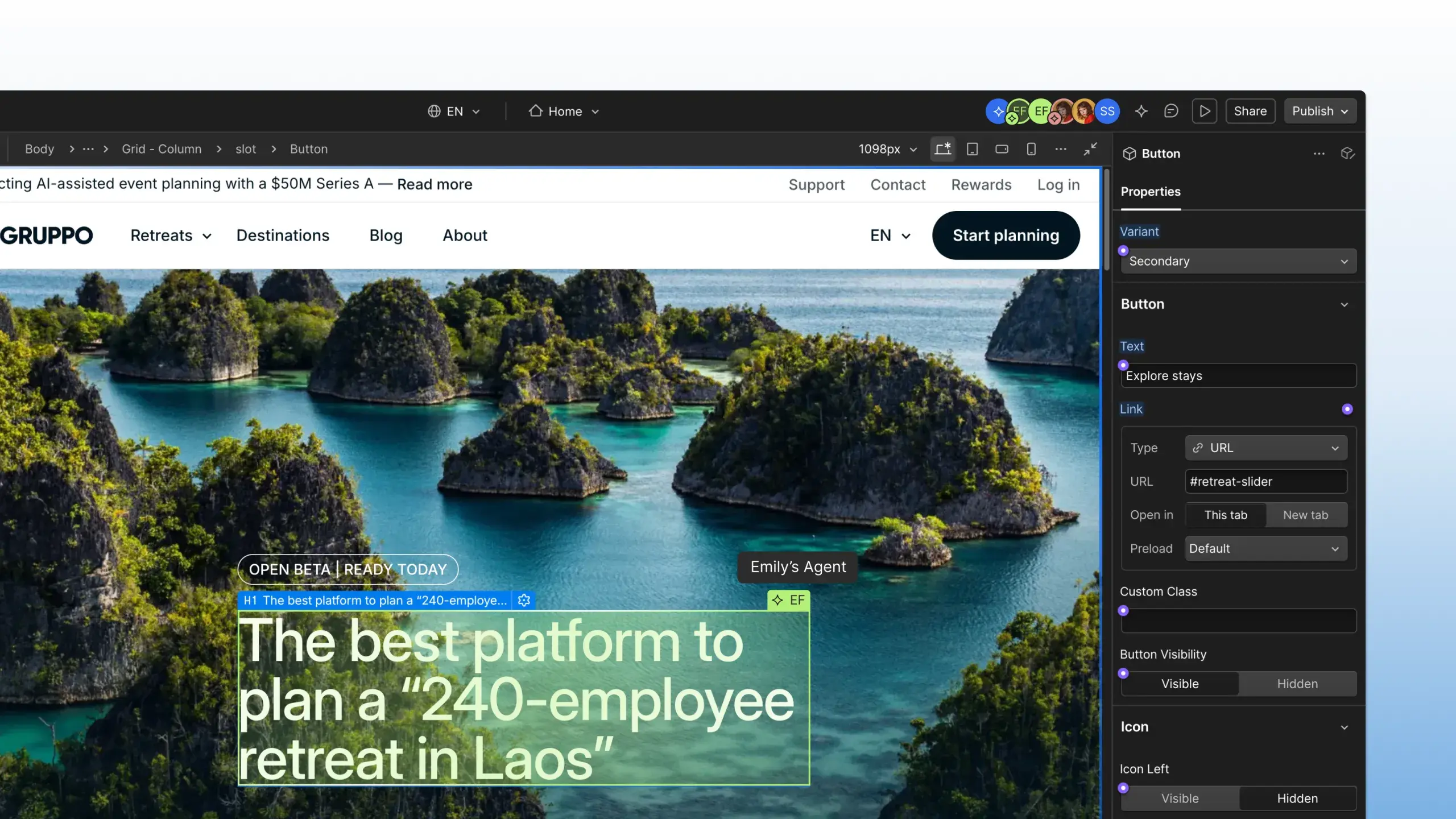
What changes
When an agent connects through Webflow’s MCP server, its live location appears on the design canvas like a teammate’s presence indicator.
Why it's interesting
The visible presence helps collaborators understand where an agent is acting before its changes appear, improving awareness during shared editing.
Intercom
October 21, 2026
Intercom lets teammates follow conversations without taking ownership
What changes
A Followers section in conversation and ticket details lets teammates follow an item without becoming its assignee. A Followed by filter in Search and Views gathers those items, with notifications controlled by a user setting.
Why it's interesting
Observers can track relevant work and build a personal view without changing who owns the customer conversation.

GitBook
October 21, 2026
GitBook adds conversational analysis to site analytics
What changes
A new “Ask GitBook Agent” button in site analytics opens a conversation where users can ask about their data and receive custom reports with charts, including analyses outside the built-in reports.
Why it's interesting
The prompt-based path helps people answer a specific analytics question without configuring a report first.

Shortcut
October 21, 2026
Shortcut rebuilds reporting charts with drill-down tables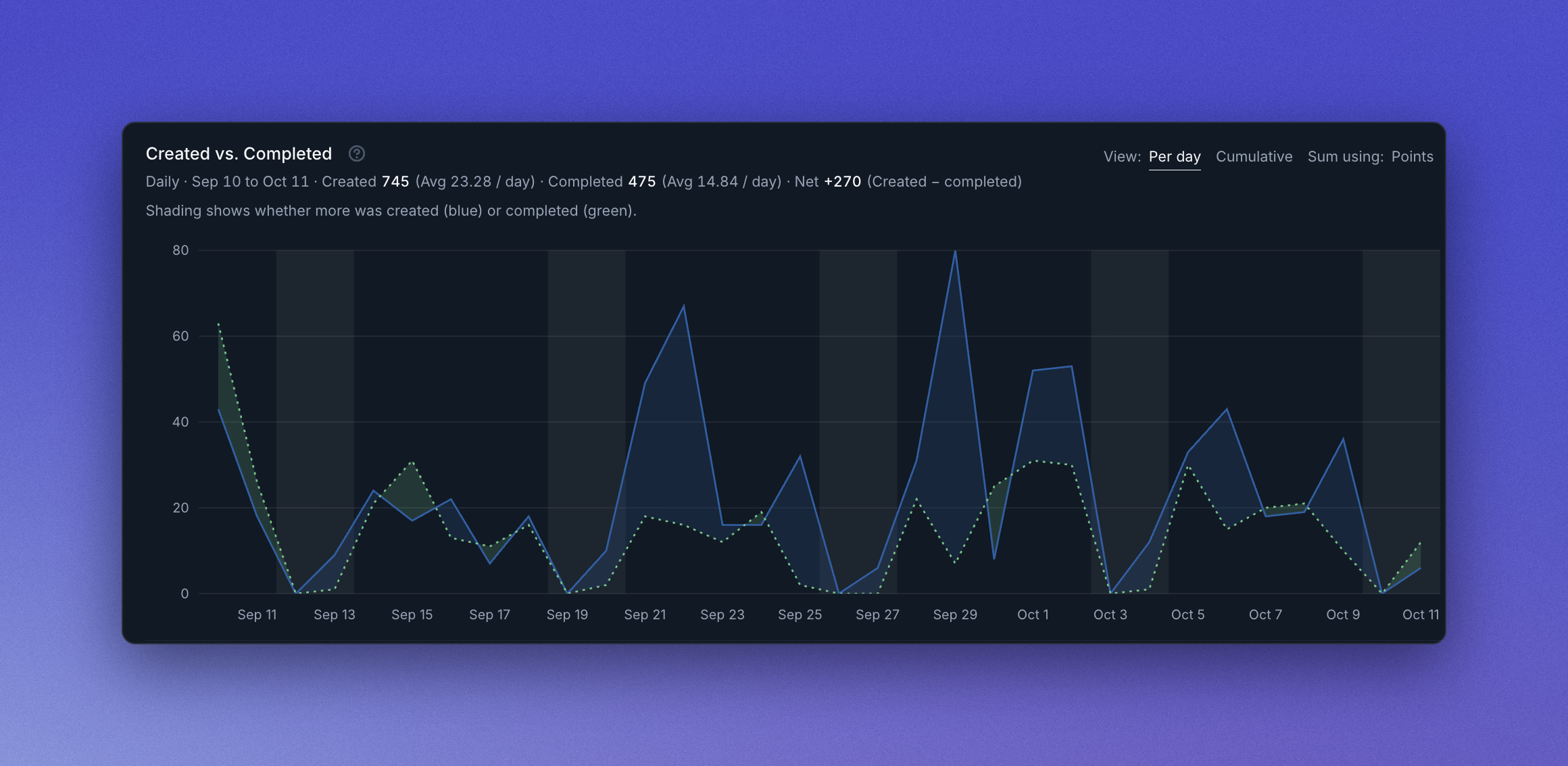
What changes
Shortcut rebuilt six report charts with consistent formatting and dark mode, added a Created vs. Completed chart, and lets users click Time Spent or Cycle Time data points to inspect the underlying Stories in tables.
Why it's interesting
Teams can move from a high-level trend to the exact work behind a metric without leaving the reporting flow.

Senja
October 21, 2026
Senja adds verified buyer details to its Sales Widget
What changes
Sales cards can show the buyer’s name, location and purchased product. Visitors can tap “Verified by Senja” to inspect proof of the Stripe-backed purchase, while sellers can customize each product’s action wording.
Why it's interesting
Specific, verifiable purchase details make the social proof more credible and let the widget match the language of the product.

Boords
October 20, 2026
Boords exports editable storyboards for Google Slides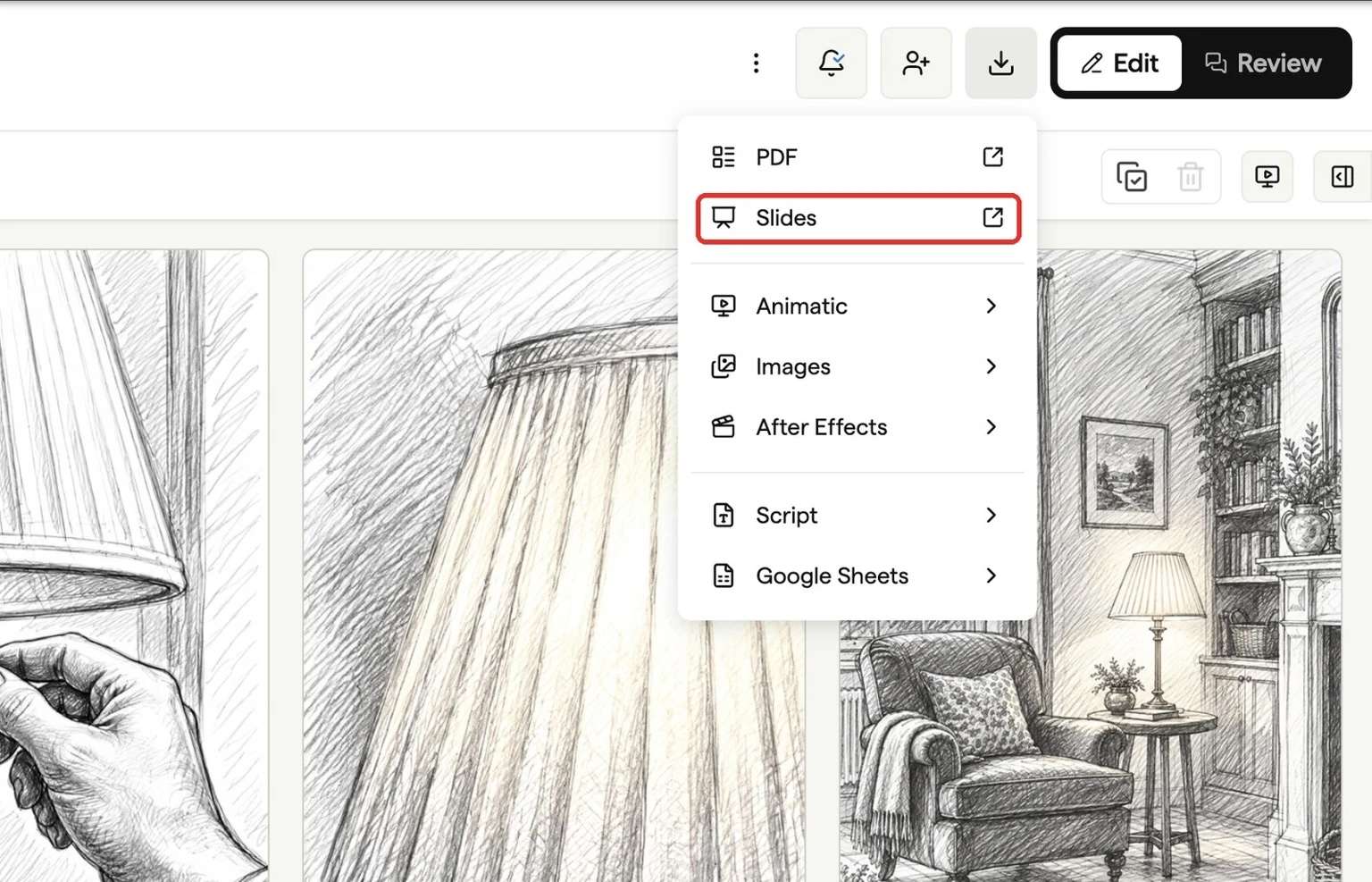
What changes
The Slides export now downloads a PowerPoint deck containing each frame’s image, number, title and notes. Text remains editable and the deck imports into Google Slides in one step.
Why it's interesting
Teams can hand off and refine a storyboard in Slides without rebuilding it from separate PNGs and copied notes.
Intercom
October 16, 2026
Intercom makes macro usage visible in settings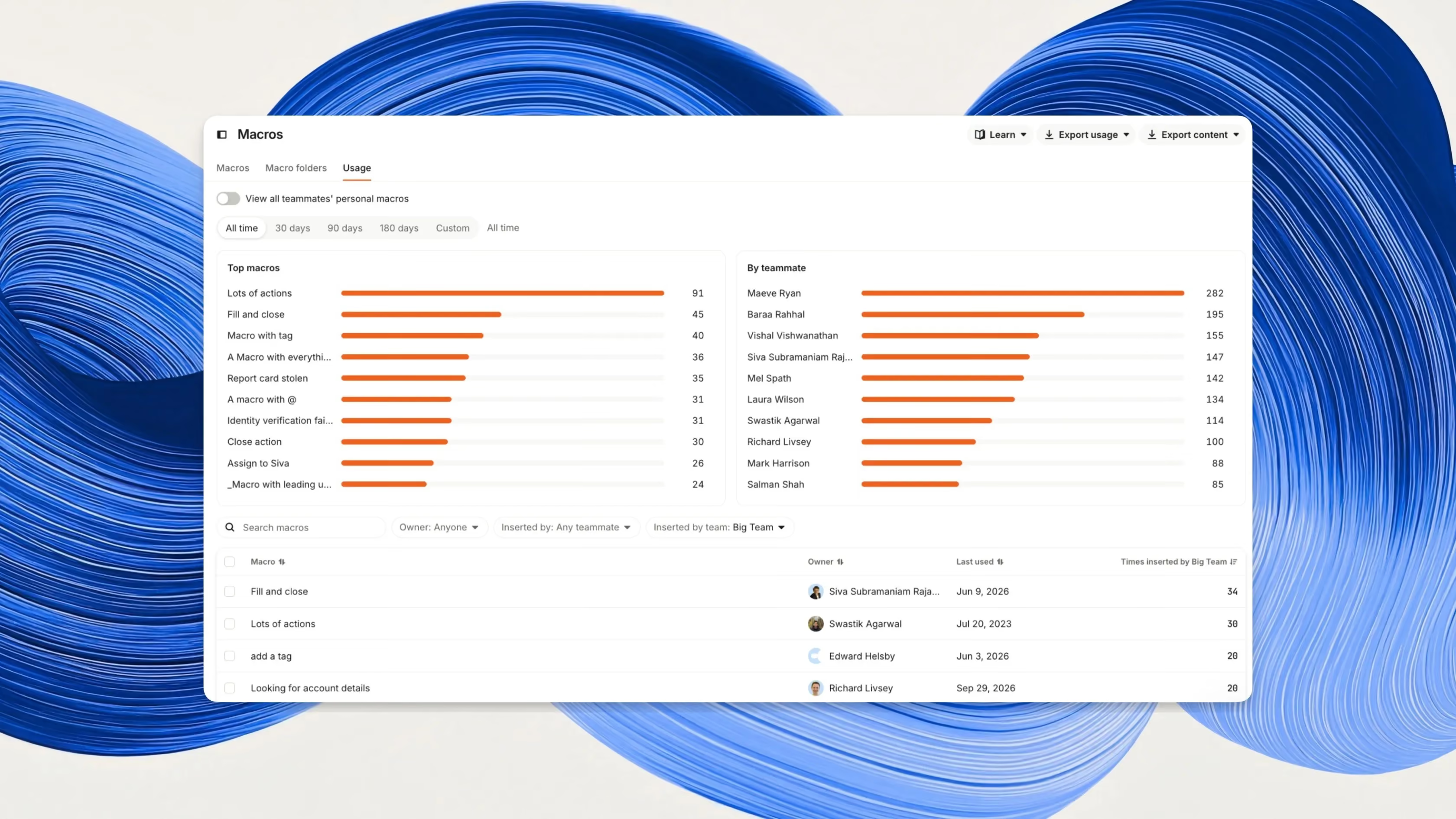
What changes
A Usage tab in Macros settings shows use by teammate, team, and conversation over a selected period. Admins can sort by use or recency, inspect where a macro was sent, and bulk-delete stale macros.
Why it's interesting
Usage evidence turns macro cleanup into an informed maintenance task and makes the shared reply library easier to keep useful.

FullEnrich
October 16, 2026
FullEnrich adds a task-oriented home page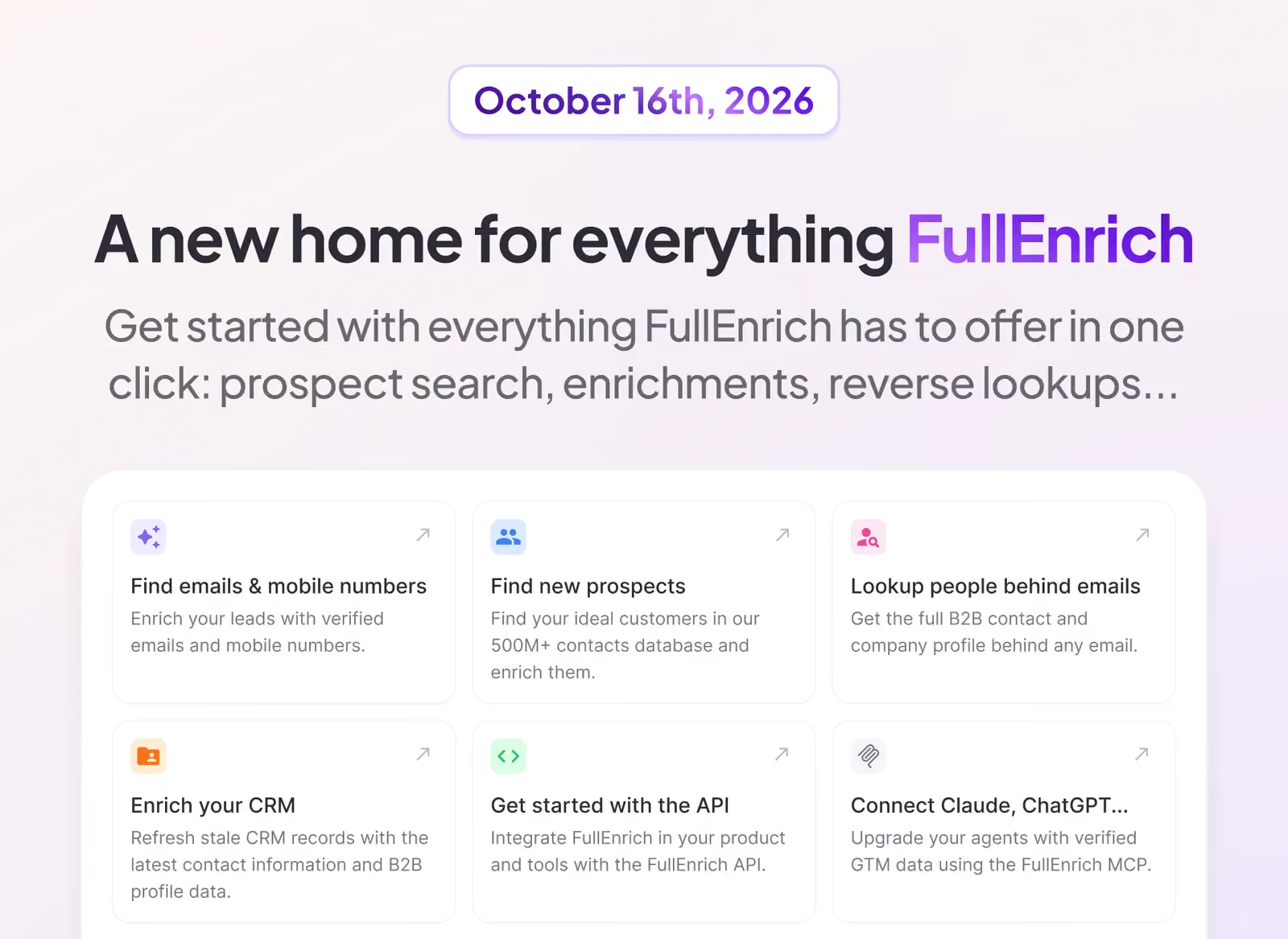
What changes
The new home page presents the main FullEnrich tools as action cards, so users can choose what they want to do and open the corresponding workflow directly.
Why it's interesting
Organizing the entry point around tasks makes the available actions easier to discover and shortens the route to a tool.

Appcues
October 16, 2026
Appcues adds objective dashboards to campaigns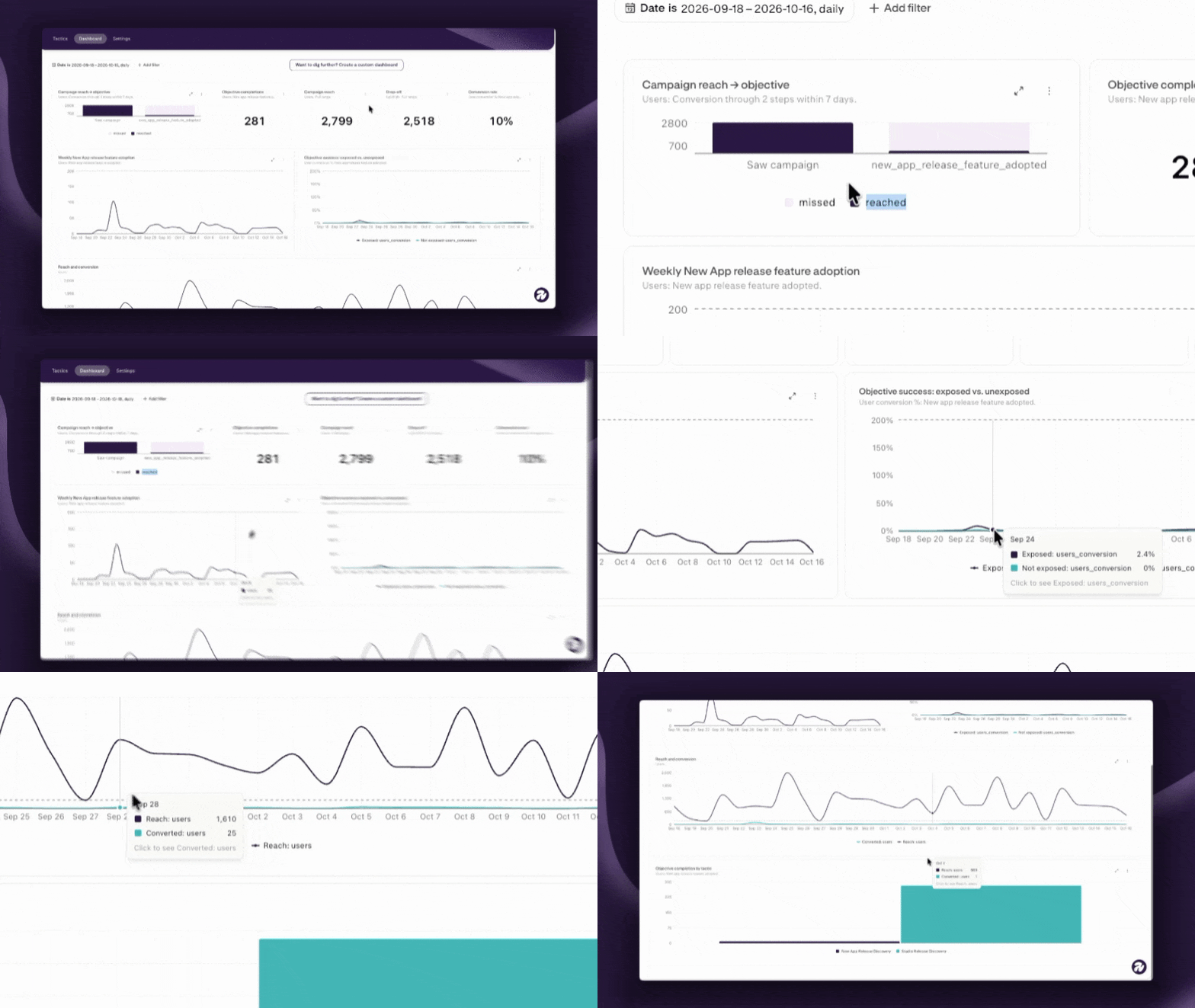
What changes
Each campaign and tactic now has a Dashboard tab with a reach-to-objective funnel, completions, drop-off, conversion rate, trend versus target, and exposed versus unexposed comparisons. A card menu can explain the chart.
Why it's interesting
Connecting exposure to the intended outcome in one view helps teams assess whether an in-product campaign achieved its goal.
Unkey
October 16, 2026
Unkey replaces app setup wizard with a guided flow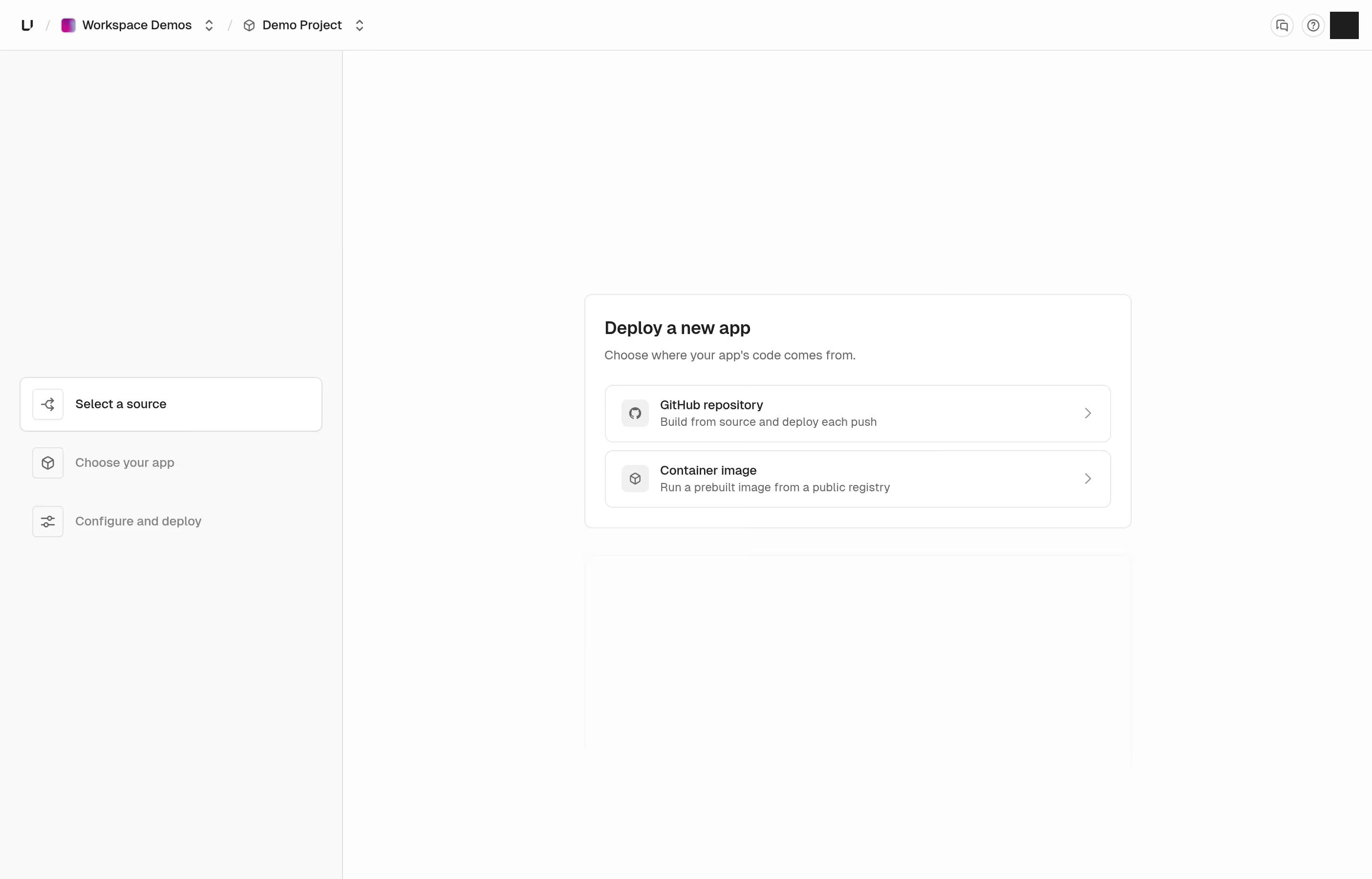
What changes
Creating an app now starts with a repository or container image and proceeds through a guided flow. The setup page shows remaining requirements and only the options available on the current plan.
Why it's interesting
A visible checklist and plan-aware choices reduce uncertainty and prevent users from hitting an unavailable option midway through setup.

ProductBoard
October 15, 2026
Productboard puts Spark in the global Create menu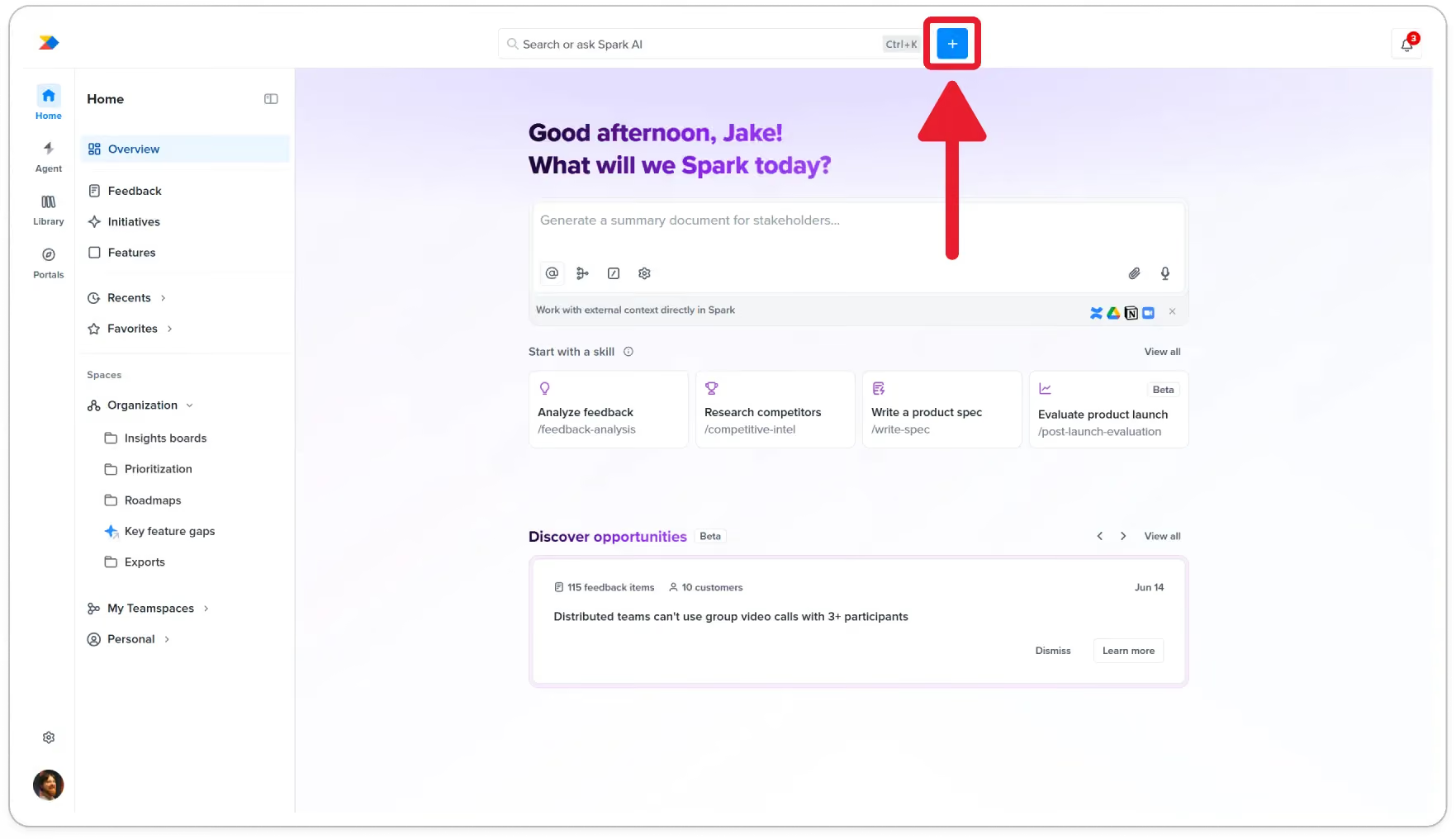
What changes
The global Create menu now leads with a prompt for Spark to build an entity or board from a description. It checks for possible duplicates before creation, then opens the new item with its Spark chat attached; manual creation remains in the same menu.
Why it's interesting
A single entry point supports both plain-language and manual creation while preserving context for refinement after the item exists.

Better Stack
October 15, 2026
Better Stack rebuilds mobile incident response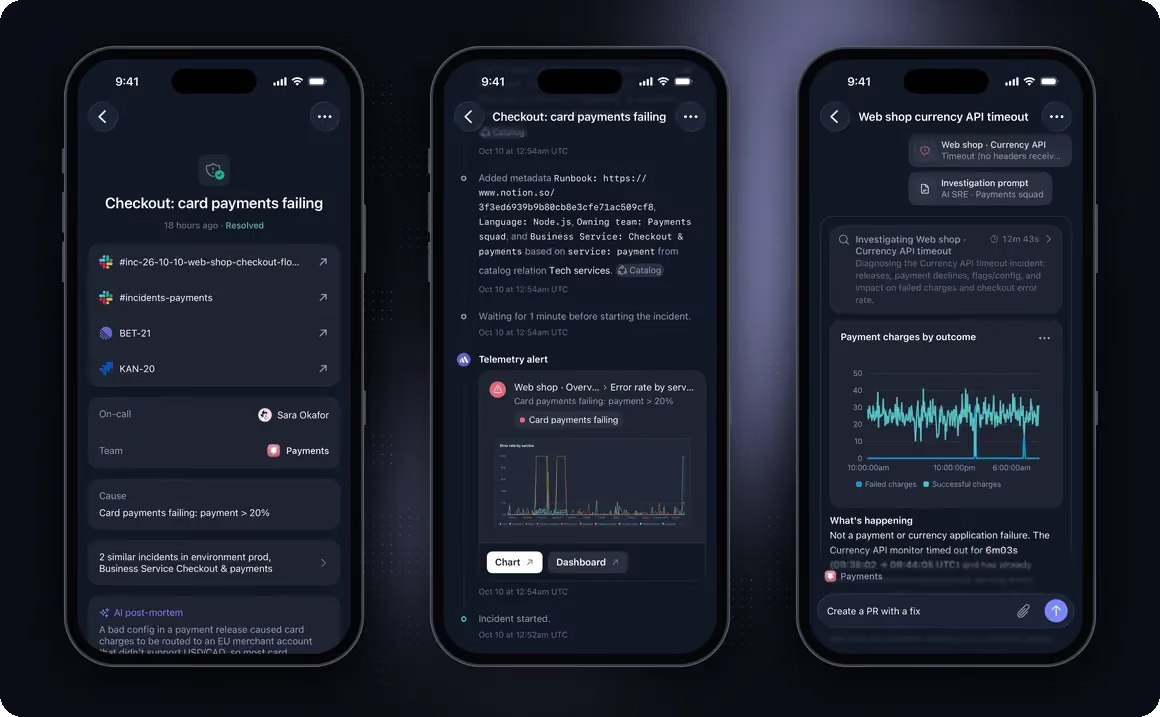
What changes
New native iOS and Android apps bring incident details, timeline charts, comments, escalation, and AI investigation into mobile. On iOS, Live Activities show incident status and next escalation on the Lock Screen.
Why it's interesting
Responders can inspect context and acknowledge or escalate an incident from the device or notification surface already in hand.
Intercom
October 15, 2026
Intercom adds search within Messenger conversations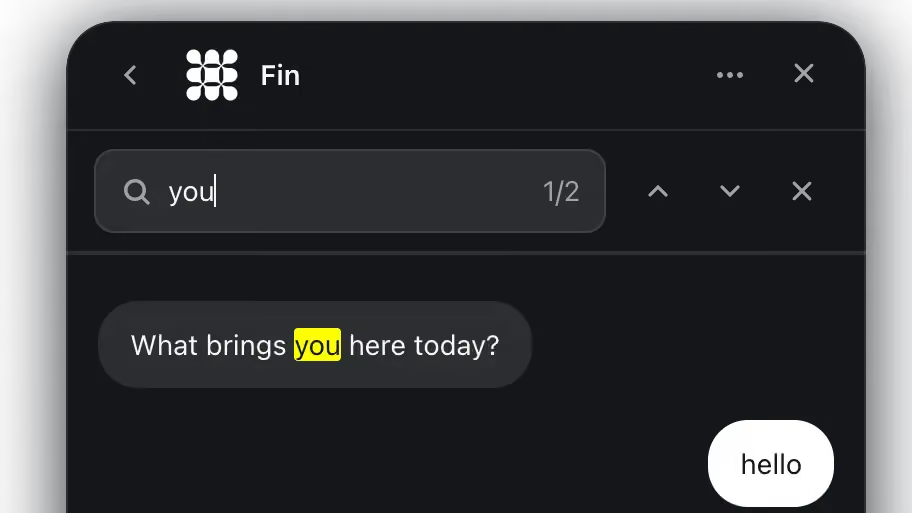
What changes
The conversation menu now opens a search for text within the current Messenger chat. Matches are highlighted and users can move between results.
Why it's interesting
Local search helps people recover a detail from a long conversation without scrolling or losing their place.

Framer
October 15, 2026
Framer refreshes its Gallery discovery experience
What changes
Framer's Gallery adds a broader set of categories and vibe filters, reorganizes showcased sites, and changes rankings to surface newer work.
Why it's interesting
Visitors can narrow inspiration by visual mood as well as category, making exploration more directed while refreshing the examples they encounter.