Remove Item
24
Handle item deletion with clear SaaS 'Remove' patterns. Learn how to differentiate between 'deleting' data and 'removing' a member from a team with clear icon and color cues.

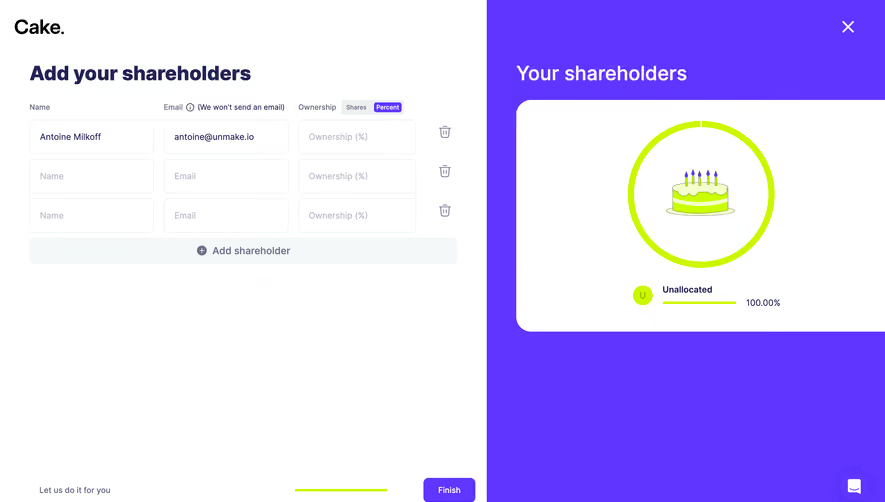
A remove-item interaction takes a value, selection, or relationship out of a current context. It might remove an interest from a profile, detach a file from a draft, clear a filter, or exclude a day from availability. The underlying object may continue to exist elsewhere. That scope distinguishes removal from deletion and needs to be understandable at the moment of action.
The distinction is easy to lose when both actions use a cross or trash icon. Users may wonder whether removing a collaborator from a project deletes their account, or whether clearing a selected category deletes the category itself. Labels and surrounding context should make the actual consequence clear.
Begin by defining the relationship being changed and the persistence rule. Is the removal immediate, part of an unsaved form, or completed when the user submits a step? Can the item be added again? Does it affect only the current user or a shared collection? The interface should reflect these answers rather than relying on an icon to communicate everything.
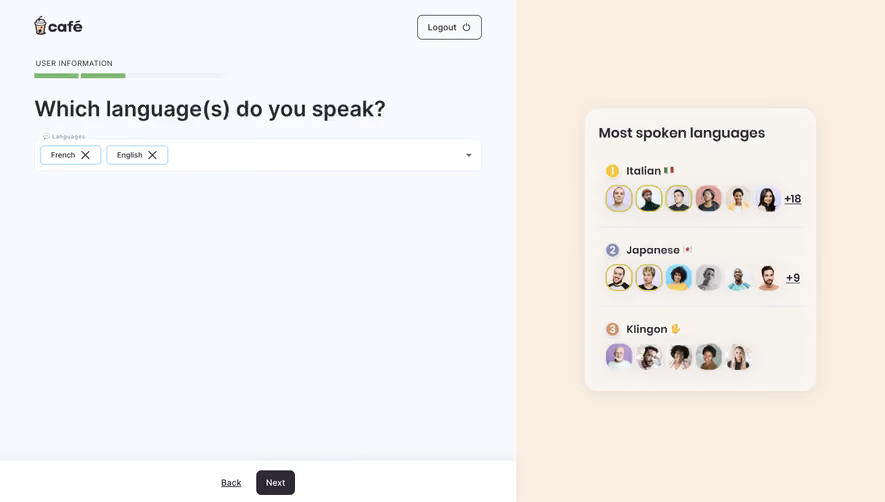
Café's captured interests setup shows selected food, activity, music, and television interests as chips. Each chip has a cross next to its label. The fields remain available for adding other choices. This makes the likely scope visible: removing one selection from a category, rather than deleting the category or the global interest.
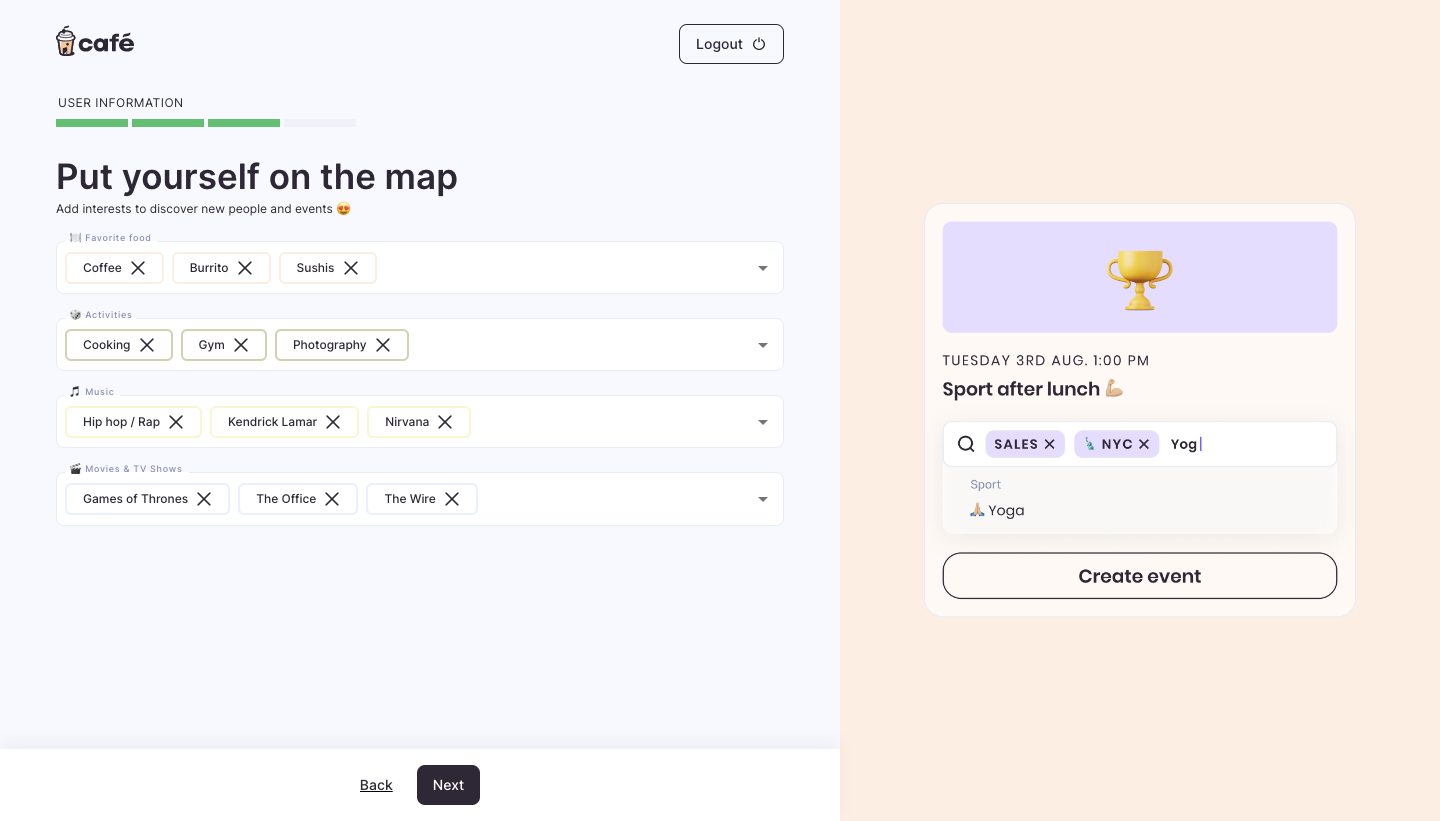
The relationship between label and control is important in a dense field. A cross at the far edge of the whole input could imply clearing every choice; a cross attached to a chip suggests a single value. Preserve that distinction in accessible naming, so users navigating without visual position can identify exactly which selection will be removed.
The capture does not establish when profile changes are saved. A Next action appears below, but its presence alone is not proof of the persistence rule. An implementation should communicate whether removals are local edits or immediate updates and preserve a sensible recovery path if the user changes their mind.
Zencal's captured schedule setup shows weekday labels with cross controls on active days. Weekend labels have a different treatment. Time fields sit beneath the day labels, and a timezone selection appears above. The removal cue therefore belongs to a day's participation in the availability setup.
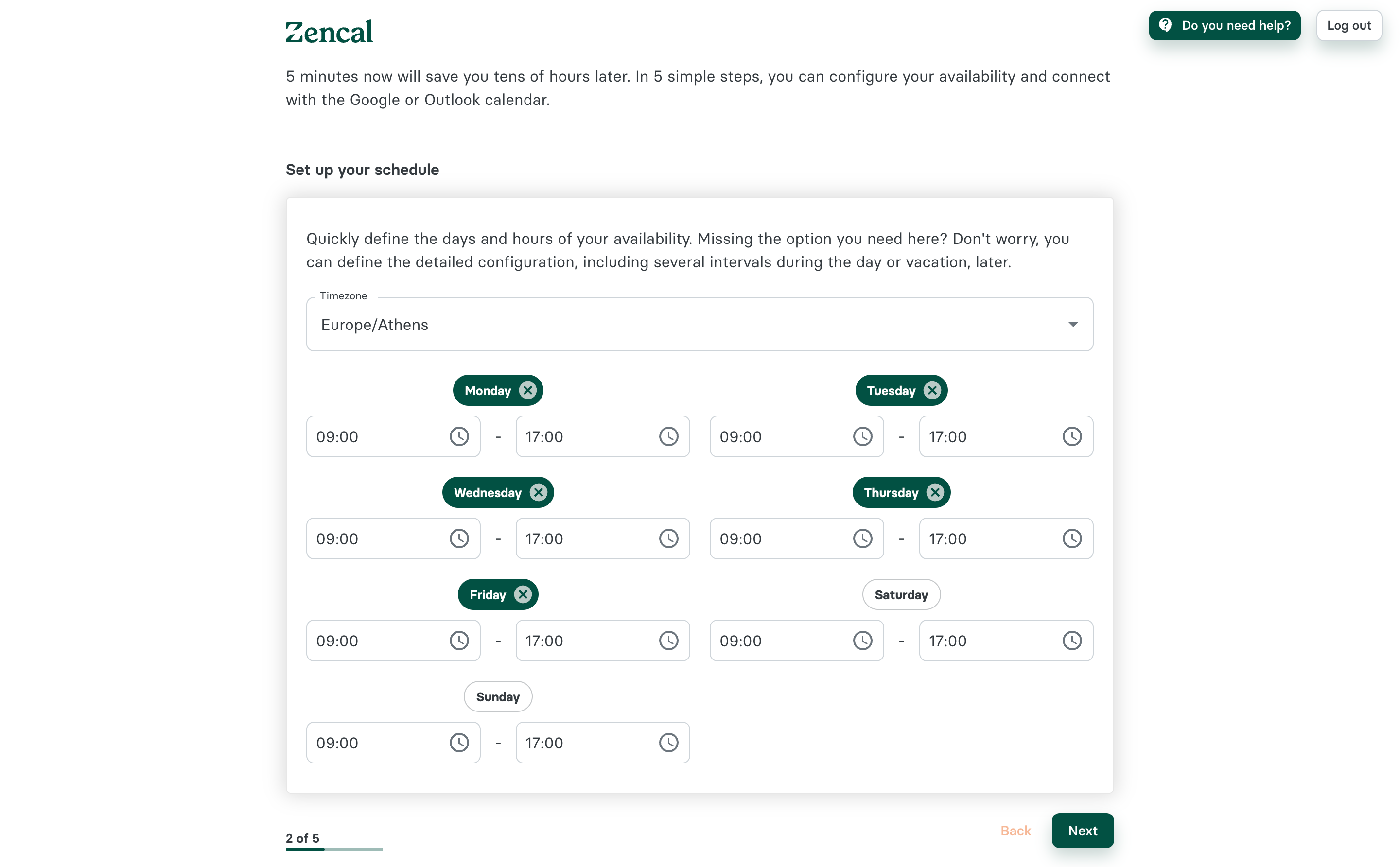
A day cannot meaningfully be deleted from the calendar vocabulary; it can be excluded from the user's availability. This is a useful example of relationship scope. The surrounding heading and controls should explain what becomes unavailable after the change and whether previously entered times are retained if the day is reactivated.
The screenshot does not prove the result of clicking the cross or selecting an inactive day. Test those transitions separately. If removal hides time fields, preserve or discard their values according to an explicit rule. Avoid making reactivation unexpectedly restore stale times or erase carefully entered intervals without explanation.
Use verbs such as remove, detach, clear, deselect, or exclude when they accurately describe the operation. These words can communicate scope better than a universal Delete label. A collaborator removed from a project remains a person in the organization; an attachment removed from a draft may remain in storage; a filter cleared from a view leaves the records intact.
Keep the object in the label when ambiguity matters. “Remove Alex from this project” is more precise than “Remove.” “Clear all filters” is different from removing one filter chip. The interface should not make users inspect a confirmation dialog merely to learn what the initial action meant.
Use consistent terminology across the result. A toast that says Deleted after a selection was merely removed can undermine the distinction established by the control. The feedback should identify the changed relationship and, where useful, the context it affected. Match the words to the actual product behavior.
A reversible, local deselection often works best with immediate feedback and an easy way to re-add the value. Requiring a dialog for every interest chip can interrupt editing without helping the decision. A removal that affects shared access, disconnects a service, or changes a large collection may need a clearer review step.
Base the decision on scope and recovery rather than visual size. A tiny cross can revoke important access, while a large remove button can simply clear a draft row. Explain the consequence before commitment when users could reasonably misunderstand it. If the action is recoverable, describe the actual recovery mechanism rather than implying an unlimited undo capability.
For batch removal, show the count and context affected. Distinguish the visible page from all selected matches. If some relationships cannot be removed because of permissions or dependencies, explain the partial result. A single success message should not hide exceptions that change the user's understanding of the collection.
Removing a chip or row changes the interface around the user. Focus should move to a sensible neighboring control or remain in the relevant field. Do not leave keyboard focus on an element that no longer exists. If an undo option appears, make it reachable without forcing users to navigate through unrelated page content.
In a chip field, Backspace behavior needs a deliberate rule. It may edit text, select a chip, or remove a selected value depending on the component. Make the behavior predictable and avoid deleting a value unexpectedly while the person is entering a query. Test with different input methods and assistive technology.
Prevent abrupt movement from causing another unintended removal. A row disappearing beneath the pointer can place the next row's control at the same position. Review repeated clicks and touch input. Spacing, pending states, and stable control behavior should support intentional repeated editing without encouraging accidental actions.
After the last selected value is removed, the field or collection should remain understandable. A category label can preserve context, and a clear add route can support continuation. Avoid leaving an unlabeled empty box that looks broken or implies that the user must abandon the task.
If at least one value is required, explain that requirement before or during removal. The product can prevent the final removal or allow an intermediate empty state that must be corrected before submission. Choose the approach around the workflow and make the consequence clear. A silent refusal gives little help.
Distinguish no selections from no available options. Removing all profile interests is not the same as a system with no interests to choose from. If the picker has no results for a query, show that state separately. Keep the original vocabulary accessible unless the actual operation also changes it.
Removal inside an editable form can be temporary until saving. Removal in a shared project may be immediate. Show the relevant saving state and preserve edits when a request fails. If a relationship returns after refresh because the request never completed, explain the failure rather than making the interface appear to undo the user arbitrarily.
Concurrent editing can change the collection while a removal is pending. Another person may update the same member, selection, or configuration. Define how the interface reconciles these changes. A stale local view should not confidently report a final state that the shared product does not contain.
Account and workspace switching require particular care. A removed selection should affect the intended profile or project, not whatever context becomes active before the request completes. Identify scope in the request and visible feedback. If the action becomes unavailable because permissions change, retain an understandable state and explain what did not complete.
Restoration can be an undo action, reselecting a value, reattaching an object, or sending another invitation. These mechanisms are not equivalent. A user who removes a collaborator may need a new permission assignment; a user who removes an interest can often select it again. Explain the actual route when it affects effort or access.
Preserve enough information for recovery where appropriate. If removing a schedule day temporarily hides its interval, decide whether reactivation restores the previous value. If removing an unsaved row discards substantial text, an undo or draft-preservation mechanism can prevent avoidable rework.
Do not call an operation reversible merely because a similar object can be recreated. Reattaching a file may be easy; reconstructing a detailed configuration may not be. Review recovery from the user's perspective, including the time and information needed. This helps determine whether the initial interaction needs more explanation.
Ask users to remove one selection, clear a whole collection, restore a value, and explain what still exists elsewhere. Include a required final value and a failed save. Observe whether they interpret removal as deletion and whether the interface makes the relationship clear without repeated confirmation.
Measure accidental removal and recovery effort alongside speed. A fast deselection flow is useful only when users understand its scope. For shared relationships, test whether people predict the access or visibility consequences. Review narrow layouts and long labels so removal controls remain associated with the correct item.
Use this checklist:
Often, but terminology must follow the product's actual model. Removal commonly changes a selection or relationship while the object remains elsewhere. Deletion removes the object itself. Make the consequence clear rather than relying on the verb alone.
No. Local, readily recoverable changes can use direct feedback and restoration. Shared access changes or difficult recovery may need clearer review. Choose the interaction around scope and consequences.
Preserve the collection's label and an appropriate add route. If a value is required, explain the requirement and how to correct the empty state. Do not leave users with an unexplained blank area.
Explore the SaaSFrame remove-item examples to compare deselection, configuration editing, and controls that make relationship changes clear.