Invoice
16
Screens presenting invoices, receipts, payment history, or downloadable billing documents.
.webp)
An invoice interface helps users find, inspect, and retrieve the documents associated with billing. In SaaS products, this often means a history inside account settings, with dates, amounts, states, and an action for each record. Its value is practical: a customer should be able to identify the document they need without contacting support or reconstructing a payment timeline.
The design challenge is keeping the history understandable when several financial concepts coexist. Usage, purchased credits, payments, grants, refunds, and invoices can appear on the same billing page. They are related, but the interface should not make their labels interchangeable.
Start with the user's request: “I need the document for this purchase,” or “I need to understand which billing period this amount belongs to.” A current balance does not answer either question. The invoice area should have a clear route and enough identifying information to support those tasks.
Decide whether the surface is a document archive, a payment history, or a combined ledger. A combined surface can work when the type column and actions explain each entry. An archive may be clearer when users mainly need downloadable documents for internal processing.
Keep the document's identity distinct from its current state. An invoice number or other stable reference can support support requests and record matching. A label such as Paid is useful context, but it cannot replace the identity needed to distinguish several similar documents.

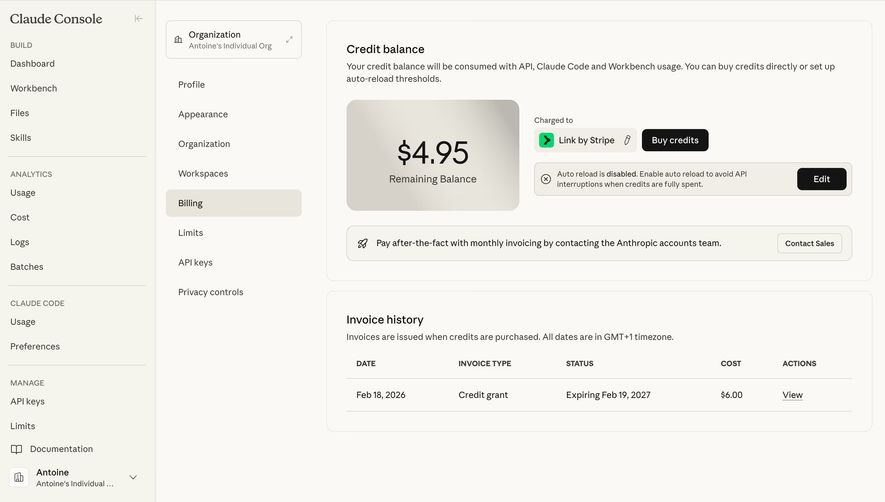
The Claude Console screenshot shows a prominent remaining-credit balance above an Invoice history section. The history uses Date, Invoice Type, Status, Cost, and Actions columns. One visible record is labeled Credit grant, with an expiration-related status and a View link.
The separate sections help distinguish a present balance from past records. A customer can understand what remains available without treating that number as the amount of every invoice. The table then provides a stable structure for inspecting historical entries.
The credit-grant row raises an important naming question. If a history includes records other than ordinary purchases, a type column becomes essential. Users should understand whether they are seeing a paid purchase, a grant, an adjustment, or another category, rather than assuming every row has the same meaning.
The screenshot states a timezone convention for the history and explains when invoices are issued in that captured product state. These are observations about the interface, not universal billing rules. Your own labels and issuance explanations must reflect the actual billing system behind the page.

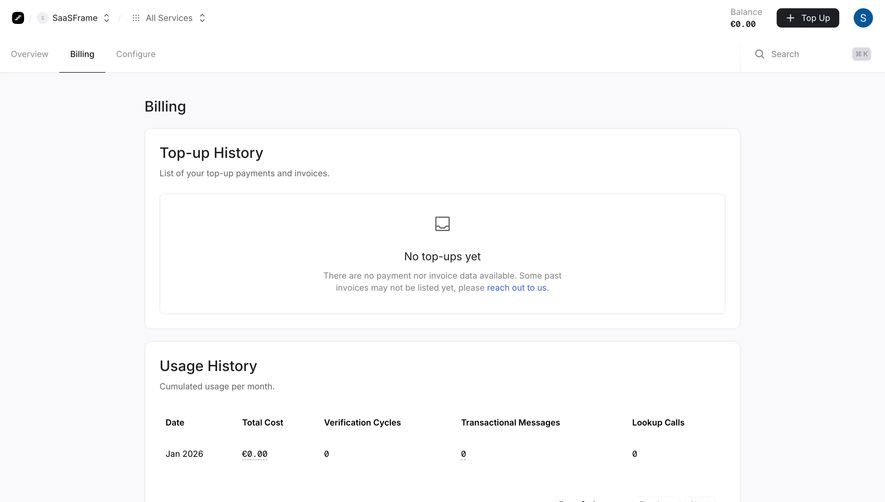
The Prelude screenshot contains a Top-up History area described as payments and invoices. Its empty state says there are no top-ups and includes a contact route for past invoices that may not yet be listed. A separate Usage History section contains monthly consumption information.
This separation prevents a common ambiguity in usage-based products. A user can consume resources without making a purchase during the same displayed period, or buy credits that are consumed later. A usage row and an invoice row do not necessarily represent the same event.
The empty state also acknowledges that the displayed history may not be complete. That is more useful than implying certainty that no document exists. If your archive has a migration or synchronization limitation, explain it accurately and offer the relevant recovery route.
The screenshot does not demonstrate downloading, filtering, or resolving a missing invoice. It supports the distinction between record categories and the role of an honest empty state. Design and test the document retrieval steps separately.
A date, stable reference, period, amount, and state can help users identify the correct record, but the exact set depends on the billing model. Include the attributes needed for retrieval rather than exposing every backend field.
Clarify what each date means. Issue date, payment date, and service period can differ. A generic Date column may be enough in a simple archive, but more complex histories need labels that prevent users from matching a document to the wrong event.
Show currency where it matters, especially when an account can contain records in more than one currency. Formatting should remain coherent across the row, detail view, and retrieved document. A user should not need to open each item merely to discover which unit the amount uses.
Use state labels that describe the document or payment accurately. If a status belongs to a credit grant, as in Claude's captured row, it should not be read as an ordinary payment state. A shared column can contain different categories only when those categories remain understandable.
A View action can open a detail page, a hosted document, or a preview. A Download action can retrieve a file. Choose labels that match the outcome, and keep the behavior consistent across records of the same type.
If users commonly forward documents to a finance team, provide a practical retrieval format and a meaningful filename. A sequence of files named download.pdf makes later matching unnecessarily difficult. Use stable identifying information appropriate to the document.
Consider batch retrieval when the archive is large and the task supports it. A date-range export can help with periodic review, but its scope needs to be explicit. Downloading the visible page and downloading all matching documents are different actions.
When an external billing portal opens, make the transition understandable. Users should know whether they are leaving the product's account area and how to return. Do not let several similarly labeled links lead to unrelated billing destinations without explanation.
An account's current billing details and an issued document are different objects. A profile edit should not imply that every historical document will change. Explain which future records use the new information and what route exists for a correction when the product supports one.
Show the relevant organization or workspace context. A person managing several accounts needs to know which entity owns the archive before changing details or retrieving documents. A familiar global avatar is not always enough to establish billing scope.
A correction flow should describe the actual supported outcome rather than silently replacing a record. Keep document references and history coherent so that users can understand which version or replacement is valid within the product's process.
These are interface requirements, not a substitute for jurisdiction-specific document rules. Work with the billing system's requirements when implementing issuance or corrections; the history UI should accurately communicate that system rather than invent its own lifecycle.
A new account with no transactions needs a different message from an archive that is still loading. A document not yet available after a completed purchase needs a different explanation from a failed retrieval request. Identify the actual condition.
For pending document generation, state what the user can do next and provide an appropriate refresh or contact route. Avoid a generic empty message that makes the user wonder whether the purchase was recorded.
If historical data is incomplete, define the limitation and recovery path, as Prelude's capture does. Do not encourage users to repeat a purchase simply because a document is absent from the current list.
On loading failure, preserve the archive's context. A retry should concern the affected history rather than taking users through an unrelated checkout flow. Where possible, retain filters and entered reference information so that recovery is efficient.
Search by a stable reference can support known-document retrieval. Date filters can support periodic review. Type or state filters can help when the archive includes several categories. Choose controls based on real retrieval tasks instead of adding a complex filter bar to a short history.
Define the relationship between filters and totals. A displayed count should describe the matching set when that is what users are browsing. A total for the entire account can be misleading beside a constrained result list.
Pagination should preserve the query, ordering, and return context. A user opening a document and returning should recognize the segment they left. Stable ordering is particularly useful when several entries have the same displayed date.
Use an appropriate no-match message. The account may contain documents even when a specific date range returns none. Offer a route to revise constraints without suggesting that the entire archive is empty.
Billing documents can belong to an organization rather than every individual using the product. Define which roles can view, retrieve, or manage them. A read-only archive and an editable billing profile may have different permissions.
The document destination must respect the same access model as the history. Hiding a row is insufficient if its linked resource is available through an unintended route. Test direct links and access changes as part of the complete retrieval flow.
For users without access, communicate a useful next step where appropriate. A disabled download icon without explanation can resemble a technical failure. If the product offers an access request or a known account administrator route, make it understandable.
Ask users to find a known purchase, distinguish it from a usage record, retrieve its document, and match the saved file back to the row. Those tasks reveal inconsistencies that a visual table review misses.
Check long references, narrow screens, keyboard navigation, missing records, and expired or changed access. Repeated View links need enough context for assistive technology. The table should remain understandable when rows wrap or secondary columns move.
Verify that displayed values and retrieved documents agree according to the billing system. The UI can be elegant while pointing to the wrong file. Retrieval correctness is the main quality criterion for this pattern.
They can when the row types and meanings are clear. Separate sections may be better when consumption and purchasing occur on different timelines, as in credit-based products.
Only when a retrievable document exists and the user can access it. Explain unavailable or pending documents rather than presenting a button that cannot complete the task.
Describe the actual condition: no records, incomplete history, pending generation, or loading failure. Offer the relevant next step instead of using one generic message for all four.
Explore invoice examples on SaaSFrame to compare document histories, billing context, record types, and retrieval actions in real SaaS products.