Inline Editing
6
Editing content directly in its displayed context rather than in a separate form or page.
.webp)
Inline editing lets users change a value where they are already viewing it. A project title, table cell, tag list, or short description can become editable without sending the person to a separate settings page. The benefit is continuity: the surrounding object remains visible while the user makes a focused correction.
That continuity comes with a design obligation. Users need to recognize that a value is editable, understand when a change is committed, and recover if it cannot be saved. An interface that makes editing quick but saving ambiguous can create more work than a conventional form.
The pattern fits small changes that people can evaluate in place. Renaming a simulation is a different task from configuring its entire behavior. A short name can be edited beside the object, while a complex configuration may need labels, helper text, validation, and a more spacious form.
Start by identifying the unit of change. Is the user editing one value, one row, or a whole section? That unit determines the controls, validation, and save boundary. Do not make each cell look independently editable if the product actually submits an entire record with hidden dependencies.
Consider frequency and consequence together. A frequently corrected label is a good candidate for a low-friction edit. A value that affects billing, public URLs, or access rules may need more explanation before commitment. Inline placement can still work, but compactness should not remove necessary context.
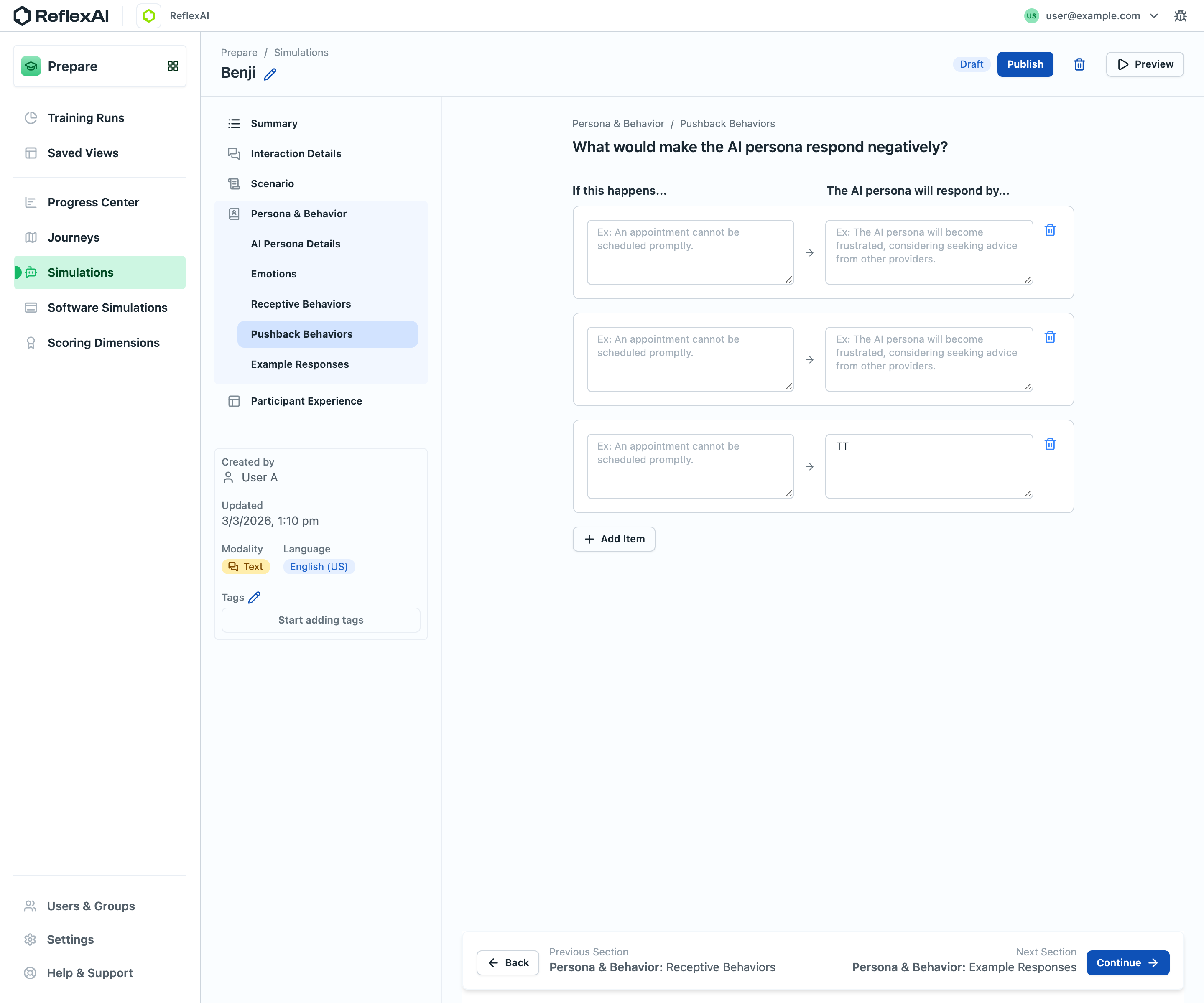
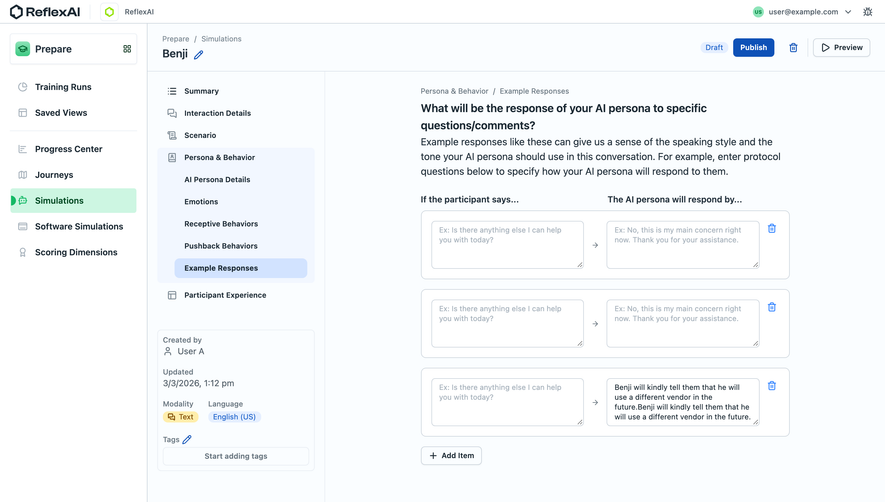
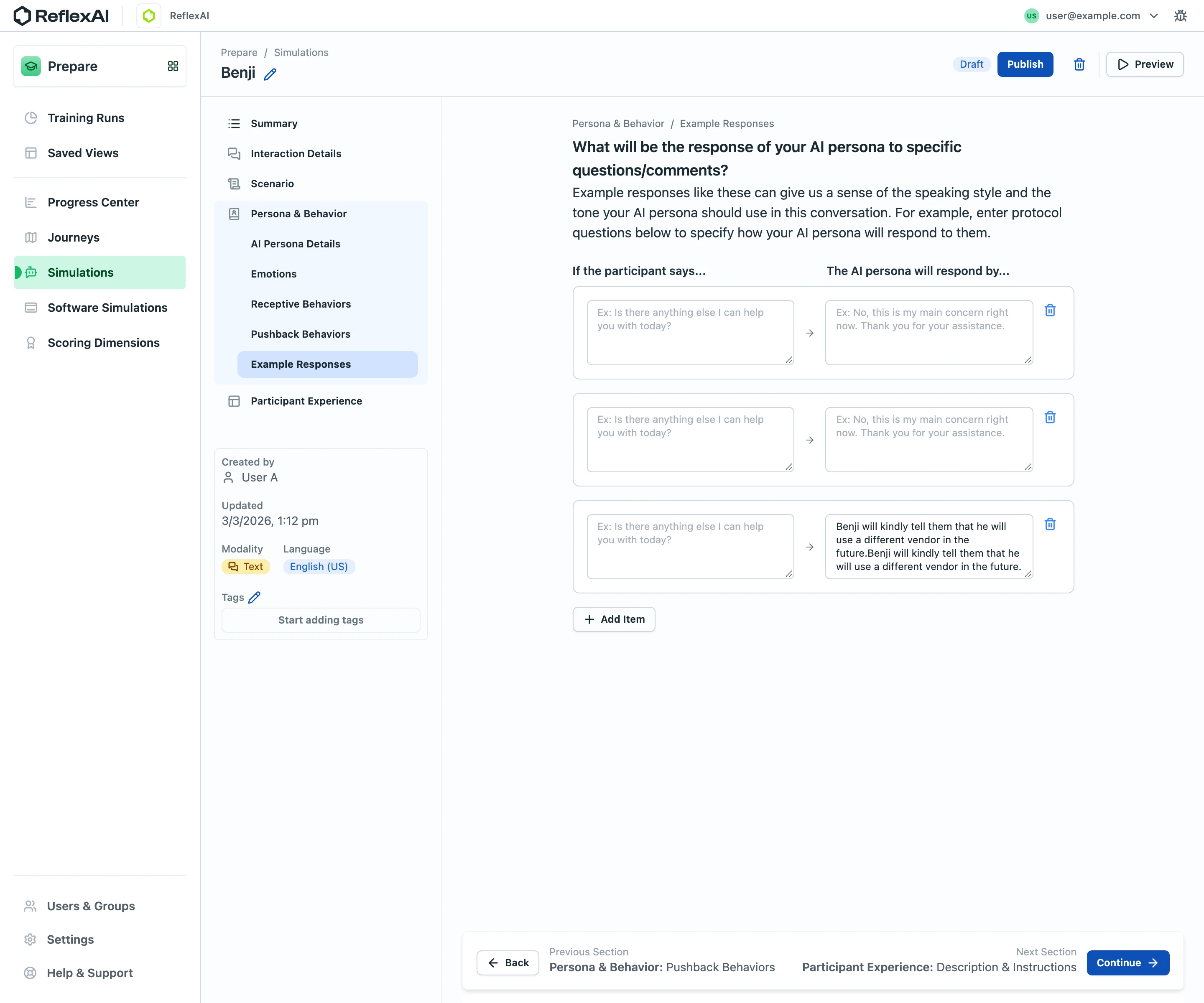
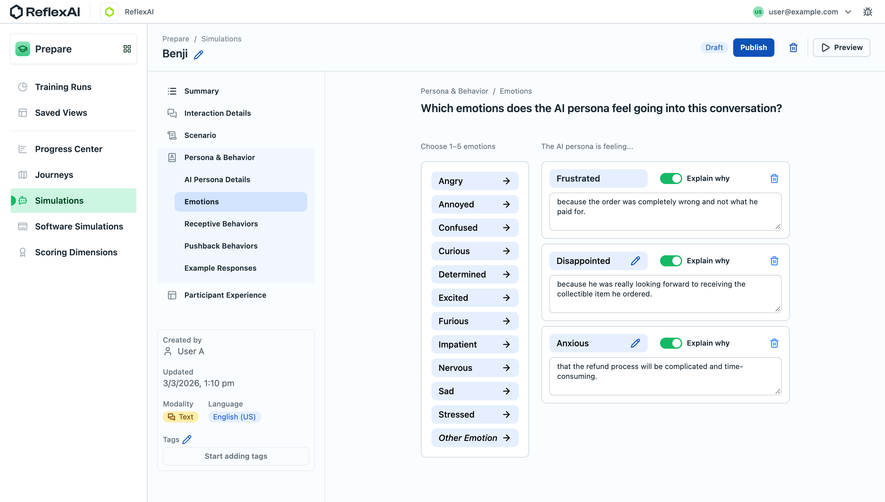
In this ReflexAI screenshot, the simulation name “Benji” appears near the top with a pencil icon beside it. The information card on the left also shows a pencil beside “Tags.” The central workspace contains behavior fields, while Draft, Publish, and Preview controls appear in the header.
The nearby pencils make the edit affordance specific. A person can associate the first with the simulation name and the second with tags, rather than interpreting one global Edit button as permission to modify everything on the page. This is a useful way to expose focused changes inside a larger authoring environment.
The image captures the viewing state of those controls. It does not show whether clicking the pencil opens an inline field, a popover, or another editing surface. It also does not establish whether those changes save immediately. Those interaction details should be tested directly before treating the screenshot as evidence for a particular save model.
The visible Draft and Publish actions illustrate a broader issue for authoring tools: editing a value, saving a draft, and publishing that draft can be separate events. An inline change must fit that larger lifecycle. Users should not need to guess whether renaming an object changes a live asset or only its draft.
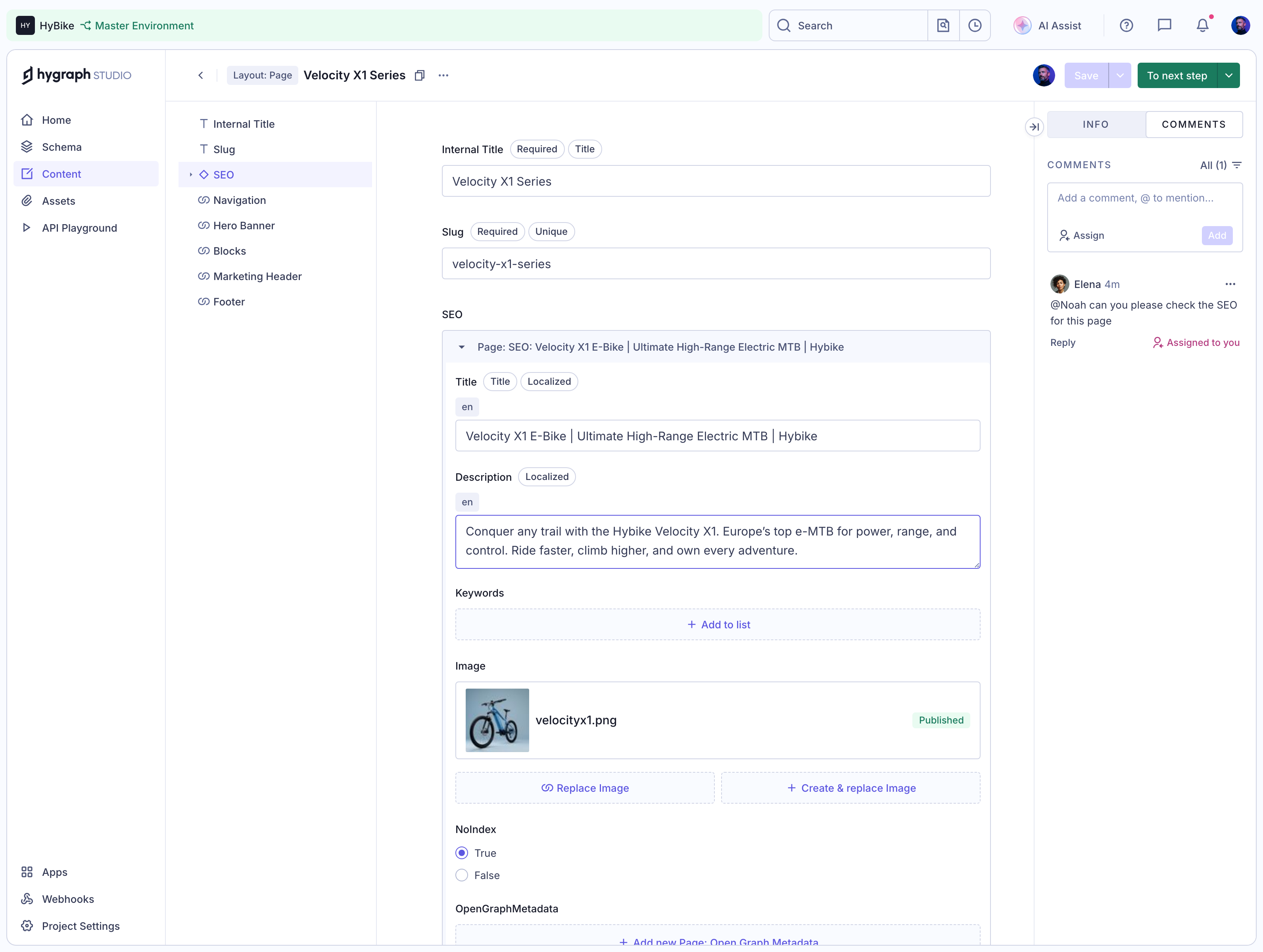
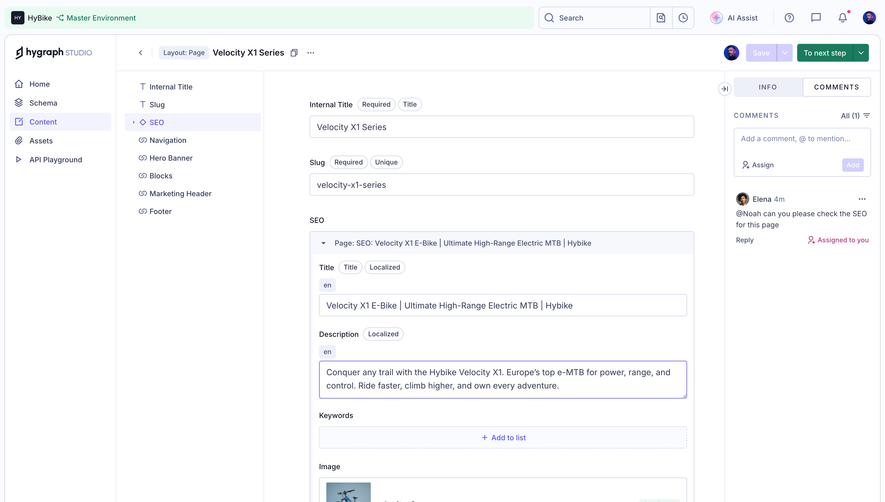
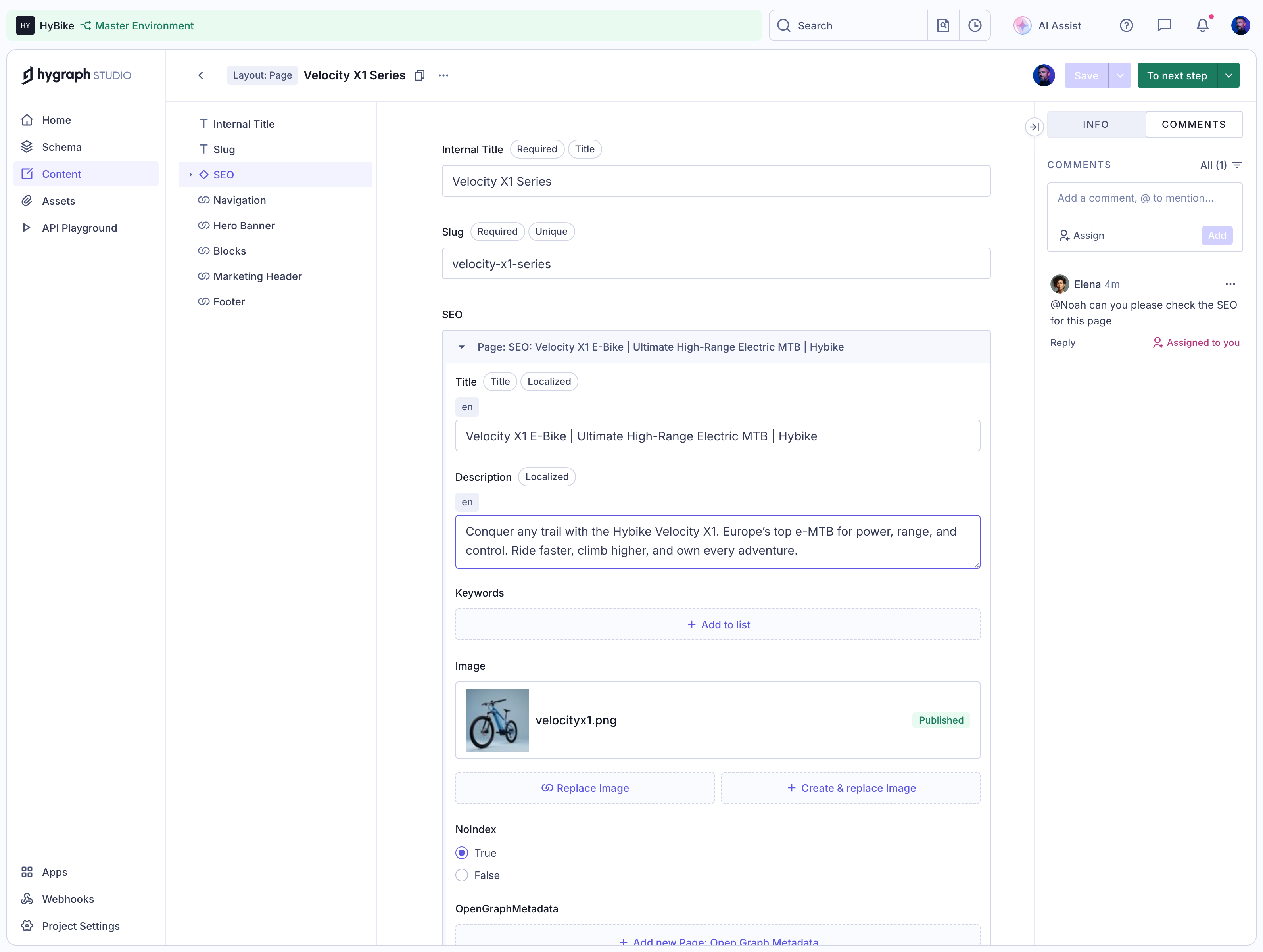
The Hygraph screenshot, stored in the library under a GraphCMS example, presents labeled Internal Title and Slug fields followed by a structured SEO section. Required, unique, and localized badges explain aspects of the fields. A Save control is visible in the header, and a comments panel stays open on the right.
This is a full content-editing form, rather than proof of a view-to-edit transition. It remains useful as a comparison: some values need visible field structure and metadata, even when they are edited inside the same page as their surrounding content. Inline editing should not be used as a blanket replacement for that structure.
When a value requires uniqueness, localization, or a relationship to other fields, decide where that information appears during the edit. Hiding it until an error occurs can make a compact control unexpectedly difficult. A more substantial editing surface may be the better choice when the explanation is part of the task.
Decide how users discover the action. An explicit pencil or labeled button can make the possibility visible. A hover-only affordance saves space but can be difficult to discover on touch devices and for people using a keyboard. A value that becomes editable only after an unexplained double click needs an alternative route.
Keep the trigger close to the value and give it an understandable accessible name. Several identical pencil icons on a page need distinguishable purposes, such as editing a title or editing tags. The visual relationship can support understanding, but it should not be the only source of the control’s meaning.
Separate opening an object from editing its label. A card title may already navigate to a detail page. Adding an inline edit to the same area can create conflicting expectations. Define distinct targets so that users can confidently choose between viewing the object and changing its name.
Specify what happens when editing begins. The field should contain the current value, receive focus appropriately, and preserve enough surrounding context to identify the object. Decide whether the existing text is selected for replacement or the caret is placed for a smaller correction, based on the common task.
Choose a commit model that matches the value. Explicit Save and Cancel controls make the boundary clear. Saving when focus leaves the field can be efficient, but it requires careful handling of validation, navigation, and accidental clicks. A keyboard shortcut can support speed without becoming the only visible route to completion.
Cancellation should restore a known value. Users need to understand whether they are discarding the current unsaved edit or undoing a previously saved change. Avoid assigning both meanings to the same unlabeled icon. When cancellation would discard a large amount of work, the editing surface may need more explicit controls.
For multiline text, do not assume that the same key should insert a line break and commit the edit. Define and communicate the keyboard behavior for the field type. Test it with users who edit ordinary text rather than only with people familiar with the product’s shortcuts.
The screen should reflect the actual persistence state. If saving requires a request, the field can finish its visual transition before that request completes, but the interface still needs a reliable way to communicate progress and failure. A returned display value should not imply certainty that the backend accepted the change.
Keep feedback proportional and close to the action. A short status message may be enough for a title change. Repeated global notifications can become distracting when users edit many cells. Conversely, a subtle icon alone may be too easy to miss when a consequential update fails.
On failure, preserve the user’s entered value and provide a useful recovery path. Do not silently revert the text while leaving no record of the attempted change. If retrying would overwrite newer information, resolve that condition before allowing a blind repeat submission.
Validation should explain what needs to change. A duplicate name, unsupported character, or missing required value can require different corrections. Put the explanation near the field so that users do not have to search the page for the problem after a compact edit.
Some values have consequences beyond their visible text. Changing a slug, for example, can affect references or public navigation depending on the product. Explain the actual consequence when it applies, and provide any needed confirmation before committing. A pencil icon cannot carry that information on its own.
Keep the layout stable enough to read the message. A table row that suddenly expands dramatically or moves the active field offscreen can make correction harder. Plan for longer errors and translated messages as part of the component, rather than treating validation as an afterthought.
A user who cannot edit should see an appropriate viewing state. A disabled pencil without explanation can resemble a broken feature. If access depends on role or object state, communicate the relevant restriction where it helps people understand what they can do.
Shared products also need a policy for concurrent edits. Another person may update the same value while the current user is working. Decide whether the product detects a conflict, preserves both attempts in history, or offers a comparison. The choice should follow the object’s importance and collaboration model.
When a conflict occurs, describe the changed value and the available next action. A generic “Something went wrong” message hides a problem the user could resolve with better information. Avoid overwriting a newer value merely because an earlier inline field remained open.
Repeated controls amplify small problems. In a table, users may need to edit several values in sequence. Define how focus moves after saving, how the active row remains identifiable, and whether sorting changes immediately when an edited value affects the order.
For long lists, ensure that the active editor is not lost during filtering or a refresh. If the interface must close it, explain what happens to unsaved input. An edit should not disappear simply because another background update changed the surrounding collection.
Test keyboard navigation and touch use within the real layout. Compact action icons need usable targets, and editable fields need enough room for the expected content. The component’s behavior in an isolated example may not reveal conflicts with row selection, navigation, or menus.
Ask users to find a value, correct it, cancel another change, and recover from a failed save. Then have them leave and return to confirm the persisted result. These tasks reveal uncertainty about the save boundary that a simple successful edit can conceal.
Measure useful completion rather than counting how often people open an editor. Repeated reopenings may indicate uncertainty about whether a value saved. Review failed saves, discarded work, and support questions alongside task observation to identify where the editing model needs clarification.
Automatic saving can suit small, frequent changes when status and recovery are clear. Explicit saving may be better when a value has consequences, requires validation, or belongs to a larger draft. Choose one model deliberately and communicate it consistently.
It can be a useful visual cue when placed beside a specific value. It still needs an understandable name, a practical target, and a clear editing state. A hover-only pencil should not be the sole route for all users.
Use a larger form when the change needs several related fields, substantial explanation, or a review step. Keeping a task in place is useful only when the editing surface provides enough information to complete it confidently.
Browse inline editing examples on SaaSFrame to compare local edit affordances, field context, and the relationship between small changes and larger authoring workflows.