File Browser
42
An interface for navigating folders, files, assets, or documents.
.webp)
A file browser helps people locate, inspect, and act on files within a product. It may organize documents, media assets, repository files, or stored objects. The design needs to make location, identity, metadata, and available actions understandable without assuming that every collection behaves like a desktop folder system.
The most useful layout depends on the recognition task. Someone choosing a photograph benefits from previews. Someone checking dimensions, status, or file size benefits from structured metadata. A browser can support both, provided that switching views preserves the same collection and context.
Clarify whether the collection contains uploaded files, generated assets, linked resources, or repository contents. These items can have different ownership, versions, and actions. A single visual grid should not obscure those differences when they affect what the visitor can do.
Make the current location visible through a title, path, workspace context, or another understandable structure. If the browser uses saved views rather than folders, avoid making a filter look like a physical location. Someone should know whether they moved an item or merely changed which items are visible.
Choose terminology that fits the product. Assets may be appropriate in a content system; files may be clearer in storage. The label should help users recognize the objects they manage rather than introduce an internal implementation concept unnecessarily.
The Hygraph grid capture shows image thumbnails with filenames beneath them. A side panel lists custom and default views, while the main area includes a title, search field, active type filter, sorting control, and view controls. The visual layout helps someone recognize an image without opening every file.
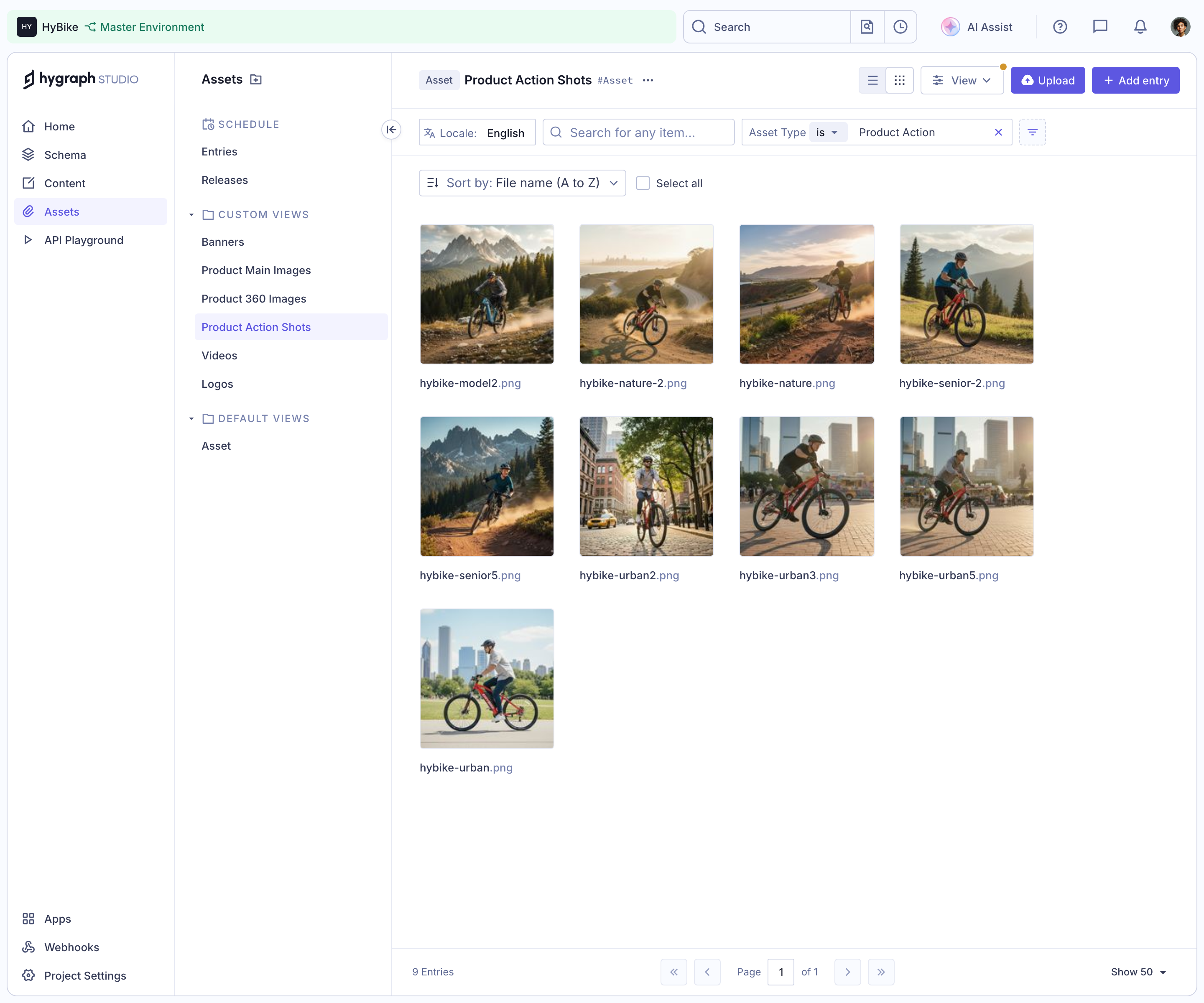
The thumbnails are useful because the files are visual assets. The surrounding controls explain which subset is displayed. The screenshot does not establish how selection, upload, or view switching behaves after activation, so those remain implementation questions to test.
For nonvisual files, use meaningful type information rather than decorative previews that add little recognition value. A consistent icon and readable filename may be more useful than a generic document thumbnail. Keep the item's identity available independently of its image.
The corresponding Hygraph table capture shows the same named asset view in a denser layout. Columns include a small preview, filename, asset type, alternative-text content, dimensions, size, and status. This gives visitors more information for comparing records than the image grid alone.
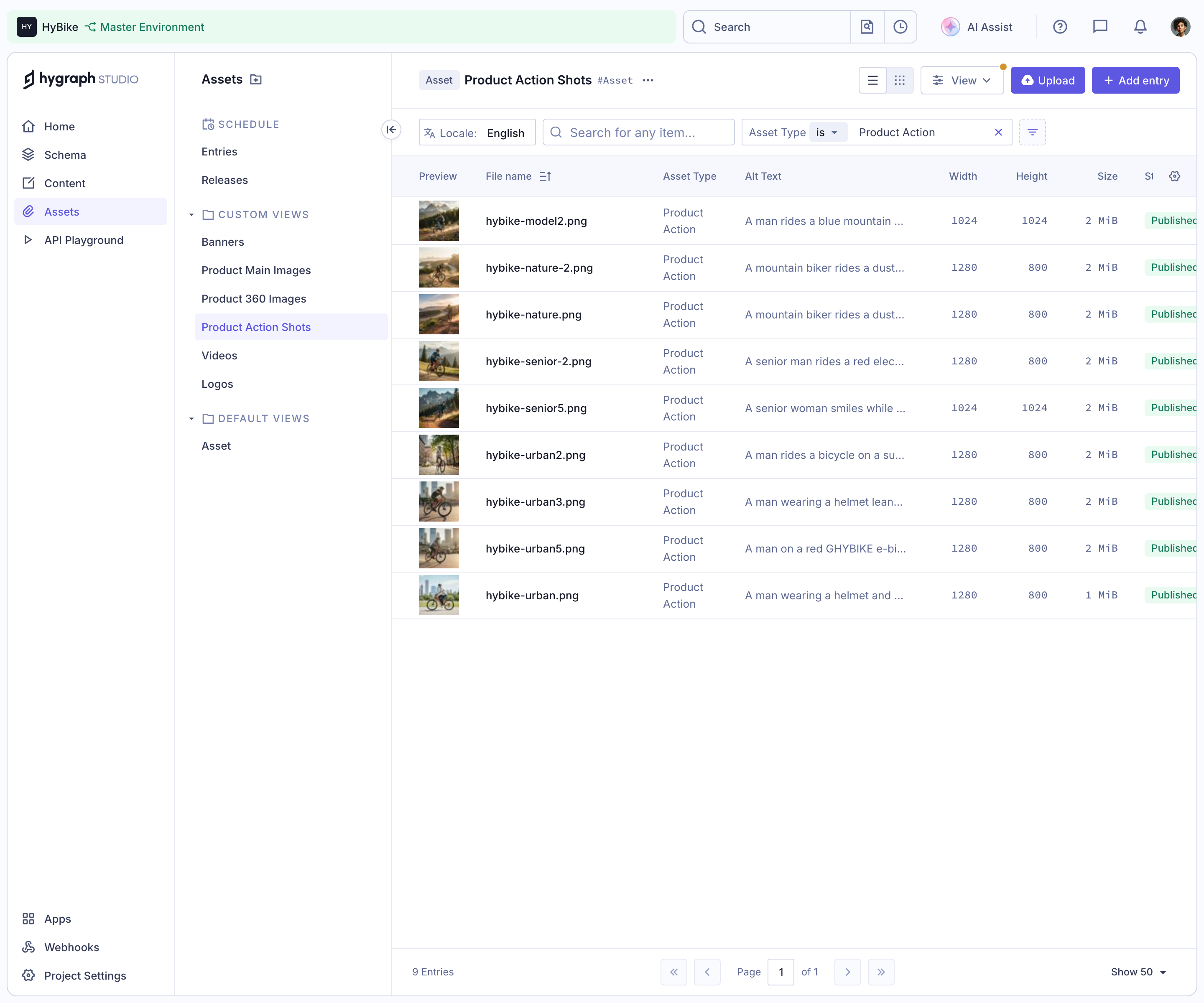
The contrast between the two captures illustrates a recognition tradeoff: larger imagery supports visual choice, while columns support metadata inspection. The screenshot metadata uses a content-table name, but the visible interface is an asset list. The analysis follows the visible interface rather than treating that label as proof of a different screen.
If both views exist in your product, preserve filters, location, sorting, and selection where appropriate when switching. A user should not have to rebuild the browsing context just because they changed the visual density.
Explain whether search applies to the current collection, all files, or a broader workspace. A global product search and a file-browser search may coexist, as the Hygraph captures show. Their placement and labels should help visitors choose the right scope.
Show active filters in a form that can be understood and removed. An empty result under a filter is different from an empty collection. Provide a way to broaden the search without requiring the visitor to remember which controls they changed.
If the browser contains nested locations, preserve an understandable route upward or back. A search result should show enough location context to distinguish identical filenames in different collections. Do not assume the name alone uniquely identifies a file.
A click might open a preview, select an item, or navigate into a folder. Define that behavior consistently and provide separate controls where the intentions differ. An interface that changes the meaning of a click between grid and list can cause accidental actions.
Make selection visible and communicate its scope. Selecting one visible page of files is different from selecting all matching files. If a bulk action is available, state which items it will affect before execution, particularly for destructive operations.
Keep item-level actions discoverable without cluttering every row. A menu can contain less frequent actions, but its label should identify the relevant file. Avoid an unlabeled row of identical icons whose meaning depends entirely on visual position.
Uploading can involve transfer, processing, validation, and publication. Those stages may have different outcomes. A file that transferred successfully may still need processing or required metadata before it becomes usable.
Show progress and failure at the appropriate level. Preserve successful uploads when another file fails, and explain which files need attention. Give users a practical way to retry without creating unintended duplicates or losing the collection context.
For duplicate names, define whether the product creates a separate file, replaces an existing item, or requests a choice. The browser should communicate the consequence before the user assumes a familiar desktop behavior that your system does not support.
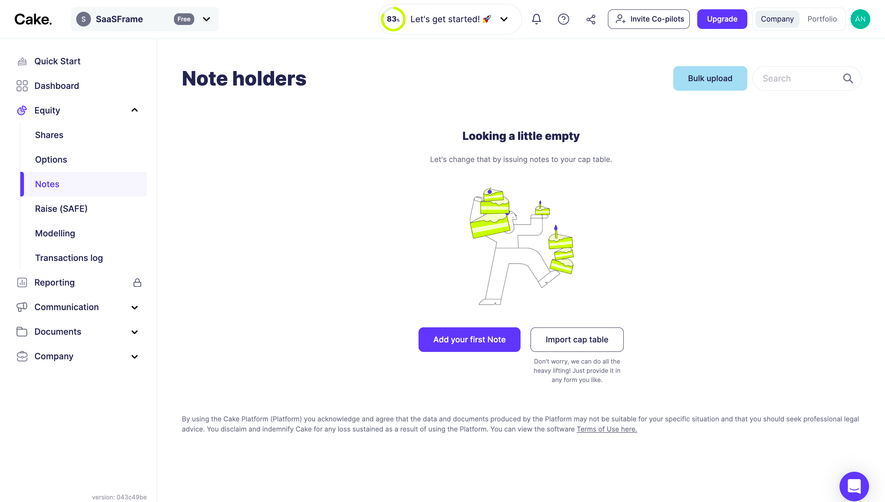
The Hugging Face bucket capture shows a files area with zero files and zero total size. Instead of an empty grid, it offers a web-upload route and a separate instructional route for adding files. The collection identity and settings navigation remain visible.
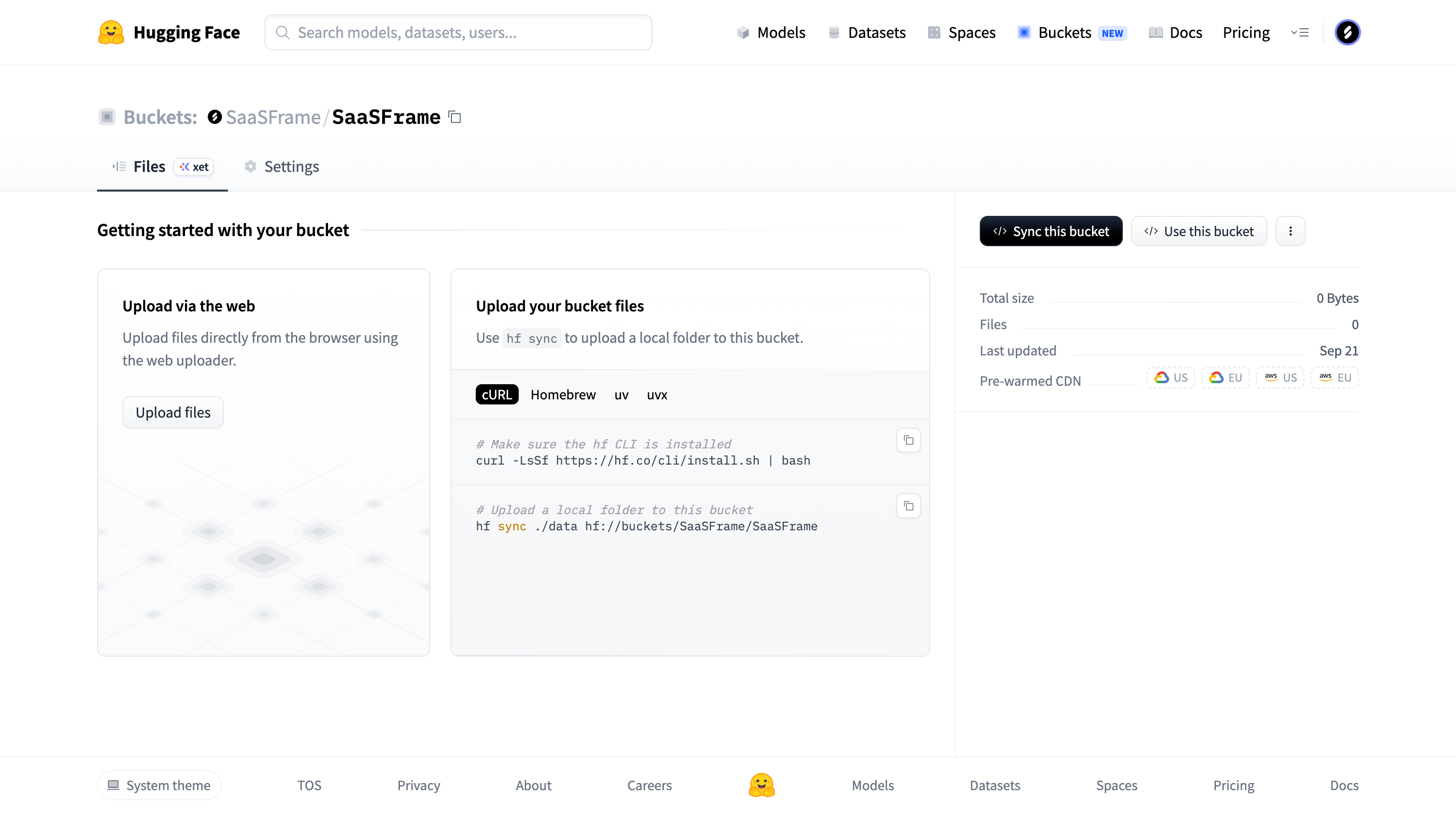
The useful design lesson is that the empty state explains how the collection becomes populated. The commands and service details in the screenshot are historical interface content, not current technical instructions endorsed by this guide. Reuse the separation between practical entry routes rather than copying implementation text without verification.
An empty search needs a different response: clarify the query and filters rather than teaching first upload. An inaccessible location needs an access explanation. A failed request needs recovery. Treat these as distinct states even when each leaves the file area visually blank.
Provide useful fallbacks when a preview cannot be generated or loaded. The filename, type, and relevant metadata should remain available. A missing thumbnail should not make the item impossible to identify or select.
Consider long names, duplicate names, unusual file types, and missing metadata. Truncation can preserve density, but users need a way to inspect the full identity when it matters. Do not hide the distinguishing part of several similar filenames without an alternative.
If status affects availability, make it clear near the item. Draft, processing, published, and failed are different states. Avoid using color alone or assuming a preview means the file is ready for every downstream action.
Ensure people can move through the collection, inspect items, select them, and open actions without relying on hover. Keep the current focus visible and avoid sending it to an offscreen row after sorting or refreshing.
On mobile, prioritize the information needed for recognition and action. A dense metadata table may need a focused detail view rather than dozens of shrunken columns. A thumbnail grid should retain readable names and practical selection targets.
Preserve context when returning from a preview or detail page. Location, search, and scroll position are part of the browsing task. Resetting them after every inspection makes locating several files unnecessarily repetitive.
Use files with similar names, missing previews, varying dimensions, and different statuses. Ask users to find a specific item, inspect its suitability, and complete a relevant action. A tidy sample grid does not reveal the ambiguity of a large working collection.
Check search scope, active filters, view switching, selection, upload failures, duplicate handling, permissions, and return navigation. Verify that actions affect the intended items and that the browser preserves useful context.
Explore the SaaSFrame file-browser collection to compare preview grids, metadata lists, and empty collection states. Choose the hierarchy that matches how your users recognize and manage files.
Review the relationship between a file and its versions. Replacing an asset can affect places where it is already used, while uploading a new asset may create a separate identity. If the product supports either operation, make the consequence understandable at the action point. A browser should not force users to infer reuse from a filename alone. Where usage information exists, expose it in an appropriate detail route so someone can understand the impact before changing or removing the item.
Should the default view be a grid or a list? Use a grid when visual recognition dominates and a list when metadata comparison matters. If both are useful, preserve browsing context when switching.
Should files behave like folders on a desktop? Only where that model matches the product. Saved views, linked resources, and repository items may have different meanings; label them clearly.
What should happen when no files appear? Distinguish an empty collection, no matching results, unavailable access, and a failed request. Each needs an explanation and next step appropriate to its cause.