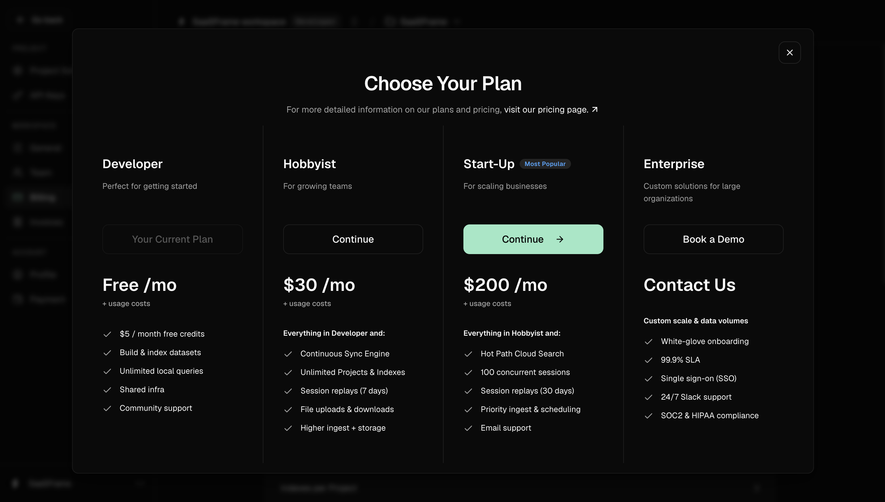
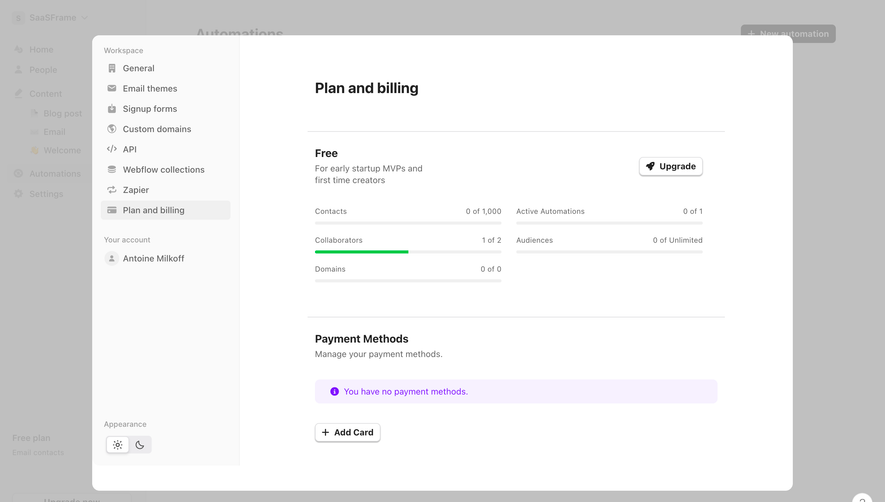
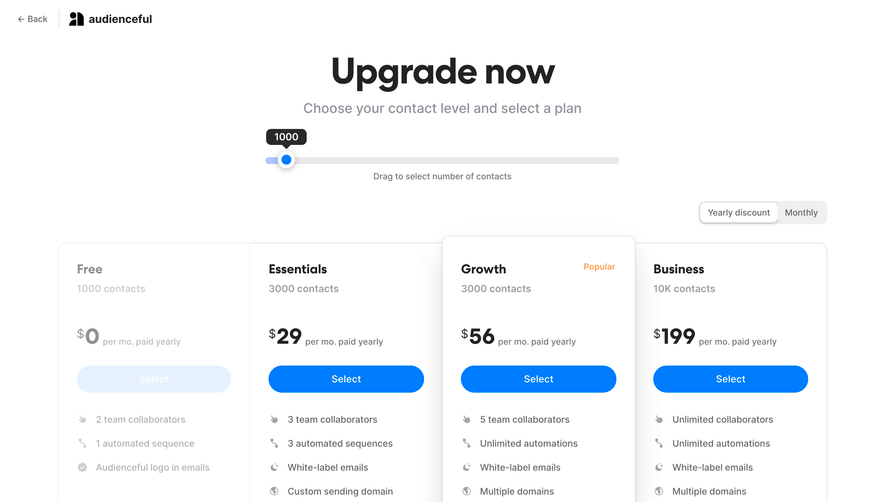
Maximize conversion rates with high-performing SaaS Checkout and Payment UI designs. Explore single-page checkouts, order summaries, and trust signals that minimize abandonment and provide a secure, frictionless purchasing path.
Browse 26 real SaaS Checkout with modern UI patterns and conversion strategies.
We sell SaaSFrame licenses on Gumroad, a secured online selling platform for creators.
What about future updates and versions?
SaaSFrame gets updated all the time! Every new update and version will immediately be made available to all SaaSFrame users.
I didn't receive my licence key, what should I do?
The licence key required to create your SaaSFrame account is send by Gumroad once you made your purchase. If this email is blocked by your email client, send me an email at antoine[at]unmake[dot]io so I can resend the licence key.
Can you send me an invoice?
You can generate an invoice on Gumroad once you purchased SaaSFrame. You will find the link in the order confirmation email.
Can I get a refund?
If you're not satisfied, you can ask for a refund within 7 days. Just send me an email at antoine[at]unmake[dot]io
Checkout Design Guide
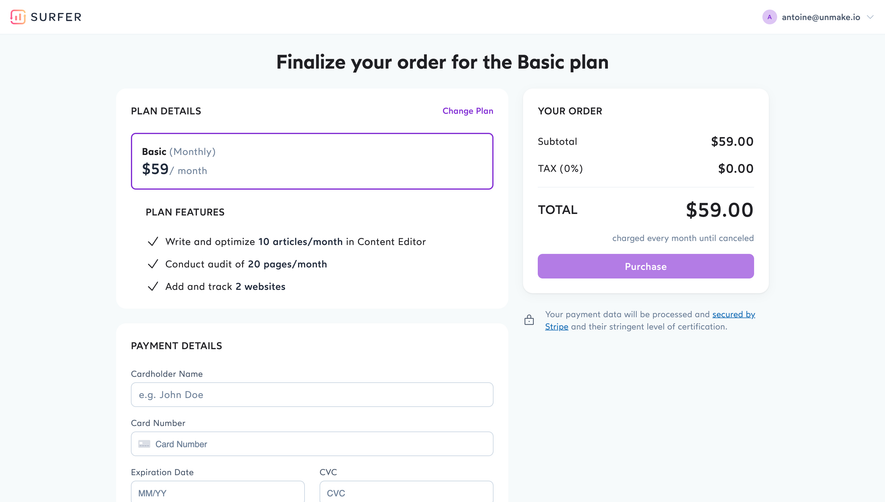
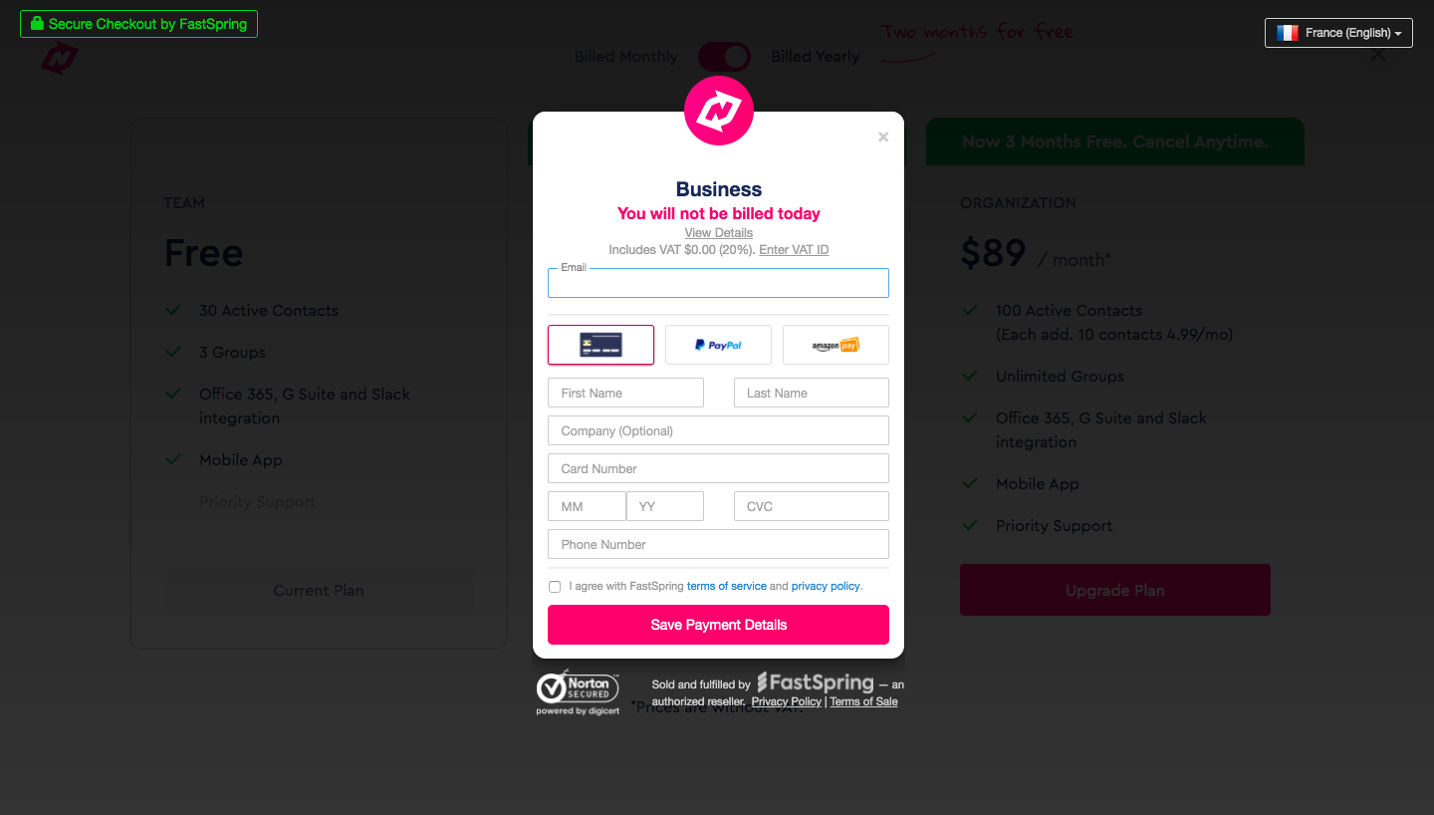
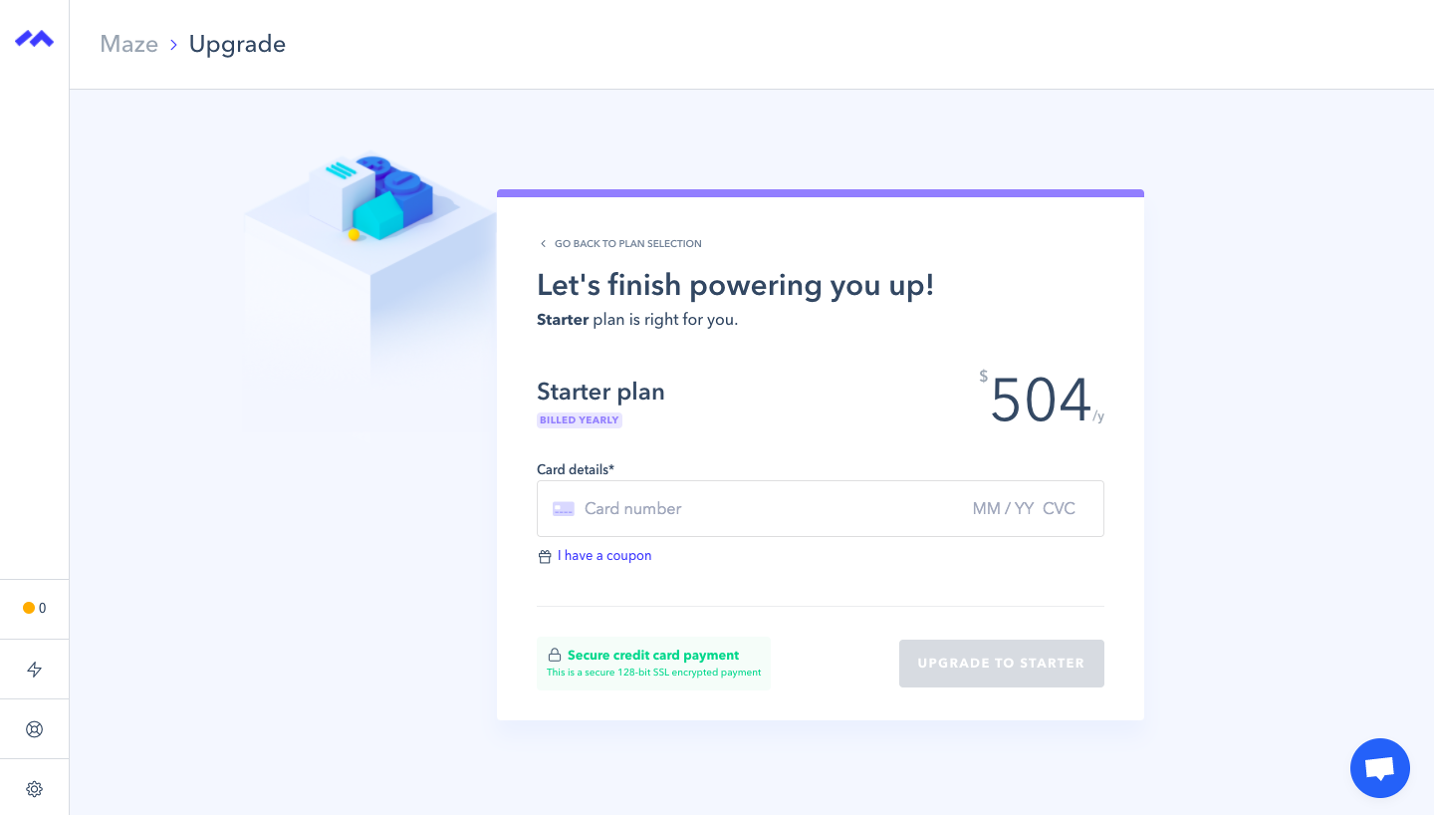
A SaaS checkout screen turns a commercial choice into a confirmed payment or subscription change. It should make the selected offer, account scope, billing interval, payment details, and immediate amount understandable before the user commits. Its quality depends on the accuracy of that agreement as much as the simplicity of the form.
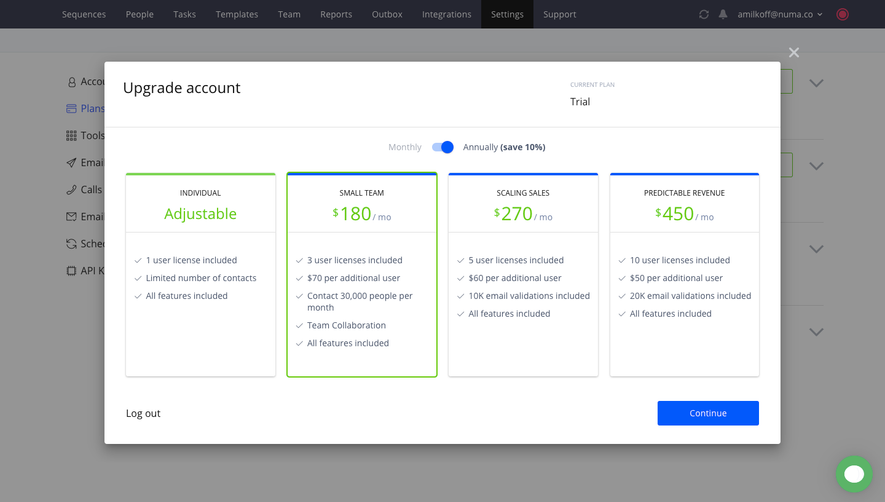
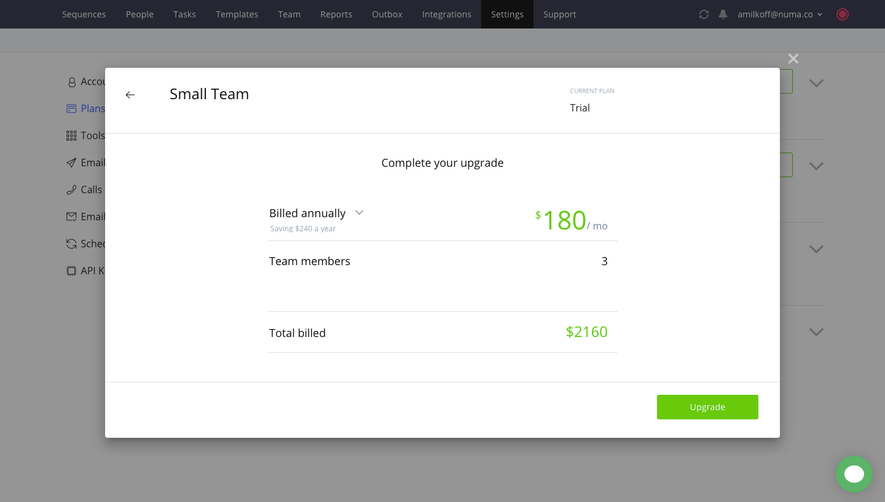
The SaaSFrame examples include plan changes, workspace purchases, payment-method setup, and account top-ups. These actions can share payment controls while having different consequences. Captured prices and tax amounts are historical interface content, not guidance about current offers or tax treatment.
Identify the transaction before asking for payment
Tell users what they are about to do. Purchasing a recurring plan, buying prepaid balance, and saving a card for later are different operations. A generic payment-details title can hide that distinction.
Show the product or plan selected and the account it affects. If the purchase upgrades a workspace, make that scope explicit. A person acting for a team needs to understand whether the change applies to everyone or only to their own access.
Keep the summary consistent with the preceding plans or upgrading screen. If an option changes at checkout, explain it rather than letting the user discover a different price or entitlement after submitting.
Separate the billing interval from its equivalent price
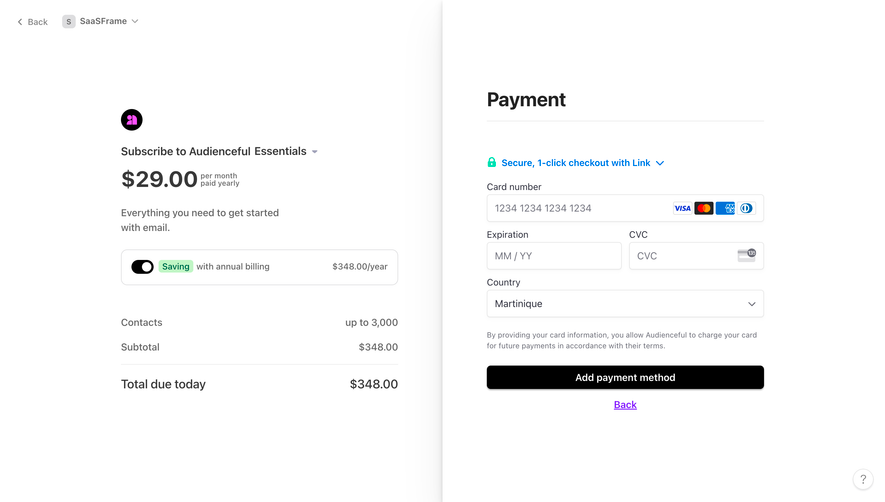
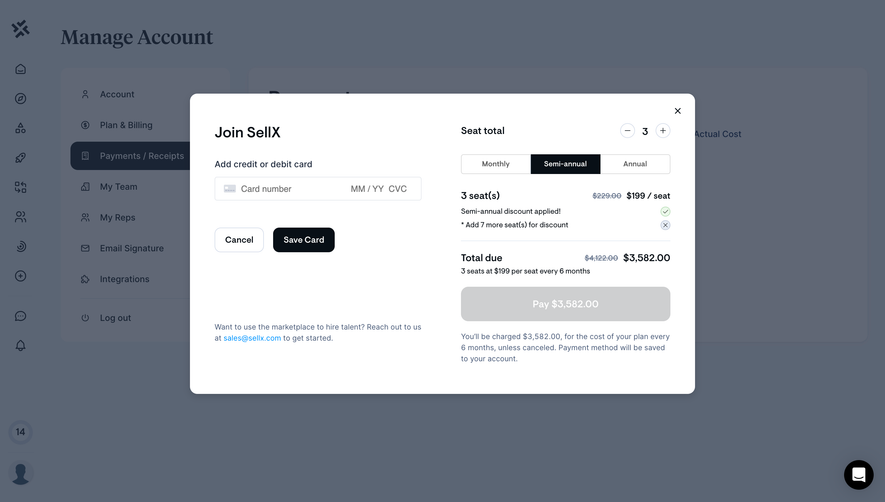
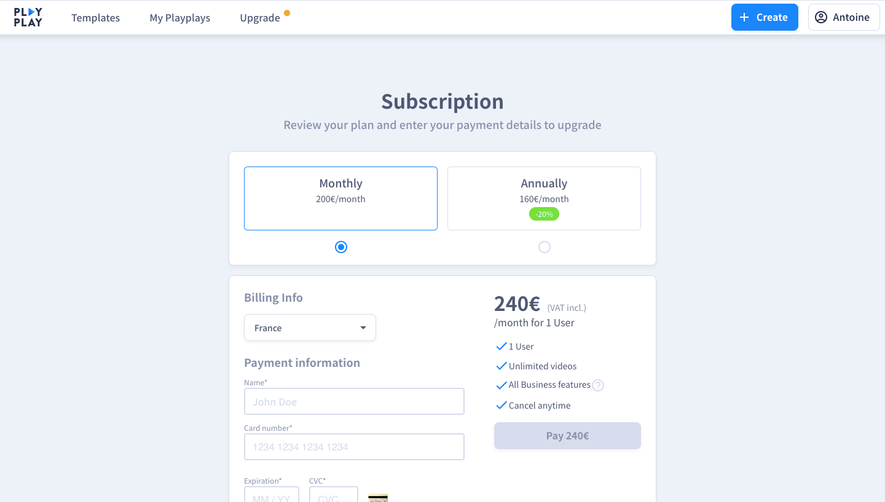
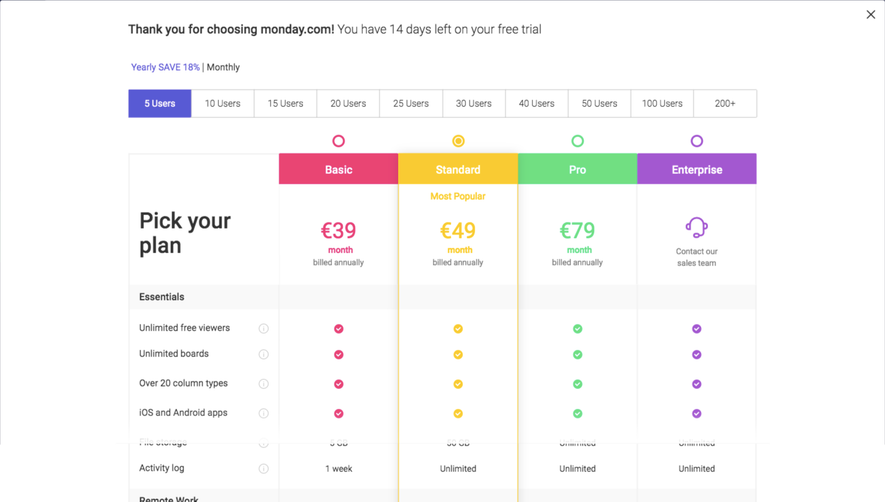
A monthly equivalent can help compare annual plans, but it does not describe the payment due now. Display the actual interval and total at the commitment point. A user should not have to multiply the visible amount to discover the charge.
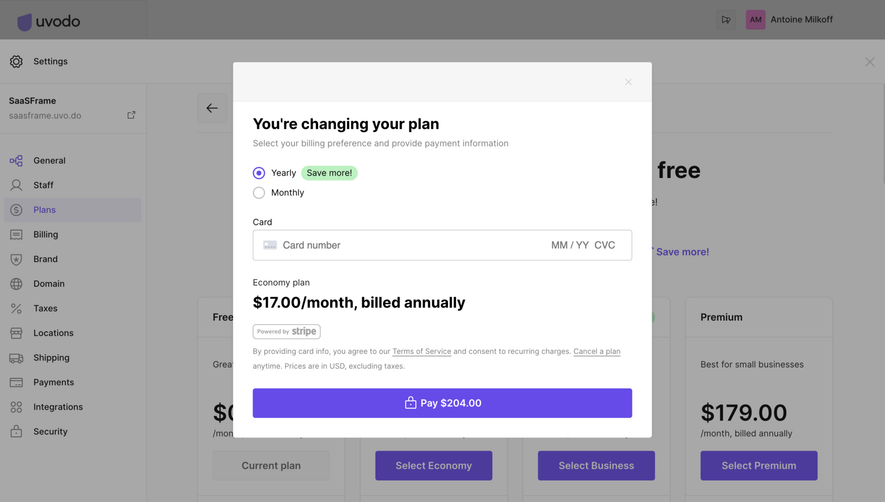
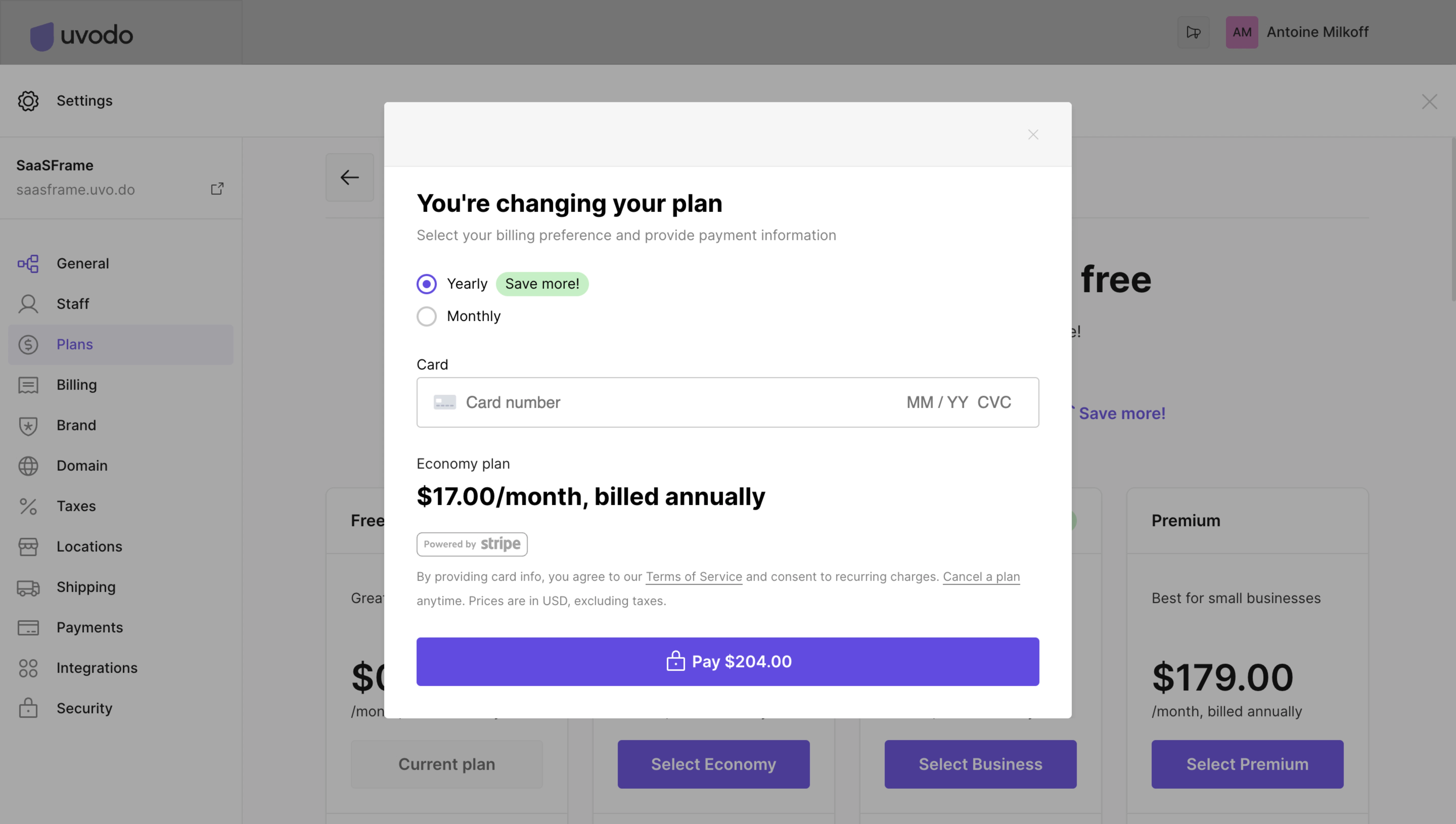
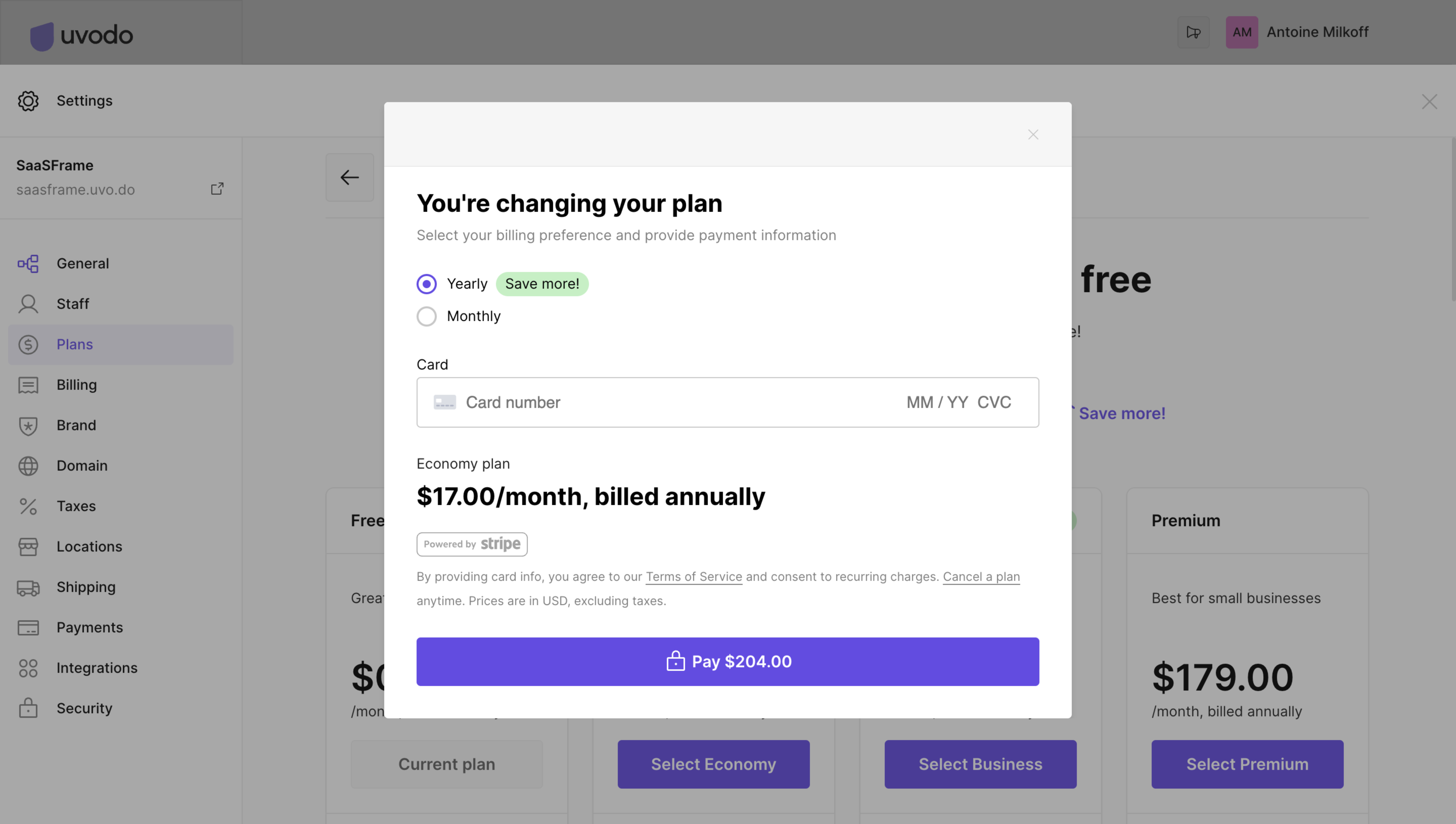
The Uvodo capture places yearly and monthly choices inside a plan-change modal. It shows an annual-billing statement beside the monthly equivalent and includes the total on the payment action.
The useful relationship is between interval selection, explanatory price text, and the final amount. Those elements need to update together. An interval toggle that changes only the large number can leave the commitment ambiguous.
Keep a review summary visible
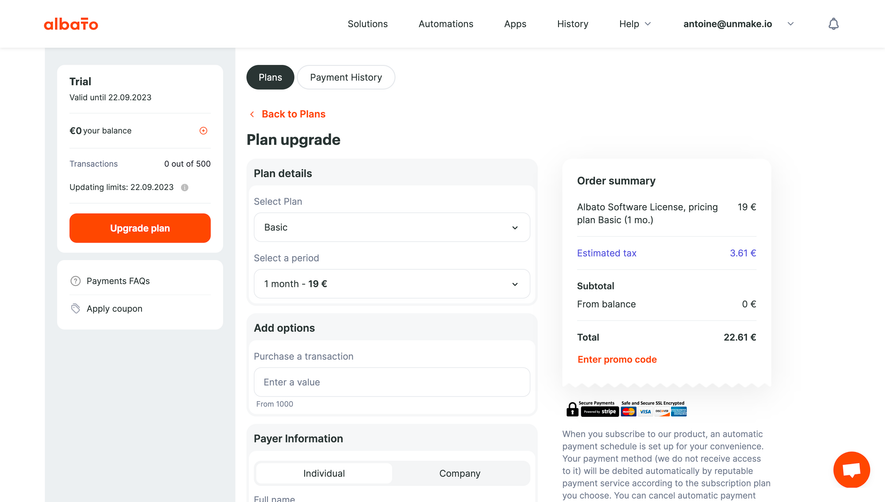
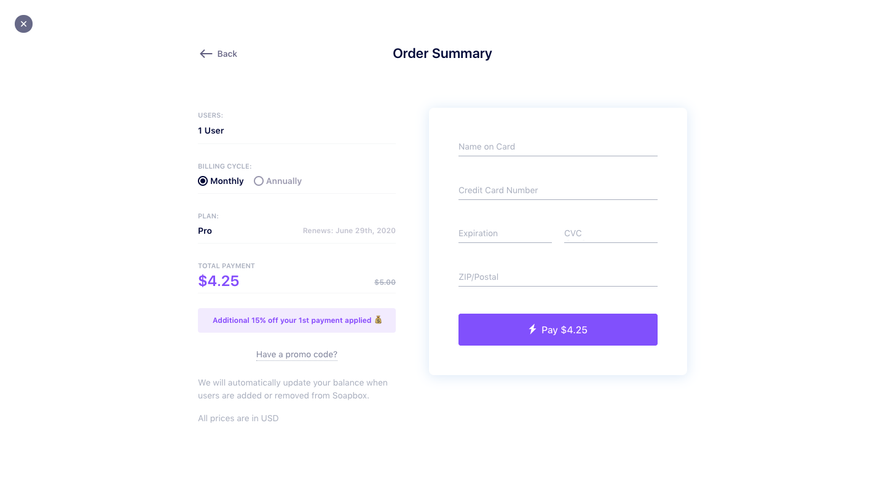
A checkout summary can show the selected plan, quantity, billing timing, adjustments, and total. Its purpose is to explain the transaction rather than simply repeat the plan name in a decorative card.
Use clear labels for amounts due now and later. Where an adjustment or discount applies, show its effect in the summary. If the total is still being calculated, communicate that state before allowing commitment.
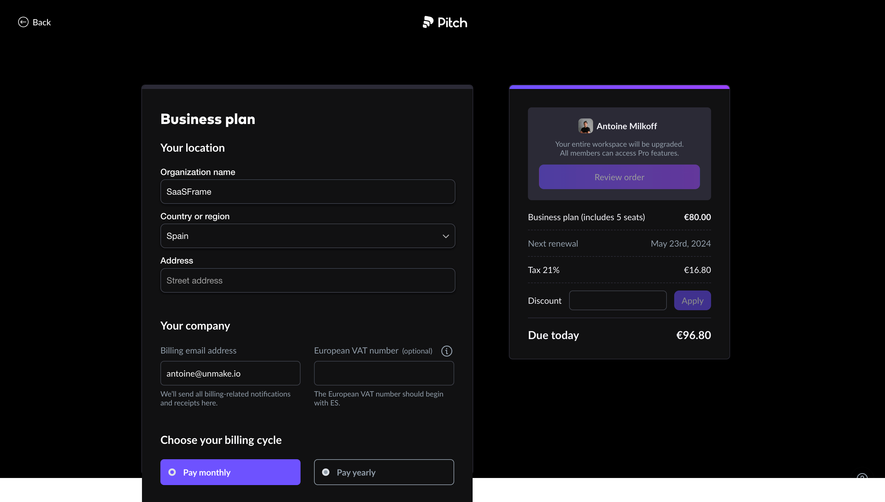
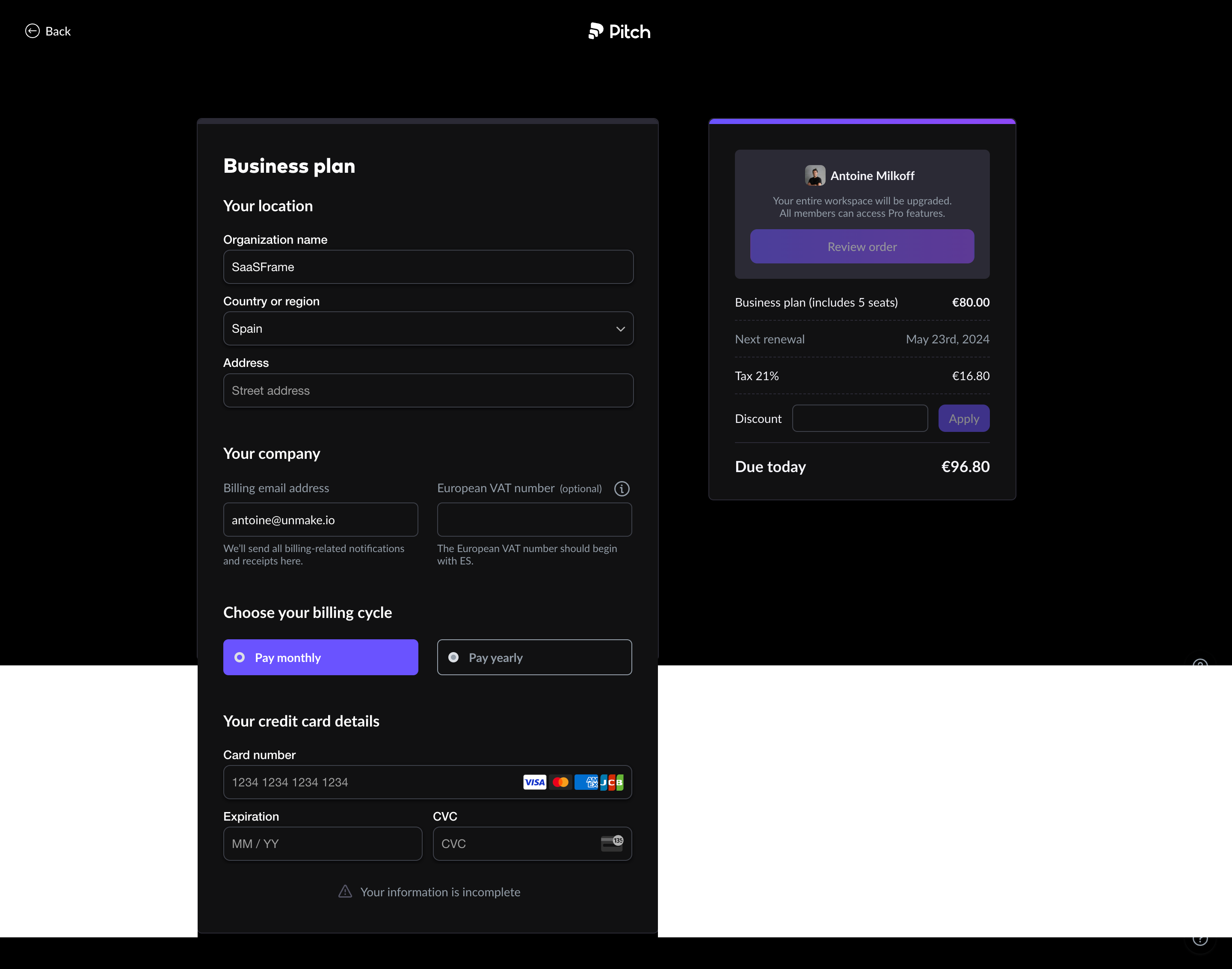
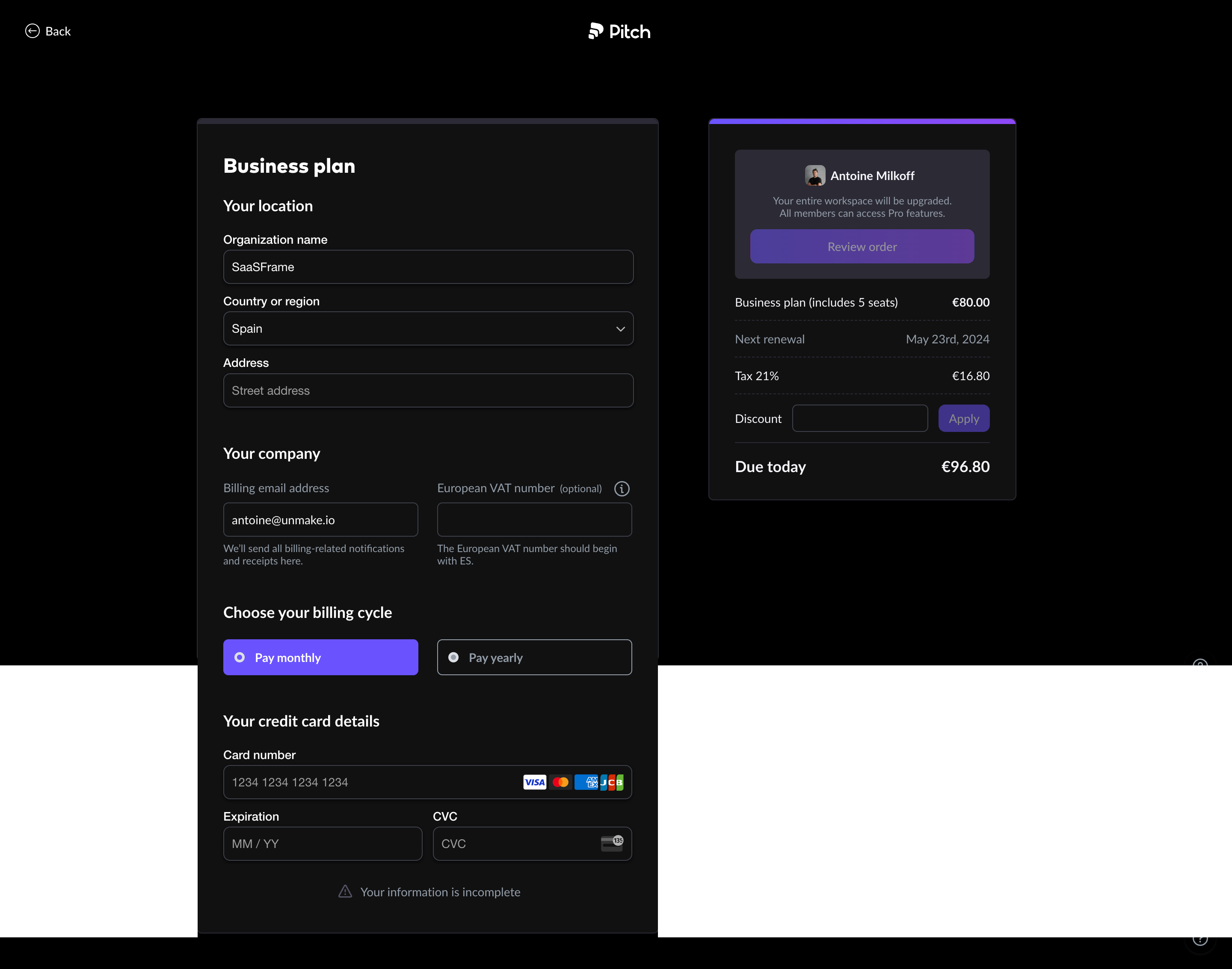
The Pitch capture groups organization and billing information with payment fields, while a separate review area presents the workspace upgrade context, included seats, renewal information, tax, a discount field, and the amount due today.
This illustrates how the form and commercial summary can support each other. The user can correct account details while checking the order. The captured tax value belongs to that example; it should not be reused as a universal rule.
Collect billing details for a clear purpose
Billing identity and product identity may differ. A company can have a billing email separate from the user signing in, and a workspace can use a display name different from an invoicing organization.
Explain where receipts and notifications will be sent. Label optional business identifiers clearly and provide format guidance when necessary. Do not ask users to infer why a field changes after choosing a country.
Preserve entered values when validation fails. Group address inputs coherently and account for formats across the intended audience. A failed lookup or payment-service request is different from an invalid postal code and needs different feedback.
Distinguish adding a card from completing a purchase
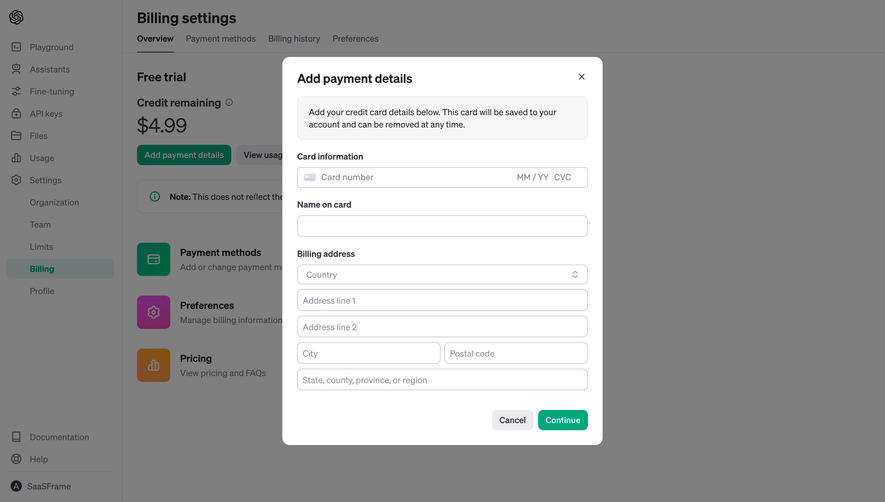
The OpenAI payment-details capture asks for card and billing-address information and explains that the card will be saved to the account. Its continue action is presented within billing settings rather than a visible plan-order summary.
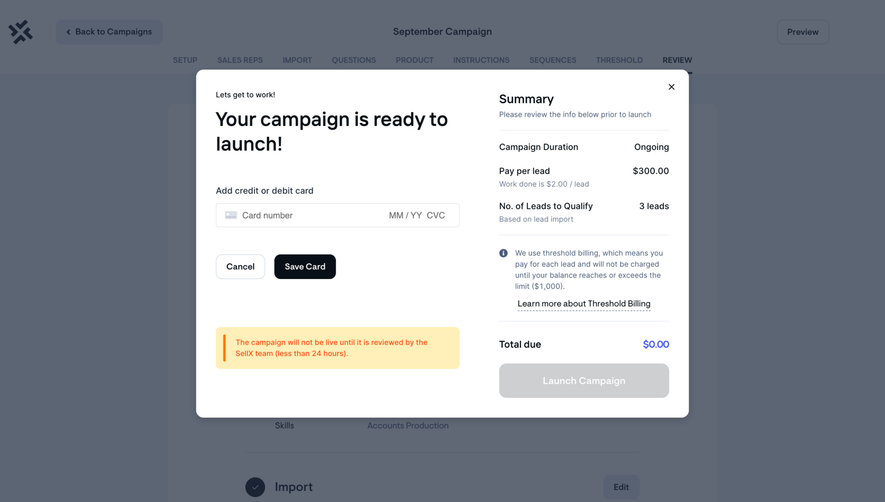
This is a useful reminder that payment collection is not automatically a checkout. Users should understand whether the next action saves a method, starts a subscription, or proceeds to another review step.
Use action labels that describe the actual commitment. A continue button can suit a multi-step process; a final payment action should make its consequence clear. Do not imply a charge when the product is only saving a method, or imply setup when it is taking payment.
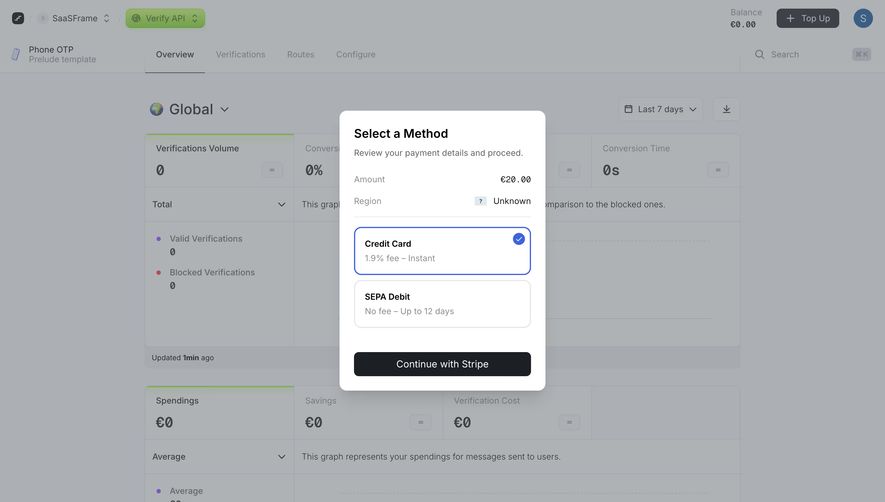
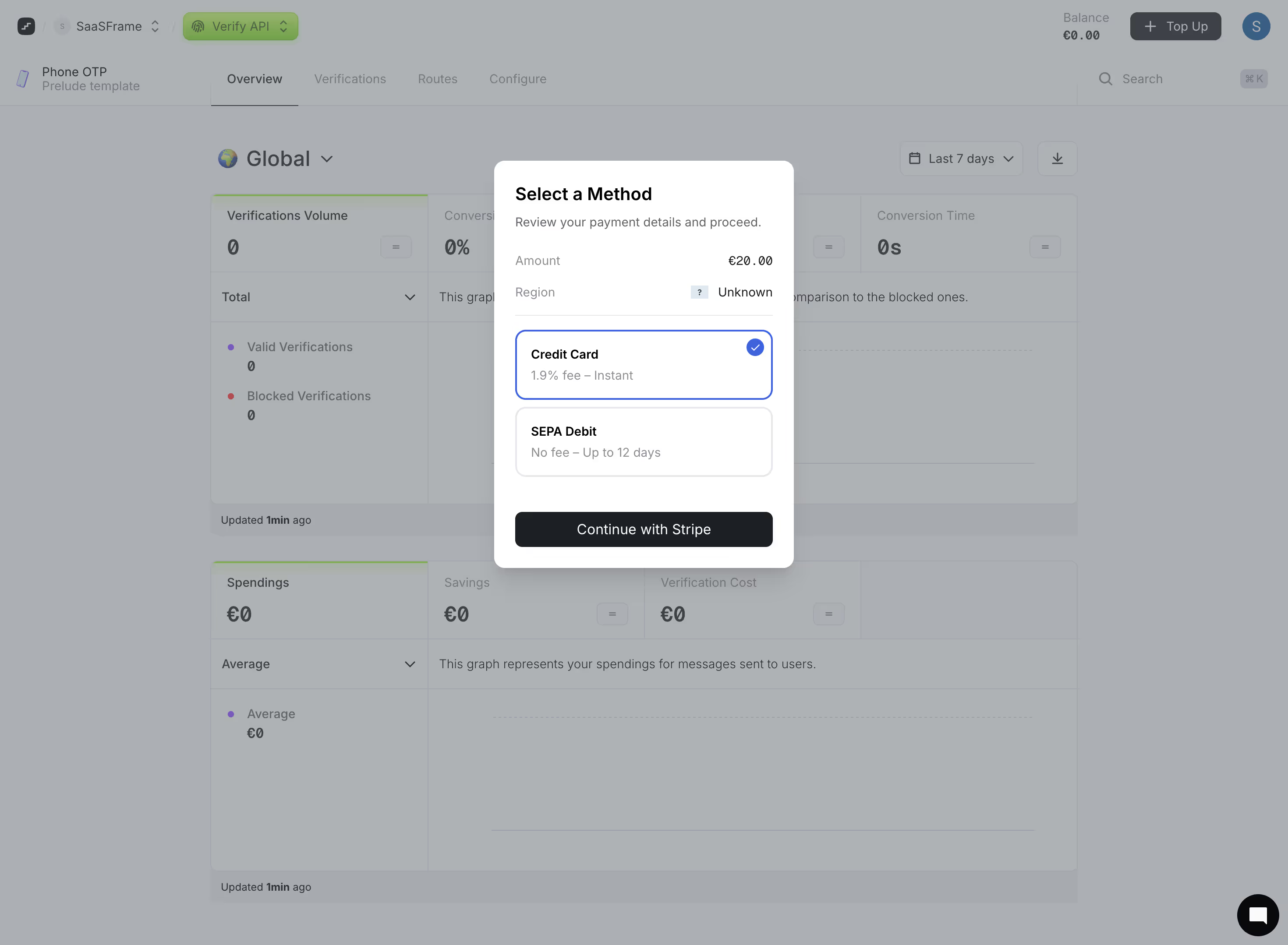
The Prelude capture presents a top-up amount and a choice between a credit-card route and SEPA debit. The options show different fee and processing-time information before a payment-provider continuation action.
This makes the decision about more than the method's name. The user can assess the timing and cost relevant to their top-up. Those displayed conditions are specific to the captured offer.
If methods have different availability or processing states, explain them before commitment. A delayed payment should not appear to grant immediate balance unless the system actually does so. The confirmation screen needs to distinguish initiated, pending, and completed transactions.
Make correction easy before submission
Provide a route to change the selected plan, interval, or quantity without discarding unrelated form entries. A user reviewing the total may discover that the wrong workspace or billing cycle is selected.
When the selection changes, recalculate dependent amounts and make the updated state recognizable. Do not retain an old total beside a newly selected option. For an asynchronous calculation, show that the summary is updating.
Keep cancellation and back navigation understandable. Returning to the product should preserve the original task where possible. A modal checkout should not trap users who decide to postpone the purchase.
Give errors a specific recovery path
Payment failures need enough information to support a next action without exposing sensitive technical detail. A person should know whether to correct an input, try another method, or wait for confirmation.
Avoid repeated submission when the transaction state is uncertain. Disable duplicate commitment while processing and provide a clear pending state. If a timeout occurs, check the confirmed state before encouraging the user to pay again.
Keep validation tied to the relevant field. A general incomplete-information message can help orient people, but it should not be the only clue about which input needs attention. Preserve values and return focus appropriately.
Reflect confirmation in the product account
A successful checkout should confirm what was purchased and when access or balance changes apply. Provide a relevant receipt or account route and return users to their work where practical.
The product state and payment state must agree. Do not show an upgrade as active simply because a payment window closed. Conversely, a confirmed purchase should not leave the user trapped behind the original gate.
Where activation is delayed, explain the pending stage and how to find its status. Separate a transaction receipt from a claim that every downstream capability is already ready to use.
Preserve accessible form behavior
Use persistent labels, visible focus, and an understandable reading order. Embedded payment fields need to fit the surrounding form's keyboard flow. Important commercial information should remain readable at increased zoom and on small screens.
A sticky order summary can help on desktop but consume too much space on mobile. Preserve the essentials near the final action and make fuller detail easy to inspect. Do not force users to remember a total from the top of a long form.
Communicate loading, errors, and success through accessible text as well as visual changes. A spinner or color shift alone does not explain whether the transaction is still processing or has failed.
Validate the agreement, not only the form
Ask users to explain the charge, billing interval, and account effect before submitting. If those answers differ from the actual transaction, simplify the presentation or improve the labels.
Test interval changes, discounts, incomplete addresses, different payment methods, non-admin users, canceled provider flows, pending payments, and interrupted sessions. Confirm that the summary remains accurate in each state.
Measure completed and correctly understood transactions alongside abandonment. A form can convert well while creating support requests because people misunderstood the renewal interval or the workspace scope.
Frequently asked questions about SaaS checkout
Should checkout be a modal or a dedicated page?
A modal can suit a short transaction with a simple summary. A dedicated page provides more room for complex billing details. Choose based on the agreement and recovery needs.
Should the final button show the amount?
It can reinforce the immediate commitment when the amount is accurate and clearly labeled. The surrounding summary still needs to explain the billing interval and any recurring effect.
Is saving a payment method the same as buying a plan?
No. Explain whether the action saves a method, proceeds to review, or completes a purchase. Similar card fields do not make those transactions equivalent.
.webp)