User Profile
16
A screen or panel presenting a user's identity, details, activity, and account actions.
.webp)
A user profile helps people recognize a person, understand the relevant context, and manage the information associated with that person. In SaaS, it can be a self-service account page, a collaborator’s identity card, or a detailed person record. Those views share names and avatars, but they have different audiences, permissions, and editing needs.
Visitors, Superlist, and Huly demonstrate that range: an optional onboarding photo, personal settings, and a recruiting-related person detail page. This guide uses their visible layouts to examine what a profile should contain, when to ask for it, and how to keep identity, contact information, and account actions understandable.
A self-service profile answers “What information represents me?” A colleague-facing profile answers “Who is this person and how can I work with them?” A business record answers questions about a customer, candidate, or contact. Combining every possible field produces a long page that may serve none of those tasks well.
Define the audience and primary decisions. A collaboration tool may need a recognizable display name and avatar. A scheduling product may need a timezone. A recruiting workspace may need applications and review history. Each field should support a real task instead of merely making the page appear complete.
Distinguish the person’s editable preferences from organizationally managed data. A member may change a display name but not an employer-assigned identifier. A recruiter may edit a contact record without changing that person’s authentication identity. The interface should make those boundaries apparent.
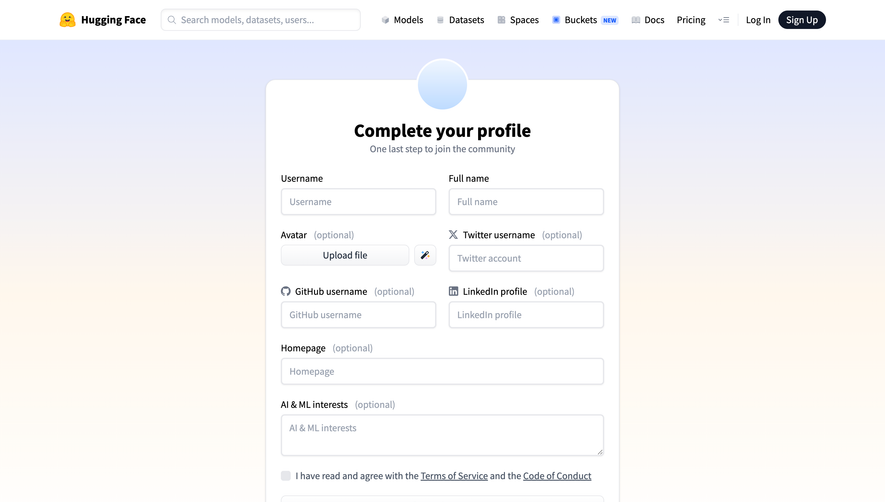
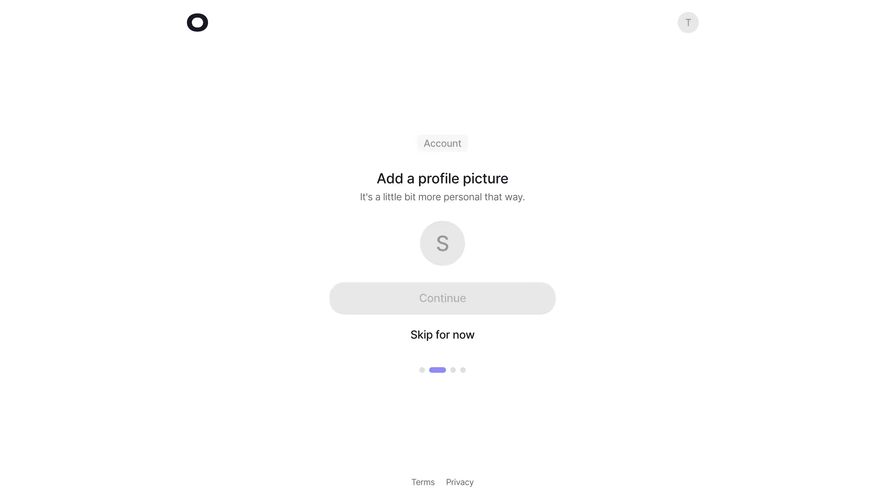
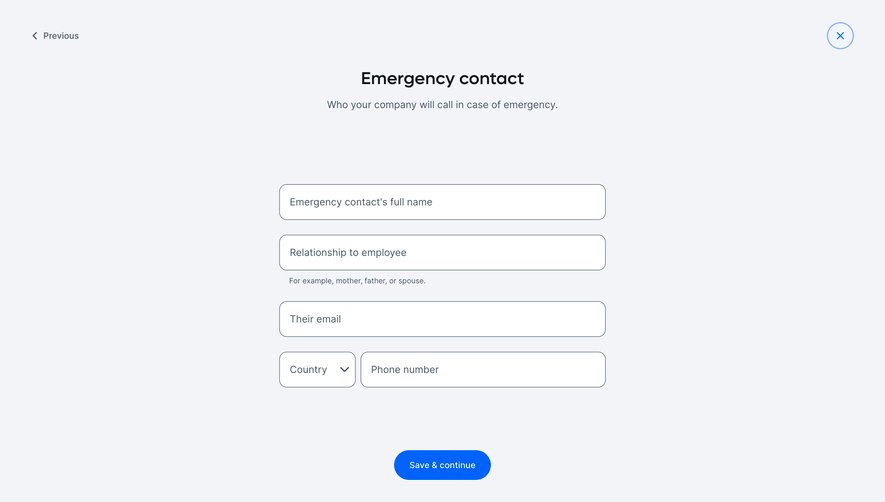
Visitors asks for a profile picture during onboarding and visibly offers a skip route. An initial-based avatar is already available. That arrangement makes personalization possible without implying that a photograph is required to start using the product.

Use the same reasoning for biographies, job titles, or social links. Ask whether the information is necessary before the first useful action. If it can be collected later, provide a clear route back to profile settings rather than repeatedly interrupting onboarding.
A completion meter should reflect usefulness, not pressure people to disclose unnecessary details. A person without a photo may still have a perfectly usable account. Explain the benefit of adding information and keep its optional status visible.
A display name helps teammates recognize someone. A primary email may also determine login, verification, or account recovery. Changing the former and changing the latter can have very different consequences. Do not present both as ordinary text edits if the email change has additional steps.
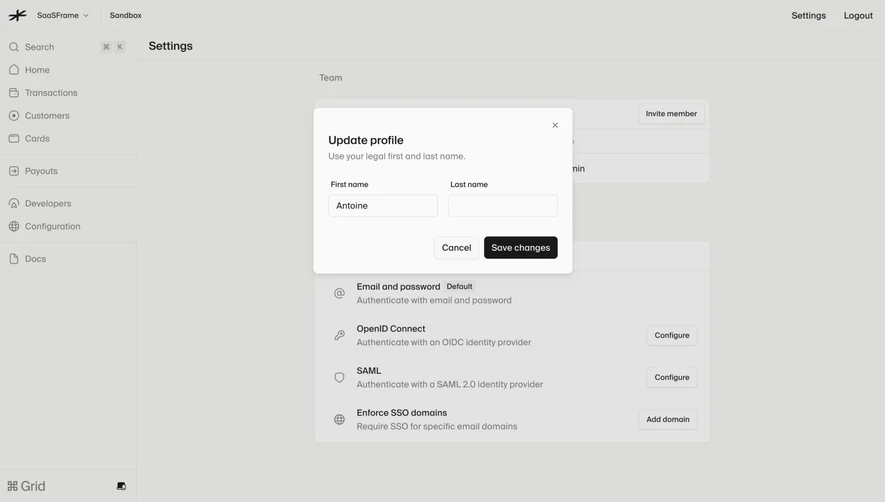
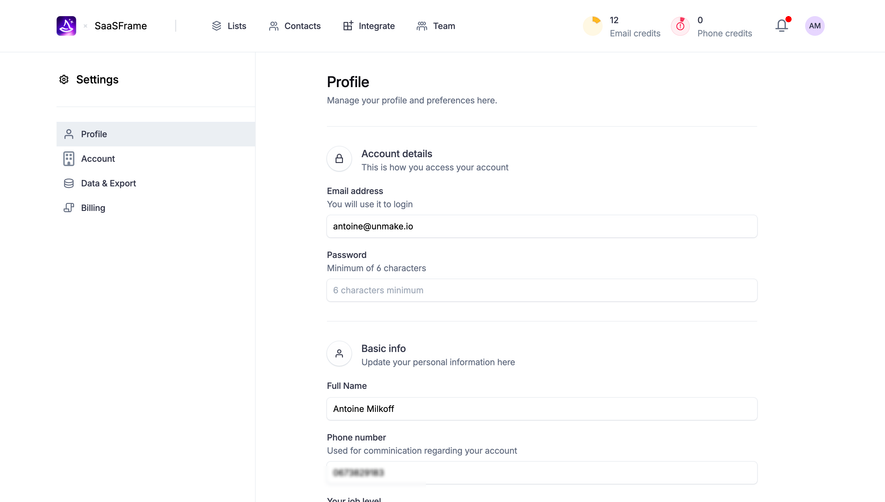
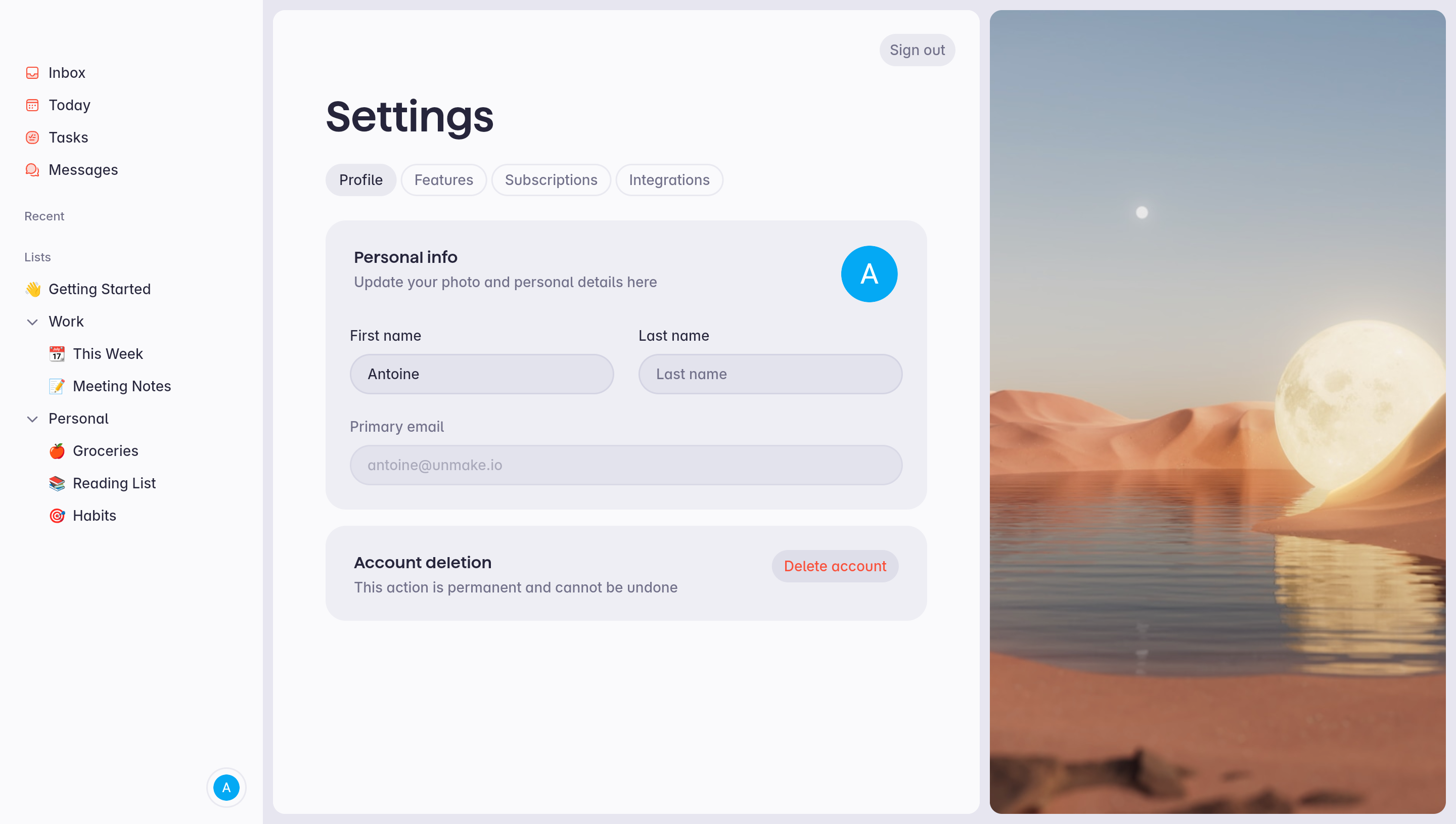
Superlist groups names and the primary email in a personal-information panel under the Profile tab. The captured email field has a different visual treatment from the name fields. That difference is visible, but the screenshot does not establish whether the field is editable or what verification applies.
For your own product, explain why a field is unavailable or how to change it through the appropriate route. If an identity provider controls it, say so. If a new email remains pending verification, distinguish the pending value from the currently active address.
Names also require flexibility. Avoid assuming that every person has exactly two name parts or that the same legal and display name should be used everywhere. Choose the minimum information needed for recognition and define how it appears in comments, notifications, and invitations.
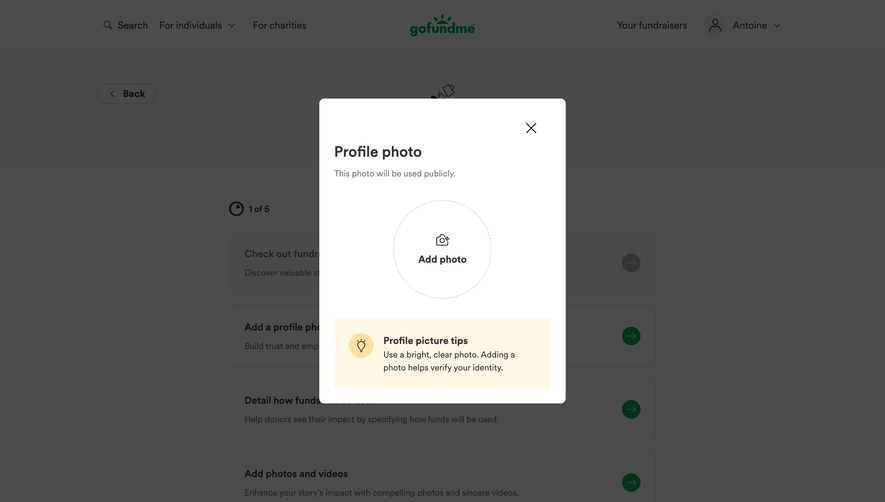
An avatar upload is a small file-management flow. It needs accepted formats, relevant size guidance, upload progress, failure feedback, and a preview of the resulting image. If cropping is available, show what will appear in the final circular or square placement.
Offer an initial or other appropriate fallback when no image is supplied. The fallback should remain recognizable at the sizes used across the application. Do not make a profile unusable when the image fails to load or has been removed.
Replacement and removal are different operations. A person should know whether choosing a new file saves immediately, requires confirmation, or only changes a preview. If an upload fails, retain the prior valid avatar and explain the failure. Avoid claiming that the new image is saved before the server confirms it.
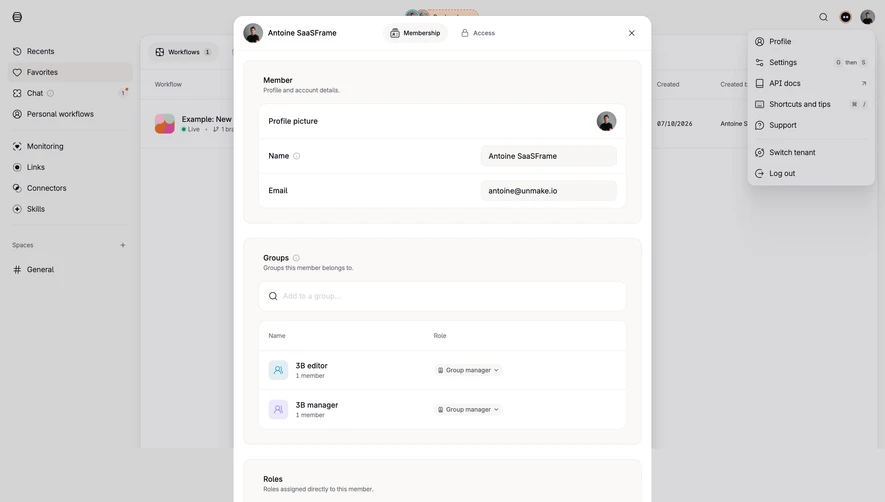
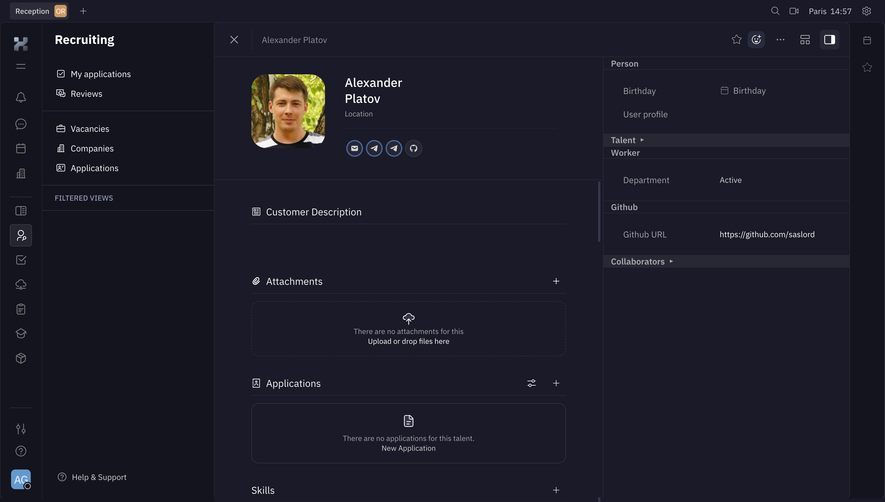
Huly’s capture shows a person detail page within recruiting navigation. The main column includes the person’s name and image, contact-related icons, attachments, applications, skills, reviews, surveys, related issues, and activity. A side panel contains additional attributes.
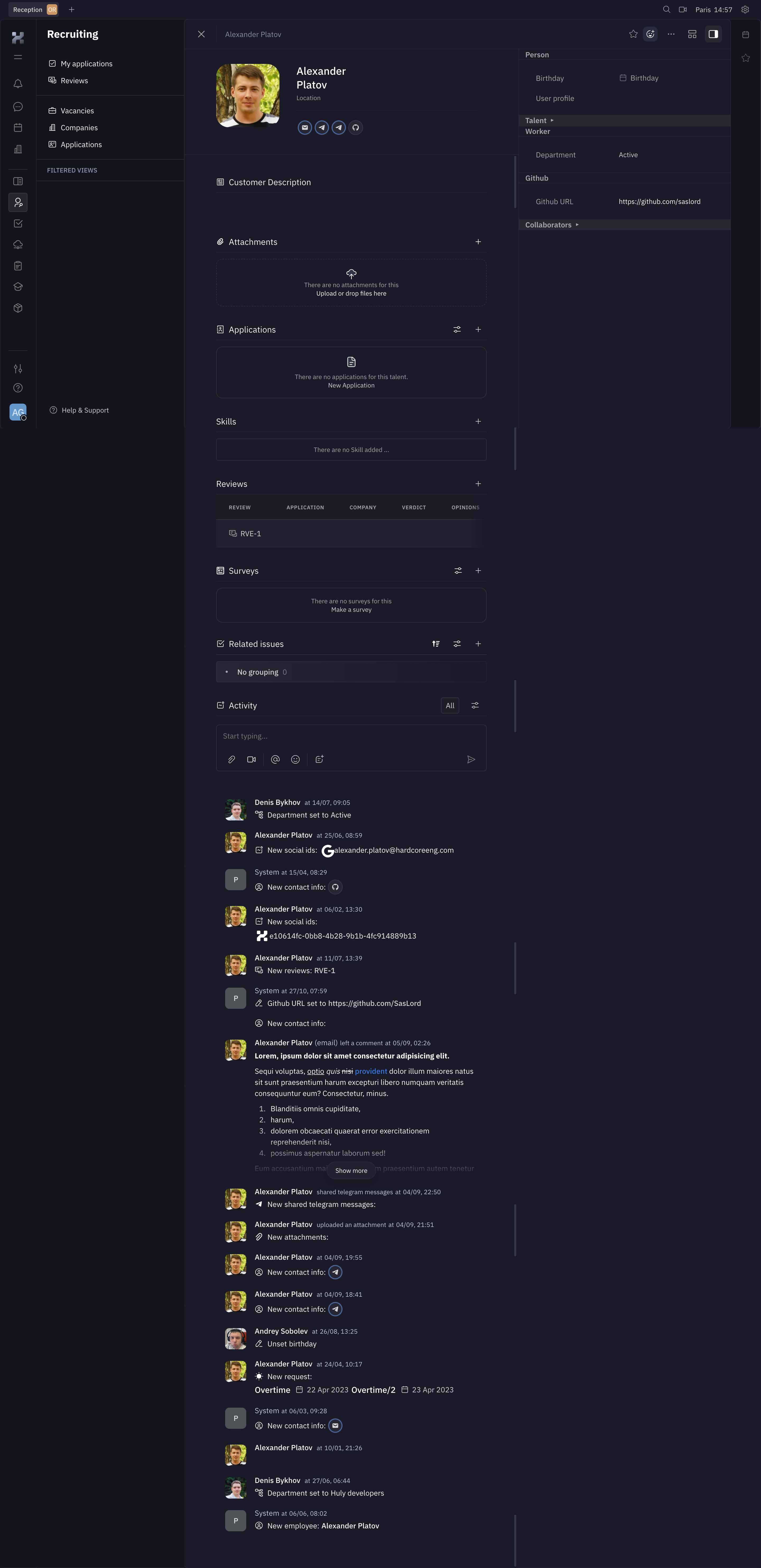
This is a different reference from self-service settings. Its useful principle is grouping related work around the person while separating summary identity from longer supporting information. Do not copy every section into a lightweight collaboration profile if those relationships do not exist in your product.
Prioritize the information needed for the current role. A reviewer may need an application and feedback; a teammate may need a contact route and timezone. Progressive disclosure can keep the summary readable while allowing deeper investigation. Empty sections should explain their purpose and an appropriate next action when the person is allowed to add information.
Some profiles are edited only by their owners; others include administrator-managed or business-record fields. Define who can edit each kind of information and how the result is attributed. A profile edited by a teammate should not imply that the subject personally supplied every detail.
Use read-only presentation for information that is only being viewed, and intentional editing affordances where updates are allowed. A disabled form full of unexplained controls can make viewing feel like a broken editing task. If access is limited, provide an appropriate explanation or request route.
Data visibility also depends on audience. A field useful to an administrator may be inappropriate in a public-facing profile or a guest view. Preview or explain what other people can see when that visibility is not obvious. The captures do not establish the products’ access policies, so evaluate those separately.
Profiles can save individual changes immediately or collect changes behind a Save action. Either can work when the model is predictable. Do not mix immediate avatar saving with pending text changes without communicating the difference.
For explicit saving, show when changes are pending and make the action easy to locate. For automatic saving, communicate progress, success, and failure without flooding the interface with repeated notices. A failed update should not leave the person believing their new name or contact detail is active.
Validate each field according to its purpose. Preserve valid changes when another field needs correction, and explain the specific issue close to that field. W3C’s form guidance emphasizes associated labels and useful notifications; a profile’s visual polish does not replace those fundamentals.
Superlist’s capture places account deletion in its own panel with a permanence statement. That separation helps distinguish a consequential account action from updating a name. It also raises a scope question every product should answer: is the action deleting the person’s account, leaving one workspace, or removing a business record?
Use the exact scope in labels and confirmation. Deleting a contact in a CRM is not the same as deleting that contact’s authentication account. Leaving a team is not necessarily deleting the person’s overall identity. Explain the relevant effect on owned work, shared content, and access according to the actual policy.
Security controls such as password changes and enrolled authentication methods may be reachable from profile settings, but should have their own task-specific flows. Do not imply that an ordinary display-name edit also changes authentication or permissions.
A saved identity change may appear in comments, task assignments, member lists, and notifications. Define whether historical activity shows the current display name or a name recorded at the time. A clear policy avoids inconsistent identity cues.
If propagation is delayed, make the saving state accurate and handle stale data deliberately. Test image caching, initials after a name change, and long names in compact locations. A profile page can look correct while a navigation avatar or invitation still displays outdated information.
Test the full editing route with keyboard navigation, screen readers, mobile layouts, and zoom. Image-only controls need meaningful names. Optional fields, read-only values, validation messages, and pending states should be perceivable without relying solely on color or position.
Require it only when the product has a concrete need before activation. Otherwise provide a recognizable fallback and a route to add it later.
No. A profile represents a person for a particular audience. Account settings also include preferences, security, and other controls that may not belong in the person-facing view.
No. Some information may be managed by an administrator or identity provider, or belong to a business record with different permissions. Explain the source and available correction route.
Explore Avatar for compact recognition, File Upload for image selection, Settings & Preferences for account controls, and Activity Log for a person’s change history.
For accessible editing, consult W3C’s form-label guidance and form-notification guidance. Use the gallery to compare profiles serving the same audience as yours, rather than treating every page with a name and photo as the same pattern.