Prompt Input
31
An input composer designed for instructing or querying an AI system.
.webp)
A prompt input is the composer through which a person asks an AI system to produce, analyze, or act on something. It combines the written request with any relevant context, attachments, selected assistant, or execution options. In a SaaS product, its job is to help users express a useful intent and understand what will be submitted, even when they are unfamiliar with the system's capabilities.
Good AI prompt input design goes beyond a large text field. The interface needs to explain scope, make context inspectable, support revisions, and provide a clear transition from writing to processing. This guide examines captured interfaces from Claude, Dust, and Lightdash. They illustrate a general-purpose starting point, an assistant addressed within a conversation, and a domain-specific analytical composer. The analysis concerns visible screenshot evidence, not an assessment of current models or unobserved product behavior.
Start with the product's actual scope. A general assistant may accept open-ended writing, analysis, or learning requests. An analytics assistant may only work with accessible datasets and supported operations. A workplace agent may need a particular recipient or connected tool. The input should give users enough information to form a reasonable request without requiring a tutorial on model internals.
Separate a request for an answer from a request that performs an action. Summarizing a document, drafting a message, and sending that message have different consequences. If your system can execute changes, make the transition from proposal to execution understandable. A single Send icon should not conceal an unexpected commitment such as publishing content or changing account data.
Also distinguish prompting from search. A search field helps locate matching information; a prompt may generate a new output or interpret a goal. When both are present, their labels and placement should communicate that difference. The composer can remain simple while surrounding context describes what the assistant can work with.
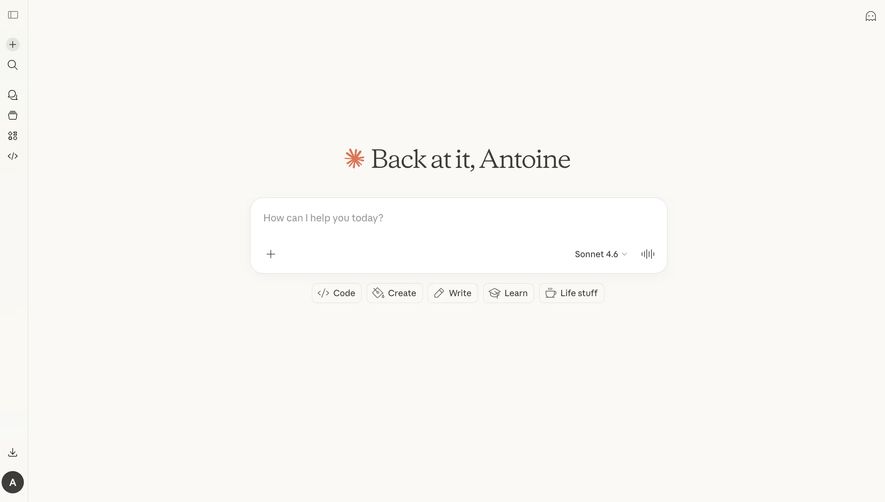
The captured Claude New Chat screen places a large composer under a personalized greeting. Its placeholder asks how it can help. A plus control appears at the lower left, while a named model selector and an audio-style control appear on the right. Below the composer, buttons label several starting categories: Code, Create, Write, Learn, and Life stuff.

The useful distinction is between inspiration and instruction. The category buttons suggest kinds of work rather than prescribe a rigid format for every request. That can help a first-time user who has not yet chosen a task. A product aimed at a narrower job might need more concrete examples, such as comparing two invoices or drafting a customer update, instead of broad categories.
The selected model name is visible, but the screenshot does not explain its capabilities or the selector's contents. When a model or mode choice affects available tools, speed, cost, or output format, provide practical information at the point of selection. Avoid requiring users to infer important consequences from a technical name alone. The presence of a plus or audio control also does not establish the supported file types or recording behavior; those details need their own clear interaction.
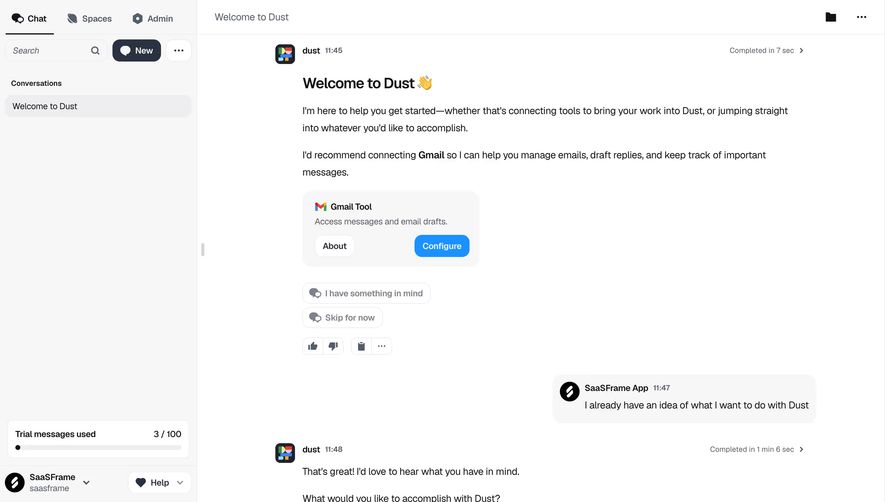
In the captured Dust Chat Interface, the conversation includes a welcome message, a suggestion to configure Gmail, and a user's request to write blog posts. The lower composer shows an @dust mention. Attachment and other compact controls sit at its lower left, while a microphone icon and a blue upward-arrow button sit at the right. Suggested replies appear within the conversation above the composer.

A mention can help users see who or what receives the request. This becomes especially valuable in products with multiple specialized assistants. Treat the recipient as meaningful context: make it discoverable, explain how to change it, and define whether a change affects an unsent draft. A colored token is a useful visual cue, but users still need to understand its role.
The welcome content also separates configuring a tool from describing a goal. The interface offers a setup route and a way to continue with an existing idea. That illustrates a useful onboarding choice: a user may know the task before knowing which integration it requires. Your product can help resolve that dependency without forcing every conversation through the same configuration path.
The screenshot shows a trial-message usage indicator in the sidebar. If your own composer operates within a quota, communicate the relevant limit before a user invests effort in a long draft. The captured indicator establishes a visible count, not how messages are metered or what happens at the limit.
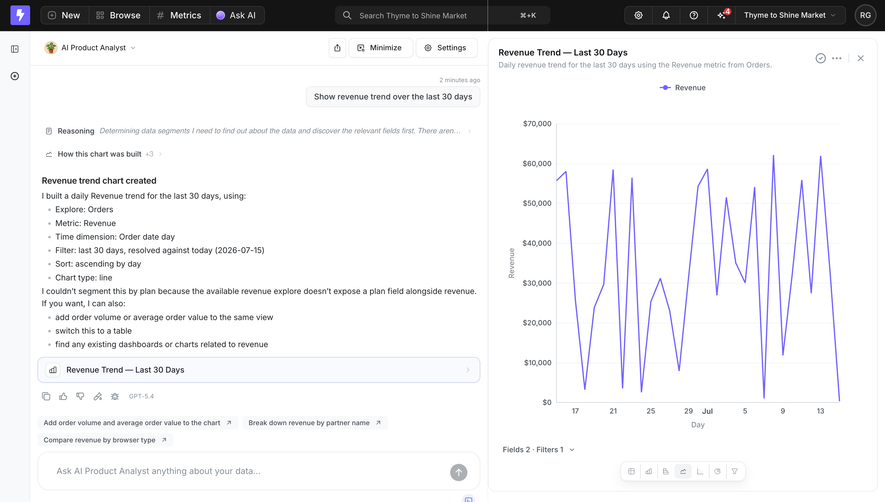
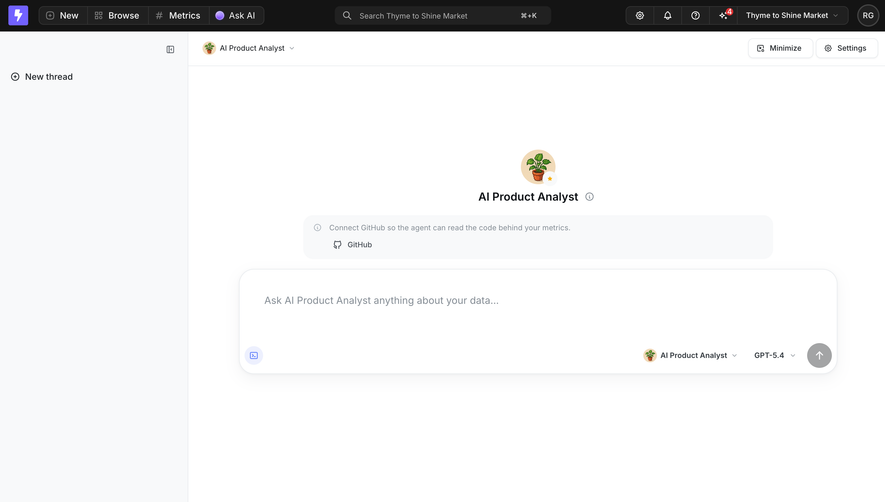
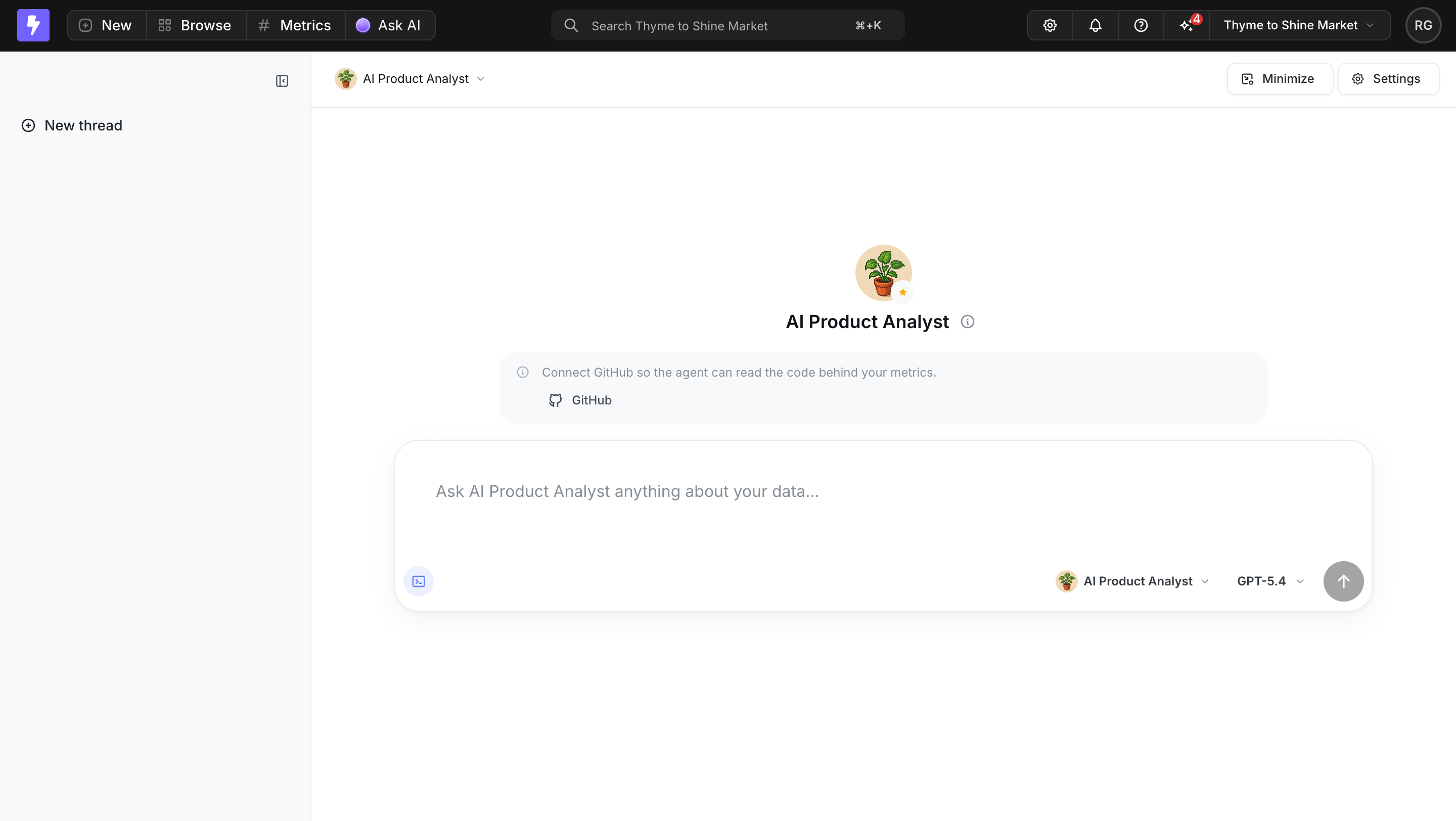
The Lightdash AI Analysis capture displays a conversation on the left and a revenue chart on the right. The lower input invites a question to the AI Product Analyst about the user's data. Above it, suggested follow-ups propose adding order volume and average order value, breaking down revenue by partner name, or comparing revenue by browser type. The visible answer identifies the metric, time dimension, filter, and chart type used, and describes a limitation in available segmentation.
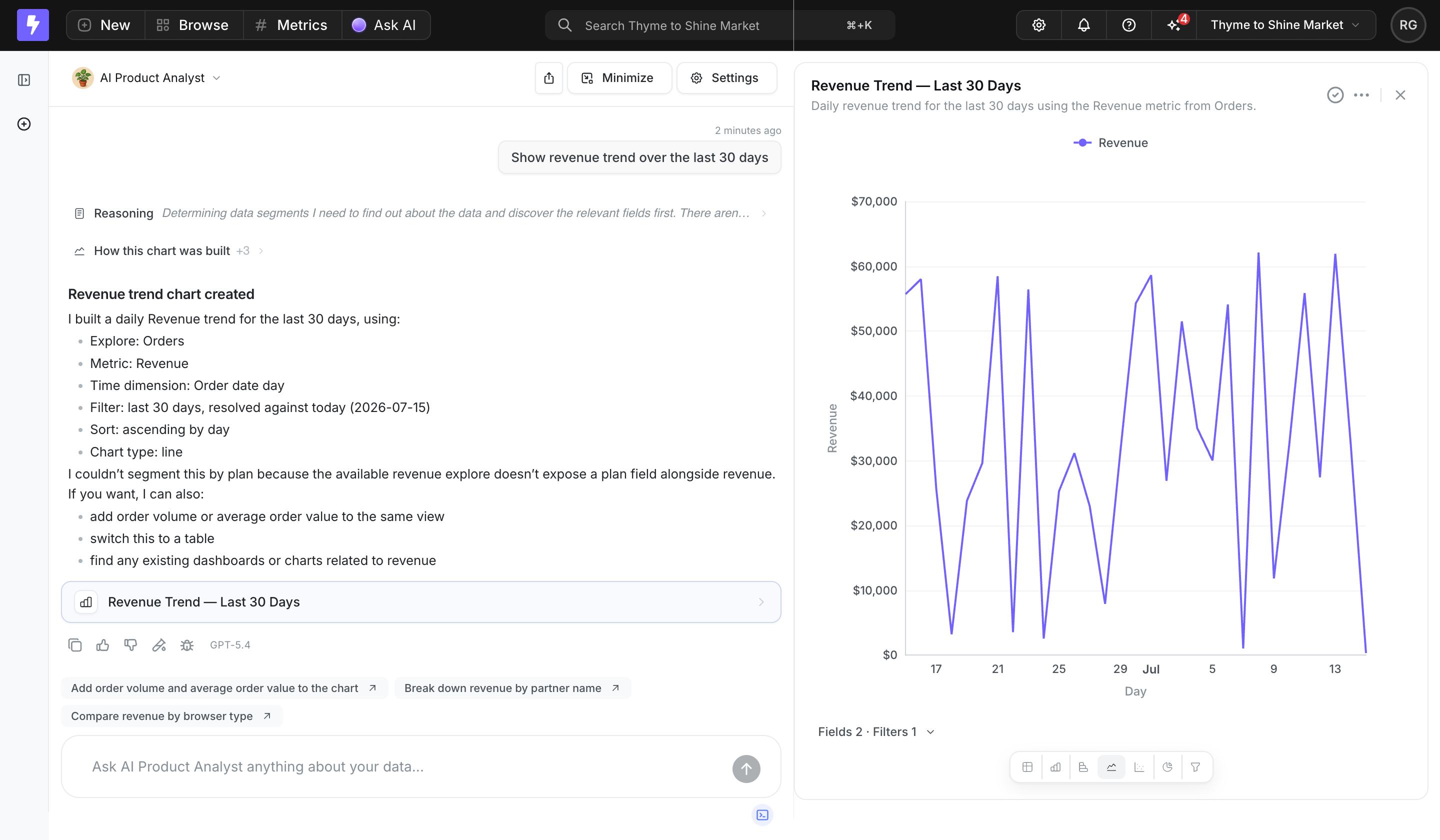
This layout supports iterative work. A person can inspect the chart and its stated configuration while formulating the next request. The prompt does not need to carry the entire explanation of the assistant's domain because the nearby output and label reinforce it. For a specialized SaaS workflow, that proximity can be more helpful than a generic Ask anything invitation.
The limitation stated in the answer is also relevant to input design. When a request requires unavailable data, the system should explain the missing ingredient rather than imply that better phrasing will solve the problem. Help users distinguish an unclear request from a capability or data-access constraint. The screenshot demonstrates one visible explanation, not the correctness of the resulting chart or the success of every proposed follow-up.
Starter prompts work best when they teach a useful request shape. A specific example can reveal the expected object, time range, audience, or output. In an analytics product, a starter such as comparing revenue over a defined period is more informative than Make insights. In a writing product, naming the reader and purpose can help someone understand what context improves the draft.
Keep examples editable. Users may want the structure without its assumptions. If selecting a suggestion fills the composer, give them a chance to inspect and revise it. If it submits immediately, make that behavior clear. The screenshots show suggested controls but do not establish whether each one fills or sends a request.
Refresh suggestions according to the current context only when their relevance is justified. A follow-up beneath a chart should refer to information available for that chart; a starter on an empty screen should avoid implying access to content the user has not provided. Suggestions should help express a goal, not promise that every named operation is available.
A prompt can include more than its visible text. Files, selected records, a project, conversation history, and a chosen assistant may all affect the request. Expose the context that matters to user decisions. Show attachment names, processing state, and a removal control. If a connection or selected resource is necessary, make its scope understandable.
Differentiate a file chosen locally from a file uploaded successfully and ready for use. A filename alone can make an incomplete upload look finished. Provide a specific recovery route for unsupported types, failed uploads, oversized files, or inaccessible sources while preserving the written draft. Avoid a generic error that leaves the user guessing which ingredient caused the problem.
If the product uses previously supplied context, explain the boundary in plain language. Users should know whether they are asking about the current document, the entire project, or a broader workspace. Do not present the presence of an attachment button as proof of any privacy or retention property. Those properties must match actual product policy and behavior.
Define the composer's states before choosing its final appearance: empty, drafting, preparing attachments, ready, submitting, processing, failed, and ready for another turn. A send control should reflect whether submission is possible. When it is unavailable, explain the reason if that reason is not obvious from the empty input.
Long prompts need enough room to review their structure. Allow multiline writing and growth within a sensible limit, with scrolling when necessary. Specify keyboard behavior, including how to insert a line break, and avoid accidental submission during composition. Keep the rule consistent across an initial prompt and later replies.
After submission, show the request in the conversation or another stable history area so users can confirm what was sent. If processing can be interrupted, distinguish stopping output from undoing an action already performed. Cancellation labels should describe what the system can actually stop. For operational tasks, an interrupted response may still leave a change that requires an explicit status check.
On a network or service failure, preserve the request and clarify whether the server received it. A retry should not silently create duplicate actions. If the product cannot determine the outcome immediately, acknowledge that uncertainty and provide a way to inspect the task status. These are state-design requirements to verify beyond the static examples.
AI workflows often require clarification. Support follow-ups that add constraints, correct a misunderstanding, or narrow the output. Keep enough prior context visible for a person to understand what the new turn changes. Lightdash's side-by-side result is one way to keep the target in view; other products may use an artifact panel or selected document.
If users can edit a sent prompt, make the consequence explicit. Does the edit create a new branch, replace later results, or simply start another turn? Preserve a clear relationship between the revised request and the output being reviewed. An attractive composer cannot compensate for ambiguous conversation history.
Also provide a route when prompting is the wrong interaction. Selecting a known date range or choosing a destination may be faster and more reliable through a structured control. Combine freeform intent with explicit controls where appropriate, rather than asking users to repeatedly describe values the product already knows how to represent.
Give the text area a meaningful label beyond placeholder text, and name compact controls according to their function. Ensure visible focus, a logical keyboard order, and understandable selected states. If a mention or attachment acts like a removable token, make its removal accessible without requiring precise pointer interaction.
Keep essential status messages close to the composer and make them available to assistive technology. Avoid announcing every incremental change so aggressively that it interrupts writing or reading. W3C's form labeling guidance is a useful reference for input names and instructions; accessibility still needs testing in the implemented workflow.
On small screens, check the composer with the software keyboard open. Attachment chips, model choices, and send controls should remain reachable without covering the text being edited. Preserve drafts across orientation changes and avoid moving the send control unpredictably as the field expands. The selected captures do not demonstrate mobile behavior.
Test with a vague first request, a long pasted brief, a failed attachment, an unavailable resource, and a request that requires an action. Observe whether users can explain what they sent and why the system needs clarification. Measure task completion and avoidable retries alongside submission rates; sending more prompts does not necessarily indicate a better workflow.
Both collect text, but an AI prompt input may also define an assistant, data context, attachments, and execution options. The design must communicate those ingredients and the system's processing states, rather than treating the request as an ordinary message to another person.
Show it when the choice helps users make a meaningful decision. Explain practical differences relevant to the task and provide a sensible default. The captured Claude screen makes a model name visible, but a name alone may not explain consequences to a new user.
Choose according to consequence and expected behavior. Editable suggestions are useful when users need to adapt a request. Immediate submission can support simple follow-ups if it is clearly communicated. Avoid surprises when a suggestion can trigger an external or persistent action.
Preserve the draft, identify the failed stage where possible, and offer a specific recovery action. Distinguish an upload failure, inaccessible context, a service failure, and a task with an uncertain outcome. Do not ask the user to rewrite a request when the problem is unrelated to its wording.
Compare the selected SaaSFrame captures with Empty State for first-use guidance and Search for locating information. These adjacent patterns clarify which parts of the experience support orientation and which help someone formulate new work.
A strong prompt composer makes intent, context, and submission state legible. Use Claude, Dust, and Lightdash as references for those distinct responsibilities, then validate the states and consequences that screenshots cannot reveal.