Profile Menu
0
An account menu providing access to profile, preferences, workspace, billing, or sign-out actions.
.webp)
A profile menu gives users a stable place to inspect their identity and reach account-level actions without competing with everyday work. Its job is to answer two questions quickly: “Who am I signed in as?” and “Where do I manage this account?” A small avatar can open the surface, but the expanded menu needs enough identity and scope to make its actions understandable.
In a SaaS product, personal preferences, organization administration, billing, and sign-out often share this surface. They do not share the same consequences. A useful profile menu groups them deliberately and tells users which identity or workspace an action affects. Compactness should come from organization, not from removing the context needed to choose safely.
Keep routine work in the product's main navigation. An inbox, customer database, or reporting area should not become discoverable only after opening an avatar. The profile menu is better suited to identity, preferences, account administration, help, and session controls.
Distinguish the menu from a user profile page. A profile page describes a person; the menu offers actions related to the signed-in experience. It may link to that page, but the two surfaces have different purposes. Likewise, a workspace switcher changes the working context rather than simply opening personal preferences.
Decide which scope each item belongs to before arranging it. “Settings” is ambiguous when users can edit both a personal account and a shared organization. Labels such as “Personal settings” and “Workspace settings” are more informative than two identical gear icons. The label should remain accurate when roles or memberships change.
The FlowMapp dashboard capture shows an open menu under a SaaSFrame account control in the left sidebar. The menu begins with a name, email address, and plan cue, followed by profile settings, help, plan-related actions, and sign-out. Identity is part of the menu's structure rather than a separate page the user must visit.
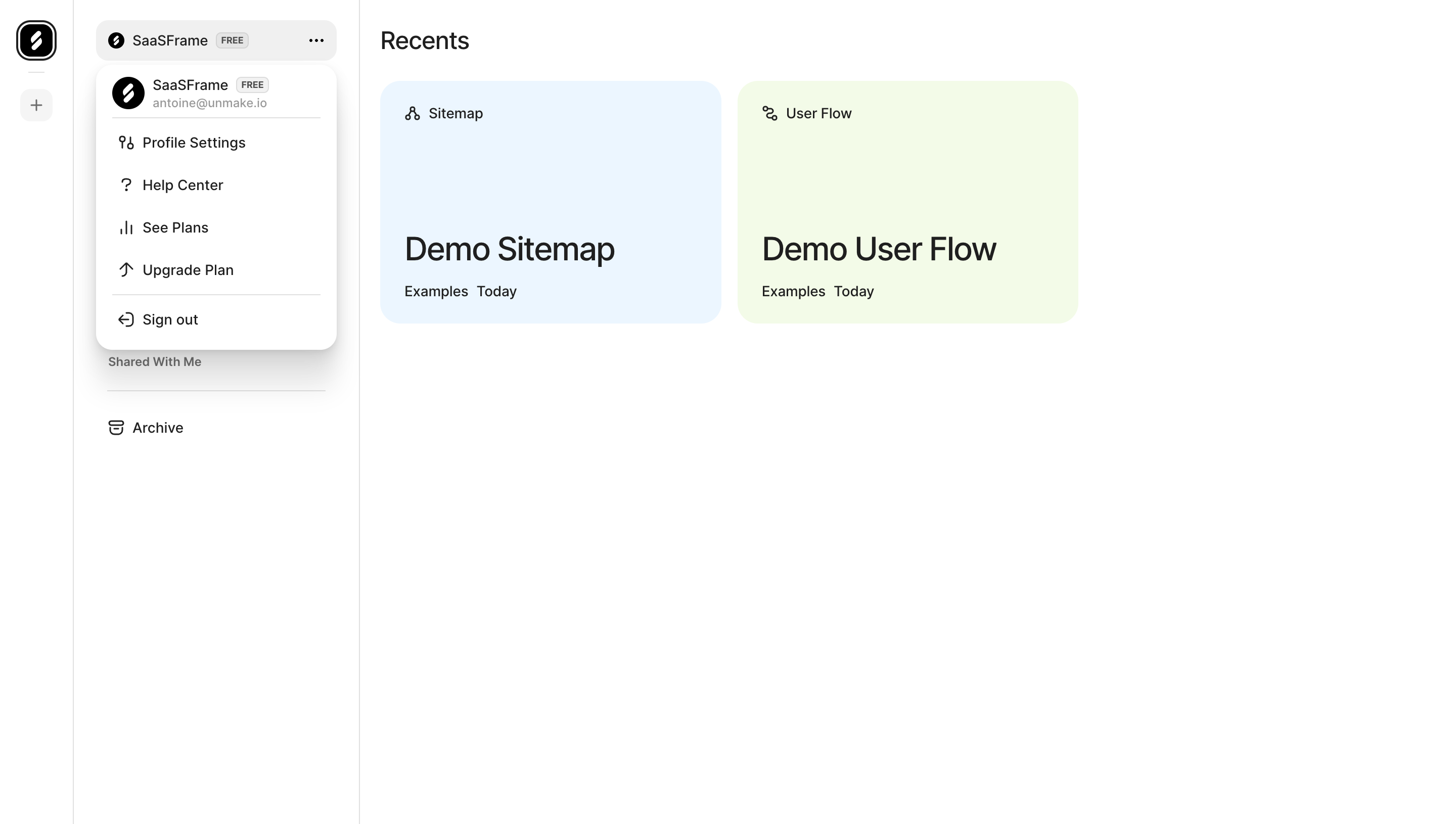
This arrangement gives account actions a visible owner. It is particularly useful when someone works with several browser sessions or similarly named teams. The screenshot demonstrates the expanded layout; it does not establish whether the menu supports account switching or which permissions govern billing.
For your interface, choose identifiers that distinguish the session. A familiar name may be sufficient for a single-account product, while a work email and organization can matter in a multi-tenant application. Avoid exposing unnecessary personal details in a compact surface. Show the information that helps the user verify the context of the action.
Place related choices together and separate meaningful changes in scope. Personal preferences, organization administration, support, and session exit can form distinct groups. Dividers should reflect these relationships rather than merely break a long list into equal visual chunks.
Order entries around likely account tasks. An upgrade prompt should not displace access to settings or sign-out simply because it has greater commercial value. In the FlowMapp reference, plan options are visible alongside account management. When adapting that hierarchy, preserve an understandable route to the user's intended task.
Avoid adding every infrequent feature to the menu. A large collection of unrelated actions becomes a hidden navigation system. If a group needs explanatory text, many options, or several nested decisions, link to a dedicated settings area. The menu can provide entry without containing the entire configuration experience.
An avatar is familiar, but it can mean profile, presence, or assignment elsewhere in the product. Use its location and accessible label to establish the signed-in account role. When a workspace name shares the same trigger, make the relationship between person and organization clear.
A missing portrait should not remove the entry point. Initials or a neutral symbol can work with an account name or label. Check realistic image crops and duplicate initials. Recognition should not depend on a tiny photograph being available or memorable.
Show that the trigger opens a surface when needed. An expanded state, chevron, or consistent menu treatment can help users understand what happened. The trigger's target should remain practical on touch screens; the visible image can be small while the operable area is larger.
Different roles may see different account actions. A workspace administrator might manage members and billing, while a contributor can only edit personal preferences. Decide whether unavailable actions are omitted or explained according to whether knowing about them helps the user.
Do not rely on hiding menu items as the permission model. The action itself still needs appropriate authorization. From a design perspective, the important outcome is that users see a coherent menu and receive clear feedback if their access changes while they are using it.
Keep labels accurate for shared billing. “Your subscription” can be misleading when a team owner pays for the workspace. Name the workspace plan or billing context where that difference matters. Similarly, “Delete account” and “Leave workspace” must remain distinct, even if both reduce access.
Sign-out deserves a clearly labeled route with separation from ordinary navigation. Explain scope when the product offers several session models: signing out of the current identity, removing a remembered account, and ending sessions on other devices are different tasks.
If unsaved work can be lost, define how the product preserves or explains it. Avoid introducing a warning when nothing is at risk, but do not silently discard an unfinished form. The menu's concise label can lead to an appropriate confirmation or recovery experience when the action requires one.
After sign-out, make the destination coherent. A public homepage, sign-in form, or account chooser can all fit different products. Returning the user to an inaccessible dashboard with stale personal information creates uncertainty about whether the session actually ended.
The visual shape alone does not determine the accessible interaction model. A short command menu can follow a menu-button pattern. A richer account panel containing links, explanatory content, or embedded controls may need a different structure. Do not assign menu semantics merely because the surface looks like a dropdown.
Users should be able to open the surface, reach its actions, dismiss it, and return to a sensible focus location. Keep focus visible. A menu should not vanish while a keyboard user is moving through choices, and a hidden panel should not leave its links in the tab sequence.
The W3C menu button guidance is a useful reference when implementing an actual command menu. Test the finished interaction with the input methods your product supports rather than assuming a familiar avatar guarantees accessible behavior.
An account menu can become a sheet or a dedicated navigation panel on mobile. Retain the identity header, grouping, and exit route even when the placement changes. Shrinking the desktop popover until labels truncate is rarely a useful adaptation.
Long names, emails, translated labels, and enlarged text need room. Allow wrapping or a deliberate compact representation without hiding the identifier that distinguishes accounts. Keep the important actions reachable if the surface scrolls.
Review coexistence with other floating surfaces. A chat launcher, help tooltip, or onboarding prompt should not cover account controls. Avoid stacked menus that make it unclear which close button dismisses which surface. If opening the account menu closes another temporary panel, preserve any relevant work first.
Test changing a personal preference, finding the workspace plan, requesting help, and signing out. Ask users which identity and scope they believe each action affects. Confusion about billing or organization ownership is more informative than a general preference for one avatar style.
Include missing portraits, long identities, restricted roles, multiple memberships, revoked access, unsaved work, keyboard dismissal, and mobile use. Confirm that each destination exists and that the menu closes or remains open consistently with the action.
Study the SaaSFrame profile-menu collection alongside workspace switchers and settings interfaces. Use the menu to provide a stable account boundary, then move deeper configuration to a surface that can explain it properly.
Include a session-expiration scenario in the review. A menu can still display cached identity details after the underlying session is no longer usable. If selecting an account action requires signing in again, preserve the intended destination and explain the transition. Do not leave a familiar avatar suggesting that the user is authenticated when every action leads to an unexplained error. Shared-device and screen-sharing scenarios are also worth checking: the identity summary should support account recognition without exposing more personal information than the task requires.
Should billing live in the profile menu? It can provide an entry point when the billing scope is clear. Distinguish a personal subscription from a workspace plan and show the relevant role-dependent route.
Is an avatar enough to identify the account? It may be enough as a compact trigger, but the opened surface should provide the identifiers needed to verify the session. Missing photos and similar names should not undermine that task.
Should sign-out require confirmation? Match the extra step to actual consequences, such as unsaved work. A routine sign-out with no loss should have a direct and predictable result.