Product Tour
18
Contextual walkthroughs, coach marks, or guided steps introducing product features.
.webp)
A product tour is a guided introduction to selected parts of an application. It can use anchored callouts, overlays, short modal sequences, or an interactive example to help users understand how the product works. In SaaS onboarding, a useful tour connects an unfamiliar control or concept to something the user wants to accomplish.
The challenge is deciding what to teach and when. A tour can clarify an important next step, but it can also interrupt someone with information they cannot yet use. This guide analyzes captured tours from Pitch, Frame, and Remote to explain contextual instruction, progress, exit routes, and the handoff into real work. The screenshots document visible content and controls; they do not establish how tours are triggered, whether users can replay them, or their effect on activation.
Start with a task or concept that users commonly misunderstand. They may need to know where shared work lives, how to invite a collaborator, or how to create their first resource. Select the minimum explanation that helps with that outcome. A tour that points at every major control can become a presentation of the product rather than useful onboarding.
Separate conceptual guidance from configuration. Explaining a team folder is different from requiring its creation. Describing a document library is different from uploading a document. A tour may lead into either action, but it should not claim completion merely because users saw the explanation.
Also distinguish an introduction from a mandatory task flow. A Wizard collects information or completes a sequential task. A product tour teaches selected parts of the interface. An Onboarding Checklist can organize actual setup actions. Using the same Next button everywhere does not make these experiences equivalent.
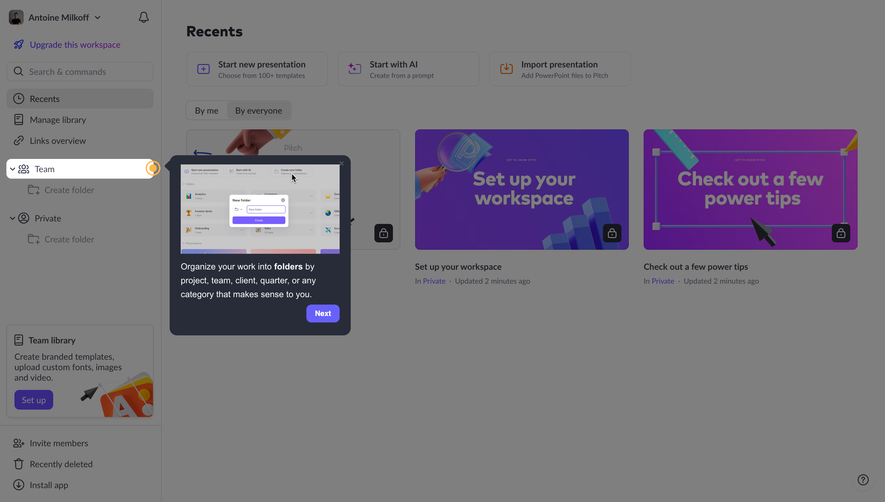
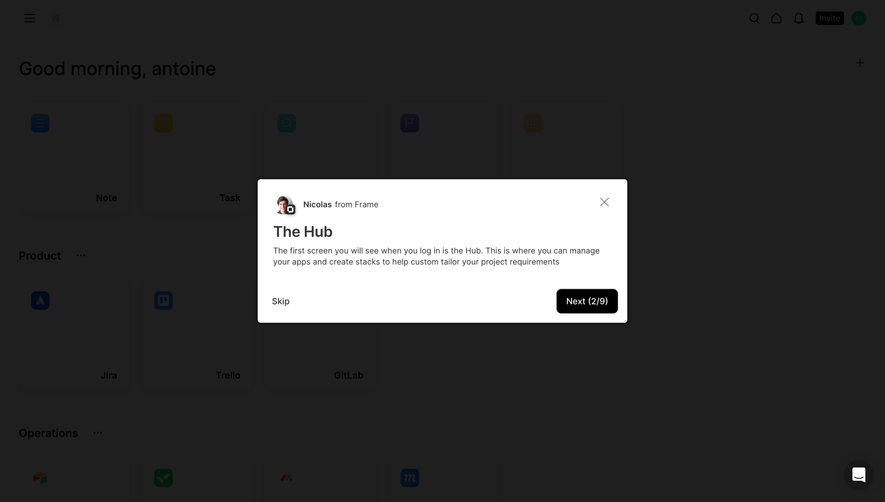
The captured Pitch Product Tour dims the Recents screen and highlights the Team area in the sidebar. A dark callout sits beside it with an inset illustration of folder creation. The text explains organizing work into folders by project, team, client, quarter, or another useful category. A Next button and a small close control are visible.
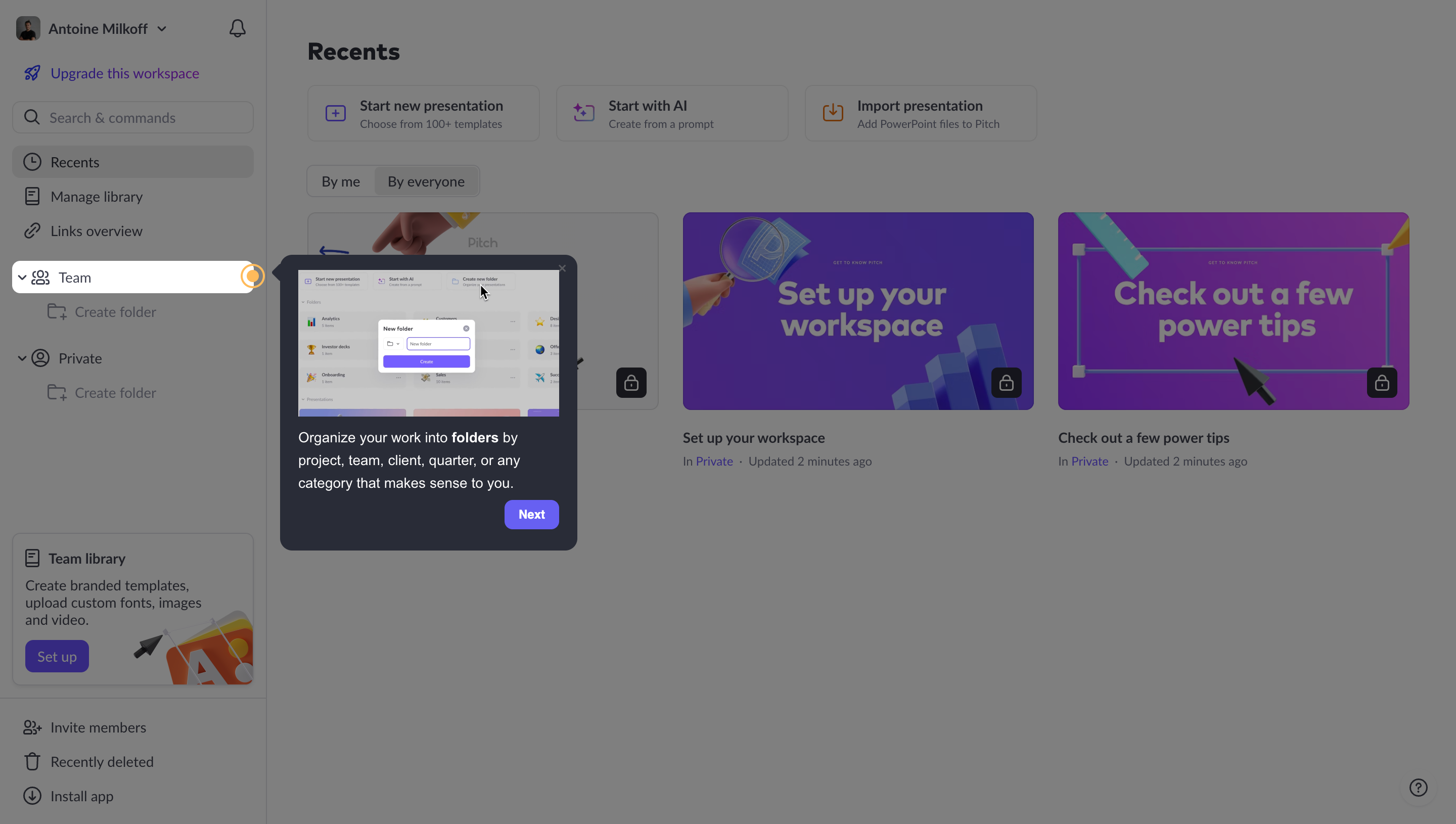
The instruction answers why someone might use the feature, not just where it is. Naming several organizational examples helps a user map the concept onto their own work. The inset illustration supplies a visual example without requiring the current screen to contain an already-created folder.
There is still a scope decision to validate. The highlighted Team area and the inset folder-creation action are related but not identical targets. If a user wants to act immediately, the path from reading the tip to creating the folder should be clear. The screenshot does not show whether the target remains interactive during the overlay or whether Next performs any action.
When adapting this approach, keep the callout close enough to its target to establish the relationship and ensure it does not cover the next control users need. An attractive preview can help explain a feature, but it should not be mistaken for a live control unless it actually is one.
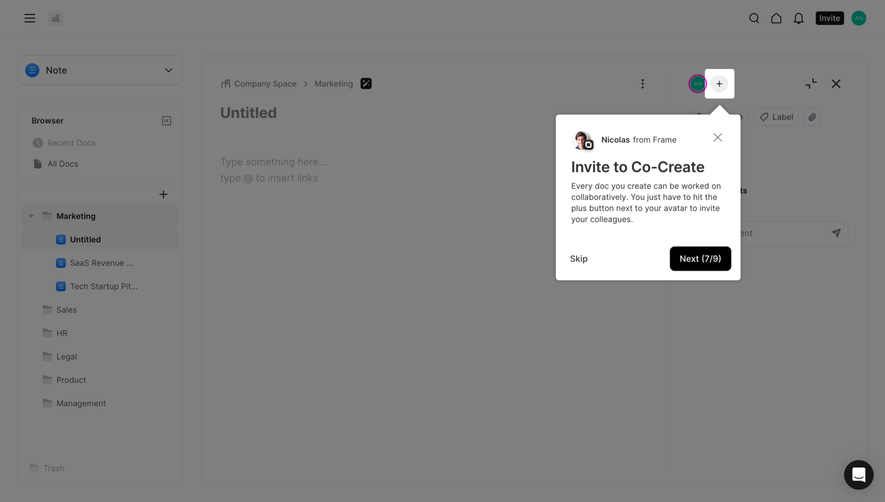
The Frame tour capture shows a note editor with an Invite to Co-Create callout anchored near the plus button beside an avatar. The text describes working on a document collaboratively and identifies that plus button as the route to inviting colleagues. Skip, a close control, and Next with a 7/9 indicator appear in the callout.
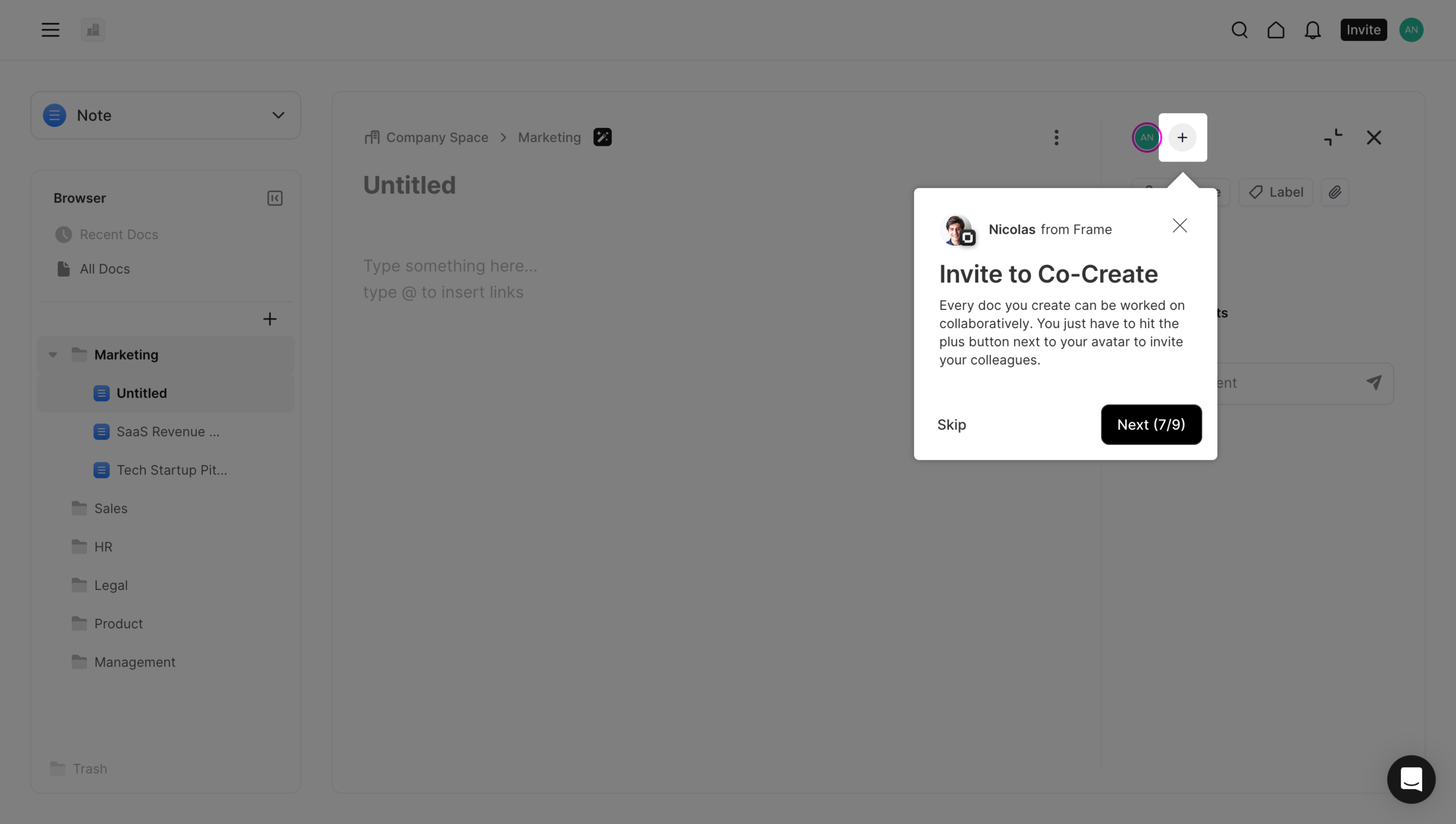
This is a direct relationship between a goal and a control. The visible plus button would otherwise be less descriptive than a labeled Invite action. The tour supplies that missing explanation at the point where the user can see the editor context.
The 7/9 indicator communicates that the tip belongs to a longer sequence. That can help users judge the remaining introduction, but it also raises a useful review question: does everyone need all nine steps before starting? The screenshot cannot establish the other steps or whether the sequence adapts to user roles. Review each tip for immediate relevance rather than treating a visible count as a reason to retain the whole tour.
Collaboration also has consequences beyond discovery. Inviting someone may affect access to a document or workspace. The tour can explain where the control is, while the invitation flow should explain scope and permission. See Invite Team Members for that next decision; a short onboarding callout should not attempt to replace the access explanation.
Another Frame capture displays a Tour complete modal over the home screen. It includes a small help-center illustration, explains that additional information is available through a menu next to the company avatar, and provides a Complete button. The message explicitly closes the introduction while pointing to a place for future learning.
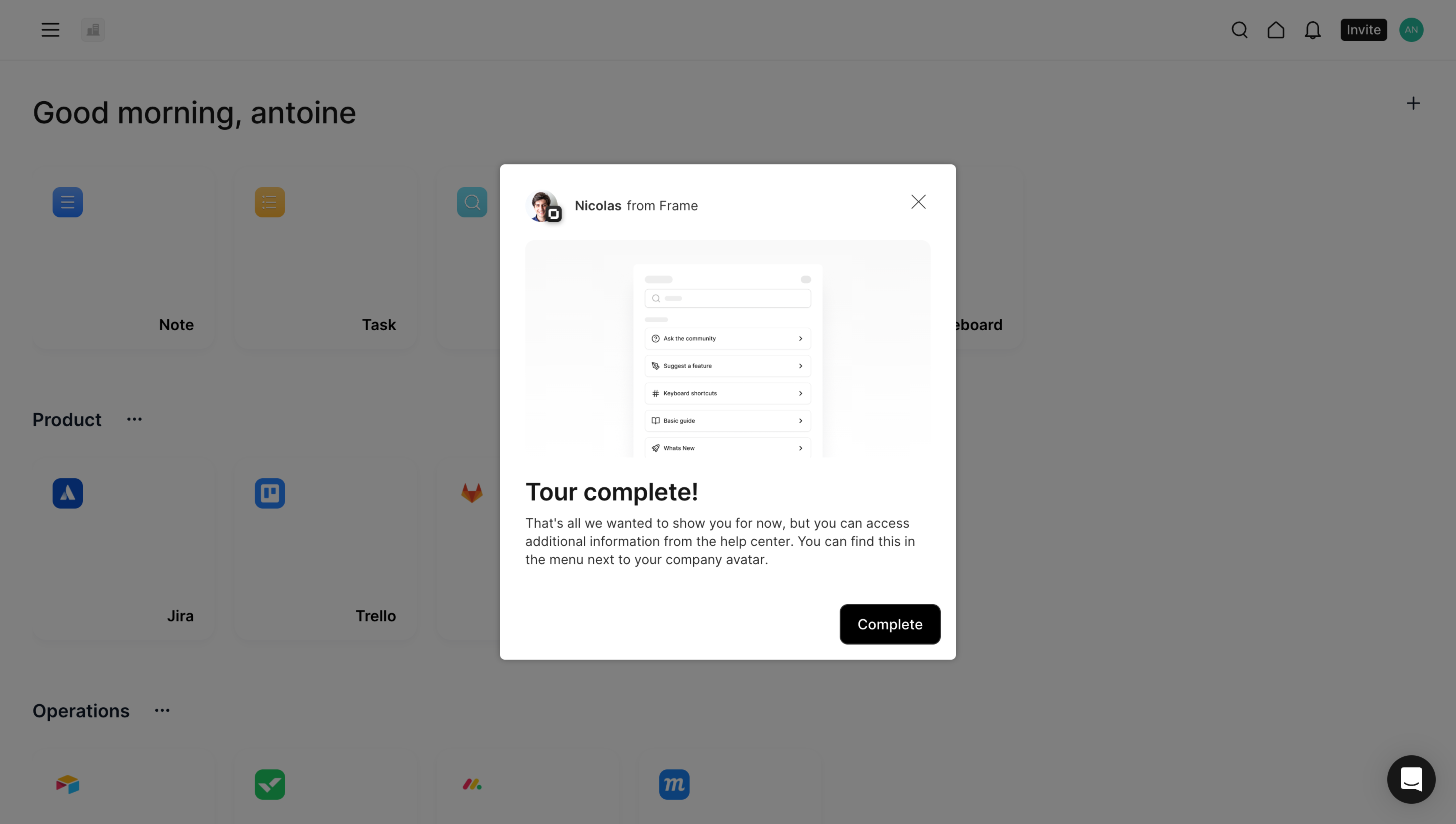
A help handoff is useful because users often need instructions when they encounter a task later, not when the tour first describes it. Keep the route recognizable and available after dismissal. The capture shows an explanation of its location but does not demonstrate whether the same tour can be replayed.
A separate Remote tour ending offers Go to personal details after an invitation to explore. That illustrates another handoff: a named destination in the product. Choose a completion action that fits the tour's purpose, whether starting a task, returning to work, or opening a relevant resource. Avoid using a celebration screen as the only outcome when the user still does not know what to do next.
A first-login tour is easy to implement conceptually, but users may have different goals and experience levels. Someone arriving through a shared document link may need to read that document, not tour the home screen. An administrator and a contributor may need different concepts. Evaluate whether the selected instruction is relevant to the current role, location, and task.
Contextual guidance can appear when a feature is first encountered or when someone starts a related task. Keep it short and avoid repeatedly showing tips already dismissed. If a feature changes substantially, explain the new behavior without replaying an unrelated introduction.
Do not mistake a lack of interaction for a need to force a tour. The user may be reading, comparing options, or waiting for another team member. Trigger decisions should reflect a concrete learning need. A mandatory introduction can delay the very action it is meant to help.
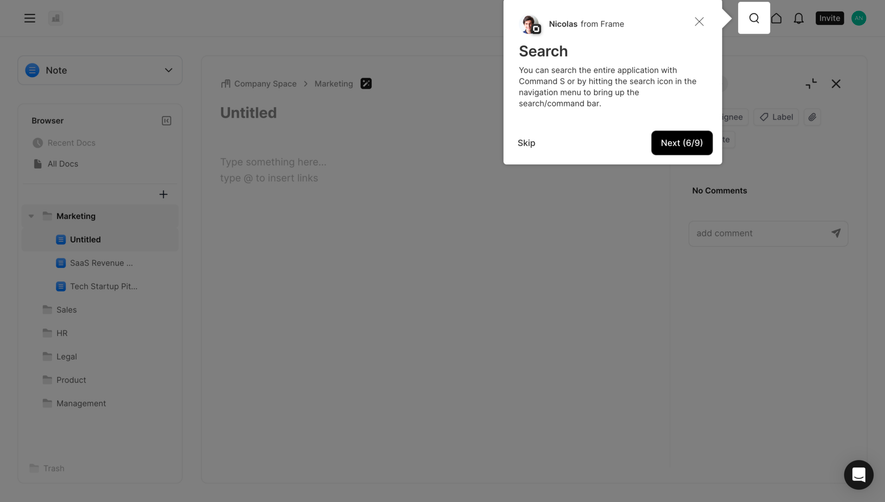
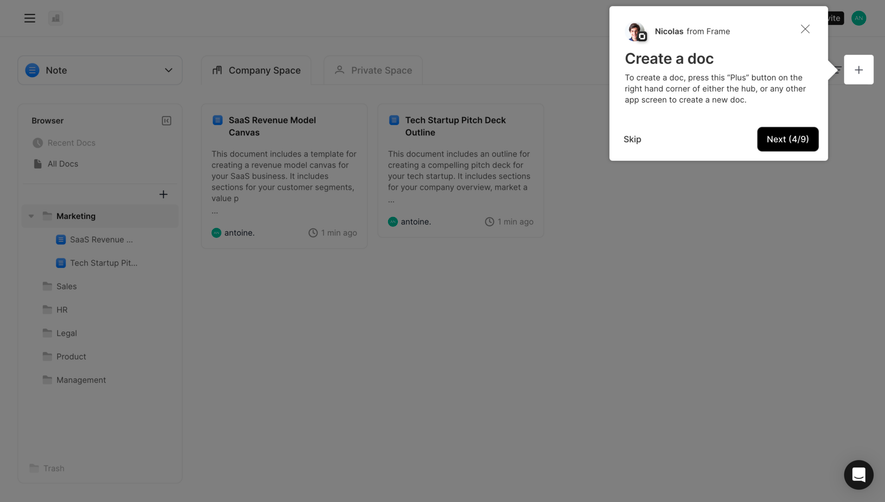
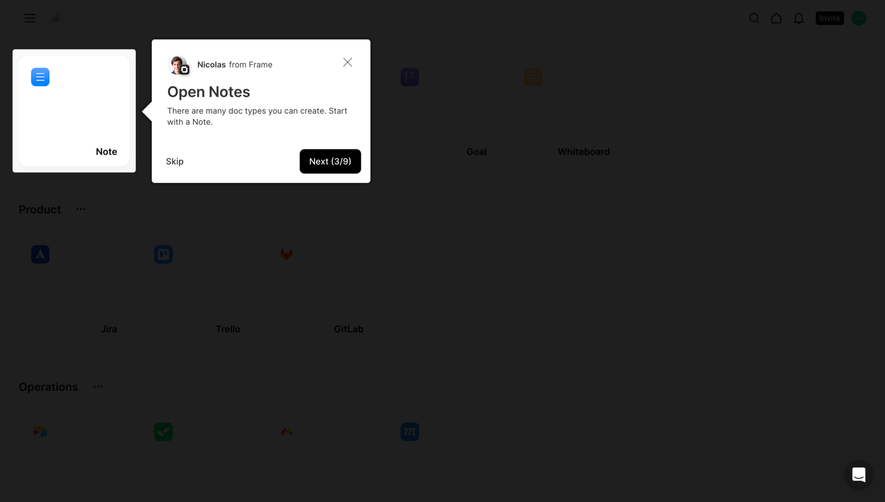
Use a short heading that names the outcome, followed by enough explanation to connect it to the control. Frame's collaboration step names co-creation and identifies the invitation button. Pitch's folder guidance names organization and gives usable categories. These are stronger teaching units than a generic heading such as Great feature.
Avoid combining several unrelated controls in one callout. If the tip asks users to inspect a sidebar, configure settings, and create a document, its target and next action become ambiguous. Split only when each part is necessary; otherwise remove the extra explanation.
Be precise about interaction. Next normally advances the explanation. A task action should name the task. If clicking a highlighted target is required to continue, explain that rule and provide recovery if the target is unavailable. Do not let users repeatedly press Next while an unspoken dependency prevents progress.
Keep visual examples aligned with the actual interface. An outdated illustration of a different menu can teach the wrong route. Review the tour whenever navigation or labels change, and avoid tying every step to a fragile position when the target can be identified more reliably.
Users should have a practical way to leave an optional introduction. Define what Skip and close do: exit the entire tour, skip the current step, or temporarily dismiss it. If both are present, their effects should not be indistinguishable surprises. Frame's capture shows both controls, but their behavior is not visible.
Decide whether dismissing the tour preserves its position and whether users can restart it through help. Do not repeatedly reopen a dismissed sequence without a meaningful reason. Conversely, do not permanently remove useful guidance simply because someone closed it to complete an urgent task.
Optional guidance should remain optional. If the product requires setup, use a task flow that makes the requirement and reason explicit. A tour overlay is a poor place to conceal mandatory account information or access conditions.
Anchored tours depend on the interface beneath them. A target may be off-screen, hidden by a collapsed sidebar, absent for a user's role, or unavailable because data has not loaded. Define a fallback that preserves a coherent sequence: wait, scroll predictably, skip an inapplicable step, or explain why the target is unavailable.
Avoid positioning callouts by assuming one viewport size. On narrow screens, the target may move into a menu. Place the guidance where the user can see both the instruction and the relevant control, or use a simpler presentation suited to that layout. Do not cover the target with the callout that explains it.
Check dynamic changes during a step. A selected workspace may alter available controls, a user action may close a panel, or a new record may shift the layout. If the tour loses its anchor, stop or recover cleanly rather than leaving an orphaned overlay over unrelated content.
Use interaction behavior appropriate to the presentation. A blocking modal and an anchored nonblocking tip have different focus requirements. Give close, skip, and progression controls meaningful names and visible focus. Communicate the current tour position accessibly when a count or dot indicator is part of the experience.
For modal steps, W3C's modal dialog guidance provides a reference for focus and keyboard behavior. Apply that guidance only where the tour actually behaves as a modal. A dimmed background in a screenshot does not prove how focus or background interaction is implemented.
When the tour ends, return users to a useful location. Preserve an unsaved document, selected resource, and current task state. A demonstration should not silently create real data, send invitations, or modify settings unless that action is clearly part of the user's chosen task.
Review reduced-motion needs, large text, translated copy, and touch interaction. An instructional illustration should support the text rather than contain the only explanation. The selected captures demonstrate desktop layouts; their mobile and assistive-technology behavior requires separate validation.
Compare whether users can perform the taught task after the introduction, including people who skip it. Tour completion alone is not evidence of comprehension or activation. Review repeated mistakes, time to a meaningful outcome, and reliance on later help. If people complete every step but still cannot find the relevant control, the explanation or timing needs revision.
Use a tour when a specific introduction helps with the user's likely task. Different roles and entry points may need different guidance. An experienced user opening shared work may benefit more from contextual help than a mandatory overview.
Include only the steps needed for the learning outcome. A visible count helps users judge the sequence, but there is no universal ideal length. Frame's capture shows a ninth-step denominator; its appropriateness depends on the unseen sequence and user needs.
Anchored tips connect a control to its purpose, while modal screens can introduce broader concepts or close a sequence. Choose according to what the user must understand. Mixing them can work if progression, dismissal, and focus behavior remain coherent.
Offer a relevant next action or a recognizable route to later help. Frame's completion screen identifies where additional information lives; Remote's captured ending offers a named destination. Do not equate viewing the tour with completing the underlying setup tasks.
Observe whether users can perform the taught action and understand its purpose. Review task outcomes and recurring mistakes alongside completion and skip rates. A high completion rate can mean people pressed Next through an interruption rather than learned how to use the product.
Use the SaaSFrame tour captures to compare target precision, explanation, and handoff. The most useful introduction leaves users able to do something meaningful and confident that help remains available after the overlay disappears.