Import & Export
51
Streamline data portability with SaaS Import and Export patterns. Focus on CSV mapping, progress indicators, and 'Success' summaries to make moving data feel safe and easy.
.webp)
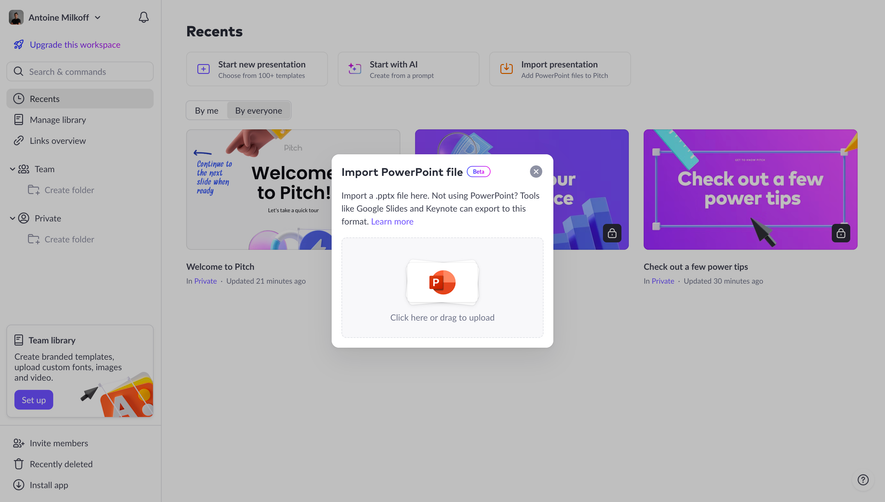
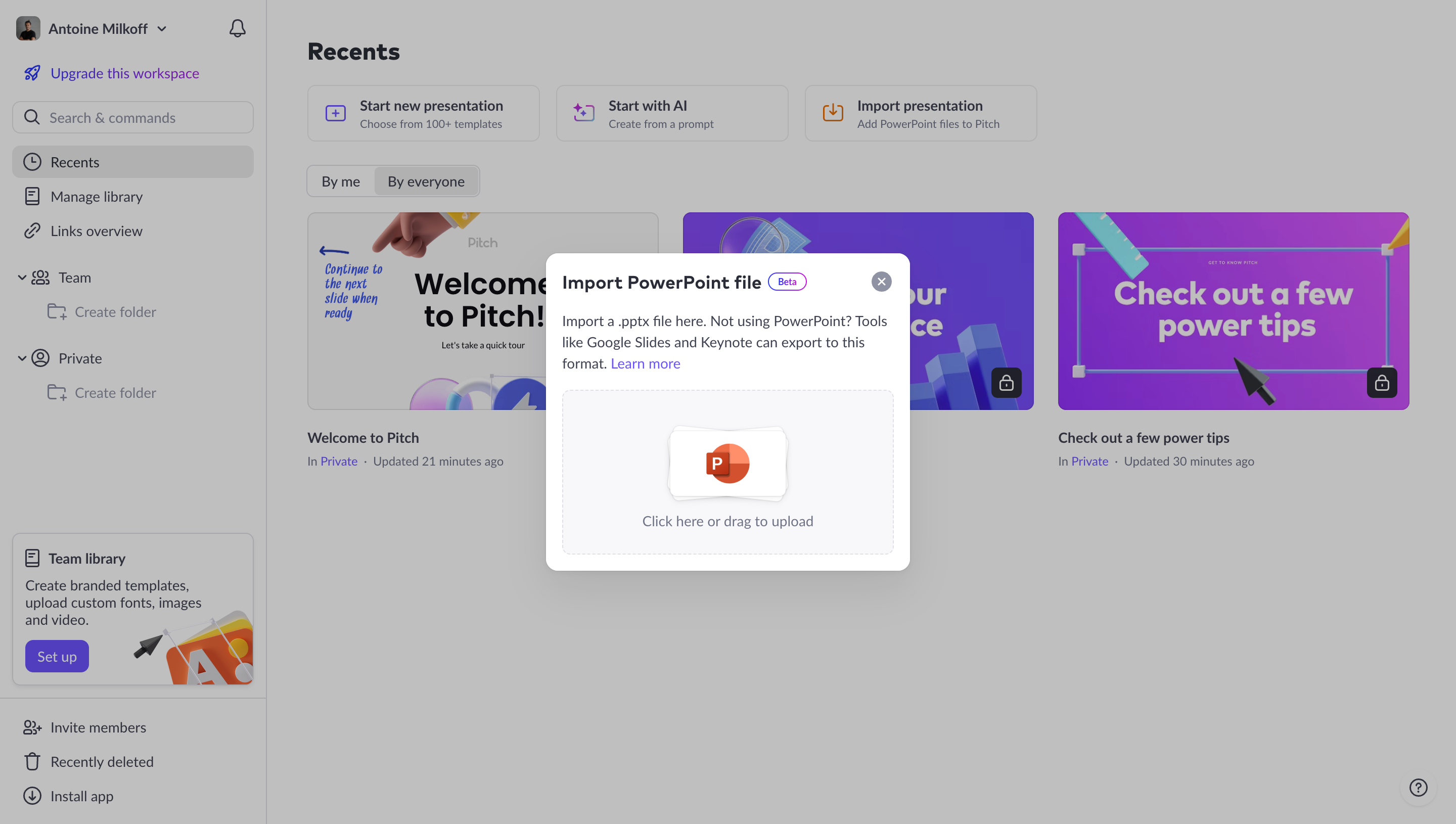
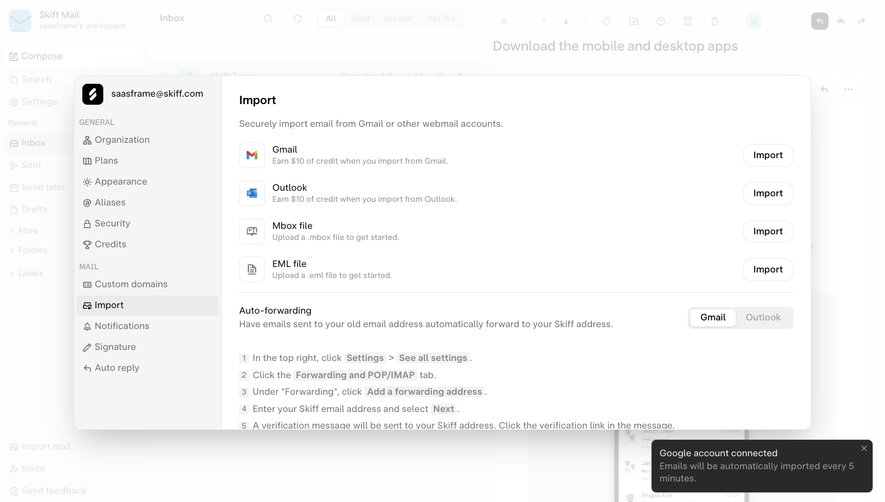
Import and export move information across a product boundary. Import brings files, records, or assets into a workspace; export produces a representation that can be used elsewhere. The two operations are related, but they have different questions. Import needs to explain how incoming content becomes product data. Export needs to explain what is included and what form it takes.
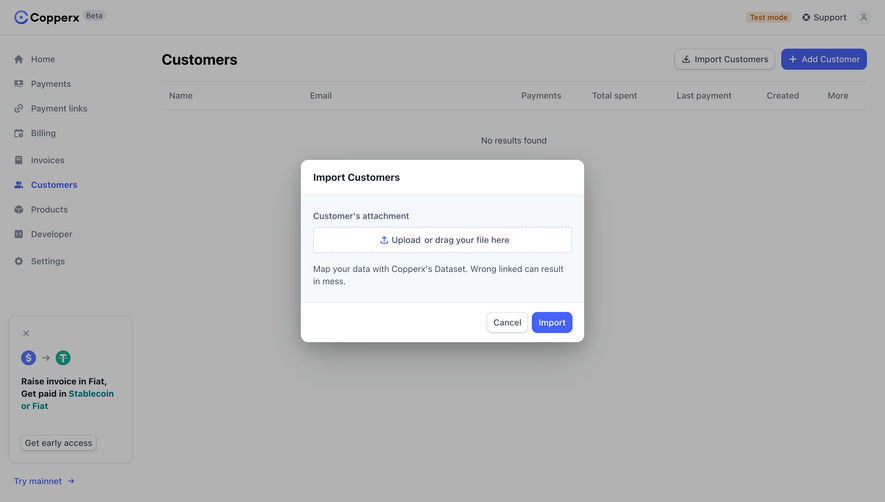
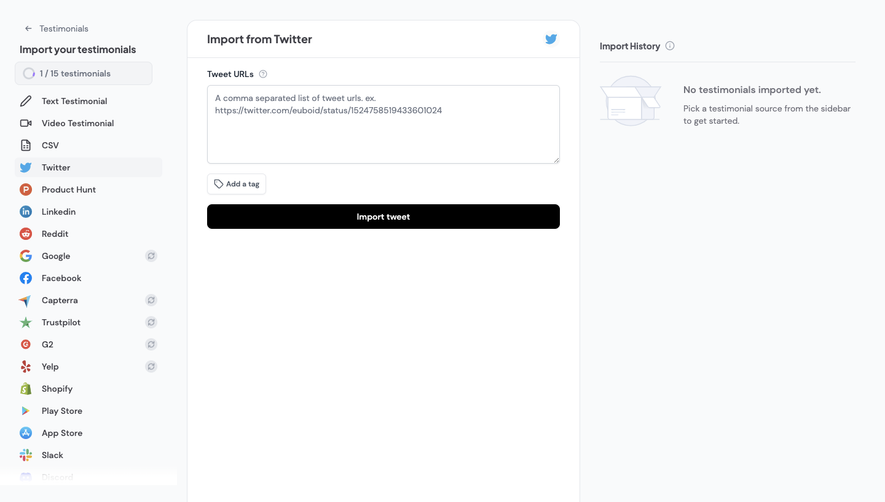
Begin by defining the source, destination, object type, and scope. A CSV of people differs from a media library, and a one-time transfer differs from an ongoing connection. The interface should communicate these distinctions before the user authorizes access or submits a file.
A useful transfer flow continues beyond the initial button. It supports preparation, validation, processing, completion, and recovery. Users need to know whether records were added, updated, skipped, or rejected, and whether an export contains the intended collection. A success message without that context can leave the practical task unfinished.
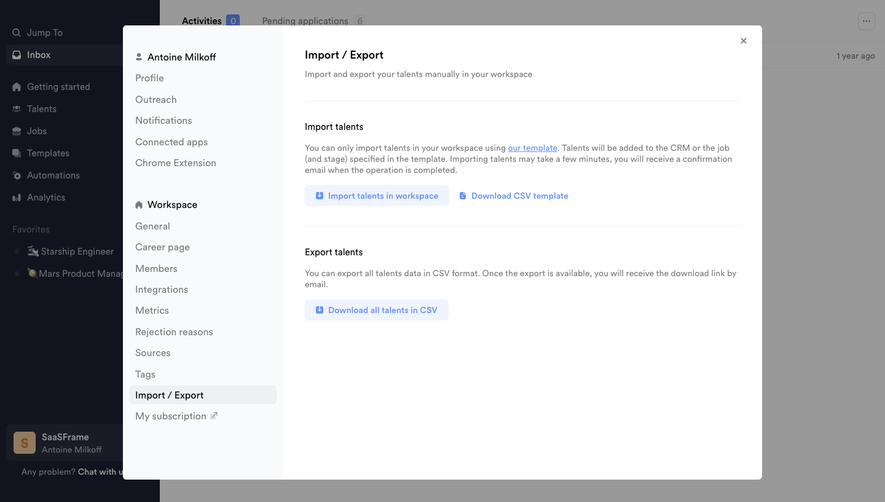
Crew's captured settings panel has distinct Import talents and Export talents sections. The import description points to a required template and explains the destination context. The export description identifies CSV output and says a download link will arrive by email. This keeps the two directions recognizable while using a shared object vocabulary.
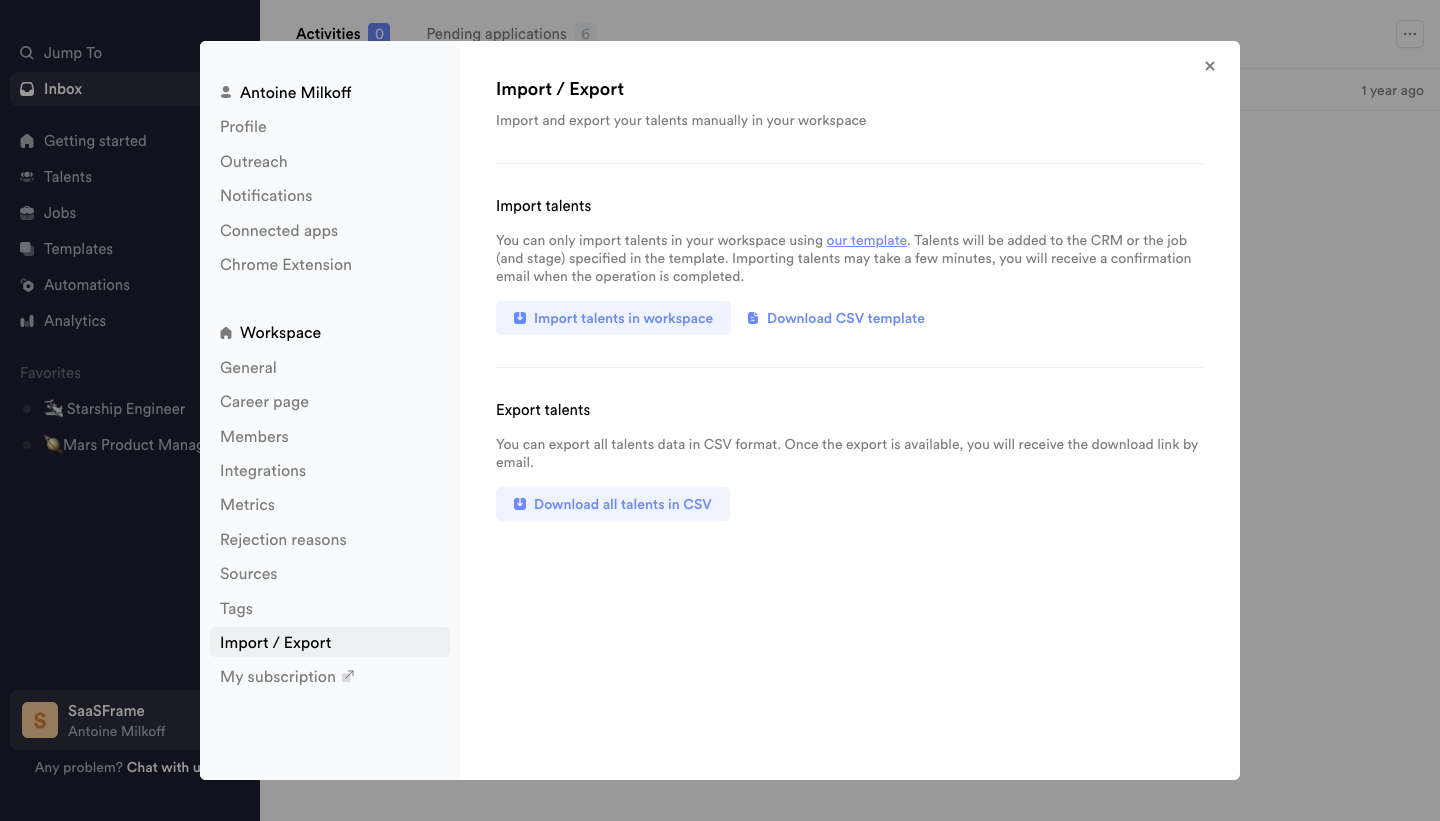
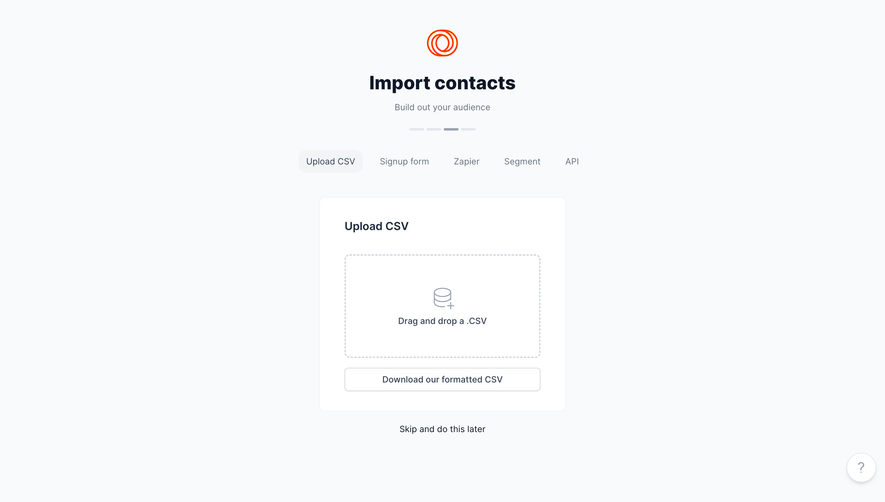
The template link is a preparation route, not the same thing as the import action. Keeping it separate helps users obtain the expected structure before selecting a file. A similar interface should identify which columns or relationships matter and provide a usable example rather than making the user discover requirements through repeated failed uploads.
The capture is a historical interface. It shows the stated workflow, not verified processing behavior or current capabilities. When implementing a comparable flow, test whether the promised email notification arrives, whether the template matches the parser, and whether the destination rules remain accurate.
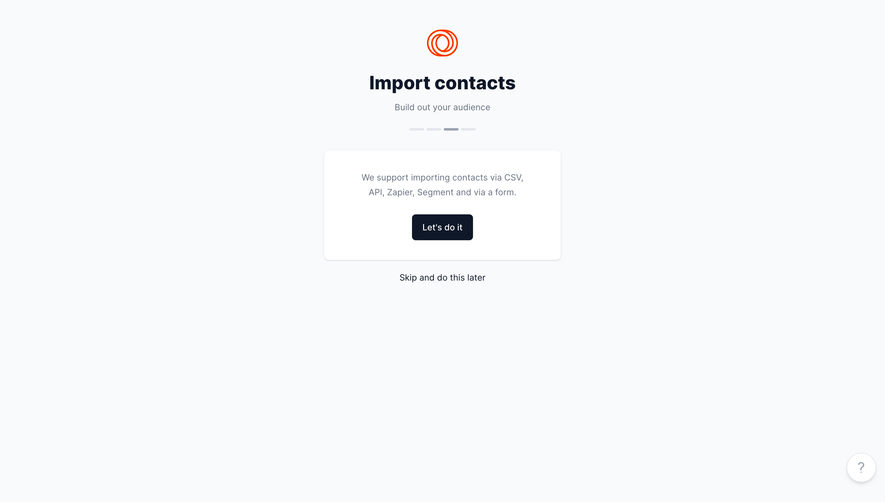
Air's captured onboarding import screen offers Google Drive, Dropbox, and desktop routes for media. It also provides a contact route for other services and an option to skip the step. This recognizes that users arrive with different sources and levels of readiness.

A connected source is not automatically an ongoing sync. Explain whether the operation copies selected content once, maintains a continuing relationship, or references content without transferring it. Users should understand what happens to later changes in the source and what occurs if access is disconnected.
For onboarding, consider whether import is required to get value or merely one useful starting route. A skip option can preserve momentum when users need to explore first. If the workspace will be empty afterward, provide an understandable next step rather than treating skipped import as an error.
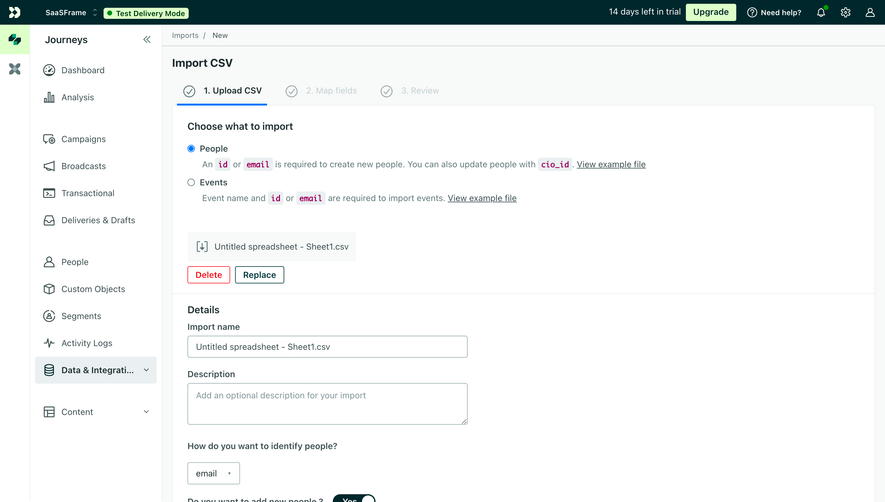
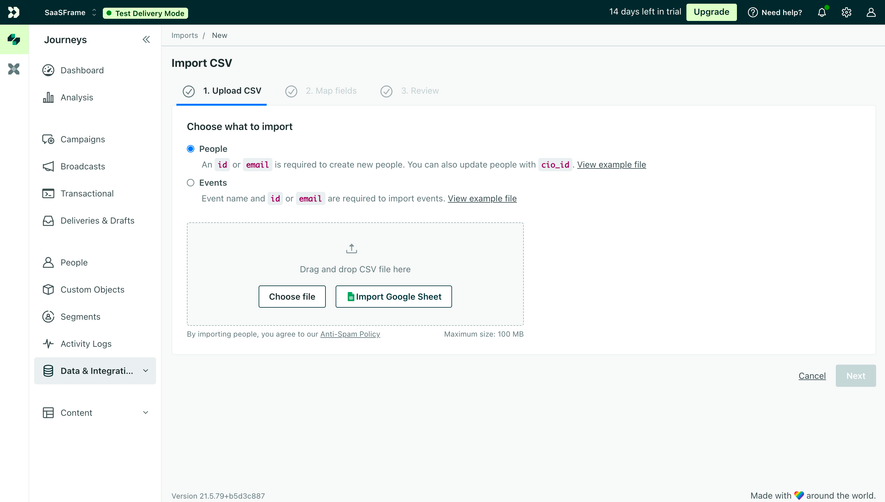
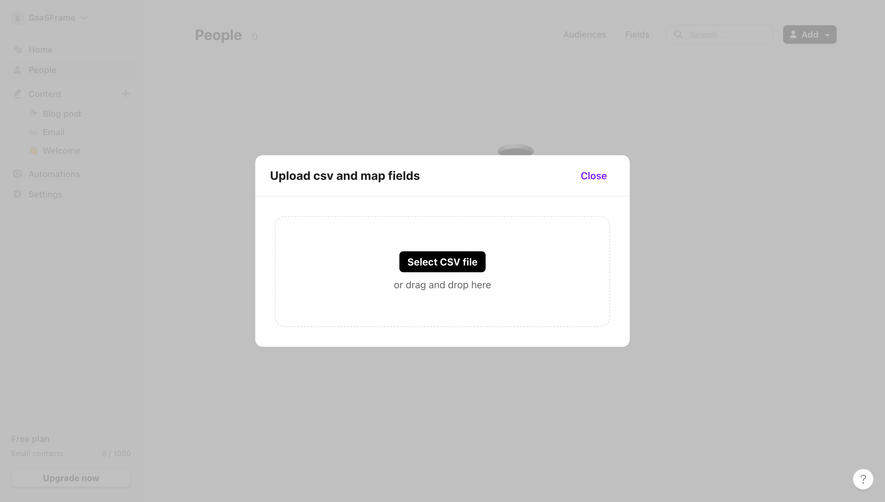
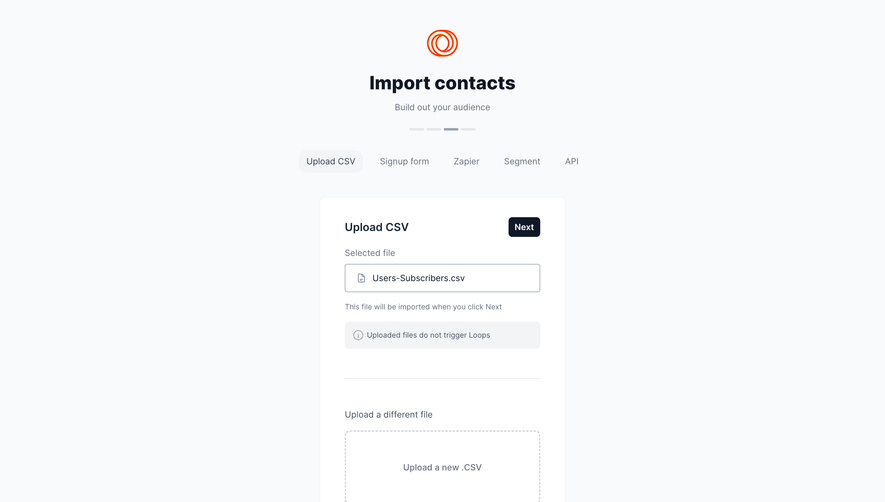
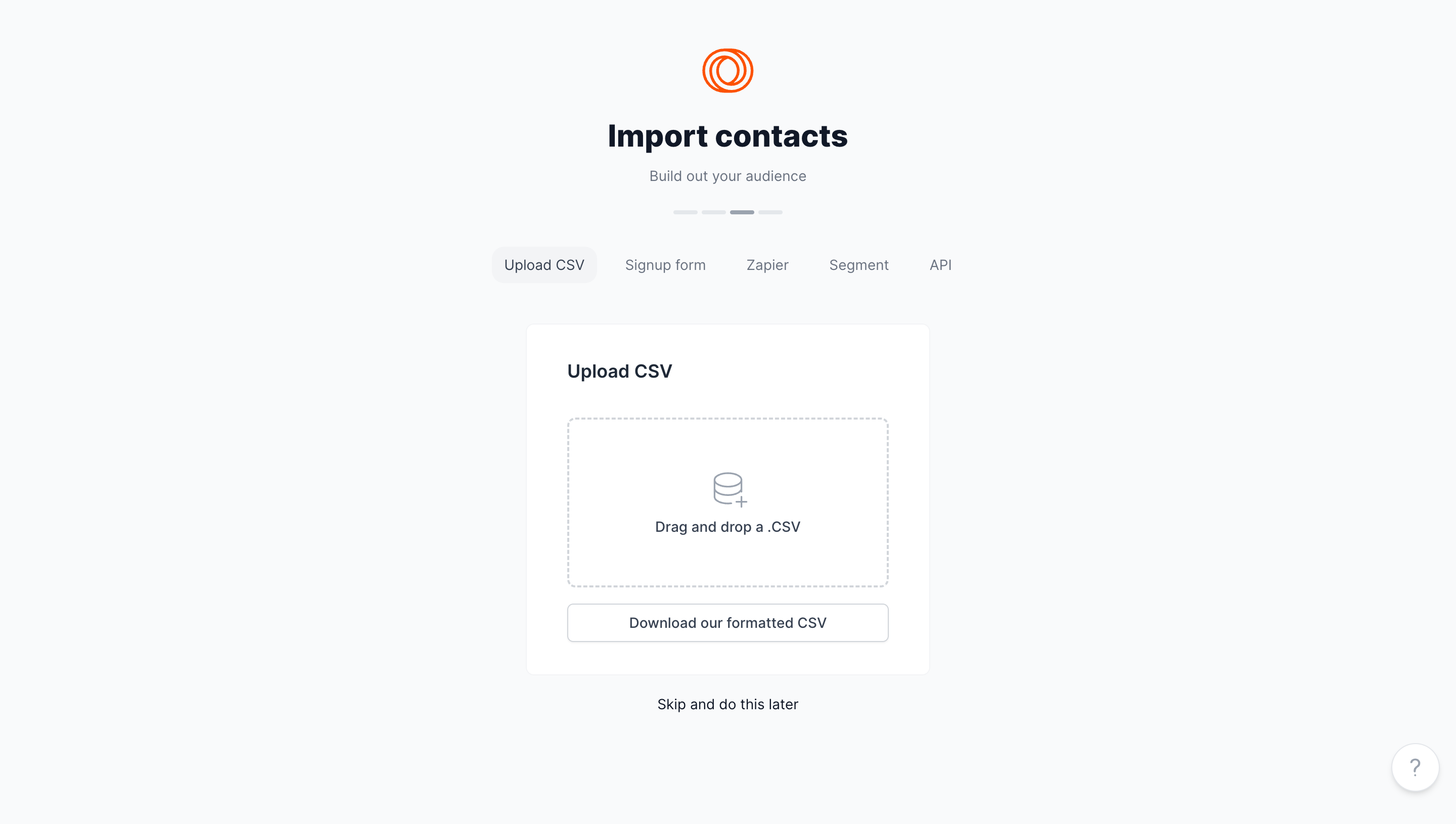
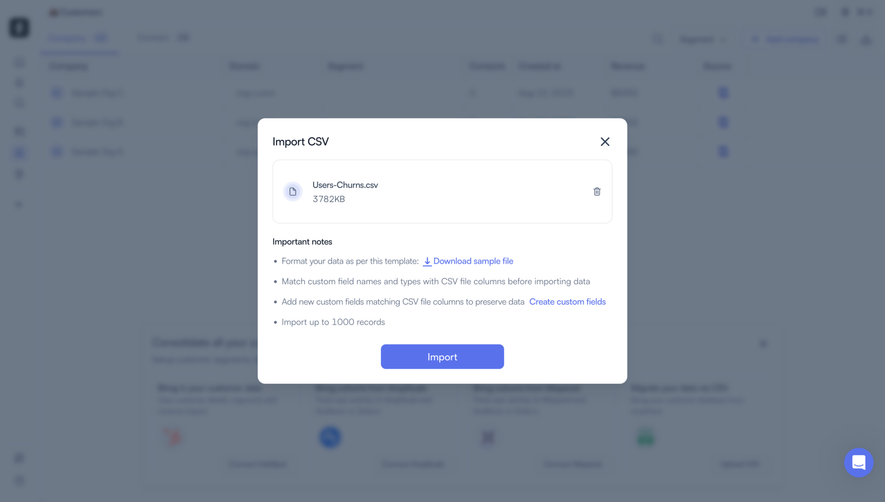
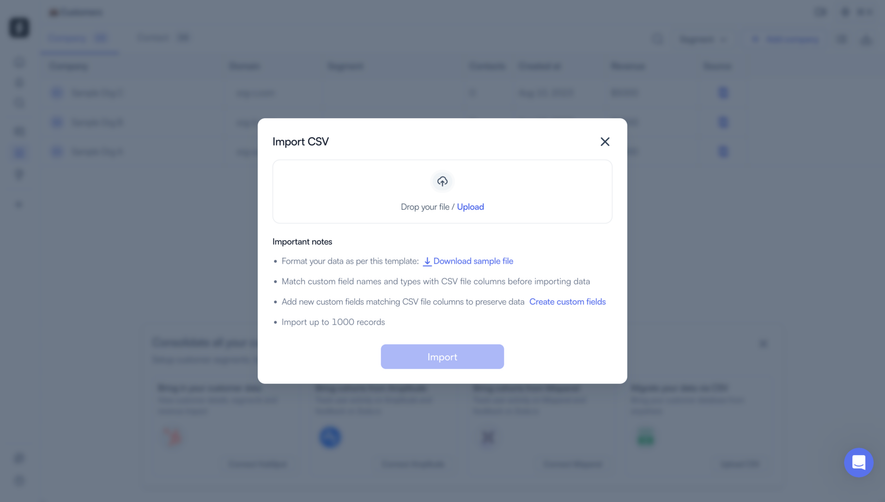
List supported formats and material limits where users select a source. Explain restrictions that affect preparation, such as required columns, file size, date format, or supported folder structure. Avoid a long unrelated specification, but do not hide a requirement that would force the user to rebuild the source file.
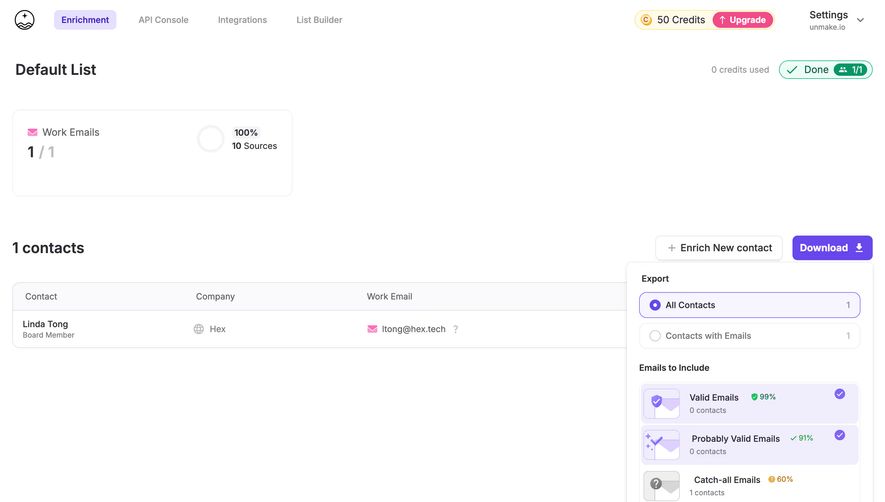
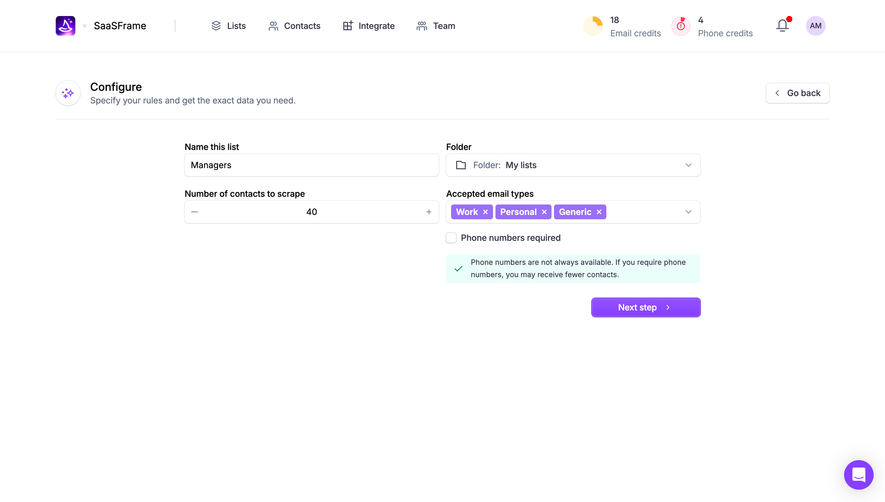
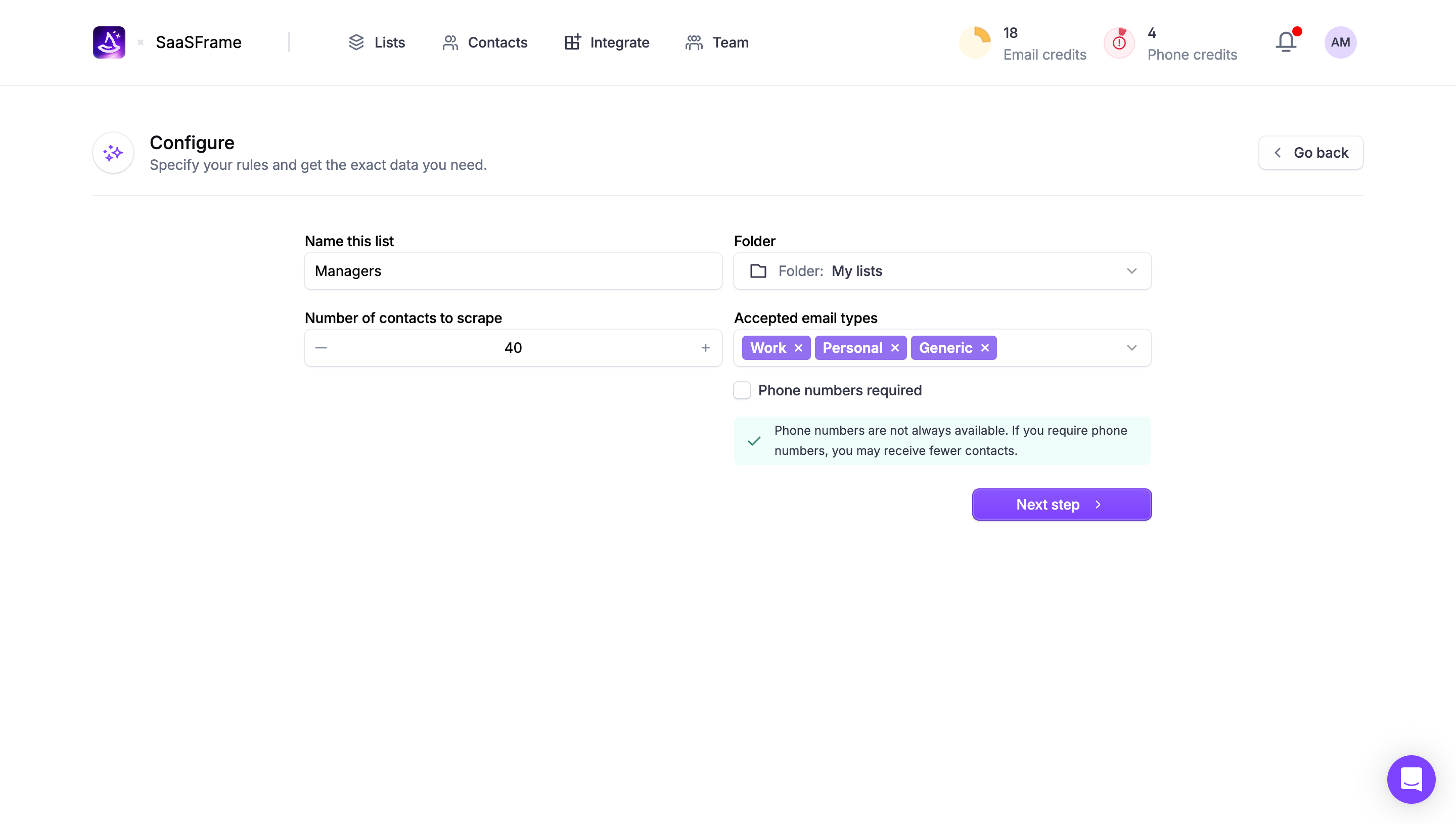
Scope needs equal attention. Import may target the whole workspace, one project, or a selected stage. Export may include all records, a filtered view, or selected items. Identify that scope beside the action and again in review where consequences matter. A button labeled Download should not leave users guessing which data it contains.
Provide an example or template that uses meaningful sample content. The example should illustrate relationships and optional values, not merely column names. Keep it aligned with the actual import parser and product schema. An outdated template can make a well-designed interface unreliable.
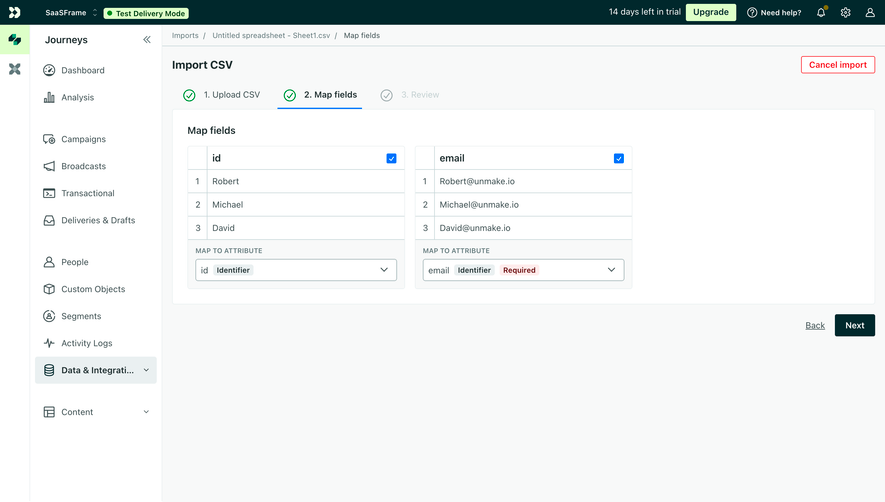
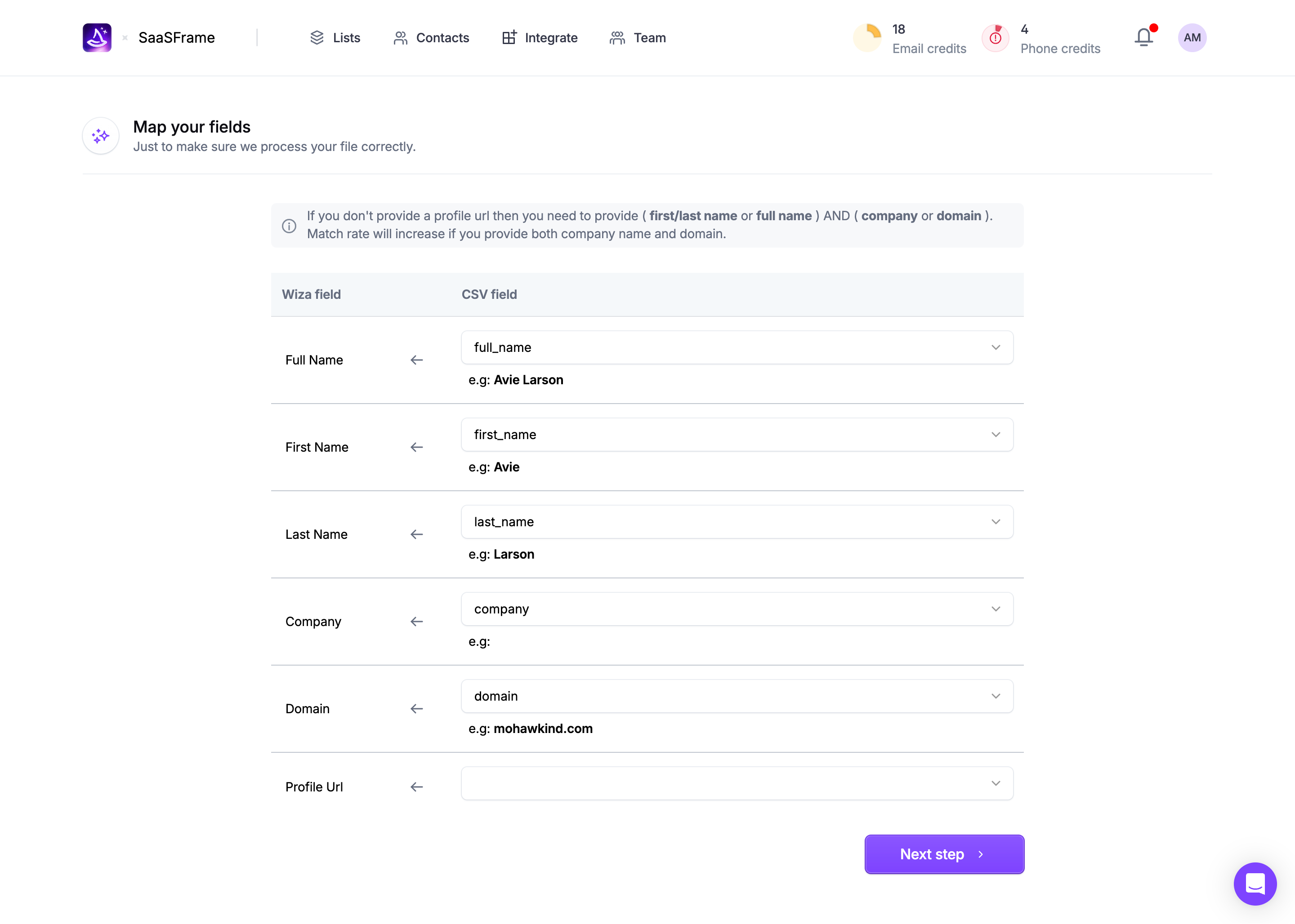
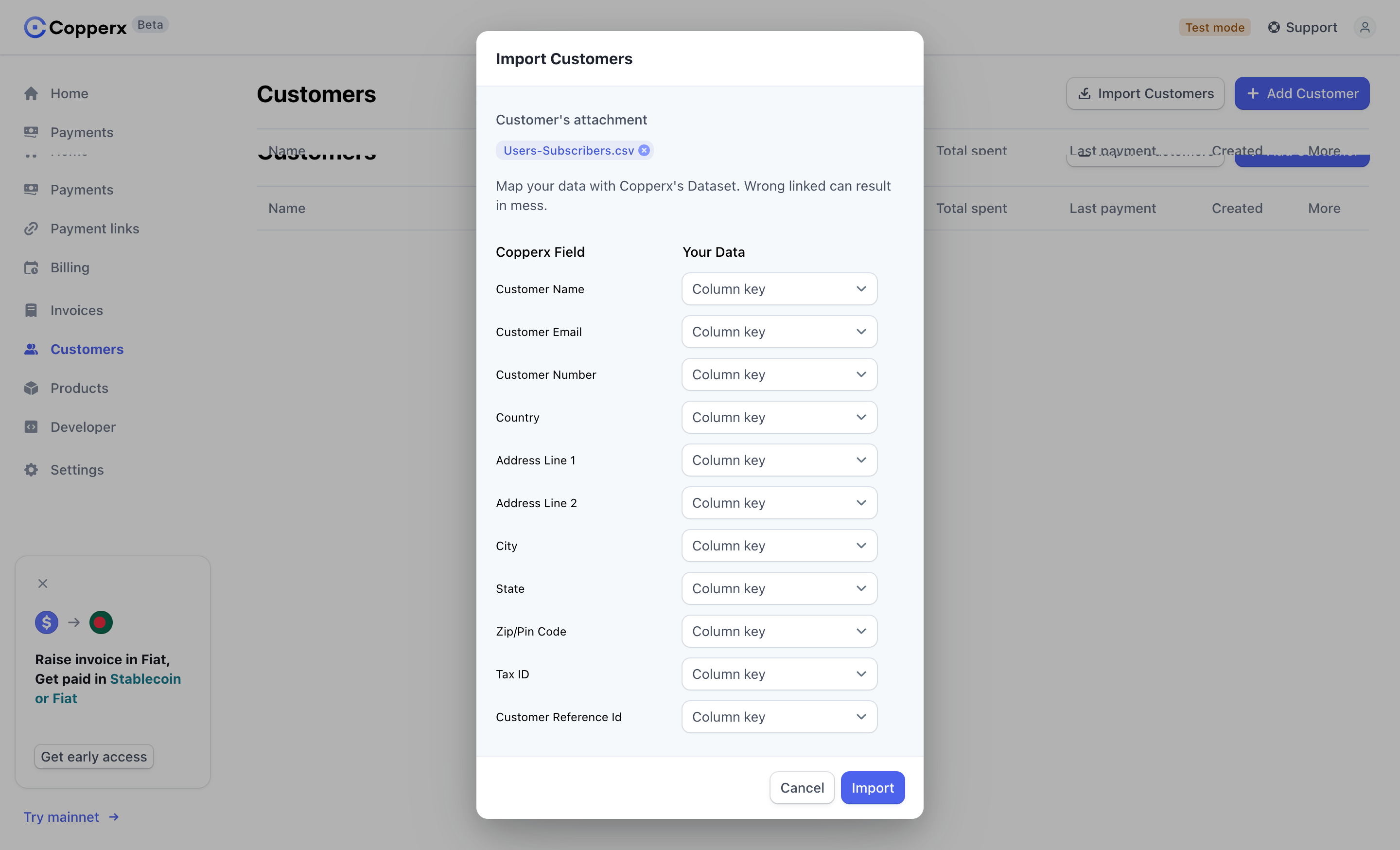
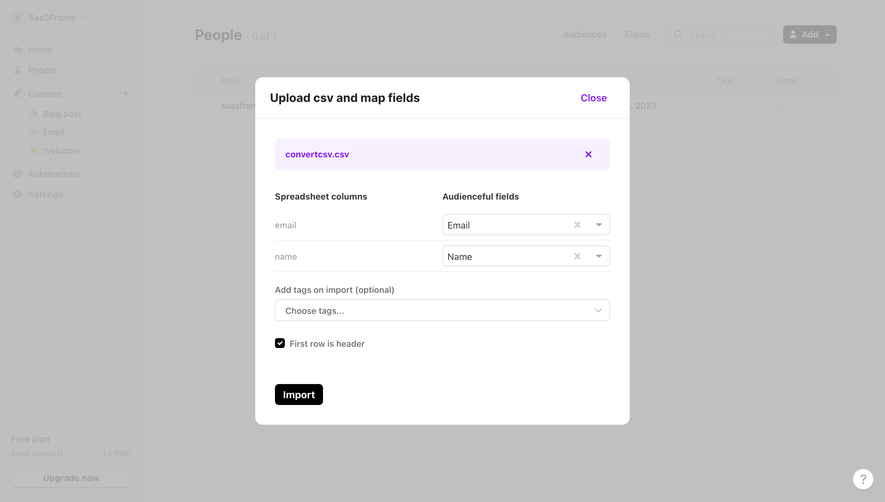
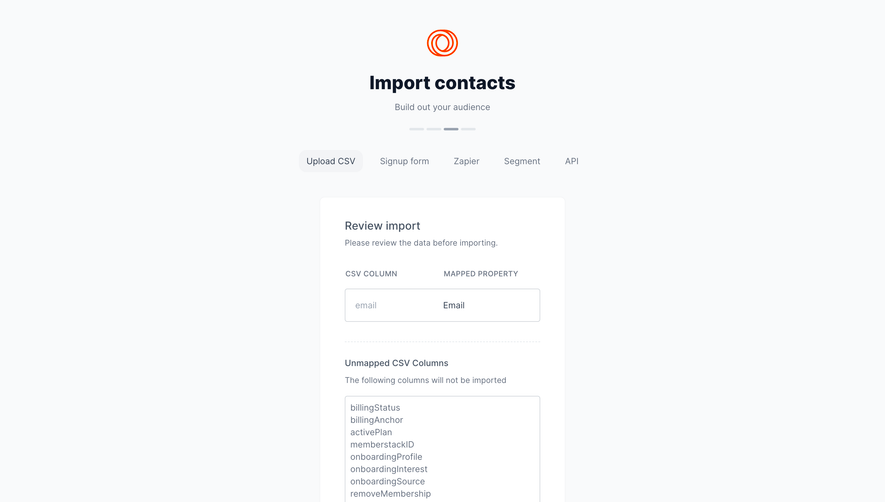
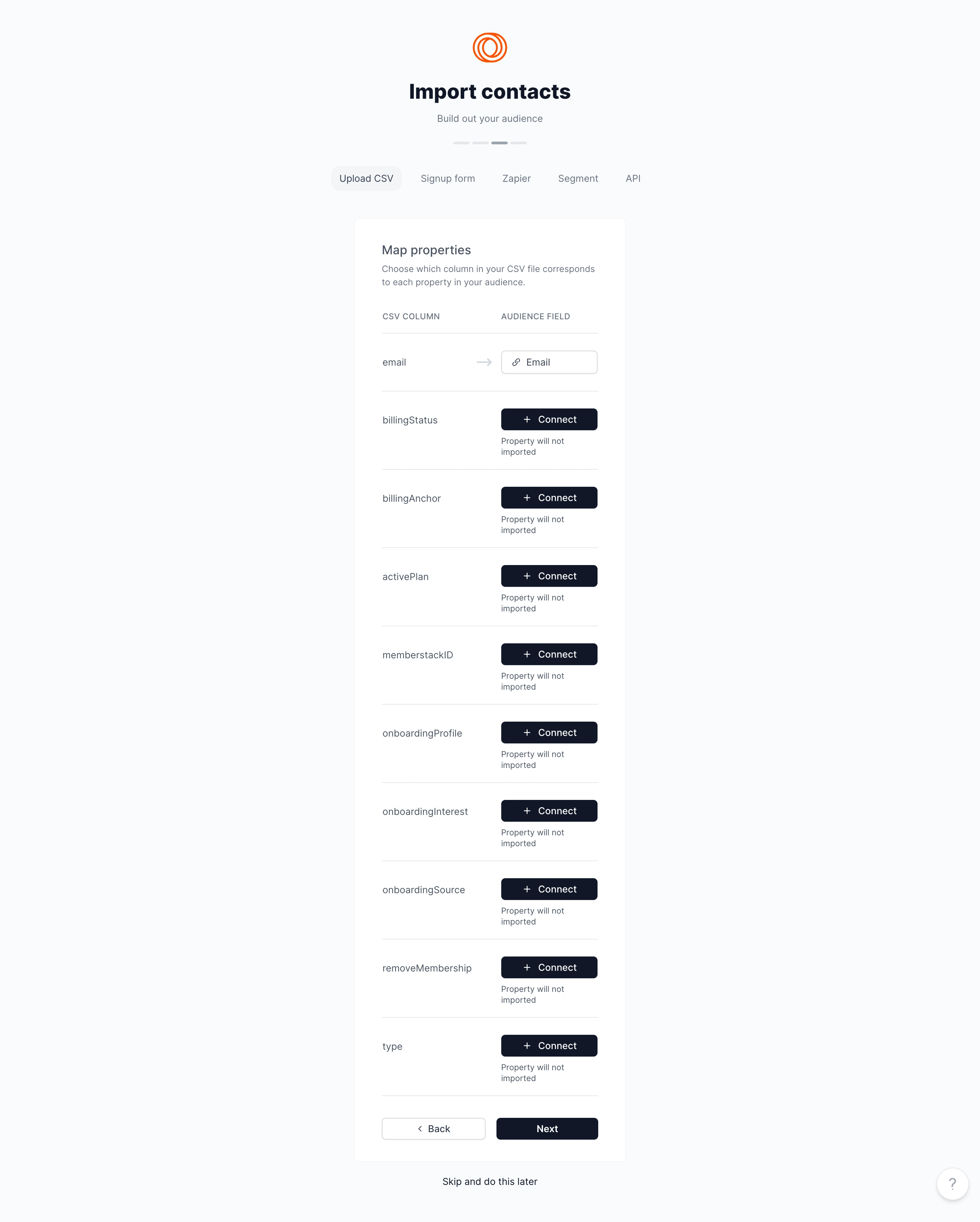
Structured imports often require field mapping. Show how source columns connect to product fields, identify required values, and distinguish recognized mappings from guesses. A preview can help users catch a name mapped to the wrong property or a date interpreted incorrectly before the transfer changes the workspace.
Explain what happens to unmatched columns. They may be ignored, stored as custom fields, or require another choice. Do not silently discard information users reasonably expect to preserve. If the product transforms values, show the relevant interpretation, especially where dates, units, or categories affect meaning.
Validation should identify actionable problems. Report the affected rows or values and provide a way to correct them. A generic invalid-file message does not help users distinguish a format issue from missing required data. Preserve the mapping work when possible so a corrected file does not require rebuilding the entire configuration.
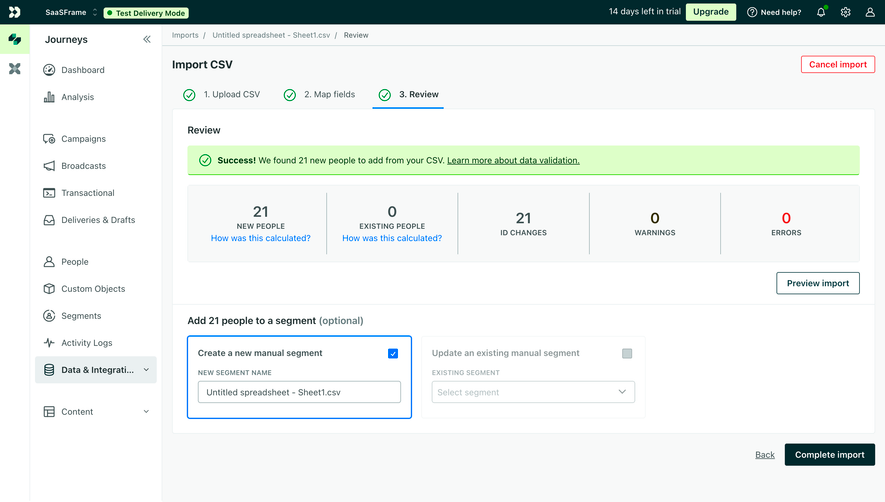
Importing existing records requires a rule for identity. The product may add duplicates, skip matches, or update existing objects. Explain the matching basis and consequences before commitment. A familiar name is not necessarily a unique identifier, and a missing value should not accidentally overwrite useful existing information.
If updates are supported, show which fields may change and how blank values are handled. Distinguish adding new records from updating matched records in the result. A user should not have to inspect the whole workspace to discover whether an import modified existing data.
For assets, clarify duplicate-file behavior where it affects the task. Repeated selection may create another copy, reference an existing asset, or be rejected. Choose the behavior around the product's model and communicate it accurately. Retrying a transfer after uncertainty should not produce unexplained duplication.
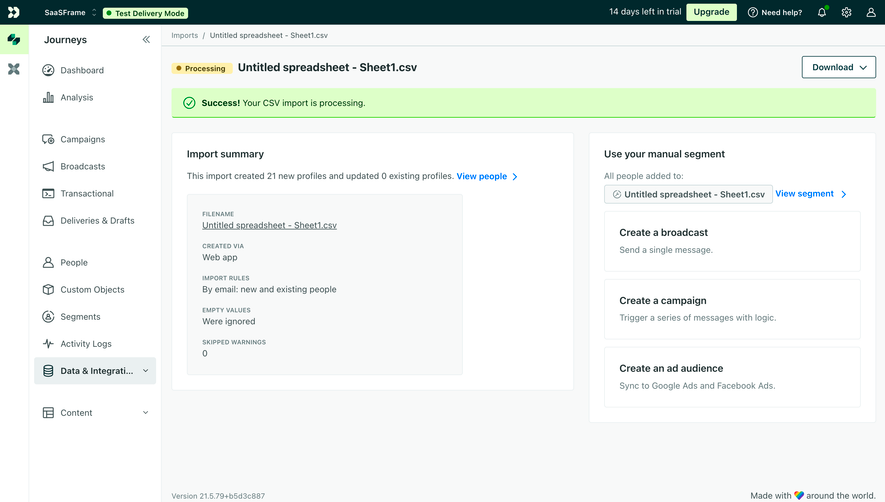
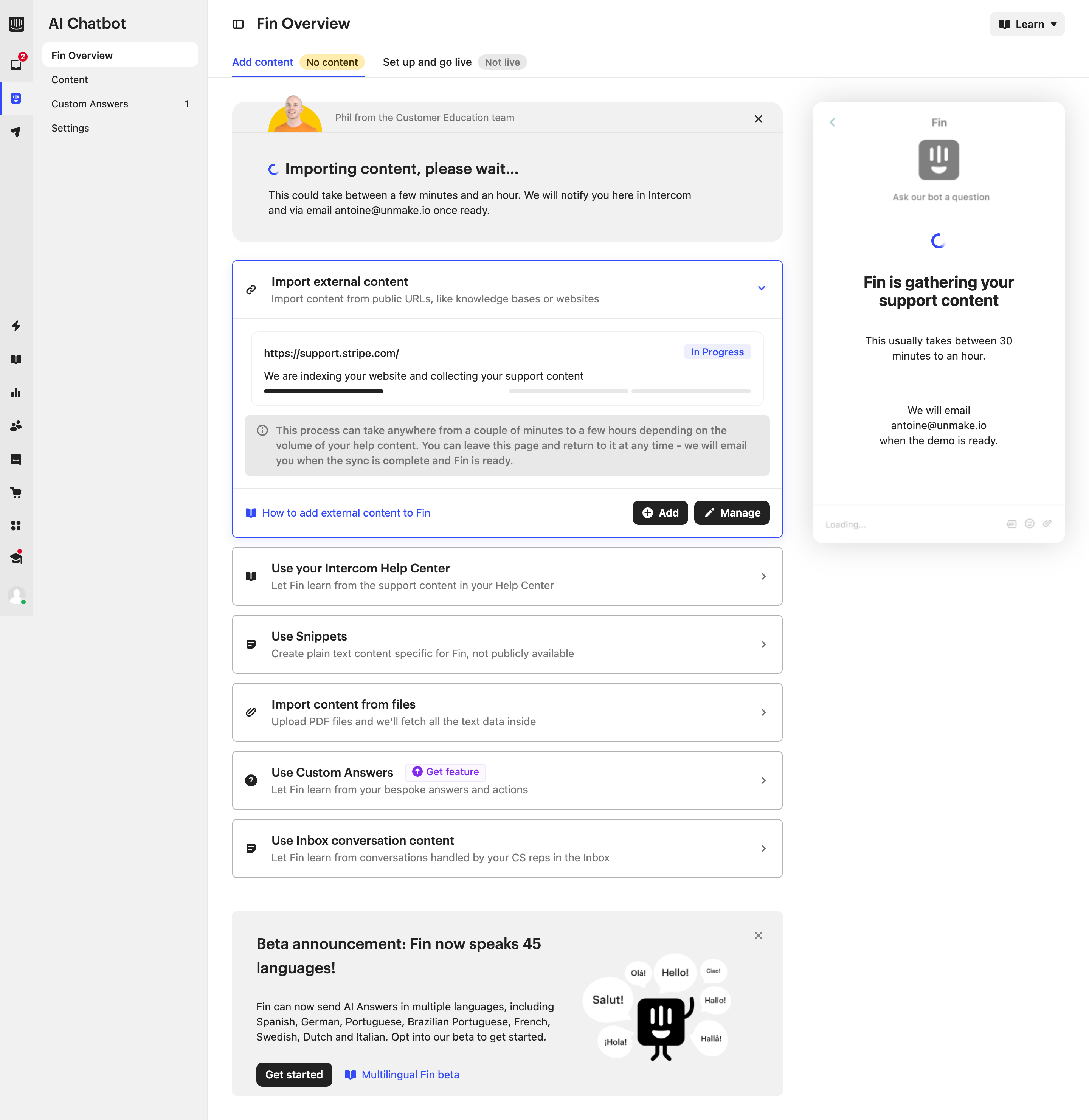
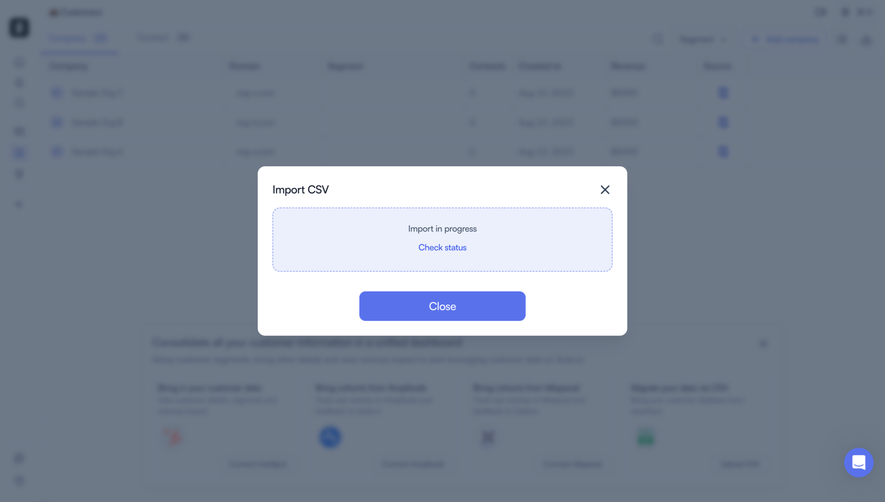
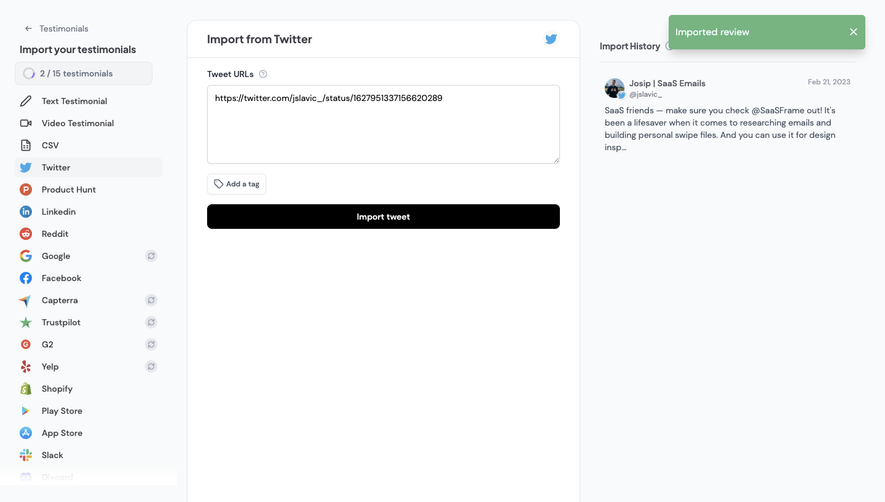
A transfer can take time. Acknowledge the request, identify the operation, and show useful progress when the system can measure it. Distinguish uploaded from processed, because receiving a file is not the same as creating usable records. Avoid a completion state that appears before validation or persistence finishes.
Crew's captured copy explains that completion may be communicated by email. A similar asynchronous flow should let users leave without uncertainty and provide a way to check status. Explain whether closing a dialog cancels the operation or merely closes the view. Those are different actions.
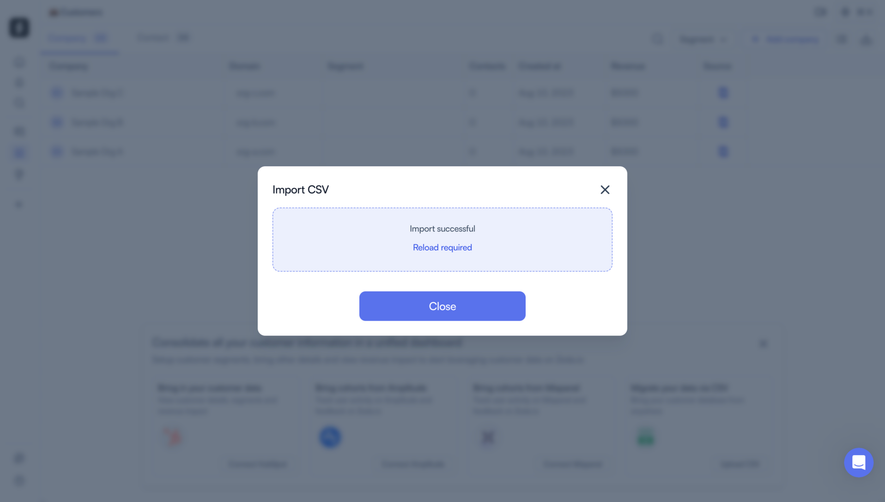
Partial results need a breakdown. Records added, updated, skipped, and failed may each require different follow-up. Provide a report or inspectable list when correction is necessary. Do not call the whole operation successful without acknowledging rejected data, and do not call it entirely failed if useful work completed.
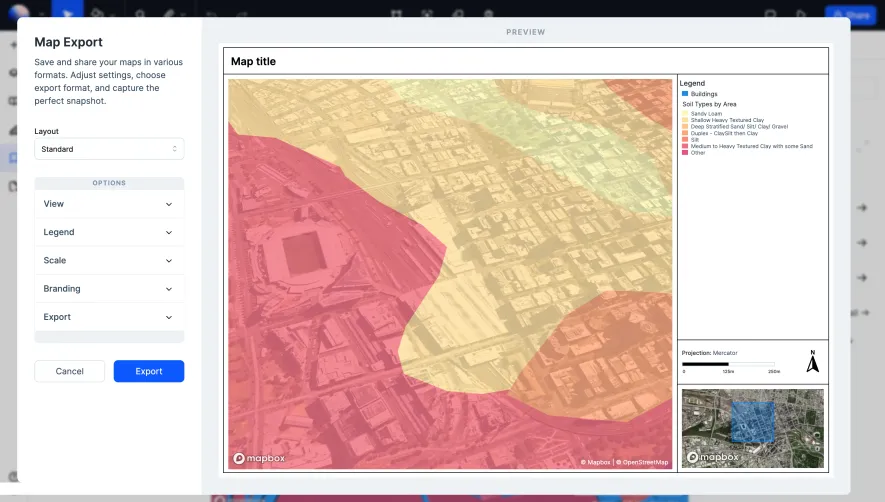
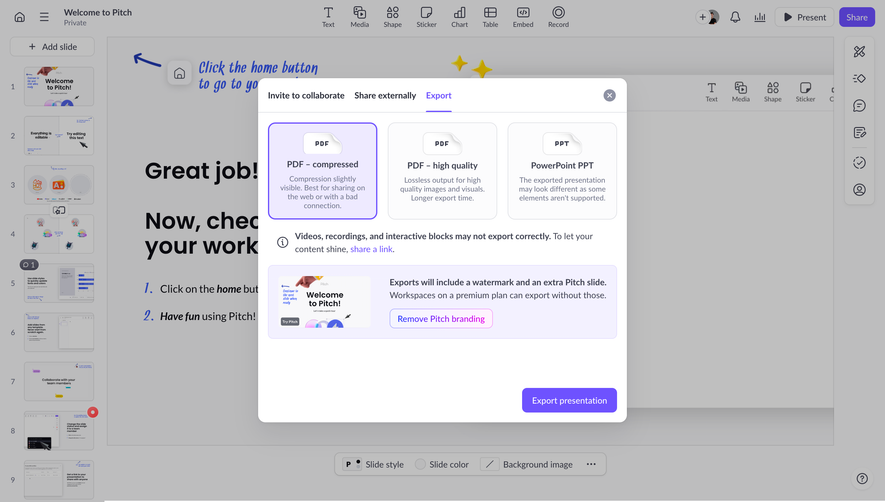
An export should explain its format and contents. A CSV may omit relationships, attachments, formatting, or comments that exist in the application. A media export may preserve files but not every organization structure. Tell users what is represented rather than implying that every export is a complete backup.
Keep important context where appropriate: field labels, units, dates, scope, and the time of generation. A filtered export should remain identifiable as filtered after it leaves the product. If a downloaded file uses internal identifiers, explain their role or provide readable companion values where needed.
For delayed exports, identify the request and delivery route. If links expire or access depends on account permissions, communicate the relevant behavior. A user should be able to distinguish a pending export from a failed request and know how to obtain another copy without repeating unrelated work.
Transfers should follow the user's actual permissions. Access to a filtered view does not necessarily grant access to every record in a workspace. A connected source also needs an accurate account and scope selection. Identify the active workspace and source account where confusion could affect the result.
Recovering from an import may require undoing created objects, restoring previous values, or correcting failed rows. These mechanisms are different. Explain the actual capability and avoid promising a simple reversal if updates cannot be reconstructed reliably. Preserve reports that help users understand what changed.
Test network loss, revoked access, expired delivery links, and repeated requests. Reconcile uncertain completion before encouraging another submission. For large transfers, preserve a useful checkpoint or status view where the product supports it. The two screenshots do not establish these behaviors; they need implementation verification.
Test with realistic files and sources, including duplicates, empty values, unexpected columns, and partial failures. Ask users to explain the destination and update rule before commitment, then locate the resulting records. For export, ask them to open the output and use it for the intended downstream task.
Measure successful usable transfers rather than button activation alone. Repeated import attempts can indicate unclear preparation or unreliable processing. Export requests that never produce a useful file are not completed work. Review correction effort and the accuracy of users' expectations.
Use this checklist:
Include destination readiness in review. An empty workspace can make imported records easy to inspect, while an established workspace may have active automations or shared views that react to new data. Explain relevant effects and test the transfer against the actual environment rather than only a clean demonstration account.
For error reports, preserve a useful connection to the source. A row number, identifier, and specific explanation can help someone correct the original file. If the report contains a corrected subset for retry, distinguish that subset from the complete original transfer. Users should know whether reimporting it affects only failed rows or repeats the entire operation.
No. A connection may support a one-time copy, an ongoing synchronization, or another relationship. Explain what happens to later source changes and what remains after disconnection.
Only where incoming structure needs interpretation. A fixed template can reduce mapping effort, while varied sources may need explicit review. In either case, validate the data and make material transformations understandable.
No. An export may omit relationships, attachments, or application state. Explain what it contains and choose a backup claim only when the output and restoration process actually support it.
Browse the SaaSFrame import and export examples to compare source selection, preparation, and completion interfaces for moving data between products.