Command Palette
2
A keyboard-first overlay for searching and running product commands.
.webp)
A command palette offers a compact entry point to navigation and actions. People can open it, type what they need, inspect matching choices, and activate a destination or command. It is useful when a product contains enough routes or repeated operations that finding them through ordinary navigation becomes cumbersome.
The palette should complement a discoverable interface. It can accelerate familiar work, but it should not become the only way to find essential features. Its main design challenge is to make search, selection, and consequences clear within a small temporary surface.
Navigation results move users to a page or record. Commands perform an action. Search results may identify content that opens a detail view. These categories can coexist, but the result labels and grouping should make their consequences understandable.
Use verbs for actions and recognizable names for destinations. Go to settings communicates navigation; create a project communicates an operation or creation flow. A short noun alone may be ambiguous when several result types share the same vocabulary.
Decide which commands are appropriate for immediate execution. Consequential actions may need a further step that identifies scope and confirms intent. The compact palette should not bypass the clarity required by the underlying workflow.
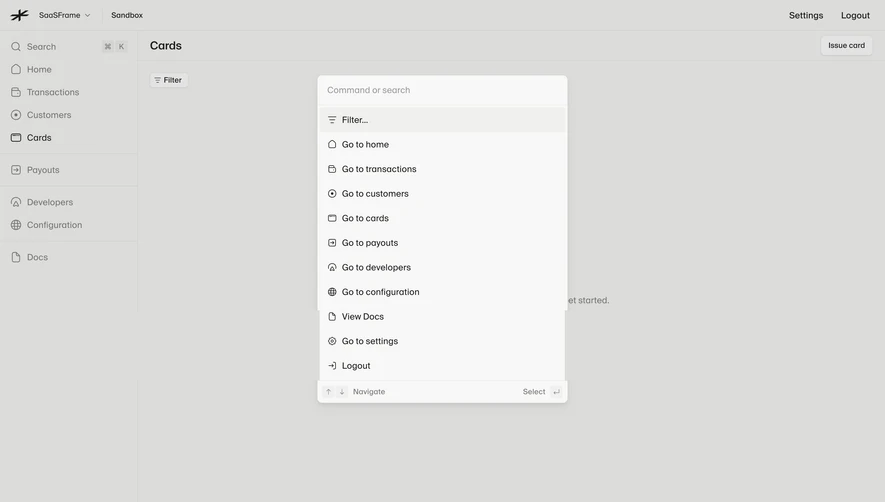
The Lightspark capture shows a centered palette over a dimmed application page. Its input area describes command or search, and the list contains navigation options, a filter entry, documentation, settings, and logout. The application sidebar also exposes a Search entry with a shortcut cue.
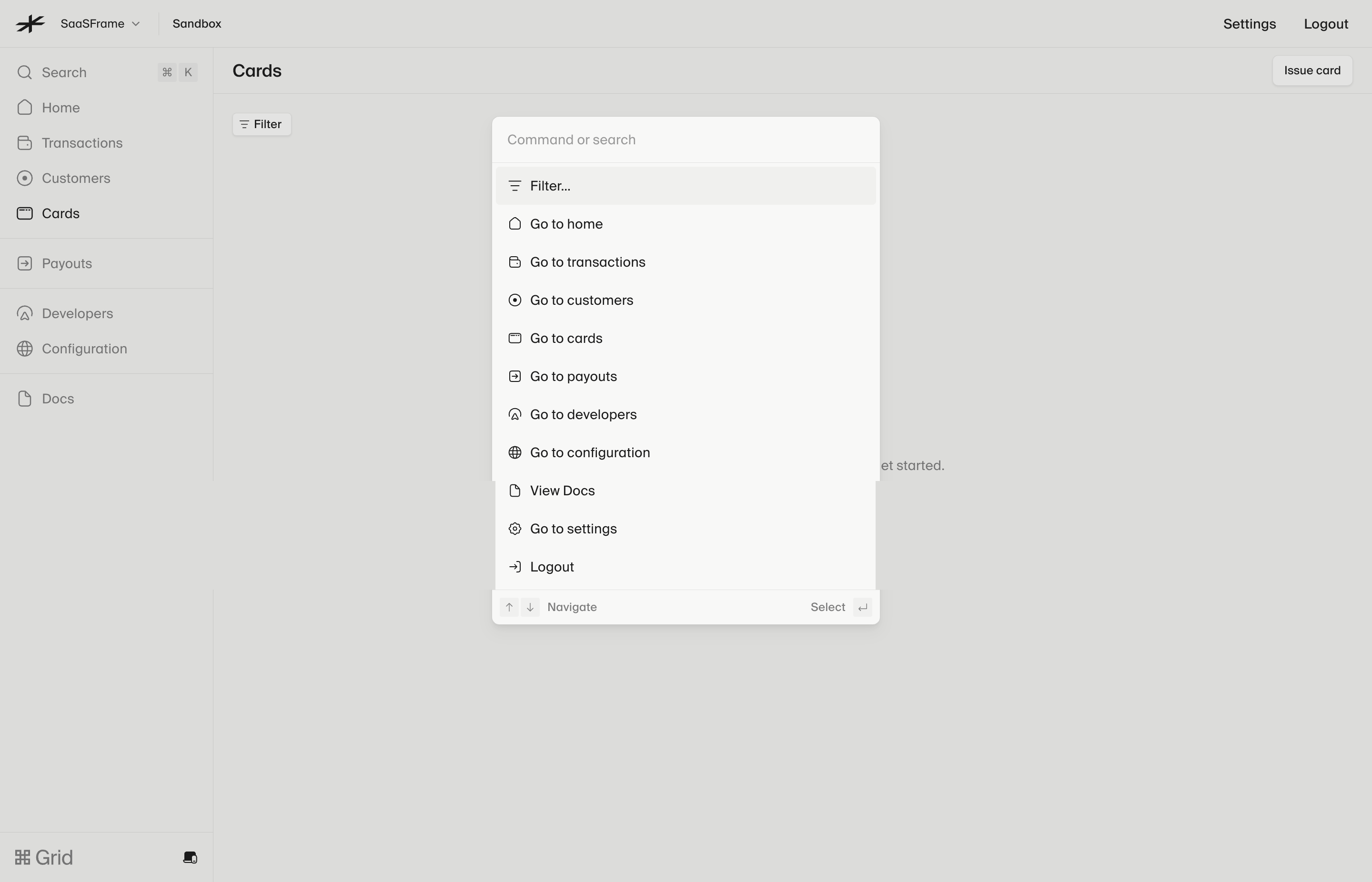
The visible entry point helps people discover the palette without knowing the shortcut in advance. The shortcut cue supports repeat use. The screenshot does not verify that the displayed shortcut works, how the input matches results, or what each item does after selection.
For your product, provide an operable visible route as well as any shortcut. Avoid assuming every user has the same keyboard layout or can use a particular key combination. The palette should remain available through ordinary navigation.
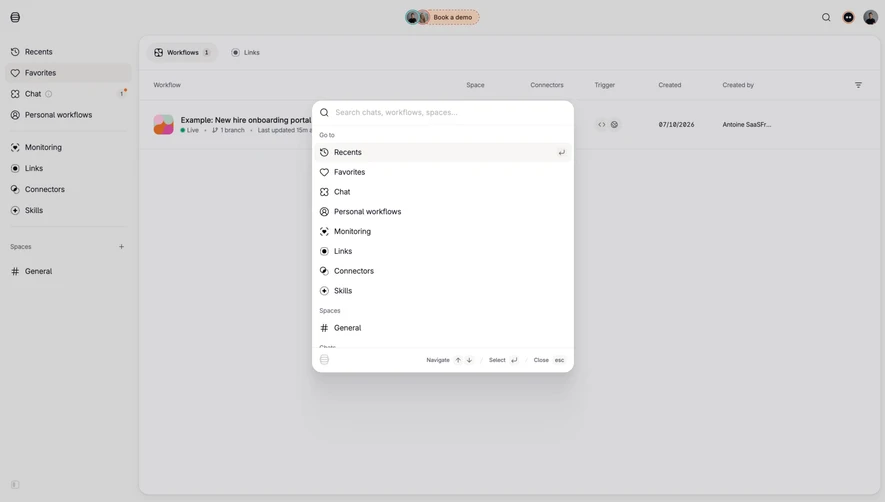
Before typing, the palette can show common destinations, recent items, or context-relevant commands. Choose a set that helps users understand the surface's purpose. An empty box with no guidance may be efficient for experienced users but difficult for newcomers to interpret.
The Lightspark reference exposes several ordinary routes in its initial list. This demonstrates breadth without requiring the visitor to guess a query. A new design can similarly provide useful starting choices while avoiding a long unstructured inventory.
Distinguish suggestions from actual search results when necessary. Recent records, frequently used actions, and matching commands have different reasons for appearing. Clear group labels can explain those relationships without adding much visual weight.
Support the language users naturally use for destinations and tasks. Common synonyms can help someone find a route whose navigation label differs from their query. Avoid requiring exact internal feature names when the audience has not learned them yet.
Keep result ranking understandable enough that users can predict what they are selecting. If a query matches several categories, group or label them clearly. A record named Settings should not be confused with the application settings destination.
Do not silently execute the top match while the visitor is still composing text. Selection should be deliberate, and the highlighted result should remain visible. If results update asynchronously, preserve a coherent relationship between the current query and the available choices.
A highlighted row indicates the current candidate, not a completed choice. Make that state clear visually and in the interaction model. Keyboard navigation should move among available results without performing their actions prematurely.
The Lightspark capture includes a highlighted item and keyboard hints for navigation and selection. These visible cues explain the intended interaction, but the actual behavior still needs testing. A static image cannot establish focus management or selection reliability.
When a result list changes, avoid unexpectedly replacing the highlighted candidate with a different consequential action. If the query has become stale or a result is no longer available, communicate that condition before execution rather than relying on position alone.
Opening the palette should not erase the user's current work. Keep the underlying page recognizable and provide a clear close route. When the palette is dismissed without a selection, return to a sensible place in the original task.
For navigation, make the destination predictable and preserve appropriate return context. For commands, explain whether the action occurs immediately, opens another form, or starts a multi-step workflow. The result label should not promise one behavior while delivering another.
Avoid keeping an obsolete query after navigation in a way that makes the next opening confusing. Decide whether queries and recent selections persist, and make the policy serve repeated work rather than accidental state reuse.
A palette may search the current workspace, the active project, or a broader account. Identify that scope when it affects results. A user should not assume a record is missing when the palette is searching a different context.
Commands can depend on permissions or current selection. Hide or explain unavailable choices according to the workflow, but do not make a disabled result appear broken. A command that requires a selected record should identify that condition.
Keep access consistent with the underlying product. The palette should not expose record details or actions that the user cannot access elsewhere. It is another route into the same workflows, not an exception to their scope.
No matching results can invite a revised query or a broader search. Loading means results are not ready. Failure means the lookup could not complete. Use different messages so users know whether typing something else will help.
Preserve the query through recoverable failures. A retry should not require reconstructing a long search. Keep local navigation commands available when an unrelated remote lookup fails, if the implementation supports that separation.
For slow responses, ensure the final results correspond to the latest query. Older responses should not replace newer choices. The palette's compactness makes this especially important because users may activate the highlighted item quickly.
Use concise primary labels and secondary context that distinguishes similar choices. An icon can reinforce category, but it should not carry the only explanation. A destination's workspace, record type, or location may be more useful than a decorative symbol.
Avoid overwhelming the surface with too many visible groups and keyboard badges. Show the information needed to select confidently, with a route to more complete search when necessary. The palette should remain a focused accelerator rather than a compressed version of the entire application.
On smaller screens, keep input, results, and close controls practical. A centered desktop dialog may need a different layout on mobile, especially when the keyboard appears. Preserve readable labels and access to the current highlighted choice.
Users should be able to open, search, navigate, select, and dismiss the palette without relying on a pointer. Keep focus visible and make the result relationships understandable. Do not let the overlay leave users interacting with obscured controls behind it.
Provide meaningful names for the surface, input, results, and actions. Communicate changing results without repeatedly interrupting typing. The correct implementation depends on the actual interaction model; visual resemblance to a familiar palette is not sufficient.
Test the shortcut for conflicts in the intended environment and offer the visible alternative. Review escape and close behavior, return focus, long labels, unavailable commands, and rapid result changes. Accessibility needs to be verified in the working component, not inferred from keyboard hints in a screenshot.
Ask users to find a known destination and a less familiar action using their own wording. Observe whether the labels, matching, and categories help them predict the consequence. A fast selection of the wrong result is not successful acceleration.
Check repeated use, return context, no matches, slow lookups, permissions, and consequential actions. Keep ordinary navigation available and assess whether the palette improves discoverability or merely hides existing problems.
Explore the SaaSFrame command-palette collection to study entry points, result labels, and keyboard guidance. Adapt the visual hierarchy to your commands, then verify the interaction model directly.
Can it replace the main navigation? It is usually more useful as a complementary route. Essential destinations should remain discoverable without requiring a shortcut or guessed query.
Should every command run immediately? No. Actions with significant consequences may need a further step that clarifies scope and intent. The palette should preserve the underlying workflow's safeguards and meaning.
What belongs in the initial list? Show choices that help users understand the surface and resume common work. Common destinations, recent items, or contextual commands can work when their reasons for appearing are clear.