Activity Log
4
A chronological record of user actions, changes, or system events.
.webp)
An activity log records events so users can understand what happened to a resource, workflow, or account. It is useful when the current state alone is insufficient: a process completed but produced no output, a delivery failed, or a setting changed unexpectedly. The log should help people reconstruct the relevant sequence and decide what to do next.
An activity log is not necessarily a formal audit record. Audit logs often emphasize accountability and controlled evidence; an activity log may focus on operational understanding. A social activity feed serves another purpose again, emphasizing updates people want to follow. Define the question your history answers before choosing its density and retention behavior.
People rarely open a log simply to admire chronology. They arrive with a question: why did this run fail, who changed the setting, was this message delivered, or which output belongs to this execution? Make the event’s subject and outcome visible before exposing every technical field.
A useful event record often combines an action, a resource, an actor or system origin, a time, and a result. The exact fields depend on the workflow. A webhook delivery needs an endpoint and attempt result; a content edit needs the item and changed property. Do not force unrelated events into a generic sentence that removes the distinction.
Decide whether users need a workspace-wide view, a resource-specific history, or both. A global history helps discovery; a local history helps investigation. Connecting them lets people move from a broad anomaly to the relevant object without repeating the search.
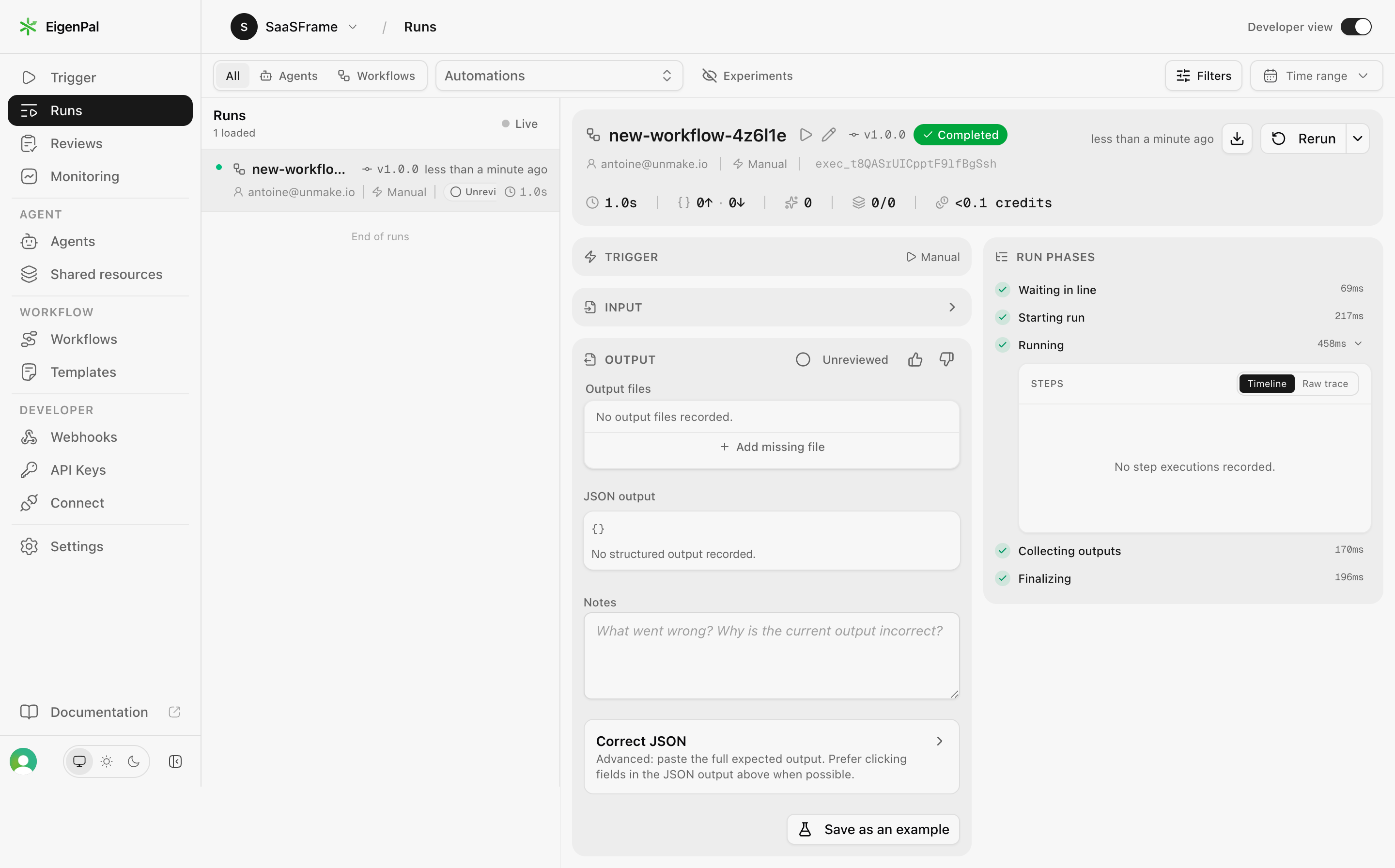
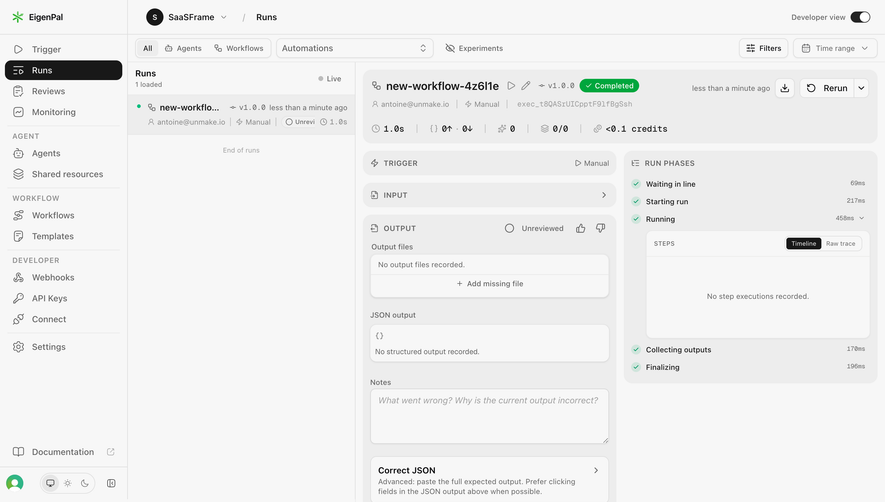
The EigenPal capture places a run list on the left and a selected execution on the right. The header identifies the workflow, version, completed state, initiating user, manual trigger, execution identifier, and duration. Filters and a time-range control sit above the history.
This arrangement supports a useful investigation pattern: scan the list, select an event, then inspect it without losing the surrounding set. The metadata distinguishes one execution from another even when the workflow name is unchanged.
The selected run also separates input, output, and run phases. Its completed state appears alongside empty output messages and an unreviewed output state. That separation matters: successful execution and useful output are different outcomes. A single green badge should not imply that every downstream objective was achieved.
The screenshot is evidence of the visible information hierarchy. It does not establish whether updates stream in real time, which history is retained, or how reruns behave. Those questions require testing the working system.
At the list level, give enough information to choose the relevant event: subject, outcome, and time. In the detail view, reveal the fields needed to explain it. This layered approach allows a history to remain scannable without withholding useful evidence.
Use specific event names. “Updated” may be too vague when users need to know whether a title changed, access was granted, or a deployment started. If the log supports several event types, use consistent wording while preserving the meaningful differences.
For human actions, show the actor when appropriate. For automated actions, identify the automation or integration rather than implying a person initiated them. If the actor is unknown, state that condition; do not attach a current owner to an event merely because the resource belongs to them.
Technical identifiers can be secondary yet available. A readable workflow name helps scanning; an execution ID helps support and diagnosis. Provide a copy action when the identifier is commonly used outside the interface.

A second EigenPal capture shows a webhook configuration with an Events section. A selected test event displays its type, status, timestamp, HTTP status, and attempt count. Below that summary, the attempt has its own duration, time, and response content, followed by the message payload.
This distinction is valuable whenever one logical event can produce several operational attempts. Repeated delivery should not appear as unrelated activity with no connection to the original event. The user needs to see both the overall outcome and the evidence for each attempt.
The visible “Redeliver” action also sits beside the selected event. That placement creates a clear contextual action, but its consequences still need explanation in an implementation. Users should know whether redelivery repeats a message, starts a new operation, or can produce duplicate downstream effects.
The HTTP result and the displayed response are separate evidence. A delivery accepted by an endpoint does not by itself prove that the intended business action occurred. A diagnostic view should help users inspect that difference rather than treating one status code as the whole story.
Relative time such as “less than a minute ago” helps users notice recent activity. Exact timestamps help compare events, discuss incidents, and correlate records across systems. Provide both where the task requires them and make the timezone understandable.
Do not let relative labels become the only durable reference. A screenshot of “two hours ago” is difficult to reconcile later. An exact timestamp available in the detail view or tooltip can support a more precise conversation, provided it is accessible beyond hover.
Decide which timestamp each label represents. Creation, execution start, completion, receipt, and last update can all differ. A run duration needs defined start and end points; an event’s position in the list needs a clear ordering rule.
During live updates, avoid moving the selected row unexpectedly. New events can be announced or collected above the list while the current investigation remains stable. If the user chooses to follow the latest activity, make that mode explicit.
Users may remember a workflow name, a failure state, a person, or a rough time window rather than an exact event ID. Provide filters that reflect those recollections. A search box alone may not help if the event labels are technical or abbreviated.
Keep active filters visible and make clearing them straightforward. An empty result should distinguish “no activity exists” from “nothing matches this filter.” Offer a sensible action, such as widening the time range, rather than implying the history is broken.
If filters combine, clarify whether selections narrow or broaden the result. An investigator choosing two event types generally needs to understand whether both are included. Persisting a useful filter can help repeat investigations, but it should not hide new activity when the page is revisited unexpectedly.
Use pagination or controlled loading suited to long histories. Preserve the selected event while more rows load, and avoid fetching an entire history just to show its first screen. Deep links should still reach older events that are outside the initially loaded set.
An empty output, an unavailable payload, and a loading trace are different conditions. Label them separately. EigenPal’s captured “No output files recorded” and “No structured output recorded” identify missing output artifacts without changing the visible execution result.
A log can also be partial because a recording source was unavailable or the event predates retention. Explain known gaps when they affect interpretation. Avoid presenting a truncated history as a complete account of everything that happened.
When the detail request fails, preserve the event summary and offer a retry. Removing the selected event makes the investigator lose orientation. If a resource was deleted, the historical entry may still need a readable identity without pretending that the resource can be opened.
Use explicit text for status rather than color alone. An icon and a short label make results scannable while keeping their meaning available to users with different color perception or display settings.
A history becomes more useful when it offers actions grounded in the selected event. These might include opening the resource, copying an ID, viewing an input, downloading a record, or repeating an operation. Do not place a generic “fix” button beside every failure if the product cannot reliably resolve it.
Retries and reruns deserve special care. Explain whether they use the original inputs or current configuration. A workflow may have changed since the failed execution, so “Rerun” can otherwise conceal a materially different operation.
Preserve the relationship between the original and repeated event. If a retry creates a new record, link them so the investigator can tell whether the problem was resolved. Avoid overwriting the failed event with the successful state of a later attempt.
When exporting history, include the meaningful labels, exact times, and relevant identifiers. A file containing only internal IDs may be difficult to use outside the application. Export should also respect the permissions and data scope of the user requesting it.
Logs may contain customer data, payloads, endpoint details, or internal identifiers. Decide what each role can inspect. A history visible to a general workspace member does not necessarily justify exposing every raw request or response.
Apply the same access rules to list previews, detail panels, search results, and exports. Restricting only the final detail view may still leak information through summaries. Mask sensitive fields where the product’s policy requires it and make the masked state understandable.
Do not advertise an activity log as tamper-proof or suitable for compliance unless those properties are actually established. Visual chronology and a professional-looking table do not guarantee integrity, completeness, or a particular retention policy.
Test whether someone can find a known event, identify its outcome, inspect the relevant evidence, and choose the next action. Include repeated attempts, missing output, a changed workflow version, an older event, and a denied detail view.
An activity log often supports operational understanding and diagnosis. An audit log emphasizes accountable evidence. Some products combine them, but the interface should not promise audit properties without the supporting system behavior.
No. Execution completion, artifact creation, and output review are separate states. Show them separately when each matters to the user’s task.
Preserve the original evidence and connect retries to it. Users need to understand the sequence and determine which attempt produced the final result.
Explore SaaSFrame’s activity log examples with audit logs, webhooks, and status indicators to compare how products make operational history readable.