.avif)

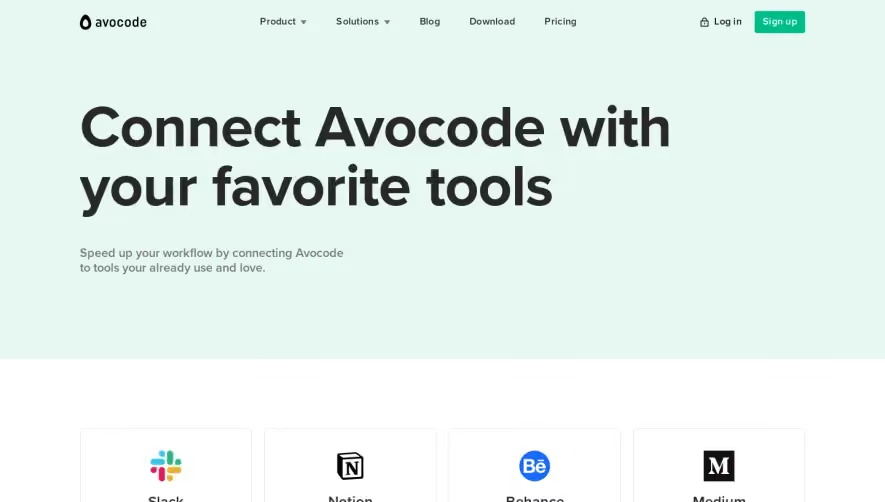
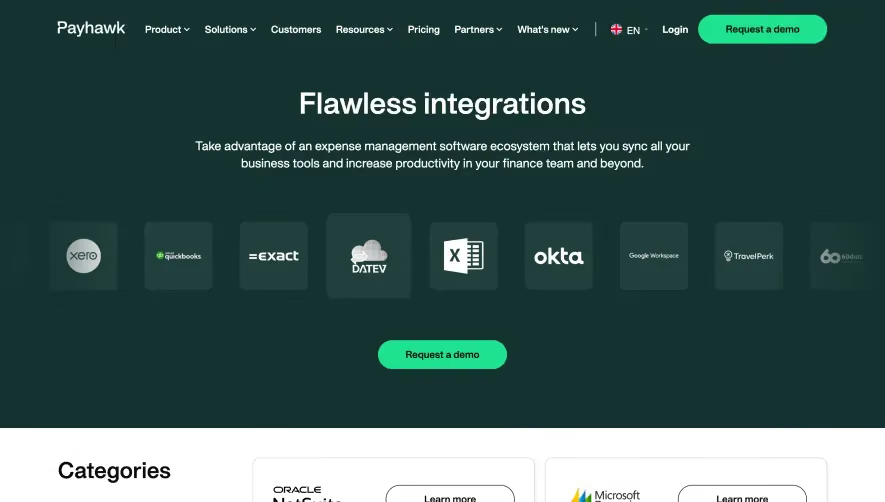
1. Header: The Mailchimp logo is at the top left while the navigation menu is on the right. The navigation menu has links to different sections of the page such as Integrations, Resources, Pricing, and Sign up. 2. Hero banner: This section has a large banner image with a tagline text: "Connect Mailchimp with your favorite apps". There is also an "Explore integrations" button that directs you to the list of integrations offered. 3. Integration categories: The next section on the page is titled "All Integrations" and it lists different categories of integrations such as E-commerce, Marketing Automation, Social Media, and CRM. Each category has a brief description and a button that directs you to the integrations. 4. Integration list: This section lists the different integrations offered by Mailchimp. Each integration is represented by an image, a short description, a "Learn More" button, and a "Get App" button. 5. Filtering options: On the left-hand side of the page, there is a filtering option that allows you to refine your search. You can filter the integrations based on the integration category, integration type, pricing, and compatibility with Mailchimp. 6. Resources section: This section has links to different resources such as guides, case studies, tutorials, and webinars. It also has a search bar that allows you to search for specific resources. 7. Footer: The footer has links to different sections of the Mailchimp website such as About Us, Contact Us, and Legal. It also has social media icons and a language selector. Overall, the page is well-structured with a clear hierarchy of information. The hero banner and integration categories sections provide a brief overview of the integrations offered while the filtering options and integration list sections allow users to find more detailed information. The resources section and the footer provide additional helpful information and resources for visitors.
.webp)


Mailchimp Integrations Page

Mailchimp
Smart all-in-one Marketing Platform
Designed by
No items found.
Category
Patterns
No items found.
Tech Stack
Added on
March 17, 2023