.webp)

Fintech onboarding has to do several jobs at once. It must collect accurate information, establish trust, introduce security requirements and move the user toward a meaningful first action.
That makes account setup fundamentally different from a conventional SaaS sign-up flow. Removing every field is not always possible—or even desirable. The design challenge is to make necessary complexity feel understandable, predictable and worth completing.
We reviewed the 91 fintech account setup screens collected on SaaSFrame and selected eight examples that demonstrate useful UX patterns. Together, they show how real products structure choices, explain sensitive steps and maintain momentum across longer flows.
1. Wise: segment users before collecting details
Wise begins by asking users to choose between a personal and business account. Each option combines a recognizable illustration, a direct label and one sentence describing the expected use case.

This is more than personalization. The answer changes what information the product will need later, so asking it first prevents irrelevant questions from appearing downstream.
What works:
- The two paths are mutually exclusive and easy to compare.
- The supporting copy describes outcomes rather than internal account terminology.
- A visible progress indicator previews the next stages: country, 2FA and password.
- The note below the cards clarifies a constraint before the user commits.
Design takeaway: ask branching questions early when they materially change the rest of the flow. Do not make every customer complete the same generic form.
2. Current: turn organization setup into one focused task
Current’s workspace setup presents only the information needed to create a recognizable team environment: a logo, workspace name and URL.
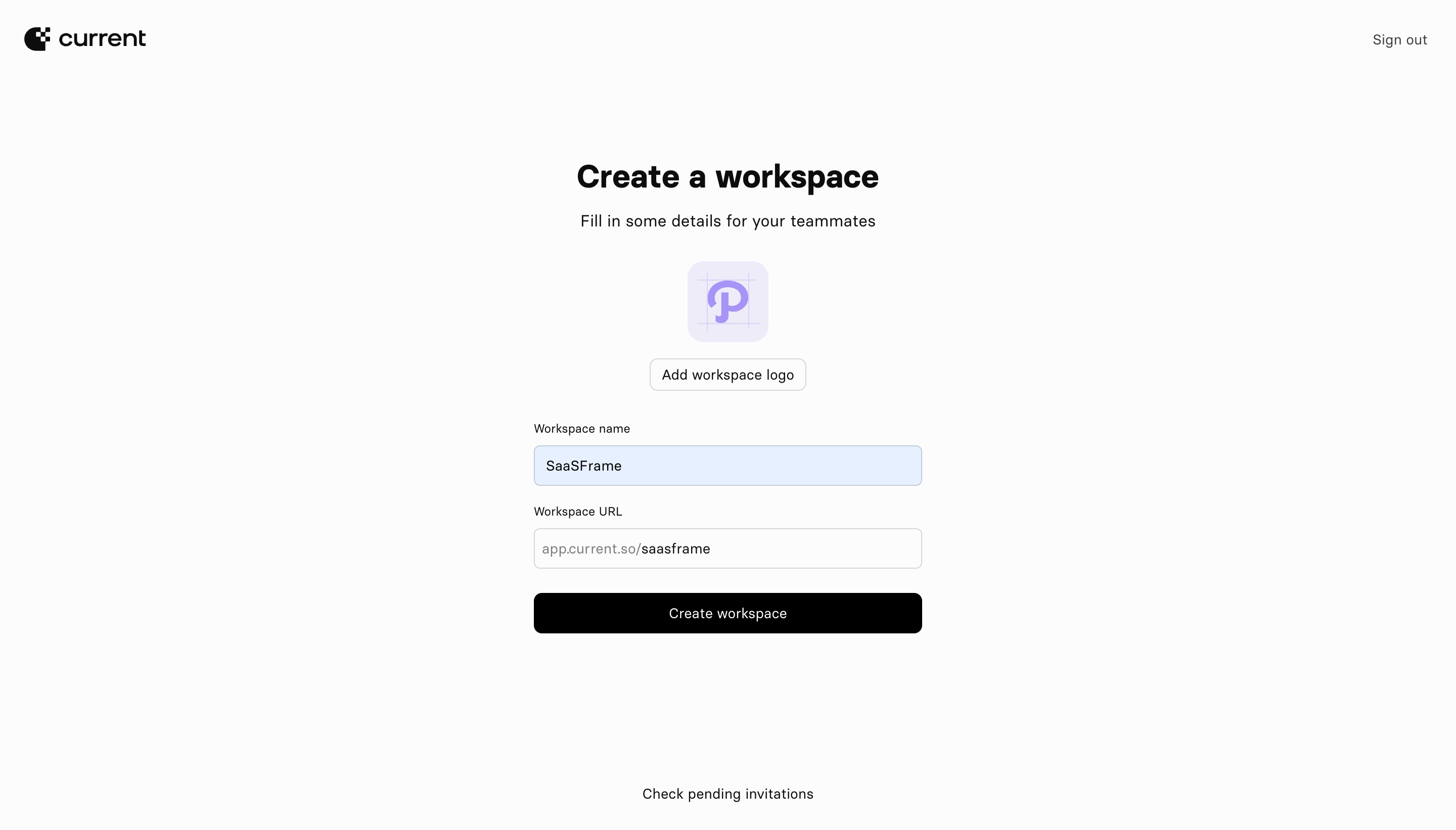
The page feels light because the form has one clear purpose. It does not combine company identity, billing, compliance and invitations into a single screen.
What works:
- A strong page title explains the outcome.
- The subtitle tells users who will benefit from the information.
- The workspace URL is previewed inside the field, reducing ambiguity.
- The full-width primary action creates a clear endpoint.
- “Check pending invitations” provides a useful secondary path without competing with the main task.
Design takeaway: group fields by user goal, not by database model. A short, coherent step feels easier than an equally short collection of unrelated inputs.
3. Copperx: personalize the product while showing the payoff
Copperx asks users which payment products they want to use: checkout, recurring billing, invoices, payment links or developer APIs.
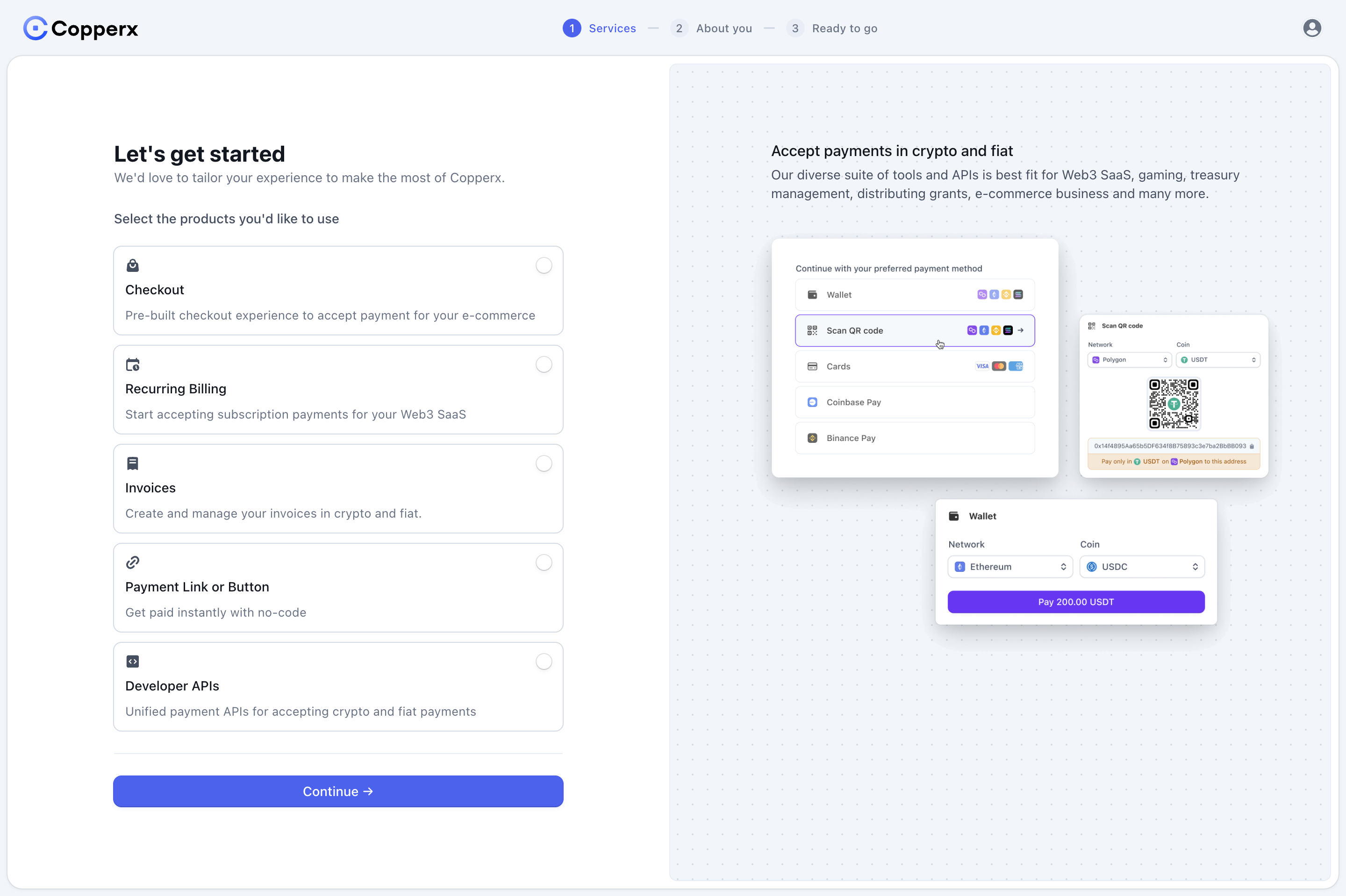
The split-screen layout is particularly effective. The left side asks for input while the right side shows concrete interfaces and outcomes. The user is not choosing from abstract feature names alone.
What works:
- Each option has a short outcome-oriented description.
- The step indicator reduces uncertainty about the remaining effort.
- The product preview makes the setup feel connected to future value.
- The choices can tailor the dashboard and the next onboarding questions.
Design takeaway: when onboarding asks users to configure a complex product, show what the configuration will unlock. Value previews make setup feel like progress rather than administration.
4. Cake Equity: explain roles before asking for data
Cake Equity opens with a role-based choice: create a company account or continue as an investor or employee.
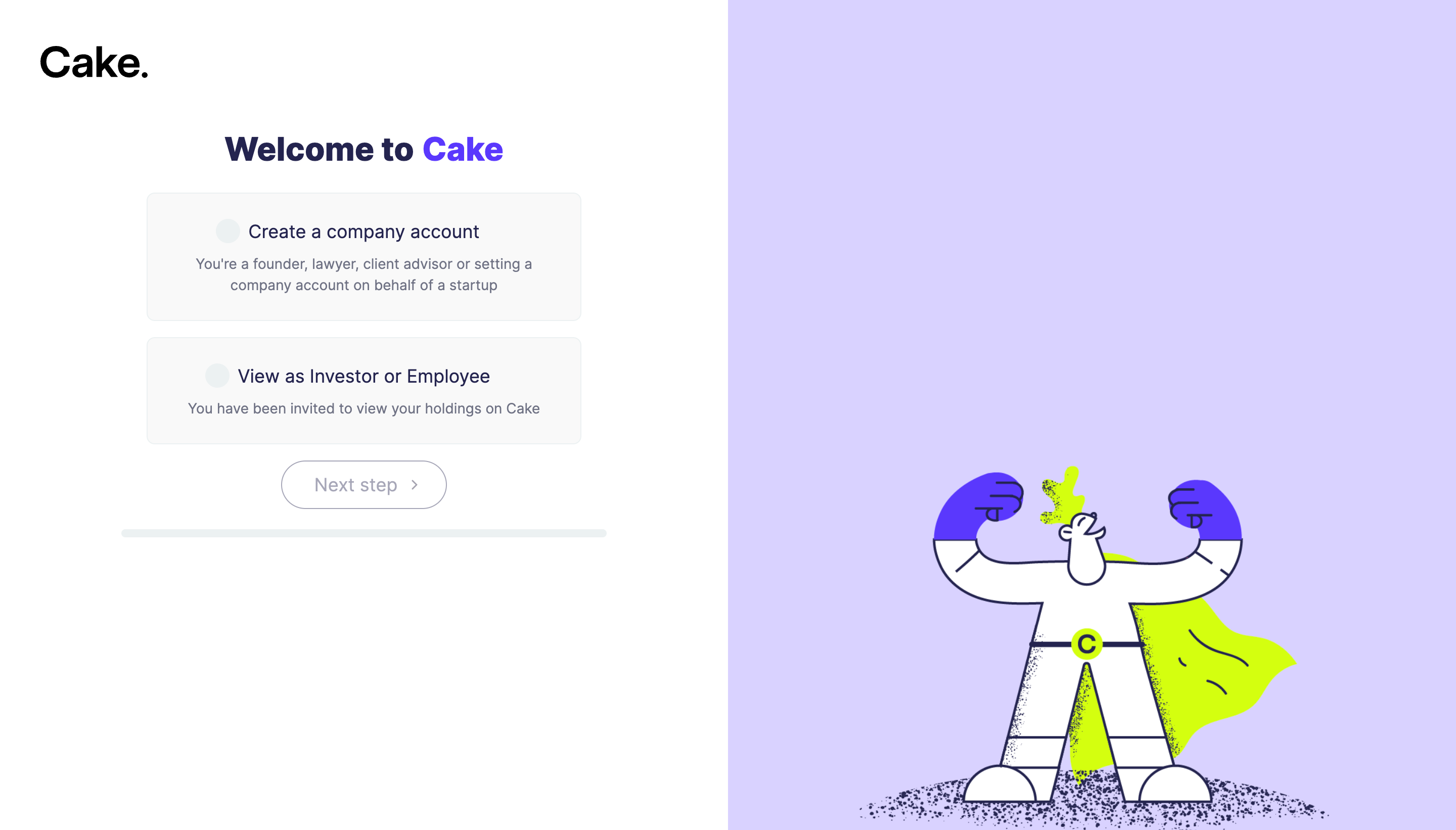
The descriptions remove a potentially costly mistake. A founder setting up a company and an employee checking their holdings need different permissions, different data and different guidance.
The disabled “Next step” button also makes the interaction model explicit: choose one route before continuing.
Design takeaway: do not ask users to understand your permission system. Describe each path using the situation that brought them to the product.
5. Arc: make security a guided decision
Security steps are necessary in financial products, but they often appear as unexplained obstacles. Arc frames MFA as a choice between two understandable methods.
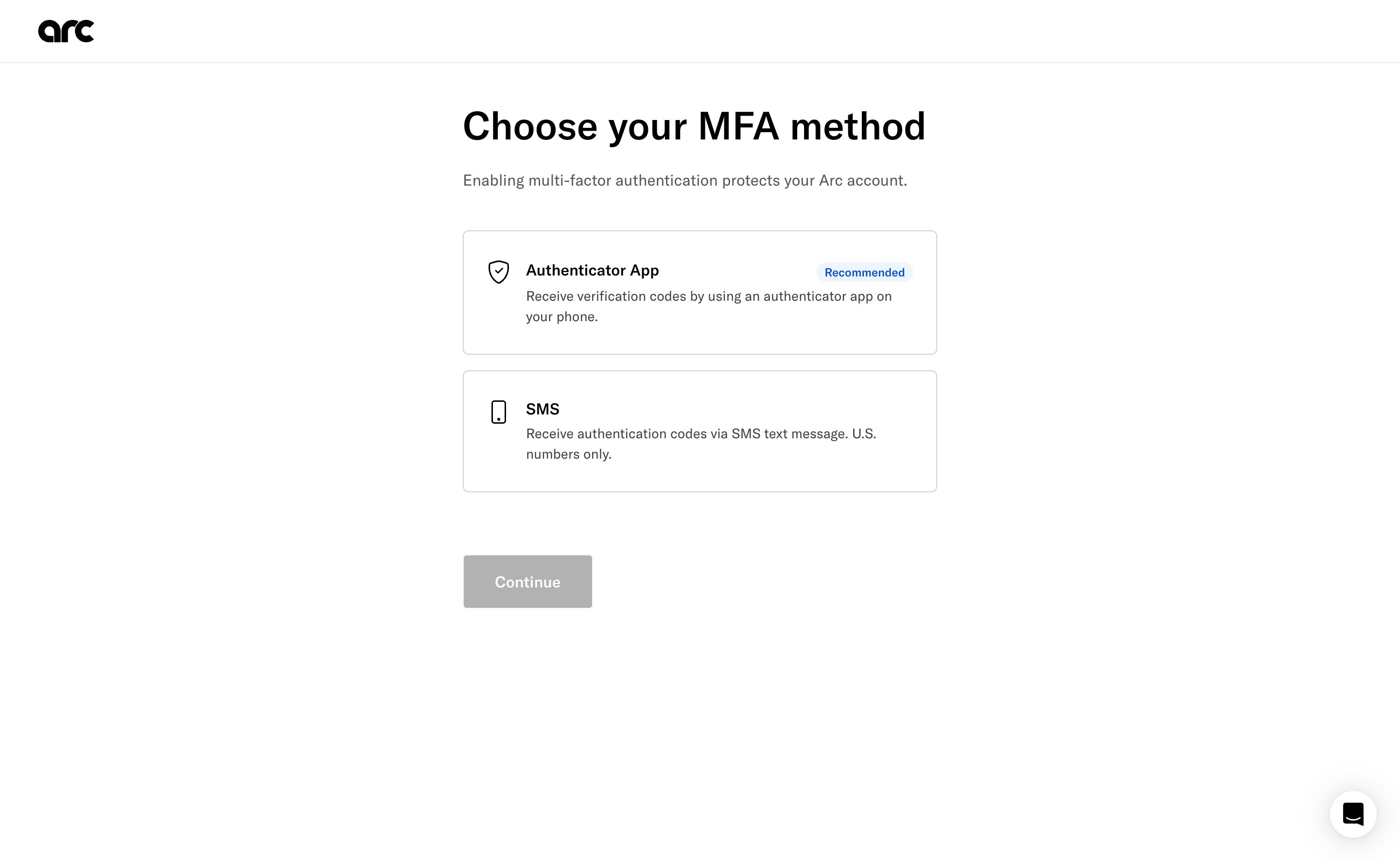
The interface explains what each option requires and labels the authenticator app as recommended. This helps users make a security decision without needing prior technical knowledge.
What works:
- The reason for MFA appears directly under the heading.
- Large selection cards are easier to scan than a radio list.
- The recommended badge provides guidance without removing choice.
- The Continue button remains disabled until a method is selected.
Design takeaway: when users must make a security choice, explain the consequence, recommend a default and keep the alternatives legible.
6. Wise: make progress visible across security steps
Wise’s phone verification step keeps the broader onboarding sequence visible at the top of the page.
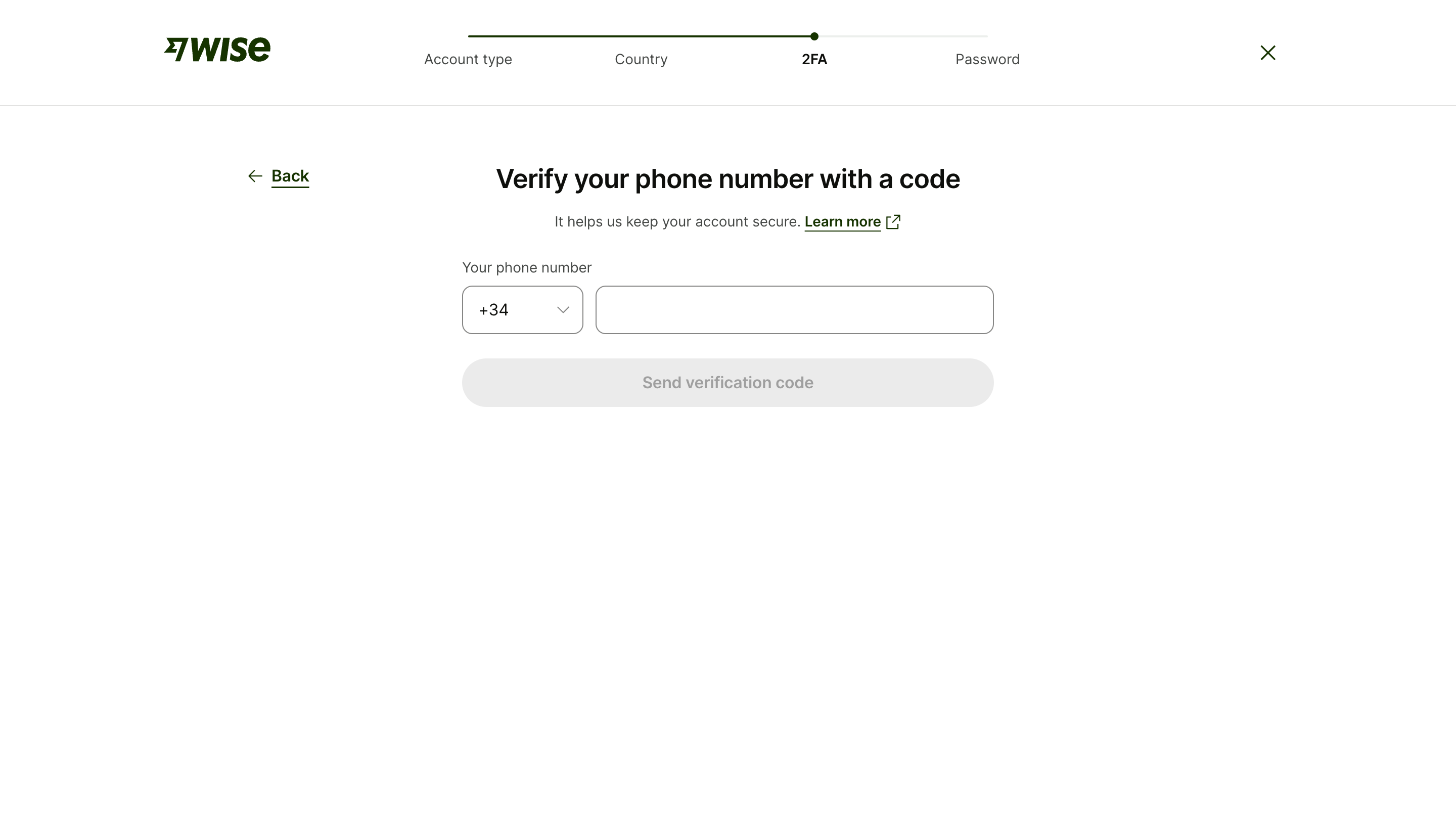
The user knows that account type and country are complete, 2FA is in progress, and password creation remains. That context matters in longer onboarding flows because users can estimate the remaining effort.
The sentence “It helps us keep your account secure” also explains why the phone number is required at the exact moment the request appears.
Design takeaway: show progress across meaningful stages, not an arbitrary percentage. Labels such as “Country” and “2FA” are more informative than “60% complete.”
7. Stripe: turn security requirements into recovery planning
Stripe’s account security screen goes beyond enabling a single method. It encourages multiple forms of two-step authentication and explains how backup access works.
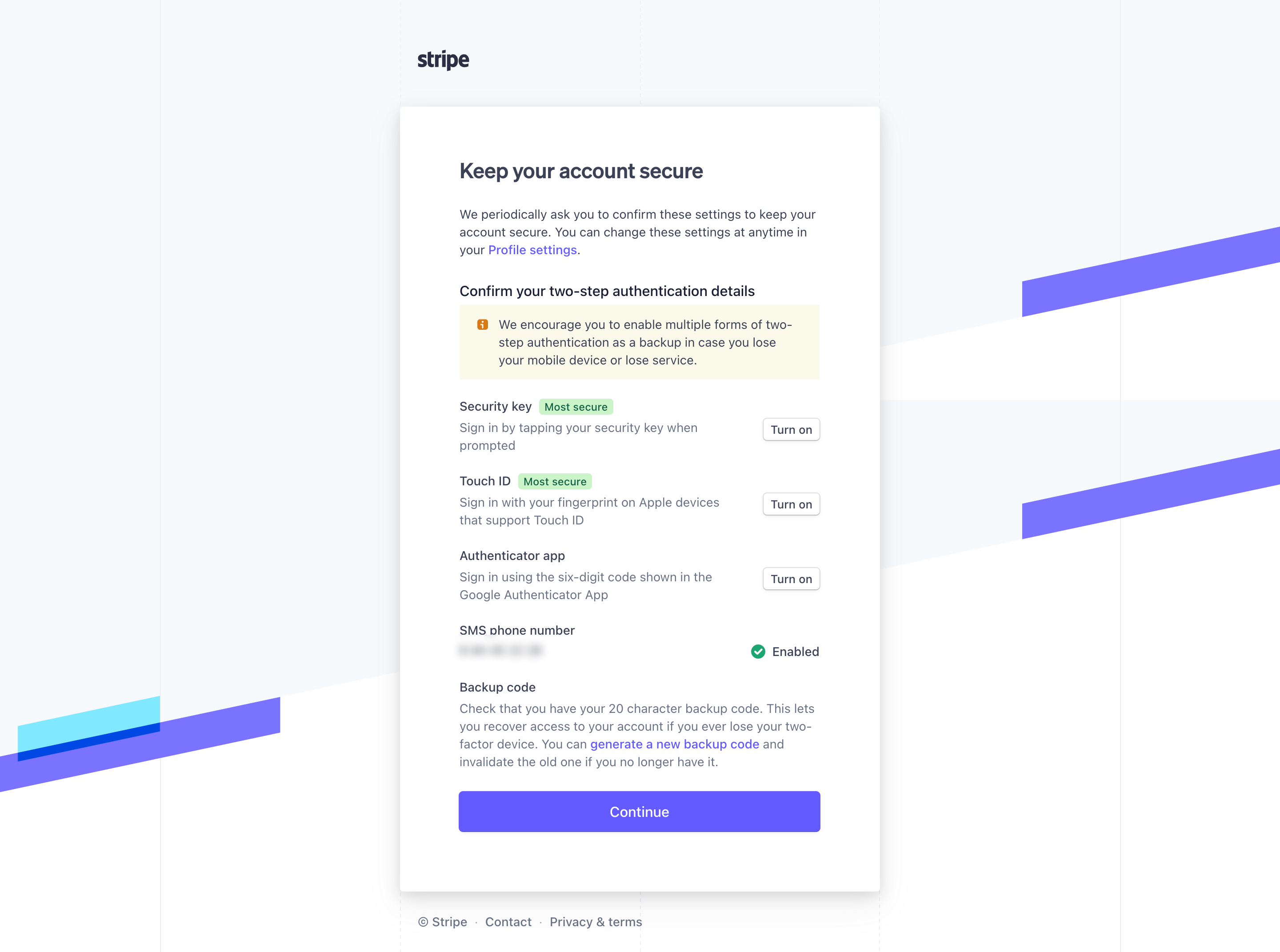
The amount of information is higher than in Arc’s flow, but the hierarchy remains clear. Method names, status labels and actions align consistently, while the warning callout explains why redundancy matters.
Design takeaway: complex security screens need comparison structure. Use consistent rows, explicit status and plain-language recovery guidance rather than hiding everything behind help links.
8. GoFundMe: end a long setup with a reviewable summary
GoFundMe concludes fundraiser setup with a review screen. Users can inspect the cover, title, goal, category, location and story before launch.
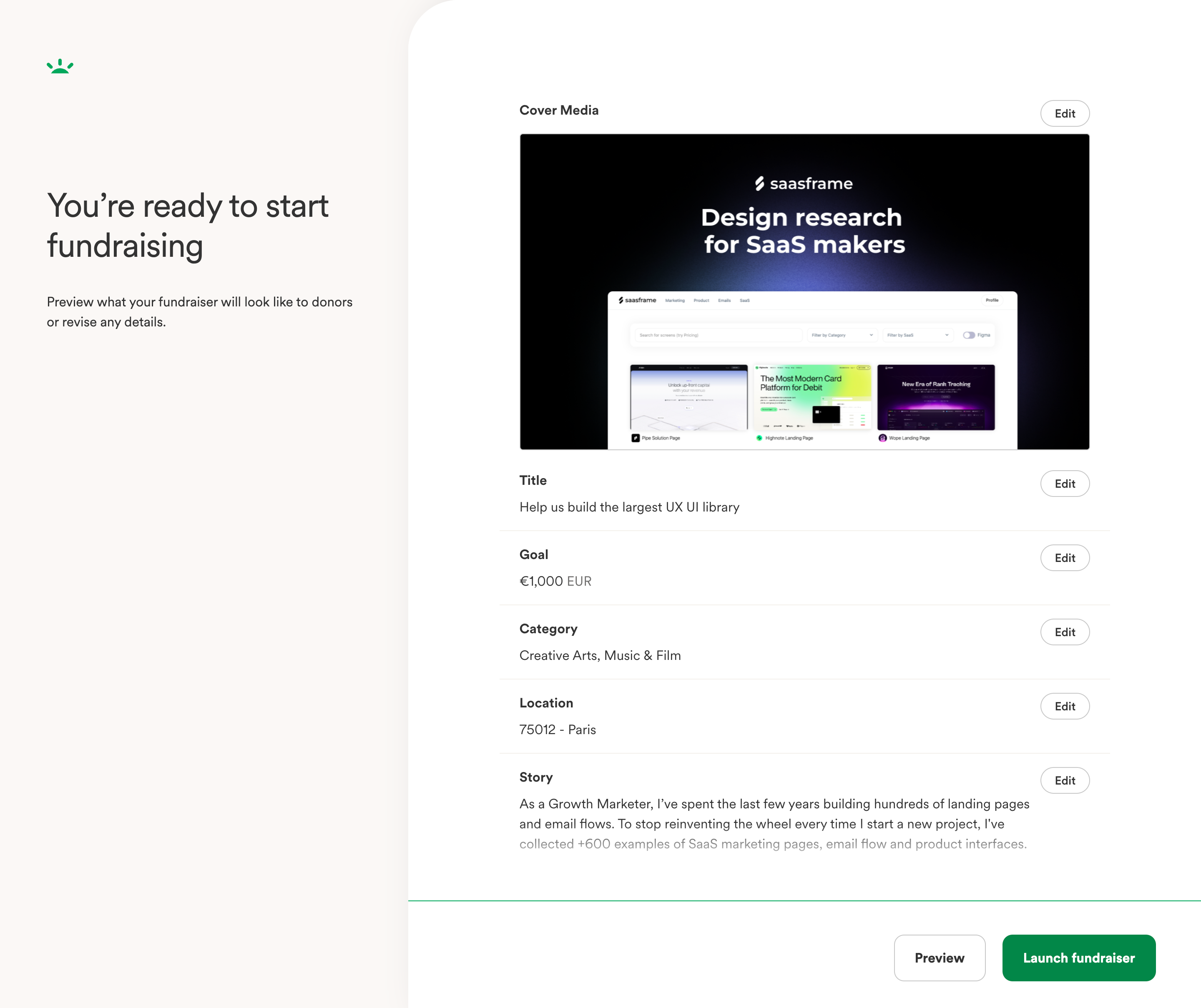
This pattern is valuable whenever setup creates something consequential: a payment account, fundraising page, billing configuration or company profile. A summary lets users verify their work without repeatedly navigating backward.
What works:
- The page clearly announces that setup is complete.
- Each section has a local Edit action.
- Preview and Launch remain separate decisions.
- The primary CTA describes the real activation event.
Design takeaway: finish long onboarding flows with confidence, not surprise. Show users exactly what will become active and let them correct individual sections in place.
The recurring patterns behind strong fintech onboarding
Across these examples, the visual styles differ, but the underlying decisions are remarkably consistent.
1. Segment before requesting information
Account type, role and intended product use determine which questions are relevant. Early branching makes the rest of the flow shorter and more specific.
2. Explain sensitive requests in context
Users should not have to open a help center to understand why a phone number, security method or company detail is required. Put the explanation beside the request.
3. Break setup into meaningful outcomes
“Create a workspace,” “Choose your account type” and “Secure your account” are clearer steps than generic labels such as “Personal details” or “Step 3.”
4. Preserve visibility of progress
Long flows feel shorter when users understand what they have completed, what they are doing now and what remains.
5. Recommend without removing control
Recommended security methods and sensible defaults help users move forward. Alternatives should remain available when legitimate needs differ.
6. Connect configuration to future value
Product previews, personalized routes and workspace identity demonstrate that setup is already shaping the user’s experience.
7. Provide a review before activation
When information affects payments, compliance, public pages or permissions, a final summary reduces anxiety and makes corrections manageable.
A practical fintech onboarding structure
A strong starting sequence for a complex fintech product is:
- Set expectations: state what the user will accomplish and, when useful, preview the stages.
- Choose account type or role: route the user into a relevant path.
- Collect the minimum identity information: keep each step focused on one purpose.
- Configure the product: ask about intended use and show what each choice enables.
- Add security: explain why it is required and recommend the strongest practical method.
- Collect additional business details: only after the user understands the product and the reason for the request.
- Review: summarize consequential information with local edit actions.
- Activate: end with a CTA that describes the actual milestone.
This is not a universal template. The order should reflect risk, product value and operational requirements. The important principle is that every step has a clear reason to exist.
Explore more fintech account setup examples
These eight screens represent only part of the collection. Browse all 91 FinTech SaaS account setup examples on SaaSFrame to compare complete flows from Current, Arc, Deel, Melio, Stripe, Wise, Cake Equity, Copperx and other financial products.
Use the collection to study progress indicators, form layouts, verification steps, role selection, error handling and activation moments side by side. Real interfaces reveal the trade-offs that generic onboarding checklists usually miss.