Wizard
114
A multi-step interface that guides users through a complex setup or creation task.
.webp)
A wizard guides someone through a task in a sequence of smaller decisions. It can help set up a workspace, configure an integration, create a resource, or complete a complex form. Its value comes from arranging dependencies and explaining progress, not simply spreading a short form across several screens.
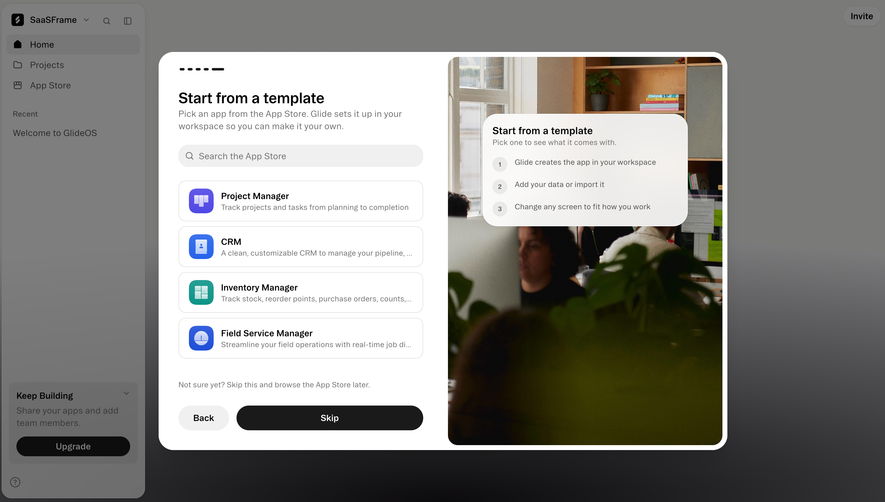
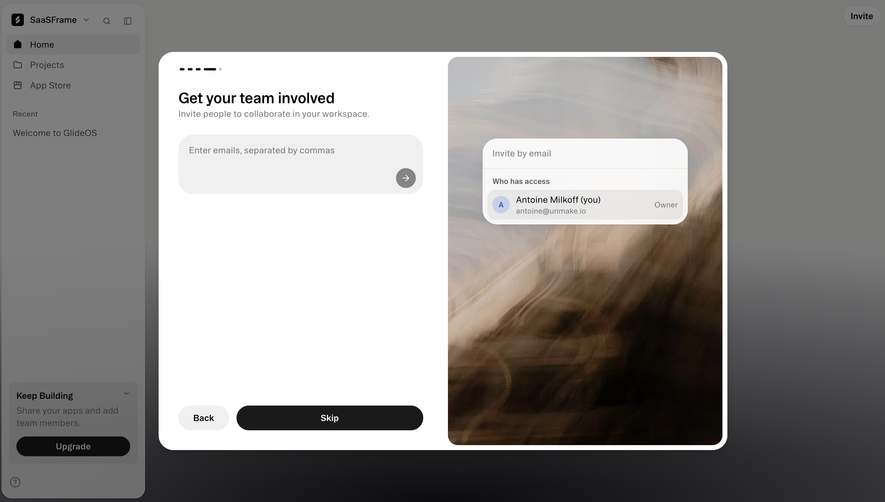
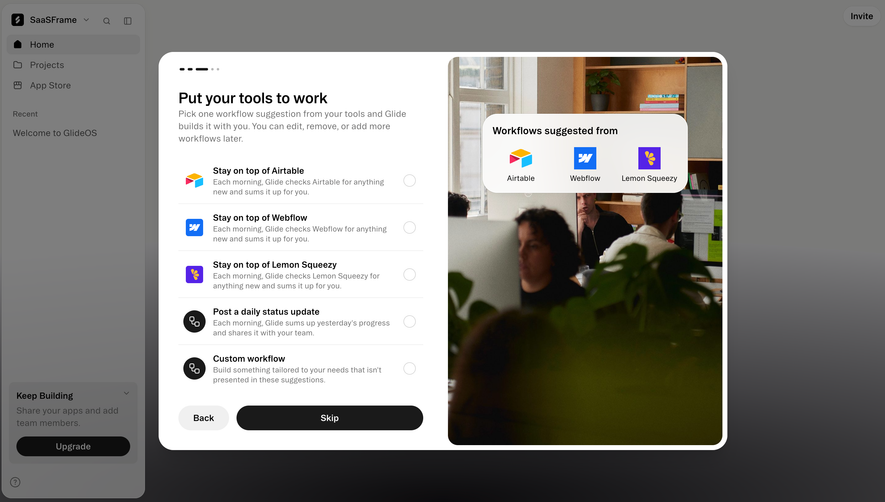
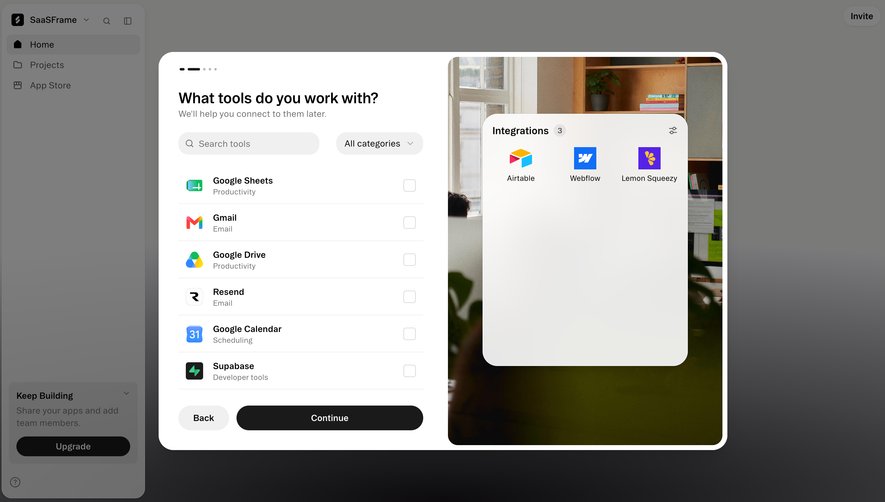
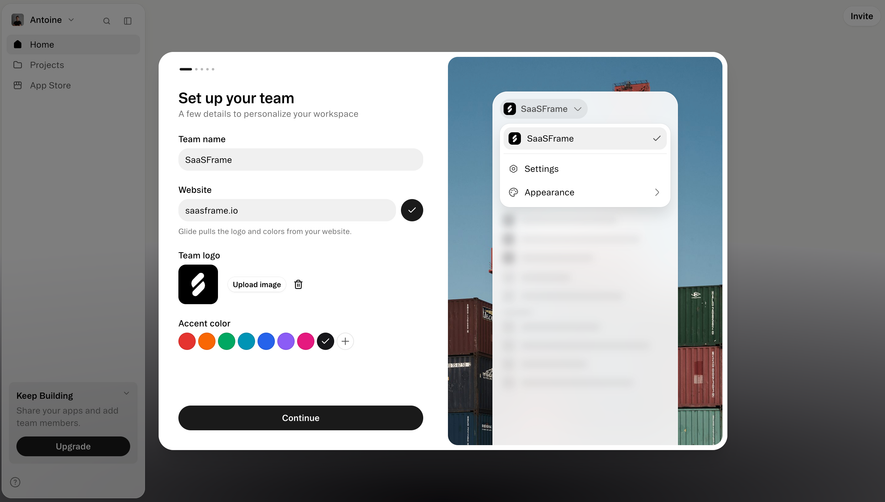
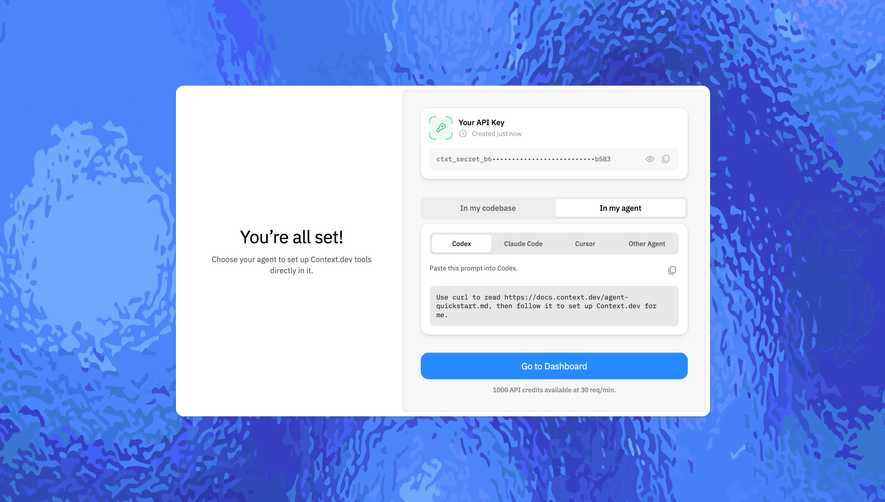
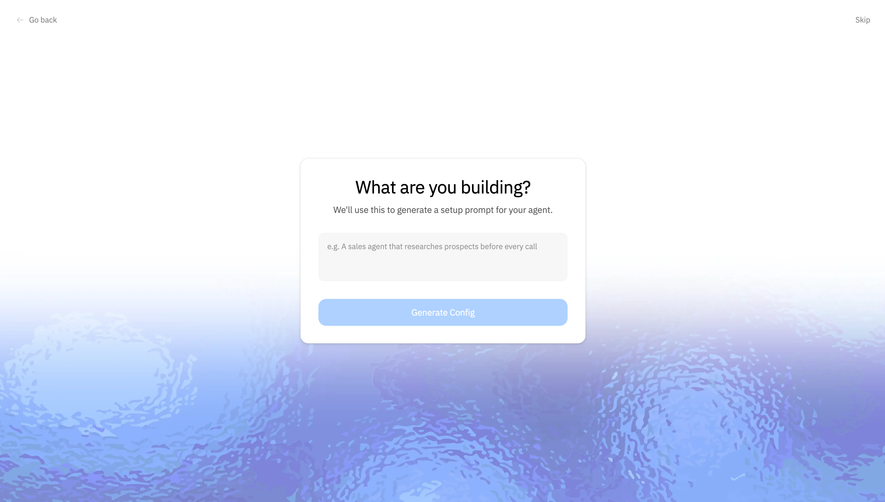
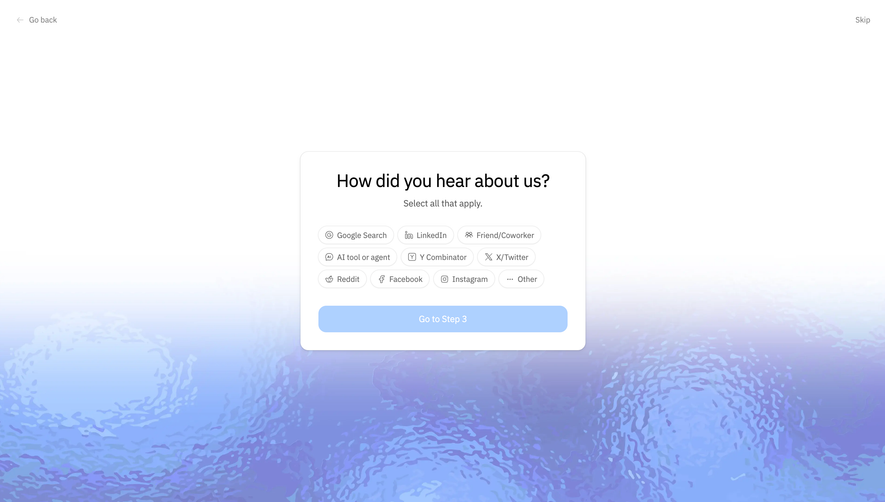
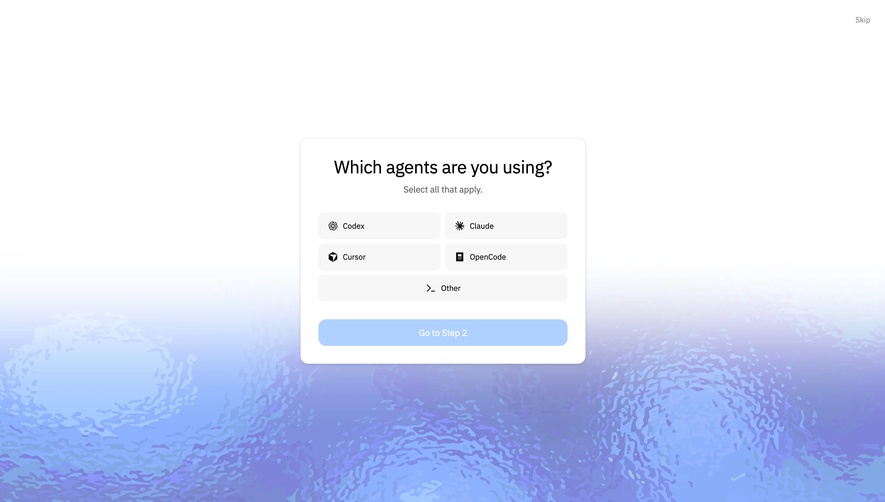
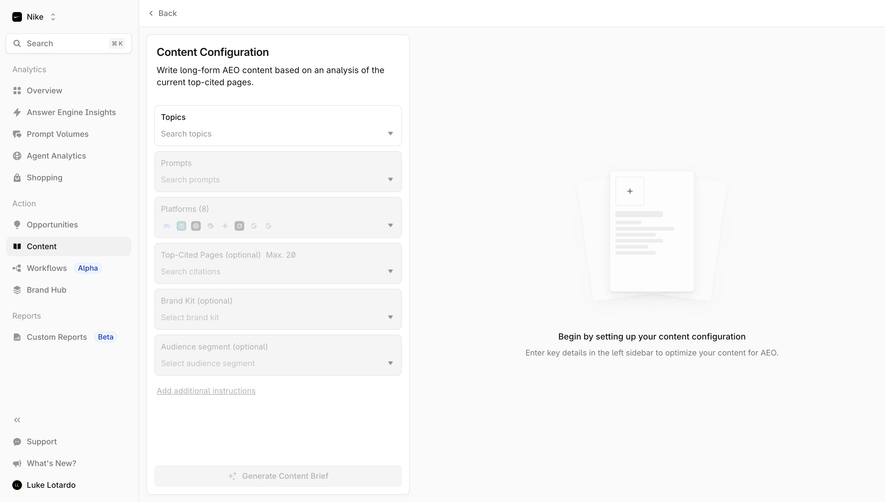
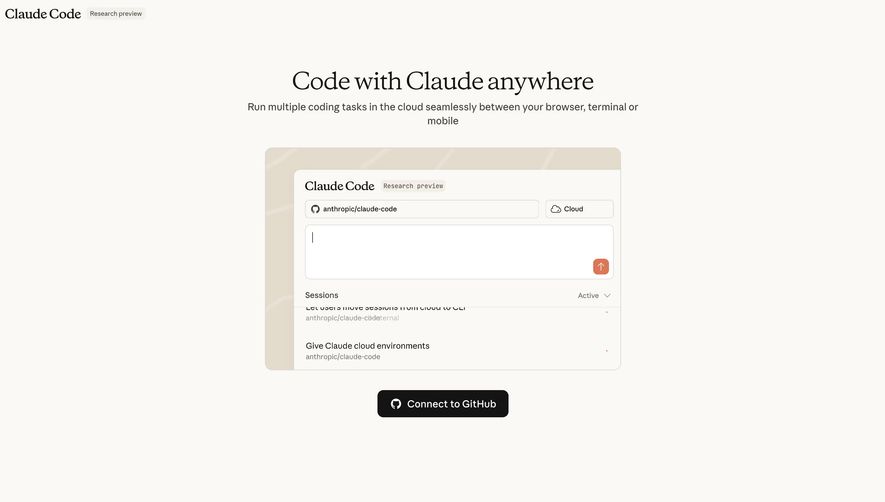
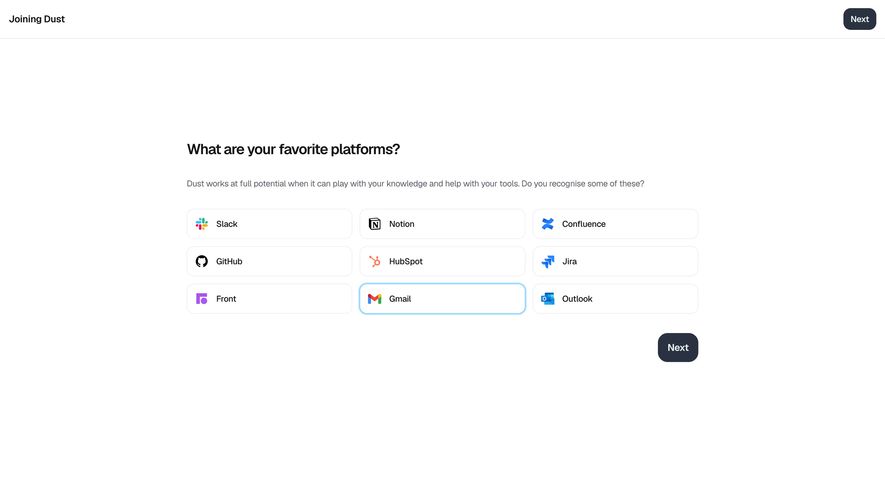
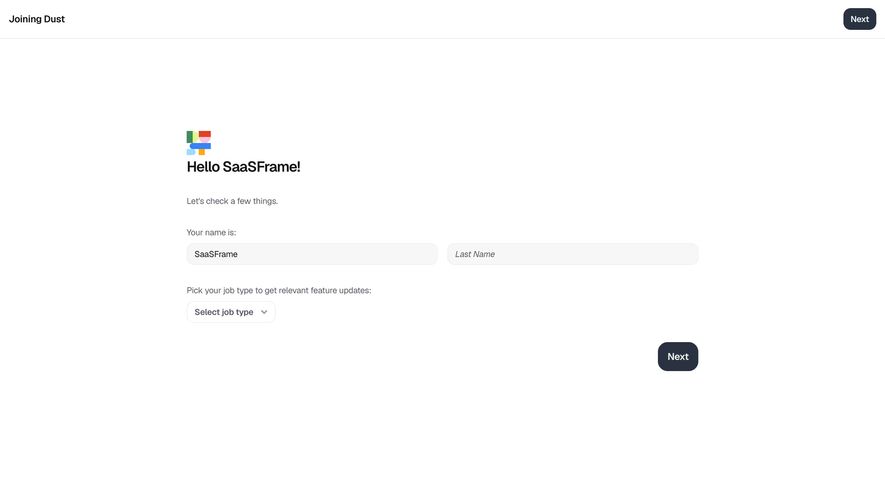
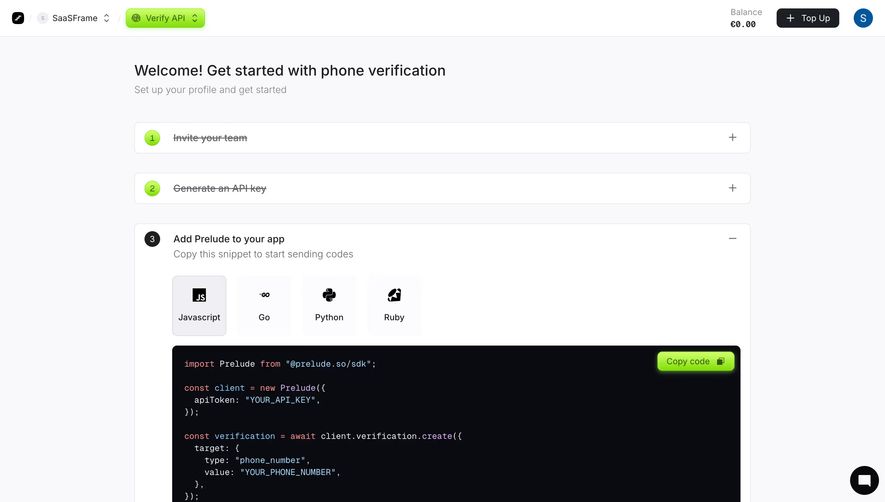
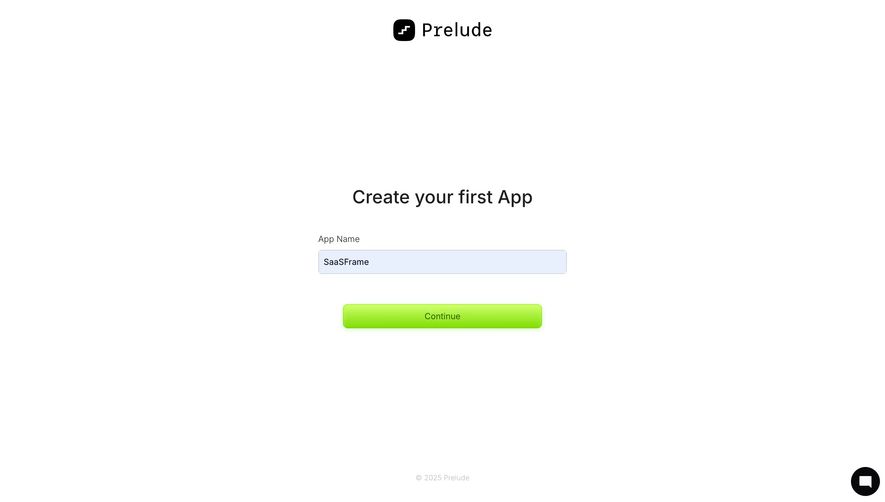
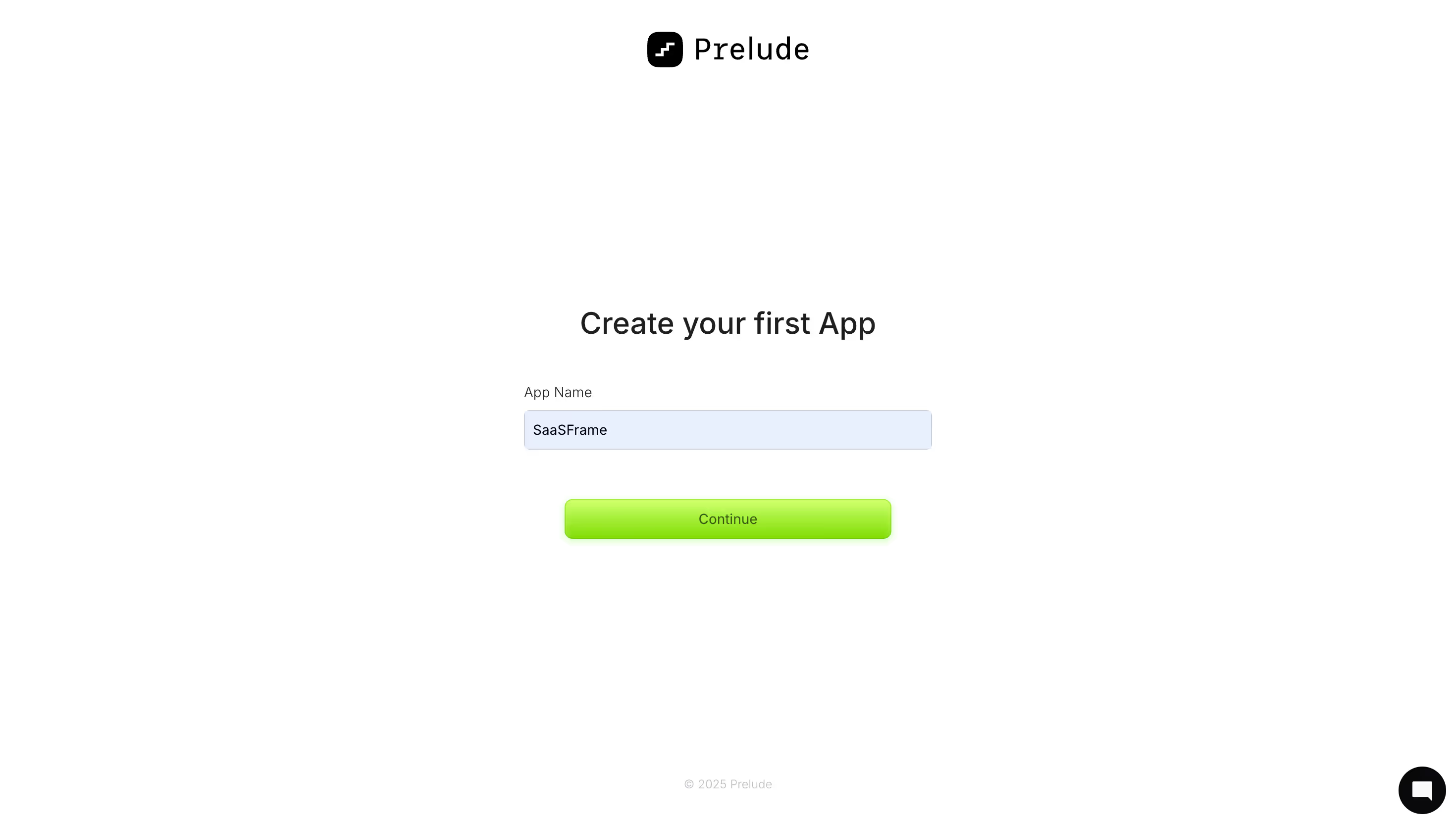
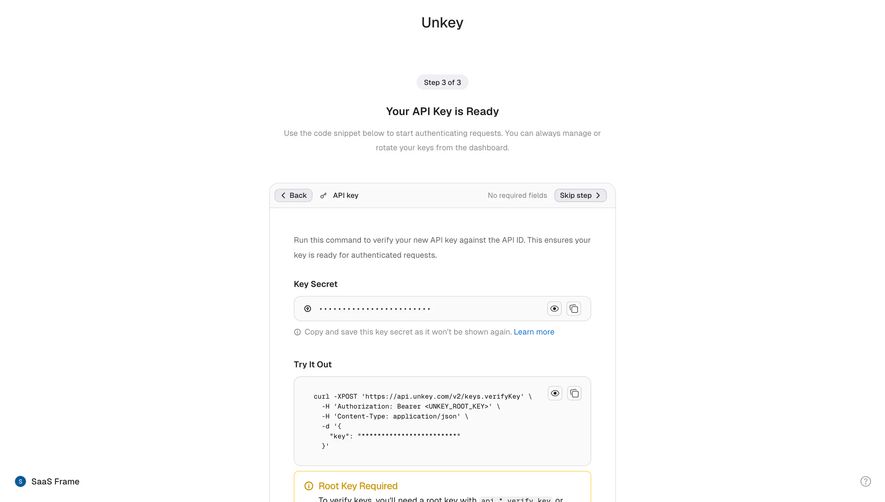
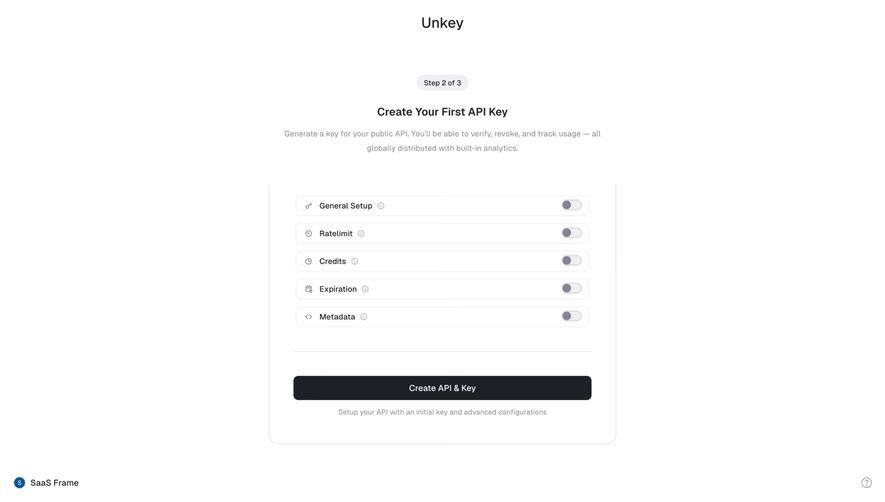
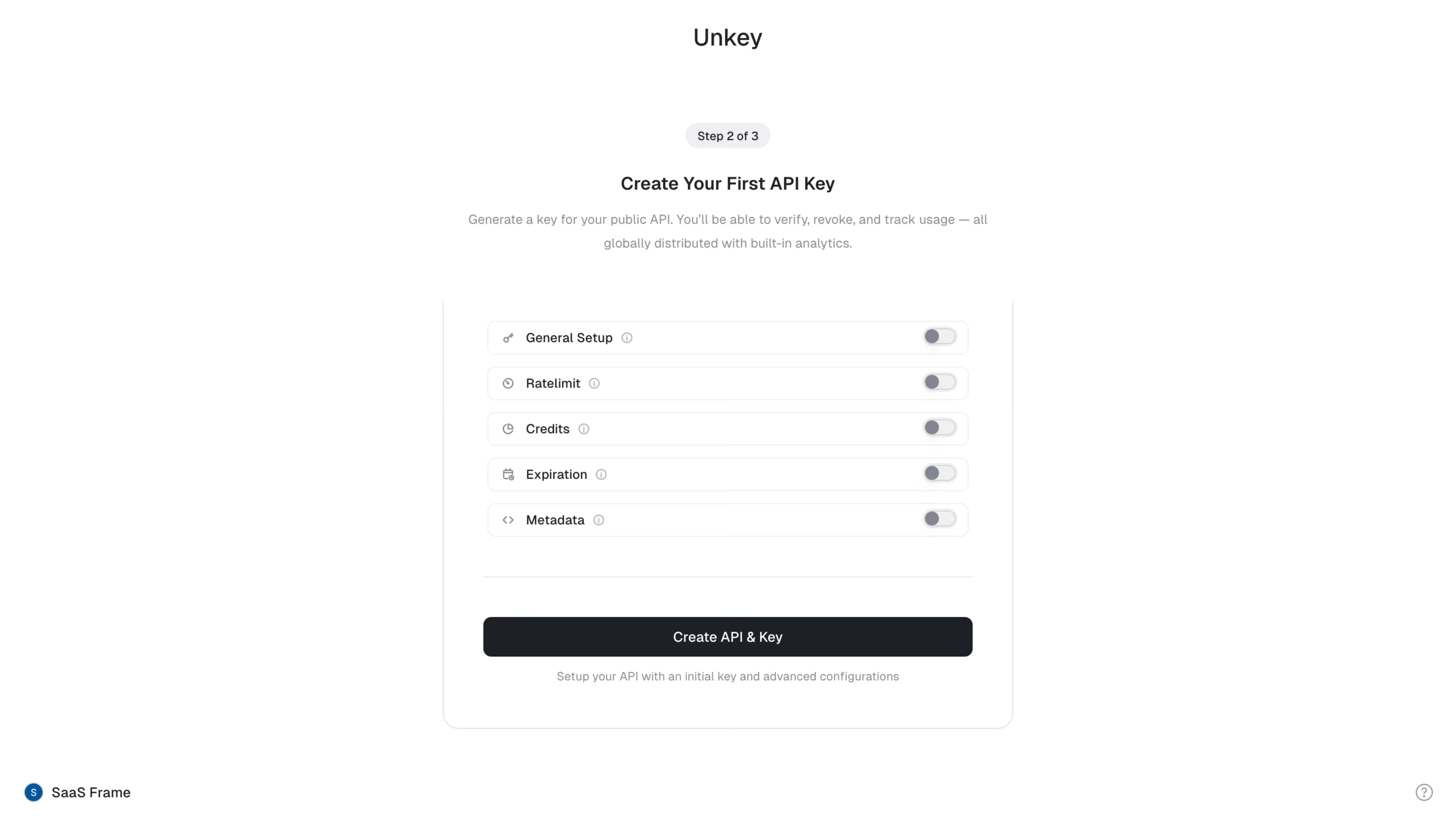
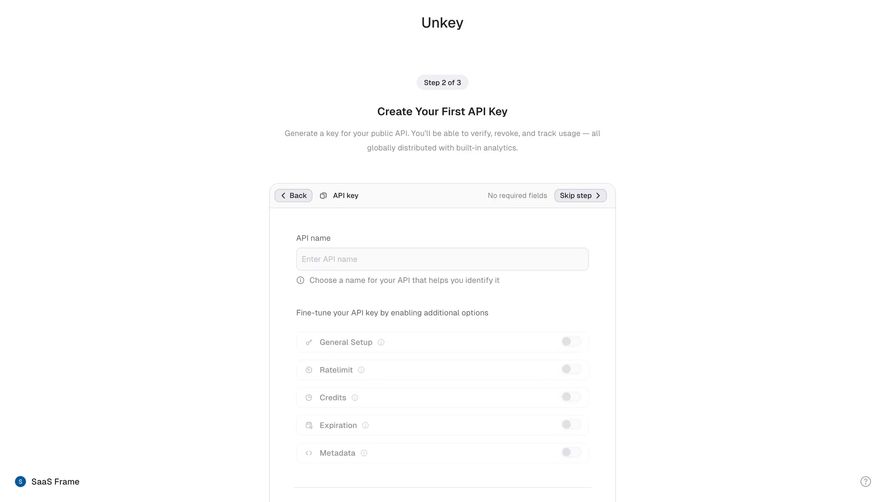
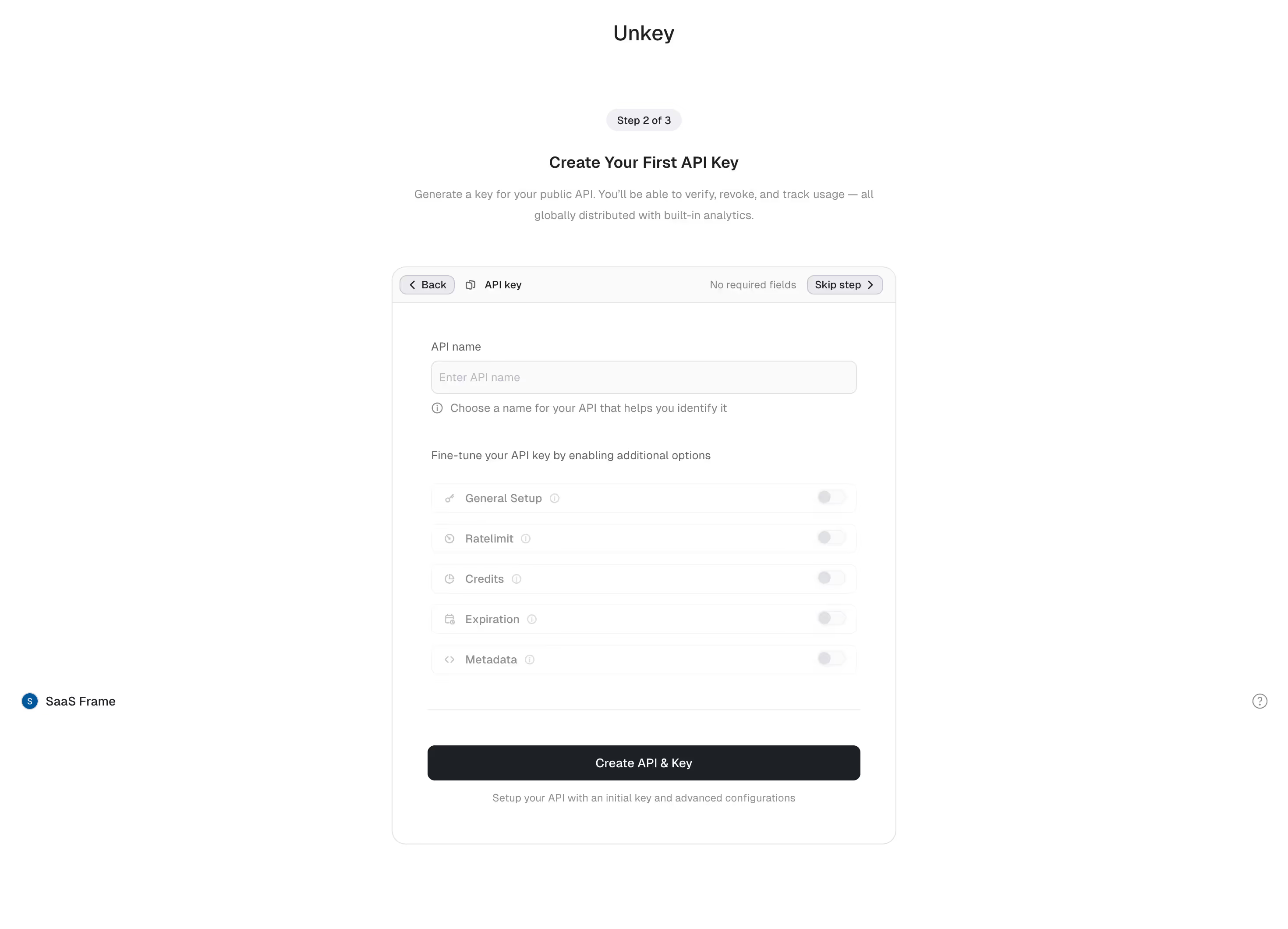
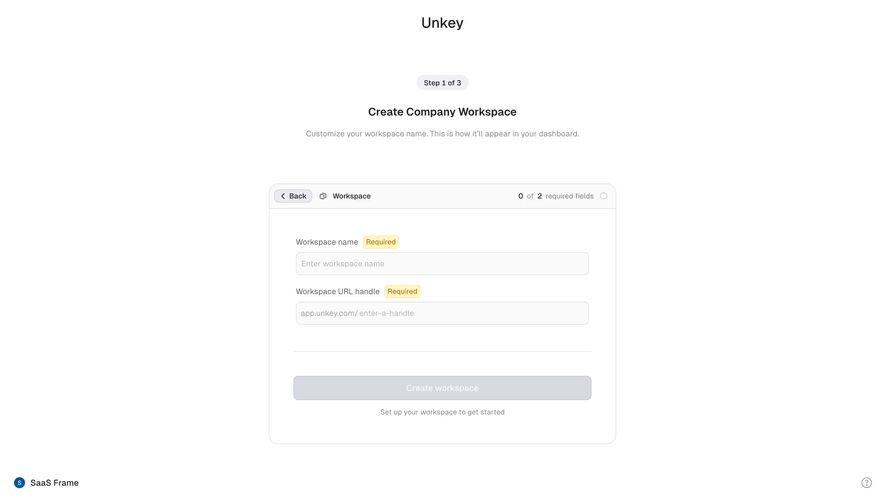
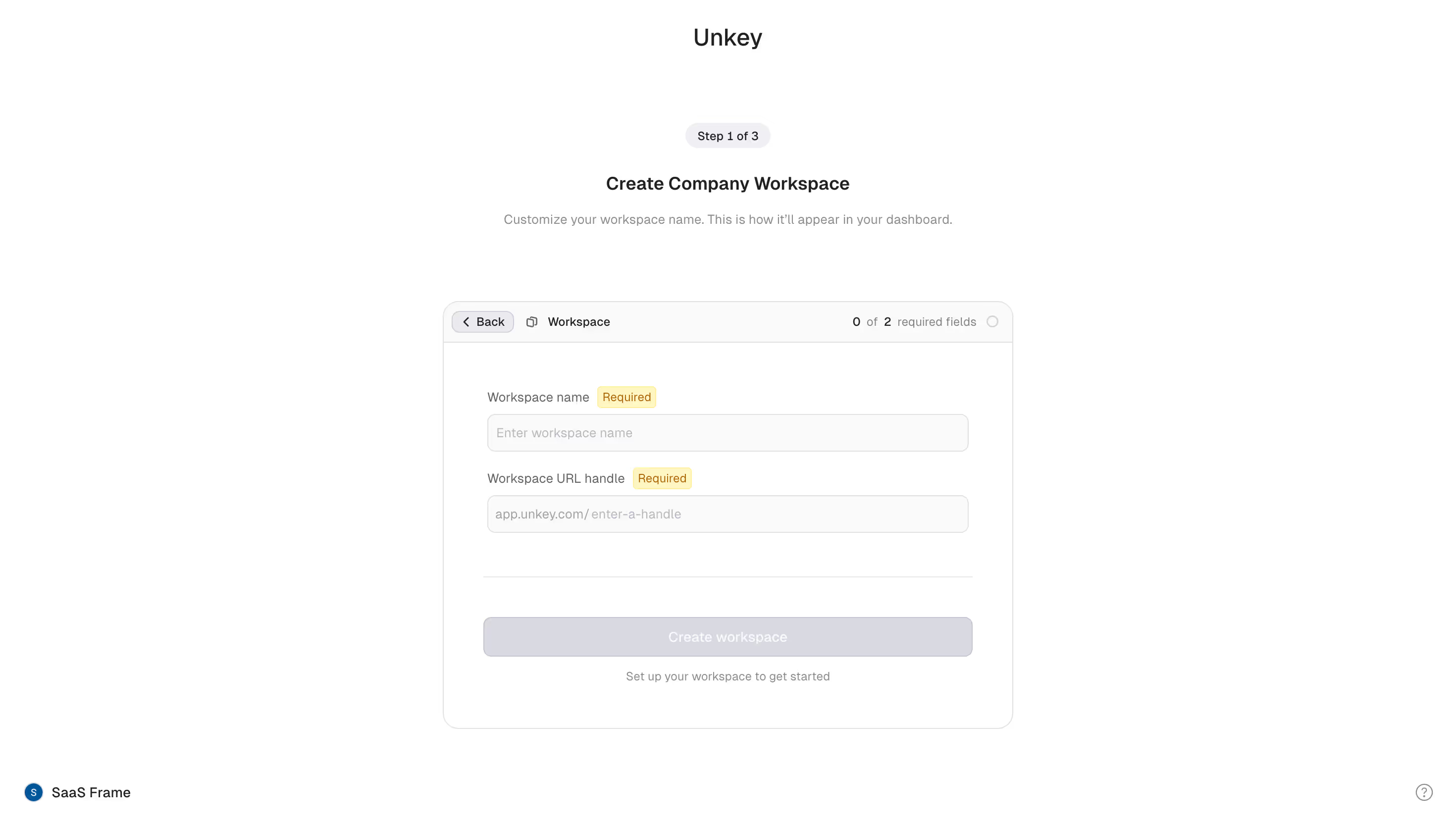
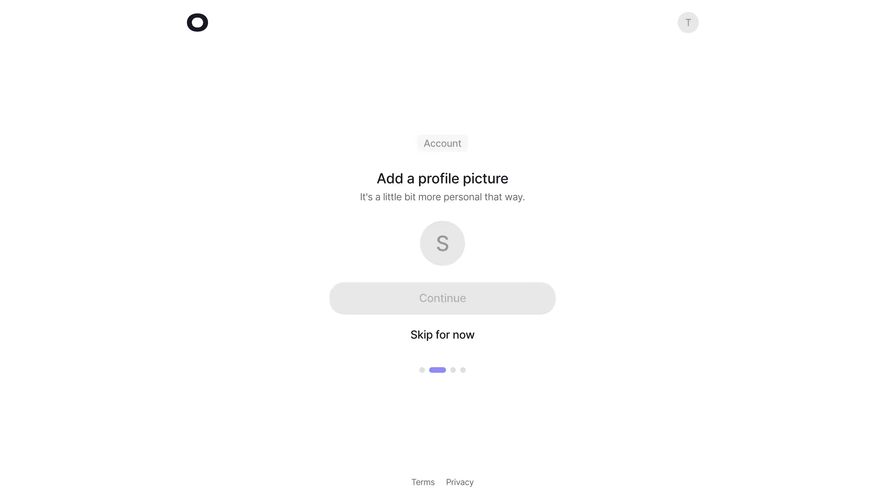
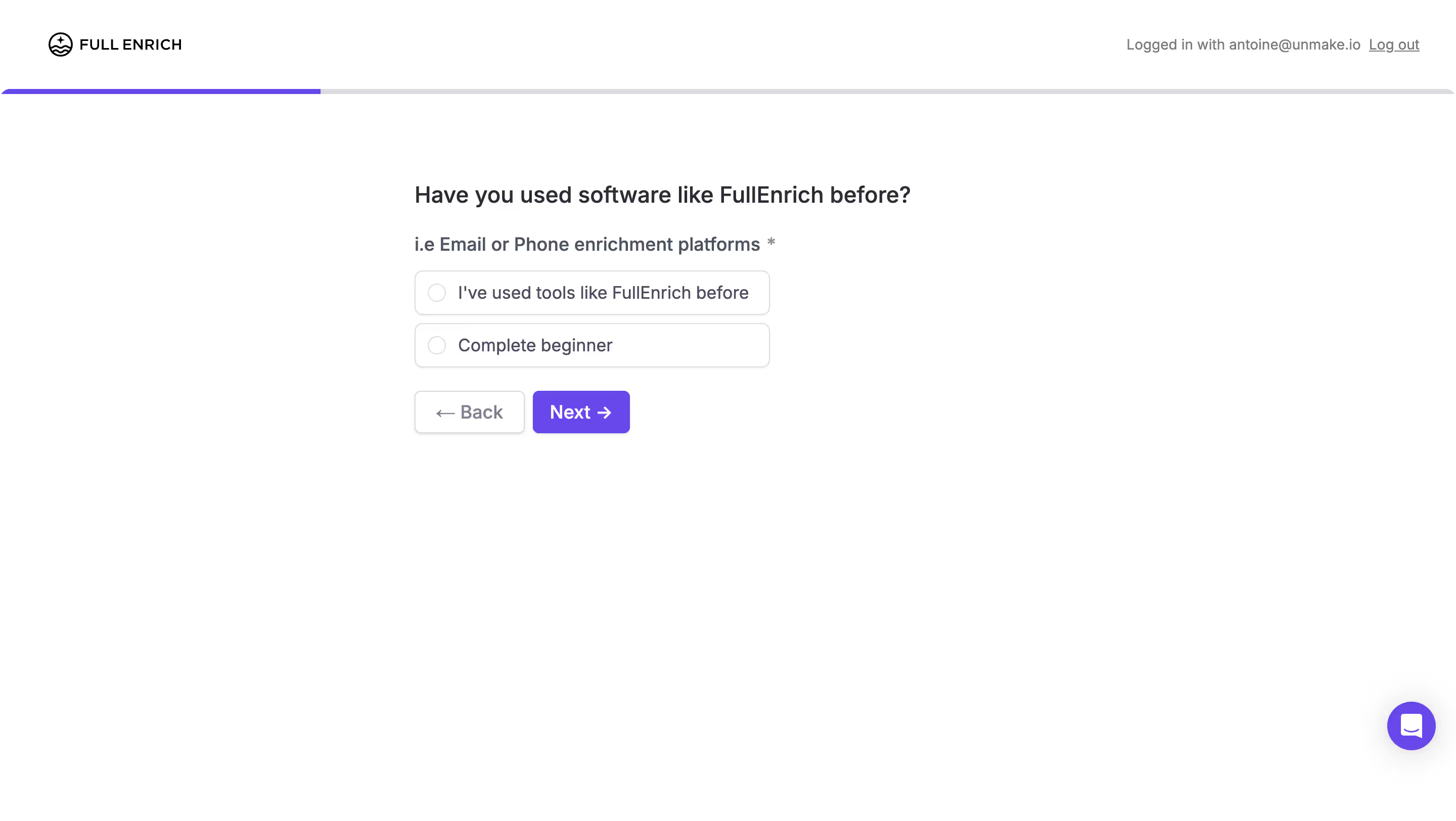
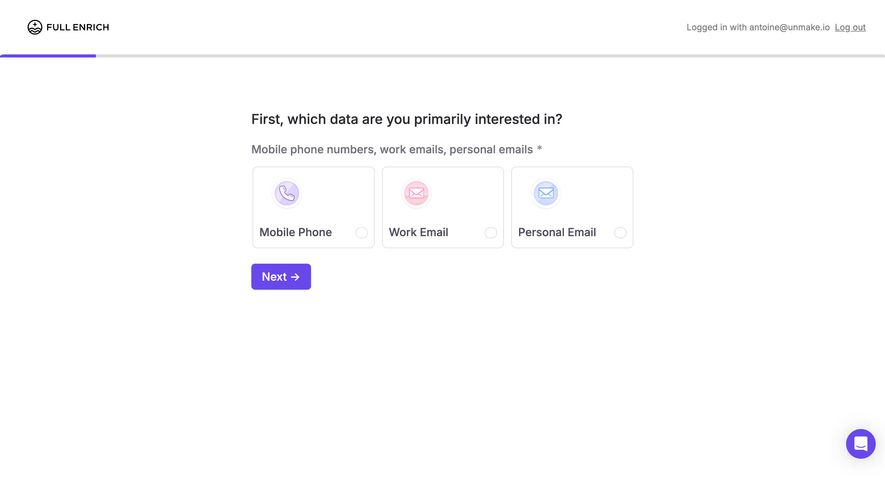
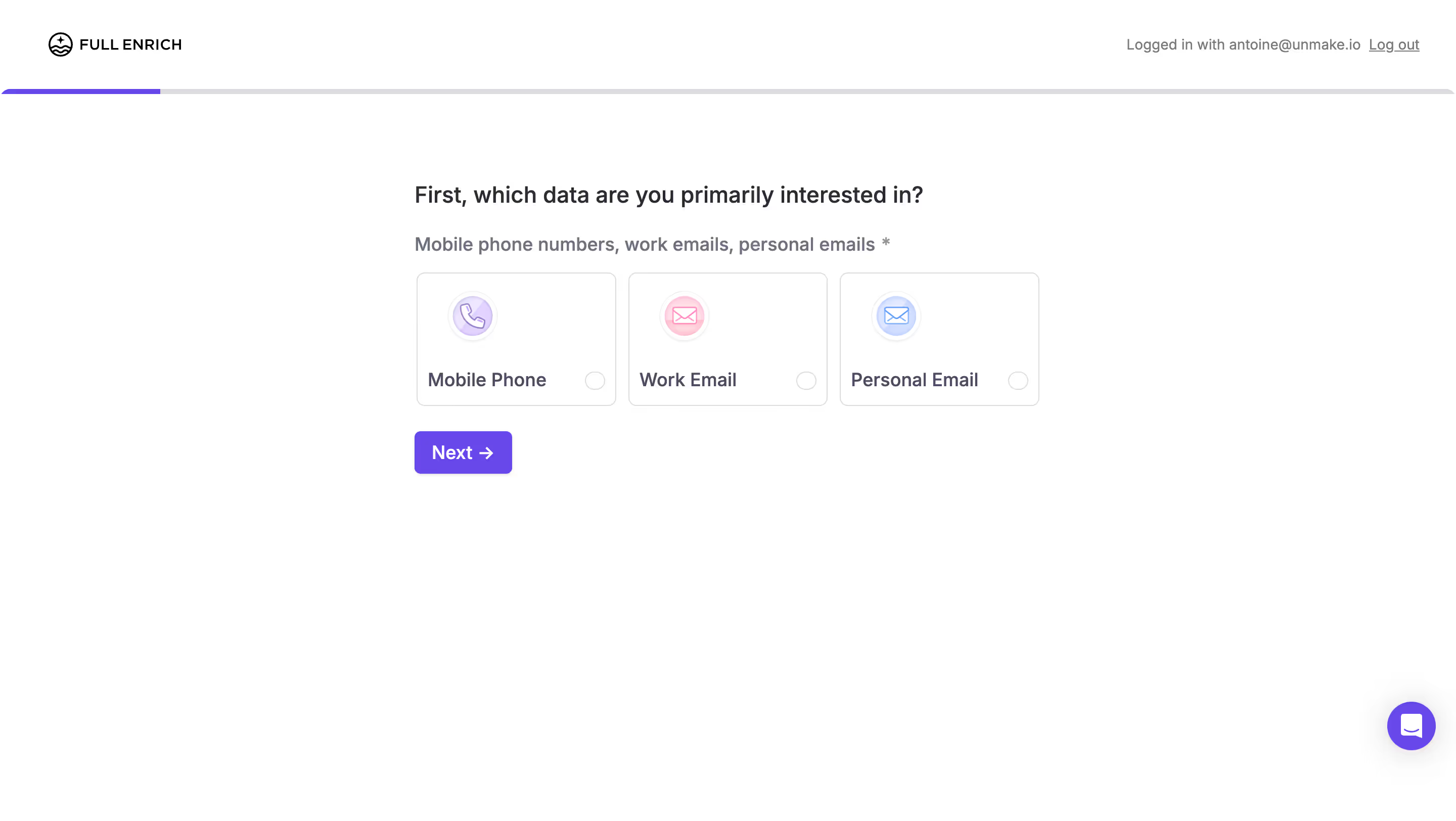
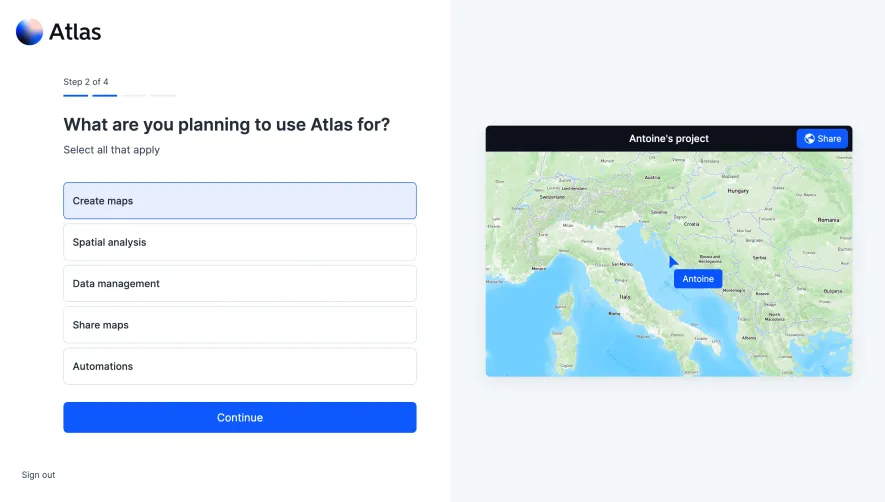
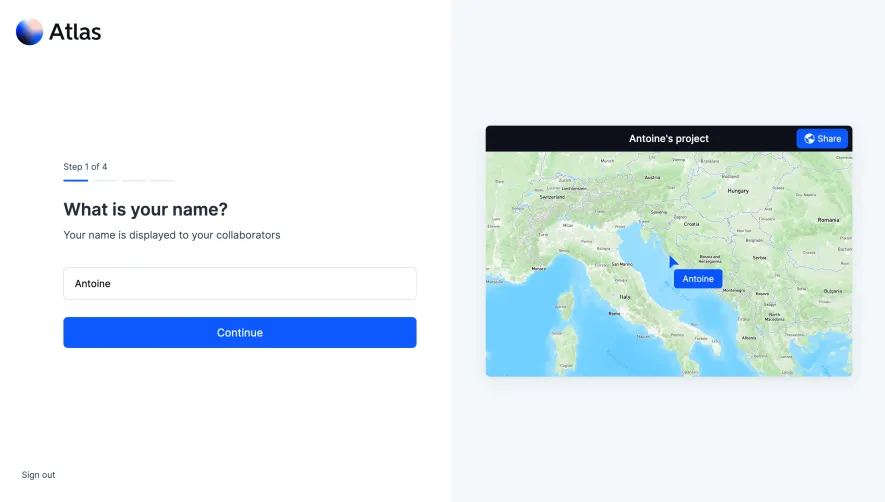
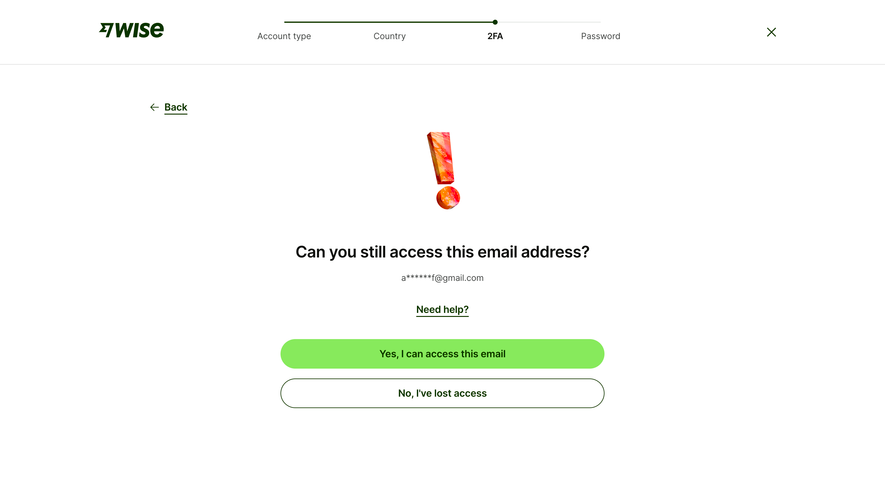
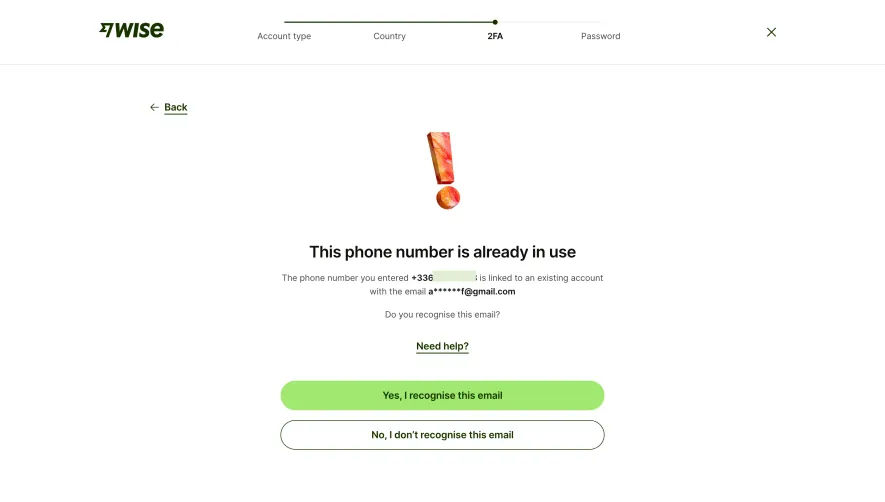
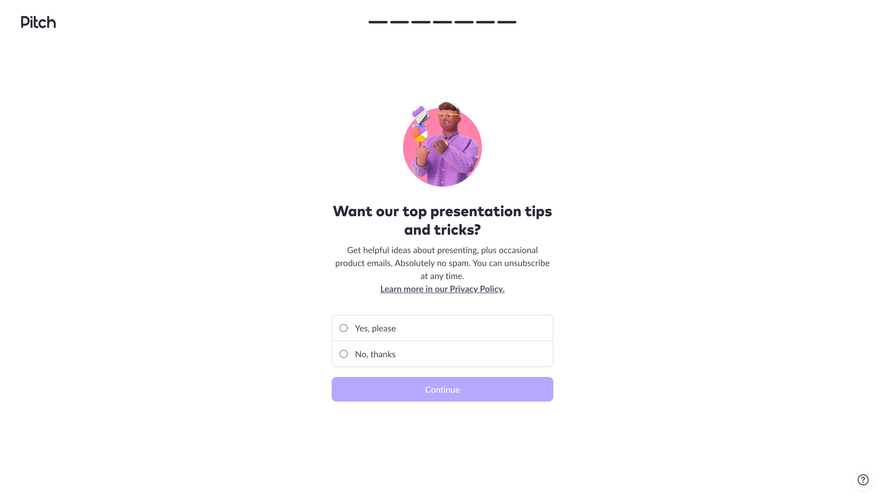
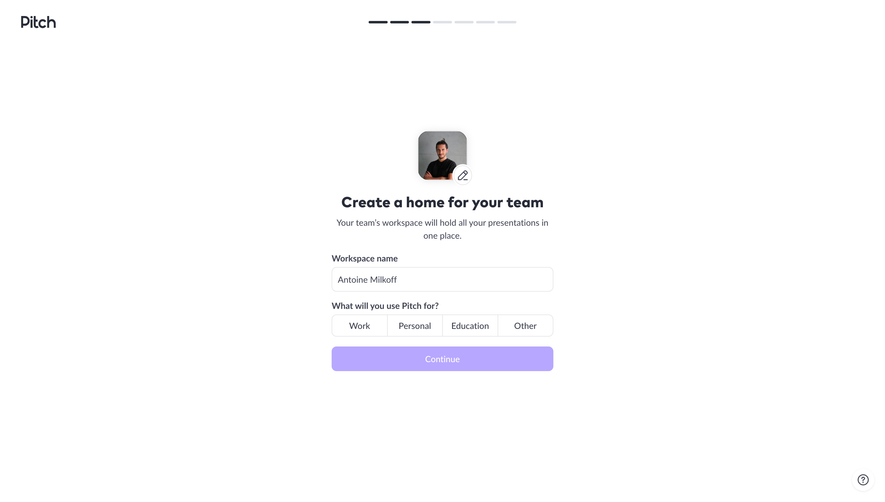
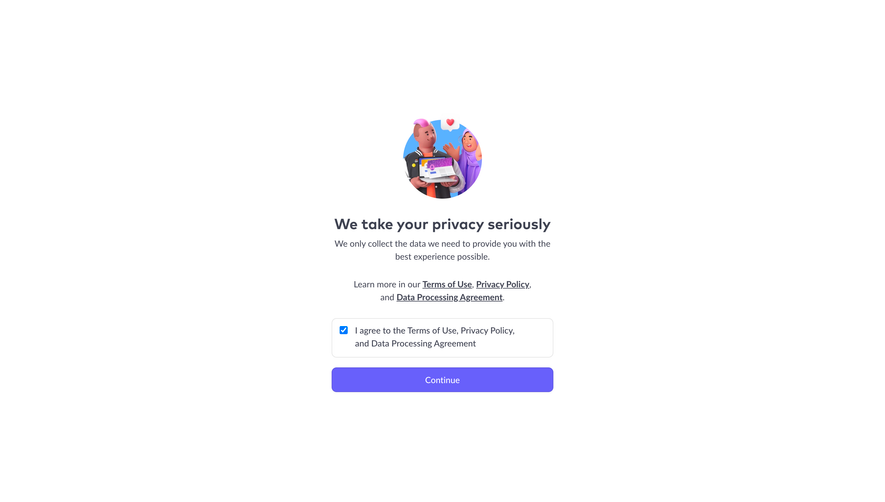
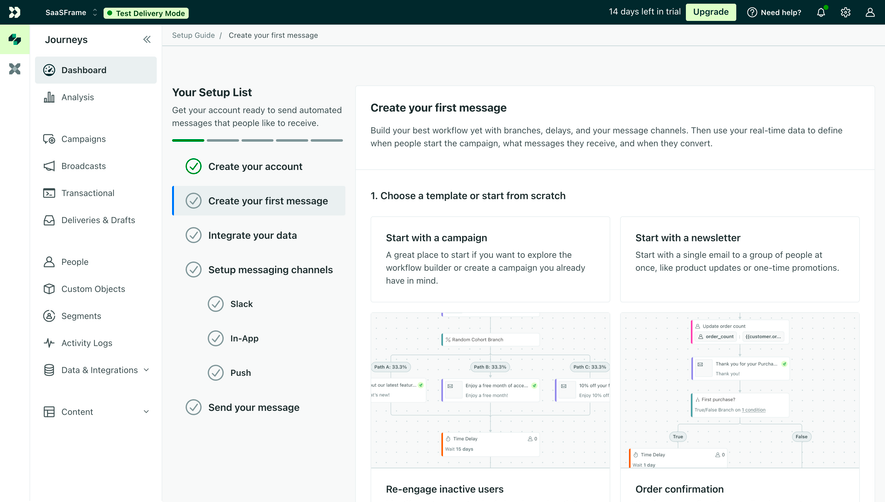
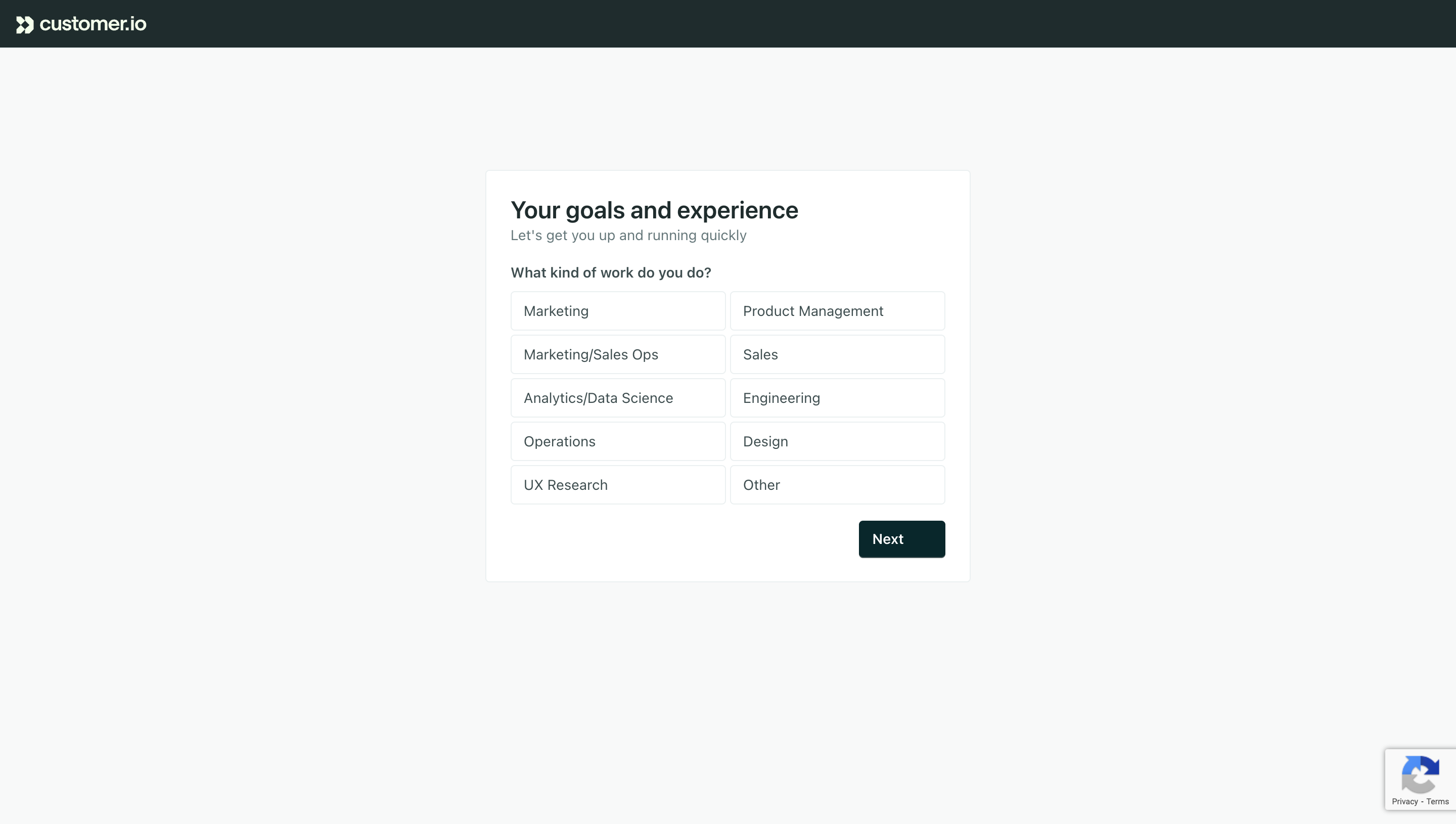
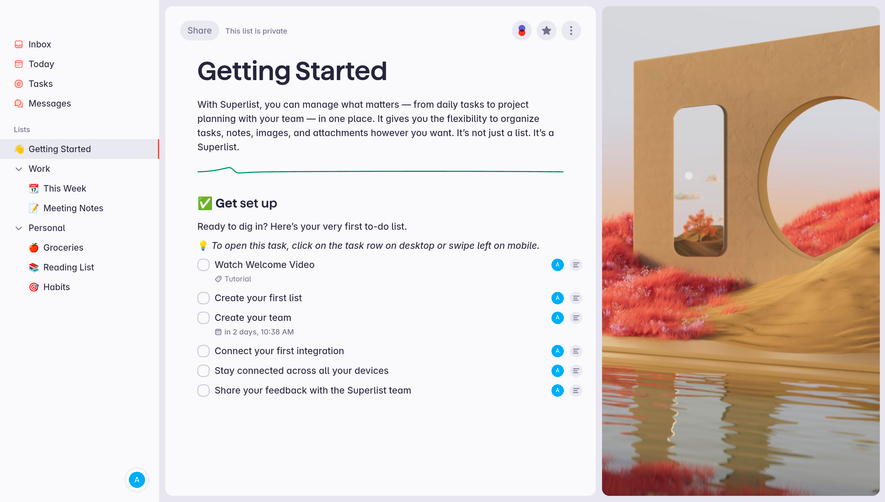
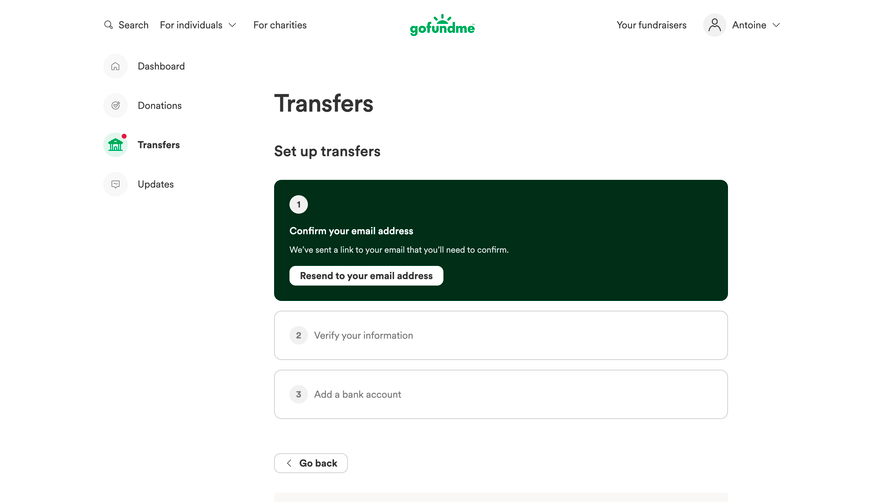
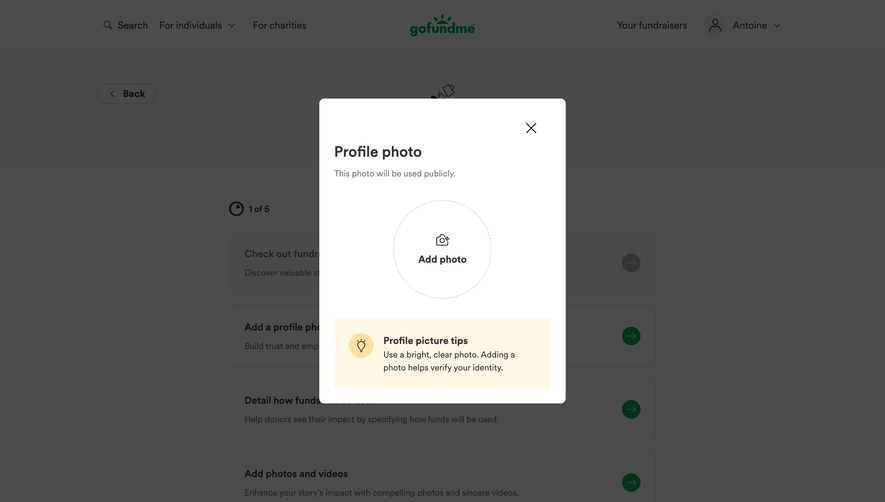
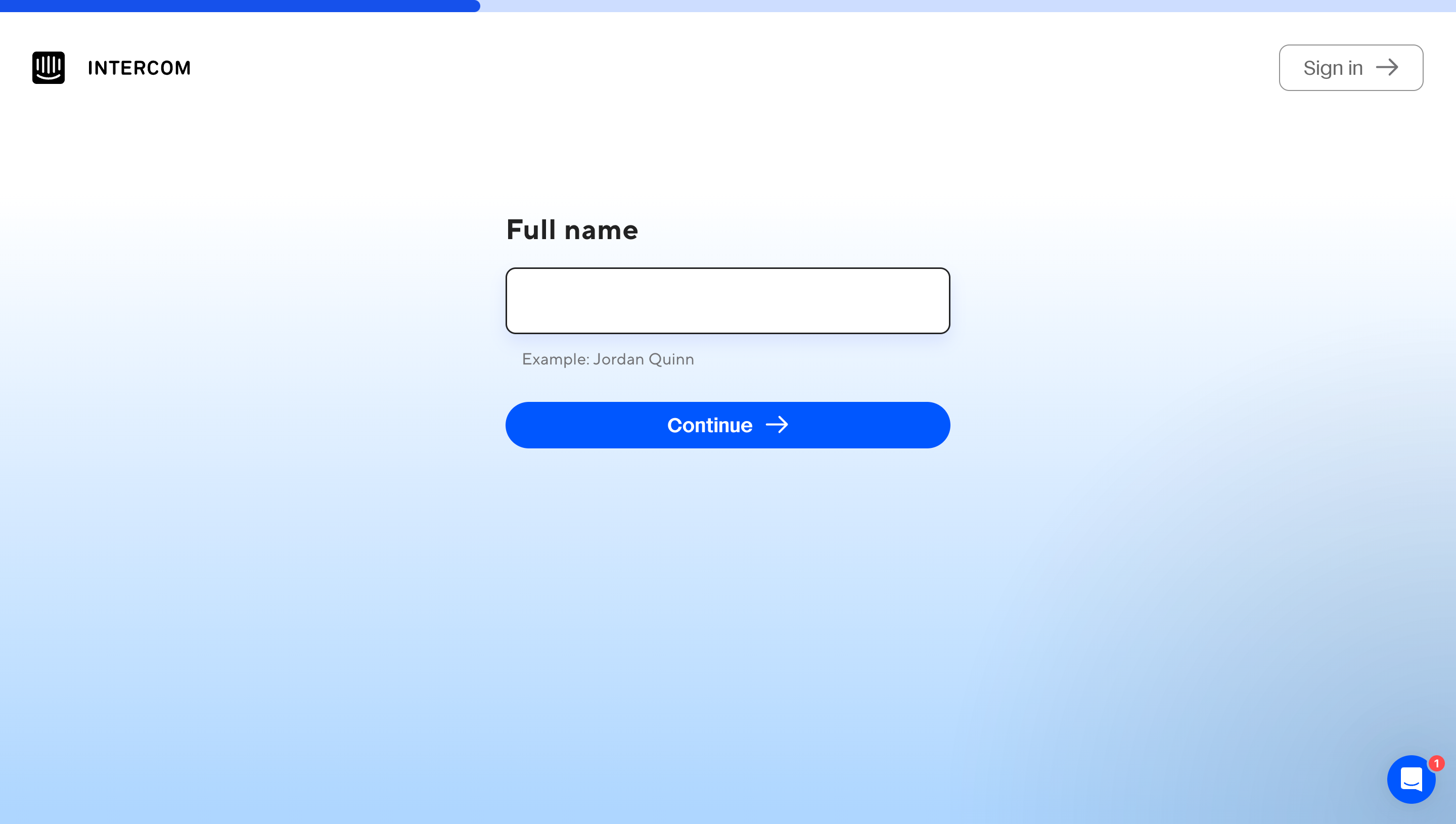
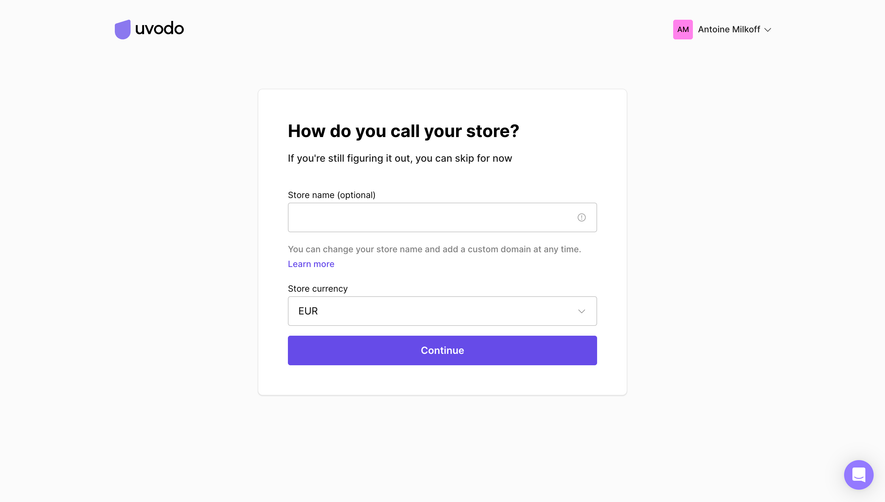
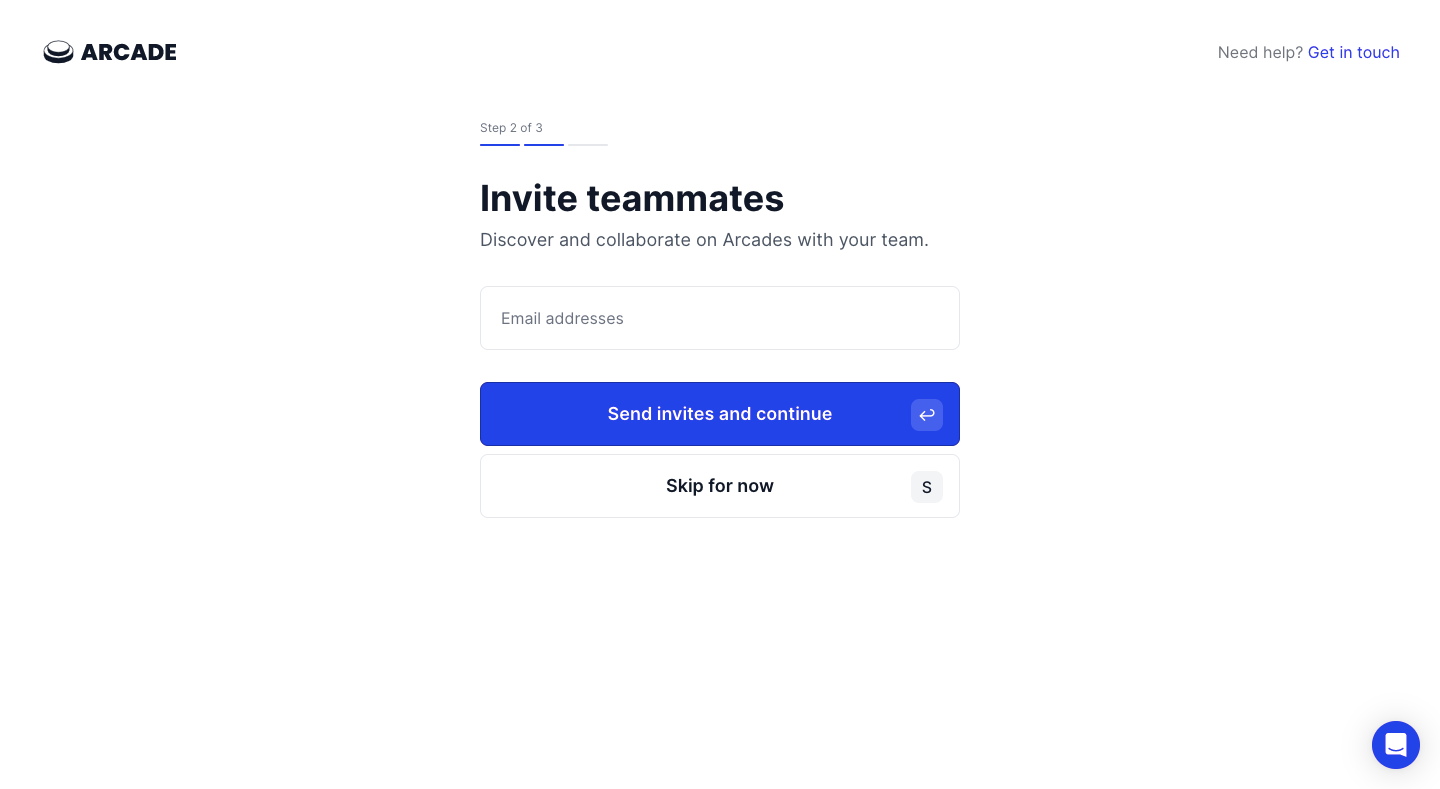
Dust’s platform-selection screen, Visitors’ profile-photo step, and Arcade’s teammate-invitation step show different decisions within onboarding. These captures illustrate how a focused question, an optional task, and an action with consequences can be presented. They are examples from separate products, not evidence of one shared sequence or of each product’s full behavior.
A sequence is useful when an earlier answer changes what should be asked next, when the task contains several distinct groups, or when people benefit from understanding one decision at a time. Workspace creation may establish the context for later invitations. Integration selection may determine the credentials required next.
A wizard can also increase friction. Splitting three related fields into three pages creates navigation and waiting without necessarily improving comprehension. Consider whether a grouped form or editable setup checklist would support the task with fewer transitions.
Start with the outcome the person wants. Define what completing the wizard actually establishes: an account, a configured project, a submitted request, or a ready-to-use integration. Different outcomes need different final actions and completion states.
Dust’s captured onboarding screen asks which platforms the person uses. The choices are named tools such as Slack, Notion, Confluence, GitHub, and Gmail. A brief explanation connects those tools with the product’s use of knowledge and connected work.

A good step has a task-specific heading. “Choose the tools your team uses” tells people more than “Step 3” or “Preferences.” The heading should still work when read independently, including after someone returns to the flow later.
Group choices that belong together. Do not mix personal identity, organization policy, and payment details solely because they fit in the same card. The step boundary should reflect a mental or operational boundary, rather than the available height of a mockup.
The reason for a question can matter as much as its wording. A new user may not understand why a product asks about tools, team size, or role. Explain the relationship to the immediate setup where it is useful.
Separate information required to make the product work from information used for personalization or internal segmentation. A person should not have to guess whether an answer will connect a tool, merely tailor suggestions, or affect access.
In Dust’s capture, selecting a platform is not evidence that authorization has occurred. Avoid describing a preference selection as a completed connection. If a later step requires consent or credentials, make that transition explicit.
Arcade identifies its teammate invitation as the second of three steps. That gives the person a sense of position and remaining work. A numbered indicator is useful when the sequence is known and the steps have a stable meaning.
If earlier answers add or remove stages, use a progress model that remains truthful. A fixed “2 of 3” indicator should not suddenly become “2 of 8” without explanation. Branching flows may need named phases or an appropriately qualified estimate.
Distinguish the current step from completed and upcoming steps. A checkmark should reflect the relevant completion rule rather than mere visitation. If a person skipped an optional task, present that state honestly instead of treating it as completed configuration.
Visitors’ captured profile-picture step identifies the photo as optional and offers a skip route. This is useful because uploading a picture can require finding a file, taking a photo, or making a personal presentation decision.

Make optionality visible in the heading or supporting copy, not only through a faint secondary action. Someone should know that the task can wait before searching for a file or asking a colleague for information.
A skipped step needs a later destination if the task remains useful. Explain or provide the route where people can return to it. Avoid repeatedly reopening the same optional screen every time they use the product unless that behavior serves a concrete need.
People may need to correct an earlier answer after seeing what it implies. Preserve entered information when they move backward and forward. Returning to an earlier step should not make them restart unrelated work.
Define how changes affect dependent steps. Switching the selected integration might invalidate credentials entered later. Changing a project type might remove options that no longer apply. Explain these consequences and clear only the values that are genuinely incompatible.
If completed steps are directly navigable, distinguish that review route from the main continuation action. A step indicator should not look clickable when it is only informational. Conversely, avoid hiding an available correction route behind unexplained icons.
Arcade’s captured primary action combines sending invitations and continuing. A separate skip action lets the person proceed without sending. That wording helps distinguish progression from a real operation affecting other people.
“Next” can be appropriate for an ordinary transition. It is less informative when the action charges a card, publishes a resource, creates access, or sends messages. Use a label that communicates the consequential operation.
Keep cancellation distinct from going back. Back revisits part of the task; cancel exits it. If exiting preserves a draft, communicate that state. If it discards work, provide the relevant warning when useful input would be lost.
Check information where the person can still understand and repair it. A URL-format error belongs beside the URL entry. An incompatible combination of settings belongs where the relationship can be explained.
Do not make the final step the first place someone learns that an early input was unacceptable. When server-side validation is required, show the pending state and keep the entered values if the request fails.
If the person cannot continue, explain why. A permanently disabled button without an associated reason can be difficult to interpret. Some forms can allow submission and then show targeted errors; others can provide a clear live requirement. Choose a model that remains understandable across input methods.
A review stage can help when several steps combine into a significant outcome, such as a paid subscription, a shared permission change, or a migration. Summarize the information that matters to the decision, including scope and consequences.
Provide a direct correction route for each relevant group. After editing, return the person to review with the updated values. Avoid requiring them to traverse every intervening step again just to confirm one corrected detail.
Not every wizard needs a separate review page. A short, reversible setup can end directly when the final step already makes the result clear. Add review when it reduces meaningful uncertainty rather than as a ceremonial extra screen.
A wizard can save a draft before the final operation. Make that distinction visible. A stored answer does not necessarily mean the related integration is active or the workspace is ready.
If the product supports resuming, identify what was saved and where to return. Consider another device, an expired session, or a colleague with different permissions. Resume should respect the actual ownership and access model of the draft.
When progress cannot be saved, avoid implying that it can. Help people understand the commitment before a long task. For timeout-sensitive operations, explain the relevant time constraint and provide the supported recovery route.
The final state should name what happened and offer a useful next action. “Setup complete” is insufficient if an integration still awaits authorization or a resource is still processing. Distinguish submitted, created, ready, and pending where those states differ.
If the last operation runs asynchronously, show that work is underway and explain where its result will appear. A person should not repeat the wizard because they cannot tell whether the first request was accepted.
For partial completion, report what succeeded and what still needs attention. Preserve the completed work where possible. A generic failure screen can cause people to redo successful steps and accidentally create duplicates.
W3C’s multi-page form guidance recommends logical stages, clear progress, and recognizable optional steps. Those principles apply to wizard design without requiring every implementation to use the same visual stepper.
When a new step appears, make its heading and context available to assistive technology and manage focus appropriately. Do not leave keyboard focus on a control that no longer exists. Errors should identify the relevant input and the correction needed.
On mobile, keep continuation and exit routes discoverable without covering fields with a fixed footer. Test text entry with the on-screen keyboard, long option labels, and interrupted network requests. A clean desktop step can still fail when its essential action is hidden below an inaccessible viewport.
No. Use a wizard when sequencing or logical grouping helps. A short group of related inputs may be easier to complete on one page.
Use numbers when the step count is meaningful and stable. For branching paths, choose progress information that remains accurate.
Offer skipping when the task is optional. Explain how to complete it later and avoid treating deferred customization as a failure.
Explore Stepper for progress presentation, Onboarding Checklist for flexible setup tasks, Invite Team Members for collaboration decisions, and User Profile for identity customization.
For accessible staged forms, see W3C’s multi-page forms guidance. Use the gallery to compare step boundaries, correction routes, and final outcomes rather than copying a progress indicator alone.