Breadcrumbs
0
A hierarchical navigation trail showing the current page or location within a site or product.
.webp)
Breadcrumbs are a compact path that shows where a page or resource sits within a hierarchy. In SaaS products, they can identify a workspace, project, folder, collection, or source above the current item. They help users orient themselves after a deep link and move toward a broader context without reconstructing the route through primary navigation.
A useful breadcrumb trail describes location rather than the sequence of clicks that brought someone there. Its design must reflect the product's actual hierarchy, handle long names, and make each navigable level understandable. This guide analyzes captured paths in Dust, Frame, and Steep. The screenshots establish visible labels and placement; they do not prove link destinations, permission handling, or behavior after a resource is moved.
Start with the product's information model. A file may belong to a folder inside a project; a report may belong to a collection; a connected-data item may belong to a source. Choose the hierarchy that helps users understand the resource and return to a useful parent.
Do not confuse location with history. A person can reach the same document from search, a notification, or a shared URL. The breadcrumb should remain meaningful regardless of that route. Browser Back and an explicit return-to-results action can serve navigation history separately.
Also distinguish breadcrumbs from primary navigation and workflow progress. A sidebar provides destinations across the product. A Stepper represents stages of a sequential task. A breadcrumb describes the current item's structural context. Similar separators or horizontal placement do not make those responsibilities interchangeable.
The captured Dust Drive Connected Data screen has Chat, Spaces, and Admin above its left navigation panel, with Spaces selected. In the content area, the path reads Connected Data, Google Drive, and My Drive, separated by chevrons. A search field above it names Google Drive, while the table below contains folders and files. The workspace name remains separately visible at the bottom of the sidebar.
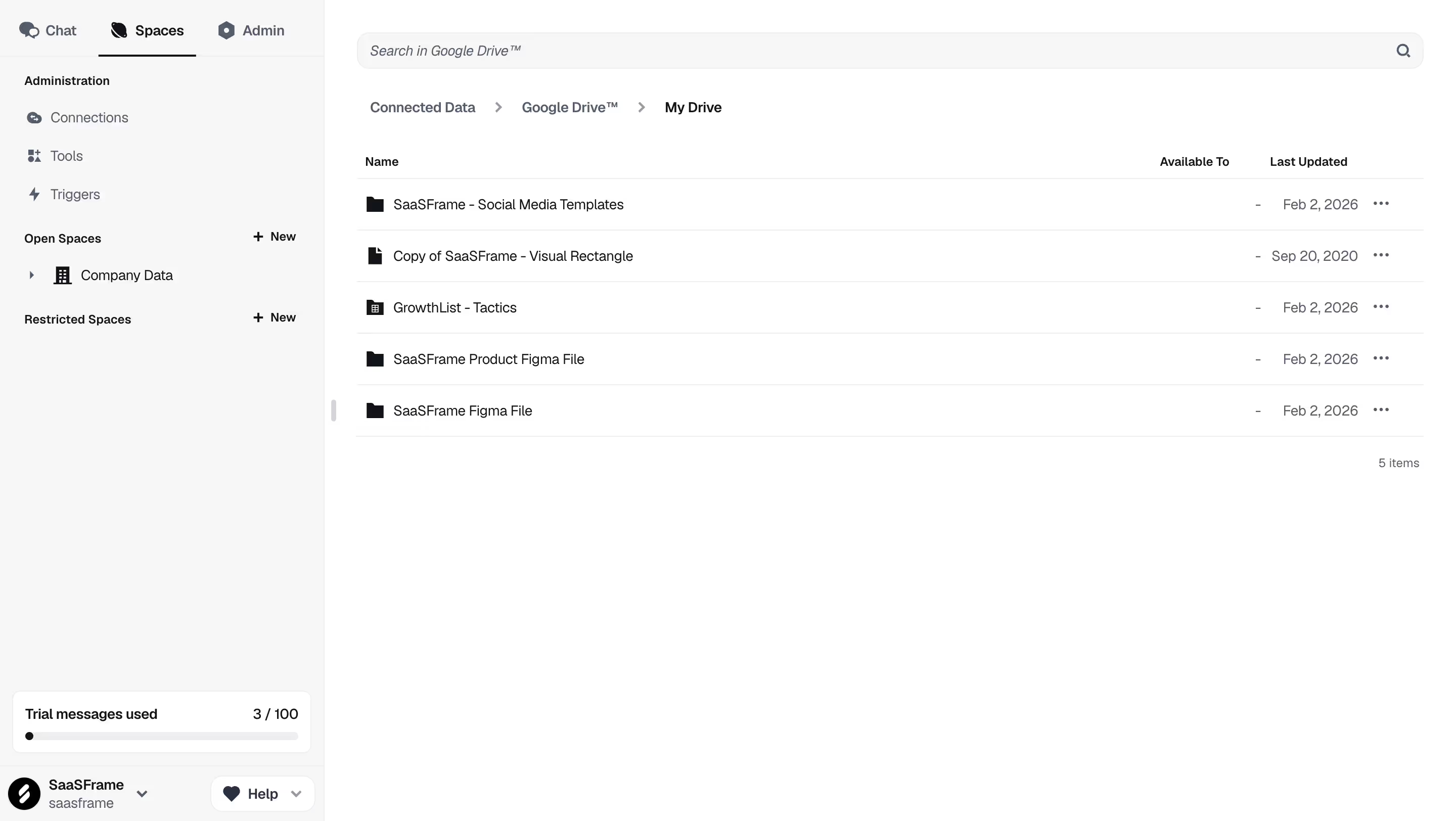
The trail describes a specific browsing context without repeating every element of the application's navigation. It complements the selected Spaces mode and the workspace label rather than replacing them. The source-specific search field reinforces that local scope.
For products that expose connected systems, this distinction matters. An internal workspace folder and a folder from an external source may share a name but have different ownership and operations. A source level in the trail can help users understand which system they are browsing.
The capture does not establish whether selecting Google Drive opens a source root, a connection overview, or another view. Define each parent's destination explicitly. A level should lead to a useful broader context, not merely repeat a label that looks interactive without an available destination.
The inspected Frame note-editor capture includes Company Space followed by Marketing near the top of the content area. The document title, Untitled, appears separately below that path. The browser panel at the left also shows Marketing expanded with document entries beneath it. A tour overlay highlights an invitation control elsewhere in the screen.

This illustrates a breadcrumb that ends at the containing area rather than repeating the current document's title. That can preserve space and avoid duplication when the title is already prominent. The design should still make it clear that the trail describes the container of the open document, not a second independent selection.
The sidebar and path reinforce each other in this capture. If the document is moved, renamed, or opened through search, keep those representations consistent. A stale parent path can be more misleading than no path, because it presents an apparently authoritative location.
The tour overlay is incidental to this analysis. It explains collaboration, while the visible path explains structural context. Do not infer that the path itself is a tour target or that every container can be edited through it.
The Steep Report capture shows Reports followed by Say hi to Reports in its upper area. The report title appears prominently in the document body, with author and edit information beneath it. The sidebar contains report destinations such as All reports and My reports, while sharing and filtering controls appear at the upper right.
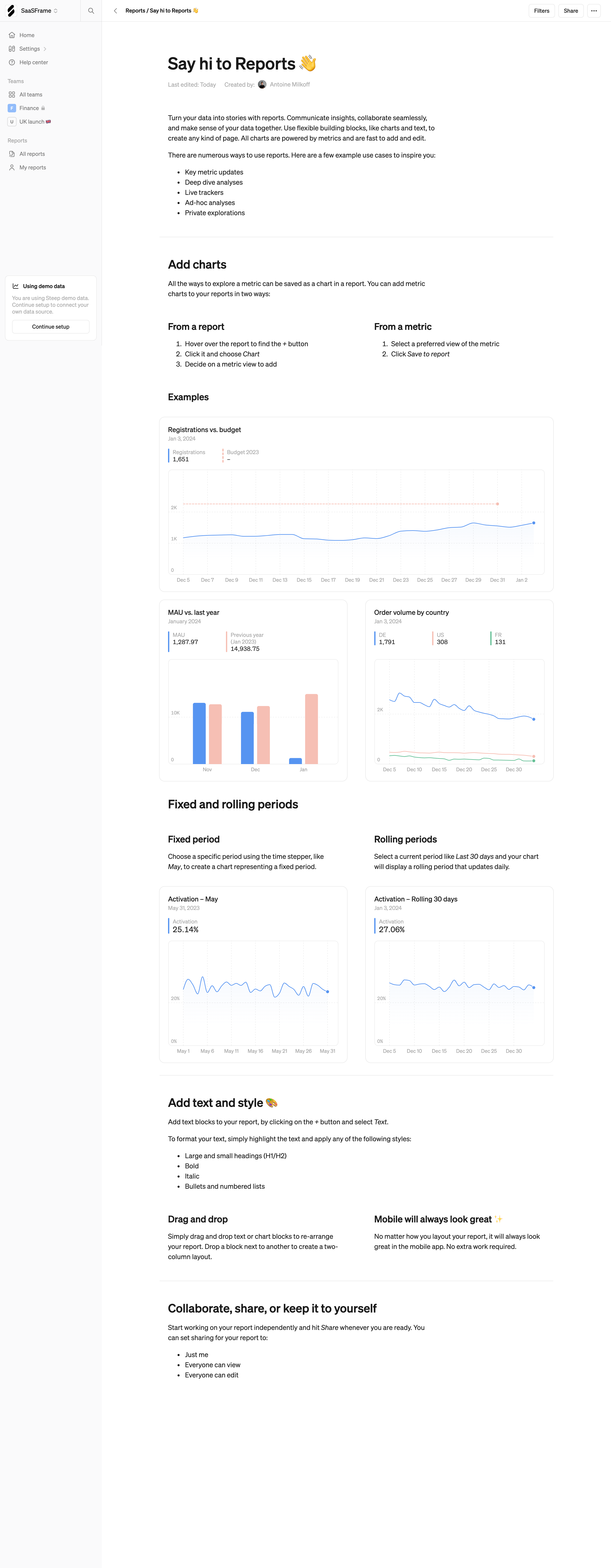
Not every useful trail needs many levels. A collection and an item can be enough to answer where the user is and which broader area contains it. Adding a workspace, team, category, and view purely to make the trail look comprehensive could add noise.
The report's body is long, so a compact path near its upper controls can help orient users before they read. The screenshot does not establish sticky behavior or the destination of Reports. Decide whether users need persistent location during long-document scrolling, and weigh that against the space consumed by a fixed header.
All reports and My reports may describe different ways to view a collection. A breadcrumb should not automatically include the last chosen view if that view is merely a filter rather than the report's structural parent. Treat return-to-view context separately when preserving it helps users continue their task.
Some trails include the current resource as the final item; others end at its parent and rely on a nearby heading. Both can work when the relationship is clear. Including the current item gives a complete path, but long titles can consume most of the available width.
If the current item appears in the trail, distinguish it from ancestor links. It should not imply that users need to click it to reach the page they already see. If it is omitted, keep the current title close enough to establish the relationship, as Frame's capture illustrates.
Use the resource's meaningful name rather than an internal identifier unless that identifier is how users recognize the object. For untitled or duplicate-named resources, consider what additional context is needed. A hierarchy cannot solve every identification problem, but it should not conceal known ambiguity.
A parent link should open the relevant parent context. For a folder, that may be its contents. For a source, it may be the source's browser root. For a collection, it may be a list of resources. Define the destination according to what users expect from the label.
Avoid using breadcrumb links to perform actions such as moving the item or changing its owner. Those operations may be available through a nearby menu, but they should remain distinct from location navigation. A user attempting to go up one level should not alter the resource.
If an ancestor is not accessible, handle that case coherently. A user may be permitted to view a shared document without browsing its whole parent folder. Do not display a link that produces an unexplained access error. Depending on the access model, show limited context or a noninteractive label without exposing unauthorized information.
Modern SaaS resources do not always have one simple tree location. A document may appear in several collections, a record may have several category tags, and a shared item may be accessible through both personal and team views. Decide which relationship the breadcrumb represents.
Use a stable primary location where one exists. If the path reflects the current browsing context instead, communicate that rule and preserve a useful return route. Do not present tags as a unique hierarchy when the resource belongs to several independent categories.
A search result introduces another distinction. The breadcrumb can show the item's structural location, while Back to results preserves the search task. See Search for query and selection continuity. Trying to combine both into one trail can produce a path that changes unpredictably depending on how the user arrived.
Keep hierarchy changes synchronized. Moving a folder may alter several descendants' paths. Renaming a parent should update its label where it appears. Avoid cached trails that continue pointing to an obsolete container after the resource's actual location changes.
Deep paths and long names need a deliberate overflow rule. Preserve the current location and the nearest useful parent. If intermediate levels collapse into an overflow control, make that control discoverable and expose the hidden labels when opened.
Do not replace every segment with anonymous ellipses. Users need enough visible context to distinguish similar projects or folders. If a label is truncated, provide a practical way to read the full name without relying solely on hover, particularly on touch devices.
Separators should make the sequence readable without becoming extra interactive targets. Check long translated labels, large text, and narrow layouts. A wrapped path can work if the order stays clear; a compact dropdown can work if it preserves the hierarchy. Neither choice should turn the trail into an unrelated flat list.
The page title, selected navigation area, and breadcrumb should describe compatible contexts. Dust separates workspace, mode, and source location across different regions. Frame combines a container path with a document title. Steep uses a short report path beside broader report navigation. These arrangements distribute orientation rather than repeat identical labels everywhere.
Define which region is responsible for each level. A workspace selector may already identify the organization, making its repetition in every trail unnecessary. Conversely, a shared resource opened outside the usual application shell may need additional workspace context.
A breadcrumb should not carry operational status that belongs elsewhere. Draft, archived, pending review, or failed import may be shown near the title as separate states. Mixing them into the location sequence can make users think they are navigable folders or hierarchy levels.
W3C's breadcrumb pattern guidance describes a labeled navigation region and identifying the current page when it is included. Use semantic links for navigable ancestors and provide visible focus. Decorative separators should not obscure the understandable sequence for assistive technology.
Ensure the trail's label distinguishes it from other navigation regions. Keyboard users should be able to move through ancestors and any overflow control without unexpected focus changes. If the current item is not a link, represent it accordingly rather than giving it a misleading interaction state.
Test what happens after navigation: the destination heading and focus should make the broader context understandable. A path that is visually clear can still be difficult to use when selecting an ancestor returns users to an unexplained screen or loses their work.
The screenshots do not establish keyboard behavior, link semantics, or accessibility compliance. Treat them as visual references and validate the implemented route through the product.
Test opening a deeply nested item directly, navigating to its parent, renaming a container, and viewing an item shared without full parent access. Ask users where they believe the item lives and what each ancestor will open. Their predictions reveal whether the trail communicates structure or merely resembles it.
No. They are most useful when hierarchy or deep-link orientation matters. A flat product with a small set of obvious destinations may not benefit from repeating a path on every screen. Use them where they help users identify or navigate a resource's context.
Usually represent structural location instead. A user can reach the same resource through several routes, so history is better served by browser Back or a specific return-to-results control. Keep the path stable unless the product deliberately represents a browsing context.
Include it when a complete path adds clarity and fits the layout. Omitting it can avoid repeating a long title when the heading is nearby. Frame's capture illustrates a container path above a separate document title.
Preserve the current location and useful nearby ancestors, then expose intermediate levels through a clear overflow interaction if needed. Make full names inspectable and test keyboard and touch access. Do not collapse the whole hierarchy into unreadable truncation.
They serve different purposes. Breadcrumbs explain the current item's hierarchy and offer ancestors; a sidebar exposes broader destinations and siblings. Dust, Frame, and Steep show paths alongside other navigation rather than using the path as the entire product map.
Compare these SaaSFrame captures according to the hierarchy they expose. A strong breadcrumb trail gives users a reliable location and a useful way upward while leaving task history, resource status, and broader navigation to the controls designed for those jobs.