Alert
12
An inline or prominent message communicating important information, warnings, or errors.
.webp)
An alert brings a condition to the user's attention within the interface. It can explain a requirement, warn about a consequence, or describe a state that affects the current task. In SaaS products, alerts often appear near settings, forms, billing areas, and configuration controls where users need information before acting.
The pattern is useful when the message changes a decision. Its design should answer what happened, what it affects, and what the user can do. A colored box without those answers can attract attention while leaving the task unresolved.
Start with the actual state. Is a prerequisite missing, a change approaching, or an action likely to have a consequence? Describe that condition clearly before deciding whether the alert should look informational, cautionary, or urgent.
Severity should reflect impact and timing, not the importance of the team publishing the message. A routine announcement does not become urgent because it is new. A blocking condition deserves clear emphasis even if its message is short.
Distinguish an alert from transient feedback. A brief success notification confirms a completed action. A persistent inline alert describes a condition that remains relevant. If users need the information later while making a choice, a disappearing notification may be insufficient.
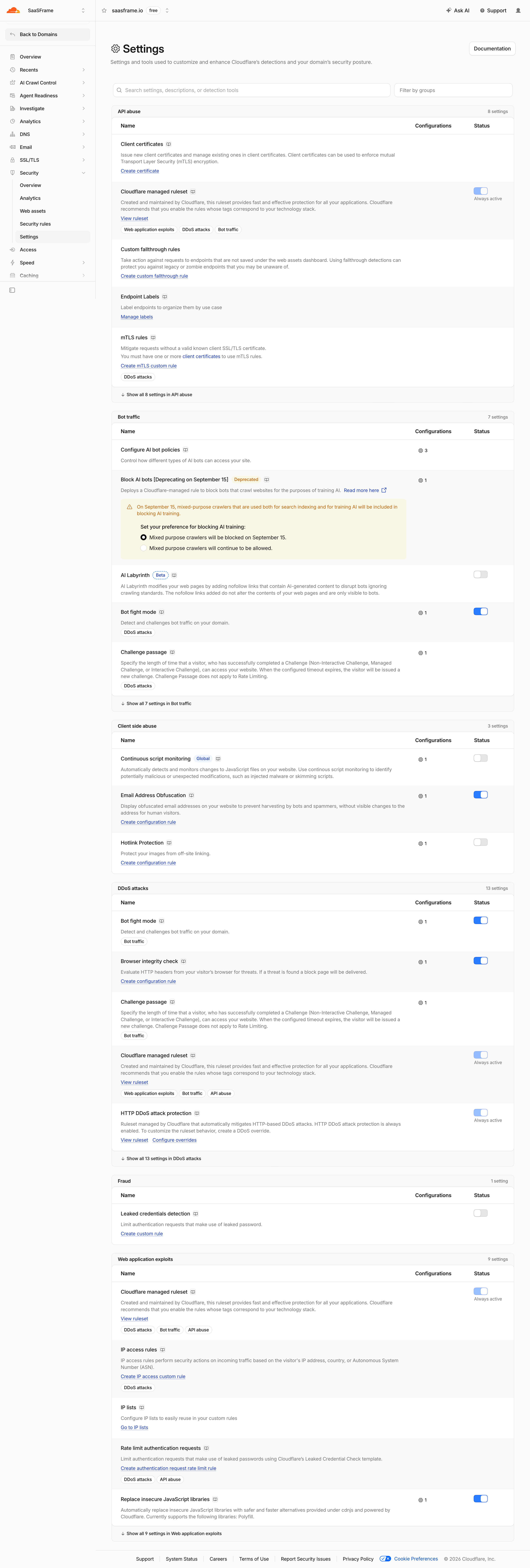
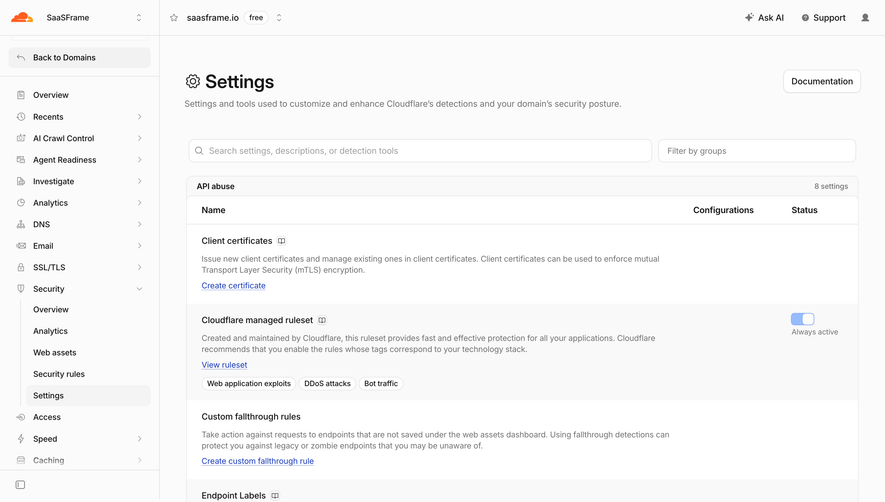
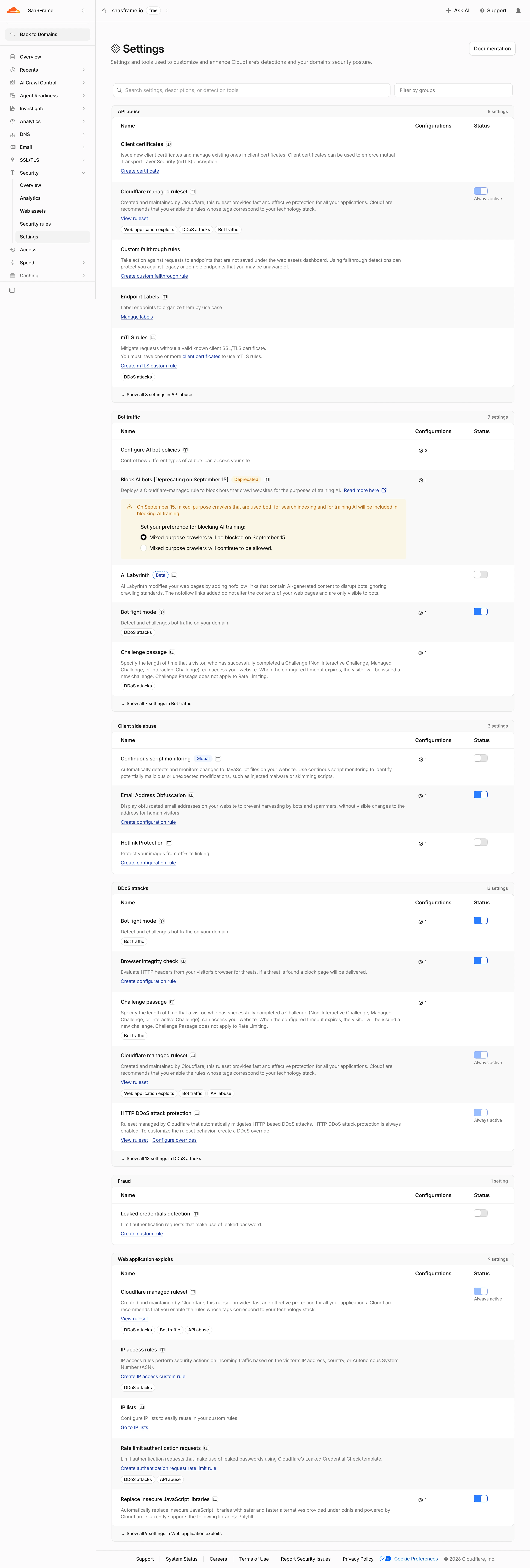
The Cloudflare screenshot shows a security settings page grouped by use case. Within the bot-traffic group, a setting carries a Deprecated label. A highlighted notice underneath describes an upcoming change and presents related preference options.
The proximity helps users connect the message to the affected configuration. A warning at the very top of a long settings page might be noticed but poorly associated with the specific control. Here, the notice sits inside the relevant section and can be read while evaluating the setting.
The date and technical policy in the capture are historical interface content. This guide does not verify the current rule or recommend a security configuration. The observation concerns message placement, consequence explanation, and a nearby decision route.
The screenshot also demonstrates that an alert can be more than a sentence and a dismiss icon. When a condition requires a preference decision, the relevant control may belong close to the explanation. Ensure that the relationship remains understandable and that the choice is not hidden inside a visually decorative box.
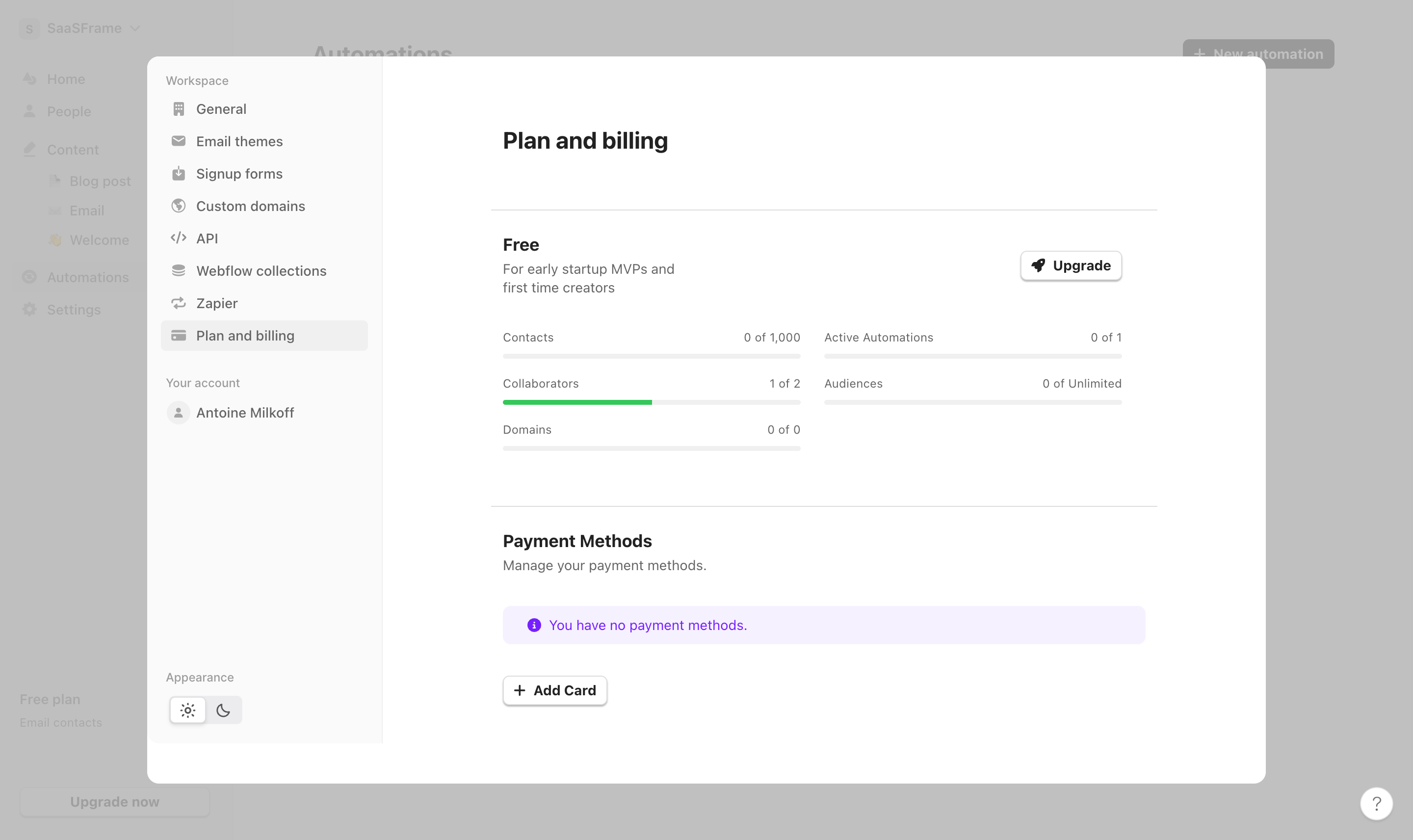
The Audienceful screenshot includes a Payment Methods section in a plan-and-billing panel. A purple informational strip states that no payment methods are present. An Add Card action sits below it, while the current free-plan context remains visible above.
This is a different attention problem from the Cloudflare notice. The interface describes an account state and provides a route to change it. The captured context does not establish an immediate failure or blocked operation, so an alarming error treatment would imply more than the visible state supports.
The action is concrete and local. Users do not have to infer which general settings page contains payment-method management. Pairing the condition with its relevant route helps the message support a task rather than merely report a fact.
The screenshot does not demonstrate whether adding a card is required for another action or how the notice disappears. Those rules need to be defined in the product. The alert should accurately reflect the condition while it remains true.
A useful alert can contain a short statement of the condition, its practical consequence, and a next step. Not every message needs a heading, but longer notices benefit from a hierarchy that lets users identify the main point quickly.
Write the consequence in concrete language. “Your configuration needs attention” is less useful than explaining which capability is affected and why. Avoid making users open another page merely to discover the basic issue.
Use action labels that name the next step. Add Card, Review Setting, and Retry communicate different tasks. A generic button such as Continue can be unclear when the alert itself is the only explanation of what will happen.
If no action is needed, say what the message means without inventing a task. An informational state can be useful on its own. Adding an irrelevant button can make the notice feel more consequential than it is.
A field-specific problem belongs near the field. A section-wide condition belongs near the section. A workspace-wide issue may need a broader banner. Placement should help users identify scope rather than simply maximize visibility.
A global message can be appropriate when several pages are affected, but it should still explain what is relevant to the current user. Avoid showing a workspace-management warning to someone who cannot understand or act on it without a useful route.
Keep alerts close enough to their controls to remain connected on narrow screens. A responsive layout can move an action away from its message or separate a notice from the setting it describes. Test the actual reflow.
Do not obscure the content users need to resolve the condition. An overlay warning can demand attention while covering the relevant control. Choose an inline or broader treatment according to the task's urgency and interaction needs.
A dismissible alert needs a policy. Closing the message can hide the presentation without resolving the underlying condition. If the condition still matters later, decide when and where it should reappear.
Do not make a critical unresolved problem vanish permanently because someone clicked a small close icon. Conversely, do not force users to acknowledge the same harmless notice every time they navigate. Match persistence to consequence and user control.
If dismissal is personal, make sure it does not unexpectedly hide information for the whole team. If acknowledgment has shared meaning, expose that meaning clearly. Reading a notice and approving a change are different actions.
When the condition is resolved, update or remove the alert coherently. A stale warning can make users doubt whether their action succeeded. The alert's lifecycle belongs in the implementation specification, not only the visual design.
A warning explains a possible consequence before or during a decision. A confirmation asks for an explicit choice before committing an action. Validation identifies an input that needs correction. They can share some visual language but should not be treated as interchangeable components.
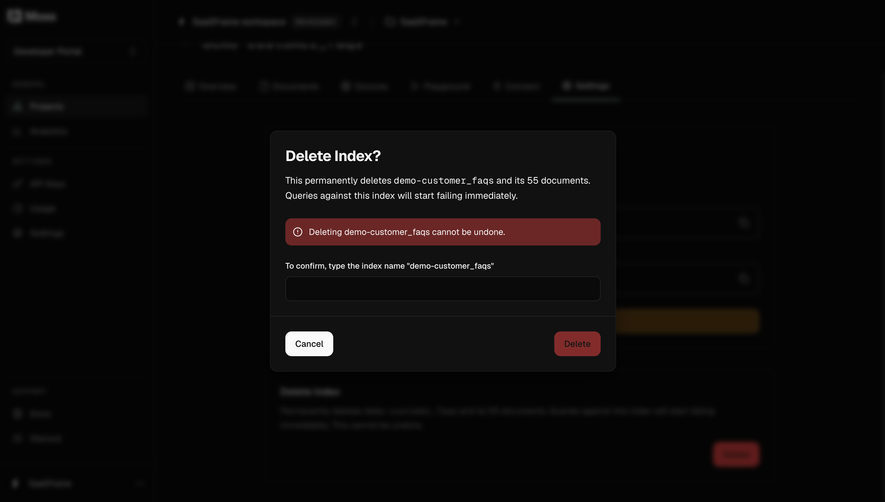
For a destructive action, an inline warning can provide context, while a confirmation may define the final boundary where appropriate. Do not assume that placing red text beside a button establishes informed confirmation by itself.
For invalid input, identify the relevant field and correction. A general alert can summarize several problems, but it should not replace local explanations. Users need a practical route from the message to the value they can fix.
For a completed action, use feedback that reflects the result. A success message should not remain visible after a later failure as if it still describes the current state. Coordinate related message types so that they do not contradict one another.
A Retry action suits a temporary operation failure when repeating is appropriate. A settings route suits a missing prerequisite. An access request suits a permission limitation. Choose the next step according to the condition rather than adding the same button everywhere.
Preserve user work during recovery. An alert about a failed submission should not leave users with an empty form. Keep enough entered data and context for correction or retry, and prevent accidental duplicate actions where they matter.
If the product cannot identify the cause, state the observed problem without pretending to know more. A precise description of what failed is better than a confident but incorrect diagnosis.
For delayed recovery, explain what remains available. Users may be able to continue other tasks while one resource is unavailable. A scoped alert can prevent a local problem from making the whole product appear unusable.
Use text and meaningful structure to convey state. An icon can support recognition, but the condition and action should remain clear without interpreting its color. Keep text readable inside the alert's background treatment.
Interactive controls need clear names and usable targets. A close icon should communicate dismissal, and links should identify their destination or purpose. Repeated alerts with identical action labels may need additional context.
For dynamically appearing messages, choose appropriate announcement behavior in the implementation. Do not move focus unexpectedly for every informational update. Test how keyboard and assistive-technology users encounter the message and reach its action.
Motion can attract attention, but it should not become the only signal. A persistent condition needs a stable readable state after any animation ends. Avoid repeated movement that makes the surrounding task difficult to complete.
A page with several equally prominent messages forces users to rank urgency themselves. Define an attention hierarchy and remove or consolidate redundant notices. The most consequential condition should remain identifiable.
Some messages can belong in a quieter status area or help route. Reserve prominent alerts for information that changes the current decision. A product update, account tip, and task-blocking failure should not compete at the same visual intensity.
Review repeated warnings over time. If users dismiss a message without resolving it, the cause may be unclear wording, an unavailable remedy, or incorrect scope. Making the box brighter is not necessarily the solution.
Ask users to explain what the alert means, identify what it affects, and choose the next step. Then test the resolved state. These tasks reveal whether the message communicates useful information rather than merely attracting attention.
Include long translations, multiple simultaneous notices, missing permissions, and recovery failure. Verify that actions remain reachable and that stale alerts do not persist after successful correction.
No. Decide according to the condition and its consequence. Dismissal should not silently remove the only indication of a critical unresolved problem.
Use an interrupting surface only when the task requires an immediate decision or acknowledgment. Many persistent conditions are better explained inline near the affected controls.
It can use similar styling, but its purpose may simply be to explain an empty collection. Use a prominent alert when the condition meaningfully changes the user's current action.
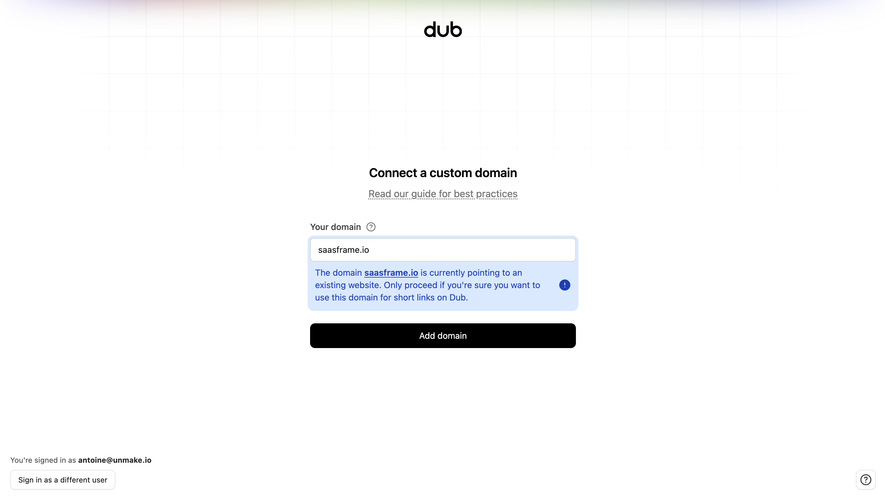
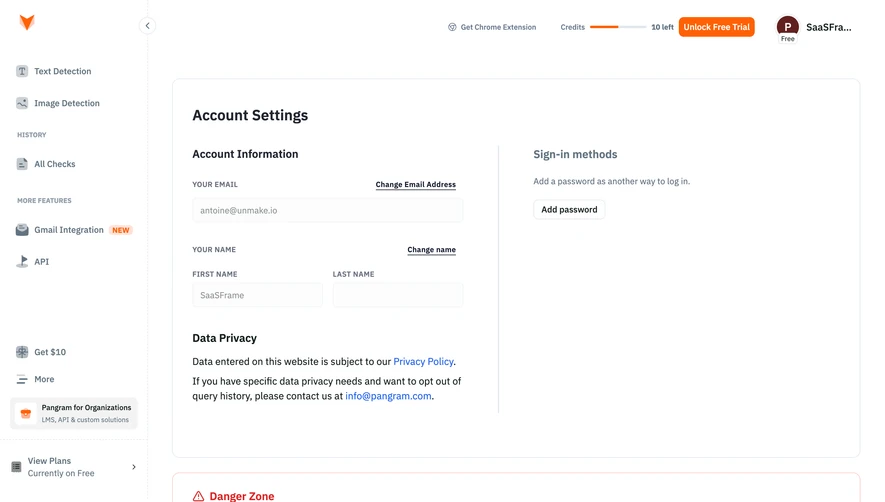
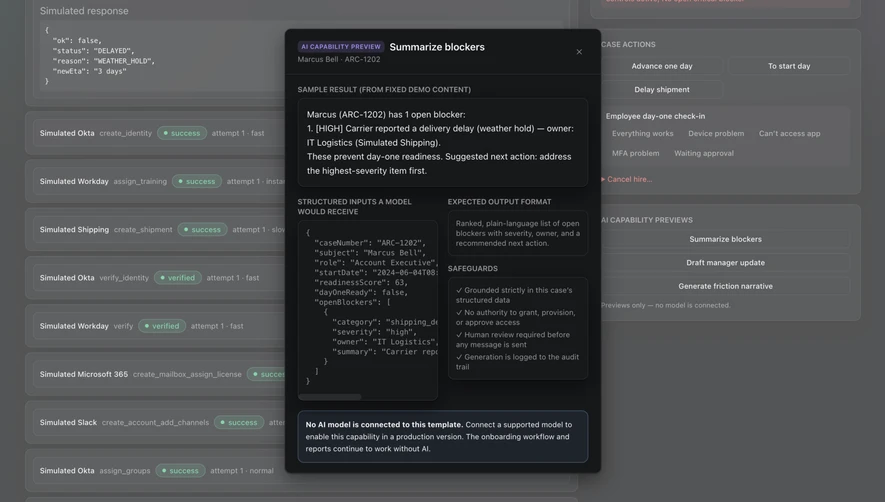
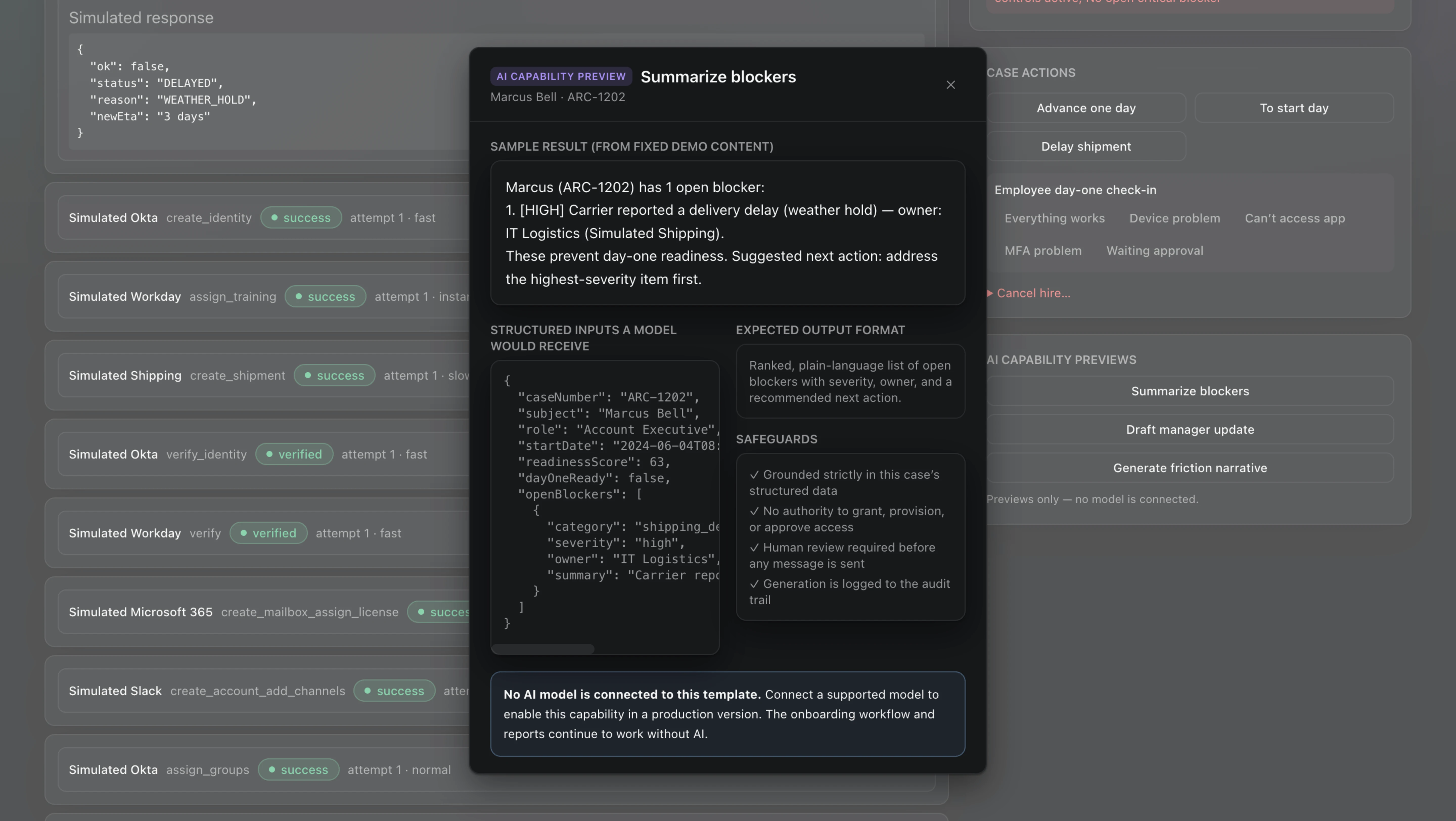
Browse alert examples on SaaSFrame to compare scoped notices, message hierarchy, and actionable account or configuration states.