.avif)




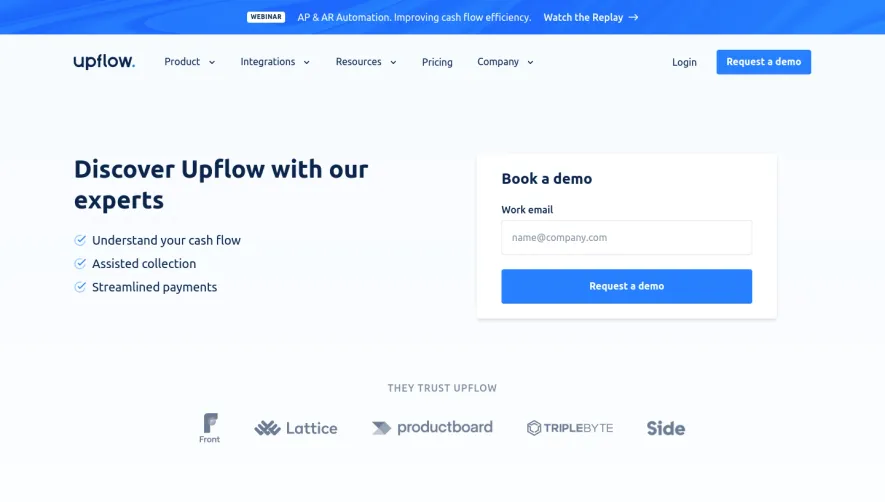
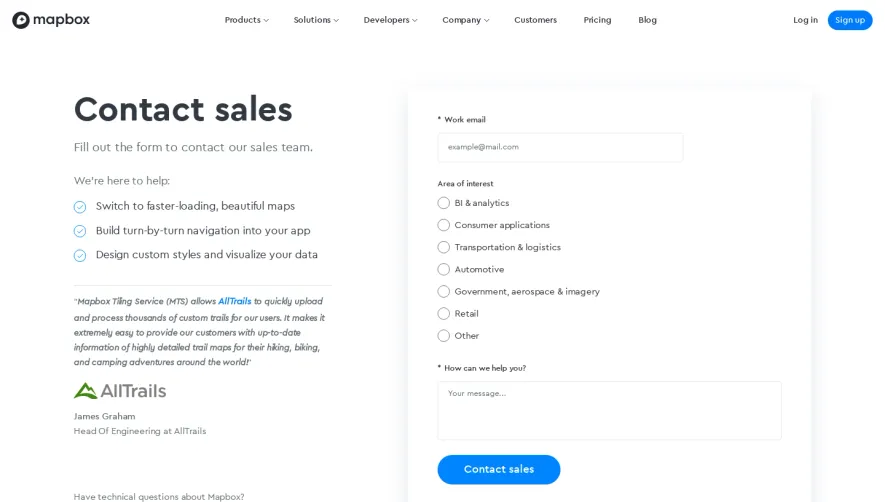
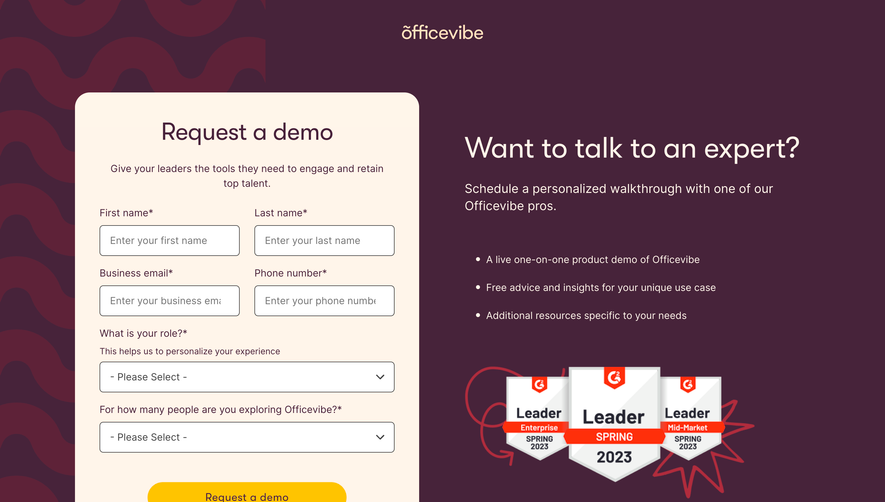
1. Hero section: The page starts with a hero section that includes a background image of a team meeting along with an H1 heading that says "Request a Demo Today!" and a short subheading that says "Discover the power of Spendesk". There is also a CTA button that redirects the user to the demo form. 2. Main demo form: The main demo form is the central focus of the page. It contains several fields that the user has to fill out to request a demo. The form includes fields for the user's name, email address, phone number, company name, job title, and number of employees. 3. Additional questions: Underneath the main demo form, there are three additional questions that gather more information about the user's company. These questions ask about the user's purchasing process, accounting software usage, and how they manage expenses. 4. CTA section: After the additional questions, there is a section that highlights the benefits of scheduling a demo. This section includes bullet points that outline the benefits of Spendesk, followed by another CTA that encourages the user to schedule a demo. 5. Testimonials: The page includes four testimonials from existing clients. Each testimonial includes a picture of the client, along with a blurb about their experience using Spendesk. 6. Bottom form: At the bottom of the page, there is another demo form. This form is much shorter than the main form and includes only three fields for the user's name, email address, and phone number. 7. Footer: The page footer includes several links to other pages on the Spendesk website, social media icons, and legal information about the company. The footer also includes a CTA that encourages users to sign up for Spendesk's newsletter.
.webp)
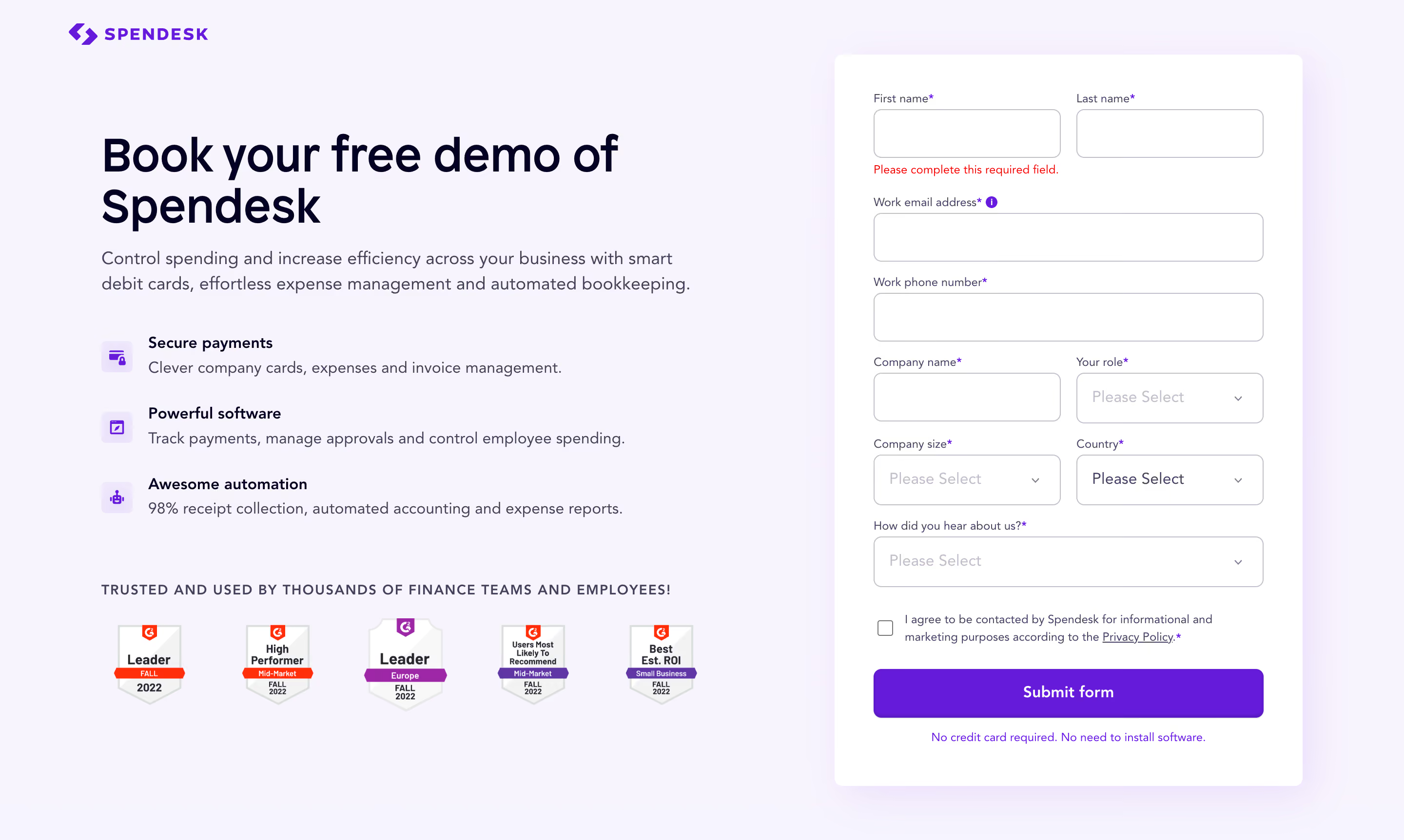

Spendesk Demo Request

Spendesk
Spend management
Designed by
No items found.
Category
Patterns
No items found.
Added on
April 25, 2020