Dashboard
98
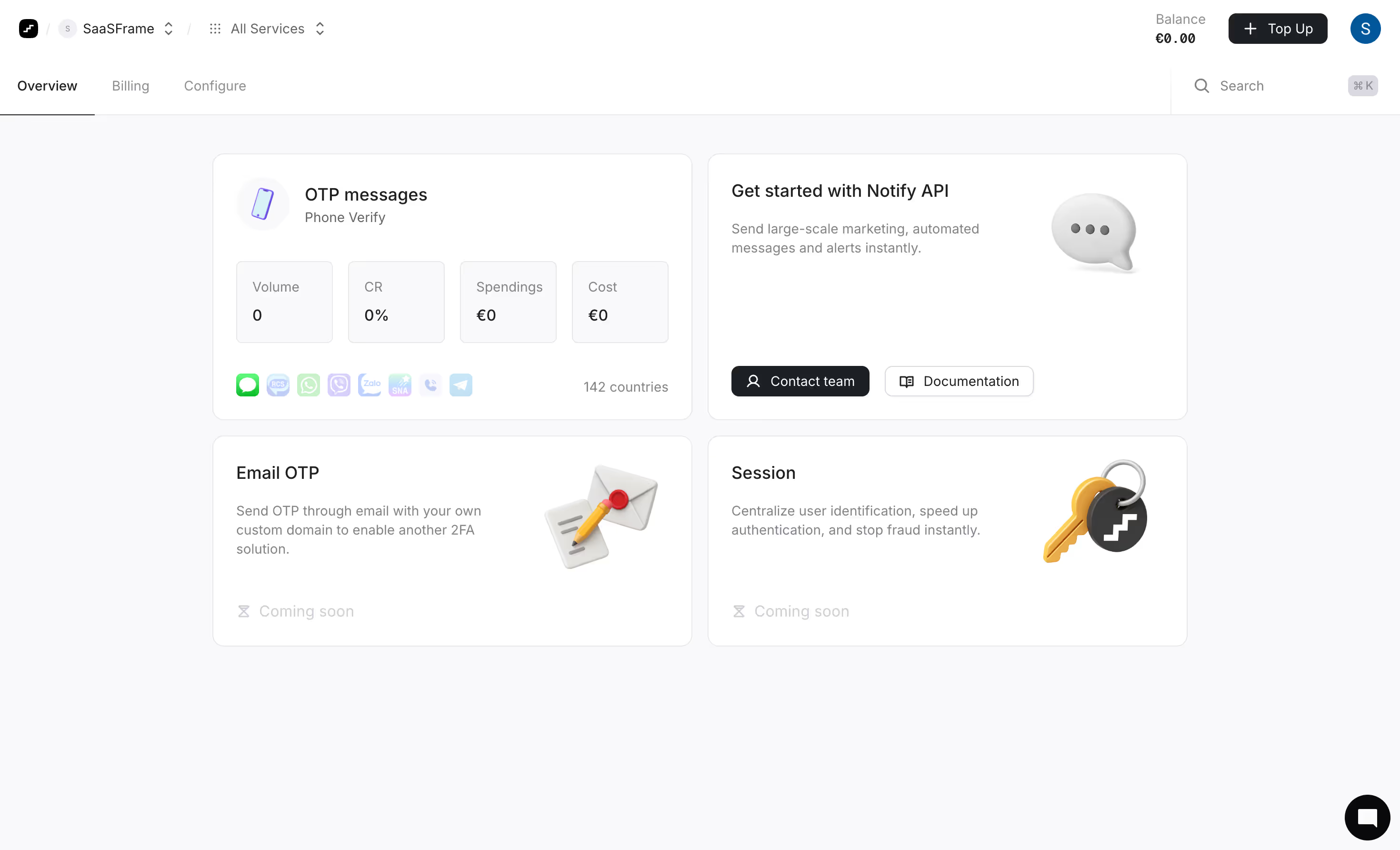
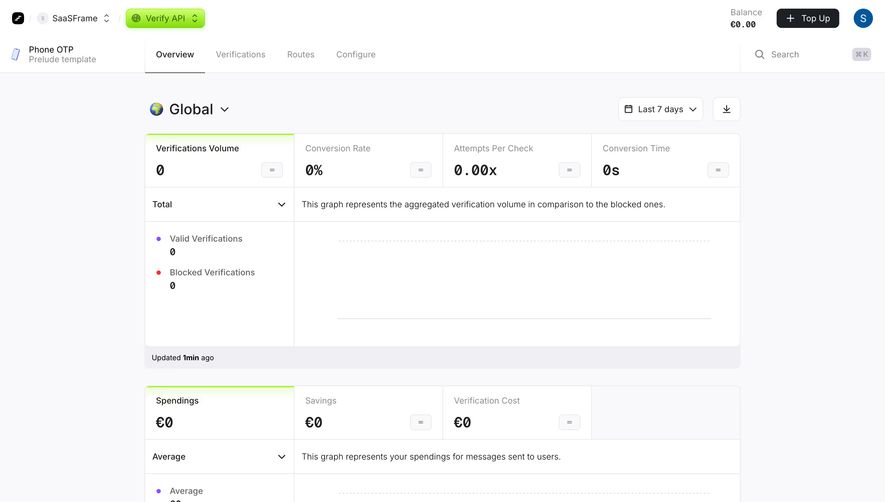
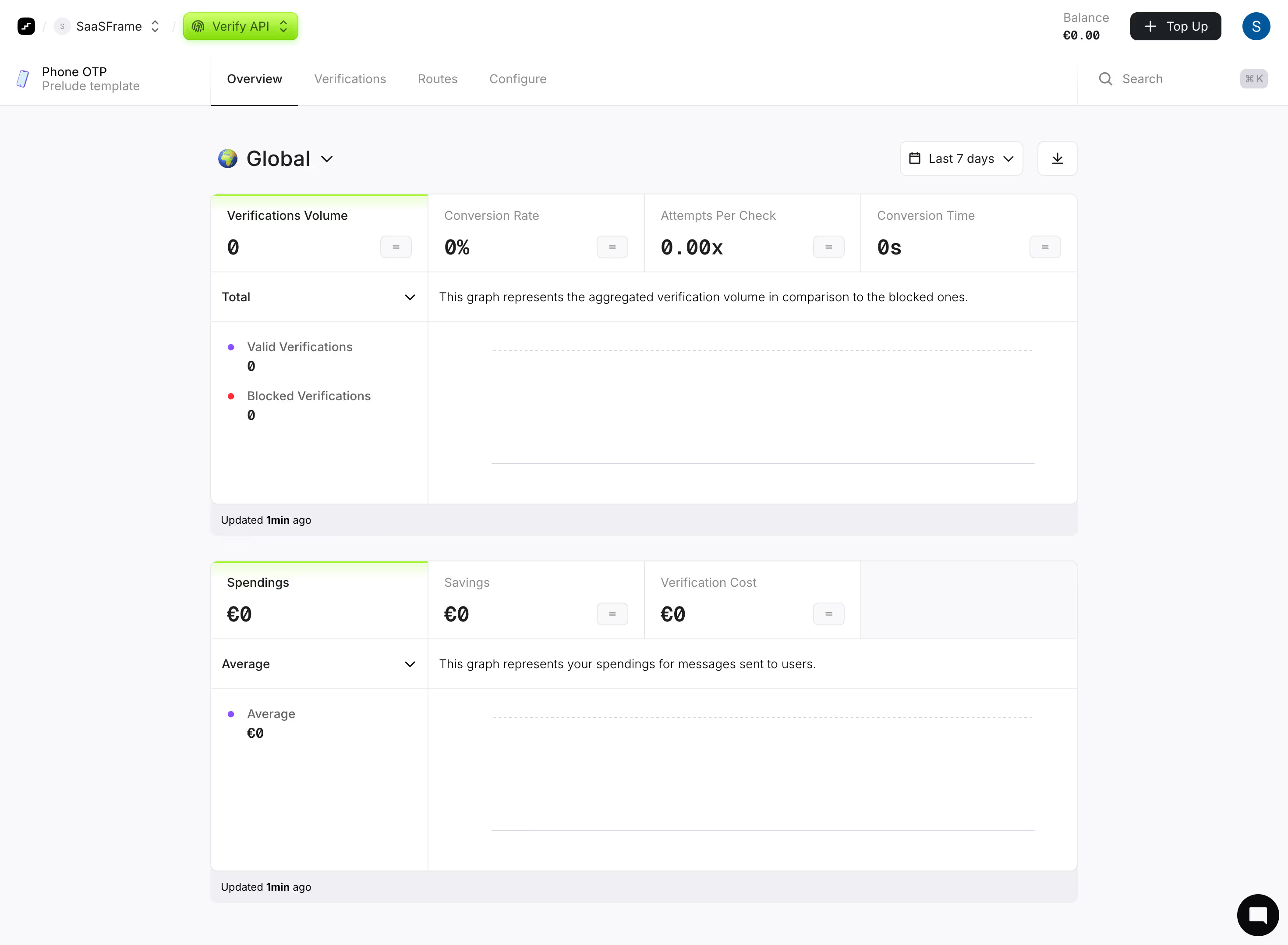
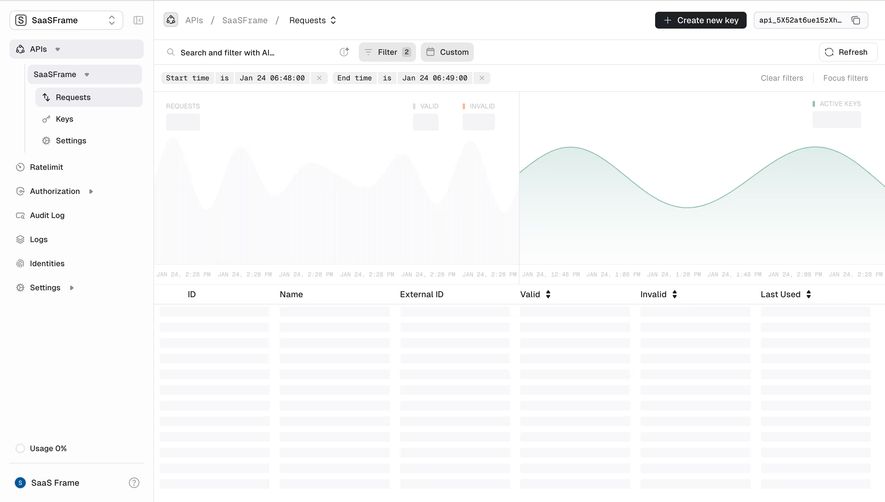
An overview screen combining key metrics, status, recent activity, and shortcuts.
.webp)
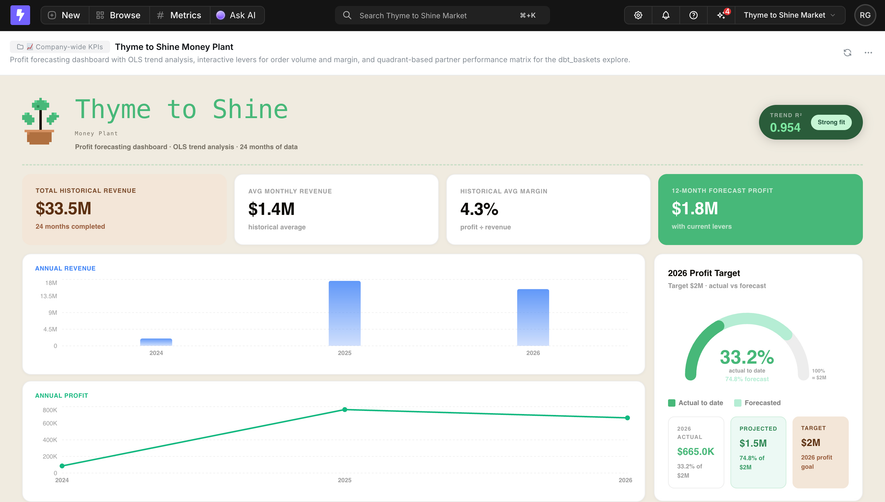
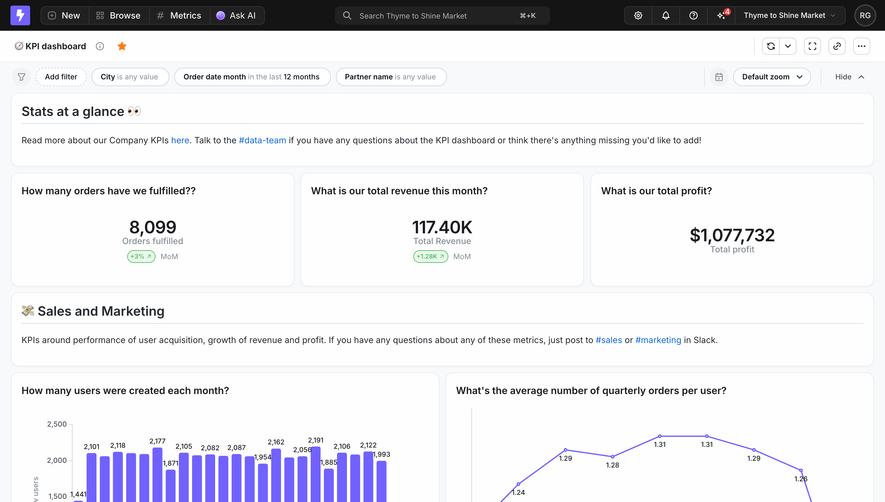
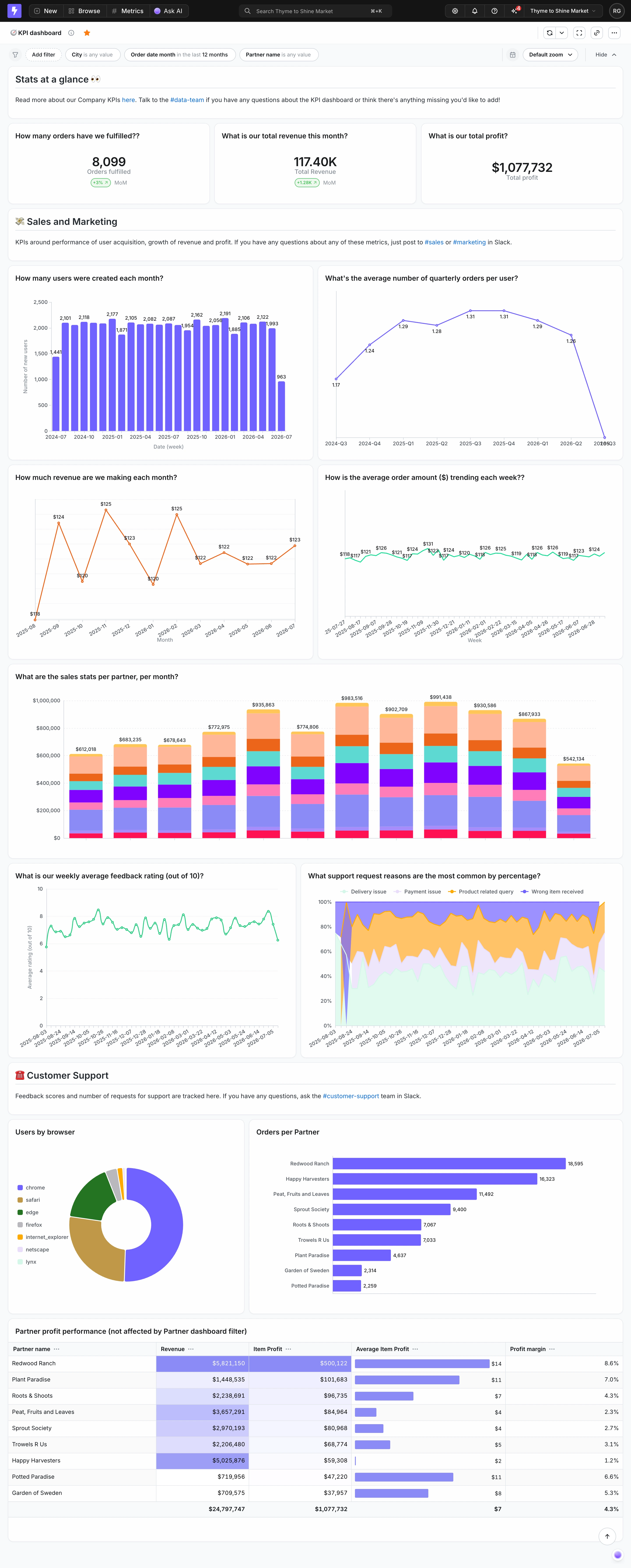
A SaaS dashboard brings together the information and actions a user needs to understand a situation and decide what to do next. It can support monitoring, investigation, or access to everyday work. Its quality depends on the relationship between those tasks, the selected data, and the available next steps. A grid of attractive cards is only the presentation layer.
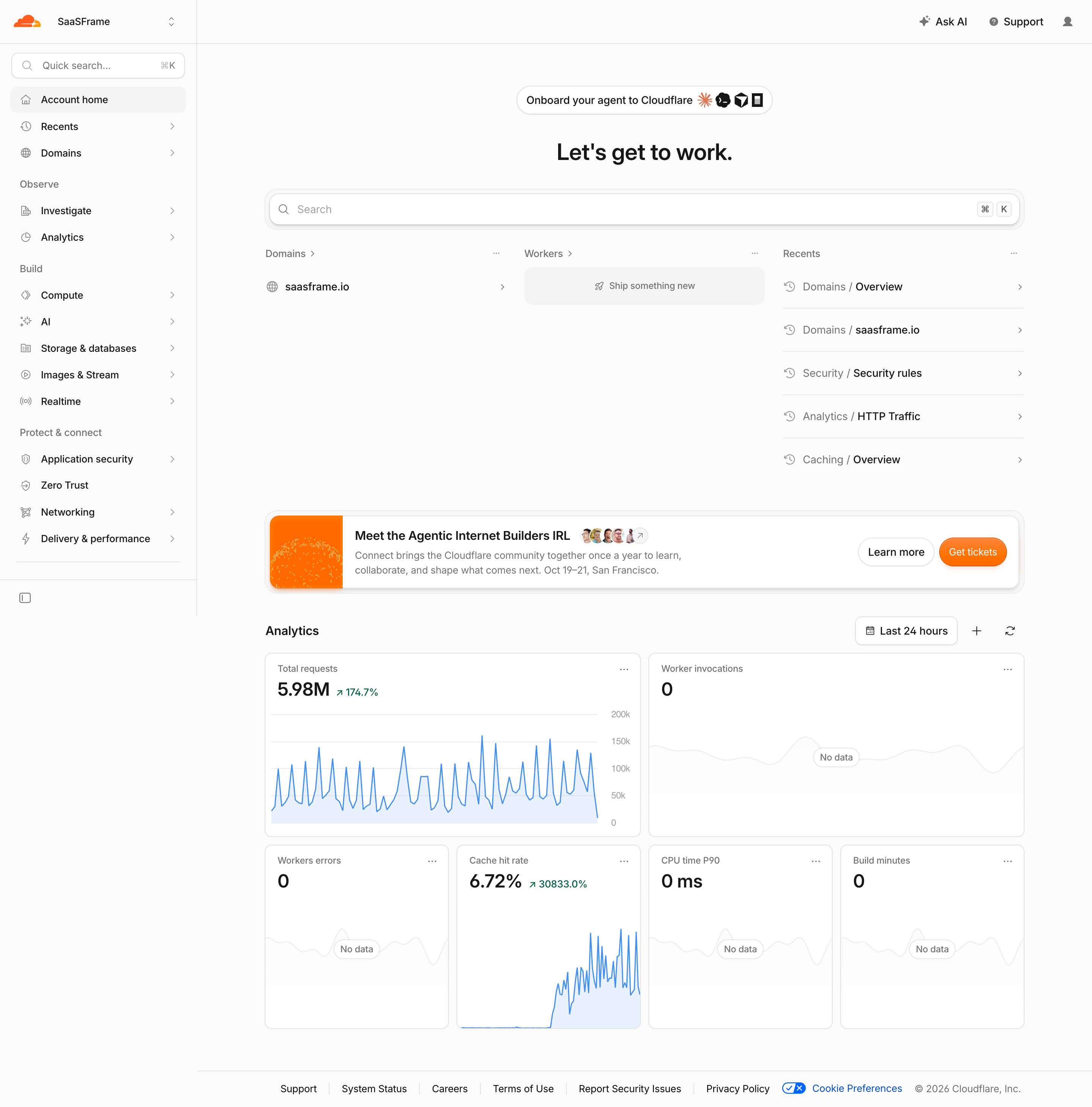
Cloudflare's account home, domain overview, and traffic overview show three distinct levels of dashboard scope. One helps a person resume work across an account; one combines configuration and metrics for a domain; one supports traffic investigation. Their differences are useful because a dashboard should reflect the job of the page rather than inherit the same layout everywhere.
Start by naming the decision the page supports. An account homepage may help users find their active resources and resume recent tasks. A monitoring dashboard may help them notice an abnormal condition. An analytical view may help them test an explanation through time windows and breakdowns.
These jobs can coexist, but they need a hierarchy. If a user arrives to continue a project, putting eight metrics above their recent work creates a detour. If they arrive to investigate an incident, a large welcome message and promotional card can delay the information they need.
Define the audience and cadence as well. A person reviewing weekly performance has different needs from an operator watching a live service. Agree on the dashboard's primary question before choosing cards, charts, or personalization features. Otherwise every stakeholder can add a metric without improving the user's decision.
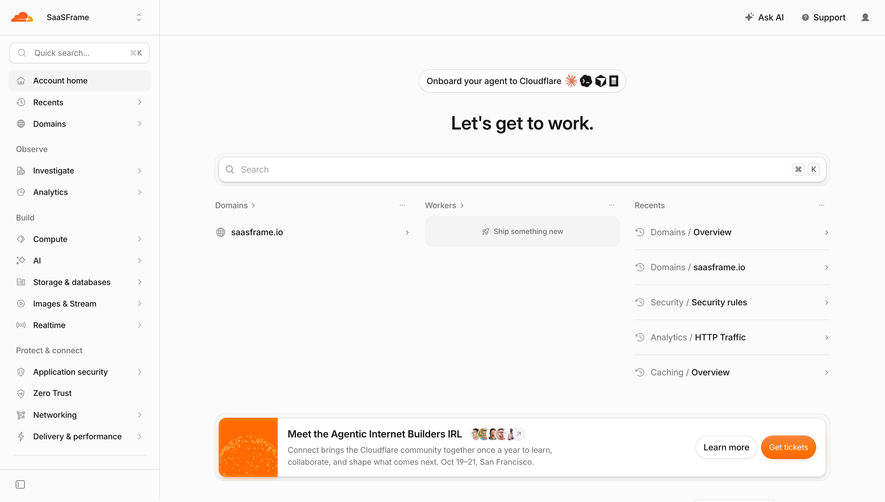
Cloudflare's account home places a large search control above domains, Workers, and recent destinations. Analytics appear farther down the page. The opening area prioritizes navigation and resuming activity before aggregate measurement.
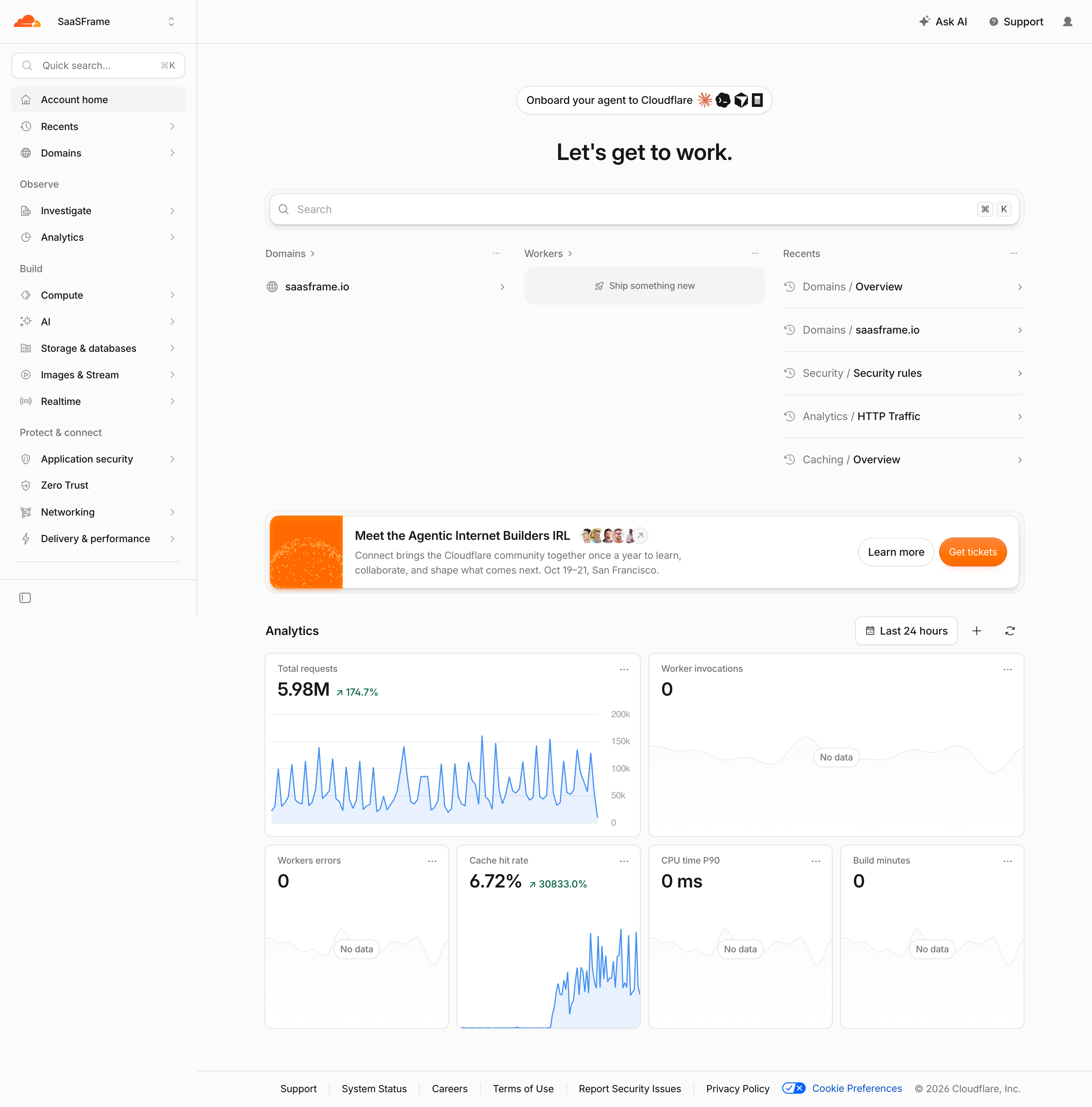
This hierarchy is a useful reference for products with many resource types. Recent items help people resume known tasks; search helps locate a destination; a resource group exposes stable entry points. These serve different discovery needs and should not simply duplicate the same list three times.
Choose recent items deliberately. A list of the last five pages visited can be useful, but it may be less meaningful than recently edited projects for another product. Label the selection rule so people can predict what appears. Avoid filling a homepage with activity that offers no useful return route.
The screenshot also contains an event promotion. Treat promotional space as a competing priority: test whether it pushes important work below the initial viewport. A commercial message can belong on a homepage, but its prominence should follow the user's purpose and the product's actual tradeoff.
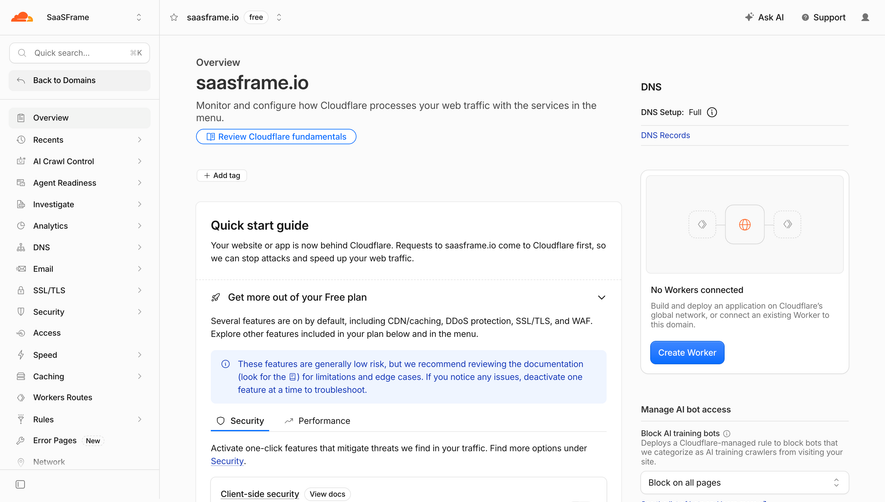
Cloudflare's domain overview repeats the domain name in the page heading and describes monitoring and configuration for that domain. A quick-start guide occupies the main column; DNS, configuration shortcuts, subscription information, and other resource details sit alongside it.
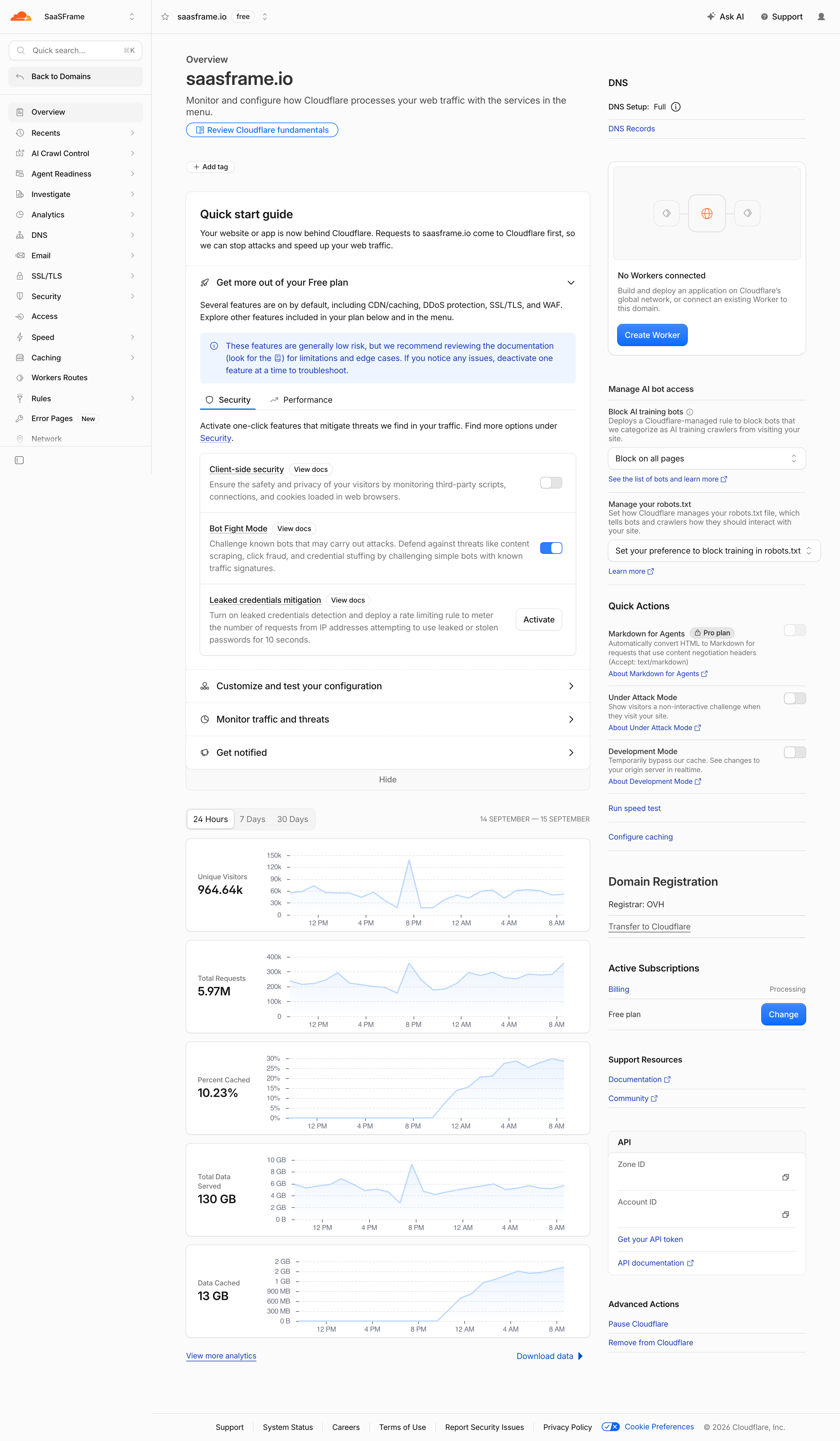
A resource-specific dashboard needs a clear boundary. Users should know which project, environment, account, or domain an action affects before changing settings. Repeat the relevant name near high-impact actions when relying on the global switcher alone would invite mistakes.
Setup guidance can be useful while the resource is new. After setup, it may compete with recurring operational work. Consider collapsible guidance, completed-state summaries, or a different emphasis as the user's needs change. Do not keep an oversized onboarding panel permanently above the information users return to inspect.
Combining metrics and configuration also changes responsibility. A metric may suggest a problem, but a setting change needs its own explanation and feedback. Avoid implying that switching a nearby toggle is automatically the correct response to an unusual chart.
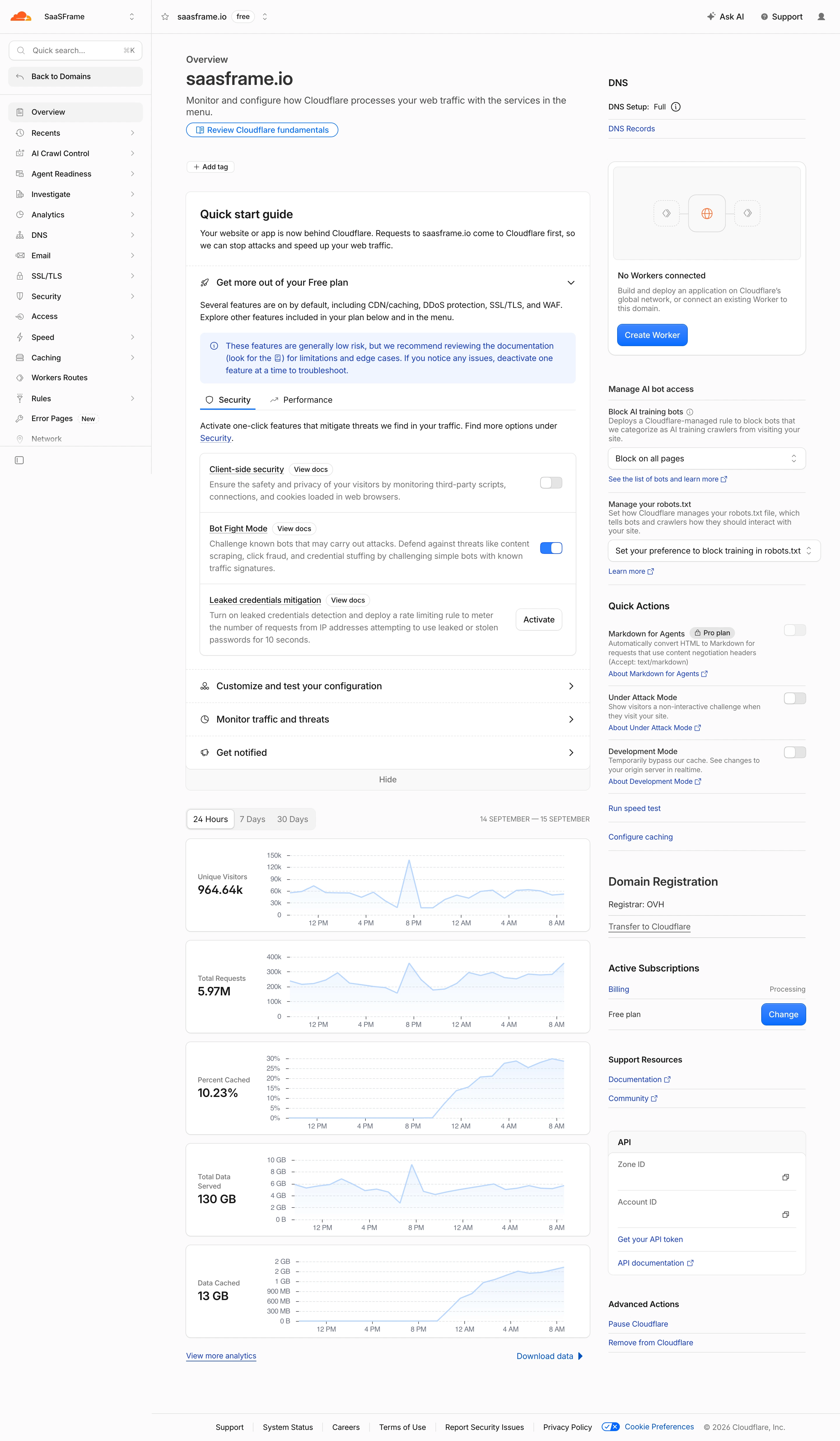
Cloudflare's traffic overview begins with summary cards for requests, visits, cache hit rate, and data transfer. A larger time-series chart follows, then breakdowns by device, country, status codes, paths, and other dimensions. The page moves from broad measurement toward possible explanations.
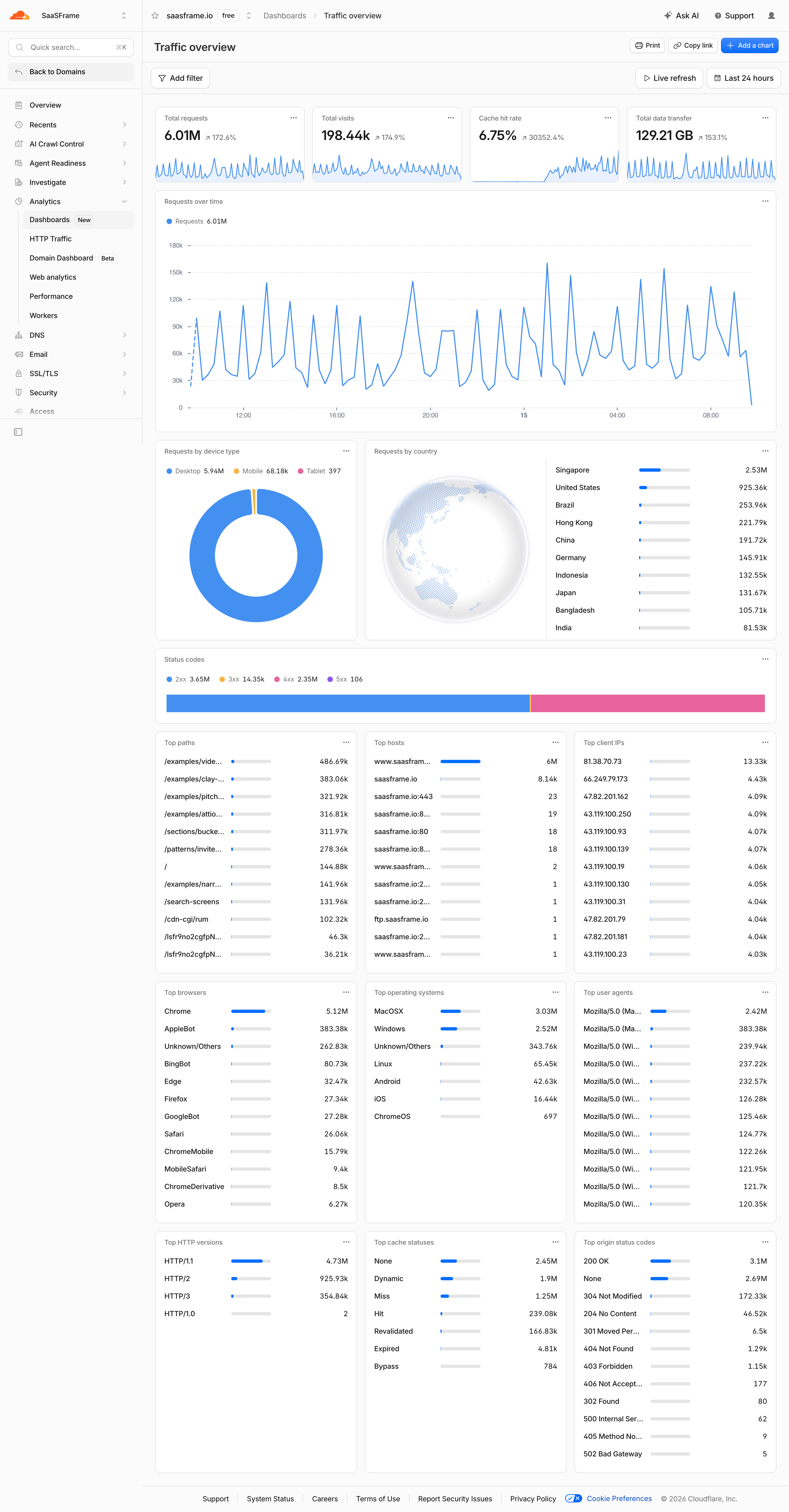
A useful summary identifies what changed; a trend shows when it changed; a breakdown helps locate the segment involved. These are complementary views. Repeating the same number in four decorative formats adds visual weight without adding evidence.
Choose the next level of detail according to likely investigations. A support manager may need queues and response times; an infrastructure analyst may need paths, countries, and error classes. The screenshot is a reference for analytical sequencing, not a universal checklist of metrics every dashboard should include.
Consider how users will reach a record or detailed report after spotting an anomaly. A card can link to a scoped view, but its affordance and destination should be clear. Preserve the time window and relevant conditions when moving into that view where doing so supports the investigation.
A prominent number needs a clear name, unit, aggregation rule, and time scope. “Active users” could mean daily activity, a rolling period, or currently connected sessions. A concise label may fit the card, while a definition belongs in nearby help or a detail view.
Percentage changes need a comparison baseline. Identify whether the dashboard compares the preceding period, the same weekday, or a fixed reference. A large increase is difficult to interpret without that context, particularly when the previous value was close to zero.
Do not equate direction with benefit. More requests can represent growth or unwanted traffic. More support tickets can signal engagement or an incident. Use color according to the defined meaning of the metric and keep the comparison readable without relying on green and red.
Include absolute values where a percentage alone could exaggerate significance. A change from one event to four is a large relative increase with a small total. Help users interpret the scale before prompting them to act.
Place shared scope controls where users can find them before interpreting the data. If a selected time window applies to every card, preserve that relationship visibly. If one panel has a different period or refresh cadence, label the exception close to that panel.
Distinguish the reporting window from the time the data was last updated. “Last 24 hours” describes the period being queried; it does not prove that the latest event is already included. Show freshness when latency can affect decisions.
A live refresh control introduces another behavior to explain. Users may want to pause updates while inspecting a value or comparing screens. Preserve readable context rather than reshuffling a table under the pointer every time new data arrives.
For comparisons across time zones, make the reporting zone discoverable. A daily total can change meaning around midnight, and a time-series axis should match the window used by the summary cards. Treat date boundaries as part of the information design.
Use a time series when timing and change matter. Use a ranked comparison when users need to identify the largest categories. Use a table when exact values, labels, and several attributes must be inspected together. Select the form from the question rather than a desire for variety.
Compact sparklines can show direction but may hide axis details. Keep enough context in the card to explain the unit and period, and provide a route to the fuller chart. Do not expect users to infer whether two visually similar lines have the same scale.
Dense dashboards need deliberate treatment of long labels. A truncated path or customer name can remove the part that distinguishes two rows. Offer full labels through a usable detail or expansion mechanism that works on touch and with a keyboard.
Maps can add spatial context, but a ranked list may make magnitude easier to compare. In Cloudflare's traffic view, the geographic display appears alongside country values. Consider complementary text when a visual form alone makes the underlying comparison difficult.
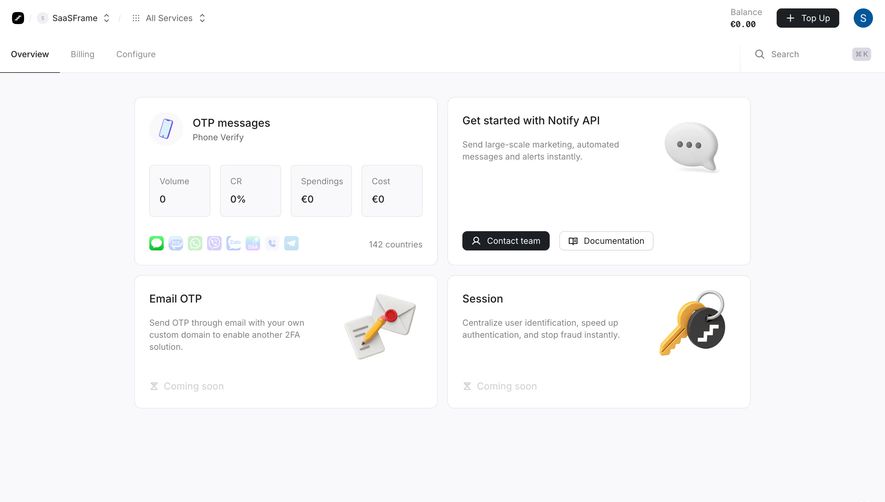
Cloudflare's account home includes analytics panels displaying “No data,” while some headline values are zero. This visible combination highlights a question every dashboard needs to resolve: does zero mean a measured absence, or is the value unavailable?
Design these states separately. A new workspace may have no activity yet. A query may be loading. A connection may be missing. A request may have failed. Giving all four states a zero can make the page look healthy while concealing a broken data path.
Keep useful information visible when only one panel fails. A dashboard with independent sources does not always need to collapse into one page-wide error. Label the affected panel, explain whether previously loaded values are stale, and provide an appropriate recovery action.
Empty panels can offer setup or an explanation when that is the real issue. Avoid sending every user to “Create your first item” if their role cannot create items or the data comes from an external integration.
Different roles may need different dashboards. A team lead might monitor aggregate performance; an individual contributor may need assigned work. Role-based defaults can reduce irrelevant information before adding a fully configurable layout.
If users can add or reorder panels, keep the initial configuration useful. Customization should improve a working dashboard, not require every new user to build one from an empty canvas. Provide a clear route to reset or recover a layout.
Distinguish a personal layout from a shared report. Moving a card or changing a filter should not unexpectedly alter what the whole team sees. Explain ownership and saving behavior near the customization action.
Permissions affect both values and actions. Two people viewing the same named dashboard may have access to different records. Explain restricted areas where appropriate and verify that summaries do not expose information beyond the user's allowed scope.
Prioritize reading order for narrow screens rather than simply shrinking the desktop grid. Keep the primary task, key scope controls, and important exceptions early in the sequence. Allow detailed charts or tables an appropriate overflow or dedicated view.
Give charts text context and a way to inspect important values. Keyboard users need access to meaningful controls and drill-down actions. Avoid making hover the only route to a label, timestamp, or comparison value.
Live updates should communicate useful changes without creating a stream of interruptions. Preserve focus while data refreshes, and announce consequential states deliberately. Test loading, partial failure, zoom, long labels, and large datasets alongside the ideal populated screen.
No. A dashboard for resuming work may prioritize resources, recent items, and tasks. Include charts when they help users understand a relationship or make a decision.
Choose the smallest set that supports the page's primary question. A fixed card count cannot account for different roles, devices, or decision complexity.
Use the cadence the task requires. Live monitoring can need frequent updates; weekly review may benefit more from stable comparisons and clear freshness information.
Customization is useful when needs vary enough to justify it. Start with strong defaults and clear ownership so users can improve the layout without accidentally changing a shared report.
Compare Metrics for interpreting individual values, Charts for visual relationships, Filter for query scope, and Status Indicator for operational conditions. Use the gallery to compare the task each page prioritizes, then evaluate the data definitions and interactions a screenshot cannot reveal.