Task Management
60
Interfaces for creating, organizing, prioritizing, assigning, and completing tasks or to-do items.
.webp)
Task management helps people identify work, understand responsibility, track progress, and decide what to do next. A SaaS interface may support personal tasks, shared projects, or a guided setup checklist. These uses share completion cues, but their ownership and state rules differ.
Start by defining the task object. Does it have an assignee, status, due date, discussion, or parent? Is completion declared by a person or detected by the system? The interface should reflect that model rather than treating every row with a checkbox as the same type of work.
A useful task surface supports both scanning and context. Users need a compact view of the work and a route to the information required to act. It should also preserve the distinction between selecting a row, opening it, and marking it complete. Those actions can look similar but have different consequences.
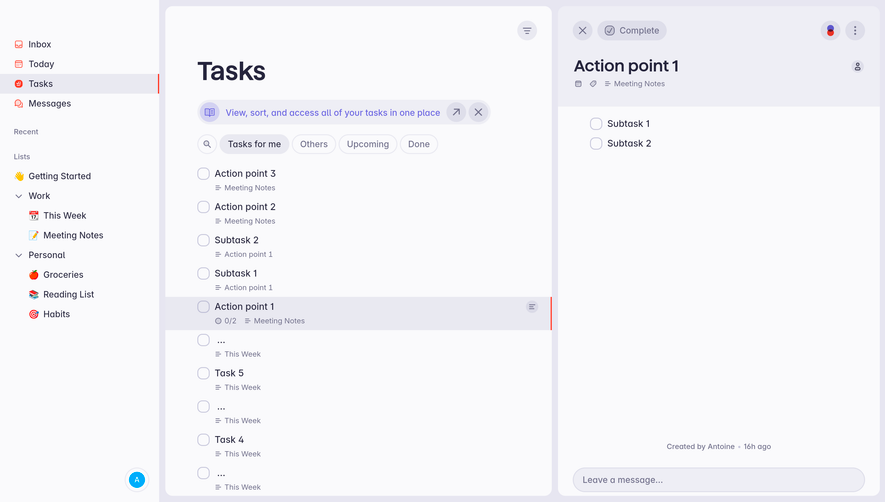
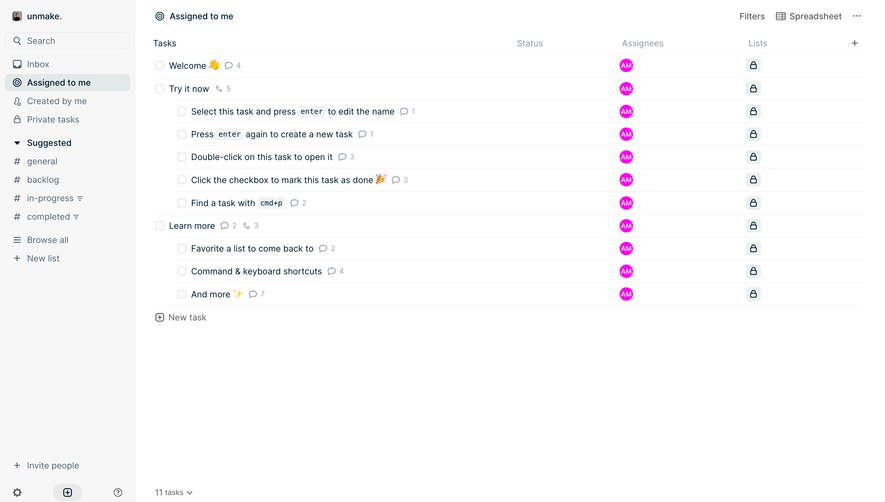
Height's captured task list is labeled Assigned to me and shows columns for tasks, status, assignees, and lists. The left navigation also includes Created by me and Private tasks. This exposes different ways to find work without treating authorship, responsibility, and privacy as interchangeable.
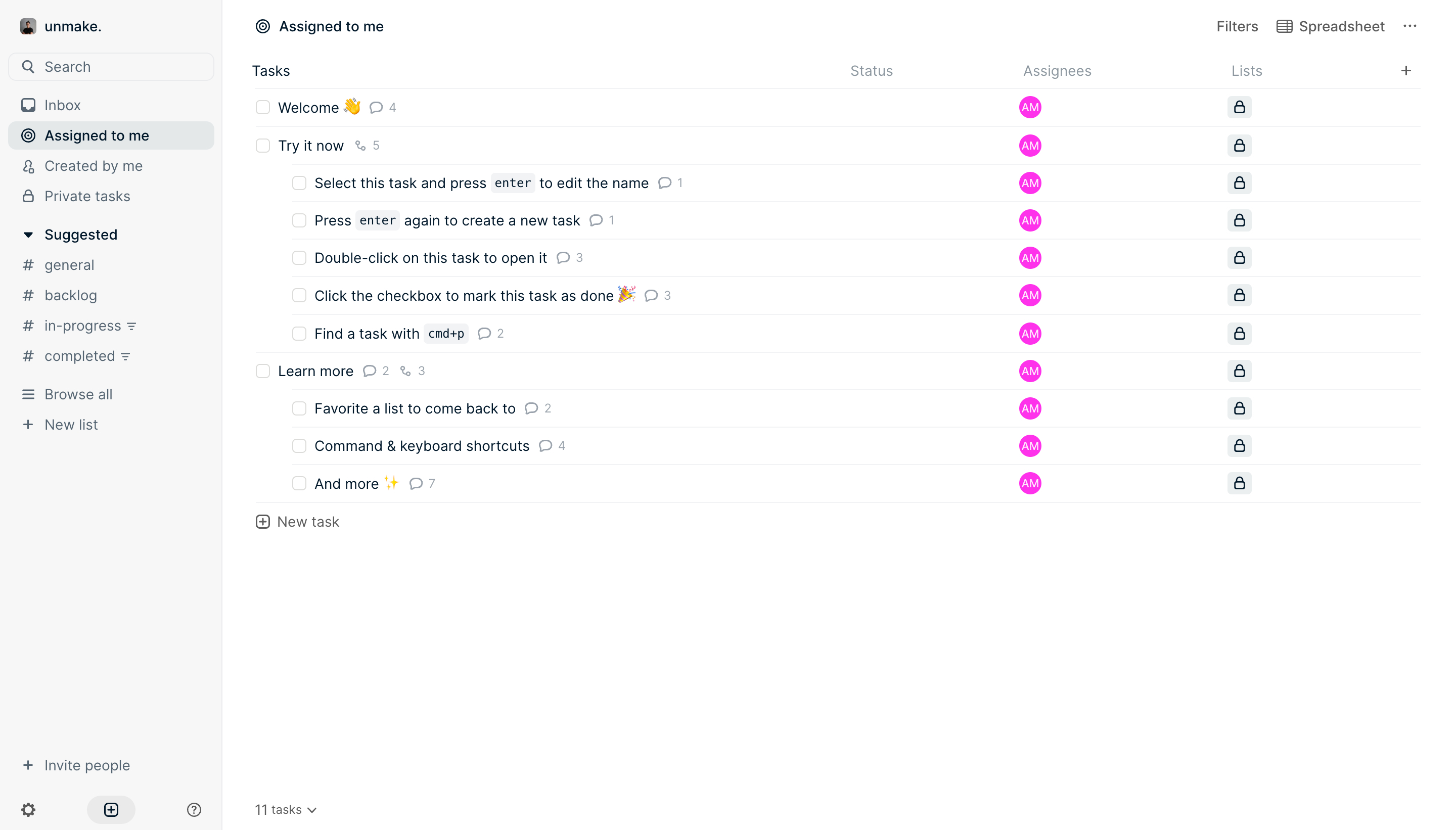
The screenshot contains instructional task names and nested rows. Some visible text describes editing, creating, opening, and completing tasks. These examples show that several operations belong to the same workspace, but the capture alone does not verify each shortcut's behavior.
For a comparable view, make the active inclusion rule clear. Assigned to me should not silently include every task the user created or can access. Keep shared project context available through list or project identity, so a personal queue does not turn tasks into disconnected obligations.
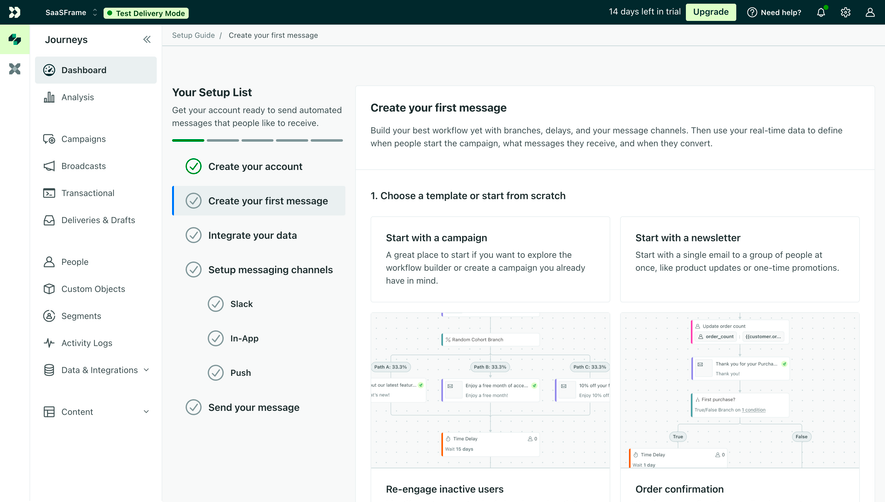
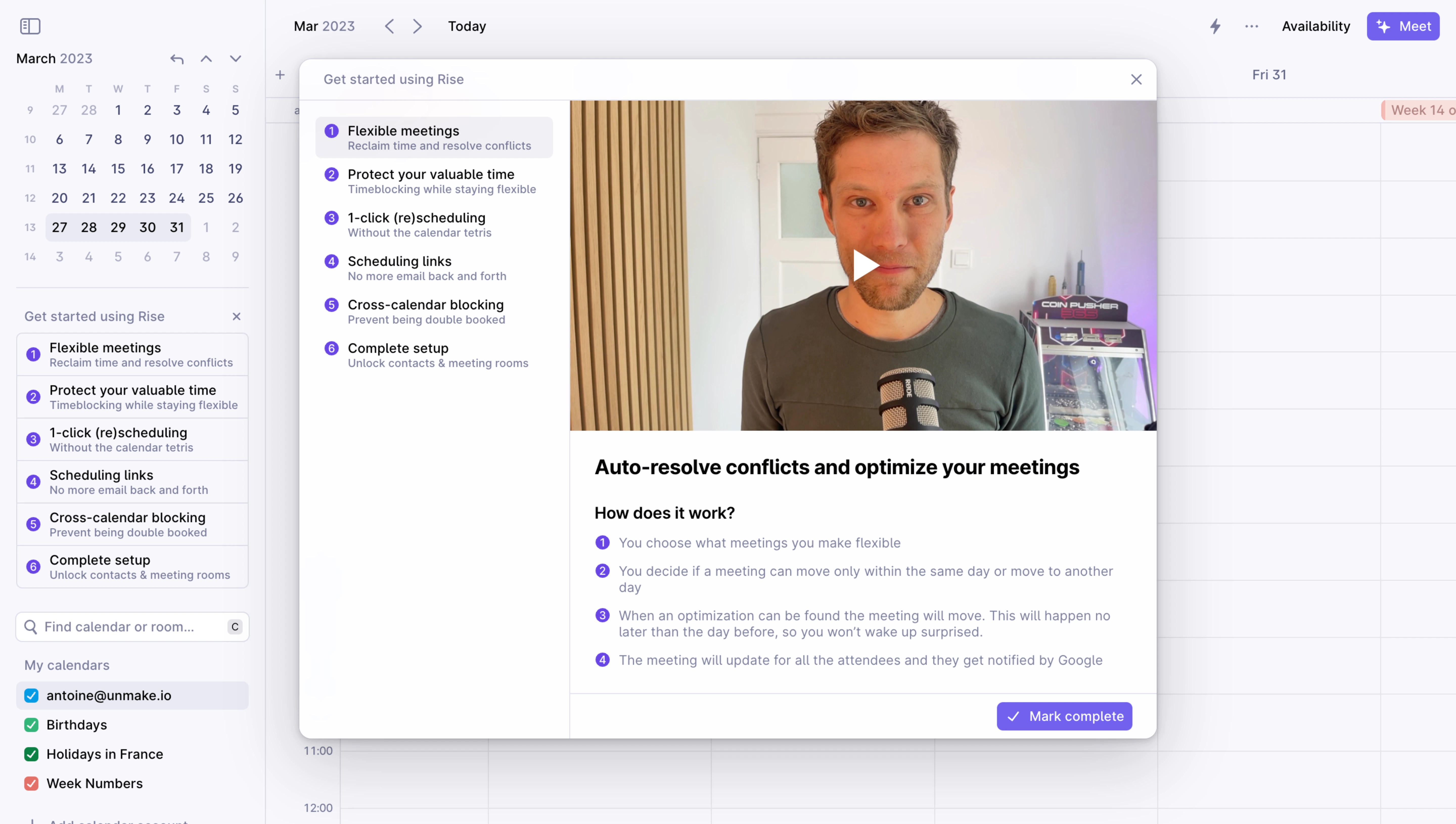
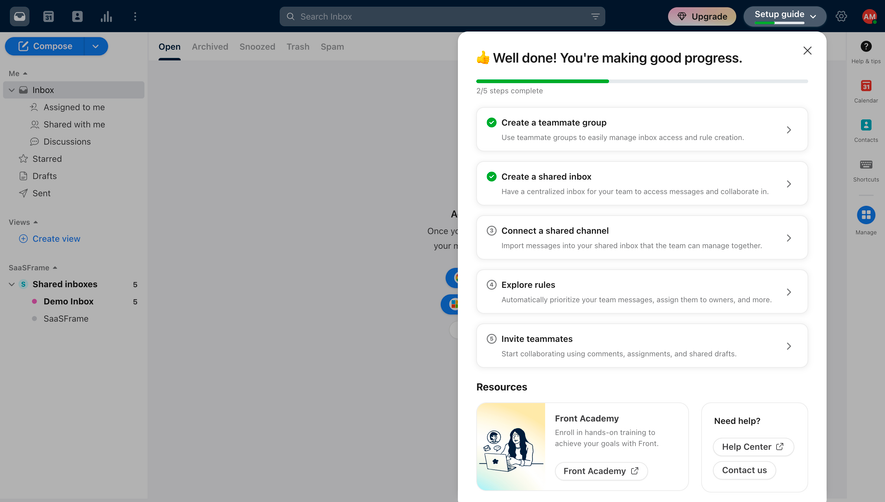
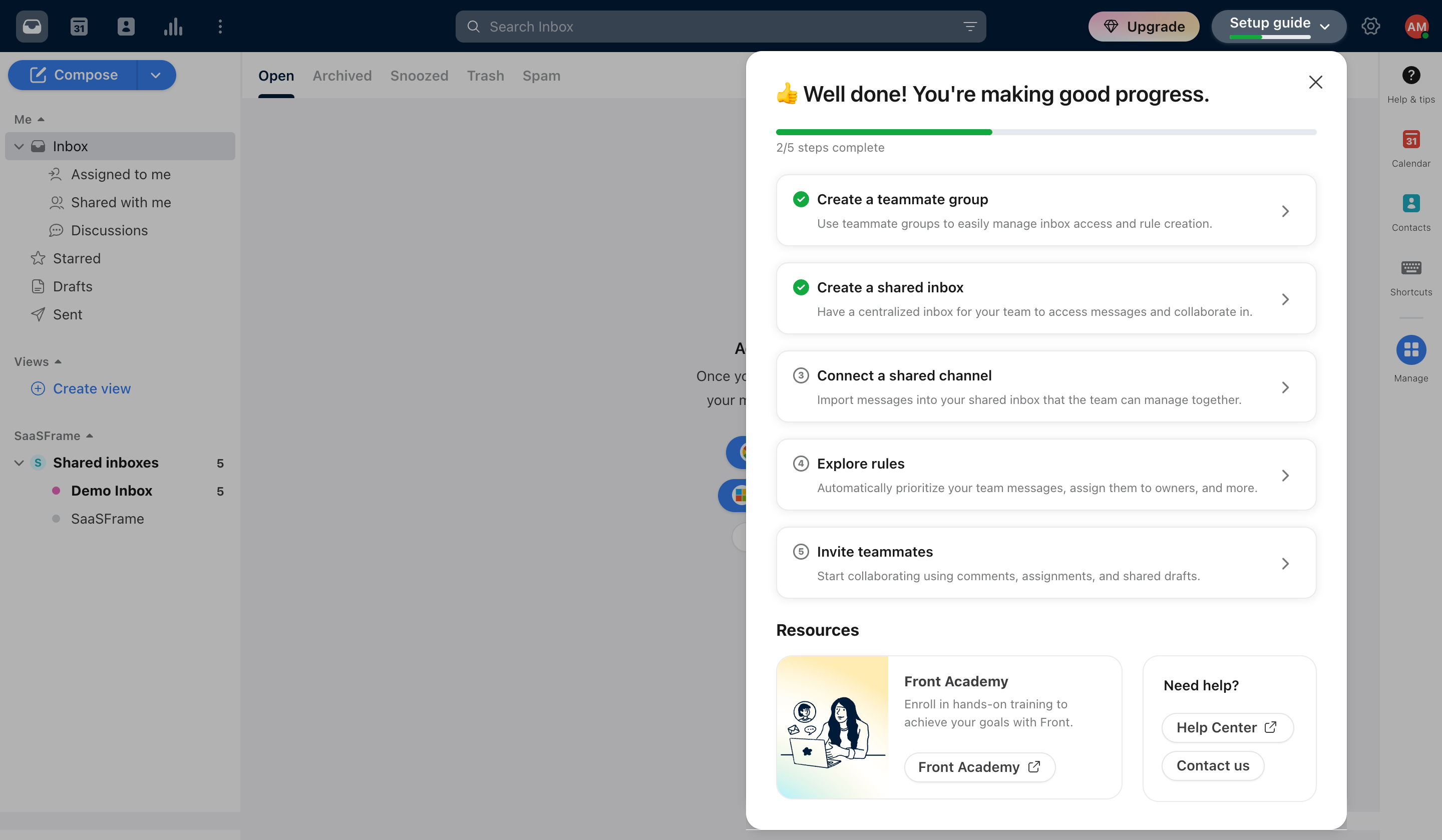
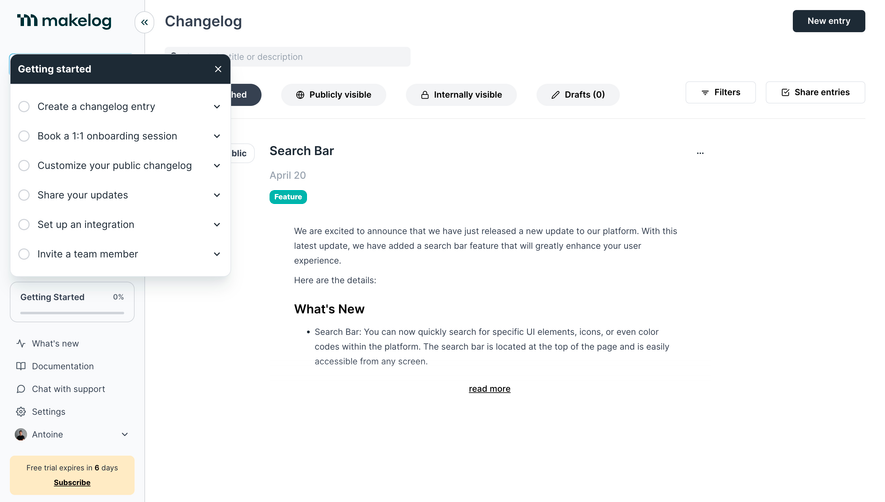
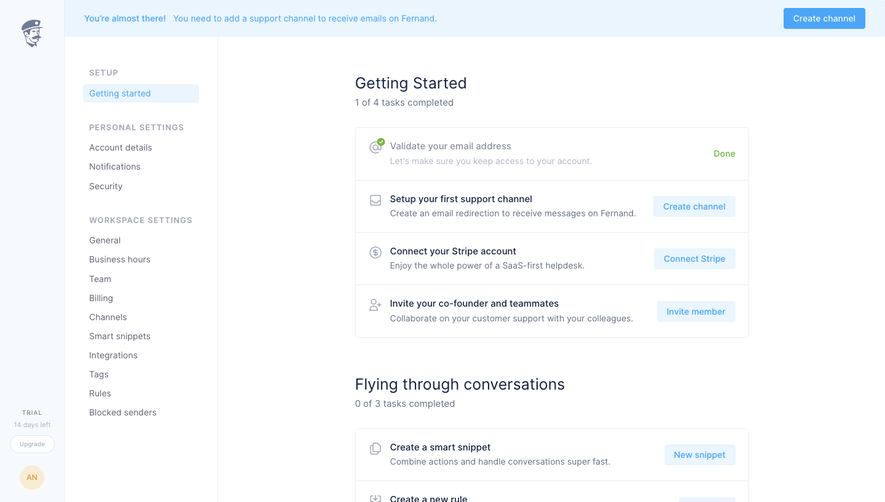
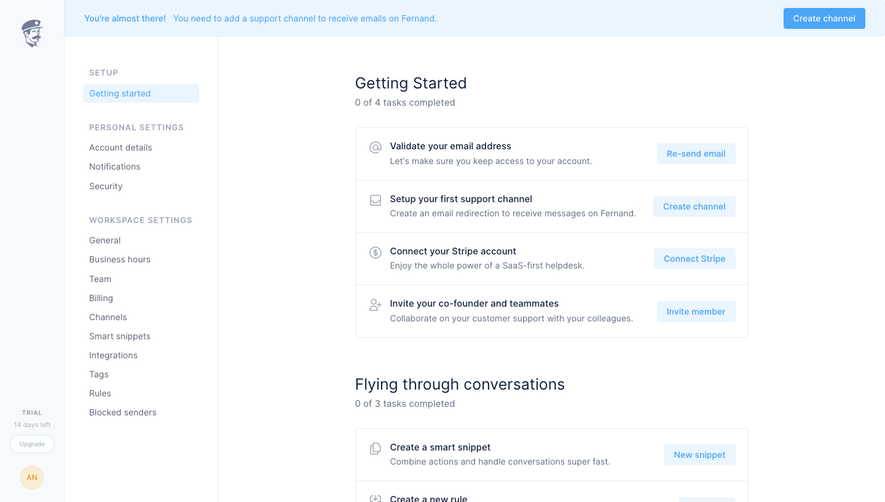
Fernand's captured Getting Started screen groups setup actions and product-learning actions into separate sections, each with a completed-task count. Rows identify actions such as validating email, creating a support channel, and inviting teammates. Buttons lead toward the relevant product capability.
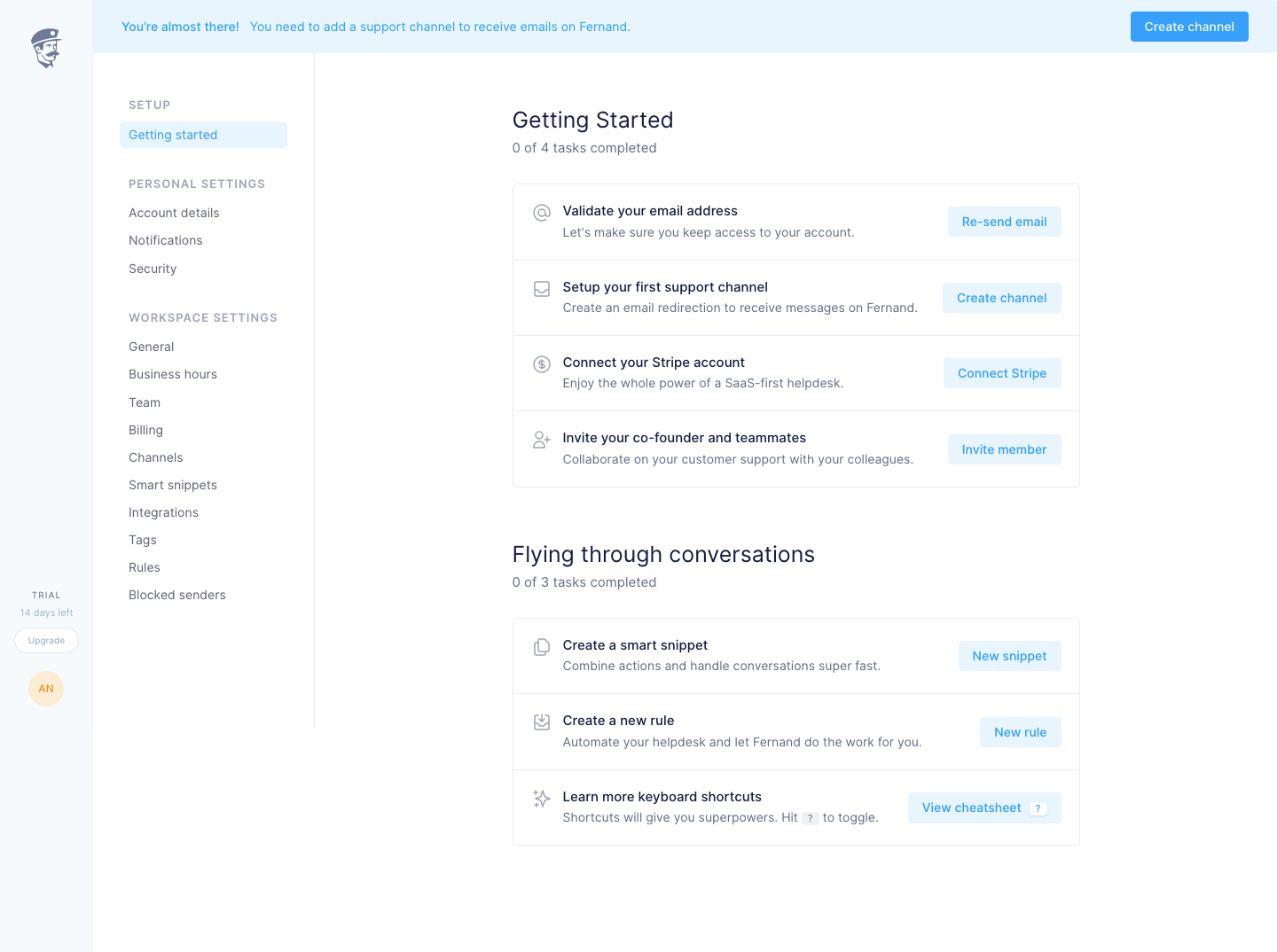
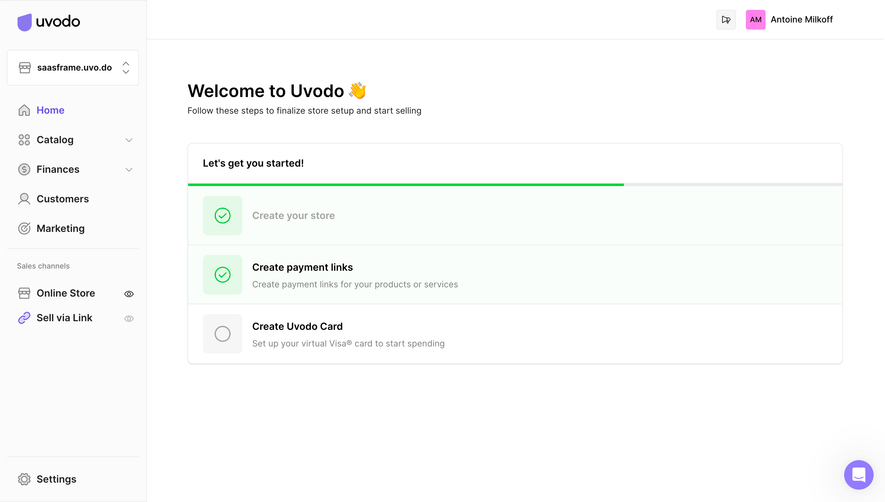
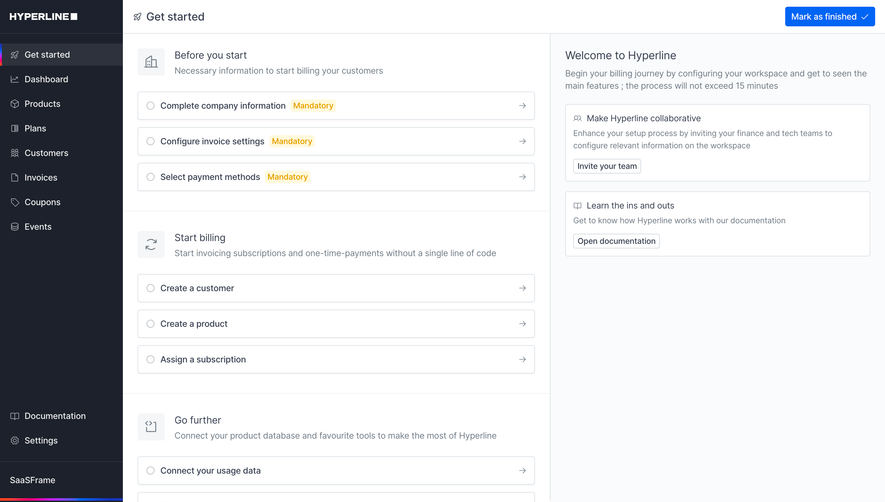
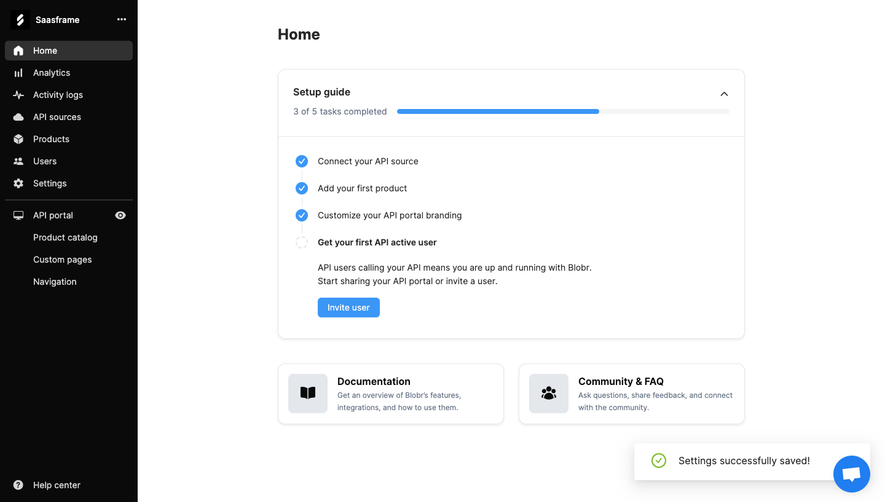
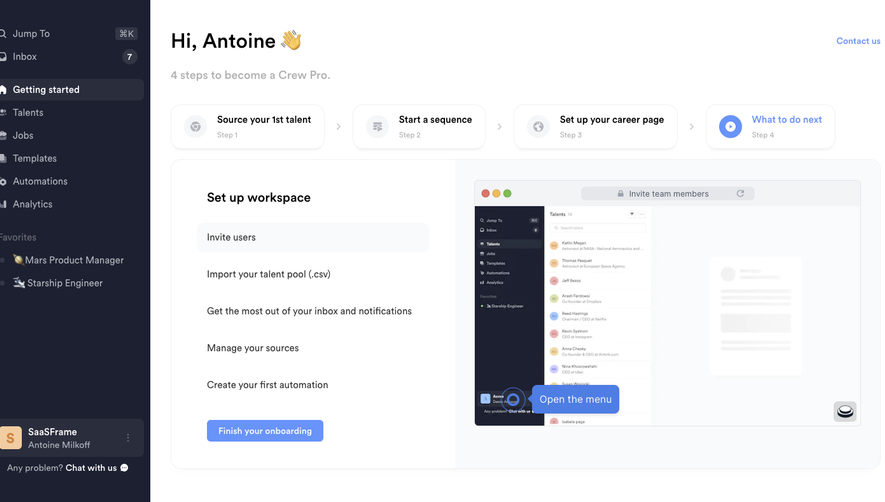
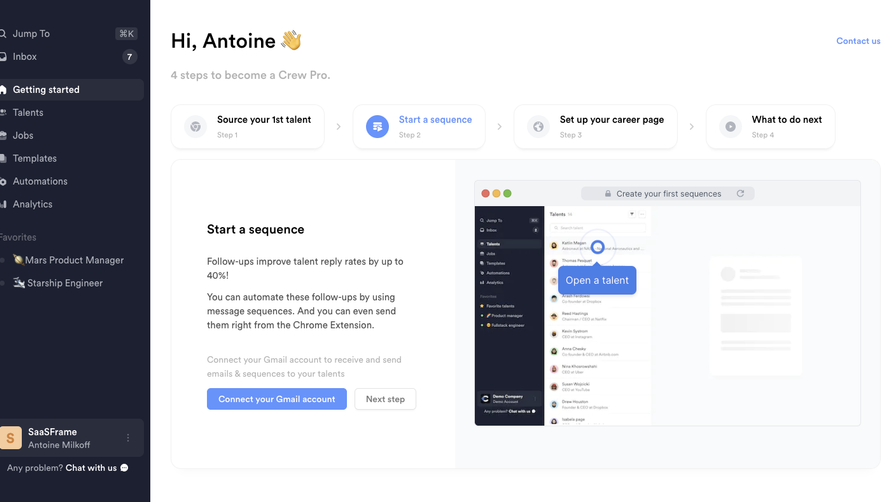
A guided checklist can represent system-recognized milestones rather than user-declared completion. That differs from a general task list where a person checks off work. Make the rule clear: clicking an action is not necessarily the same as completing the underlying setup.
The capture also highlights a support-channel requirement in a banner. This helps distinguish a prerequisite from optional learning. A comparable onboarding list should explain which tasks are necessary for the product to function and which merely introduce useful capabilities. Equal visual rows should not imply equal importance.
A task title should describe the work, while supporting fields explain context. An assignee identifies responsibility; a creator identifies authorship; collaborators identify participation. Use labels and grouping that preserve these distinctions. A row of avatars alone can be insufficient when several roles coexist.
Unassigned work needs a defined meaning. It may be available for someone to claim, awaiting a manager's decision, or simply missing required configuration. Provide the appropriate next action rather than presenting a blank assignee as an unexplained absence.
For shared work, define whether one person owns the task or several people share responsibility. If multiple assignees are allowed, make completion expectations clear. A task should not appear fully handled because one participant acted when the underlying workflow expects several contributions.
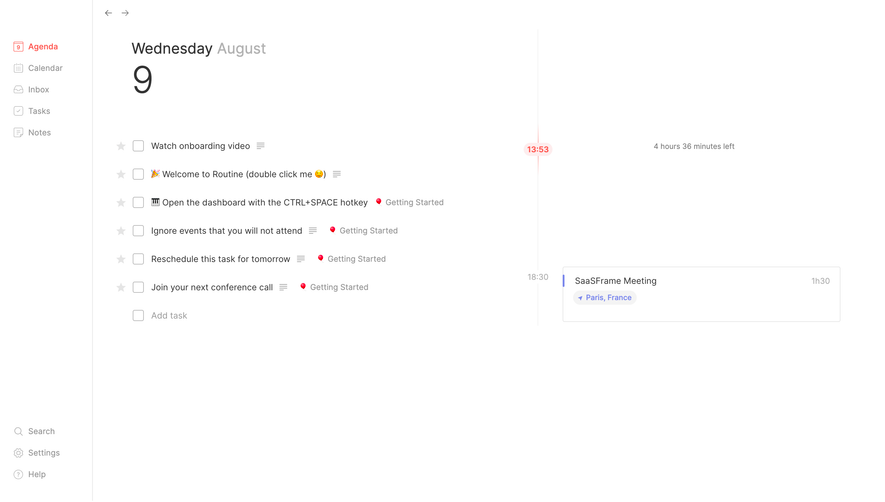
Selection prepares a task for another action, such as bulk assignment. Opening detail reveals context. Completion changes the work state. Make these operations distinguishable through controls and feedback. A checkbox should not ambiguously represent selection in one view and completion in another without clear context.
Height's capture uses checkboxes beside task titles and provides separate interaction guidance within the instructional content. For an implementation, verify how row selection, keyboard commands, and completion interact. Avoid assuming the visible checkbox establishes every behavior.
After completion, preserve orientation. A filtered list may remove the task, while another view may keep it visible with a completed state. Explain the result and provide a reasonable correction route. Do not let a disappearing row make users unsure whether the action succeeded or the list merely refreshed.
Status can represent stages such as planned, in progress, blocked, and complete, but the vocabulary should follow actual work. A simple personal checklist may need fewer states than a shared delivery process. Avoid adding categories that users cannot interpret or maintain consistently.
Dates also need distinct meanings. Due date, scheduled work time, start date, and reminder time are not interchangeable. Identify the relevant property and explain how overdue state is calculated. A task can be late without being blocked, or blocked without having a date.
Keep reminders and notifications connected to responsibility. A reminder should not imply that the task's status changed. When dates are shared across time zones, communicate the relevant interpretation where it affects action. Review recurring tasks separately because completion may create another instance or reset a schedule.
Subtasks can break larger work into manageable pieces, while dependencies describe ordering or blocking relationships. These are different structures. A nested row may belong to a parent without requiring the parent to finish first. A dependency may connect tasks in different projects.
Height's captured list shows indented rows under broader tasks. That establishes a visible hierarchy, but it does not prove how parent completion is calculated. A comparable design should explain whether completing subtasks automatically completes the parent or whether the parent has its own decision.
For blocked work, identify the dependency and the route to inspect it. A generic blocked badge is less useful when users cannot find what must happen first. Avoid silent cascades when completing or deleting a parent affects several children. Show the relevant scope before a consequential bulk transition.
Different views can serve different tasks. A list supports compact scanning; a board emphasizes status groups; a calendar emphasizes dates. Keep the underlying task identity and fields consistent as users switch. Changing presentation should not create another copy or alter status unless the operation explicitly does so.
Filters should expose their active rule. A task absent from Assigned to me may still exist elsewhere. When users create a task that does not match the current view, explain where it went. Avoid a success message that leaves the new work invisible without a route to locate it.
Sorting and live updates can move tasks while someone acts. Preserve the selected item and reading position where appropriate. In long collections, search and saved views should help retrieval without concealing scope. Test empty results separately from a genuinely cleared work queue.
Task details often include substantial text, comments, and attachments. Preserve useful edits when saving fails and distinguish a local draft from shared state. Another teammate may update the task while it is open, so reconcile changes predictably rather than silently overwriting work.
Permissions should apply to the task and its related content. A private task appearing in a shared project view needs accurate visibility rules. Account switching and shared links should not expose information outside the intended scope. Explain unavailable actions where doing so helps the user's task.
Keep the task history useful. Assignment, status, and date changes can explain why work moved or became overdue. Distinguish those system events from discussion. A history should support understanding without overwhelming the main task description.
For guided setup, detected completion may arrive after a connected operation finishes. Show pending state where needed rather than increasing the checklist count after a button click alone. If a milestone later becomes incomplete, explain why it reopened instead of making the progress indicator appear arbitrary.
Ask users to identify their work, find a blocked task, change responsibility, complete an item, and recover from an accidental change. Include a filtered view and a task with children. For guided setup, test whether users distinguish entering a flow from completing its requirement.
Measure correct completion and retrieval alongside speed. A growing task count may indicate unresolved work rather than productive use. Review mistaken assignments, reopened tasks, and the effort needed to find context. The interface should help people coordinate meaningful work, not merely maintain rows.
Use this checklist:
Review accessibility across both the list and detail surfaces. Users should be able to identify tasks, navigate their fields, and complete the same operations without relying on pointer hover. Long titles, translated labels, and text enlargement should preserve the association between a task and its controls.
Bulk changes need a clear selection scope. Show whether an action affects the visible tasks, a manually selected set, or every matching result. Assignment and completion may have different permission rules, and partial failures should identify which tasks remain unchanged. Preserve enough feedback that users can verify the result without reopening each item.
Choose creation defaults deliberately. A new task may inherit the current list, assignee, or status, but those values should be inspectable. If a task is created from a filtered personal view, explain whether it is automatically assigned to that person. Helpful defaults should reduce entry effort without silently imposing responsibility or making the new item disappear from its starting view.
They share some visual conventions, but guided milestones may use system-detected completion and fixed requirements. General task management supports user-defined work, responsibility, and changing priorities. Make the completion model clear in each case.
Only if that is the defined workflow. A parent may represent additional work or a separate review decision. Explain the relationship and avoid assuming that indentation alone communicates the rule.
It may no longer match the current filter. Explain the result and provide a route to completed work or correction where appropriate. A task leaving a view should not be mistaken for deletion.
Explore the SaaSFrame task-management examples to compare personal work lists, shared responsibility, and guided completion interfaces.