Manage organizations with professional SaaS Team and User Management UI. Explore member lists, role assignments, and activity logs designed for admins to control access and oversee collaboration at scale.
Browse 23 real SaaS Team Members with modern UI patterns and conversion strategies.
We sell SaaSFrame licenses on Gumroad, a secured online selling platform for creators.
What about future updates and versions?
SaaSFrame gets updated all the time! Every new update and version will immediately be made available to all SaaSFrame users.
I didn't receive my licence key, what should I do?
The licence key required to create your SaaSFrame account is send by Gumroad once you made your purchase. If this email is blocked by your email client, send me an email at antoine[at]unmake[dot]io so I can resend the licence key.
Can you send me an invoice?
You can generate an invoice on Gumroad once you purchased SaaSFrame. You will find the link in the order confirmation email.
Can I get a refund?
If you're not satisfied, you can ask for a refund within 7 days. Just send me an email at antoine[at]unmake[dot]io
Team Members Design Guide
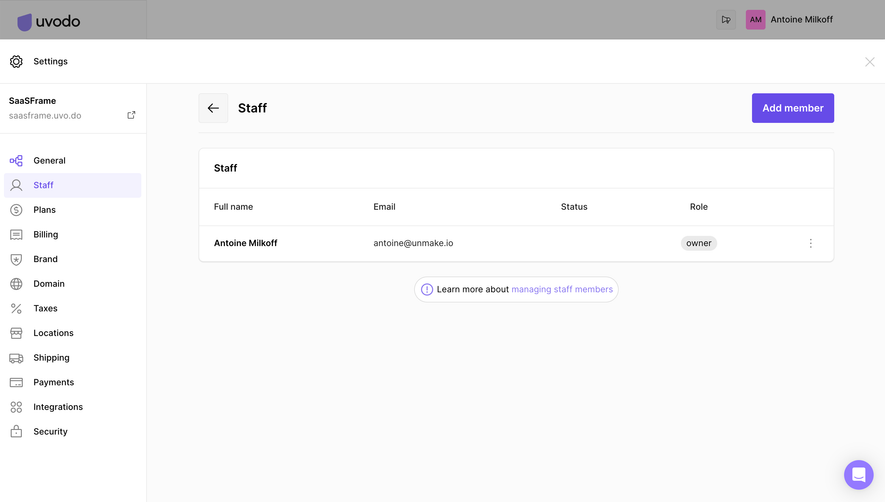
A SaaS team-members screen helps administrators understand who belongs to a workspace, what each person can do, and how membership changes affect shared access. It often combines an inventory with invitation management, role controls, and account capacity. A clear member list is therefore part of both collaboration and administration.
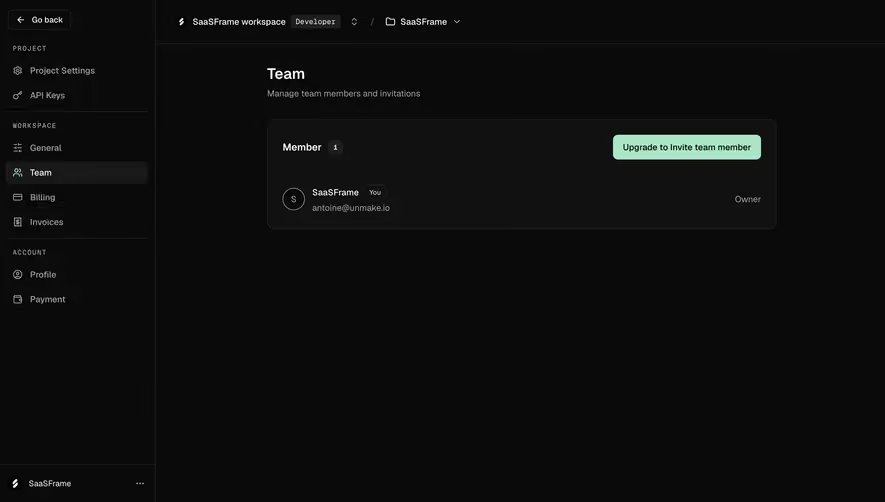
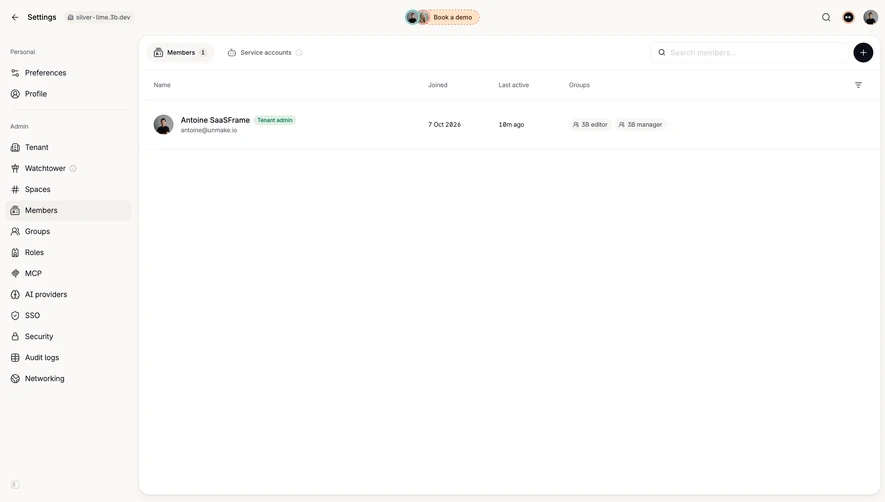
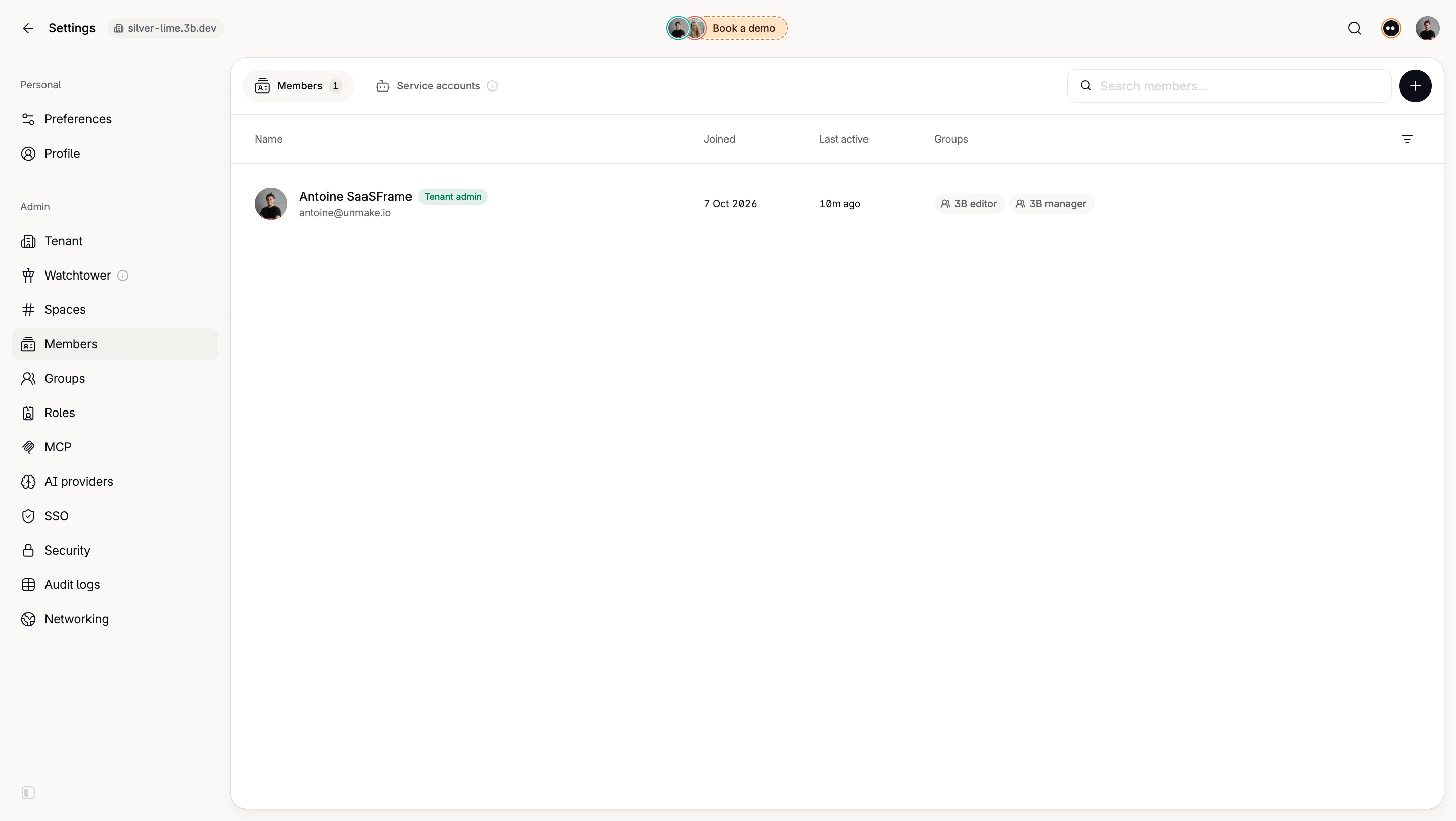
The SaaSFrame references show compact workspace lists, role-and-credit tables, invitation sections, and domain-based enrollment settings. They are visible design states, not an independent assessment of the products' security behavior. Use them to study how identity, lifecycle, and permissions are presented.
Establish which team the page manages
A product can contain organizations, workspaces, projects, and applications with different memberships. Identify the scope before displaying people or offering an invite action. Users should not have to infer it from a distant navigation label.
Explain inherited access when relevant. A person may belong to an organization while having a narrower project role. A membership page needs to make that distinction understandable instead of showing one unexplained role for every context.
Keep switching behavior coherent. When the account changes, update the member list, invitations, and capacity information together. A list from one workspace beside another workspace's name creates a serious administration ambiguity.
Separate identity, role, and state
A name and email identify a person. A role describes their allowed responsibilities. A membership state describes whether access is active, pending, suspended, or otherwise limited. These dimensions should not collapse into one badge.
Use role descriptions when names alone do not explain the consequences. Admin, owner, editor, and member can mean different things across products. Give users a stable route to understand the applicable model.
Distinguish service or application accounts where the product supports them. An automation identity may not need the same invitation flow or lifecycle controls as a human teammate. The inventory should describe the actual access subject.
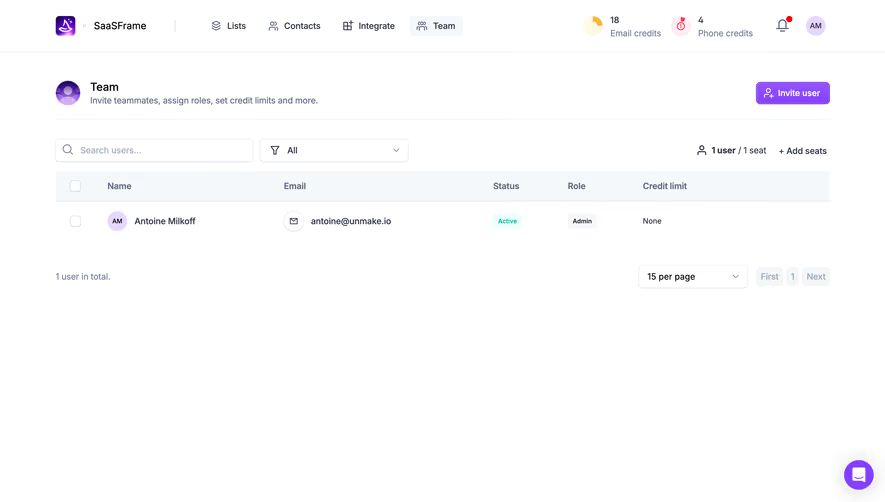
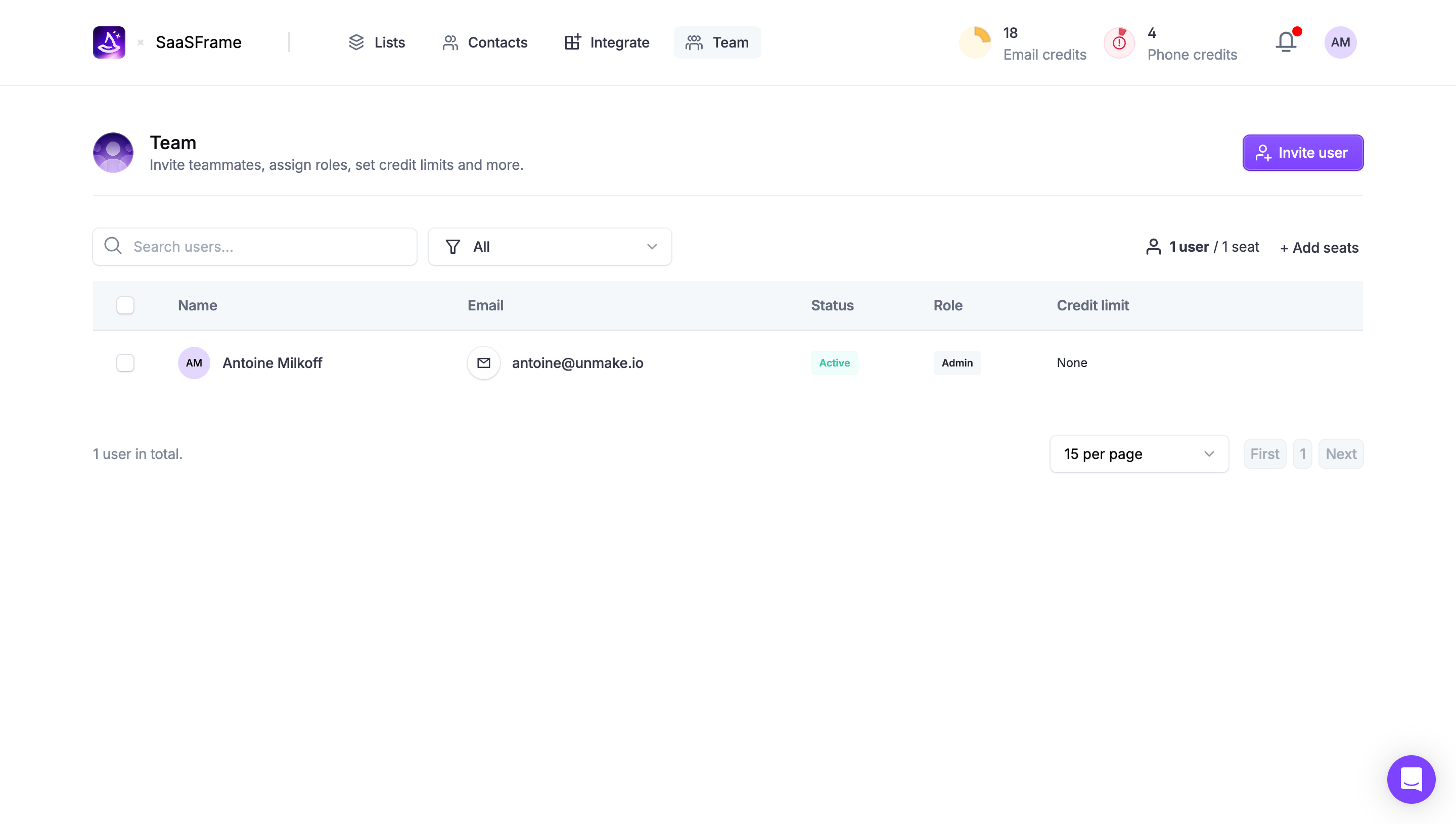
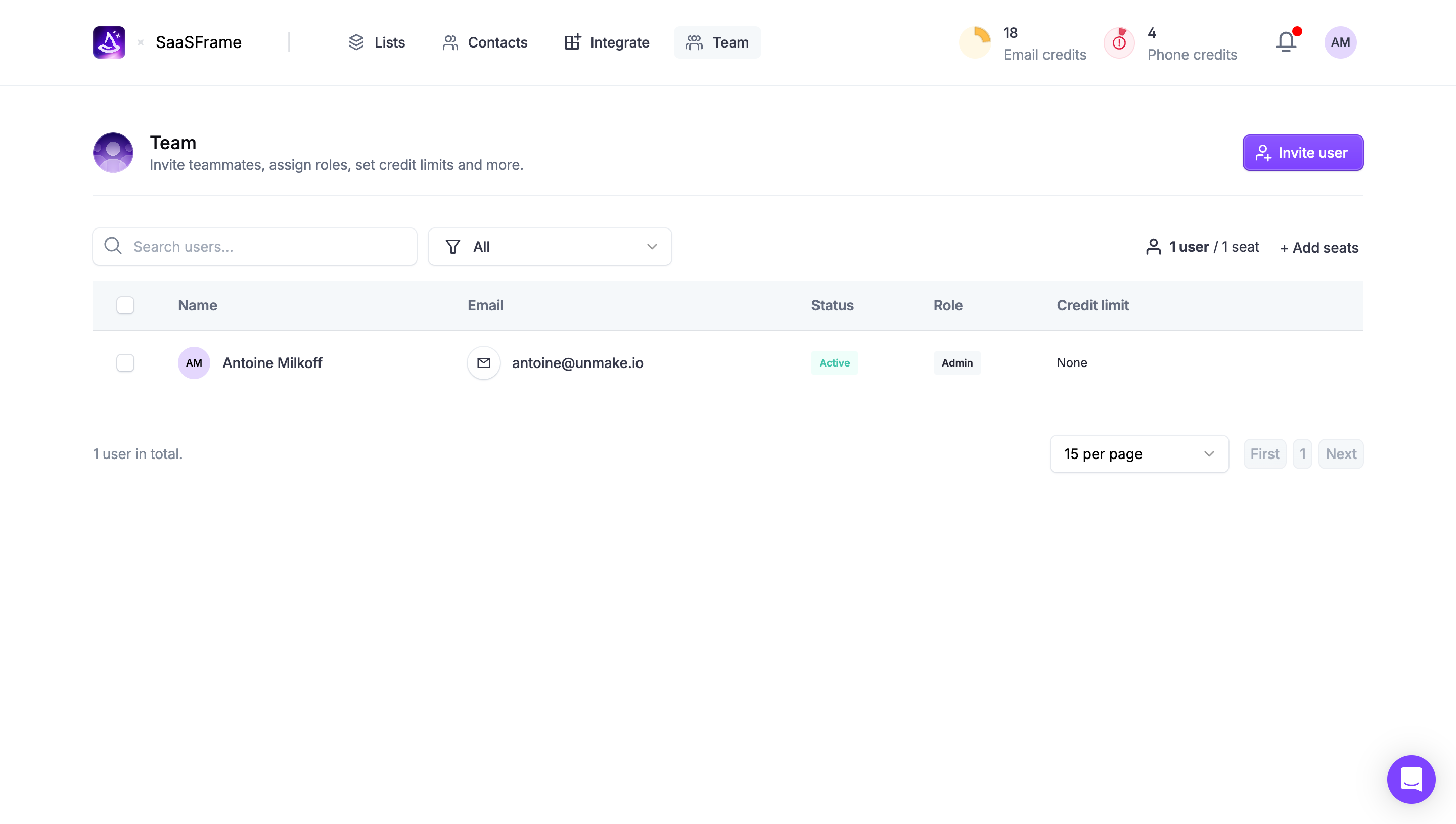
The Wiza capture presents members with name, email, status, role, and credit-limit columns. Search and filtering sit above the table, alongside a user-to-seat count and an add-seats route.
This connects membership to both permission and resource allocation. A credit limit is different from a role: one concerns consumption, the other concerns access responsibilities. Separate presentation helps users understand that relationship.
When adapting the structure, explain the meaning of an absent limit. None could mean unlimited access, no allocation, or no configured value in different systems. The interface should establish its actual meaning rather than expect administrators to guess.
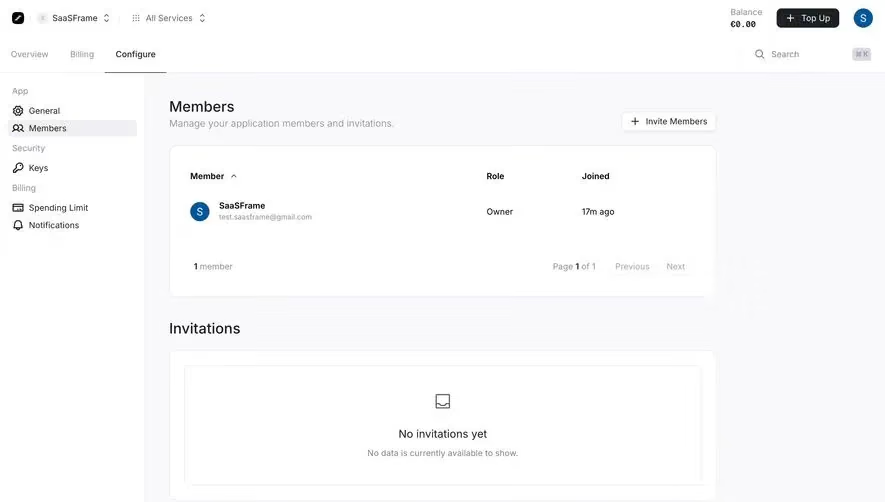
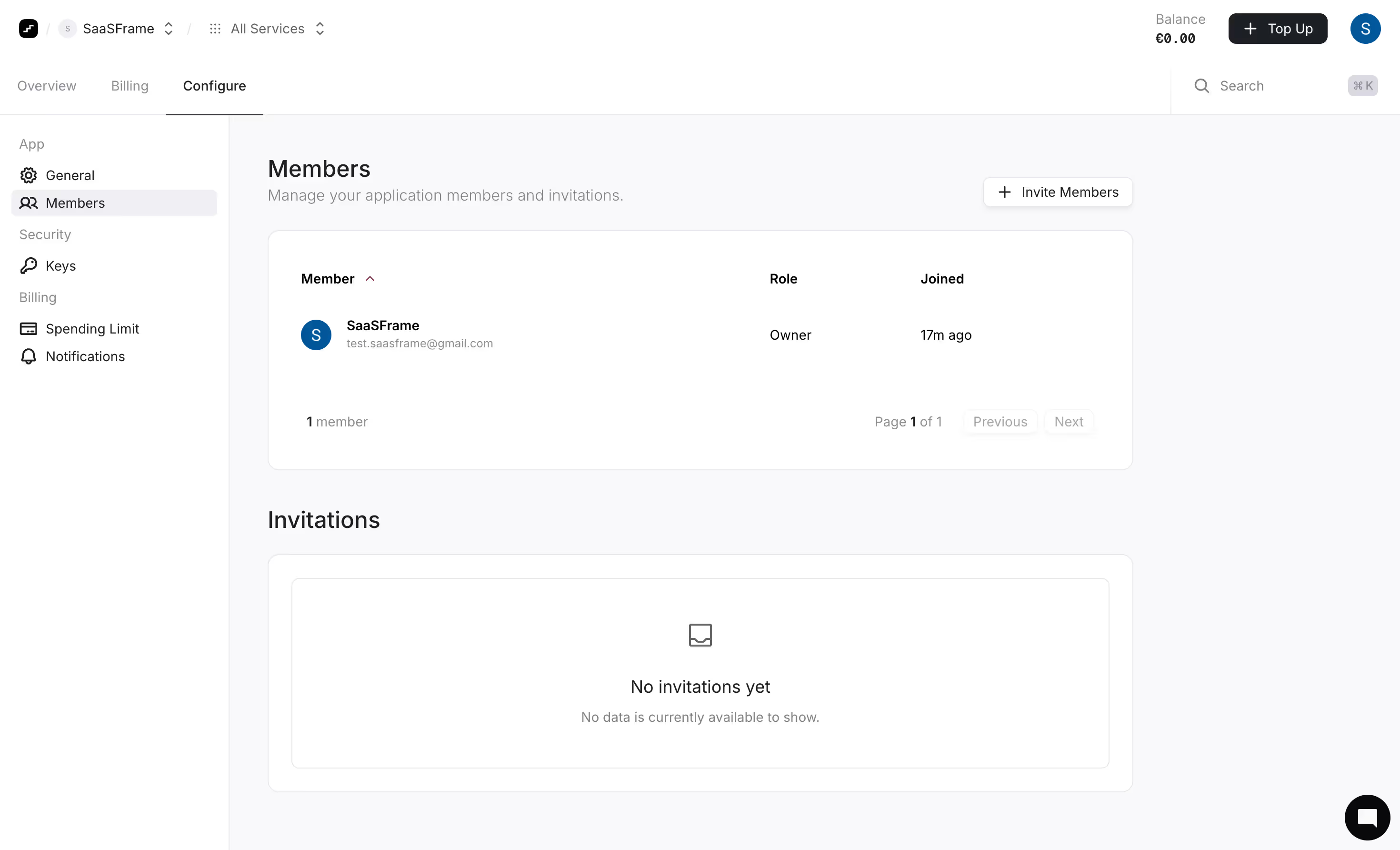
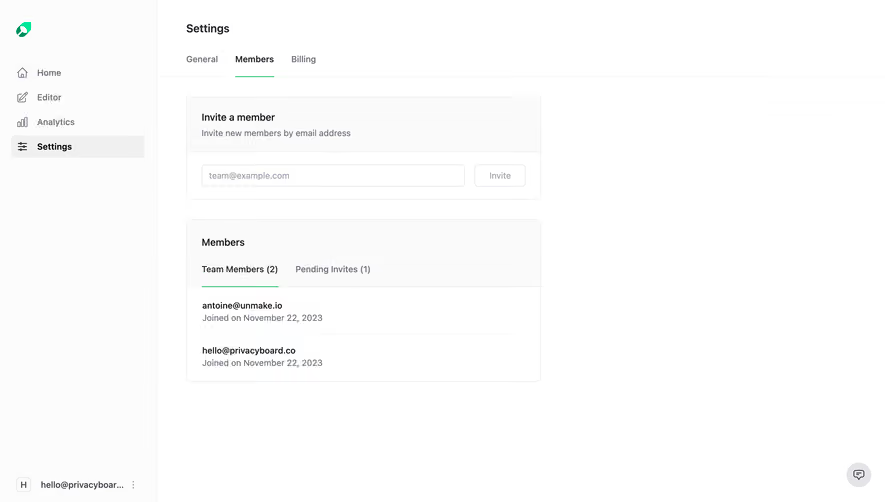
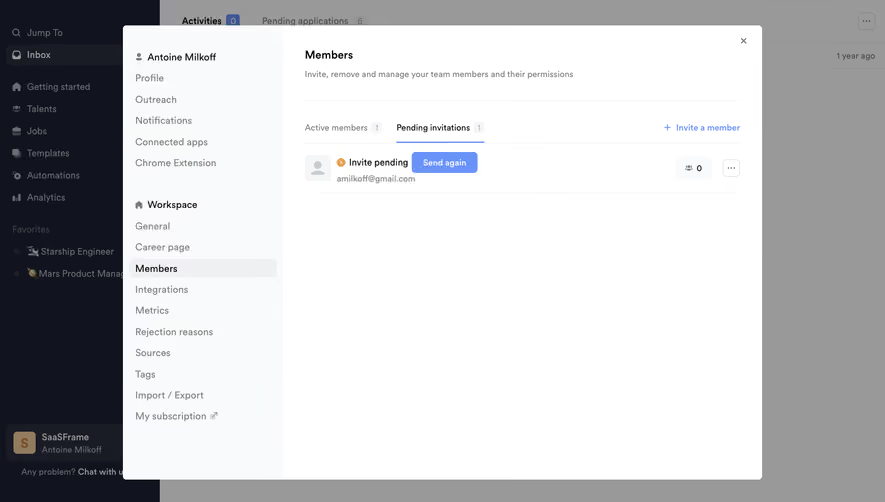
The Prelude capture divides members and invitations into separate sections. The member table includes a role and a joined value, while the invitation area has its own empty state.
This distinction prevents pending invitations from appearing to be active access. It also gives administrators a place to inspect unfinished enrollment without mixing it into the current member count.
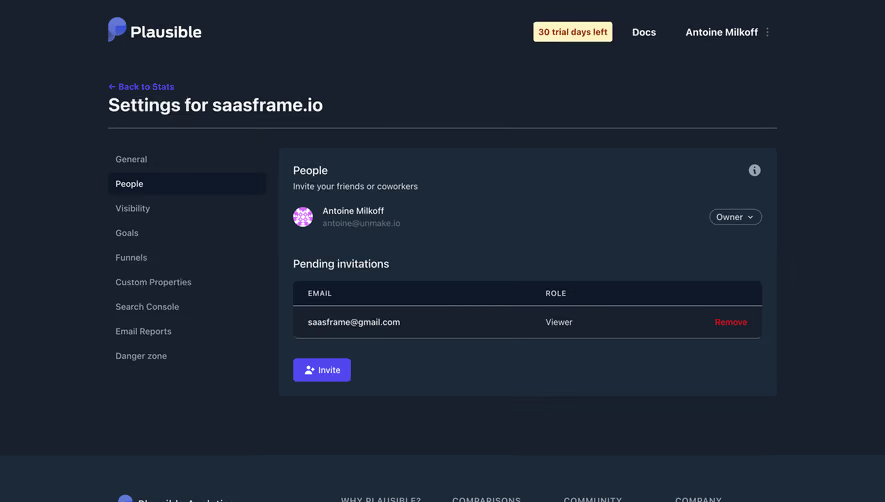
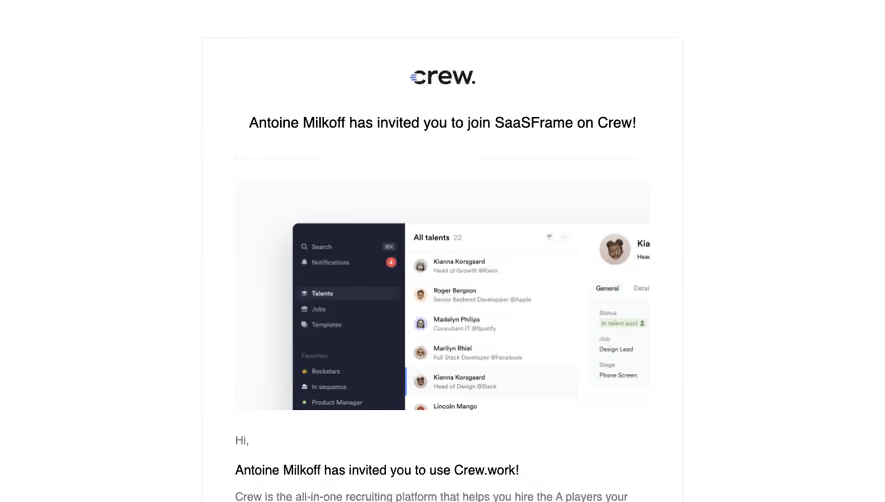
A useful invitation history should explain status and available actions. Resending, canceling, and changing a pending role have different effects. Confirm the relevant target and preserve enough context to avoid duplicate invitations to the same person.
Place role selection at the right commitment point
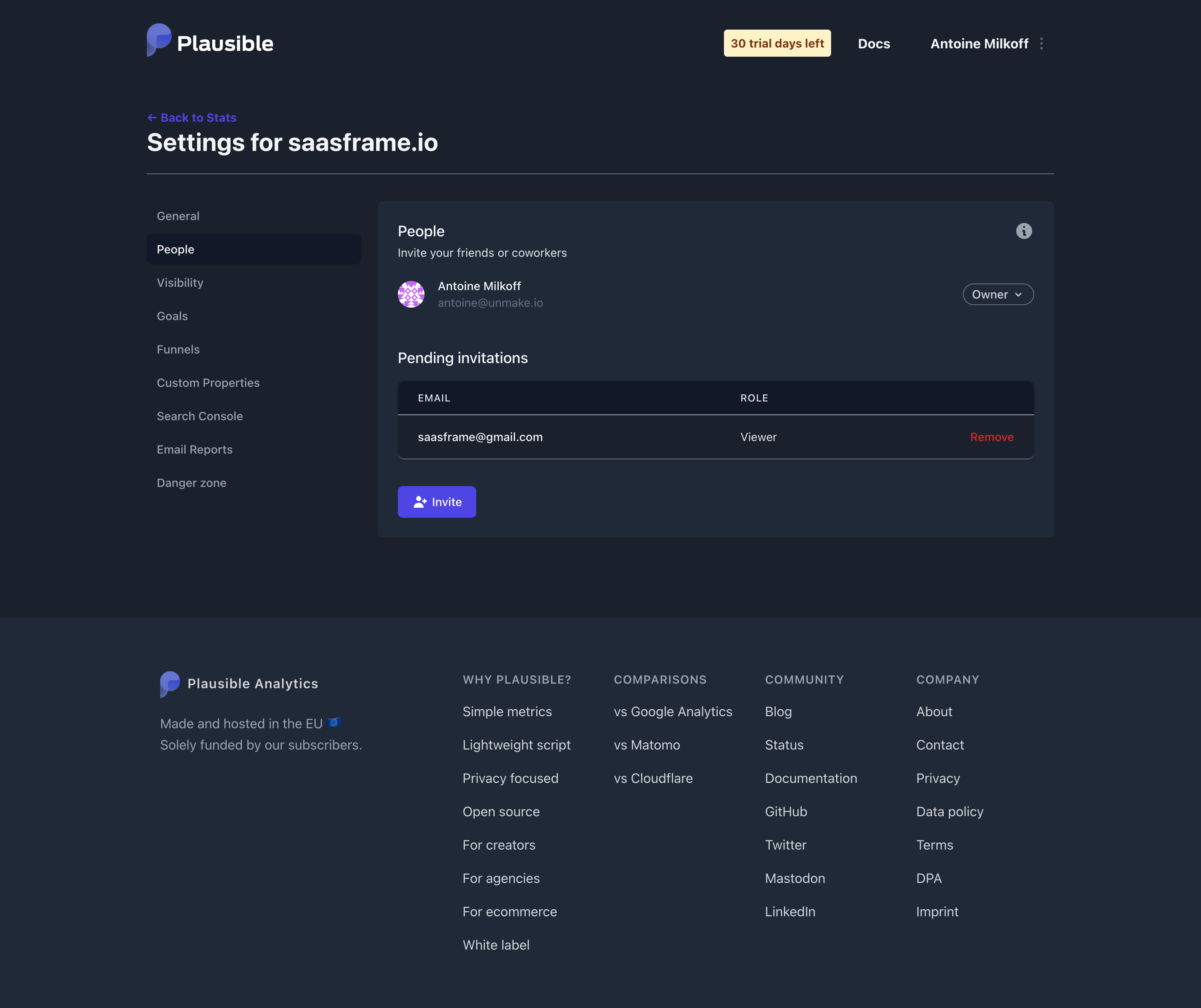
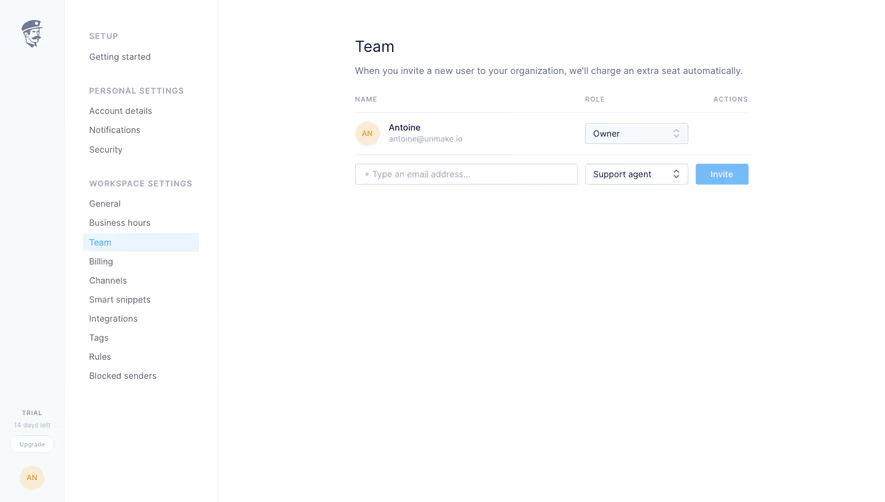
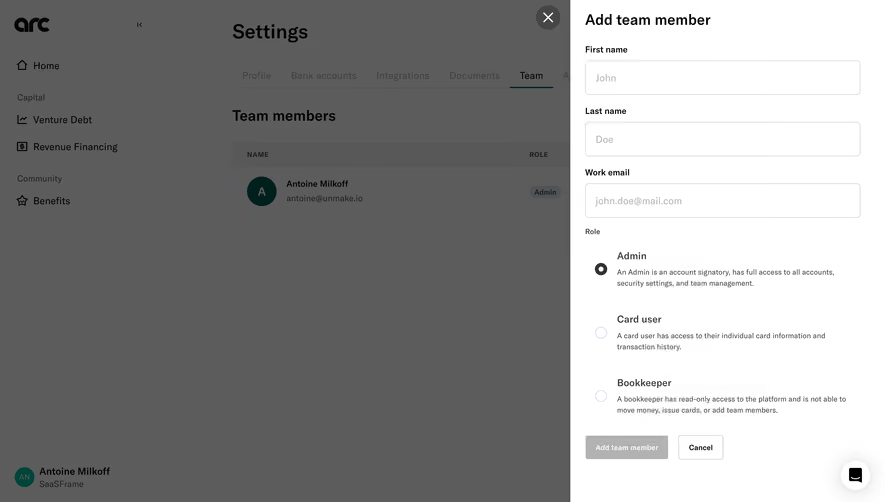
The Pitch workspace-members capture pairs an email input with a role selector and an invite action, then lists the existing owner below. A help link connects the invitation area to information about roles and pricing.
Choosing a role before invitation can make the intended access explicit. The user needs enough information to select it correctly, especially when the default role is broad. A dropdown should not quietly grant more responsibility than the inviter expects.
For batch invitations, explain whether one role applies to everyone or can vary per person. Validate addresses without discarding valid entries, and distinguish already joined members from pending invitees.
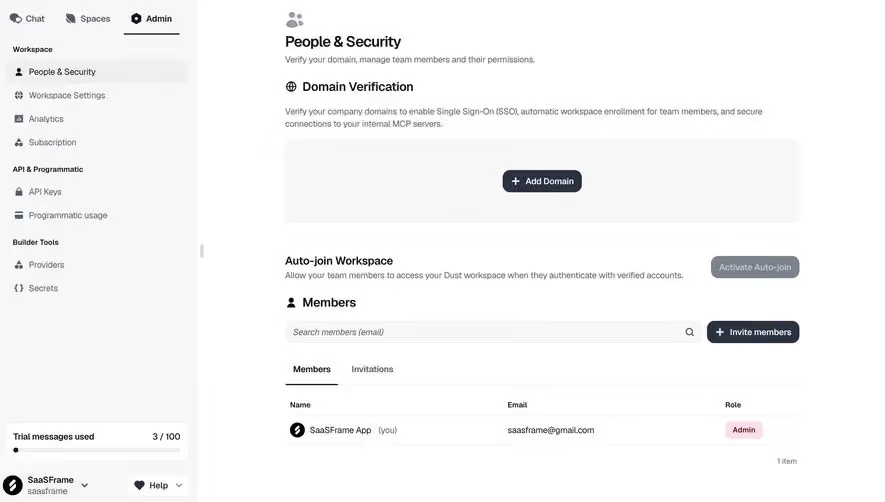
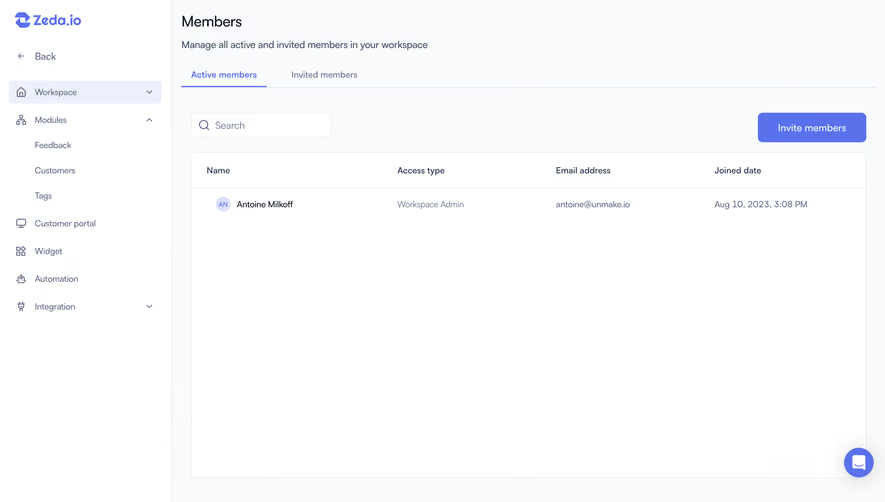
The Dust capture places domain verification and an auto-join workspace setting above the member inventory. It provides separate member and invitation tabs, search, and an invitation action.
This makes membership policy visible beside individual accounts. A domain-based enrollment rule is different from sending a personal invitation. The screenshot's explanatory text describes the product's offer; it does not independently establish the implementation's security properties.
If you provide automatic enrollment, explain the eligible identities, resulting role, and workspace scope. Administrators need to understand what changes when the setting is activated. Avoid presenting it as a simple convenience toggle with hidden access consequences.
Make membership changes reviewable
Changing a role, removing a member, and transferring ownership are distinct operations. Show the target and explain the relevant effect before committing when the consequence warrants review.
Do not assume that removing a person also transfers their work or cancels a paid seat. These behaviors depend on the product. Identify retained objects, reassignment needs, and any separate billing action that matters.
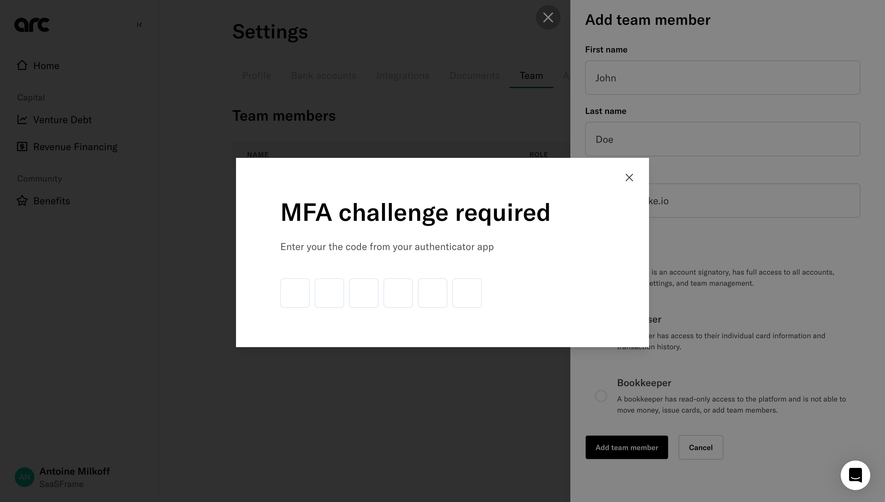
Prevent ambiguous self-management states. If the current user is changing their own access, explain the consequence and keep a viable administrative path where the product requires one. A successful action should not silently strand the workspace without an authorized owner.
Keep seat accounting understandable
A user count and a billable seat count may differ. Guests, pending invitations, suspended accounts, and service identities can have different commercial treatment. Label the relevant count and provide the actual rule where necessary.
Adding a member should not unexpectedly purchase capacity without an understandable review. If the action changes billing, show the scope and timing before commitment. If it requires an administrator, provide an appropriate route.
The member page can connect to plans or checkout, but it should remain useful as an inventory. Do not make every row a commercial prompt that obscures access management.
Support searching as the team grows
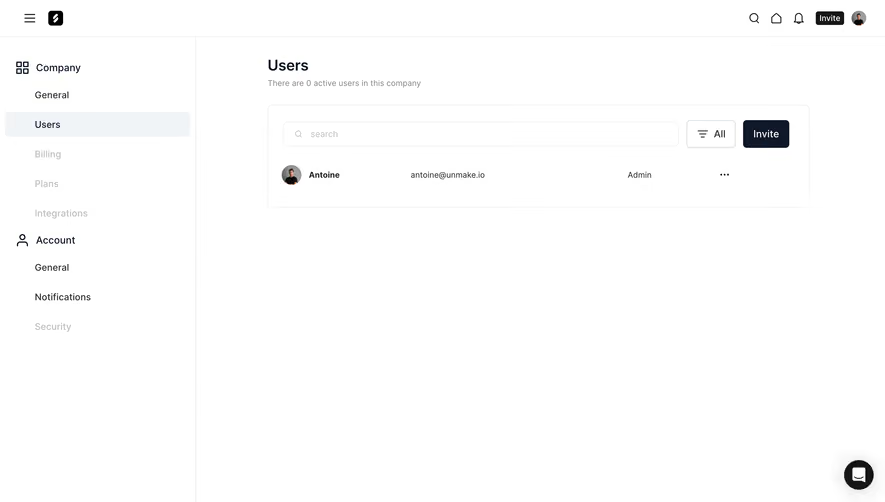
Small teams can be managed through a simple list. Larger inventories benefit from search, filters, and a consistent sort. Use criteria administrators can act on, such as role or membership state.
Keep filtered counts clear. A result set containing three administrators is different from a workspace with three total members. Preserve active criteria after a role change or explain when the changed record leaves the current view.
For long names and emails, preserve enough identity to distinguish the target. A truncated email can hide the domain or distinguishing suffix. Detail and copy controls should expose the full appropriate value.
Respect the viewer's permissions
Not every teammate should see or change every membership setting. Adapt the available actions to the viewer's access, and explain restrictions where useful. A disabled control with no reason can look like a product defect.
Do not reveal confidential account metadata merely because it can be displayed in a table. Decide which fields belong in a general team directory and which require administrative access.
Keep the inventory truthful even when actions are restricted. A member may need to identify the administrator who can help without gaining access to sensitive billing or authentication settings.
Preserve accessible administration flows
Use meaningful labels for role controls and per-member actions. Repeated overflow or remove buttons need identifiable targets for assistive technology. Maintain visible focus through menus and confirmation dialogs.
After an action, confirm the result and keep the person oriented. If a row disappears after removal, place focus somewhere useful rather than losing it. Pending changes should not look confirmed before the system accepts them.
Test keyboard navigation, mobile layouts, increased text size, duplicate names, long emails, large teams, and empty invitation lists. Administration screens need the same interaction quality as everyday product work.
Frequently asked questions about team-members screens
Should invitations appear in the member list?
They can, if their pending state is unmistakable. Separate sections or tabs often make active access and unfinished enrollment easier to distinguish.
Should roles be editable directly in the table?
Inline controls can suit frequent changes, provided their effect and target are clear. More consequential changes may need a review stage or fuller explanation.
Does removing a member automatically remove a paid seat?
That depends on the product's billing model. The interface should explain the actual relationship rather than leaving users to infer it from the member count.