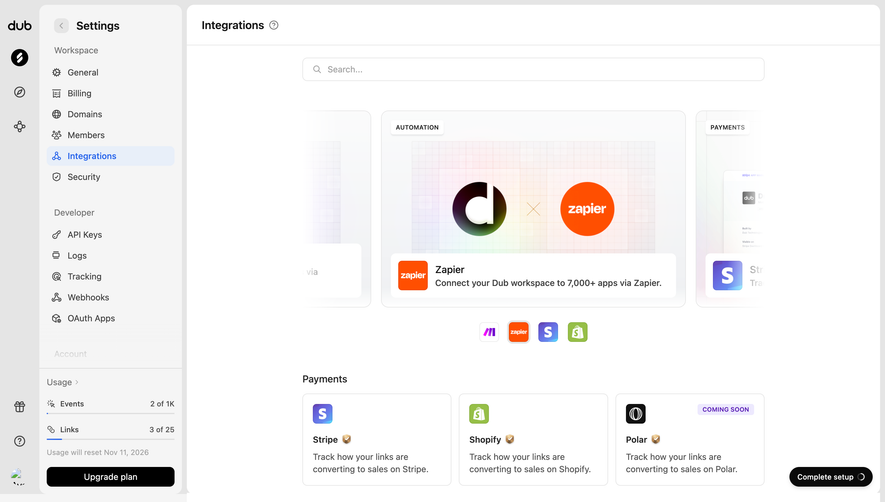
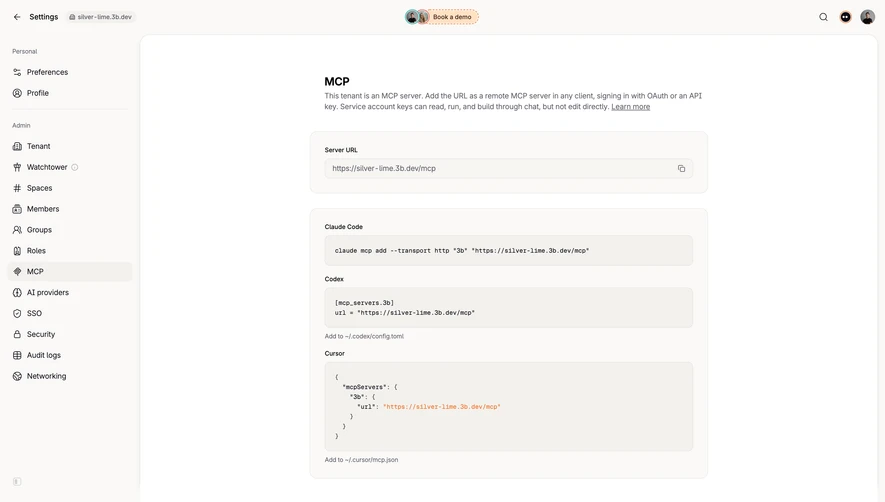
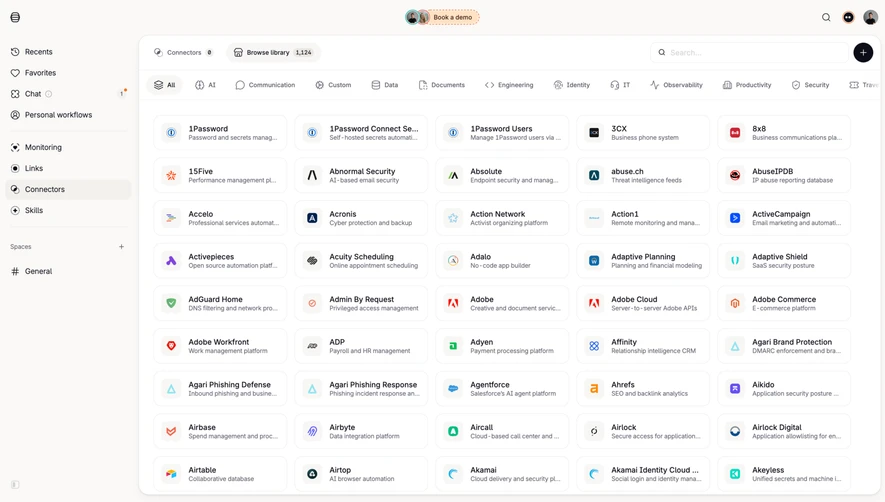
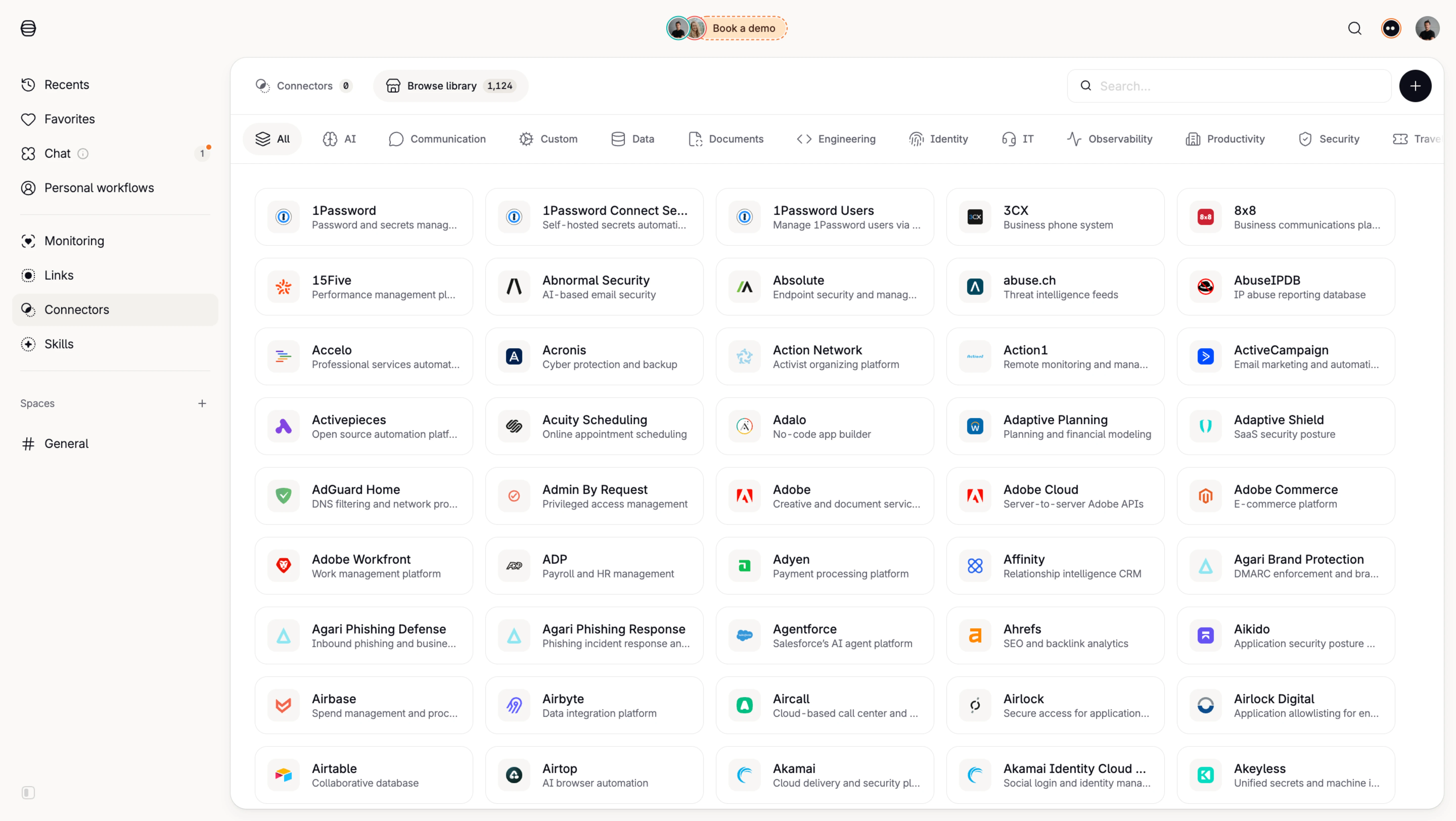
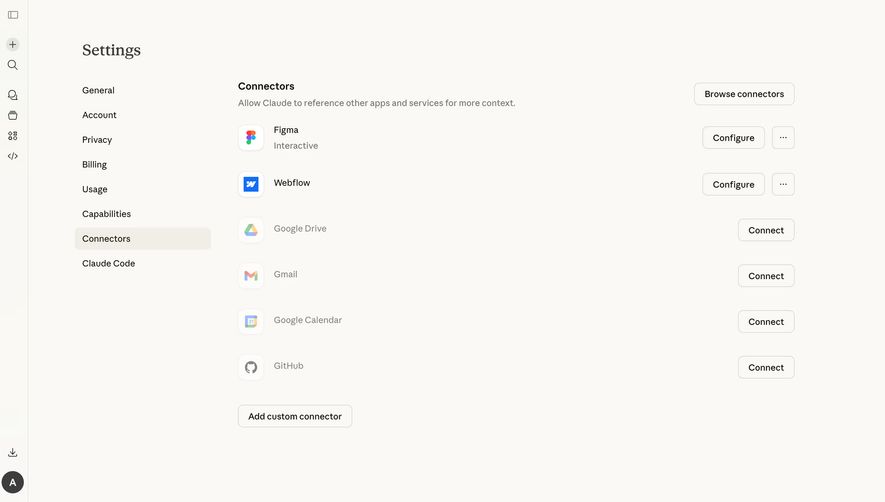
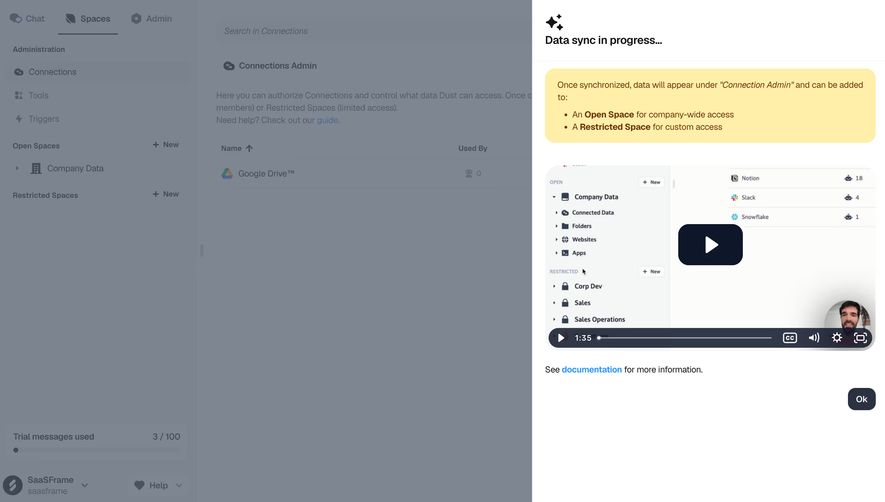
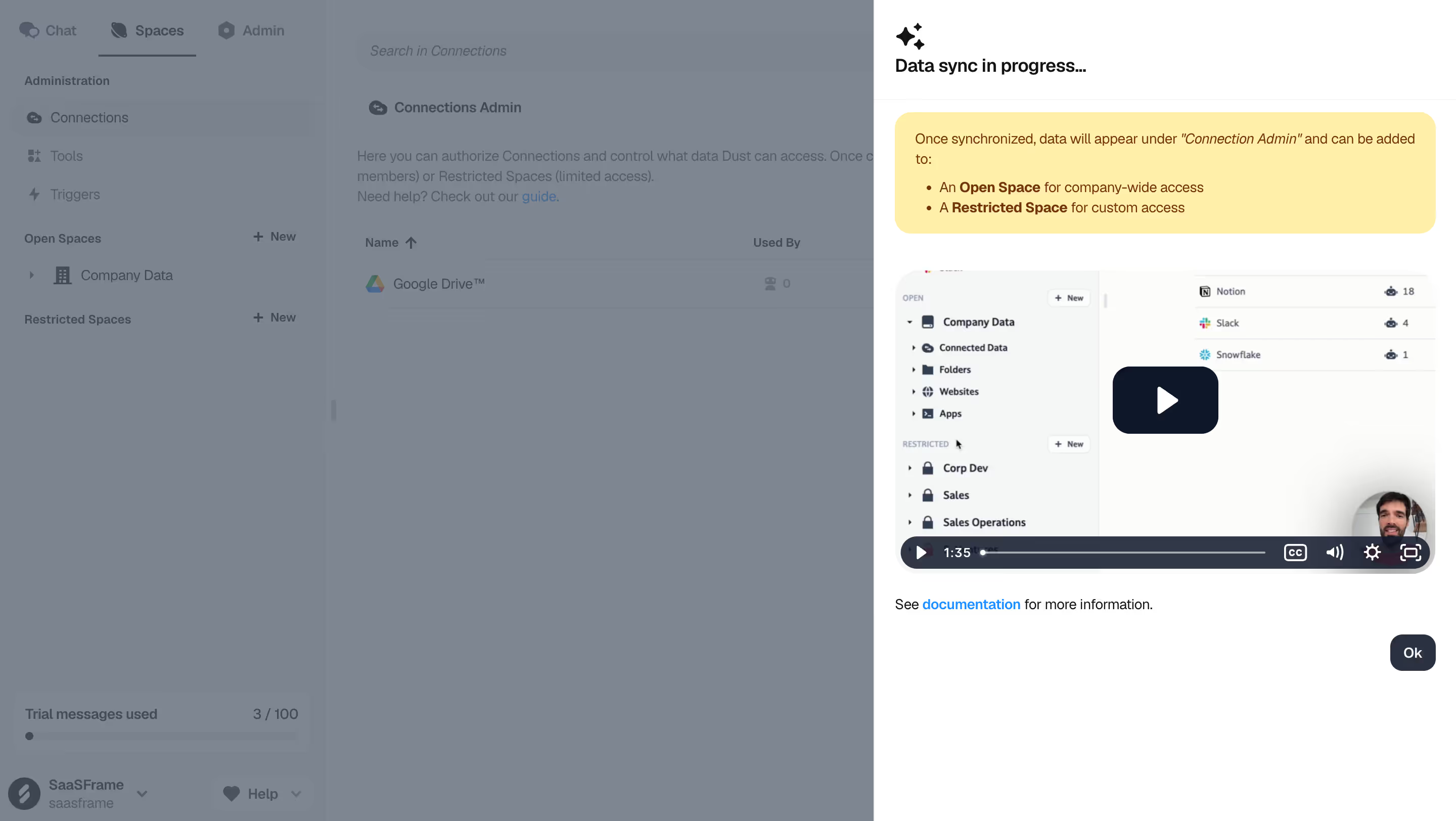
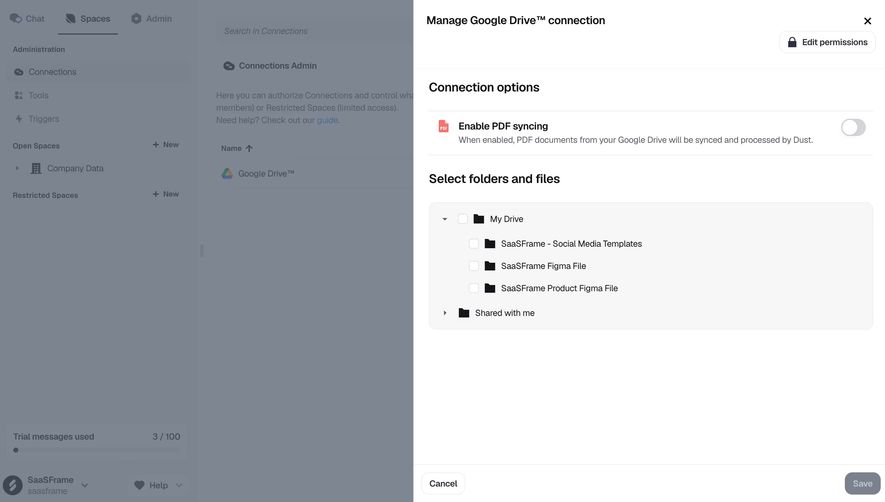
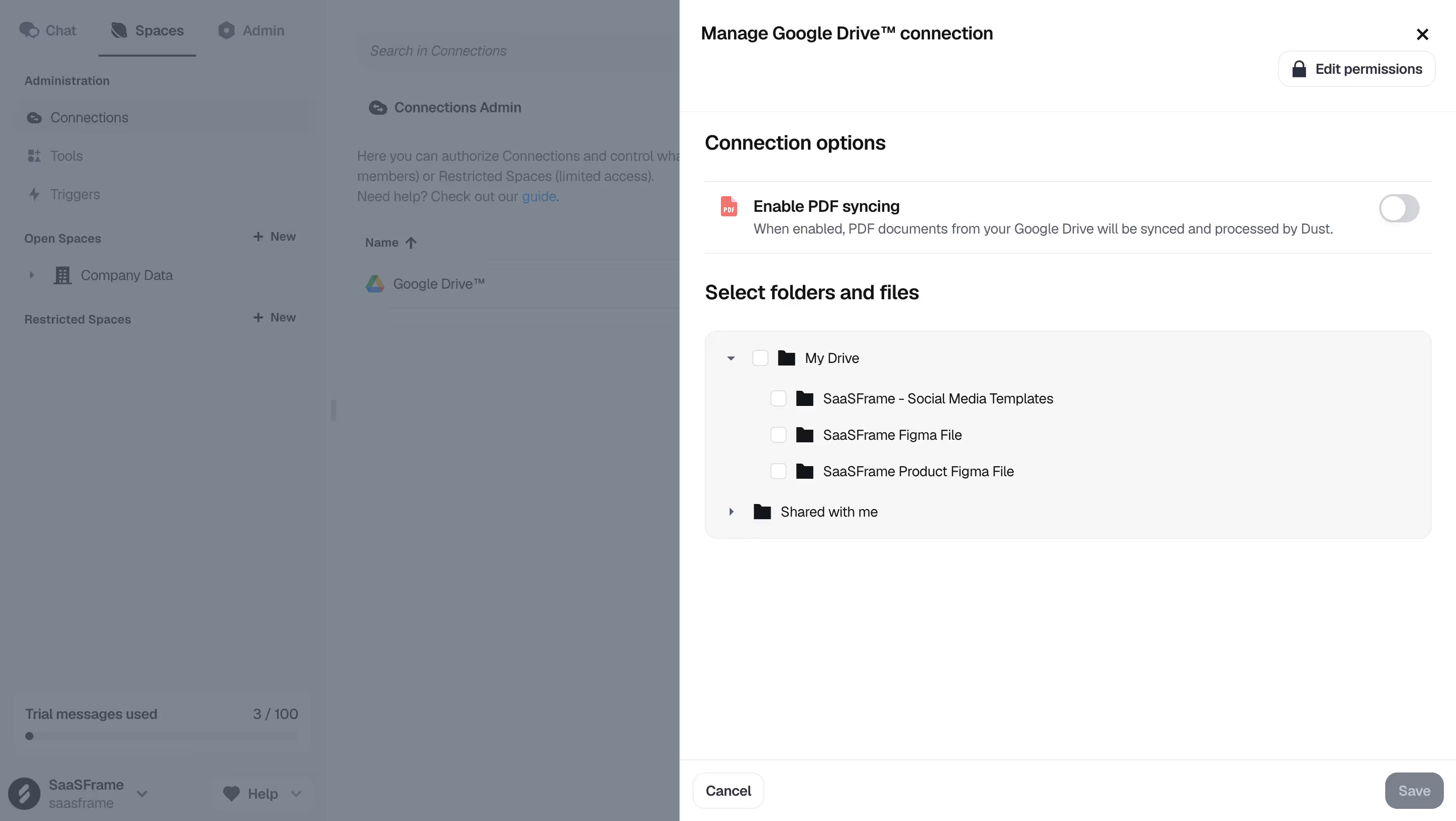
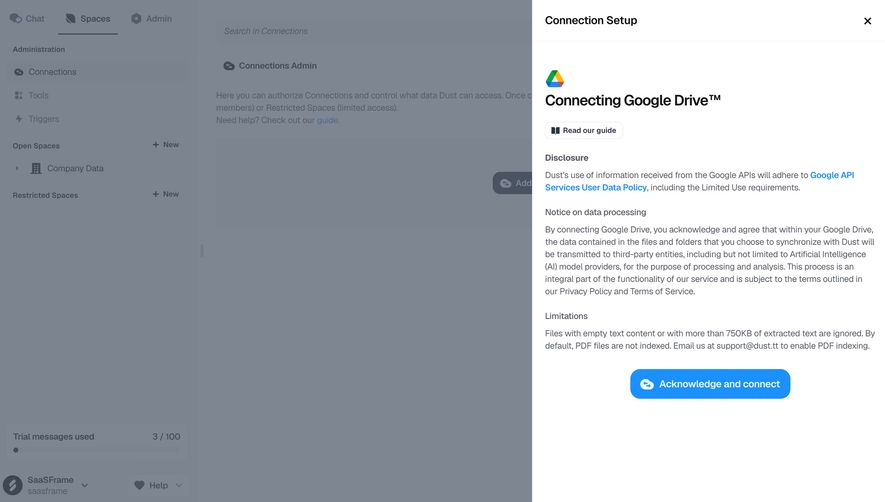
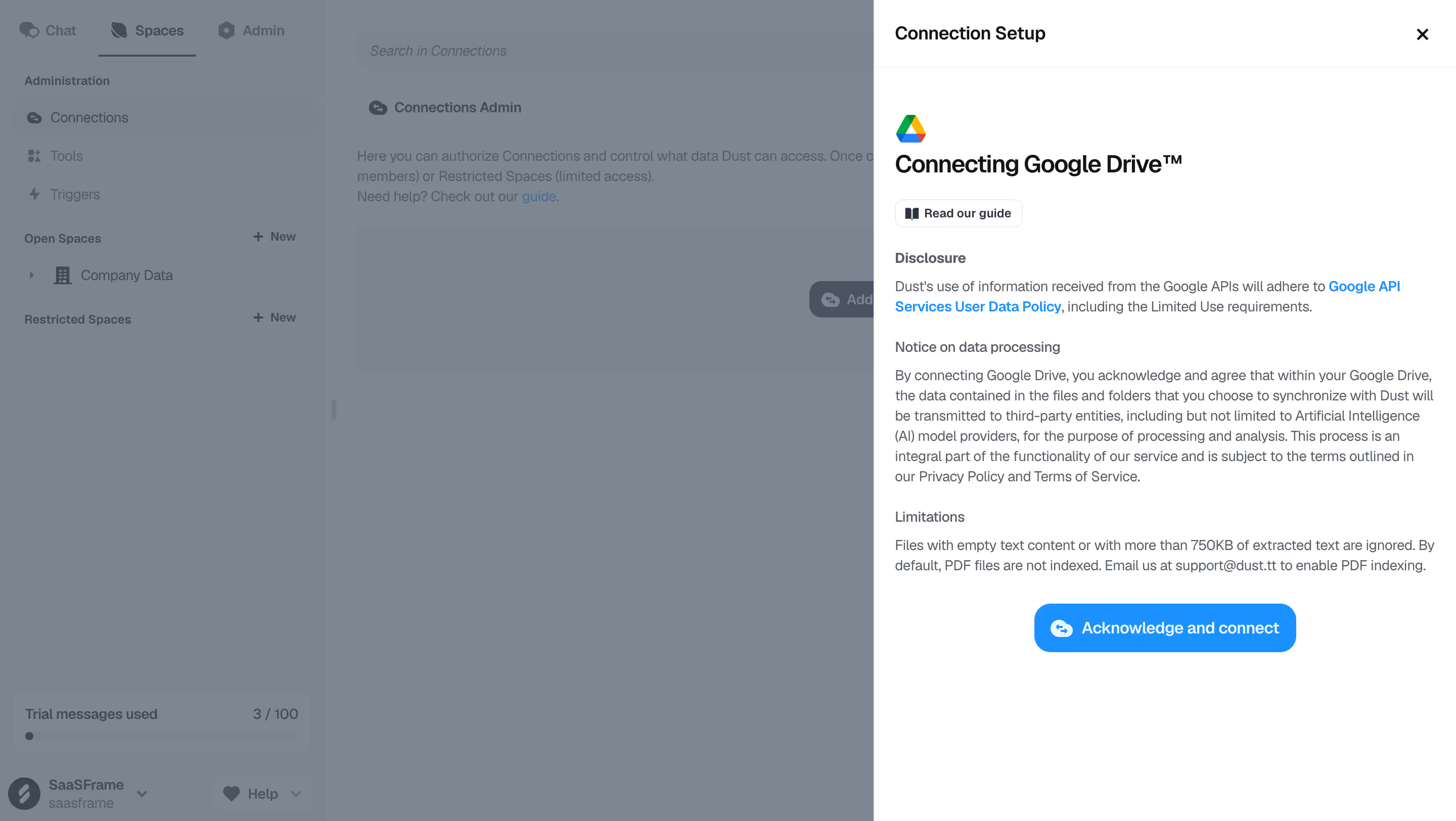
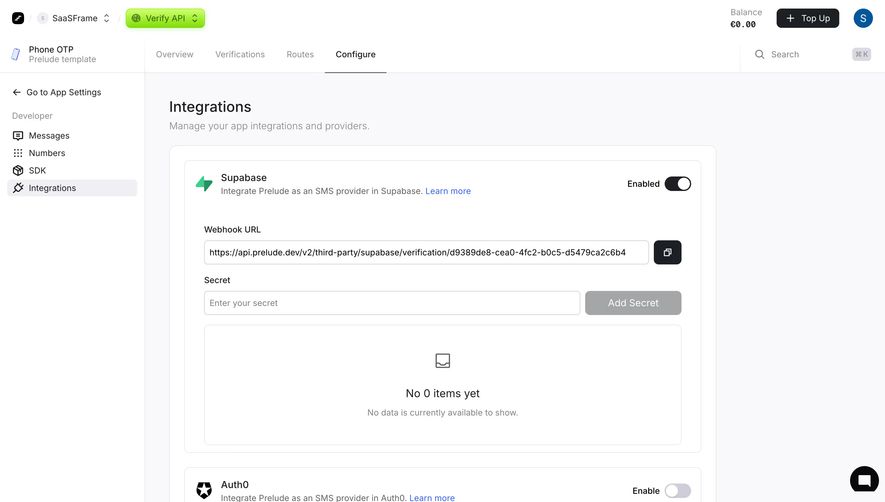
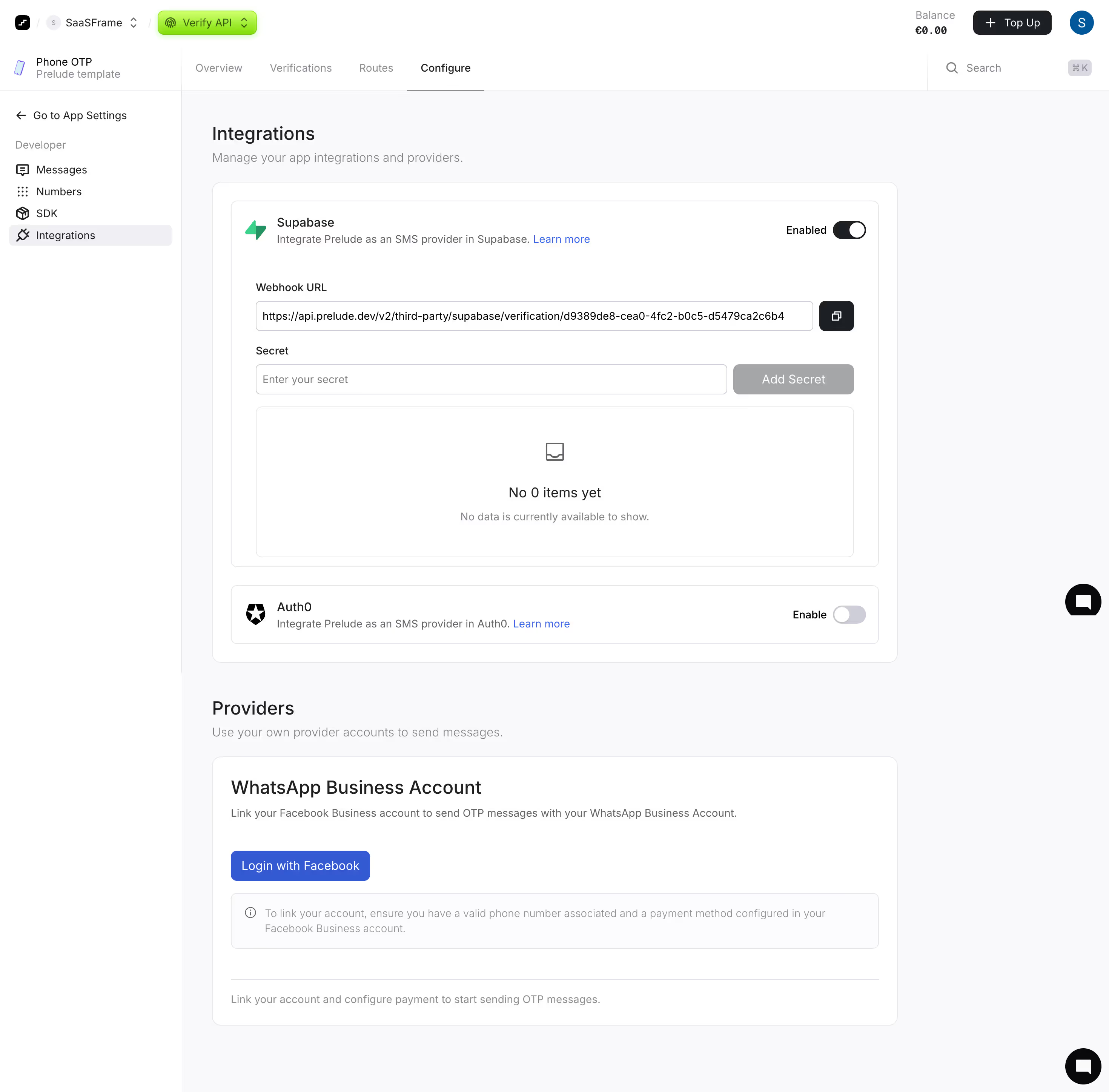
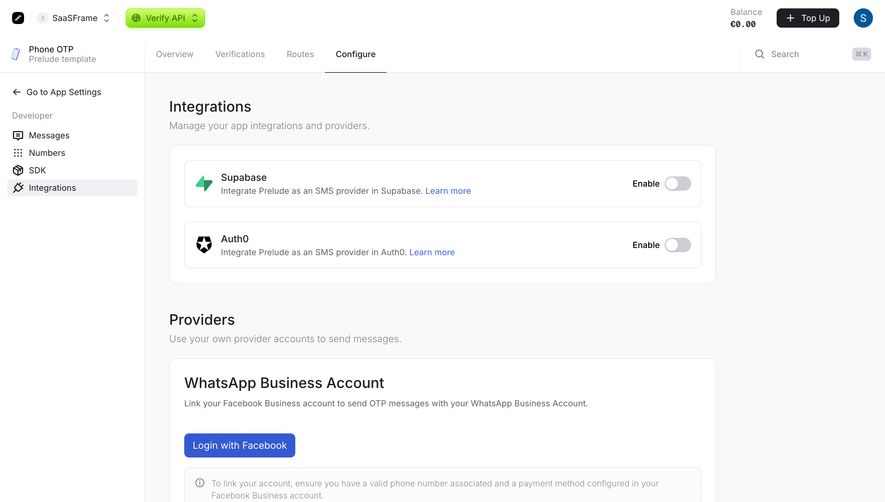
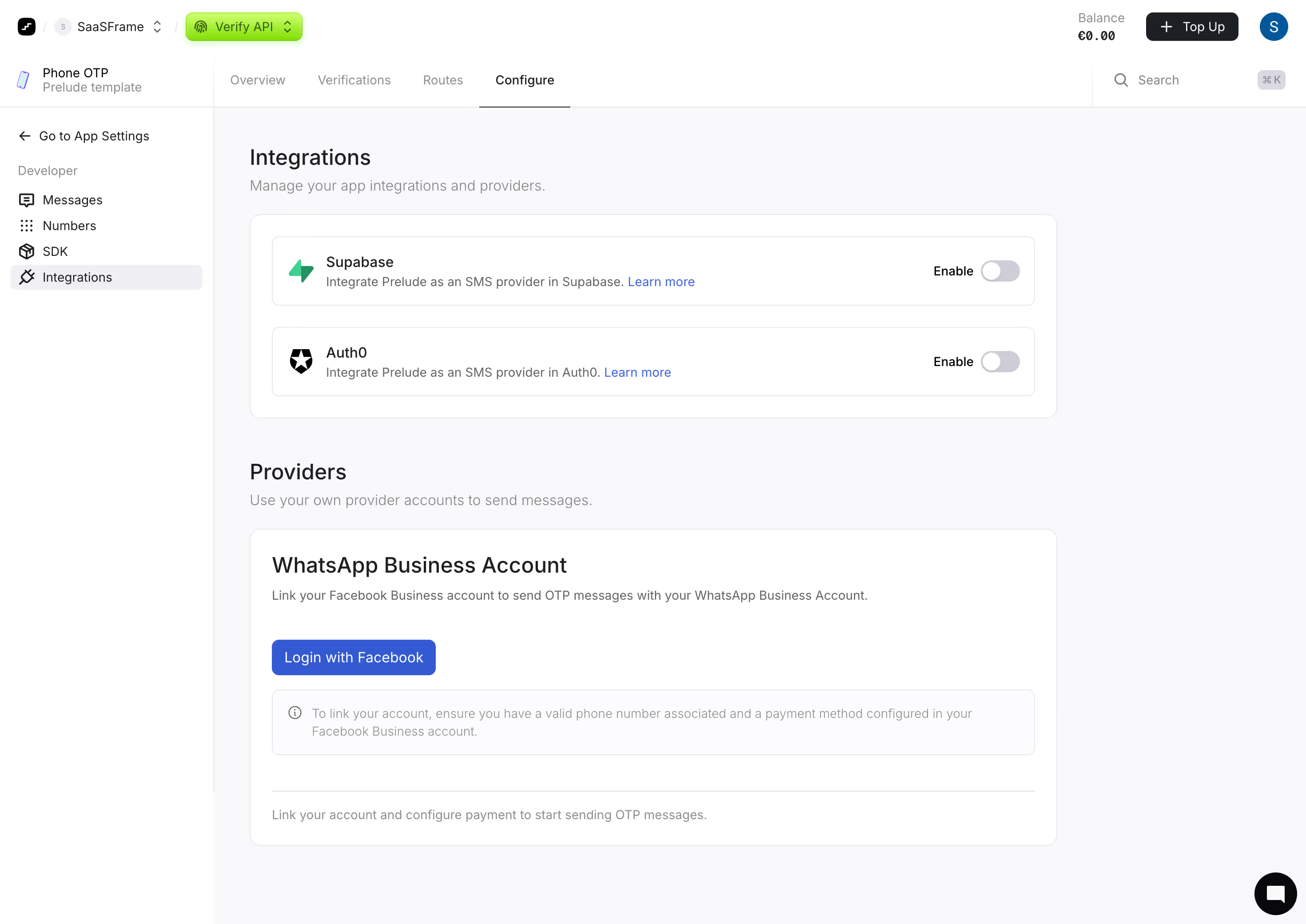
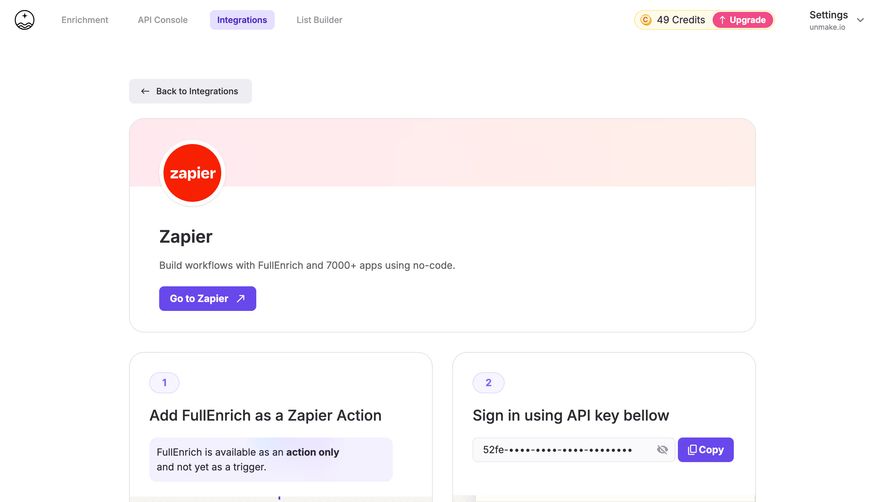
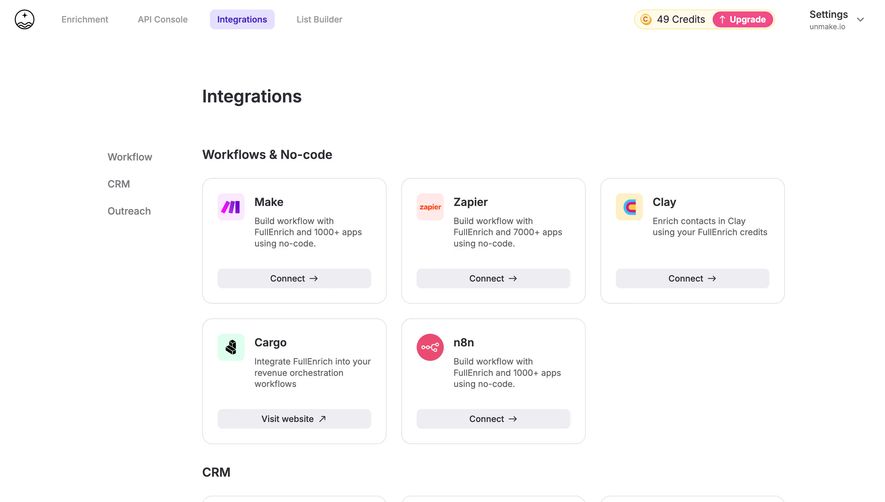
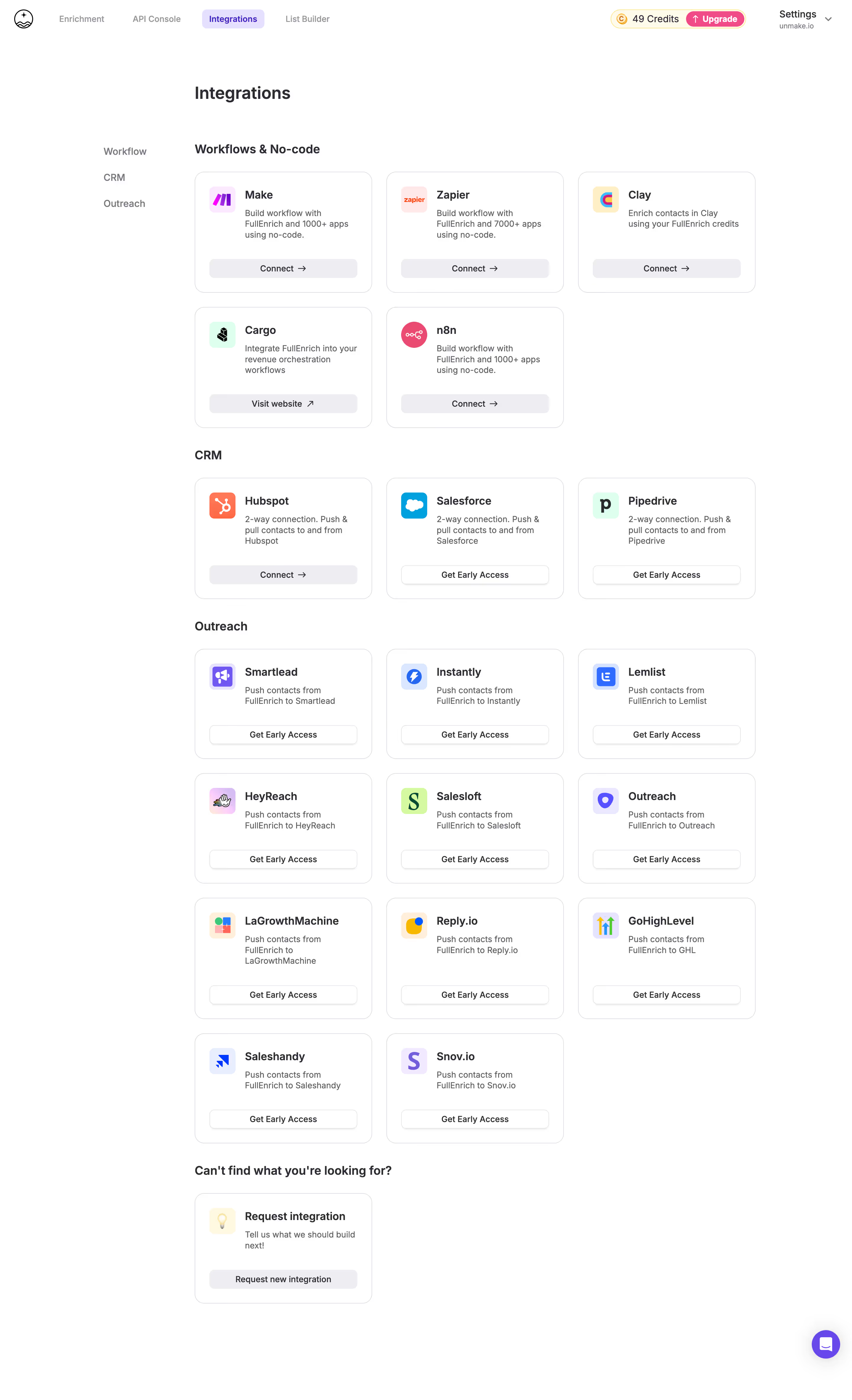
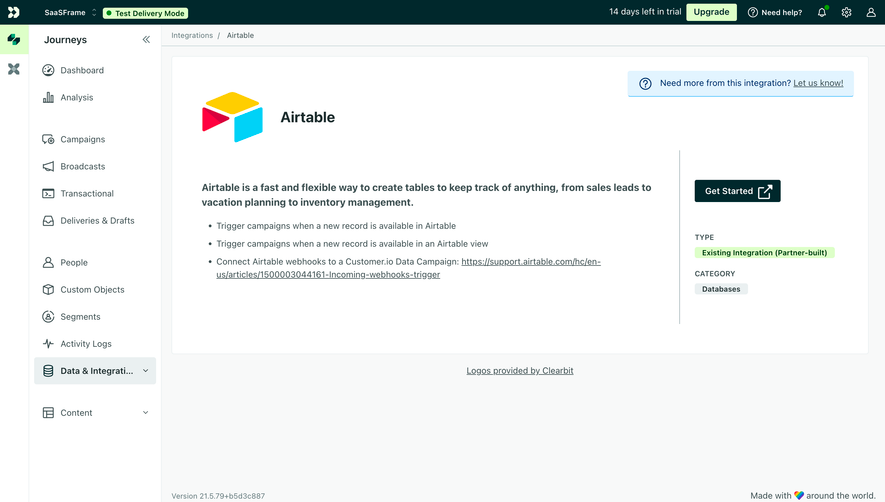
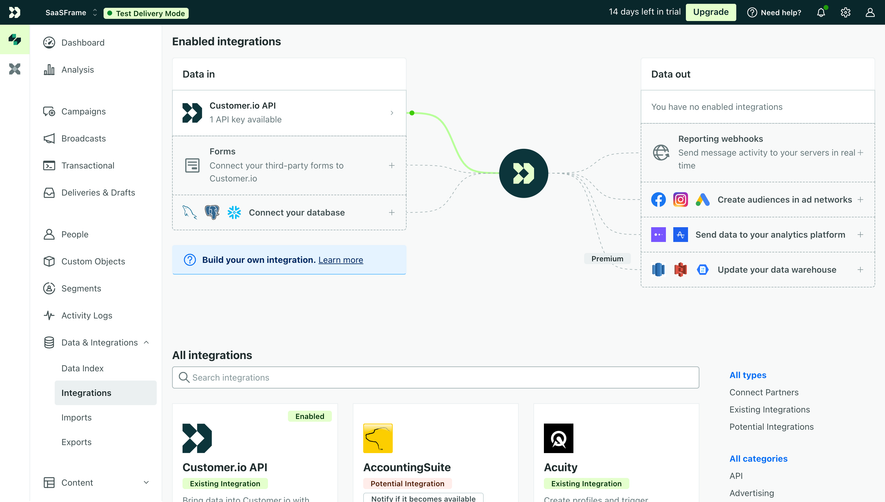
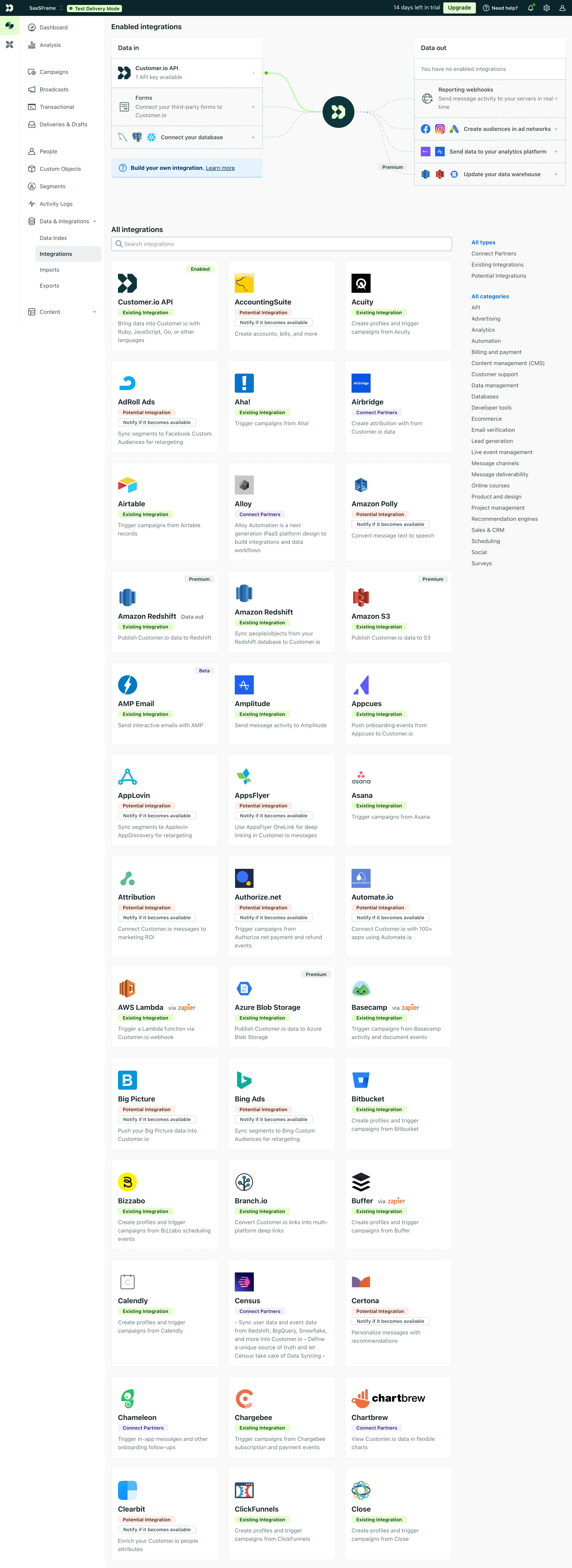
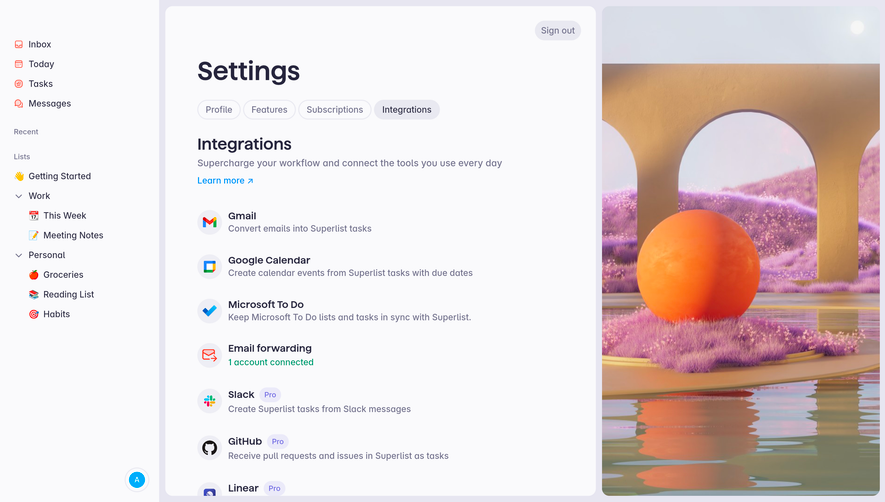
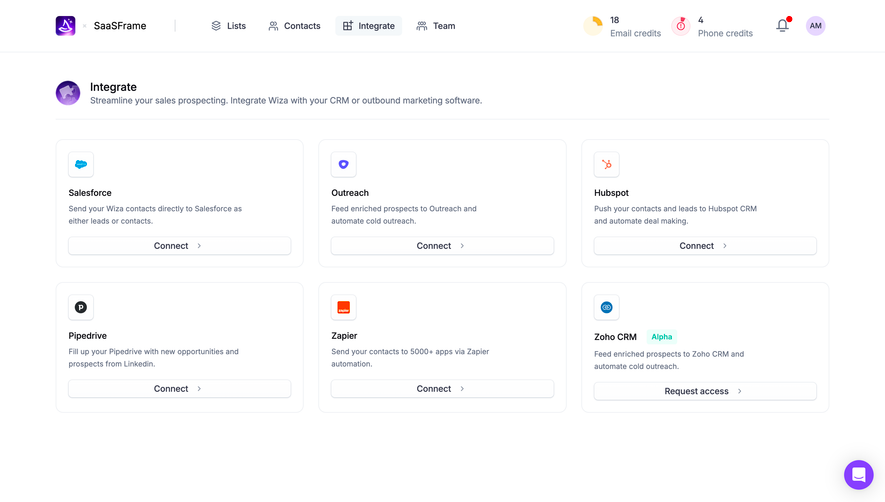
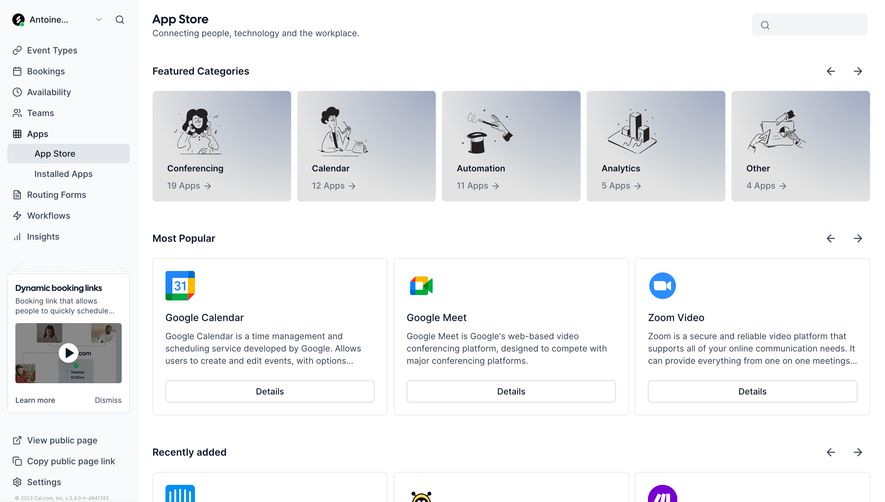
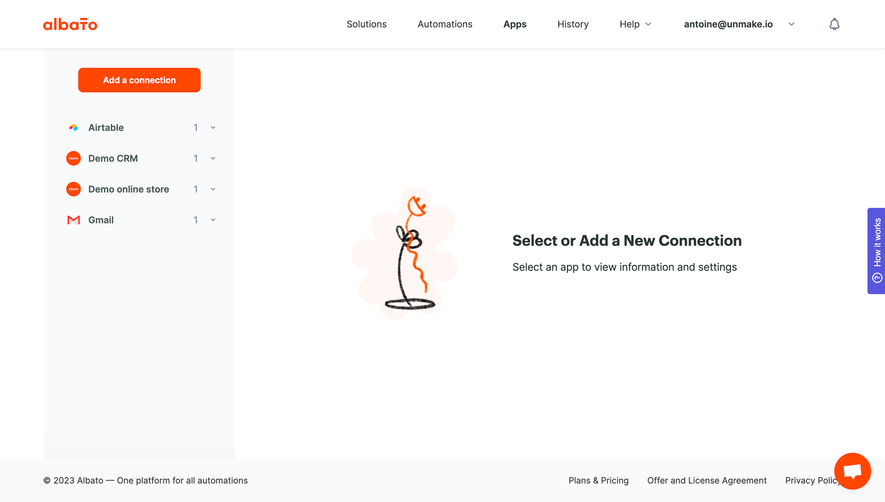
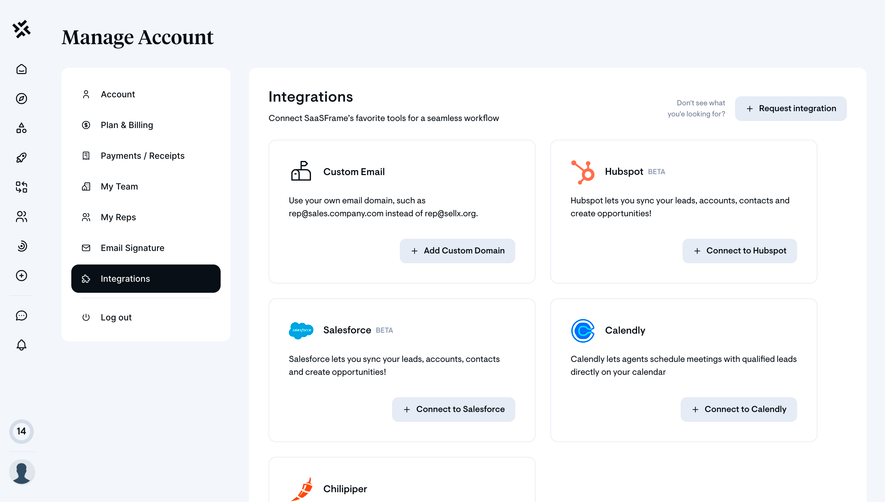
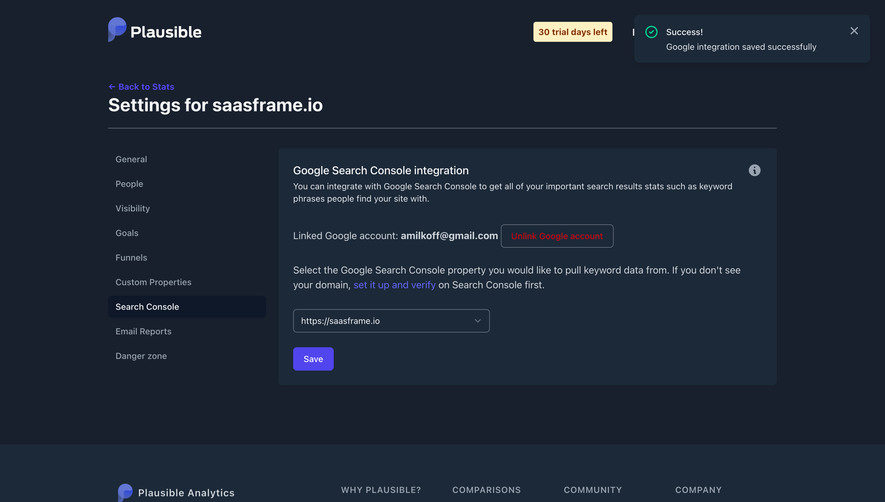
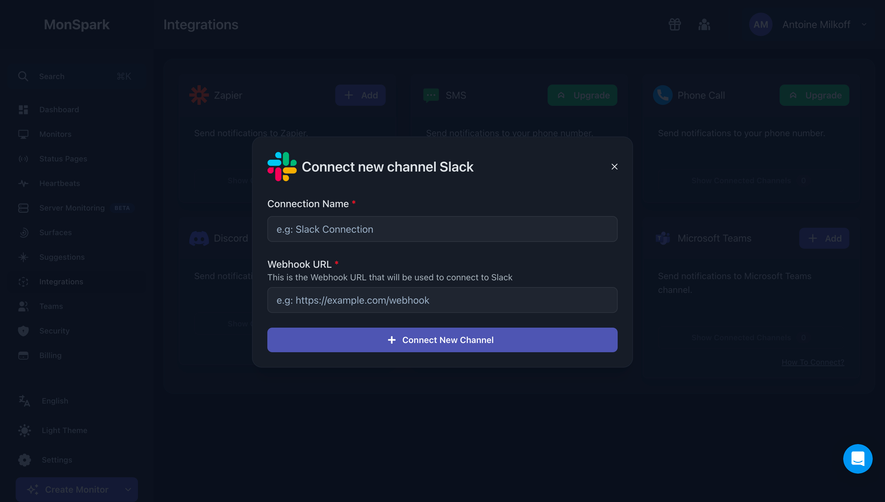
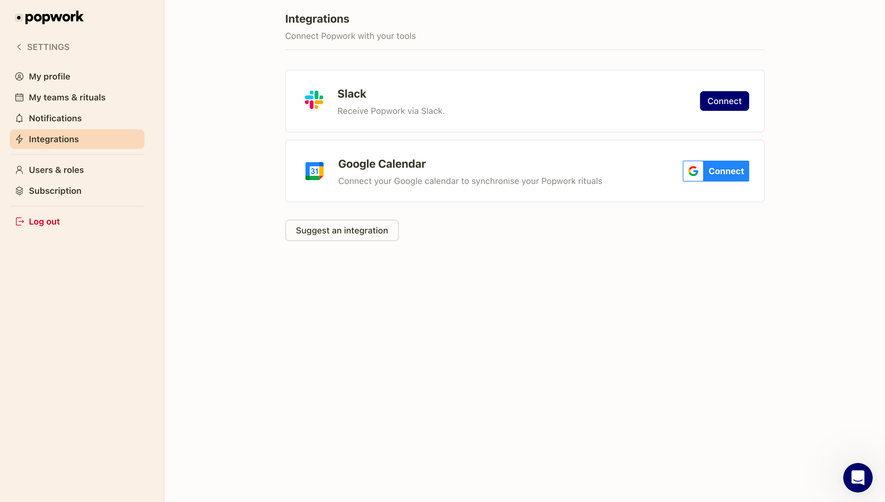
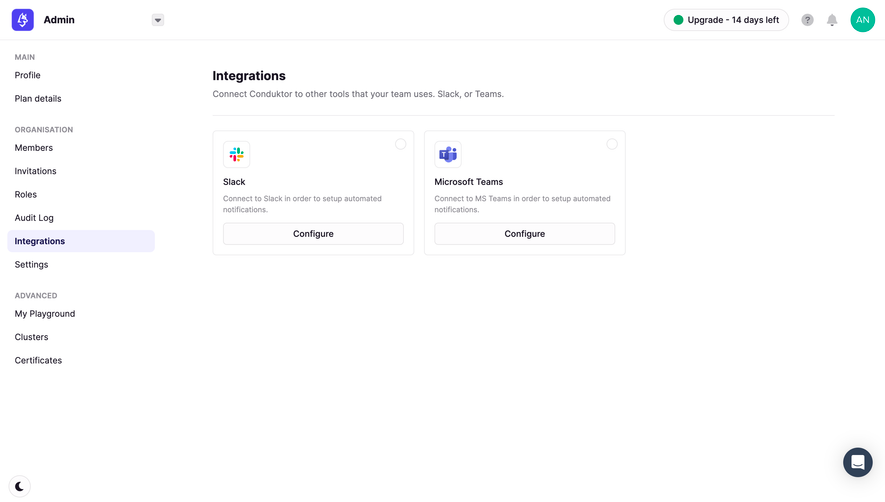
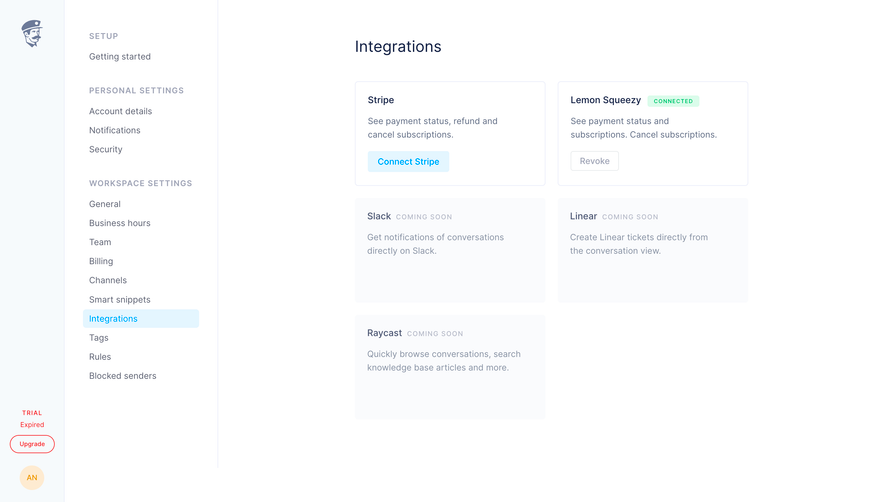
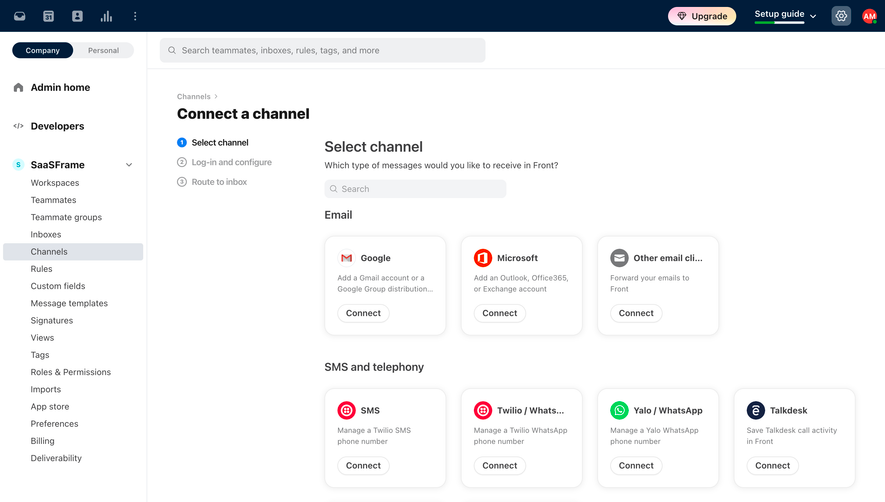
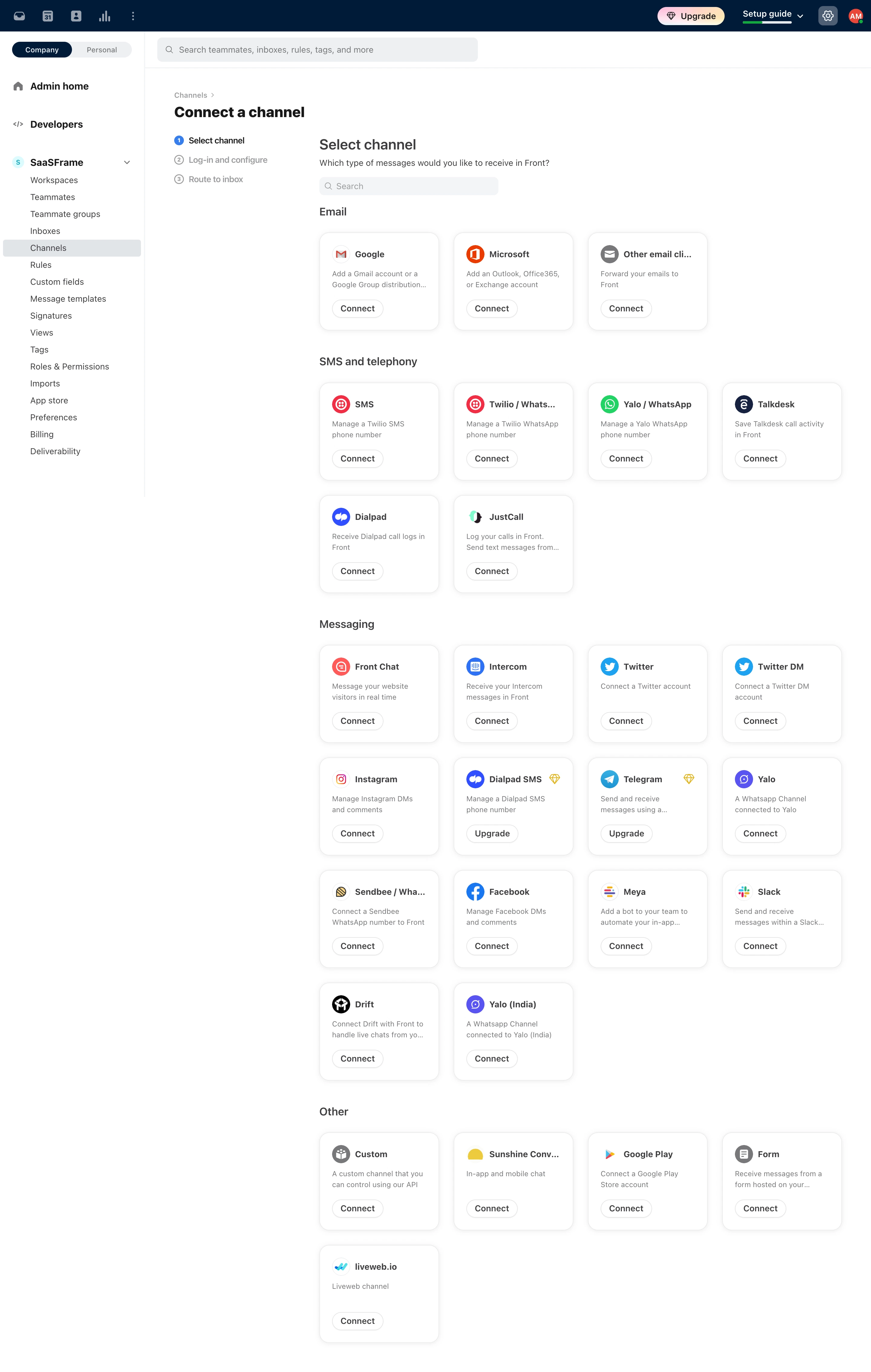
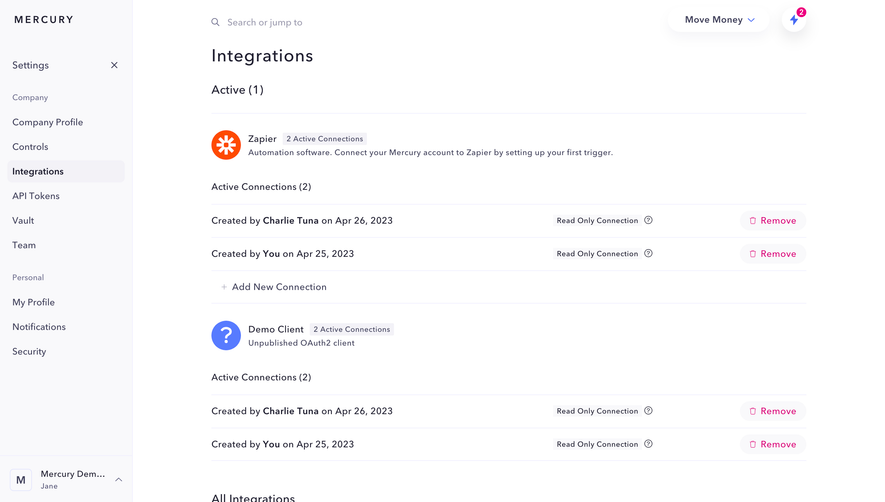
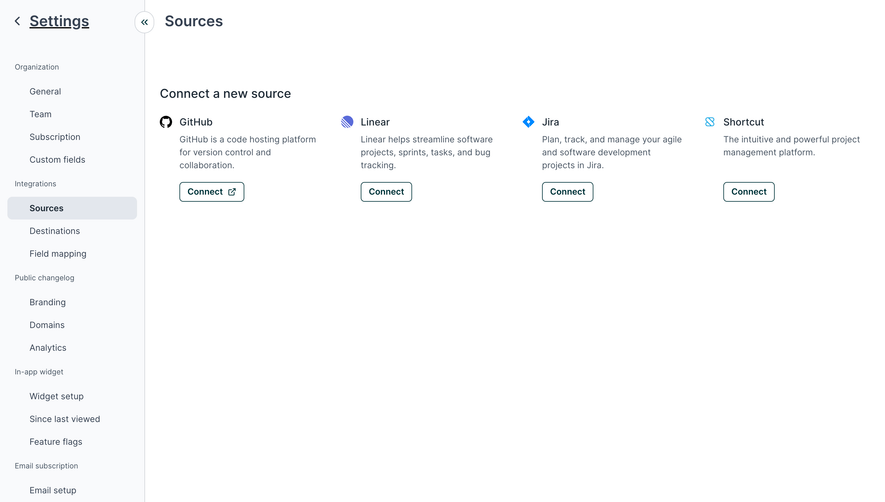
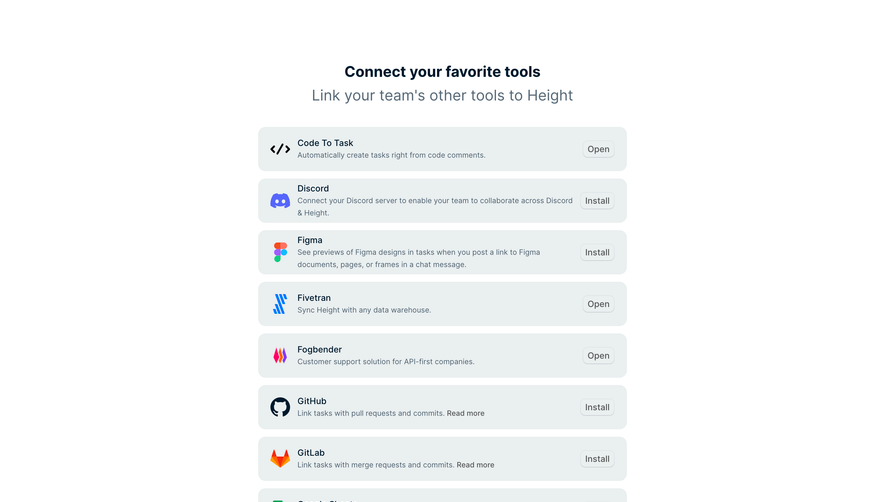
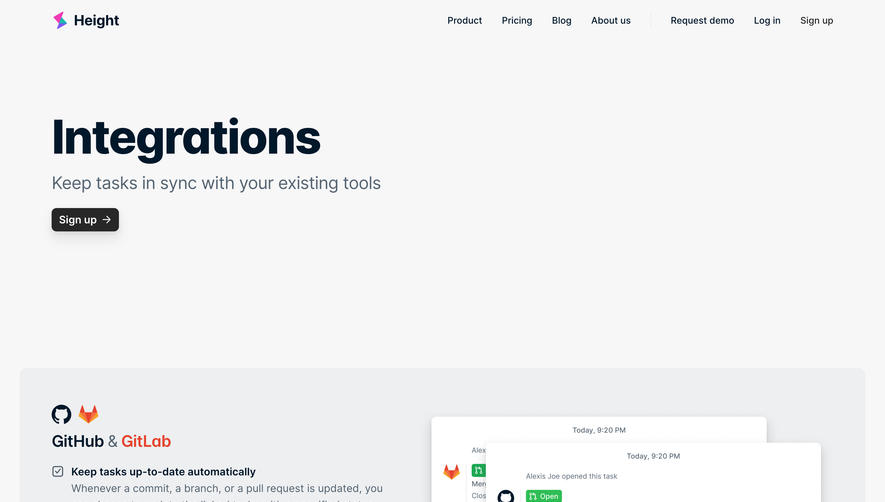
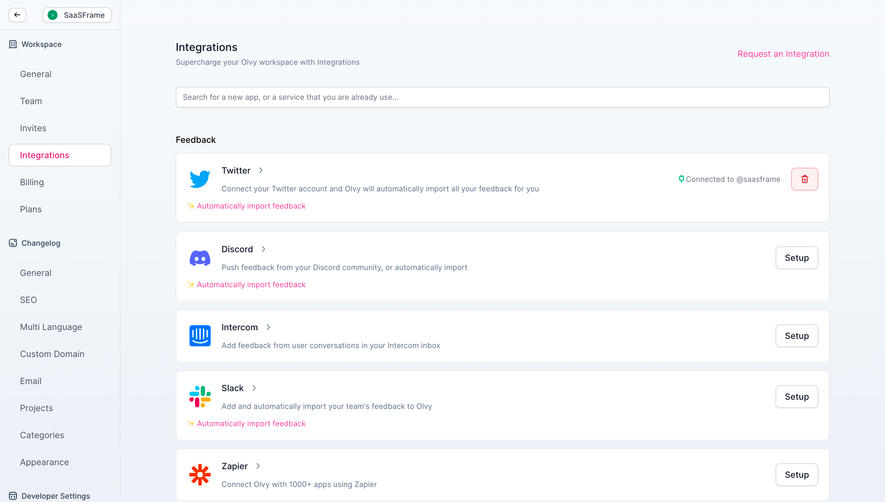
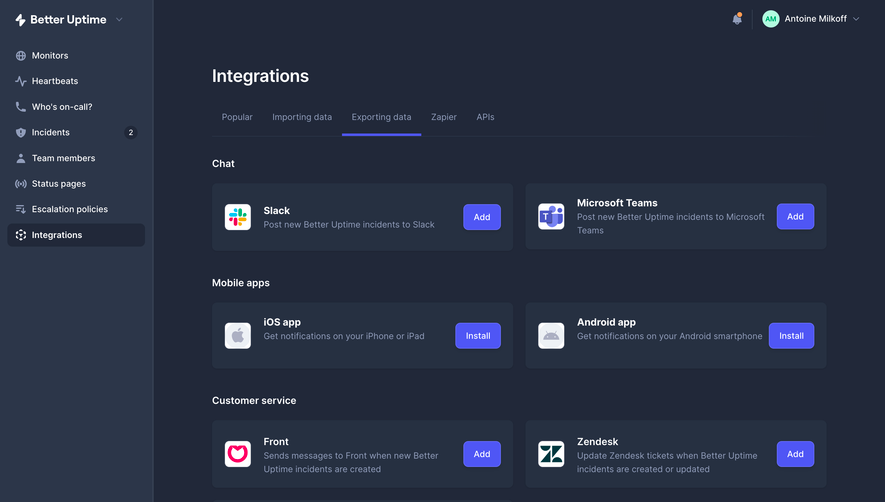
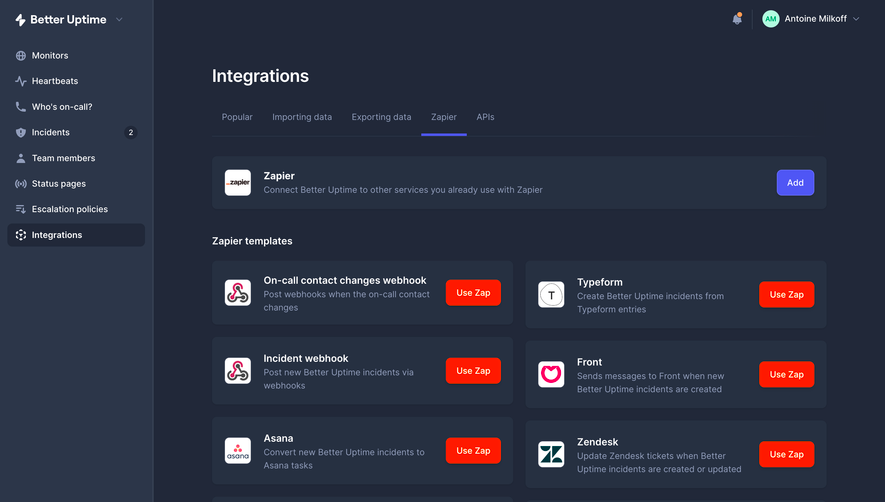
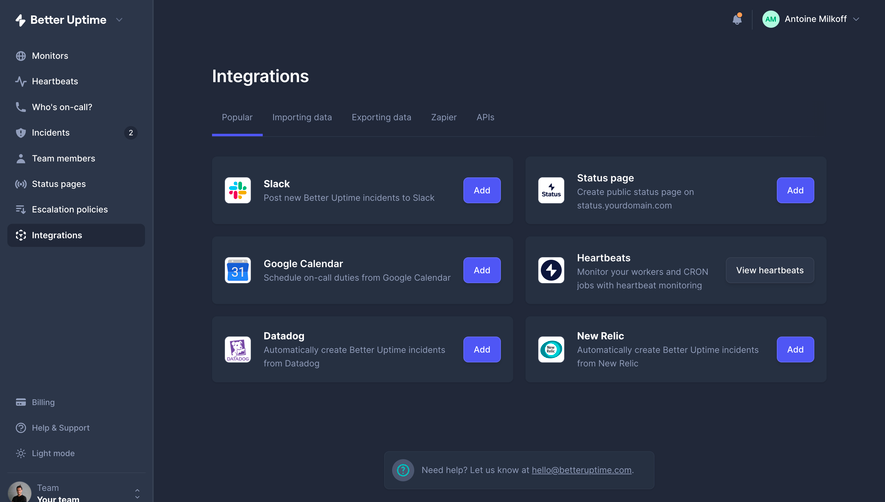
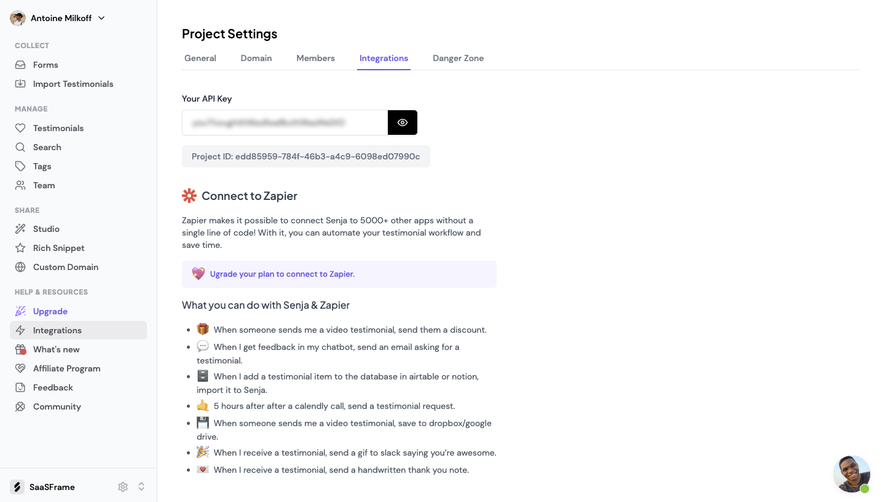
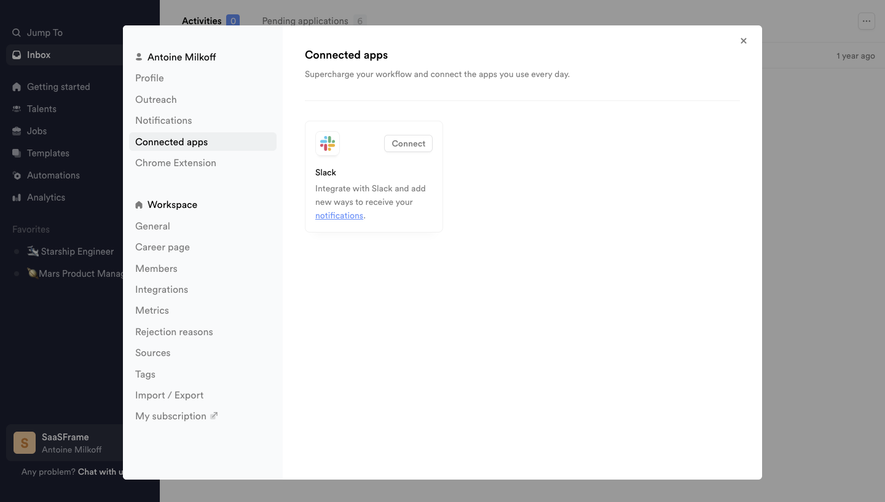
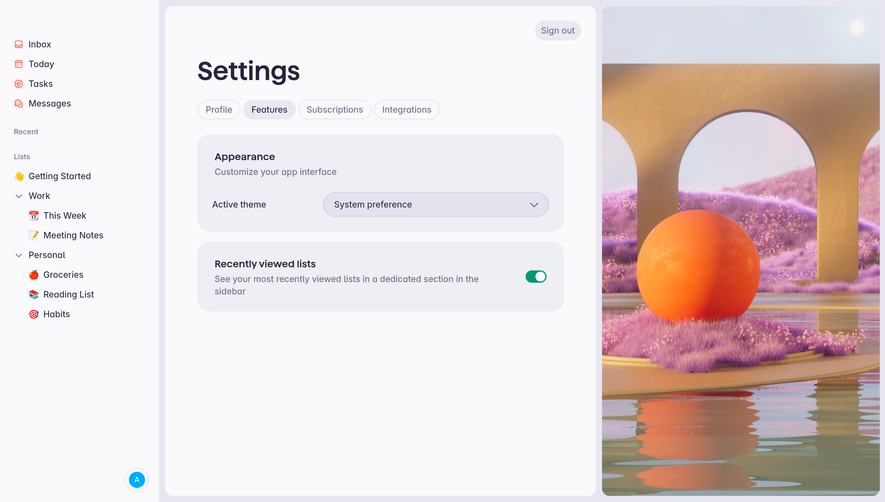
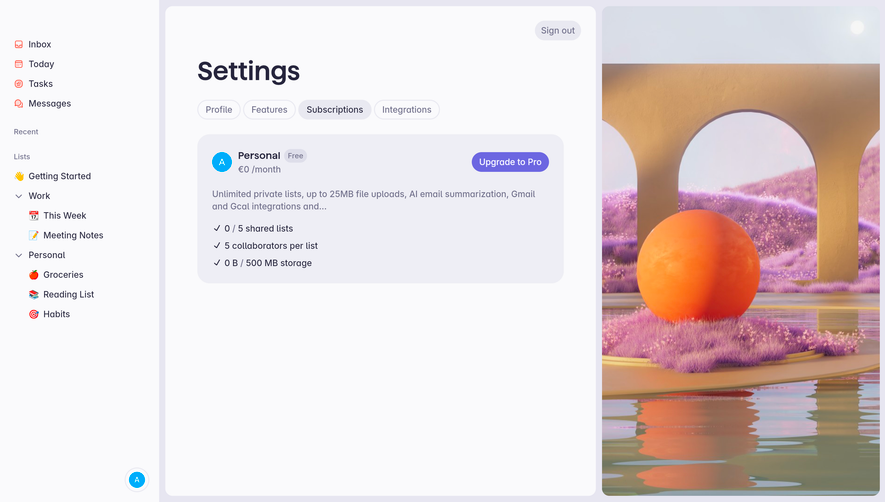
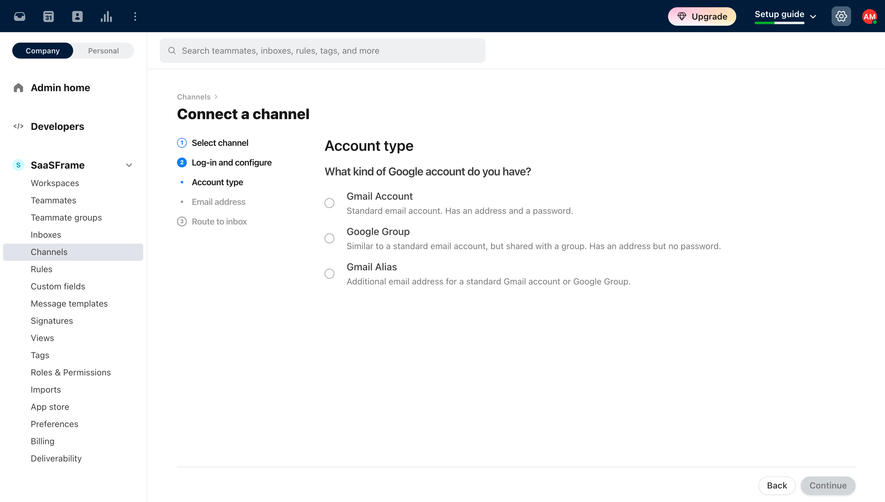
Showcase your app's ecosystem with in-app SaaS Integration settings and UI. These examples show how to manage API keys, toggle third-party connections, and display sync statuses for a connected software experience.
Browse 65 real SaaS Integrations with modern UI patterns and conversion strategies.
We sell SaaSFrame licenses on Gumroad, a secured online selling platform for creators.
What about future updates and versions?
SaaSFrame gets updated all the time! Every new update and version will immediately be made available to all SaaSFrame users.
I didn't receive my licence key, what should I do?
The licence key required to create your SaaSFrame account is send by Gumroad once you made your purchase. If this email is blocked by your email client, send me an email at antoine[at]unmake[dot]io so I can resend the licence key.
Can you send me an invoice?
You can generate an invoice on Gumroad once you purchased SaaSFrame. You will find the link in the order confirmation email.
Can I get a refund?
If you're not satisfied, you can ask for a refund within 7 days. Just send me an email at antoine[at]unmake[dot]io
Integrations Design Guide
A SaaS integrations screen helps users connect, configure, and maintain relationships with other tools. It needs to explain what each connection does, which account it uses, and whether it is actually ready for work. An app logo and a connected badge rarely provide enough information on their own.
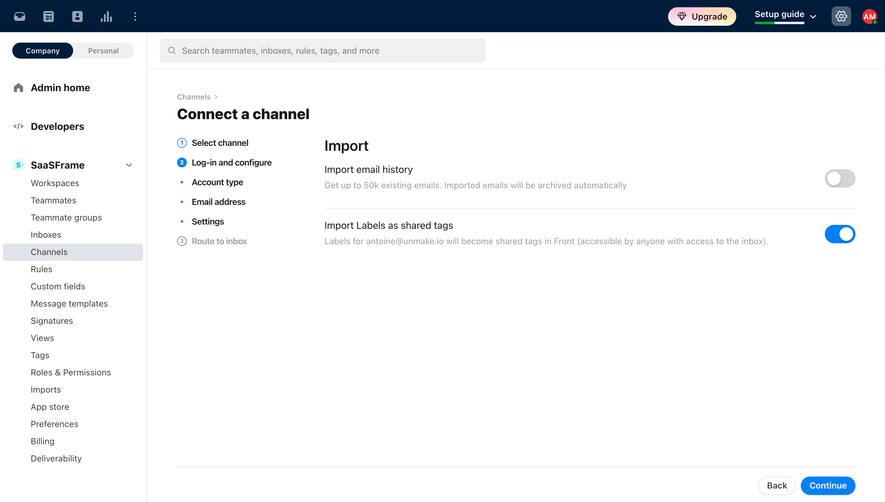
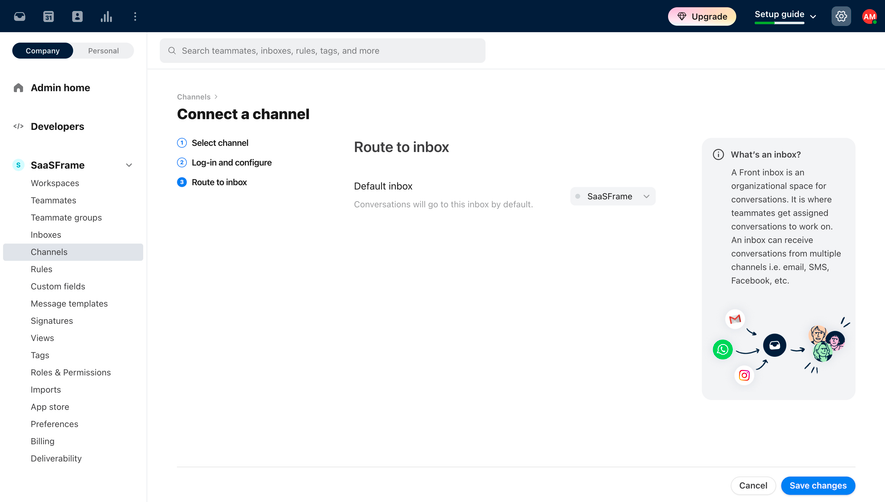
The SaaSFrame references include feedback imports, calendar and conferencing configuration, store connections, and an MCP settings surface. They show several integration models rather than one universal directory. Captured controls demonstrate presentation, not the complete behavior of the external systems.
Organize connections around the work they enable
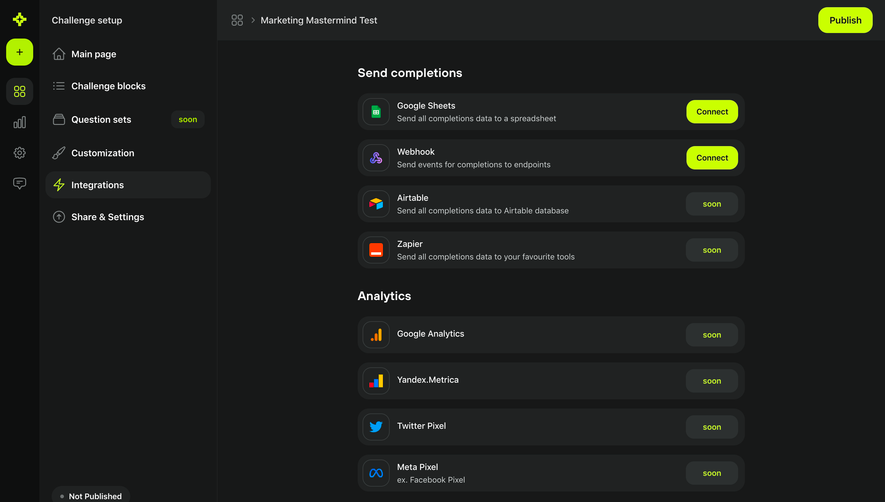
Users often know the task they want to accomplish before they know the integration name. Group tools by purpose, such as collecting feedback, creating events, synchronizing customers, or sending data outward.
Describe the direction of information flow. Importing contacts into a product is different from exporting them to another system. A broad sync label should not conceal which objects move or which system controls updates.
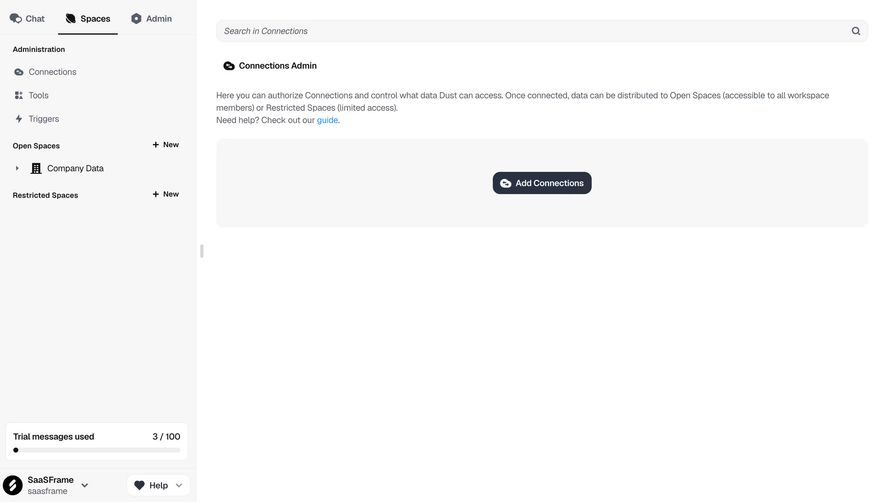
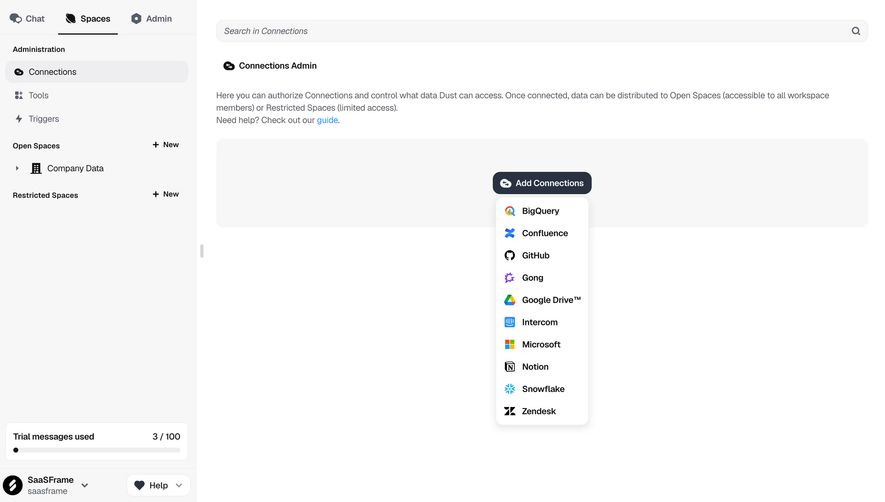
Keep discovery and configuration distinct. A list of available tools helps users choose; a configured connection needs account identity, operational settings, and status. Both can share a screen if their states remain understandable.
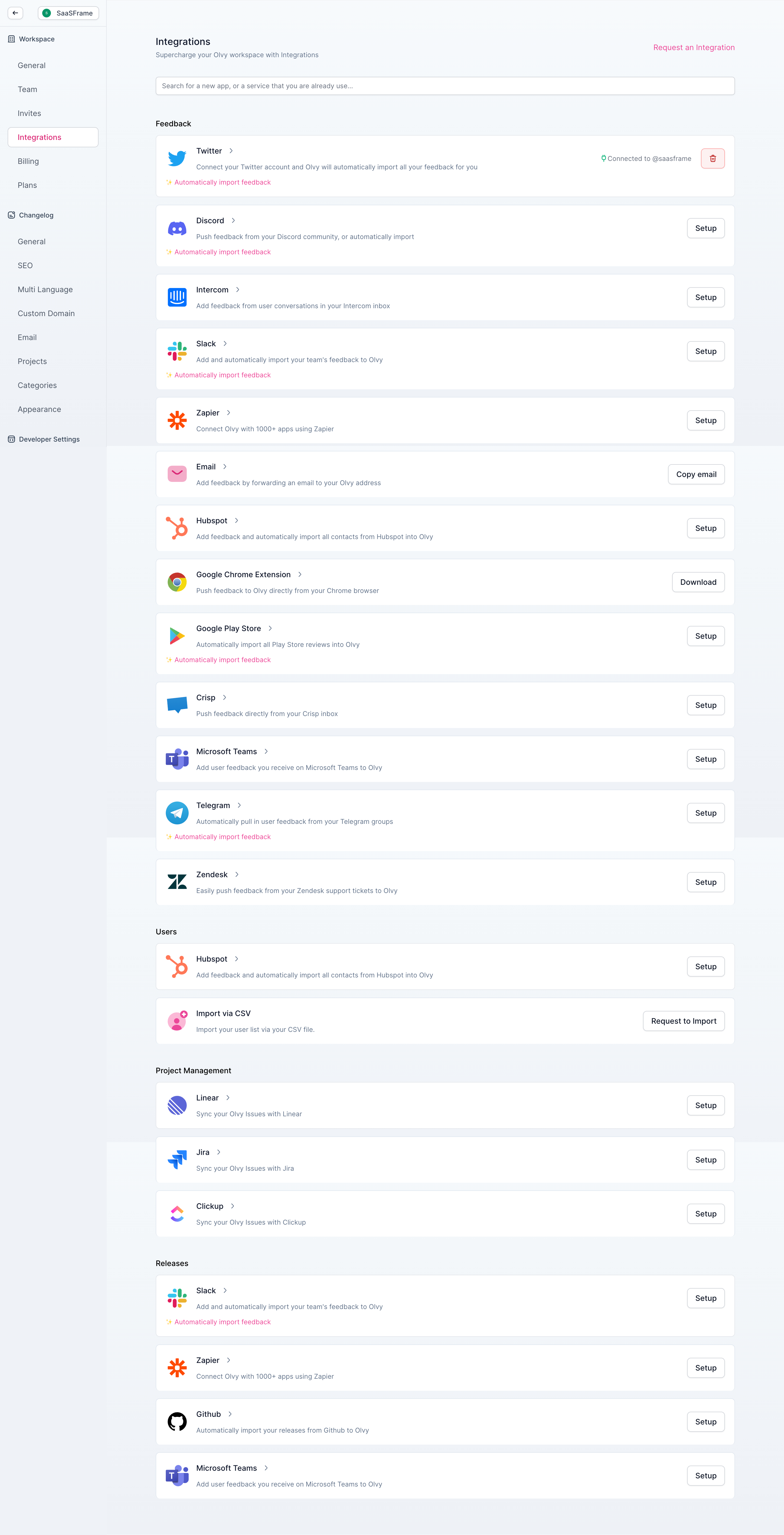
The Olvy capture organizes integrations into areas including feedback, users, project management, and releases. Entries explain the activity they enable and show different routes such as setup, download, or copying an email address.
This communicates that integration is not always an authorization button. Some tools require configuration, others use an extension or an inbound address. The action label should reflect the actual route.
When adapting this structure, distinguish a product capability from a completed connection. An entry describing automatic import does not prove that import is active for the current workspace. Show the configured state and relevant account separately.
Identify the connected account and destination
A connection needs a recognizable subject: the external account, organization, calendar, project, or store. People may have several accounts with the same provider, so a logo alone cannot establish where data goes.
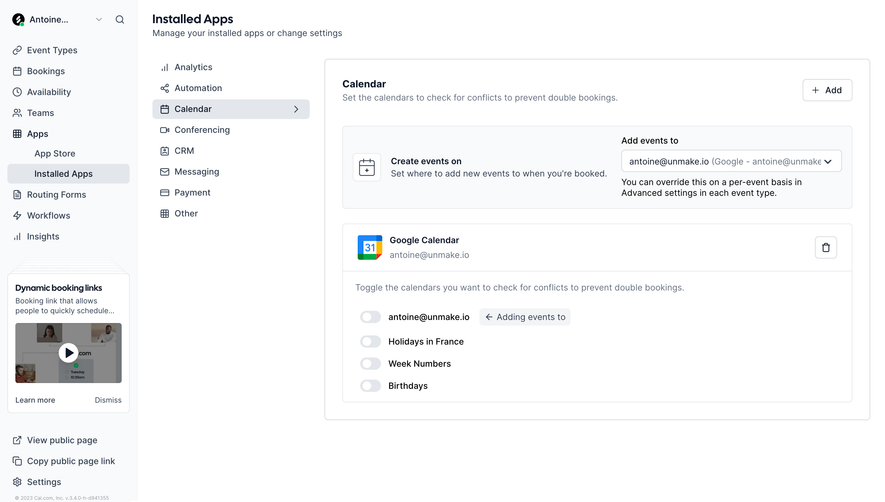
Show the destination and selected objects when they matter. A calendar integration may read availability from several calendars while writing events to one. A CRM integration may synchronize a specific pipeline rather than the whole account.
Let users inspect and change these choices without unnecessarily repeating authorization. If a change affects existing work, explain the effect rather than treating it as a cosmetic preference.
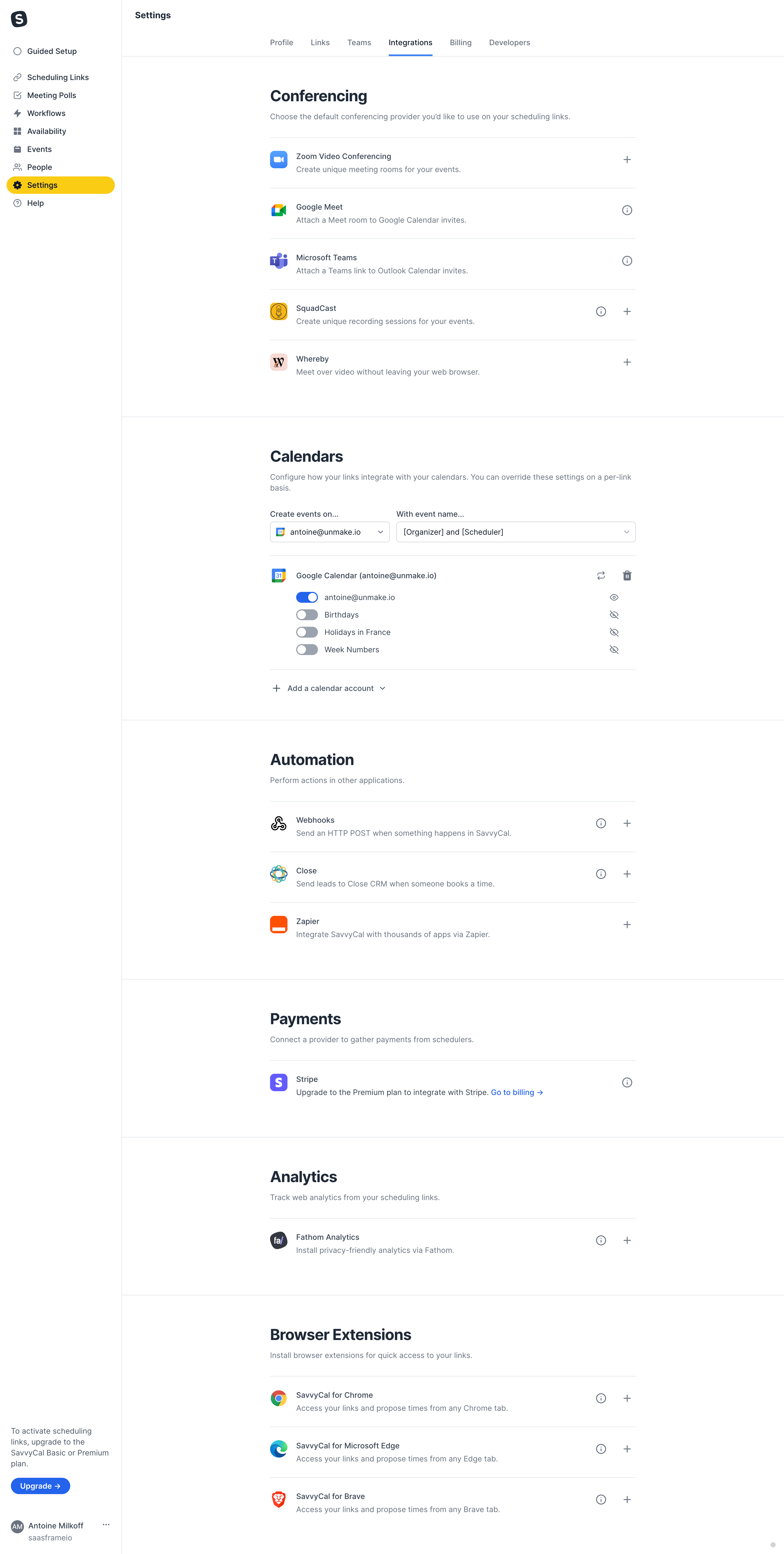
The SavvyCal capture groups conferencing, calendars, automation, payments, analytics, and browser extensions. Its calendar area includes an account, event-creation choices, and individual calendar selections.
This demonstrates a configuration layer beyond simply connecting a provider. Users need to understand how the connected resource participates in the product's behavior. A default conferencing provider and a calendar account are different settings.
Make overrides understandable when they exist. A workspace default and a per-link choice can both influence an event. The interface should help users determine which setting applies to the current object.
Use status labels that reflect real readiness
Connected, configured, enabled, syncing, and healthy are different states. A valid authorization can exist while a synchronization is failing. A disabled integration can retain credentials while performing no current work.
Show the state relevant to the user's task and provide a route to detail. If synchronization has not run yet, say so rather than presenting a positive health result without evidence.
Keep time context useful. Last activity or last successful sync can help explain a stale result. A label about connection time alone does not tell users whether the integration is operating today.
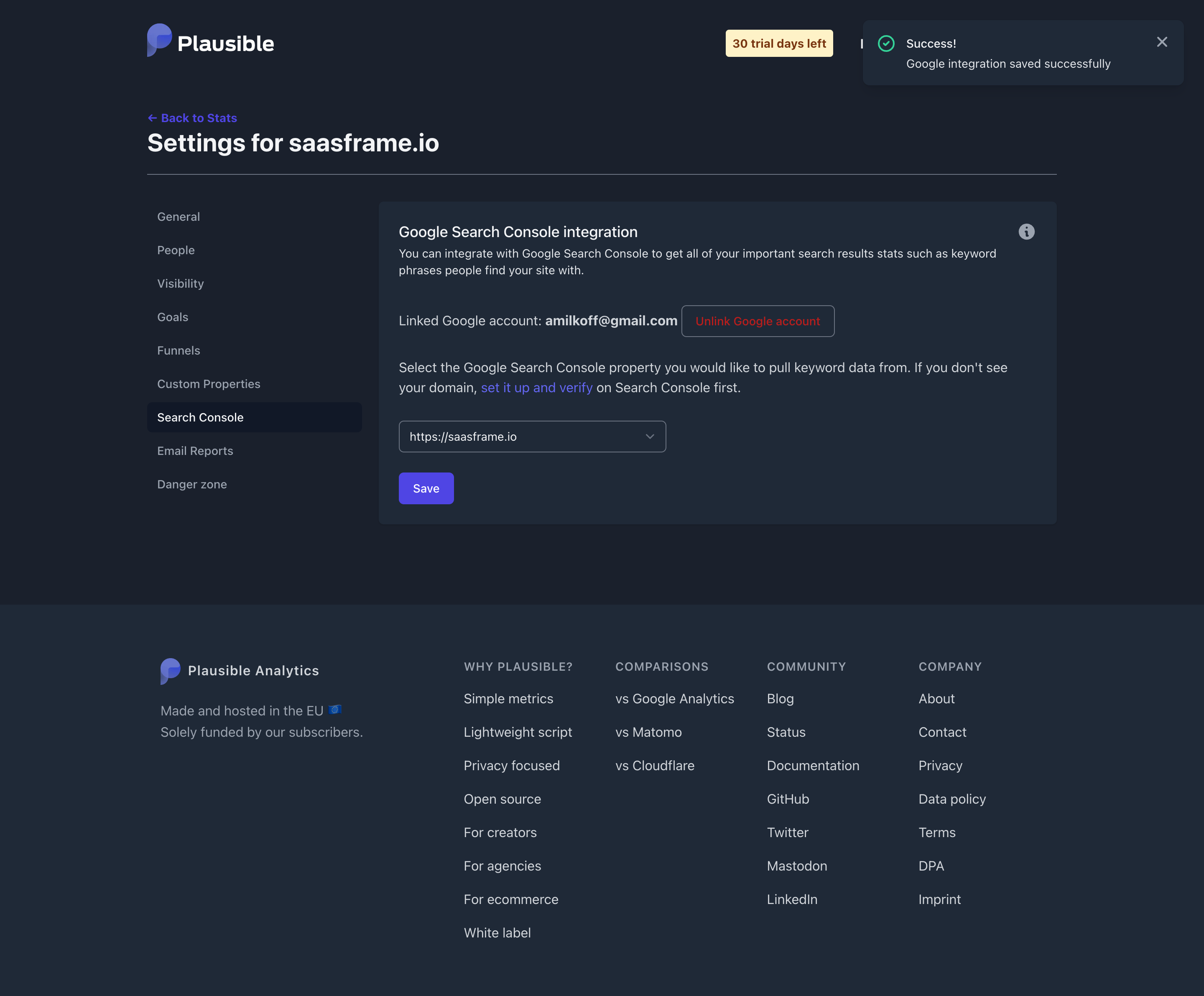
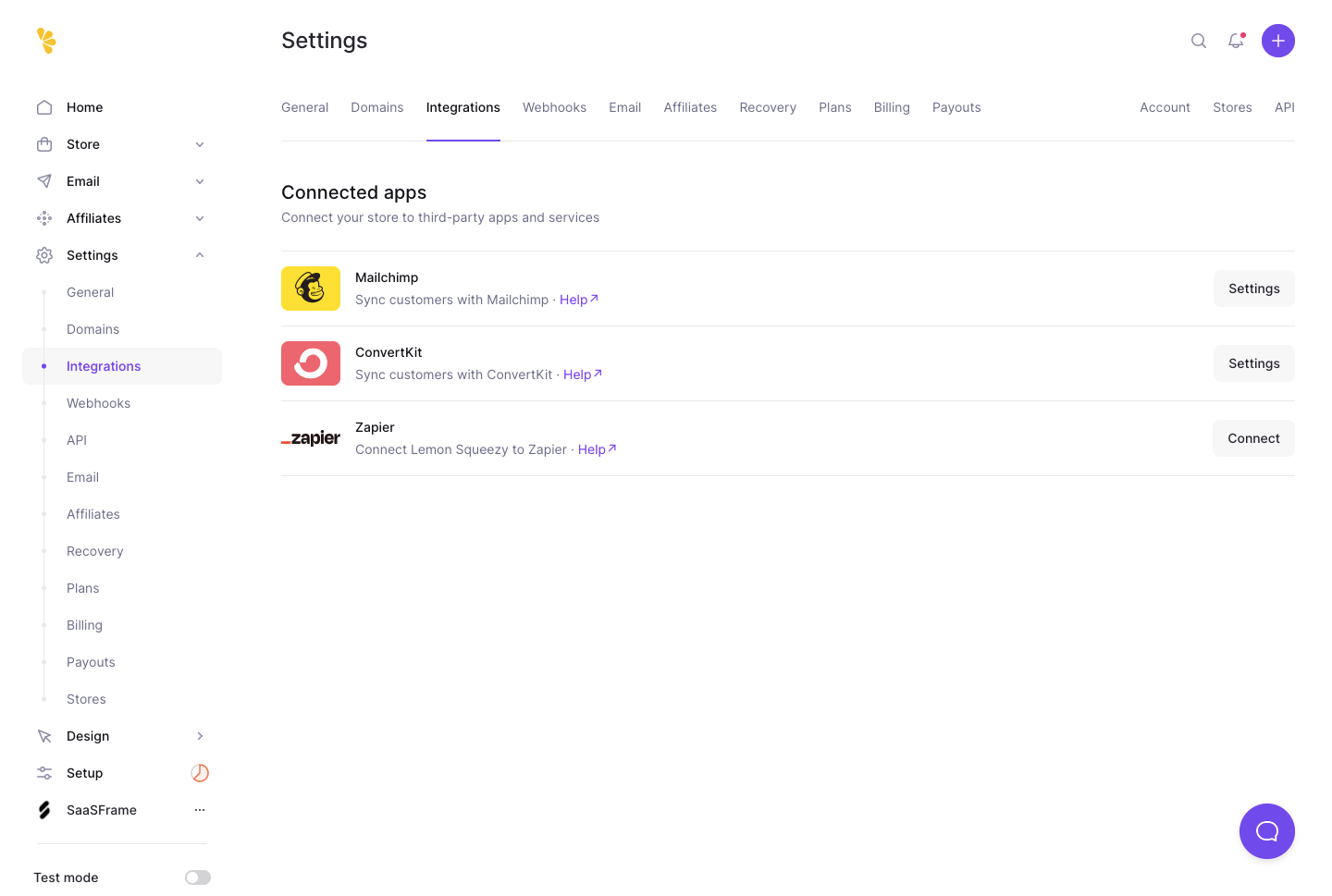
The Lemon Squeezy capture presents connected-app entries with descriptions, help routes, and settings or connect actions. The surrounding store settings also expose a test-mode context.
Different actions help distinguish configured tools from available ones. The description explains the relationship, while settings provides a route to the existing configuration.
When adapting the model, keep test and live context clear. A connection configured for a test environment may not operate on production data. Users should not infer that one successful setup covers both environments.
Make requested access understandable
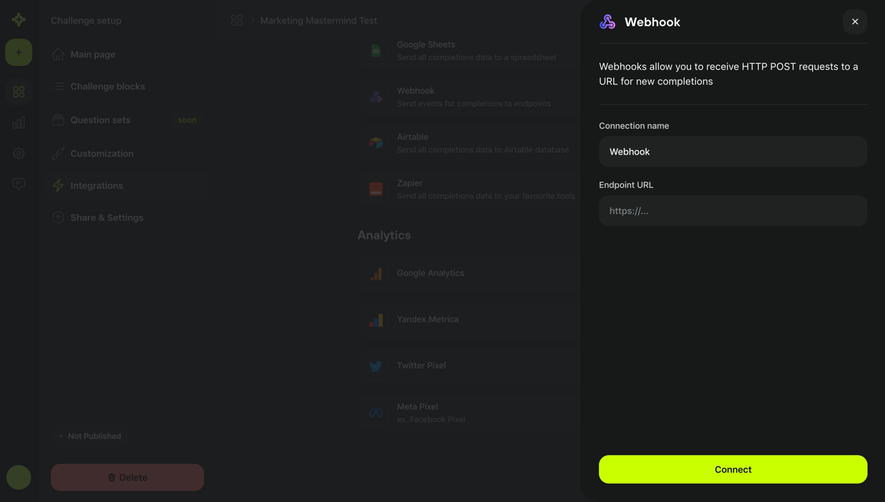
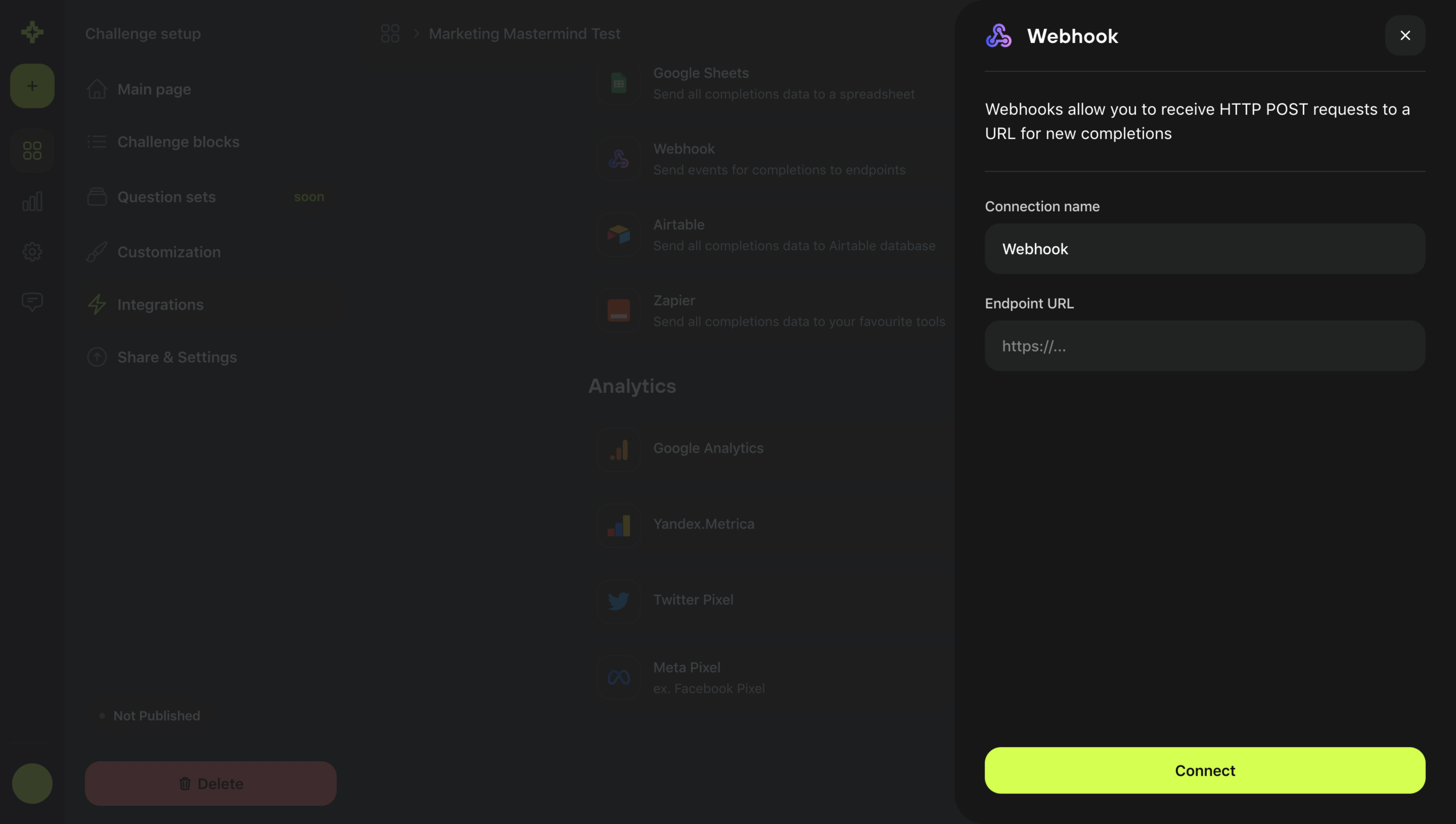
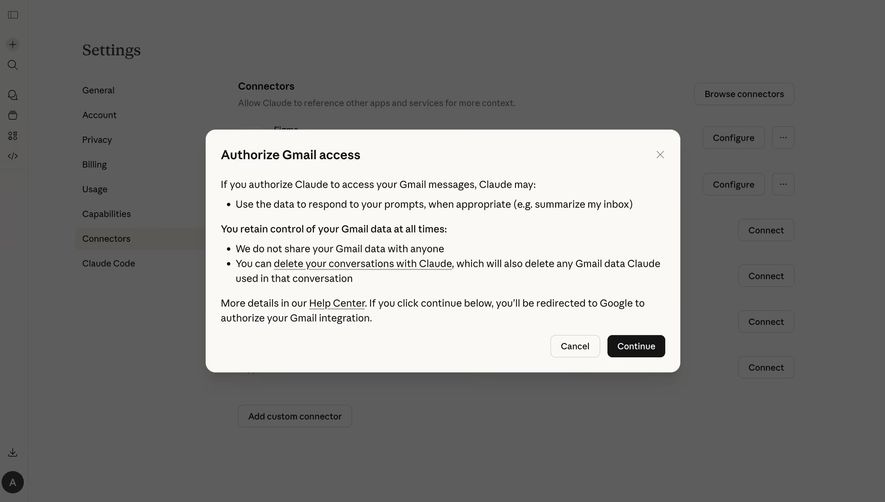
Before an authorization handoff, explain the purpose and relevant scope. The user should know which external service will open and what the connection enables. Do not make a setup choice look like confirmed access.
Use precise descriptions of requested capabilities. Reading data, creating objects, and changing settings have different consequences. Avoid general reassurance that obscures the actual access relationship.
After returning, show the confirmed result. A canceled authorization, expired credential, or incomplete setup needs a different state from a ready connection. Preserve entered configuration when recovery is possible.
Treat tool configuration as a separate layer
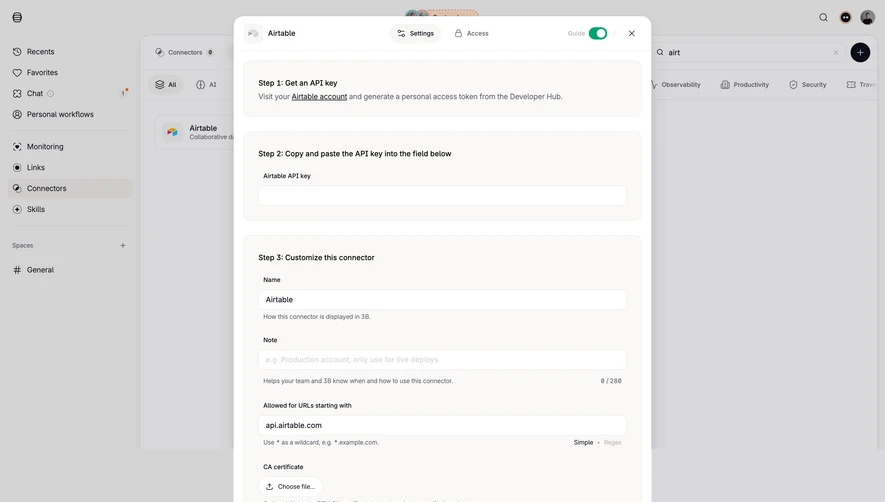
The Hugging Face MCP-server capture shows client-specific setup routes, a spaces-tools area, and controls for categories of available tools. It illustrates an integration where clients and exposed capabilities can be configured separately.
This is different from a one-click app connection. Users need to understand which client is being configured and which tools become available through the server. A selected preference should not imply that every client has already been connected.
For similar systems, keep the relationship between resource access and tool availability explicit. If a tool needs an additional permission or resource, explain the dependency at the point where it becomes relevant.
Explain disabling, disconnecting, and removal
Disabling can stop activity while preserving configuration. Disconnecting can revoke or remove the product's authorization relationship. Removing an integration entry may have further effects on stored data or dependent workflows.
Use the actual action name and explain meaningful consequences. A user should know whether existing imported records remain and whether automation steps will fail or stop after the change.
Provide an appropriate review stage for shared connections. An administrator changing one provider can affect many colleagues or workflows. The inventory should help identify those dependencies where the product can establish them.
Make failures recoverable
A useful error identifies the affected connection and a relevant next action. Expired credentials, unavailable external services, and invalid configuration need different recovery routes.
Avoid repeatedly asking users to reconnect when authorization is still valid and the problem is elsewhere. Preserve account identity and settings during recovery. A generic reset can create more confusion than the original failure.
For asynchronous synchronization, show whether work is queued, running, partially completed, or stopped. Users need to understand which data is trustworthy and whether retrying may duplicate work.
Respect workspace permissions and ownership
The person configuring an integration may need access in both systems. Explain which account must authorize and whether the connection belongs to a person or the workspace. Personal credentials can create maintenance problems when the owner leaves.
Adapt controls to the viewer's permissions. A member may need to inspect connection status without being allowed to alter it. Provide a clear administrator route rather than an unexplained disabled action.
Keep sensitive credentials protected in the interface. Configuration needs to be inspectable without revealing complete secrets in ordinary inventories or screenshots.
Test the full connection lifecycle
Test discovery, first authorization, configuration, successful activity, expired access, disabled state, and disconnection. Include multiple external accounts and different workspace roles.
Ask users to explain the direction of data flow, the selected destination, and the current readiness state. Those answers reveal whether the integration screen communicates its actual behavior.
Measure successful configured work rather than connection clicks alone. A high connect rate can conceal incomplete configuration or integrations that never deliver useful data.
Frequently asked questions about integrations screens
Does connected mean ready to use?
Not always. Authorization, configuration, and operational health are separate states. Display the state that corresponds to the work users want to perform.
How is this different from an integrations marketing page?
A marketing page explains available connections to prospective buyers. An in-product screen manages the current account's connections and their lifecycle.
Should disconnecting remove imported data?
That depends on the product's behavior. Explain the actual consequence before the action rather than expecting users to infer it.
.webp)