Workflow Builder
24
Visualize complex logic with SaaS Flowchart and Node-based patterns. Explore canvas-style UIs used for automation builders, customer journeys, and organizational charts.
.webp)
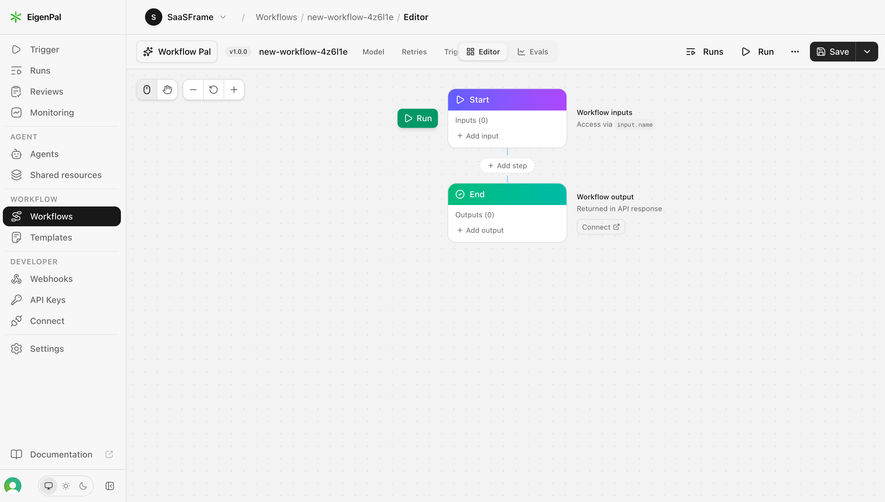
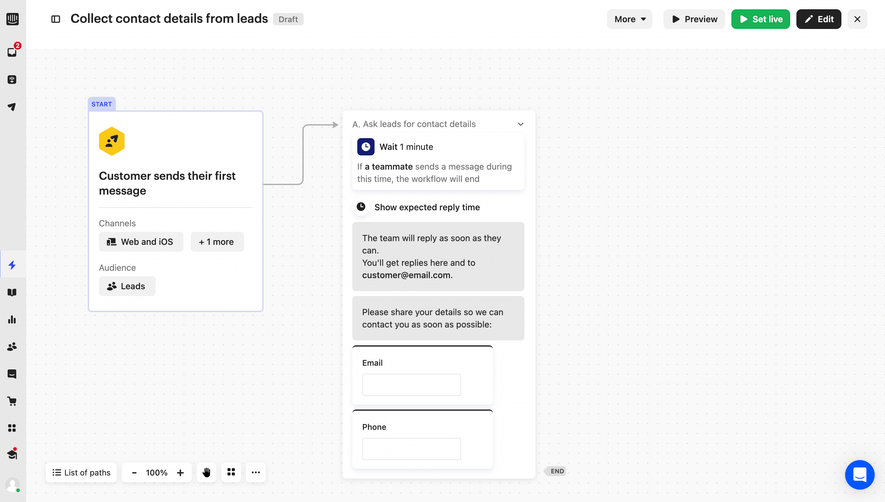
A workflow builder lets users define how a system should respond to events, conditions, or changes. It may connect a trigger to actions, route work through branches, or coordinate a sequence. Its purpose is to make operational logic understandable and editable, not merely arrange attractive nodes on a canvas.
Begin with the model: which objects are in scope, what initiates the workflow, which conditions apply, and what actions occur. Users need to understand both the path and the meaning of each step. A connecting line can show sequence, but it cannot explain a missing permission, an ambiguous condition, or an action's effect.
A useful builder separates defining a workflow from activating it. It provides readable summaries, validation, and a way to inspect the expected result. The final system should remain understandable after creation, when another teammate needs to review why an action ran or why a record did not follow the expected path.
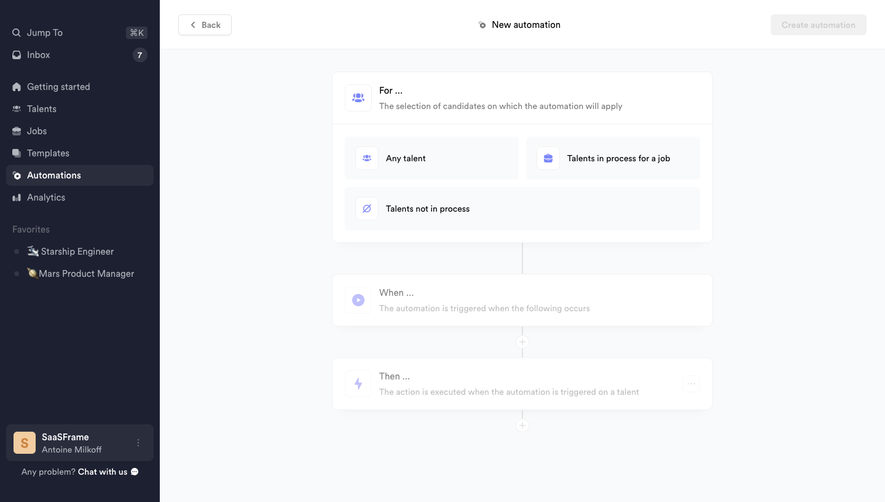
Crew's captured automation setup starts with a For section that asks which candidates the automation applies to. Options include any talent, talents in process for a job, and talents not in process. Below it, When and Then sections establish the remaining structure.
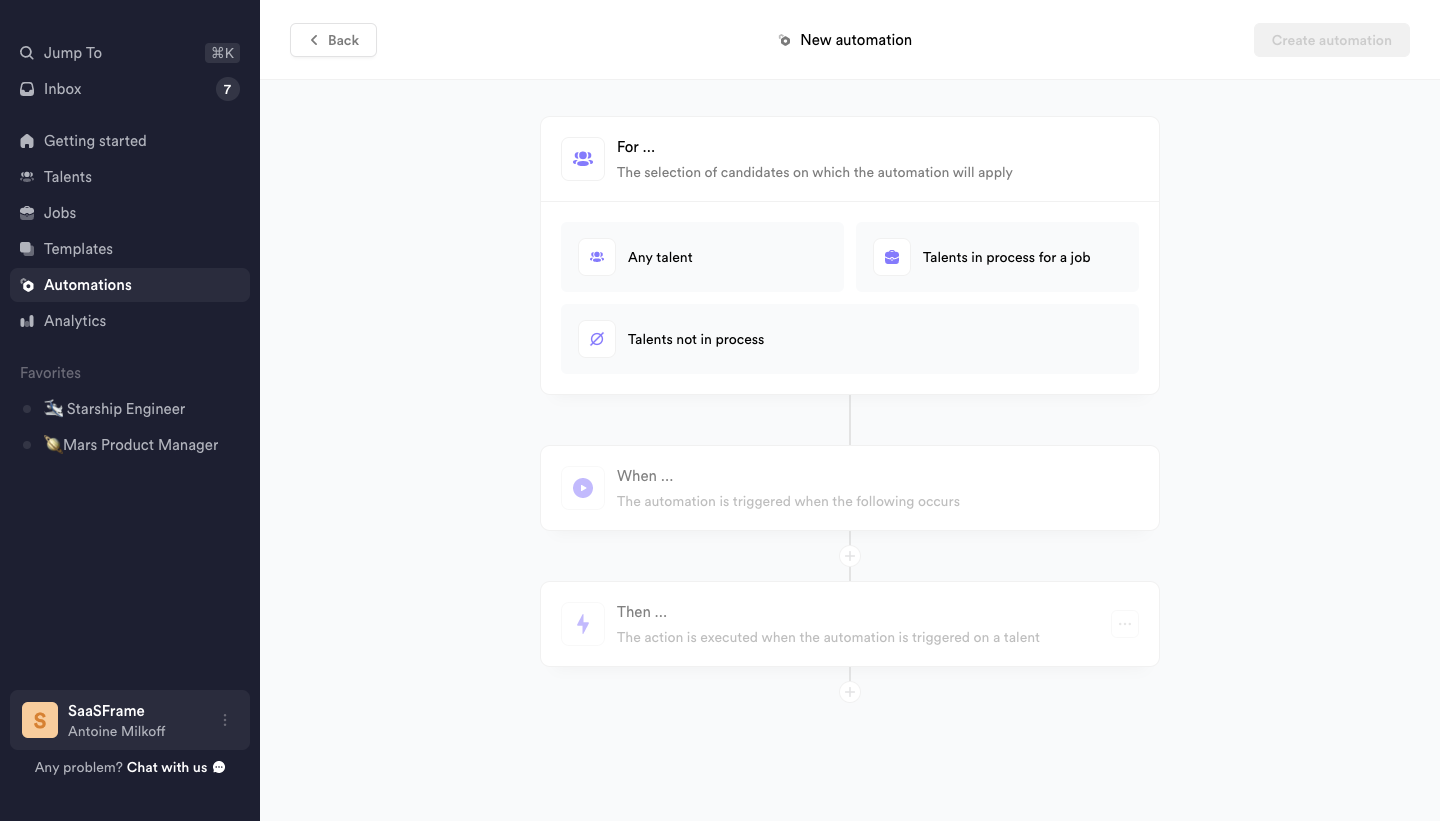
This separation is useful because an event can be meaningful only within a particular population. A trigger applied to every record differs from the same trigger limited to one job. Keep the selected scope visible as later steps are configured so users do not forget an earlier broad choice.
The screenshot does not prove the complete matching rules behind these options. A comparable implementation should explain what belongs to each population, how linked records are handled, and whether changes to scope affect existing runs. A broad label should not hide a complex inclusion rule.
Crew's next captured state names a trigger involving movement of a talent to a job. The Then section offers actions such as sending email, adding a comment, moving to a stage, adding tags, and adding a reminder. The structure distinguishes the event that starts work from the operation that follows.
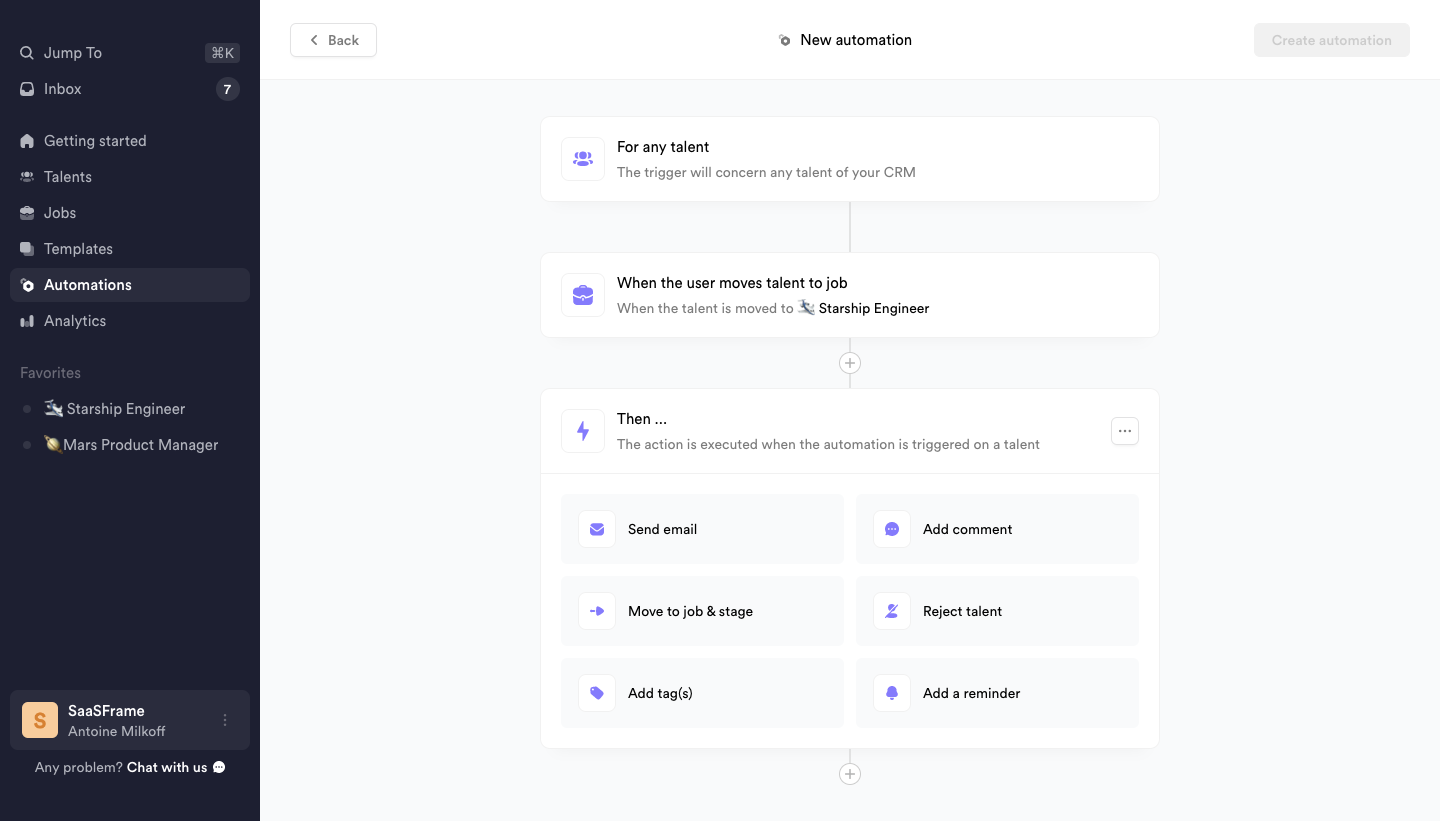
Action names should describe effects. Send email involves external communication, while add tag changes metadata. These actions require different configuration and review. Do not treat them as interchangeable blocks merely because they share a card style.
The captured trigger summary includes a particular job, supplying context beyond a generic event name. Use similarly specific summaries after configuration. A collapsed node should identify the consequential choice so users can review the workflow without reopening every editor.
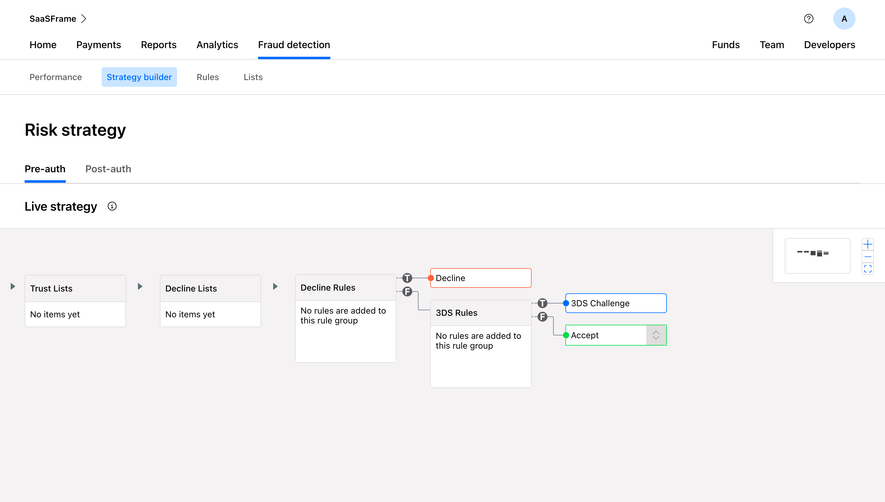
Conditions determine which records proceed. A rule needs a field, operator, value, and a clear relationship to other rules. All conditions and any condition have different meanings. Make grouping explicit rather than relying on indentation alone to communicate logical structure.
For branches, name the paths according to their actual conditions or outcomes. A default path needs a defined role when no condition matches. Users should understand whether multiple branches can execute or whether the first match wins. These rules affect results and should be visible in the builder's language.
Test empty values, unexpected categories, and overlapping conditions. A condition that works for an ideal example may fail on ordinary records. Provide a way to inspect how a representative record would be evaluated, while distinguishing a preview from a live operation.
An action may require a destination, recipient, field value, connected account, or permission. Show those dependencies inside the action configuration and preserve a concise summary afterward. An incomplete action should not appear ready merely because its node has a title.
Connect data from earlier steps explicitly. A value drawn from the trigger record differs from a fixed workspace value or a result produced by another action. Use understandable field references and identify missing-value behavior. Users should be able to trace where an important input comes from.
Explain side effects when they matter. Moving a record may trigger another workflow; sending a message may create a conversation; changing a field may alter a saved view. Do not assume the visible path is the entire consequence. Review dependencies and repeated-trigger behavior around the product's actual system.
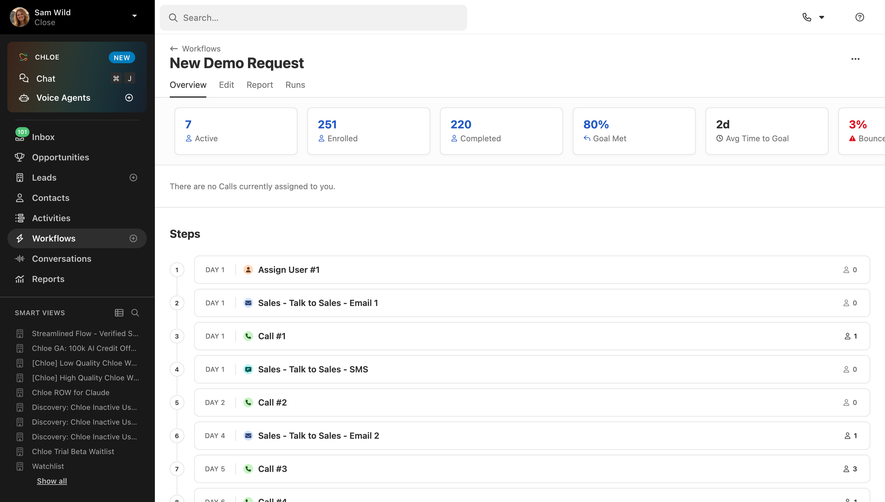
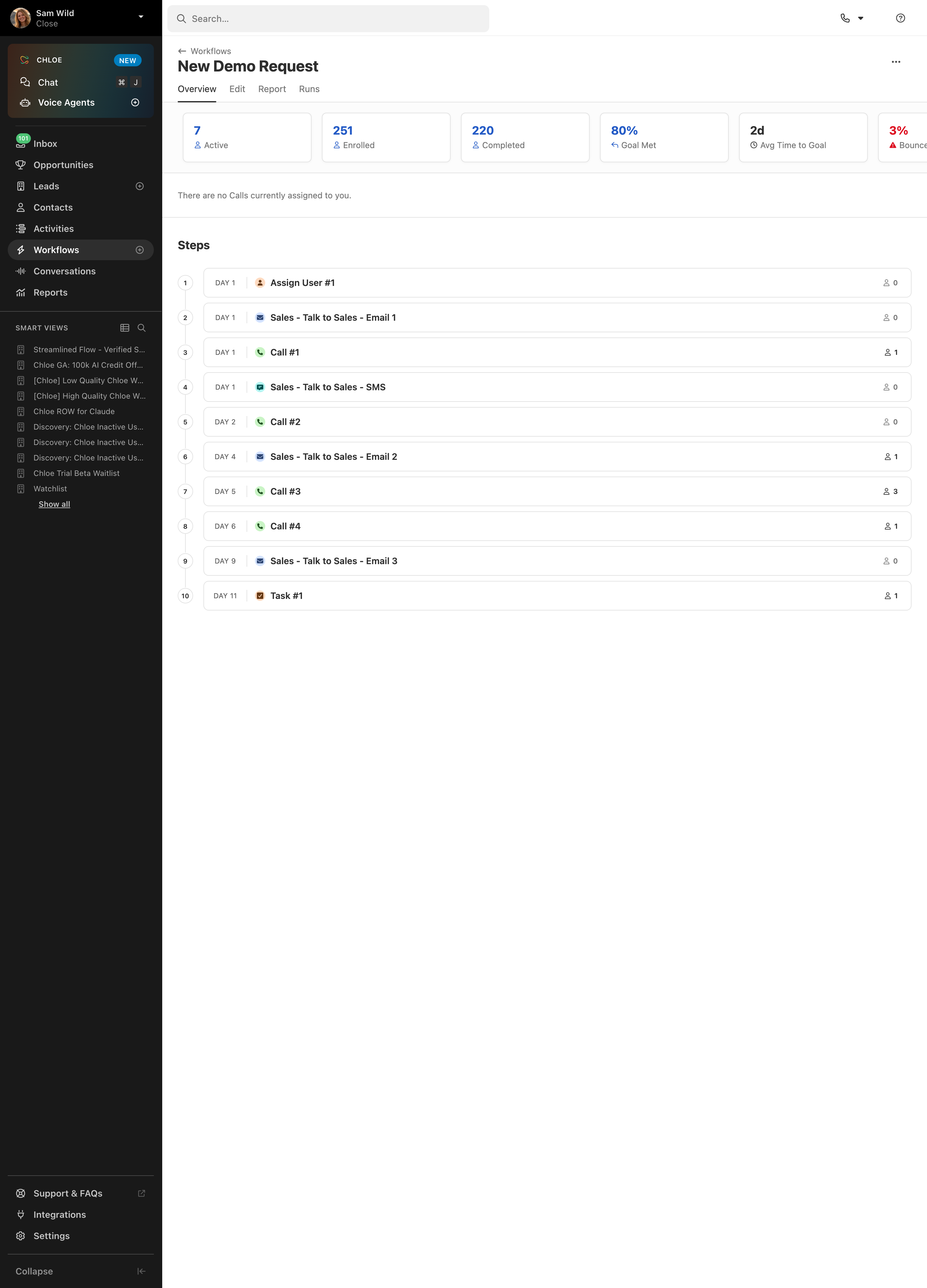
Order matters when one action depends on another. A delay also needs a clear reference point: after the trigger, after the previous step, or at a scheduled time. Summaries should explain the rule rather than displaying a number without context.
Failure behavior is part of the workflow definition. The system may stop, skip, retry, or continue when a step fails. Explain the relevant rule and distinguish a failed action from a condition that intentionally excludes a record. Those outcomes require different investigation.
Retries can repeat external effects if the action is not handled predictably. A user should understand whether another attempt can send another message or create another object. Provide appropriate safeguards and inspectable run status rather than treating every failure as a reason to restart the complete workflow.
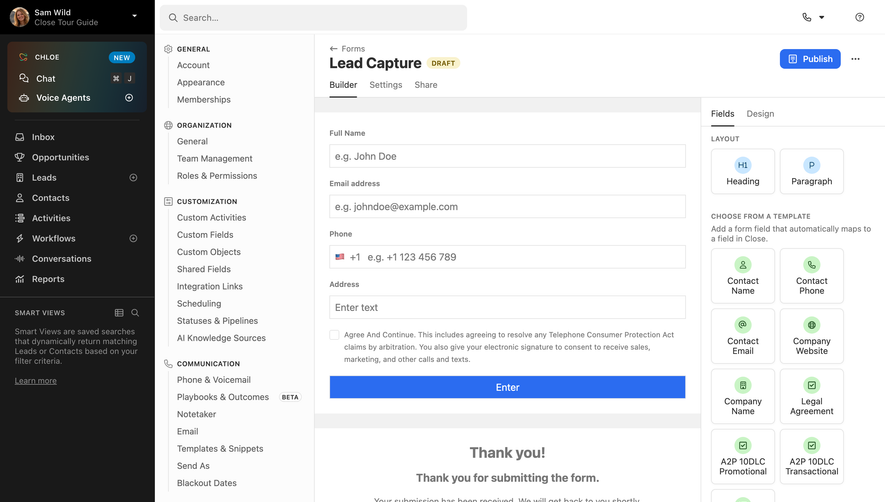
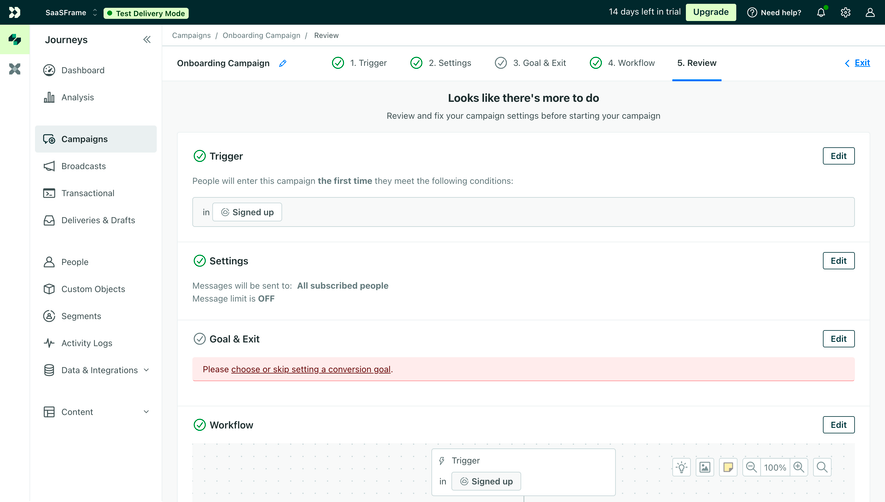
Validation should identify missing configuration, unavailable references, and inconsistent logic. Place feedback near the affected step and provide an overview when several issues exist. A generic disabled activation button does not explain what needs attention.
A test mode can help users inspect representative records and expected actions. Make it clear whether the test simulates the result or executes real operations. Users should not contact recipients or alter shared data while expecting a harmless preview.
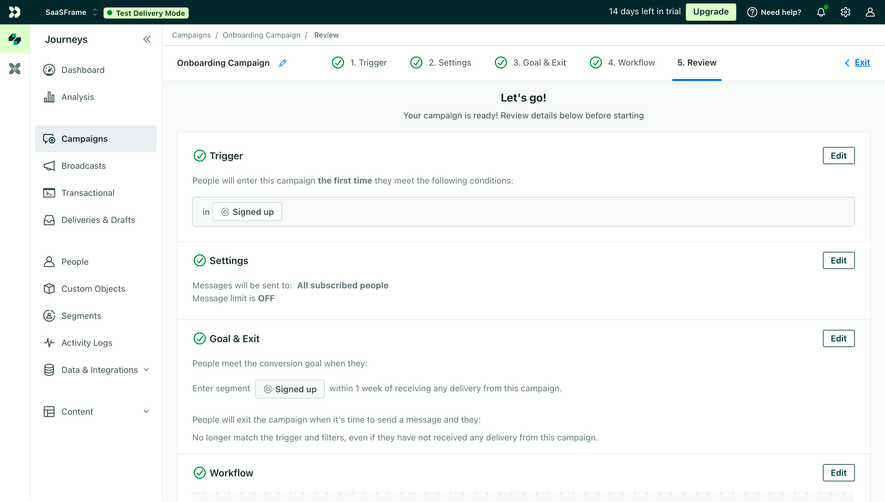
Before activation, provide a readable account of scope, trigger, and consequential actions. Confirm the state afterward. Draft, active, paused, and invalid workflows need distinct meanings. A saved definition is not necessarily an enabled process, and a paused process may still have runs already underway.
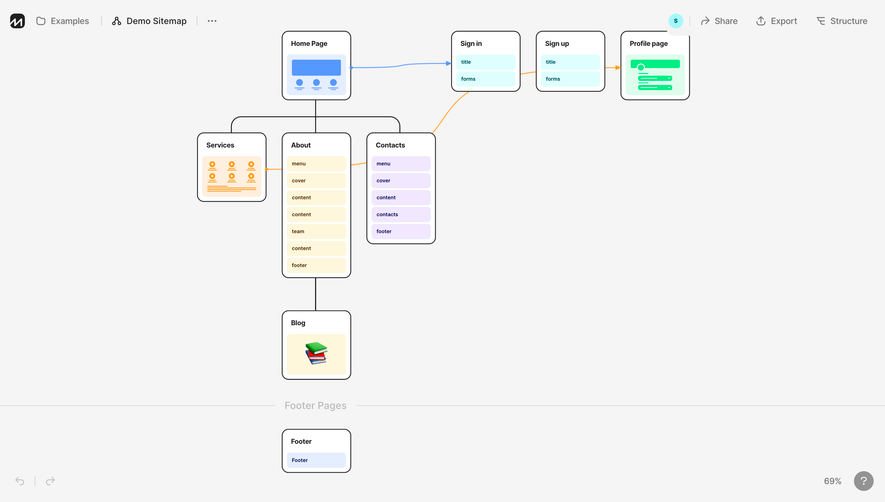
A builder needs to remain usable as the workflow grows. Keep the selected step identifiable, provide navigation between distant areas, and preserve context when opening configuration panels. A large canvas should not require users to remember where a missing field was located.
Keyboard access needs an operation model beyond pointer dragging. Users should be able to add, inspect, configure, and reorder steps where appropriate. Focus and reading order should reflect the workflow's meaningful structure, and visual connectors should have an understandable textual equivalent.
Review narrow layouts and text enlargement. A vertical rule list may adapt differently from a branching canvas. Do not shrink the whole workflow into unreadable nodes. Offer a usable inspection route and retain the selected object's identity while panels change arrangement.
After activation, users need to inspect what happened. A run view should identify the relevant record, trigger, step outcomes, and useful timing. Distinguish successful execution, skipped conditions, pending delays, and errors. A single green status cannot explain every path.
Editing an active workflow requires a rule for existing runs. Changes may apply only to future triggers, or they may affect work already waiting. Communicate the actual behavior before a consequential update. Version information can help connect a run to the definition that produced it.
Permissions, connected accounts, and referenced objects can change after creation. Expose unavailable dependencies and provide a route to repair them. A workflow that remains labeled Active while every run fails can give a misleading impression of readiness.
Ask users to explain which records will enter a workflow, predict an action for a sample record, fix an invalid step, and inspect a failed run. Include overlapping conditions and an edited active definition. These tasks test understanding beyond successful node placement.
Measure correct configuration and recovery effort alongside creation speed. A builder that makes simple flows fast but complex flows opaque needs better summaries or inspection. Review whether another teammate can understand the definition without its author's explanation.
Use this checklist:
Review reusable definitions separately from live runs. A workflow can be structurally valid while a particular record lacks required data. Show the difference so users know whether to repair the definition, the record, or a connected dependency. This keeps troubleshooting focused and prevents unnecessary rebuilding.
For destructive or external actions, review the actual affected object before execution where the workflow model requires it. A message action should identify its recipient source; a record update should identify its field mapping. Avoid treating every action as equally low-risk simply because the builder uses the same node component for all of them.
Loops and repeated events need explicit consideration. A workflow that updates the same property it watches may run again unless the system has a defined prevention rule. Explain relevant repeat behavior and make recurring runs inspectable. Users should not have to infer why the same record produces several executions from a diagram that appears linear.
Give inactive or unavailable workflows a useful library representation. A name, scope summary, status, and recent run information can help administrators choose what to inspect. Keep configuration problems distinct from an intentionally paused workflow. When the list becomes large, organization and search matter as much as the editing canvas.
Document workflow ownership. Another administrator may need to repair a connection or review an outdated rule after the original author leaves. Ownership cues and readable summaries help maintain continuity without depending on one person's memory.
No. A structured rule list can be clearer for simple trigger-and-action flows. Use a canvas when spatial relationships and branching help understanding, and preserve readable logic in either format.
Only if that behavior is explicit and appropriate. Saving a definition and enabling execution are different operations. Make the resulting state clear and provide validation before consequential activation.
The affected record, failed step, useful cause, and appropriate recovery route. Distinguish intentional exclusions from errors and explain whether retry repeats completed actions.
Browse the SaaSFrame workflow-builder examples to compare scope selection, readable rules, and interfaces for configuring and inspecting automation.