Segmented Control
36
A compact control for switching between a small set of mutually exclusive views or modes.
.webp)
A segmented control puts a small set of related choices on one continuous surface. People can compare the labels, see the current selection, and switch without opening a menu. In SaaS products, that surface can represent a form answer, a filter, or a change of view. These uses look similar but require different interaction rules.
The design problem is deciding what the selection means. Choosing a team size should not behave like opening another dashboard section. Filtering a partner list should not silently change a setting for everyone. A good segmented control makes the choice, its scope, and its consequence legible together.
Start with a sentence describing the outcome: “This chooses the workplace policy for the new team,” or “This filters the partners currently displayed.” If that sentence is unclear, the control will probably inherit the ambiguity. Visual proximity alone cannot explain whether a selection is stored, applied immediately, or submitted later.
A form value usually needs a question or field label, validation, and a place in the submission flow. A view switch needs an obvious relationship to the content it changes. A filter needs understandable matching rules and a way to return to the broader result set. Keep those distinctions in the product specification even when all three share the same visual component.
Use a segmented control when people benefit from comparing every option at once. Use a dropdown menu when the list is long or changes frequently. Use radio buttons when choices need descriptions, wrap across several lines, or deserve more space than a compact strip can provide.

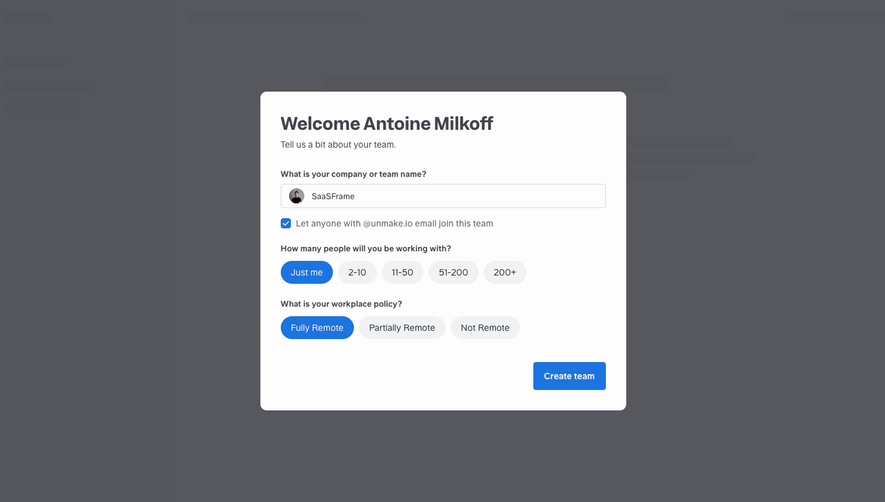
In this Slite screenshot, the team setup form asks how many people the user will work with. Five visible choices range from “Just me” to “200+.” A second question offers three workplace policies: fully remote, partially remote, and not remote. Each group has one blue selection, and a “Create team” button sits below the form.
The two questions give otherwise compact labels a clear purpose. “Just me” would be vague in isolation; beneath the team-size question, its meaning is easy to infer. Likewise, the remote-work choices describe categories rather than actions. The screenshot shows how segmented controls can fit into an ordinary form without becoming navigation.
Numeric buckets deserve special attention. Their boundaries should cover the intended population without overlaps or gaps. If a business distinguishes between a solo workspace and a two-person team, a separate solo option can be useful. That distinction should come from the downstream use of the answer, rather than a desire to add another segment.
The screenshot does not establish whether the blue choices are defaults or earlier user selections. That distinction matters when designing your own form. A default can make completion quicker, but it also makes an unanswered question resemble an intentional answer. Avoid preselecting a consequential category solely to make the page look complete.
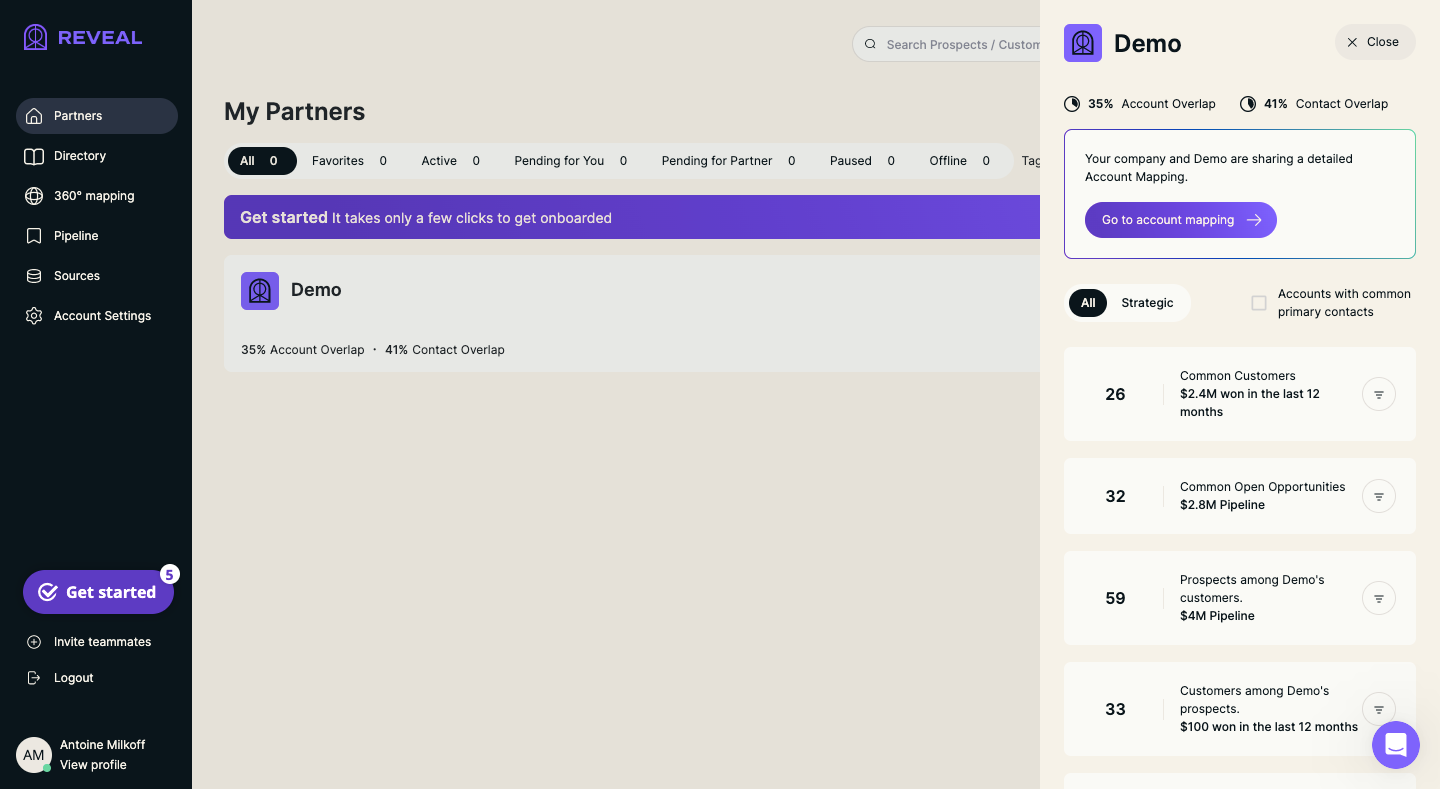
Reveal’s dashboard presents a row of partner categories above “My Partners.” The visible labels include All, Favorites, Active, pending states, Paused, and Offline, with counts alongside them. An open partner panel contains a different All/Strategic choice near account-overlap information. Both controls use a dark selected state, but they sit in different contexts.
That layout raises a useful design question: what changes when a person clicks each group? The top group belongs to the partner list. The smaller group belongs to the open panel. Their placement communicates different scopes, even though the selection treatment is similar. The captured image shows the arrangement, not the result of interacting with either control.
When a page contains several segmented controls, keep each close to the content it governs. If the same label appears in multiple groups, the surrounding heading must do more explanatory work. “All” above partners and “All” inside an account-related panel cannot depend on the word alone to distinguish their effects.
Reveal also illustrates the capacity limit of the pattern. A growing number of status categories, long labels, and counts can produce a wide strip. Before adding another segment, test the full set at narrow widths and with realistic translations. A control that works only with abbreviated English labels is a fragile foundation for a product navigation system.
Segments should answer one question. Mixing “Monthly,” “Annual,” and “Enterprise” combines billing cadence with plan type. Mixing “Active,” “Favorites,” and an action such as “Create partner” can blur status filtering and commands. Some products intentionally mix filter categories, but the matching behavior must remain understandable.
Parallel labels reduce the effort of comparing options. Use consistent nouns, time periods, or states. Prefer language people already use for the task. If one segment needs a tooltip to explain its basic meaning, the compact layout may be concealing an information problem that deserves a more spacious control.
Counts can help users decide where to look, as in Reveal’s partner categories. Specify what each count represents: all available records, records matching other active filters, or records the user is allowed to see. Those values should follow the same rule across the group. An unexplained mixture makes the numbers look more precise than they are.
The selection needs to remain recognizable during hover, keyboard focus, loading, and disabled states. A filled background, a border treatment, or a clear marker can reinforce the difference between selected and unselected options. Text must remain readable inside both treatments.
Focus and selection communicate different things. A person moving through the control should be able to identify where keyboard input will act without losing track of the existing choice. Define those states separately in the component library. Otherwise, teams may accidentally use the same outline for both and leave people unsure whether a value changed.
Do not turn the control into a puzzle when no choice has been made. For required form answers, support an explicit unselected state and a useful validation message where needed. For a default view, select the actual initial view. Visual consistency should reflect the product state, rather than hide it.
Choose the appropriate accessible implementation for the role the control performs. A group that collects one form answer needs single-choice field behavior. A group that changes a content panel needs a coherent relationship between the chosen control and the displayed panel. Visual resemblance is not enough to justify applying the same semantics everywhere.
Specify keyboard behavior with the implementation team and test it in the actual component. People should be able to reach the group, understand its label, identify the chosen option, and change it without a pointer. Include assistive-technology testing for the control’s name, state, and relationship to the affected content.
If a view switch loads remote data, maintain clear feedback. Keep the chosen segment visible while its content loads, avoid displaying old results as if they belong to the new choice, and provide recovery if the request fails. A small control can still trigger a large change in the page, so it needs the same state discipline as other navigation.
Decide what happens when labels cannot fit. Shrinking text until it becomes hard to read is rarely a useful policy. Allowing labels to wrap can make segment sizes uneven and the strip harder to scan. Horizontal scrolling can conceal options unless the design clearly communicates that more choices exist.
A responsive alternative may be appropriate. For example, a short view switch can remain segmented while a long filter group becomes a labeled menu on small screens. Preserve the same selected value and available choices across layouts. People should not receive a different filtering model merely because the viewport changed.
Test the longest real labels, increased text size, empty counts, large counts, and loading placeholders. Include the combination of multiple controls on one page. The question is whether users can still connect a chosen segment with its result when the layout becomes tighter.
For a setup form, ask whether people can explain what will be saved before submitting. For a list filter, ask whether they can recover a record after switching categories. For a dashboard view, ask whether they can identify which measurements changed. These tasks reveal more than a preference survey about the component’s appearance.
Track repeated switching, abandonment after selecting a segment, and unsuccessful searches within filtered results when those signals are available. Interpret them in context: repeated switching can mean useful exploration or uncertainty about the labels. Combine observed behavior with task-based research before concluding that a particular segment is unnecessary.
There is no useful universal number. The practical limit depends on label length, available space, translation, and whether every choice needs to remain visible. Once comparison becomes difficult or options disappear offscreen, consider a menu or a more spacious single-choice group.
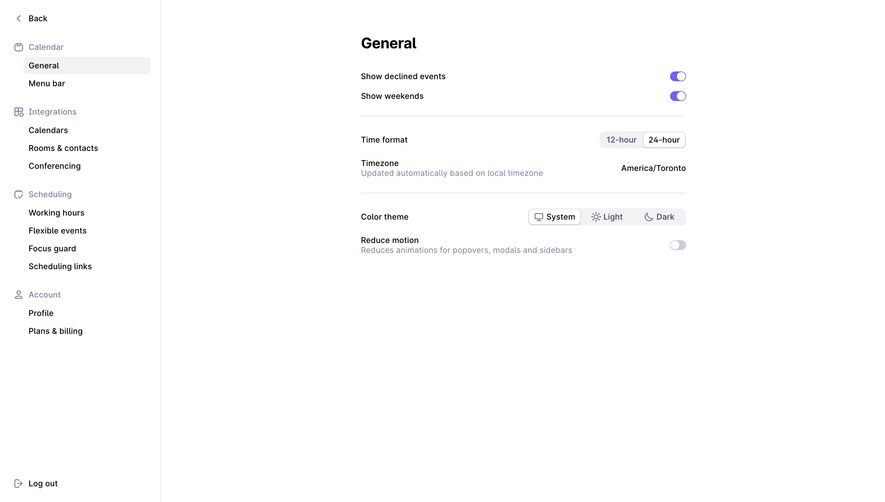
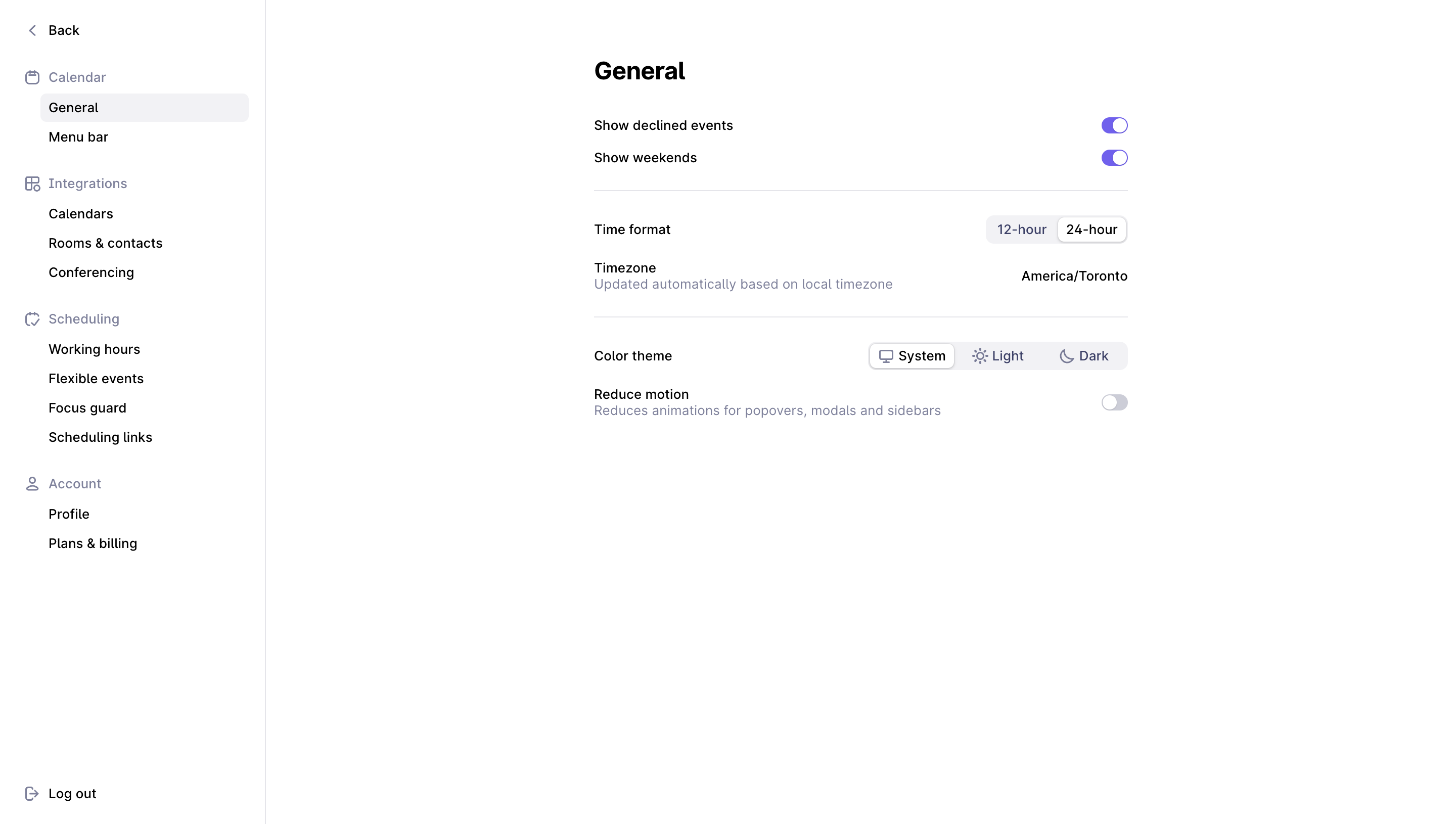
They can share a similar appearance. Tabs organize associated content panels, while a segmented form control sets a value and a segmented filter narrows results. Decide the behavior first, then choose the visual treatment and accessible implementation that fit it.
Immediate application often suits view changes and filters. A form answer can belong to a later submission. Make the surrounding flow communicate that timing, especially when the choice affects a shared workspace or a consequential setting.
Explore segmented control examples on SaaSFrame to compare how real SaaS interfaces label choices, show selection, and connect compact controls to their surrounding content.