List View
40
A row-based presentation of records or content optimized for scanning and actions.
.webp)
A list view presents objects in a repeatable vertical structure so people can scan names, compare a few attributes, and act on individual items. It is one of the most useful patterns in SaaS products because many everyday tasks begin with finding the right object: a report, customer, project, template, or saved result.
The challenge is deciding what deserves a stable position in each row. A list can be compact without being useful. If people must open every item to understand its purpose, the layout has saved space at the expense of the task. Good list design balances recognition, comparison, and the next action.
Start with the question the list should answer. “Which chart should I open?” needs different information from “Which account requires attention?” The first may depend on title, type, and description; the second may depend on owner, status, and recency. Choose row content according to that decision.
Give the primary identifier a consistent position and enough space. Titles are usually more useful than internal IDs, but repeated titles may need a distinguishing attribute. Include the minimum context that prevents ambiguity, such as a project name, account, or object type.
A list is not necessarily a dense table. When users need to compare many aligned attributes or perform spreadsheet-like work, a table may be appropriate. When images or previews dominate recognition, a grid view may be more useful. The layout should follow the information people use, rather than a preference for compactness.
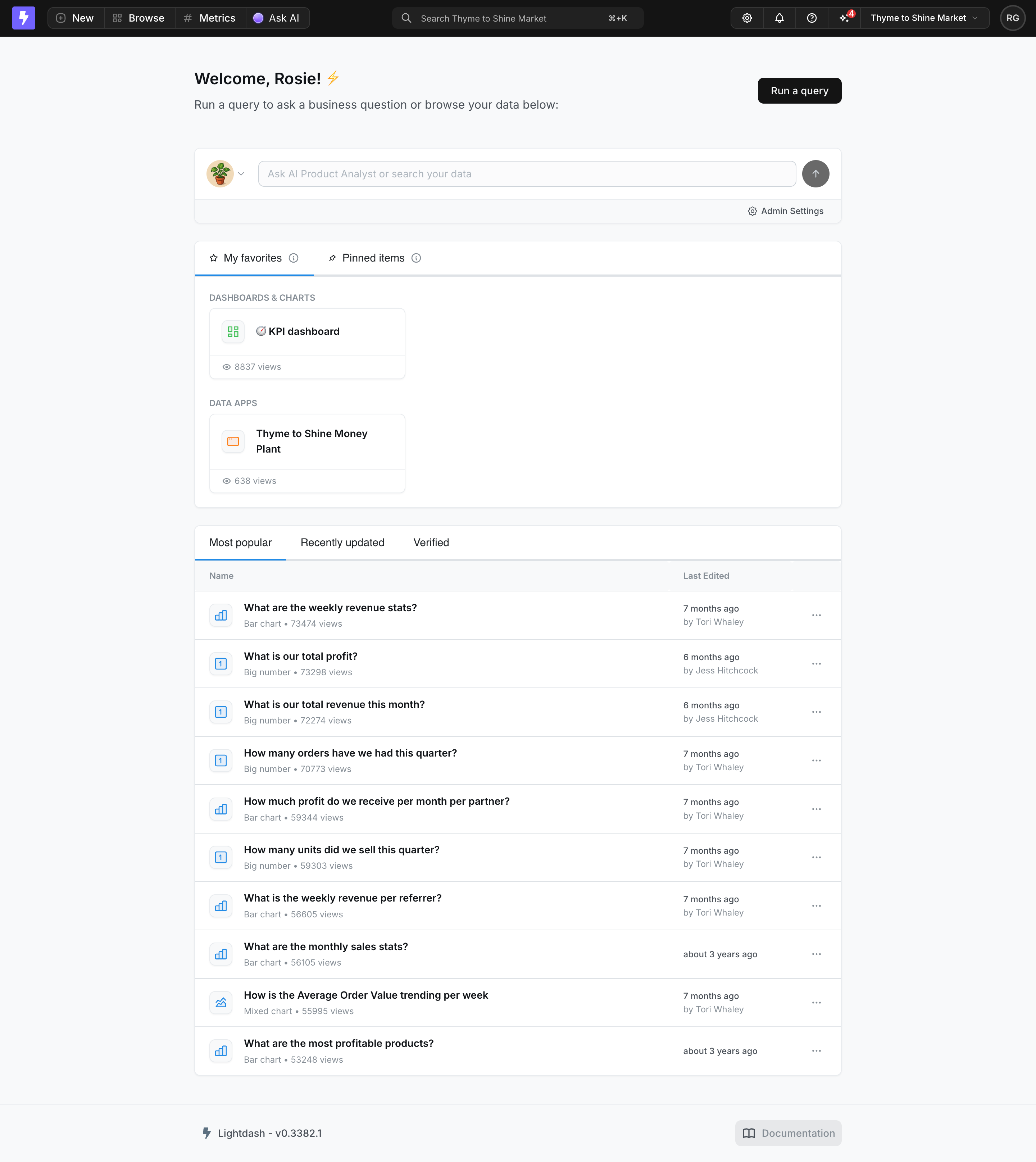
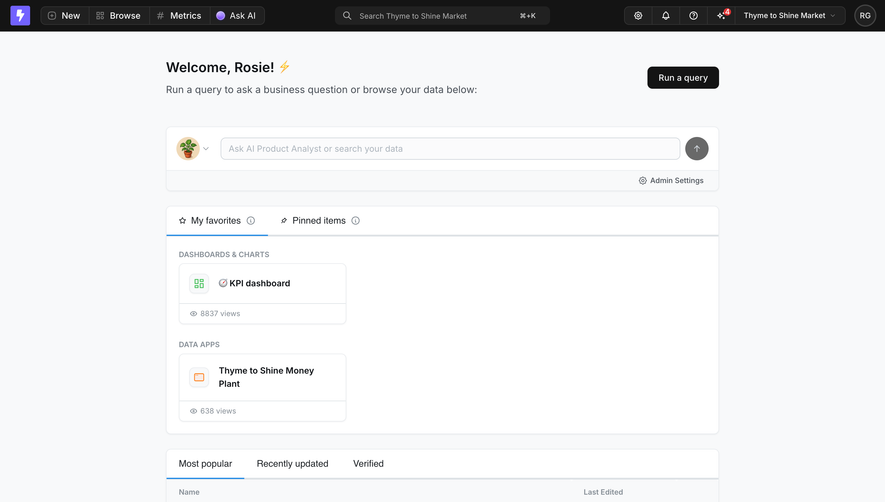
The Lightdash dashboard screenshot contains a list beneath tabs labeled Most popular, Recently updated, and Verified. Each visible row has an icon, a chart title, a secondary line describing its type and view count, and last-edited information toward the right. An overflow action appears at the end of each row.
The hierarchy makes the title the first recognition cue. Type and popularity support that identity without competing for the same visual emphasis. Editing history sits in a separate area, so users can compare recency across rows while still reading titles in a consistent column.
The tabs also explain that ordering and inclusion can depend on different criteria. Popularity, recent updates, and verification answer different browsing questions. A list should communicate its current mode because the same visible objects can suggest different priorities under different sorting rules.
The screenshot shows one captured state. It does not demonstrate what an overflow action opens or exactly how the tabs calculate results. Use the visible row hierarchy as a reference, then specify those behaviors for your product rather than inferring them from the layout.
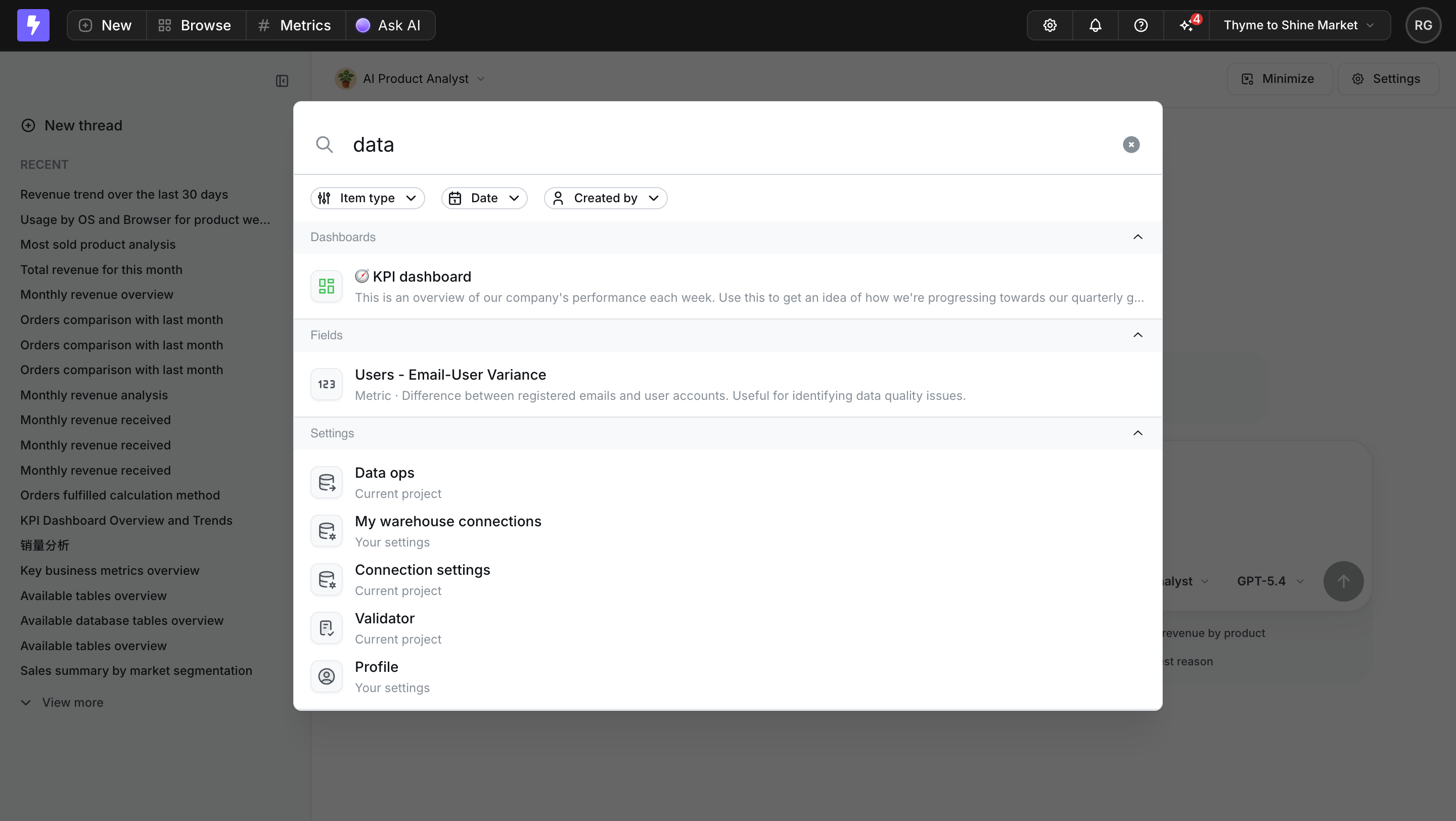
In Lightdash's search modal, the query “data” appears above Item type, Date, and Created by filters. The results are grouped under Dashboards, Fields, and Settings. Dashboard and field entries include descriptive text, while settings entries show scope labels such as current project or personal settings.
Grouping helps when one query can return different kinds of destination. A dashboard, metric, and configuration page are not interchangeable even if their titles contain the same term. The group heading and row icon provide context before the person opens a result.
The description under the field result is particularly useful because a metric's name may be insufficient to explain what it measures. In your own search list, include information that distinguishes plausible matches. Repeating the query in every row without adding meaning does little to help selection.
Keep grouping proportional. A heading for every single item can create more visual interruptions than useful structure. If groups are collapsible, make their labels and current states understandable. The screenshot shows headings with chevrons, but the actual interaction still needs direct verification.
Rows become easier to scan when each piece of metadata occupies a predictable position. If one row shows a date where another shows an owner and a third shows a status, users must decode each object separately. Decide which attributes belong to the shared row model and which need exceptions.
Handle missing values deliberately. A blank space can be fine when the attribute is truly optional, but a dash or explanatory label may be better when the absence has meaning. Do not substitute unrelated data merely to fill the layout.
Normalize presentation without erasing useful distinctions. A relative date can support quick scanning, while a precise timestamp may matter for an audit task. Choose the level of precision the decision requires. If users need both, make the additional detail accessible without cluttering every row.
A row may contain several actions, but each should have a clear purpose. Clicking the title can open the object. A checkbox can select it for a batch operation. An overflow menu can expose secondary management actions. Avoid making the same click area perform different actions depending on an invisible mode.
Define the hit area consistently. If only the title is a link, users should not have to discover that through failed clicks elsewhere in the row. If the whole row opens the object, nested controls must remain independently usable and must not trigger navigation accidentally.
For destructive actions, keep the identity of the affected object visible. A compact row menu can make an action feel routine even when its consequence is significant. The confirmation and recovery model should follow the action's impact, not the size of the button that initiated it.
A list's contents are shaped by several controls. Search narrows candidates, filters constrain attributes, and sorting determines order. Users should be able to tell which constraints are active and how to return to a broader set.
Changing sort order should not silently clear a meaningful filter unless that behavior is explicit. Likewise, moving to a different tab should communicate whether the search query persists. These rules become important when users are investigating an object across several views.
Use result counts carefully. State whether the count represents all matching objects or only the loaded portion. If pagination or incremental loading is involved, the visible row count should not masquerade as the total. A trustworthy count helps people decide whether to refine the search or continue browsing.
A first-use list with no objects needs a path to create, import, or obtain one. A populated collection with no matches needs help adjusting the query or filters. Those are different states and should not share an identical “Nothing here” message.
Preserve useful context during loading. A stable list shell can reduce layout movement, but placeholder rows should not look like real actionable objects. If a refresh fails, clarify whether the visible rows are earlier data or whether no data can be displayed.
Provide recovery near the affected list. A person who cannot load search results needs a relevant retry or a way to revise the request. A global error elsewhere on the page may leave them unsure which part of the interface failed.
Use realistic content when designing row height. Long titles, translated labels, and multiple metadata values can break a layout that looks tidy with short examples. Decide which text can wrap, which can truncate, and how the full value remains available when necessary.
On narrow screens, preserve the attributes needed for the task. Hiding every secondary detail can make the list impossible to use even if it fits neatly. A stacked row often works better than compressing several columns until none is readable.
Large collections need a navigation strategy. Pagination can provide stable locations, while incremental loading supports continued exploration. Choose based on whether users need to return to a known segment, compare a bounded set, or browse broadly. Test recovery of position after opening an item and returning.
The accessible structure should follow the list's actual role. A collection of links, a selectable list, and an interactive data grid have different needs. Avoid borrowing a complex interaction model merely because the visual layout includes columns.
Make each control identifiable and reachable. Repeated overflow buttons need names that distinguish their objects. Focus indicators should remain visible on selected, hovered, and highlighted rows. Keyboard users should be able to complete the same opening and management tasks as pointer users.
If the product introduces shortcuts for moving between rows, keep ordinary navigation usable too. Test how focus behaves after filtering, deleting an object, loading more items, or returning from a detail view. The list should not strand users at a location that no longer exists.
Ask users to find a known object, choose between similar objects, identify the most recently changed item, and recover from a query with no matches. These tasks expose weaknesses in labels, metadata, and ordering more directly than asking whether the list feels clean.
Review unnecessary detail-page openings when you can observe them. Repeatedly opening and backing out of objects may indicate that the rows lack identifying information. A longer row can be more efficient than a denser list if it prevents those detours.
A list is often useful when names and a few repeated attributes drive selection. A grid may work better when visual previews are the primary recognition cue. Test the actual retrieval task rather than choosing by appearance.
Consistent height can help scanning, but it should not conceal essential information. If variable descriptions are important, allow enough space or choose a layout that supports them coherently.
It can simplify opening an item, provided other controls remain distinct and independently usable. The clickable area should be visually and behaviorally consistent across the list.
Explore list view examples on SaaSFrame to compare how SaaS products structure rows, group results, and support finding the right object.