Inbox
11
Manage notifications with SaaS Inbox patterns. This includes 'Mark as Read' actions, priority filters, and 'Zero Inbox' states designed to help users stay productive.

An inbox organizes communication that needs attention. In a SaaS product, it may represent customer conversations, shared team messages, or work awaiting a response. Its purpose is to help users decide what to open, who should handle it, and what should happen next. The list is therefore a work queue as well as a collection of messages.
Define the inbox's meaning before designing its rows. Does it contain all incoming communication, only unresolved conversations, or items assigned to the current user? What removes an item from the queue? These rules affect labels, counts, sorting, and actions. A familiar email layout can become confusing when the underlying workflow uses different state definitions.
A useful inbox supports orientation and triage without hiding context. Users should recognize the active scope, understand why an item is visible, and predict the consequence of an action. Reading a conversation, assigning it, snoozing it, and resolving it are different operations. The interface should preserve these distinctions.
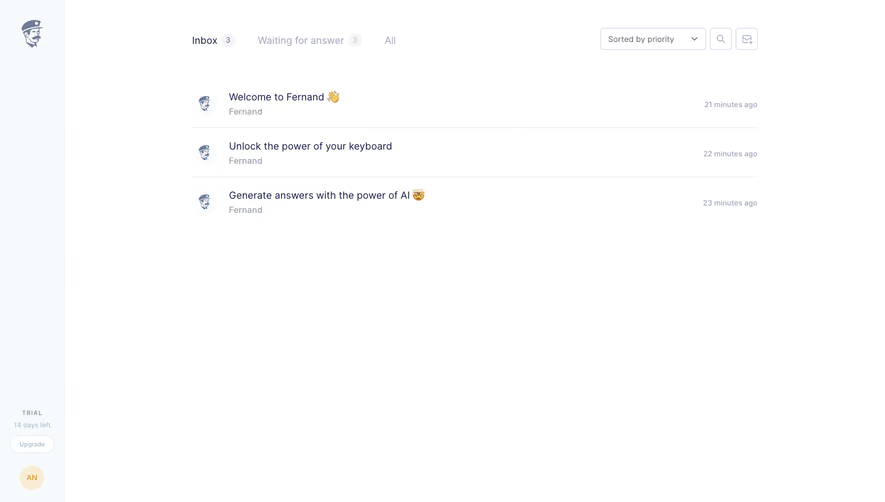
Fernand's captured inbox has tabs for Inbox, Waiting for answer, and All. The first two display counts. A priority sort control appears at the upper right, while each row shows a subject, sender, and relative time. The layout is restrained, leaving the queue's state choices and conversation identities as the main reading elements.
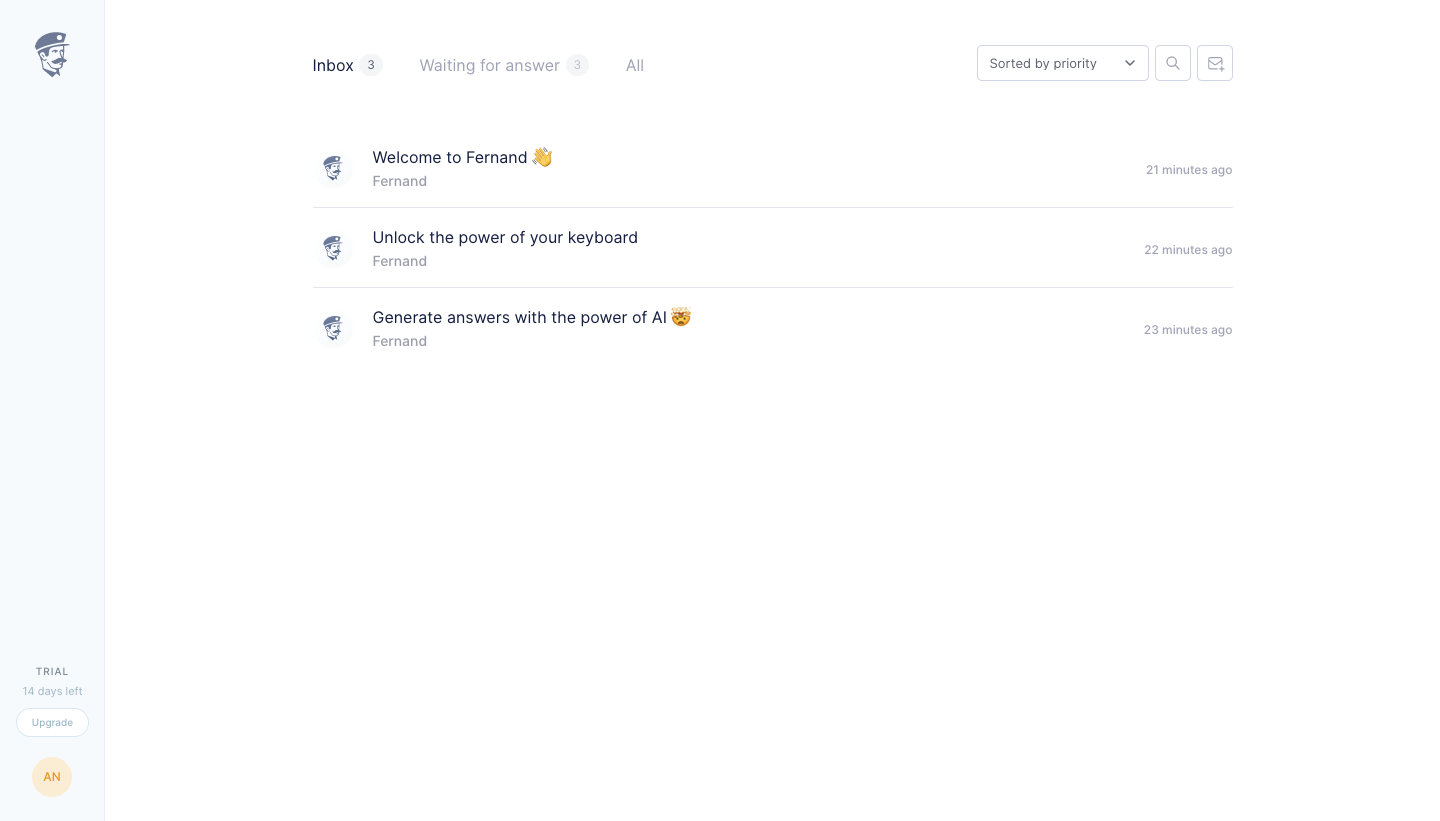
The waiting label raises a useful design question: whose answer is awaited? The screenshot alone does not establish the underlying rule. An implementation should make that meaning clear through vocabulary or supporting explanation. A state name that feels obvious to the product team may be ambiguous to a new support agent.
Counts should follow the same scope as their labels. If a queue counts conversations rather than individual messages, keep that rule consistent. If permissions or filters change what a user can see, ensure the count does not imply access to unavailable work. The number is useful only when users can connect it to a predictable set of items.
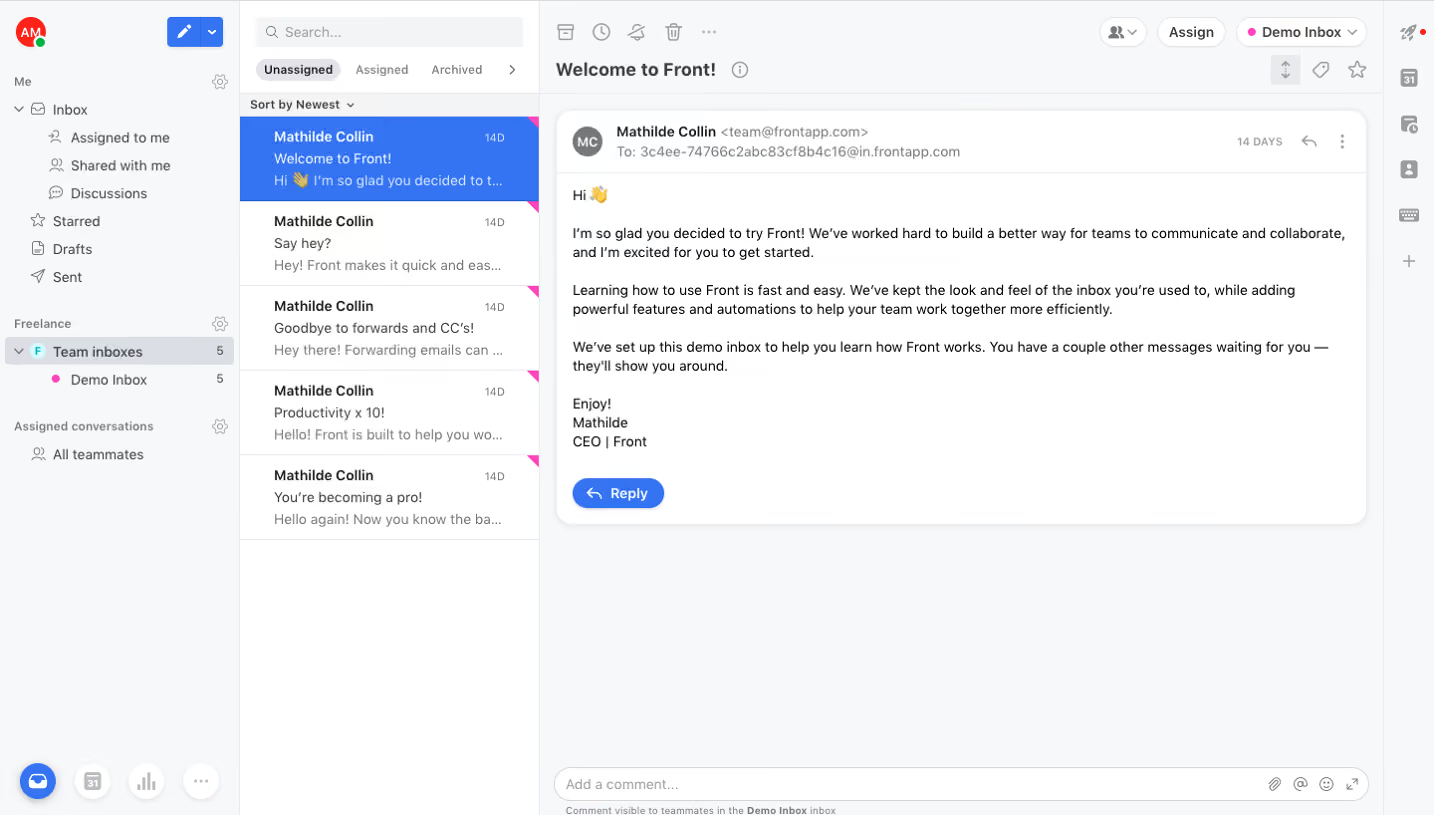
Front's captured dashboard distinguishes personal routes such as Assigned to me and Shared with me from team inboxes. Within the selected inbox, tabs separate Unassigned, Assigned, and Archived. This exposes two dimensions: which communication space is being viewed and how responsibility or workflow state divides that space.
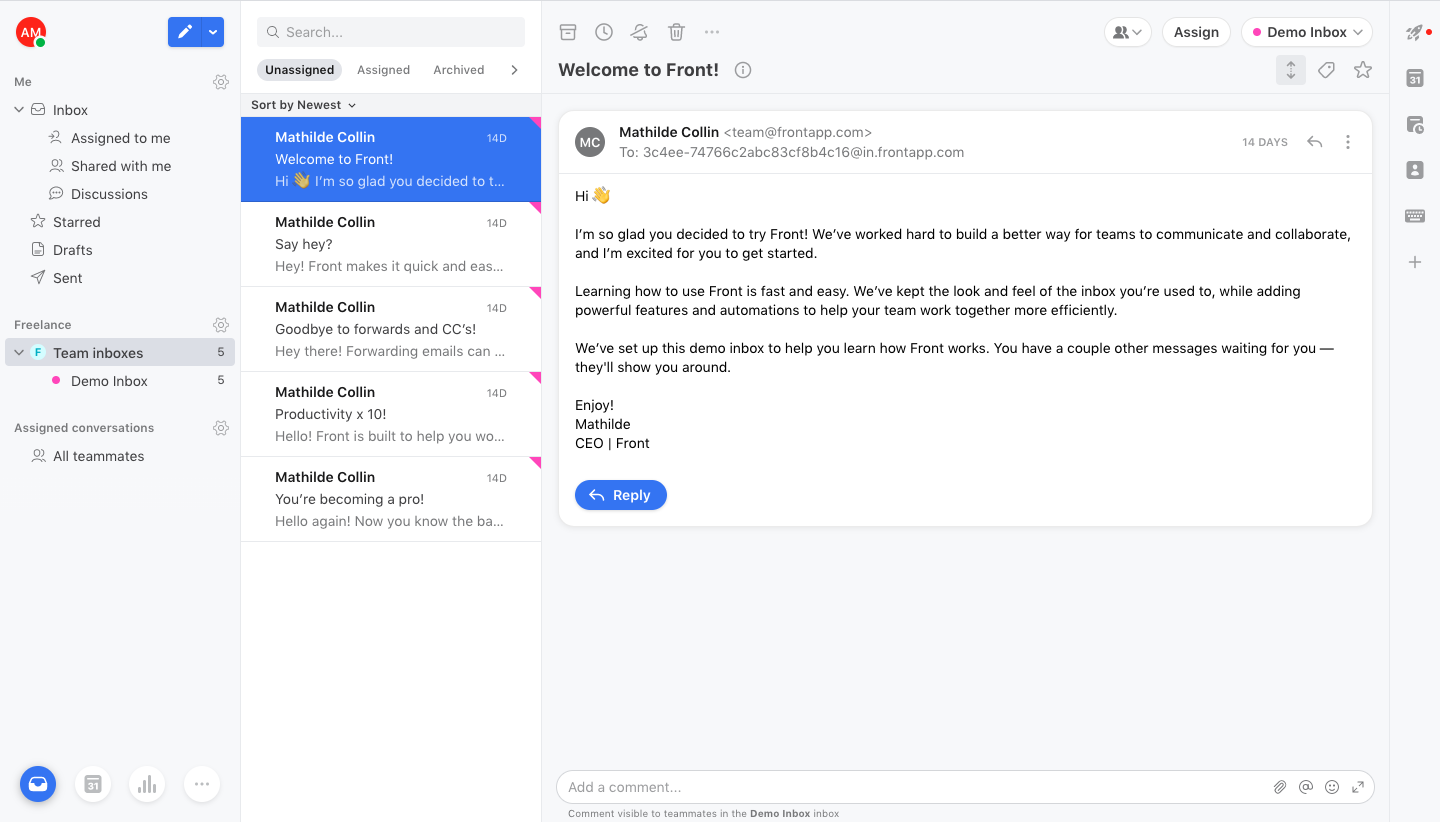
This structure can help a team distinguish work nobody owns from work already being handled. It also requires consistent definitions. Shared with me should not be interpreted as assigned to me, and an archived item should not automatically imply that every issue it contains is resolved. Define these concepts explicitly before naming navigation destinations.
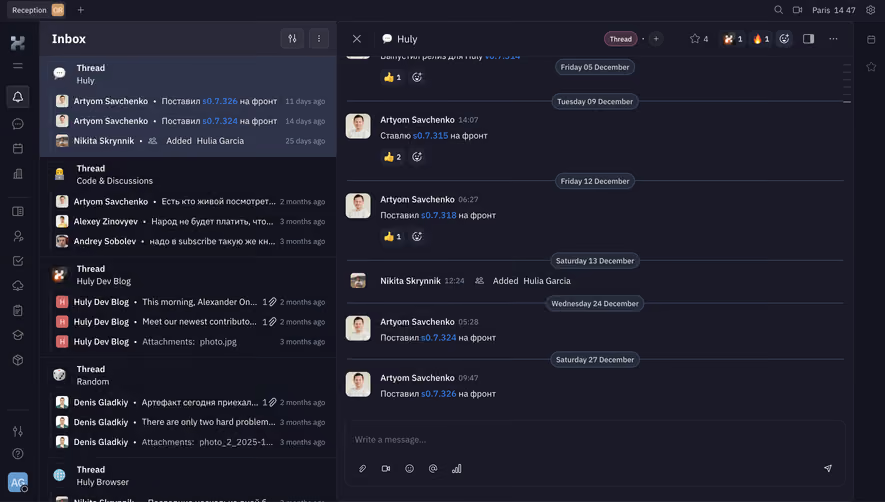
Keep the active scope visible while users open a conversation. In Front's capture, the list and selected message sit beside the navigation, and the thread header identifies the inbox. A user can inspect content without losing the surrounding queue. If a responsive design hides that navigation, preserve a clear route back and an indication of the current scope.
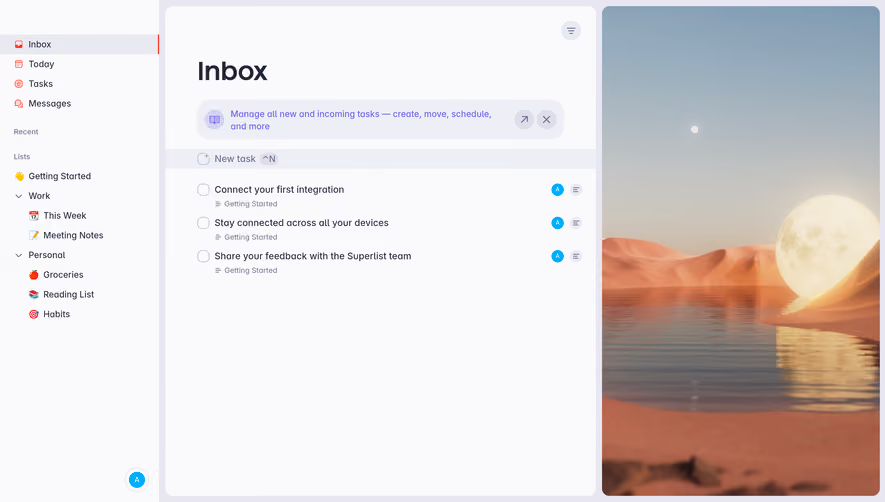
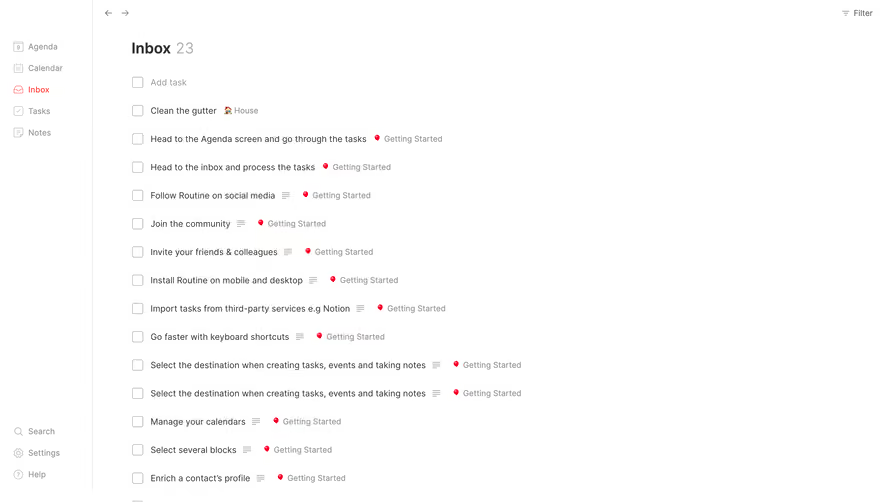
An inbox row should contain enough information to decide whether to open it. Common fields include sender, subject, preview, time, priority, and assignment. Not every field belongs in every inbox. Select the properties that support actual triage rather than filling the row with all available metadata.
Fernand's capture uses a concise subject-and-sender structure. Front's list adds a preview and a selected-row treatment. These provide different levels of context. A preview can reveal the latest issue, but it can also repeat a greeting or quoted history if the extraction rule is poor. Review realistic messages rather than only carefully written examples.
Make unread, selected, and urgent states distinct. Unread means the user has not read something according to the product's rule; selected identifies the currently open item; urgency indicates priority. A single bold or colored treatment should not ambiguously represent all three. Keep the meaning understandable without relying entirely on color.
Sorting determines which work users encounter first. Newest-first emphasizes recency; priority sorting emphasizes importance; oldest-first may support queue clearance. Choose the default around the workflow and keep the active rule visible. Avoid a list that changes order without explaining why.
Filters narrow the queue and should expose their scope. A search result is not necessarily the complete inbox. An assignment filter may hide work owned by another teammate. Make active filters easy to recognize and remove, especially when users return to a saved view later. An apparently empty inbox can be a filtered collection rather than an absence of work.
Define how live updates interact with order. A new message can move a conversation to the top, but abrupt movement while the user is acting can cause mistakes. Preserve the selected item and make new activity recognizable. Test updates during triage, not only the initial sorted list.
Opening a message should not silently complete the work unless that is the explicit product model. An agent may read a conversation to understand it, then assign it, ask a colleague, or wait for more information. Keep operational actions distinct from reading state so the queue remains trustworthy.
Assignment should identify who is responsible and the affected scope. In Front's capture, an Assign control appears in the message header. This places responsibility near the conversation itself. The screenshot does not establish assignment permissions or concurrent behavior; an implementation needs to handle another teammate changing ownership while the item is open.
Completion actions should use language that matches the result. Archive, close, resolve, and mark as helped can represent different transitions. Explain what happens when the customer replies afterward. If an item reopens automatically, the visible state should help users understand why it has returned rather than appearing to undo their work mysteriously.
Snoozing removes immediate attention until a defined condition or time. Waiting represents a dependency, such as a customer response or teammate decision. These states can reduce noise, but they need clear return rules. Users should understand what is temporarily hidden and what will bring it back.
Before snoozing, identify the destination or time where appropriate. Afterward, provide useful feedback and a route to find the item again. A disappearance with no explanation can look like accidental deletion. If reminders depend on a time zone, communicate the relevant timing in the selection and resulting state.
A waiting queue should distinguish active responsibility from paused work. Someone may still own the conversation even when no immediate reply is needed. Do not equate waiting with unassigned. Test replies that arrive before a snooze ends and situations where another user changes the state during the waiting period.
Bulk actions can make repetitive triage faster, but selection needs to be explicit. Distinguish selected rows from the conversation currently being read. Show how many items are affected and whether selection covers only the visible page or all matching results. A checkbox at the top of a list should not leave that scope ambiguous.
Limit the available actions to those that make sense for the selection and the user's permissions. If some items cannot be changed, explain the partial result. A bulk operation may succeed for several conversations and fail for another; report that distinction instead of displaying an unconditional success message.
Preserve orientation after the operation. If completed items disappear, show enough feedback to confirm what changed. If the list updates its order, keep the next item understandable. The supplied captures do not demonstrate bulk behavior, so these requirements should be evaluated in the actual product rather than inferred from the list layout.
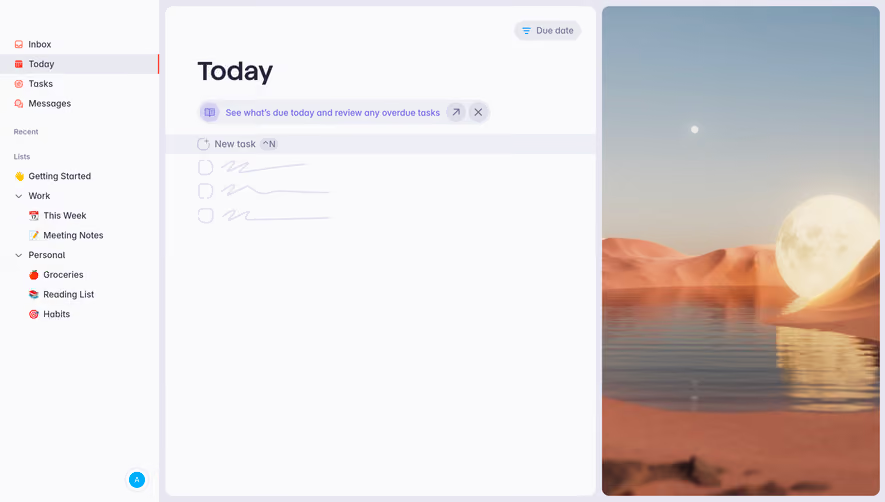
An empty queue needs an explanation that matches its scope. No assigned work is different from no search results, a cleared inbox, or an account with no connected channel. Provide a next step only when one is relevant. A congratulatory empty state can be misleading if messages are unavailable because the connection failed.
Loading should preserve the structure of the workspace without displaying placeholder values as real counts. If the selected conversation is still available while the list refreshes, avoid removing it unnecessarily. Distinguish a temporary refresh from a full loss of access. Users need to know whether they can continue working safely.
Disconnected or stale data needs clear treatment. If the queue cannot update, indicate the limitation and provide a recovery route. Do not let an old count appear current indefinitely. Test switching inboxes during loading, losing network access after an action, and returning to the product after a long absence.
Ask users to find unassigned work, identify the oldest relevant conversation, explain a waiting state, and complete an item without losing context. Include filters, live arrivals, and permission differences. These tasks reveal whether the inbox's labels and actions match the team's understanding of the workflow.
Measure correct routing and completion alongside speed. A faster queue-clearing rate can conceal premature closure or misassignment. Review reopened conversations, mistaken actions, and recovery effort. The inbox should help users make appropriate decisions rather than simply encourage them to remove items from view.
Use this checklist:
No. An inbox usually organizes communication or work needing attention. An activity feed records events. They can overlap, but an inbox needs clear rules for ownership, response, and removal from the queue.
Only if that is the explicit workflow. Reading and resolution are normally different concepts. Keep them separate when users need to inspect, assign, discuss, or wait before completing the work.
Explain why it is empty in the current scope. A cleared queue, no search results, and a missing channel connection need different messages. Offer a relevant next step and avoid implying success when data is unavailable.
Explore the SaaSFrame inbox examples to compare queue scope, assignment structures, and interfaces that keep triage connected to the conversation.