Favorites
9
Controls for starring, bookmarking, or pinning frequently used items.
.webp)
Favorites give users a personal route back to objects they care about. A starred report, saved project, or bookmarked template can be retrieved without repeating a search or navigating a large hierarchy. The pattern is most useful when the product contains many objects but each person regularly returns to a smaller, changing subset.
The design challenge is defining what a favorite means. It is not necessarily a recent item, a team recommendation, or a pinned navigation entry. Clear scope, reliable persistence, and a visible return path matter more than the particular icon used to mark the object.
Begin with the relationship between the person and the object. Does starring a dashboard save it for that individual, for a team, or for everyone in a workspace? Personal favorites usually serve a different purpose from shared curation. The interface should name that difference before users have to infer it from unexpected results.
Favorites are useful when the same object can be reached through several routes. A person may discover a report through search, open it from a shared link, and later return through a saved collection. The favorite state should belong to the object and the appropriate user scope, rather than to whichever page happened to display it.
Consider whether the task really requires favorites. A small, fixed set of destinations may be better served by navigation. A frequently changing operational queue may need a saved filter instead. Favorites support deliberate selection of objects; they do not automatically keep a dynamic rule up to date.
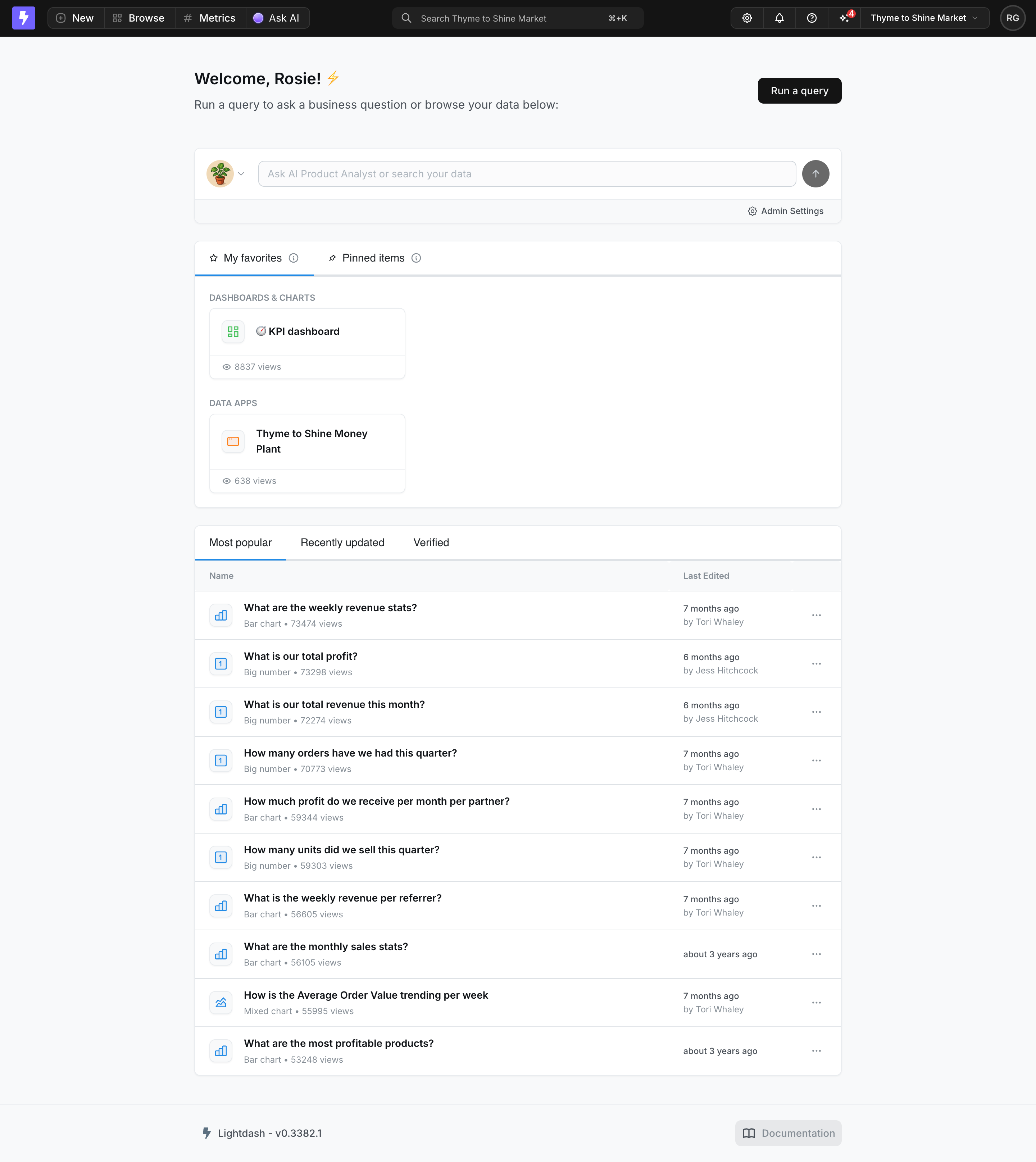
The Lightdash screenshot shows My favorites and Pinned items as neighboring tabs. My favorites is selected, with objects grouped under Dashboards & Charts and Data Apps. Below that area, another section offers Most popular, Recently updated, and Verified browsing modes.
This separation is valuable because personal retrieval and discovery answer different questions. A favorite collection answers “Where is the object I chose to keep?” A popularity list answers “What are other people using?” Presenting them as different sections preserves the meaning of a deliberate personal choice.
The adjacent pinned-items label also highlights a terminology decision. Favorites and pins may have different scopes or display effects, but the screenshot alone does not establish Lightdash's exact rules. For your own product, document that distinction and expose it in the interface where users decide which action to take.
The grouped favorite cards show that a saved collection can contain different object types. Keep type information visible when opening a dashboard and launching a data app lead to different experiences. A common favorite mechanism does not eliminate the need to distinguish the underlying objects.
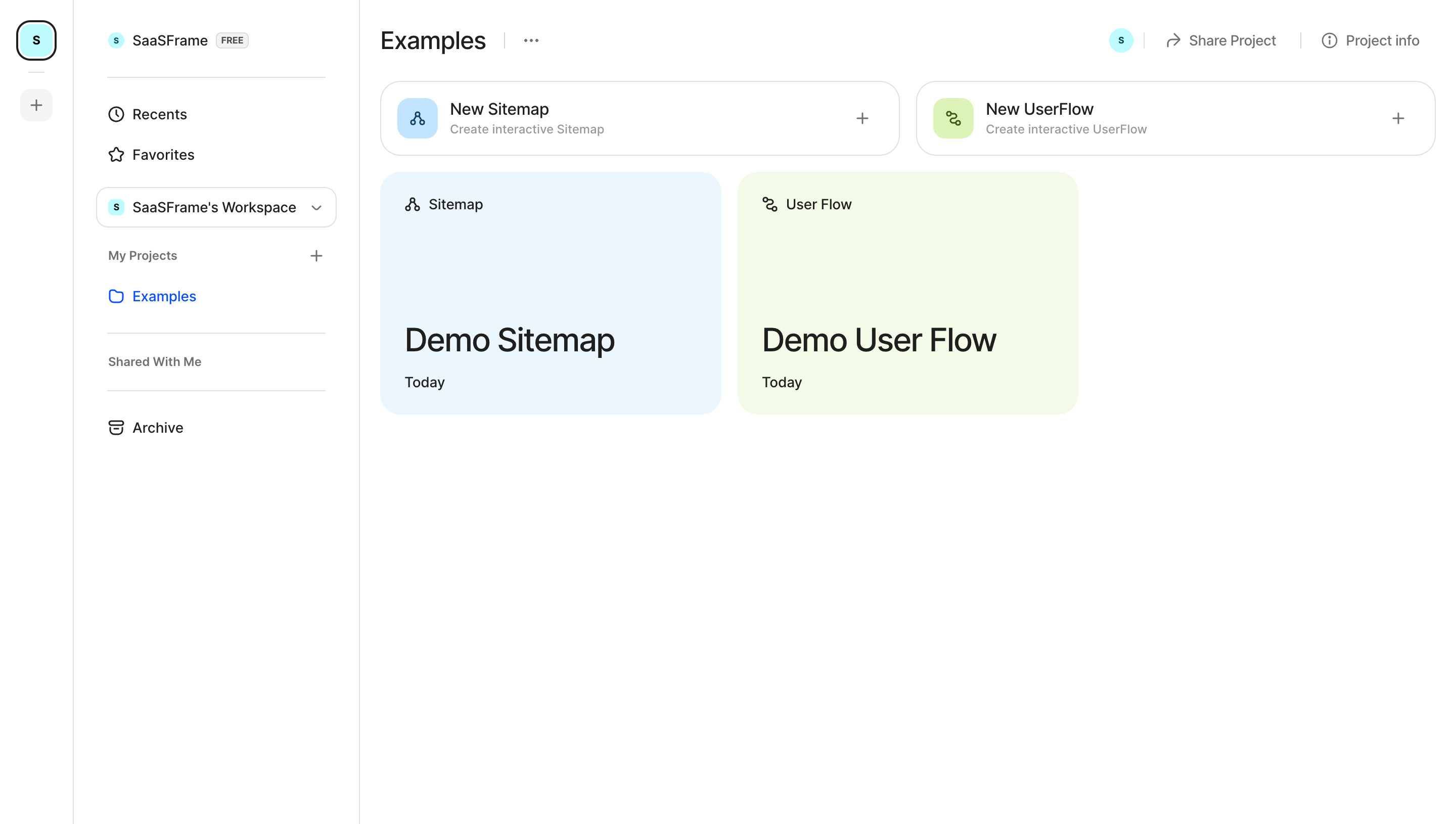
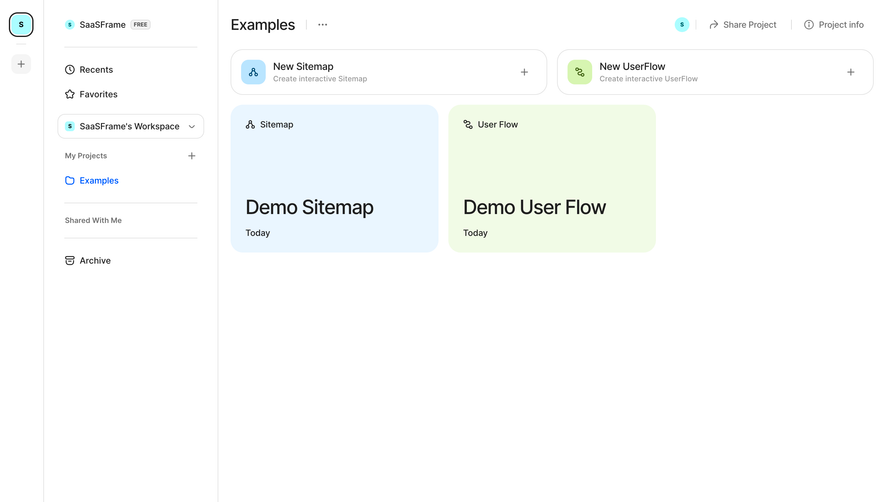
In the FlowMapp screenshot, Recents and Favorites appear near the top of the left sidebar. A workspace selector and project navigation sit below them. The main area shows an Examples project containing sitemap and user-flow cards.
The placement makes the saved-items route discoverable even when the user is browsing a project. Favorites do not depend on remembering which folder contains the object. At the same time, the separate Recents label avoids suggesting that recently opened items were intentionally saved.
This screenshot shows the navigation entry rather than the favorites collection itself. It does not demonstrate how an object is starred or what an empty favorites state looks like. Its useful evidence is the stable return path and its relationship to other retrieval routes.
When adapting this approach, consider workspace scope. A sidebar may remain visible while the user changes teams or projects. Decide whether Favorites follows the active workspace or spans all accessible spaces, and make that rule clear enough that a missing object does not feel like data loss.
A favorite action can appear in a collection row, on a card, or inside the object's detail view. These locations support different moments of intent. Saving from a result list is efficient when the user already recognizes the object. Saving inside the object is useful when its value becomes clear only after inspection.
Keep the action's name consistent across locations. If one surface says Favorite and another says Bookmark for the same state, people may assume they create different collections. If they really are different actions, explain their outcomes rather than relying on similar icons.
A star or heart can be compact, but its selected state and accessible name need to communicate the action. Users should be able to distinguish “Add to favorites” from “Remove from favorites” without guessing from a subtle color change. Do not hide the only saving control behind hover when touch and keyboard use matter.
After saving an item, reflect the new state wherever it appears. A starred object in search should not look unsaved on its detail page merely because that view has not refreshed. State consistency is part of the retrieval promise.
If the action requires a remote request, account for failure. Immediate visual feedback can make the control responsive, but the product still needs a way to restore the correct state and explain an unsuccessful save. A star that remains filled after the request fails creates a future surprise when the item is absent from Favorites.
Removing a favorite should remove the personal reference, not imply that the underlying object is deleted. Use clear language, particularly inside the favorites collection where the item may disappear immediately. A brief recovery option can help when accidental removal is likely and reversible.
Recents records activity; favorites records intent. A user can open an object accidentally or briefly without wanting it in a lasting collection. Combining the two can make a favorites view unstable and harder to trust.
Pins often affect placement, while favorites usually affect retrieval. Some products use both words for the same action, which can be acceptable if the terminology is consistent. Problems arise when neighboring controls have unclear overlapping effects.
A saved view preserves a rule or configuration, while a favorite commonly preserves an object reference. For example, saving a filtered list of active accounts should continue to reflect accounts matching that rule. Favoriting one account should continue to point to that account. These are related conveniences with different data models and user expectations.
A favorites destination should help people find what they saved. Use recognizable titles, object types, and enough context to distinguish duplicates. When the collection grows, provide search or filtering rather than forcing users to scroll through an unstructured set.
Choose ordering deliberately. Recently saved, manually ordered, alphabetical, and recently used arrangements serve different habits. Explain the active rule when order is not obvious. Do not reorder the collection unpredictably after every visit unless that movement provides a clear benefit.
Personal collections can become stale. If an object is archived or no longer available, decide whether to remove its reference or show a meaningful unavailable state. A remembered favorite that simply disappears may be confusing; a permanently broken card is not a useful alternative.
For products where organization matters, folders or labels may eventually be appropriate. Add them in response to a real retrieval problem. A favorite feature that immediately asks users to maintain a complex taxonomy can impose more work than it saves.
An empty favorites state should teach the saving route. Explain what can be saved and where the action is available. If possible, link to a relevant browse or search destination rather than leaving users at a dead end.
An empty collection caused by a workspace switch needs different context from a first-use empty state. The person may already have favorites elsewhere. Showing the active scope can explain the absence without suggesting that their saved choices were erased.
Access changes require careful handling. A favorite does not grant permission to open an object. If access is removed, the collection should follow the product's visibility rules and offer an appropriate explanation when it is allowed to do so. Do not use a personal saved reference to bypass shared access controls.
On a clickable card, the favorite button must remain independently usable. Clicking it should not accidentally open the object. In a list, it should not unexpectedly select the row for a batch operation. Define those boundaries explicitly.
Keyboard users should be able to save and remove items, understand the resulting state, and reach the Favorites destination. After removal from the collection, keep focus in a sensible location instead of losing it with the disappearing element.
On small screens, ensure the icon has a practical target and does not collide with other actions. Compactness should not make a personal retrieval action difficult to perform accurately. Test repeated saving across cards, rows, and detail views in the real interface.
Count saving activity alongside successful return use. A feature can attract many clicks while still failing to help users find objects later. Useful questions include whether people remember the Favorites destination and whether they can identify a saved object after some time away.
Observe users moving between search, recents, project navigation, and favorites. If they repeatedly search for objects they already saved, the return path or collection organization may be weak. If they save nearly everything, the action may be serving a different need than the product intended.
Choose according to the task and name the scope clearly. Personal favorites support individual return journeys. Shared curation may be better represented by a separately named collection or pinning feature.
Follow the product's access and visibility rules. Where appropriate, show an understandable unavailable state. A saved reference should never create new permission to view the underlying object.
They often serve the same retrieval purpose. Consistent terminology matters more than the icon or label. If the product offers both, define a meaningful distinction users can understand.
Browse favorites examples on SaaSFrame to compare saving affordances, personal collections, and return paths in real SaaS interfaces.