/
.webp)
Related patterns
No items found.



No items found.
No items found.
Empty space can be a purposeful part of an interface. It can reserve a canvas for creation, separate information groups, or keep a focused task from competing with unrelated content. The design needs to make that space feel intentional and distinguish it from content that failed to load.
This guide treats the Empty pattern as blank working space and low-density composition. A collection with no records is a related but different problem addressed by an empty-state message. Keeping those meanings separate helps avoid filling every open area with onboarding copy or mistaking a quiet layout for a missing result.
Decide what the unoccupied area is for
An empty editor invites input. Space around a short form focuses attention. A blank preview may mean content has not yet been created, but it may also mean the preview is unavailable. Define which meaning applies before choosing the visual treatment.
Keep a useful signal of purpose near the space. A field label, toolbar, heading, or boundary can explain what belongs there. The visitor should not need to guess whether they are expected to type, wait, or take another action.
Do not fill intentional space merely to make the page look complete. Extra cards, illustrations, or prompts can distract from the task. The question is whether the open area supports orientation and action, not whether every pixel contains content.
Frame a blank canvas with stable controls
The Hygraph reference shows a rich-text field with an empty content area beneath a visible formatting toolbar. Its field label and localization context remain available, while surrounding navigation identifies the record and other fields. The blank region is part of an editor rather than an unexplained hole in the page.
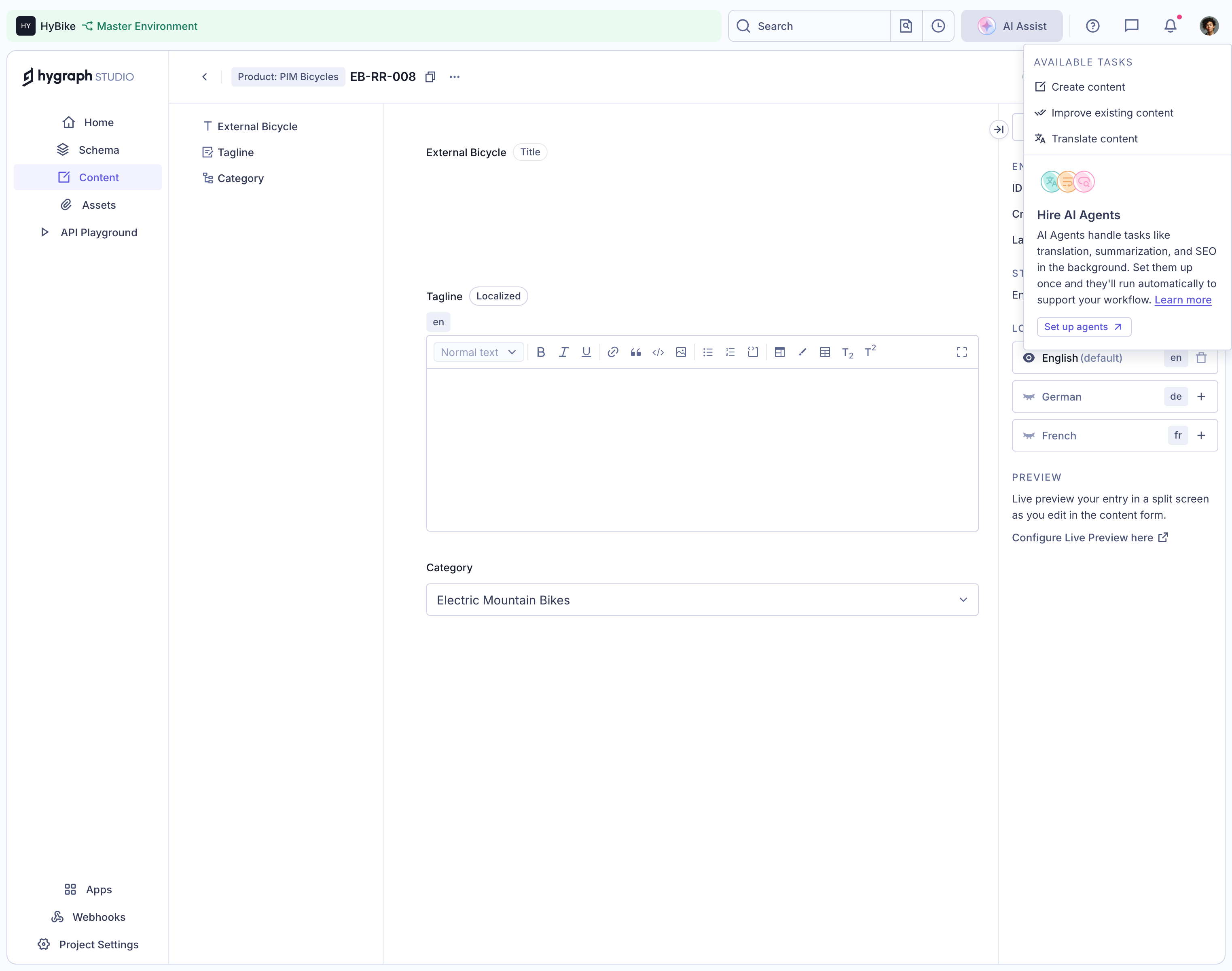
The structure makes the area recognizable as a place for authored content. The screenshot does not establish focus behavior, editing support, autosave, or why another title area appears visually empty. The analysis follows the clearly bounded rich-text region rather than inventing an unseen loading state.
When adapting this pattern, keep the first action discoverable. A blank canvas can remain quiet while still offering a clear insertion point or creation route. Avoid a large empty rectangle whose controls appear only after a gesture the user has not been taught.
Use surrounding space to focus a short task
The Claude project-creation capture places a compact form within a much larger open page. The form contains a title, two labeled inputs, and cancel and create actions. A narrow navigation rail remains visible, but the central task has little competing content.

This is a full-page composition, not proof of a modal dialog. The open area supports the form's prominence without needing a decorative panel in every unused region. The screenshot demonstrates hierarchy and spacing, not the creation behavior after submission.
For a new interface, align the amount of space with the task and viewport. A focused form can benefit from a readable width and generous separation. Excessive distance between its fields and actions, however, can make the relationship harder to follow.
Distinguish blank input from missing output
An input can legitimately begin empty because the user has not authored content yet. An output region usually needs an explanation when nothing appears. The same white rectangle should not serve both meanings without contextual cues.
For a preview, explain whether the user needs to create content, select an item, or enable a preview route. For a result, distinguish no data from waiting or failure. Blankness alone cannot communicate these states reliably.
Keep the state near the affected region. A global message at the top of a page may not explain which of several empty panels needs attention. Local context can clarify the meaning without adding a large intrusive illustration.
Give creation a practical starting point
A blank working surface can support experienced users who know what to do. New users may need a concise prompt, example, or optional template route. Provide guidance that helps begin the task without making the canvas feel occupied by a permanent tutorial.
Avoid placing sample content that looks like a user's saved work unless its status is clear. A template preview, placeholder, and actual record are different things. The first-use experience should not create uncertainty about which content belongs to the user.
Make guidance dismissible or naturally replaceable when work begins. The transition from empty to authored content should preserve the user's input and avoid leaving instructions mixed into the result.
Use spacing to show relationships
Space between groups can communicate structure more quietly than heavy borders. Keep related labels, inputs, and actions close enough to read as a unit, while separating unrelated sections. The layout should help users predict what belongs together.
Avoid treating whitespace as a fixed decorative value independent of content. Long labels, error messages, and translated text can change group dimensions. The relationships should remain clear when the interface contains realistic content.
Review the vertical sequence. A large blank region between a heading and its action can make the action appear to belong to another section. Generous spacing works when it reinforces grouping rather than dissolving it.
Keep useful actions visible without cluttering the canvas
Creation controls, formatting tools, or context menus can sit around a blank surface. Their placement should make the next step understandable while leaving room for the work itself. Do not hide the only entry route in an unrelated settings menu.
If controls appear after focus or selection, provide a discoverable initial route and ensure other input methods can reach them. A pointer-driven canvas should not leave keyboard users with an empty area they cannot operate.
Keep action states accurate. A create or save action may be unavailable until required input exists, but the interface should explain the relevant condition when needed. An apparently disabled button should not be the only indication of what is missing.
Plan the transition into populated content
Once the user begins, preserve stable context while allowing the working area to grow appropriately. Avoid a dramatic layout change that moves the cursor or separates the input from its controls. The empty composition should anticipate ordinary content lengths.
Keep draft, saved, and published states distinct when the product has them. A previously blank editor becoming populated is not proof that the content has persisted. Provide feedback tied to the actual lifecycle.
If the user clears content, decide whether the original guidance returns and whether removal has been saved. A blank field after deletion is a different moment from first use. The interface should preserve relevant consequences and recovery routes.
Avoid using emptiness as a loading strategy without context
A page that remains blank while data loads can look broken. If waiting is the actual state, provide a suitable loading cue or structure. Intentional whitespace should not become an excuse for failing to explain unavailable content.
When a request fails, give an understandable recovery state. A empty editor shell may remain useful, but the user needs to know whether the record itself could not be retrieved. Do not let them unknowingly enter replacement content into a region that merely failed to load its previous value.
Distinguish absent permissions from absent content as well. A viewer who cannot access a section should not infer that the collection or record contains nothing. Keep the explanation appropriate to the access model.
Preserve meaning at smaller widths and with text zoom
Open space can shrink substantially on mobile. Maintain the grouping and readable form width rather than preserving large desktop margins at the expense of usable inputs. The purpose of spacing is clarity, not a fixed ratio of blank area.
A blank canvas may need a focused mobile editor rather than a miniature desktop surface. Keep its label, tools, and return route reachable. Avoid letting the on-screen keyboard hide the only action required to finish.
Test enlarged text and long errors. The layout should accommodate additional explanation without turning previously meaningful space into accidental gaps or overlaps. Stable relationships matter more than the original screenshot's precise geometry.
Test whether users understand the blank area
Ask users what they believe belongs in the region and what they would do next. If they expect content to load while the design expects input, strengthen the purpose cues. If they see a focused form as a broken page, review its title and action hierarchy.
Check first use, return visits, clearing content, loading failure, unavailable access, keyboard operation, and mobile input. Verify the transition from blank to authored content and the actual persistence feedback.
Explore the SaaSFrame Empty collection for blank-space and canvas references, and compare the separate empty-state collection when the problem is a collection with no results. Choose the pattern according to the meaning of the absence.
Questions to settle before designing an empty region
Is blank space the same as an empty state? No. Blank working space can be intentional, while an empty collection usually needs an explanation of its result and an appropriate next step.
Should every blank canvas contain instructions? Provide enough guidance to begin, but keep it proportionate and replaceable. Experienced users may need only a recognizable editor and clear controls.
How can users tell that nothing is broken? Preserve stable context, labels, and a meaningful action. If the region is waiting, failed, or inaccessible, explain that state rather than relying on visual emptiness.