Drag & Drop
22
Enable fluid interaction with SaaS Drag and Drop patterns. See how to use ghost images, drop-zone highlights, and reordering logic to make your interface feel tactile and modern.
.webp)
Drag and drop lets users move an object through direct manipulation. It can reorder steps, change a record's category, move files, or place objects on a canvas. These operations may share a gesture, but they have different meanings. The interface must explain what is movable, where it can go, and what the move changes.
Begin with the underlying operation rather than the gesture. Reordering a list changes sequence. Moving a card between columns may change status. Moving a file may change its location or access. A good design keeps that meaning visible and provides another usable route when dragging is inconvenient or unavailable.
The interaction includes more than a handle. It needs a pickup state, destination feedback, a clear drop result, and recovery when a move is rejected or fails to save. Users should be able to predict the effect before releasing the object and understand the final state afterward.
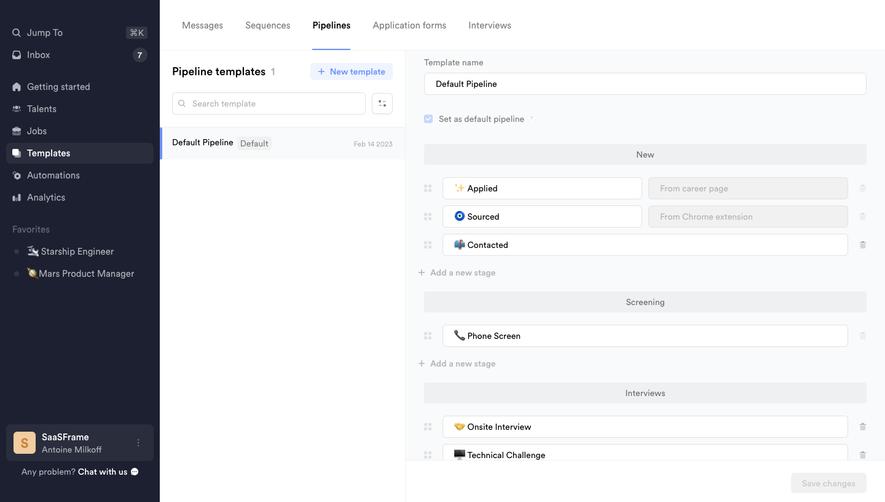
Crew's captured pipeline-template editor shows small grip-style handles beside stage rows. The stages are grouped under broader sections such as New, Screening, and Interviews. This visually distinguishes the ordered structure from the editable stage names and other row controls.
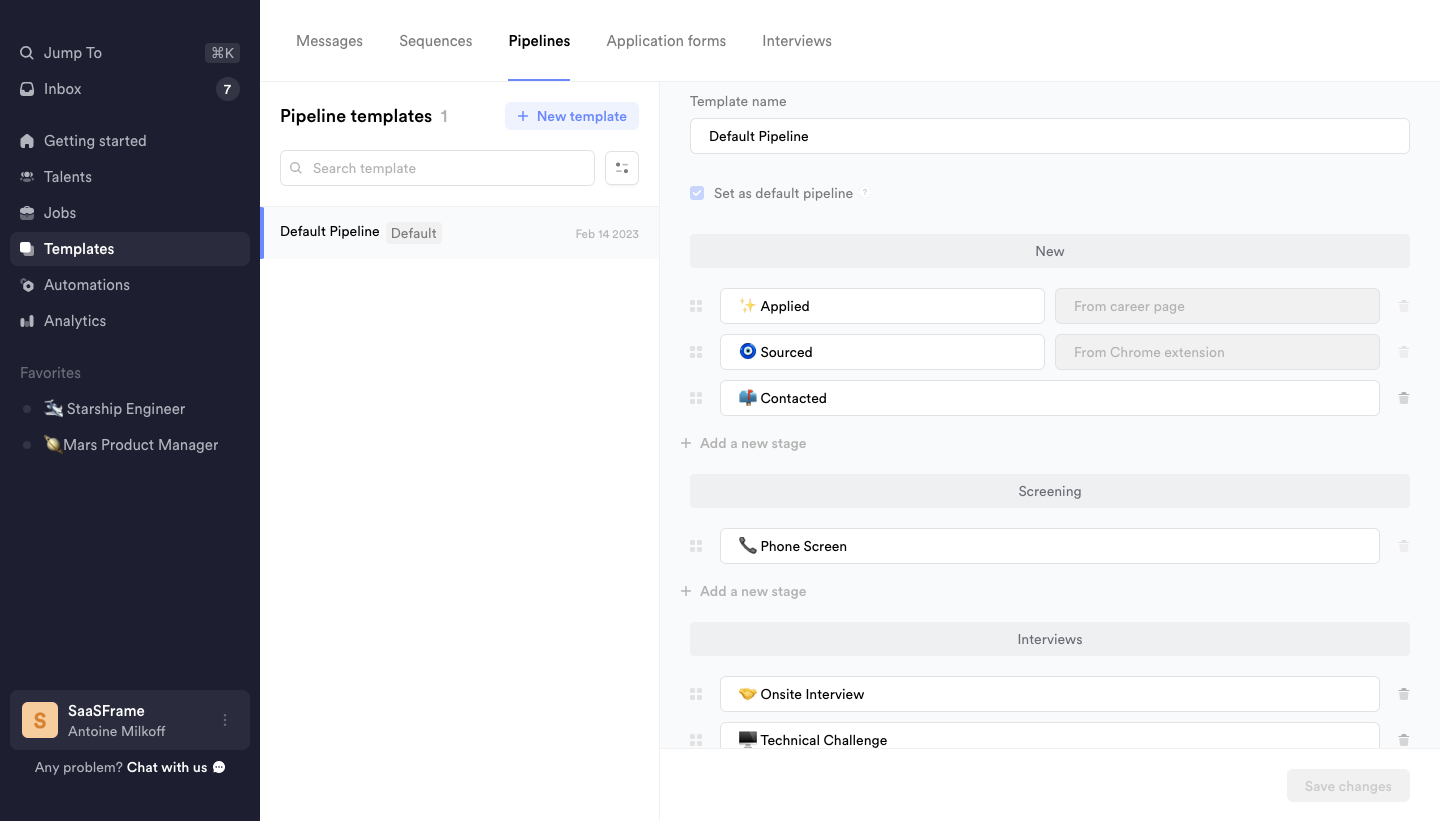
The handles are evidence of an intended movement affordance, not proof of the complete drag behavior. The screenshot does not establish whether rows can move between sections, whether every stage is movable, or how the order is saved. Those rules need to be verified and communicated in the implementation.
Use handles when a row also contains editable fields or other actions. A dedicated pickup area can reduce conflict between dragging, selecting text, and opening a record. Make the handle recognizable and provide an accessible name that identifies the object and available move operation.
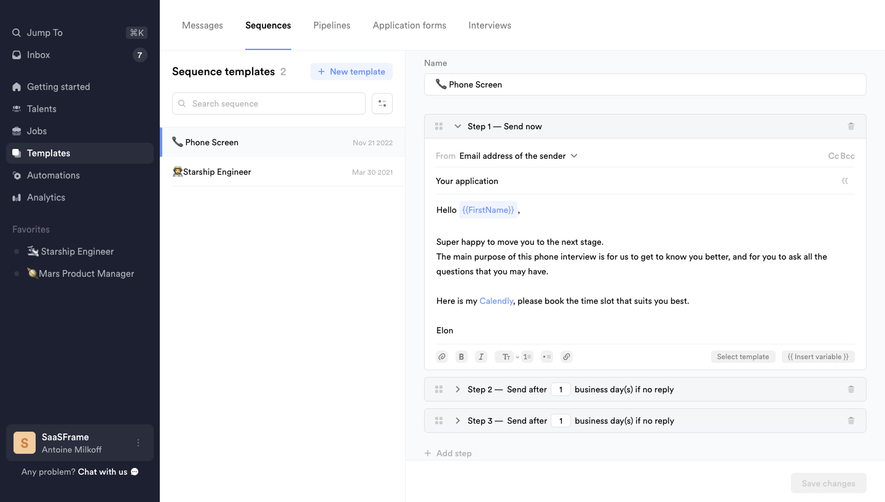
Crew's captured sequence-template editor shows grip-style controls beside steps. The first step is expanded, while later steps display timing conditions. The sequence therefore combines ordered content with rules about when communication is sent.
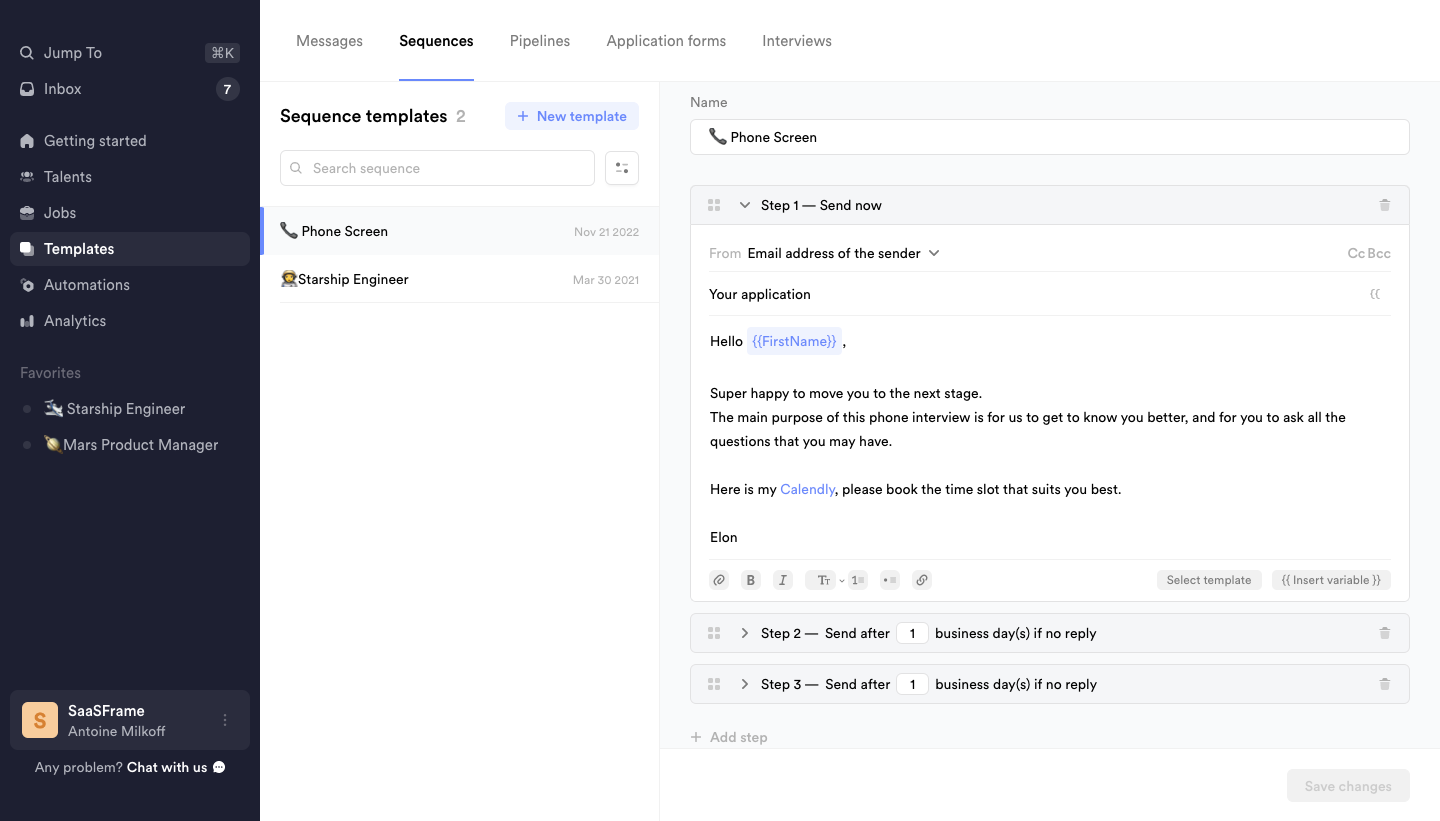
Moving a step in such a workflow can affect more than visual arrangement. Timing may be relative to a previous step, and content may assume that another message came first. A comparable design should explain whether conditions move with the step, are recalculated, or require review after reordering.
The static capture does not establish those transition rules. Avoid describing the gesture as harmless rearrangement without examining the underlying sequence. If a move changes operational meaning, show the affected relationship and distinguish editing a template from modifying a running workflow.
During movement, users need to know where the object can be placed. A placeholder, insertion line, or highlighted container can indicate a valid destination. The feedback should identify the resulting position or category, not merely decorate any area the pointer crosses.
Invalid destinations need understandable treatment. A record may not be allowed in a particular stage, or a file may not be movable to a restricted folder. Explain the limitation when it affects the task. An object snapping back without feedback can feel like a broken interaction rather than a deliberate rule.
For grouped lists, distinguish insertion within a group from movement into another group. If crossing a boundary changes metadata, make that consequence visible. A stage should not silently acquire a different category because the pointer crossed a subtle divider. Use the destination state to communicate the actual operation.
The object being moved should remain recognizable. A drag preview can show its identity while a placeholder preserves the original position. Keep the rest of the collection readable enough to choose a destination. Excessive dimming or oversized previews can obscure the very structure the user needs to inspect.
Before the drop, the interface should indicate a proposed move. Afterward, it should show the committed or pending result. Avoid treating a preview as a saved state. If persistence takes time, use appropriate feedback and reconcile the visible order when the request completes.
For more complex moves, a review step may be useful when placement changes access, triggers an action, or affects many objects. Do not add confirmation to every reorder by habit, but do not assume direct manipulation communicates all consequences. Match review to the operation's meaning.
Dragging should not be the only way to complete an important operation. Up and down actions, a Move to menu, a position selector, or another direct control can support keyboard users and people who find precise dragging difficult. Choose an alternative that represents the same underlying operation.
Keep keyboard feedback understandable. Users need to identify the selected object, proposed destination, and final position. Announce meaningful changes without creating excessive output for every pointer movement. Visible focus should remain clear before and after the move.
For touch, review target size, scrolling conflicts, and long-press behavior if used. A gesture that works with a mouse may interfere with ordinary page scrolling on a phone. The Crew captures are desktop layouts and establish no touch or keyboard behavior. Test those input methods separately.
Long collections may require scrolling while an object is in motion. Auto-scroll should be predictable and controllable rather than accelerating so quickly that the user loses the destination. Keep insertion feedback visible near the viewport edge, and preserve enough context to identify the correct group.
Dense rows can make small position differences difficult to target. Increase the clarity of insertion zones or offer a precise alternate route. Do not require users to place an object on a narrow invisible boundary. If rows expand or collapse during movement, make that behavior stable and avoid shifting destinations unexpectedly.
Consider moving between distant locations. A Move to control may be more efficient than dragging through a long list. Direct manipulation is useful when spatial relationships are visible, but it becomes less helpful when the destination is off-screen or buried in another hierarchy.
Some structures have rules about order or membership. A required starting step may be fixed, a stage may contain active records, or a workflow branch may depend on another object. Represent restrictions clearly rather than presenting every handle as equally available.
If a move changes a dependency, explain what needs review. The product may preserve the relationship, prevent the move, or ask for another decision. Choose behavior around the actual model. A visually simple reorder should not silently break a sequence or imply that every arrangement is valid.
Permissions can also restrict movement. A user may edit a name without being allowed to restructure a shared workflow. Make the available operation accurate and validate the current state at commitment. If another user changes the structure during the move, reconcile the result rather than trusting a stale destination.
A failed move should leave the object in an understandable state. Restore the previous arrangement or show the pending conflict, depending on the product's model. Explain whether the object moved locally but failed to save, or whether the operation was rejected before any change.
Undo can be useful for accidental reordering, but it needs an accurate scope. Reversing a visual order may not reverse external actions triggered by a status change. Communicate the actual recovery capability. Do not offer reassuring undo language for consequences the system cannot restore.
Test interrupted gestures, dropping outside a valid area, network loss, and repeated moves before the first save completes. Preserve object identity and prevent duplicates. If a later move supersedes an earlier one, the interface should settle into the correct final state rather than replaying responses in arrival order.
Ask users to reorder a step, move an item across a group boundary, cancel a move, and use the keyboard alternative. Include long lists and a restricted destination. Observe whether they can predict the result and recover from an unintended placement.
Measure correct completion and accidental moves alongside speed. A fast gesture can conceal a misunderstanding about changed status or timing. Evaluate whether the handle is discoverable, whether destination feedback is clear, and whether the alternate route offers the same operation.
Use this checklist:
Multi-item movement needs an additional selection rule. Show which objects are included and whether their relative order is preserved. A drag preview representing one item can be misleading when the operation affects several selected records. Make the affected count and destination understandable before commitment, and explain any item that cannot move with the group.
Review the distinction between copying and moving. Some interfaces support modifier keys or separate commands for duplication, but those conventions should not be the only explanation. The result needs to show whether the original object remains in place and whether the new instance is independent or linked. A familiar gesture should not conceal a different object relationship.
Saved templates introduce another scope question. Reordering a template may affect only future instances, while editing a live workflow may alter current work. Identify the scope in the editing surface and result. In the Crew examples, the visible template context helps orientation; the screenshot does not establish how existing jobs or sequences respond to a template change.
Only when that does not conflict with editing or other actions. A dedicated handle can clarify movement in rows with fields, links, and menus. Keep an alternative route available for the same operation.
Not always. A move can change status, category, location, or workflow relationships. Communicate the actual consequence, especially when crossing a container boundary.
Show whether the change was rejected or failed to save, preserve a coherent object state, and offer an appropriate retry or recovery route. Avoid silently leaving the interface in an order that does not match the product.
Explore the SaaSFrame drag-and-drop examples to compare movement affordances, ordered structures, and the feedback needed for reliable placement.