Tree View
2
A hierarchical list with expandable and collapsible parent and child items.
.webp)
A tree view presents items through parent-and-child relationships. People can expand a branch to inspect its descendants and collapse it to reduce the visible information. In SaaS products, trees can help navigate folders, classify content, inspect a schema, or choose a destination within a nested structure.
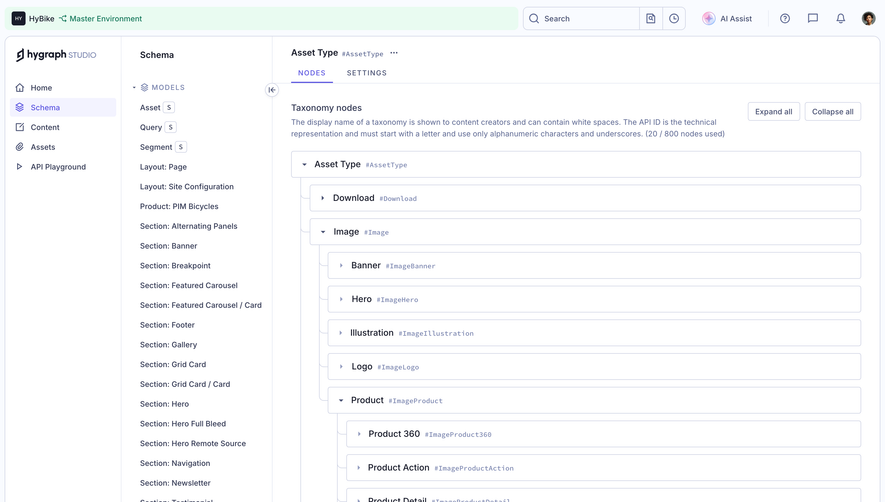
The important design question is whether the hierarchy helps the task. A tree makes relationships visible, but it also asks people to understand those relationships and manage expansion states. Hygraph’s captured taxonomy interface provides a concrete example: asset types are organized into nested categories, with visible names and technical identifiers. The analysis below concerns the captured interface rather than unobserved interactions.
A tree is useful when knowing the parent clarifies what an item means or what an action will affect. A product-image category nested beneath Image communicates a different context from a category displayed in an alphabetical list. A folder destination may also depend on the project and parent folder that contain it.
Do not make hierarchy the default presentation for every large collection. A flat search result can be better when people know an item’s name and rarely need its ancestry. A table can be better when attributes such as owner, status, or date matter more than containment.
Ask what relationship each level represents. Containment, classification, organizational reporting, and dependencies are different models. A parent-child layout should not imply that a record can belong to only one category if the product actually supports several independent associations.
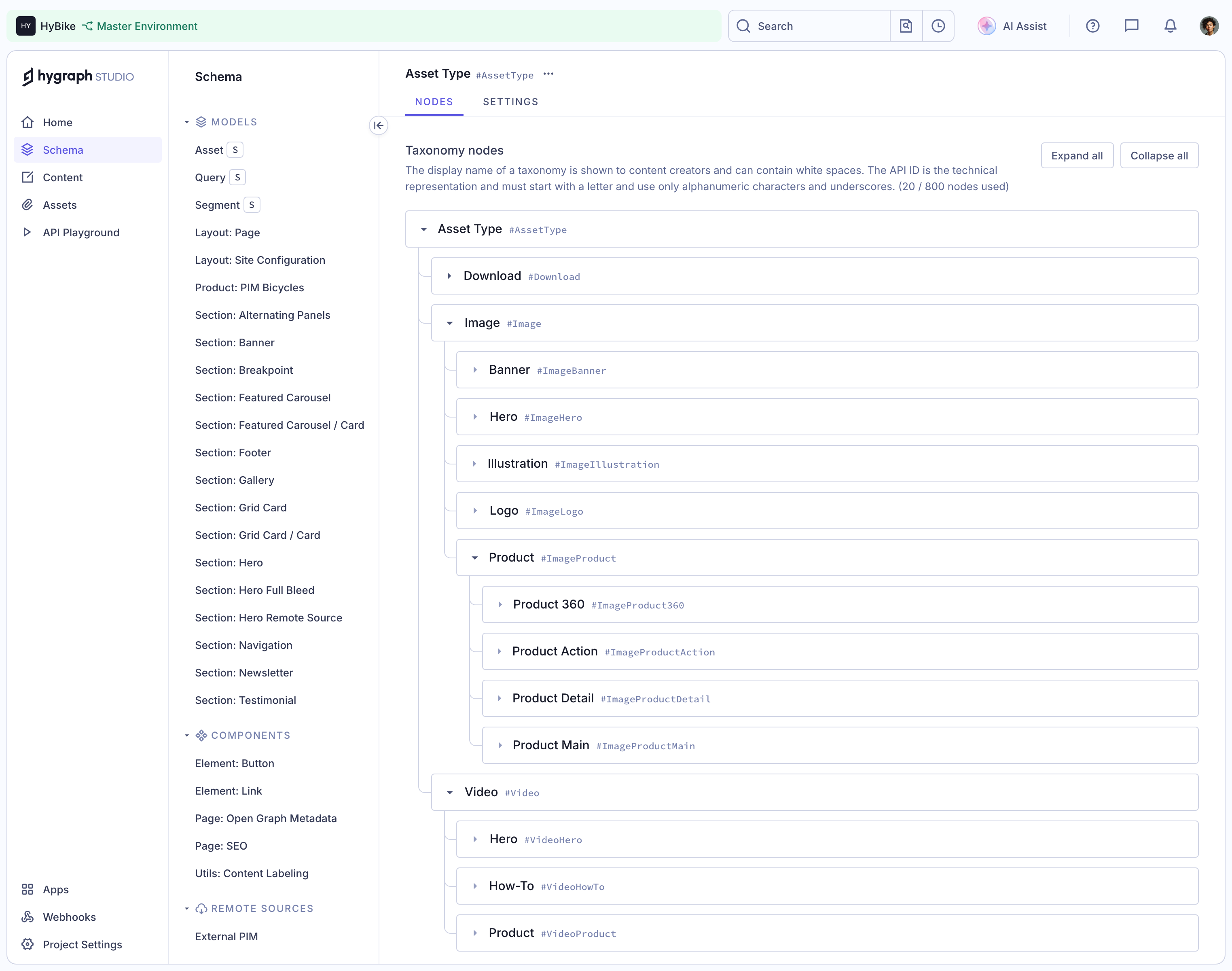
Hygraph’s taxonomy screenshot uses indentation, disclosure arrows, and connecting lines to show structure. Asset Type forms the visible root. Image expands into categories including Banner, Hero, Illustration, Logo, and Product; Product expands further into more specific categories. The nested placement makes the classification readable.
Use indentation consistently across sibling groups. If one row has additional controls, keep its label aligned with equivalent rows. Otherwise people may mistake an action icon or a wider row for a different hierarchy level.
Connecting lines can help with deep structures, but they should support the labels rather than dominate them. On small screens, reduce unnecessary row furniture before sacrificing the visible parent-child relationship. Depth is meaningful information, not just spacing that can be removed.
Expanding a branch reveals children. Selecting an item marks a target. Opening an item takes the person to its details. Those operations can coexist in one row, but should not become indistinguishable.
A disclosure arrow is a recognizable expansion target. A row label might open a detail page or select a destination, depending on the task. Make that behavior consistent throughout the tree. Do not let some labels navigate while otherwise similar labels silently change selection.
In a destination picker, a selected row needs a state that remains visible while the person explores other branches. Moving keyboard focus should not inadvertently change the final destination. In navigation, the current page may remain selected while focus moves through possible next pages.
Hygraph shows directional arrows next to branches and places children beneath their parents. The captured expanded branches use downward indicators, while collapsed branches have sideways indicators. This communicates available structure before people act.
Distinguish a leaf from a collapsed branch. A person should not spend time activating an item that has no descendants. If descendants have not loaded yet, avoid using the same visual state as a confirmed empty leaf unless the distinction is explained.
Consider how child counts help the task. A folder count can communicate the size of a branch, but only if its meaning is clear. Direct-child counts and total-descendant counts differ. A count that changes after filtering also needs a consistent interpretation.
Hygraph displays names such as Image alongside identifiers such as #Image. Its introductory description distinguishes the display name from the API ID. That is useful in a configuration environment where editors and developers may recognize different representations of the same taxonomy node.
Give the human-readable name visual priority when the primary task is browsing or classification. Show a technical identifier when it disambiguates records or supports implementation. Avoid making a long identifier the only accessible name for an otherwise recognizable item.
Plan for duplicate display names in different branches. A search result for “Hero” may need its ancestor path to distinguish it from a similarly named category elsewhere. Changing the label itself to include every ancestor can make the normal tree unnecessarily verbose.
The taxonomy interface includes Expand all and Collapse all controls above the tree. These controls acknowledge that repeated individual expansion can become tedious. They also imply a scope: the tree currently being managed.
Define that scope deliberately. In a filtered view, “all” may refer to visible results or every underlying node. For a very large hierarchy, expanding every descendant can create an overwhelming page and expensive loading. A depth-limited expansion or a narrower branch action may be more useful.
After a broad collapse, preserve a way to understand the current item’s location. A selected deep node should not become an unexplained hidden selection. If the interface keeps it selected, display its path or provide a route to reveal it.
Search can help people find a deeply nested node, but the results need context. Show the matching item and enough ancestry to identify it. If the same node appears under multiple permitted paths, make that relationship understandable.
Choose whether searching produces a filtered tree or a separate result list. A filtered tree retains ancestry but can make missing siblings look deleted. A result list is compact but needs paths or another context cue. Either approach should clearly indicate that the person is viewing a search state.
When a result is opened or selected, decide whether to reveal it in the normal tree. Restoring the tree with the relevant ancestors expanded can support continued browsing. Clearing search should not erase a valid selection or unexpectedly move the person elsewhere.
A hierarchy can outgrow the width of its container. Long labels and many levels compete for the same horizontal space. Preserve access to the full name and path rather than truncating every row until several nodes look identical.
For large structures, loading descendants on demand can reduce the initial burden. The design still needs visible loading, failure, and empty states for each affected branch. A blank area after expansion should not leave people guessing whether the branch is empty or the request failed.
If rendering is virtualized, test movement through nodes that are not currently rendered. Focus, reading order, and selected state must remain coherent as visible rows change. Performance work is only useful if the hierarchy remains operable.
Renaming a node, moving a branch, or deleting a parent can affect descendants and downstream references. The interface should explain the relevant consequence for the actual data model. Do not assume that deleting a folder and deleting its contents are always the same operation.
Before a move, identify the source and destination. Prevent invalid relationships such as moving a parent beneath its own descendant. A disabled destination should explain why it cannot be chosen, particularly when the restriction follows from hierarchy rather than permissions.
Drag and drop can be convenient, but it should not be the only route for an important operation. Provide a usable alternative such as a move action with a destination chooser. After the action, show the new location and offer recovery where the product supports it.
A true interactive tree needs coherent semantics, expansion states, and keyboard behavior. W3C’s tree-view pattern distinguishes focus from selection and documents navigation within a hierarchy. Implement and test the appropriate behavior rather than adding tree roles to a visually nested list without supporting interaction.
Keep focus visibly identifiable when it differs from the selected row. Make expandable state available programmatically. If the design supports multiple selection, explain how selection works and ensure people can review the chosen items before acting.
A nested set of ordinary navigation links may not require a full tree widget. Choose the interaction model that serves the task and implement it completely. Additional widget complexity should earn its place through a useful browsing or selection experience.
Collaborative products can change while someone is browsing. A selected node may be renamed, moved, or become unavailable. Maintain a stable identity for the item and communicate the relevant update. Avoid substituting a different row merely because it occupies the same visible position.
Preserve useful expansion state when refreshing a hierarchy, while handling branches that no longer exist. If access changes, show an appropriate state without exposing restricted descendants. The person should understand why the previous location cannot be restored.
After creating a node, reveal its location and give a clear next action. After removing a node, place focus in a predictable surviving location. These details connect data changes to the person’s continuing task.
Use a tree when ancestry or containment guides the decision. Use a table when comparing attributes across records is the main task.
No. A row may select or open an item. Make the expansion target and row behavior understandable and consistent.
No. Many sidebars work well with grouped links and disclosure controls. Use a tree widget when its hierarchical interaction model benefits the task.
Explore Sidebar Navigation for persistent destinations, Search for locating nested records, and Breadcrumbs for showing a current path. Compare the gallery according to the relationship being represented rather than copying indentation alone.
For an interactive tree’s semantics and keyboard model, consult W3C’s Tree View Pattern.