AI Generation State
12
Loading, streaming, progress, regeneration, or completion states for AI-generated output.
.webp)
An AI generation state explains what happens between submitting a request and receiving usable output. In SaaS products, that interval can involve preparing inputs, running analysis, generating content, and assembling results. The interface should keep users oriented without pretending to expose work the system cannot actually verify.
The pattern is different from a decorative loading animation. Users may need to understand whether their input was accepted, whether they can continue elsewhere, and whether partial output is ready to use. Design the state around the task's lifecycle rather than around a spinner alone.
Begin with observable states: request accepted, queued, running, partially available, complete, failed, or cancelled. Not every product needs to expose all of them, but the visible labels should correspond to real conditions.
A status can name the operation, such as analyzing a brand or generating a draft, without claiming to reveal the model's internal reasoning. Avoid theatrical messages that imply verified research, checking, or confidence when the system does not support those claims.
Distinguish preparation from generation. Uploading an input, validating configuration, and receiving output are different steps. A single generic message can conceal where the user needs to act if the process cannot continue.
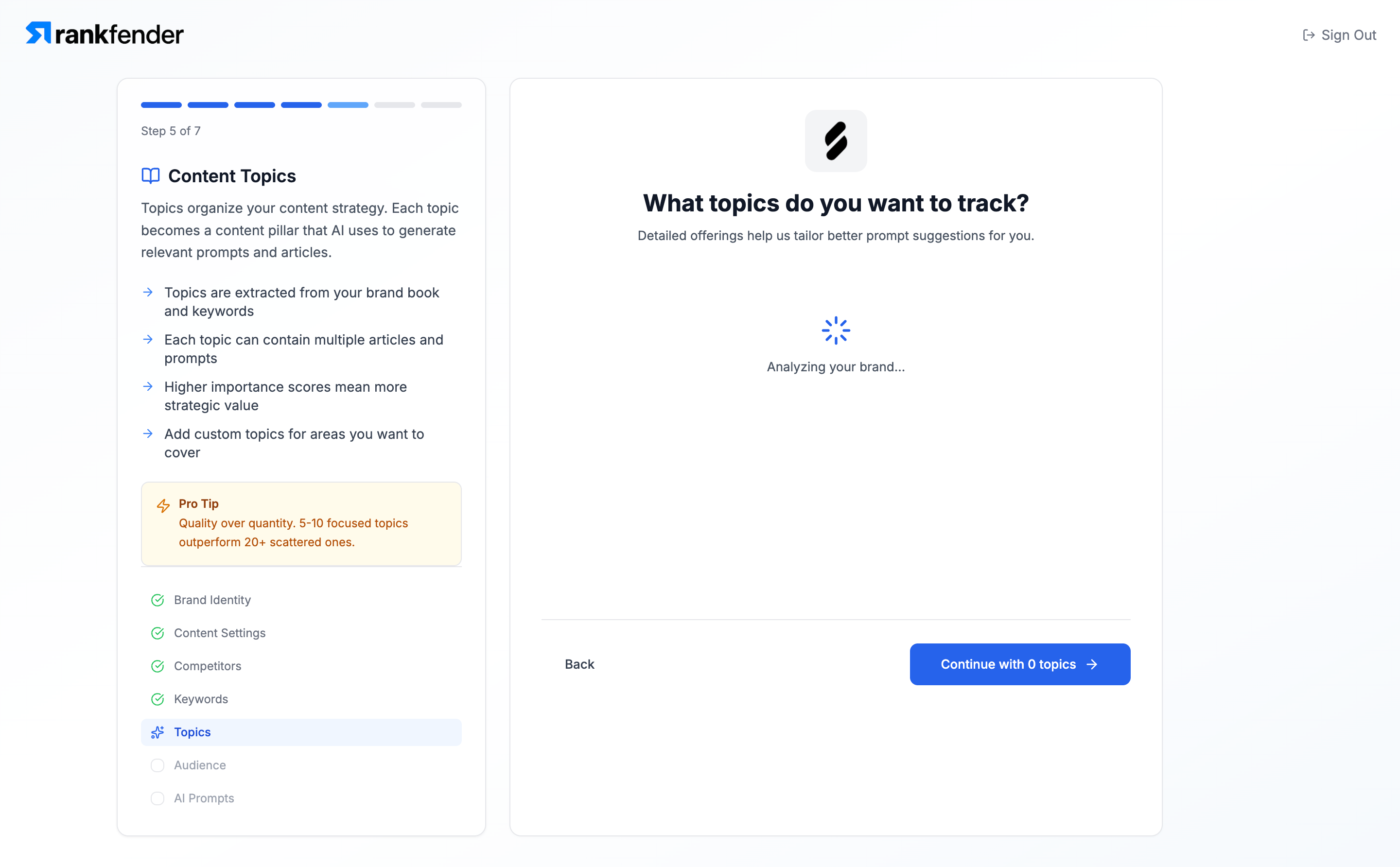
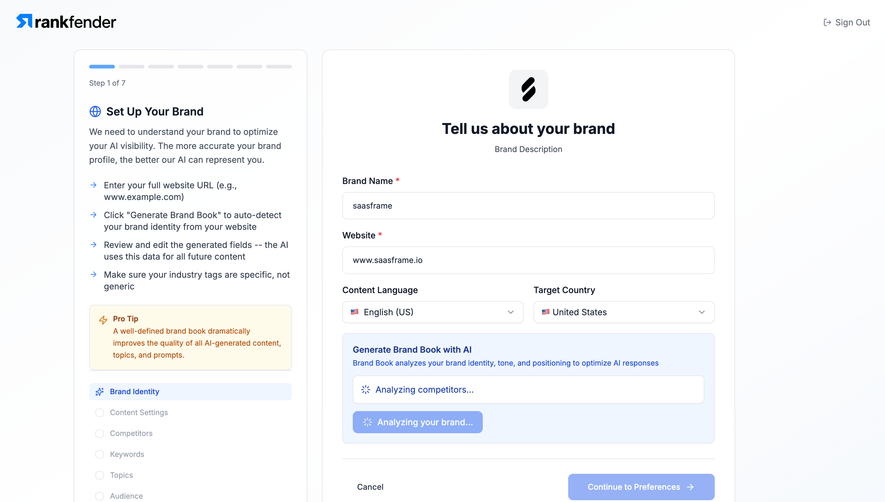
The Rankfender screenshot shows step 5 of 7 in onboarding, labeled Content Topics. The main area asks which topics the user wants to track and displays a spinner with an analysis status. Supporting information remains in the left column, while the footer includes Back and Continue with 0 topics.
The preserved context explains what the wait is for. Users are not presented with an unrelated blank screen; they can see the current setup task and the role topics will play. That can help connect the eventual output to the decision they need to make.
The visible continue action raises a useful state-design question. Is continuing without generated topics a valid alternative, or is the label simply reflecting an interim count? The static capture does not establish whether the action is enabled or what happens next. Your own flow needs a deliberate answer.
If continuation is valid, explain the resulting limitation and preserve a route to add the information later. If generation is required, do not make an interim zero look like a completed result. The button label and availability should follow the actual readiness state.
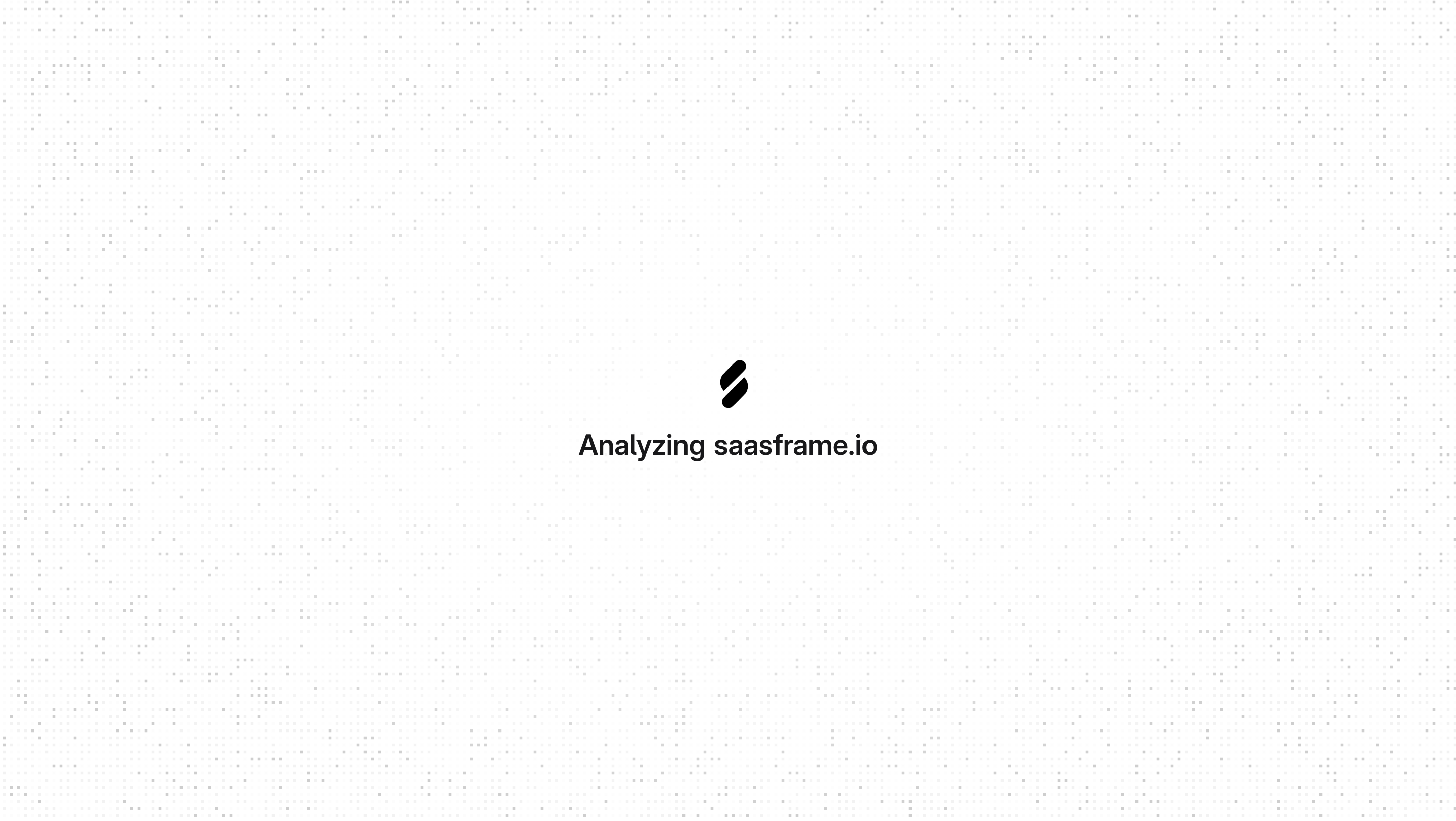
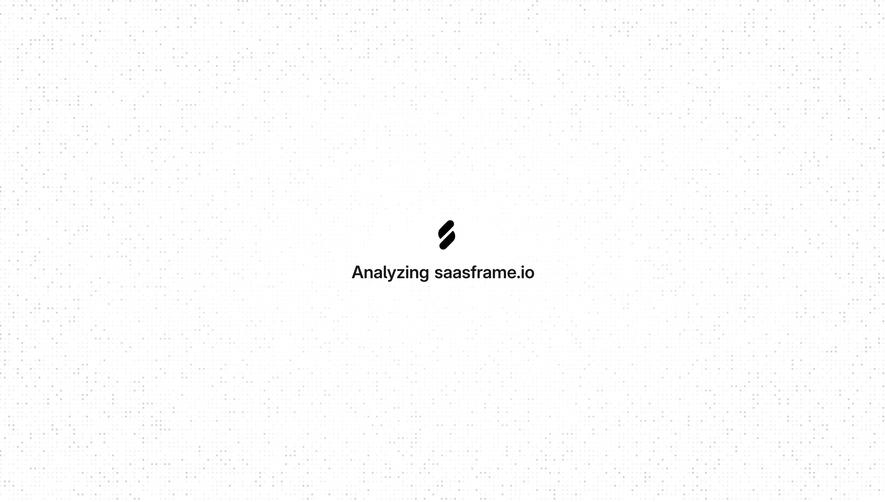
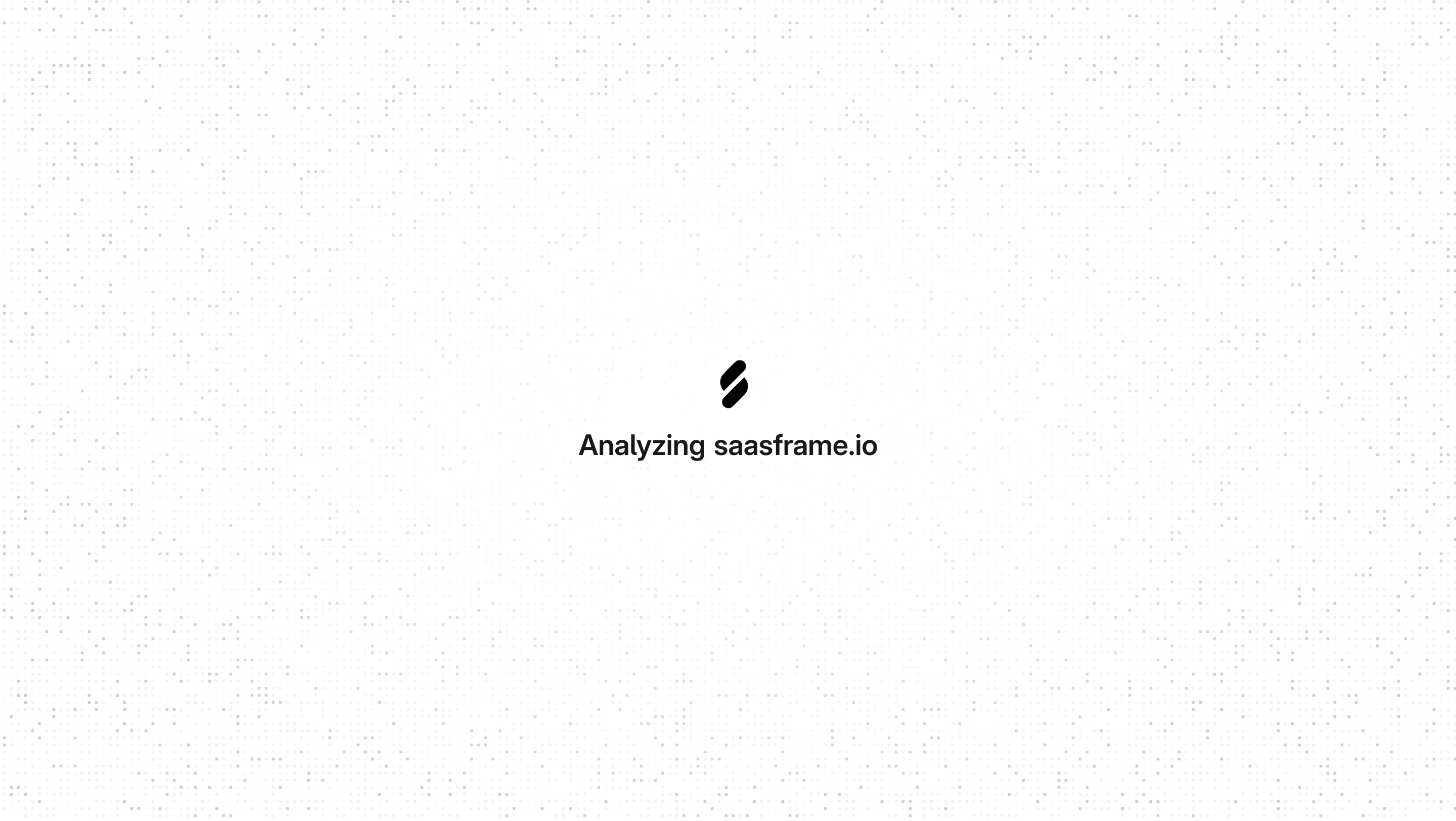
The Profound loading capture shows a centered status identifying saasframe.io as the analysis subject. The surrounding screen is otherwise minimal. Naming the subject helps confirm that the system is working on the intended input.
A focused state can suit a short required transition, but it needs a plan for a longer wait. The screenshot does not show duration, cancellation, retry, or a route to another task. Those absent controls cannot be assumed to exist elsewhere from this image.
For your product, decide what users need if the operation exceeds the ordinary interval. That may include additional context, a background-task route, or recovery from failure. The calm initial screen should not become an indefinite dead end.
Do not infer model behavior from the analysis label. The capture establishes what the interface says and which subject it names. It does not prove what sources were examined or how the output was produced.
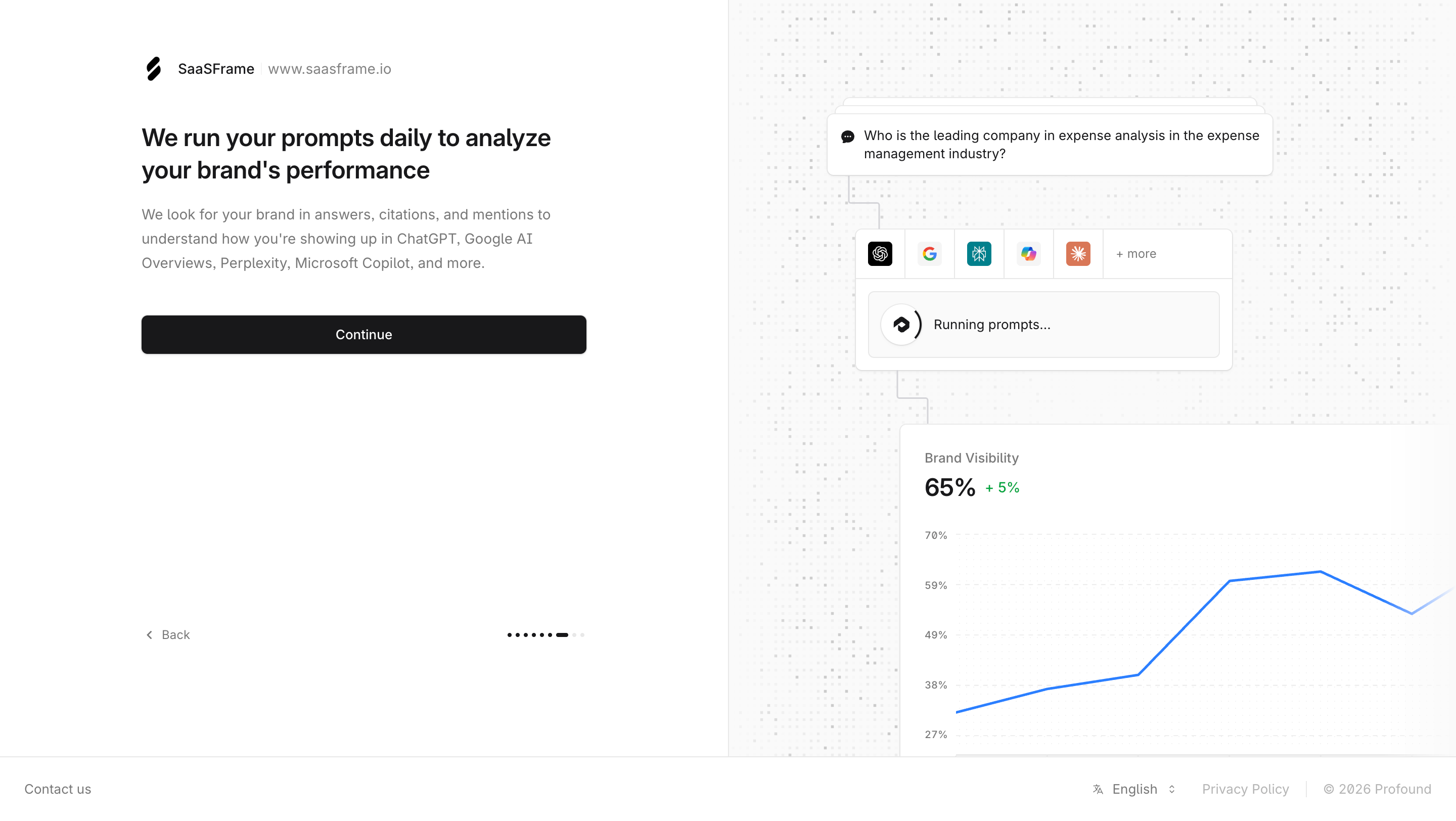
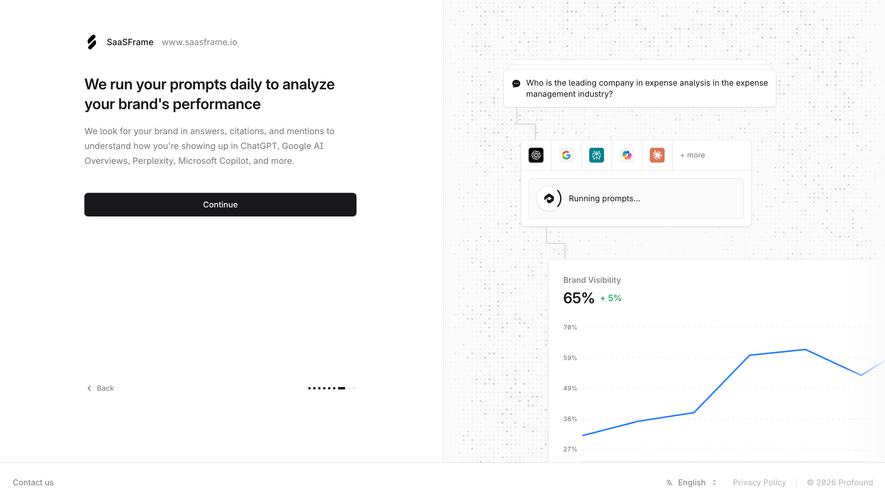
Another Profound capture is an onboarding explanation. Text describes recurring prompt analysis, while an illustration shows a prompt, service icons, a Running prompts label, and a visibility chart. A Continue action belongs to the onboarding page.
This is explanatory imagery rather than proof of a current job. That distinction matters because a realistic process illustration can resemble a live status surface. Keep teaching material visually and semantically separate from operational progress where users might confuse the two.
When the actual product runs a request, show its real state. Do not reuse illustrative percentages or sample results as if they measure completion. A plausible-looking number can create false certainty more readily than a simple indeterminate indicator.
A percentage should represent a defined measurable quantity. Completed items in a batch can support one kind of progress; elapsed time alone does not necessarily measure completion of a variable generation task.
If progress is indeterminate, use a clear running state and relevant task context. The interface can remain useful without a fabricated percentage. Users benefit from knowing that the request was accepted and what result they are waiting for.
Stage labels can help when the stages reflect actual system events. They should not advance on a timer merely to create an impression of work. A stage that remains visible unusually long also needs a recovery policy.
Estimated duration can be useful when supported by an appropriate model and clearly presented as an estimate. Avoid promising a precise completion time that ordinary variation will frequently violate.
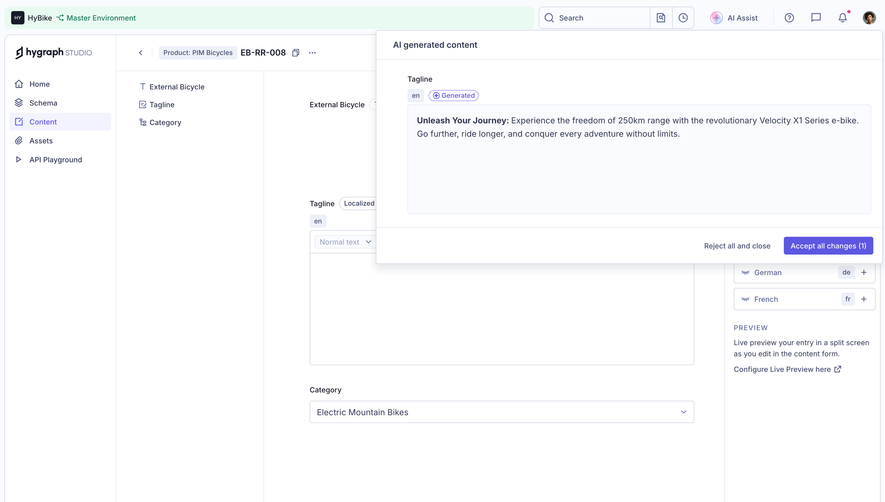
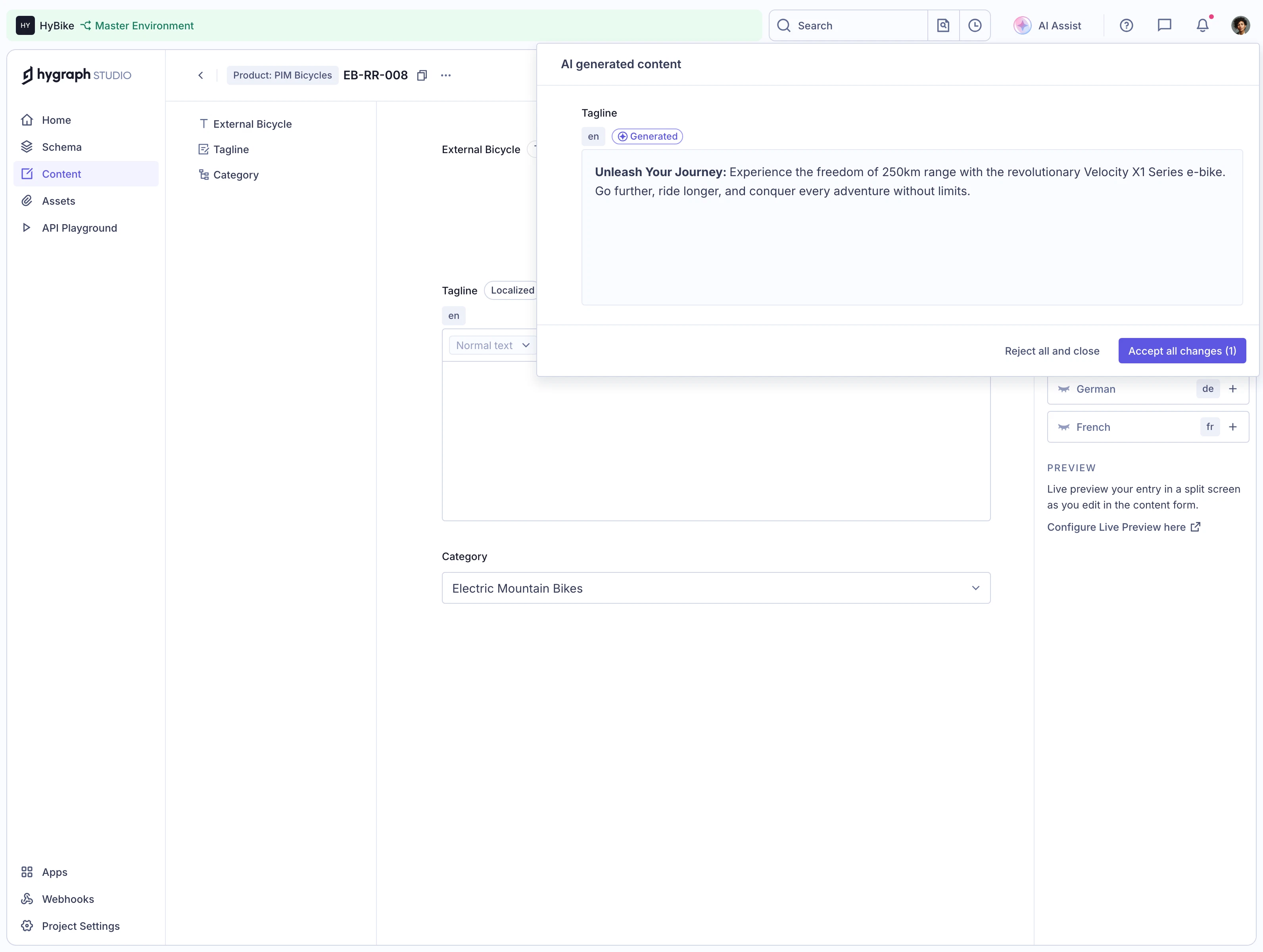
Some products reveal output incrementally. That can reduce perceived waiting, but users need to know whether the material is complete, still changing, or awaiting a later check. A partial draft should not look like a final approved result.
Decide which actions become available during generation. Copying, editing, submitting, or exporting partial content can have different consequences. If an action is unavailable until completion, explain the relevant boundary rather than leaving a disabled icon unexplained.
Preserve a user's edits if output continues arriving. An incremental update should not overwrite text they deliberately changed without a clear rule. Consider whether editing begins only after a stable completion boundary.
On completion, make the result recognizable and identify the next task. A spinner disappearing is not always enough. The user should understand whether to review a draft, choose suggested topics, or inspect an analysis result.
Stopping visible output, cancelling queued work, and terminating a running operation may be different capabilities. Use a label that matches the supported effect. Do not promise cancellation if the product only hides the display.
Explain what remains after stopping. Partial output may be preserved, discarded, or available for later inspection. Resource consumption may also follow a separate rule. The interface should communicate relevant consequences accurately.
Protect users from duplicate work. Repeatedly pressing Generate during a slow response should not silently create several jobs unless that is the intended behavior. Make the accepted request state clear and provide a deliberate route to start another run.
For background work, show where the user can return to the task and how they will know it completed. Leaving the screen should not make the job impossible to locate.
A failure before processing begins is different from an interruption after partial output. Describe the observed condition and preserve useful input. Users should not have to reconstruct a detailed request because the generation step failed.
Offer retry when repeating the operation is appropriate. If configuration or access must change first, provide that route instead. A universal retry button can trap users in a loop when the same unmet prerequisite remains.
For batch operations, report partial success clearly. Identify which items are complete and which need attention. Restarting the whole batch can create unnecessary work or duplicate outputs.
Do not imply that generated material is correct merely because the request completed. Completion is an operational state. Accuracy, suitability, and user approval may require separate review steps.
Name the object or request being processed when users can start several tasks. A job associated with the wrong workspace, document, or brand can be difficult to detect if the waiting state contains only a generic animation.
If generation consumes a limited resource, explain relevant usage at the appropriate point. Avoid surprising users with a new request or charge-like action when they believe they are merely recovering an existing job. The displayed policy must match the actual product model.
Access rules continue to apply during and after the operation. A completed result should not become visible to someone who lacks permission to view its inputs or destination. Test transitions after workspace switches and permission changes.
Do not expose unnecessary sensitive input in a global status notice. Provide enough identity to support orientation while respecting the context in which the message appears.
Use readable text to identify the operation and its state. Animation can support recognition, but it should not be the only information. Provide a useful reduced-motion treatment where appropriate.
Dynamic status changes should be announced in a manner suited to their significance. Repeated token-level updates can overwhelm a person trying to read. Test the actual experience with assistive technology rather than treating constant announcements as automatic improvement.
Keep keyboard focus stable during generation. Newly arriving content should not steal focus from a control or input. When completion introduces a new action, make it discoverable without unexpectedly moving the user.
On narrow screens, preserve task identity and recovery controls. A decorative loading illustration should not push the only useful action outside a practical viewport.
Test the ordinary path, a longer wait, a failure, cancellation, partial output, and returning from another page. Ask users to explain what is happening and what they can do next at each state.
Review repeated submissions, abandoned jobs, and uncertainty about completion. Those behaviors may indicate weak state communication rather than slow generation alone. A faster backend does not eliminate the need for a coherent lifecycle.
Only when the percentage represents a meaningful measurement. A clear indeterminate state is preferable to a number that does not correspond to actual completion.
It can be useful for longer tasks when the product supports reliable background work and a discoverable return route. Explain the job's persistence and completion behavior.
Not necessarily. Completion describes the operation. Review, editing, and approval may remain separate tasks depending on the product and output.
Explore AI generation state examples on SaaSFrame to compare task context, waiting feedback, and the distinction between explanation and operational status.