Kanban Board
0
A column-based board used to organize and move cards through stages or statuses.
.webp)
A Kanban board organizes work into columns that represent meaningful stages. Cards make individual items visible, while their position communicates where each item sits in the workflow. The pattern is useful when teams need to coordinate progress, see bottlenecks, and move work between states without losing the underlying record.
The important design choice is the meaning of movement. Dragging a card can look like a small visual gesture, yet it may change ownership, trigger an automation, or mark a task as complete. A strong SaaS board connects that gesture to clear stage definitions, reliable feedback, and an alternative route for users who cannot or do not want to drag.
Start with the process, not a familiar “To do / Doing / Done” template. A sales pipeline, support queue, editorial calendar, and software issue tracker have different transitions. Column labels should help users predict what being in that stage means.
Define entry and exit conditions when the distinction affects coordination. “Review” might mean ready for review or actively being reviewed. If different team members interpret it differently, the board will show misleading progress even when every card is placed deliberately.
Avoid columns that mix separate dimensions. Priority, owner, and status can all be useful groupings, but moving between priority columns is not the same as advancing through a workflow. Make the board’s current grouping explicit and keep its transition behavior aligned with that grouping.
The Canny features-page reference illustrates a roadmap as cards grouped under “Under Review,” “Planned,” and “In Progress.” Each column provides stage context, while the card title identifies an initiative. The structure makes a small set of status differences legible at a glance.

This is a roadmap illustration within a marketing page, not evidence of drag behavior or a full operational Kanban implementation. It nevertheless demonstrates a useful board principle: the column heading supplies shared context, so each card can remain relatively compact.
For an operational board, add the rules that the static illustration cannot establish. Decide which transitions are permitted, what changes when a card moves, and how the interface communicates failed or restricted moves. A familiar column layout is the starting point, not the entire workflow.
Show the information users need to identify and triage the item: a clear title, relevant owner, and a small set of meaningful signals. Avoid reproducing every field from the record. A board full of mini forms becomes difficult to scan.
Choose signals around the task. A due date can matter for scheduled work; a severity cue may matter for support; an estimated value may matter for a sales opportunity. Keep labels and units clear rather than placing unexplained numbers beside decorative icons.
Use the detail view for context that needs room. The Huly issue-tracker capture shows a record with description, activity, and a separate properties area. It illustrates the depth that belongs behind a compact card rather than inside every board item.
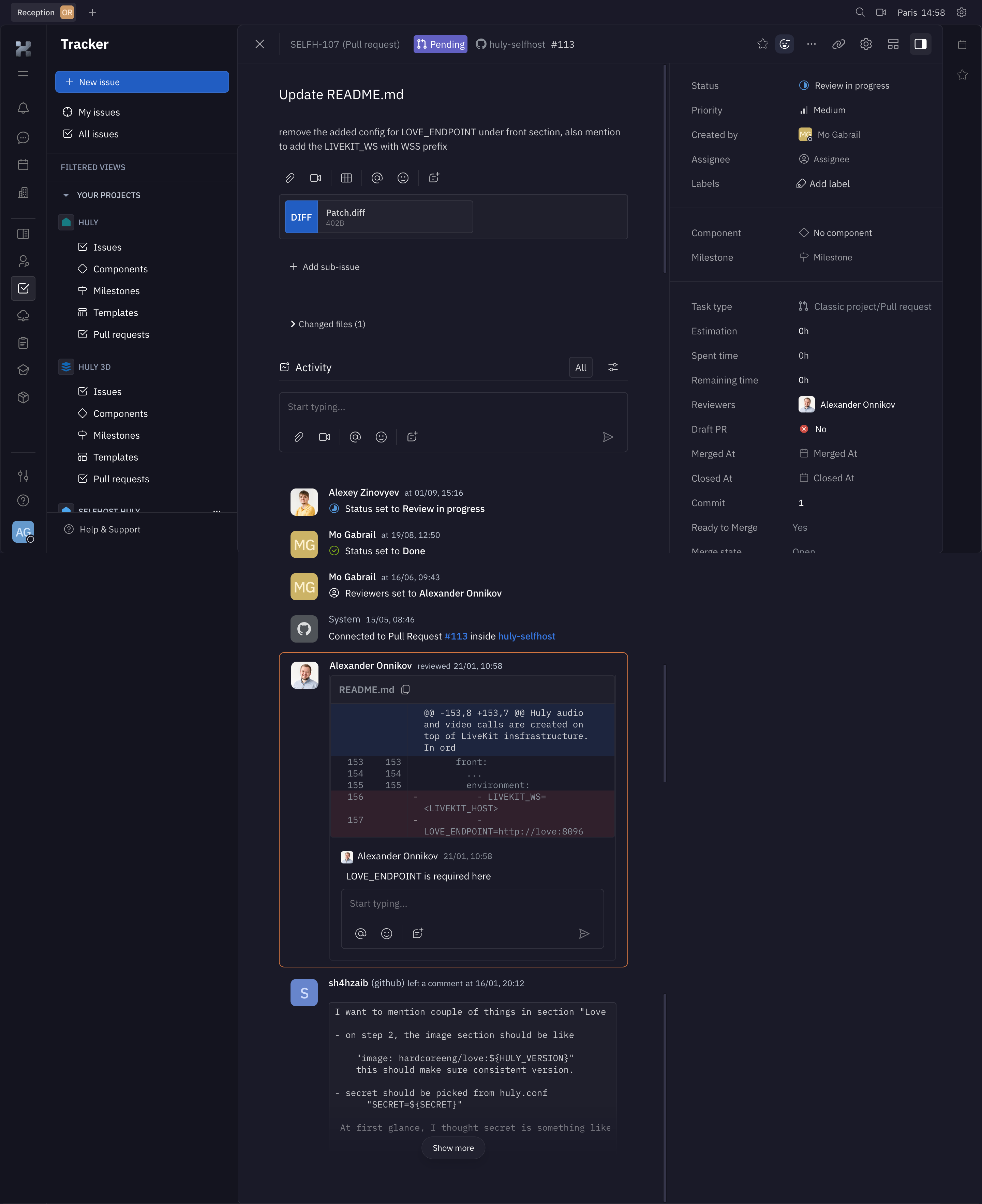
The Huly screenshot is a detail view, not a board. The design takeaway is the relationship between compact overview and deeper inspection. Preserve a practical return route so opening a record does not make users lose the board’s filter or scroll position.
Moving a card to another column changes its grouping value. Reordering inside a column may change a priority rank or only a personal display order. Tell users which model the product supports, especially when several collaborators share the board.
If ordering is automatic, do not imply that a manual drag will persist. A card that immediately returns to its previous position can look like a failed interaction. Explain the active sort or offer a distinct manual-order mode when needed.
For workflows with transition requirements, communicate them before or during the move. A task may require an owner, a completed review, or another field before entering the next stage. A clear validation route is more useful than allowing the card to appear moved and later reverting it without explanation.
A draggable card needs a recognizable selected or moving state and a clear destination. Show where it can be dropped without making nearby content jump unpredictably. The original location should remain understandable while the user chooses a target.
Provide a status or move action as an alternative. This supports keyboard and touch use and can be more efficient for long boards. Users should be able to complete the workflow without accurately dragging across several columns.
After the move, communicate the actual result. If the operation fails, preserve the card and explain what happened. If an optimistic move is reverted, make the correction legible rather than silently changing the board after the user has moved on.
Column counts can reveal accumulation, but their scope must be clear. A count might include all items, only the filtered set, or only loaded cards. Do not show a total that contradicts the visible filter without explanation.
If the process uses work-in-progress limits, display them in relation to the current count. Explain whether exceeding a limit is a warning or a prohibited action. A limit can support team coordination, but it should not appear as an unexplained error during a valid transition.
Do not treat the busiest column as automatically the biggest problem. A column may intentionally contain a large backlog. The board should expose the information needed to interpret congestion, such as age or blocked state, rather than rely on card count alone.
Blocked work can remain in its current stage with an explicit signal, or move to a separate stage if that reflects the process. Avoid using both models without explaining their difference. A red dot alone cannot tell users what is preventing progress.
Give exceptional items a useful detail route. Users may need to know the blocker, owner, or next review date. Keep the overview signal compact while making the explanation easy to reach.
Completion and cancellation also differ. A card removed from active work should not automatically be counted as successful delivery. Preserve the lifecycle meaning in the record and in any board filters or summaries.
Filtering by owner, label, or date can make a large board usable. Show which filter is active so users do not mistake a personal subset for the team’s complete workload. An empty column in a filtered board does not necessarily mean the stage has no work.
Define selection and movement while filtered. A card may disappear after its status or owner changes. Explain the outcome in the current context and provide a route to the updated item when useful.
For recurring views, consider saving the configuration. A user returning to the same board should not have to rebuild a complex filter every time. Keep saved view behavior distinct from changes to the underlying shared records.
Large boards may need pagination, incremental loading, or a list alternative. Maintain accurate scope and counts when only some cards are loaded. Search should not silently ignore unloaded items if users expect it to cover the whole board.
Live updates should not move the item someone is inspecting or dragging without explanation. If two people change the same card, the result needs to reflect the actual saved state and provide useful feedback for conflicting work.
Permissions can vary by record or stage. Keep restricted transitions understandable, and avoid treating client-side affordances as the permission boundary. A card should not appear successfully moved if the underlying update was rejected.
A horizontally scrollable board can work on mobile, but it needs clear column context and practical navigation. A stage picker with one column at a time or a grouped list may be easier for frequent updates. Preserve workflow meaning when the layout changes.
Keep cards readable with long titles and enlarged text. Avoid fixed card heights that cut off the identifier needed to distinguish tasks. Touch interactions should not confuse scrolling with dragging.
Test the same transition through drag and an explicit control. Both routes should enforce the same requirements and produce the same result. Accessibility is part of the workflow model, not a separate visual treatment.
When is a board better than a table? Use a board when stage and movement are the primary coordination questions. A table can work better for dense comparison across many fields.
Should every card be draggable? Only when movement is supported and meaningful. Informational boards can remain read-only, and editable boards still need an alternative action route.
How should a failed move behave? Preserve the item, restore or confirm its actual stage, and explain the correction. Do not leave the visual position contradicting the saved state.
Explore the SaaSFrame Kanban-board collection and compare roadmaps for planned initiatives. Test stage comprehension, blocked work, restricted transitions, conflicting edits, filters, and mobile use before optimizing card decoration.