Notification Center
15
A persistent inbox or panel collecting product notifications and updates.
.webp)
A notification center is a persistent place to review events relevant to a user, open the affected work, and manage which updates still need attention. It complements brief alerts by retaining information that someone may miss while away from the product. In SaaS applications, it often collects mentions, assignments, replies, changes to followed resources, and operational updates.
The central design question is not how to draw a bell icon. It is how to turn a stream of events into a manageable attention queue. Users need to understand what changed, why it matters to them, and whether they have already dealt with it. This guide uses captured Zeda.io and Huly interfaces to examine two useful parts of that system: an empty categorized notification panel and a grouped inbox with an adjacent detail view. The examples establish visible structure, not current delivery rules or unobserved read-state behavior.
A product can record many more events than a person needs to review. Separate an activity history from a notification center. An activity history can document everything that happened to a resource; notifications should reflect a relationship to the recipient or a reason for attention. A mention, an assignment, and an update to followed work are different relevance signals.
Define that relevance before designing filters. For each event type, identify who receives it, the affected resource, the expected next action, and how long the event remains useful. Do not send a notification simply because the application can generate one. Repeated low-value items make important updates harder to notice.
Also distinguish informational updates from requests for action. A completed export, a new comment, and an approval request should not imply the same level of urgency. Use a clear product rule for prioritization rather than relying on a colored badge to make every event feel important. If an item needs a deadline or responsible owner, include that context in the item or its detail view.
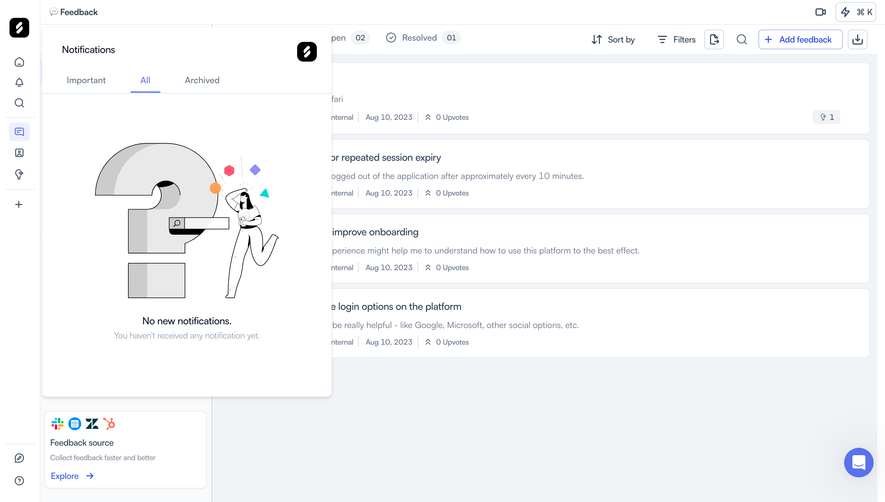
The captured Zeda.io notification panel opens over a feedback screen. It has a Notifications heading and Important, All, and Archived tabs, with All visibly selected. The body contains an illustration, a message that there are no new notifications, and supporting text explaining that the user has not received any notification yet. The underlying feedback work remains visible behind the panel.
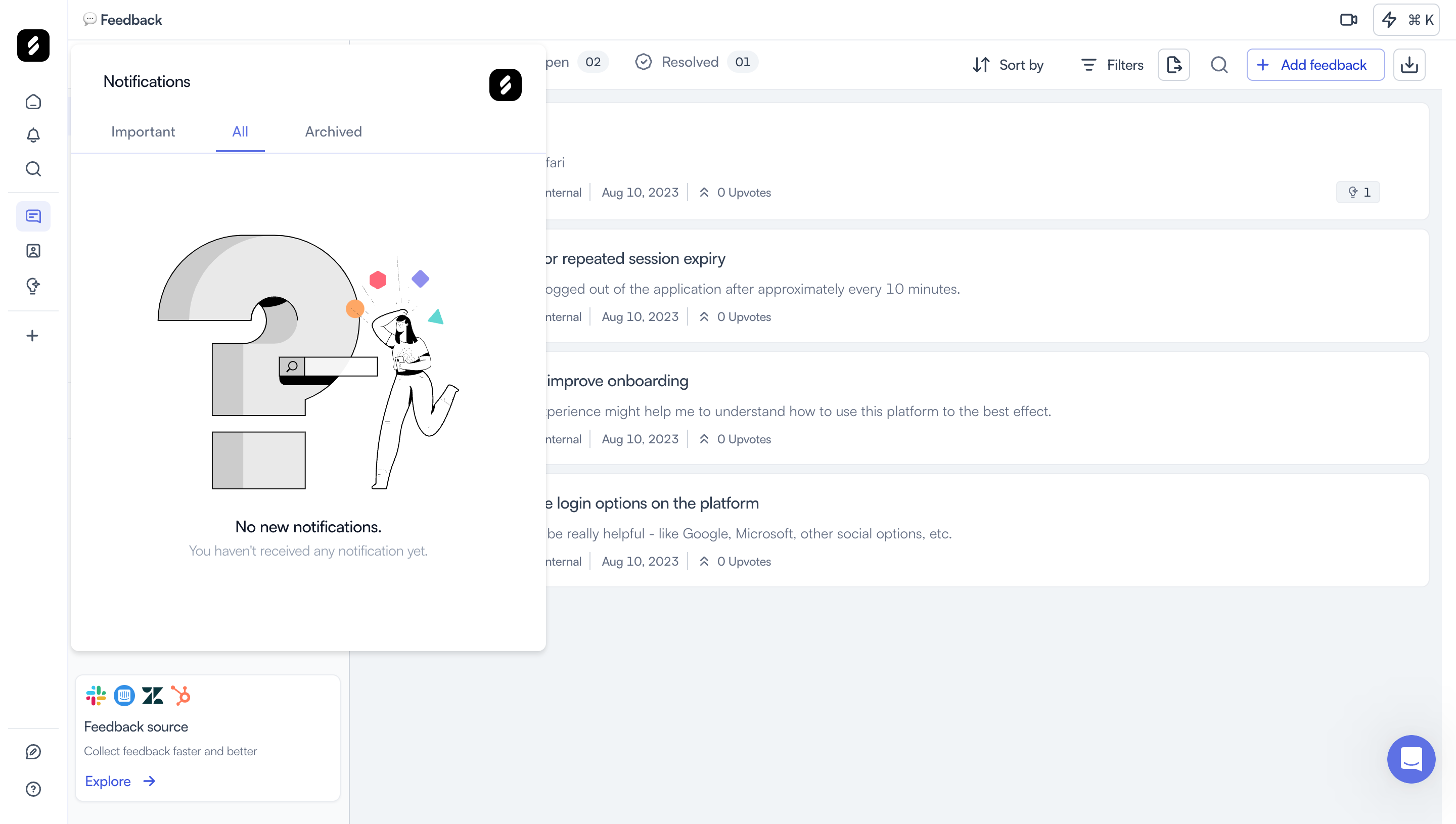
The category labels communicate that importance and archiving are distinct concepts. That is useful, but those concepts still need definitions when real items appear. Does Important mean a direct mention, an urgent system issue, a user-selected flag, or a product classification? Can an archived notification remain important? The screenshot cannot answer those questions, so an implementation needs explicit rules rather than copying the tabs alone.
The empty state supplies a reason for the absence of items: nothing has been received yet. That differs from having processed all existing notifications or viewing a filter with no matching results. A first-use empty state can explain the kinds of updates that will appear. A cleared queue should acknowledge completion. A filtered empty state should offer a way to broaden the view. Using the same cheerful illustration for all three loses useful information.
A compact panel keeps notifications close to the current work. It can be appropriate for quick triage, but a growing queue may need more space or a dedicated view. Consider item length, filtering, history, and the ability to inspect a destination without losing the queue. The screenshot demonstrates the panel's visible form, not its scrolling or dismissal mechanics.
The captured Huly Inbox uses a split layout. A bell-shaped navigation control is selected, and the left pane groups previews under Thread headings such as Huly, Code & Discussions, Huly Dev Blog, and Random. Individual previews show people, snippets, relative timestamps, and, in some cases, attachment indicators. The right pane displays the selected Huly thread with dated message groups, reactions, and a reply composer.
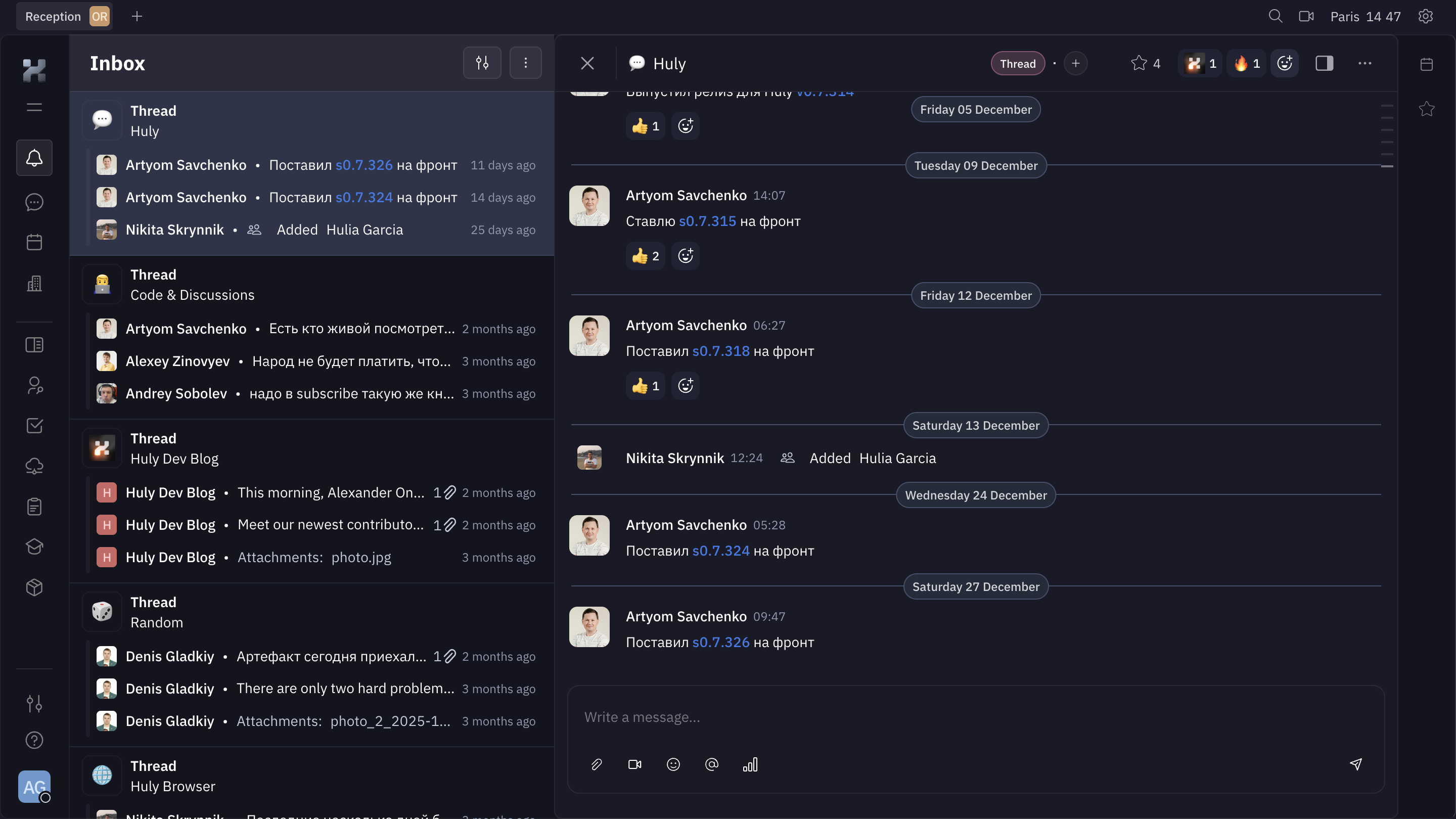
Grouping changes the unit of attention. Instead of treating every update as an unrelated card, the interface places previews under a common source. This can help users recognize a conversation and review several changes together. It can also hide a significant event within a busy group if the summary does not communicate what is new or consequential.
The adjacent thread provides more context than a short notification sentence. A person can see surrounding messages and compose a response while keeping the inbox nearby. That makes the layout a useful reference for collaborative products where understanding the event requires a conversation. It should not be interpreted as proof that the inbox contains every product event or that opening a thread marks every preview as read.
For grouped notifications, decide whether new activity moves the whole group, only the new item, or neither. Make any count explicit: it might represent unread events, threads with unread content, or outstanding actions. Users should not have to infer the unit from the visual grouping. Preserve a route to the exact relevant message when a long conversation contains many unrelated updates.
A useful notification summary identifies the actor or system, the event, and the affected object. Add a timestamp and enough surrounding context to distinguish similar resources. A bare message such as Something changed creates work rather than reducing it. Conversely, a full event log can overwhelm a compact queue.
Choose the summary according to the next decision. A mention may need a snippet and conversation title. A failed process may need the process name, current state, and retry route. An assignment may need the task title and workspace. Avoid placing critical information only in a hover tooltip or an icon whose meaning is ambiguous.
Make the destination specific. Opening a notification about a comment should bring the person near that comment, not merely to a project home. If the target has changed, moved, or become unavailable, explain the situation. Preserve the queue position when users return so they can continue reviewing rather than search for where they left off.
Reading an update does not necessarily complete the work it describes. An approval request can be read and still await a decision. An archived mention may refer to an unfinished task. Define each state according to its actual effect and use labels that reflect that effect.
A read state usually concerns whether an update has been seen. Archiving generally removes an item from the active queue while retaining access elsewhere. Resolution belongs to the underlying issue or task when the product supports it. Dismissal may hide a particular announcement. These meanings should not silently collapse into a single checkmark.
Specify when read state changes. Opening a panel, scrolling past a preview, selecting an item, and opening its destination are different events. Choose a rule that fits the workflow and make manual management available where needed. If bulk marking is supported, identify its scope: visible items, a filtered set, or the entire queue. Do not let a broad operation surprise someone reviewing one category.
Provide recovery for accidental archiving or dismissal when practical. The Archived tab in Zeda.io suggests a separate view, but its screenshot does not establish whether restoration exists. Your design should decide how users retrieve an item and whether retrieving it changes its read state.
Related updates can be bundled by resource, conversation, or event type. Grouping is helpful when the user can act on the set coherently. It is less helpful when events require different responses or have different deadlines. A summary should preserve the important distinction, such as a new assignment among routine status updates.
Consider repeated events. Several comments on one document may deserve a grouped entry. A retrying failed job may need an updated status rather than a new notification for every attempt. Describe the current situation while retaining history where it matters. This prevents the attention queue from becoming a duplicate-heavy log.
If the product has an Important view, make its selection criteria explainable. Let users understand why an item appears there and how preferences affect future delivery. A prioritization label should not imply that other items are safe to ignore when the application has no reliable rule for that distinction.
A notification center shows received updates; notification settings control future delivery. These experiences can link to each other without becoming interchangeable. A user who wants fewer email messages should not have to archive every in-app item, and clearing a queue should not silently unsubscribe them from future events.
Different channels serve different purposes. In-app history can retain context for later review, while email or push may reach people outside the product. Explain which preferences affect which channel and whether a particular event is required for account operation. Avoid suggesting that a disabled browser permission means the in-app queue is empty.
Muted resources and followed threads also need understandable effects. If muting changes future delivery, explain whether direct mentions still arrive and whether existing items remain. These rules depend on your product; the selected screenshots do not establish delivery semantics. Link to Settings & Preferences when someone needs to adjust the system rather than manage a received item.
Do not represent a loading failure as an empty queue. A user may wrongly conclude there is nothing to review. Show a loading state while fetching updates, preserve previously loaded items where appropriate, and give a specific retry route when fresh data cannot be obtained.
Notifications may outlive their target. A resource can be deleted, a membership revoked, or a task completed by someone else. On opening the item, describe the current situation without exposing content the user can no longer access. If the update is already obsolete, make that understandable instead of presenting a dead link.
Cross-device state is another product decision. Users may read an event on one device and open the product elsewhere. Define synchronization expectations and avoid briefly showing contradictory counts without explanation. A badge should not create urgency from stale information that the system already knows has been processed.
For workspace products, make the queue's scope visible. Is it limited to the current organization or aggregated across memberships? Include a workspace label when needed and ensure that following a notification leads into the correct context. See Workspace Switcher for the orientation problem that arises when the target belongs elsewhere.
Give the notification entry point a meaningful accessible name and communicate unread status without relying on color alone. Show visible focus for item links and management controls. When a panel opens and closes, provide a logical focus path so users can return to the work they were doing.
Use semantic controls for tabs, filters, and actions according to their implemented behavior. Avoid making an entire card interactive while placing conflicting nested actions inside it without clear handling. Ensure that users can open the destination and archive the item independently.
When new updates arrive, avoid unexpectedly moving the item a person is reading or shifting focus. A controlled refresh or a visible new-updates indicator can preserve orientation. W3C's user notification guidance provides a reference for communicating status and feedback; an implemented notification center still needs testing with assistive technology.
On a narrow screen, the queue and detail pane may become successive views. Preserve the selected item, filters, and scroll position when moving back. Check long names, translated summaries, timestamps, and action targets. Neither selected desktop capture demonstrates its mobile interaction, so treat these as requirements to validate.
Test a direct mention, repeated updates in one thread, a notification whose resource has disappeared, and a queue that has been fully processed. Observe whether users can explain what remains to do. High click-through or frequent badge clearing can reflect confusion as easily as engagement; review successful follow-through and unwanted interruption alongside those metrics.
A notification center prioritizes events relevant to a recipient and supports attention management. An Activity Feed may provide a broader history for a resource or team. A product can share underlying events while presenting them differently according to the user's purpose.
Choose the rule deliberately. Opening the center does not prove that someone inspected every item, especially in a long queue. Define what read means for your product and provide clear controls for managing it rather than relying on an invisible assumption.
Group related events when a common source helps someone understand and process them. Huly's captured inbox groups previews by thread. Preserve distinct actions and consequential changes within a group so a busy source does not conceal an important update.
Explain the actual state: nothing received yet, no unread items, no results for the current filter, or a cleared queue. Zeda.io's capture describes a first-use absence. A loading failure needs an error state rather than the same empty message.
It is a familiar entry point, but it still needs an understandable accessible name, a clear selected or expanded state, and useful unread information. The center itself must explain what the items mean and how to act on them; discoverability alone does not make the queue useful.
Compare Zeda.io's compact categorized panel with Huly's grouped inbox when choosing the scale of your notification experience. Then define relevance, state changes, and destination behavior explicitly: those rules determine whether the center helps users recover their attention or merely stores more noise.