Saved Views
0
User-defined saved combinations of filters, sorts, columns, or layouts.
.webp)
Saved views preserve a useful way of looking at a collection. They can remember filters, sorting, visible columns, grouping, or layout so people can return to a working context without rebuilding it. The pattern is valuable when users repeatedly inspect the same dataset for different purposes.
A saved view is not necessarily a folder, a report, or a copied dataset. Its design should explain what it preserves and how it relates to the underlying records. The most important distinction is between changing the view and changing the data itself.
List the settings that belong to the saved view. Filters and sorting are common candidates; column visibility, grouping, density, or display mode may also matter. Decide whether a search query, selected record, or pagination position is temporary context rather than part of the persistent definition.
Make that scope understandable when someone saves a view. A user who expects only filters to be stored may be surprised when the view also replaces their column layout. Conversely, a view that forgets a carefully chosen grouping may fail to preserve the task it was created for.
Keep the model consistent across the product. If views remember different settings in different areas, identify those differences clearly. A familiar label should not conceal several incompatible persistence rules.
The Hygraph asset-grid capture places a Custom Views group in a side panel with several named destinations. The selected view is highlighted, and the main area shows its title alongside an active asset-type filter. The view name and current collection context are visible together.
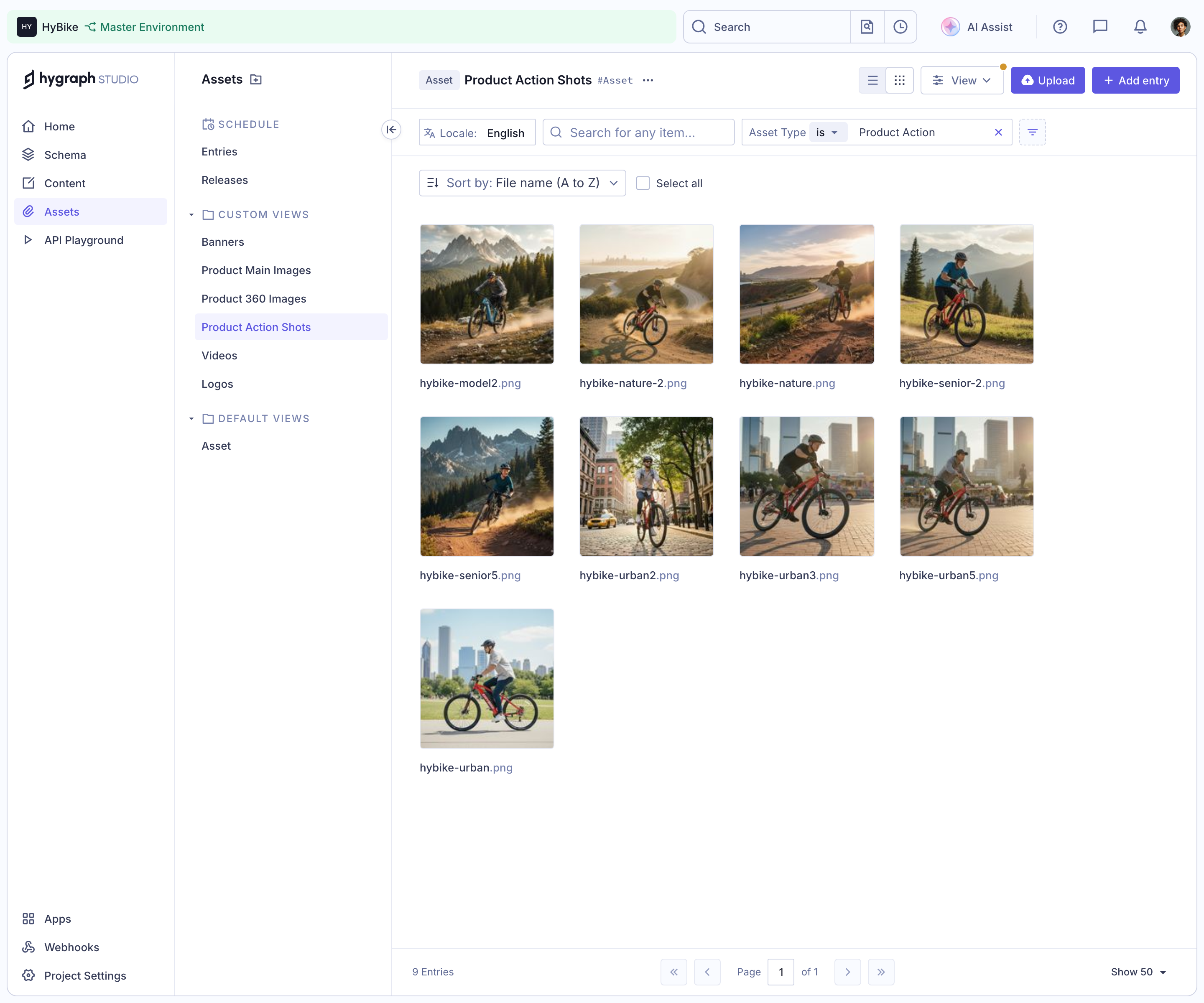
The names describe meaningful working subsets rather than numbered presets. This helps visitors predict what they will find before selecting a view. The capture does not prove which settings are saved, how views are created, or whether they are shared with other users.
When adapting the pattern, use names that explain purpose. Images ready for review or open requests assigned to me can be more useful than View 3. The naming convention should fit the audience's work and remain understandable when several views appear together.
The corresponding Hygraph table capture shows the same named view in a metadata-oriented layout. The side-panel context and active filter remain visible, while the main collection appears as rows and columns rather than large thumbnails.
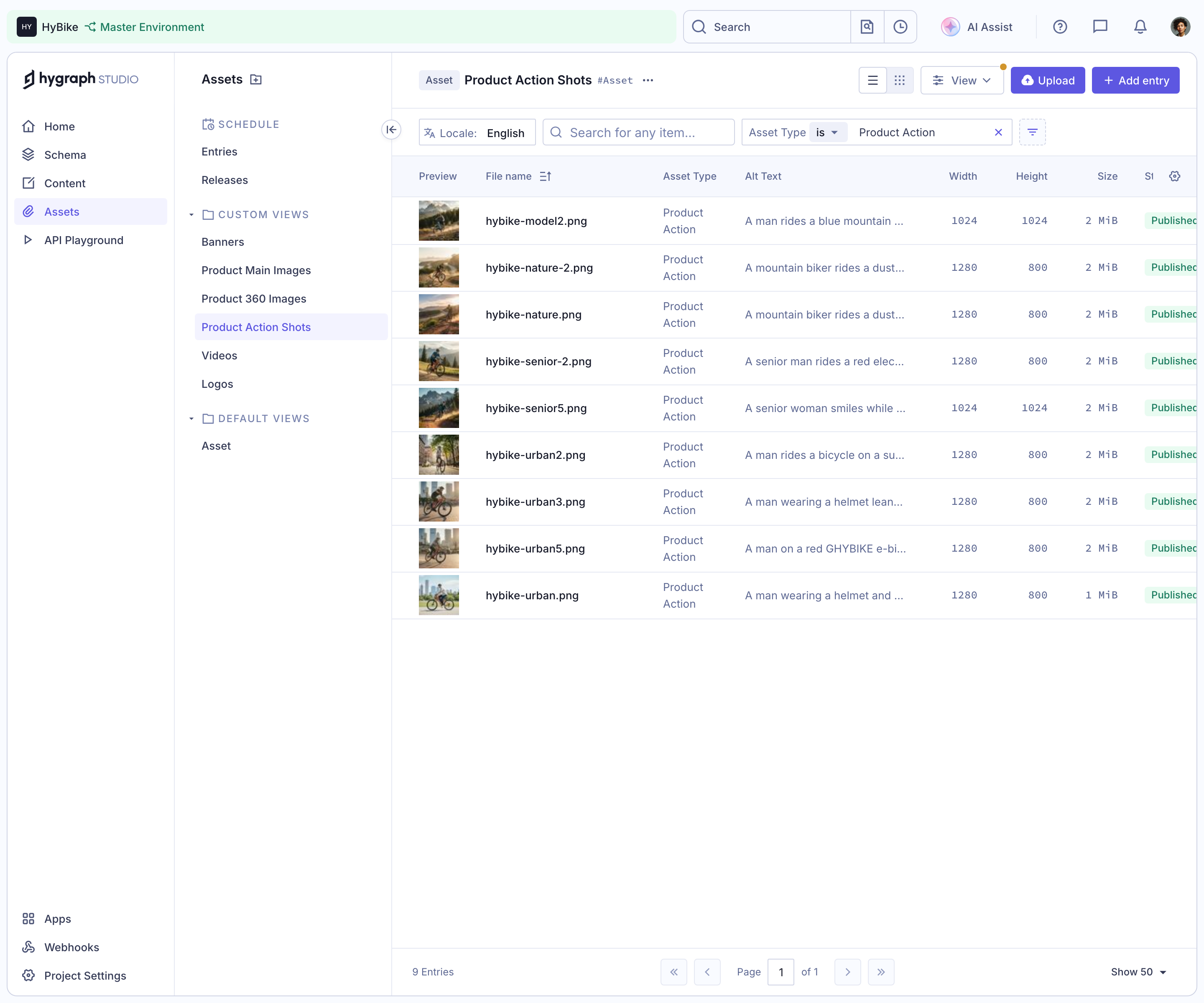
Together, the captures show two presentations of a recognizable collection context. They do not establish whether display mode is part of the saved view or a separate preference. That ambiguity is precisely a decision a new implementation needs to resolve.
Clarify whether changing the display affects the saved definition. If it is a personal temporary preference, preserve that distinction. If it is part of a shared view, communicate that saving the change may alter what others see when they open it.
Users often adjust a view while investigating a question. They may want to try a different filter without replacing the original definition. Allow exploration and make the difference between the saved state and the current state recognizable.
Offer distinct routes to save changes, save a new view, or return to the saved definition when those actions are supported. Do not use one ambiguous Save action when it is unclear whether it overwrites the current view or creates another.
Avoid discarding temporary changes unexpectedly during navigation. If the product preserves them, make the restoration understandable. If it does not, give the user a practical way to save a useful configuration before leaving. The policy should reflect the working context rather than a generic warning on every click.
A personal view can support an individual's workflow. A shared view can establish a common team perspective. Their ownership and editing rules should be visible where those differences affect actions.
Make it clear who can update, rename, duplicate, or remove a shared view. Someone adjusting a filter for a one-time investigation should not accidentally change a team-wide default. A duplicate route can help preserve the original while allowing adaptation.
A shared view does not automatically grant access to every underlying record. If people with different permissions open the same definition, they may see different results. Explain the relevant scope without implying that sharing a view bypasses the product's access model.
A sidebar can make a view look like a folder. If selecting it merely changes a query, avoid interactions or wording that imply files have moved. A record can match several saved views at once without belonging to several physical locations.
When actions operate on the current result set, identify that scope. Deleting a view is different from deleting its records. Renaming a view is different from changing a category field on all matching items. The labels and confirmation context should preserve those distinctions.
Consider how drag and drop behaves if it exists. Moving a record onto a saved view may have no obvious meaning unless the product defines which underlying values will change. Do not borrow folder gestures without an understandable data consequence.
A saved view usually reevaluates its criteria against current data. The results can change even when the definition remains the same. Make that relationship clear so users do not treat a view as a frozen snapshot unless it actually is one.
If a field used by a view is removed or renamed, explain the resulting problem and offer a repair route. Silently dropping a filter can broaden the result set in a way the user did not intend. An invalid definition should not appear to be functioning normally.
Empty results need context. A saved view can be valid while containing no matching records. Preserve its definition and offer a way to inspect the criteria. Do not automatically delete it simply because the current dataset has no matches.
Some views deserve quick access because they support common work. A default view should help new users orient themselves, while favorites can support individual routines. Keep these concepts distinct when both exist.
If a user changes their default, explain whether it affects only their entry point or the entire team's experience. A workspace-level default may need different ownership from a personal favorite. Avoid combining those settings under one unlabeled star or home symbol.
As the number of views grows, provide manageable organization. Search, grouping, or a focused list can be more useful than a very long sidebar. Preserve access to the broader collection so saved views do not become a maze of overlapping subsets.
A link to a saved view should reopen a coherent definition when access permits it. If the view has been removed or is unavailable, explain that state rather than silently showing an unrelated default collection.
Returning from a record detail should preserve useful browsing context: the selected view, temporary query, sort, and position where appropriate. This helps users inspect several records without repeating the setup each time.
If a shared view changes while someone is using it, decide how that update appears. Immediate replacement can disrupt an investigation; an update cue may be clearer. The actual choice depends on the workflow, but the interface should not quietly mix old and new criteria.
Use persistent labels for naming and configuration controls. Identify the selected view beyond color alone and provide keyboard access to navigation and management actions. A menu that appears only on hover needs another operable route.
On mobile, make the view selector discoverable without occupying the whole screen. Keep the active view name and important filters visible enough to explain the current collection. A collapsed sidebar should not remove all evidence of why these records appear.
Test long names, duplicate names, unavailable shared views, and large view lists. The management interface should help users distinguish definitions rather than forcing them to open each one to discover its purpose.
Ask users to create a view for a recurring task, adjust it temporarily, save a separate variation, and return later. Observe whether they understand which settings persist and whether other users are affected.
Check record changes, invalid filters, empty results, permissions, view removal, and return navigation. Verify the stored definition separately from the appearance of the view list. A highlighted name is not evidence that the intended settings were preserved.
Explore the SaaSFrame saved-views collection to study how named contexts can support recurring work. Use visual references to plan hierarchy, then test persistence and ownership in your actual product.
Is a saved view a copy of the data? Usually it is a stored way to inspect current records, but the product must define its own model clearly. Distinguish it from a frozen snapshot or exported report.
Should every filter change update the view? Not automatically. Temporary exploration, updating the existing definition, and creating a variation are different intentions and should have clear routes.
Can a shared view show different results to different people? Yes, when access or user-specific criteria differ. Explain the relevant scope and avoid implying that sharing the definition changes underlying permissions.